

Key takeaways
- Press Win + R, type
services.mscand press Enter to open the Services console in Windows 11. - Change startup types with care: Manual is safer than Disabled for most services.
- Back up your service settings before you change anything, so you can undo it in one step.
- In PowerShell, use
sc.exe, notsc, becausescis a PowerShell alias for something else. - If services.msc won’t open, fix the .msc file association, run SFC and DISM, and test other snap-ins.
- Never disable core services such as Windows Update, RPC, Windows Event Log or Windows Security.
Quick answer
To open services.msc Windows 11, press Win + R, type services.msc and press Enter.
Double-click a service to see its status and startup type, then use Start, Stop or the Startup type list to change it.
Changing most settings needs an administrator account.
Introduction
services.msc is the console you use in Windows 11 to see and control the background services that keep your PC running.
Most people open it for one reason: a guide told them to restart a service, or to switch something off.
That is where things go wrong.
I have seen many PCs where someone disabled a “useless” service and broke Windows Update, printing or the network a week later.
In this guide I show you eight ways to open services.msc, how to read and change each setting, and the commands that do the same job faster.
I also cover two things most guides skip: backing up your service settings first, and the PowerShell trap that makes sc commands fail.
If the console won’t open at all, the fixes are at the end.
What services.msc does in Windows 11
A service is a program that runs in the background, often before you even sign in.
Windows Update, printing, Wi-Fi, Bluetooth and antivirus all depend on services.
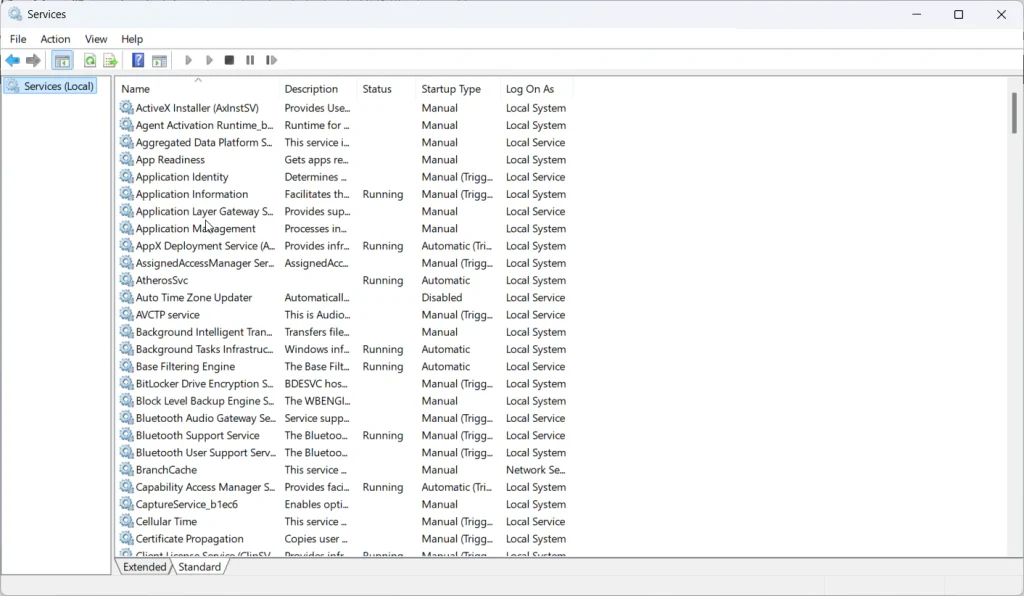
services.msc is a Microsoft Management Console (MMC) snap-in file that lists every service and lets you control it.
The file lives at C:\Windows\System32\services.msc.
For each service it shows:
- Name and Description, so you know what it does.
- Status, which shows whether it is running.
- Startup type, which decides when it starts.
- Log On As, the account it runs under.
How to open services.msc in Windows 11: 8 ways
| Method | Steps | Best for |
|---|---|---|
| Run box | Win + R, type services.msc, Enter | Fastest |
| Start search | Win, type services, open Services | Everyday use |
| Command Prompt or Terminal | Type services.msc, Enter | When you are already in a console |
| Task Manager | Services tab > Open Services | When Start or search is broken |
| Task Manager Run new task | Run new task > services.msc | Opens as admin with the checkbox |
| Computer Management | Win + X > Computer Management > Services and Applications > Services | Working with disks and logs too |
| Windows Tools | Start > All apps > Windows Tools > Services | Mouse users |
| Desktop shortcut | New shortcut pointing to services.msc | Daily use |
Open services.msc as administrator
You need admin rights to change startup types or start and stop most services.
The easiest way is to open it from an elevated console.
Open Terminal or Command Prompt as administrator, type services.msc and press Enter.
The console inherits the admin rights.
If you need help, see my guide to run Command Prompt as administrator.
In Task Manager, Run new task with Create this task with administrative privileges ticked does the same.
How to read a service’s properties
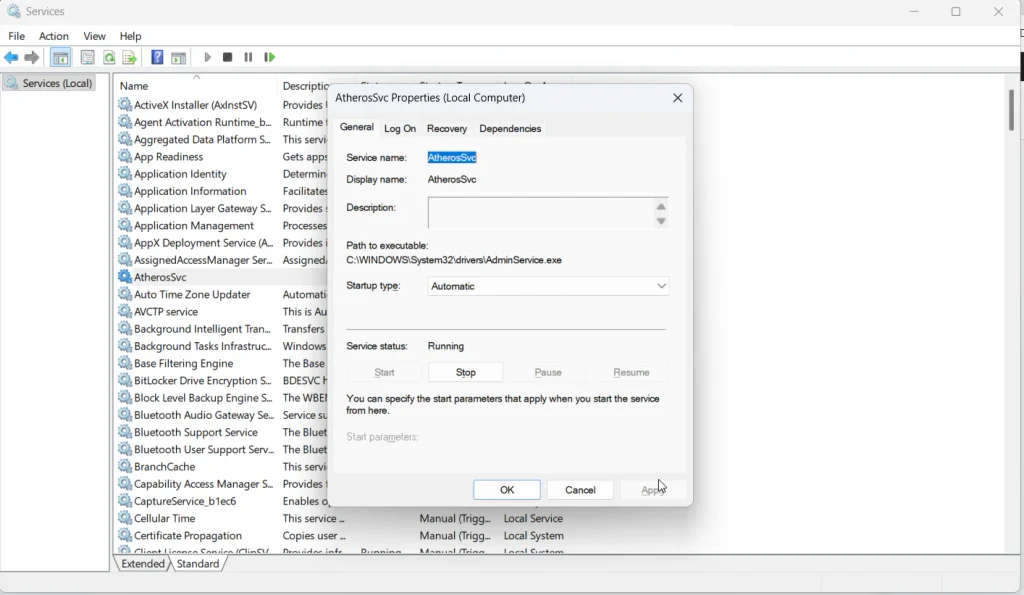
Double-click any service to open its Properties window.
It has four tabs.
General shows the service name, description, path to the program, startup type and status, with Start, Stop, Pause and Resume buttons.
Log On shows which account runs the service.
Leave this alone unless you know exactly why you are changing it.
Recovery decides what Windows does if the service crashes.
It can restart the service, run a program or restart the PC.
This tab is useful for office PCs where a line-of-business service sometimes stops.
Dependencies lists the services this one needs, and the services that need it.
Always check this tab before you stop or disable anything.
Startup types explained
| Startup type | What it means | When to use it |
|---|---|---|
| Automatic | Starts at boot | Core services Windows always needs |
| Automatic (Delayed Start) | Starts shortly after other automatic services | Non-urgent services, faster boot |
| Manual | Starts only when Windows or an app asks for it | Most optional services |
| Disabled | Cannot start at all | Rarely, and only when you are sure |
Microsoft’s documentation describes Delayed Start as starting a short time after other automatic services, which helps boot performance.
Manual is often the safest way to “turn off” a service, because Windows can still start it if something really needs it.
Disabled is final.
Anything that depends on that service will fail, often with a confusing error later.
How to start, stop or change a service
- Open services.msc as administrator.
- Find the service. Click the Name column to sort, or type the first letter to jump to it.
- Double-click it to open Properties.
- To restart it, click Stop, then Start. You can also right-click the service and choose Restart.
- To change when it runs, pick a new Startup type and click Apply.
- Check the Dependencies tab before stopping anything.
If the Startup type list is greyed out, either you are not running as admin, or the service is protected by Windows.
Some security and update services can’t be changed from services.msc on purpose.
Back up your service settings before you change anything
This is the step I always do first, and few guides mention it.
Open PowerShell and run:
powershell
Get-Service | Select-Object Name, DisplayName, Status, StartType | Export-Csv "$env:USERPROFILE\Desktop\services-backup.csv" -NoTypeInformationYou now have a list of every service and its startup type on your desktop.
If something breaks after a change, open the file and set the service back to its original type.
To back up one service in full before you edit it, export its registry key.
For example, for the Print Spooler:
reg export HKLM\SYSTEM\CurrentControlSet\Services\Spooler "%USERPROFILE%\Desktop\spooler-backup.reg"Double-click the .reg file later to restore it.
A System Restore point before big changes is also a good idea.
Manage services with Command Prompt and PowerShell
Commands are faster when you manage several PCs or need to repeat a change.
Command Prompt (as administrator):
sc query Spooler
sc stop Spooler
sc start Spooler
sc config Spooler start= demand
Note the space after start=.
The sc config command needs it, and the command fails without it.
Valid values are auto, delayed-auto, demand (Manual) and disabled.
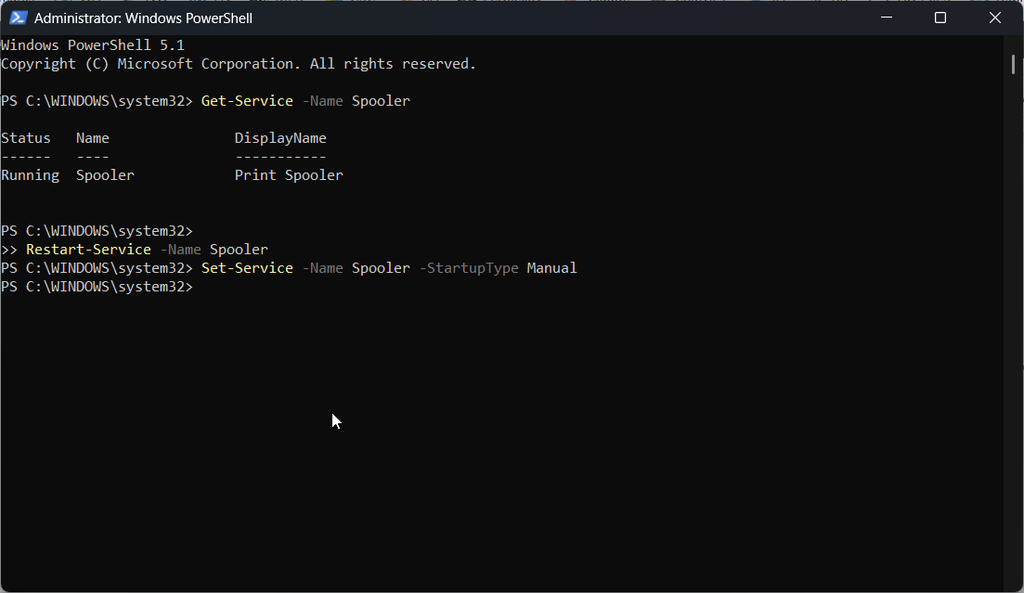
PowerShell (as administrator):
powershell
Get-Service -Name Spooler
Restart-Service -Name Spooler
Set-Service -Name Spooler -StartupType Manual
Set-Service accepts Automatic, AutomaticDelayedStart, Manual and Disabled.
The PowerShell trap: use sc.exe, not sc
In PowerShell, sc is an alias for Set-Content, a command that writes text to files.
So sc query Spooler in PowerShell doesn’t query the service at all.
Type sc.exe query Spooler instead, or use the PowerShell cmdlets above.
Windows 11 opens Terminal with PowerShell by default, so this catches many people out.
Which services are safe to change?
I recommend Manual rather than Disabled in almost every case.
| Service | Safe to set to Manual? | Notes |
|---|---|---|
| Fax | Yes | Only needed if you send faxes |
| Print Spooler | Only if you never print | Needed for printers and Print to PDF |
| Xbox Live Auth Manager, Xbox Live Game Save | Yes, if you don’t use Xbox apps or Game Pass | Gaming features stop working |
| Retail Demo Service | Yes | Used only in store demo mode |
| Bluetooth Support Service | Only if you never use Bluetooth | Mice, headsets and phones stop working |
| Windows Search | Not recommended | Start menu and File Explorer search get slower |
| Windows Update | No | Blocks security updates |
| Windows Modules Installer | No | Needed to install updates |
| Remote Procedure Call (RPC) | Never | Windows won’t work properly |
| Windows Event Log | No | Breaks logging and many tools |
| Windows Security services | No | Removes protection |
| DHCP Client, DNS Client | No | Breaks networking |
Old “disable these 50 services to speed up Windows” lists date from the Windows 7 era.
On Windows 11 the speed gain is tiny, and the risk is real.
Fix services.msc not opening in Windows 11
If nothing happens, or you see an error, work through these in order.
Try another way to open it
Open Task Manager, go to the Services tab and click Open Services.
If that works, the problem is with Search or the Run box, not services.msc.
Test other snap-ins
Press Win + R and try eventvwr.msc and devmgmt.msc.
On ElevenForum, a helper asked this exact question to narrow down a services.msc error.
If every .msc file fails, the problem is MMC or the .msc file association.
If only services.msc fails, the file itself may be damaged.
Fix the .msc file association
- Open Settings > Apps > Default apps.
- Scroll down and click Choose defaults by file type.
- Find
.mscand make sure it opens with Microsoft Management Console.
If it is set to Notepad or another app, change it back.
Run SFC and DISM
In an administrator Command Prompt:
DISM /Online /Cleanup-Image /RestoreHealth
sfc /scannow
Restart and try again.
Fix “MMC could not create the snap-in”
This error can appear for services.msc and other consoles.
Common fixes from troubleshooting guides include running SFC and DISM, turning on .NET Framework 3.5 in Turn Windows features on or off, and checking the snap-in registry key.
Back up the registry before you edit anything under HKEY_LOCAL_MACHINE\SOFTWARE\Microsoft\MMC\SnapIns.
Test a new user account
If services.msc works in a fresh local account, your profile is the problem.
Run an in-place repair upgrade
If everything else fails, run Setup from a Windows 11 ISO and choose to keep files and apps.
What real users report
I could not retrieve Reddit or Medium threads for this update, so these reports come from ElevenForum, NTLite community and troubleshooting guides.
I have paraphrased each one.
ElevenForum. A Windows 11 user got an error opening services.msc from search, while Event Viewer opened fine.
The Services tab in Task Manager still worked, and running the copy in C:\Windows\SysWOW64 also worked, which pointed to a problem with the main file or how it was being launched.
ElevenForum, same thread. Another member said services.msc opened fine on their build, whether typed with a capital S or not.
NTLite community. A user who stripped components from Windows 11 started getting an MMC snap-in error in services.msc after removing more parts.
It is a clear warning that “debloat” tools can break the console.
TheWindowsClub. The guide links services.msc failures to damaged system files and a broken MSC file association, and fixes them with SFC and re-associating .msc with MMC.
Pureinfotech. The guide shows the same start, stop and disable actions from services.msc, Task Manager, Command Prompt and PowerShell, which matches my own advice to use commands for repeat jobs.
Statistics and facts worth knowing
| Item | Detail | Source |
|---|---|---|
| sc.exe start types | boot, system, auto, demand, disabled, delayed-auto | Microsoft Learn |
| Set-Service startup types | Automatic, AutomaticDelayedStart, Disabled, Manual | Microsoft Learn |
| Permissions | Only Administrators can start, stop or restart most services by default | Microsoft Learn |
| Delayed Start | Starts shortly after other automatic services to improve boot time | Microsoft Learn |
These are documented behaviours, not survey figures.
Real facts most guides get wrong
sc in PowerShell is not the service tool.
Use sc.exe.
sc config needs a space after start=.
Disabling services rarely makes a modern Windows 11 PC noticeably faster.
Manual does not mean “off”.
Windows starts a Manual service whenever something needs it.
A greyed-out Startup type is often a protected service, not a fault.
Two typical setups
A home PC with no printer. The owner wants fewer background services.
They set Print Spooler and Fax to Manual instead of Disabled, after backing up the service list.
When they later buy a printer, it installs without any extra steps.
A small office with a line-of-business app. The app’s service stops now and then, and staff call IT.
IT opens the service’s Recovery tab and sets first and second failure to Restart the Service.
The service now recovers on its own.
Best practices
- Back up your service list before making changes.
- Change one service at a time and test.
- Prefer Manual over Disabled.
- Check the Dependencies tab before stopping a service.
- Use the Recovery tab for important business services.
- Use
sc.exeor PowerShell cmdlets for repeat changes. - Keep a note of what you changed and why.
Common mistakes to avoid
- Following old “disable everything” lists.
- Disabling Windows Update to stop restarts.
- Typing
scin PowerShell and thinking the command worked. - Forgetting the space after
start=insc config. - Changing the Log On account of system services.
- Using third-party debloat tools that remove MMC parts.
Recommended tools
- services.msc. The main console for viewing and changing services.
- Task Manager Services tab. Quick start and stop, and a fallback way to open services.msc.
- Computer Management. Services alongside Event Viewer and Disk Management.
- PowerShell.
Get-Service,Set-ServiceandRestart-Servicefor repeat jobs. - sc.exe. Classic command-line service control.
- Event Viewer. Shows why a service failed to start.
Questions and answers
How do I open services.msc in Windows 11?
Press Win + R, type services.msc and press Enter.
You can also search for Services in Start or click Open Services in Task Manager.
How do I run services.msc as administrator?
Open Terminal or Command Prompt as administrator and type services.msc.
The console opens with admin rights.
Why is services.msc not opening?
The .msc file association may be wrong, system files may be damaged, or MMC may have a snap-in error.
Fix the association, run SFC and DISM, and test other .msc files.
Which services are safe to disable in Windows 11?
Very few need to be disabled.
Services such as Fax or Retail Demo can be set to Manual.
Never disable Windows Update, RPC, Event Log or security services.
What is the difference between Manual and Disabled?
Manual services start when Windows or an app needs them.
Disabled services can’t start at all, so anything that depends on them fails.
Why is the Startup type greyed out?
You may not be running as administrator, or the service is protected by Windows.
Open services.msc from an elevated console and try again.
How do I restore a service to its default setting?
Use your backup list or .reg file to set it back.
Without a backup, compare with another Windows 11 PC or use System Restore.
Does services.msc work the same in Windows 10?
Yes.
The console, startup types and commands are the same in Windows 10 and 11.
Conclusion
services.msc in Windows 11 is a simple console, but it controls a lot of what keeps your PC working.
Open it with Win + R, back up your service list, and change one service at a time.
Choose Manual over Disabled, and check dependencies before you stop anything.
Use sc.exe or PowerShell cmdlets for repeat jobs, and remember the sc alias trap in PowerShell.
If the console won’t open, test other snap-ins, fix the .msc association, and run SFC and DISM.
Try the backup command today, then tell me in the comments which service you changed.
If this guide helped, share it with a colleague who manages office PCs.
