

Key takeaways
- TiWorker.exe is Windows Modules Installer Worker, a genuine Windows process that installs updates and cleans the component store.
- High CPU during or after an update is normal and usually settles once the work finishes and you restart.
- Check whether it is making progress by watching the CBS.log file update, before you change anything.
- If it loops for hours, reset Windows Update components, then run DISM and SFC.
- Move Automatic Maintenance outside your working hours so office PCs don’t slow down at 10 a.m.
- Don’t disable the Windows Modules Installer service. Microsoft notes Windows re-enables it, and disabling it blocks updates.
Quick answer
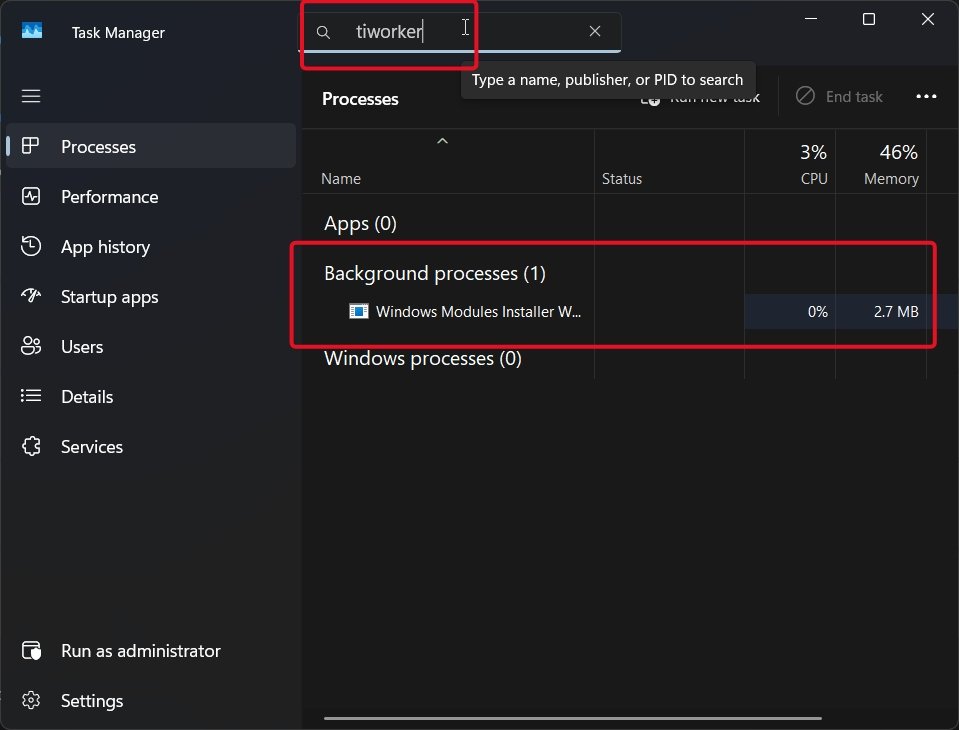
TiWorker.exe high CPU usually means Windows is installing an update or cleaning old update files.
Let it run, keep the PC plugged in, and restart when Windows asks.
If it stays high for several hours or comes back every day, reset Windows Update components, run DISM /Online /Cleanup-Image /RestoreHealth and sfc /scannow, then restart.
Introduction
You open Task Manager because your PC feels slow, and TiWorker.exe is sitting near the top with high CPU.
TiWorker.exe high CPU is one of the most common Windows complaints I get, and it worries people because the name looks unfamiliar.
Most of the time nothing is wrong.
Windows is installing an update, or tidying the WinSxS component store in the background.
The trouble starts when it never stops, or when it fires up every morning on a work PC.
In this guide I show you how to tell a busy TiWorker from a stuck one, how to check it is genuine, and eight fixes in a safe order.
I also cover two things most guides skip: reading the CBS log to see real progress, and moving maintenance outside office hours.
What TiWorker.exe is and why it uses so much CPU
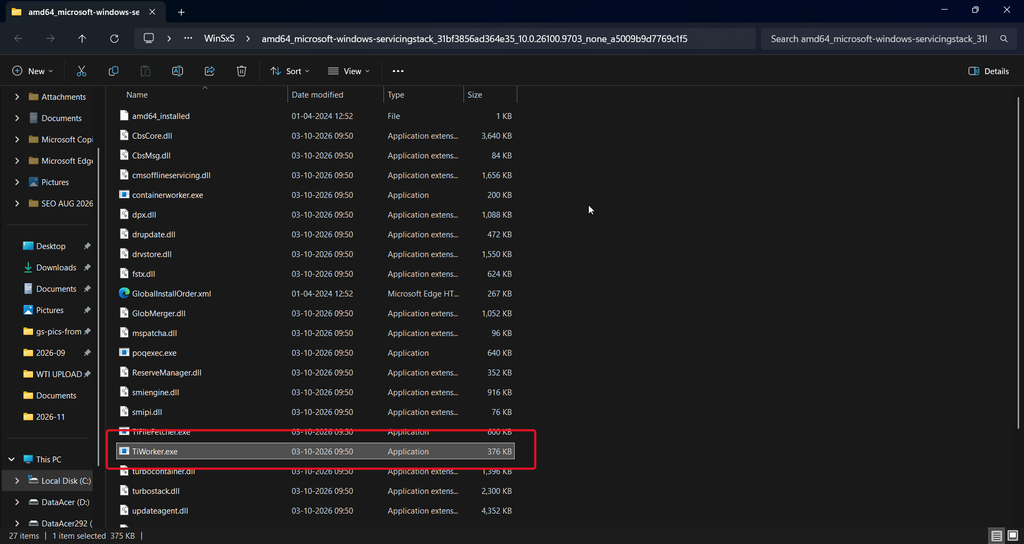
TiWorker.exe is the worker process behind the Windows Modules Installer service.
That service runs as TrustedInstaller.exe, and the two work together.
Their job is servicing: installing cumulative updates, enabling or disabling Windows features, and removing superseded components from the component store.
Microsoft’s documentation describes the component store, the WinSxS folder, as the place Windows uses to install updates, add features, recover from corruption and uninstall bad updates.
Every cumulative update means unpacking, comparing and staging thousands of files.
That work is CPU and disk heavy by design.
It can stay busy even when Task Manager shows no network activity and Settings says you are up to date, because the download is already finished and the install or cleanup is still running.
Is TiWorker.exe safe or a virus?
The genuine TiWorker.exe is safe.
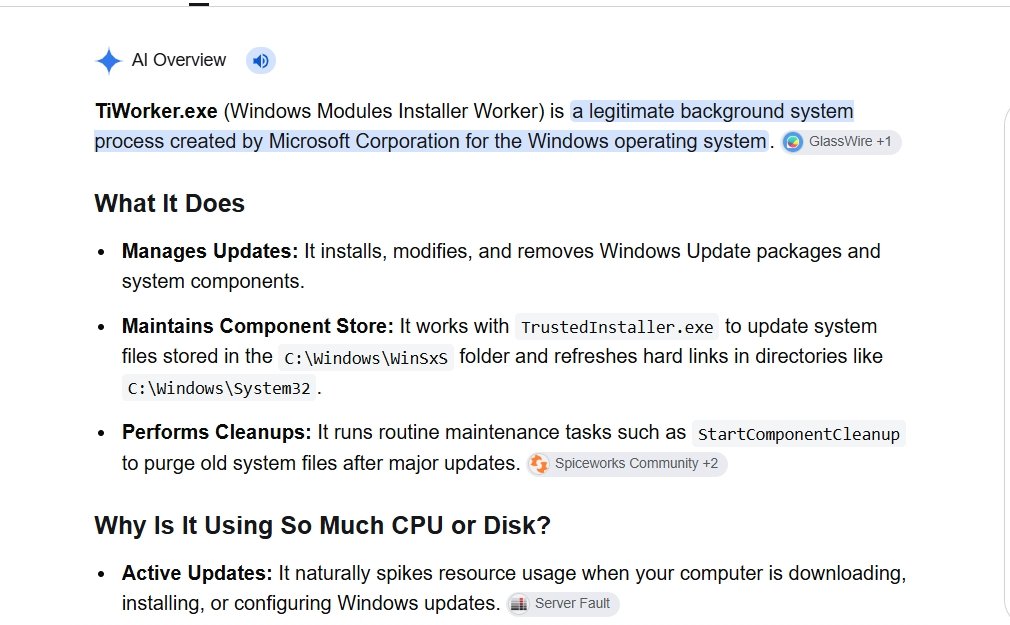
It normally runs from a versioned servicing-stack folder under C:\Windows\WinSxS\, with a folder name that changes with each build.
Check yours in two steps:
- Open Task Manager with
Ctrl + Shift + Escand go to the Details tab. - Right-click TiWorker.exe and choose Open file location.
If the folder is inside C:\Windows\WinSxS, it is the real one.
If it opens in AppData, Temp or Downloads, treat it as suspicious and run a full scan with Microsoft Defender.
You can also right-click the file, open Properties > Digital Signatures, and confirm it is signed by Microsoft Windows.
When TiWorker.exe high CPU is normal
Use this table to decide whether to wait or act.
| What you see | What it usually means | What to do |
|---|---|---|
| High CPU right after “Updates are available” or Patch Tuesday | Installing a cumulative update | Wait and keep the PC on power |
| High CPU after a restart for updates | Finishing the install | Wait, then restart again if asked |
| High CPU when the PC is idle | Automatic Maintenance or component cleanup | Wait, or reschedule maintenance |
| High CPU for several hours with no progress | Stuck update or servicing loop | Use the fixes below |
| High CPU every day at the same time | Maintenance running in your active hours | Change the maintenance time |
| TiWorker.exe outside C:\Windows\WinSxS | Possible malware lookalike | Scan with Microsoft Defender |
Check whether TiWorker.exe is making progress
This is the test I use before I touch anything.
TiWorker writes what it is doing to a log file called CBS.log.
- Open File Explorer and go to
C:\Windows\Logs\CBS. - Switch to Details view and look at the Date modified time of
CBS.log. - Wait two minutes and press
F5.
If the time keeps changing, TiWorker is still working, so leave it alone.
If the time has not changed for a long while and CPU is still high, it is likely stuck, and the fixes below are worth trying.
You can also open Resource Monitor (resmon), go to the Disk tab and filter on TiWorker.exe.
Steady reads and writes to WinSxS mean it is working.
Fix 1: Finish pending updates and restart
Many TiWorker loops are just a pending restart.
- Open Settings > Windows Update.
- If you see Restart now or Restart required, save your work and restart.
- Keep laptops plugged in during the install.
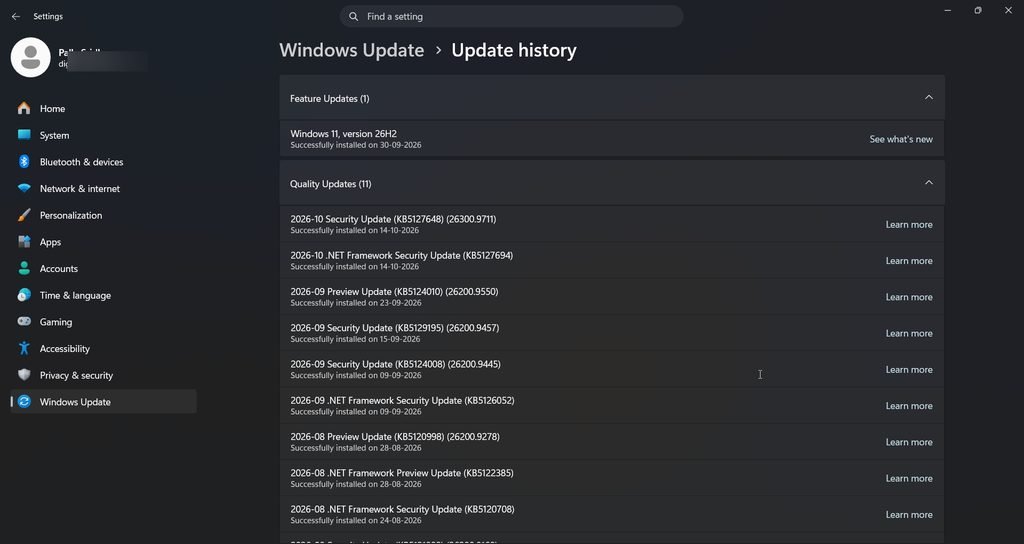
- After restart, check Update history for failed items.
Also check free space under Settings > System > Storage.
Cumulative updates need room to stage files, and a nearly full C: drive can make servicing crawl.
If space is tight, my guide on how to delete %temp% files in Windows shows quick ways to free some.
Fix 2: Run the Windows Update troubleshooter
- Open Settings > System > Troubleshoot > Other troubleshooters.
- Click Run next to Windows Update.
- Apply any fixes it suggests and restart.
On recent Windows 11 builds, some troubleshooters open in the Get Help app instead.
Either route checks the same update services.
Fix 3: Reset Windows Update components
This fixes a corrupt update cache, which is a common cause of a TiWorker loop.
Open Command Prompt as administrator.
If you need help, see my guide to run Command Prompt as administrator.
Run these lines one at a time:
net stop wuauserv
net stop bits
net stop cryptsvc
ren C:\Windows\SoftwareDistribution SoftwareDistribution.old
ren C:\Windows\System32\catroot2 catroot2.old
net start cryptsvc
net start bits
net start wuauserv
Restart, then open Windows Update and click Check for updates.
Windows downloads fresh files into a new SoftwareDistribution folder.
Renaming instead of deleting means you can put the old folders back if needed.
Once updates work again, you can delete the .old folders.
Fix 4: Repair the component store with DISM and SFC
If the component store is damaged, TiWorker can keep retrying the same job.
In an administrator Command Prompt, run:
DISM /Online /Cleanup-Image /RestoreHealth
sfc /scannow
DISM repairs the component store, and SFC then repairs system files from it.
Run DISM first.
Both take a while, so let them finish and then restart.
To see whether the component store needs a cleanup, run:
DISM /Online /Cleanup-Image /AnalyzeComponentStoreIf it reports Component Store Cleanup Recommended: Yes, run:
DISM /Online /Cleanup-Image /StartComponentCleanupThis is the same cleanup TiWorker does in the background, so doing it once while you watch can stop it running for hours later.
Fix 5: Move Automatic Maintenance out of working hours
This is the fix most office users need, and most guides miss it.
Windows runs maintenance, including component cleanup, at a set time each day.
If the PC is asleep then, maintenance may run later while you are working.
A Microsoft Q&A user reported exactly this: TiWorker using up to 70% CPU during working hours.
- Open Control Panel > System and Security > Security and Maintenance.
- Expand Maintenance and click Change maintenance settings.
- Set the time to when the PC is on but you are not using it, such as lunch or early evening.
- Tick Allow scheduled maintenance to wake up my computer if the PC stays plugged in overnight.
Also open Settings > Windows Update > Advanced options > Active hours and set them to match your working day, so restarts happen outside them.
Fix 6: Do a clean boot to find a conflicting app
Third-party software can clash with servicing.
One troubleshooting guide reports users fixing TiWorker high CPU by uninstalling HP Support Assistant or HP LAN Assistant.
To test for a conflict:
- Press
Win + R, typemsconfigand press Enter. - On the Services tab, tick Hide all Microsoft services, then click Disable all.
- On the Startup tab, open Task Manager and disable startup apps.
- Restart and watch TiWorker.exe.
If CPU settles, turn services back on in small groups until you find the culprit.
Undo the clean boot afterwards by choosing Normal startup in msconfig.
Fix 7: Lower its priority temporarily
If you need the PC right now, you can make TiWorker yield to your apps.
- Open Task Manager and go to Details.
- Right-click TiWorker.exe and choose Set priority > Below normal or Low.
This resets when the process restarts, so it is a stopgap, not a fix.
I don’t recommend ending the process repeatedly while an install is making progress, because that can leave the update half-done.
Fix 8: Run an in-place repair upgrade
If TiWorker still loops after all the fixes above, the servicing stack itself may be damaged.
An in-place repair upgrade reinstalls Windows while keeping your files, apps and settings.
- Download the Windows 11 ISO or Media Creation Tool from Microsoft’s download page.
- Open the ISO and run setup.exe.
- Choose Keep personal files and apps.
Microsoft community answers describe this as the most reliable fix short of a clean install when update states stay stuck.
Back up your files first.
Why you should not disable the Windows Modules Installer service
Many older guides tell you to set Windows Modules Installer to Disabled.
I don’t recommend it.
A Microsoft Q&A answer explains that the service is essential for installing updates and system components, and that Windows may re-enable it when it needs to install updates.
Disabling it stops security updates, which is a bad trade for a short-term CPU saving.
Setting it to Manual is the default on many systems and is fine.
Which fix should you try first?
| Situation | Best fix | Time needed |
|---|---|---|
| Update pending or just installed | Fix 1: restart and wait | 10–60 minutes |
| Update keeps failing | Fix 3: reset Windows Update | 15 minutes |
| Errors in Update history or SFC | Fix 4: DISM and SFC | 30–60 minutes |
| Slows office PCs every day | Fix 5: reschedule maintenance | 5 minutes |
| Started after installing new software | Fix 6: clean boot | 30 minutes |
| Need the PC now | Fix 7: lower priority | 1 minute |
| Nothing else works | Fix 8: in-place repair | 1–2 hours |
What real users report
I could not retrieve Reddit or Medium threads for this update, so these reports come from Microsoft Q&A, Microsoft Tech Community and Help Desk Geek.
I have paraphrased each one.
Microsoft Q&A, March 2025. A user saw TiWorker use up to 70% CPU during working hours.
A Microsoft Community Support Specialist suggested a clean boot, and that answer was accepted by the person who asked.
Microsoft Q&A, same thread. The user reported the first three suggestions did not help, and moved on to resetting Windows Update components.
Microsoft Tech Community, Insider build, 2024. A user with a high-end laptop saw TiWorker at full CPU with no disk or network activity while an update stalled at 8%.
Another user saw TiWorker climb past 1.5 GB of RAM, and reported fixing it by installing a fresh ISO of the build.
Help Desk Geek. The guide reports users fixing TiWorker high CPU by removing HP Support Assistant or HP LAN Assistant.
Microsoft Q&A, Windows Module Installer. A user asked how to disable the service permanently.
The answer warned that Windows can re-enable it and that disabling it can break updates.
Statistics and facts worth knowing
| Item | Detail | Source |
|---|---|---|
| Service name | Windows Modules Installer (TrustedInstaller) | Microsoft Learn |
| Component store role | Installs updates, enables features, supports recovery and uninstalling updates | Microsoft Learn |
| Reported CPU during work hours | Up to 70% | Microsoft Q&A user report, 2025 |
| Reported RAM use in a stuck loop | More than 1.5 GB | Microsoft Tech Community user report |
| Disabling the service | Windows may re-enable it during updates | Microsoft Q&A answer |
These figures are individual reports and documentation, not measurements across many PCs.
Your numbers will depend on your hardware and how many updates are queued.
Real facts most guides get wrong
TiWorker.exe can be busy even when Windows Update says you are up to date, because component cleanup runs separately.
No network activity does not mean it is stuck.
The download may be finished while the install continues.
Ending the task often doesn’t help, because Windows restarts it to finish the job.
Disabling the service is not a fix, because it blocks security updates.
High CPU on an idle PC is often scheduled maintenance, not a fault.
Two typical setups
A home laptop after Patch Tuesday. The fan runs loud and TiWorker sits at high CPU for 40 minutes.
The CBS.log keeps updating, so the owner leaves it plugged in, restarts when asked, and it settles.
A small office in the morning. Staff complain every day around 10 a.m.
The PCs sleep at night, so Automatic Maintenance runs once they wake.
IT moves maintenance to 1 p.m. lunch hour and the complaints stop.
Best practices
- Check CBS.log before you change anything.
- Install updates promptly instead of postponing them for weeks.
- Keep at least 20 GB free on C: for updates.
- Set active hours and maintenance time to match your working day.
- Rename update folders instead of deleting them.
- Run DISM before SFC.
Common mistakes to avoid
- Disabling Windows Modules Installer or Windows Update.
- Ending TiWorker.exe again and again during an install.
- Deleting files from WinSxS by hand.
- Assuming high CPU means malware without checking the file location.
- Shutting down a laptop mid-update or on low battery.
Recommended tools
- Task Manager. Shows CPU use, file location and priority.
- Resource Monitor. Shows what TiWorker is reading and writing.
- CBS.log. Shows whether servicing is progressing.
- DISM and SFC. Repair the component store and system files.
- Microsoft Defender. Scans a suspicious copy of TiWorker.exe.
- Windows 11 ISO. For an in-place repair upgrade.
Questions and answers
What is TiWorker.exe?
TiWorker.exe is Windows Modules Installer Worker.
It installs Windows updates and cleans old components from the component store.
Why is TiWorker.exe using high CPU?
It is usually installing an update or running component cleanup.
High CPU that lasts for hours points to a stuck update or a damaged component store.
How long should I wait for TiWorker.exe to finish?
Large cumulative updates can keep it busy for some time.
Check whether CBS.log is still updating.
If it is, wait; if it has stopped for a long time, try the fixes.
Can I end TiWorker.exe in Task Manager?
You can, but Windows usually restarts it to finish the job.
Ending it repeatedly during an install can leave the update incomplete.
Should I disable Windows Modules Installer?
No.
It is needed for updates, Windows can re-enable it, and disabling it blocks security patches.
Is TiWorker.exe a virus?
The genuine file runs from C:\Windows\WinSxS and is signed by Microsoft.
A copy in AppData or Temp should be scanned with Microsoft Defender.
Why does TiWorker.exe run every day at the same time?
That is usually Automatic Maintenance.
Change the maintenance time in Security and Maintenance so it runs outside your working hours.
Does TiWorker.exe high CPU affect Windows 10 too?
Yes.
Windows 10 and 11 use the same servicing process, and the same fixes apply.
Conclusion
TiWorker.exe high CPU looks alarming, but in most cases Windows is simply installing an update or cleaning up afterwards.
Check the CBS log first, and give it time if it is still working.
If it loops, reset Windows Update, then repair the component store with DISM and SFC.
On office PCs, move Automatic Maintenance out of working hours.
Avoid the old advice to disable the service, because it costs you security updates.
Try the CBS.log check today, then tell me in the comments which fix worked on your PC.
If this guide helped, share it with a colleague whose laptop fan never stops after updates.
