

Key takeaways
- Press Win + R, type
%temp%, select everything and delete it. Skip any file Windows says is in use. - The
%temp%folder is your personal temp folder atC:\Users\<YourName>\AppData\Local\Temp.C:\Windows\Tempis a separate system folder. - Settings > System > Storage > Temporary files is the safest one-click option for most home users.
- Turn on Storage Sense to clean temp files automatically.
- A few files always stay behind because Windows or an app is using them. That is normal, so don’t force them.
- Never delete the Temp folder itself, only what is inside it.
Quick answer
To delete %temp% files in Windows 11 or 10, press Win + R, type %temp% and press Enter.
Press Ctrl + A to select everything, then press Delete.
When Windows says a file is in use, tick Do this for all current items and click Skip.
Empty the Recycle Bin afterwards to get the space back.
Introduction
If you want to know how to delete %temp% files in Windows, the short answer takes about thirty seconds.
The longer answer is why this guide exists.
Every app you run leaves scraps in the Temp folder: installers, browser leftovers, update packages and crash logs.
Most apps never clean up after themselves.
On a busy laptop I have seen this folder grow past several gigabytes, and on a small 128 GB drive that is real space.
In this guide I show six safe methods, from the Run box to a command you can schedule.
You will also learn what is safe to remove, why some files refuse to go, and how office PCs can automate the whole job.
The steps are the same whether you are in the United States, Europe or India, because the folders and tools are identical everywhere.
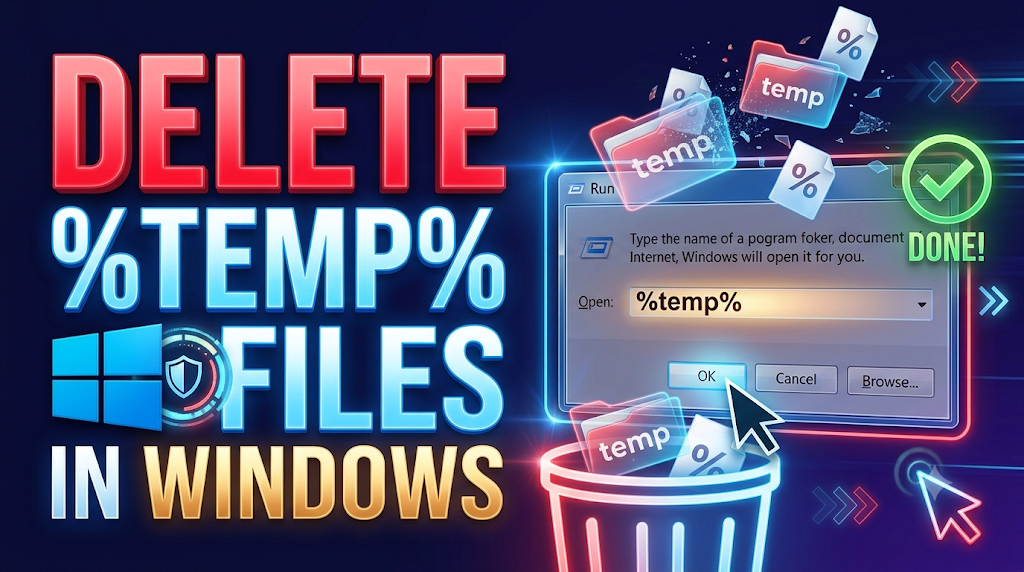
What the %temp% folder is and where it lives
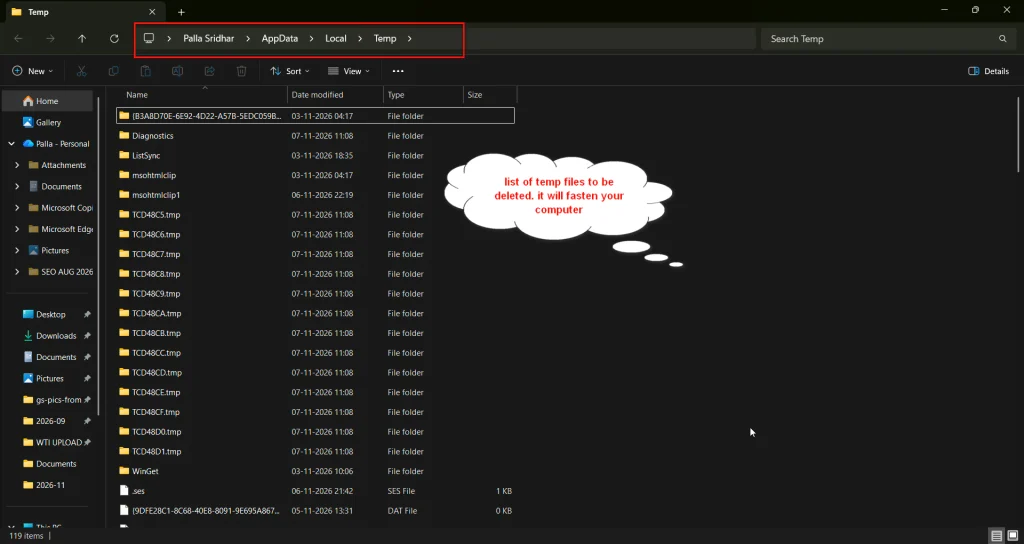
%temp% is an environment variable, a shortcut name that points to your personal temp folder.
On Windows 11 and 10 it opens C:\Users\<YourName>\AppData\Local\Temp.
Each user account has its own copy.
There is also a second, system-wide folder at C:\Windows\Temp, used by Windows services and installers.
You need administrator rights to clean that one.
| Folder | Path | Who uses it | Admin needed? |
|---|---|---|---|
| User temp (%temp%) | C:\Users<YourName>\AppData\Local\Temp | Your apps, browsers, installers | No |
| System temp | C:\Windows\Temp | Windows services and setup | Yes |
| Settings “Temporary files” | Several places, including both above | Windows cleanup engine | Yes for some items |
The Settings page groups more than just these folders, which is why its number is usually bigger than what you see in %temp%.
Is it safe to delete %temp% files?
Yes, deleting the contents of %temp% is safe for almost everyone.
Apps create these files for short-term use and are meant to remove them.
The only real rule is this: skip what Windows says is in use.
A Microsoft Community reply on this topic makes the same point: don’t delete the Temp folder itself, don’t force files that are in use, and don’t change permissions just to make a deletion work.
Two more cautions are worth knowing.
If you are in the middle of an install or an update, finish it and restart before you clean.
And if a program crashed while you had unsaved work, check its recovery option before you empty the folder, because some apps keep autosave copies there.
Method 1: Delete %temp% files with the Run box
This is the fastest manual method, and the one I use myself.
- Close your open apps, especially browsers and Office.
- Press
Win + R, type%temp%and press Enter. - Press
Ctrl + Ato select all files and folders. - Press
Delete, orShift + Deleteto skip the Recycle Bin. - When the File In Use or Folder In Use box appears, tick Do this for all current items and click Skip.
- Empty the Recycle Bin if you used plain
Delete.
To clean the system folder too, press Win + R, type temp and press Enter.
Click Continue when Windows asks for permission, then repeat steps 3 to 6.
Method 2: Use Settings > Temporary files
This is the safest option for home users, because Windows decides what can go.
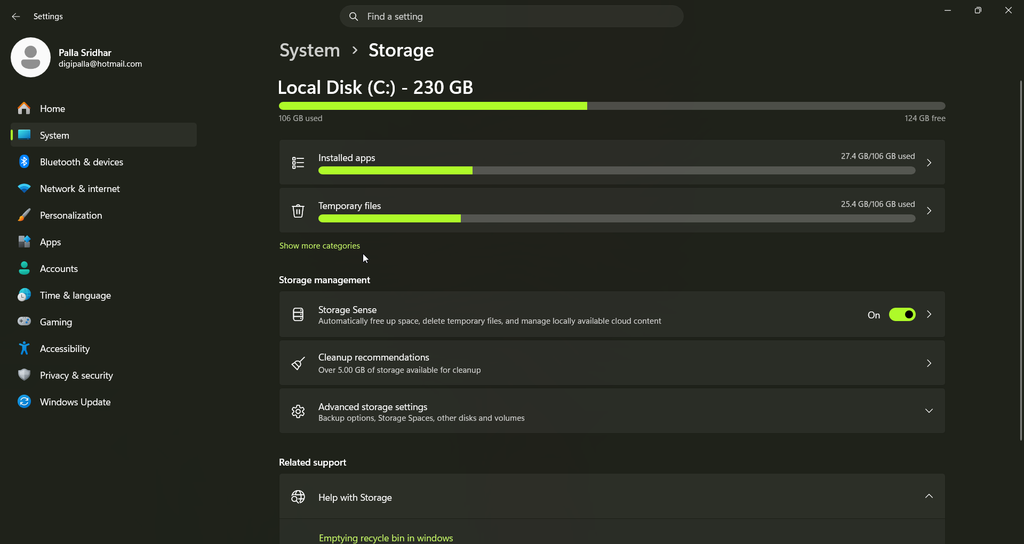
- Open Settings > System > Storage.
- Click Temporary files and wait for the scan.
- Tick Temporary files, plus any other items you are happy to lose.
- Click Remove files and confirm.
Look carefully at two items before you tick them.
Downloads is your personal Downloads folder, not junk.
Previous Windows installation(s) removes your ability to roll back a feature update.
A Microsoft Q&A answer flags both of these as the items to check before deleting.
Method 3: Turn on Storage Sense to clean temp files automatically
Storage Sense is Windows’ built-in cleaner, and it can run on a schedule.
- Open Settings > System > Storage.
- Turn on Storage Sense, then click it to open the options.
- Keep Cleanup of temporary files switched on.
- Under Configure cleanup schedules, choose Every week or Every month.
- Click Run Storage Sense now to test it.
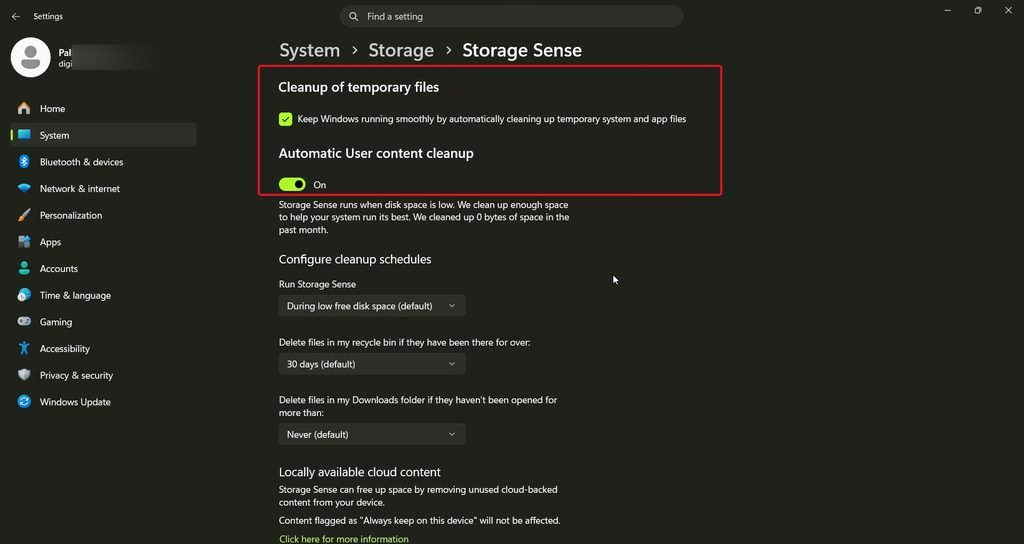
Microsoft’s documentation says Storage Sense runs by default only when disk space is low.
Choosing a weekly schedule means you rarely need to think about temp files again.
Method 4: Clear temp files with Disk Cleanup
Disk Cleanup is the classic tool and still ships with Windows 11.
- Search for Disk Cleanup in Start and open it.
- Choose drive C:.
- Click Clean up system files to include system items.
- Tick Temporary files, Temporary Internet Files and Delivery Optimization Files.
- Click OK, then Delete Files.
Disk Cleanup only removes temp files older than a certain age, so it may leave recent ones behind.
That is a design choice, not a fault.
Method 5: Delete %temp% files with Command Prompt or PowerShell
Commands are useful when File Explorer is slow or when you want a repeatable fix.
Command Prompt (no admin rights needed for your own temp folder):
del /q /f /s "%temp%\*"
for /d %d in ("%temp%\*") do rd /s /q "%d"
The first line deletes the files.
The second removes the leftover empty folders, which del alone does not touch.
PowerShell:
powershell
Get-ChildItem -Path $env:TEMP -Force | Remove-Item -Recurse -Force -ErrorAction SilentlyContinue-ErrorAction SilentlyContinue skips locked files quietly instead of filling the screen with red errors.
Watch out for one common mistake.
Some guides write "$env:TEMP*" without a backslash, which points to the wrong location.
Always keep the backslash, or use Get-ChildItem as shown above.
For the system folder, open Command Prompt as administrator and run:
del /q /f /s "C:\Windows\Temp\*"If you need help with admin rights, see my guide to run Command Prompt as administrator.
Method 6: Schedule a temp cleanup for office PCs
For a small office, a scheduled task keeps every machine tidy without anyone remembering.
- Save this as
clean-temp.batin a folder such asC:\Scripts:
@echo off
del /q /f /s "%temp%\*" >nul 2>&1
for /d %%d in ("%temp%\*") do rd /s /q "%%d" >nul 2>&1- Open Task Scheduler and choose Create Basic Task.
- Set the trigger to When I log on.
- Set the action to Start a program and pick the batch file.
Running it at sign-in is the best moment, because few apps are holding temp files yet.
Note the double %%d inside a batch file, compared with a single %d when typed directly.
On managed devices, IT can configure Storage Sense centrally through Intune or Group Policy instead.
Which method should you choose?
| Method | Best for | Speed | Admin needed | Automatic |
|---|---|---|---|---|
| Run box (%temp%) | Quick manual clean | Fast | No | No |
| Settings > Temporary files | Home users who want safety | Medium | Some items | No |
| Storage Sense | Set and forget | None after setup | No | Yes |
| Disk Cleanup | Older habits, system files | Medium | For system files | No |
| Command Prompt or PowerShell | Power users, slow Explorer | Fast | Only for C:\Windows\Temp | No |
| Scheduled batch file | Office PCs | None after setup | For setup | Yes |
Why some temp files will not delete
This is the most common complaint, and it is usually harmless.
The file is in use. Windows or a running app has it open.
Close your apps, restart, then clean straight after signing in.
The Settings figure barely moves. One Microsoft Q&A user reported that Temporary files stayed at about 1 GB after every manual cleanup.
The Settings total includes items outside %temp%, such as Windows Update and Delivery Optimization files, so clearing %temp% alone won’t zero it.
Run Disk Cleanup with Clean up system files to clear those too.
Folders with names like tmp_1x87ym9 refuse to go. A Microsoft Q&A answer from 2026 explains that some temp items are locked while apps or Windows use them.
Close all apps and restart, then try again.
Files reappear right away. That is expected.
Apps create new temp files constantly, and an AskWoody reply notes that a few system files in Temp can’t be deleted at all.
Access is denied in C:\Windows\Temp. Use an administrator Command Prompt, as shown in Method 5.
Don’t take ownership or change permissions just to force a delete.
What real users report
I could not retrieve Reddit or Medium threads for this update, so these reports come from Microsoft Q&A, Microsoft Tech Community, AskWoody and ElevenForum.
I have paraphrased each one.
AskWoody, Windows 11 23H2. A user found temp files that would not delete.
A reply explained they were left over from Microsoft Store app updates, and the user confirmed they had just updated Store apps.
ElevenForum. A member noted there will always be a couple of files in Temp that Windows is using.
The sensible approach, they said, is to delete what you can and ignore the rest.
Microsoft Q&A. An answer for a Temp folder that would not shrink listed Disk Cleanup and Safe Mode as next steps.
Microsoft Tech Community. A Windows 11 user could not delete a file left by a crashed 7-Zip job.
Replies suggested restarting and deleting it from an administrator Command Prompt.
Microsoft Q&A. A user asked why free space kept shrinking despite regular %temp% cleaning.
The accepted answer pointed to Windows Update caches, restore points, the hibernation file and app caches, and suggested a disk analyser such as TreeSize.
Statistics and facts worth knowing
| Item | Detail | Source |
|---|---|---|
| Storage Sense default | Runs only when disk space is low, unless you set a schedule | Microsoft Learn |
| Storage Sense schedule options | Daily, weekly, monthly or low-space only | Microsoft Learn |
| Typical leftover in Settings | About 1 GB reported after manual cleanup | Microsoft Q&A user report |
| Locked temp folders | Some items stay locked while apps or Windows use them | Microsoft Q&A answer, 2026 |
These figures come from Microsoft documentation and individual user reports, not from a large study.
Your own numbers will depend on your apps and how long it has been since the last clean.
Real facts most guides get wrong
%temp% and temp are different folders.
The first is your user folder, the second is C:\Windows\Temp.
Deleting temp files rarely makes a modern PC faster on its own.
The main gain is disk space, plus fixing the odd installer that fails because of a corrupt temp file.
The Settings “Temporary files” number is not the size of %temp%, because it includes several other locations.
A one-line del command leaves empty subfolders behind, so you need the rd line as well.
Some PowerShell commands online drop the backslash after $env:TEMP, which targets the wrong path.
Two typical setups
A home laptop with a 128 GB drive. The owner gets a low disk space warning before a Windows update.
Clearing %temp% and then running Settings > Temporary files frees several gigabytes, and the update installs.
They turn on Storage Sense weekly so it doesn’t happen again.
A five-desk office. Staff complain that a line-of-business installer keeps failing.
IT clears %temp% on each PC, and the installer runs.
They add the batch file to Task Scheduler at sign-in on every machine.
Best practices
- Close apps before cleaning, and clean right after a restart for best results.
- Use Settings or Storage Sense if you are not sure what to delete.
- Skip files that are in use, every time.
- Check the Downloads and Previous Windows installation items before ticking them.
- Schedule Storage Sense weekly on laptops with small drives.
- Use a disk analyser if space keeps disappearing, because temp files may not be the cause.
Common mistakes to avoid
- Deleting the Temp folder itself instead of its contents.
- Taking ownership of locked files to force them out.
- Ticking Downloads in Settings without checking it.
- Cleaning in the middle of an install or Windows Update.
- Relying on third-party “registry cleaners” that bundle extra software.
- Expecting the Settings figure to drop to zero.
Recommended tools
- Run box (%temp%). The quickest manual clean.
- Settings > Storage > Temporary files. The safest guided clean.
- Storage Sense. Automatic cleaning on a schedule.
- Disk Cleanup. Removes system files and update leftovers.
- Task Scheduler. Runs a cleanup batch file at sign-in.
- TreeSize Free. Shows what is really using your disk when temp files are not the problem.
Questions and answers
How do I delete %temp% files in Windows 11?
Press Win + R, type %temp% and press Enter.
Select all with Ctrl + A, press Delete, and skip any file in use.
Empty the Recycle Bin afterwards.
Is it safe to delete everything in the %temp% folder?
Yes, deleting the contents is safe.
Skip files Windows says are in use, and don’t delete the Temp folder itself.
What is the difference between %temp% and temp?
%temp% opens your personal folder in AppData\Local\Temp.
temp opens C:\Windows\Temp, which is shared by Windows and needs admin rights.
Why can’t I delete some temp files?
Windows or an app is using them.
Close your apps, restart, and clean straight after signing in.
A few system files will always stay, and that is normal.
Will deleting temp files speed up my PC?
Mostly it frees disk space.
It can help when the drive is nearly full or when an installer fails because of a bad temp file.
How do I delete temp files automatically?
Turn on Storage Sense in Settings > System > Storage and set the schedule to weekly or monthly.
Office PCs can also run a cleanup batch file at sign-in.
What is the command to delete temp files?
In Command Prompt, use del /q /f /s "%temp%\*" for files and the rd loop to remove folders.
In PowerShell, use Get-ChildItem on $env:TEMP piped to Remove-Item.
Why does the temporary files figure in Settings not go down?
It includes Windows Update and Delivery Optimization files as well as %temp%.
Run Disk Cleanup with Clean up system files to remove those.
Conclusion
Learning how to delete %temp% files in Windows takes a minute, and it pays off every time your C: drive runs low.
Use the Run box for a quick clean and Settings for a guided one.
Turn on Storage Sense so Windows keeps the folder tidy for you.
When a file refuses to go, skip it, because it is in use and will clear after a restart.
Try the Run box method now, then tell me in the comments how much space you got back.
If this guide helped, share it with a friend whose laptop keeps saying the disk is full.
