
Key takeaways
- Windows 11 Home does not include gpedit.msc, so Windows says it cannot find the file.
- Two DISM commands in an administrator Command Prompt will usually make the editor open.
- Opening the editor does not prove your policies apply. Many users report that Home ignores most of them, so test with the registry check below.
- Policy Plus is the safest free way to edit policies on Home, and it writes the settings to the registry.
- Upgrading to Windows 11 Pro is the only fully supported fix.
- Create a restore point before you change anything.
Quick answer
Windows 11 Home does not include the Local Group Policy Editor, so gpedit.msc shows “Windows cannot find gpedit.msc”.
To add it, open Command Prompt as administrator, run two DISM commands that install the Group Policy client packages, restart, then press Win + R and type gpedit.msc.
The editor may open but still fail to apply some settings on Home, so confirm each change in the registry or use Policy Plus instead. gpedit.msc Windows 11 home is useful to enable and block certain features, which are not otherwise available.
Introduction
You type gpedit.msc, press Enter, and Windows says it cannot find the file.
I see this question every week from home users and from people who bought a laptop for the office.
The reason is simple: Windows 11 Home does not ship the Local Group Policy Editor.
Most guides stop after one trick and tell you it works.
In this guide I show the DISM method, the batch file, Policy Plus, the registry route and the supported Pro upgrade.
You will also learn a three-minute test that proves whether a policy really took effect on your PC.
That test matters for readers in the United States, Europe and India alike, because the edition rules are the same everywhere.
What gpedit.msc is and why Windows 11 Home does not have it
The Local Group Policy Editor is a management console that edits settings stored as policies.
Windows opens it with the command gpedit.msc.
Microsoft limits it to Windows 11 Pro, Enterprise and Education.
On Home, the file and its console are not set up, so the Run box returns the “cannot find” message.
A Microsoft Q&A answer states plainly that Group Policy is not built into Home and that some users have added it with scripts.
That same answer warns that the administrative templates may be incomplete and that Microsoft could block the trick in a future update.
Check your Windows edition first
Do not run any fix until you confirm you are on Home.
Open Settings > System > About and read the Edition line under Windows specifications.
You can also press Win + R, type winver and press Enter.
If it says Home, continue with this guide.
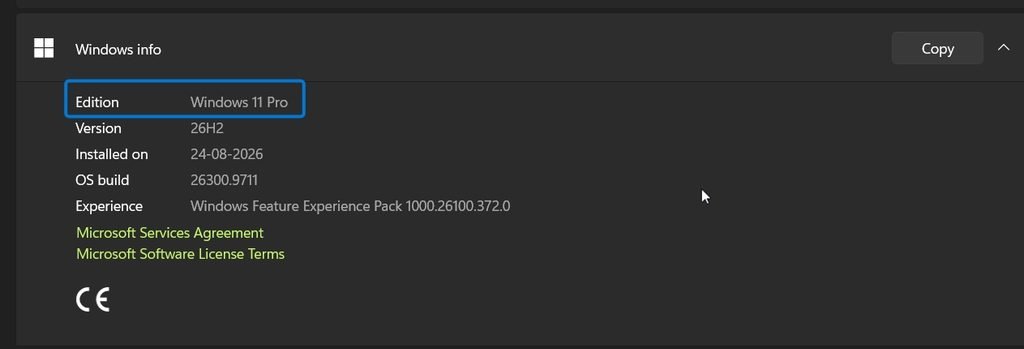
If it says Pro, Enterprise or Education and gpedit.msc is still missing, repair system files instead with sfc /scannow and DISM /Online /Cleanup-Image /RestoreHealth.
Create a restore point before you start
Every method below changes system components or registry values.
Search for Create a restore point in Start, select your system drive and click Create.
Give it a name such as “before gpedit”.
If something goes wrong, you can roll back from System Restore.
Method 1: Install gpedit.msc with DISM in Command Prompt
This is the method most people try first, and it is also the most upvoted answer on Microsoft’s own Q&A site.
The packages already exist in the Windows component store on Home, so the commands only add them.
Open Command Prompt as administrator.
If you need the steps, see my guide to run Command Prompt as administrator.
Use Command Prompt, not PowerShell or Windows Terminal’s PowerShell tab, because the commands use CMD syntax.
Paste the first command and press Enter:
FOR %F IN ("%SystemRoot%\servicing\Packages\Microsoft-Windows-GroupPolicy-ClientTools-Package~*.mum") DO (DISM /Online /NoRestart /Add-Package:"%F")
Wait until it finishes, then paste the second command:
FOR %F IN ("%SystemRoot%\servicing\Packages\Microsoft-Windows-GroupPolicy-ClientExtensions-Package~*.mum") DO (DISM /Online /NoRestart /Add-Package:"%F")
Restart your PC.
Press Win + R, type gpedit.msc and press Enter.
If the Local Group Policy Editor opens, the first part is done.
Method 2: Save the commands as a batch file
A batch file is handy if you want to run the fix again after a Windows update.
Open Notepad and paste this code.
@echo off
net session >nul 2>&1 || (echo Please run this file as administrator. & pause & exit /b)
pushd "%~dp0"
FOR %%F IN ("%SystemRoot%\servicing\Packages\Microsoft-Windows-GroupPolicy-ClientTools-Package~*.mum") DO (DISM /Online /NoRestart /Add-Package:"%%F")
FOR %%F IN ("%SystemRoot%\servicing\Packages\Microsoft-Windows-GroupPolicy-ClientExtensions-Package~*.mum") DO (DISM /Online /NoRestart /Add-Package:"%%F")
pause
Choose File > Save as, set Save as type to All files, and name it install-gpedit.bat.
Right-click the file and choose Run as administrator.
Restart and test gpedit.msc.
Note the double percent signs.
Inside a batch file the loop variable is %%F, while in a typed command it is %F.
I recommend writing the file yourself instead of downloading one from a random site, so you know exactly what runs.
The catch: the editor opens, but your policies may not apply
This is the part most guides skip.
The author of the winhelponline guide tested the DISM method and reported that the editor appears, but the settings were not written to the registry, so nothing was applied.
Forum members on ElevenForum say the same: you can get gpedit running on Home, but by design almost all policy changes are ignored.
Another member put it more carefully, saying some settings work and others do not.
So the honest summary is this: the editor opening is not proof of anything.
Some guides also say Home lacks the services behind certain policies, such as BitLocker management or Windows Update for Business.
That is why a change can look saved and still do nothing.
Three-minute test: did the policy really apply?
Pick a low-risk policy, change it in gpedit.msc, then click Apply and OK.
Open Registry Editor with Win + R and regedit.
Go to HKEY_LOCAL_MACHINE\SOFTWARE\Policies for computer policies, or HKEY_CURRENT_USER\Software\Policies for user policies.
Look for a key and value that match the policy you changed.
If the value is there, the setting was written.
If the value is missing, Home did not store it, and you should use Policy Plus or the registry instead.
Restart or sign out and back in, then check whether the feature actually changed.
Method 3: Use Policy Plus (the safest option for Home)
Policy Plus is a free, open-source editor made to give Home users the same policy list as the Local Group Policy Editor.
Its GitHub page says it runs on all Windows editions, not just Pro and Enterprise.
The winhelponline author tested it on Home and reported that settings took effect immediately.
Here is how to use it:
- Download Policy Plus from its official GitHub page, the Fleex255/PolicyPlus project.
- Extract the files and run
PolicyPlus.exe. - If the policy list is empty, look in the Help menu for the option to get the Microsoft ADMX policy files.
- Search for the policy by name, ID or registry value, then set it to Enabled or Disabled.
- Click File > Save Policies and confirm. Clicking OK alone is not enough.
- Restart or sign out if the policy needs it.
Policy Plus has limits.
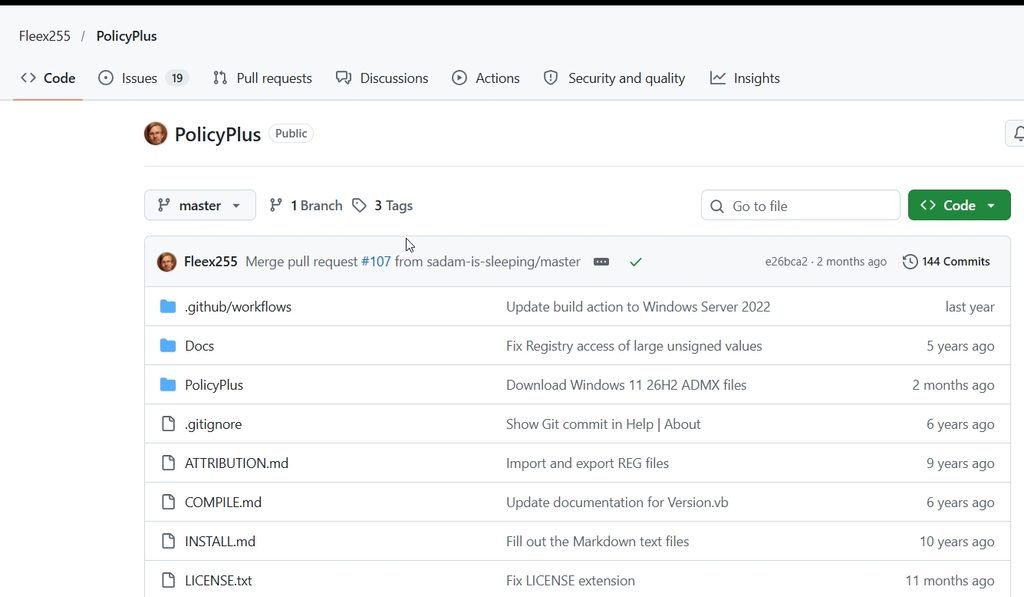
It does not include Local Security Policy, startup and shutdown scripts, or policies outside Administrative Templates.
The tool is also described as pre-release software, so keep your restore point.
It is a portable app, so downloading it from the official GitHub page is safer than random mirrors.
Method 4: Edit the registry directly
Group Policy is only a friendly front end for registry values.
If you know the key, you can set it yourself in Registry Editor.
One forum member said they changed their Home policies this way and it worked.
To find the right key, open the policy in Policy Plus, which shows the registry path it writes.
Or look it up in Microsoft’s Group Policy settings reference.
Computer policies live under HKEY_LOCAL_MACHINE\SOFTWARE\Policies.
User policies live under HKEY_CURRENT_USER\Software\Policies.
Export the key first with File > Export so you can restore it.
This method is precise, but it asks the most care from you.
Method 5: Upgrade Windows 11 Home to Pro
If you manage your own PC for work, this is the clean fix.
Open Settings > System > Activation.
Under Upgrade your edition of Windows, choose Open Store and follow the prompts.
The upgrade is in place, and a Microsoft Q&A answer explains it uses the Store or a valid Pro product key.
That answer also says the usual US price is $99.99, while the Store shows the real price for your device.
Prices in Europe include VAT, and prices in India are shown in rupees with tax, so check the amount in your own Store before you buy.
Pro gives you the real gpedit.msc, with all policies applying properly.
Which method should you choose?
| Method | Cost | Policies apply on Home? | Risk | Best for |
|---|---|---|---|---|
| DISM commands | Free | Often not | Medium | Opening the editor to browse |
| Batch file | Free | Often not | Medium | Repeating the fix after updates |
| Policy Plus | Free | Yes, per tester reports | Low | Home users who need settings applied |
| Registry edit | Free | Yes | Medium | One or two known settings |
| Upgrade to Pro | Paid | Yes | Lowest | Work PCs and anyone who edits many policies |
Fix common gpedit.msc errors on Windows 11 Home
“Windows cannot find gpedit.msc.” The packages are not installed, or the install failed.
Repeat Method 1 in Command Prompt and restart.
The commands show an error. Run them in Command Prompt, not PowerShell.
Several Microsoft Q&A answers tell readers this was the reason the commands failed for them.
“MMC could not create the snap-in.” The package install may be incomplete.
Run sfc /scannow and DISM /Online /Cleanup-Image /RestoreHealth, then repeat the install.
It worked, then disappeared after an update. One ElevenForum member reported they had access before, then lost it.
Run your batch file again after major updates.
The batch ran, but the editor still errors. A forum user reported this after upgrading from Home to Pro.
If you upgraded editions, restart first, then check that the C:\Windows\PolicyDefinitions folder has files.
If a command needs a window with admin rights, my Task Manager guide shows another way to open one.
What real users report
I could not retrieve Reddit or Medium threads for this update, so these five reports come from Microsoft Q&A, ElevenForum, winhelponline and AlternativeTo.
I paraphrased each one.
Microsoft Q&A, February 2024. The most helpful answer on the thread offers the two DISM commands and was marked helpful by more than 60 people.
Microsoft Q&A, June 2024. A reader confirmed the commands work as posted, as long as they run in an administrator Command Prompt and not in PowerShell.
ElevenForum, “Getting GPEDIT.MSC Templates back”. One member said they changed Home policies by editing registry values directly.
winhelponline. The author said the DISM method only exposes the editor, while Policy Plus applied settings straight away on Home.
AlternativeTo. A reviewer said Policy Plus beats installing a hacked editor on Home.
I also saw a failure report: in another ElevenForum thread, a Home user said the batch script still showed an error, and replies pointed to Policy Plus, registry edits or an Education upgrade.
I include it because it matches what I tell readers: no single trick works on every PC.
Statistics and facts worth knowing
| Item | Detail | Source |
|---|---|---|
| Question volume | The Microsoft Q&A thread says it has been asked 300+ times | Microsoft Q&A |
| Most helpful answer | 60+ helpful votes for the DISM commands | Microsoft Q&A |
| Pro upgrade price | Typically $99.99 in the US, shown in your Store | Microsoft Q&A answer |
| Policy Plus tests | Settings took effect on Home | winhelponline |
| DISM method tests | Settings not written to the registry in the author’s test | winhelponline |
These figures come from community answers and independent testers, not from Microsoft documentation.
Check prices in your own Store before buying.
Real facts most guides get wrong
The batch file does not turn Home into Pro.
An open gpedit window is not proof a policy applies.
Home does not support many enterprise policies, such as those that need services Home lacks.
Windows updates can remove or break the unofficial setup.
A “tested” label on a guide often has no Windows build number attached, so check the date.
Two typical setups
A home laptop used for school. The owner wants to block a few settings and installs gpedit with DISM.
Nothing changes, so they install Policy Plus, set the policy, save it and restart.
The setting now shows in the registry and stays.
A small office with three Home laptops. The owner needs consistent settings on every machine.
They weigh three Pro upgrades against a shared registry file, and decide the upgrade is easier to support.
They keep Policy Plus for the one laptop that stays on Home.
Best practices
- Confirm your edition before you try anything.
- Create a restore point first.
- Write the batch file yourself, or run the commands directly.
- Test one low-risk policy and check the registry before you rely on the editor.
- Keep a note of every policy you change so you can undo it.
- Prefer Policy Plus over unofficial installers.
- Consider Pro if you manage many settings or several PCs.
Common mistakes to avoid
- Running the commands in PowerShell instead of Command Prompt.
- Skipping the restart after DISM.
- Assuming a saved policy means a working policy.
- Downloading enabler files from unknown sites.
- Forgetting to click File > Save Policies in Policy Plus.
- Changing many policies at once and not knowing which one caused a problem.
Recommended tools
- Command Prompt as administrator. Needed for the DISM method.
- Registry Editor. Verifies whether a policy was written.
- Policy Plus. Edits policies on any Windows edition.
- System Restore. Rolls back a bad change.
- Microsoft Store upgrade. The supported route to Pro.
Questions and answers
Does Windows 11 Home have gpedit.msc?
No, Windows 11 Home does not include gpedit.msc.
Microsoft limits the Local Group Policy Editor to Pro, Enterprise and Education.
How do I enable gpedit.msc on Windows 11 Home?
Open Command Prompt as administrator and run the two DISM commands for the ClientTools and ClientExtensions packages.
Restart, then run gpedit.msc.
The editor may open, but test your policies afterwards.
Why does gpedit.msc open but my settings do nothing?
Home does not apply many policies by design.
Some testers also report the DISM method does not write values to the registry, so the setting never takes effect.
Use Policy Plus or edit the registry.
Is it safe to enable gpedit.msc on Windows 11 Home?
It is unofficial and unsupported.
Create a restore point, avoid unknown downloads and write the commands yourself.
What is the best gpedit.msc alternative for Windows 11 Home?
Policy Plus is a free, open-source option that works on all editions.
Users and testers report it applies settings on Home.
Does gpedit.msc stop working after a Windows update?
It can.
A forum member reported losing access after an update.
Run your batch file again and test a policy.
How much does it cost to upgrade Windows 11 Home to Pro?
A Microsoft Q&A answer gives a typical price of $99.99 in the US.
In Europe and India the price includes local taxes, so check your Microsoft Store.
Do I need to run the commands in PowerShell or Command Prompt?
Use Command Prompt, run as administrator.
Several readers on Microsoft Q&A say PowerShell caused errors.
Will upgrading to Pro keep my files and apps?
Yes, the Home to Pro upgrade is in place.
Restart when prompted, then gpedit.msc should be available.
Conclusion
Getting gpedit.msc on Windows 11 Home is possible, but opening the editor is only half the job.
Use the DISM commands if you just want to browse, and use Policy Plus or the registry if you want your changes to apply.
If you manage settings often, the Pro upgrade is the clean option.
Always create a restore point first, and always check the registry after your first change.
Try the three-minute test today and tell me in the comments which method worked on your PC.
If this guide helped, share it with a friend who is stuck with “Windows cannot find gpedit.msc”.
