
Key takeaways
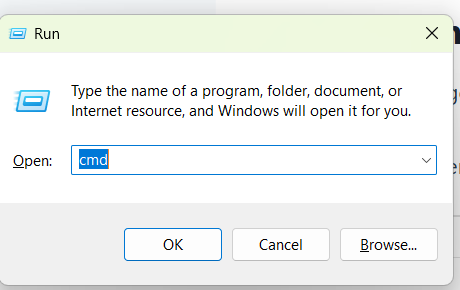
- The fastest way to get an elevated Command Prompt is Win + R, type
cmd, then pressCtrl + Shift + Enter. - You know it worked when the title bar says “Administrator: Command Prompt” and the prompt starts in
C:\Windows\System32. - Task Manager is the fallback when the Start menu or desktop is misbehaving.
- Windows 11 24H2 and later can also elevate a single command with
sudo, once you switch it on. - If Run as administrator is missing or greyed out, the cause is almost always a standard account, a UAC setting or a Group Policy restriction.
- Elevate only when a command truly needs it, and close the window when you are done.
Quick answer
To run CMD as administrator, press Win + R, type cmd, then press Ctrl + Shift + Enter and click Yes on the User Account Control (UAC) prompt.
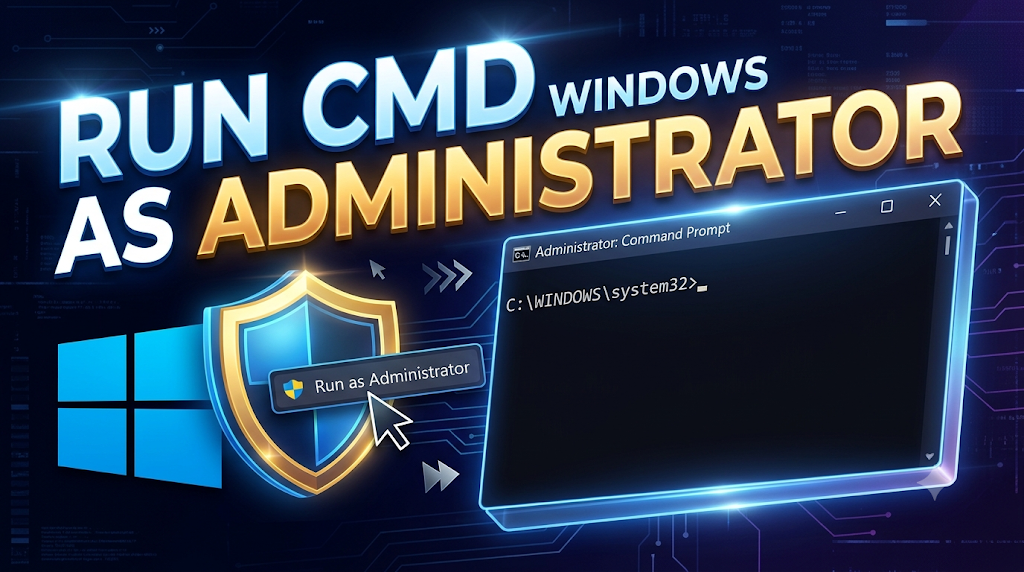
The Command Prompt window that opens shows “Administrator: Command Prompt” in the title bar, which confirms it has elevated privileges.
The same shortcut works from the Start search box in both Windows 11 and Windows 10.
Introduction
You type a perfectly good command, press Enter, and Windows replies with “Access is denied”.
I see this exact moment constantly, and it is almost never a typo!
Take ipconfig /flushdns as an example: it can fail in a normal Command Prompt window, then run fine once the window is elevated.
The reason is simple.
Windows starts every console with limited rights, so a standard cmd.exe cannot touch system files, services, disk tools or the network stack.
Running CMD as administrator removes that limit.
This guide shows nine ways to do it on Windows 11 and Windows 10, how to confirm the window is really elevated, how to make it permanent, and what to do when the option is missing.
What does it mean to run CMD as administrator?
When an administrator signs in, Windows creates two access tokens: a standard one and a full administrator one.
Microsoft’s documentation explains that apps normally run with the standard token unless you approve elevation.
The approval step is the UAC prompt.
So “run as administrator” simply means telling Windows to start cmd.exe with the full administrator token instead of the limited one.
Commands that usually need it include sfc /scannow, DISM /Online /Cleanup-Image /RestoreHealth, chkdsk C: /f /r, netsh winsock reset, diskpart and bcdedit.
One more point worth knowing for Windows 11.
The Windows Terminal app is now the default console host, so some shortcuts open a PowerShell tab first.
Command Prompt is still there as cmd.exe, and you can switch to it with one click.
Quick reference: all nine methods
| Method | Key shortcut or path | Best scenario |
|---|---|---|
| Run dialog | Win + R, cmd, Ctrl + Shift + Enter | Fastest keyboard route |
| Start search | Win, cmd, Ctrl + Shift + Enter | Everyday use |
| Power User menu | Win + X, then A | Windows Terminal (Admin) in Windows 11 |
| Task Manager | Ctrl + Shift + Esc, Run new task | Start menu or search is broken |
| File Explorer | C:\Windows\System32, right-click cmd.exe | Mouse-driven, no search needed |
| Desktop shortcut | Shortcut > Advanced > Run as administrator | One-click launch every day |
| PowerShell | Start-Process cmd -Verb RunAs | Scripts and IT work |
| Sudo for Windows | sudo <command> | Elevate one command only |
| Recovery environment | Shift + Restart > Troubleshoot | Windows will not boot |
Run CMD as administrator from the Run dialog (fastest keyboard method)
Press Windows key + R to open the Run dialog.
Type cmd.
Do not press Enter, because Enter alone opens a standard window.
Press Ctrl + Shift + Enter instead.
Click Yes when the UAC prompt appears.
Pro tip: this method never touches the mouse, and it works on every modern version of Windows.
Open an elevated Command Prompt from Windows search
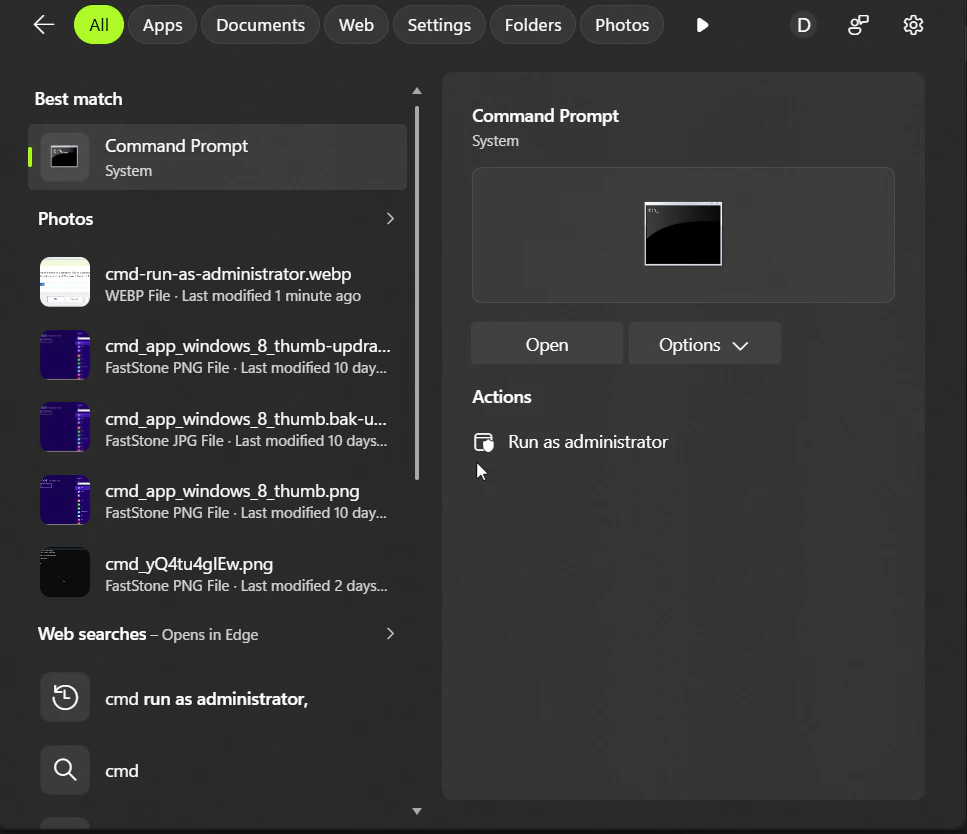
Press the Windows key or click the Start button.
Type cmd or Command Prompt.
In the right-hand preview pane, click Run as administrator.
If you prefer the keyboard, highlight the Command Prompt result and press Ctrl + Shift + Enter.
Approve the UAC prompt and you are in.
Use the Win + X menu and Windows Terminal (Admin)
Press Win + X or right-click the Start button.
In Windows 11, click Terminal (Admin), or press A as the quick key.
Approve the UAC prompt.
Terminal often opens a PowerShell tab by default.
To get Command Prompt, click the down arrow on the tab bar and choose Command Prompt, or press Ctrl + Shift + 2.
To make Command Prompt the default tab, open Terminal Settings > Startup > Default profile and select Command Prompt.
On Windows 10, the same menu shows either Command Prompt (Admin) or Windows PowerShell (Admin), depending on a taskbar setting.
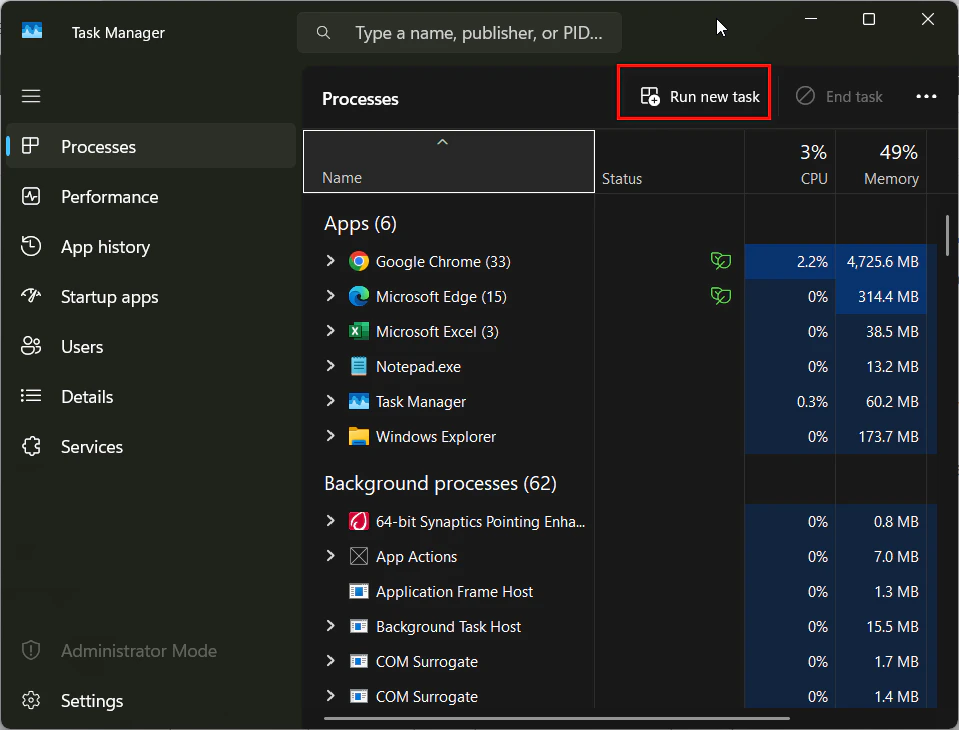
Use Task Manager when Start or search will not work
This is the emergency route, and it still works when the desktop is freezing or the Start menu will not open.
Press Ctrl + Shift + Esc to open Task Manager.
Click Run new task in the top bar, or use File > Run new task on older layouts.
Type cmd.
Tick Create this task with administrative privileges.
Click OK.
If Start itself is the problem, my Windows 11 Start menu guide has the full repair sequence.
Launch cmd.exe from System32 in File Explorer
Open File Explorer with Win + E.
Go to C:\Windows\System32.
Scroll to cmd.exe, right-click it and choose Show more options if needed, then Run as administrator.
This method is slower, but it needs no search and no shortcut.
A caution: you will see tips online claiming that typing cmd in a folder’s address bar and pressing Ctrl + Shift + Enter opens an elevated window.
Check the title bar before you trust it, because it may open a standard window in that folder.
Create a desktop shortcut that always runs as administrator
Right-click an empty area of the desktop and choose New > Shortcut.
In the location box, type C:\Windows\System32\cmd.exe.
Name it Command Prompt (Admin).
Right-click the new shortcut and choose Properties.
On the Shortcut tab, click Advanced.
Tick Run as administrator, then click OK and Apply.
From now on, a double-click opens an elevated window, and the UAC prompt still protects you.
Launch an elevated CMD from PowerShell
If you are already in a standard PowerShell or Terminal window, type this and press Enter:
Start-Process cmd -Verb RunAs
Windows shows the UAC prompt, then opens a new elevated Command Prompt.
This is handy for batch scripts and IT management work, where you need to elevate out of a normal shell.
Use sudo for Windows to elevate one command
Windows 11 version 24H2 and later include a sudo command.
According to Microsoft Learn, you enable it under System > Advanced in Settings (on 24H2 the page is named For developers) by switching Enable sudo to On.
After that, put sudo in front of the command you want to run as administrator, for example:
sudo netstat -ab
Microsoft documents three modes: in a new window, input closed, and inline.
The inline mode behaves most like sudo on other systems, but Microsoft warns it carries more security risk.
Because of that, many managed devices keep sudo disabled by policy.
Open Command Prompt from the recovery environment
Use this when Windows will not start normally.
Hold Shift while you click Restart, or let Windows fail to boot three times to reach recovery.
Go to Troubleshoot > Advanced options > Command Prompt.
Drive letters can differ in this environment, so run dir C: to find your Windows folder before you run repair commands.
Safe Mode with Command Prompt is the alternative when you can reach Advanced Startup options.
How to confirm that Command Prompt is really elevated
Check the title bar first.
An elevated window reads “Administrator: Command Prompt”.
Then look at the starting path.
Elevated windows open in C:\Windows\System32, while standard ones start in C:\Users\<YourName>.
For a hard test, type net session.
If you see “Access is denied”, the window is not elevated.
You can also run whoami /groups and look for the High Mandatory Level label.
Windows Terminal tabs can show different titles, so always trust a command test over the title.
How to always open Command Prompt as administrator
The shortcut method above is the safest permanent option.
For Windows Terminal, open its settings, select the Command Prompt profile, and turn on Run this profile as administrator (it sits under Additional settings or Advanced, depending on the build).
You can also open the Properties of cmd.exe, go to Compatibility, and tick Run this program as administrator.
I do not recommend that last one for most people, because it makes every launch of cmd.exe elevated, including ones started by other programs.
What to do if “Run as administrator” is missing or greyed out
Start with the simplest cause, which is your account type.
Open Settings > Accounts > Your info and check whether you are an administrator or a standard user.
If you are a standard user, the UAC prompt accepts the username and password of an administrator account, so ask the owner or sign in with that account.
If the UAC prompt never appears, search for Change User Account Control settings in Start and make sure the slider is not set to Never notify.
On a work or school PC, a Group Policy or Intune rule may block elevation or disable sudo.
You can look at gpedit.msc on Pro editions, and my guide to enabling gpedit.msc on Windows 11 Home covers the rest.
If everything above checks out, repair system files from another working method with sfc /scannow and DISM /Online /Cleanup-Image /RestoreHealth.
As a last test, create a new local user account to find out whether your profile is corrupted.
Fix “Access is denied” and “requires elevation” errors
“The requested operation requires elevation” means your window is a standard one.
Close it and reopen it with any method above, then confirm with net session.
If you still get “Access is denied” in an elevated window, the file or folder may be owned by TrustedInstaller or protected by Windows Resource Protection.
That is a different problem from missing admin rights, and forcing it is rarely a good idea.
Five commands that need an elevated Command Prompt
| Purpose | Command |
|---|---|
| Scan and repair system files | sfc /scannow |
| Repair the component store | DISM /Online /Cleanup-Image /RestoreHealth |
| Check and fix disk errors | chkdsk C: /f /r |
| Reset the network stack | netsh winsock reset |
| Activate a user account | net user <username> /active:yes |
For more command-line fixes, see my guide to updating drivers using CMD and my walkthrough of Task Manager diagnostic processes.
Statistics and facts worth knowing
| Item | Detail | Source |
|---|---|---|
| Sudo for Windows | Available in Windows 11 version 24H2 or later | Microsoft Learn |
| Sudo modes | Three: new window, input closed, inline | Microsoft Learn |
| UAC tokens | Administrators get a standard token and a full administrator token at sign in | Microsoft Learn |
| Standard users | UAC asks for valid administrator credentials | Microsoft Learn |
| Windows 11 desktop share | 69.9% worldwide, June 2026 | StatCounter (figure from my earlier Start menu guide) |
| Windows 10 desktop share | 28.2% worldwide, June 2026 | StatCounter (same caveat) |
StatCounter counts page views, not installed devices, and revises its numbers as new data arrives.
Treat the share figures as a trend, and check StatCounter for the current month before quoting them.
Real facts most guides get wrong
Pressing Enter in the Run box never elevates a program, only Ctrl + Shift + Enter does.
Windows Terminal is not Command Prompt, and Terminal (Admin) may open PowerShell first.
An elevated window does not mean every action succeeds, because TrustedInstaller-owned files stay protected.
Sudo is not on by default, and Microsoft’s own security baseline lists it as disabled.
Turning UAC down to “Never notify” does not make CMD safer or easier, it only removes the safety check.
Practical examples from two real setups
A home laptop with a broken network. The owner could browse nothing after an update.
Win + R, cmd, Ctrl + Shift + Enter, then netsh winsock reset and a restart brought the connection back in under two minutes.
A small office with standard accounts. Staff had no admin rights, and every repair meant a call to IT.
The fix was to leave staff on standard accounts and let IT type its own administrator credentials into the UAC prompt, so nobody needed a shared admin sign-in.
Best practices
- Use Win + R and
Ctrl + Shift + Enteras your default method. - Create a restore point before risky changes: search for Create a restore point, select your system drive, then click Create.
- Copy commands only from sources you trust and read each one before you press Enter.
- Close the elevated window as soon as you finish.
- Use a standard account for daily work and elevate only on demand.
Common mistakes to avoid
- Pressing Enter instead of
Ctrl + Shift + Enterin the Run box. - Assuming a Terminal window is Command Prompt.
- Leaving the built-in Administrator account turned on after a repair.
- Setting UAC to Never notify to avoid the prompt.
- Running scripts you did not write or read.
Recommended tools
- Task Manager. Your fallback when the Start menu fails.
- Windows Terminal. Hosts Command Prompt, PowerShell and more in one app.
- Sudo for Windows. Elevates single commands on Windows 11 24H2 and later.
- System Restore. Gives you a safe rollback point before changes.
- Event Viewer. Shows why a UAC prompt or a tool failed.
Questions and answers
Can I open CMD as admin without a password?
If your account is an administrator, the UAC prompt only needs you to click Yes.
Standard accounts must enter an administrator’s credentials, and there is no safe way around that.
What is the difference between CMD and PowerShell?
Command Prompt uses the older command syntax, while PowerShell is built for scripting and automation with objects.
Both can be elevated with the same methods, and many repair commands work in either.
Why did Windows 11 start opening Windows Terminal instead of Command Prompt?
Microsoft made Windows Terminal the default console host, and it can hold several shells in one app.
Command Prompt still exists as cmd.exe, and you can pick it from the Terminal tab menu.
How do I check that my CMD is running as administrator?
Look for “Administrator: Command Prompt” in the title bar, then run net session.
An “Access is denied” reply means the window is not elevated.
Conclusion
The quickest answer to cmd run as administrator is also the one to remember: Win + R, type cmd, then Ctrl + Shift + Enter.
Keep Task Manager and the System32 route in reserve for the days when Windows misbehaves, and use the desktop shortcut if you do this often.
Always confirm the window is elevated, and always think before you run a command with full rights.
Try the shortcut now so it is in your fingers for next time!
