
Key takeaways
- To turn on Fast Startup in Windows 11, open Control Panel > Power Options > Choose what the power buttons do, click Change settings that are currently unavailable, tick Turn on fast startup and save.
- If the checkbox is missing, run
powercfg /hibernate onin an administrator console. - Fast Startup only affects Shut down. Restart always does a full boot.
- Use
powercfg /h /type reducedto keep Fast Startup while using a smaller hibernation file. - Check that it really works with
powercfg /aand the Kernel-Boot event in Event Viewer. - Turn it off if you dual-boot, need full shutdowns for drivers, or use Wake-on-LAN that fails after shutdown.
Quick answer
To turn on Fast Startup in Windows 11, press Win + R, type powercfg.cpl and press Enter.
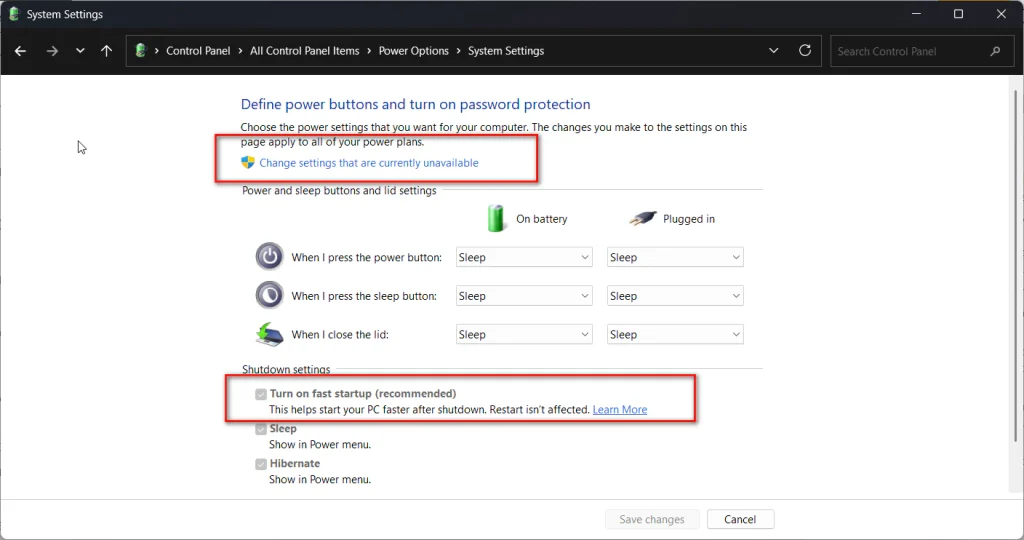
Click Choose what the power buttons do, then Change settings that are currently unavailable.
Tick Turn on fast startup (recommended) and click Save changes.
If the option is missing, open Terminal as administrator, run powercfg /hibernate on, and check again.
Introduction
Windows 11 turn on fast startup is a one-minute job, but the checkbox is often missing, greyed out or switched off by someone else.
That is why most people end up searching for it.
Fast Startup makes a shut-down PC start faster by saving part of Windows to disk instead of starting it from scratch.
On older hard drives the difference is easy to feel.
On fast SSDs it is smaller, but still there.
In this guide I show four ways to turn it on, how to bring back a missing option, and how to prove it is working.
I also cover the parts most guides skip: the reduced hibernation file for small SSDs, why Restart ignores Fast Startup, and when you should leave it off.
The steps are the same for home and office users in the United States, Europe and India.
What Fast Startup does in Windows 11
Microsoft describes Fast Startup as a shutdown that uses a hibernation file to speed up the next boot.
When you click Shut down, Windows signs you out first.
Then it saves the kernel session and drivers to hiberfil.sys on your system drive.
On the next start, Windows reloads that saved state instead of starting the kernel fresh.
Your apps and documents are not saved.
That is the difference from full hibernation, which saves your whole session.
| Mode | What is saved | Start time | Your apps reopen? |
|---|---|---|---|
| Full shutdown (cold boot) | Nothing | Slowest | No |
| Fast Startup | Kernel and drivers only | Faster | No |
| Hibernate | Everything in memory | Fast | Yes |
| Sleep | Everything in memory, kept powered | Fastest | Yes |
Microsoft’s documentation also notes that Fast Startup is the default when you shut down, while a restart does a full shutdown.
Before you start: check that Fast Startup is supported
Open Terminal or Command Prompt and run:
powercfg /aLook for Fast Startup in the list of available sleep states.
If it says hibernation has not been enabled, you need to turn on hibernation first.
If your PC uses Modern Standby, the list shows Standby (S0 Low Power Idle).
Hibernation and Fast Startup can still work on many of these PCs, but some laptops hide them by default.
You also need an administrator account to change this setting.
Method 1: Turn on Fast Startup from Control Panel
This is the standard way, and it works on every Windows 11 edition.
- Press
Win + R, typepowercfg.cpland press Enter. - Click Choose what the power buttons do on the left.
- Click Change settings that are currently unavailable at the top.
- Under Shutdown settings, tick Turn on fast startup (recommended).
- Click Save changes.
If the checkbox appears greyed out, you have skipped step 3.
That link unlocks the settings with admin rights.
Method 2: Turn on Fast Startup with a command
This is handy when you set up several PCs.
Open Terminal or Command Prompt as administrator.
If you need help, see my guide to run Command Prompt as administrator.
First, make sure hibernation is on:
powercfg /hibernate onThen switch Fast Startup on in the registry:
reg add "HKLM\SYSTEM\CurrentControlSet\Control\Session Manager\Power" /v HiberbootEnabled /t REG_DWORD /d 1 /fThe value 1 means on and 0 means off.
Shut down and start the PC to use it.
Method 3: Turn on Fast Startup in Registry Editor
Use this if you prefer to see the setting.
- Press
Win + R, typeregeditand press Enter. - Go to
HKEY_LOCAL_MACHINE\SYSTEM\CurrentControlSet\Control\Session Manager\Power. - Double-click HiberbootEnabled.
- Set the value to
1and click OK.
If the value doesn’t exist, right-click in the right pane, choose New > DWORD (32-bit) Value, and name it HiberbootEnabled.
Back up the key first with File > Export.
Hibernation must still be on for this to work.
Method 4: Turn on Fast Startup with Group Policy (Pro and office PCs)
On Windows 11 Pro, Enterprise and Education, admins can enforce Fast Startup.
- Press
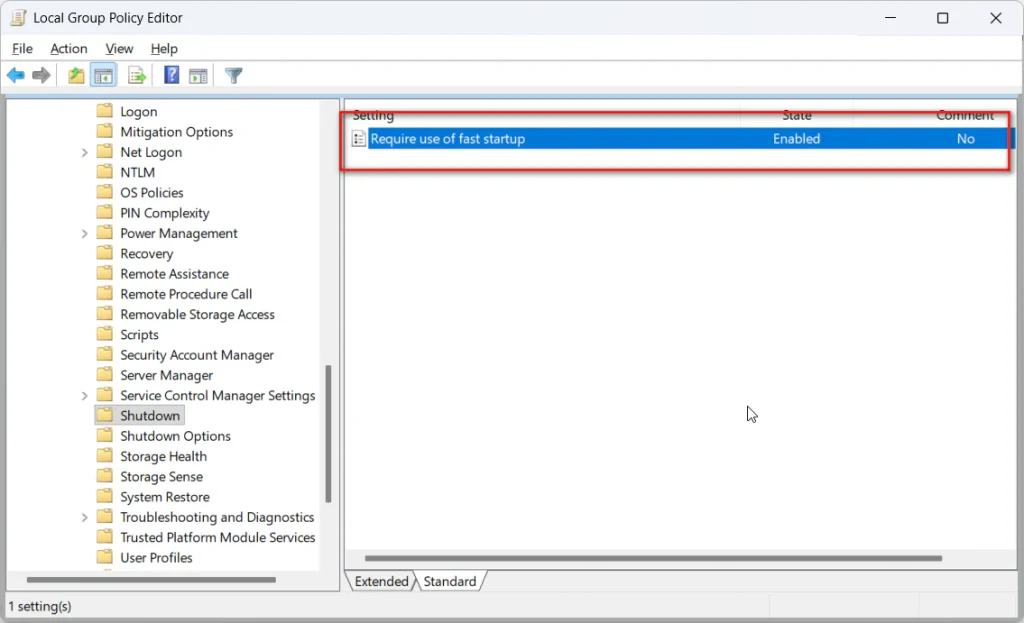
Win + R, typegpedit.mscand press Enter. - Go to Computer Configuration > Administrative Templates > System > Shutdown.
- Open Require use of fast startup.
- Choose Enabled and click OK.
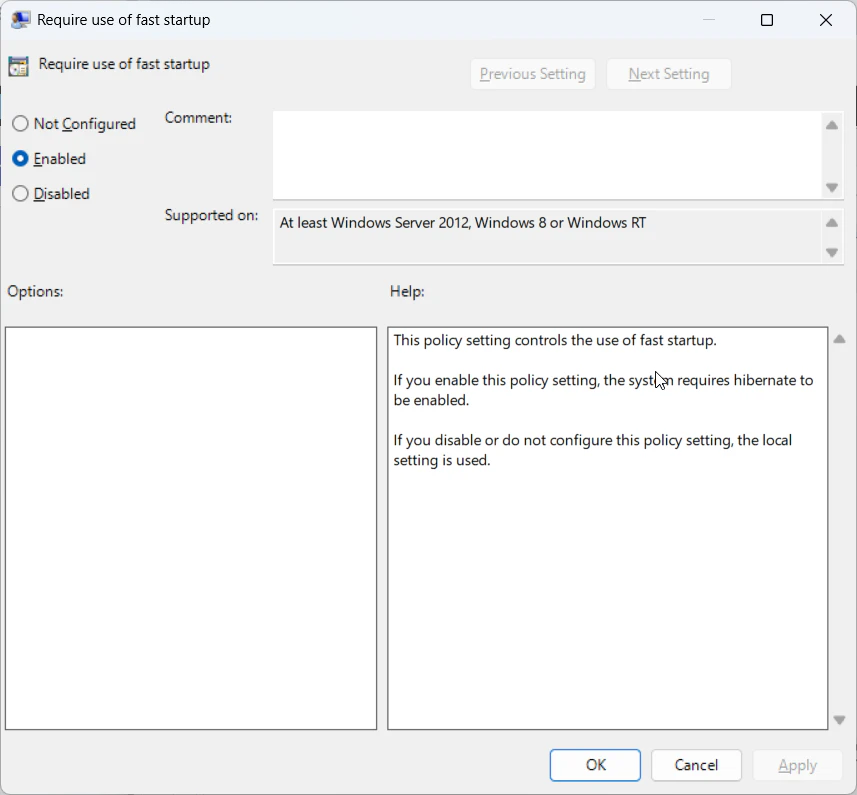
When this policy is on, the Control Panel checkbox is locked.
That is a common reason the option looks greyed out on work PCs.
Note that this policy is built to force Fast Startup on.
Admins report mixed results using it to turn Fast Startup off, so to disable it across PCs, push the HiberbootEnabled value of 0 with Group Policy Preferences or Intune instead.
Windows 11 Home doesn’t include gpedit.msc.
My guide to gpedit.msc on Windows 11 Home explains why, and why the registry method above is better there.
Fix “Turn on fast startup” missing in Windows 11
This is the most common problem, and it has one main cause: hibernation is turned off.
Fast Startup uses the hibernation file, so the checkbox disappears when hibernation is disabled.
- Open Terminal as administrator.
- Run
powercfg /hibernate on. - Close and reopen Choose what the power buttons do.
- Click Change settings that are currently unavailable and tick the box.
If the option is still missing, check these:
- Group Policy. A policy may hide or force the setting on work PCs.
- Modern Standby laptops. Some ship with hibernation hidden. Run
powercfg /ato see what is supported. - Firmware settings. Some laptops have a hibernation or sleep setting in UEFI.
- Virtual machines. Many hypervisors don’t offer hibernation, so Fast Startup isn’t available.
Save SSD space with a reduced hibernation file
This is the tip most guides miss.
Microsoft documents two hibernation file sizes.
A full file uses about 40% of your RAM and supports hibernate, hybrid sleep and Fast Startup.
A reduced file uses about 20% of your RAM and supports Fast Startup only.
On a laptop with 16 GB of RAM and a small SSD, that difference is a few gigabytes.
To keep Fast Startup but shrink the file, run as administrator:
powercfg /h /type reducedIf it says “the parameter is incorrect”, run these two lines instead:
powercfg /h /size 0
powercfg /h /type reduced
After this, powercfg /a reports that hibernation is not available.
That is expected.
Fast Startup still works, but the Hibernate option in the Start menu goes away.
To switch back, run powercfg /h /type full.
Check that Fast Startup is really working
Ticking the box doesn’t prove it is working.
Here are two checks I use.
Check 1: powercfg. Run powercfg /a and confirm Fast Startup is listed as available.
Check 2: Event Viewer.
- Shut down with Fast Startup on, then start the PC.
- Press
Win + R, typeeventvwr.mscand press Enter. - Go to Windows Logs > System and click Filter Current Log.
- Enter event ID
27and look for the source Kernel-Boot. - Open the latest entry.
A boot type of 0x1 means the PC used Fast Startup.
A boot type of 0x0 means a full cold boot or a restart, and 0x2 means a resume from hibernation.
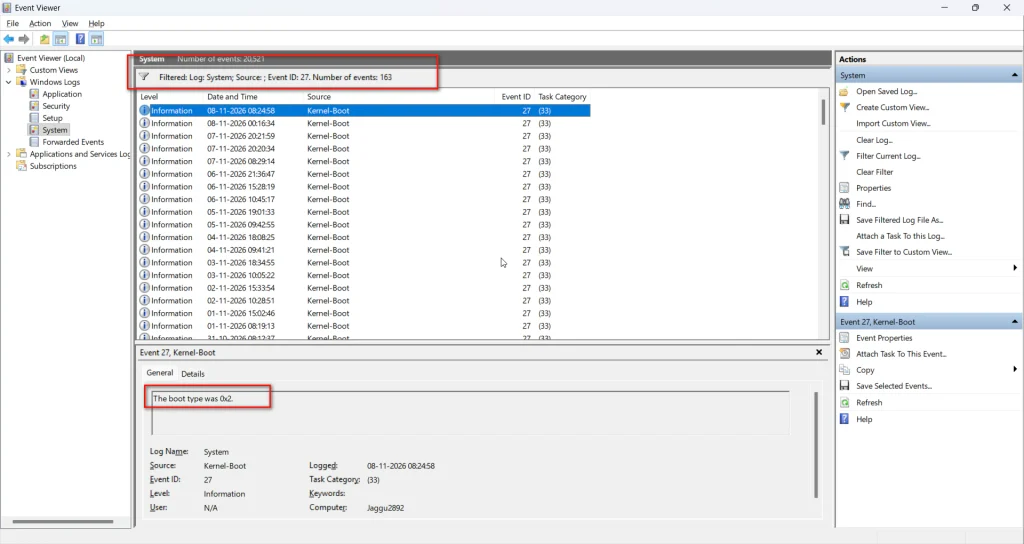
A few forum users report that this event doesn’t always appear after a Fast Startup boot on some builds, so if it is missing, rely on Check 1.
Fast Startup and Restart: the part many guides get wrong
Fast Startup only applies to Shut down.
Microsoft’s documentation says Restart always does a full boot cycle, because a restart usually means you want a fresh Windows state after a driver or update change.
So if you are fixing a problem, use Restart, not Shut down.
If you want a full shutdown without changing the setting, hold Shift while you click Shut down.
Or run:
shutdown /s /t 0Microsoft notes that shutdown /s does a full shutdown by default, and /hybrid uses Fast Startup.
When to leave Fast Startup off
Fast Startup is fine for most single-OS PCs.
But I recommend turning it off in these cases:
| Situation | Why it can cause trouble |
|---|---|
| Dual-booting Linux or another Windows | The Windows drive stays locked in a hibernated state, so the other OS may not mount it safely |
| Driver or hardware troubleshooting | Drivers are restored instead of reloaded, so some fixes need a full boot |
| Wake-on-LAN after shutdown | Some network cards don’t wake from a Fast Startup shutdown |
| Reaching UEFI or BIOS settings | Some PCs skip the firmware key window with Fast Startup on |
| Task Manager uptime looks wrong | Uptime keeps counting across shutdowns, which can confuse office reporting |
To turn it off, untick the box in Control Panel, or set HiberbootEnabled to 0.
Which method should you use?
| Method | Best for | Admin needed | Edition |
|---|---|---|---|
| Control Panel | Most users | Yes | All |
| Command line | Setting up several PCs | Yes | All |
| Registry Editor | Seeing the exact value | Yes | All |
| Group Policy | Locking the setting on office PCs | Yes | Pro, Enterprise, Education |
| powercfg /hibernate on | Bringing back a missing option | Yes | All |
What real users report
I could not retrieve Reddit or Medium threads for this update, so these reports come from ElevenForum, Microsoft Tech Community, winhelponline and Help Desk Geek.
I have paraphrased each one.
ElevenForum, “FAST STARTUP is not available” (marked Solved). A Windows 11 Home user on 25H2 couldn’t find Fast Startup.
Helpers asked them to run powercfg -a, which showed only Standby (S3).
After another member turned hibernation on, powercfg -a listed Fast Startup as available.
ElevenForum, “Hibernate option missing on start menu” (marked Solved). Replies pointed to powercfg /hibernate on, and noted that some laptops limit hibernation in firmware or through Modern Standby.
ElevenForum, same thread. One member said Modern Standby PCs don’t include Hibernate by default but can be enabled, and confirmed it worked on two Dell Latitude laptops.
Microsoft Tech Community. A Windows 11 user found Fast Startup had quietly stopped working.
Event ID 27 showed boot type 0x0 instead of 0x1 after every shutdown, which is exactly how the Event Viewer check exposes the problem.
winhelponline. The guide fixes a missing Fast Startup checkbox by turning hibernation back on with powercfg /hibernate on.
Help Desk Geek. The guide says powercfg /hibernate on fixes the missing option for most people, and recommends powercfg /h /type reduced for limited SSD space.
Statistics and facts worth knowing
| Item | Detail | Source |
|---|---|---|
| Full hibernation file | About 40% of physical memory | Microsoft Learn |
| Reduced hibernation file | About 20% of physical memory, Fast Startup only | Microsoft Learn |
| Default shutdown | Fast Startup is the default transition when you shut down | Microsoft Learn |
| Restart | Always a full shutdown and boot | Microsoft Learn |
| Registry value | HiberbootEnabled, 1 = on, 0 = off | Microsoft Learn |
These are documented behaviours, not survey figures.
Real boot-time gains depend on your drive and drivers.
Real facts most guides get wrong
Fast Startup is not the same as hibernation.
It saves the kernel, not your open apps.
Restart doesn’t use Fast Startup.
A missing checkbox almost always means hibernation is off, not that your PC doesn’t support it.
You don’t need a full hibernation file for Fast Startup.
The reduced type is enough.
Disabling Fast Startup doesn’t make Windows less stable on its own.
It only makes cold boots slower.
Two typical setups
A home laptop with a 256 GB SSD. The owner wants faster starts but less wasted space.
They turn on Fast Startup, then run powercfg /h /type reduced to cut the hibernation file in half.
Starts stay fast, and they get space back.
An office that uses Wake-on-LAN. IT pushes updates overnight, but shut-down PCs don’t wake.
They push HiberbootEnabled set to 0 to those desktops through Group Policy Preferences, and Wake-on-LAN works again.
Laptops keep Fast Startup on.
Best practices
- Run
powercfg /afirst to see what your PC supports. - Use the reduced hibernation file on small SSDs.
- Use Restart, not Shut down, when troubleshooting.
- Check the Kernel-Boot event to confirm Fast Startup works.
- Turn it off on dual-boot PCs.
- Document the setting for office PCs and manage it with Group Policy.
Common mistakes to avoid
- Forgetting to click Change settings that are currently unavailable.
- Running
powercfg /hibernate offto save space, then wondering where Fast Startup went. - Expecting open apps to reopen after a Fast Startup shutdown.
- Using Shut down to apply driver fixes.
- Leaving Fast Startup on while dual-booting.
Recommended tools
- Power Options (powercfg.cpl). The main place to turn Fast Startup on or off.
- powercfg. Checks sleep states and controls hibernation.
- Registry Editor. Shows the HiberbootEnabled value.
- Group Policy Editor. Locks the setting on Pro and office PCs.
- Event Viewer. Confirms the boot type after startup.
Questions and answers
How do I turn on Fast Startup in Windows 11?
Open Control Panel > Power Options > Choose what the power buttons do.
Click Change settings that are currently unavailable, tick Turn on fast startup and click Save changes.
Why is Turn on fast startup missing?
Hibernation is usually turned off.
Run powercfg /hibernate on in an administrator console and the option comes back.
Why is the Fast Startup checkbox greyed out?
Click Change settings that are currently unavailable first.
On work PCs, a Group Policy may also lock the setting.
Is Fast Startup on by default in Windows 11?
On most PCs it is on by default, as long as hibernation is supported and enabled.
Does Fast Startup work with Restart?
No.
Restart always does a full boot.
Fast Startup only applies when you choose Shut down.
Should I use Fast Startup on an SSD?
Yes, if you don’t dual-boot.
The gain is smaller than on a hard drive, and the reduced hibernation file keeps disk use low.
How do I know Fast Startup is working?
Run powercfg /a and look for Fast Startup.
In Event Viewer, Kernel-Boot event 27 shows boot type 0x1 after a Fast Startup boot.
Does Fast Startup work the same in Windows 10?
Yes.
The setting, commands and registry value are the same in Windows 10 and 11.
Conclusion
Windows 11 turn on fast startup takes a minute once you know where to click.
If the checkbox is missing, turn hibernation on with powercfg and it returns.
Use the reduced hibernation file on small SSDs, and check the Kernel-Boot event to confirm it works.
Remember that Restart always does a full boot, so use it when you troubleshoot.
Leave Fast Startup off on dual-boot PCs and on office desktops that rely on Wake-on-LAN.
Try the Event Viewer check after your next shutdown, then tell me in the comments what boot type you saw.
If this guide helped, share it with a friend whose PC still takes ages to start.
