
Key takeaways
- COM Surrogate is dllhost.exe, a genuine Windows process that runs add-ons like thumbnail makers outside File Explorer.
- High CPU usually means it is stuck on one bad file, codec or shell extension, not that Windows is broken.
- Add the Command line column in Task Manager to see the CLSID, then look it up in the registry to find the add-on.
- Use Process Monitor to find the exact file it keeps reading, then move or delete that file.
- The real dllhost.exe lives in C:\Windows\System32 and is signed by Microsoft. A copy named DlIHost.exe or one in AppData is likely a miner.
- Don’t disable COM Surrogate or add it to DEP exceptions. Fix the add-on instead.
Quick answer
dllhost.exe COM Surrogate high CPU usually means a thumbnail, codec or shell extension is stuck on a file.
Open the folder in Details view, clear the thumbnail cache with Disk Cleanup, and restart File Explorer.
If it keeps happening, add the Command line column in Task Manager’s Details tab to see which COM object is running, or use Process Monitor to find the file it keeps reading.
Always confirm the file runs from C:\Windows\System32 so you are not dealing with a fake.
Introduction
dllhost.exe COM Surrogate high CPU is one of those problems that makes a fast PC feel broken.
You open a folder of videos or photos, the fan spins up, and Task Manager shows COM Surrogate near the top.
Most guides give you a list of generic fixes and hope one works.
I prefer to find the cause first, because COM Surrogate is only the container.
The real culprit is the add-on running inside it, or the file that add-on can’t read.
In this guide I show you how to tell a busy COM Surrogate from a stuck one, how to read its command line to identify the add-on, and how to find the exact file with Process Monitor.
I also cover the fake dllhost.exe miners that hide behind the same name.
The steps work the same for home and office users in the United States, Europe and India.
What dllhost.exe and COM Surrogate actually do
COM stands for Component Object Model, the system Windows uses to let programs load each other’s add-ons.
Many add-ons are DLL files, and a DLL can’t run on its own.
So Windows starts a host process to run it.
That host is dllhost.exe, and Task Manager shows it as COM Surrogate.
Microsoft’s documentation explains the benefit: running a DLL in a surrogate isolates faults, so if the add-on crashes, it doesn’t take the main program down with it.
That is why File Explorer hands risky jobs, like building thumbnails for videos, photos and PDFs, to COM Surrogate.
If a codec chokes on a damaged video, COM Surrogate crashes instead of Explorer.
You will often see several COM Surrogate entries at once.
Each one may be hosting a different add-on.
Normal activity vs a real problem
| What you see | What it usually means | What to do |
|---|---|---|
| Short spike when you open a media folder | Building thumbnails | Wait a few seconds |
| High CPU only in one folder | One bad file or codec in that folder | Find the file (Fix 5) |
| High CPU in large icon view, normal in Details view | Thumbnail generation is the trigger | Clear cache, check codecs |
| High CPU with no folders open | Another app’s COM add-on | Check the command line (Fix 3) |
| High CPU and the file is in AppData or Temp | Likely malware | Scan now (Fix 1) |
| “COM Surrogate has stopped working” | Add-on crashed | Find the add-on, update or remove it |
Fix 1: Confirm it is the real dllhost.exe
Do this first, because a fake COM Surrogate is a common way to hide a crypto miner.
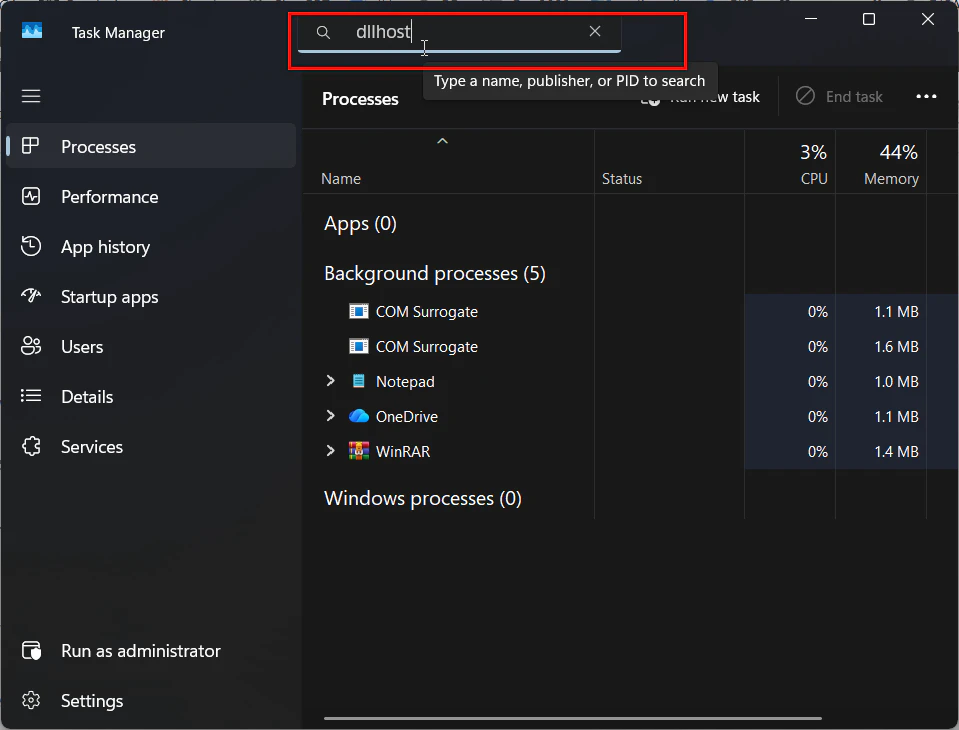
- Press
Ctrl + Shift + Escto open Task Manager. - Go to the Details tab and find dllhost.exe.
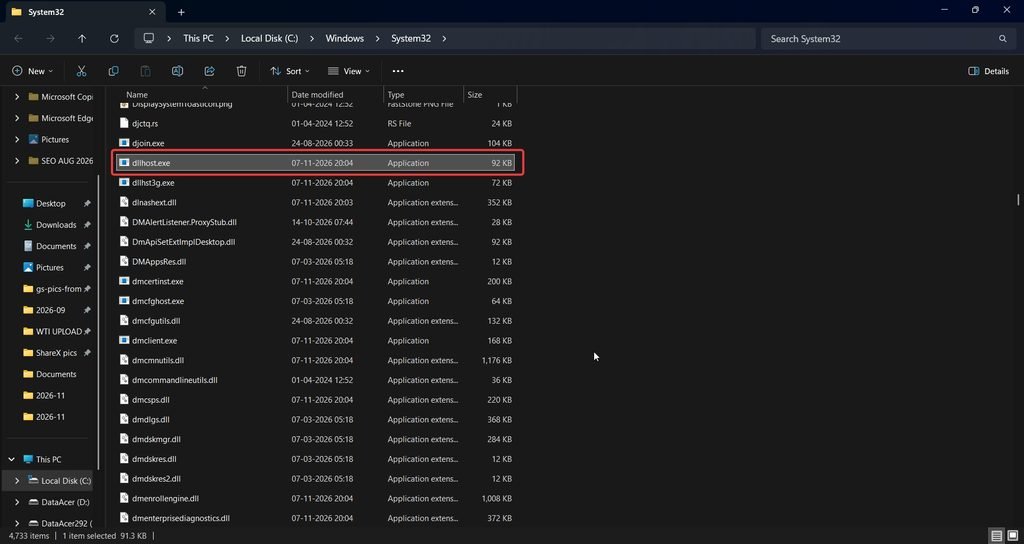
- Right-click it and choose Open file location.
The real file is in C:\Windows\System32.
A 32-bit copy also lives in C:\Windows\SysWOW64, which is normal on 64-bit Windows.
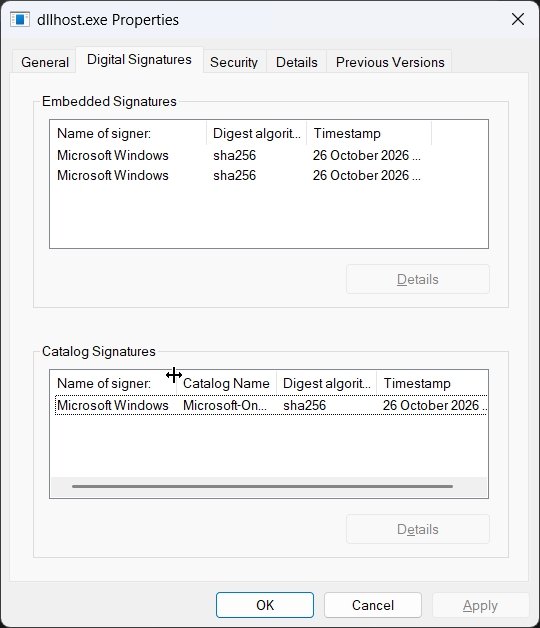
Right-click the file, open Properties > Digital Signatures, and confirm it is signed by Microsoft Windows.
Watch the spelling too.
winhelponline describes a fake COM Surrogate named DlIHost.exe, with a capital I instead of a lowercase l, often running from a folder like AppData\Roaming\Dll.
If you find a copy outside System32 or SysWOW64, run a full scan and then a Microsoft Defender Offline scan from Windows Security > Virus & threat protection > Scan options.
Fix 2: Switch to Details view to test the thumbnail theory
This is the quickest test.
Open the folder where CPU jumps and press Ctrl + Shift + 6 to switch to Details view.
If CPU drops, thumbnail generation is the trigger.
One Microsoft community user found exactly this: the problem only happened in large and medium icon views for folders with videos, and stopped in list and details view.
To stop thumbnails everywhere while you investigate:
- Open File Explorer, click … and choose Options.
- On the View tab, tick Always show icons, never thumbnails.
- Click OK.
Turn it back off once you have fixed the cause.
Fix 3: Read the command line to find the COM add-on
This is the step most guides skip, and it is the most useful one.
Every COM Surrogate is started with an ID that names the add-on.
- In Task Manager, go to the Details tab.
- Right-click any column header and choose Select columns.
- Tick Command line and click OK.
Now look at the busy dllhost.exe.
The command line looks like this:
C:\WINDOWS\system32\DllHost.exe /Processid:{XXXXXXXX-XXXX-XXXX-XXXX-XXXXXXXXXXXX}The code in curly brackets is a CLSID or AppID.
Copy it, then look it up:
- Press
Win + R, typeregeditand press Enter. - Press
Ctrl + F, paste the ID and search. - Look at the default value and the InprocServer32 subkey under the matching entry.
The name and DLL path tell you which app owns the add-on.
If it belongs to a video converter, PDF tool or old camera app, update or uninstall that app.
If it is a Windows component, such as the thumbnail cache, move on to Fixes 4 and 5.
Fix 4: Clear the thumbnail cache
A damaged thumbnail cache can make COM Surrogate rebuild the same thumbnails again and again.
- Search for Disk Cleanup in Start and open it.
- Choose drive C:.
- Tick Thumbnails and click OK, then Delete Files.
- Restart File Explorer from Task Manager, or restart the PC.
Windows rebuilds the cache as you browse, so the first visit to each folder may be slower.
If you also want to free space, my guide on how to delete %temp% files in Windows covers the other cleanup options.
Fix 5: Find the bad file with Process Monitor
This is the fix that solved it for many people on Microsoft’s own community thread.
An answer accepted by the person who asked, and marked helpful by 84 people, used Process Monitor to find the file dllhost.exe kept trying to open.
In that user’s case it was an .avi video on the desktop.
- Download Process Monitor from Microsoft Sysinternals and run it.
- Click Filter > Filter.
- Add Process Name is dllhost.exe, then click Add and OK.
- Open the folder that triggers the CPU spike.
- Watch the Path column for the file that appears over and over.
Move that file out of the folder, or delete it if it is damaged.
If it is a video, try playing it.
A file that won’t play is a strong sign it is corrupt.
Fix 6: Update or remove codecs and shell extensions
Codecs and shell extensions are add-ons that read media and add right-click menu items.
A buggy one is the most common long-term cause.
- Update the video and photo apps you installed recently.
- Remove old codec packs you no longer need.
- Install codecs only from trusted sources, and only the ones you need.
For shell extensions, NirSoft’s ShellExView lists every installed extension.
Sort by company, disable non-Microsoft thumbnail handlers one at a time, restart Explorer, and test.
Some community users fixed the problem by installing a codec pack, while others fixed it by removing one.
That tells you the real issue is a mismatched codec, not codec packs in general.
Fix 7: Do a clean boot
If you can’t spot the add-on, a clean boot shows whether third-party software is involved.
- Press
Win + R, typemsconfigand press Enter. - On Services, tick Hide all Microsoft services and click Disable all.
- Open Task Manager from the Startup tab and disable startup apps.
- Restart and test the same folder.
If CPU stays normal, turn things back on in small groups until the problem returns.
Choose Normal startup in msconfig when you finish.
Fix 8: Repair system files and update Windows
Damaged system files can make even Microsoft’s own handlers misbehave.
Open Command Prompt as administrator and run:
DISM /Online /Cleanup-Image /RestoreHealth
sfc /scannow
Then install pending updates in Settings > Windows Update, including optional driver updates for your graphics card.
If you need help, see my guide to run Command Prompt as administrator.
Fix 9: Check the disk and test a new user profile
Bad sectors under a media file can make every read slow and repeated.
Run chkdsk C: /scan in an administrator console to check the drive online.
If COM Surrogate only misbehaves in your account, create a new local user and test the same folders there.
If the new account is fine, your profile or its thumbnail settings are the problem.
What not to do
Older guides suggest adding dllhost.exe to the Data Execution Prevention exception list.
I don’t recommend it.
It weakens a security feature for a system process, and it hides the cause instead of fixing it.
Don’t delete or rename dllhost.exe either.
Windows and many apps need it, and System File Checker will put it back anyway.
Ending the COM Surrogate task in Task Manager is fine as a quick fix.
Windows starts a new one when it needs it, but the problem returns if the cause is still there.
Which fix should you try first?
| Symptom | Best fix |
|---|---|
| Not sure it is genuine | Fix 1: check location and signature |
| Only in media folders | Fix 2, then Fix 4 and Fix 5 |
| Happens with no folders open | Fix 3: read the command line |
| Started after installing an app | Fix 6 or Fix 7 |
| Happens everywhere, plus other errors | Fix 8 |
| Only in your user account | Fix 9 |
What real users report
I could not retrieve Reddit or Medium threads for this update, so these reports come from Microsoft’s community thread, winhelponline and testing guides.
I have paraphrased each one.
The Microsoft thread dates from 2014 to 2016 and covers Windows 7 to 10, but the same COM Surrogate design still applies in Windows 11.
Microsoft community thread, accepted answer. A user found the file dllhost.exe kept trying to open by using Process Monitor, then removed it.
In their case it was an .avi file on the desktop, and 84 people marked the answer helpful.
Microsoft community thread, accepted answer. Another user reported the problem simply went away after an automatic Windows update.
Microsoft community thread. A Windows 10 user noticed the issue only in large and medium icon views of video folders, and fixed it by installing a codec pack.
winhelponline. The guide warns that a COM Surrogate using high CPU or memory is often a fake miner named DlIHost.exe, located in AppData.
Windows Report. The guide lists a clean boot, SFC and DISM, a malware scan and finding a corrupt image or video file as the main fixes.
Statistics and facts worth knowing
| Item | Detail | Source |
|---|---|---|
| Default surrogate | dllhost.exe is the default COM surrogate executable | Microsoft Learn |
| Purpose | Fault isolation: a crashing DLL doesn’t take down the client | Microsoft Learn |
| Accepted fix votes | 84 people found the Process Monitor answer helpful | Microsoft community thread |
| Fake name seen | DlIHost.exe in AppData\Roaming\Dll | winhelponline |
These figures are documentation and individual reports, not large studies.
Real facts most guides get wrong
Several COM Surrogate entries at once are normal.
The command line shows exactly which add-on each one hosts.
High CPU is rarely Windows’ fault.
It is usually a third-party add-on or one damaged file.
Codec packs are not good or bad by default.
The mismatch between a file and its codec is the problem.
Turning off thumbnails hides the symptom.
It is a test, not a cure.
Two typical setups
A home PC with a family video folder. Opening the folder pins one CPU core.
Process Monitor shows dllhost.exe reading the same .mp4 file again and again.
The file won’t play, so the owner deletes it, and the folder opens instantly.
An office PC with a PDF tool. COM Surrogate stays busy all day, even with Explorer closed.
The command line points to a CLSID owned by an old PDF converter’s thumbnail handler.
IT updates the converter, and the CPU drops to normal.
Best practices
- Check the file location and signature before you change anything.
- Use the Command line column to identify the add-on.
- Use Process Monitor when a single folder triggers the problem.
- Keep media apps and graphics drivers up to date.
- Remove apps and codec packs you no longer use.
- Treat “Always show icons” as a test, not a permanent fix.
Common mistakes to avoid
- Adding dllhost.exe to the DEP exception list.
- Deleting or renaming dllhost.exe.
- Installing several codec packs at once.
- Ignoring a dllhost.exe running from AppData.
- Ending the task repeatedly without finding the cause.
Recommended tools
- Task Manager. Shows CPU use, file location and the command line.
- Registry Editor. Matches the CLSID to an add-on and DLL.
- Process Monitor. Shows which file dllhost.exe keeps reading.
- ShellExView. Lists and disables shell extensions.
- Disk Cleanup. Clears the thumbnail cache.
- Microsoft Defender Offline scan. Removes malware hiding as dllhost.exe.
Questions and answers
What is COM Surrogate in Windows 11?
COM Surrogate is dllhost.exe, a Windows process that runs add-ons such as thumbnail makers outside File Explorer.
If an add-on crashes, only COM Surrogate stops, not Explorer.
Why is dllhost.exe COM Surrogate using high CPU?
It is usually stuck on a damaged file, a buggy codec or a third-party shell extension.
Malware using the same name is another possible cause.
Is dllhost.exe a virus?
The real dllhost.exe in System32 or SysWOW64 is safe and signed by Microsoft.
A copy in AppData or with a misspelled name, such as DlIHost.exe, is suspicious.
Can I end COM Surrogate in Task Manager?
Yes, it is safe to end.
Windows restarts it when needed, but the high CPU returns if the cause remains.
How do I find which program COM Surrogate is running?
Add the Command line column in Task Manager’s Details tab.
Copy the ID after /Processid and search for it in Registry Editor.
Why do I see several COM Surrogate processes?
Each one can host a different add-on.
Several at once are normal.
Does COM Surrogate cause high disk usage too?
It can, when it reads a large or damaged media file again and again.
The same fixes apply, especially Process Monitor and clearing the thumbnail cache.
Should I add dllhost.exe to DEP exceptions?
No.
It weakens security and hides the cause.
Update or remove the add-on instead.
Conclusion
dllhost.exe COM Surrogate high CPU almost always comes down to one add-on or one file.
Confirm the process is genuine, then switch to Details view to test the thumbnail theory.
Read the command line to identify the add-on, and use Process Monitor to catch the file it keeps opening.
Clear the thumbnail cache, update or remove the add-on, and avoid old advice like DEP exceptions.
