
Last Updated:
Windows 10 and Bluetooth devices connect using pairing.
PIN key entered for security.
For non-typing hardware, pairing happens automatically. Once Bluetooth is turned on, speakers, sound bars, earphones, and headsets are discoverable.
Bluetooth headphones paired but not connected Windows 10
You have to click on that device to connect them. Windows 10 Bluetooth couldn’t connect, resulting in no audio or connectivity. But, the following error occurs:
“That didn’t work. Make sure your Bluetooth device is still discoverable, then try again.”
Source: answers.microsoft.com
If Bluetooth doesn’t connect, you need to check the software and hardware settings.
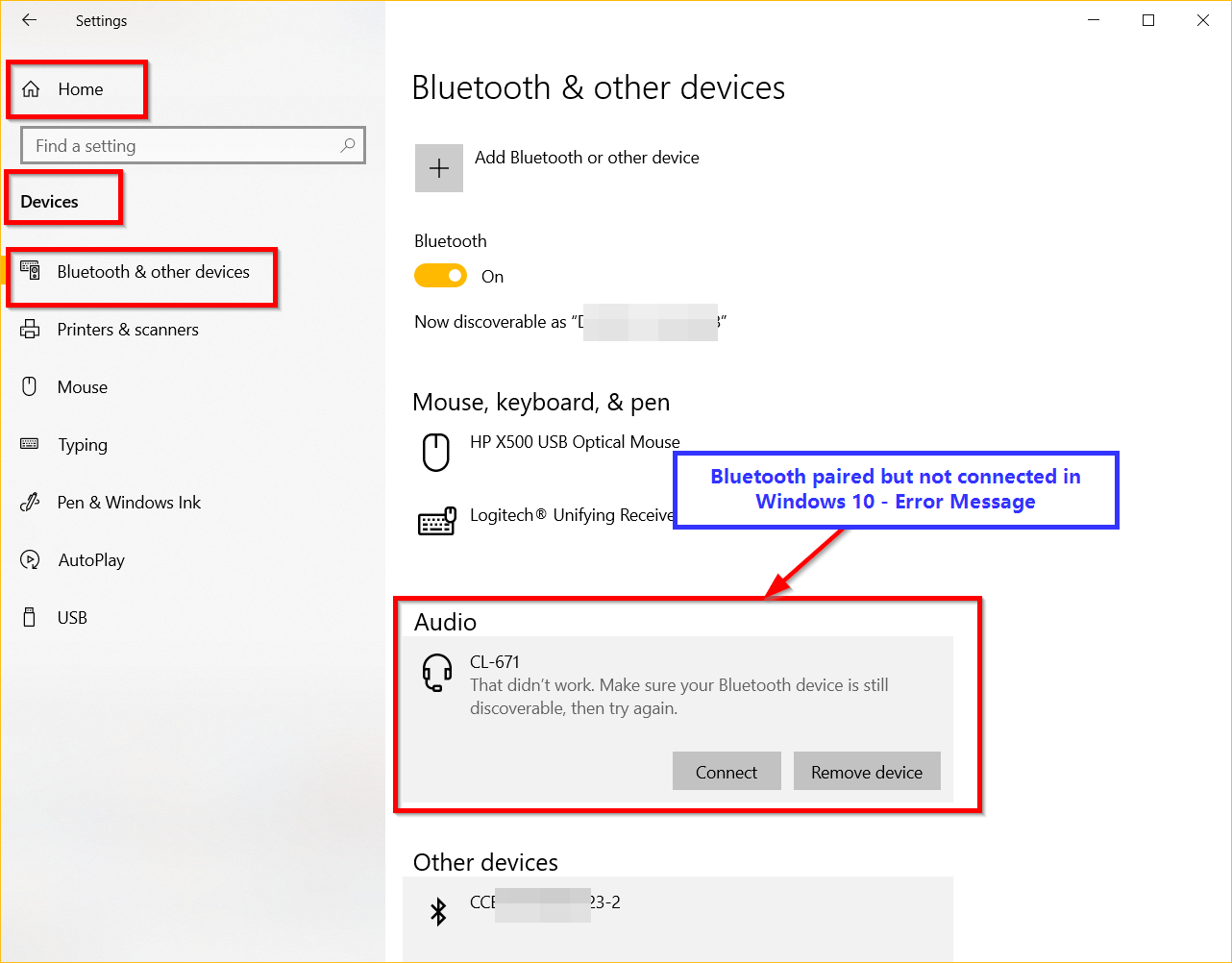
It isn’t simple to find a solution. I faced a similar problem while trying to connect my Bluetooth speakers. We paired both Windows 10 and the device. In the settings, I’m able to see the device.
Also Read—Turn on Bluetooth on Windows 10—Settings and Switch
The most common problem is that Bluetooth is paired but not connected. Sometimes, Bluetooth headphones won’t connect to a PC.
When I clicked the device to connect, I received the above error.
Paired but not Connected Bluetooth
I also tried the notification area to connect. But it failed with the above issue. I thought it was a silly problem, as both the devices were paired and discoverable. But not connected.
You get a typical warning that the device is paired but not connected.
More to Read—[Working] Top 10 Fixes for Bluetooth Keyboard not working in Windows 10
I removed the Bluetooth speaker and paired it again. I attempted to establish a connection through the Notification area settings and the Devices > Bluetooth & other devices section. Both solutions were unsuccessful.
Then I found a solution by researching the net. It is related to hidden devices and drivers in Device Manager. The following solution worked for me.
Fix: That didn’t work. Make sure your Bluetooth device is still discoverable, then try again
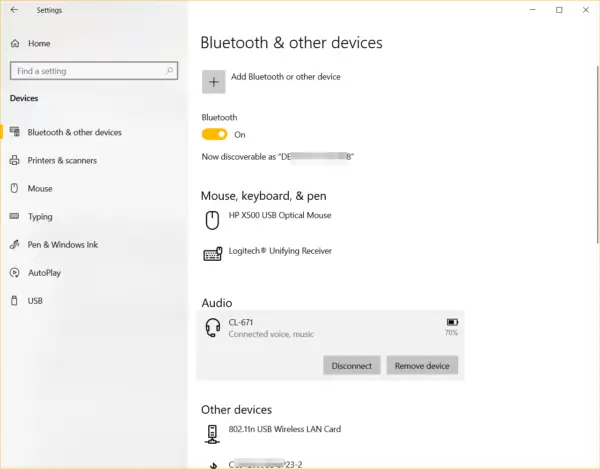
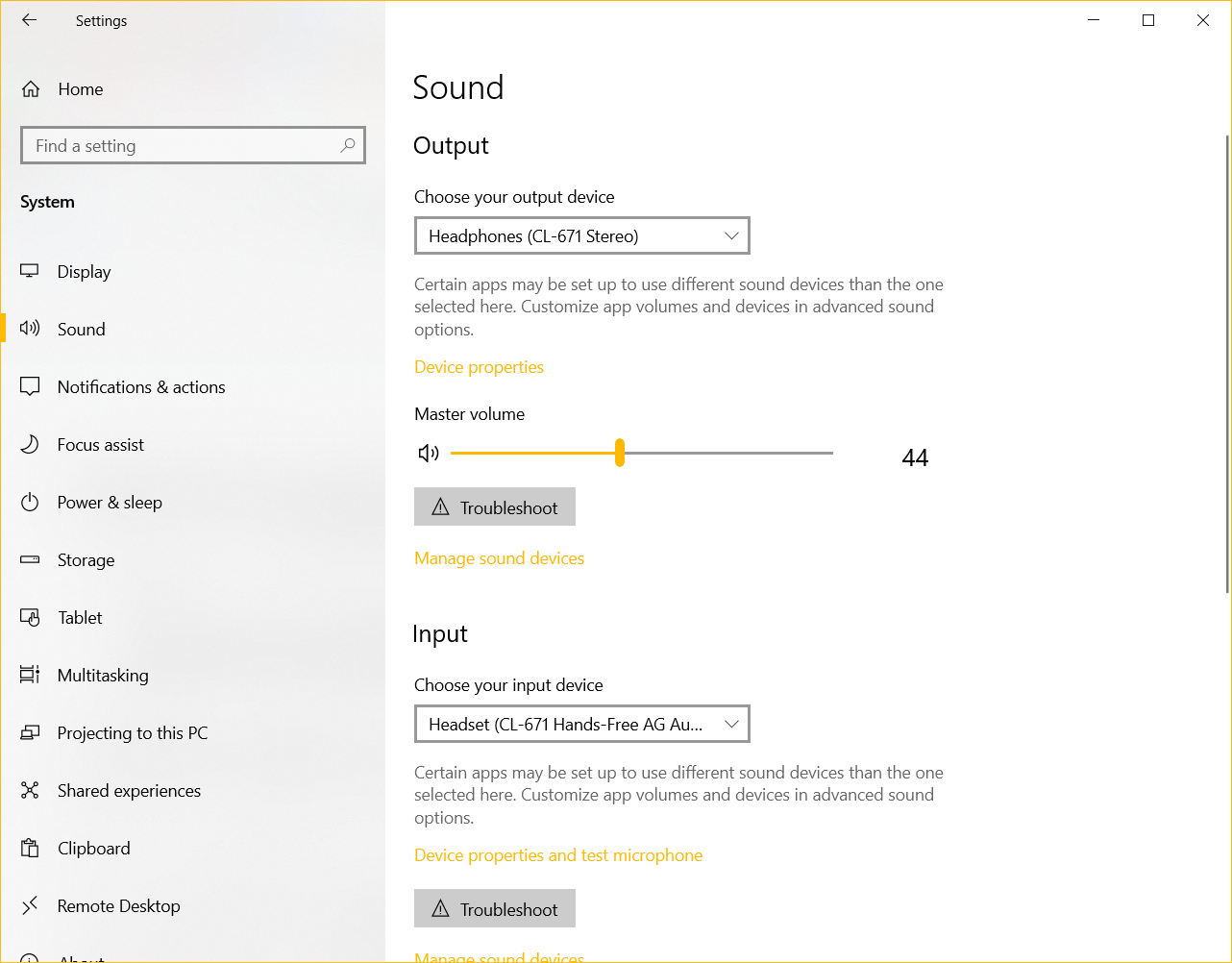
To check if Bluetooth speakers are connected, go to Settings > System > Sound. You should see your device listed under Input and Output devices if it supports them.
Solution #1 – Restart Windows Bluetooth Services
Dell XPS 13 users have a similar problem. He had the following problem.
More Related—How to Disable Searching Windows Update for Device Drivers in Windows 7 and 10
I can’t seem to connect my Bluetooth device to my laptop. The pairing works, but connecting fails. Can anyone help?
For this kind of issue, you can restart the relevant services.
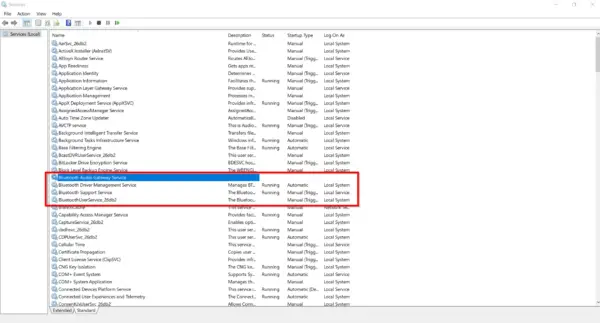
- Press the Win + R keys and type services. MSc.
- View by Standard.
- Generally, there will be 3 Bluetooth services.
- Bluetooth Audio Gateway Service.
- Driver Management Service.
- Support Service
- If they are not running, right-click and start. If it’s already running, try to restart.
- Also, if there are any other Bluetooth-related services, try to do the same.
- Check for the Windows Audio service if you are using Bluetooth speakers, headsets, or earphones.
- Start or restart them.
Check if Bluetooth is connected and working.
Solution #2 Try the Bluetooth Troubleshooter
Windows 10 has the major advantage of in-built troubleshooting, which does the above steps automatically. It will run any other services that are required. You may need to reboot after the process is complete.
- Search for troubleshooting in the Windows 10 search bar.
- Otherwise, go to Settings > Update & Security > Troubleshoot.
- Click on Additional Troubleshooters on the right-hand side.
- Under Find and fix other problems, click on Bluetooth.
- Run the troubleshooter.
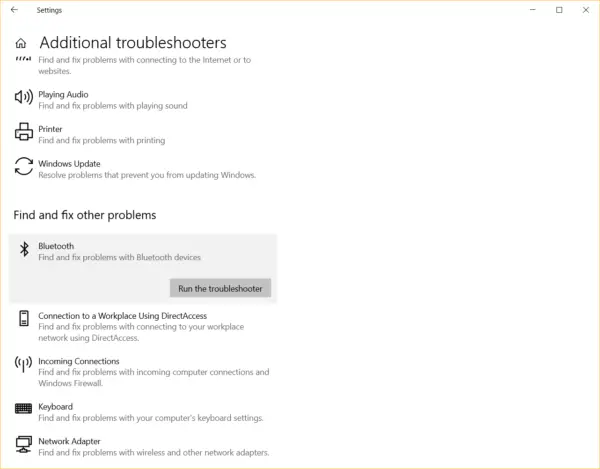
It could fix many of the Bluetooth drivers and connectivity-related issues.

THANKYOU SO MUCCCCCCHHH!! USEFUL <3
That indeed worked for me, thank you so much!
Cool. Hope your bluetooth is working again.
THANK YOU SO MUCH =(((((((((
@Kirk: Great. You were successful.
Worked for me!! Thank u
@Sri. Nice it helped you. 🙂
Thank you sooooo much, This fixed my issue. Godsend.
@brandyn: Nice it helped you. Keep reading and solving. 🙂
thanks, that work
Great. It helped you. Keep reading.
Finally It worked…Thanks a lot
Glad it helped you.
great work. really helpful
Thanks. Glad to help you.
Thank you sooo much !! That pretty worked for me
Glad it works.
Thank you so much i even re installed windows for it but didnt work
Did you try other methods. Sometimes, compatibility can be the issue between the input, output and bluetooth adapter.
Thanks but it only got my BT speaker working, my headphone and phone are still not connecting
@Subham: Try to unpair all devices and pair them again. Only 1 device can connect to Windows 10 bluetooth at a time. So, turn off bluetooth on other devices, while the active one is on.
Finally this works! Thank you! Remember you have to do the process everytime you put NEW headphones. Just the 1st time when you pair complete and all good.
Thanks a ton, all the other guides were useless (only telling you to restart bluetooth or reboot pc) that helped!
I have no words…. literally Thank You.
I’ve literally reset my PC twice, and after 48 hours finally thanks to this guide I was able to fix the problem.
MICROSOFT!!!!
Great to help you with my solution.
Thank you so much!!!
Have been trying to get my laptop working with my bluetooth headset for the past 2 years. This worked after trying other solutions. Really appreciate the help.
Thanks. Nice that my fix worked.
After trying every solution I could find, this is the one that finally worked. THANK YOU!!!
Thank you very much! For 2 years I have been trying to fix this issue. many other solutions failed and this one was the only one that worked!!!
@tom: Glad it worked.
Where is the hidden drivers in device manager solution, ı was able to fi it back then but now ı cant find the solution that worked for me. It was opening hidden bluetooth settings and changing the device someting called microsoft….
Where can I find this fix ? You mention about it above but did not show that fix…
I think the article got curtailed when I was revamping the site. I will surely update it. Meanwhile you can go through my video – https://youtu.be/EDfRs60dvBY