Author: Palla Sridhar

  • How SSD can Improve Boot Time in Windows 10 and Windows 7

    In today’s PC World, the question is SSD vs HDD boot time. 10 years back, people were not aware of the benefits of SSD. Also the price difference between a HDD and SSD was too high.

    In 2019, OEM manufacturers of both PC and laptop have included SSD as an OS booting device. HDD serves the purpose of a storage device. In this way you can optimize both speed and price.

    Even today, a 1TB SSD costs 10-15 times more than a HDD. But you can get a 256GB SSD for below $50. Most people who intend to improve their PC or laptop performance think of upgrading their CPU or RAM. But the new thought in 2019, is to use a SSD to improve efficiency and performance of your Windows 10 and 7 computers.

    Since Windows 10 takes a maximum of 40GB storage for its system, program, desktop, personalization etc files and folders, a 120GB SSD disk is enough to save costs. This will not only improve boot times, but also program and apps performance.

    In the below case-study, we will see the results of my tests conducted using SSD disks. A legacy computer configuration with Intel Core 2 Duo processor and 8GB DDR3 RAM and NVIDIA GeForce 210 graphics card were used.

    You will be astonished at the results. If you want to find out how much time it takes to boot up in Windows 10 and Windows 7, keep reading on.

    Note: If the boot results with Core 2 Duo CPU are so blazing fast, then you can imagine how your computer will boot up using 8th or 9th generation i3, i5, i7 processors.

    Boot Time Testing Software

    I used the BootRacer from Greatis Software to test the boot times. The latest version of 7.70 was used in the test for both Windows 7 and Win 10 versions.

    This tiny software is very easy to install. You just have to click a few buttons to know the boot time. There are two options. 1. Full boot time 2. Clean boot time.

    Once you click the “New Test” button, the computer will restart and will measure the boot time from BIOS start up. There are 4 stages in boot process according to BootRacer software.

    1. Pre-boot time
    2. Windows Boot
    3. Password Timeout
    4. Desktop

    Primarily (2) and (4) are considered in calculation of boot time. The other options are neglected. Windows Boot is the time taken to load system resources, drivers, services, logon display etc. Desktop is the boot time required for startup programs, preparing desktop etc.

    average boot time using ssd windows 10 1903

    Computer Configuration

    The following test setup is used to see the boot time performance improvement using SSD.

    Summary

    Operating System

    • Windows 10 Pro 64-bit

    CPU

    • Intel Core 2 Duo E7500 @ 2.93GHz 49 °C Wolfdale 45nm Technology

    RAM

    • 8.00GB Dual-Channel DDR3 @ 533MHz (7-7-7-20)

    Motherboard

    • Gigabyte Technology Co. Ltd. G41MT-S2P (Socket 775) 46 °C

    Graphics

    • P225HQ (1920×1080@60Hz)
    • 1024MB NVIDIA GeForce 210 (ASUStek Computer Inc) 56 °C

    Storage

    • 74GB Seagate ST380211AS ATA Device (SATA ) 45 °C
    • 111GB Western Digital WDC WDS120G2G0A-00JH30 ATA Device (SATA (SSD)) 46 °C
    • 223GB Western Digital WDC WDS240G2G0A-00JH30 ATA Device (SATA (SSD)) 44 °C
    • 1397GB Seagate Expansion SCSI Disk Device (USB (SATA) ) 37 °C
    • 28GB Kingston DT microDuo 3.0 USB Device (USB )

    Optical Drives

    • No optical disk drives detected

    Audio

    • High Definition Audio Device

    Windows 10 64 Bit 1903 version

    The latest OS Build of 18362.239 was used to test the boot times. Several iterations were done to test the efficiecy of SSD. As an average Windows 10 took only 35 seconds to boot from BIOS start up.

    The Windows Boot Time took 10s and Desktop Boot time was 24s.

    This is far quicker than using a HDD. Earlier I installed Windows 10 on a 74GB Seagate ST380211AS ATA Device. The boot time was 3-5 minutes.

    I disabled all the startup programs except Greenshot, OneDrive, Windows Security. But the amount of time required to initialize the desktop was more than 5 minutes, when using a HDD.

    windows 10 boot time using ssd with bootracer

    In another check, the 1809 version booted up more quickly than 1903 version, using a SSD. Though I could not check the boot times using HDD and 1809 version, it is clear that SSD with October 2018 update had the fastest boot time.
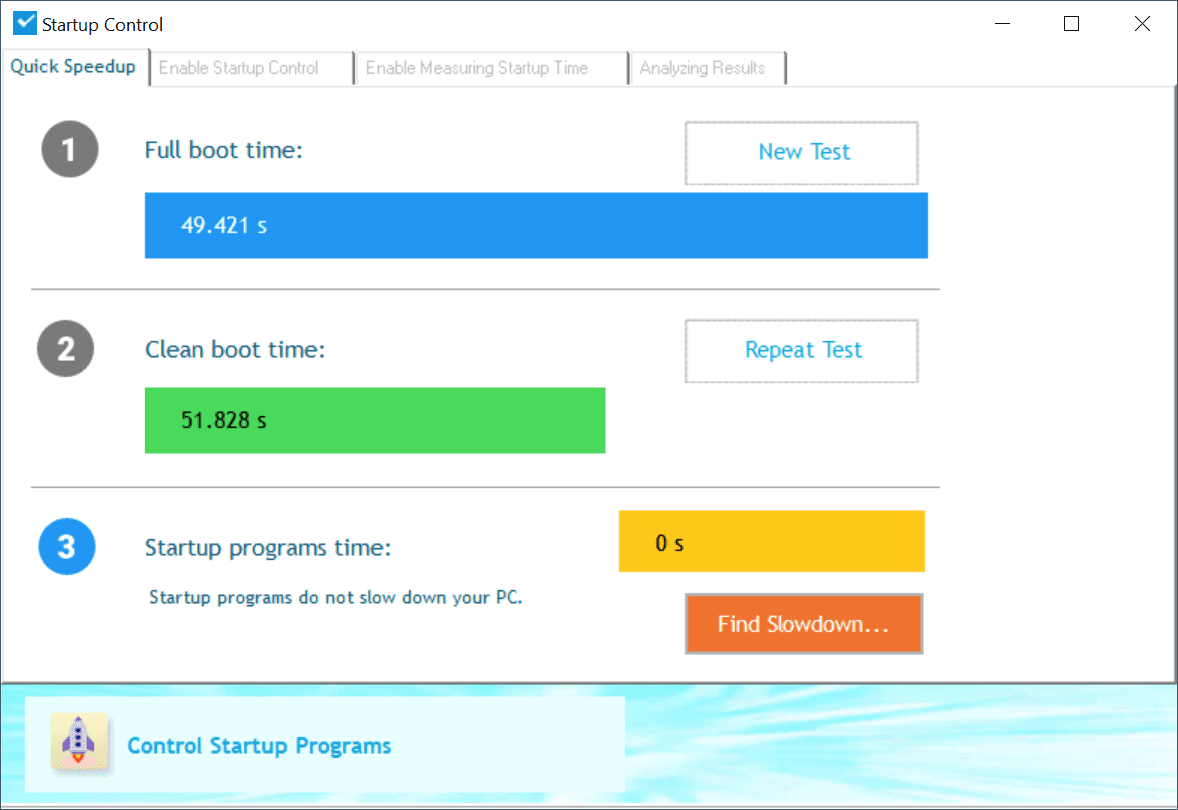
    windows 10 boot time analysis using ssdAlso, the start up programs were quick to initialize, after using a SSD.

    Windows 7 64 Bit

    The latest OS Build of 7601 was used to check the boot time using a SSD. Service Pack 1 was installed. As of July 2019, all the KB updates were installed.

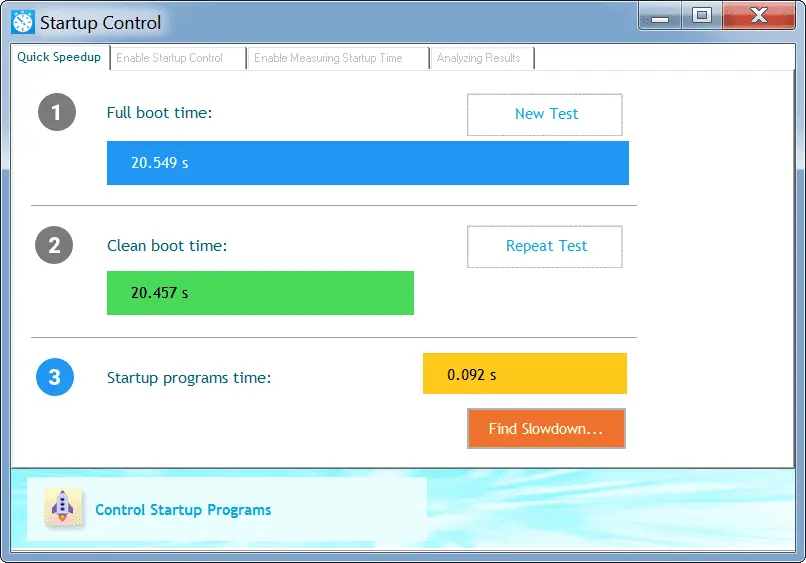
    The Windows Boot time took around 18s and Desktop Boot time was approximately 6s.

    The start up programs included Greenshot, Microsoft Security Essentials, OneDrive. In this Windows OS version also both the full boot time and clean boot time were checked.
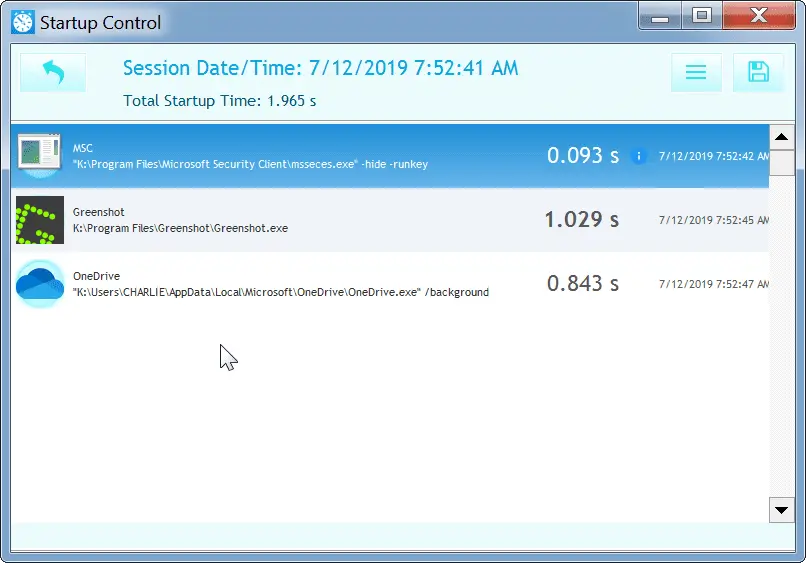
    start up programs boot time windows 10

    To my surprise, Windows 7 boot time was between 20 to 25 seconds. Greenshot took the major part of 1.138s. Still the total start up time of all the 3 programs was only 2.137s.

    The desktop initialization and start up programs were quick to respond. Even OneDrive and MSE were fast enough to work with. Menus and Programs were quick to open and close. There was no lag or delay in program response.
    boot time analysis using ssd windows 7

    Windows 10 vs Windows 7 Boot Time Comparison : Using SSD

    Im my experience, I observed drastic improvement in boot times after using SSD in both Windows 7 and Windows 10.

    I used 64 bit versions for both.

    My old Phenom II X6 1045T system, with standard SATA Samsung 860 EVO went from a minute or two boot time on HDD to like 10 seconds boot time on SSD.

    My new HP bargain basement laptop that I upgraded with an HP EX920 NVMe SSD (NVMe/PCIe is much faster than SATA) is now basically instant-on (under 3 seconds to boot). Prior it was probably 30 seconds to a minute with the cheap 5400 RPM HDD it came standard with.

    Source : quora.com

    Though slight improvement was observed in Windows 7 boot times in the SSD vs HDD comparison, further program operations were quick enough after using SSD.

    The major boot time improvement can be seen in Windows 10 after using a SSD. As mentioned before, the boot times have come down from 3 minutes to 35s, with HDD and SSD respectively.

    Another interesting fact, was that, Windows 7 booted up more quickly than Windows 10. I used the same computer configuration for both the OS, except that Windows 7 was installed on a 120GB SSD and Windows 10 on 250GB SSD.

    I used Western Digital SSD for installing both Windows 10 and 7. The models were also the same, except the capacity.

    Conclusion

    It can be said that using an SSD and Windows 7 will quickly boot up your computer in 2019. But as we know that its support is ending Jan 2020, so Microsoft is deliberate on pushing Windows 10 as an upgrade.

    But not to worry!

    Even Windows 10 on a SSD was quick enough. Though the difference was only 10 to 15s in boot times, the desktop, drivers, programs, services etc were quick to initialize compared to using an HDD.

  • Fix High DPC Latency Spikes after 1903 Update – Some Solutions

    The 1903 update of Windows 10 was tested well before its release. It was a more stable version than October 2018 update. But it still had a few issues, which includes dpc latency spikes.

    On my computer, the start up time was very high and takes long to become active. It is also slower while doing normal operations like opening some programs and Windows settings.

    It is found that ntoskrnl.exe / dxgkrnl.sys are causing high DPC routine execution time when tested with LatencyMon. In this thread on Reddit, lot of feedback is left on Microsoft app, to make it know the issue.

    windows 10 1903 high dpc latency

    Latest Update on 1903 DPC Latency Problem in Windows 10

    After this article was written, I upgraded my PC with a new SSD. This reduced the amount of start up time and also execution of programs was quick enough. But I wanted to check whether Windows 10 1903 DPC latency problem was resolved or not.

    I was using the latest KB build which had the following version – 18362.267.

    dpc latency windows 10As we can see the following metrics from the Latency Report show something like this –

    1. Highest measured interrupt to process latency (micro secs) – 16376
    2. The Highest reported ISR routine execution time (micro secs) – 8140.378793
    3. Highest reported DPC routine execution time (micro secs) – 10872. 406751

    As we can see the cause of the DPC latency spike problems after the 1903 update, were the following –

    1. DirectX Graphics Kernel (dxgkrnl.sys)
    2. NVIDIA Windows Kernel Mode Driver (nvlddmkm.sys)
    But as we have seen in different forums, the real cause of 1903 dpc latency spike issue is the update itself. Even in August, the problem seems to persist and no real solution is found yet.

    Why does Ntoskrnl.exe take lot of CPU, Memory and Hard Disk Space

    This is due to the new compressed memory feature built into Windows 10. Starting from Build 10525, Microsoft added a new feature in the Memory Manager called a compression store.

    The compression store lives in the System process’s working set. Since the system process holds the store in memory, its working set grows larger exactly when memory is being made available for other processes. This is visible in Task Manager and the reason the System process appears to be consuming more memory than previous releases.

    The large memory use is therefore kind of something Windows 10 has been built to do but can sometimes be mistaken as a memory leak. Windows 10, sacrifices memory in exchange for speed. Instead of writing pages into your HDD, it compresses the pages on the RAM. This makes Windows 10 faster than previous versions because reading compressed data from the computer’s RAM is faster than reading it from the HDD then loading into the RAM.

    The error message would look something like this –

    Your system appears to be having trouble handling real-time audio and other tasks. You are likely to experience buffer underruns appearing as drop outs, clicks or pops. One or more DPC routine that belong to a driver running in your system appear to be executing for too long. One problem may be related to power management, disable CPU throttling settings in Control Panel and BIOS setup. Check for BIOS updates.

    If you are using legacy BIOS, you might try to update it, but to no avail. This error is more common using NVIDIA graphic drivers.

    In this Windows report it is said that Microsoft and NVIDIA are working together to fix latency spikes in Windows 10 1903 version.

    This issue was existing in earlier releases also, but has been fixed in 1809 version. It has come back in the 1903 version.

    I use my desktop for general PC ops and also for my recording studio. With all versions including 1809 I haven’t had any issues with latency/clicks/dropouts in audio, etc. Resplendence Latency Mon shows no problems. However, with 1903 there is Latency problems. The “culprits” according to Latency Mon are USB bus and/or High Definition Audio (Realtek). I’ve restored my PC back to the 1809 5/22/19 disc image I did before upgrading to 1903. I’ve run Latency Mon again after restoring and still no issues (with 1809). This has also been reported on the gearslutz forum by another user.

    Source: https://www.tenforums.com/performance-maintenance/133708-v1903-causing-dpc-latency-hits.html

    Solutions for high DPC latency spike problem in 1903.

    1. If you have updated from 1809 version, you can revert back to the last version. This solves the problem for many people. But you may not get the benefits of the new release.

    2. You can change the startup type of “SysMain” service to “Disabled”  in Services tool. If it does not work out, you can revert back to normal setting.  This service is another name for prefetch or superfetch which existed in Windows 7. Atleast it will reduce the latency spike.

    3. Upgrade to the Insider Build of 18909 and most-of the time it will be fixed. You can subscribe to it, using Update setting in Windows Settings.

    4. You can use Windows System Timer Tool to reduce the timer to 0.5 secs which is generally 15 secs or more.

    5. Build 18362.145 seems to solve this issue. So if you made a new KB update and been using 18362.207, you can uninstal that KB update.

    6. Update your NVIDA graphic drivers to the latest version if they are available after the 1903 update. Since ntoskrnl.exe is the culprit, the incompatibility between NVIDIA and 1903 update can be reduced if updated to the latest drivers.


    7. Disable MSI mode for Marvell networks cards which could stop the ntoskrnl.exe spikes.

    8. Turn off CPU overclocking if you have done it before. Then you can turn it again after the DPC latency spikes are reduced. The 1903 update could be in conflict with the old overclocking strategy.

    9. Turn off power throttling of your NVIDIA graphic cards. This can be done using Group Policy Editor. Open Windows Run dialog box, by pressing the Win + R keys. Then type “gpedit.msc”. Navigate to the following path.

    Computer Configuration > Administrative Templates > System > Power Management> Power Throttling Settings

    Double click the “Turn off Power Throttling” setting and check “Enabled“.

    10. Scan your computer for virus, adware and malware. This is because the malware might be associated with NTOSKRNL.exe file and hence take lot of CPU, RAM resources. Specifically scan the scan the C:\Windows\System32 folder, where the above file resides.

    11. Uninstall incompatibility programs which trigger unusual behavior. These programs might execute sub tasks which cause the processes to stuck in a loop and end up taking lot of system resources.

    12. Repair repair Windows System Image and Windows Component Store in Windows 10 using the following commands.

    Dism /Online /Cleanup-Image /ScanHealth
    Dism /Online /Cleanup-Image /CheckHealth
    Dism /Online /Cleanup-Image /RestoreHealth

    13. Stop the Runtime Broker process. Open the Task Manager and see if its using more than 15% of your memory. If it is, then some app is having an issue and taking lot of memory. End the task, by right-click and the “End Task”.

    14. Adjust your Windows 10 for best performance results. This can be done by disabling visual effects. Open System from Control Panel. Then click on “Advanced system settings”. On the “Advanced” tab, under “Performance” click on Settings. Check the following settings using “Custom”.

    1. Show shadows under windows.
    2. Show thumbnails instead of icons.
    3. Smooth edges of screen fonts
    4. Smooth-scroll list boxes.
    5. Use drop shadows for icon lables on desktop.

    These are the minimal settings for a better appearance and performance.

    15. Use Windows Performance Toolkit to find the root cause. Open cmd in elevated mode (with administrator privileges) and type the following command.

    xperf -on latency -stackwalk profile -buffersize 1024 -MaxFile 256 -FileMode Circular && timeout -1 && xperf -d cpuusage.etl

    Wait for sometimes, till the process is complete and check the logs in the following location C:\Windows\System32 folder. Open the file cpuusage.etl and analyze it with Windows Performance Analyzer for the exact cause.

    Conclusion

    As per WindowsReport, this seems to be a bug in 1903 version related to NVIDIA graphic cards. It could be fixed in the next release or KB update.

    In the latest Windows 10 update, Microsoft introduced some significant changes including those to the WDDM (Windows Display Driver Model) and kernel.

    For now, there are no solutions for the issue, but there is a workaround. Users said that after reverting to Windows 10 version 1809, the problem disappeared.

  • How to Speed Up Windows 10 PC after 1903 update in Legacy Hardware

    The Windows 10 1903 update has seen minor enhancements which are good enough to speed up PC performance. For example, Windows Updates are reformed that could help you pause them.

    Another major improvement is blocking of Spectre attacks. It is a design flaw in CPUs. This will allow it find loop holes to read other program’s memory instructions. But Microsoft has enabled “specific” features which will speed up Windows 10 PC.

    Sometimes in the midst of an update, you find that the hard disk space is not enough on legacy disks. This problem is resolved by reserving storage of 7GB for upgrades only.

    windows 10 update settings 1903

    Another 1903 feature is the light desktop theme which users can use it to have a different feel of the OS. A less cluttered desktop start menu is helpful for simplicity liking users.

    windows 10 1903 light desktop theme

    Sandbox is another feature in 1903 that helps put viruses at bay. It is an integrated, isolated environment that can run software in a container without affecting other programs.

    Even though the above features could help improve speed, you need to take other steps for old hardware.

    Let’s see the following methods to speed up Windows 10 1903 computer.

    1. Update your Graphic Drivers.
    2. Turn off Focus Assist
    3. Disable Windows Update Delivery Optimization
    4. Disable Unnecessary Startup Items
    5. Reduce Visual Effects
    6. Disable or Stop Redundant Services
    7. Remove some Inbuilt Installed Apps

    The final method is crucial. This is definitely going to help improving the Windows 10 performance on a legacy HDD. The following are some of the services you can stop and disable to see speed improvements in 1903 update.

    disable focus assist windows 10 1903

    List of Services to be Disabled for Performance Boost

    • Windows Search (This will disable Windows Search TOO, keep it if you use it)
    • All Xbox Services (You do need these for any Xbox Service games like Sea of Thieves.)
    • Microsoft SMS router service
    • Diagnostics tracking service
    • Fax service
    • dmwappushsvc
    • AllJoyn Router Service
    • Application Layer Gateway Service
    • Bluetooth Support Service
    • BranchCache
    • Certificate Propagation
    • Client for NFS
    • Distributed Link Tracking Client
    • dmwappushsvc
    • Downloaded Maps Manager
    • Enterprise App Management Service
    • Geolocation Service
    • Health Key and Certificate Management
    • Hyper-V Data Exchange Service
    • Hyper-V Guest Service Interface
    • Hyper-V Guest Shutdown Service
    • Hyper-V Heartbeat Service
    • Hyper-V Remote Desktop Virtualization Service
    • Hyper-V Time Synchronization Service
    • Hyper-V VM Session Service
    • Hyper-V Volume Shadow Copy Requestor
    • Internet Connection Sharing (ICS)
    • Internet Explorer ETW Collector Service
    • IP Helper
    • Microsoft Diagnostics Hub Standard Collector Service
    • Microsoft iSCSI Initiator Service
    • Microsoft Windows SMS Router Service
    • Netlogon
    • Offline Files
    • Remote Procedure Call (RPC) Locator
    • Retail Demo Service
    • Sensor Data Service
    • Sensor Monitoring Service
    • Sensor Service
    • Smart Card Device Enumeration Service
    • Smart Card Removal Policy
    • SNMP Trap
    • Storage Service
    • Touch Keyboard and Handwriting Panel Service
    • Windows Biometric Service
    • Windows Connect Now – Config Registrar
    • Windows Media Player Network Sharing Service
    • Windows Mobile Hotspot Service
    • Windows MultiPoint Server Host Service
    • Windows MultiPoint Server Repair Service
    • Windows Remote Management (WS-Management)
    • Xbox Live Auth Manager
    • Xbox Live Game Save
    • XboxNetApiSvc
    Note: Some services may be required based on your need. At any time, you can re-enable or restart them.

    Due to the above speed tweaks, you may lose some visual experience, at the cost of a faster PC.

    windows 10 services 1903visual effects windows 10 1903 pcHow to Remove Pre-Installed Apps in Windows 10 1903 PC

    The following commands will remove most of the pre-installed apps in Windows 10 PC. Even if they are removed, you can get them back through Microsoft Store at a later time.

    powershell “Get-AppxPackage *BingFinance* | Remove-AppxPackage”
    powershell “Get-AppxPackage *BingNews* | Remove-AppxPackage”
    powershell “Get-AppxPackage *BingSports* | Remove-AppxPackage”
    powershell “Get-AppxPackage *BingWeather* | Remove-AppxPackage”
    powershell “Get-AppxPackage *Getstarted* | Remove-AppxPackage”
    powershell “Get-AppxPackage *MicrosoftOfficeHub* | Remove-AppxPackage”
    powershell “Get-AppxPackage *MicrosoftSolitaireCollection* | Remove-AppxPackage”
    powershell “Get-AppxPackage *Office.OneNote* | Remove-AppxPackage”
    powershell “Get-AppxPackage *People* | Remove-AppxPackage”
    powershell “Get-AppxPackage *SkypeApp* | Remove-AppxPackage”
    powershell “Get-AppxPackage *Windows.Photos* | Remove-AppxPackage”
    powershell “Get-AppxPackage *WindowsAlarms* | Remove-AppxPackage”
    powershell “Get-AppxPackage *WindowsCalculator* | Remove-AppxPackage”
    powershell “Get-AppxPackage *WindowsCamera* | Remove-AppxPackage”
    powershell “Get-AppxPackage *windowscommunicationsapps* | Remove-AppxPackage”
    powershell “Get-AppxPackage *WindowsMaps* | Remove-AppxPackage”
    powershell “Get-AppxPackage *WindowsPhone* | Remove-AppxPackage”
    powershell “Get-AppxPackage *WindowsSoundRecorder* | Remove-AppxPackage”
    powershell “Get-AppxPackage *XboxApp* | Remove-AppxPackage”
    powershell “Get-AppxPackage *ZuneMusic* | Remove-AppxPackage”
    powershell “Get-AppxPackage *ZuneVideo* | Remove-AppxPackage”
    powershell “Get-AppxPackage *3DBuilder* | Remove-AppxPackage”
  • Microsoft Store all Downloads Pending – How to Fix?

    If the play store stuck on downloading, you need to find the right cause.

    Microsoft Store cache could be a problem, time & date & region settings could be wrong due to battery problem, windows update may not be working correctly.

    Sometime app downloads are in pending state forever. One of the reasons could be acquiring license error in Windows Store.

    This is a big headache for Microsoft game lovers, even in 1909 version. You can have hanging or crashing apps.

    Microsoft Store Download Stuck

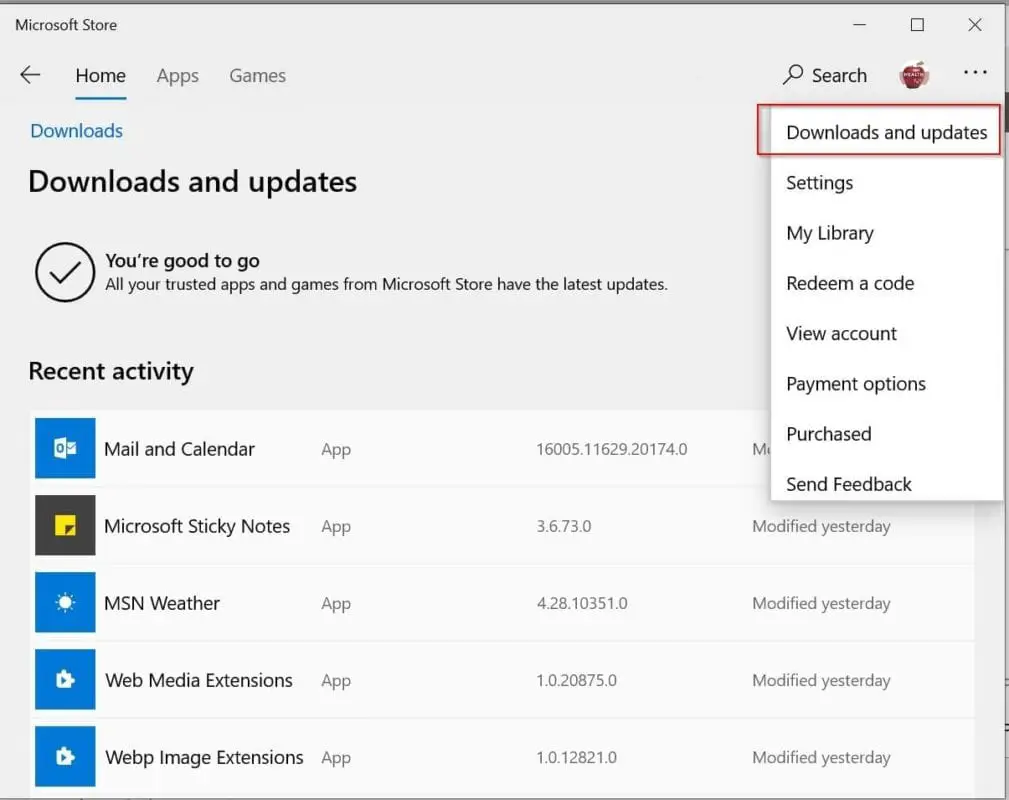
    You cannot install any of the Windows Store apps. When you click “Downloads and Updates“, you see dots revolving as if they are working, but nothing happens. This is very frustrating.

    I had this issue when I tried to download Mail & Calendar app and install updates for Skype and App Installer.

    microsoft store apps downloads updates

    One may think it is a problem with any of the app or program that is installed in Windows 10.

    You try to uninstall and reinstall them, but the app updates will still not happen.

    How to Fix Microsoft Store Stuck on Downloading

    The following 5 methods will show fixes to Windows 10 store not downloading apps.

    Method #1: Reinstall all apps via PowerShell

    You may think that reinstalling just the Store app will fix the problem. Yes, it can and sometimes it cannot.

    So the best bet would be to reinstall all the inbuilt apps.  In this way, if there is any internal problem in any app, that would go away.

    Note : When you reinstall all the apps, data stored in them will be lost and you need to reconfigure them again. This would be like logging in again etc.
    Note: Some apps like Cortana and Microsoft Edge may not reinstall using this PowerShell command in some versions like 1709, 1803 etc.

    1: Press Ctrl + Shift + Enter keys. Otherwise, right-click the Start button and open PowerShell (Admin).

    windows 10 powershell start menu
    2: Close all the running apps using Task Manager.
    3: Enter the following command in PowerShell by just copying from here and right-clicking in PowerShell. You can also press Ctrl + V.

    Get-AppxPackage -AllUsers| Foreach {Add-AppxPackage -DisableDevelopmentMode -Register “$($_.InstallLocation)\AppXManifest.xml”}
    windows 10 powershell reinstall all apps

    This may take sometime to complete and you may see some red warning messages. Just ignore them and wait till they are finished.
    4: Once the process is complete, restart your computer. You can then install or update any of your Store apps. The issue will be resolved.

    The below user testimonials on a authority site regarding windows store apps stuck on downloading and updating is proof of the above method.

    reinstall all apps windows 10 user testimonials

    If you still face any problems, you can further dwell below for other solutions.

    Method #2: Troubleshoot Windows Store Apps

    Another cause for Windows Store apps paused or not updating could be due Windows Update service got corrupted. If you can troubleshoot and fix this app, you may have your Store apps updating normally.

    This is because Windows Update and Store are internally linked because of app updates.

    1: Press Win + I to open Windows Settings.
    2: Click on Update & Security > Troubleshoot
    3: On the right-hand side, click on “Windows Store Apps“.
    4: Click on “Run the troubleshooter“.

    This should fix any problems with existing Windows Store apps.

    windows store app troubleshooter

    Method #3: Run the Windows Update Troubleshooter

    Just as mentioned above, if the Windows Update is causing the Store apps to pause, suspend or hang, then you can run its troubleshooter.

    On the same page, as above, you can click on “Windows Update” on the right-hand side. Then click “Run the troubleshooter“.

    windows 10 update troubleshooter

    Otherwise you can use the Control Panel.

    1: Press the Win key and type few letters of “Control Panel“.
    2: Click on it in the search results.
    3: Once it opens, click on “View by Small icons” at the top.
    4: Then click on “Troubleshooting“.
    5: Under “System and Security“, click on “Fix problems with Windows Update“.

    The process will run till it fixes all the Update related issues. You can download and update your Store apps as usual.

    windows 10 control panel in search box
    fix windows 10 update problems

    Method #4: Reset Windows Store app

    This can be done in the same way as resetting all apps.

    1: Open Windows Settings by pressing Win + I.
    2: Click on “Apps” > Apps & features
    3: On the right-hand side, scroll through untill you see “Microsoft Store“.
    4: Click on it and then click on “Advanced options“.
    5: On the next page, there is an option called “Reset“. Click it.
    Note: If the Microsoft Store app is running, kill it from Task Manager. Otherwise, you can use the “Terminate” button here.
    microsoft store advanced options

    The same things can be done in a different fashion.
    Press Start > type wsreset > select wsreset.
    When Microsoft Store opens, all app downloads and updates should work properly.

    This will set to the default settings of Microsoft Store which was previously called Windows Store.

    Method #5: Reset Windows Update service.

    #1: Open services app, by typing “services.msc” in the Run box.
    #2: Go to the Windows Update service > right-click on it > click on Stop.
    #3: In the File Explorer, go to “Windows” directory in OS drive.
    #4: Rename the SoftwareDistribution folder to something like SoftwareDistribution.bkup.
    #5: Restart the Windows Update service again.
    Now check if your Microsoft Store is working properly or not.

    Final Resort: Create a New User Account

    This can be done only if you have administrator privileges. Otherwise, you need to ask your System Administrator.

    Before that you can logout of your current account and login again, to see if this fixes the Windows Store app problem.

    In some cases all the above methods to reinstall or reset all preinstall apps may fail. But if you want your Microsoft Store app to keep working as usual, then its best to create a new Windows user account.

    To create a new account follow these steps.
    #1: Open Accounts in Windows Settings.
    #2: Click on “Family & other users”.
    #3: Click on “Add someone else to this PC”.
    You can follow the on-screen instruction to create a new user account with the required privileges.

  • Fix NVIDIA Graphics Card Error Code 43 in Windows 10 or 8.1 or 7 – Solutions

    When NVIDIA GTX 1070 kind of GPUs face error code 43, knowing the right reason is very important. Windows 10 users cannot decipher the problem with error message. It may look simple, but using the right diagnostic steps can fix the exact cause.

    According to Microsoft, graphic devices show error code 43 for the following reason.

    This error occurs when your graphics device driver has notified Windows that the device isn’t working properly. This may mean that the device has a hardware problem, or that the driver or driver software is failing.

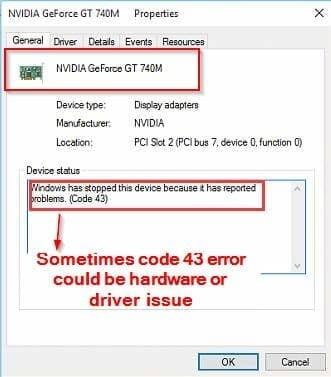
    In the Windows 10 Device Manager, when you right-click your “NVIDIA GTX 1070” graphics card and select “Properties“, a separate window will open. On the General tab, under “Device status“, you can see an error message like “Windows has stopped this device because it has reported problems” with error code 43.

    nvidia graphics card code 43 error

    In this post we are going to see the solution for this type of problem in NVIDIA Graphic devices.

    Fix #1 from forums.geforce.com

    Since the first try to fix this error is to search geforce forums, I have done the same. A support member of the forum “Greybear” has given a common solution to this error code 43 problem. This works for many as of 2018 end.

    1. Disable Windows 10 to automatically install it’s Microsoft generic or any other drivers for GTX 1070.

    This can be done using the registry editor. Press Win + R to open the Run dialog box and type “regedit”. Copy paste the following path in the search bar.

    HKEY_LOCAL_MACHINE\SOFTWARE\Microsoft\WindowsUpdate\UX\Settings

    Then you need to modify the DWORD value in the registry key below.
    ExcludeWUDriversInQualityUpdate DWORD

    0 = On
    1 = Off

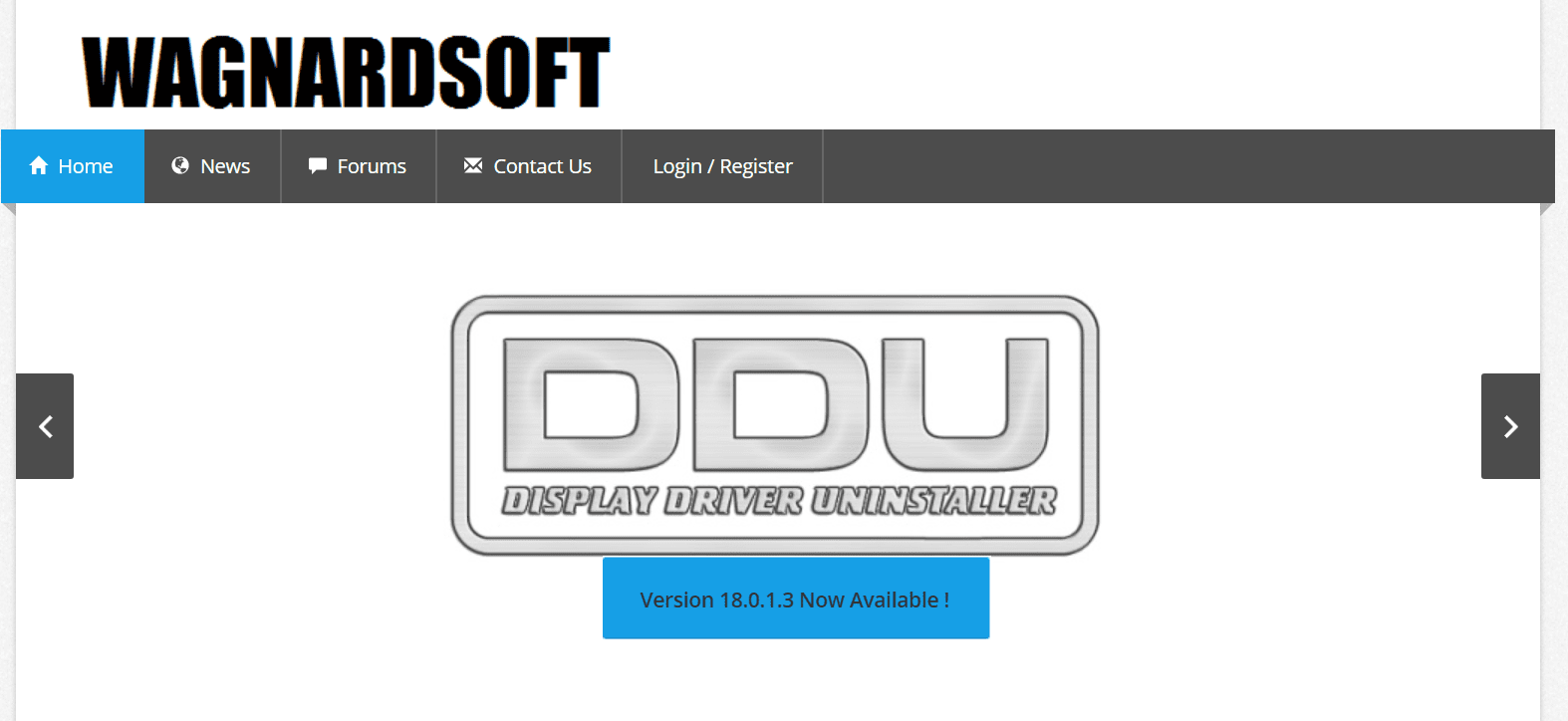
    2. First install the Display Driver Uninstaller (DDU).

    Using the software, completely uninstall the NVIDIA GTX 1070 drivers completely. The latest version is 18.0.1.2 as of May 2019. You can visit this site to download. https://www.wagnardsoft.com/

    display driver uninstaller fix error code 43

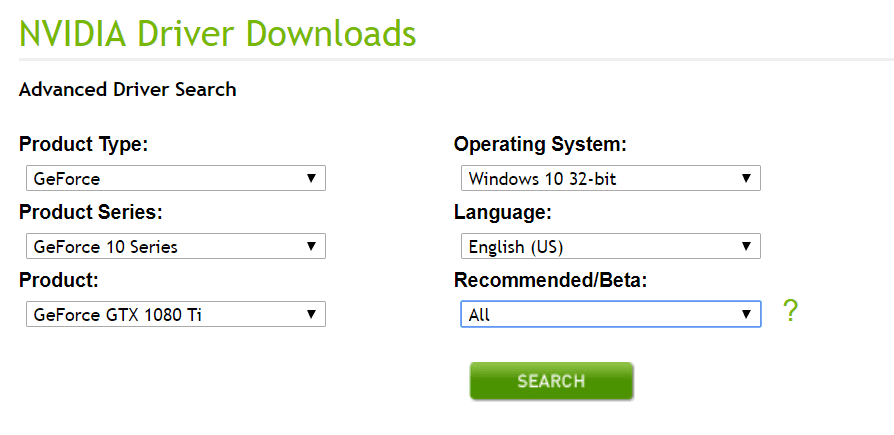
    3. Visit the following site. https://www.geforce.com/drivers.

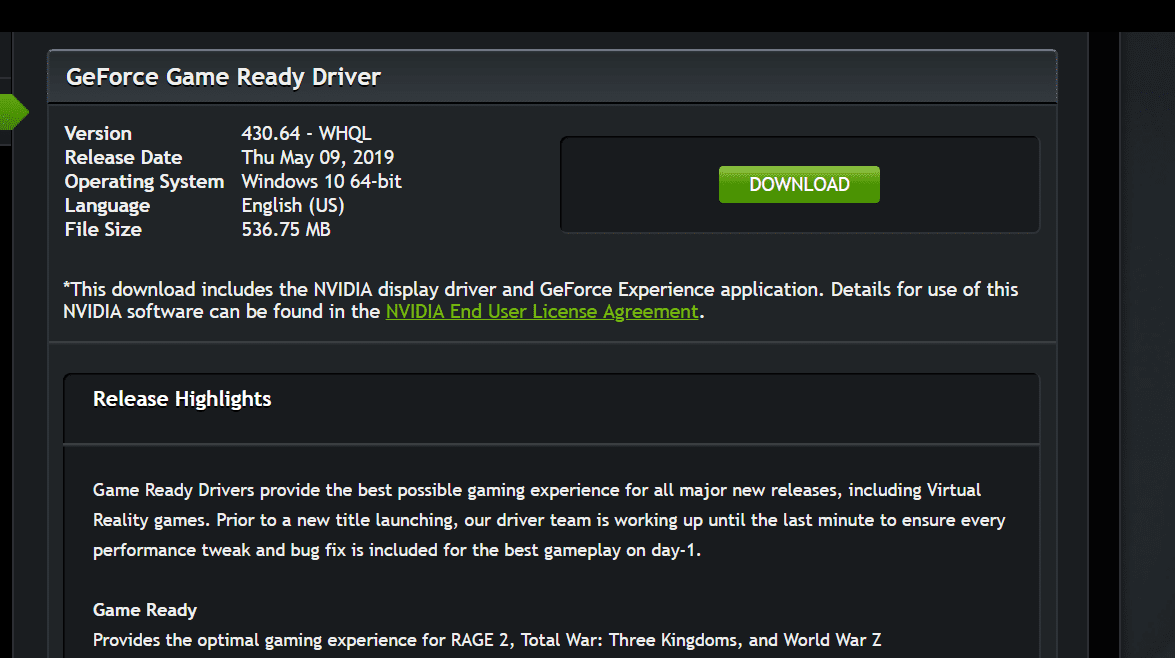
    Using “Manual Driver Search” you can select the required NVIDIA drivers for your GTX 1070/1070i graphics card. The latest version is 430.64 as of May 9th, 2019.

    geforce game ready driver fix error code 43

    You can also use this link to manually download any NVIDIA drivers. https://www.nvidia.com/Download/index.aspx?lang=en-us

    nvidia driver downloads geforce models fix error code 43

    4. Install the latest NVIDIA driver from the above source.

    There are different product types under NVIDIA banner.

    1. TITAN
    2. GeForce
    3. Quadro
    4. NVS
    5. Tesla
    6. GRID
    7. 3D Vision
    8. ION
    9. Legacy

    Under each product, there are different models of NVIDIA graphic cards. For example, under GeForce you can see the following series.

    – RTX 20 Series
    – MX200 Series
    – MX100 Series
    – GTX 16 Series
    – 16 Series
    – 10 Series
    – 900 & 900M Series
    – 800M Series
    – 700 & 700M Series
    – 600 & 600M Series
    – 500 & 500M Series
    – 400 & 400M Series
    – 300 & 300M Series
    – 200 & 200M Series
    – 100 & 100M Series
    – 9 & 9M Series
    – 8 & 8M Series
    – 7 Series & Go 7 Series
    – 6 Series
    – 5 FX Series

    For each series there are different models. You can select the right drivers based upon your graphics card model.

    For example, the GeForce 10 Series has different models like the following.

    1. GeForce GTX 1080Ti
    2. GeForce GTX 1080
    3. GeForce GTX 1070Ti
    4. GeForce GTX 1070
    5. GeForce GTX 1060
    6. GeForce GTX 1050
    7. GeForce GTX 1050Ti
    8. GeForce GT 1030

    There are drivers for Windows 10, 8.1, 7 (both 64 bit & 32 bit). If they are old graphic card models, you will not have Win 10 drivers. In that case, you can try use Windows 7 drivers in compatibility mode.

    This should help in fixing error code most of the times.

    But several users have commented that they face different issues with the same error code of 43.

    Some of the problems looked like this :

    Case Study #1

    Hello all,

    today my Screen suddenly lost the Connection while working on PC and it didnt come back again. So i switched to the onboard graphics.

    I was checking the Hardware Manager, and it has given the Error Code 43. This Device has been stopped due to errors for my GeForce GTX 1070.

    I tried to reinstall the card so far, install older driver versions, etc. But nothing could solve this error.

    Thanks for any advice!

    User : Shadow10058   Source: forums.geforce.com

    For this typical steps for the solution were suggested like this –

    1. Search(runbox) > Msconfig > Boot(tab) > Boot Option> check the SAFE BOOT … Apply and Reboot.
    2. Using the DDU, completely remove the NVIDIA software using Clean option.
    3. Search(runbox) > Msconfig > Boot(tab) > Boot Option> Uncheck the SAFE BOOT … Apply and Shutdown.
    4. Connect the Monitor back to the 1070 before rebooting.
    5. On coming back normal to Windows 10, install the latest NVIDIA GPU driver and leave the rest of the options unchecked.

    Case Study #2

    Sometimes, DELL computers have onboard GPU. The Alienware 15 R3 could cause the issue. In that case follow these steps.

    intel hd graphics card alienware 15 r3

    1. Download Intel VGA driver from the following link.  https://www.dell.com/support/home/in/en/indhs1/product-support/product/alienware-15-laptop/drivers

    2. Download NVIDIA VGA driver from the same site.

    3. Download DDU software.

    4. Disconnect from the Wifi | Lan

    The following items can also be uninstalled, if the above fix does not work.

    1.  Graphics Amplifier Driver.
    2. Windows update KB4467702
    3. Intel Driver and Support Assistant
    4. The Amazon Button
    5. Amplifier Software (your not using an eGPU) this might be blocking the Onboard.
    6. Intel Online Connect Access
    7. Run Windows 10 in Safe Boot and run DDU. Then uncheck SAFE BOOT option and restart the computer.
    8. Install the Intel VGA
    9. Reboot
    10. Install the NVIDIA VGA
    11. Reboot
    12. Connect to the Wifi | Lan
    13. Retest the system.

    Do not Update these drivers.

    The latest version of NVIDIA driver should fix this problem.

    Case Stude #3

    Hello everyone.

    I hope some one can help me with this issue with my win 10.
    I have to GPU device:
    1.GTX 960
    2.GTX 1070 TI (primary)

    About a month ago i received several updates for my OS and my Nvidia devices.
    After restating the computer my resolution was set to default and my GTX 1070 TI had the 43 error.
    the GTX 960 is still working correctly.

    I have tried every uninstall and install solution with no success(with DDU and all).

    finally i broke down and formated and installed the entire OS, everything worked fine at the beginning
    but after i finished installing my setup several restarts later the problem recurred.

    Solution :

    It is found that Skylake processors are found to have compatibility problems with NVIDIA GPU devices. For this you need to update your Motherboard BIOS.

    The final fix in this thing was remove Upsilon 2000 and uninstall in safe mode after removing the GTX 960.

    Case Study #4:

    You can have a MegaTek battery problem. Then remove that driver and install the latest GPU drivers as mentioned above.

    The following other solutions also will help fix the NVIDIA GTX 1070 driver error with 43 code.

    1. Check if the Graphics Card is inserted properly or not.
    2. NVIDIA drivers have incompatibility problems with Lucid VIRTU MVP Software.
    3. Install the latest Windows 10 version (like 1809 or 1803).
    4. Install the default Graphic Drivers from Microsoft if NVIDIA drivers are not working.
    5. Roll back to old version driver after Windows update. (if they are working earlier).
    6. Disable Driver Signature Enforcement in Starup Settings using Installation Disk.
    7. Restore or Reset Windows 10 to fix Error code 43.
    8. Use the Troubleshooting tool present in Control Panel or Windows Settings.
    9. Uninstall and Reinstall the Graphics driver
    10. Check GPU temperature and add additional cooling units if required.
    11. Install old legacy drivers for the same GTX card, if they were working earlier.
    12. Check if the hardware connections are intact or not.
    13. Sometimes, the NVIDIA WDM 2.0 driver from Windows Updates will work properly.
    14. iDisplay and OS Base iDisplay can cause compatibility issues. Uninstall them.
  • How to Use Windows 10 Fax and Scan

    Fax messaging is one of the oldest forms of communication.

    Today, it has been replaced with social media platforms like Whatsapp.

    However, you should know that fax messaging is still used up to date.

    That is why windows 10 fax messaging features are available in modern computers apart from that, there are other current faxing options in the market today.

    It is essential to know that when it comes to sending fax messages using windows 10, you have three options and they include;

    Online faxing services

    When you opt to use online faxing services, you need to keep in mind that compatibility is essential.

    It is therefore crucial that you begin by looking for online fax messaging services that can work properly with windows 10.

    Remember that there are so many of these online services on the internet including the Google fax free services.

    google fax service windows 10

    However, it is important to know that you can always get conned. The internet is full of malicious people who only want to rob you.

    The best way to ensure that you fund the right services is by doing a thorough lookup of the company you are interested in working with.

    Fax has been in the computer world from good olden days of PC. You need the right software to send your documents in correct format.

    Scan is another important feature of fax process. If the lighting is too bright or dark, you cannot see the documents properly.

    Through social media and the available discussion forums online, you should be able to know whether a particular online faxing service is real or another work of a con artist.

    Also, it is very important to know that when working with online fax services.

    Back up of your important fax documents can be done off-line or online. Cloud services help in storing them online. But if you have big hard-disk or SSD, you can store them offline.

    You might consider getting an extra file storage space for backup especially if you are running a big organization and you greatly rely on faxing.

    Through a connected fax

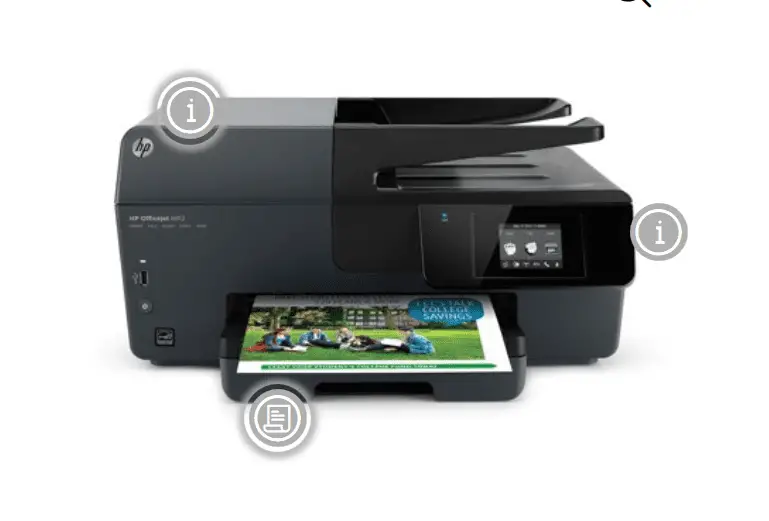
    There are many different faxing machines, and it is vital once again that you check on compatibility.

    When you connect your computer to a fax machine, you will be able to send and receive your fax messages through the network.

    That means, you will not have to scan your fax before sending it neither will you have to print it out to view it.

    hp fax machine for windows 10

    For your connected faxing machine to work correctly, you will have to ensure that you have a landline phone line connected to your faxing computer.

    It is also advisable not to use a VoIP phone connection because they tend scrambling up the fax signals.

    Remember that you also require a computer that can run Windows 10 properly.

    One of the main advantages of the connected faxing method is that the computer makes things easier as far as composing and sending fax messages is concerned.

    Also, it is a sure way of sending messages without fear of them getting distorted.

    The below video will show how to fax and scan using Microsoft Windows 7. You can apply the same for Windows 10.

    Using fax software

    You should know that Windows 10 comes with faxing software installed.

    However, it takes a functional integration for you to be able to enjoy the services.

    However, you need to ensure that you are connected to a phone-line landline and no VoIP.

    You will also require a modem or fax board for the windows fax feature to be activated. The good news is, most computers have this ability.

    Your computer needs to be always on until the process is done.

    When using the windows fax and scan as a fax machine, you need to know that it does not use up your internet.

    That is because; the transition is strictly through the telephone lines. It is also imperative that you have a computer that is well compatible with windows 10.

    One mistake that most people make is installing windows 10 in a computer that is not meant for such an operating system.

    The results typically include the computer being too slow. Other features may also fail to function as expected. This includes the windows fax and scan feature.

    FAQ

    How to reinstall Windows Fax and Scan on Windows 10 ?

    If you want to install Windows Fax and Scan in Windows 10, then follow these steps. Open the Run dialog box by pressing Win + R and type optionalfeatures. Click on OK. Expand Print and Document Services. Tick the option that says Windows Fax and Scan. You should get your default program running. Uncheck the option and Restart Windows 10 to remove it from your computer. Then install it again, to reinstall it.

    Where is Windows Fax and Scan located?

    In Windows 7 and earlier, you can find it in Start Menu’s accessories folder. For Windows 10, you need to get it from the Microsoft Store. The executable for this program is located in C:\Windows\System32\WFS.exe. In Windows 11, you need to install from optional features in Settings > Apps. It is generally around 9MB in size. Many Microsoft Office programs use this program to send Word and Excel documents as faxes.

    Why is Windows Fax and Scan routing to network folder?

    When you are in Office network environment, you would like to Windows Fax and Scan documents to the network folder. It gives access to all your team members and employees. But if it is not saving to network location, click click Tools > Scan Routing. Tick the option “Use a network folder” and give the correct path on the server. But you have to give the share of the destination folder for this to work.

    Why i get Windows Fax and Scan unexpected error?

    When you get any kind of error using this app in Windows 10 or 11, then try the hardware and devices troubleshooter. In Windows 7 and earlier you can try troubleshooting fax problems guide from Windows documentation. http://windows.microsoft.com/en-US/windows-vista/Troubleshoot-fax-problems. Corrupt or outdated drivers could also cause the issue. Sometimes, disable and enable the Windows Fax and Scan will solve the problem. Scanner configuration could be in error.

    Conclusion

    There are different ways to fax with Windows 10. You are free to use any of them.

    However, VoIP is not an option when it comes to getting the right telephone line.

    Also, remember that with fax messaging you must have a fax number for sending and receiving the messages.

    You don’t have to necessarily own a fax number thanks to the online faxing options.

    Fax messaging is safe. That is the main reason why it is used regardless of new simpler options.

    That is because there is nothing like malware that can be transferred through fax machines.

  • Office 2019 Slow : Fix Word or Excel or PPT Slow to Open (Simple Tweaks)

    When you open Office 2019 apps like Excel, Word, Power Point, Publisher, Skype for Business etc, you may find that it takes some time to open. This is possible even if you have high end CPU like 8th generation i7 processor and 16GB of RAM.

    You may think that the problem is with Windows 10 OS. Tweak the Windows Settings to make your Office 2019 apps start up faster. But, this is not the cause.

    The main concern is the privacy data collected by Microsoft. It is done using the options present in Office 2019. Microsoft collects this data to provide you with design improvements and online help.

    But if you are like me, who is more intended on performance than styling, I can provide a few tweaks to resolve your Office 2019 slow startup issues.

    Method #1

    Click on File in Excel, Word, Power Point in Office 2019.

    Then several options are visible.

    Account > (Account Privacy) Manage Settings

    Here some options are available which are of privacy concern and useful for quick start up of Office 2019 apps.

    manage privacy settings office 2019 slow startup

    Tip #1 :Optional diagnostic data

    This is the additional usage and diagnostic data sent to Microsoft servers. It says that, this data will not collect information related to your name, file contents or apps unrelated to Office.

    This data will be used to improve the experience of Office 2019 programs like Excel, Word, Publisher, Note etc. But it’s not sure what other data does Microsoft collect using this information.

    Since it sends additional diagnostic and usage data, it will connect to the Internet. This will increase the start up time to open Excel, Word and other Office 2019 applications.

    Also, there are privacy concerns as we do not know what “other” data does the tech giant collect using this option.

    So for better speed you can turn off the option that says

    “Send additional diagnostic and usage data to Microsoft”.

    In future, if you think you want better improvements over performance, you can check or enable it again.

    account settings office 2019 speed upYour Excel or Word app may try to connect to Microsoft servers, when this option is enabled. This will slow the time to open the app. Also, if you have bad hardware configuration like less RAM and CPU power, then also Office 2019 apps like Word or Excel can be slow to open.

    If you find that Excel 2019 is slow to open, you can clean up your junk files, registry entries, scan for virus, disable add-ins causing problem, disable macros, reduce the size of the file etc.

    Tip #2 :Connected experiences

    This option will analyze your Office document content to provide you with design recommendations, editing suggestions, data insights and similar features.

    But we are not sure whether Microsoft will collect any personal information stored in Excel, Word, Publisher documents as part of the Experience analysis.

    You can disable the option that says

    Let Office analyze your content to provide you with improvements.

    When you switch off this option, there is a warning message that says

    By turning this off, some features will no longer be available to you. For example, PowerPoint Designer, Dictation, Editor, Ideas and more.

    As mentioned earlier, some amount of time is spent analyzing your documents using this option. This slows down the normal operations. By turning it off, you can speed up Office apps start up and working.

    connected experiences office 2019

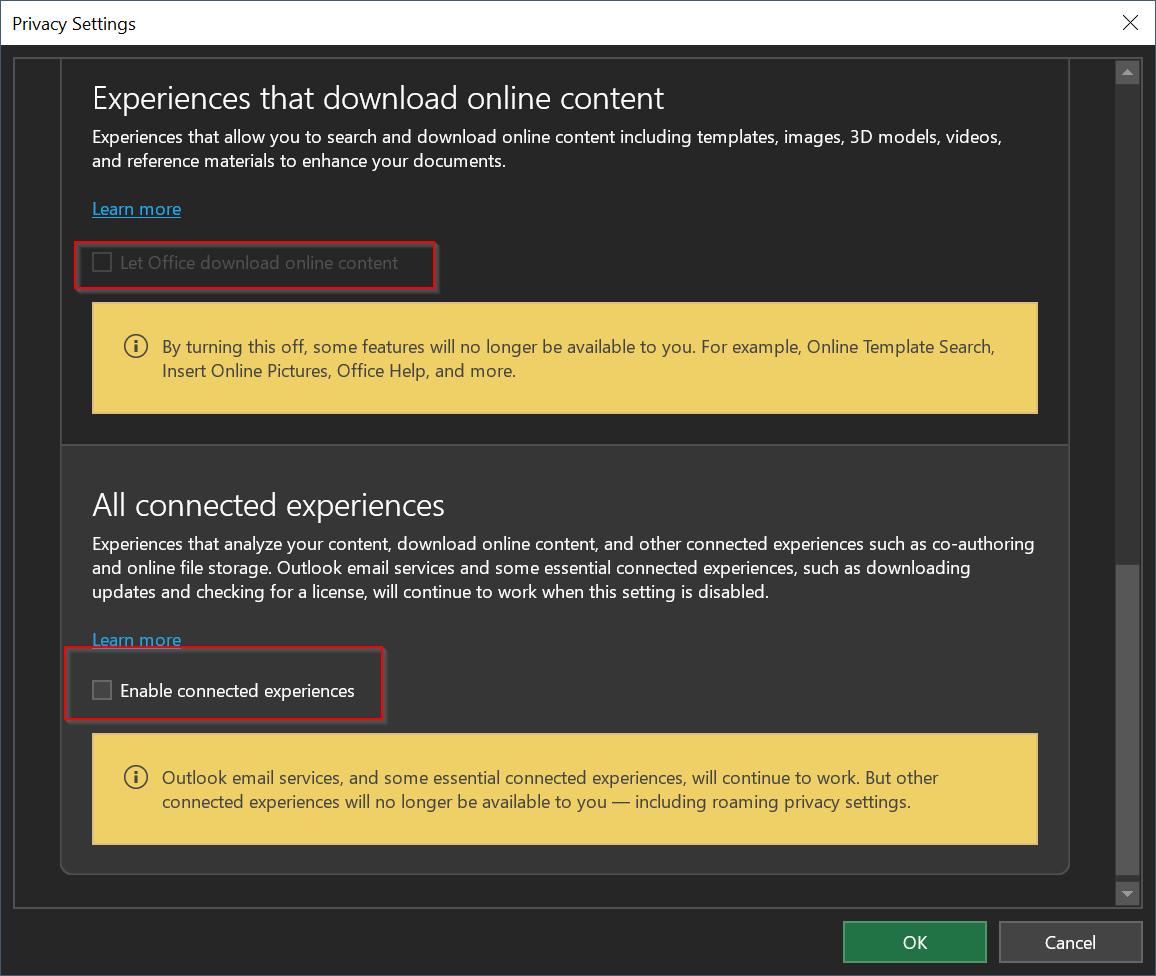
    Tip #3 : Experiences that download online content

    This option allows you to download online content including templates, images, 3D models, videos and reference materials to enhance your document design.

    In this regard also, Office connects to the Internet to gather online material which could slow up normal Office app operations.

    You can disable the option that says

    Let Office download online content

    You get a warning message that says

    By turning this off, some features will no longer be available to you. For example, Online Template Search, Insert Online Pictures, Office Help, and more.

    Tip #4 : All connected experiences

    The following option can be turned off

    Enable connected experiences

    Experiences analyze your content, download online content, and other connected experiences such as co-authoring and online file storage. Outlook email services, downloading updates and check for license will still work.

    But you get a warning message that says

    Outlook email services, and some essential connected experiences, will continue to work. But other connected experiences will no longer be available to you – including roaming privacy settings.

    turn off experiences speed up office 2019 word excel

    Don’t Disable it: Required diagnostic data

    This is a mandatory option to be checked and cannot be turned off. This help to keep Office 2019 secure, up-to-date and perform working operations without any trouble.

    It will collect data like what OS you are using and Office updates are installed or not.

    Without this basic Office 2019 information, apps will not run.

    So don’t try any hacks to disable this option.

    Method #2

    Options

    Disable the following options for better performance and quick start up of Office 2019 apps.

    General

    • Enable Live Preview
    • Enable LinkedIn features in my Office applications
    • Show the Start screen when this application starts

    Ease of Access

    • Provide feedback with animation
    • Show the Start screen when this application starts

    Customize Ribbon

    • Add-ins
    • Help

    Method #3

    Add-ins

    Make sure there are no active application add-ins. If there are any Excel, COM, XML Expansion packs etc activated, disable them. You can turn them on again when you need any particular add-in.

    For example the following add-ins are de-activated by default.

    • Analysis ToolPak
    • Analysis ToolPak-VBA
    • Date(XML)
    • Euro Currency Tools
    • Inquire
    • Microsoft Actions Pane 3 ,  Power Map for Excel,  Power Pivot for Excel
    • Solver Add-in

    Some of these are helpful as data analyzer tools for statistical and engineering analysis. 3D Data Visualization is possible with Power Map add-in.

    disable add ins to reduce slow start up office 2019 word excel

    So enabling all of them will slow your Office 2019 apps progress. When you require any particular functionality, you can just check that add-in and unchecked when not required.

  • Windows 10 : 9 New Tips To Speed Up PC or Laptop [Works for me]

    Once you clean install Windows 10, you would expect it work quicker.  To some people’s dismay, it may boot slowly and freeze sometimes. There are lot of complaints in Windows forums that Windows 10 is much slower than 7 and 8.1. But if you make the right tweaks, then this “sick” feeling can go away.

    You just have to observe the working of Windows 10. Task Manager is a great app that shows, how your PC or Laptop uses Internet, CPU, RAM and Hard-Disk.  The major culprit for Windows 10 slowing down is inherent in the built-in apps, which come pre-installed. You cannot uninstall them like other 3rd party apps.

    In this post, we are going to discuss 9 ways to speed up your Windows 10 PC.

    1. Kill some built-in apps using CCleaner
    2. Microsoft Edge and Cortana may cause problem
    3. Re-Register or Reset Apps.
    4. Unpin apps from Taskbar
    5. Stop OneDrive as Startup Item
    6. Turn Off or Disable certain Settings
    7. Uninstall Unnecessary desktop apps
    8. Do Clean Boot
    9. Use SSD to install Windows 10

    Kill some built-in apps using CCleaner

    Microsoft has received negative reviews for pushing games and other apps to newly installed Pro systems. This includes Universal Platform applications, which get installaed by default.

    No official explantion is there on why Candy Crush Saga, Seeker’s Notes, Netflix, Spotify etc are installed by default without any notice.

    As we have seen earlier, these run in the background, download updates, give notifications etc taking precious CPU and RAM resources.

    Personally after installing the 1809 version, I felt the same thing as Windows 10 installs these apps silently in the background without user involvement.

    uninstall windows 10 builtin apps

    By default, you can uninstall apps from “Windows Settings”. But some apps don’t provide the privilege to do so. In that case, you can go through the below post, on how to delete built-in apps in Windows 10 using CCleaner.

    Microsoft Edge and Cortana may cause problem

    When I check my Task Manager in Windows 10, I find Microsoft Edge and Cortana seem to suspend processes with a “leaf” symbol. Though I could not understand the reason behind it, I find that these two programs are taking majority of the CPU cycle time.

    Though I used the “End Task” option to close both of these apps, they seem to reappear.  Even after restarting they seem to suspend process, as if they are talking to somebody for unlimited time.

    If you have the same problem, follow the below tweaks to re-register or reset them. This could be due to corruption of Cortana or Microsoft Edge system files.  You might be also using an older version of Windows 10 like 1511 or 1703 which could cause this.

    microsoft edge cortana causing windows 10 slow

    Re-Register or Reset Apps

    The best method to counter such unproductive apps, is to uninstall them. But Microsoft Edge and Cortana are so bound to Windows 10, that you cannot remove them.

    In that case, you can terminate these processes, reset them.

    repair reset windows 10 apps for speed up

    Still if that fails you can reregister these apps, using PowerShell or Command Prompt.

    To open PowerShell, you can press the Win + X key and click on PowerShell(admin).

    Copy and paste the following command in PowerShell command window. You can press Ctrl + C to copy below and press Ctrl + V in the PowerShell window.

    Get-AppXPackage -Name Microsoft.MicrosoftEdge | Foreach {Add-AppxPackage -DisableDevelopmentMode -Register “$($_.InstallLocation)\AppXManifest.xml” -Verbose}

    This will Re-Register for current account only.

    To do the same for all accounts copy and paste the following command.

    Get-AppXPackage -AllUsers -Name Microsoft.MicrosoftEdge | Foreach {Add-AppxPackage -DisableDevelopmentMode -Register “$($_.InstallLocation)\AppXManifest.xml” -Verbose}

    You can also terminate, repair and reset using “Windows Settings” by following this post.

    re register cortana edge windows 10 powershell

    To Re-Register Cortana for current user, copy and paste the following command in PowerShell(Admin) mode.

    Get-AppxPackage Microsoft.Windows.Cortana | Foreach {Add-AppxPackage -DisableDevelopmentMode -Register "$($_.InstallLocation)\AppXManifest.xml"}

    For All users

    Get-AppxPackage -AllUsers Microsoft.Windows.Cortana | Foreach {Add-AppxPackage -DisableDevelopmentMode -Register "$($_.InstallLocation)\AppXManifest.xml"}

    Unpin apps from Taskbar

    Since Taskbar is another process that starts during initial phase of booting, make sure that less apps are pinned to it.

    In my case, I unpinned Microsoft Edge, Store, Mail, People.

    This will make Windows 10 to load less apps on Taskbar when it is initiated.

    Disable High Impact Startup Items

    Another crucial factor for a quick Windows 10, is to stop high impact desktop apps or modern apps from starting up during boot.

    For example, OneDrive takes time and connects to the Internet, during start up. Though this is important to sync your files and settings, you can disable it if you like.

    Then you can manually invoke it, once the system starts.

    high impact startup items windows 10

    Pro Tip:

    I personally installed Windows 10 1809, after downloading it from the microsoft website. Initially for some unknown reasons, the bootup time and speed of operations was very slow.

    I thought, this was due to Cortana and Microsoft Edge.

    So I switched off all the options related to Cortana from “Windows Settings” (which can be invoked by pressing the Win + I keys).

    This did not make any improvement and Windows 10 was still slow.

    After ending Cortana task and re-registering it, I still faced the same problem.

    So then I enabled all the options related to Cortana setting in “Windows Settings” (Control Panel of Windows 10).

    After that, my computer seem to work fast and without any freeze or break.

    So you can try disable and enable the Cortana settings, to see how they impact your Windows 10 performance.

    Somehow, I feel that Cortana is integrated into Windows 10. So leaving the default settings when you install Win 10, will make it quick.

    Turn Off or Disable certain Settings

    As we know Windows 10 collects some information related to advertising and diagnostics.

    So disabling these options could help you make your Windows 10 system run faster.

    Using Windows Settings, you can turn off the following Settings.

    System

    • Focus Assist
    • Storage Sense (if you have large storage)
    • Tablet Mode (if you are using laptop or desktop)
    • Shared Experiences
    • Clipboard

    Devices

    • Bluetooth (if you are not using it)
    • Pen & Windows Ink
    • AutoPlay

    Network & Internet

    • VPN (if you are not using it)
    • Airplane mode
    • Mobile hotspot

    Gaming (if you are not a gamer like me)

    • Game bar
    • Captures
    • Game Mode

    Privacy

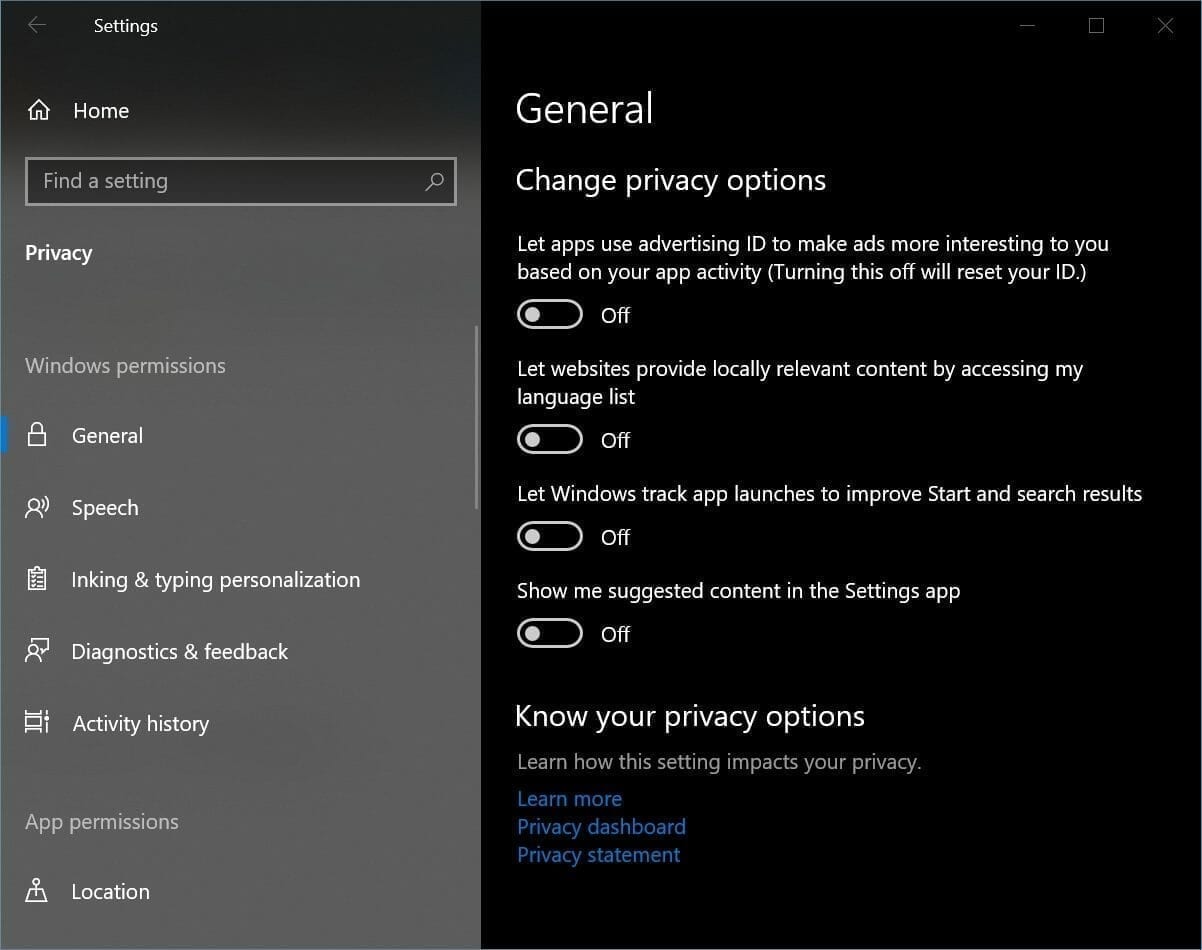
    • General (turn off most of the options, as they are related to advertising)
    • Inking & typing personalization
    • Radios
    • Background apps

    Update & Security

    • Delivery Optimization
    • Uninstall Unnecessary desktop apps

    turn off privacy options windows 10

    Uninstall Unnecessary desktop apps

    Still in 2019, there are lot of desktop apps (previously called programs and applications) installed in Windows 10. For example, some people still use Nero, Adobe Creative Cloud, Photoshop, Camtasia etc for their desktop needs.

    Though I don’t comment, that these apps slow down your Windows 10 PC, but there are apps which can make your Win 10 computer slow.

    In that case, use the “Programs & Features” of Control Panel to uninstall these programs and check the speed of your Windows 10 laptop or PC. If it is working quickly after uninstall, then that program is not compatible with Win 10.

    This happens with many old programs written for Windows 7 or Vista and not updated to meet the new code requirements of Windows 10.

    uninstall desktop apps windows 10

    Do Clean Boot

    Sometimes, you have a hunch that some service or driver is causing the issue. In that case, you can try starting Windows 10 with clean boot. To do this follow these steps. Source : https://support.logitech.com/en_ch/article/228

    clean boot windows 10 speed up

    Clean boot in Windows 10

    To perform a clean boot in  Windows 10:

    1. Press the “Windows + R” key to open a Run box.
    2. Type msconfig and click OK.
    3. On the General tab, click Selective startup.
    4. Clear the Load startup items check box.
    5. Click the Services tab.
    6. Select the Hide all Microsoft services check box (at the bottom).
    7. Click Disable all.
    8. Click the Startup tab.
    9. Click Open Task Manager.
    10. On the Startup tab, right-click each enabled startup item and select Disable.
    11. Click OK.
    12. Click Restart.

    After completing your troubleshooting, restore your system by doing the following:

    1. Press the “Windows + R” key to open a Run box.
    2. Type msconfig and click OK.
    3. On the General tab, select Normal startup.
    4. Click the Services tab.
    5. Clear the Hide all Microsoft services check box.
    6. Click Enable all.
    7. Click the Startup tab.
    8. Click Open Task Manager and enable all of your startup programs.
    9. Click OK.
    10. Click Restart.
    NOTE: Be sure you “Enable all” Microsoft services when you are done troubleshooting, and re-enable all programs in the Startup tab, or will you lose some OS functions (ex. internet connection) and some applications won’t get loaded during startup.

    SSD to Install Windows 10

    In 2019, HDD have become obsolete. These are spinning disks which make lot of sound. Also the sequential read/write speeds are also slow.

    To circumvent this problem, you can use SSD disks. These make less noise and have read/write speeds of 500 MB/sec. In addition these have major benefits while booting and during normal operations.

    It will make Windows 10 lot quicker and the performance gains can be seen immediately.

    So if all the above tweaks fail, then it is time to change your hardware.

  • 12 Methods to Fix Cortana Search Not Working in Windows 10

    Till April 2019, Cortana and Search were tied together in Windows 10. But according to Microsoft’s Windows Insider chief, Dona Sarkar, it may separate both of them as individual processes.

    This is a major help to Windows 10 community. In the earlier builds of Windows 10 from 2015 to 2018, Cortana and Search were tied up. So if the search functionality was not working, the major culprit would be Cortana.

    Since these two were integrated together, errors and solutions depended on Cortana working properly. In the 1903 version, this may less likely to impact your search.

    In this way, each will have their development cycle of their own and serve their intended target audience. Cortana will cater to the voice search users and normal “Windows Search” for text-search audience.

    But if you are using an older version of Windows 10, then try these solutions if you have problems of Windows 10 Cortana search not working or freezing.

    Check your Microphone

    In 2016, users faced issues with Windows 10 and their mic. There was a decrease in mic gain to be set to zero. To resolve this error, check your mic’s drivers for Windows 10. In most cases, legacy mics would not have the latest drivers.

    In that case, just install the existing Microsoft or generic drivers. You can find your voice-hearing device in the “Device Manager” section. You either manually download the mic drivers from the manufacturer page or use the “Search automatically for updated driver software” option.

    Sometimes, the recording volume is set to very low value. So if you speak anything into the mic, you cannot hear it. If others can’t hear it, so does Cortana. For this, just increase the mic volume level in the “Recording” tab of “Sound” properties found in Control Panel.

    increase mic recording volume to fix cortana search in windows 10

    Check for Updates

    If you are still using the Windows 10 1511, 1607, 1703 versions then you need to update to the latest version of 1809. If you think the October upgrade (1809) is causing problems, you could still upgrade to 1803 version.

    You can either use “Windows Settings” or Control Panel to update your computer. This will automatically update to the latest version of Windows 10 and other software components.

    check for updates windows 10 cortana search not working

    Unplug and Replug your Microphone

    If you have any software/hardware problems with your mic, this fix should work. Sometimes, other programs might have reduced your mic recording volume. As a result, Cortana is not able to hear you.

    Sometimes Windows 10 Start Menu search will not also work. The problem can be related to “search” service and Cortana.

    For this case, you can unplug your mic from the socket (whether it is USB or PS/2). Then connect it again. See if this fixes the problem after a restart.

    Restart Cortana Process

    The best method to solve this problem is to end the Cortana task. To do this follow this steps.

    1. Press Ctrl + Alt + Del to open Task Manager.
    2. Under “Processes“, find the “Cortana” process.
    3. Right-click on it and click on “End task“.
    4. This will restart the “Cortana” process.

    It should solve the search not working problem, if Cortana process or files are corrupted.

    kill cortana task manager search not working

    Check Windows Search Service

    Another fix is to find the “Search” service in Windows 10 and restart it. The following steps will help.

    1. Press Win + R and type “services.msc“.
    2. At the bottom of the window, select “Standard“.
    3. Find the “Windows Search” service and right-click to view “Properties“.
    4. You can also use other options like “Start“, “Stop“, “Restart” as a preliminary fix.
    5. If it’s not already started, click the “Start” button.
    6. Also set the “Startup type” to “Automatic“.

    If this service is not starting, then check its dependent services. You need to start them first to make this work.

    If this is running smoothly, you need to check other solutions.

    windows 10 search service start stop restart

    Restart Windows Explorer

    Since may of the processes in Windows 10 are linked to “Windows Explorer”, you can try restarting it.

    The same steps as mentioned earlier can be used to start Task Manager. Right-click the “Windows Explorer” service and click on “Restart”. This should clear any dependency problems.

    Using Windows Troubleshooter

    The traditional Control Panel still works in Windows 10. Otherwise, you press the Win + I key to invoke Windows Settings interface.

    Using any of them, you can find the “Search and Indexing” troubleshooter. Running it should solve the problem, if its traditional error due to search processes, instead of Cortana.

    But this may take some time, as it needs to correct any corrupted search process files.

    search and indexing troubleshooting windows 10

    Run the DISM tool

    You can also check the system health and restore to normal, using the following commands. Open “Command Prompt” in administrator mode. Then type the following commands.

    DISM.exe /Online /Cleanup-image /Scanhealth
    DISM.exe /Online /Cleanup-image /Restorehealth

    This may take 15 to 30 minutes, based on your PC configuration and error files.

    Boot up in Safe Mode

    In 2015 cases, when Windows 10 was new, some users faced an issue which threw up error like this.

    “Critical Error – Cortana isn’t working. We’ll try to fix it the next time you sign in.”

    Or

    “Critical Error – Start menu and Cortana aren’t working. We’ll try to fix it the next time you sign in.”

    Or

    “Critical Error – Your Start menu isn’t working. We’ll try to fix it the next time you sign in.”

    This could cause both Cortana Search and Start Menu not functioning together. In that case, you can start your PC in safe mode and then exit. You can then start in normal mode, which may automatically fix this error.

    You can use the Troubleshooter mentioned above.

    Uninstall 3rd party AntiVirus and Reinstall it

    Since Windows 8.1, Microsoft has an inbuilt antivirus called “Windows Defender”. Now its known as “Microsoft Defender” in Windows 10 1809 version. This works well for many of the normal security threats including Ransomware protection.

    But if you are afraid of phishing and malware attacks, you may try 3rd party AV tools like Avast. But its “Shield” feature may be causing problem sometimes. You can then disable it (while disconnected to the Internet) and check if Cortana search is working properly or not. If it is, then the culprit is your AV.

    This seems to happen in the earlier releases of Windows 10.

    Create a new Local Administrator account

    Sometimes the existing user account itself might get corrupted. In that case, create a new Local Administrator account and delete the existing Administrator account.

    Otherwise, you can check with a new Guest account also. If it works in that account, but not in your current account, then your user account has some issues. So either switch to a new account or clean your current account for any adware, bloatware, virus etc.

    windows 10 user accounts

    You can also reenter your Microsoft account password once again. Otherwise, you can sign-in and out to make Cortana search work again.

    Register Cortana again

    As you know many of the components of Windows work like processes or services. You can de-register many of them and re-register them again to see if there is any problem in the inherent integration of that component with Windows 10.

    You can apply the same login to Cortana. As we have seen earlier, we could end the Cortana process and it will restart automatically. But this fix will not work sometimes.

    Then open the Powershell in Administrator mode. Then enter the following command.

    Get-AppXPackage -AllUsers | Foreach {Add-AppxPackage -DisableDevelopmentMode -Register “$($_.InstallLocation)AppXManifest.xml”}

    Hit the enter key to execute the command.

    Restart your system and check if the Cortana search issue is fixed.

  • [Solved] Outlook Error 0x8004010F in 2010 or 2013: Data File Cannot Be Accessed

    If you are using outlook.com as your email, it will connect the Exchange server. All the mailbox data of your account are stored locally in a file called Offline Storage Table (OST) or Personal Storage Table (PST) file.

    It will replicate all the database records of the user’s Exchange mailbox. The main purpose of this file comes into play when the Exchange Server is facing issues like Internet connectivity or maintenance. But since the OST file is stored locally, you can continue to work offline.

    When the Internet is restored, you can update them to sync with the server.

    There are problems when there are sync issues between Outlook and Exchange. It could be a problem with a corrupt PST file also. In many of the cases, the mailbox access errors within the OST file will cause error 0x8004010F.

    Read about the different kind of Outlook 2016 errors and their solutions below.

    Outlook Error 0x8004010F : Issues Behind It

    This issue is mainly caused by a corrupted Outlook profile. Due to OS or Office crashes, this can happen.

    For example, you are using Outlook 2010 or 2013. Then when you click send/receive emails, you may get this error message.

    “0x8004010F: Outlook data file cannot be accessed”

    or

    “0x8004010F: The operation failed. An object could not be found”

    It can be caused when the offline PST or OST file does not sync properly with the Exchange server during the send/receive operation.

    The following are some of the reasons behind 0x8004010F error

    • OST file corruption
    • Incorrect configuration or corruption of Outlook profile
    • Change in the location of OST file on the machine
    • Copying of old OST file used by previous Outlook version after upgrading

    Source : https://www.stellarinfo.com/article/outlook-error-0x8004010f-solved.php

    How to Fix Outlook Error 0x8004010F in 2010 or 2013

    The following are the common solutions.

    1. Create a new Outlook profile
    2. Create a new Outlook Data file
    3. Configure new Outlook profile as default
    3. Delete Multiple Outlook OST or PST files
    4. Temporarily change Outlook profile location

    New Outlook Profile

    A default profile is created when you install Outlook and add your first email account. Sometimes if this profile is corrupted, you can face this issue.

    In this case, you can just create a new profile.

    1. Control Panel (View by small icons) > Mail
    2. Click on “Show Profiles“.
    2. Click on “Add“.
    3. In the next pop-up windows, enter a new Profile name.
    4. Then you need to set up your existing Email account again.
    5. Restart Outlook (if it is open).

    In Windows 10, you can press the Win key and type “Control”. You can then click on the “Control Panel” desktop app.

    control panel mail location windows 10show profiles outlook mail windows 10

    New Outlook Data File

    If the cause of error 0x8004010F is a corrupted Outlook data file, then creating a new profile will fix it. To find the curent location of your default Outlook data file, you can see the following path.

    drive:\Users\\AppData\Local\Microsoft\Outlook
    drive:\Documents and Settings\\Local Settings\Application Data\Microsoft\Outlook.

    The above can be used to copy OST files to a new location.

    1. Open Outlook. (The steps are mentioned for 2013).
    2. File > Account Settings > Account Settings
    3. Clck on the “Data files” tab.
    4. Select your OST file and note the file location.
    5. Click on “Add“.
    6. Give a new name

    outlook account settings data files windows

    Make another Outlook Profile as Default

    If you have multiple Outlook profiles, and if you get this error code, you change to another profile.

    Generally, only one profile is required. But if problems persist, create a new profile as mentioned above. Then switch to the new Profile as mentioned below.
    1. Control Panel > Mail
    2. On the next pop-up window, click on “Show Profiles“.
    3. At the bottom, select the option that says “Always use this profile“.
    4. In the drop-box, select your newly created Profile.
    5. When you restart Outlook, your email will be again configured.

    default outlook profile windowsmultiple outlook profiles windowsOtherwise, you can import the PST or OST file into the current profile.
    For that follow these steps.
    1. Start Outlook
    2. File > Open & Export
    3. Double-click on “Open Outlook Data File
    4. Browse to the OST file location and select it.
    5. It will be imported.

    This way if there are many emails and other items to be sync with the new Profile, time can be saved.

    Delete Multiple Outlook Data Files

    When you add different email accounts to the same profile, multiple OST or PST files are created. If any of them are corrupted, then also the error code 0x8004010F is shown.

    Note: In that case, instead of recreating a new profile, you can just delete the particular corrupt OST file. There should be atleast two OST files for this to happen.

    Before deleting the corrupt OST file, make another as the default data file. Then delete it. You can add the email account again or repair the OST file.

    Change Outlook Profile location and Revert Back

    If the location of Outlook profile is infected with virus also, there can be corruption in your data files. Otherwise, Outlook may not recognize the path properly.

    In that case, temporarily change the file location of your Profile and Data files and then change back to the normal location again.

    In MS Outlook 2013, follow these steps.

    • Open Outlook.
    • File > Account Settings > Account Settings
    • On the Data Files tab, select your account and click on “Settings“.
      Note: You can note the present OST file location for future use.
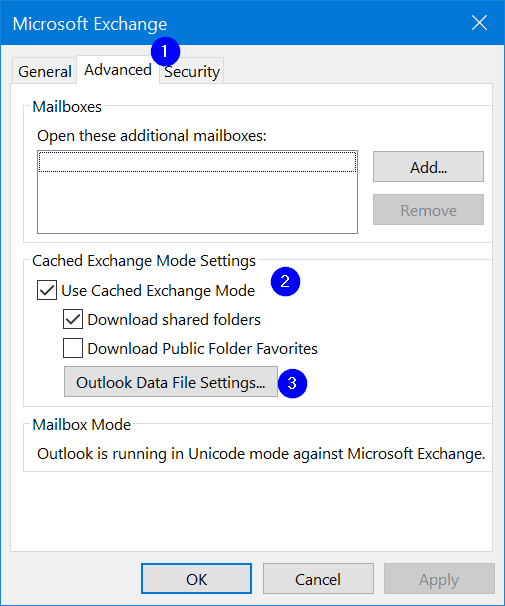
    • On the Advanced tab, uncheck the Use Cached Exchange Mode check box; click OK. Click OK.
    • Then follow the above step and click on “Outlook Data File Settings“.
    • Then browse to the new folder location of the OST file.
      Note. First copy the old OST file to this new location.
    • Now go to “Advanced” tab once again. Check the “Use Cached Exchange Mode” checkbox. Click OK, OK.
    • Now close all the open dialogue boxes and click OK.
    microsoft exchange advanced settings windows

    Conclusion

    There is no necessary to move your OST files to another computer. There is no need to take backup also, if you are using an Exchange server. But if there is a diasaster with the server, it is important you take backup.

    You can also convert OST to PST file, using third-party tools. This will help in using the data file in older version of Outlook. You can then use for offline purpose also.

    To recover data from OST file, you may need to convert to PST file. Then repair it and use it again. By following the above methods, you can fix the error code 0x8004010F easily.

    Let me know your comments.