

Key Takeaways
- Windows 11 stores saved credentials in three different places depending on how they were saved: Credential Manager, Microsoft Edge’s password manager, and the newer Passkeys manager.
- Microsoft has been actively phasing out passwords in favor of passkeys — Manage saved passwords Windows 11 using new Microsoft accounts require a passkey, and Microsoft Authenticator no longer stores passwords at all.
- Passkeys saved directly on your PC are device-bound by default; only a synced third-party manager (like 1Password or Bitwarden) makes them available across multiple devices.
- Windows 11 now lets you view, search, filter, and delete saved passkeys directly from Settings, without opening a browser.
- The classic Credential Manager in Control Panel is still there and still works — it’s just easy to forget about now that Settings handles passkeys separately.
Quick answer
To manage saved passwords in Windows 11, open Control Panel > User Accounts > Credential Manager for Windows-level saved logins, or Settings > Accounts > Passkeys for passkeys. If your passwords are saved in the browser, go to Edge Settings > Profiles > Passwords instead — that’s where most people’s saved logins actually live.
I’ve walked many people through this exact confusion, and it usually comes down to one thing: passwords in Windows aren’t stored in one single place.
Depending on how you saved a login—through a website prompt, through Windows itself, or through a passkey setup—it ends up in a different manager entirely. Here’s where everything actually lives, and how Microsoft’s push toward passkeys has changed what used to be simple advice.
Where Windows 11 actually stores your saved passwords
Before touching any settings, it helps to know there isn’t one unified “Windows password manager.” There are three separate systems, and knowing which one you need saves a lot of confused clicking:
| Storage location | What it holds | Where to find it |
|---|---|---|
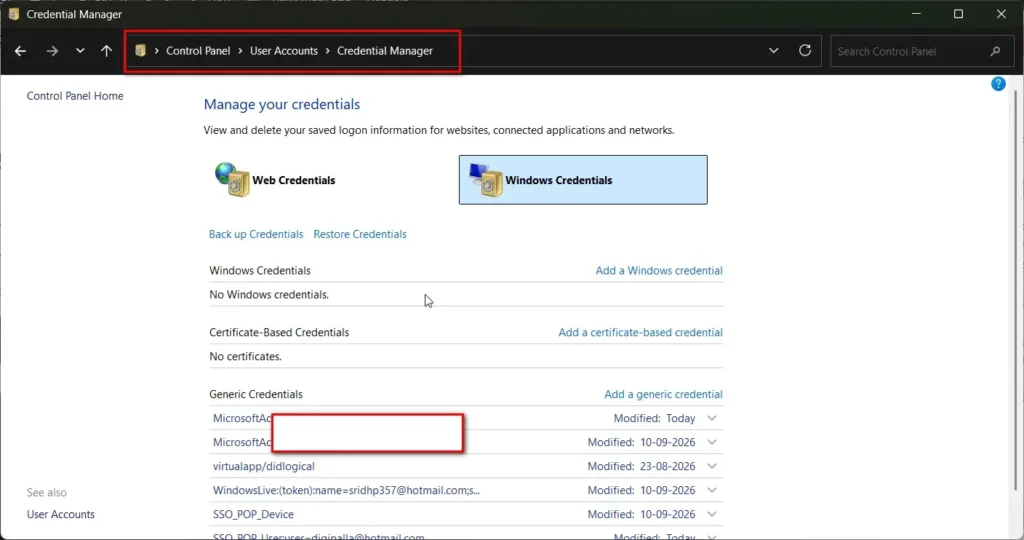
| Credential Manager | Windows app and network logins, some legacy web credentials | Control Panel > User Accounts > Credential Manager |
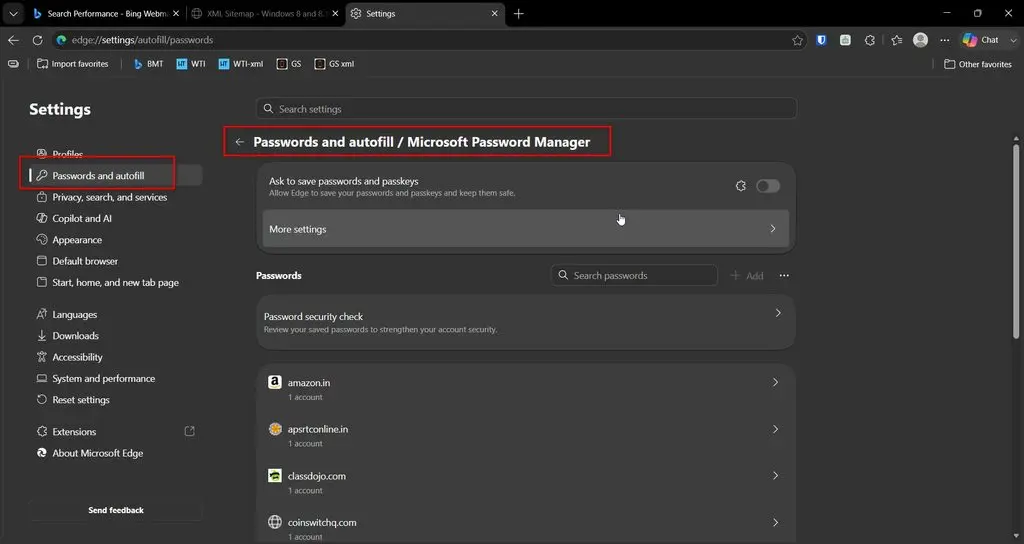
| Microsoft Edge Password Manager | Website logins saved through the browser | Edge Settings > Profiles > Passwords |
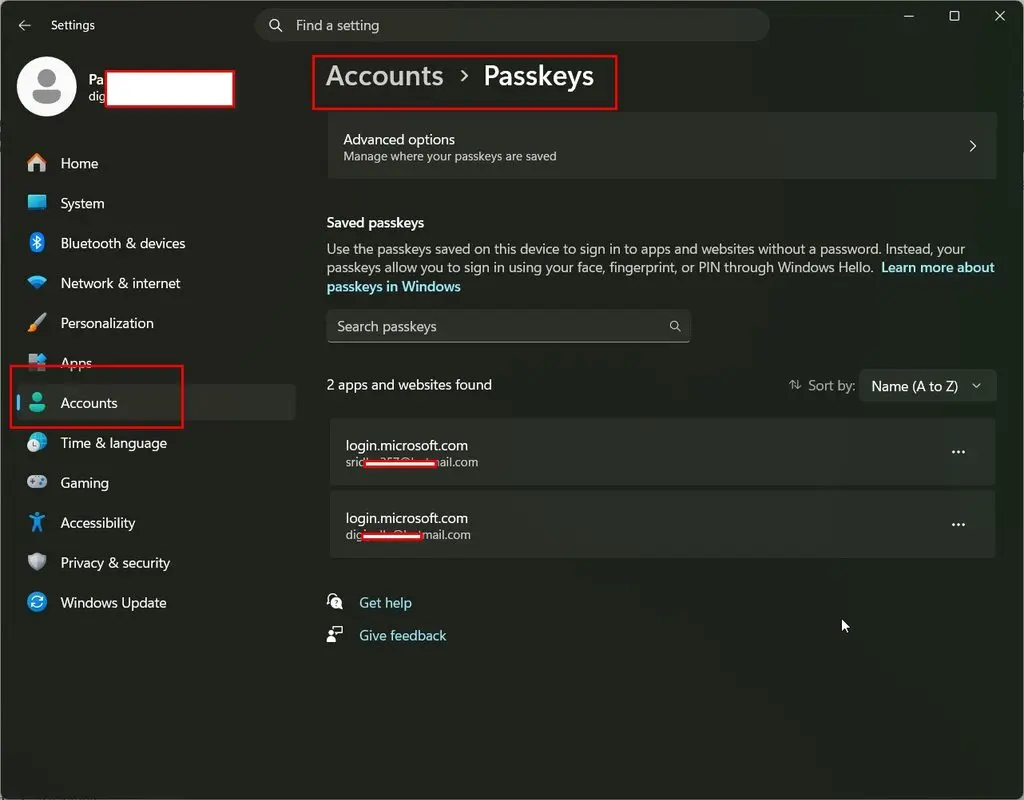
| Windows Passkeys | Passkeys created for websites/apps supporting passwordless sign-in | Settings > Accounts > Passkeys |
Most people’s day-to-day saved logins live in Edge’s password manager, since that’s what prompts you to save a password when you log into a site. Credential Manager mostly handles Windows-specific and network credentials these days.
Manage Saved Passwords Windows 11 in Credential Manager
Step 1: Open Control Panel and search for Credential Manager, or type control /name Microsoft.CredentialManager into the Run dialog (Win + R).
Step 2: Choose between Web Credentials or Windows Credentials — these are two separate tabs holding different types of saved logins.
Step 3: Click any entry to expand it, where you can view, edit, or remove it.
Step 4: To see a hidden password, click Show next to the password field and confirm with your Windows Hello PIN or biometric prompt.
Credential Manager is the right place to check if a specific mapped network drive or Windows app keeps asking you to re-enter a login — the saved credential for it lives here, not in Edge.
How to manage passwords saved in Microsoft Edge
Step 1: Open Edge and go to Settings (three dots > Settings), or type edge://settings/passwords directly into the address bar.
Step 2: Under Passwords, you’ll see every saved login, searchable by site name.
Step 3: Click the three-dot menu next to any entry to edit, copy, or delete it.
Step 4: Turn on Offer to save passwords if you want Edge to keep prompting you for new logins, or turn it off if you’d rather rely entirely on a third-party manager.
Edge also includes a built-in Password Health check under this same settings page, which flags weak, reused, or breached passwords — worth running periodically rather than only when something goes wrong.
How to manage passkeys in Windows 11
Passkeys are Microsoft’s replacement for traditional passwords, and as of the Windows 11 November 2025 security update, they get their own dedicated management screen.
Step 1: Go to Settings > Accounts > Passkeys.
Step 2: You’ll see a list of every passkey saved on this device, with search, filter, and sort options.
Step 3: Click the three-dot menu next to any passkey to view its details or delete it.
Step 4: Under Advanced options, you can choose where new passkeys get saved — directly to this Windows device, or to a third-party passkey manager like 1Password or Bitwarden if you have one installed and set up.
One important detail: passkeys saved directly to a Windows device are single-device only by default — they don’t sync to your phone or other computers the way Apple and Google’s passkey systems do. If you want a passkey usable across multiple devices, you need to save it through a syncing third-party manager instead of the built-in Windows option.
What happened to passwords in Microsoft Authenticator
If you’re used to older guides recommending Microsoft Authenticator as a password manager, that advice is now outdated. Microsoft has phased out password storage from the Authenticator app entirely, shifting that functionality toward passkeys instead.
If you previously kept passwords in Authenticator, check that they’ve been migrated to your Microsoft account’s passkey or password settings rather than assuming they’re still accessible there.
Security best practices for managing saved passwords
- Turn on Windows Hello (PIN, fingerprint, or face recognition) before relying heavily on saved credentials — every manager above requires this for viewing hidden passwords
- Run Edge’s Password Health check every few months to catch reused or breached passwords early
- Use a synced third-party passkey manager if you regularly switch between a PC, phone, and tablet — the built-in Windows option won’t follow you across devices
- Don’t save passwords for shared or public computers — Credential Manager and Edge both persist saved logins for the next person who opens the browser
- Periodically review Credential Manager’s Windows Credentials tab — old network or app credentials can pile up unnoticed for years
Common mistakes people make managing Windows 11 passwords
- Looking for saved website logins in Credential Manager. Most website passwords live in Edge’s password manager instead — Credential Manager mainly handles Windows and network-level credentials now.
- Assuming a saved passkey syncs across devices automatically. Device-bound passkeys saved directly to Windows don’t sync anywhere else. Only a third-party synced manager provides that.
- Expecting Microsoft Authenticator to still store passwords. This feature has been removed in favor of passkeys — check your account’s actual passkey/password settings instead.
- Never running a password health check. Edge’s built-in checker takes seconds and catches reused or breached passwords before they become a real problem.
- Forgetting Windows Hello is required to reveal saved passwords. If the “Show password” option isn’t working, confirm Windows Hello is set up on the device first.
For Windows 7/8 Users (Legacy Method)
Windows 7 and 8/8.1 both include Credential Manager, reached the same way — through Control Panel > User Accounts > Credential Manager. The Web Credentials and Windows Credentials tabs work identically to how they do on Windows 11.
Passkeys don’t exist at all on Windows 7 or 8/8.1 — this is a Windows 11-only feature tied to more recent security infrastructure. If you’re still on these older versions, your only realistic password management options are Credential Manager for Windows-level logins, or your browser’s built-in password manager (Internet Explorer, older Edge, Chrome, or Firefox) for website credentials.
For anyone managing passwords across multiple older and newer devices, a third-party password manager like Bitwarden or 1Password is the most practical option, since it works consistently across Windows 7, 8, 10, and 11 without relying on OS-specific features that don’t exist on the older systems.
Recommended tools
- Bitwarden – Free, open-source password and passkey manager with native Windows 11 passkey plugin support and cross-device sync
- 1Password – Paid password and passkey manager, also natively pluggable into Windows 11’s Passkeys settings, with strong cross-platform support
- Microsoft Edge Password Health checker – Built into Edge at no extra cost, useful for a quick audit of saved website passwords
Frequently asked questions
Where are my Windows 11 saved passwords actually stored?
It depends on how they were saved. Website logins are usually in Microsoft Edge’s password manager. Windows and network credentials are in Credential Manager. Passwordless logins are managed separately under Settings > Accounts > Passkeys.
Can I see a saved password without typing it again?
Yes, in both Credential Manager and Edge’s password manager — click “Show” next to the password field and confirm with Windows Hello (PIN, fingerprint, or face recognition).
Do passkeys work the same as passwords?
No. A passkey is a cryptographic credential tied to your device and Windows Hello, rather than something you type. It’s generally more secure and phishing-resistant, but device-bound passkeys don’t sync across devices the way passwords typically do when saved in a cloud-synced manager.
Does Microsoft Authenticator still store my passwords?
No — Microsoft has removed password storage from Authenticator, shifting that functionality to passkeys instead. Check your Microsoft account’s passkey settings if you’re looking for credentials that used to be in Authenticator.
Can I use 1Password or Bitwarden instead of the built-in Windows passkey manager?
Yes. Since the November 2025 Windows update, both are natively supported as passkey providers. Set your preferred manager under Settings > Accounts > Passkeys > Advanced options.
Does Credential Manager work the same way on Windows 7, 8, 10, and 11?
Yes, the Web Credentials and Windows Credentials tabs function identically across all four versions. Passkeys, however, are exclusive to Windows 11.
Conclusion
Managing passwords in Windows 11 isn’t a single-screen job anymore — it’s split across Credential Manager, your browser, and now a dedicated passkey manager, each handling a different type of saved credential.
Once you know which one holds what, checking or cleaning up your saved logins takes a couple of minutes rather than a frustrating hunt through the wrong settings page.
If you’re still relying on Microsoft Authenticator out of habit, it’s worth checking your account directly — that particular shortcut doesn’t exist anymore, and passkeys have quietly become the safer, faster default Microsoft wants everyone to move toward.
