Category: Solved

  • Fix Windows 11 System Service Exception BSoD Error and Stop Code

    System Service Exception error could occur due to faulty driver updates or wrong hardware, software. Developers try to code different apps and programs. But when there is a memory leak or faulty code, you are left with BSoD (Blue Screen of Death) error. 

    The computer keeps restarting with a blue screen and an error code. The typical types of errors are. 

    SYSTEM_SERVICE_EXCEPTION Windows 10

    This error usually occurs in Windows 10 and you may apply similar solutions to get rid of it.

    SYSTEM_SERVICE_EXCEPTION Windows 7

    BSODs caused by this problem are also a common sight in Windows 7

    SYSTEM_SERVICE_EXCEPTION 00000000`c0000005

    This is just one of the error codes that come with this problem

    SYSTEM_SERVICE_EXCEPTION 0x0000003b

    Another error code that goes along with the SYSTEM_SERVICE_EXCEPTION error

    SYSTEM_SERVICE_EXCEPTION netio.sys Windows 10

    That’s another error code that goes along with the SYSTEM_SERVICE_EXCEPTION error

    SYSTEM_SERVICE_EXCEPTION Blue Screen

    As you already know, this error is always followed by a Blue Screen of Death

    SYSTEM_SERVICE_EXCEPTION VirtualBox

    This problem occurs on virtual machines too

    Source: windowsreport.com

    Though this kind of error has reduced in Windows 11, sometimes you still have to face the system service exception error in the new OS too. 

    Initial Steps to Solve BSoD Error

    Login to  your system using the Safe Mode, if you are unable to login to Windows 11 desktop. 

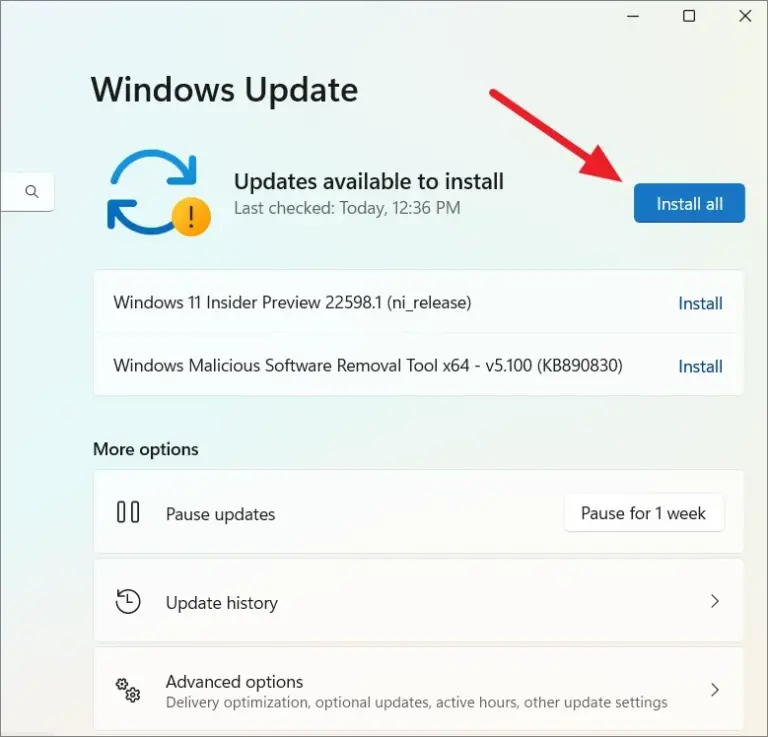
    install windows 11 updates
    • First update all your drivers and Windows 11 system. 
    • Uninstall recently installed software apps and programs. 
    • Check if the problem arises after a latest Windows 11 update. Uninstall it and check again. 

    Run Driver Verifier tool.

    In some cases corrupt drivers or uninstalled instances can cause issues. You can use this tool to check the compatibility of the drivers. Create automatic memory dump to check for errors. 

    After that, ensure that the ‘Dump file’ value is set to %SystemRoot%\MEMORY.DMP.

    automatic memory dump windows 11

    Open Command Prompt in elevated mode and type verifier
    Select standard settings in the pop-up window. Automatically check all drivers installed on the system. 

    run driver verifier windows 11

    After restart the Driver verifier will run in the background. It will also log info to the debugger in the minidump file. 

    When the BSoD error is encountered, it will write to the dump file of the fault driver details. You can uninstall the driver or update it.

    Once you run the Driver Verifier tool, it can cause a BSoD error. The solution itself can cause the issue. There are several way to disable the verifier or stop driver BSoD loop. 

    Disable Driver Verifier Tool in Windows 11

    You can make use of Safe Mode and open the command prompt. Then type the following commands. 

    verifier /reset

    Then restart your computer. 
    You could also run the verifier tool again and delete all existing settings. 

    Another way is to enter the Windows Recovery environment. Then enter Safe mode and enable command prompt and enter the relevant commands. 

    System Restore is another method

    If you have created system restore point, then you can revert back to the last point. No files will be deleted. But the recent updates or apps may get uninstalled.  After logging back in, you can install them again. 

    Conflicting Third-party Apps and Programs

    1. McAfee
    2. BitDefender
    3. Virtual Clone Drive
    4. Cisco VPN
    5. Xsplit Broadcaster
    6. Asus GameFirst Service
    7. MSI Live Update, etc.

    Try to uninstall these programs and check if the system service exception error is gone in Windows 11. Then you can install an alternate anti-virus or app.

    Run the following cmds in Powershell. 

    DISM/online/cleanup-image/restorehealth

    sfc/scannow

    It should restore any corrupt system files. 

    dism command windows 11
    1. Disable Windows Biometric Service if no related devices are connected. Then restart the service if it is required. 
    2. Disable Webcam in the Device Manager and restart the computer.
    3. Disable Google Update Service
    disable gupdate service
    1. Perform Startup Repair using Windows 11 Installation disc or USB key.
    2. Run Windows Memory diagnostic tool
    3. This will check the RAM for any errors. Type Windows Memory diagnostic in the search box and press Enter. 
    check memory problems

    Click Restart and automatically check for problems. 

    Understanding the Windows 11 Blue Screen System Service Exception error

    This error occurs when the system has an issue with a specific driver or application and cannot continue to boot properly.

    The blue screen will usually indicate the source of the problem and can help diagnose the issue.

    It is important to understand this error as it can be difficult to troubleshoot without knowing what caused it.

    uninstall windows 11 updates

    Causes of the Blue Screen System Service Exception error in Windows 11

    It can be caused by many different things, such as an outdated driver, corrupted files, malware, or hardware incompatibility.

    If you are getting this error, it might be due to a third-party driver that has been installed on your system which may have become corrupted or incompatible with Windows 11.

    It could also be due to viruses and other malicious software that may have damaged important system files.

    In addition, if the computer’s hardware isn’t up to date, it can cause the Blue Screen System Service Exception error.

    To fix this issue, you should scan your computer for any malware or viruses using anti-malware software; update all of your drivers; and make sure that your hardware is up to date.

    Once these steps have been taken, then you can restart your computer and hopefully the error will disappear.

    Troubleshooting the Blue Screen System Service Exception error

    First, it is important to make sure that your operating system and all drivers are up to date.

    If they are not, you should update them to the latest version.

    Additionally, you should check if any recently installed programs or hardware are causing the issue.

    If they are, you should uninstall them and see if the issue resolves itself.

    Furthermore, it is also a good idea to run a virus and malware scan on your computer in order to rule out any malicious software as a possible cause of the error.

    Finally, if none of these solutions work, you may need to reinstall your operating system in order to resolve the issue.

    Updating drivers and system components

    This error is often caused by outdated or corrupt drivers, so updating them can often be the best way to fix the issue.

    To do this, you will need to go into Device Manager, select each driver, and then click ‘Update Driver’ from the context menu.

    You should also make sure that any other system components such as BIOS, firmware or software are up to date as well.

    Doing this regularly can help keep your computer running smoothly and reduce the chances of future Blue Screen errors.

    It is important to note that some drivers may require an internet connection in order to be updated properly.

    Additionally, it is always recommended to backup your data before attempting any driver updates or software installations.

    Seeking professional help

    If you are having trouble with the Blue Screen System Service Exception error in Windows 11, then it is best to seek professional help.

    A qualified technician or computer specialist can diagnose the issue and recommend the appropriate solution.

    They will be able to identify the cause of the problem and offer advice on how to fix it.

    The technician may also be able to replace any faulty hardware or software components that are causing the issue.

    It is important to note that attempting to repair this type of error yourself may lead to further damage and should only be attempted if you have experience in computer repairs.

    Seeking professional help for this kind of error will ensure that your system is fixed quickly and correctly so that you can continue using your computer without interruption.

  • Bluetooth LE Xinput Device for Xbox One Controller in Microsoft PC

    Xbox controller works fine with Windows 11 or 10 as wired or wireless connection.

    As time passes by, different gaming controllers have come to connect to Surface tablets, desktops and consoles. Xbox also has gone undergone change. Series X/S controllers have Bluetooth connection. 

    The initial ones weren’t with that feature.

    Bluetooth Low Energy (LE) is a wireless technology that enables the connection of various input devices, such as the XInput compatible HID device, to computers running Windows 11.

    Introduction

    XInput is a popular API designed by Microsoft for game controller input, ensuring seamless compatibility with a wide range of gaming peripherals. When a Bluetooth LE XInput compatible device, like an Xbox controller, is connected to a Windows 11 system, the XInput driver automatically recognizes and configures the device for optimal performance.

    This plug-and-play functionality makes it easy for users to enjoy gaming experiences without the need for additional software or complex setup procedures.

    With the combination of Bluetooth LE and XInput support in Windows 11, gamers can take advantage of the latest wireless input devices, benefiting from low latency, energy efficiency, and the convenience of using their favorite Xbox controller across multiple platforms.

    In addition, PowerA Moga Xp5-x controller, Staadi controller are other types of gamepads using which you can play games. Steam Engine and RetroArch are one of a kind of emulators that allow you to play Xbox games on PC and laptop. 

    What is Bluetooth LE Xinput Device?

    Bluetooth Xinput is one such technology which allows PC to play games with Xbox controllers.

    In the device manager of Windows 11/10, the Xbox 360 controller is seen as a separate entity.

    But when the right drivers are not installed, it is seen as Bluetooth LE Xinput. It indicates that whatever the game is, it should be playable on the PC. Generally, this happens when you upgrade to Windows 11. 

    bluetooth xe input device compatible driver windows 11

    Xbox One Controller Bluetooth Xinput

    The Xbox One controller is a popular gamepad that offers players a comfortable and ergonomic design.

    The controller is now equipped with Bluetooth connectivity, which makes it easier to use with a wide range of devices, including PCs and laptops.

    enable xbox controller steam settings
    Steam engine configuration settings for Xinput device error

    The Bluetooth connection also allows players to enjoy games wirelessly, without any additional cables or dongles.

    The Xbox One controller also supports Xinput, which is a standard that allows gamepads to communicate with PC games.

    This means that the controller can be easily synced with a PC and is compatible with most popular games. The Bluetooth and Xinput capabilities of the Xbox One controller make it a popular choice for both console and PC gamers.

    Bluetooth Xinput driver error

    The Bluetooth Xinput driver error is a problem that occurs when there is a conflict between the Bluetooth device and the Xinput driver that is installed on the computer.

    This can cause problems with game controllers, making them unresponsive or causing them to malfunction altogether.

    If  Xbox one, Series X/S and PowerA Moga Xp5-x Controllers are showing as Xinput devices, then you can fix the problem. 

    1. Open the device manager
    2. Click the arrow beside Human Interface Devices.
    3. Find the LE Xinput compatible or unknown device.
    4. Right-click and Update driver. Browser for the drivers and view the compatible list of drivers.
    5. Select Microsoft for manufacturer and Xbox Wireless Controller for model. 
    6. Install the driver and restart the computer. 
    7. On reboot, search for set up usb game controller in the search box. 
    8. Select the controller and click on Advanced. From the drop-down select the Xbox controller or Razer Xbox 360 Controller
    bluetooth le xinput compatible input device

    This should fix the problem.

    Use Emulator

    In some cases, bluetooth Xinput problem can be gone by installing an emulator. It acts as an intermediary between controller and pc. Then you should be able to see the xinput device change to the right controller in the device manager. 

    Using a wired or adapter connection should fix many problems. But with bluetooth and wireless connection, you will face problems. 

    DLL files related to Xinput or Controller

    You can re-register the DLL files related to controller. Even uninstalling the driver from device manager should do it. But if that doesnt work out then you can try these commands. 

    1. Open command prompt in administrator mode.
    2. Run the following commands on command line. 
    3. regsvr32 /u btmshellex.dll
    4. regsvr32 btmshellex.dll
    5. Restart the computer and see the changes. 

    Set the configuration file in RetroArch Emulator

    1. Connect controller
    2. Open RetroArch
    3. Main menu-> Information -> System information
    4. Under ports you should see your device. What is important here is Device identifiers. Note both numbers, like in my case: 1118/2835
    5. Now close retroArch and find in your computer autoconfig folder. In my case it was in Retroarch root folder
    6. There will be xinput folder, open it
    7. there will be some files, in my case I used Xbox_One_Controller.cfg. Make a copy of it, name it something like Xbox_One_Controller_new.cfg
    8. Edit this file. Find input_vendor_id and input_product_id and provide first and second numbers from bullet nr. 4. In my case i put input_vendor_id = “1118” input_product_id = “2835”
    9. Save and open Retro arch

    Source: https://www.reddit.com/r/RetroArch/comments/lf08p8/for_some_reason_retroarch_is_reading_my_xbox_one/

    Cause of Xbox Bluetooth Connectivity Issue

    The issue can be caused by a number of factors, including outdated drivers, incorrect settings, or problems with the Bluetooth device itself.

    To resolve the issue, it is recommended to check that the Bluetooth device is properly connected and that the drivers are up to date.

    If the problem persists, it may be necessary to reinstall the Xinput driver or to troubleshoot the Bluetooth device.

    device manager hid devices

    It is important to address the issue promptly, as it can greatly affect the experience of gaming or other activities that require the use of game controllers.

    Update the firmware and Windows 11/10

    In some cases updating the Xbox Accessories app, Windows and firmware of the controller could fix the Bluetooth Xinput issue.

    The latest update of Windows 10/11 should do good for all types of problems. In addition if you are using the Xbox accessories app, you need to update it as well. 

    Finally, the firmware of the controller also needs to be updated. The main problem with Bluetooth Xinput is the pairing problem.

    update controller firmware xbox accessories

    When you switch off the Bluetooth on your pc and turn on controller version, you see the problem. The pairing fails.

    So make sure both the Bluetooth are enabled and pairing works fine. 

    Rollback the firmware of the controller.

    Unfortunately Microsoft doesnt provide a decent way to rollback the firmware of the controller on your pc. To do this, you have to do the following. 

    1.- Install xbox accesories from the microsoft store

    2.-go to file explorer

    3.-click on “this pc”

    4.-click above where it says -this pc-

    5.- paste in the following command: xboxaccessories:\firmwareupdate?legacyDowngrade=true

    That will allow you to roll back the firmware from your pc! Just make sure the controller is connected with usb.

    Source: https://answers.microsoft.com/en-us/windows/forum/all/xbox-one-controller-identified-as-bluetooth-le/f6aae298-fd84-4125-8568-137b15121f20?page=6

    Bluetooth XINPUT compatible input device Code 10

    A Bluetooth XINPUT compatible input device with a Code 10 error is a common issue faced by many users.

    Code 10 error means that the device cannot start. It usually happens when the device’s driver is outdated or not installed correctly.

    To troubleshoot this problem, one can try updating the driver for the input device or reinstalling it.

    bluetooth xinput error 10

    Checking for hardware issues like loose connections or damaged wires can also help resolve the issue.

    If the problem persists, one might need to replace the device altogether.

    Bluetooth XINPUT compatible input devices are generally used for gaming and provide a hassle-free experience by allowing users to connect with their gaming consoles wirelessly.

    Resolving the Code 10 error will enable smooth functioning of the device and enhance the overall gaming experience.

    Bluetooth LE Xinput compatible input device

    A Bluetooth LE Xinput compatible input device is a type of wireless input device that traditionally connects to a PC, laptop or gaming console using Bluetooth low energy technology.

    Unlike traditional Bluetooth devices, Bluetooth LE devices consume significantly less power, making them ideal for mobile devices that have limited battery capacity.

    They are also capable of transmitting data wirelessly at a range of up to 10 meters, ensuring users have a flexible and unrestricted workspace.

    The Xinput compatibility of this device allows it to function as a standard joystick, gamepad or other input device, with complete support for all relevant input types, such as D-pad, thumbsticks, triggers, and buttons.

    This makes it ideal for gamers and other power users who require the ability to quickly and accurately input commands.

    Overall, the Bluetooth LE Xinput compatible input device offers users a convenient, efficient, and comfortable way to interact with their devices wirelessly.

    Xbox Series controller XINPUT compatible HID device 

    The Xbox Series controller is a gamepad that was launched alongside the Xbox Series X and Series S gaming consoles.

    This modern gamepad features a comfortable design, tactile triggers, and a responsive d-pad, all of which make it easier and more fun to play games on the Xbox platform.

    In addition to its gaming features, the Xbox Series controller is also an XINPUT compatible HID device.

    This means that it can be used to interact with any device or software that is XINPUT compatible, such as PCs and other gaming consoles.

    Therefore, gamers who own the Xbox Series controller can use it to play PC games, which is great news for those who prefer a gamepad over a keyboard and mouse.

    The Xbox Series controller is an excellent piece of gaming hardware, and its compatibility with XINPUT makes it a versatile tool for all gamers.

    Bluetooth XINPUT compatible input device Conflicting address range

    A Bluetooth XINPUT compatible input device can sometimes experience a “Conflicting address range” issue.

    This problem occurs when the device’s Bluetooth signals overlap with those of nearby devices, resulting in interference and disruption of the connectivity.

    As a result of this conflict, the device may not be able to connect to the system as expected, creating frustration and inconvenience for users.

    To solve this problem, users should try troubleshooting by turning off other Bluetooth devices within range or restarting their system.

    8bitdo Ultimate Bluetooth Xinput

    It is a wireless controller that brings retro gaming to modern devices.

    Compatible with Windows, Android, macOS, and Nintendo Switch, this controller allows you to play your favorite games with a vintage feel.

    The controller’s design is reminiscent of classic gamepads, and being wireless, it provides a comfortable gaming experience without the hassle of cables.

    This controller features customizable turbo functionality, which lets you change the speed of button presses to suit your gaming preferences.

    It also has a long battery life of up to 20 hours, so you can play games for extended periods without worrying about recharging.

    Overall, the 8bitdo Ultimate Bluetooth Xinput is a fantastic controller for anyone looking to rekindle their love for retro gaming.

    Stadia Controller Bluetooth Xinput

    The Stadia controller is a modern gaming controller designed for use with the Google Stadia platform.

    The controller features built-in Bluetooth and is compatible with a wide range of devices, including tablets, smartphones, and computers.

    The Stadia controller functions using the XInput standard, which allows it to work seamlessly with Windows-based computers.

    This means that players can use their Stadia controller to play games on their PC or other XInput-compatible device without needing to install additional software or drivers.

    The Stadia controller is also incredibly responsive, thanks to its low-latency Bluetooth connections, which ensure that there is no delay between player input and on-screen action.

    With its ergonomic design and XInput compatibility, the Stadia controller is a versatile and powerful gaming tool that is perfect for anyone who wants to take their gaming to the next level.

    Moga XP5-X plus Bluetooth Xinput 

    The Moga XP5-X Plus is a gaming controller with advanced Bluetooth connectivity that allows gamers to connect to their Android phones or tablets, Windows PC, and even Nintendo Switch wirelessly.

    It’s equipped with a rechargeable battery and a built-in phone holder, making it convenient and comfortable to use for extended play sessions.

    One of its unique features is its compatibility with Xinput, a protocol that standardizes the way gamepads connect to Windows-based computers.

    Toggling between Android and Xinput connectivity modes can be easily done via a button on the controller.

    This makes the Moga XP5-X Plus an ideal choice for gamers who love to play on different platforms and require a versatile and customizable controller.

    In addition, its ergonomic design and pressure-sensitive control buttons ensure a responsive gaming experience.

  • Fix Windows Explorer Keep Crashing – File Explorer in Windows 11/10

    Windows Explorer is a powerful tool for managing files, folders and other items on your computer. It has changed to File Explorer in Windows 10 and 11.

    Unfortunately, there may be times when Windows Explorer becomes suspended.

    Making it difficult to manage your files and folders. Issue with startup items could be one reason. Recent installation of software could corrupt the explorer.exe process.

    The most common cause of this issue is a misconfigured registry setting which can be resolved by running a registry cleaner to repair any corrupted entries.

    It is also important to check that all Windows updates have been installed .

    As they often contain fixes for software issues such as this one.

    Finally, you should ensure that all hardware drivers are up-to-date as outdated drivers can also cause problems with Windows Explorer.

    Causes of Windows Explorer Suspension

    Windows Explorer suspension can be caused by multiple factors.

    1. For example, a virus or malware infection on the computer can bring about unexpected system crashes and corrupt critical files.
    2. Additionally, when too many programs are running at once, Windows Explorer will struggle to keep up with the demand. Resulting in slowdowns and frequent hanging.
    3. Furthermore, outdated drivers and incompatible software can cause Windows Explorer to malfunction or break down altogether.
    4. Even faulty hardware, such as a failing hard drive, can lead to Windows Explorer issues like freezing or crashing.
    5. Old Graphics driver could be another reason. Need to update to the latest.
    6. Less space on your system driver may causing Windows Explorer crashing.
    7. Too much cache in the File Explorer history. It needs to be cleared.
    8. System files could be corrupt. Restore the original versions.
    9. Finally, insufficient memory or RAM can also result in Windows Explorer problems if the available resources aren’t enough to run the applications installed on your computer.

    Restarting Windows Explorer to resolve suspension

    If your Windows Explorer is suspended, restarting it may help resolve the issue.

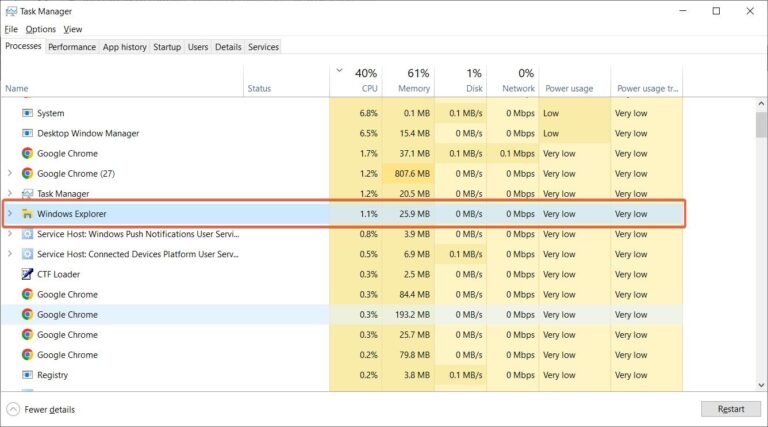
    To do so, open the Task Manager by pressing Ctrl + Alt + Delete.

    If you don’t see the Task Manager on the screen, click More Details at the bottom of the window.

    You can then select Windows Explorer from the list of programs and click Restart to start it again.

    restart windows explorer suspended process

    After restarting Windows Explorer, check if the suspension has been resolved.

    If not, other troubleshooting steps should be taken, such as cleaning up temporary files or running a virus scan. Restarting Windows Explorer is a good first step in resolving suspension issues; however, it may not always be enough to fix them completely.

    Troubleshooting Windows Explorer suspension

    There are several steps that can be taken when troubleshooting this issue.

    If this does not resolve the issue, then try running a virus scan as malicious software can sometimes interfere with the performance of Windows Explorer.

    Additionally, checking for any recent changes in system settings or updates may help pinpoint what has caused the suspension.

    Copy Explorer.Exe to System32 folder

    You need the right version and corrupt-free version of explorer.exe in the system32 folder. To do this follow the below steps.

    explorer.exe folder windows
    1. Copy Explorer folder from C:\Windows
    2. Find the system32 folder in the same directory.
    3. Paste the above folder here.
    system32 folder

    This should remove Windows Explorer suspension error.

    Delete corrupt explorer.exe from Registry

    explorer registry entry windows
    1. Type regedit in the search box or in the Run dialog box.
    2. Go to the following path. HKEY_LOCAL_MACHINE\SOFTWARE\Microsoft\Windows NT\CurrentVersion\Image File Execution Options
    3. Make sure the Explorer process is enabled in the Details section of Task Manager.
    4. Delete the key explorer.exe under the above registry item.
    task manager explorer windows 10

    Restart the system. Windows should automatically create the required regsitry again.

    Restart Explorer.exe Manually in CMD

    1. Open the elevated command prompt in Windows.
    2. type taskkill / F / IM explorer.exe & start explorer
    restart windows explorer manually

    Clear File Explorer Cache and History in Windows 11 or 10

    1. Open the Control Panel. You can also type control in the search box.
    2. View the items by Large icons.
    3. Click on File Explorer Options.
    4. Click the Clear button in the Privacy section.
    clear file explorer history windows 10

    Finally, if none of these steps work, then reinstalling Windows Explorer may be required to fix this issue.

    Reinstalling Windows Explorer should always be done with caution and after backing up data as it could cause other programs to become unresponsive or corrupt system files.

    Updating Windows and device drivers to fix Windows Explorer Suspended issue

    It’s easy to do and can help to resolve a wide range of issues with your computer.

    To get started, open the Windows Update utility by typing “update” into the search box on the Start menu.

    This will bring up a list of available updates. Look for updates related to Windows or any devices connected to your computer, such as graphics cards or printers.

    Once you have selected the appropriate updates, click install and let them finish downloading and installing.

    After this is complete, restart your computer and see if the issue has been resolved.

    If not, you may need to check for additional updates or contact your hardware manufacturer for additional support.

    Taking these steps will help you understand the issue and resolve it quickly so that you can get back to using your computer without interruption.

  • Fix SystemSettings.exe Problems – Windows 10 and 11 – Restore Suspend App

    Systemsettings.exe is a Windows operating system component that manages configuration and settings related to the system’s hardware, devices, network, and other services.

    The systemsettings.exe program provides a user-friendly interface for modifying the settings of the computer system, including the network settings.

    It allows users to configure their network settings, such as setting up a new internet connection, specifying DNS servers, configuring proxy settings and firewall settings.

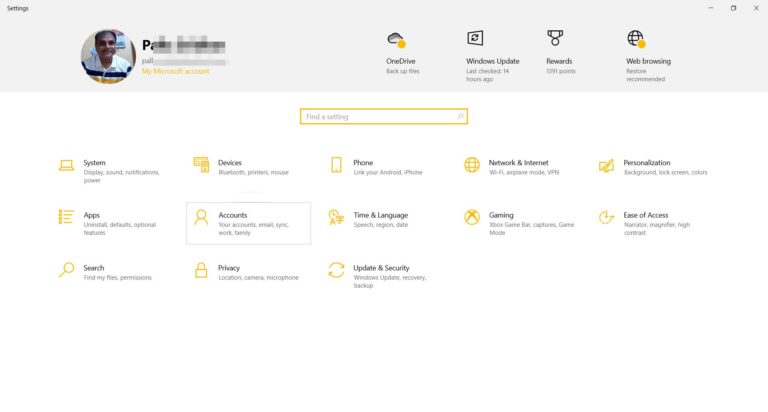
    windows settings app 10

    Windows 10 systemsettings.exe crash

    This error can occur on Windows 10 due to a variety of reasons.

    Including corrupted system files, outdated drivers, or conflicts with third-party software.

    When this error happens, it can result in the inability to access system settings and configurations, making it difficult to perform basic tasks.

    systemsettings.exe application error

    So, how do you fix it?

    1. One solution is to run a system file checker.
    2. This will scan your system for corrupted files and replace them with correct ones.
    3. Updating drivers and removing conflicting software can also help resolve the issue.
    4. In some cases, make use of the Windows Image media and upgrade to the latest version.
    5. Run a virus and malware scan using Microsoft Defender or any other anti-virus.

    If none of these solutions work, you may need to contact technical support for further assistance.

    windows powershell

    systemsettings.exe system error windows 11

    Open the command prompt or Powershell by typing in the search box. If the search doesnt work, then make use of Start menu.

    Otherwise, use the Run dialog box to type the command. In the command window, type the following commands.

    Run System File Checker

    sfc /scannow

    Run the DISM Tool

    DISM /Online /Cleanup-Image /RestoreHealth

    Run ChkDsk

    chkdsk /v /f /r C:

    restore system files health windows


    After executing the commands, restart your computer and check if the issue persists.

    systemsettings.exe not responding

    Systemsettings.exe is a critical file in the Windows operating system that enables users to access System Settings.

    At times, users may encounter an error message that says the application is not responding while trying to use this tool.

    The root cause of this issue can be varied, from system overload and file corruption to malware attacks.

    Resolving this issue requires a systematic approach as it is crucial to pinpoint the underlying issue.

    Common solutions include updating the system, running a virus scan, performing a system restore, or seeking assistance from an IT expert.

    Why systemsettings.exe needs Internet in Windows?

    The program may require internet access for certain operations, such as checking for updates, downloading drivers or updates, and communicating with online services.

    In some cases, if the program cannot connect to the internet or encounter network-related problems, it may fail to perform certain actions or functions regarding the system settings.

    Therefore, it’s important to ensure that the systemsettings.exe program has proper internet connectivity for optimal performance.

    systemsettings.exe 0x40000015 Error Fix

    This error can occur due to various reasons such as corrupt system files, outdated drivers, or malware infections.

    Some users have reported encountering this error while trying to access the System Settings menu.

    • In such cases, it is recommended to run a full system scan using an up-to-date antivirus program to detect and remove any malicious codes.
    • Additionally, updating the device drivers and performing a system file check using the command prompt may also help to fix the issue.

    However, if the error persists, it is advised to seek professional technical support to resolve the issue.

  • Fix Windows 11/10 Touch Keyboard and Handwrite Panel Service Missing

    The Touch Keyboard and Handwriting Panel Service error can be quite frustrating.

    As it prevents users from using their touch keyboard or handwriting panel.

    To resolve this issue, it is important to understand the source of the problem.

    Generally, this issue occurs when the Service is disabled or not running on your computer.

    Sometimes the startup type is manual. Then you need to set to Automatic.

    How to Enable on-Screen Keyboard Startup and TableInputService on Windows 10

    To fix this, you need to open the Run dialog box by pressing Windows + R keys.

    1. Type “services.msc” in the box and hit enter.
    2. This will open up the Services window.
    3. From here, you should look for Touch Keyboard and Handwriting Panel Service.
    4. Right click on it and select Properties.
    5. Then check if its Startup type is set to Automatic and if it’s not already running then start it by clicking on Start button from General tab in Properties window.
    touch keyboard and handwring panel service

    Finally, restart your computer to apply changes properly.

    Causes of Touch Keyboard and Handwriting Panel Service keeps stopping

    The failure can be caused by a number of factors, including hardware issues, software bugs, or user errors.

    Hardware issues such as a faulty keyboard or mouse can cause the service to fail.

    Software bugs may also lead to failure;

     for example, if the operating system has an incompatibility with the Touch Keyboard and Handwriting Panel Service

    or if there is a bug in one of its components.

    User errors are also common causes of service failure;

     for example, if the user incorrectly configures the settings or attempts to use unsupported features.

    In addition, malicious programs such as viruses can also interfere with how the service functions and lead to its failure.

    Finally, general computer instability due to insufficient memory or other system resources can also cause the Touch Keyboard and Handwriting Panel Service to fail.

    Fix Touch Keyboard and Handwriting Panel Service in Windows 11/10 

    To troubleshoot this issue, the first step is to open the Services window. You can do this by typing “services” into the Start menu or running services.msc from the command prompt. Once in the Services window, locate the Touch Keyboard and Handwriting Panel Service option, right-click on it and select reboot.

    If that doesn’t work, try to re-register the service by running “sc query tdh” from an elevated command prompt.

    Followed by “sc delete tdh” to delete it from Windows registry and then restarting your computer.

    Do the procedure below and see if you can type in the search bar and the settings.

    1. Press “Windows + R”;
    2. Type or paste “C:\Windows\system32\ctfmon.exe” (No quotes) and press Enter.
    3. See if the issue is resolved.
      If the above procedure resolves the issue, do the procedure below to make it work correctly each time you restart Windows.
    4. Open Start and type cmd, right-click on “Command Prompt“, and select “Run as administrator“.
    5. Copy the command below, paste it into Command Prompt, and press Enter:

    REG ADD "HKEY_LOCAL_MACHINE\SOFTWARE\Microsoft\Windows\CurrentVersion\Run" /T REG_SZ /D "%windir%\system32\ctfmon.exe" /v CTFMON /F

    1. Restart your PC and test.

    Source: Touch Keyboard and Handwriting Panel Services – Keeps reverting to – Microsoft Community

    Restarting the Touch Keyboard and Handwriting Panel Service

    It is a simple process that can be done with a few clicks of the mouse.

    If all else fails, you can uninstall and reinstall the service using Microsoft’s official tools or contact technical support for further assistance.

    1. First, you need to open the Control Panel by pressing the Windows key and then typing in “Control Panel”.
    2. Next, click on ‘Hardware and Sound’ followed by ‘Keyboards’.
    3. Then, you will see an option for ‘Touch Keyboard and Handwriting Panel Service’.
    4. Select this service and click on ‘Restart’. You may need to confirm this action once or twice before it takes effect.
    5. After restarting the service, it should start working as expected again.
    control panel keyboard

    This process is quite effective in restoring your keyboard and handwriting panel back to its original condition if they were not functioning properly before.

    How to Hide Touch Keyboard Icon on the Taskbar in Windows 11

    1. Right-click (or long-press) on the taskbar, then select Taskbar settings  to display the context menu.
    2. Under Taskbar corner icons, set Touch keyboard to Off.
    touch keyboard off windows 11

    Turn Off Touch Keyboard on Windows 11 when no Keyboard attached

    While using the Windows 11 as tablet device, no keyboard may be attached. In such cases, you want to prevent the touch keyboard from appearing.

    1. Select Start  > Settings  > Time & language  > Typing .
    2. Under Touch keyboard , if Show the touch keyboard when there’s no keyboard attached is On, select it to turn it Off.
    show no touch keyboard windows 11

    The Touch keyboard and Handwriting panel service isn’t running on your machine – Update drivers

    It is a great way to resolve Touch Keyboard and Handwriting Panel Service failure.

    It is important to ensure that all the drivers installed on the system are up-to-date and compatible with the current version of Windows.

    To do this, simply open the Control Panel, select System and Security, then click on Device Manager.

    From there, you can manually update each driver or use an automatic tool to scan your computer for any outdated drivers that need updating.

    Additionally, it is also important to regularly check for any new Windows updates that might affect your system’s performance.

    This will help keep your system running smoothly and prevent potential issues due to outdated drivers or components.

  • Fix Xbox Controller Bluetooth issues – Series X and Wireless

    Xbox controllers are some of the most popular gaming controllers in the world.

    They have been around for over 15 years and are used by millions of gamers around the globe.

    Xbox controllers come in a variety of shapes and sizes, from the official Xbox One controller to the more specialty controllers like the Elite Series 2.

    All Xbox controllers feature two analog sticks, four face buttons, two triggers, two bumpers, a directional pad, and a home button. Series X controller has problem with Bluetooth and works fine with wired connection. 

    The official controllers also come with vibration motors and wireless connection capabilities.

    connect xbox controller to windows 11

    Xbox controllers have become so popular due to their ergonomic design, responsive buttons, and compatibility with both PC and console versions of games.

    Additionally, Microsoft has provided several options for customizing your controller with various colors, designs, and accessories.

    Common Issues with Xbox Controller Bluetooth Connectivity on PC

    A. Connection drop-outs

    When your controller doesn’t connect or disconnects frequents, there are few things you can do. If you are still connected to Windows, run the Bluetooth troubleshooter. Sometimes, simple restart of your PC and controller could fix the Bluetooth issue. 

    If you are too far from the pc or console, then also is a problem. Too many mobile devices can cause interference. 

    B. Latency problems

    There is may be a slight lag when using Bluetooth. In that case, you can use USB or wireless adapter. Some old Xbox One Controller don’t have Bluetooth support. 

    C. Sync issues

    Many-a-times Xbox controllers are connected to mobile, pc, smart-tv and other devices. Only 1 Bluetooth connection at a time is possible. So just unpair with the other devices and pair with the right Bluetooth console. 

    D. Power management problems

    In certain cases, power coming to the PC may be not stable. Also, the voltage and current to the controller may not be perfect. You may be using the wrong batteries or they are dead. 

    E. Can’t hear through chat headset.

    When using Bluetooth controller, you can’t listen to the audio. To use a headset, you need to directly connect to the pc using USB or wireless adapter. 

    F. Passcode required during Pairing

    The pairing process between controller and console is automatic. If you see a passcode on your computer screen, then power off Xbox controller by pressing the Xbox button for 6 seconds. Press it again to start it. Connect it to USB cable or wireless adapter. Then pair it with Bluetooth. 

    xbox wireless controller connected bluetooth

    G. Input not recognized when connected by Bluetooth

    In some cases the app doesn’t recognize your controller. In such cases use a USB cable and connect the Xbox. Then reconnect with Bluetooth again.

    H. No Vibration

    In Bluetooth mode, vibration or rumbling is not supported for Xbox Wireless controller. Either you have to use the Xbox Wireless adapter. 

    Restarting controller and PC- Xbox controller Bluetooth PC issues

    Restarting your controller and PC is a great way to fix many problems that can occur with gaming.

    It’s an especially good idea if you’re having issues with connectivity, lag, or other unexpected behaviors. To restart your controller and PC, make sure both are turned off completely.

    Then unplug the power cords from both devices and wait for at least 10 seconds before plugging them back in.

    xbox plugin in bluetooth

    Once the device is plugged back in, turn it on and wait for the system to boot up again. You may need to reconnect any wireless controllers or set up your game controllers again as well.

    Restarting should help resolve many common issues .

    Updating controller firmware

    Updating your controller firmware is a great way to keep your gaming experience up to date.

    It ensures that you are running the latest software and security updates, which helps to reduce the risk of potential vulnerabilities and exploits.

    Additionally, it can help to improve overall stability and performance of your gaming system by patching any known bugs or issues. 

    Checking Bluetooth driver on PC

    Checking the Bluetooth driver on a PC is an important step for ensuring that all Bluetooth devices are functioning properly.

    To check the driver, you will first need to open up your device manager and look at the list of drivers.

    If the Bluetooth driver is listed, then it is installed correctly and functional. If it is not listed, then you will need to download and install the correct driver from your manufacturer’s website. 

    update xbox wireless controller bluetooth

    Xbox accessories app is one where you can connect the PC to the controller. You need to use USB cable or Wireless adapter temporarily. Update message may be displayed. Install the update to the firmware.  

    Disabling power-saving modes on PC

    Disabling power-saving modes on a PC is a great way to optimize performance and ensure that your computer is running at its peak.

    By disabling power-saving modes, you can reduce the amount of energy used by your system and increase the speed of your PC.

    This will also help to extend the life of your hardware components, as they won’t be subjected to overheating or other forms of strain.  

    xbox accessories app bluetooth

    Checking for interference from other Bluetooth devices

    When checking for interference from other Bluetooth devices, it is important to make sure that any device you are using is compatible with each other.

    Make sure both devices are up to date and have the latest software installed. If your devices are not compatible, you may experience problems such as poor connection quality or dropped connections.

    Additionally, be aware of any nearby Bluetooth devices that could potentially interfere with your own. Devices such as speakers, headphones, computers.

    Resetting Xbox controller to factory settings

    Resetting an Xbox controller to factory settings is a great way to restore the device back to its original condition.

    This can be especially useful if you have been experiencing lag or any other unusual behavior from your controller.

    To get started, press and hold the round sync button behind the left earcup until it begins flashing.

    Then, open Settings on your Xbox console and select Devices & Accessories. Select the controller you want to reset and choose “Reset to Factory Defaults”.

    After a few moments, the controller should be reset and ready for use. It’s important to note that this process will clear any custom button mapping. 

    Checking for compatibility issues with specific games

    When checking for compatibility issues with specific games, it is important to make sure you have the correct hardware and software requirements.

    This includes verifying that your computer has enough RAM and a compatible graphics card, as well as ensuring that your operating system is up-to-date and can handle the game.

    Additionally, double check any recommended settings for the game such as resolution and display options.

    It may also be beneficial to read reviews from other players who have experienced similar compatibility issues in order to get an idea of what might need to be adjusted.

    Furthermore, if possible, test out the game prior to purchase in order to identify any potential problems.

    If you have problem with Steam games, you can try this. 

    Go to Steam Settings, then Controller Settings and check the box for Xbox Configuration Support. Next, in your Library, choose the game title causing issues, go to Manage Game and select Controller Options. In Steam Input Per-Game Settings change Global Settings (XBox) to Forced On.

  • Unleash the Full Potential of Your Windows 11: Tips for Fixing HDMI Audio Problems

    Windows 11: Can you hear your HDMI device? It’s a common issue caused by outdated drivers, wrong settings, or incompatible software.

    Windows 11 is the latest operating system from Microsoft, offering many new and exciting features for its users.

    However, despite its advanced technology, users may still encounter issues such as windows 11 HDMI audio not working. This issue can be frustrating for those who use external monitors or TVs as part of their computing setup.

    In this article, we will provide you with a detailed guide on how to fix the HDMI audio issue on Windows 11.

    We will cover all the necessary steps, including checking for basic issues, updating audio drivers, disabling audio enhancements, setting HDMI as the default playback device, and restarting the Windows Audio Service.

    Check the Basic Settings

    Before you start more advanced troubleshooting, make sure your HDMI device is turned on and properly connected to your Windows 11 computer.

    Check for basic issues such as ensuring your HDMI cable is properly connected and your TV or external monitor is set to the correct input. Additionally, ensure that the volume is not muted and is turned up.

    Afterward, take these actions:

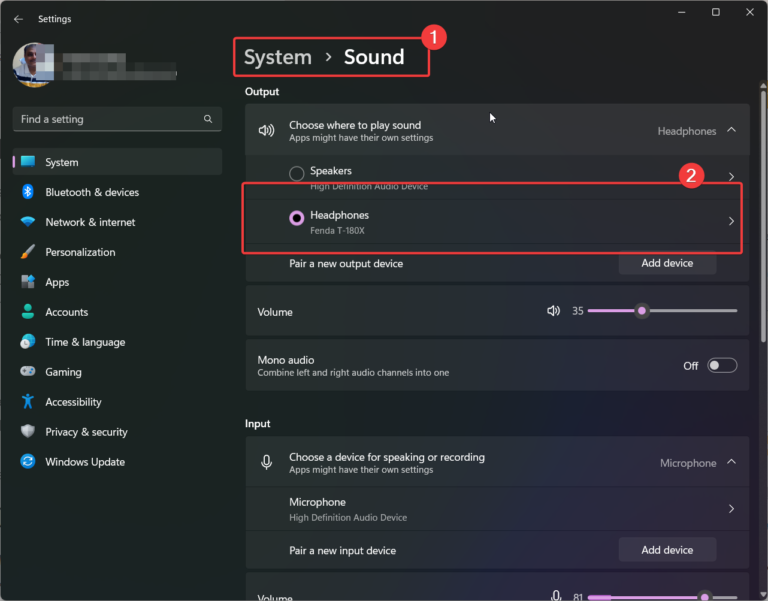
    windows 11 hdmi audio not working select default playback device
    1. Right-click the speaker icon in the taskbar and select “Sound Settings.”
    2. Under System > Sound > Output, you should choose the HDMI device you want to use for sound output.
    3. Add more audio devices like headphones, Bluetooth speakers, etc. by pairing a new output device. Click on Add device.
    4. Select the right device to play the audio. Click on that device for additional properties.
    5. Choose 16 bit, 44100 Hz (CD Quality) or 24 bit, 48000 Hz (Studio Quality) under the Output settings if those are the highest quality and bit depth your HDMI device supports.
    advanced settings windows 11 hdmi audio

    Install the most recent audio driver.

    When HDMI audio doesn’t work in Windows 11, sometimes it’s because the audio driver is old or broken. Do the following to update the driver:

    1. Press Windows + X, and then from the menu, choose Device Manager.
    2. Under the category of sound, video, and game controllers, find your current playback device.
    3. Select Update driver when you right-click on the HDMI audio device.
    4. Choose Look for updated driver software automatically, and then wait for the process to finish.
    5. Install the new driver and then restart your computer if there is one.
    update driver windows 11

    Turn off any Enhanced Audio features

    Due to the audio enhancements that are turned on by default, Windows 11 may cause problems when an HDMI audio output is used. Follow these instructions to turn them off:

    1. Your computer’s audio settings can be modified with a right-click on the speaker icon in the taskbar.
    2. In the section labeled System > Sound > Properties of the HDMI device you want to use as an audio output.
    3. Under Audio enhancements choose select “Off” from the drop-down menu.
    audio enhacements windows 11

    Get Rid of Compatibility Problems – Windows 11 HDMI Audio Not Working

    Any audio or video editing software that might interfere with Windows 11’s HDMI audio output should be removed. What you need to do to delete a program is:

    windows 11 shortcuts
    1. The shortcut Windows + X brings up the Installed Programs menu.
    2. Locate the program you want to uninstall and click on it.
    3. To delete the application, click the Uninstall button and follow the on-screen instructions.  
    uninsatll app program windows 11

    Make use of a Diagnostics Tool

    Common problems, like a broken HDMI audio connection, can be fixed automatically by the Windows 11 operating system. To use a troubleshooter, do the following:

    troubleshoot windows 11
    1. To access the Settings menu, press Windows + I.
    2. The Troubleshoot option can be accessed by selecting System.
    3. Select Playing audio under the Get started heading.
    4. Simply use the troubleshooter as directed and implement any changes it suggests.
    run windows 11 audio troubleshooter

    Restart Windows Audio Service

    Restarting the Windows Audio Service can also help fix HDMI audio issues. To do this, follow these steps:

    1. Press Windows key + R and type “services.msc” in the Run dialog box
    2. Locate the “Windows Audio” service and right-click on it
    3. Select “Restart”

    Conclusion

    We hope this guide has helped you fix the problem where the audio from the HDMI port doesn’t work in Windows 11. If you do these things, you should be able to get good sound out of your PC. 

  • Solving 0x800f081f Windows 11 Error with DISM

    ‍The 0x800f081f error is a common problem for users of Windows 11 operating system.

    This error can occur when trying to install a new feature or update .

    If you’re having trouble installing Windows 11 and the error 0x800f081f is preventing you from completing the installation, this article is for you.

    We’ll also provide instructions on how to use the DISM tool to repair the 0x800f081f error.

    Finally, we’ll provide some additional tips for troubleshooting the 0x800f081f error in Windows 11.

    What is the 0x800f081f Windows 11 error?

    The 0x800f081f error is an error code that indicates the Windows 11 installation has failed.

    1. This error is typically seen during the installation process, when the user is attempting to install a new feature or update to Windows 11.
    2. The error may also appear if the user is trying to install an application that requires certain Windows 11 features to be installed.
    3. The 0x800f081f error can occur for a variety of reasons, including missing or corrupted system files, incorrect registry settings, or incorrect security settings.
    4. It can also occur if the Windows Update service is having trouble downloading the necessary files.
    install error 0x800f081f windows 11

    Causes of the 0x800f081f error

    As mentioned above, the 0x800f081f error can have a variety of causes.

    1. Some of the most common causes include missing or corrupted system files, incorrect registry settings, or incorrect security settings.
    2. It can also occur if the Windows Update service is having trouble downloading the necessary files.
    3. In addition to these common causes, the 0x800f081f error can also be caused by a hardware problem, such as a faulty hard drive or RAM module.
    4. The error can also occur if a virus has infected the system files, or if the system has experienced a power outage during the installation process.

    How to fix the 0x800f081f Windows 11 error ?

    There are a few different ways to fix the 0x800f081f error in Windows 11.

    The first step is to use the DISM tool to repair the 0x800f081f error. DISM (Deployment Image Servicing and Management) is a command-line tool that can be used to repair and troubleshoot Windows images.

    Total Time: 11 minutes

    1. Using DISM Tool

      First, open the Command Prompt as an administrator by typing “cmd” in the search box and then right-clicking on it and selecting “Run as administrator.”

    2. Enter the command

      Then, type the following command and press Enter:
      DISM.exe /Online /Cleanup-image /Restorehealth

    3. Scan the Windows Image

      This command will scan the Windows image for any errors and attempt to repair them. It may take several minutes for the command to complete, so be patient.

    4. Install new app or update

      Once the command has finished, you can try to install the feature or update again to see if the 0x800f081f error has been resolved.

    If not, there are a few other things you can try.

    Check Windows Update Components

    If the 0x800f081f error persists, you can try to check the Windows Update components to make sure they are working properly. To do this, open the Command Prompt as an administrator and type the following command:

    DISM.exe /Online /Cleanup-image /Scanhealth

    This command will scan the Windows image for any errors and attempt to repair them. Once the command has completed, you can then try to install the feature or update again.

    Using the Microsoft Update Catalog

    If the 0x800f081f error still persists, you can try to use the Microsoft Update Catalog to download and install the necessary files.

    To do this, go to the Microsoft Update Catalog website and search for the feature or update you’re trying to install.

    Once you’ve found the feature or update, download the necessary files and then install them manually.

    This can be done by double-clicking the downloaded files and following the on-screen instructions.

    windows 11 update error

    Restoring your System Files

    It comes with a variety of commands that allow you to repair, scan, and restore damaged or missing system files.

    • The ‘restorehealth’ command will scan the integrity of all protected system files and replace any incorrect versions with the correct versions from the Windows image file.
    • This command also repairs any corrupted system files that may have been caused by viruses, software conflicts, or other issues.
    • Additionally, the ‘scanhealth’ command can be used to check for component store corruption without making any changes to your system.

    Using these commands can help fix many issues related to corrupted or missing system files and help keep your computer running smoothly.

    Using a System Restore Point

    If you’re still having trouble installing the feature or update, you can try using a system restore point.

    A system restore point is a snapshot of your system that can be used to restore your system to a previous state.

    To use a system restore point, open the Control Panel and go to the System and Security section. Then, click on the “System Restore” option and follow the on-screen instructions.

    Resetting Windows Update Components

    If the 0x800f081f error still persists, you can try resetting the Windows Update components. To do this, open the Command Prompt as an administrator and type the following command:

    net stop wuauserv net stop cryptSvc net stop bits net stop msiserver

    This command will stop the Windows Update services. Once the services have been stopped, type the following command and press Enter:

    ren C:\Windows\SoftwareDistribution SoftwareDistribution.old ren C:\Windows\System32\catroot2 Catroot2.old

    This command will rename the Windows Update folders. Then, type the following command and press Enter:

    net start wuauserv net start cryptSvc net start bits net start msiserver

    This command will start the Windows Update services. Once the services have been started, try to install the feature or update again to see if the 0x800f081f error has been resolved.

    Conclusion

    The 0x800f081f error is a common problem for users of Windows 11. In this article, we discussed what the 0x800f081f error is, what causes it, and how to fix it.

    We also provided instructions on how to use the DISM tool to repair the 0x800f081f error. Finally, we provided some additional tips for troubleshooting the 0x800f081f error in Windows 11.

    fix error 0x800f081f windows 11

    If you’re having trouble installing Windows 11 and the error 0x800f081f is preventing you from completing the installation, try using the methods outlined in this article. If none of the methods work, contact Microsoft Support for assistance.

  • How to Resolve Printer Error 0x00000BC4 Windows 11/10

    Printer errors are one of the most common issues that users face while using their devices.

    It is important to pinpoint the exact cause of the error and take the necessary steps to resolve the issue.

    In this blog, I will discuss what printer error 0x00000bc4 is, the common causes of this error, and how to fix it.

    What is Printer Error 0x00000bc4?

    Printer error 0x00000bc4 is a common error code that appears when users try to connect their printer to the network or when they try to use a network printer. This error is usually accompanied by the error message “Operation could not be completed (error 0x00000bc4).” This error can be caused by a variety of things and can be quite frustrating.

    network printer windows 11

    Common causes of Printer Error 0x00000bc4 Windows 11/10

    There are a few common causes of printer error 0x00000bc4. Some of these causes include:

    • Incorrect printer driver
    • Outdated software
    • Corrupted system files
    • Printer is not connected to the network
    • Printer is not compatible with the operating system
    • Network connection issues
    causes of Printer Error

    How to Fix Printer Error 0x00000bc4 Windows 11

    Fixing printer error 0x00000bc4 can be a bit of a challenge, but it is not impossible. Here are a few steps you can take to resolve the issue:

    1. Check the printer’s connection to the network. Make sure that the printer is connected to the network and that the connection is stable.
    2. Check the printer software. Make sure that the printer software is up to date. If it is not, then update it.
    3. Check the printer driver. Make sure that the printer driver is compatible with the operating system. If it is not, then update it.
    4. Check for system file corruption. If the system files are corrupted, then repair them.
    5. Check for third-party software conflicts. Third-party software can interfere with the printer and cause errors. Uninstall any third-party software that could be causing conflicts.
    6. Reset the printer. If all else fails, reset the printer to its default settings.
    hp printer not found

    These steps should help you resolve the printer error 0x00000bc4.

    Troubleshooting Tips for Printer Error 0x00000bc4 on Windows 10

    • To begin fixing the issue, first restart both the printer and your computer.
    • Also check if the printer is connected correctly.
    • If the issue persists, try uninstalling then reinstalling the printer drivers to see if this resolves the issue.
    • You may also need to update your computer’s operating system or any other software that is related to printing operations.
    • Finally, if none of these steps work, consider resetting your Windows 10 settings back to their defaults in order to fix any configuration issues that may have occurred.

    Steps to Fix Operation Could Not Be Completed (Error 0x00000bc4) Windows 10

    This error occurs when a user tries to access a certain program or folder.

    To fix this error, there are several steps that need to be taken.

    • First, it is important to make sure that all Windows updates are installed and up-to-date.
    • Second, check if the program or folder has any restrictions set on it, and remove them if necessary.
    • Third, run an antivirus scan to ensure that no malicious software is present and causing the error.
    • Finally, delete the temporary files from your computer which can free up some disk space and help with resolving the issue.

    How to fix “No Printers Were Found” Error on Windows 11

    If you’re getting a “No Printers Were Found” error on Windows 11, it can be frustrating. Fortunately, there are several steps you can take to try and fix the issue.

    1. First, make sure that your printer is connected to your computer properly and is turned on.
    2. If it’s still not working, try installing the latest printer driver from the manufacturer’s website or through Windows Update.
    3. If the problem persists, check if your printer is compatible with Windows 11 by checking its specifications.
    4. You may also need to set up a new port for your printer in the Printer Properties window of your system.

    Finally, if nothing else works, consider resetting your printer settings or reinstalling the printer software from scratch.

    Steps to Fix Windows Cannot Connect to the Printer Error 4005

    1. Firstly, restart your computer and printer.
    2. This is often enough to reset any outstanding connections between them. Secondly, check that both devices are connected to the same network.
    3. If they aren’t, you will need to ensure that they are.
    4. Thirdly, make sure that your printer drivers are up-to-date by checking for any available updates on the manufacturer’s website or using Windows Update.
    5. Finally, if these steps don’t work, you should try uninstalling and reinstalling your printer driver software. This will ensure that all of the necessary components and settings are properly configured for optimal performance.

    How to Fix Canon 5200 Error

    If you’re experiencing Canon 5200 Error, the first step is to identify the exact source of the error.

    1. If it’s a hardware issue, such as a paper jam or low ink levels, then addressing that problem should be your first course of action.
    2. If it’s a software issue, such as an outdated driver or corrupted file, then you’ll want to check for any available updates and/or reinstall the software.
    3. Additionally, if it seems like a more complex issue, then you may need to contact Canon support for assistance.
    4. Finally, if all else fails, you can always reset the printer back to its factory settings which will help restore any default settings that may have been changed in error.
    canon 5200 error printer cleaning

    How to Correct Printer Error State

    Printer errors can be very frustrating, but fortunately they are usually relatively easy to fix.

    1. The first thing you should do is check the printer’s manual for troubleshooting advice specific to your model.
    2. If that doesn’t solve the problem, it could be due to a software or hardware issue.
    3. To start, check the power settings and make sure the printer is connected properly.
    4. If this doesn’t work, try uninstalling and reinstalling the printer software on your computer.
    5. You may also need to update your printer driver.
    6. If this fails to correct the error state, then you may need to contact technical support or take your printer in for repair.
    fix error 0x00000bc4 windows 11

    How to Solve Network Printer Error 0x00000bc4 in Windows 11

    If you are facing the Network Printer Error 0x00000bc4 in Windows 11, there are several steps you can take to try and resolve it.

    1. Firstly, you should check that the printer is properly set up on your network, as well as checking all the cables and connections.
    2. If everything looks ok, then you should restart both your PC and the printer itself. After this, try reinstalling the printer driver;
    3. If this doesn’t help then try downloading a different version of the driver for your printer from the manufacturer’s website.
    4. If none of these solutions work then you may need to contact your IT department or Microsoft Support for further advice.
    5. You could also run an SFC scan or System File Checker scan to check for any corrupted files on your computer which may be causing issues with your printer.

    With any luck, one of these steps will resolve your Network Printer Error 0x00000bc4 in Windows 11.

    Conclusion

    Printer errors can be frustrating and difficult to fix. Printer error 0x00000bc4 is a common error that can be caused by a variety of things. The steps outlined in this blog should help you fix this error. If the steps do not work, then you should contact a printer technician to diagnose and repair the issue.

  • Easily Fix 0xc00000e Error on Windows 11

    We’ve all heard of the dreaded Error Code 0xc00000e on Windows 11.

    I was presented with the message “Recovery Error code : 0xc000000e” accompanied by the notification that the file “/Windows/system32/winload.efi” is either missing or has errors in it.

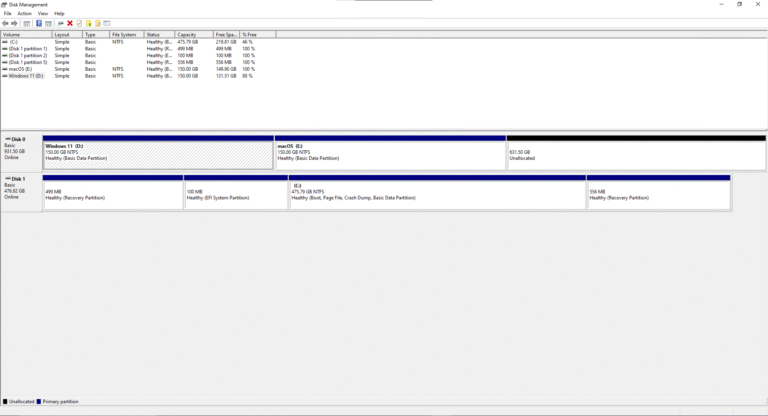
    If multiple OS like Windows 10 and 11 are installed on the same computer, you can receive this error. Make sure to delete irrelevant boot entries in the boot menu.

    Delete the EFI partition where Windows 11 is located. Delete recovery partition also. Then recreate a new partition and install it again.

    efi partition problem windows 11
    Disk Management – EFI partition deleted – Clear boot entries

    In this blog, I’ll show you how to fix Error Code 0xc00000e on Windows 11 easily and quickly.

    Introduction

    0xc00000e windows 11 error
    Image Source: Unsplash‍

    For those of you who don’t know what Error Code 0xc00000e on Windows 11 is, it’s an error that usually occurs when Windows is unable to boot properly.

    It typically appears with a message that says “Your PC needs to be repaired” followed by an error code.

    Related.

    • Fix Error Code 0xc00000e9 on Windows – Tested Myself

    The code can vary from one computer to another, but the message is the same.

    This error can be caused by a variety of things, including a corrupted system file, a missing driver, or a damaged hard drive.

    It can also be caused by a virus or malware. Whatever the cause, it’s important to address the issue as soon as possible.

    Causes of Error Code 0xc00000e on Windows 11

    • Error Code 0xc00000e on Windows 11 can be caused by a number of things. The most common cause is a corrupted system file or a missing driver. It can also be caused by a virus or malware, or a damaged hard drive.
    • Another cause of Error Code 0xc00000e on Windows 11 is a faulty hardware component, such as a faulty RAM chip, GPU, or CPU. It can also be caused by a power surge, or a failing power supply.

    How to Fix Error Code 0xc00000e on Windows 11

    The first step in fixing Error Code 0xc00000e on Windows 11 is to check if the issue is caused by a corrupted system file or a missing driver.

    1. To do this, you can use Windows System Restore, which will allow you to restore the system to a previous state and fix the issue without losing any of your data.
    2. If the issue is not caused by a corrupted system file or a missing driver, then you can try using a software tool to repair the error.
    3. There are a number of tools available for this purpose, including the Windows Repair Tool, the Microsoft Windows Diagnostics Tool, or the Error Fixer.
    4. Finally, if none of the above solutions work, then you can try a system reset. This will restore the system to its factory settings, but it will also erase all of your data.
    5. Make use of the following command in the elevated command prompt to fix master boot record.

    bootrec/ fixmbr bootrec/ fixboot bootrec/ scanos bootrec/ rebuildbcd

    troubleshoot cmd windows 11

    So be sure to back up your data before you go this route.

    How to Fix Error Code 0xc00000e on HP and Lenovo

    Here are some solutions to fix the error code 0xc00000e on HP and Lenovo computers:

    1. Check and repair boot order: Make sure the primary boot device is set to the hard drive that contains the Windows installation.
    2. Perform a startup repair: Boot from the Windows installation media and select “Repair Your Computer.” Then choose “Startup Repair” option.
    3. Check the hard drive for errors: Boot from the Windows installation media and select “Repair Your Computer.” Then choose “Command Prompt” and run the “chkdsk /f /r” command.
    4. Reinstall Windows: If the above steps fail, reinstalling Windows may resolve the issue.
    startup repair windows 11

    Note: Before attempting these solutions, make sure to back up all important data as they may result in data loss.

    How to Fix Error Code 0xc00000e on Acer

    1. First, it’s important to check all physical device connections, such as hard drives and memory cards, to make sure they are securely connected.
    2. You should also reset BIOS configuration settings back to their default values.
    3. If these steps do not correct the error code, Windows 11 has a built-in automatic startup repair utility that can be used to attempt a fix.
    4. If this fails, you may have to manually attempt to rebuild the system boot configuration data file by running the CHKDSK utility or using the Startup Repair tool.
    5. Finally, if all else fails; users can manually attempt to rebuild the system boot configuration data file which should resolve the error code 0xc00000e on your Acer computer with Windows 11.
    https://www.youtube.com/watch?v=tozlGgsFP6o