
Last Updated:
Windows 11 power plan explained with control over how your processor performs, how quickly your screen dims, and how aggressively your PC conserves energy. Whether you’re a home user watching battery life disappear or an office user needing maximum performance during a workday, understanding your power plan is essential.
Your laptop is running hot, draining fast, or feeling sluggish, and you’re not sure why. More often than not, the culprit is hiding in a place most users never check: the power plan settings.
This guide explains every Windows 11 power plan in plain English. You’ll learn what each mode does, when to use it, and how to switch or customize your plan—no technical background needed.
What is a Windows 11 Power Plan? A Windows 11 power plan is a collection of hardware and system settings that controls how your PC uses energy. It balances processor speed, screen brightness, and sleep behavior. Windows 11 includes three built-in plans: Balanced, Power Saver, and High Performance—each suited to different usage scenarios.
The same three-plan logic existed on Windows 7 and 8, just with a different settings path—see the legacy method near the end.
What Is a Power Plan in Windows 11?
A power plan—also called a power scheme—is a preset group of settings that tells Windows 11 how to manage your system’s energy consumption. It affects:
- CPU speed — how fast your processor runs under load
- Display timeout — when your screen turns off automatically
- Sleep settings — how quickly your PC enters sleep mode
- Hard disk power-down — when your storage drive goes idle
Microsoft designed these plans to give users control over the performance vs. battery life trade-off. According to Microsoft’s official documentation, power plans have been a core feature of Windows since Vista—and Windows 11 refines them further with modern hardware support, including Intel Evo and AMD Ryzen platforms.
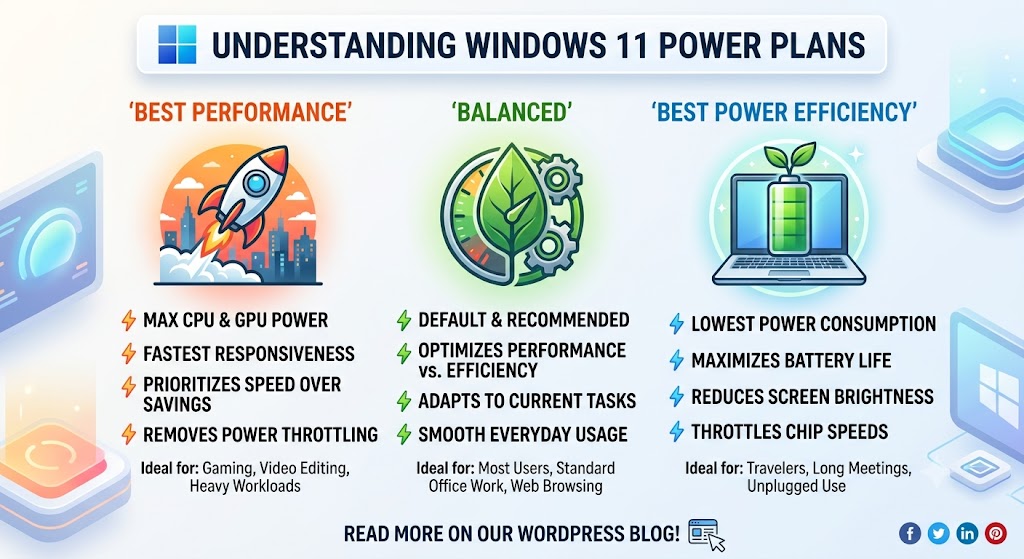
The 3 Built-In Windows 11 Power Plan Explained
Windows 11 ships with three default power plans. Here’s what each one actually does.
1. Balanced (Recommended)
Best for: Most users—both home and office
Balanced is the default power plan on almost every Windows 11 PC. It automatically adjusts your CPU speed based on what you’re doing. Watching a YouTube video? It throttles down. Running a spreadsheet with heavy formulas? It ramps up.
Key behaviors:
- CPU scales between minimum and maximum performance dynamically
- Screen turns off after a set period of inactivity
- PC enters sleep mode to save energy when idle
- Extends laptop battery life without sacrificing everyday performance
This is Microsoft’s recommended setting for the majority of users. It strikes a practical middle ground between speed and energy efficiency—which is why it comes preselected on most Windows 11 laptops sold across Europe.
Related Topic – How to Unlock Ultimate Performance Mode in Windows 11
2. Power Saver
Best for: Laptop users on battery, low-power devices
Power Saver prioritizes battery life above everything else. It caps your CPU at a lower maximum speed and aggressively shortens display timeout and sleep timers.
Key behaviors:
- Processor runs at reduced clock speeds even under load
- Screen dims and turns off much faster
- Sleep kicks in sooner during inactivity
- Significantly reduces heat output
This plan is useful when you’re traveling, in a meeting without a charger, or using an older laptop with a degraded battery. However, it comes at a cost—tasks take noticeably longer, and some applications may feel unresponsive. It’s not recommended for desktop PCs or users plugged into mains power.
⚠️ Common Mistake: Many users accidentally leave Power Saver active when plugged in, wondering why their PC feels slow. Always switch back to Balanced or High Performance when connected to power.
3. High Performance
Best for: Desktop PCs, gaming, video editing, heavy workloads
High Performance keeps your CPU running at or near maximum speed at all times—regardless of what you’re doing. It minimizes throttling and prevents the system from entering deep sleep states quickly.
Key behaviors:
- CPU runs at full or near-full clock speed constantly
- Screen stays on longer
- Sleep and hibernate timers are extended or disabled
- System responds instantly to demanding tasks
This plan is popular among office power users running CAD software, data analysts processing large datasets, and home users who game or edit video. The trade-off is higher electricity consumption and more heat—which matters more on laptops than desktops.
According to a 2023 study by the Lawrence Berkeley National Laboratory, PCs left on High Performance unnecessarily consume up to 30% more energy than those on Balanced—a relevant concern for European users under EU energy efficiency directives. This is the key to the Windows 11 Power Plan Explained.
If you do run High Performance regularly, you can claw back some of that energy cost elsewhere on the desk: the best smart power strips for a Windows 11 PC automatically cut the standby draw of your monitor, speakers, and chargers overnight—offsetting what the performance plan spends by day.
Balanced vs. High Performance vs. Power Saver: Quick Comparison
| Feature | Power Saver | Balanced | High Performance |
|---|---|---|---|
| CPU Speed | Reduced | Dynamic | Maximum |
| Battery Life | Best | Good | Shortest |
| Performance | Slowest | Normal | Fastest |
| Best For | On battery | Everyday use | Heavy tasks |
| Heat Output | Low | Medium | High |
| Recommended For | Laptops only | All devices | Desktops/workstations |
How to Check and Change Your Power Plan in Windows 11
Switching power plans takes less than a minute. Here’s how:
Method 1 — Via Settings (Recommended)
- Press Windows + I to open Settings
- Go to System → Power & Sleep
- Click Additional power settings (opens Control Panel)
- Select your preferred plan under “Preferred plans.”
Method 2 — Via Control Panel
- Press Windows + R, type
powercfg.cpl, hit Enter - Choose your plan from the list
Method 3 — Via Command Prompt (Advanced)
To list all available plans:
powercfg /list
To switch to High Performance:
powercfg /setactive 8c5e7fda-e8bf-4a96-9a85-a6e23a8c635c
How to Create a Custom Power Plan in Windows 11
The three built-in plans don’t cover every use case. A custom plan lets you fine-tune exactly when your display turns off, how aggressive sleep is, and what your processor does at idle.
Steps:
- Open Control Panel → Power Options
- Click “Create a power plan” in the left sidebar
- Choose an existing plan as your starting base
- Name your plan (e.g., “Office Work Mode”)
- Set display and sleep timers
- Click Next → Create
- Click “Change plan settings” to fine-tune processor, disk, and display behavior
Custom plans are especially useful for office environments where IT administrators want consistent energy behavior across multiple machines — a common requirement under EU workplace energy policies. Windows 11 Power Plain Explained in simple terms.
Where Is Ultimate Performance Mode in Windows 11?
Windows 11 Pro and Enterprise users have access to a hidden fourth plan: Ultimate Performance. It’s designed for workstations and eliminates micro-latency from power management entirely.
To enable it, open Command Prompt as Administrator and run:
powercfg -duplicatescheme e9a42b02-d5df-448d-aa00-03f14749eb61
Then go to Power Options and select it from the list. Note: This plan is not available on battery-optimized devices and is intentionally hidden on consumer hardware.
Best Practices for Windows 11 Power Plans
- ✅ Use Balanced as your daily driver on both laptops and desktops
- ✅ Switch to High Performance only when running demanding software
- ✅ Use Power Saver only when genuinely away from a charger
- ✅ Create a custom plan if you have specific display or sleep requirements
- ✅ Review your plan after a Windows update—major updates occasionally reset power settings
- ✅ On laptops, use the battery icon in the taskbar for quick switching
Windows 11 Power Plan Explained with a checklist to understand the key features.
Common Mistakes to Avoid
1. Leaving High Performance permanently It increases electricity bills and generates unnecessary heat, shortening component lifespan—especially relevant for European users with high energy costs.
2. Using Power Saver on a desktop: Desktops are plugged in constantly. Power saving on a desktop only slows your PC with zero battery benefit.
3. Ignoring power plan resets after Windows updates Windows 11 feature updates (like 23H2 and 24H2) have been known to silently revert power plans to Balanced. Verify your setting after every major update.
4. Confusing sleep settings with the power plan Sleep timers live inside the power plan but are a separate setting. Adjusting one doesn’t automatically fix the other.
Related Topic – What optimal battery vs plugged-in power settings to use in Windows 11
For Windows 7/8 Users (Legacy Method)
Windows 7 and 8 use the exact same three core plans—Balanced, Power Saver, and High Performance—accessed via Control Panel → Power Options rather than the Settings app.
Random shutdowns can sometimes be a power-plan issue, not a hardware fault. One reader whose PC kept shutting down randomly—sometimes right after login, sometimes after 5-10 minutes—resolved it entirely by adjusting their power plan settings rather than replacing hardware. If you’re seeing unexplained shutdowns on older hardware, check your power plan’s processor and sleep settings before assuming it’s a failing component.
Capping CPU usage stretches battery life further than the built-in Power Saver alone. A practical tip from a reader: manually capping the maximum processor state to around 20% while on battery (via Power Options → Change plan settings → Change advanced power settings → Processor power management → Maximum processor state) noticeably extends runtime beyond what Power Saver’s defaults provide on their own. This same setting exists in Windows 11’s advanced power options and works the same way.
The three built-in plans, the advanced settings tree, and the underlying processor/sleep/disk behaviors are functionally identical across Windows 7 through 11 — only the path to reach them has changed.
FAQ: Windows 11 Power Plan Explained
Does changing the power plan really make a difference in Windows 11?
Yes, significantly. Switching from Balanced to High Performance can reduce application load times and improve frame rates in games. Switching to Power Saver can extend laptop battery life by 20–40% depending on the workload and hardware.
Why can’t I see High Performance plan in Windows 11?
Microsoft hides High Performance on some Windows 11 Home editions and battery-optimized devices. You can restore it via Command Prompt: run it powercfg /setactive 8c5e7fda-e8bf-4a96-9a85-a6e23a8c635c as Administrator.
Does the Windows 11 power plan affect gaming performance?
Yes. High Performance mode prevents CPU throttling during gaming sessions, which can improve frame rates and reduce stuttering. Many gamers switch to High Performance while gaming and return to Balanced afterward to preserve hardware longevity.
Is Ultimate Performance mode available in Windows 11 Home?
Ultimate Performance is officially available only on Windows 11 Pro and Enterprise editions. However, some users have successfully unlocked it on Home using the powercfg -duplicatescheme command—though Microsoft does not officially support this on consumer hardware.
What is the best power plan for Windows 11?
For most users, Balanced is the best Windows 11 power plan. It automatically adjusts CPU speed based on demand, saving energy during light tasks while delivering full performance when needed. High Performance is only worth enabling for sustained workloads like video rendering or gaming.
Where are power plan settings in Windows 11?
Go to Settings → System → Power & Sleep → Additional power settings. Alternatively, press Win + R, type powercfg.cpl, and press Enter. This opens the classic Power Options panel with all available plans.
What happens if I delete a power plan in Windows 11?
Deleting a custom power plan is permanent unless you recreate it. Built-in plans (Balanced, Power Saver, High Performance) can be restored via Command Prompt using powercfg -restoredefaultschemes. Always back up custom plans before deleting.
Do Windows 7 and Windows 8 have the same power plans as Windows 11?
Yes—Balanced, Power Saver, and High Performance all exist on Windows 7 and 8 with the same underlying behavior. Access them via Control Panel → Power Options instead of the Settings app. Advanced settings like maximum processor state work identically across all four versions.
Author: DoogieScott
Comment: Describes a PC that kept shutting down randomly—sometimes immediately after login, sometimes after 5-10 minutes. Followed the recommended power settings in the guide and reports it resolved the issue, thanking the author for the clear, detailed instructions.
Author: George
Comment: Shares a personal preference for capping CPU usage to around 20% when relying on battery power, noting it provides extra runtime.
Conclusion
Understanding the Windows 11 power plan is one of the simplest ways to take real control of your PC—whether you’re chasing battery life, pushing performance, or just making sure your machine behaves the way you expect it to.
In short, Balanced is the best choice for most people most of the time. Reserve High Performance for demanding tasks. Use Power Saver only when battery survival matters more than speed. And if none of the defaults fit your workflow, build a custom plan.
Check your current power plan today—especially if your PC recently updated. One small setting can mean the difference between a sluggish afternoon and a smooth workday.
