Last Updated:
If you have ever used a Bluetooth headset or speaker with your Windows 10 PC, you might have encountered the Bluetooth Audio Gateway Service (BTAGService).
The Bluetooth Audio Gateway Service (BTAGService) is a Windows service that enables a PC to act as an audio gateway for Bluetooth hands-free devices—including headsets, earphones, and speakerphones. It supports the Bluetooth Handsfree Profile (HFP) and runs as
NT AUTHORITY\LocalServiceinsidesvchost.exe. It exists in Windows 10 (from version 1803) and Windows 11.
INTRODUCTION
If you see Bluetooth Audio Gateway Service in your Windows Services list and are not sure what it is or whether it should be running, you’re not alone. This service—officially named BTAGService—confusesmanyf Windows users because it appears without explanation, occasionally goes missing, or gets stuck on “Stopping” without finishing.
Whether you use Bluetooth headsets for Teams calls, a wireless headphone for music, or a speakerphone in your office, this service directly affects how Windows 10 and Windows 11 handle your audio devices. Some users want to understand it, some want to fix it, and some want to disable it for security reasons.
This guide explains exactly what the Bluetooth audio gateway service does, when to leave it alone, when to disable it, and how to fix the most common errors—step by step.
Introduction to Bluetooth Audio Gateway Service: Troubleshooting & Optimization
The Bluetooth Audio Gateway Service plays a crucial role in enabling wireless communication between devices such as smartphones, laptops, and Bluetooth-enabled headsets.
However, many users encounter issues such as the Bluetooth Audio Gateway Service missing, being stuck on stopping, or failing to function properly on Windows 10 and Windows 11.
Understanding the service’s functionality, how to troubleshoot it, and where to find the Bluetooth Audio Gateway Service download can help ensure seamless audio transmission.
What Is the Bluetooth Audio Gateway Service?
The Bluetooth Audio Gateway Service (also called BTAGService) is a built-in Windows service that enables your PC to function as an audio gateway for Bluetooth hands-free devices.
In practical terms: when you connect a Bluetooth headset and use it for voice calls on Microsoft Teams, Skype, or phone calls via your smartphone (using your PC as the audio output), the Bluetooth audio gateway is what makes that work.
Here is precisely what it does:
- Supports the Bluetooth Handsfree Profile (HFP) — the protocol used for voice calls over Bluetooth headsets
- Enables bidirectional audio for headsets, earphones, and Bluetooth speakerphones
- Allows your PC to act as the “gateway” between a Bluetooth audio device and a connected phone or VoIP app
- Manages the handshake between your Windows PC and paired Bluetooth voice devices
Key fact: The Bluetooth audio gateway service was first introduced in Windows 10 version 1803 (April 2018 Update). It replaced the older Bluetooth Handsfree Service (BthHFSrv), which was removed in that same update. It is an entirely different service — not a rename.
BTAGService: Technical Details
Understanding the technical specifics helps you troubleshoot more confidently.
| Property | Detail |
|---|---|
| Service name | BTAGService |
| Display name | Bluetooth Audio Gateway Service |
| File location | C:\Windows\System32\BTAGService.dll |
| Runs as | NT AUTHORITY\LocalService |
| Process | Shared svchost.exe |
| Startup type | Manual (trigger start) |
| Available on | Windows 10 (1803+), Windows 11 |
| Dependencies | Remote Procedure Call (RPC), Bluetooth Support Service |
The service uses a trigger-based start: it does not run all the time. It starts automatically when a Bluetooth audio device connects and stops when no device needs it. This is by design — not an error.
What does the Bluetooth audio gateway service actually do?
This is the most common question users search for: What does the Bluetooth audio gateway service do?
Here is the plain-English explanation. When you connect a Bluetooth headset to your Windows 10 or Windows 11 PC:
- A2DP profile handles music streaming — high-quality audio from your PC to the headset (one direction).
- HFP profile handles voice calls — two-way audio for calls. This is the job of the audio gateway service.
Without BTAGService running, your Bluetooth headset may still play music (A2DP works independently) but will fail to switch to headset mode for calls. You’ll notice the microphone stops working, or the audio quality drops to a low-fidelity “telephone” mode unexpectedly.
Real-world example: You’re on a Microsoft Teams call with a Bluetooth headset. The audio cuts out or the mic becomes unavailable. This is almost always a BTAGService failure — not a driver issue or a hardware fault.
Is the Bluetooth Audio Gateway Service Safe to Disable?
For most home and office users: no, don’t disable it — unless you have a specific reason to.
However, the CIS (Center for Internet Security) Benchmark for Windows 10 Level 2 recommends setting BTAGService to Disabled on enterprise machines that don’t use Bluetooth devices. The reasoning:
- Bluetooth technology has inherent security vulnerabilities, particularly in pre-2.1 standard implementations
- Disabling the service reduces the Bluetooth attack surface on managed corporate devices
- It has no impact on performance on PCs that don’t use Bluetooth headsets
For home users and office workers who use Bluetooth headsets: Leave it enabled. For managed enterprise PCs where Bluetooth audio is not used: Disabling it follows CIS Level 2 security best practices.
How to Disable Bluetooth Audio Gateway Service
If you want to disable the Bluetooth audio gateway service—either for security hardening or because you don’t use Bluetooth audio—here’s how:
Method 1: Via Services (services.msc)
- Press
Win + R, typeservices.msc, press Enter. - Scroll down to Bluetooth Audio Gateway Service.
- Double-click it to open Properties.
- Change the startup type to Disabled.
- If the service is running, click Stop.
- Click Apply → OK.
Method 2: Via Group Policy (Enterprise/IT admins)
- Open Group Policy Editor:
Win + R → gpedit.msc. - Navigate to:
Computer Configuration → Windows Settings → Security Settings → System Services. - Locate Bluetooth Audio Gateway Service.
- Set to Disabled.
- Apply to the desired OU (Organizational Unit).
Method 3: Via PowerShell (fastest for admins)
powershell
Set-Service -Name BTAGService -StartupType Disabled
Stop-Service -Name BTAGService -Force
To re-enable it at any time: Change the startup type back to Manual and start the service. Your Bluetooth audio devices will work again immediately.
Fix: Bluetooth Audio Gateway Service Missing in Windows 10 and 11
The Bluetooth audio gateway service being missing is one of the most common complaints—especially after a Windows reset, Windows Update, or a registry cleaner has removed it.
Here’s how to restore it:
Option A: Re-register the BTAGService.dll
- First, verify whether the file exists: press, type
%WinDir%\System32, press Enter. Look for BTAGService.dll in the System32 folder. - If the file exists but the service is missing, re-register it: Open Command Prompt as Administrator and run:
cmd
sc create BTAGService binPath= "C:\Windows\System32\svchost.exe -k LocalService -p" type= share start= demand DisplayName= "Bluetooth Audio Gateway Service"- Restart your PC and verify the services. msc—BTAGService should appear.
Option B: Use the batcmd.com restore batch file
- Go to
batcmd.com/windows/10/services/btagserviceOR. - Download the RestoreBluetoothAudioGatewayService batch file.
- Right-click it and select “Run as administrator.”
- Restart your PC.
Option C: SFC and DISM repair
If the BTAGService.dll file itself is missing:
cmd
sfc /scannowThen:
cmd
DISM /Online /Cleanup-Image /RestoreHealthRestart after both commands complete. Windows restores missing system files, including BTAGService.dll, from the Windows Component Store.
Fix: Bluetooth Audio Gateway Service Stuck on Stopping
The service for the Bluetooth audio gateway is stuck in the stopping state and is the second most reported issue. The service enters the “Stopping” state but hangs there indefinitely.
This issue happens when:
- A Bluetooth device is still actively sending audio requests to the service
- A dependency service (like Remote Procedure Call) has become unstable
- A Windows Update changed service permissions mid-session
Fix steps:
- Force stop via Task Manager:
- Open Task Manager.
- Go to the Services tab.
- Find BTAGService, right-click → Stop.
- Force stop via Command Prompt (Admin):
cmd
net stop BTAGService /y- If the above fails, please terminate the hosting process:
cmd
taskkill /F /FI "SERVICES eq BTAGService"- Restart the Bluetooth Support Service:
- Locate Bluetooth Support Service (bthserv).
- Right-click → Restart.
- Then restart BTAGService as well.
- Restart your PC: A full shutdown (not Fast Startup) clears the stuck service state reliably.
Fix: Bluetooth Audio Gateway Service Not Starting
If BTAGService fails to start and logs an error, it is almost always because one of its dependencies has stopped or is misconfigured.
BTAGService depends on:
- Remote Procedure Call (RPC) — Must be running and set to Automatic
- Bluetooth Support Service (bthserv)—Must be running (Manual/Automatic)
Fix:
- Open
services.msc. - Check Remote Procedure Call—set to automatic, must show running.
- Check Bluetooth Support Service—set to Manual (Trigger Start) and start it if stopped. Bluetooth Support Service—set to Manual (Trigger Start); start it if stopped.
- Now try starting BTAGService again.
Event Log check: If the service still won’t start, press
Win + R → eventvwr.msc → Windows Logs → Systemfilter for the source “Service Control Manager” and find the BTAGService error with the exact error code. Common: Error 1053 (service didn’t respond in time) or Error 1068 (dependency failed).
Should You Download a Bluetooth Audio Gateway Service?
Some websites suggest you need to download the Bluetooth audio gateway service as a separate file. This is incorrect and potentially dangerous.
BTAGService is built into Windows 10 and Windows 11. You should never need to download it from a third-party website. If it is missing, the correct solution is to restore it using SFC, DISM, or the official restore batch file — not by downloading an unknown DLL.
Warning: Downloading BTAGService.dll or any Windows service DLL from unofficial websites is a significant security risk. Malicious files are frequently distributed this way. Always use the system repair tools built into Windows.
Bluetooth Audio Gateway Service: Windows 10 vs Windows 11
| Feature | Windows 10 (1803+) | Windows 11 |
|---|---|---|
| Service present | Yes | Yes |
| Startup type default | Manual (trigger) | Manual (trigger) |
| DLL location | C:\Windows\System32 | C:\Windows\System32 |
| Depends on RPC | Yes | Yes |
| CIS Level 2 recommendation | Disable | Disable |
| Hands-free profile support | Yes | Yes |
The Bluetooth audio gateway service is functionally identical for both Windows 10 and Windows 11 implementations. The same fixes apply to both.
Best Practices for Bluetooth Audio in Windows
- Keep Bluetooth drivers updated — Open Device Manager → Bluetooth → right-click your adapter → Update driver. Outdated drivers are the #1 cause of BTAGService instability.
- Use a USB Bluetooth 5.0+ adapter — If your PC has an older built-in Bluetooth chip (4.0 or earlier), a USB Bluetooth 5.0 dongle dramatically improves audio stability and HFP performance.
- Don’t use third-party Bluetooth software alongside Windows—apps like Toshiba Bluetooth Stack or Intel Bluetooth software can conflict with BTAGService. Use Windows’ native Bluetooth stack.
- Remove and re-pair headsets that stop working—Go to Settings → Bluetooth & other devices, remove the devices, then re-pair. This clears stale audio profile configurations that cause BTAGService errors.
- Check Windows Update monthly—Microsoft regularly releases fixes for Bluetooth services via Windows Update. Running a build more than 2 months old means you may be missing Bluetooth stability patches.
Common Mistakes to Avoid
- Deleting BTAGService.dll manually — This breaks Bluetooth audio for all devices. Use SFC/DISM to repair instead.
- Downloading DLL files from non-Microsoft sites — Always a security risk. Never do this.
- Disabling RPC service—BTAGService cannot run without Remote Procedure Calls. Disabling RPC breaks dozens of Windows services simultaneously.
- Leaving BTAGService on “Stopping” indefinitely—This locks Bluetooth audio resources. Please force-stop the service and restart your PC.
- Confusing BTAGService with the Bluetooth Support Service is a common mistake; they are different services. BTAGService handles HFP audio gateways. The Bluetooth Support Service (bthserv) handles general Bluetooth device management. Both are needed for full Bluetooth audio functionality.
How to Check the Status of the Bluetooth Audio Gateway Service?
A common question is, “How will you check the status of the Bluetooth audio gateway service?” You can do so by:
- Opening the Run dialog (Win+R) and typing
services.msc. - Looking for the Bluetooth Audio Gateway Service in the list.
- Check whether the service is running, stopped, or stuck in the stopping state.
Common Issues and Solutions
Users often report the Bluetooth Audio Gateway Service missing, requiring them to reinstall or update the gateway laptop’s Bluetooth driver.
If the service fails, restarting the Bluetooth Audio Gateway Service in Windows 10 or reinstalling drivers can resolve the issue.
You can locate it in the Services app under Bluetooth Audio Gateway Service or by typing services.msc in the Start menu.
To use the BTAGService, you need to pair your Bluetooth device with your PC first.
To achieve this goal, go to Settings > Devices > Bluetooth & other devices and click on Add Bluetooth or other device. Then select your device from the list and follow the instructions on the screen.
Bluetooth Audio Gateway service missing
Once paired, you can connect your device by clicking its name on the Bluetooth & other devices settings page.
You can also adjust some settings for your device by right-clicking the Bluetooth speaker icon on the Bluetooth & other devices settings page and selecting Properties.
Here you can change the device name, enable or disable services such as Hands-Free Profile (HFP) or Advanced Audio Distribution Profile (A2DP), and set volume levels.
If you are having problems with BTAGService or Bluetooth audio devices in general, there are some troubleshooting steps you can try:
- Make sure your device is charged and turned on.
- Make sure your device is within range of your PC and not blocked by any physical objects.
- Ensure your device is not paired or connected to another device.
- Restart BTAGService by opening the Services app, right-clicking on Bluetooth Audio Gateway Service, and selecting Restart.
- Update your Bluetooth driver by opening the Device Manager app, expanding the Sound, video, and game controllers branch, right-clicking on your sound controller, and selecting Update driver software.
- Run the Bluetooth troubleshooter by going to Settings > Update & Security > Troubleshoot > Additional troubleshooters, then selecting Bluetooth.
BTAGService is a useful service that lets you enjoy wireless audio with your Windows 10 PC and Bluetooth devices. By following these steps, you can easily set up and use BTAGService without any issues.
Bluetooth Audio gateway service download
If you want to connect your Bluetooth audio devices to your Windows 10 PC, you might need to download and install a Bluetooth audio gateway.
- Check if your PC supports Bluetooth. You can do this by clicking on the action center icon on the lower right corner of your screen and looking for a Bluetooth button. If you see it, click on it to turn it on. If you don’t see it, you might need to update your Bluetooth driver or get a Bluetooth adapter for your PC.
- Update your Bluetooth driver using Device Manager. To achieve this, press the Windows key + X and select Device Manager from the menu. Then, expand the sound, video, and game controllers category and right-click on your sound controller. Next, click on Update driver software and select Search automatically for updated driver software. Wait for the process to finish and restart your PC.
- Download a Bluetooth audio gateway service from a trusted source. You can search online for a suitable service that matches your PC model and operating system version. For example, you can try this link that provides some information about a Windows 10 service called btagservice that enables Bluetooth audio gateway functionality.
- Install the Bluetooth audio gateway service following the instructions provided by the source. You might need to run an executable file or extract a zip file and copy some files to a specific folder on your PC.
Bluetooth Audio Problem in Windows 10
Bluetooth technology is one of the wireless technologies that make listening to music on the go possible. We can connect Windows 10 or 8.1 or 7 computers to wireless speakers, headsets, earphones, and soundbars with this easy-to-use network.
If Windows 10 Bluetooth is not working, then you can follow simple steps to resolve it.
To make this work, you require both hardware and software. The send and receive devices both need to have Bluetooth hardware. If you are connecting these devices to Windows computers or laptops, you need to enable it first.
You can also use the Action Center icon on the taskbar to quickly access your Bluetooth devices.
When connected, you can use your device as an audio output or input for your PC. For example, you can play music from your PC on your Bluetooth speaker or use your Bluetooth headset as a microphone for voice calls.
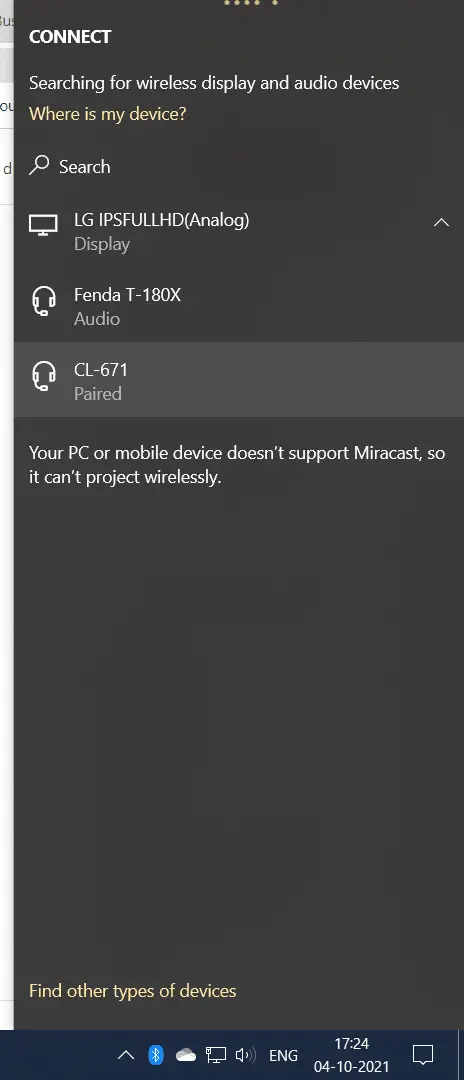
Also Read—Fix—That didn’t work. Make sure your Bluetooth device is still discoverable, then try again. – Windows 10
Bluetooth Audio not working Windows 10
- The Bluetooth icon is not visible in the system tray.
- The requested wireless devices like Bluetooth speakers, mice, headphones, mobiles, fitness trackers, etc., will not work.
- Bluetooth is paired but disconnected.
- Proper drivers not found. Built-in Bluetooth hardware is not functioning.
- The Bluetooth USB adapter is not recognized.
Also Read—Fix Bluetooth Not Detecting Devices in Windows 10
Solution
Check the following list before you proceed to the detailed steps.
- Does your laptop have Bluetooth hardware and software settings?
- If not, is your Bluetooth USB dongle connected to the laptop?
- Are both the Windows and Bluetooth devices paired?
- Did you install Bluetooth drivers for Windows 7?
- Are Windows 10 Bluetooth drivers supported?
- Did you check your laptop manufacturer site for drivers?
- Are Microsoft drivers working for you?
If Windows Bluetooth is not working in 10 or 8.1 or 7, you can try these solutions.
Check if Bluetooth hardware exists.
Most of the laptops and recent Windows desktops have in-built Bluetooth hardware. To resolve the above issue, you need to enable both the Bluetooth hardware and software.
Generally, a slider is provided on the laptop to toggle the Bluetooth option. Then the corresponding indicator will glow.
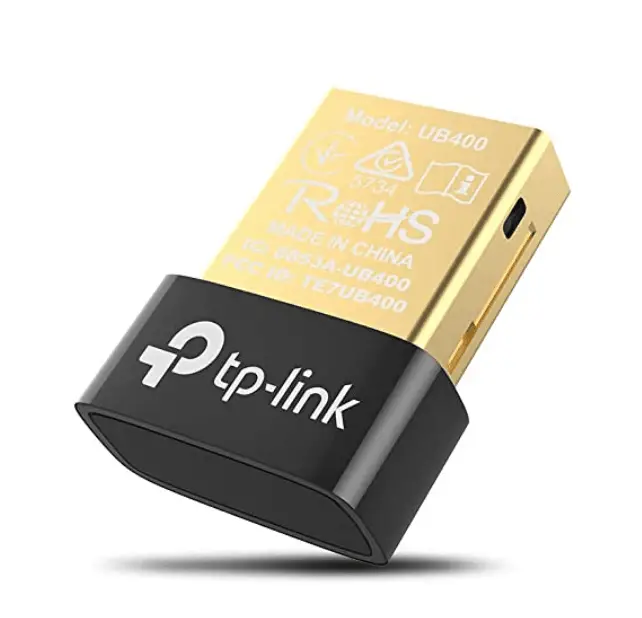
In the case of old desktops or computers or laptops where Bluetooth technology is absent, you need to purchase a Bluetooth USB dongle or adapter. It allows you to send and receive wireless signals.
If either of this hardware is missing, you will not hear music or send Bluetooth signals.
Enable Bluetooth in Windows 11/10
Turn on the Bluetooth setting if it is not already enabled. The steps to enable Bluetooth are different in Windows 11, 10, and 7. Take appropriate steps to enable this option.
Read More – Turn on Bluetooth on Windows 10 – Settings and Switch
If the Bluetooth hardware is enabled and the software setting is ON, then you should see a Bluetooth icon in the system tray. This means that both of the above steps have been completed successfully and are working.
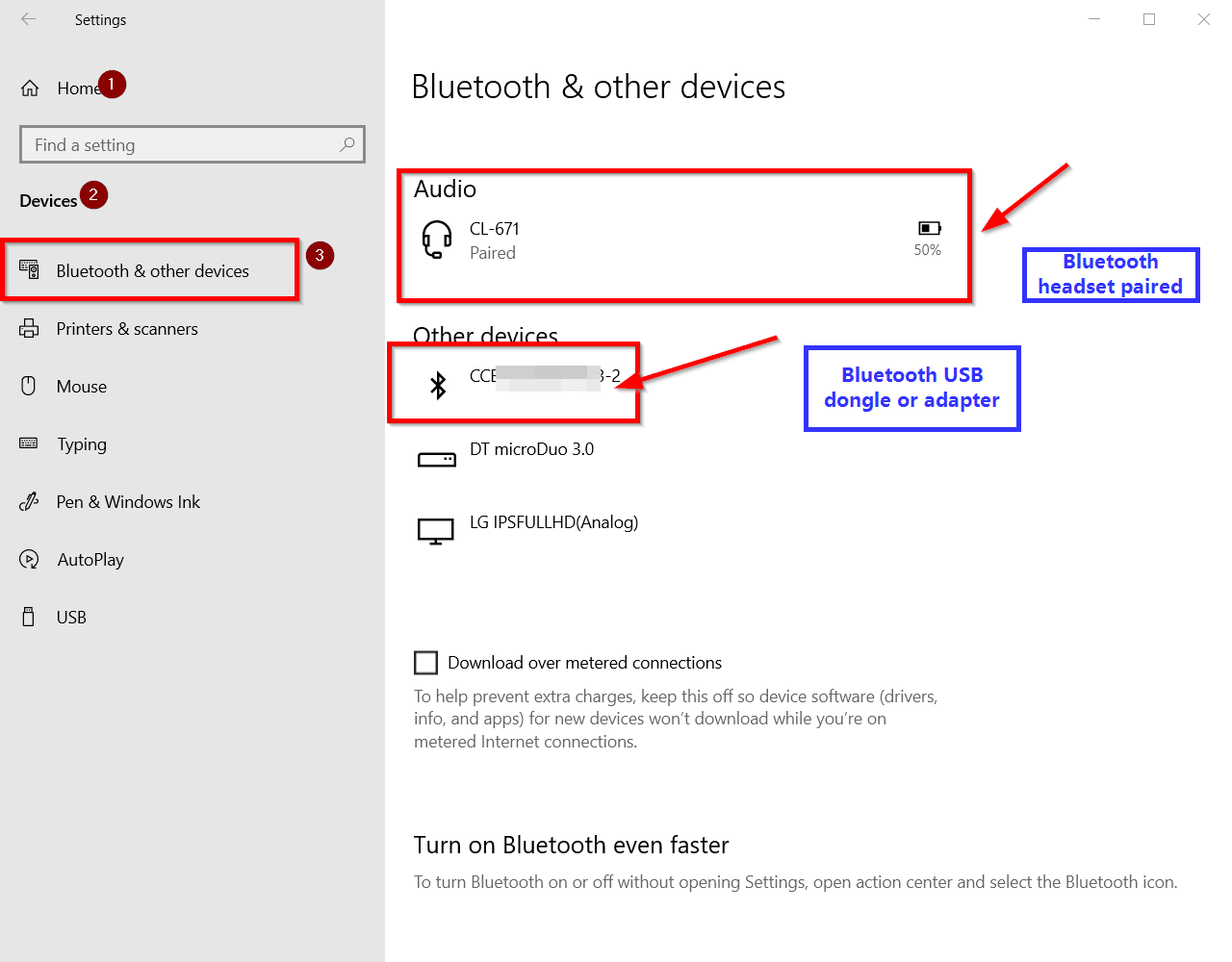
Check Bluetooth Drivers – Bluetooth audio gateway
- Open the Device Manager in Windows 10 or 8.1 or 7. Type devmgmt.msc in the Run dialog (Win + R) box.
- Click the computer name to see all the devices.
- The Bluetooth section should be visible.
- Under this, Bluetooth device drivers are visible.
Under Sound, Network, you can also find your Bluetooth devices listed.
Fix Windows Bluetooth not working
If, in any case, the Bluetooth blue icon is not visible, the device drivers are not visible, or audio is not playing, try these troubleshooting steps. These steps are detailed if you have a Bluetooth USB dongle—the same works for built-in Bluetooth hardware.
- Disconnect the USB hub and reconnect again.
- Remove the Bluetooth adapter connected to the USB hub and plug it in again.
- Turn on the switch to the USB socket.
- Now, the Bluetooth icon should appear in the system tray.
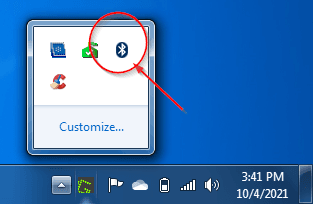
- Right-click it, and all the Bluetooth options should be visible.
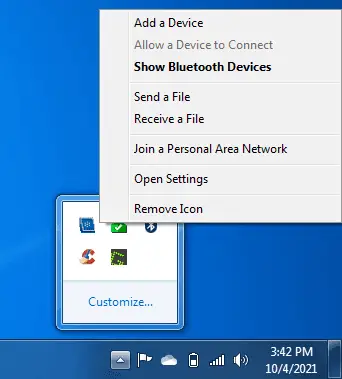
- Add the Bluetooth speakers and click on Show Bluetooth devices.
- Bluetooth devices should be visible.
You can also go to Control Panel > Devices and Printers > Bluetooth Devices. - Right-click the Bluetooth speaker icon and sound settings.
- Other options are available.
a. Advanced Operation
b. Troubleshoot
c. Remove device
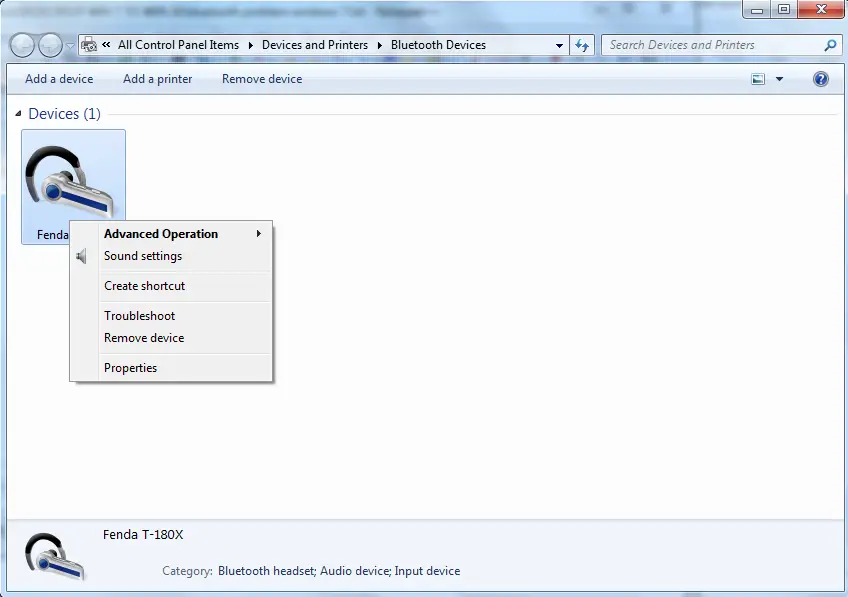
Set Bluetooth Headset as Default Playback device
- The Sound properties window will open.
- If you do not listen to music through the Bluetooth speakers, that device is not the default device.
- Right-click the Bluetooth speaker headset or speaker icon and set it as the default device.
You can also try a few other troubleshooting steps.
Try the troubleshoot option mentioned before.
Remove the device and then scan for Bluetooth devices again. - Under Advanced Operation, you can connect to an audio sync device.
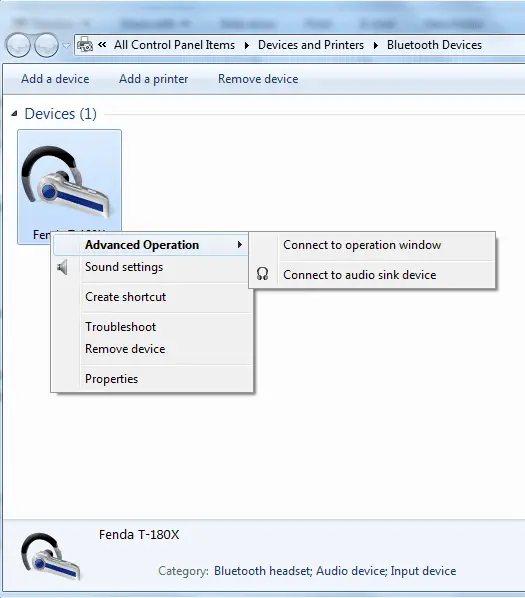
Right-click the Bluetooth speaker icon and click on Properties.
Click on the Services tab.
The following Bluetooth services are available.
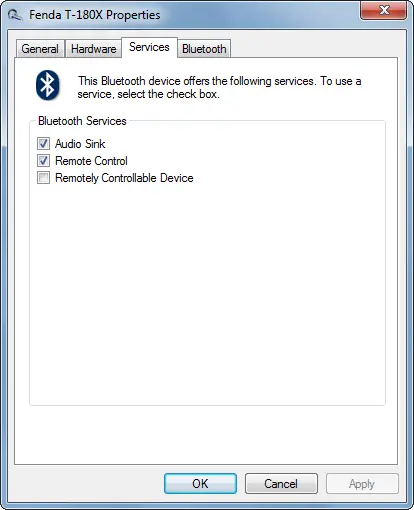
- Audio Sink
- Remote Control
- Remotely Controllable Device.
Uncheck each option and then check again. If Bluetooth drivers do not exist, the system may install them.
Now the Bluetooth headset device in the Sound Properties window should have a default playback device.
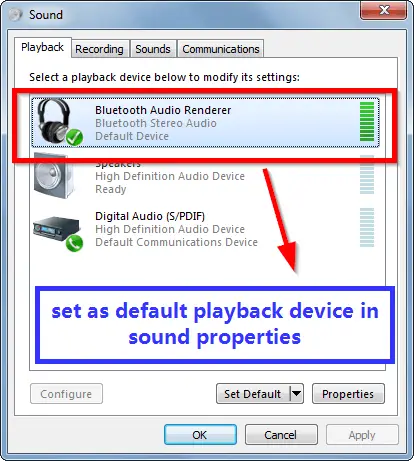
Set it as default.
Enable Bluetooth Discovery
If your Windows computer is hardware and software-enabled for Bluetooth but unable to connect to other Bluetooth devices like speakers, headsets, smartphones, soundbars, keyboards, mice, etc., you can check this option.
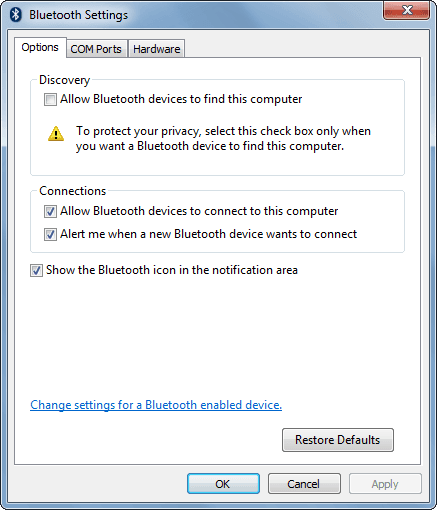
Update Bluetooth drivers.
- If you have still been using the old Bluetooth version drivers for a long time, it’s time to update for Windows 10.
- Even in Windows 7, some adapters need updates. In-built devices also require the latest updates.
- Right-click the Bluetooth device in the Device Manager and click on Update Driver Software.
- Let Windows automatically search and update drivers.
- If that doesn’t help, you can try the Driver Updater tools like CCleaner, DriverEasy, DriverBooster, etc.
- If that doesn’t work, you can manually update them to the Microsoft drivers.
Bluetooth Troubleshooter Windows 11 or 10 or 7
In some cases, we cannot identify the cause of the Bluetooth connection issue.
Try running the default Bluetooth troubleshooter available in Windows 7 or 10.
It will run automatically. Stop and restart some services.
It may also uninstall the Bluetooth adapter and reinstall it.
Check again if you can hear audio from your Bluetooth speakers.
Restart Bluetooth Audio Gateway Service and other related
Press the Win + R keys together and enter services. M.Sc.
In the Services window, find the service “Bluetooth Support Service.”
Restart it. Stop and Start.
It should resolve some Bluetooth connection issues.
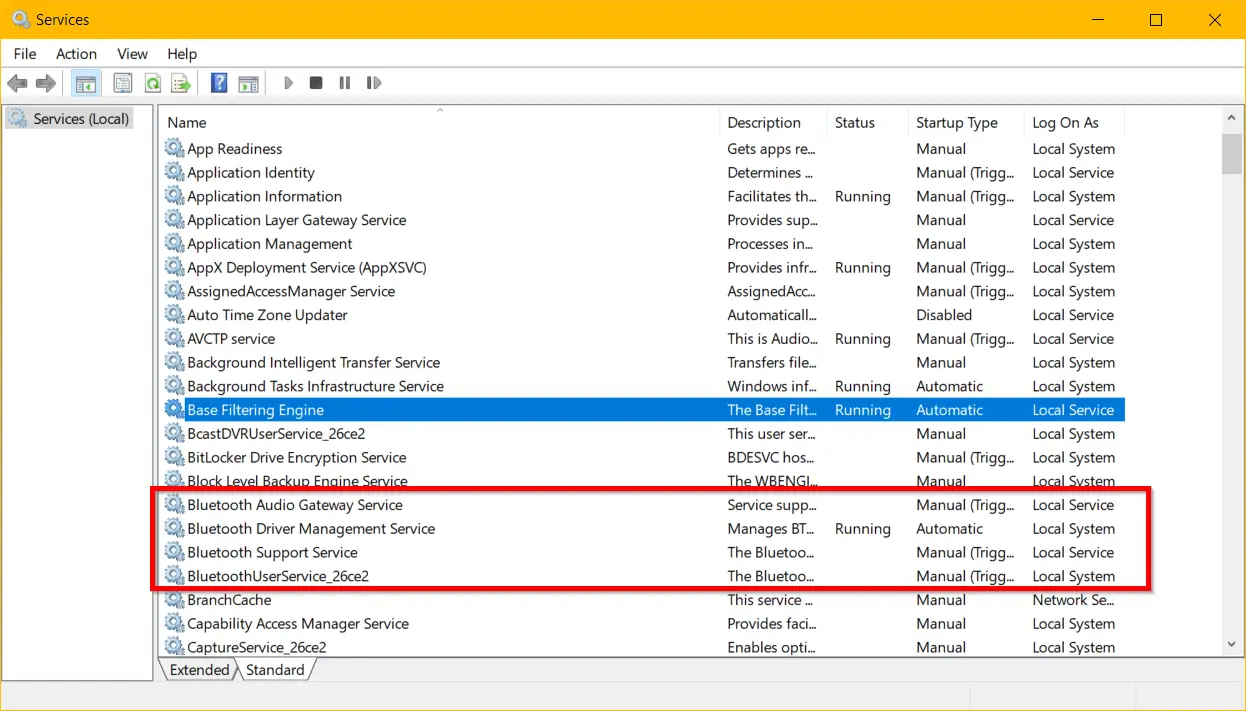
The Bluetooth Audio Gateway Service is another for audio devices. You can do the same.
Go back to a system restore point.
If, before an update or in the earlier version, the Bluetooth connection is working, you can do a system restore.
You can always create a system restore point using the Windows modules.
Otherwise, CCleaner-like tools create a system restore point if required.
It will roll back the Bluetooth driver version and other system files. The standard files remain unaffected.
How do I fix the missing Bluetooth Audio Gateway Service in Windows 11?
First, run it sfc /scannow in an elevated Command Prompt, then DISM /Online /Cleanup-Image /RestoreHealth. These commands restore missing Windows system files, including BTAGService. dll. If the service itself is missing from Services, use the restore batch file from batcmd.com/windows/11/services/btagservice as a secondary option.
Why is the Bluetooth Audio Gateway Service stuck in the stopping state?
BTAGService stuck on stopping usually means a Bluetooth device is still actively connected or a dependency service has stalled. Open Task Manager → Services tab → right-click BTAGService → Stop. Alternatively, run net stop BTAGService /y in an elevated Command Prompt. Restart your PC if the force-stop doesn’t work.
How do I disable the Bluetooth Audio Gateway Service in Windows 10?
Open services.msc Win+R → services.msc, find Bluetooth Audio Gateway Service, double-click it, change Startup type to Disabled, click Stop if it’s running, then click Apply. Alternatively, run it Set-Service -Name BTAGService -StartupType Disabled in PowerShell as administrator.
What happens if I disable the Bluetooth Audio Gateway Service?
Disabling BTAGService means your Bluetooth headset will no longer work for voice calls in Teams, Skype, or phone apps. Music streaming (A2DP profile) may still function. To re-enable it, open services. MSC, find BTAGService, change startup type back to Manual, and click Start.
Does the Bluetooth Audio Gateway Service affect PC performance?
No. BTAGService uses minimal CPU and RAM — it only starts when a Bluetooth audio device connects and stops when the device disconnects. It has no measurable impact on PC performance during normal use. Its shared svchost.exe process consumes less than 1MB of RAM when active.
Conclusion: Optimizing Bluetooth Audio Gateway Service for Seamless Connectivity
In summary, understanding what Bluetooth Audio Gateway Service is and how it functions is essential for ensuring stable and high-quality audio transmission between Bluetooth-enabled devices.
The BTagService (also known as the BTag service) is a critical system component that allows Bluetooth headsets, speakers, and other peripherals to communicate effectively with your PC or laptop. However, issues such as connection failures, missing services, and driver-related problems can disrupt performance.
For users experiencing difficulties like the error message “That didn’t work. Make sure your Bluetooth device is still discoverable, then try again. Troubleshooting steps such as restarting the Bluetooth Audio Gateway Service, updating the Gateway Bluetooth Driver in Windows 10, and ensuring the Audio Gateway is properly configured can help resolve the problem.
Additionally, verifying the service’s status is crucial, leading to the frequently asked question: “How will you check the status of the Bluetooth audio gateway service?” Users can check the service via the Command Prompt or Device Manager to ensure it is running correctly.
For those who do not require hands-free Bluetooth audio features, it may be beneficial to disable Bluetooth Audio Gateway Service to conserve system resources and prevent unnecessary background processes.
In some cases, disabling the Audio Sink Service may also improve Bluetooth stability for users who primarily use Bluetooth for file transfers or other non-audio-related functions.
Lastly, for Spanish-speaking users searching for solutions, guides on Bluetooth Audio Gateway Service Español can help troubleshoot and optimize their systems in their preferred language.
By following best practices and resolving common issues, users can maximize the performance of their Audio Gateway and enjoy a seamless Bluetooth experience across Windows 10 and Windows 11.