
Last Updated:
The Windows 10 Home version does not have a direct way to create a local administrator account. You might need to tweak a few settings before you create one, such as enabling the local account option in the settings menu or using a command prompt to create the account manually. Even after the 2004 update, the option to sign in with a local account does not appear during installation.
One of the best ways is to use the “Local Users and Group console” in Windows 10 Home.
Also known as the lusrmgr console. Manage user accounts using it. It is a universal console that is available from Windows XP, Vista, and 7. The main use of this snap-in console is to assign rights to different users or groups on a system, which is essential for managing user permissions and ensuring security within the operating system, which is essential for managing user permissions and ensuring security within the operating system.
Press the Win + R button to open the Run dialog and type “lusrmgr.msc” to open it in Windows 10 Pro.
But the Windows 10 Home edition does not support it. An error message pops up.
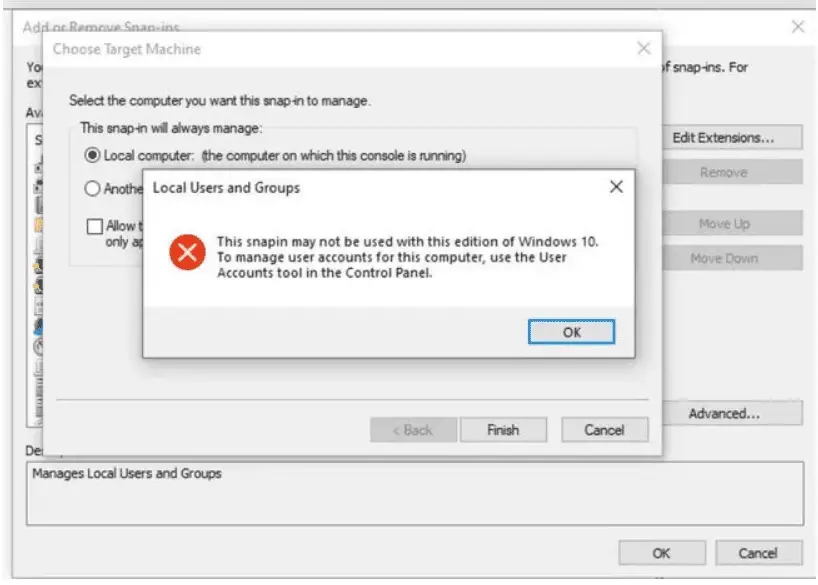
It says to use the “User Accounts” tool in the Control Panel. In the next versions of Windows 10, it can be deprecated.
Also, this feature will not give all the privileges to users and groups. Some permissions are unavailable.
Enable Local User and Group Management (Lusrmgr.msc) in Windows 10 Home
The same tool as this snap-in with a similar interface is not available directly. Instead, you need to find an alternative third-party tool.
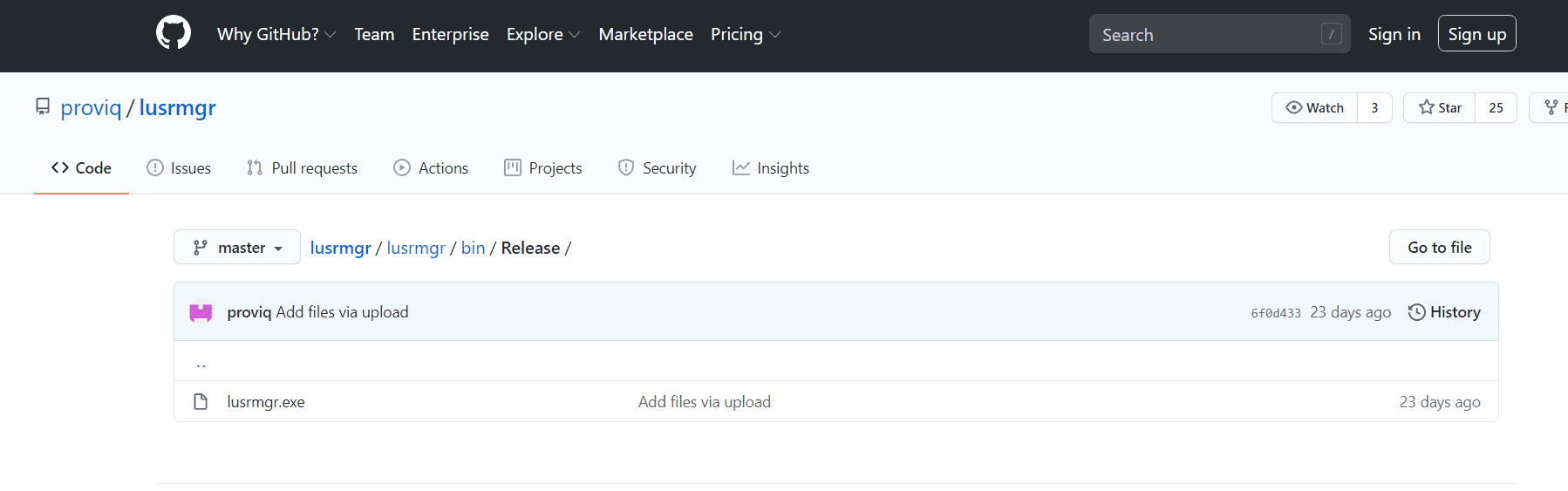
- Download this tool from here.
- This .exe is not digitally signed. So you have to give permission to run it in Microsoft Defender SmartScreen.
- The following screen will open.
Note:
- New users and groups can be created. Change the old users and groups with this portable tool easily.
- The lusrmgr program requires administrative privileges and a .NET 4.5 or higher version.
How to Create Local Administrator Account in Windows 10 Home
- Right-click on “Users” and click on “Create.”
- Then enter username, full name, description, and password. Choose the necessary options.

- The new account can be seen on the right-hand side.
- This is a limited account.
- To make it an administrator account, double-click on the new account.
- A pop-up will open.
- Click on the Group membership tab.
- Then click the “Add membership” button.
- Assign the user to “Administrators” and click on “Select.”
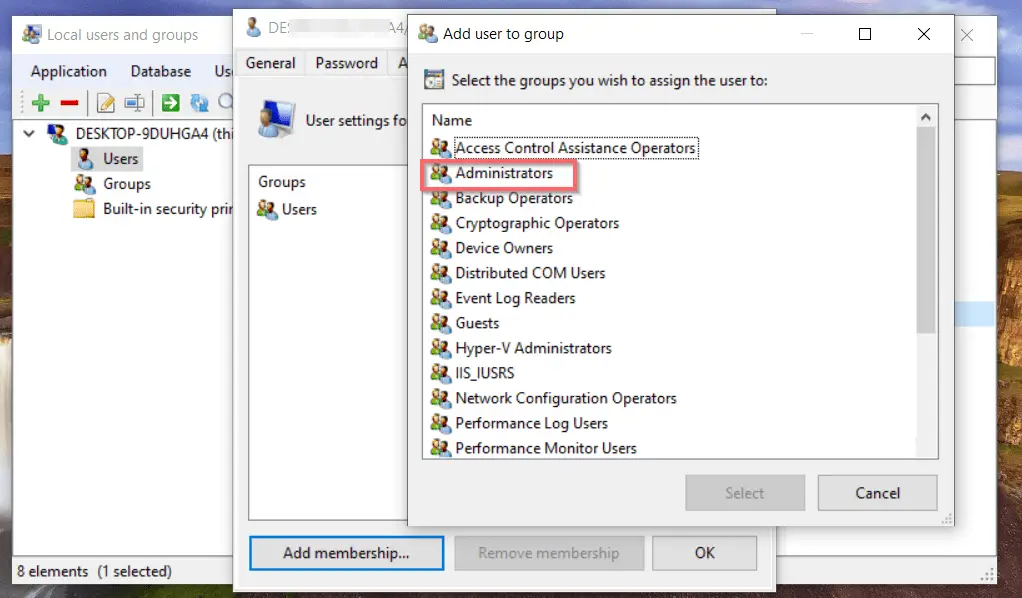
- Click on “OK.”
- Then log out or reboot to log in to the local admin account in Windows 10 Home.
