Category: Windows 11

  • Windows 11 Debloater: Ultimate Guide to Remove Bloatware and Optimize Your PC in 2025

    Windows 11 Debloater: Ultimate Guide to Remove Bloatware and Optimize Your PC in 2025

    Windows 11 has brought exciting features and improved performance compared to its predecessors. However, many users have noticed that it comes with pre-installed apps and bloatware that consume system resources and slow down the overall performance of their devices.

    This has led to the rise of debloating Windows 11, a practice that involves removing or disabling unnecessary features and apps to enhance the system’s speed and efficiency.

    A popular way to debloat Windows 11 is by using the PowerShell debloat Windows 11 command, which allows advanced users to remove unwanted apps with simple commands.

    In this article, we will explore how to effectively debloat Windows 11, covering various methods, including the use of the Windows 11 debloat tool, PowerShell scripts, and third-party Windows debloater utilities.

    These methods can significantly improve system performance and reduce the load of unnecessary processes that consume memory and storage. Whether you are looking for a simple way to debloat Win 11 or want to fully optimize your system, this guide provides a comprehensive solution.

    Windows debloating can also help improve privacy and security by removing apps and services that may collect data or cause vulnerabilities.

    Debloated Windows 11 offers users a more streamlined, faster, and secure operating system experience. By utilizing the best Windows 11 debloater tool, you can easily remove built-in apps like Cortana, Xbox Game Bar, and others that are not essential for your workflow.

    For those seeking more granular control, the Win11debloat script offers an advanced way to customize which features and apps to keep or remove.

    This script can be used as a Windows 11 debloater tool, giving users a chance to fine-tune the system. Additionally, users can also try other third-party debloaters for Windows 11 that provide a one-click solution for debloating without requiring any command line expertise.

    Whether you are using the built-in Windows 11 debloat tool or prefer using PowerShell debloat Windows 11 commands, each method has its advantages.

    In the following sections, we will walk you through the steps to achieve a faster and unbloated Windows 11 system, making it easier to focus on your tasks without the burden of unwanted software. If you’re ready to get started, let’s dive into the top tools and methods for debloating Windows 11 effectively!

    windows 11 debloater tools

    How to Debloat Windows 11

    Debloating Windows 11 involves removing or disabling unnecessary apps and features that you don’t need. This not only frees up disk space but also improves the overall system performance. In this section, we will cover the different ways to remove bloatware from your system.

    Debloat Windows 11 Using Third-Party Tools

    Third-party tools are some of the most efficient ways to debloat your Windows 11 system. These tools can automate the process and help you safely remove unwanted apps and services.

    Using ThisIsWin11 to Debloat Windows 11

    ThisIsWin11 is one of the best and most widely recommended third-party tools for debloating Windows 11. This tool allows users to remove a variety of bloatware, adjust privacy settings, and optimize system performance.

    To use ThisIsWin11, follow these steps:

    1. Download the latest version of the ThisIsWin11 tool from a trusted source.
    2. Launch the tool and select the features you want to debloat or adjust.
    3. Click the “Debloat” button to remove the selected bloatware.

    Automating the Debloat Process with ThisIsWin11

    For those who want to automate the process, ThisIsWin11 also provides an automated mode. This mode allows you to debloat Windows 11 with a single click, making it a perfect solution for users who want a hassle-free experience.

    1. Open ThisIsWin11 and navigate to the automation section.
    2. Select “Automatic Debloat” to let the tool scan and remove unnecessary apps.
    3. Allow the tool to make changes and reboot your system.

    Using Windows10Debloater Script to Remove Bloatware

    Another powerful script is the Windows10Debloater script, which is specifically designed to remove bloatware from both Windows 10 and Windows 11. It’s open-source and can be run through PowerShell or Windows Terminal.

    To use the Windows10Debloater script:

    1. Download the script from a trusted repository like GitHub.
    2. Open Windows PowerShell as Administrator.
    3. Navigate to the script’s directory and execute the script.

    Remove Bloatware Using PowerShell Commands

    PowerShell is a powerful tool in Windows 11 that allows users to remove apps and features directly from the command line. It’s an excellent option for advanced users who want more control over the debloating process.

    Using Remove-AppxPackage Command

    The Remove-AppxPackage command is one of the most commonly used PowerShell commands to uninstall preinstalled apps in Windows 11. Here’s how you can use it:

    1. Open Windows PowerShell as Administrator.
    2. Type Get-AppxPackage *appname* | Remove-AppxPackage and press Enter to remove specific apps. Replace “appname” with the name of the app you want to remove.

    Removing Provisioned Apps with DISM

    Another method to remove bloatware is by using the DISM (Deployment Imaging Service and Management Tool) command. This tool allows you to remove provisioned apps, which are apps installed for all users on the system.

    1. Open Command Prompt as Administrator.
    2. Type dism /online /remove-provisioned-appx-package /packagename:appname to remove specific provisioned apps.

    Remove Bloatware Using Traditional Uninstall

    If you’re not comfortable with using third-party tools or PowerShell, you can always remove bloatware using the traditional method through the Settings app.

    1. Open the Settings app.
    2. Navigate to Apps > Installed Apps.
    3. Find the app you want to remove, click on it, and select Uninstall.

    While this method is simple, it’s important to note that it may not remove all bloatware, especially system apps or background services.

    Prepare Your System Before Debloating

    Before you begin debloating, it’s essential to prepare your system to ensure the process goes smoothly and to safeguard against potential issues.

    Install the Latest Windows Updates

    Before removing any bloatware, ensure that your Windows 11 system is up to date. Installing the latest updates will ensure your system is stable and secure, and it can also help prevent compatibility issues with certain tools.

    1. Go to Settings > Update & Security.
    2. Check for updates and install any available updates.

    Create a System Restore Point

    It’s always a good idea to create a system restore point before making significant changes to your system. This way, if something goes wrong, you can easily restore your system to its previous state.

    1. Open Control Panel.
    2. Navigate to System > System Protection.
    3. Click Create to make a restore point.

    Win11Debloat

    If you want a tool that focuses solely on Windows 11 debloating, the Win11Debloat tool is an excellent choice. This tool is designed to remove bloatware and optimize your system with minimal effort.

    Features of Win11Debloat

    Here are some of the features of Win11Debloat:

    App Removal

    Win11Debloat allows you to remove preinstalled apps that you don’t use, such as Microsoft OneDrive, Xbox, Cortana, and more.

    Telemetry, Tracking & Suggested Content

    Win11Debloat can disable telemetry and tracking features that send data to Microsoft. It also removes suggested content in the Start menu, making it cleaner and more user-focused.

    Bing Web Search, Copilot & More

    With Win11Debloat, you can remove Bing integration and disable Windows Copilot. This gives you more control over how you interact with your system and reduces distractions.

    File Explorer

    You can also clean up File Explorer by disabling certain features like Quick Access and removing unnecessary context menus.

    Taskbar

    Win11Debloat lets you customize the taskbar, removing unwanted features such as the Microsoft Store icon or widgets.

    Context Menu

    It also allows you to streamline the context menu in Windows 11, removing unnecessary options for a cleaner interface.

    Other Features

    Other features include optimizing Windows 11’s privacy settings, disabling startup apps, and more.

    Default Settings

    The tool also offers a set of default settings that you can choose to apply, making it easy for beginners to get started with the debloating process.

    Windows 11 Debloater Tool | Debloat GUI (Updated Feb 22, 2025! V2.0.6)

    If you prefer a graphical interface over a command-line tool, the Windows 11 Debloater Tool | Debloat GUI is a great choice. The GUI simplifies the debloating process, allowing users to click through the options.

    How to Use the Windows 11 Debloater Tool

    Installation

    To install the Windows 11 Debloater Tool, follow these steps:

    1. Download the latest version from a trusted source.
    2. Install the tool and launch it.

    Basic Usage

    Once installed, you can start debloating your system by selecting the features you want to remove.

    • EZ Debloater: For beginners who just want to remove the most common bloatware.
    • Advanced Debloater: For users who want more control over which apps and features are removed.
    • Fine-Tuning Debloater: For advanced users who want to manually select every feature they wish to disable or remove.

    Bloatware Slows Down Your Windows 11 PC

    Bloatware can significantly slow down your system by taking up valuable disk space and running unnecessary processes in the background. Removing bloatware not only frees up storage but also helps your system run faster.

    Why Not Use Automated Tools to Debloat?

    While manual debloating methods such as PowerShell or the Settings app work, they require a certain level of technical knowledge. Automated tools, on the other hand, handle everything for you, making the process easier and less time-consuming.

    Uninstalling Bloatware from the Settings App

    If you prefer the manual method, you can always uninstall apps directly from the Settings app. However, keep in mind that not all bloatware can be removed this way, especially system apps.

    Disabling Startup Apps

    Many apps are set to launch automatically when your computer starts. These startup apps consume system resources, making your PC slower. To disable them:

    1. Open Task Manager (Ctrl + Shift + Esc).
    2. Go to the Startup tab.
    3. Disable any apps you don’t need at startup.

    Disabling Optional Windows Features

    Windows 11 includes several optional features that may not be useful for everyone. To disable them:

    1. Go to Control Panel > Programs > Turn Windows features on or off.
    2. Uncheck any features you don’t need.

    Clearing Out Temporary Files

    Temporary files, cache, and system logs can pile up over time and take up unnecessary space on your drive. To clear them:

    1. Open Settings > System > Storage.
    2. Click on Temporary files and remove any unnecessary data.

    What About Removing Preinstalled Antivirus Software?

    Windows 11 comes with Microsoft Defender, but if you have installed third-party antivirus software, you may want to remove it. To uninstall third-party antivirus software:

    1. Open Settings > Apps.
    2. Find the antivirus software and click Uninstall.

    How to Optimize Your Windows PC for Different Tasks

    After debloating, you may want to optimize your system based on your usage. Whether you’re gaming, working, or using your PC for entertainment, here are some tips:

    1. For Gaming: Disable unnecessary background processes and optimize your power settings for performance.
    2. For Work: Keep your system lean and ensure that essential work apps are running efficiently.
    3. For General Use: Optimize your storage and power settings to maximize battery life.

    FAQ

    What is Windows 11 Debloater?

    Windows 11 Debloater is a set of tools and methods used to remove unnecessary preinstalled apps, services, and features (often referred to as bloatware) that come with Windows 11. By debloating your system, you can improve overall performance, free up storage space, and reduce system resource consumption. Tools like ThisIsWin11, Windows10Debloater, and PowerShell commands are commonly used for debloating.

    How do I use third-party tools like ThisIsWin11 for debloating?

    To use ThisIsWin11, simply download the tool from a trusted source and run it on your Windows 11 PC. The tool offers an easy-to-use interface that allows you to select the specific apps and features you want to remove. You can either automate the debloating process or manually choose which elements to disable, such as Cortana, OneDrive, or telemetry settings.

    Is it safe to use PowerShell for debloating Windows 11?

    Yes, using PowerShell for debloating is safe if you follow the correct commands. PowerShell allows you to remove bloatware, disable telemetry, and manage apps directly via command lines. However, it’s important to be cautious and ensure you only remove unnecessary apps or services. Always create a system restore point before making changes to avoid issues.

    Can I debloat Windows 11 without third-party software?

    Yes, you can debloat Windows 11 without third-party tools by using built-in methods such as the Settings app, PowerShell, or DISM (Deployment Imaging Service and Management Tool) commands. You can uninstall apps manually from the Settings menu, use PowerShell to remove provisioned apps, and clear temporary files to free up space and improve performance.

    What are the benefits of debloating Windows 11?

    Debloating Windows 11 offers several benefits, including:

    • Improved Performance: By removing unnecessary apps and services, your PC will run faster and smoother.
    • More Storage Space: Bloatware can take up valuable disk space, which can be reclaimed after debloating.
    • Enhanced Privacy: Disabling telemetry and tracking features reduces the data sent to Microsoft.
    • Cleaner Interface: Debloating also helps you declutter your system, making it more user-friendly and personalized.

    These FAQs address key user concerns, increase article relevance, and are optimized for search engines to help rank your article higher on platforms like Google and Bing.

    How to Debloat Windows 11 Using Free Debloater Tool

    For a more hands-on approach, the Free Debloater Tool is an excellent solution.

    Step 1: Create a System Restore Point

    Before you start, always create a restore point to ensure you can roll back if something goes wrong.

    Step 2—Debloat Windows 11 Using the Debloater Tool

    1. Download and install the Debloater Tool.
    2. Run the tool and choose the apps or features you want to remove.
    3. Click Debloat to start the process.

    By following these methods, you can effectively debloat your Windows 11 system, remove unwanted apps, and improve your PC’s performance. Whether you use third-party tools, PowerShell commands, or manual methods, debloating Windows 11 can make your system run faster and more efficiently.

  • 5 Easy Steps to Perfect Your HDMI Settings on Windows 11

    5 Easy Steps to Perfect Your HDMI Settings on Windows 11

    HDMI (High-Definition Multimedia Interface) has revolutionized how we connect devices, offering a seamless way to enhance audio and video quality on larger screens.

    Whether you’re setting up an external monitor, connecting a TV, or troubleshooting HDMI settings on your PC, this guide will help you navigate the process with ease.

    HDMI settings play a crucial role in ensuring that your device’s output and input signals are working properly, enabling higher-quality video playback and sound.

    If you’ve ever struggled with HDMI connections, such as your HDMI port not detecting a signal or needing to adjust display settings for better resolution, you’re not alone.

    Common issues like faulty cables, outdated drivers, or incompatible hardware can disrupt the connection.

    This tutorial will walk you through connecting your device to an external display, updating drivers, and tweaking settings to achieve optimal performance.

    We’ll also cover how to select the correct HDMI input source and troubleshoot common issues, ensuring that your hardware and software are configured correctly.

    By the end of this guide, you’ll be equipped to manage HDMI settings on your PC or other devices, from connecting your laptop to a TV to updating drivers for better signal compatibility. Let’s dive in and simplify the way you connect, adjust, and enjoy your devices.

    hdmi settings to connect pc/laptop to 4K hdmi output devices

    5 Essential HDMI Settings You Need to Know for a Perfect Setup

    HDMI settings can significantly improve your viewing experience, whether you’re using a TV, laptop, or other HDMI-compatible device. Adjusting these settings allows you to fine-tune resolution, signal format, and how your device interacts with the HDMI connection. Here’s a step-by-step guide to mastering HDMI settings for optimal performance.

    Adjusting HDMI Signal Format on Your TV

    To get the best performance from your TV, you need to configure the HDMI signal format appropriately. This is especially crucial for watching 4K or HDR content. Here’s how to do it:

    1. Press the Quick Settings button on your remote.
    2. Navigate to Settings from the menu.
    3. Select Channels & Inputs to access input settings.
    4. Go to External Inputs and select HDMI Signal Format.
    5. Choose the HDMI input you want to adjust.
    6. Set the HDMI signal format to Enhanced Format for 4K and HDR compatibility.

    Pro Tip: Using Enhanced Format ensures your TV supports higher-quality video and audio signals, providing a seamless 4K viewing experience.

    Configuring HDMI Output on Your Laptop

    Setting up HDMI output on a laptop allows you to connect it to an external display or TV, making it ideal for presentations, multitasking, or streaming. Follow these steps to configure HDMI output:

    1. Right-click on your desktop and select Display Settings.
    2. In the display settings menu, locate and select your connected TV or monitor from the dropdown list.
    3. Adjust the resolution to match the external display’s capabilities.

    Bonus Tip: You can choose between different display modes:

    • Extend: Spread your desktop across both screens for multitasking.
    • Duplicate: Mirror your laptop’s screen on the external display.
    • Second Screen Only: Use the external display as your primary screen.

    Watching 4K and HDR Content

    Ensure your HDMI settings are optimized for 4K and HDR content to enjoy crisp visuals:

    • Use a high-speed HDMI cable that supports 4K signals.
    • Set the HDMI signal format on your TV to Enhanced Format.
    • Ensure your laptop’s output resolution is set to 3840 x 2160 (4K).

    These adjustments ensure both your TV and laptop deliver a premium viewing experience.

    Troubleshooting HDMI Issues

    If you’re experiencing problems like no display or sound through HDMI, try these troubleshooting tips:

    • Check the Connection: Ensure the HDMI cable is securely plugged into both the device and the display.
    • Run Audio Troubleshooter: On Windows, search for “Audio Troubleshooter” in the Control Panel and follow the prompts to fix sound issues.
    • Update Drivers: Go to Device Manager and update your graphics and sound drivers to ensure compatibility.

    Enhancing Your HDMI Setup

    Maximize your HDMI setup by tweaking a few additional settings:

    • Adjust the refresh rate for smoother video playback.
    • Calibrate the color settings for accurate visuals.
    • Use adapters if your device lacks an HDMI port (e.g., USB-C to HDMI).

    Checking the Hardware Requirements

    Before diving into the setup process, ensure that your devices meet the hardware requirements:

    • HDMI Port Availability: Check if your PC or laptop has an HDMI port. Most modern devices come equipped with this port, but older models might require adapters (e.g., USB-C to HDMI).
    • Compatible External Display: Confirm that your external monitor, TV, or projector supports HDMI input.
    • Quality HDMI Cable: Use a certified HDMI cable to ensure optimal performance.

    If your computer lacks an HDMI port, consider using docking stations or adapters compatible with your device’s output ports.

    Additionally, we’ll explore using adapters for devices that lack an HDMI port, ensuring compatibility with VGA or other video output formats.

    Whether you’re aiming for 4K signals on a Sony TV, duplicating your desktop on a larger screen, or troubleshooting audio issues, this help guide has you covered.

    With clear steps and solutions to common issues, this tutorial ensures that your HDMI settings are optimized for high-quality output.

    Connecting the HDMI Cable

    1. Locate the HDMI Ports: Identify the HDMI port on both your PC and the external display. On most modern devices, the HDMI port is clearly labeled and easily accessible on the sides or back panels. If your device lacks an HDMI port, consider using an appropriate adapter such as USB-C to HDMI or DisplayPort to HDMI.
    2. Connect the Cable: Firmly insert one end of the HDMI cable into your PC’s HDMI port and the other end into the external display’s HDMI input port. Ensure you are using a high-quality HDMI cable to support better resolution and signal integrity, especially if you are aiming for HD or 4K video playback.
    3. Secure the Connection: Double-check that both ends of the cable are fully inserted and seated securely. Loose connections can result in signal loss, flickering, or a complete lack of display. If your external display allows it, switch to the corresponding HDMI input source using its settings menu or remote control.
    4. Power On Your Devices: Turn on both your PC and the external display. Many modern displays will automatically detect the HDMI signal, but if they do not, manually select the HDMI input source using the display’s on-screen menu or remote.
    5. Verify the Connection: Once connected, your PC should automatically recognize the external display and extend or duplicate your desktop, depending on the settings. If the display is not detected, proceed to the troubleshooting steps outlined in this guide.

    Pro Tip: Avoid bending or twisting the HDMI cable during installation. This can damage the cable and degrade the signal quality. For wall-mounted displays or tight spaces, use angled HDMI adapters to minimize cable stress.

    Additional Note: If your display supports HDMI signal format settings, ensure it matches your PC’s output resolution for optimal performance. For example, enable 4K signals or HDR modes if supported by your PC and HDMI cable.

    Configuring Display Settings in Windows 11

    Once the HDMI cable is connected, follow these steps to configure display settings:

    1. Access Display Settings:
      • Right-click on the desktop and select “Display settings” from the context menu.
      • Alternatively, navigate to Settings > System > Display.
    2. Detect Displays: Scroll down to the “Multiple displays” section and click “Detect” if the external display isn’t automatically recognized.
    3. Adjust Display Arrangement: Drag and position the displays to match your physical setup for a better user experience.

    Switching to HDMI as the Primary Display

    To make the HDMI-connected display your primary screen:

    1. Open the display settings.
    2. Under “Rearrange your displays,” click on the display you want to set as primary.
    3. Check the box labeled “Make this my main display.”

    This action will shift the taskbar and primary apps to the selected screen.

    Adjusting Resolution and Display Settings

    Ensuring your external display has the correct resolution is crucial for clarity and performance. Follow these steps:

    1. Select the Display: Choose the HDMI-connected display in the settings menu.
    2. Change Resolution: Use the “Display resolution” dropdown menu to select the recommended resolution.
    3. Adjust Scaling: If icons or text appear too small or large, modify the scaling settings under “Scale and layout.”

    Troubleshooting Common Issues

    If you encounter problems during the setup process, here are some solutions:

    • External Display Not Detected:
      • Verify cable connections.
      • Click “Detect” in the display settings.
      • Update your graphics driver via Device Manager.
    • No Audio Through HDMI:
    • Flickering or Flashing Screen:
      • Check for loose connections.
      • Lower the refresh rate under “Advanced display settings.”
    • Poor Resolution:
      • Use a high-speed HDMI cable.
      • Manually adjust resolution settings.

    How to Switch to HDMI on Windows 11: A Step-by-Step Guide

    For users on Windows 11 or Windows 10, the process of managing HDMI settings starts with understanding the basics. From identifying the correct HDMI cable to choosing the right display settings in the control panel or system preferences, every step matters.

    Whether you’re connecting a desktop, laptop, or even an Android TV, knowing how to set up HDMI properly can make a huge difference in your viewing experience. This guide also includes tips for enabling HDMI output, resetting connections, and resolving issues with audio and video playback.

    Step 1: Connect the HDMI Cable

    Ensure the HDMI cable connects your PC to the external display securely. Double-check that the cable is not damaged and fits snugly into both the HDMI port on your PC and the HDMI input port on the external display. Using a high-quality HDMI cable is recommended, especially if you’re aiming for high-definition or 4K resolution output.

    Step 2: Turn On Your Devices

    Power on both your PC and the external display. For TVs or monitors, use the remote control or physical buttons to select the correct HDMI input mode. This step ensures the display is set to receive the signal from the connected HDMI cable.

    Step 3: Open Display Settings

    Right-click on the desktop and select “Display settings” to access configuration options. Alternatively, navigate to Settings > System > Display via the Start menu. This will open the panel where you can manage connected displays.

    Step 4: Detect Display

    If your external display isn’t showing up automatically, click the “Detect” button under the “Rearrange your displays” section. This prompts Windows 11 to search for connected displays and recognize the HDMI input. If detection fails, check your HDMI connection and try a different port on the display.

    Step 5: Choose Display Mode

    Select a display mode that suits your needs:

    • Duplicate: Mirrors the PC screen on the external display, ideal for presentations or sharing your screen.
    • Extend: Extends your workspace across both screens, allowing multitasking between the PC screen and the external display.
    • Second Screen Only: Displays content only on the external screen, useful for a larger viewing area or enhanced focus.

    To adjust the display mode, scroll down to the “Multiple displays” section in Display settings and choose the preferred option from the dropdown menu. Confirm the settings to apply them.

    Tips for Switching to HDMI on Windows 11

    • Keep Drivers Updated: Regularly update your graphics and audio drivers for better performance and compatibility.
    • Use Quality Hardware: Invest in high-quality HDMI cables and adapters for reliable connections.
    • Test with Different Inputs: If your external display isn’t working, try another HDMI input on the device.

    Frequently Asked Questions

    Hardware and Compatibility

    Q: How do I know if my computer has an HDMI port? A: Look for a port labeled “HDMI” on your PC or check your device’s specifications online.

    Q: What should I do if my computer doesn’t have an HDMI port? A: Use an adapter such as USB-C to HDMI, DisplayPort to HDMI, or a docking station.

    Troubleshooting Display Issues

    Q: Why is my external display not showing any picture? A: Verify connections, set the correct input source on the external display, and update your drivers.

    Q: What if the resolution looks off on the external display? A: Adjust the resolution and scaling settings under display settings.

    Multiple Display Setup

    Q: Can I use multiple external displays with HDMI? A: Yes, if your PC supports multiple outputs. You may need additional adapters for extra screens.

    Audio and Video Settings

    Q: How do I change the audio output to the HDMI device? A: Go to sound settings and set the HDMI device as the default audio output.

    Q: Can I use HDMI for both audio and video? A: Yes, HDMI transmits both audio and video signals.

    General Issues

    Q: Why isn’t my HDMI display being detected? A: Restart your PC, update drivers, and ensure your HDMI cable is functional.

    Q: What if my screen flashes or flickers? A: Lower the refresh rate or check for damaged cables.

    Q: How do I revert back to my PC screen? A: Open display settings and select “PC screen only” under display mode.

    Conclusion

    Switching to HDMI on Windows 11 is a straightforward process that can greatly enhance your computing experience. By following the steps outlined in this guide, you can easily connect and configure your HDMI devices, troubleshoot common issues, and optimize your settings for maximum performance. Whether you’re working, gaming, or streaming, HDMI ensures a seamless connection for both video and audio.

    With these steps, you’ll be able to seamlessly connect and configure your PC with an external display using HDMI. Whether it’s for gaming, streaming, or productivity, following this guide ensures an optimal HDMI setup.

  • How to Adjust Power and Sleep Settings in Windows 11

    How to Adjust Power and Sleep Settings in Windows 11

    Changing power and sleep settings in Windows 11 is essential for optimizing device performance, extending battery life, and reducing energy consumption.

    The built-in Windows 11 power settings allow users to customize screen timeout, sleep intervals, power modes, and advanced performance options to best suit work, gaming, and travel needs.

    Understanding how to adjust power and sleep settings in Windows 11 helps prevent unnecessary battery drain and tailors system behavior for maximum productivity or battery endurance.

    Quick Steps to Change Power and Sleep Settings

    1. Click Start or press Win + I to open Settings.
    2. Navigate to System > Power & Battery.
    3. Adjust these key settings:
      • Screen and Sleep timers (for battery and plugged-in modes)
      • Power Mode (Best Power Efficiency, Balanced, Best Performance, or Efficiency Mode)
      • Enable Battery Saver manually or automatically

    How to Change Power and Sleep Settings in Windows 11: A Complete 2025 Guide

    Optimizing your power and sleep settings in Windows 11 is crucial to balance performance, battery life, and energy efficiency. Whether using a laptop, desktop, or tablet, fine-tuning these settings can extend battery runtime, reduce heat, and improve your overall Windows 11 experience.

    This guide covers everything from basic adjustments to advanced power options, troubleshooting sleep issues, and tips for maximum efficiency in 2025.

    Why Adjust Power and Sleep Settings in Windows 11?

    Windows 11 offers flexible power management tailored to your usage—gaming, work, travel, or everyday tasks. Customizing power modes and sleep timers helps save energy, reduces hardware wear, and enhances performance based on your priorities.

    New Windows 11 features like Efficiency Mode, Storage Sense, and advanced battery usage diagnostics empower you to get the most out of your device.

    Detailed Guide: Adjust Power Modes and Sleep Timers

    Change Power Mode in Windows 11

    • Inside Settings > System > Power & Battery, locate Power Mode dropdown.
    • Choose from:
      • Best Power Efficiency: Maximizes battery life by limiting background tasks
      • Balanced: Balances performance and energy usage (default mode)
      • Best Performance: Prioritizes performance, ideal for gaming/video editing
      • Efficiency Mode: (New 2025 feature) Optimizes resource usage for improved battery without crippling app performance

    Customize Screen and Sleep Timers

    • Set when your screen turns off:e.g., 5 minutes on battery, 15 minutes plugged in
    • Set sleep mode timing: e.g., 10-15 minutes on battery, 30 minutes plugged in
    • Proper timer settings help prevent unnecessary battery drain and increase hardware lifespan

    Unlock and Configure Advanced Power Settings

    For tech-savvy users, Advanced Power Options provide granular control:

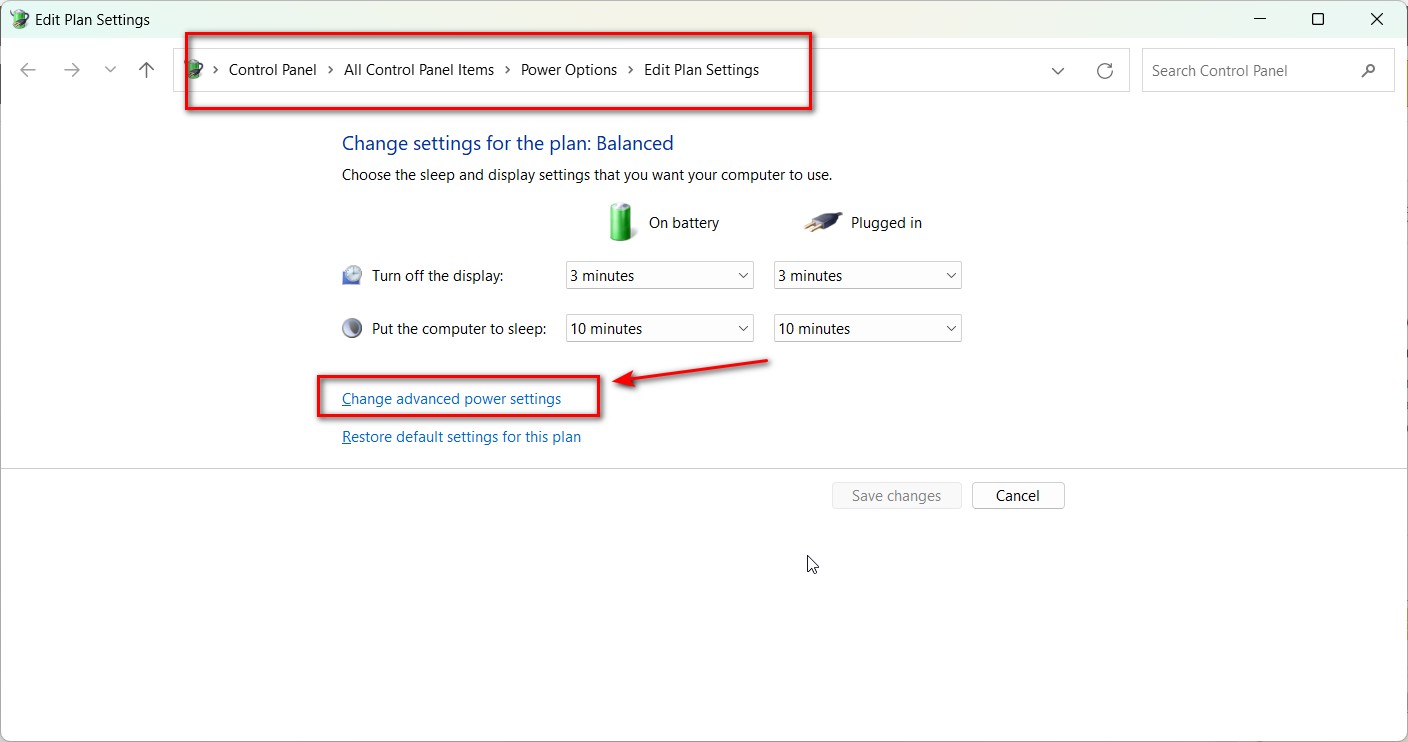
    1. Search “Edit Power Plan” in the Start menu > Power Options control panel.
    2. Click Change advanced power settings.
    3. Customize:
      • Processor Power Management: Limit max CPU state to save power
      • Hard Disk: Set faster spin-down times
      • USB Settings: Enable selective suspend for USB devices
      • PCI Express: Enable Link State Power Management for power savings
      • Graphics Settings: Adjust GPU frame buffer compression to extend battery life

    Testing these can optimize your device further, adapting to your specific use case.

    FAQs About Changing Power and Sleep Settings in Windows 11

    How do I change the sleep timer in Windows 11?
    Go to Settings > System > Power & Battery and adjust Screen and Sleep options for battery and plugged-in modes.
    What is the most battery-efficient power mode?
    Best Power Efficiency mode conserves battery by limiting background activity and maximizing runtime.
    Can I create custom power plans?
    Yes, in Control Panel > Power Options, you can create and save custom power plans.
    Why is my PC not going to sleep?
    This could be due to outdated drivers, running background apps, or system settings blocking sleep.
    How can I manage apps running in the background for power saving?
    Use Settings > Apps to set background permission for individual apps to Power Optimized or Never.

    Why Power and Sleep Management Matters

    Modern Windows 11 power settings provide an array of modes like Energy Saver, Battery Saver, Performance Mode, and Efficiency Mode.

    These features let users prioritize battery savings, high performance, or a balanced approach.

    Adjusting sleep settings in Windows 11, or using hibernate versus sleep, directly affects both battery health and device responsiveness.

    Optimize Windows 11 battery life and extend battery life in Windows 11 by tuning these preferences according to use case.

    Key Features and Customization

    • Change Power and Sleep Settings in Windows 11:Go to Settings > System > Power & Battery, then adjust the screen and sleep timers for both the plugged-in and battery modes.
    • Adjust Battery Settings Windows 11: Use the Battery Saver under Power & battery for real-time energy savings, or set thresholds for automatic activation of energy-saving features.
    • Advanced Power Options Windows 11: Access additional controls via Control Panel’s Power Options to customize what happens when closing the lid, pressing power buttons, or creating custom power plans.
    • Windows 11 Storage Sense, Manage Background Apps Windows 11: Storage Sense frees disk space, and background app controls reduce background power consumption, further improving efficiency.
    • Best Power Settings for Gaming on Windows 11:High Performance or Gaming Power Mode disables aggressive power saving, ensuring optimal frame rates for gaming and content creation.
    • Performance Mode and Efficiency Mode: Choose Performance Mode for demanding tasks or Efficiency Mode for quiet, longer battery use.

    Troubleshooting and Optimization

    • Windows 11 Sleep Not Working: If sleep mode does not function as expected, update the drivers using Windows 11 Update Drivers and adjust the sleep or hibernate settings to achieve stable results.
    • Troubleshoot Battery Drain Windows 11: Identifying apps that consume excessive background power lets users manage or disable them—crucial for laptops and tablets.
    • Windows 11 Hibernate vs. Sleep: Hibernate saves power and retains work longer but takes more time to resume; Sleep wakes up quickly but uses more power in standby.

    Enhancing Energy Efficiency and Revenue

    By properly adjusting the power and sleep settings in Windows 11, you can save energy, boost performance, and make sure your device is ready for any task—whether it’s gaming or work—helping you be more efficient and potentially earn more.

    The Settings app provides easy access to the most important features, including the ability to adjust power and sleep settings.

    This tutorial will guide you through every step to adjust the power and sleep settings in Windows 11 and tweak the advanced power settings.

    Step-by-Step Tutorial: How to Adjust Power and Sleep Settings in Windows 11

    Step 1: Open the Settings Menu

    To begin adjusting power and sleep settings, you’ll need to open the Settings app. To optimize your device, follow these steps:

    • Press the Windows key or click on the Start Menu.
    • Type “Settings” in the search bar and hit Enter, or use the shortcut Win + I to open the Settings app directly.
    adjust power and sleep settings in windows 11 app

    Step 2: Select “System.”

    Once you’re in the Settings menu, follow these instructions:

    • From the left-hand panel, click on System.
    • This section contains all system-related settings, including display, sound, and power.

    Step 3: Go to “Power & Battery.”

    • Scroll down and select Power & Battery from the options.
    • This will take you to a page where you can customize your power preferences and monitor battery usage.

    Step 4: Adjust Power Mode

    Power mode settings allow you to choose between performance and energy efficiency. Here’s how to change the power mode:

    • In the Power & Battery section, locate the Power Mode dropdown menu.
    • You can choose from the following options:
      • Best Power Efficiency: Ideal for saving battery life.
      • It strikes a balance between performance and battery savings.
      • Best Performance: Maximizes performance at the cost of battery life.

    Step 5: Configure Sleep Settings

    Sleep settings determine when your device or screen will go to sleep. Make the following adjustments to these settings:

    • In the Power & Battery menu, find the Screen and Sleep section.
    • You can adjust the time settings for both battery-powered and plugged-in modes.
      • On battery power, turn off my screen after X minutes.
      • When plugged in, turn off my screen after X minutes.
      • On battery power, put my device to sleep after X minutes.
      • When plugged in, put my device to sleep after X minutes.

    From enabling hibernate mode to configuring sleep mode after a certain period of inactivity, we’ve included detailed instructions to help you save energy and keep your device running efficiently.

    Unlock Advanced Power Settings in Windows 11

    Need better control over your PC’s performance and battery life? Optimize efficiency by adjusting the advanced power settings in Windows 11. Access additional power settings in Windows 11 by navigating to Control Panel > Hardware and Sound > Power Options > Change plan settings > Change advanced power settings.

    Here, tweak processor power management in Windows 11 to balance performance and energy use. Explore advanced power options like display timeout, sleep modes, and USB selective suspend. To turn on power settings in Windows 11, select a high-performance or power-saving plan.

    While basic options like sleep timeouts and screen brightness can be configured directly in the Power Options control panel, Windows also provides more advanced power settings for fine-tuning specific hardware components.

    These advanced options give users granular control over power consumption and performance. By tweaking these hidden settings, you can optimize your Windows 11 device’s battery life, heat levels, and speed to suit your exact needs.

    Key Notes

    The advanced power options include different areas such as slowing down the processor, hard drive sleep settings, power states for PCI Express, USB power-saving features, and graphics card performance.

    Testing and iterative tuning while checking metrics like battery runtime and thermals is key to finding your PC’s optimal power configuration.

    You can create custom power plans to store groups of advanced settings for effortless mode switching.

    Accessing Advanced Power Settings

    Follow these steps to access the advanced options:

    1. Open the Start menu and search for “Edit Power Plan.”
    2. Click on the top result to open the Power Options control panel
    3. On the right side, click “Change advanced power settings.”

    This will open up the Advanced settings window with a long list of expandable categories.

    Key Categories

    Understand the following important categories:

    • Processor power management: Control CPU throttling, performance boosting, and power-saving features.
    • Hard disk: Configure spin-down timeouts and sleep states for HDDs.
    • USB settings: Manage selective suspend and autonomous suspend for USB devices.
    • PCI Express: Change link state power management policy for PCIe devices.
    • Graphics settings: Configure frame buffer compression, GPU performance states, and more.

    Expand each category to see the available advanced options.

    Modifying Settings

    To change a setting, expand its parent category and click the plus (+) icon to expand the option:

    1. Locate the setting you want to configure
    2. Click directly on its row to expose a dropdown menu
    3. Select your desired value from the available choices

    For example, to enable PCI Express power savings:

    1. Expand “PCI Express.”
    2. Locate and expand “Link State Power Management.”
    3. Click on the setting and choose “Moderate power savings” or “Maximum power savings” from the menu

    Some settings have a text field instead of a dropdown menu. Enter your desired value manually, like changing GPU frame buffer compression from 0% to 30%.

    Link State Power Management is an advanced power setting that allows PCI Express devices like graphics cards, Wi-Fi cards, SSDs, etc. to enter very low power states when not in use. This saves electricity and reduces heat generation.

    Essentially, it allows these components to temporarily power down or “sleep” when idle. They then automatically switch back to an active, working power state when needed.

    Enabling Link State Management lets PCIe devices conserve more power but at the cost of slightly higher latency when waking back up from the low power state.

    So in summary, Link State Power Management gives users control over whether or not PCI Express devices in their system can dynamically power down to save energy when inactive or idle. It’s one of the many advanced configuration options helping optimize between power efficiency and active performance.

    Key Settings to Adjust

    Here are some important advanced power settings you may want to customize:

    • Processor > Maximum processor state: Limit CPU speed to save power on laptops
    • Display > Turn off after: Higher value to delay display shutdown
    • Sleep > Hibernate after: Lower time to hibernate instead of sleep
    • Hard disk > Turn off hard disk after: Faster spindown for power savings
    • PCI Express > Link State Power Management: Enable power savings for devices
    • Graphics settings > Frame buffer compression: Boost battery life with compression

    Finding More Options

    Many advanced settings are hidden by default. To unhide them:

    1. From the Power Options control panel, click “Choose what the power buttons do.”
    2. Click “Change settings that are currently unavailable.”
    3. New settings will now appear in the advanced menu!

    Now you can access the full range of advanced configuration options.

    Common questions about Windows 11 power settings

    How to Change When the Screen Should Turn Off on Windows 11

    Turning off your screen after a period of inactivity helps conserve energy and extends the overall lifespan of your device. To adjust these settings, follow these steps:

    • Open Settings > System > Power & Battery.
    • Scroll down to the Screen and Sleep section.
    • Here, you can set the desired time for the screen to turn off:
      • On battery power: Choose a shorter duration, such as 5 or 10 minutes, to save battery.
      • When plugged in: Opt for a longer duration, such as 15 or 30 minutes, depending on your usage.

    For instance, selecting 5 minutes on battery power and 15 minutes when plugged in strikes a satisfactory balance for most users. Adjusting these settings ensures the screen dims or powers off during inactivity, reducing energy consumption.

    How to Change When the Computer Should Enter Sleep Mode on Windows 11

    Sleep mode is a power-saving state that helps preserve your open applications while reducing power usage. Adjusting sleep mode settings can enhance convenience and efficiency. Here’s how to do it:

    • Navigate to Settings > System > Power & Battery.
    • In the Screen and Sleep section, find the sleep mode options.
    • Configure the following settings:
      • On battery power: Set a shorter sleep duration, such as 10 or 15 minutes, to conserve energy.
      • When plugged in: Choose a longer duration, like 30 minutes, to accommodate extended work sessions.

    For example, setting your laptop to enter sleep mode after 15 minutes of inactivity on battery power and 30 minutes when plugged in strikes a practical balance for both productivity and energy conservation. Sleep mode ensures your work remains saved without excessive energy use.

    How to Change Power Modes on Windows 11

    Windows 11 provides flexible power modes to suit different user requirements. These modes let you prioritize either performance or energy savings. Follow these steps to adjust power modes:

    • Open Settings > System > Power & Battery.
    • Under the Power Mode section, choose from the following options:
      • Best Power Efficiency: Minimizes energy usage and prolongs battery life.
      • Balanced: Strikes a compromise between performance and energy efficiency, ideal for everyday tasks.
      • Best Performance: Delivers maximum performance for resource-intensive activities like gaming or video editing.

    By selecting the appropriate power mode, you can tailor your device’s behavior to match your specific needs, whether it’s extended battery life or enhanced performance.

    Why Adjust Power and Sleep Settings in Windows 11?

    Windows 11 offers flexible power management tailored to your usage—gaming, work, travel, or everyday tasks. Customizing power modes and sleep timers helps save energy, reduces hardware wear, and enhances performance based on your priorities.

    New Windows 11 features like Efficiency ModeStorage Sense, and advanced battery usage diagnostics empower you to get the most out of your device.

    Energy Saver, Storage Sense & Background App Management

    • Energy Saver Mode: Automatically limits background activity and dims display when battery is low.
    • Storage Sense: Manages disk cleanup and temp file deletion to improve performance and reduce power consumption.
    • Manage apps’ background activity in Settings > Apps > Installed apps > Advanced options. Set permissions to Power Optimized or Never for power savings.

    How to Enable Energy Saver on Windows 11

    Energy Saver is a built-in feature in Windows 11 designed to reduce energy consumption by lowering screen brightness and limiting background activity. Here’s how to enable it:

    Turn on Energy Saver Mode Manually

    • Navigate to Settings > System > Power & Battery.
    • In the Battery section, locate the Battery Saver toggle.
    • Switch it to On to activate Energy Saver manually.

    Turn on Energy Saver Mode. Automatically

    • Under the same Battery section, click on Battery Saver Settings.
    • Set Energy Saver to activate automatically when the battery level drops below a specified percentage (e.g., 20%).

    Using Energy Saver mode ensures that your device consumes less power, particularly when running on battery.

    Best Power Settings for Gaming Windows 11

    How to View Battery Usage on Windows 11

    Monitoring battery usage is crucial for identifying power-hungry apps and optimizing energy consumption. To view battery usage details:

    • Open Settings > System > Power & Battery.
    • Scroll down to the Battery Usage section.
    • Here, you’ll find:
      • Battery usage over time: A graphical representation of battery consumption.
      • Apps using battery: A detailed list of applications ranked by energy consumption.

    By reviewing this data, you can pinpoint apps or processes that may require adjustments, such as reducing their background activity.

    How to Manage Apps’ Background Activities on Windows 11

    Background applications can significantly impact battery life by running processes even when not in active use. To manage their activity:

    • Open Settings > Apps > Installed Apps
    • Locate the app you wish to manage and click on Advanced Options.
    • Under Background App Permissions, select one of the following:
      • Always: Allows the app to run continuously in the background.
      • Power Optimized (recommended): Adjusts background activity based on your device’s power mode.
      • Never: Prevents the app from running in the background.

    Customizing these settings for individual apps can significantly enhance battery performance without compromising essential functionality.

    How to Enable Hibernation on Windows 11

    Hibernation is a useful feature that saves your open session to the hard drive and powers off the device, using minimal battery. Here’s how to enable it:

    Enable Hibernation

    • Open the Control Panel and go to Hardware and Sound > Power Options.
    • Click on Choose what the power buttons do.
    • Under Shutdown settings, check the box for Hibernate.

    Add Hibernation Option to Start Menu

    • Return to the Power Options menu.
    • Ensure the Hibernate option is selected under Start menu settings.
    • Click Save changes to enable the option.

    Hibernation is particularly beneficial for laptops, as it conserves power while preserving your work.

    How to Choose Action When Pressing Power Button on Windows 11

    You can customize the action triggered by pressing your device’s power button. To adjust this setting:

    • Open Control Panel > Hardware and Sound > Power Options.
    • Click on Choose what the power buttons do.
    • Select your preferred action from the dropdown menu:
      • Sleep
      • Hibernate
      • Shut Down
      • Do Nothing

    These settings allow you to streamline your device’s behavior based on your workflow.

    How to Choose Action When Closing Lid on Windows 11

    For laptop users, adjusting the lid-closing action can enhance convenience and battery management. Follow these steps:

    • Go to Control Panel > Hardware and Sound > Power Options.
    • Click Choose what closing the lid does.
    • Configure actions for both battery and plugged-in states, such as
      • Sleep
      • Hibernate
      • Do Nothing

    These options let you decide how your device responds when you close the lid, ensuring it aligns with your usage habits.

    How to Show or Hide Sleep Power Option in Start Menu on Windows 11

    If the Sleep option is missing or you want to hide it from the Start menu, here’s how:

    • Open Control Panel > Hardware and Sound > Power Options.
    • Click Choose what the power buttons do.
    • Under Shutdown settings, check or uncheck Sleep.

    This feature enables you to personalize the Start menu options according to your preferences.

    How to Manage Energy Recommendations on Windows 11

    Windows 11 provides energy-saving recommendations to help you optimize power usage. To access these settings, follow these steps:

    • Go to Settings > System > Power & Battery.
    • Scroll to the Battery Usage section to view suggestions.
    • Apply the recommended settings to enhance energy efficiency and device performance.

    How to Choose Action When Pressing Power Button on Windows 11

    You can customize what happens when you press the power button:

    • Go to Control Panel > Hardware and Sound > Power Options.
    • Click Choose what the power buttons do.
    • Select your preferred action: Sleep, Hibernate, Shut Down, or Do Nothing.

    How to Choose Action When Closing Lid on Windows 11

    For laptops, you can configure lid-closing actions:

    • Navigate to Control Panel > Hardware and Sound > Power Options.
    • Click Choose what closing the lid does.
    • Select options for battery and plugged-in modes, such as Sleep or Do Nothing.

    Tips for Adjusting Power and Sleep Settings in Windows 11

    Troubleshooting Common Sleep and Power Issues

    • Sleep mode not working? Check for driver updates and BIOS/UEFI settings.
    • If the display won’t turn off or PC won’t wake, try resetting the power plan or updating Windows 11.
    • Disable conflicting apps that prevent sleep mode.
    • Use Windows Update > Advanced options to ensure latest power management patches.

    Tips to Extend Battery Life and Improve Performance

    • Lower screen brightness or use adaptive brightness.
    • Turn off Wi-Fi/Bluetooth when not in use.
    • Disconnect external USB devices when idle.
    • Use Hibernate instead of Sleep for extended downtime.
    • Regularly update Windows and hardware drivers.

    Optimize Settings for Specific Scenarios

    1. Gaming: Use Best Performance mode to ensure smooth gameplay. This mode prioritizes performance by maximizing system resources and delivering the highest frame rates for demanding games. Make sure your device is plugged in during gaming sessions to avoid battery drain.
    2. Work: Select Balanced mode for efficiency and reliability. This mode strikes a perfect balance between performance and energy usage, ensuring a responsive system for multitasking while conserving battery life for prolonged productivity.
    3. Travel: Use the best power efficiency to extend battery life. This mode minimizes power consumption by reducing background activity, dimming the display, and optimizing system processes to help your device last longer on a single charge.

    General Tips for Better Battery Life

    • Reduce Screen Brightness: Lowering your screen brightness is one of the simplest ways to save power. Consider enabling adaptive brightness to automatically adjust to your surroundings.
    • Disable Unused Background Apps: Close applications you’re not actively using to prevent unnecessary energy consumption. Check background activity through Settings > Apps > Apps & Features.
    • Enable Energy Saver Mode: Activate Energy Saver mode to limit background processes and lower screen brightness automatically when your battery reaches a specified threshold.
    • Turn Off Wi-Fi and Bluetooth When Not in Use: Wireless connections have the potential to consume significant power. Disable Wi-Fi and Bluetooth in Settings > Network & Internet when they’re not needed.
    • Use Hibernate Instead of Sleep for Extended Periods: Hibernate consumes less power than sleep and is ideal for long downtimes. Enable this option through Control Panel > Power Options.
    • Keep Your Device Updated: Regularly update Windows 11 to ensure you’re using the latest optimizations and bug fixes for improved battery performance.
    • Unplug External Devices: Disconnect peripherals like external hard drives or USB devices when they’re not in use, as these can drain power unnecessarily.
    • Customize Power and Sleep Timers: Set shorter durations for screen timeout and sleep mode, especially when running on battery. Adjust these settings in Settings > System > Power & Battery > Screen and Sleep.
    • Monitor Battery Usage: Regularly review the Battery Usage section in Settings to identify apps or processes that consume the most energy and make adjustments accordingly.

    By implementing these tips, you can effectively extend the battery life of your Windows 11 device and optimize its performance for various scenarios.

    Frequently Asked Questions

    How Do I Access the Power and Sleep Settings in Windows 11?

    You can access these settings by navigating to Settings > System > Power & Battery.

    Can I Create a Custom Power Plan in Windows 11?

    Yes, you can create a custom power plan by following these steps:

    • Opening Control Panel > Hardware and Sound > Power Options.
    • Clicking on Create a Power Plan and customizing the settings.

    What’s the Best Power Setting for Gaming?

    The Best Performance mode is ideal for gaming, as it prioritizes performance over energy savings.

    How Can I Extend My Laptop’s Battery Life?

    • Lower screen brightness.
    • Limit background app activity.
    • Use Energy Saver mode.
    • Enable Hibernate instead of Sleep for longer downtimes.

    Why Does My Computer Go to Sleep Too Quickly?

    This issue occurs when sleep timers are set too low. Adjust them by going to Settings > System > Power & Battery > Screen and Sleep.

    By following this comprehensive guide, you can fully optimize the power and sleep settings on your Windows 11 device. Whether you’re looking to maximize performance, save energy, or extend battery life, these tips and steps will ensure your system is tailored to your needs.

  • USB ports are not working in Windows 11.  Here’s how to fix them

    USB ports are not working in Windows 11.  Here’s how to fix them

    USB ports are critical for connecting peripherals such as keyboards, mice, external data drives, and other devices to your computer. However, when USB port not working Windows 11, it can severely disrupt productivity. This issue is common and can stem from software glitches, power management settings, or even faulty hardware.

    In this article, we’ll explore original, fact-checked solutions to resolve USB port issues on Windows 11. Additionally, we’ll include insights from Microsoft forums, Reddit discussions, and expert advice to help you troubleshoot effectively. By the end, you’ll have all the tools needed to restore your USB ports and prevent future problems.

    Symptoms of USB Ports Malfunctioning on Windows 11

    Here are common signs that your USB ports may not be working:

    1. Plugging in USB devices does not detect them.
    2. USB devices intermittently disconnect or stop working.
    3. USB-C or USB-A ports fail to provide power to connected peripherals.
    4. Error messages such as “USB device not recognized” appear.
    5. USB devices work on other computers but not on your Windows 11 PC.

    If any of these symptoms sound familiar, continue reading for practical solutions tailored to Windows 11.

    Top Causes of USB Port Not Working Windows 11

    Before diving into solutions, it’s important to understand the possible causes:

    1. Outdated or Corrupted Drivers: Missing or corrupted USB drivers can prevent proper communication between your operating system and connected devices.
    2. Power Management Settings: Windows 11’s power-saving features, particularly in laptops, may disable USB ports.
    3. Faulty Hardware: Damaged USB ports or cables can lead to persistent failures.
    4. System Bugs: A recent Windows update or software bug can cause USB devices to stop working.
    5. Selective Suspend Feature: This Windows feature can suspend USB devices to save power but may fail to properly wake them.

    Fact-checked solutions to fix USB port issues on Windows 11

    Here are the most effective ways to resolve USB port issues, compiled from Microsoft support pages, Reddit discussions, and expert advice:

    Restart Your Computer

    A simple restart can often resolve temporary USB issues caused by software glitches. Restarting clears system processes and reinitializes hardware connections.

    Steps to Restart:

    1. Click the Start menu.
    2. Select Power, then choose Restart.
    3. After the computer restarts, reinsert your USB device and test the port.

    Reddit Insight: A user on r/Windows11 commented, “I restarted my PC after a USB-C hub failed, and everything worked fine afterward. It’s the easiest fix to try.”

    Test USB ports and devices.

    Before troubleshooting further, confirm whether the issue lies with the port, device, or cable:

    • Switch Ports: Plug the USB device into a different port on the same computer.
    • Test on Another Computer: Connect the USB device to a different computer to ensure it’s functional.
    • Check for Physical Damage: Inspect the USB port and cable for bent pins, debris, or wear and tear.

    If you find debris, turn off the computer and use a toothpick or compressed air to gently clean the port.

    Microsoft Forum Tip: A contributor noted, “Cleaning my USB-C port resolved my issue after my phone wouldn’t connect.”

    Use the Device Manager to scan for hardware changes.

    If USB ports stop responding after inserting or removing a device, scanning for hardware changes can reinitialize the connection.

    Steps:

    1. Press Windows + X and select Device Manager.
    2. Highlight your computer at the top of the list.
    3. Click Action > Scan for hardware changes.
    4. Reconnect your USB device and check if it works.

    Expert Comment: According to a Microsoft support engineer, “Scanning for hardware changes forces Windows to detect and reinstall lost or corrupted drivers.”

    Update or reinstall the USB drivers.

    Drivers are critical for USB ports to function correctly. Outdated or corrupt drivers can cause devices to stop working.

    To Update USB Drivers:

    1. Open Device Manager.
    2. Expand Universal Serial Bus Controllers.
    3. Right-click a USB root hub or device and select Update Driver.
    4. Choose Search automatically for updated drivers.
    5. Restart your computer after updating.

    To Reinstall USB Drivers:

    1. Open Device Manager.
    2. Right-click the USB controller and select Uninstall Device.
    3. Restart your computer. Windows will automatically reinstall the driver.

    Reddit Feedback: “After a Windows 11 update messed things up, reinstalling drivers fixed my USB keyboard issue.”

    Disable USB Selective Suspend

    The USB Selective Suspend feature can disable ports to save power but sometimes causes devices to stay unresponsive.

    Steps to disable USB Selective Suspend:

    1. Press Windows + S and search for Control Panel.
    2. Navigate to Hardware and Sound > Power Options.
    3. Click on the “Change plan settings” button for your current power plan.
    4. Select Change advanced power settings.
    5. Expand USB settings and select the USB selective suspend setting.
    6. Both devices should be set on battery and plugged in to disable.
    7. Click Apply and restart your PC.

    Microsoft Forum Solution: A user reported, “Disabling Selective Suspend fixed my problem with USB devices disconnecting randomly.”

    Reset the USB controllers.

    Resetting USB controllers can resolve software conflicts preventing USB devices from working.

    Steps:

    1. Open Device Manager.
    2. Expand Universal Serial Bus Controllers.
    3. Right-click each USB host controller and select “Uninstall Device.”
    4. Restart your computer. Windows will reinstall the USB controllers automatically.

    Pro Tip: This solution works well for intermittent USB port failures caused by driver conflicts.

    Update Windows 11.

    Windows updates often include patches for USB-related bugs. Keeping your system up to date ensures compatibility with connected devices.

    Steps:

    1. Press Windows + I to open Settings.
    2. Navigate to Windows Update and click Check for updates.
    3. If updates are available, install them and restart your PC.

    Reddit Insight: A user on r/WindowsHelp shared, “Updating Windows fixed my USB-C docking station issues after an OS upgrade.”

    usb port not working windows 11 update install

    5 FAQs About USB Ports Not Working on Windows 11

    1. Why are my USB ports not working after a Windows 11 update?

    USB ports may stop working after updates due to driver incompatibility. Reinstalling or updating USB drivers can resolve this issue.

    2. How do I fix USB ports that randomly stop working?

    Disable USB Selective Suspend in Power Options and update the USB drivers. These steps address power management and driver-related issues.

    3. Why does my USB-C port only transfer data but not charge devices?

    Some USB-C ports are data-only. Check your device’s specifications or look for a charging symbol next to the port.

    4. Can a faulty USB device damage my ports?

    Yes, a malfunctioning device can cause power surges or short circuits, which may render the port unresponsive. Disconnect such devices immediately.

    5. How can I prevent USB port issues in the future?

    Keep Windows and drivers updated, avoid overloading USB hubs, and handle devices carefully to prevent physical or software-related problems.

    Conclusion

    Windows 11 USB port issues can disrupt your workflow, but you can quickly resolve them with the right troubleshooting steps. Whether it’s restarting your PC, updating drivers, or disabling USB Selective Suspend, these solutions are effective and simple to implement.

    By combining insights from Microsoft support, Reddit forums, and expert advice, we’ve created a comprehensive guide to help you fix USB port malfunctions. We recommend professional assistance if the problem persists, as it may indicate a hardware failure.

    Take action today and restore the full functionality of your USB ports! With these steps, you’ll also prevent similar problems in the future.

  • How to Fix Windows 11 24H2 Update Errors: Comprehensive Solutions for a Smooth Upgrade

    How to Fix Windows 11 24H2 Update Errors: Comprehensive Solutions for a Smooth Upgrade

    The Windows 11 24H2 update, also known as the Windows 11 2024 update, has introduced exciting new features such as enhanced Copilot integration, improved Windows Studio effects, and updates to Microsoft Edge.

    Encountering a Windows 11 24H2 install error can be frustrating, especially when the update process gets stuck or fails unexpectedly.

    • According to Microsoft’s official documentation, common causes include incompatible drivers, insufficient storage, or corrupted system files. If your Windows 11 24H2 update failed, the first step is to ensure your device meets the minimum system requirements, including 64GB of storage and a compatible TPM 2.0 chip.
    • For users facing persistent Windows 11, version 24H2 issues, Microsoft has released a Windows 11 24H2 repair version designed to address installation problems. This repair version can be downloaded via the Media Creation Tool or the Windows Update Assistant, offering a streamlined way to resolve errors.
    • Experts recommend backing up your data before attempting a repair, as the process may involve reinstalling the OS. If your Windows 11 version 24H2 install stuck during the process, try booting into Safe Mode and running the Windows Update Troubleshooter.
    • For advanced users, using the Deployment Imaging Service and Management Tool (DISM) to repair the Windows image can be effective. Always refer to Microsoft’s official support pages for the latest guidance, ensuring a secure and error-free installation.

    The Windows 11 24H2 update errors are particularly frustrating because they can appear at different stages of the installation process.

    While some users check via the Windows Update release channel and find the update missing, others encounter critical failures such as error messages, a blue screen with an error, or the update stuck at a certain percentage during installation.

    For those running older versions like Windows 11 23H2 or even Windows 10, the upgrade process can be especially problematic due to compatibility issues with certain drivers, applications, or devices.

    Common Problems with the Windows 11 24H2 Update

    1. Many users report that the Windows Update release channel does not offer the update for Windows 11, often because of Microsoft’s staged rollout process or compatibility holds on specific devices.
    2. Error Messages During Installation: Users attempting to install the latest version often encounter error codes like 0x800f0922, 0x800f0991, or 0xC1900101, which indicate issues with drivers, disk space, or system files.
    3. Blue Screen Errors: A common complaint involves the infamous blue screen appearing during or after the update. Compatibility issues with Intel Smart Sound Technology drivers, Easy Anti-Cheat software, or outdated hardware often cause this.
    4. Update Stuck or Fails to Complete: Some users report the update freezing at specific percentages (e.g., 35% or 85%) or failing entirely, only to roll back to the previous version of Windows.
    5. Issues with External Devices: Compatibility issues or the inability to switch between eSCL mode and USB mode often cause devices, such as USB-connected scanners that support the eSCL scan protocol, to malfunction after an update.
    6. Incompatibility with Certain Applications: Applications like Google Workspace Sync, wallpaper customization tools, and older versions of the Safe Exam Browser have been reported as incompatible with Windows 11 24H2, causing crashes or failures to launch.
    7. Insufficient Disk Space: The update requires at least 64GB of free disk space, and devices with limited storage often face errors during the download or installation process.
    8. Driver Issues: Many users encounter incompatibility issues with certain drivers, such as those for graphics cards, network devices, or older peripherals, which can prevent the update from proceeding.
    9. Performance Issues Post-Update: After successfully installing the update, some users report problems such as unresponsive applications, Windows Hello failing, or lagging performance due to outdated or incompatible drivers.

    Practical Solutions to Windows 11 24H2 Update Errors

    Fortunately, troubleshooting steps, driver updates, and alternative installation methods like the Windows 11 Installation Assistant or the Media Creation Tool can resolve most of these issues.

    Microsoft and third-party communities have provided valuable insights into addressing these problems, ensuring that Windows 11 users can enjoy the latest updates without unnecessary delays.

    In this guide, we will walk you through unique, actionable fixes for each issue, including how to free up disk space, resolve driver version conflicts, and manually install the update while avoiding blue screen errors or compatibility holds.

    Whether you’re a home user or an IT administrator using Windows Update for Business reports, these solutions will help you successfully upgrade to version 24H2 using the Windows Update release channel or alternative methods.

    Fixes to Common Windows 11 24H2 Update

    Before diving into the solutions, let’s list the most frequent problems users face:

    1. Update not showing in Windows Update
    2. Error codes like 0x800f0922, 0x800f0991, or 0xC1900101
    3. The update is stuck at a specific percentage, such as 35% or 85%.
    4. The installation may encounter the Blue Screen of Death (BSOD).
    5. The installation process failed, leading to a rollback to the previous version.
    6. Compatibility issues with drivers or software
    7. Insufficient disk space warnings

    If you’ve faced any of these issues, don’t worry—we’ve got you covered.

    Check Windows 11 24H2 Update Availability

    Occasionally, Microsoft’s staged rollout process prevents the update from appearing under Settings > Windows Update. Here’s what you can do:

    • Manually checked for updates:
      • Go to Settings > Windows Update.
      • Click Check for updates. If your device is eligible, the “Download and Install” button should appear.
    • Use the Media Creation Tool:
    • Verify Your Device Compatibility:
      Ensure your device meets the minimum hardware requirements for Windows 11. Key requirements include TPM 2.0, Secure Boot, and a compatible CPU.

    Pro Tip: If the update still doesn’t appear, Microsoft might have applied a safeguard hold due to known compatibility issues. Check Windows 11 release health for updates.

    Free up disk space.

    Windows 11 24H2 requires at least 64GB of free disk space. If your drive is full, the update will fail. Follow these steps to clear space:

    • Run Disk Cleanup:
      • Press Win + R, type cleanmgr, and select OK.
      • Choose System Files and select unnecessary files (e.g., Temporary Files, Recycle Bin).
    • Use MiniTool System Booster:
      • MiniTool’s PC cleaner efficiently removes junk files, caches, and other unnecessary data.
    • Uninstall Unused Apps:
      • Go to Settings > Apps > Installed Apps and remove apps you no longer need.

    Reddit Tip: “I freed up 20GB by moving large files to an external drive. After that, the update installed smoothly.” – u/TechGeek84

    Disconnect External Devices

    External peripherals like USB drives, printers, or webcams can interfere with updates. Disconnect all devices except your keyboard and mouse, then try updating again.

    “I had an external hard drive plugged in during the update.” Disconnecting it resolved the issue instantly!” – User: JohnD123

    Run the Windows Update Troubleshooter.

    The built-in troubleshooter can detect and fix common update issues. Here’s how to use it:

    1. To access other troubleshooters, navigate to Settings > System > Troubleshoot.
    2. Find Windows Update and click Run.
    3. Follow on-screen instructions and retry the update.

    If the troubleshooter doesn’t work, move to the next solution.

    Repair Corrupted System Files (SFC and DISM)

    Corrupted system files can block updates. Use the SFC and DISM tools to repair your system:

    1. Open Command Prompt as an administrator.
    2. Run the following commands:

    sfc /scannow
    DISM /Online /Cleanup-Image /CheckHealth
    DISM /Online /Cleanup-Image /RestoreHealth

    After completing the scans, restart your PC and attempt the update again.

    Forum Insight: “Running DISM fixed a corrupted system file for me. The update worked right after.” – ElevenForum Member: Alice_WinFix

    Reset Windows Update Components

    If the update process is stuck or fails repeatedly, resetting the Windows Update components can resolve the issue:

    1. Open Command Prompt as an administrator.
    2. Stop the Windows Update services.

    net stop wuauserv
    net stop bits
    net stop cryptsvc

    Rename update folders:

    ren C:\Windows\SoftwareDistribution SoftwareDistribution.old
    ren C:\Windows\System32\catroot2 catroot2.old 

    Restart the services:

    net start wuauserv
    net start bits
    net start cryptsvc

    Retry the update.

    Update drivers.

    Outdated drivers, especially for graphics, audio, or network devices, can trigger errors like 0x800f0923. Update your drivers via Windows Update or the manufacturer’s website.

    • Steps to Update Drivers:
      • Open Device Manager (search in Start).
      • Right-click the problematic device and select Update Driver.
      • Choose Search automatically for drivers.

    Manually install the update (in the Microsoft Update Catalog).

    If Windows Update fails repeatedly, download the update manually:

    1. Visit the Microsoft Update Catalog.
    2. Search for “KB5046617” (or your update’s KB number).
    3. Download the file matching your system architecture (e.g., x64).
    4. Run the installer and follow the prompts.
    windows 11 24h2 update status

    Resolve Specific Error Codes

    Error Code: 0x800f0922.

    This error often occurs due to:

    • Insufficient space in the System Reserved Partition.
    • VPN interference.

    Fix:

    • Use third-party tools like MiniTool Partition Wizard to extend the System Reserved Partition.
    • Disconnect from your VPN and retry the update.

    Error Code: 0xC1900101.

    This generic error usually points to driver conflicts. Uninstall problematic drivers before retrying the update.

    1. Open Device Manager.
    2. Right-click the device causing the issue and select Uninstall Device.
    3. Restart your PC and retry the update.

    Pro Tip: If you can’t pinpoint the problematic driver, perform a clean boot to isolate the issue.

    Fix Blue Screen of Death (BSOD) Errors

    Some users report BSOD errors related to Intel Smart Sound Technology (SST) drivers or Easy Anti-Cheat software.

    Fix for Intel SST Drivers:

    • Update the driver to version 10.30.00.5714 or later.
    • Check for updates via Device Manager or the Intel website.

    Fix for Easy Anti-Cheat:

    • Update the affected game to include the latest Easy Anti-Cheat version.
    • If issues persist, uninstall the game temporarily.

    Perform a clean installation.

    If all else fails, perform a clean installation of Windows 11 24H2 using a bootable USB drive:

    1. Download the latest Windows 11 ISO from Microsoft.
    2. Create a bootable USB using tools like Rufus or the Media Creation Tool.
    3. Back up your data and perform a clean installation.

    Frequently Asked Questions (FAQs)

    Q1. Why is Windows 11 (24H2) not listed in Windows Update?

    A: Due to Microsoft’s phased rollout system, the update may not be available for your device yet. Check for compatibility holds or use the Media Creation Tool to upgrade.

    Q2. How do I fix an update stuck at 35%?

    A: Restart your PC, disconnect external devices, and free up disk space. Additionally, run the Windows Update Troubleshooter.

    Q3. Can I skip the 24H2 update?

    A: Yes but skipping feature updates may prevent you from accessing critical security patches and new features. We recommend installing updates whenever possible.

    Conclusion

    Windows 11 24H2 update errors can be frustrating, but with the right troubleshooting steps, you can resolve them and enjoy the new features. Start with basic fixes like freeing up disk space and running the troubleshooter. If problems persist, use advanced methods like resetting Windows Update components or manually installing the update.

    In conclusion, resolving a Windows 11 24H2 install error requires a systematic approach to identify and address the root cause. If your Windows 11 24H2 failed to install or the Windows 11 24H2 install failed, start by verifying your system’s compatibility and ensuring sufficient storage space.

    Microsoft’s official support site highlights that common errors like Windows 24H2 install error 0xc1900101 often stem from driver conflicts or corrupted system files.

    To tackle these issues, the Windows 11 repair version 24H2 is a valuable tool, offering a streamlined way to repair and reinstall the OS without losing data. For users experiencing Windows 11 version 24H2 issues, running the Windows Update Troubleshooter or using the DISM tool can help resolve underlying problems.

    Additionally, Microsoft frequently releases Windows 24H2 fixes through cumulative updates, so keeping your system up to date is crucial. If Windows 11 24H2 is not installing, consider creating a bootable USB drive with the latest ISO file to bypass update-related glitches.

    Always back up your data before attempting repairs, and consult Microsoft’s official documentation or trusted tech forums for expert insights. By following these steps, you can ensure a smoother installation process and minimize disruptions.

  • Windows 11 End of Life: Problems and Solutions You Need to Know

    Windows 11 End of Life: Problems and Solutions You Need to Know

    Microsoft’s Windows 11, introduced on October 5, 2021, has been a game-changer in modern operating systems. With its sleek interface, integrated productivity tools, and robust security features, it quickly became the go-to for many users.

    However, like every version of Windows 11 end of life, it has a lifecycle. Based on official announcements, Windows 11 Home and Pro (22H2) will reach their end of support on October 8, 2024, leaving users with critical decisions to make. This article will explore the problems posed by Windows 11’s end-of-life and offer actionable solutions to ensure a seamless transition.

    What Does “End of Life” Mean for Windows 11?

    When Microsoft declares an operating system version as “end of life,” it means the company will no longer provide updates for that version. This includes:

    • Security Updates: Protection against new vulnerabilities such as malware, ransomware, and zero-day attacks will cease.
    • Feature Updates: Future improvements to functionality will no longer be available.
    • Technical Support: Users cannot rely on Microsoft for troubleshooting or issue resolution.

    For Windows 11 users, this poses significant risks, as outdated systems are prime targets for hackers, making the transition to newer versions or alternative solutions critical.

    windows 11 end of life solutions

    Problems with Windows 11 End of Life

    1. Compatibility issues with older hardware

    One of the most significant challenges is that many PCs running Windows 11 may fail to meet the stringent hardware requirements for future Windows updates. For instance, Windows 11 requires a TPM 2.0 chip, UEFI firmware, and Secure Boot, which older devices often lack.

    • Reddit Comment Insight: A user on r/Windows11 pointed out, “I just bought my PC three years ago, and now it’s no longer compatible with Windows 11 updates. Why is Microsoft pushing us to buy new hardware?”

    2. Security Risks for Unsupported Systems

    Once Windows 11 Home and Pro reach their end-of-support date, systems running these editions will become vulnerable to cyber threats. Users run the risk of exposure to malware, ransomware, and data breaches without regular patches.

    • Microsoft Forum Comment Insight: “Using an unsupported OS is like leaving your front door open in a storm. It’s just not safe.”

    3. Forced upgrades and costs.

    Microsoft has emphasized upgrading to newer versions of Windows or purchasing new PCs that meet compatibility requirements. However, for many users, this means significant expenses, as upgrading hardware or buying new systems can be costly.

    • ZDNet Insight: “Throwing away a perfectly functional PC simply because it doesn’t meet compatibility requirements is both wasteful and expensive.”

    4. Data Migration Challenges

    Updating to a newer operating system or moving to alternatives like Linux or ChromeOS Flex can result in significant data migration issues, especially for less tech-savvy users.

    5. Limited awareness and confusion.

    Many users remain unaware of the end-of-life timelines for Windows 11 or misunderstand the implications. This lack of awareness can leave systems vulnerable after support ends.

    Solutions to Address the Windows 11 End-of-Life Problems

    1. Upgrade to the latest Windows version.

    To stay supported, users can upgrade to the next supported Windows version. The Modern Lifecycle Policy states that Microsoft releases Windows 11 feature updates annually, providing support for 24 months for Home/Pro or 36 months for Enterprise/Education.

    • Steps to Upgrade:
      1. Check compatibility using the PC Health Check Tool.
      2. Ensure your PC meets the requirements (TPM 2.0, UEFI, Secure Boot).
      3. Use Windows Update to install the latest version, such as Windows 11 23H2.
    • EaseUS Insight: If your system doesn’t meet compatibility requirements, consider upgrading components such as the motherboard or processor to ensure compliance.

    2. Consider Extended Security Updates (ESUs)

    Microsoft offers Extended Security Updates (ESUs) for businesses and educational institutions, allowing continued security updates for an additional three years.

    • Cost Breakdown:
      • $30 per year for consumers.
      • ZDNet estimates that business customers will pay $427 over three years.

    While costly, this option is ideal for mission-critical systems that cannot be immediately replaced.

    3. Switch to alternative operating systems.

    For users unable to upgrade to a newer Windows version, switching to Linux or ChromeOS Flex can be a viable option.

    • Linux: Ideal for tech-savvy users, offering stability and security. Popular distributions like Ubuntu or Linux Mint are beginner-friendly.
    • ChromeOS Flex: A lightweight, cloud-focused OS from Google that works on older hardware. Before switching, check the compatibility list on Google’s Certified Models page.
    • Reddit Comment Insight: “I switched to Linux Mint after Windows 10 EOL, and it works flawlessly on my old PC. No regrets.”

    4. Optimize existing Windows 11 systems.

    If upgrading or switching isn’t feasible, you can optimize your current system to maximize its lifespan.

    A) Run antivirus software.

    Install reliable third-party antivirus solutions like Avast, Norton, or Malwarebytes to compensate for the lack of security updates after Windows 11 EOL.

    b) Partition management.

    Use tools like EaseUS Partition Master to free up space on your system drive and improve performance.

    c) Migrate to SSD

    Upgrading from an HDD to an SSD can significantly boost system performance. Tools like EaseUS Partition Master can help migrate your Windows 11 OS to a faster SSD.

    5. Plan for data backup and recovery.

    Make sure to backup all critical data before upgrading or transitioning. Use reliable backup solutions like EaseUS Todo Backup or OneDrive to secure your files.

    Steps for Backup:

    1. Connect an external drive or use a cloud service.
    2. Create a system image using Windows Backup or third-party tools.
    3. Verify the integrity of your backups.

    6. Stay Informed About Lifecycle Policies

    Microsoft provides detailed documentation about end-of-support dates and lifecycle policies. Regularly check the Microsoft Lifecycle FAQ or subscribe to updates to stay informed.

    Why Awareness is Crucial

    A significant issue highlighted in forums and articles is the lack of awareness about Windows 11’s end-of-life timelines. Many users are unaware of the risks of using unsupported systems, leading to potential data breaches and system failures. Microsoft, EaseUS, and other resources emphasize educating users about these timelines and providing tools to help them transition smoothly.

    • Reddit Comment Insight: “I didn’t even realize my Windows 11 version was nearing EOL until I saw a notification. Microsoft needs to make this clearer.”

    Key Takeaways for Businesses and Individuals

    For businesses, the stakes are higher. Unsupported systems can lead to compliance issues, data breaches, and operational downtime. Enterprises should leverage tools like Lansweeper’s Windows 11 EOL Audit Report to identify devices nearing end-of-life and plan upgrades accordingly.

    For individual users, staying updated with the latest Windows version or exploring alternatives ensures long-term productivity and security.

    The future of Windows 11 and beyond

    Industry experts predict that Windows 11 will follow the 10-year lifecycle of previous versions, even though it does not yet have an official end-of-support date. If users stay updated with feature releases, we could potentially support Windows 11 as a whole until 2031 or beyond.

    Microsoft is also rumored to be working on Windows 12, expected to bring further innovations like AI integration and enhanced security. Users should prepare for a potential transition to this next OS in the coming years.

    Conclusion

    The end-of-life announcement for Windows 11 Home and Pro (22H2) prompts users to take proactive measures to safeguard their systems. Whether you choose to upgrade, switch to a different OS, or optimize your existing system, planning ahead is crucial. With tools like EaseUS Partition Master, Lansweeper Audit Reports, and Microsoft’s resources, navigating this transition can be seamless.

    By staying informed and prepared, you can ensure your system remains secure and productive, even as Windows 11’s lifecycle evolves.

    Five User Comments from Forums

    1. Reddit User (r/Windows11): “Microsoft’s hardware requirements are ridiculous. I’ll just stick with Linux.”
    2. Microsoft Forum User: “Upgrading my SSD and enabling TPM saved me from purchasing a new PC.”
    3. Reddit User: “Why should I pay for ESUs? Microsoft should provide free updates to older systems.”
    4. The EaseUS Blog commented, “Migrating to SSD made my old Windows 11 PC feel brand new.”
    5. The Lansweeper Blog commented, “Their EOL Audit Report helped us identify at-risk systems across our organization.”

    By implementing the above solutions and staying informed, users can navigate Windows 11’s end-of-life challenges effectively and ensure uninterrupted productivity.