Author: Palla Sridhar

  • 5 Incredible Benefits of Samsung TV HDMI Ports

    HDMI (High-Definition Multimedia Interface) ports have become an essential feature in modern televisions, and Samsung TVs are no exception.

    These ports allow you to connect various devices, such as gaming consoles, streaming devices, and cable boxes, to your TV for an enhanced viewing experience.

    Are you looking to elevate your home entertainment experience with your Samsung TV?

    Look no further than the HDMI ports! These powerful connectors are your gateway to a world of high-quality audio and video content.

    Whether you want to connect a gaming console, streaming device, or cable box, Samsung TV HDMI ports make it easy to enjoy your favorite content in stunning clarity.

    Unlock the Potential of Your Samsung TV with HDMI Ports

    But what happens when your Samsung TV HDMI ports stop working, or you encounter issues like no signal or ports not fitting? Don’t worry; we’ve got you covered. In this comprehensive blog post, we’ll dive into everything you need to know about Samsung TV HDMI ports, including:

    • How to reset HDMI ports on your Samsung TV
    • Troubleshooting tips for when Samsung TV HDMI ports stop working
    • Exploring the benefits of multiple HDMI ports on Samsung TVs
    • What to do when your Samsung TV HDMI ports aren’t working after a lightning strike
    • Resolving no signal issues with Samsung TV HDMI ports
    • Ensuring a proper fit for your HDMI cables on Samsung TVs
    • Fixing HDMI port issues on Samsung Smart TVs and QLED models

    So, let’s dive in and unlock the full potential of your Samsung TV’s HDMI ports!

    Samsung TV Multiple HDMI Ports

    Most Samsung TVs come equipped with multiple HDMI ports, providing users with the flexibility to connect several devices simultaneously. The number of HDMI ports varies depending on the model and series of the TV. For example, the Samsung QLED TV series often features four HDMI ports, while the more affordable models may have two or three.

    Having multiple HDMI ports is advantageous for several reasons:

    1. Convenience: With multiple HDMI ports, you can keep all your devices connected to the TV without the need for constant plugging and unplugging.
    2. Seamless Switching: Samsung TVs allow you to easily switch between connected devices using the TV’s remote control or the on-screen menu.
    3. Future-proofing: As you acquire new devices, having extra HDMI ports ensures that you can connect them without the need for additional adapters or splitters.

    Samsung TV HDMI Ports Not Working

    One of the most common issues faced by Samsung TV owners is when one or more HDMI ports stop working. This can be frustrating, especially if you rely on those ports to connect your favorite devices. Let’s explore some of the reasons why this may happen and how to troubleshoot the problem.

    samsung hdmi arc cable

    Samsung TV HDMI Ports Stopped Working

    If your Samsung TV’s HDMI ports have suddenly stopped working, there could be several reasons behind this issue:

    1. Loose Connections: Check if the HDMI cable is securely connected to both the TV and the device. A loose connection can cause the port to malfunction.
    2. Faulty Cable: Try using a different HDMI cable to rule out the possibility of a damaged or defective cable.
    3. Software Issues: Perform a software update on your Samsung TV to ensure that you have the latest firmware installed. Outdated software can sometimes cause HDMI ports to stop working.
    4. Hardware Problems: If none of the above solutions work, there might be a hardware issue with the HDMI ports. In this case, it’s best to contact Samsung customer support or a professional technician for assistance.

    Samsung TV HDMI Ports Not Fitting

    If you’re having trouble fitting an HDMI cable into your Samsung TV’s HDMI port, there are a few things you can try:

    1. Check the HDMI Cable: Ensure that you’re using a standard HDMI cable that is compatible with your Samsung TV. Some older or non-standard cables may not fit properly.
    2. Inspect the Port: Look for any physical damage or obstructions in the HDMI port. Gently clean the port with a soft, dry cloth to remove any dust or debris.
    3. Align the Cable: Make sure that you’re inserting the HDMI cable straight into the port, with the cable’s logo facing up. Avoid forcing the cable, as this can cause damage to both the cable and the port.
    Samsung TV HDMI Ports

    Samsung Smart TV HDMI Ports Not Working

    Smart TVs, like Samsung’s range of intelligent televisions, offer a wide array of features and capabilities. However, even these advanced models can encounter HDMI port issues. If your Samsung Smart TV’s HDMI ports are not working, consider the following:

    1. Power Cycle: Unplug your Samsung Smart TV from the power outlet, wait for 30 seconds, and then plug it back in. This can often resolve temporary glitches that may be affecting the HDMI ports.
    2. Check Input Settings: Ensure that your TV is set to the correct input source for the HDMI port you’re using. You can change the input source using your TV’s remote control or the on-screen menu.
    3. Disable HDMI CEC: HDMI Consumer Electronics Control (CEC) is a feature that allows devices to communicate with each other through the HDMI connection. However, this can sometimes cause conflicts. Try disabling HDMI CEC in your TV’s settings to see if it resolves the issue.

    Samsung QLED TV HDMI Ports Not Working

    Samsung’s QLED TV series is known for its stunning picture quality and advanced features. If you’re experiencing issues with the HDMI ports on your Samsung QLED TV, try the following:

    1. Check HDMI Cable Version: QLED TVs require HDMI 2.0 or later cables to support 4K and HDR content. Make sure you’re using a compatible cable.
    2. Update Firmware: Ensure that your QLED TV has the latest firmware installed. Software updates often include bug fixes and improvements that can resolve HDMI port issues.
    3. Contact Support: If the issue persists, reach out to Samsung customer support for further assistance. They may be able to provide model-specific troubleshooting steps or arrange for a repair if necessary.

    Samsung TV HDMI Ports No Signal

    If your Samsung TV is displaying a “No Signal” message when connected to a device via HDMI, there are several potential causes:

    1. Device Compatibility: Verify that the connected device is compatible with your Samsung TV. Some older devices may not support the resolution or refresh rate required by your TV.
    2. Cable Quality: Use a high-quality HDMI cable that supports the desired resolution and bandwidth. Poor-quality or damaged cables can cause signal issues.
    3. Device Settings: Check the settings on the connected device to ensure that it is outputting a signal that your TV can recognize. For example, make sure that the device is set to output 1080p or 4K resolution, depending on your TV’s capabilities.
    When there no HDMI signal from Samsung TV how to fix it. This video shows the practical steps that can be used to fix the port problem.

    Samsung TV HDMI Ports Not Working After Lightning

    Lightning strikes can cause power surges that damage electronic devices, including your Samsung TV’s HDMI ports. If your TV’s HDMI ports have stopped working after a lightning storm, follow these steps:

    1. Unplug Devices: Disconnect all devices from your TV’s HDMI ports, including any surge protectors or power strips.
    2. Inspect for Damage: Check for any visible damage to your TV, HDMI cables, and connected devices. If you notice any signs of damage, such as burnt or melted components, contact a professional for repair.
    3. Perform a Factory Reset: If there is no visible damage, try performing a factory reset on your Samsung TV. This can help resolve any software-related issues caused by the power surge.
    4. Contact Support: If the HDMI ports still don’t work after a factory reset, contact Samsung customer support for further assistance. They may recommend a repair or replacement, depending on the extent of the damage.

    Reset HDMI Ports on Samsung TV

    If you’ve tried all the troubleshooting steps and your Samsung TV’s HDMI ports are still not working, you may need to reset them. Here’s how:

    1. Power off your Samsung TV and unplug it from the power outlet.
    2. Disconnect all devices from the HDMI ports.
    3. Press and hold the TV’s power button for 30 seconds. This will discharge any residual power and reset the TV’s internal components.
    4. Reconnect the power cord and turn on your TV.
    5. Reconnect your devices one by one to the HDMI ports, testing each port to ensure that it’s working properly.

    If the reset process doesn’t resolve the issue, it’s time to seek professional assistance from Samsung customer support or a qualified technician.

    Conclusion

    Samsung TV HDMI ports are essential for connecting various devices and enjoying a seamless viewing experience.

    By understanding the common issues that can affect these ports and knowing how to troubleshoot them, you can ensure that your Samsung TV remains the hub of your home entertainment setup.

    Remember to keep your TV’s software up to date, use high-quality HDMI cables, and handle the ports with care to minimize the risk of damage.

    If you do encounter persistent problems, don’t hesitate to reach out to Samsung customer support for expert guidance and assistance.
  • How to Add Items to Jump Lists in Windows 11 File Explorer

    Windows 11, the latest operating system from Microsoft, brings a fresh and modern user interface along with several productivity-enhancing features.

    One of these features is the Jump Lists, which provide quick access to recently used files and folders, as well as customizable shortcuts to your favorite locations in File Explorer.

    Jump Lists can significantly speed up your workflow by reducing the time spent navigating through folders and subfolders to find the files you need.

    In this comprehensive guide, we will walk you through the process of adding items to Jump Lists in Windows 11 File Explorer. By following these step-by-step instructions, you’ll be able to personalize your File Explorer experience and make the most out of this convenient feature.

    Understanding Jump Lists

    Before we dive into the process of adding items to Jump Lists, let’s take a moment to understand what they are and how they work.

    Jump Lists are context-sensitive menus that appear when you right-click on an app’s icon in the taskbar or Start menu.

    jump lists in windows 11 file explorer 1

    They provide quick access to recently opened files, frequently used commands, and pinned items associated with that particular app.

    In the case of File Explorer, Jump Lists allow you to access recently used folders and pinned locations without having to navigate through the file system manually.

    Enabling Jump Lists in File Explorer

    Jump Lists are enabled by default in File Explorer on Windows 11. However, if you have previously disabled them or they are not working as expected, you can follow these steps to enable Jump Lists:

    1. Open the Settings app by pressing the Windows key + I or by clicking on the Start menu and selecting “Settings.”
    2. In the Settings window, click on “Personalization” in the left sidebar.
    3. On the right side of the window, scroll down and click on “Start.”
    4. Under the “Start” settings, scroll down until you see the “Jump lists” section.
    5. Make sure the following options are toggled on:
    enable jumplists windows 11
    • Show recently opened items in Jump Lists on Start or the taskbar.
    • Show recently opened items in Jump Lists on the Start menu.
    1. If the options are already toggled on, but Jump Lists are not working, you can try toggling them off and then back on again to reset the settings.
    2. Close the Settings app.
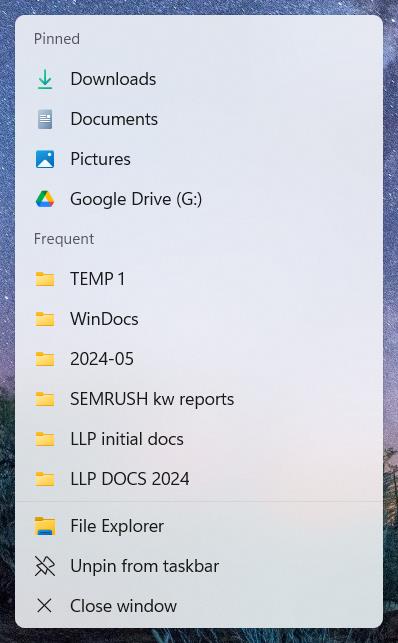
    3. Right-click on the File Explorer icon in the taskbar, and you should see the Jump List displaying recently opened items and pinned items (if any).

    If the Jump Lists are still not appearing or functioning properly after enabling them, you can try the following additional steps:

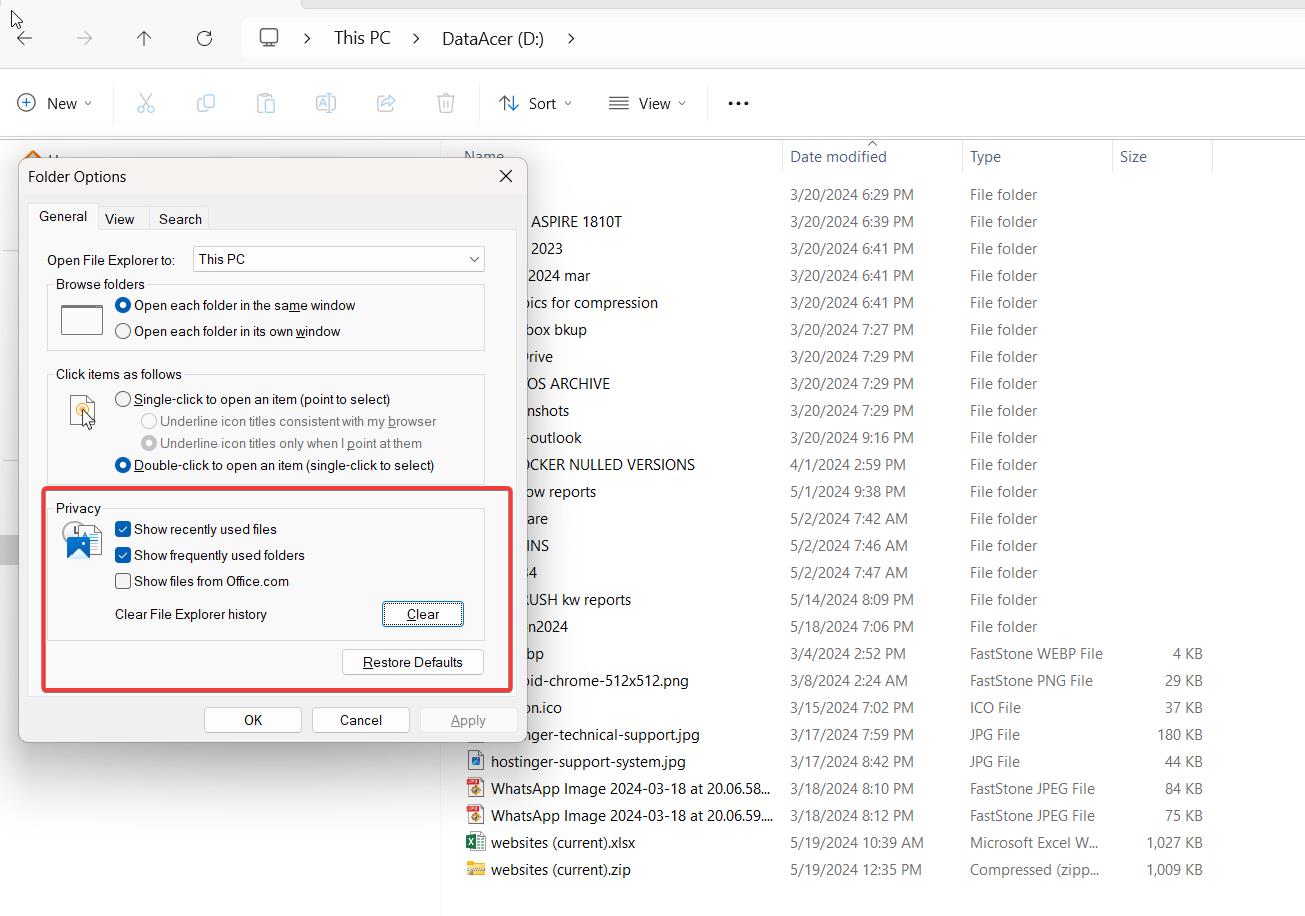
    win 11 file explorer privacy options
    1. Restart your computer to ensure the changes take effect.
    2. Open File Explorer, right-click on an empty space in the file list, and select “Options” from the context menu.
    3. In the Folder Options window, go to the “View” tab.
    4. Scroll down in the “Advanced settings” list and make sure the option “Show recently used files in Quick Access” is checked.
    5. Click “Apply” and then “OK” to save the changes.

    After following these steps, the Jump Lists should be enabled and visible when you right-click on the File Explorer icon in the taskbar.

    Adding Recent Folders to Jump Lists

    One of the most useful aspects of Jump Lists is their ability to display recently accessed folders. To add a folder to your File Explorer Jump List, simply navigate to that folder in File Explorer. Windows 11 automatically keeps track of the folders you visit and adds them to the Jump List.

    To access recent folders from the Jump List:

    1. Right-click on the File Explorer icon in the taskbar.
    2. The Jump List will appear, displaying a list of recently used folders.
    3. Click on a folder in the Jump List to open it directly in File Explorer.

    Keep in mind that the Jump List will only display a limited number of recent folders. As you access new folders, older ones will be removed from the list to make room for the newer entries.

    Pinning Folders to Jump Lists

    In addition to recent folders, you can also pin your favorite or frequently used folders to the File Explorer Jump List for even faster access. Pinned folders remain in the Jump List regardless of how recently you’ve accessed them, making them ideal for projects or locations you visit regularly.

    To pin a folder to the File Explorer Jump List:

    1. Open File Explorer and navigate to the folder you want to pin.
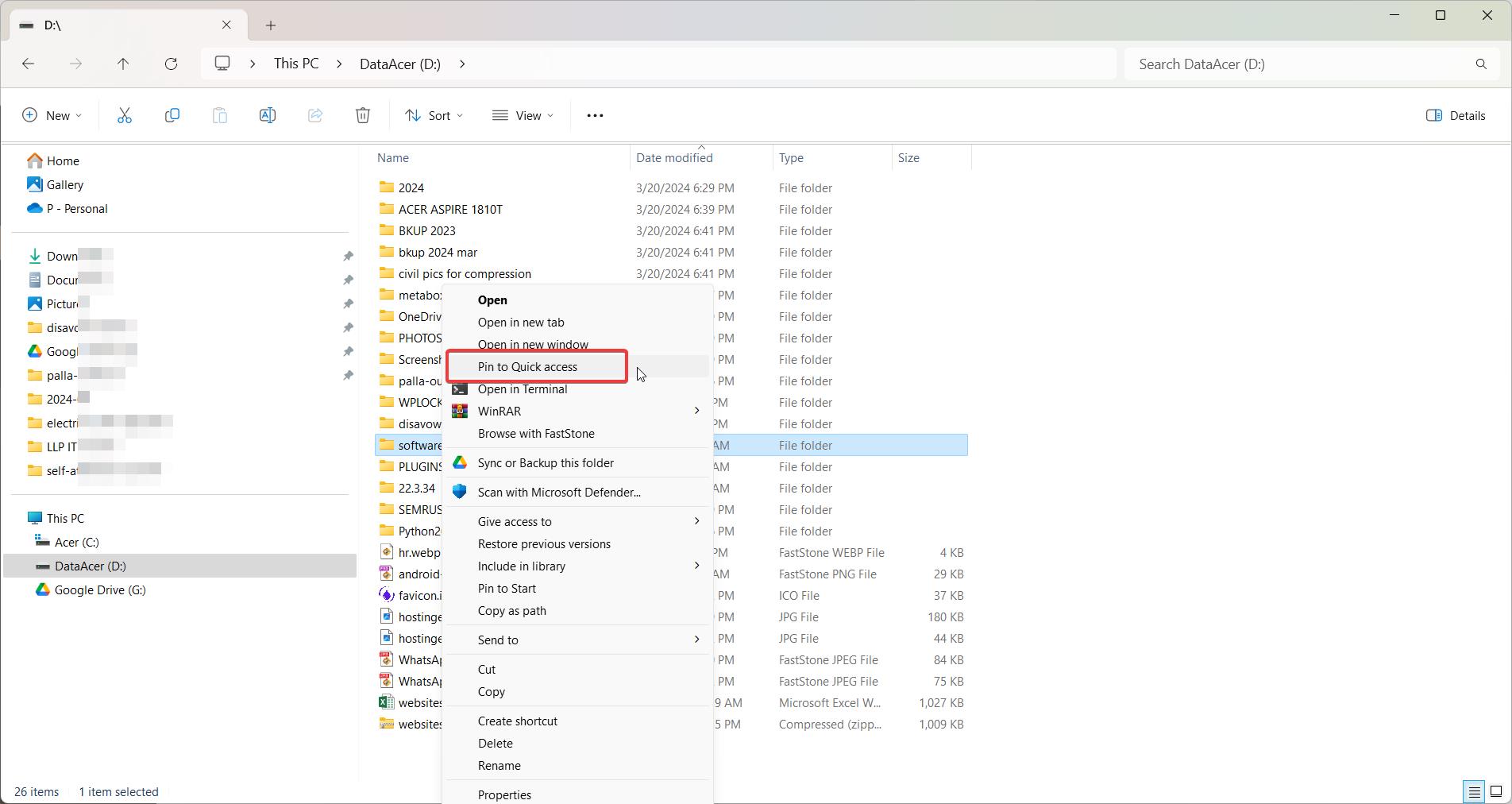
    2. Right-click on the folder.
    3. From the context menu, select “Pin to Quick access.”
    4. The folder will now appear under the “Pinned” section of the File Explorer Jump List.
    pin to quick access win 11 jumplists

    To unpin a folder from the Jump List, simply right-click on the pinned folder in the Jump List and select “Unpin from Quick access.”

    Customizing Jump Lists

    In Windows 11, you can customize the jump lists for File Explorer to pin frequently used items or remove unwanted items. Here’s how you can customize the jump lists:

    1. Open File Explorer by clicking on the File Explorer icon in the taskbar or by pressing the Windows key + E.
    2. Right-click on the File Explorer icon in the taskbar to open the jump list.
    3. To pin an item to the jump list:
    • Open the folder containing the item you want to pin.
    • Right-click on the item (file or folder) and select “Pin to Quick Access.”
    • The item will now appear in the File Explorer jump list.
    1. To unpin an item from the jump list:
    • Right-click on the File Explorer icon in the taskbar to open the jump list.
    • Right-click on the item you want to remove from the jump list.
    • Select “Unpin from Quick Access.”
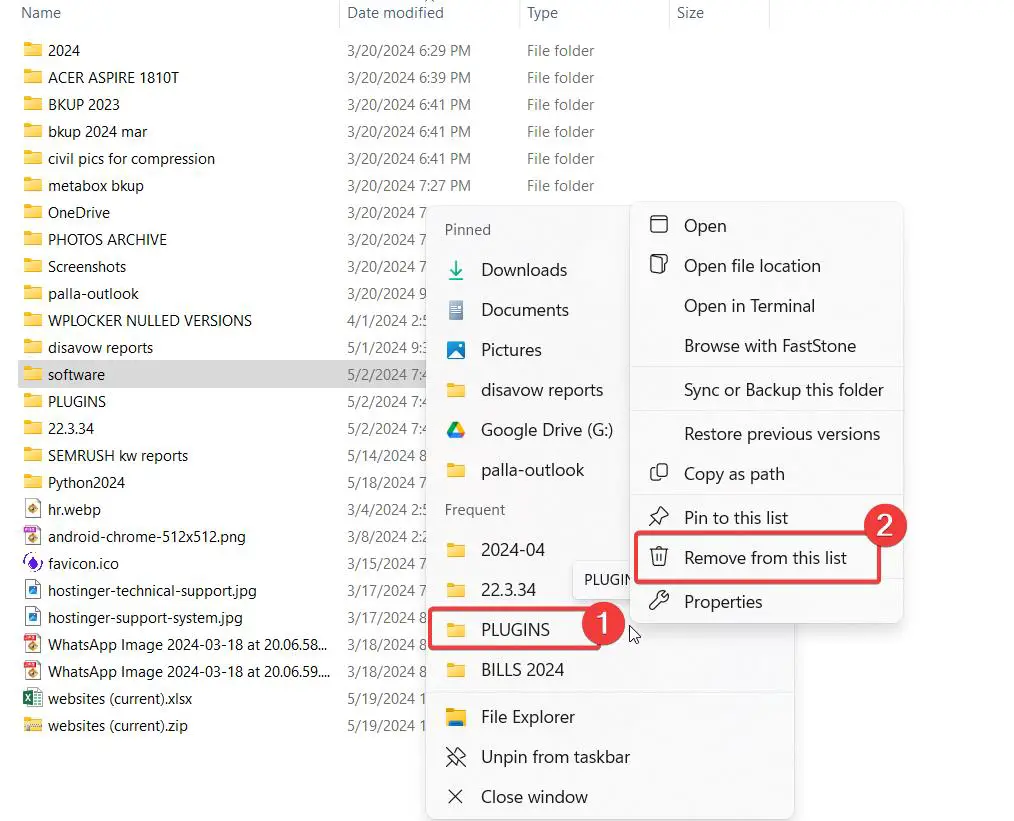
    1. To remove an item from the “Recent” section of the jump list:
    • Right-click on the File Explorer icon in the taskbar to open the jump list.
    • Right-click on the item you want to remove from the “Recent” section.
    • Select “Remove from this list.”
    remove from jump list windows 11
    1. To clear the entire “Recent” section of the jump list:
    • Right-click on the File Explorer icon in the taskbar to open the jump list.
    • Click on “Clear recently opened items.”

    By pinning items to the File Explorer jump list, you can quickly access your frequently used files and folders. Unpinning items and removing them from the “Recent” section allows you to declutter the jump list and maintain your privacy by removing the history of recently accessed items.

    Note that the jump list customization is specific to each application, so you’ll need to customize the jump lists separately for other applications pinned to your taskbar.

    Conclusion

    Jump Lists in Windows 11 File Explorer provide a convenient and efficient way to access your recently used and favorite folders. By enabling Jump Lists, adding recent folders, pinning frequently used locations, and customizing the settings to suit your needs, you can streamline your workflow and spend less time navigating through the file system.

    With this comprehensive guide, you now have the knowledge and tools to make the most out of the Jump Lists feature in Windows 11 File Explorer. Start organizing your folders and files today, and enjoy the productivity benefits of this powerful tool.

  • How to set the File Explorer Maximum Entries for Windows 11 Jump List

    If you use the File Explorer jump lists feature in Windows 11, you may have noticed that the number of items that can be pinned or shown under “Frequent” is limited.

    By default, Windows 11 caps the total number of jump list items, which includes both pinned folders and recently accessed folders, to around 13 or so.

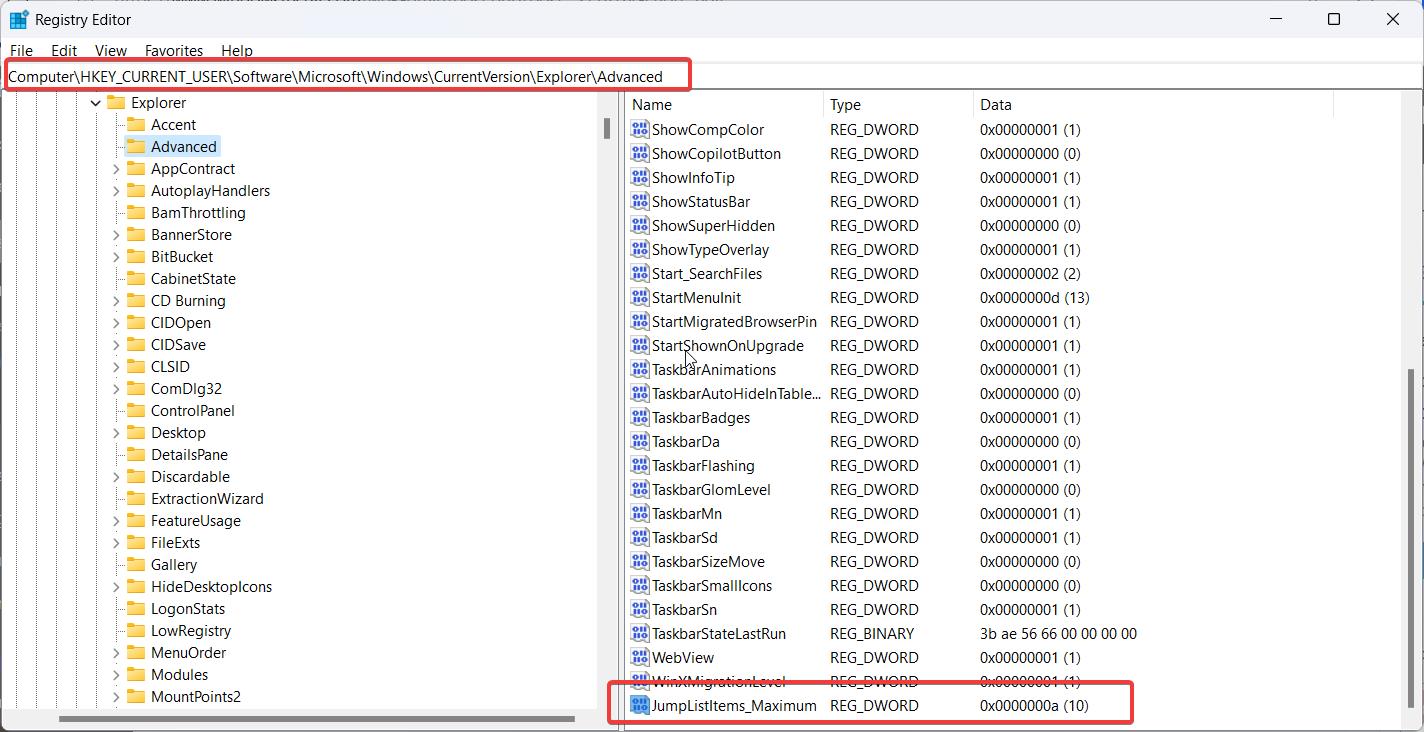
    But what if you want to be able to pin more folders to the File Explorer jump list for quick access? Luckily, it’s possible to increase this limit by making a simple change in the Windows Registry.

    file explorer max items jump list win 11

    Step by Step Guide for Windows 11 File Explorer Jump List

    1. Open the Registry Editor by pressing Win+R, typing “regedit”, and pressing Enter.
    2. Navigate to the following registry key:
      HKEY_CURRENT_USER\SOFTWARE\Microsoft\Windows\CurrentVersion\Explorer\Advanced
    3. Right-click on the Advanced key in the left sidebar and select New > DWORD (32-bit) Value. Name the new value “JumpListItems_Maximum“.
    4. Double-click the new JumpListItems_Maximum value you just created. In the Edit DWORD window that opens, select Decimal as the Base. Then enter the total number of jump list items you want to allow in the Value data field. For example, you could enter 25 to have the jump list display up to 25 total items. Click OK to save the change.
    5. Close the Registry Editor and restart your PC for the setting to take effect.
    maximum jump list items file explorer win 11

    Now when you right-click the File Explorer icon on your taskbar, you should see that the jump list can accommodate the new total number of items you specified. You’ll be able to pin more folders to the top Pinned section, and more of your frequently accessed folders will show up in the Frequent section at the bottom (until you reach the max number you set).

    It’s important to note that the JumpListItems_Maximum value controls the TOTAL number of jump list items, which includes BOTH pinned folders and frequent/recent folders. So for example, if you set the value to 20, and you have 8 folders pinned, then you’ll see those 8 pinned items plus up to 12 frequently accessed folders in the jump list.

    Things to keep in mind:

    • As with any registry editing, it’s a good idea to back up the registry first in case something goes wrong. Incorrectly modifying the registry could cause system issues.
    • If you no longer see your pinned folders after making this change, try unpinning a folder or two to make room for the frequently accessed folders. Remember, pinned items take priority over frequent items and the total is limited by the JumpListItems_Maximum value.
    • To remove a folder you pinned to the jump list, just right-click the File Explorer icon, hover over the pinned folder in the list, and click “Unpin from this list”.
    • The Quick Access view that showed pinned and frequent folders in the File Explorer navigation pane in Windows 10 has been replaced by the Home view in Windows 11. Pin folders to Quick Access and they will show up under Favorites in the Home view.

    Increasing the jump list items limit is an easy tweak that allows you to make File Explorer even more productive by keeping more of your key folders at your fingertips. Give it a try and you’ll be able to fit all your most-used folders in the jump list. Happy file browsing!

  • How to Pin Shortcuts to Windows 11 Taskbar

    The taskbar is one of the most convenient and frequently used features in Windows. It provides quick access to your pinned apps as well as any apps or files you currently have open.

    In previous versions of Windows, it was easy to not only pin your favorite apps, but also pin shortcuts to specific files and folders right on the taskbar for easy access.

    However, the process has changed a bit in Windows 11. In this guide, we’ll walk you through the new way to pin shortcuts to your taskbar in Windows 11 so you can keep your most-used files at your fingertips.

    Accessing Taskbar Settings

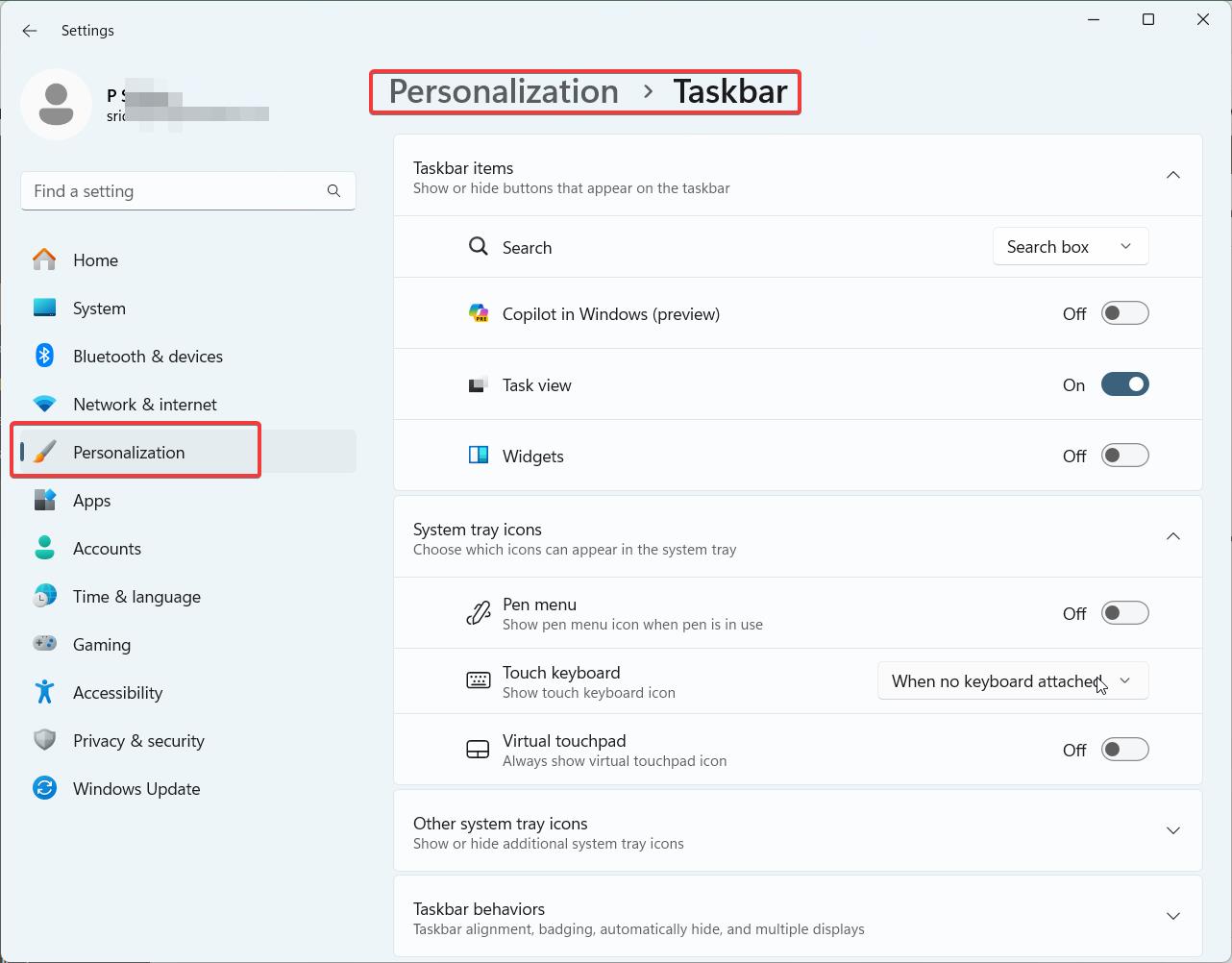
    The first step is to open up the taskbar settings in Windows 11. To do this:

    1. Click the Start button and select the gear icon to open Settings
    2. In Settings, click “Personalization” in the left sidebar
    3. On the Personalization page, select “Taskbar”

    This will take you to all the various taskbar settings and options available in Windows 11.

    pin items taskbar windows 11

    Enable Recent Items

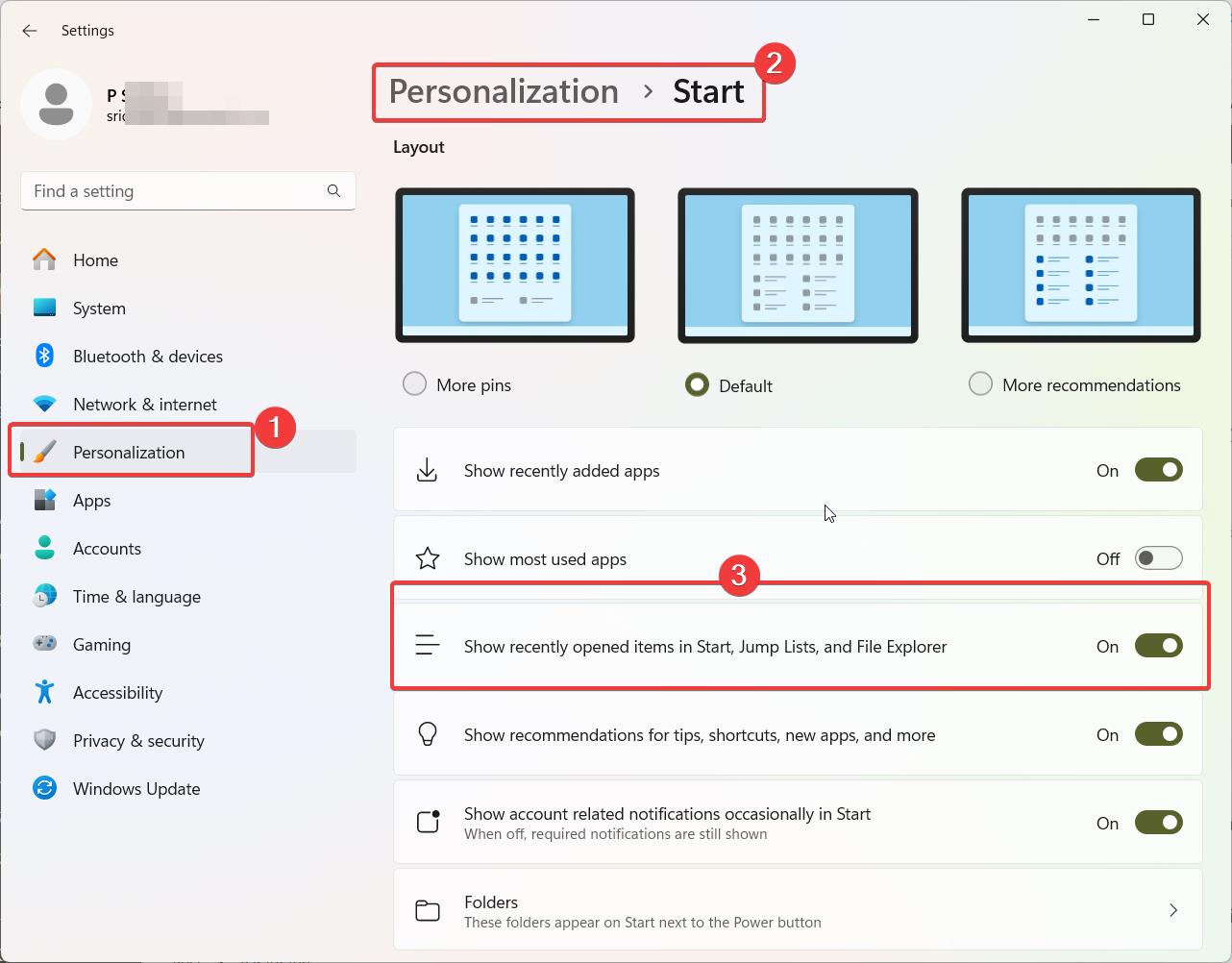
    In order to pin shortcuts to files or folders on your taskbar, you first need to enable a setting called “Show recently opened items in Start, Jump Lists, and File Explorer”. Here’s how:

    1. On the Taskbar settings page, scroll down to the “Taskbar behaviors” section
    2. Locate the setting labeled “Show recently opened items in Start, Jump Lists, and File Explorer”
    3. Toggle this setting to the “On” position

    By default, this setting is turned off in a fresh installation of Windows 11. Enabling it will allow your recently opened files and folders to show up when you right-click an app on the taskbar, which is key for the next steps.

    Pin Your Desired App

    Next, you’ll want to make sure the main app you want to pin a shortcut from is already pinned to your taskbar. For example, if you want to pin an Excel spreadsheet, make sure the Excel app itself is already pinned. If it’s not:

    1. Open the Start menu
    2. Locate the app you want to pin in the app list
    3. Right-click the app and select “Pin to taskbar”

    The app icon will now always show on your taskbar, ready for you to access or pin additional shortcuts.

    Open File and Pinning Shortcuts to Taskbar Windows 11

    Now you’re ready to open the actual file you want to create a pinned shortcut for. Using the Excel example:

    1. Open the Excel spreadsheet you want to pin either from the Excel app itself or from File Explorer
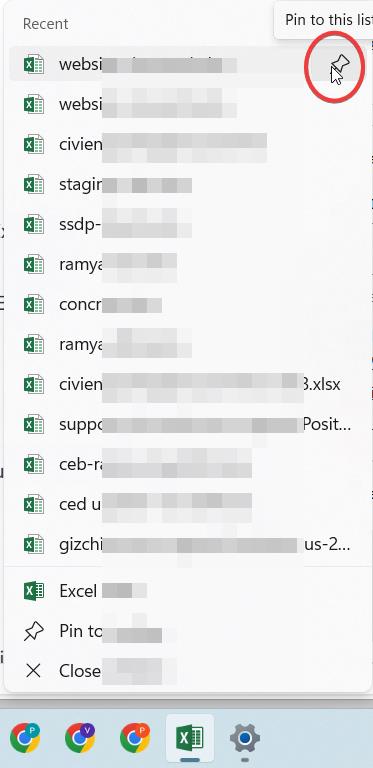
    2. Once the file is open, right-click the Excel app icon on the taskbar
    3. You should see your recently opened spreadsheet listed in the jump list that appears
    4. Hover over the file name, and click the pin icon that appears
    Pinning Shortcuts to Taskbar Windows 11

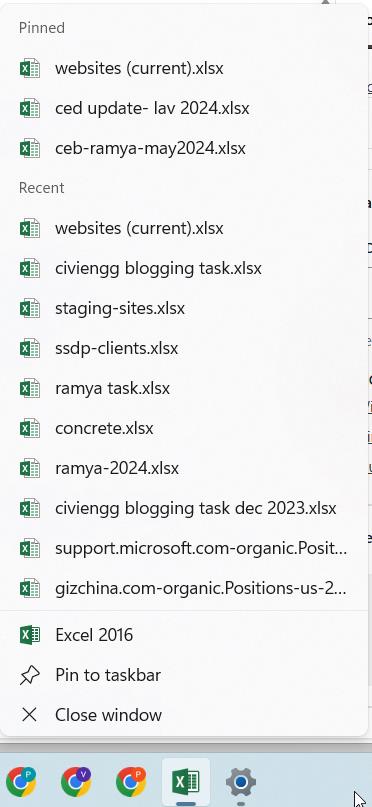
    The shortcut to that specific Excel file will now be pinned to your Excel jump list. Anytime you right-click the Excel icon on the taskbar, your pinned spreadsheet shortcut will be listed for quick access.

    Repeat for Additional Shortcuts

    You can follow the same process outlined above to pin shortcuts for files from other applications as well, like Word documents, PowerPoint presentations, Photoshop projects, frequently used folders, etc. Just open the file you want to pin so it shows in the recent items list, then pin it from the app’s jump list on the taskbar.

    Removing Pinned Shortcuts

    If your taskbar jump lists start to get cluttered with pinned shortcuts you no longer need, it’s easy to remove them:

    pinned items taskbar windows 11 app
    1. Right-click the app icon on the taskbar
    2. Right-click the pinned shortcut you want to remove
    3. Select “Unpin from this list”

    The shortcut will be removed from your pinned items and jump list. You can always re-pin it later if needed by opening the file again.

    Optional: Disable Recent Items

    Once you have your desired shortcuts pinned to your taskbar, you may want to go back and disable the “Show recently opened items” setting we enabled earlier. Your pinned shortcuts will remain even with this setting turned off – it just prevents additional recent files from showing in the jump lists, keeping them cleaner. But you can leave the setting enabled if you prefer having the recent file lists available as well.

    Conclusion

    Pinning shortcuts to the taskbar in Windows 11 may work a bit differently than in previous versions of Windows, but it’s still a fairly straightforward process once you know the steps.

    Taking a minute to pin your key files and folders to your taskbar can save you a lot of time and hassle in the long run. Hopefully this guide has helped clarify the process so you can take full advantage of the taskbar shortcut functionality in Windows 11. Happy pinning!

  • How to Fix Issues with Changing App Recommendation Settings in Windows 11/10

    Windows 10 and 11 users may encounter issues when trying to change their app recommendation settings, which can be frustrating when attempting to install apps from sources other than the Microsoft Store.

    This problem is often caused by restrictions put in place by Microsoft to enhance security and performance, particularly on devices running Windows 10 or 11 in S mode.

    Users may see error messages or be unable to locate the necessary settings to modify app recommendations.

    Fortunately, there are several solutions available to resolve this issue, depending on the specific version of Windows and the user’s level of technical expertise.

    In this guide, we will explore three different methods to tackle the problem of changing app recommendation settings in Windows 10 and 11, catering to users with varying levels of technical knowledge. By following these steps, users can regain control over their app installation preferences and enjoy a more personalized Windows experience.

    Solution 1: Switch out of Windows 10/11 S Mode

    As the original poster Kyle heckman discovered, one of the main causes of being unable to change app recommendation settings is that the Windows device is running in S mode.

    Windows 10 and 11 in S mode is a more locked down, secure version of Windows that only allows apps to be installed from the Microsoft Store in order to improve security and performance. It does not allow changing many settings related to installing apps from other sources.

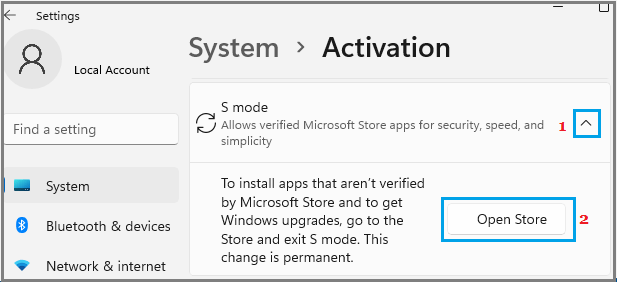
    To resolve this, you need to permanently switch out of S mode:

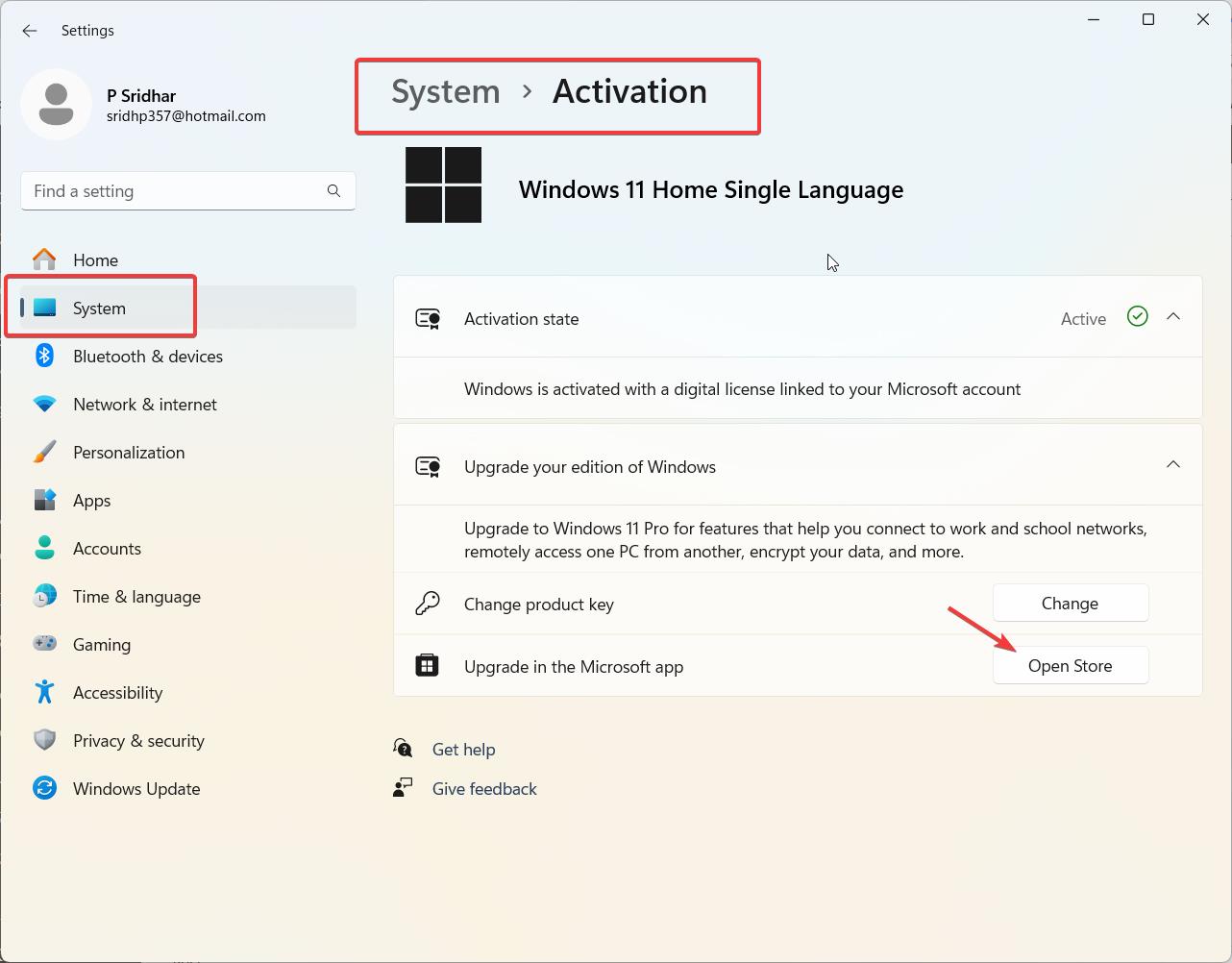
    1. Go to Settings > Update & Security > Activation
    2. Under “Switch to Windows 10/11 Home or Pro“, click the “Go to the Store” link
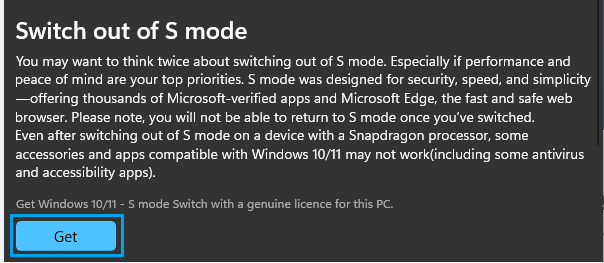
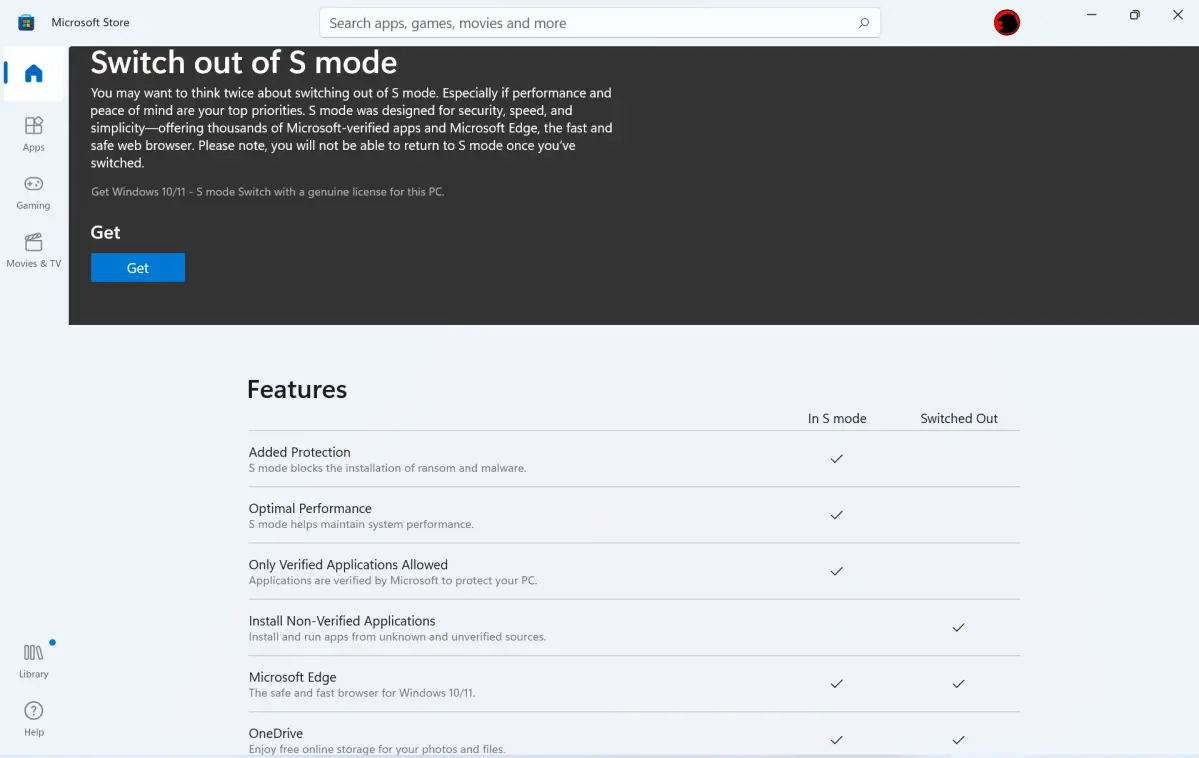
    3. On the “Switch out of S mode” page in the Microsoft Store, click “Get” to switch out of S mode for free
    4. After switching, you will have the options to change app recommendation settings under Settings > Apps as expected.
    disable windows 11 s mode

    Note that switching out of S mode is a one-way process. Once you switch, you cannot put the device back into S mode. However, there are no costs or licensing issues with switching out of S mode.

    Solution 2: Modify “Choose where to get apps” setting via Registry Editor (not recommended for most users)

    For advanced users on Windows 10/11 Home who do not have access to the Local Group Policy Editor, it is possible to enable the “Choose where to get apps” setting to change app recommendation settings by modifying the Windows Registry.

    Warning: Incorrectly editing the registry can cause serious problems that may require you to reinstall Windows. Make sure to backup the registry before making changes and only proceed if you know what you are doing.

    1. Right-click the Start button and select “Run”
    2. Type “regedit” and click OK to open the Registry Editor
    3. Navigate to the following registry key:
      HKEY_LOCAL_MACHINE\SOFTWARE\Policies\Microsoft\Windows\Explorer
    4. Right-click in the right pane and select New > DWORD (32-bit) Value
    5. Name the value “AicEnabled” and press Enter
    6. Double-click the new “AicEnabled” value and change the Value data to 1
    7. Click OK and close the Registry Editor
    8. Restart your computer for the changes to take effect

    After the restart, you should see the “Choose where to get apps” option under Settings > Apps > Apps & features to modify your app recommendation settings.

    switch off s mode windows 11

    Again, directly editing the registry can be risky, so most users should try other solutions first if possible. If you are not confident making registry changes, seek assistance from a professional.

    Solution 3: Use Local Group Policy Editor (Windows 10/11 Pro, Enterprise, and Education only)

    For Windows 10 and 11 Pro, Enterprise, and Education editions, you can change the app recommendation settings through the Local Group Policy Editor. Home editions do not include the Local Group Policy Editor.

    1. Press the Windows key + R to open the Run dialog
    2. Type “gpedit.msc” and press Enter to open the Local Group Policy Editor
    3. Navigate to the following policy:
      Computer Configuration > Administrative Templates > Windows Components > Store > Turn off Automatic Download and Install of updates
    4. Double-click “Turn off Automatic Download and Install of updates” and set it to “Enabled”
    5. Click OK and close the Local Group Policy Editor
    6. Restart your computer for the changes to take effect

    Once the policy is enabled, the Microsoft Store will no longer automatically update apps. This allows you to change the “Choose where to get apps” setting under Settings > Apps to modify your app recommendation settings.

    By enabling this policy, you are opting to take manual control over Store app updates rather than using Microsoft’s recommended automatic app updates. Make sure to periodically check for and install app updates yourself to maintain security and get the latest features.

    In summary, the three ways to resolve issues changing app recommendation settings are:
    1) Switching out of Windows 10/11 S mode
    2) Modifying the “Choose where to get apps” setting via the Registry Editor
    3) Enabling the “Turn off Automatic Download and Install of updates” policy via the Local Group Policy Editor

    I recommend trying the S mode solution first if applicable to your situation, as it is the most straightforward. Registry and Group Policy edits should only be used by advanced users. When in doubt, consult a Windows expert for further assistance.

  • How to Fix “The App You’re Trying to Install Isn’t a Microsoft-Verified App” Error in Windows 10

    If you’ve encountered the error message “The app you’re trying to install isn’t a Microsoft-verified app” while attempting to install an application on your Windows 10 device, don’t worry.

    This is a common issue that many users face, and it’s usually related to the Windows SmartScreen feature, which is designed to protect your system from potentially harmful software. In this guide, we’ll walk you through three simple steps to resolve this issue and successfully install your desired application.

    Step 1: Temporarily Disable Windows SmartScreen

    The first step in resolving the “The app you’re trying to install isn’t a Microsoft-verified app” error is to temporarily disable the Windows SmartScreen feature.

    SmartScreen is a built-in security feature that helps prevent the installation of unrecognized apps that might pose a risk to your system. However, sometimes it can block legitimate applications from being installed. Here’s how you can disable SmartScreen:

    1. Open the Windows Settings by pressing the Windows key + I or by clicking on the Start menu and selecting the gear icon.
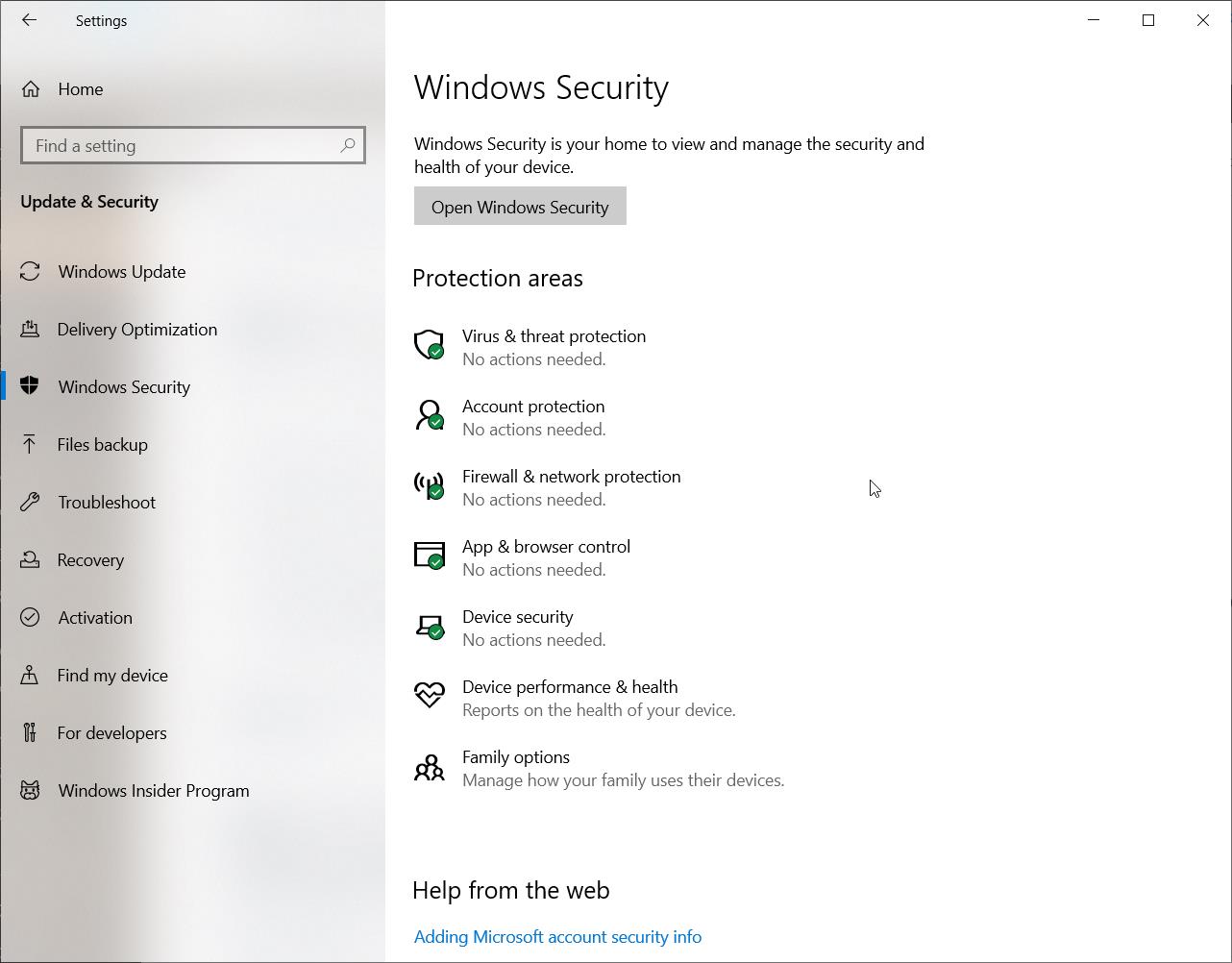
    2. Navigate to the “Update & Security” section.
    3. In the left sidebar, click on “Windows Security.”
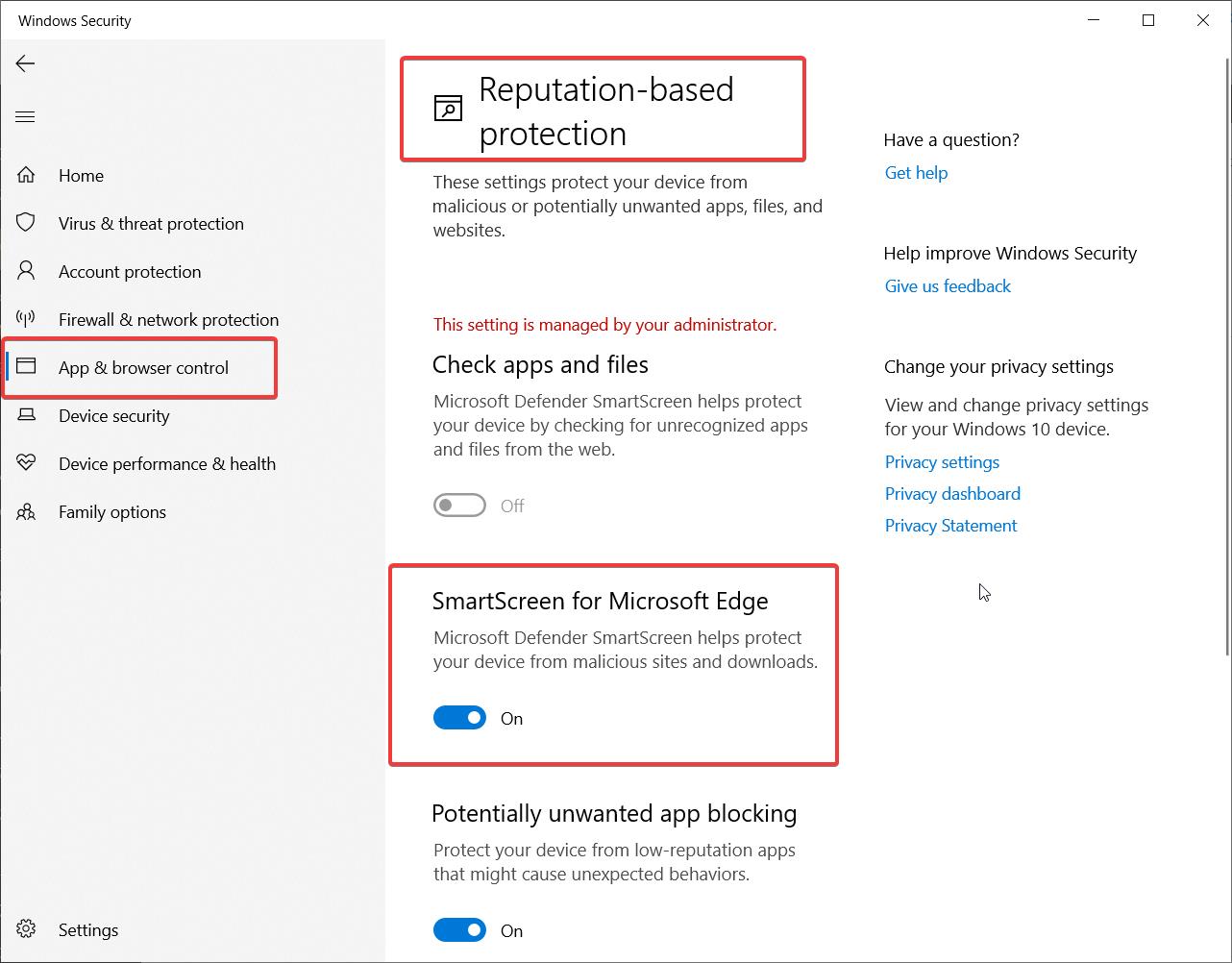
    4. Under the “Protection areas” section, click on “App & browser control.”
    5. Scroll down to the “Reputation-based protection” section and click on “Reputation-based protection settings.”
    6. Under “Check apps and files,” select “Off” to disable SmartScreen.
    7. Click “OK” to save the changes.
    disable smart screen windows 10

    By disabling SmartScreen, you’re allowing the installation of apps that aren’t Microsoft-verified. However, it’s essential to exercise caution when installing applications from untrusted sources, as they may contain malware or other security threats. Make sure you trust the source of the app you’re trying to install before proceeding.

    Step 2: Attempt to Install the Application Again

    Now that you’ve disabled Windows SmartScreen, you can try installing the application again. Follow these steps:

    1. Locate the installation file for the app you want to install. This could be an executable file (.exe) or a setup file.
    2. Double-click on the installation file to begin the installation process.
    3. If you’re prompted with a User Account Control (UAC) dialog box, click “Yes” to allow the installation to proceed.
    4. Follow the on-screen instructions provided by the app’s installer. This may include accepting the End-User License Agreement (EULA), selecting the installation location, and configuring any additional settings.
    5. Once the installation is complete, you should be able to launch and use the app without encountering the “The app you’re trying to install isn’t a Microsoft-verified app” error.

    If the installation is successful, congratulations! You’ve successfully resolved the issue and can now use your desired application.

    Step 3: Re-enable Windows SmartScreen (Recommended)

    After successfully installing the application, it’s strongly recommended to re-enable the Windows SmartScreen feature. SmartScreen plays a crucial role in protecting your system from potential security threats, and keeping it disabled for an extended period can leave your device vulnerable. Here’s how you can re-enable SmartScreen:

    app browser control windows 10
    1. Open the Windows Settings once again by pressing the Windows key + I or by clicking on the Start menu and selecting the gear icon.
    2. Go to the “Update & Security” section.
    3. Click on “Windows Security” in the left sidebar.
    4. Under the “Protection areas” section, click on “App & browser control.”
    5. Scroll down to the “Reputation-based protection” section and click on “Reputation-based protection settings.”
    6. Under “Check apps and files,” select “Warn” or “Block” to re-enable SmartScreen protection. “Warn” will display a warning message when an unrecognized app is being installed, allowing you to make an informed decision, while “Block” will automatically prevent the installation of such apps.
    7. Click “OK” to save the changes.

    By re-enabling SmartScreen, you’re restoring the default security settings and ensuring that your system is protected against potential threats moving forward. It’s important to keep SmartScreen enabled unless you have a specific reason to disable it temporarily, such as installing a trusted application that triggers the “The app you’re trying to install isn’t a Microsoft-verified app” error.

    Conclusion

    Encountering the “The app you’re trying to install isn’t a Microsoft-verified app” error can be frustrating, but by following these three simple steps, you can quickly resolve the issue and install your desired application.

    Remember to exercise caution when disabling Windows SmartScreen and installing apps from untrusted sources, as they may pose security risks to your system.

    Always re-enable SmartScreen after successfully installing the app to maintain the security and integrity of your Windows 10 device.

    If you continue to face issues or have concerns about the safety of an application, it’s advisable to seek further guidance from reliable sources or consult with a technical expert before proceeding with the installation.

  • How to Change App Recommendation Settings in Windows 10

    Windows 10 is a feature-rich operating system that offers a wide range of customization options to enhance your user experience. One of these options is the ability to control app recommendations, which can help you discover new and relevant apps based on your usage patterns. In this blog post, we’ll walk you through the process of changing your app recommendation settings in Windows 10 in just six detailed steps.

    Step 1: Open the Settings App

    To begin, you’ll need to access the Settings app on your Windows 10 device. There are several ways to do this:

    1. Click on the Start menu and select the gear icon to open Settings.
    2. Press the Windows key + I on your keyboard to open Settings directly.
    3. Right-click on the Start menu and choose “Settings” from the context menu.

    Once you’ve launched the Settings app, you’re ready to move on to the next step.

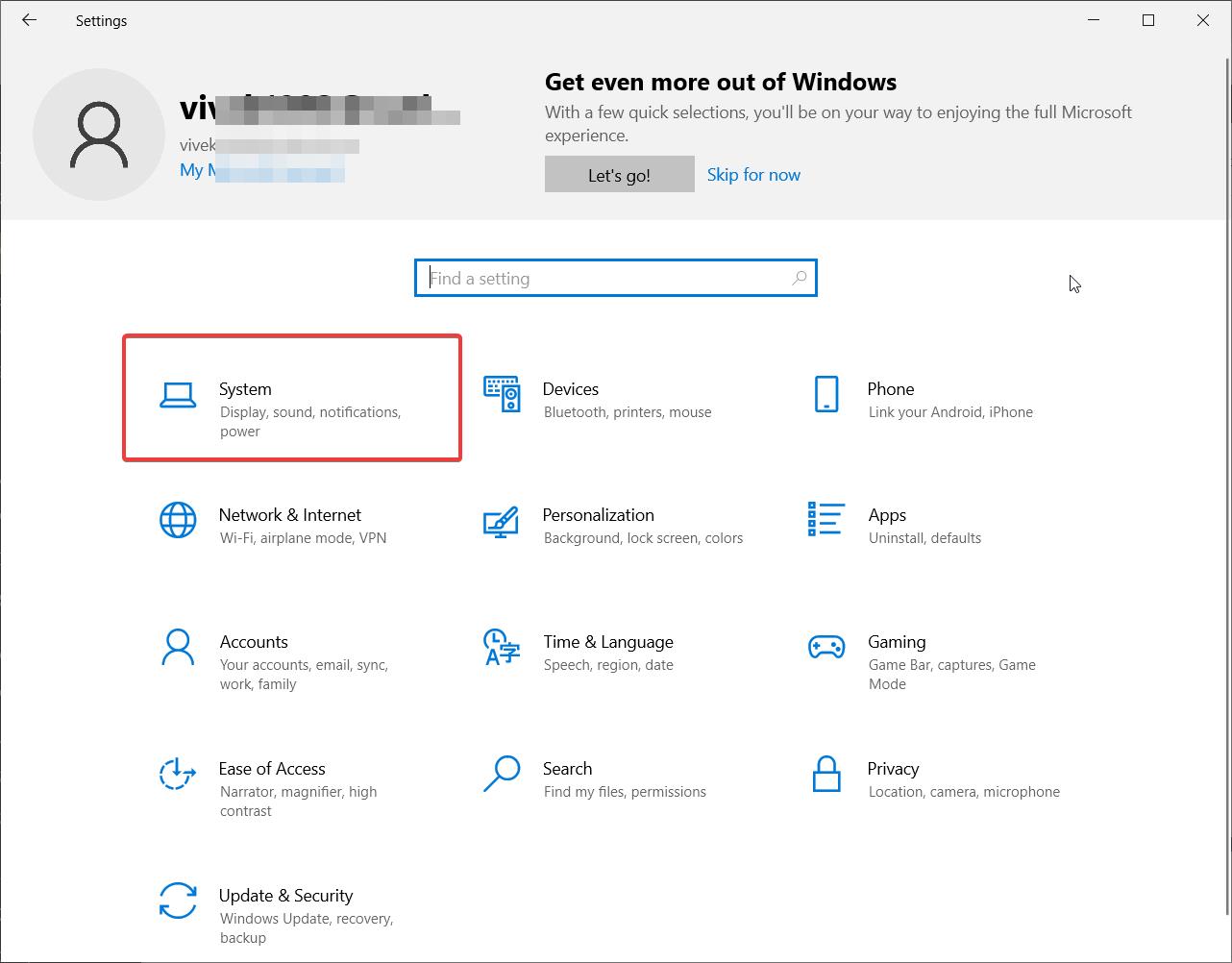
    Step 2: Navigate to System Settings

    In the Settings app, you’ll see a variety of categories to choose from. To access the app recommendation settings, you’ll need to navigate to the “System” category. Click on the “System” tile to proceed.

    windows 10 system settings

    Step 3: Select “Notifications & Actions”

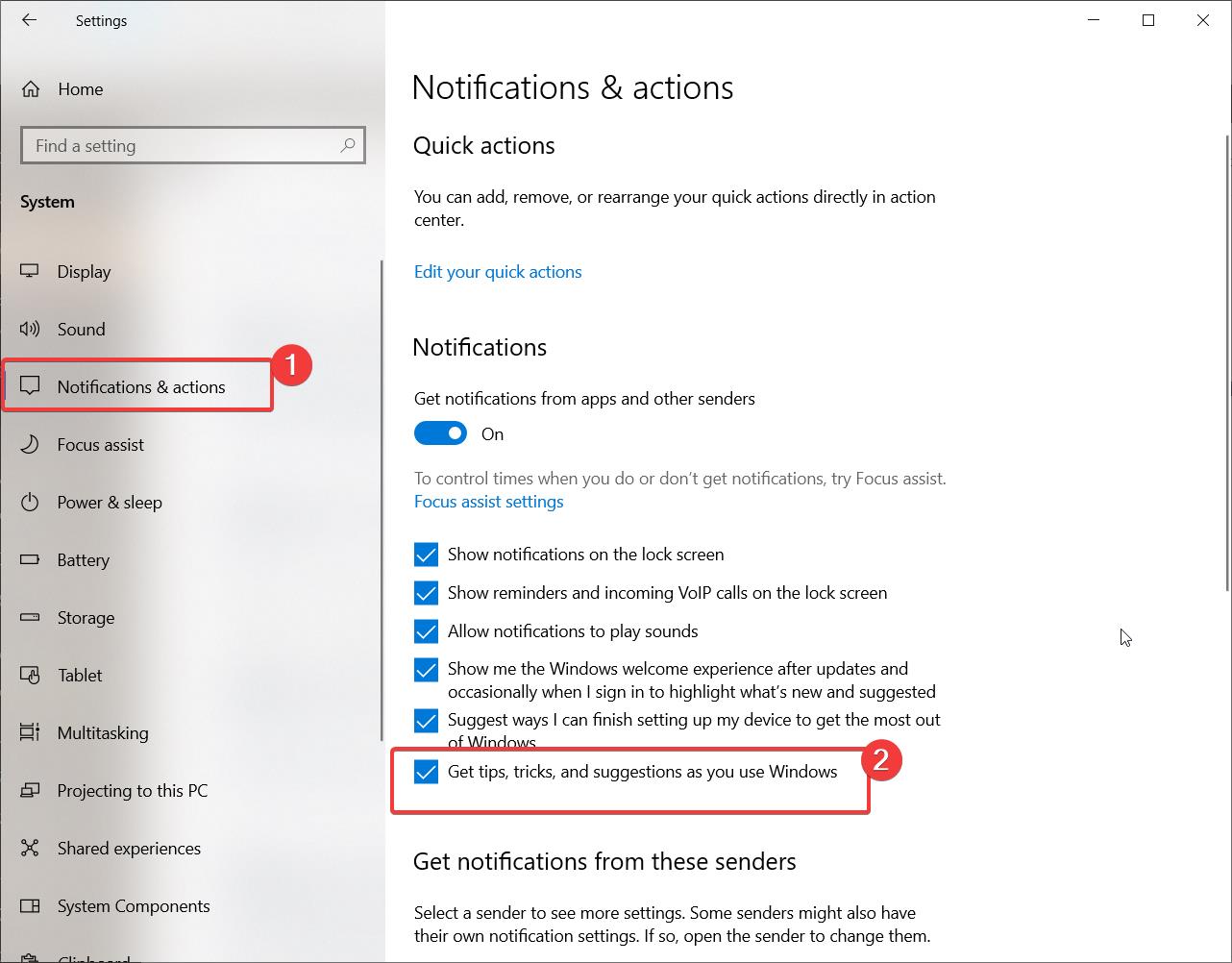
    Within the System settings, look for the “Notifications & actions” option on the left-hand side of the window. Click on it to access the notification settings for your device.

    Step 4: Scroll Down to the “Notifications” Section

    Once you’re in the “Notifications & actions” settings, scroll down until you find the “Notifications” section. This section contains various options related to how notifications are displayed and managed on your device.

    Step 5: Locate the “Get tips, tricks, and suggestions as you use Windows” Option

    Within the “Notifications” section, you’ll find an option labeled “Get tips, tricks, and suggestions as you use Windows.” This setting controls whether Windows 10 will provide you with app recommendations based on your usage patterns.

    To change your app recommendation settings, simply toggle the switch next to this option. If the switch is turned on (blue), app recommendations are enabled. If the switch is turned off (gray), app recommendations are disabled.

    win 10 notifications actions

    Step 6: Customize Additional Notification Settings (Optional)

    While you’re in the “Notifications & actions” settings, you may want to take a moment to customize other notification-related options to suit your preferences. Some additional settings you can modify include:

    • “Show me the Windows welcome experience after updates and occasionally when I sign in to highlight what’s new and suggested”: This setting controls whether Windows 10 will show you a welcome screen after updates and provide suggestions for new features and apps.
    • “Suggest ways I can finish setting up my device to get the most out of Windows”: This option determines whether Windows 10 will offer suggestions to help you optimize your device setup.
    • “Get tips and suggestions when I use Windows”: This setting controls whether Windows 10 will provide general tips and suggestions while you’re using the operating system.

    Feel free to toggle these options on or off based on your preferences.

    Conclusion

    By following these six simple steps, you can easily change your app recommendation settings in Windows 10. Whether you want to discover new apps that align with your interests or prefer a more streamlined experience without suggestions, customizing these settings puts you in control of your Windows 10 experience.

    Remember, Windows 10 offers a wide range of customization options beyond app recommendations. Take some time to explore the various settings categories to tailor your device to your specific needs and preferences. By doing so, you’ll be able to make the most of your Windows 10 experience and boost your productivity and enjoyment while using your device.

  • Empower Your Windows 11: Turn Off Microsoft-Verified Apps Now

    With the introduction of Windows 11, Microsoft has implemented a new feature called Microsoft-Verified Apps. While this feature aims to provide users with a more secure and reliable app experience, some users may prefer to have more control over the apps they install on their system. In this blog post, we will walk you through a detailed, step-by-step process to turn off Microsoft-Verified Apps on Windows 11, giving you the freedom to install and use apps of your choice.

    Step 1: Access the Windows Settings

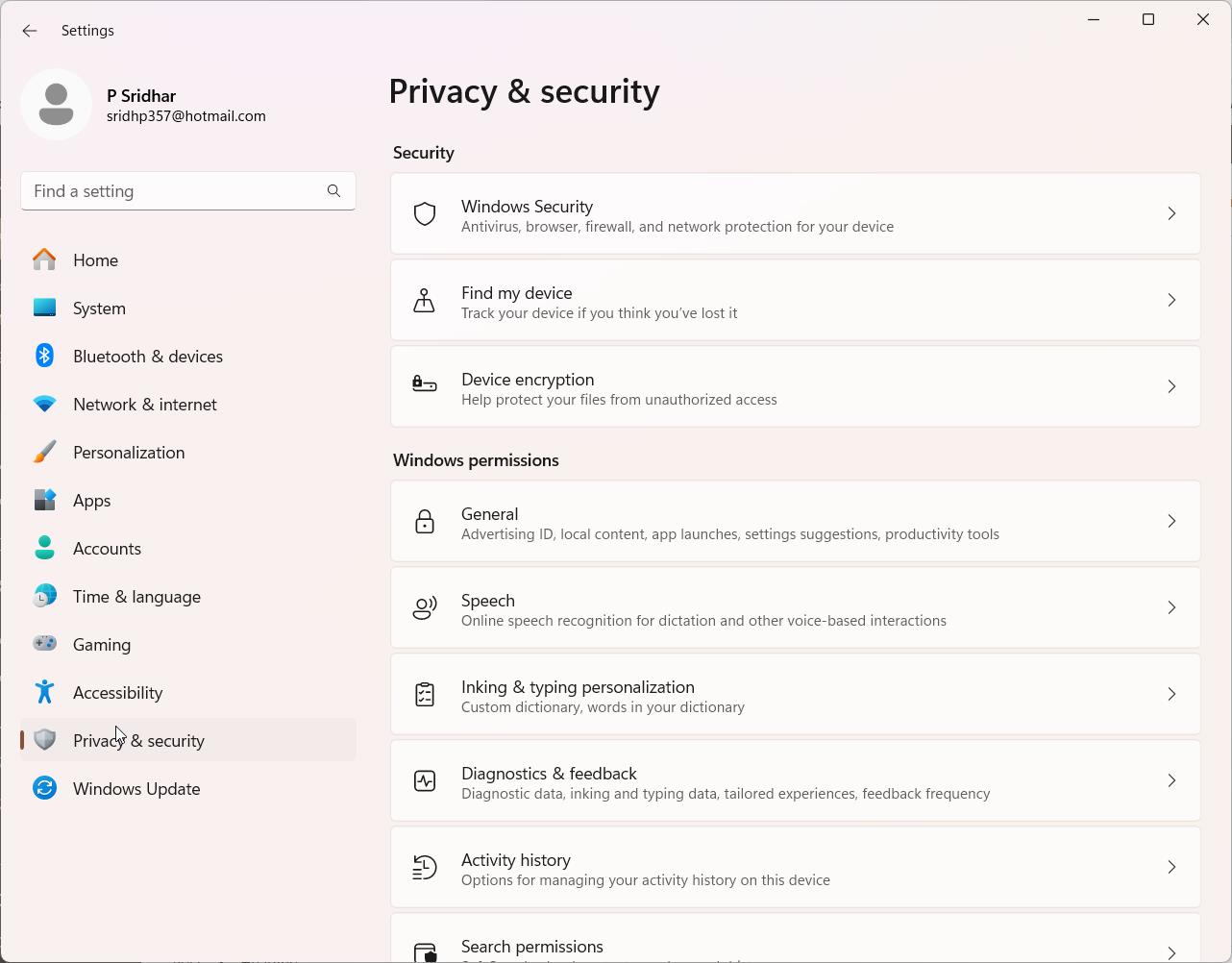
    To begin the process of disabling Microsoft-Verified Apps, you need to open the Windows Settings. You can do this by either clicking on the Start menu and selecting the gear icon, or by pressing the Windows key + I on your keyboard. Once the Settings window appears, navigate to the “Privacy & security” section, which can be found on the left-hand side of the window.

    privacy security windows 11

    Step 2: Locate the “Apps” Subsection

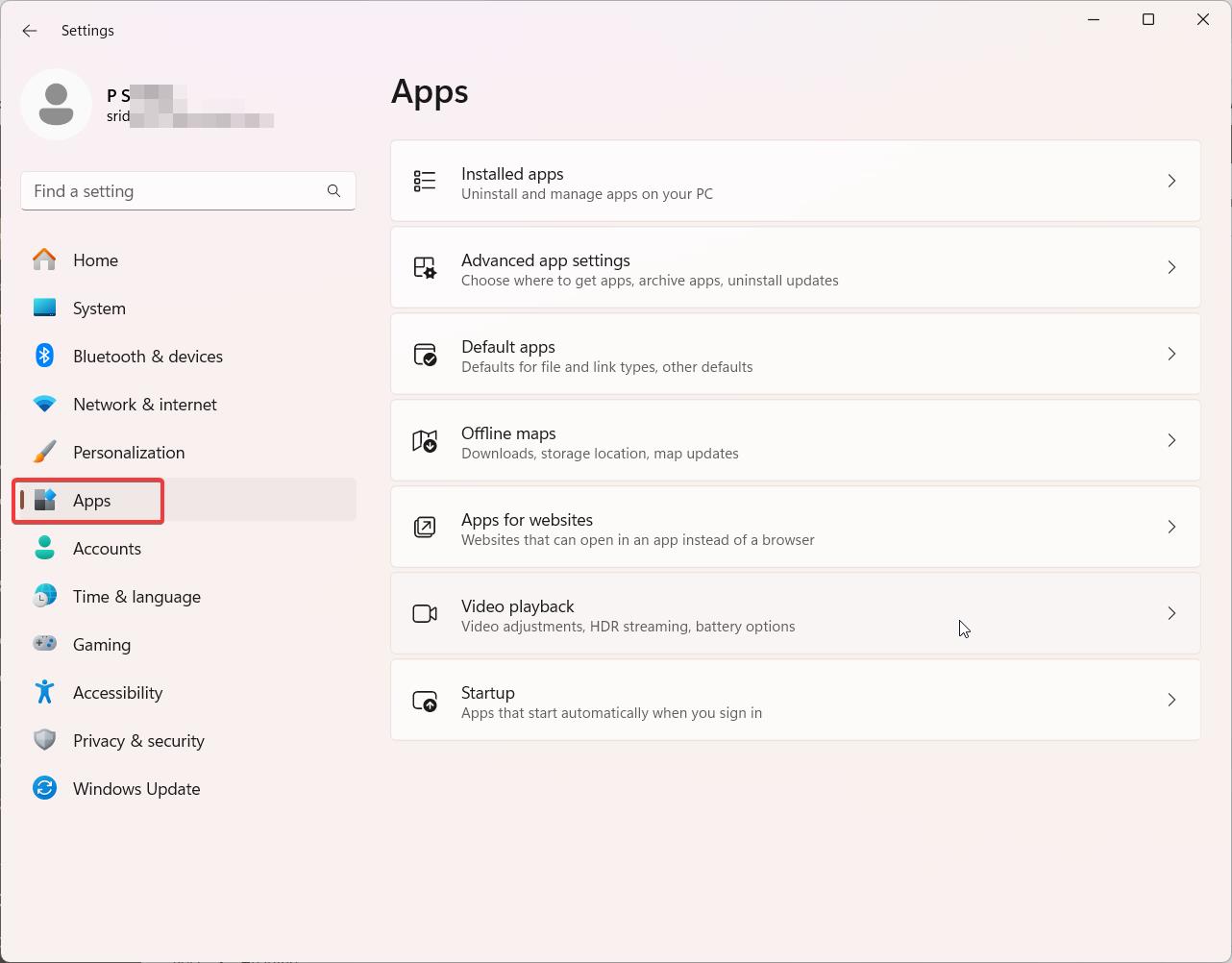
    Within the “Privacy & security” section, scroll down until you find the “Apps” subsection. This subsection contains various settings related to app permissions, app diagnostics, and app-related features. Click on the “Apps” subsection to expand it and reveal more options.

    windows 11 apps

    Step 3: Find the “Choose where to get apps” Setting

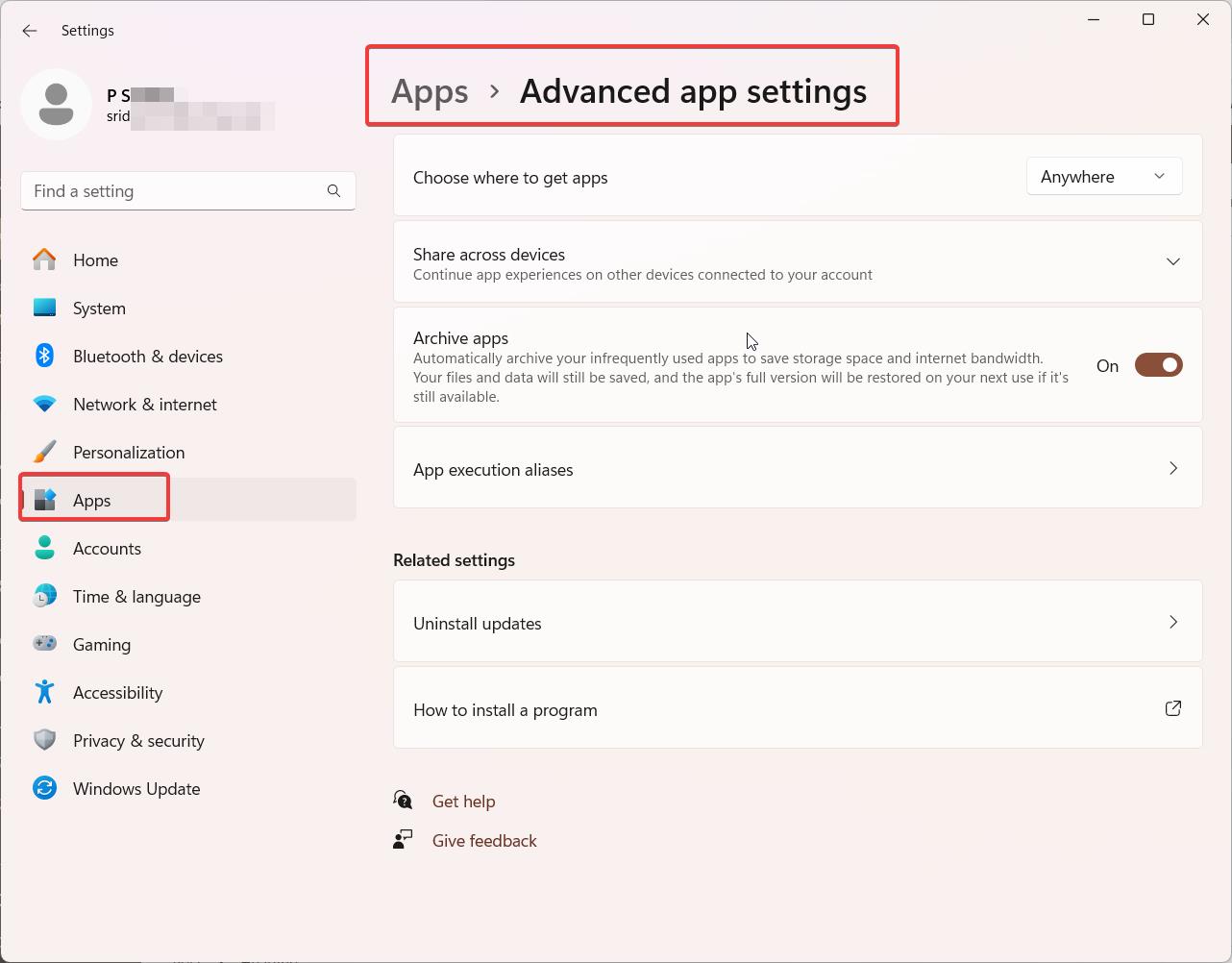
    Inside the “Apps” subsection, look for the setting labeled “Choose where to get apps.” This setting allows you to control the sources from which you can install apps on your Windows 11 system. By default, this setting is configured to allow app installations only from the Microsoft Store and Microsoft-Verified Apps.

    advanced apps settings

    Step 4: Change the Setting to Allow Apps from Anywhere

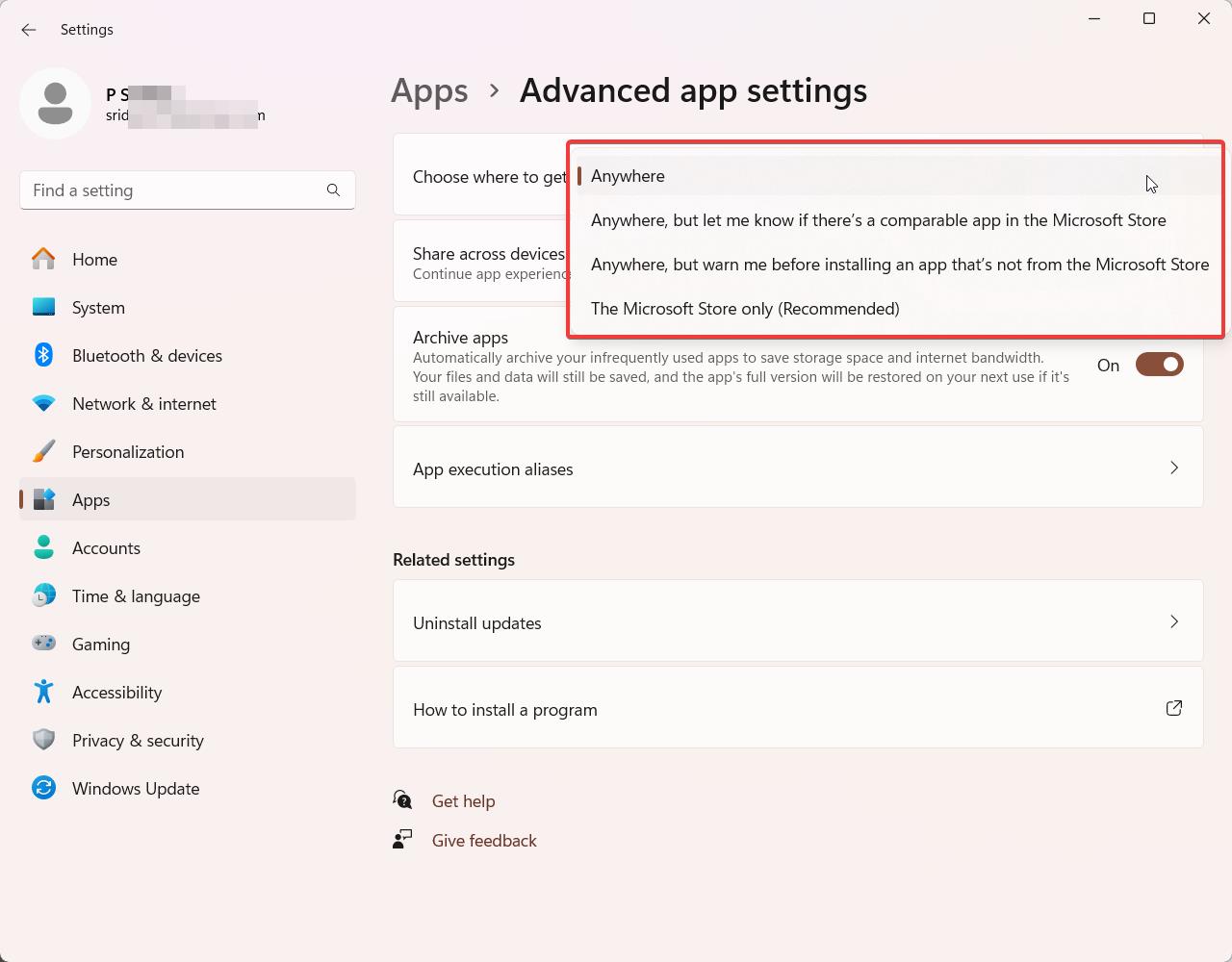
    To disable Microsoft-Verified Apps and allow app installations from any source, click on the “Choose where to get apps” setting. A new window will appear, presenting you with three options:

    • Allow apps from the Store only
    • Allow apps from anywhere, but let me know if there’s a comparable app in the Store
    • Allow apps from anywhere

    Select the third option, “Allow apps from anywhere,” to remove the restriction on installing apps only from Microsoft-Verified sources. This will enable you to install apps from third-party websites, installers, or other sources outside the Microsoft ecosystem.

    disable microsoft verified apps windows 11

    Step 5: Confirm the Change

    After selecting the “Allow apps from anywhere” option, a confirmation prompt may appear, warning you about the potential risks associated with installing apps from untrusted sources. Read the warning carefully and consider the implications of allowing apps from anywhere. If you are confident in your decision and understand the risks involved, click on the “Yes” button to confirm the change.

    Step 6: Restart Your Computer (Optional)

    In most cases, the change will take effect immediately, and you will be able to install apps from any source without the need for Microsoft verification. However, if you encounter any issues or the change doesn’t seem to apply, it is recommended to restart your computer. A restart ensures that any pending system changes are properly applied and can help resolve any potential conflicts.

    Conclusion:

    By following these six detailed steps, you can successfully turn off Microsoft-Verified Apps on your Windows 11 system. This process grants you the flexibility to install apps from various sources, including third-party websites and installers, without the need for Microsoft’s verification. However, it is crucial to exercise caution when installing apps from untrusted sources, as they may pose security risks or contain malware.

    Remember, Microsoft-Verified Apps are designed to provide a safer and more reliable app experience, and disabling this feature may expose your system to potential threats. Therefore, it is advisable to only install apps from reputable sources and to keep your system protected with up-to-date antivirus software.

    By weighing the benefits and risks, you can make an informed decision on whether disabling Microsoft-Verified Apps aligns with your needs and preferences. With this comprehensive guide, you now have the knowledge and steps necessary to take control of your app installation process on Windows 11.

  • 10 Powerful Microsoft-Verified Apps for Windows 11 Boost

    Windows 11 has brought a new era of app experiences to users, with Microsoft-verified apps leading the charge. These apps have undergone strict quality checks and are guaranteed to provide a seamless, secure, and feature-rich experience on the Windows 11 platform. In this article, we’ll dive into the best Microsoft-verified apps across various categories, helping you make the most of your Windows 11 device.

    Best Microsoft-Verified Apps for Windows 11

    When it comes to finding the best apps for your Windows 11 device, look no further than Microsoft-verified apps. These apps have been thoroughly tested and approved by Microsoft, ensuring they meet the highest standards of quality, security, and compatibility. From productivity tools to entertainment options, there’s a Microsoft-verified app for every need.

    microsoftverified app windows 11

    Top Windows 11 Apps Verified by Microsoft

    1. Microsoft Office: The ultimate productivity suite, including Word, Excel, PowerPoint, and more.
    2. Microsoft Edge: A fast, secure, and modern web browser built for Windows 11.
    3. Netflix: Enjoy your favorite TV shows and movies on the popular streaming platform.
    4. Spotify: Stream millions of songs and podcasts on the go or at home.
    5. Adobe Creative Cloud: Access powerful creative tools like Photoshop, Illustrator, and Premiere Pro.

    Essential Microsoft-Verified Applications for Windows 11

    To get the most out of your Windows 11 experience, consider installing these essential Microsoft-verified applications:

    microsoft teams
    1. Microsoft Teams: Stay connected with colleagues, friends, and family through chat, video calls, and file sharing.
    2. OneDrive: Store and access your files from anywhere with Microsoft’s cloud storage solution.
    3. Microsoft To Do: Stay organized and manage your tasks efficiently with this intuitive app.
    4. Microsoft Photos: View, edit, and share your photos and videos with ease.
    5. Microsoft News: Stay informed with personalized news from trusted sources around the world.

    Windows 11 Productivity Apps Verified by Microsoft

    Boost your productivity with these Microsoft-verified apps designed to help you work smarter, not harder:

    1. Grammarly: Improve your writing with real-time grammar, spelling, and punctuation corrections.
    2. Evernote: Capture, organize, and share your notes, ideas, and to-do lists across devices.
    3. Slack: Streamline team communication and collaboration with this popular messaging app.
    4. Trello: Manage projects, tasks, and workflows with boards, lists, and cards.
    5. Dropbox: Store, sync, and share your files securely with this cloud storage solution.

    Microsoft-Verified Entertainment Apps for Windows 11

    Enjoy endless hours of entertainment with these Microsoft-verified apps:

    1. Disney+: Stream your favorite Disney, Pixar, Marvel, Star Wars, and National Geographic content.
    2. Amazon Prime Video: Watch popular movies and TV shows, including Amazon Originals.
    3. Hulu: Access a vast library of TV shows, movies, and original content.
    4. Plex: Stream your personal media collection and discover new content from around the web.
    5. Audible: Listen to audiobooks, podcasts, and original content from the world’s largest audiobook library.

    Windows 11 Gaming Apps Verified by Microsoft

    Take your gaming experience to the next level with these Microsoft-verified gaming apps:

    1. Xbox Game Pass: Access a vast library of games, including AAA titles and indie favorites, with a single subscription.
    2. Steam: Discover, purchase, and play a wide variety of PC games from the world’s largest digital game store.
    3. Discord: Connect with gamers and gaming communities through voice, video, and text chat.
    4. Twitch: Watch live streams of your favorite games, esports events, and content creators.
    5. GOG Galaxy: Manage your gaming library, track achievements, and connect with friends across multiple platforms.

    Microsoft-Verified Security Apps for Windows 11

    Protect your device and data with these trusted Microsoft-verified security apps:

    1. Norton 360: Comprehensive security suite with antivirus, firewall, VPN, and identity protection features.
    2. McAfee Total Protection: All-in-one security solution with antivirus, web protection, and performance optimization tools.
    3. Bitdefender Total Security: Award-winning security software with advanced threat detection and prevention capabilities.
    4. Malwarebytes: Powerful anti-malware and exploit protection to keep your device safe from emerging threats.
    5. NordVPN: Secure your internet connection and protect your privacy with this reliable VPN service.

    Windows 11 Creative Apps Verified by Microsoft

    Unleash your creativity with these Microsoft-verified apps for design, photography, and video editing:

    1. Canva: Create stunning designs, presentations, and social media graphics with this user-friendly app.
    2. Sketchable: Draw, paint, and sketch with natural tools and advanced features on your Windows 11 device.
    3. Filmora: Edit videos with ease using a wide range of effects, transitions, and templates.
    4. Polarr Photo Editor: Enhance your photos with professional-grade editing tools and filters.
    5. Inkscape: Create vector graphics and illustrations with this powerful, open-source design app.

    Microsoft-Verified Education Apps for Windows 11

    Enhance your learning experience with these Microsoft-verified education apps:

    coursera plus 1024x594 1
    1. Duolingo: Learn a new language with fun, interactive lessons tailored to your learning style.
    2. Khan Academy: Access free, high-quality educational content across various subjects and grade levels.
    3. Coursera: Take online courses from top universities and institutions worldwide.
    4. Quizlet: Study and memorize information effectively with flashcards, games, and study tools.
    5. Flipgrid: Engage in video-based discussions and projects with classmates and educators.

    Windows 11 Lifestyle Apps Verified by Microsoft

    Simplify and enrich your daily life with these Microsoft-verified lifestyle apps:

    Headspace featured
    1. Calm: Practice mindfulness and relaxation with guided meditations, sleep stories, and breathing exercises.
    2. Fitbit: Track your fitness goals, monitor your health metrics, and stay motivated with this popular app.
    3. Headspace: Improve your mental well-being through guided meditations, mindfulness exercises, and sleep assistance.
    4. Yelp: Discover and review local businesses, restaurants, and services in your area.
    5. AllTrails: Find and explore hiking trails, mountain bike routes, and outdoor adventures near you.

    Conclusion

    Windows 11 offers a wide range of Microsoft-verified apps to cater to your every need, from productivity and entertainment to security and lifestyle. By choosing these trusted apps, you can ensure a smooth, secure, and feature-rich experience on your Windows 11 device. Explore the best Microsoft-verified apps in each category and take your Windows 11 experience to new heights.

  • Discover the 5 Powerful Reasons to Embrace Windows 11 S Mode Today

    Windows 11 S mode is a streamlined version of Windows 11 designed to provide enhanced security, performance, and battery life. By limiting apps to those available in the Microsoft Store and using Microsoft Edge as the default web browser, S mode creates a more controlled and efficient computing environment.

    In this article, we’ll explore the various aspects of Windows 11 S mode, including its benefits, limitations, and how to make the most of this operating system.

    How to Switch Out of S Mode in Windows 11

    If you find that S mode is too restrictive for your needs, you can easily switch out of it. Here’s how:

    1. Go to the Start menu and click on the Settings icon.
    2. Navigate to System and then Activation.
    3. Under the “Switch to Windows 11 Home” or “Switch to Windows 11 Pro” section, click on the Go to the Store link.
    4. In the Microsoft Store, click on the “Get” button to switch out of S mode.
    windows 11 system activation

    Keep in mind that this process is one-way; once you switch out of S mode, you cannot revert back to it.

    Windows 11 S Mode vs Windows 11 Home

    While both Windows 11 S mode and Windows 11 Home offer the core features of the operating system, there are some key differences:

    • App restrictions: S mode only allows apps from the Microsoft Store, while Home allows apps from any source.
    • Browser: S mode uses Microsoft Edge as the default browser, while Home allows you to use any browser.
    • Security: S mode offers enhanced security by limiting exposure to potential threats.
    • Performance: S mode may provide better performance and battery life due to its streamlined nature.

    Consider your needs and preferences when deciding between S mode and Home.

    Switch out of S Mode

    Best Apps for Windows 11 S Mode

    Despite the app restrictions in S mode, there are still plenty of great apps available in the Microsoft Store. Some of the best apps for Windows 11 S mode include:

    1. Microsoft Office: Access Word, Excel, PowerPoint, and other productivity tools.
    2. Adobe Photoshop Express: Edit and enhance your photos with this lightweight version of Photoshop.
    3. Netflix: Enjoy your favorite movies and TV shows directly on your Windows device.
    4. Evernote: Organize your notes, tasks, and ideas with this popular note-taking app.
    5. Spotify: Stream millions of songs and podcasts with the Spotify app for Windows.
    spotify image

    Windows 11 S Mode Performance Review

    One of the main advantages of Windows 11 S mode is its performance. By limiting background processes and focusing on efficiency, S mode can provide:

    • Faster boot times: Your device will start up more quickly in S mode.
    • Improved battery life: With fewer background processes, your device will consume less power.
    • Smoother operation: S mode’s streamlined nature can result in a more responsive user experience.

    However, the performance benefits may vary depending on your device’s hardware and the specific tasks you perform.

    Upgrading from Windows 10 S Mode to Windows 11 S Mode

    If you’re currently using a device with Windows 10 S mode and want to upgrade to Windows 11 S mode, follow these steps:

    1. Ensure your device meets the minimum system requirements for Windows 11.
    2. Back up your important files and data.
    3. Go to the Start menu, click on Settings, then Update & Security, and finally Windows Update.
    4. Click on the Check for updates button and follow the prompts to install Windows 11.

    Your device will maintain S mode during the upgrade process.

    Windows 11 S Mode Limitations and Restrictions

    While Windows 11 S mode offers benefits in terms of security and performance, it does come with some limitations:

    • App restrictions: You can only install apps from the Microsoft Store, which may not have all the apps you need.
    • Browser limitations: Microsoft Edge is the default browser, and you cannot install third-party browsers like Chrome or Firefox.
    • Accessory compatibility: Some hardware accessories may not work with S mode due to driver restrictions.

    Consider these limitations before deciding to use Windows 11 S mode.

    Windows 11 S Mode Security Features and Benefits

    Security is one of the primary reasons to use Windows 11 S mode. By limiting app installations to the Microsoft Store and using Microsoft Edge, S mode:

    • Reduces exposure to malware: Apps in the Microsoft Store are vetted for security and quality.
    • Protects against phishing: Microsoft Edge includes built-in phishing and malware protection.
    • Provides secure boot: S mode ensures that your device starts securely and prevents unauthorized changes to your system files.

    These security features make Windows 11 S mode an excellent choice for users who prioritize safety and stability.

    Windows 11 S Mode for Education and Students

    Windows 11 S mode is particularly well-suited for education and students. Its security features, streamlined interface, and performance benefits make it an ideal choice for:

    • Classroom devices: S mode helps maintain a consistent and secure environment across multiple devices.
    • Student laptops: The improved battery life and faster boot times are perfect for students on the go.
    • Remote learning: S mode’s security features help protect students’ data and privacy during online learning sessions.

    Educators and students can take advantage of Microsoft’s education tools, such as Teams and OneNote, which are fully compatible with S mode.

    Troubleshooting Common Issues in Windows 11 S Mode

    While Windows 11 S mode is designed for simplicity and reliability, you may still encounter some issues. Here are some common problems and their solutions:

    • App installation issues: Ensure the app is available in the Microsoft Store and compatible with S mode. If not, consider switching out of S mode.
    • Browser-related problems: Clear your browser cache, update Microsoft Edge, or reset your browser settings.
    • Performance issues: Close unnecessary apps, update your device drivers, and run the Windows troubleshooter.

    If these solutions don’t work, consider searching the Microsoft support forums or contacting Microsoft customer support for further assistance.

    Microsoft Edge in Windows 11 S Mode: Tips and Tricks

    As the default browser in Windows 11 S mode, Microsoft Edge offers a range of features to enhance your browsing experience:

    • Collections: Gather, organize, and share web content with the Collections feature.
    • Vertical tabs: Arrange your tabs vertically for better organization and visibility.
    • Immersive Reader: Simplify web pages for a more focused and accessible reading experience.
    • Extensions: Add functionality to Microsoft Edge with extensions from the Microsoft Store.

    By mastering these features, you can make the most of Microsoft Edge in Windows 11 S mode.

    Conclusion

    Windows 11 S mode offers a streamlined, secure, and efficient computing experience for users who value simplicity and safety.

    By understanding its benefits, limitations, and best practices, you can decide if S mode is right for you and make the most of this unique operating system. Whether you’re a student, educator, or everyday user, Windows 11 S mode has something to offer.