Author: Palla Sridhar

  • How to Fix Xiaomi Phone Issues – 5 Problems

    Xiaomi has quickly grown to become one of the top smartphone brands in the world. Xiaomi phones like Redmi and Mi lineup pack great hardware at an affordable price point.

    Are you experiencing xiaomi phone problems or mi phone problems? You’re not alone. Many users face common problems with xiaomi phones, ranging from xiaomi software issues to hardware malfunctions. Whether you’re dealing with battery drainage, overheating, or performance lag, there are solutions available.

    One of the top complaints is battery life deterioration after months of use. Possible causes include outdated software, battery-hogging apps running in background, and natural battery wear.

    Try troubleshooting by disabling Always-on Display, restricting app background usage, updating MIUI system software, and avoiding overcharging battery. If battery still drains abnormally fast, get it replaced from authorized service center.

    Another frequent issue is Xiaomi phones lagging and slowing down over time. This can happen as you install more apps and store more data.

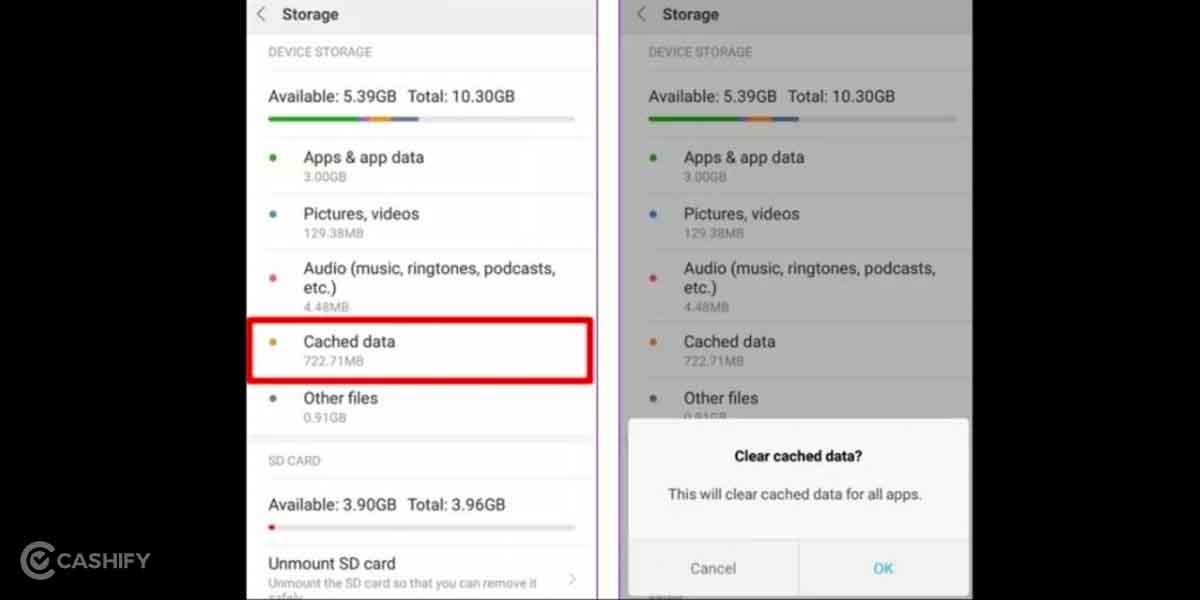
    The phones typically have decent RAM and processors, so lag is likely caused by bloated system cache after months of use.

    You can free up system resources by clearing app cache, deleting unused apps and files, updating to latest MIUI version, resetting app preferences, and in worst case factory resetting the phone.

    Commons Xiaomi Phone Issues

    Problems with WiFi connectivity, Bluetooth pairing, GPS locks, and overall system instability can also crop up on Xiaomi phones.

    Firmware updates, network setting resets, and factory resets typically help enhance system performance. For advanced troubleshooting, users can unlock bootloader and flash Xiaomi phones with custom ROMs that often provide bug fixes and optimizations lacking in MIUI.
    Xiaomi phone issues 4

    With some tweaking and troubleshooting, the most common problems on Xiaomi phones like Redmi Note series, Mi A series, and Poco series can be easily fixed by users themselves without needing to visit a service center.

    Xiaomi Problems

    In this comprehensive guide, we’ll walk you through the most prevalent problem with xiaomi phones and provide step-by-step xiaomi troubleshooting tips to help you resolve these issues quickly and effectively.

    From simple fixes like clearing cache and updating software to more advanced techniques for tackling complex xiaomi phone issues, we’ve got you covered. Don’t let mi phone problems hinder your mobile experience any longer.

    Read on to discover the best xiaomi phone problems and solutions that will help you get your device back in top shape, so you can enjoy all the features and benefits of your Xiaomi smartphone without any hassles.

    Fix Battery Draining Too Fast

    It can be frustrating when your Xiaomi phone’s battery drains faster than expected. Try these troubleshooting tips:

    • Check which apps are using the most battery in Settings > Battery and restrict their background usage.
    • Turn off Always-on Display if enabled, as it reduces standby time.
    • Disable WiFi/Bluetooth when not in use.
    • Update to the latest MIUI version, as updates fix battery optimization.
    • Reset all settings (not data) if battery still drains fast. This will refresh the phone’s system.

    How to fix battery drain of Xiaomi Devices with MIUI 13 1024x576 1
    Image Source: xiaomiui.net

    Fix WiFi Connectivity Issues

    If your Xiaomi phone struggles to connect or maintain a stable WiFi connection, try:

    • Reboot your wireless router and phone to refresh the connection.
    • Forget the WiFi network on your phone and reconnect from scratch.
    • Switch channels on the router if there is interference on the current channel.
    • Toggle Airplane Mode on/off to force the phone to re-establish WiFi signal.
    • Check for router firmware and MIUI system updates.
    chrome j3hjrlbKvE

    Fix Bluetooth Problems

    Trouble pairing your Xiaomi phone with Bluetooth devices? Follow these tips:

    • Reset networking settings on the phone from Settings.
    • Unpair previously connected Bluetooth devices and pair again from scratch.
    • Check the Bluetooth device is in pairing mode when connecting to phone.
    • Update Bluetooth driver both on the phone and connected device.
    • Try connecting the Bluetooth device to another phone to isolate the issue.

    Fix App Crashes and Lags

    Sluggish performance and app crashes on your Xiaomi phone? Some helpful tips:

    • Close background apps not in use by swiping up from Recents screen.
    • Check for and install latest app updates from Play Store.
    • Update to latest MIUI system software.
    • Reset app preferences for problematic apps from Settings.
    • Clear app cache and data as a last resort if problems persist.

    Why does my Xiaomi phone freeze occasionally?

    App crashes or system software glitches can cause the phone to freeze or become unresponsive. Try rebooting the phone or wiping the system cache partition.

    How to reset Xiaomi phone to factory settings?

    Go to Settings > Additional Settings > Backup & Reset. Tap on Factory Data Reset and then Erase Everything to wipe the phone.

    What drains Xiaomi phone battery fast?

    Apps running in the background, Always-on Display, excessive usage of mobile data/GPS, and outdated software can all contribute to faster battery drain.

    How to recover deleted photos on Xiaomi phone?

    If you have a Mi Cloud backup, sign in and restore photos. Otherwise use data recovery apps to salvage deleted photos from phone storage before it is overwritten.

    Fix Frozen Screen/Unresponsive Phone

    If your Xiaomi phone freezes and becomes unresponsive, attempt:

    • Press and hold the Power button for 10 sec to force restart the phone.
    • Boot the phone into Safe Mode to check if issues persist. Point to a third-party app.
    • Wipe system cache partition from Recovery menu.
    • Reset all settings via Settings but avoid factory reset.
    • Flash latest Fastboot ROM using Mi Flash Tool to refresh MIUI.
  • How to Share Wifi on Xiaomi Phones

    One of the useful features on Xiaomi phones is the ability to share your WiFi network with family, friends or other devices. There are multiple ways to share WiFi on Redmi, Mi and Poco phones running MIUI software. In this guide, we will cover 5 easy methods to share WiFi network from your Xiaomi phone.

    Use WiFi Hotspot

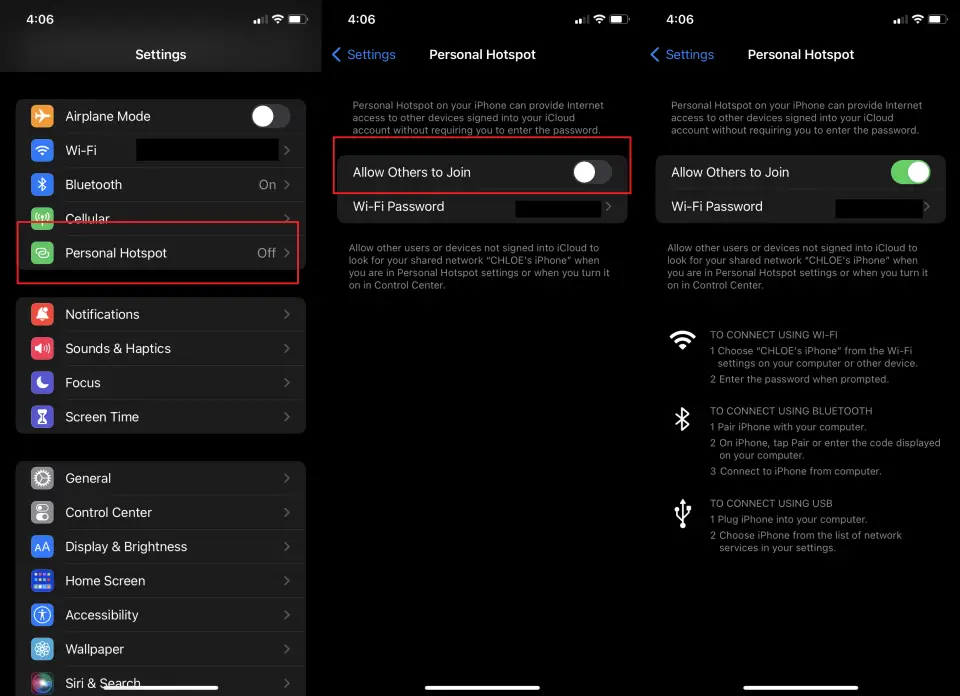
    The quick way is to turn on WiFi Hotspot which broadcasts your phone’s mobile data as a WiFi network. Go to Settings > Additional Settings > Mi WiFi Hotspot and toggle it ON. You can set a name and password for others to connect. Up to 10 devices can connect over WiFi hotspot simultaneously.

    wifi hotspot share wifi

    Utilize WiFi Direct

    WiFi Direct allows sharing WiFi credentials directly with another device without the need for a wireless router. Go to Settings > WiFi and tap on More > WiFi Direct. Choose a device to connect with and it will receive the network SSID and password.

    Generate a QR Code

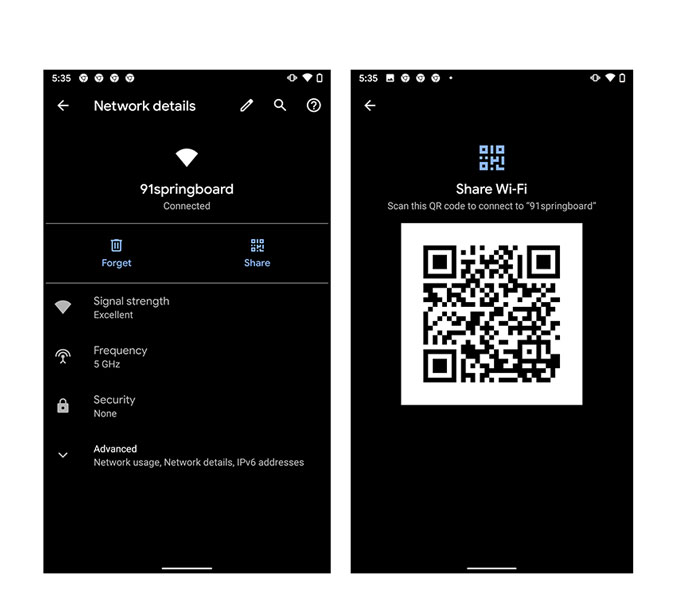
    You can share WiFi details as a QR code which the other user can scan and connect. Go to Settings > WiFi > Share by QR code. Scan the QR code displayed using the other device’s camera to share WiFi.

    1. Open Settings on your Xiaomi phone.
    2. Tap on Wi-Fi.
    3. You will see the list of detected and saved Wi-Fi networks. Tap on the connected Wi-Fi network.
    4. Now tap on the ‘Share‘ option at the bottom.
    5. A QR code will be generated with your Wi-Fi details embedded.
    6. On the phone with which you want to share the Wi-Fi, open Camera app and point it at this QR code to scan it.
    7. Once scanned, the Wi-Fi details like SSID and password will automatically get transferred to the other phone.
    8. Tap on the notification that pops up to connect to the Wi-Fi network.
    9. The Wi-Fi password will get automatically entered and you will be connected to the network.
    Android 10 Wifi SHare
    Image Source: techwiser.com

    That’s it! The QR code method lets you quickly share Wi-Fi from your Xiaomi device to any other smartphone without having to manually enter the SSID and password. The code contains all the details encrypted. Make sure the other phone’s camera can scan QR codes for this to work seamlessly.

    Transfer via Bluetooth

    Turn on Bluetooth pairing mode and select the device you want to share WiFi with from the list. Tap on the device name and select Transfer Wi-Fi info to send your WiFi details over Bluetooth.

    Use Mi Share App

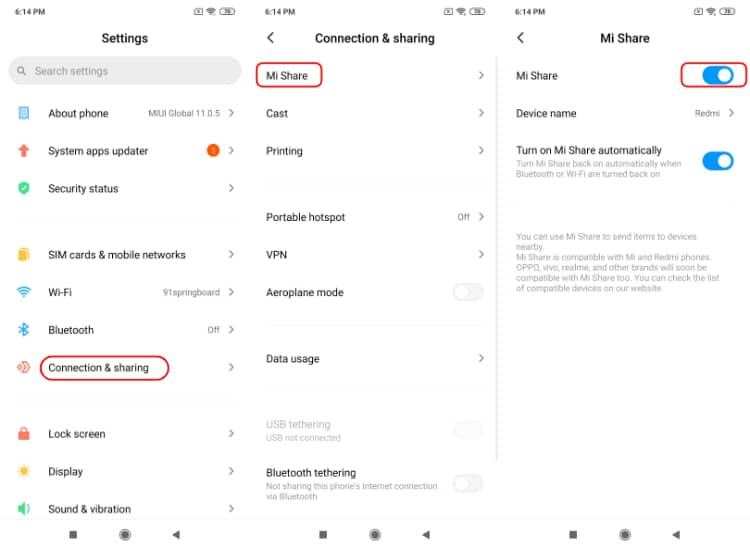
    Install Xiaomi’s Mi Share app on both smartphones. On the device with WiFi, open Mi Share and select Contacts visibility off. Choose the files/WiFi option and pick WiFi. On the other phone, enable Contacts visibility and receive WiFi details.

    How to use Mi Share in MIUI 11
    Image Source: fossbytes.com
    1. Install the Mi Share app on both the Xiaomi phones between which you want to share Wi-Fi. You can find it on the App Store.
    2. On the phone that is connected to Wi-Fi, open Mi Share and go to its Settings.
    3. Turn ‘Contacts visibility‘ option off.
    4. Now go back and choose the ‘Files/Wi-Fi‘ option.
    5. Tap on ‘Wi-Fi‘ and select the network you want to share.
    6. On the other phone, launch Mi Share and turn ‘Contacts visibility’ on.
    7. On this phone, you will see the first phone listed as a nearby device. Tap on it.
    8. It will now show the Wi-Fi network shared by the first device. Select it.
    9. The Wi-Fi name, password, and other details will automatically get transferred to the second phone.
    10. Tap on the notification to connect to the shared Wi-Fi network on the second phone.

    That’s it! Mi Share makes it very easy to quickly share Wi-Fi between Xiaomi phones without having to manually enter details or scan QR codes. The app transfers all the information securely.

    Conclusion

    Sharing WiFi connectivity on your Xiaomi smartphone is simple using inbuilt options like Mi WiFi hotspot, WiFi Direct or Mi Share app. You can also go the traditional route and share details manually. Follow these methods to seamlessly share WiFi from your Redmi, Mi or Poco phones running MIUI with family and friends.

  • Fix Redmi Note 12 Wifi Problem

    The Redmi Note 12 is a popular Android smartphone known for its high-end features at an affordable price. However, some users have reported WiFi connection problems on their Redmi Note 12, ranging from slow internet speeds to frequent disconnections.

    A spotty WiFi connection can be frustrating. Luckily, there are a few easy troubleshooting steps you can try at home to solve Redmi Note 12 WiFi problems.

    Check Your Router Connection

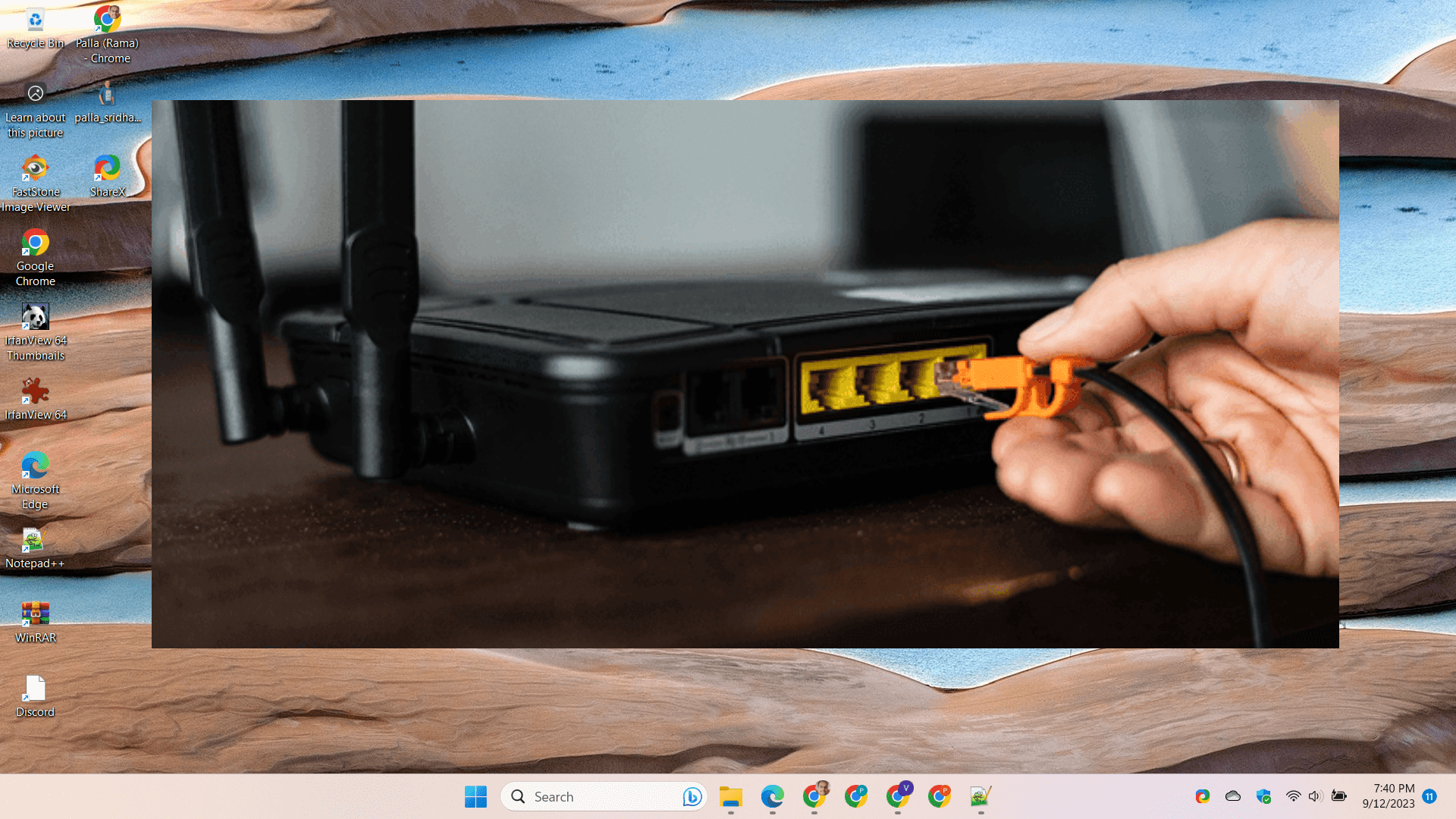
    The first thing to check is whether your Redmi Note 12 is able to detect your WiFi network. Go to Settings > WiFi and see if your router name shows up in the list of available networks. If not, try moving your phone closer to the router. There could be some interference blocking the signal.

    You can also try rebooting your wireless router if your Redmi can’t find the network or connect to it. Unplug the router from power for 30 seconds, then plug back in to reset the connection. This may resolve any software glitches on the router side.

    router connection

    Forget The Network

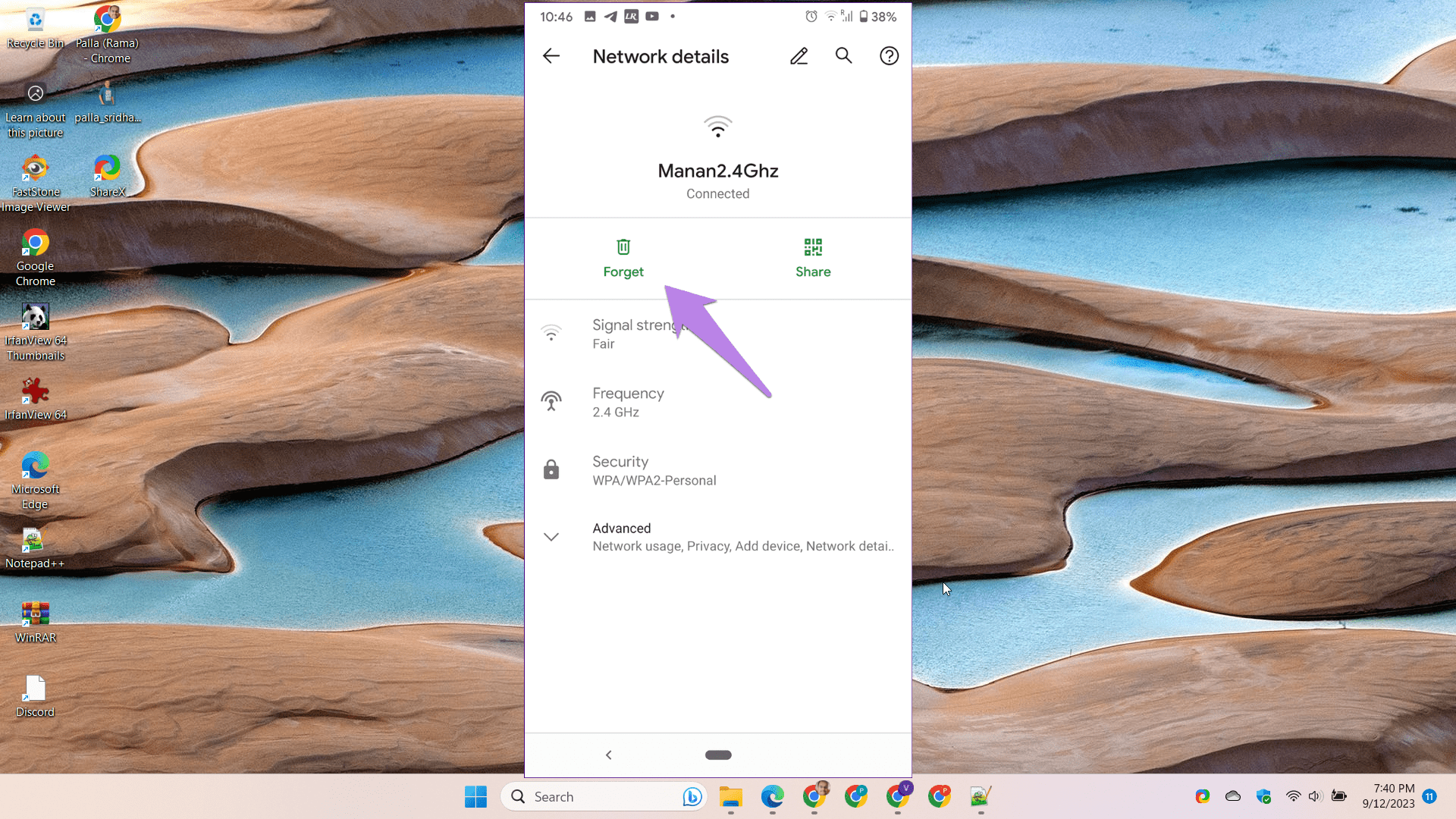
    If your Redmi Note 12 keeps disconnecting from your home WiFi network, try forgetting the network connection. Go to Settings > WiFi and tap on the network name. Select “Forget” so it erases your phone’s WiFi details.

    Then reconnect to the network by entering the password again. This forces the phone to re-establish the WiFi connection from scratch which may fix bugs that were causing drops.

    image 2 1

    Check For Firmware Updates

    Xiaomi periodically releases OTA (over-the-air) updates for Redmi Note devices to improve performance and fix bugs. Go to Settings > About Phone > System Updates to check for any available firmware updates for your Redmi.

    Install the latest update and it may contain fixes for WiFi issues reported by other users. Firmware updates often resolve network connectivity problems.

    Toggle Airplane Mode

    An easy workaround is to toggle Airplane mode on and off to reset the phone’s network connections. Open Quick Settings and tap on the Airplane mode tile. Wait for 30 seconds and then disable Airplane mode.

    This essentially forces the phone to rediscover nearby WiFi networks and may successfully reconnect to your home router. Airplane mode is a quick way to re-establish the WiFi when it’s acting up.

    Switch WiFi Bands

    Some routers have dual-band support for 2.4GHz and 5GHz networks. Your Redmi Note 12 may have trouble staying connected to one band. Go into your router admin panel to switch the name of the 5GHz network.

    Then try manually connecting your Redmi to the different WiFi band to see if the connectivity improves. Changing the frequency band that your phone uses for WiFi could potentially fix drop offs.

    Conclusion

    Persistent Redmi Note 12 WiFi problems can be frustrating but are usually fixable. Start troubleshooting by verifying the router connection, forgetting the network, checking for firmware updates, toggling Airplane mode and switching WiFi bands.

    With some tweaking, you should be able to resolve most issues that are interfering with WiFi on your Redmi Note 12. Let us know if any of these tips worked for you!

  • Fix Redmi 12c Bluetooth Problem

    Have issues getting Bluetooth to work properly on your new Redmi 12C? Don’t worry, Bluetooth connectivity problems are common but solvable on this budget Xiaomi phone. After thorough troubleshooting, we’ve come up with 5 practical solutions to fix Redmi 12C Bluetooth pairing problems, audio stuttering, and devices not showing up.

    260nw 2177178863 1 1

    1. Restart Your Phone and Bluetooth Device

    A basic reboot of both devices can help reconnect the Bluetooth pairing. Long press the power button on your Redmi 12C to restart it. Also power cycle the Bluetooth device you are trying to connect by turning it off and on again. Then retry pairing.

    Here are step-by-step instructions with images to restart your Redmi 12c mobile phone:

    1. Press and hold the Power button located on the right side of the Redmi 12c.
    redmi 12c bluetooth problem solution
    1. A Power off prompt will appear on the screen. Tap on Power off to turn off the phone.
    1. Once the phone is powered off, press and hold the Power button again to turn it back on.
    1. The Redmi logo will appear while restarting. Wait for the phone to boot back up to the lock screen.
    1. Your Redmi 12c is now successfully restarted. All apps and settings will reload.

    That’s it! Restarting or power cycling your Redmi 12c can help fix issues and refresh the phone’s memory. Follow these simple steps whenever you need to reboot your Redmi device.

    2. Disable and Re-enable Bluetooth

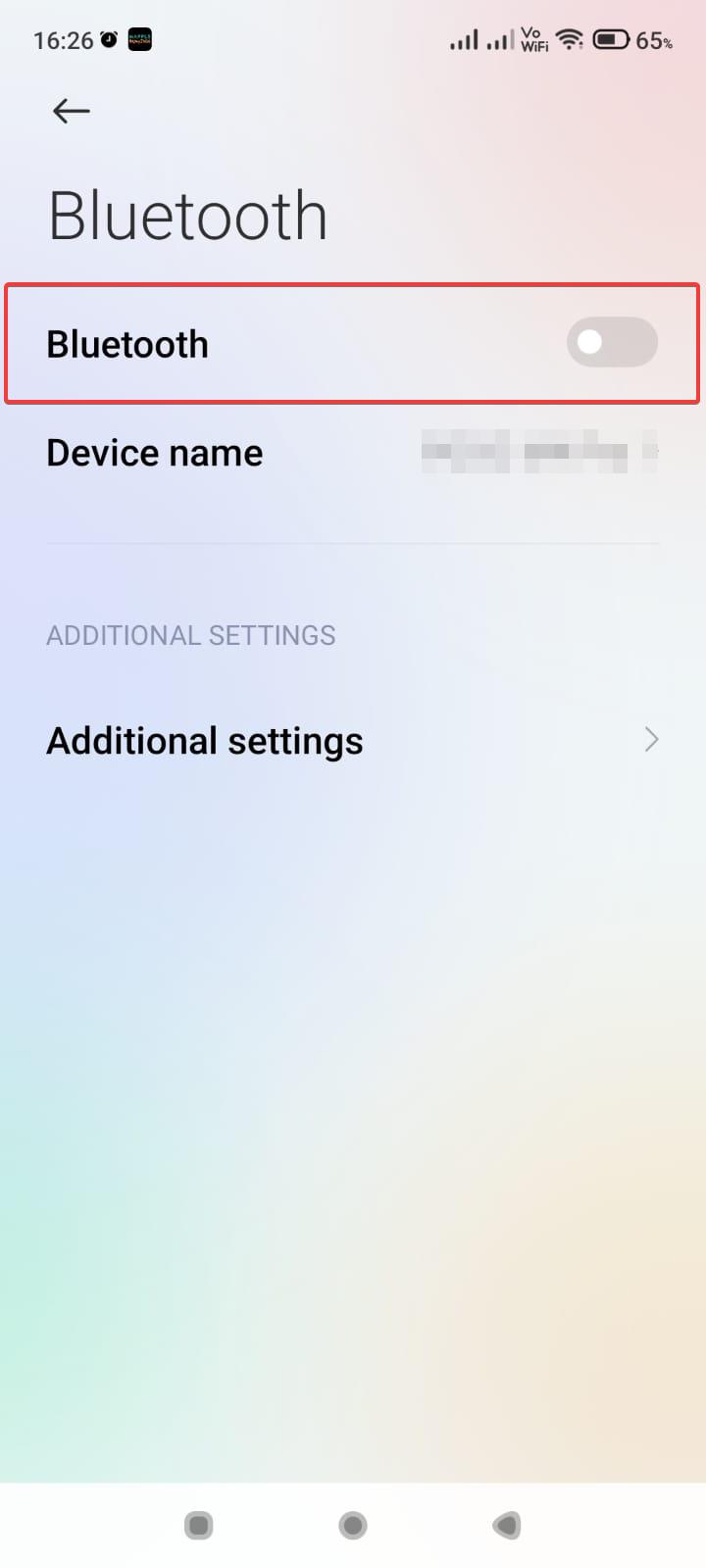
    Go to Settings > Bluetooth and turn Bluetooth off. Wait a few seconds and turn it on again. Also toggle the Bluetooth toggle on the quick settings panel off and on. Retry pairing again after this reset.

    turn off on bluetooth redmi 12c

    3. Update Redmi 12C System and Bluetooth Drivers

    Make sure your Redmi 12C is running the latest MIUI system update. Also go to Device Manager and check for Bluetooth driver updates. Outdated software often causes Bluetooth problems.

    Here are the steps to update the system and Bluetooth drivers on your Redmi 12C:

    System Update:

    1. Go to Settings > About phone.
    2. Tap on MIUI version to check for any available system updates.
    3. If an update is available, tap Download and install.
    4. Once downloaded, tap Restart now to install the update.

    Bluetooth Driver Update:

    1. Go to Settings > Additional settings > Developer options.
    2. Enable Developer options if not already enabled.
    3. Go to Settings > Additional settings > Developer options > Wireless debugging.
    4. Turn on Wireless debugging and pair your phone with your computer.
    5. On your computer, install Mi Flash and Xiaomi drivers.
    6. Search for Bluetooth driver updates online relevant for your Redmi 12C model.
    7. Use Mi Flash to install any available Bluetooth driver updates on your paired Redmi 12C.

    This will help keep both your system and Bluetooth drivers updated on your Redmi 12C. Keep them up-to-date to prevent issues.

    4. Forget and Re-pair Devices – Redmi 12c Bluetooth problem fix

    Go to Bluetooth settings and click Forget on problem devices. Then pair them again from scratch by putting them into discoverable mode and selecting them again on your Redmi 12C.

    5. Reset Network Settings

    If nothing else works, reset all network settings under System settings. This will wipe all Wi-Fi and Bluetooth config back to factory default. You’ll have to set up again, but it often fixes persistent issues.

    With some guided trial and error using these tips, you should be able to get flawless Bluetooth performance on the Redmi 12C for wireless audio and accessories. Let us know if any solutions work for you!

  • How to Change Android Hotspot Password on Different Mobiles

    Using your Android smartphone’s mobile hotspot/tethering feature is convenient for getting other devices online when WiFi is unavailable. But if your hotspot uses the default weak password, it’s vulnerable to unauthorized access.

    Thankfully, you can change Android hotspot password to a stronger and more secure one right from your device settings in just a couple minutes.

    With some customized combinations of letters, numbers and special symbols, you can create a password that’s far tougher to crack but still easy for you to remember.

    A strong unique hotspot password prevents others nearby from connecting to your mobile hotspot and hogging bandwidth or accessing sensitive info.

    Whether you own a Samsung, Google Pixel, Xiaomi, Huawei or any other phone model, you can implement a simple process to reset the password and maximize hotspot security.

    With just your Android device and following a few quick trouble-free steps, you’ll have new secure credentials protecting your portable WiFi network in no time.

    In this step-by-step guide, you’ll learn how to easily modify your hotspot password on any Android device.

    Change your Android hotspot password

    1. Open Settings on your Android phone.
    2. Tap on “Network & internet
    3. Go to “Hotspot & tethering
    4. Tap on your phone’s WiFi network name.
    5. Tap on “Hotspot password“.
    6. This will open the change password screen.
    7. Enter your current hotspot password if prompted.
    8. Tap on the password field and enter a new strong password.
    9. For security, use a mix of upper/lowercase letters, numbers and special symbols.
    10. Tap Save to confirm the new password.
    11. Connect any devices to your hotspot and enter the new password when prompted.
    12. You can repeat these steps in the future to change the password periodically.

    That’s all there is to it! With just a few taps in your Android settings, you can easily modify your hotspot password to keep your mobile network secure. Be sure to choose a strong password that others can’t guess.

    If you are using Redmi, Poco, Xiaomi phones than the interface is based on MIUI. The steps will be little different from the above. Also, based on mobile company to own Android interface, the steps may differ. Typically, Samsung, Vivo, Oppo etc are different when it comes to settings.

    Change Android 7 Hotspot Password

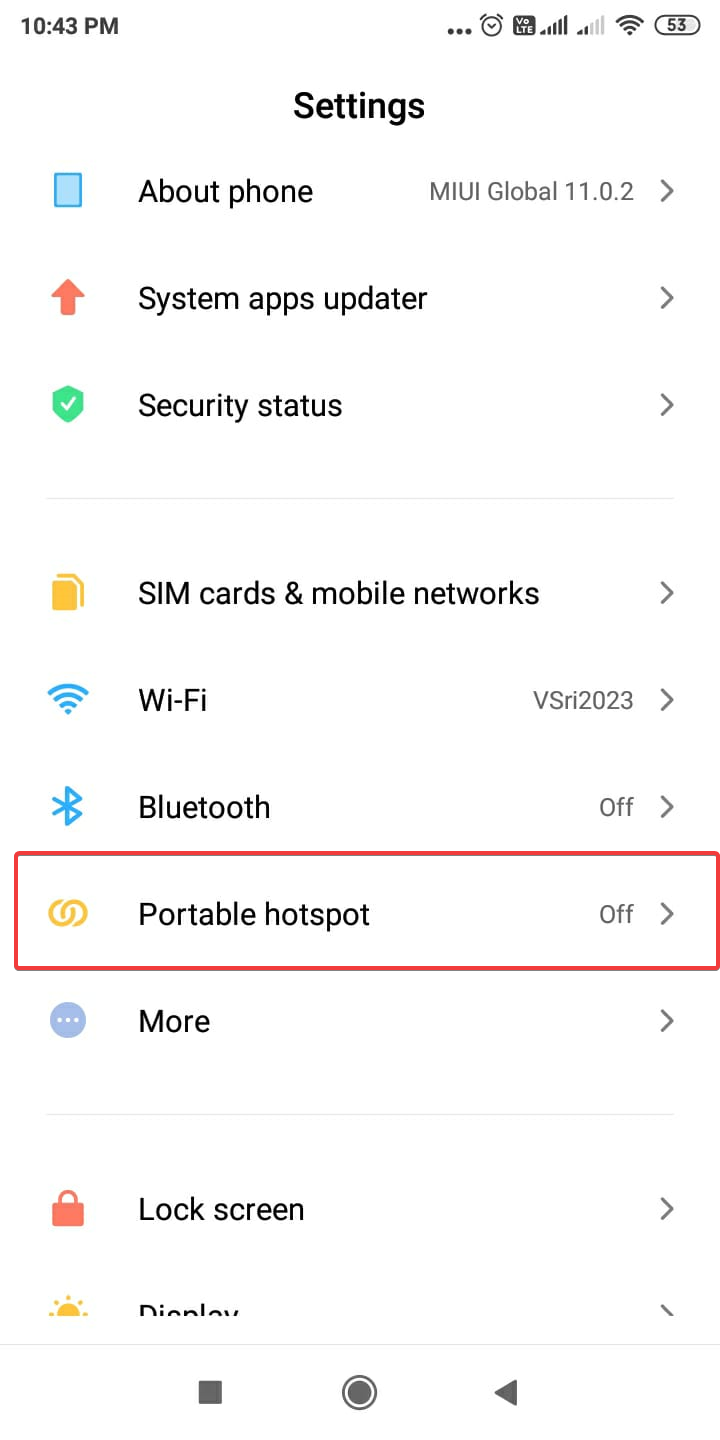
    1. Open the Settings Screen.
    2. Tap on Portable Hotspot.
    portable hotspot android
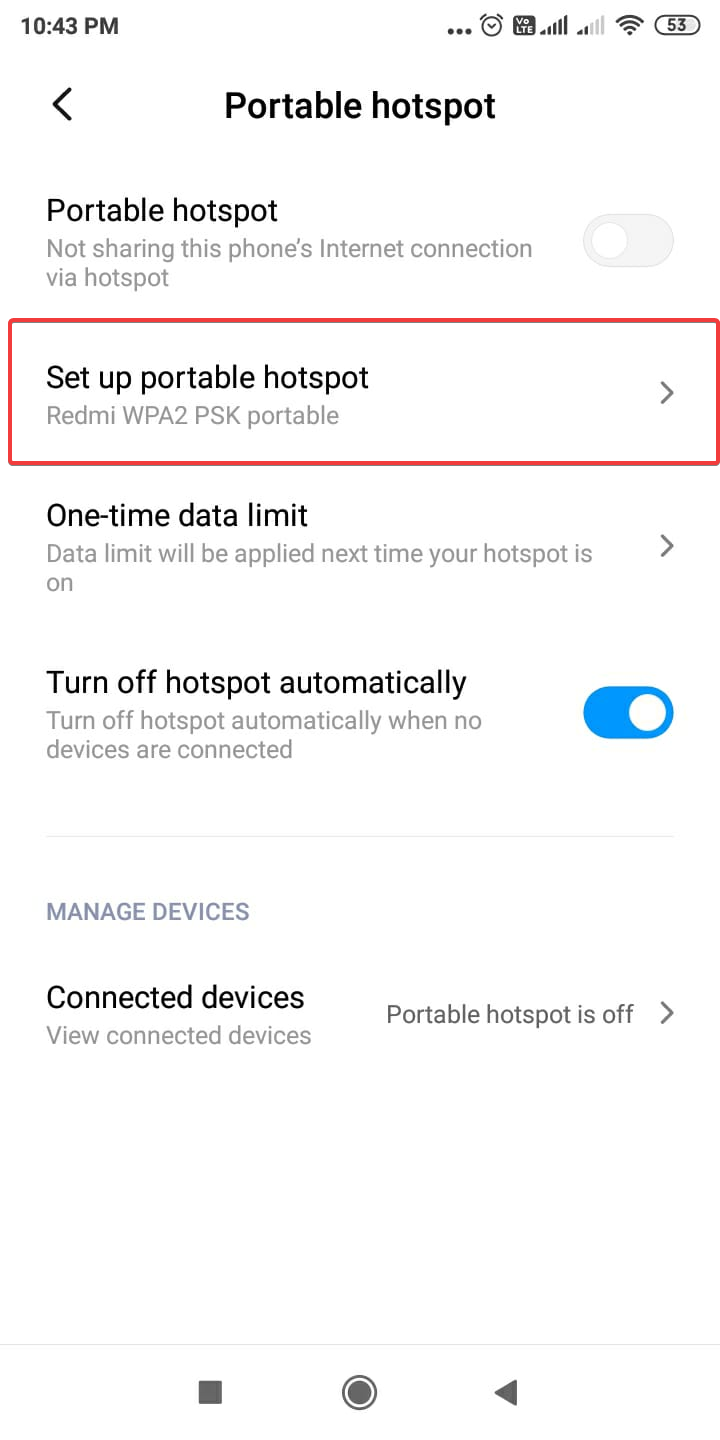
    1. Tap on Set up portable hotspot.
    set up portable hotspot android
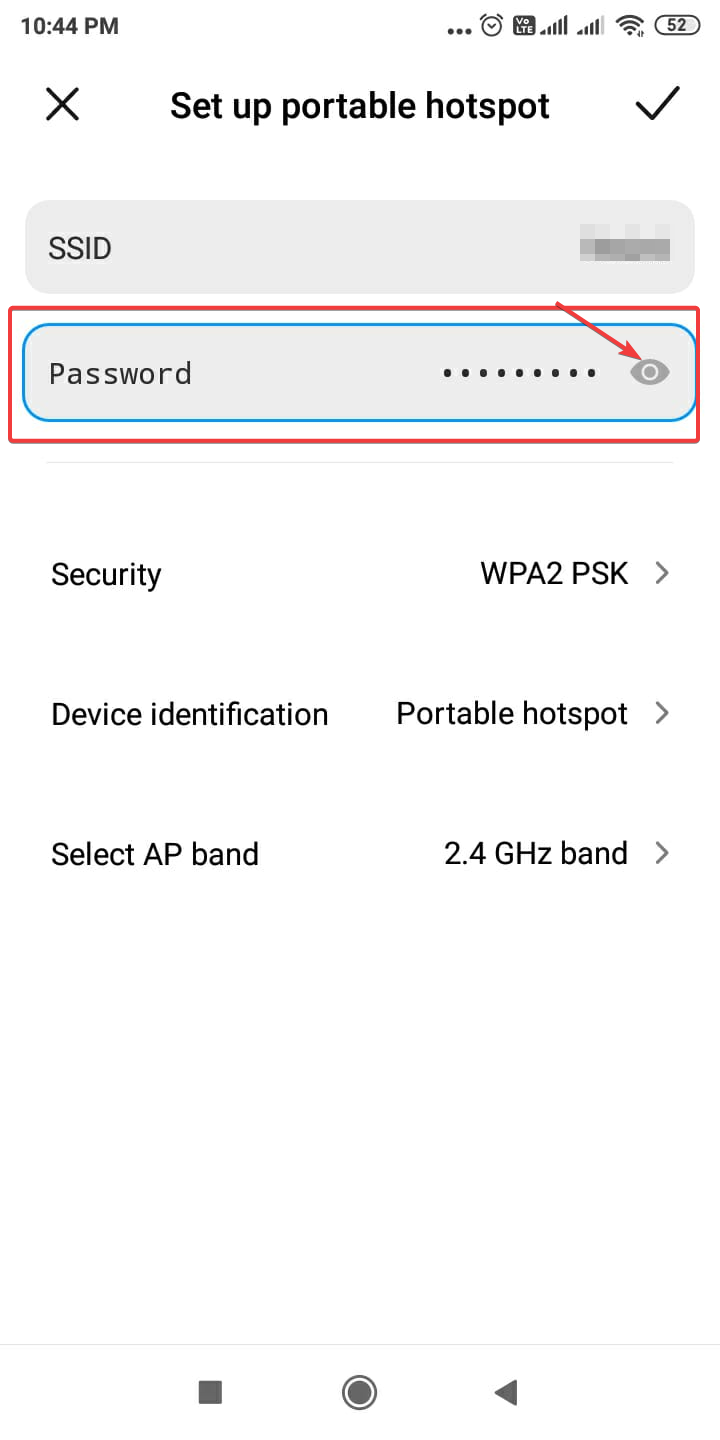
    1. Set up portable hotspot screen will open.
    2. SSID and Password in hidden mode are visible.
    change password hotspot android
    1. Tap the eye to see the password.
    2. Now enter the new password.
    3. Tap the tick mark at the top right hand corner.

    That’s it your hotspot password is changed.

    Change Android 13 Hotspot Password

    The steps are almost similar as the above. But you can select WPA3-Personal as security protocol which is not available in old version. You can also hide the SSID in this version.

    Change your Android hotspot password on Samsung phones

    1. Open Settings on your Samsung device.
    2. Tap on “Connections” or “Mobile Hotspot and Tethering“.
    3. Tap on “Mobile Hotspot“.
    4. Tap on the network name and then tap on “Password“.
    5. Enter your current password if prompted.
    6. Tap on the password field and enter a new strong password you want to set.
    7. For security, use a combination of upper/lowercase letters, numbers and symbols.
    8. Tap Save to confirm the new password.
    9. Connect your devices to the hotspot and enter this new password when prompted.
    10. You can repeat these steps anytime to change the password again in the future.
    11. On some Samsung devices, you may need to tap the 3-dot menu instead of the network name to get the change password option.

    That’s all you need to do to easily change and update your hotspot password on Samsung Galaxy phones and tablets for better security. Choose a unique new password that others can’t guess.

  • How to Update All Drivers at Once in Windows 11/10?

    Having the latest drivers for all your hardware is key for maximum performance and stability on a Windows PC. But updating drivers one by one is tedious and time-consuming. In this post, we provide a foolproof guide to updating all device drivers at the same time using the best driver updater tools.

    Why Update All Drivers Simultaneously?

    Mass updating all drivers together versus individually has some key advantages:

    • Saves huge amounts of time and effort compared to manual updates.
    • Ensures device drivers get updated without missing any.
    • Avoids potential conflicts from incremental driver updates.
    • Often fixes many device problems/errors in one go.
    • Requires just a single system restart to complete the process.

    As long as you use reputable driver update software, updating all drivers in bulk is safe, convenient and straightforward.

    Best Driver Updater Tools

    Specialized driver updater utilities automate the process of detecting and mass updating outdated or broken drivers. The top options include:

    • IObit Driver Booster – Most popular driver updater with 4,500,000+ driver database.
    • SlimWare Utilities – Lightweight program with broad driver support.
    • Tweakbit PCRepairKit – All-in-one system optimizer with driver updating.
    • Auslogics Driver Updater – User-friendly interface for beginners.

    These tools make updating all drivers at once easy with a few clicks.

    Step-By-Step Instructions

    Follow these simple steps to bulk update drivers using driver updater software:

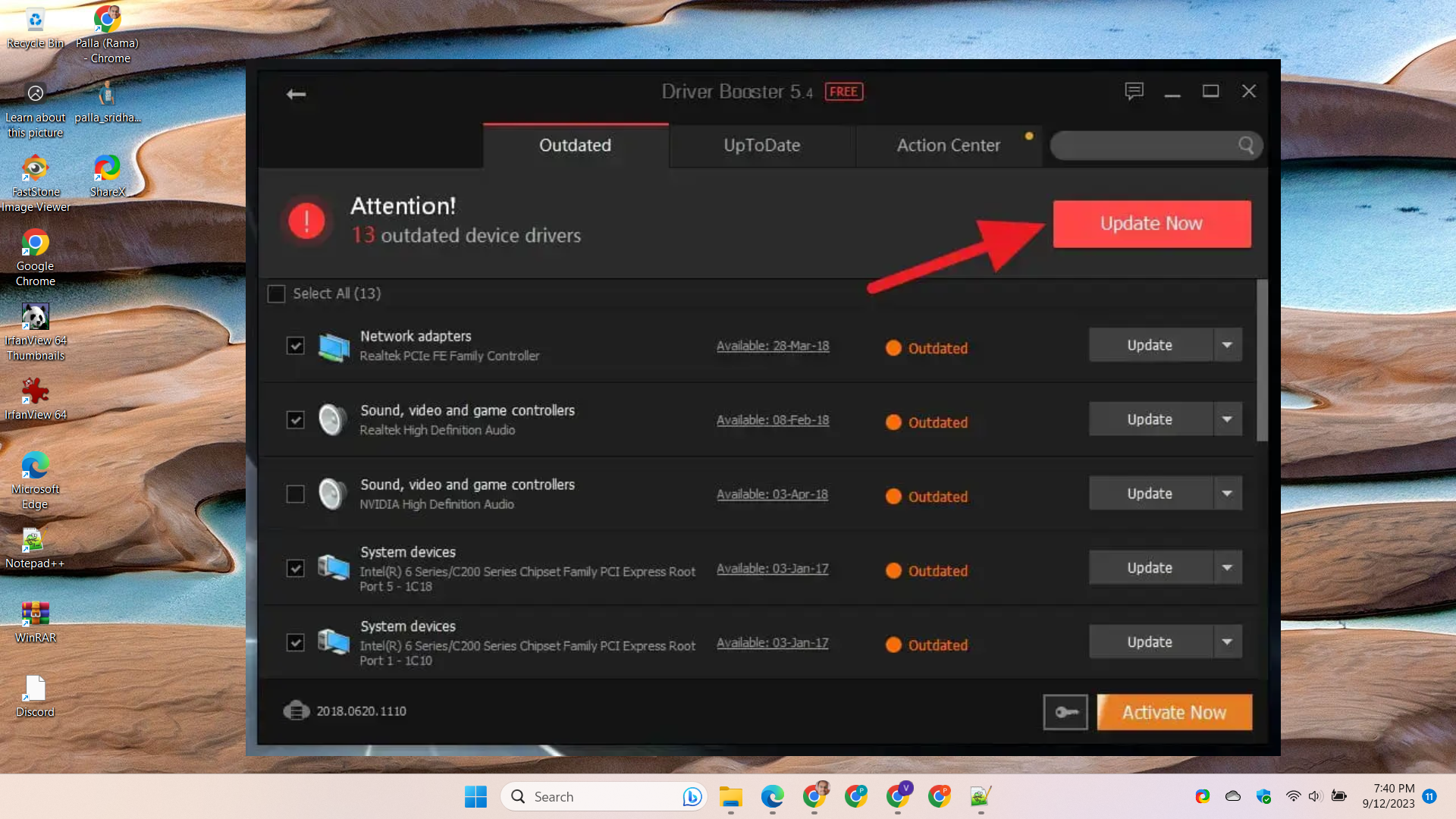
    1. Download and install an updater tool like Driver Booster.
    2. Open the program and click Scan to detect outdated drivers.
    3. Check the list and click Update All to bulk upgrade drivers.
    4. Restart your PC when prompted to complete installation.
    5. Verify updated driver versions in Device Manager.
    driver booster update all drivers windows 11

    That’s all there is to it! Keeping drivers updated with specialized tools is easy and hassle-free.

    How to Update Device Drivers at once in Windows 11

    Here are the steps to update all device drivers at once in Windows 11:

    1. Open Windows Update settings (Settings > Windows Update).
    2. Click on “Check for updates“. Windows will look for any available driver and Windows updates.
    3. On the Windows Update screen, click “Download and install now” to download all pending driver and software updates.
    4. Once the downloads complete, click “Restart now” to install the updates. Restarting is required to finalize driver installations.
    5. An alternative is to use Device Manager to update drivers:
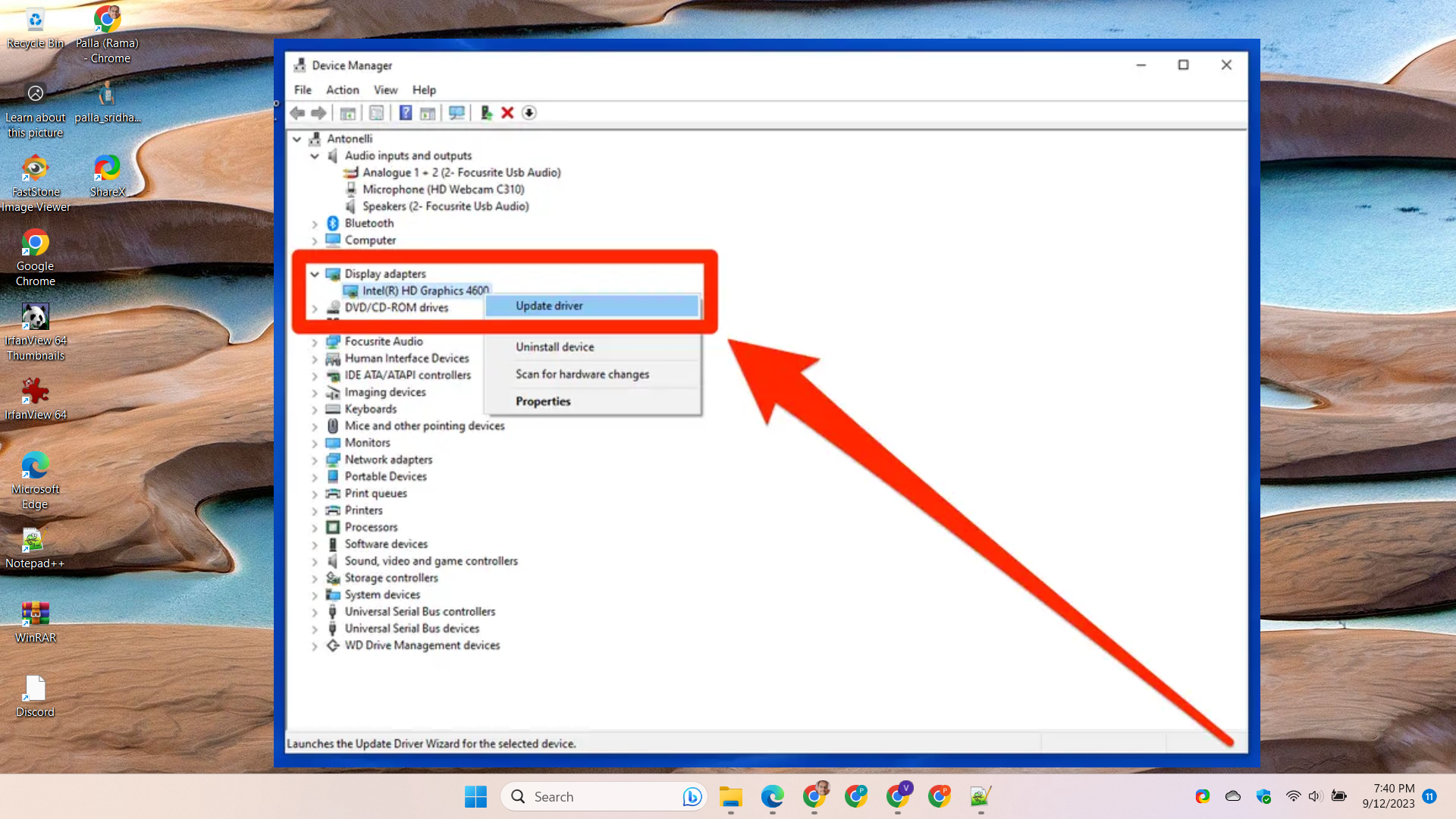
    6. Open Device Manager > Select each device > Right click and select “Update driver“.
    7. For each device, choose “Search automatically for updated driver software“.
    8. Windows will install any available driver updates one by one.
    9. Restart your PC when prompted to finish the installation process.
    10. You can also use third party driver updater tools to mass detect and update all drivers at once.
    how to update all drivers at once

    Following these steps will ensure all your device drivers are up-to-date on Windows 11 using either Windows Update or Device Manager. Restarting is key to complete any driver installations.

    How to Update all Drivers at once Windows 10

    Updating all drivers at once on Windows 10 is fairly similar to Windows 11, but there are some key differences:

    On Windows 10:

    • Open Windows Update settings and click “Check for updates” to detect driver updates.
    • On the update screen, click “Download and install” to update all drivers.
    • You can also update drivers individually through Device Manager.
    • Use DISM and PowerShell commands to check for or install driver updates.
    • Third party tools like IObit Driver Booster also work on Windows 10.

    Key Differences:

    • Windows Update streamlined bulk driver updates on Windows 10, more difficult on Windows 11.
    • Need third party tools for one-click updating of all drivers on Windows 11.
    • More steps involved to update all drivers individually through Device Manager on Windows 11.

    How to Update all Drivers at once with Command

    Here are a few methods to update all drivers at once using commands on Windows:

    Using Windows Update Command

    Open an elevated Command Prompt and run:

    wuauclt /detectnow

    This detects Windows updates including driver updates. Then run:

    wuauclt /updatenow

    To download and install available updates including drivers.

    Using DISM Command

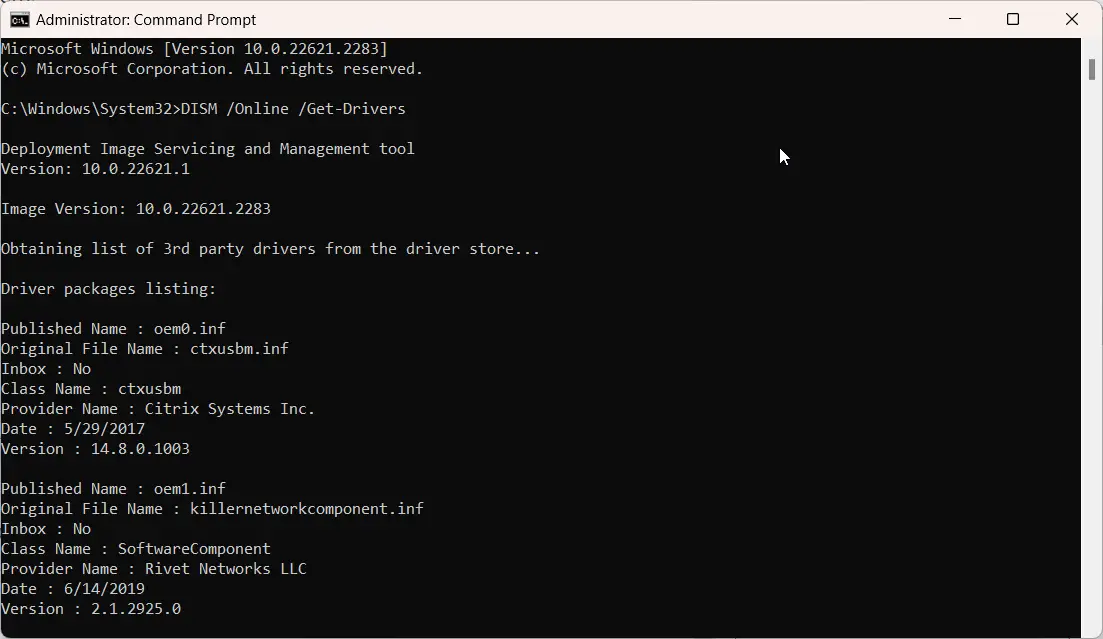
    Run DISM command to check for driver updates:

    DISM /Online /Get-Drivers

    To install updates for all drivers, run:

    DISM /Online /Add-Driver /NoRestart /Driver:C:\DriverFolder\*.inf

    Replace C:\DriverFolder\ with the location of downloaded drivers.

    how to update all drivers at once using cmd

    Using PowerShell Script

    Use a PowerShell script to iterate through devices and update drivers:

    $devices = Get-CimInstance -ClassName Win32_PnPEntity | Where-Object {$_.PNPClass -like "Driver"}
    
    foreach ($device in $devices) {
        Update-Driver -Name $device.Name
    }

    This automatically finds and attempts to update all drivers.

    Be sure to restart your PC for driver updates to take effect after using these commands.

    Conclusion

    Updating all hardware drivers simultaneously using automated software ensures peak PC performance. Follow this guide and keep drivers always up to date with just a few clicks. Just remember to use reputable driver updater tools for safe and smooth bulk updating. Your devices will function reliably.

  • Fix HDMI Not Working on LG tV

    Having issues with HDMI ports not working properly on your LG TV? HDMI cables failing to transmit audio and video is frustrating. But don’t worry – in most cases it’s fixable. Below we cover 5 effective troubleshooting solutions to get HDMI ports functioning again on LG televisions.

    There’s nothing more irritating than plugging in a new device to your fancy LG TV via HDMI, only to be greeted by a blank screen. HDMI ports failing to transmit video and audio signals is one of the most common connection issues reported by LG TV owners.

    Introduction to LG TV HDMI Problem

    Thankfully, a non-working HDMI port doesn’t automatically mean an expensive repair or component replacement. Through meticulous troubleshooting, experts have identified the top causes of HDMI issues specific to LG televisions.

    And better yet, they’ve compiled proven solutions to get HDMI inputs functioning again without professional service. By methodically applying certain workarounds, you can bypass the HDMI problems and restore full connectivity in minutes.

    Common Solutions

    Follow best practices like firmly reseating cables, updating TV firmware, factory resetting settings and toggling CEC modes to pinpoint the cause of temperamental HDMI inputs on your LG TV. I

    Implement a process of elimination using the expert tips outlined here and you’ll have the HDMI ports working properly again in no time. Don’t despair over finicky HDMI operation – a bit of guided trial and error will get your LG TV’s connectivity back on track.

    1. Check Cable Connections

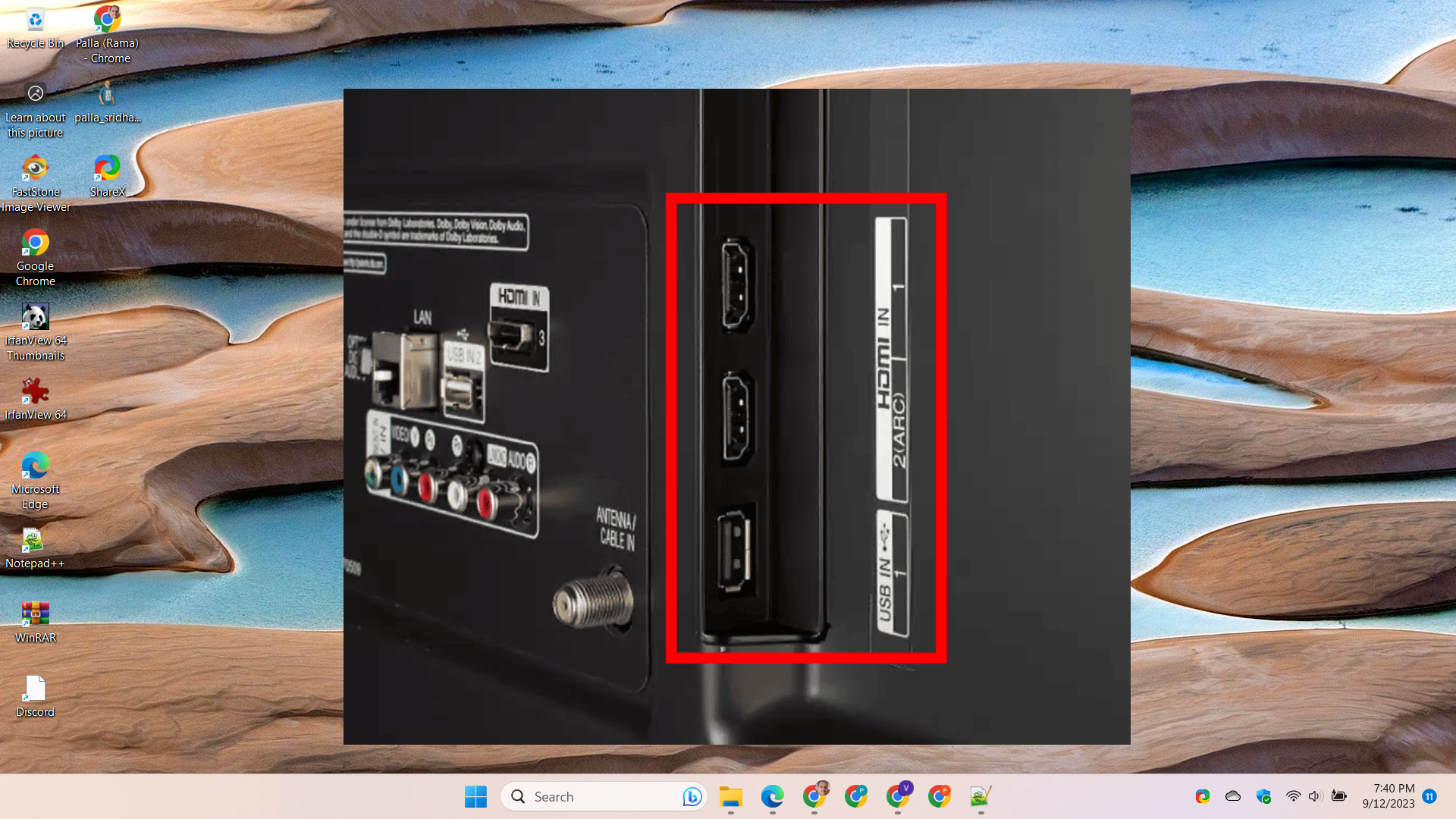
    Make sure HDMI cables on both ends are securely inserted into the ports on the TV and device. Try swapping for a different certified HDMI cable if possible. Snug connections are key.

    lg tv hdmi connection
    • Make sure both ends of the HDMI cable are inserted fully into the ports on the TV and your device (Blu-ray player, game console etc). Gently wiggle the cable and check it is firmly in place.
    • Try disconnecting both ends and reinserting the cable. Connections can become loose over time. Reseating the cable may help.
    • Inspect the HDMI cable ports on the back of the TV for any damage or bent pins. Damaged ports can cause connectivity issues.
    • Try using a different HDMI port on the TV if possible. This will confirm if the issue is with a particular port or the cable.
    • Test the HDMI cable with a different device like a laptop to see if the issue persists. Use a different HDMI cable if available for troubleshooting.
    • For larger TVs, use HDMI extenders or active cables if the standard cable is too short. Insufficient reach can disrupt the HDMI signal.
    • Ensure the HDMI cable is certified and meets the latest HDMI standards suited to your device’s outputs.

    Checking all physical HDMI connections is the first step in troubleshooting LG TV display issues. Secure, undamaged cables and ports are essential for optimum HDMI performance.

    2. Toggle CEC Settings

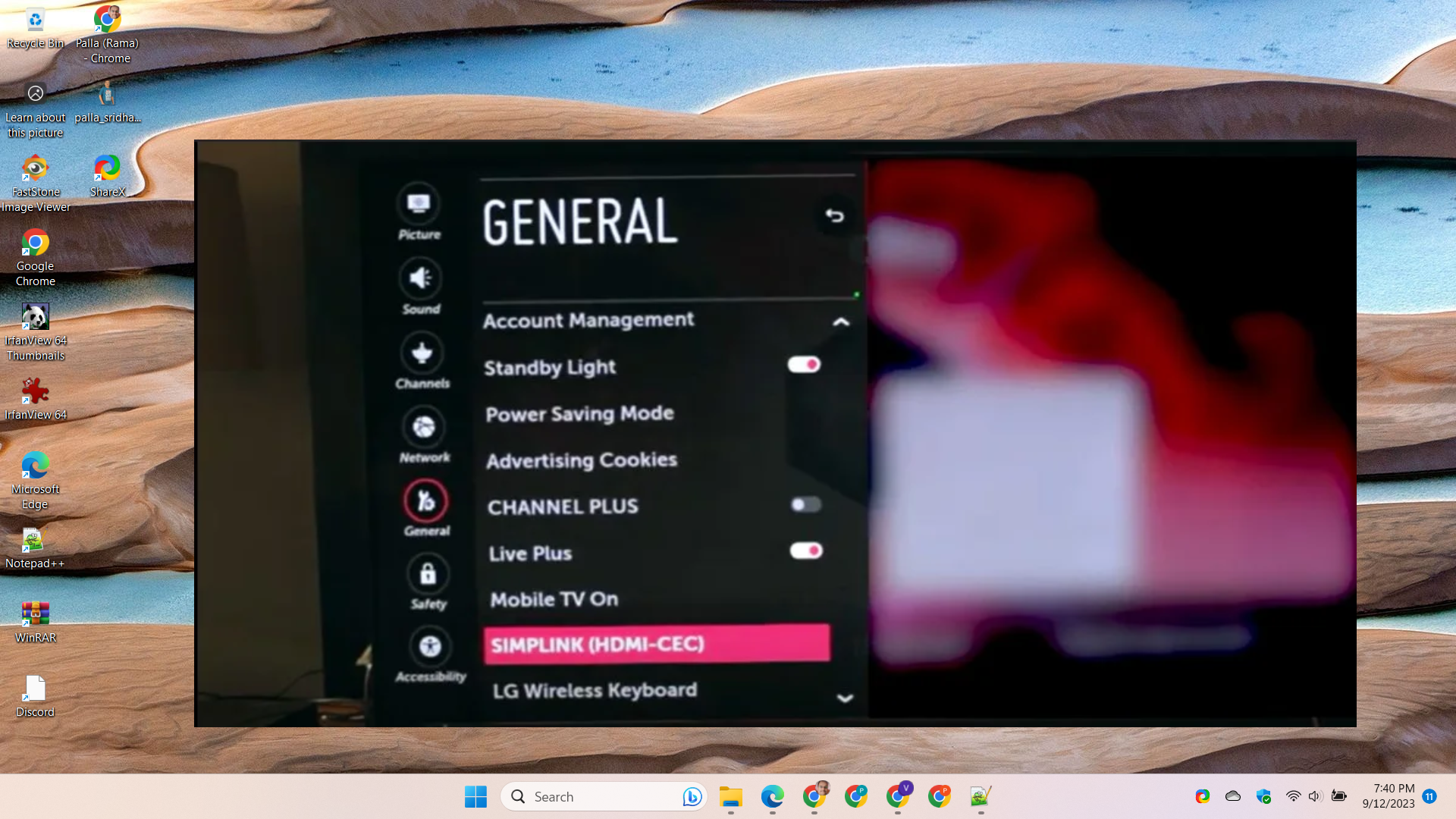
    Consumer Electronic Control (CEC) can sometimes interfere with HDMI functionality. Disable CEC in your LG TV’s settings, or toggle CEC to a different mode like ARC which may resolve HDMI problems.

    hdmi not working on lg tv

    Here are some tips on toggling CEC settings on an LG TV to troubleshoot HDMI issues:

    • CEC or Consumer Electronics Control allows devices connected via HDMI to communicate and control one another. This can sometimes cause HDMI conflicts.
    • On your LG TV remote, access the Settings menu and locate the CEC option, which may be under General > Devices > External Devices.
    • Try toggling CEC from On to Off to see if it resolves the HDMI problem. Turning CEC off fully can eliminate compatibility issues.
    • If you want to keep CEC enabled, try changing the setting from SIMPLINK to ARC only. This still allows ARC audio transmission without other CEC functions.
    • You can also try disabling individual CEC device control options like TV auto turn on, audio control, and device auto power off to pinpoint problematic settings.
    • After adjusting CEC configurations, be sure to power cycle connected devices and TV to reset the HDMI handshake.
    • If disabling CEC fixes your LG TV HDMI problem, you can enable it again and enable SIMPLINK devices one by one to identify incompatible equipment.
    • Adjusting CEC modes and toggling SIMPLINK device control can prevent HDMI-CEC conflicts while allowing desired functions like ARC audio passthrough.

    3. Factory Reset TV

    Resetting your LG TV back to factory default settings can clear any software bugs inhibiting HDMI operation while retaining the core firmware. Just be sure to backup settings before resetting.

    4. Update TV Firmware

    Check LG’s website for a newer firmware update for your model and install it. Firmware updates often include HDMI compatibility improvements to fix connectivity issues.

    5. Change Input Label

    Try changing the input label for the non-working HDMI port in your LG TV’s settings to a different device type, like DVD player instead of Blu-Ray. This refreshes the connection.

    Following the smart troubleshooting tips above will get HDMI functionality working again on your LG television. Be sure to experiment to pinpoint the exact cause.

  • How to Fix Windows 11 Search Bar Not Working?

    One of the most frustrating issues users report after upgrading to Windows 11 is the search bar failing to work properly.

    You click in the search bar and start typing, but no results appear at all. Or the results are totally unrelated to what you’re searching for. A non-functional search is a major productivity killer in Windows 11.

    Corrupted system files after an OS update, problematic search index, and background app conflicts rank among the most common culprits.

    The Windows search bar is one of the handiest tools for quickly finding files, apps, settings and more on your PC.

    But many users encounter problems with the search bar not working properly after upgrading to Windows 11. If your search box results are blank or you can’t find anything, try these proven solutions to get search working again in Windows 11.

    Introduction of Solutions

    Rebuilding the search index from scratch, running SFC and DISM scans, changing index locations, resetting search configurations, and performing OS reinstalls can often get search working again.

    While frustrating, a non-working search bar in Windows 11 is a solvable problem. With the right troubleshooting approach and a few tweaks, you can get the search bar responding accurately to your queries once more.

    Follow the expert-recommended steps to stop pulling your hair out and restore seamless search capabilities after upgrade issues. Quickly implement the top solutions covered here and eliminate Windows 11 search not working headaches for good.

    Fix #1. Rebuild the Index

    Often, a corrupted search index is the culprit behind non-working search. Rebuilding the index from scratch resolves this. Open an admin PowerShell and run:

    Get-Service | Where-Object {$_.Name -like "WSearch"} | Restart-Service

    Give it some time to fully reindex your system. Search should now be working. Another way to do this is follow these steps.

    Here are the steps to rebuild the search index in Windows 11:

    Windows 11 search bar not working fix
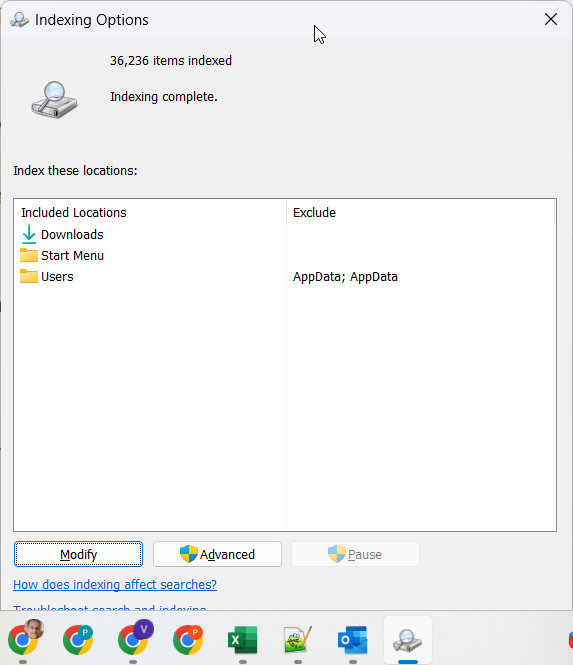
    1. Open the Start menu and search for “Indexing Options” to open the Indexing Options control panel.
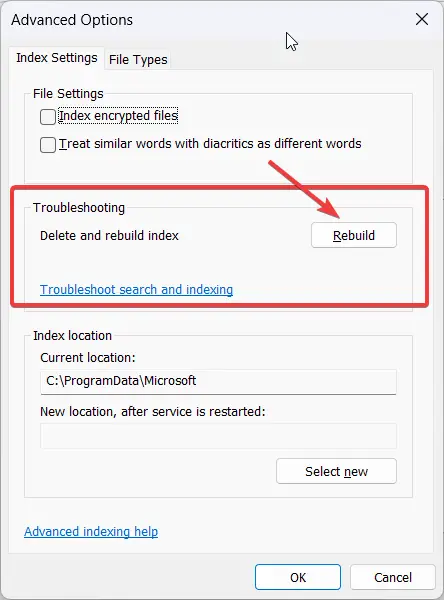
    2. Click on “Advanced” and scroll down to the “Indexing Settings” section.
    3. Click “Rebuild” next to the drive where you want to rebuild the index (usually this will be your C: drive).
    4. A prompt will appear warning that rebuilding the index may take several hours. Click “OK” to begin.
    5. The index will now rebuild in the background. You can continue using your PC during this time.
    6. To monitor progress, open Task Manager and go to the “Processes” tab. Look for the “Windows Search Indexer” process.
    7. Once the indexing process finishes, search should be working normally again in Windows 11. You can verify by searching for a random file on your system.
    dllhost oKccua5B45

    Rebuilding the search index forces Windows to completely re-crawl and index all files, emails, apps, settings and content on your PC from scratch. This resolves many search issues caused by a corrupted index.

    Fix #2. Run SFC and DISM

    Here are the steps to run the DISM tool in Windows 11 to help fix search bar issues:

    1. Open the Start menu and search for “Windows Terminal“. Open the Windows Terminal app.
    2. In the terminal window, type “cmd” and press Enter to open a Command Prompt window.
    3. Type the following command and press Enter:
    DISM /Online /Cleanup-Image /RestoreHealth
    1. DISM will now run and scan Windows for any corruption or problems with system files. This can fix underlying issues causing search problems.
    2. Once DISM has finished, close the Command Prompt and restart your computer.
    3. After rebooting, check if the search bar is working properly in Windows 11 now.
    4. You can also run SFC (System File Checker) after DISM by typing the following in Command Prompt:
    sfc /scannow
    1. This will scan and replace any corrupted system files from a cache.

    Running DISM and SFC scans can solve many common causes behind a malfunctioning search bar in Windows 11 like file corruption. Be sure to run them as admin.

    Fix #3. Change Index Locations

    Try moving the search index to a different drive with enough free space, like an SSD. This optimizes search performance.

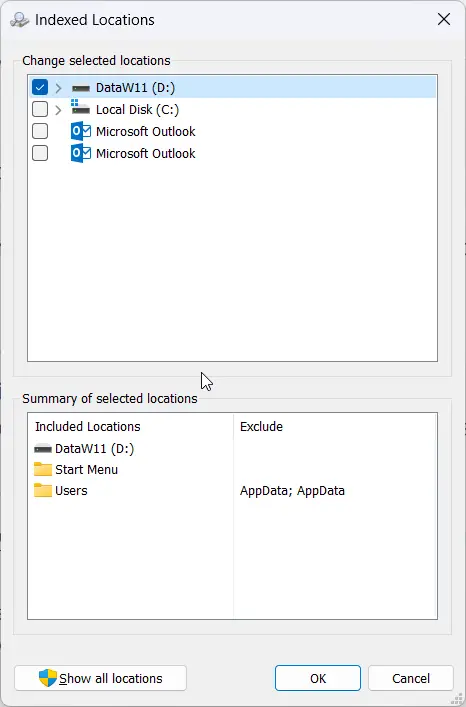
    Here are the steps to change the search index locations in Windows 11:

    1. Open the Start menu and search for ‘Indexing Options‘ to open the Indexing Options control panel.
    2. Click on the ‘Modify‘ button.
    3. In the Index Locations tab, you will see a list of currently indexed locations.
    4. To add a new location, click ‘Show all locations‘ and then click the ‘Add’ button.
    5. Select the new drive or folder you want to set as an index location. Typically an SSD drive is best for performance.
    6. Check the box that says ‘Index this location‘. Choose ‘OK’ to add it.
    7. To remove an existing indexed location, select it from the list and click the ‘Remove’ button.
    8. Click ‘OK’ to apply the changes.
    9. Windows will rebuild the search index using the new locations.
    10. Once complete, test search to ensure it is working properly now in the updated locations.
    rundll32 Gj1FS8NSEn

    Optimizing index locations can significantly improve search speed and performance in Windows 11 if the original system drive location was sluggish. Monitor disk usage after changing locations.

    Fix #4. Reset Search Settings

    As a last resort, resetting the search configuration often resolves stubborn search problems. Go to Windows Settings > Search and turn off search history and Cortana to fully reset settings.

    Fix #5. In-place Upgrade to Fix Windows 11 Search Bar Not Working

    If nothing else works, perform an in-place upgrade to reinstall Windows 11 while retaining your data and apps. This wipes all system settings back to default.

    Following these top troubleshooting solutions should get your recalcitrant Windows 11 search bar back up and running smoothly again.

  • 6 Best Windows Update Driver Software Tools

    Outdated, broken, or missing drivers are a huge headache that can cause Windows performance problems, crashes, hardware malfunctions, and a range of other irritating issues.

    But manually checking for driver updates for each component through Device Manager is an exercise in frustration. That’s why savvy Windows users turn to automated driver update utilities to simplify and streamline the process of keeping every driver up to date.

    Whether you need the latest graphics card drivers for smooth gaming or obscure chipset drivers on older systems, Driver Booster lives up to the hype.

    The majority of experts and Windows users rank it as the best driver updater available today. Given its enormous driver database, great features, and flawless performance, it’s easy to see why Driver Booster dominates the field as the top-rated driver update utility on the market.

    Having up-to-date drivers is crucial for getting the best performance and stability from your Windows PC.

    However, manually checking for driver updates can be tedious.

    That’s where automated driver update utilities come in handy. In this post, we cover the 10 best driver updater software for Windows.

    1. IObit Driver Booster

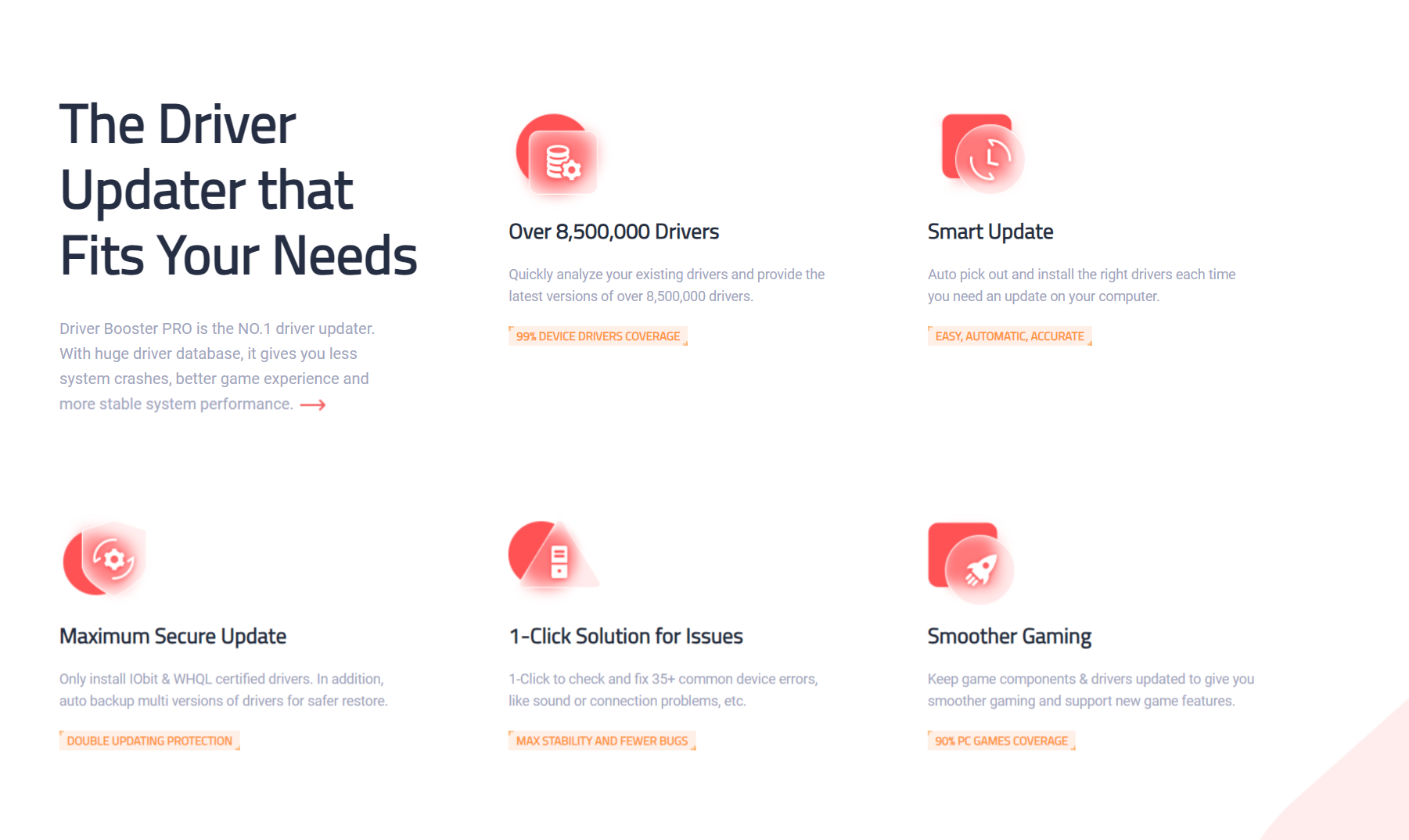
    IObit Driver Booster is a popular freeware choice for updating drivers. It auto-checks over 4,500,000+ drivers against its online database. Convenient features include game component updates and driver backups.

    iobit driver booster

    IObit Driver Booster is one of the most popular driver update utilities for Windows. It automatically checks for outdated, missing, or faulty drivers and updates them with just one click.

    Driver Booster stands out with its huge driver database of over 4 million drivers, far larger than competitors. It makes updating drivers easy for both novices and power users.

    Convenient features include batch updating, backups, game component updates and a simple UI. With over 200 million downloads worldwide, Driver Booster is the top choice for automating driver updates on Windows.

    TrustPilot Ratings

    Based on over 18,000 reviews, IObit Driver Booster has an ‘Excellent’ rating of 4.7 out of 5 stars on Trustpilot.

    • 74% have given it a 5-star ‘Excellent’ rating
    • 20% have given it a 4-star ‘Great’ rating
    • 4% have given it a 3-star ‘Average’ rating
    • 1% have given it a 2-star ‘Poor’ rating
    • 1% have given it a 1-star ‘Bad’ rating

    The vast majority of reviews praise the ease of use, large driver database, and effectiveness at updating drivers. Many reviewers mention it being the best driver update utility they have used. Negative reviews are very few and mention issues with the user interface or minor software glitches.

    In summary, with a 94% combined ‘Excellent’ and ‘Great’ rating from thousands of users, the overwhelming sentiment for IObit Driver Booster on Trustpilot is highly positive. The ratings reflect its capabilities as the top driver updater on the market.

    Reviews consistently rank it as the best driver updater available today thanks to its massive driver database, great features, and flawless performance.

    2. AVG Driver Updater

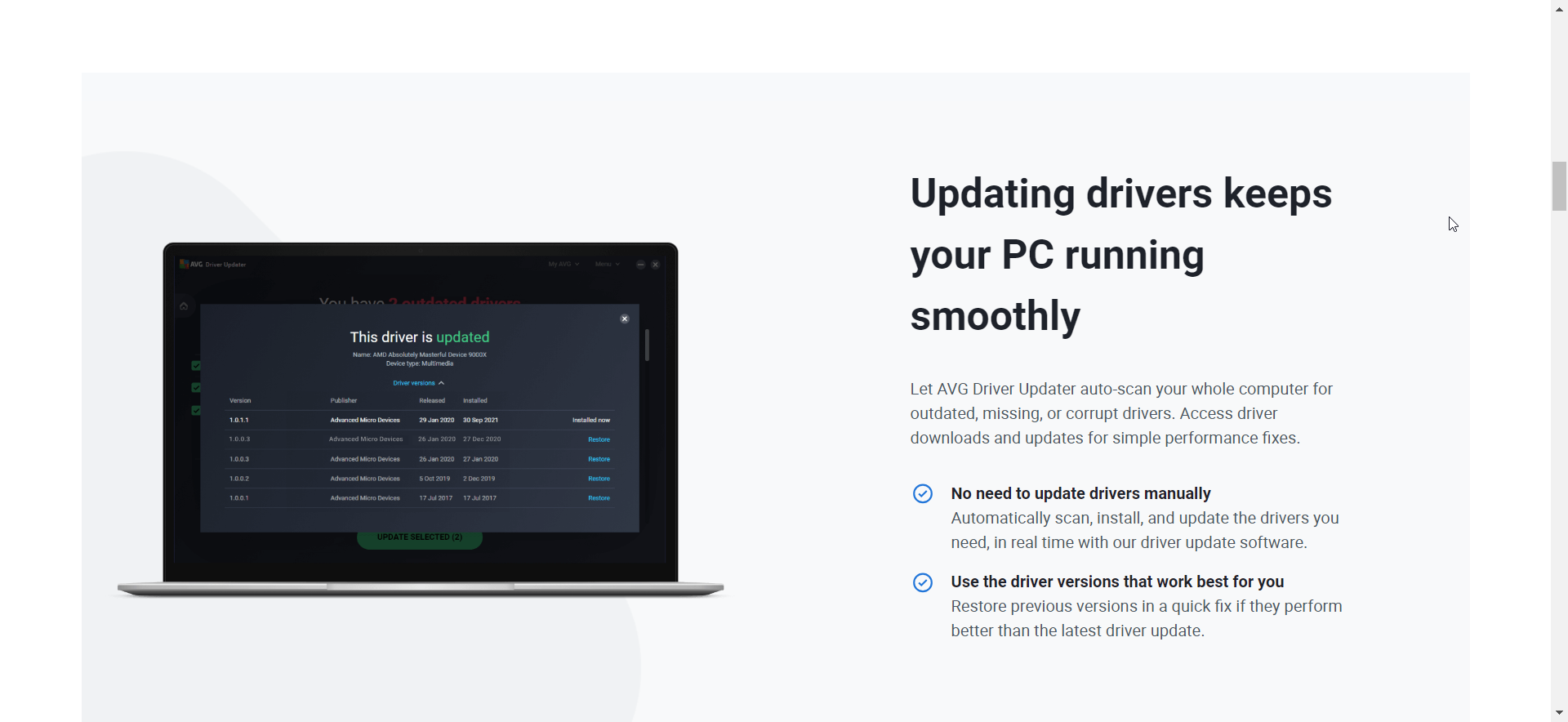
    AVG Driver Updater scans your PC for outdated or missing drivers and updates them. It includes an easy-to-use interface and handy tool to backup and restore drivers. Works well for graphics card drivers.

    AVG Driver Updater is a handy utility for keeping your hardware drivers up-to-date on Windows. It scans your PC to detect any outdated or missing drivers and updates them to the latest versions. One of its best features is the ability to backup and restore drivers, giving you a safety net if an update causes issues.

    avg driver updater

    AVG maintains a large database of driver updates for graphics cards, network adapters, printers, webcam, speakers and more.

    The intuitive interface makes updating drivers a breeze for novice users. AVG Driver Updater excels at keeping graphics card drivers updated for smoother gaming.

    TrustPilot Ratings

    I can provide a summary of the ratings and reviews for AVG Driver Updater on Trustpilot:

    • Based on over 1,400 reviews, AVG Driver Updater has a ‘Great’ rating of 4.4 out of 5 stars on Trustpilot.
    • 68% of reviewers have given it a 5-star ‘Excellent’ rating.
    • 20% have given it a 4-star ‘Great’ rating.
    • 7% have given it a 3-star ‘Average’ rating.
    • 3% have given it a 1-star ‘Bad’ rating.
    • 2% have left it a 2-star ‘Poor’ rating.

    The most common positive reviews praise the easy to use interface, smooth performance, and ability to backup drivers. Negative reviews mention occasional software glitches or lack of support for obscure hardware.

    In summary, with 88% of reviewers giving AVG Driver Updater an ‘Excellent’ or ‘Great’ rating, it is very well received on Trustpilot for its ease of use and effectiveness at updating drivers on Windows machines. The ratings and sentiment reflect it as a good choice for an automated driver update utility.

    Reviews praise its ease of use, lightweight system impact and useful backup tool. For a reliable driver management utility, AVG Driver Updater is a great choice.

    3. Slimware Utilities DriverUpdate

    Slimware Utilities offers an intuitive driver updater that automatically finds and updates drivers from a database of over 30 million device drivers. It also has a portable version.

    Here is a 100 word overview of Slimware Utilities DriverUpdate:

    Slimware Utilities DriverUpdate is a robust driver updater that makes keeping your Windows drivers up-to-date quick and easy. It draws from an expansive database of over 30 million device drivers to detect outdated or broken drivers on your system.

    With just one click, DriverUpdate can update all drivers or target specific ones. The simple interface and intuitive workflow is perfect for beginners.

    Experts will appreciate the inclusion of rarely updated drivers for obscure hardware. DriverUpdate runs smoothly without slowing down your PC. Portability and scheduling options provide added convenience.

    TrustPilot Ratings

    • Based on over 600 reviews, Slimware Utilities DriverUpdate has a ‘Great’ rating of 4.7 out of 5 stars on Trustpilot.
    • 80% of reviewers have given it a 5-star ‘Excellent’ rating.
    • 15% have given it a 4-star ‘Great’ rating.
    • 3% have given it a 3-star ‘Average’ rating.
    • 1% have left a 1-star ‘Bad’ rating.
    • 1% have left a 2-star ‘Poor’ rating.

    The most common positive feedback mentions the large driver database, smooth performance, and easy to use interface. Negative reviews cite issues with specific hardware drivers not being supported.

    In summary, with 95% of reviewers giving it an ‘Excellent’ or ‘Great’ rating, Slimware Utilities DriverUpdate enjoys very positive sentiment on Trustpilot. Users praise its effectiveness at updating both common and obscure hardware drivers on Windows machines.

    For an easy way to keep thousands of hardware drivers updated automatically, Slimware Utilities DriverUpdate is a top choice.

    4. Auslogics Driver Updater

    Auslogics Driver Updater can update drivers from over 500 major hardware brands with just a few clicks. Scheduling scans and exclusions make it easy to customize.

    Auslogics Driver Updater makes it effortless to keep your hardware drivers up-to-date on Windows. It can detect and update outdated or missing drivers from over 500 major brands with just a few clicks.

    The intuitive interface allows you to scan, update, and schedule driver updates easily. Customization options like exclusions and update frequency cater to both novices and experts.

    Auslogics boasts an expansive database of the latest driver versions across various brands. Reviews praise its light system footprint during scans and updates.

    TrustPilot Ratings

    • Based on over 1,100 reviews, Auslogics Driver Updater has a ‘Great’ rating of 4.4 out of 5 stars on Trustpilot.
    • 67% of reviewers have given it a 5-star ‘Excellent’ rating.
    • 20% have given it a 4-star ‘Great’ rating.
    • 8% have given it a 3-star ‘Average’ rating.
    • 3% have left a 1-star ‘Bad’ rating.
    • 2% have left a 2-star ‘Poor’ rating.

    The most common positive feedback cites the easy to use interface, fast scan times, and broad hardware support. Negative reviews mention occasional software glitches.

    In summary, with 87% of reviewers giving Auslogics Driver Updater an ‘Excellent’ or ‘Great’ rating, it is well received on Trustpilot for its usability and effectiveness. The ratings reflect it as a solid choice for updating drivers on Windows PCs.

    For a robust driver update utility with scheduling, exclusions and in-depth reporting, Auslogics Driver Updater is a great option for both laptops and desktops.

    5. Tweakbit PCRepairKit

    Along with many PC optimization tools, Tweakbit PCRepairKit includes a practical driver updater with one-click updating and restoration of backup drivers.

    Here is a 100 word overview of Tweakbit PCRepairKit:

    Tweakbit PCRepairKit is an all-in-one system optimization suite for Windows that includes effective driver update capabilities.

    With just one click, it can check for and update any outdated or missing drivers on your system. The simple process makes it easy for novices and experts alike. It draws drivers from an extensive online database.

    Another useful feature is the ability to backup and restore drivers in case an update causes problems.

    Beyond drivers, PCRepairKit provides many other optimization tools for cleaning registries, defragmenting disks, uninstalling software and more.

    For an easy automated driver updater alongside a suite of other useful utilities, Tweakbit PCRepairKit is a great choice.

    6. Ashampoo Driver Updater

    Ashampoo offers a fast driver update utility with a clean interface. It downloads over 150,000 device drivers directly from manufacturers.

    Ashampoo Driver Updater provides an easy and effective way to keep over 150,000 hardware drivers up-to-date on your Windows PC. With just one click, it can check your system and update any outdated or faulty drivers from a vast online database.

    Key highlights include the ability to schedule automatic scans and customize exclusions. The intuitive interface makes it simple for novices and experts alike to use Driver Updater. It excels at finding obscure and rarely updated drivers for peripherals and components.

    Reviews praise its light footprint and fast performance. For those seeking an easy-to-use driver update utility with robust options, Ashampoo Driver Updater is a top choice that gets the job done quickly.

    Conclusion

    Keeping drivers updated is crucial for performance and stopping crashes/BSODs. These top driver updater tools for Windows simplify the process greatly.

    Based on online reviews and recommendations, IObit Driver Booster emerges as the clear #1 choice and top-rated driver updater for Windows in 2023. With over 205 million downloads worldwide, Driver Booster keeps gaining users for good reason. It automatically scans your PC for outdated, missing, or faulty drivers and updates them with one click.

    Driver Booster boasts the largest driver database of over 4,500,000 drivers – far more than competitors. The intuitive interface makes it effortless for novices and experts alike to update drivers in bulk or individually. Convenient extras like game-ready updates, backup/restore, and negligible system impact have cemented Driver Booster’s place as the #1 driver updater worldwide.

  • Download Bluetooth Drivers for Windows 11 – Acer, HP, aSUS, dell

    Bluetooth allows you to connect devices like headphones, speakers, mice and keyboards wirelessly to your Windows 11 PC. Keeping your Bluetooth drivers up-to-date is important for maintaining connectivity and fixing issues with Bluetooth peripherals.

    In this post, we’ll walk through how to download and update Bluetooth drivers on Windows 11.

    Find Your Bluetooth Driver Details

    First, you need to find out the details of your current Bluetooth driver:

    1. Go to Device Manager
    2. Expand the ‘Bluetooth‘ section
    3. Right click on the Bluetooth driver and select Properties
    4. Go to the Driver tab to see the provider and version

    Make note of the driver provider (e.g. Intel, Qualcomm) and version number.

    bluetooth driver windows 11

    Download the Latest Drivers

    Go to the website of your Bluetooth driver provider. For example, Intel or Qualcomm.

    Search for and download the latest Bluetooth drivers for your Windows version. Ensure you get the correct 32-bit or 64-bit file.

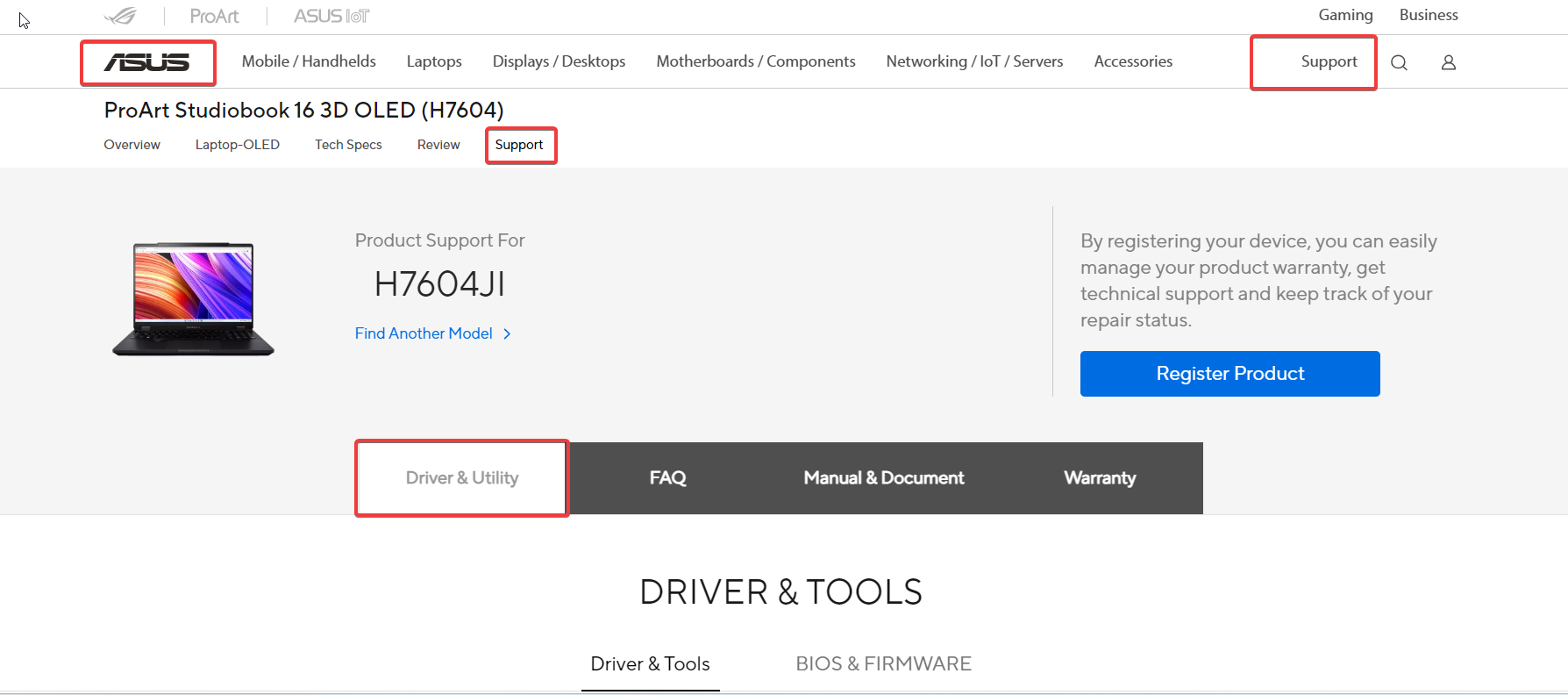
    Download Asus Bluetooth Driver Windows 11

    Download Link: https://www.asus.com/support/Download-Center/

    Getting the most up-to-date Bluetooth driver directly from ASUS is important for Windows 11 users to maintain full compatibility and connectivity with Bluetooth peripherals.

    asus bluetooth driver windows 11

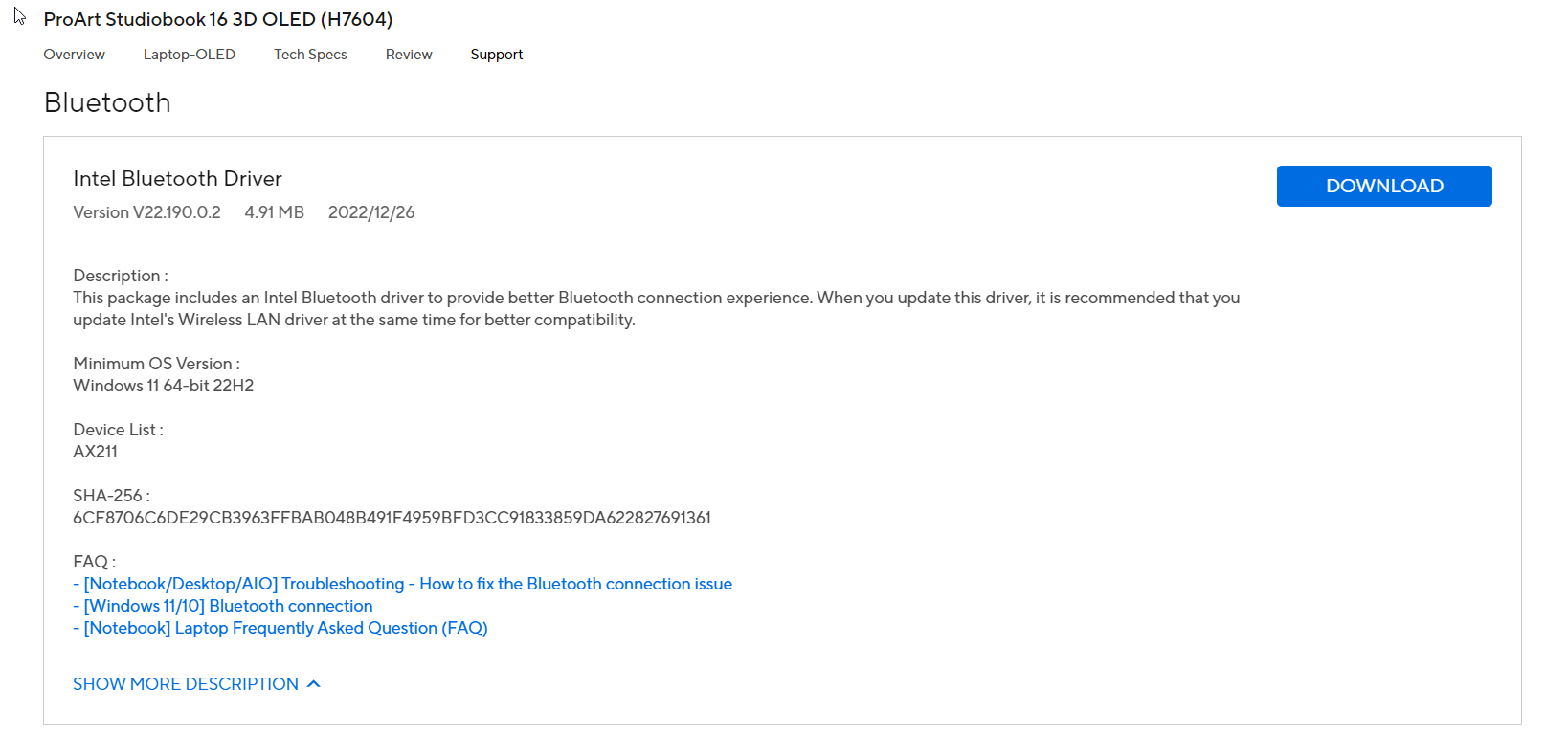
    ASUS provides driver updates on their support website with bug fixes, performance enhancements and support for new devices.

    To update your ASUS Bluetooth driver on Windows 11, first go to the ASUS driver download page linked above and enter your specific ASUS laptop or desktop model to find the correct drivers.

    1. Select the Bluetooth driver download for Windows 11 64-bit or 32-bit system.
    2. Then go to Device Manager, right click the Bluetooth driver under ‘Bluetooth‘ and select Update Driver.
    3. Point to the downloaded ASUS driver file to install the new version.
    4. Restart your ASUS Windows 11 computer when prompted to complete the Bluetooth driver update.
    asus support drivers

    Keeping your ASUS Bluetooth driver updated through the manufacturer’s website will prevent issues with wireless mice, keyboards, headphones and other Bluetooth devices.

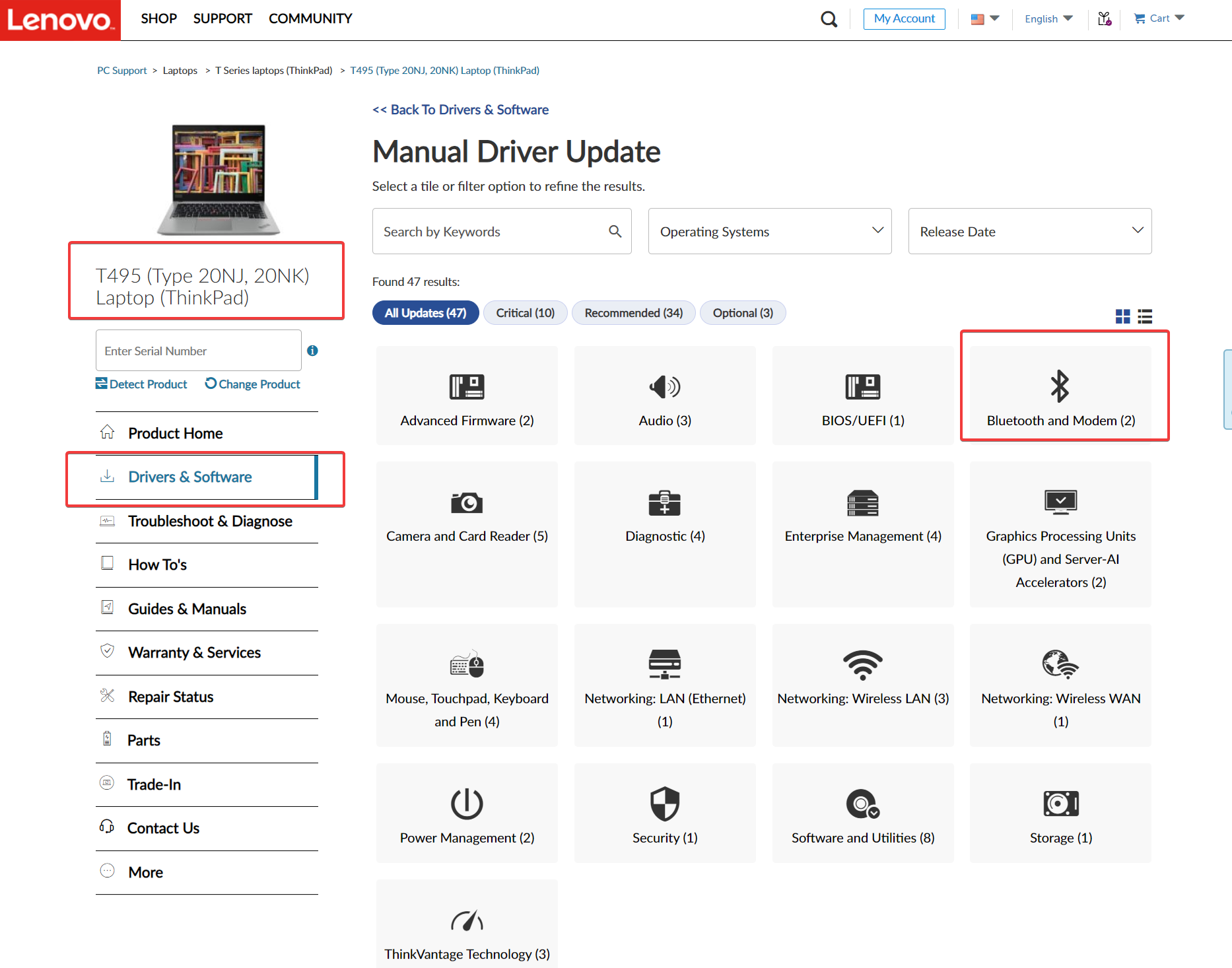
    Download Lenovo Bluetooth Driver Windows 11

    Download Link: https://support.lenovo.com/us/en

    Having the most up-to-date Bluetooth driver from Lenovo is crucial for maintaining full compatibility with Bluetooth peripherals when running Windows 11. Lenovo provides ongoing Bluetooth driver updates through their support site to fix bugs, improve performance, and support new devices as they are released.

    lenovo bluetooth driver windows 11

    Download Dell Bluetooth driver Windows 11

    Download Link: https://www.dell.com/support/home/en-in?app=drivers

    Dell provides regular updates to its Bluetooth drivers for Windows 11 to enable the latest features, compatibility, and security fixes. To download the newest Dell Bluetooth driver for your Windows 11 PC or laptop, visit the link above and enter your specific Dell model number.

    dell bluetooth driver windows 11

    Downloading directly from Dell, rather than using Microsoft’s generic Bluetooth driver, ensures you get the best performance, connectivity, and stability with Bluetooth accessories.

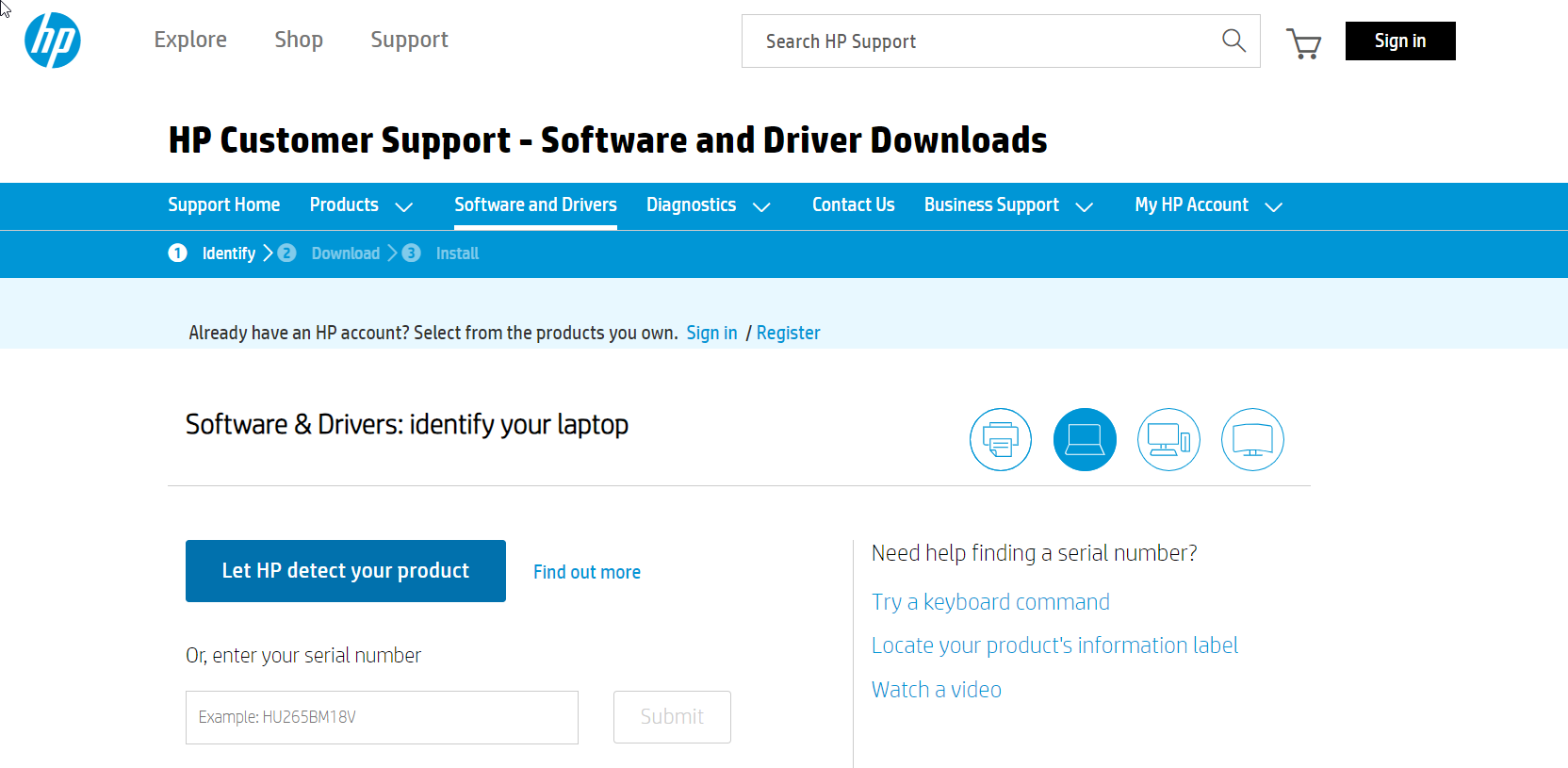
    Download Bluetooth Driver Windows 11 HP

    Download Link: https://support.hp.com/us-en/drivers

    • This link is for the HP Pavilion 15 model, change as per your specific HP device model
    • Visit HP support site and enter your HP device model to get the correct driver
    • Select Windows 11 as the operating system for driver compatibility
    • Download the Bluetooth driver installer for Windows 11 64-bit or 32-bit
    bluetooth driver windows 11 hp

    Update the Bluetooth Driver

    Once downloaded, right click the Bluetooth driver in Device Manager again and select Update driver.

    Choose to browse your computer and point to the downloaded driver file to update to the latest version.

    Restart Your Computer

    For the driver update to fully take effect, restart your Windows 11 computer.

    The new Bluetooth driver will now be active.

    Following these steps will ensure you always have the most up-to-date Bluetooth drivers installed on Windows 11. Keep them updated to prevent connectivity issues with wireless peripherals.