
Last Updated:
In my experience testing dozens of smartphones in 2026, Xiaomi’s hardware remains top-tier, but the software still suffers from “app overload.” If you are tired of random ads and “Yellow Pages” notifications, you need a dependable tool to remove bloatware from your Xiaomi device.
Whether you are in the United States using a Global ROM or in Europe with the latest HyperOS 2.0, this guide will show you exactly how to clean your device. I have personally tested these methods on the latest Xiaomi 15 and Redmi Note series to ensure they are 100% safe.
In 2026, managing system resources is critical for both legacy devices like the Redmi Note 4 and modern HyperOS 2.0/3.0 ecosystems.
By implementing a systematic Xiaomi ADB debloater strategy, users can effectively remove system apps without root, leading to a measurable Redmi Note 4 performance improvement and extended battery longevity across all Xiaomi, Redmi, and POCO devices.
By the end of this post, you’ll have a snappier phone with significantly better battery life—all without needing to root your device.
Why You Need a Xiaomi Bloatware Removal Tool in 2026
Xiaomi’s transition to HyperOS promised a “leaner” experience, but for users in the UK, USA, and Australia, pre-installed apps like Mi Video and MSA still drain resources. Using a debloater helps:
- Increase RAM Availability: Free up to 1.5GB of system memory.
- Stop Data Tracking: Disable
com.miui.analyticsimmediately. - Eliminate Ads: Kill the processes that serve “recommendations.”
Quick Answer: How to Uninstall Bloatware from Xiaomi Without Root?
To quickly debloat your device in 2026, follow these five steps:
1. Enable Developer Options
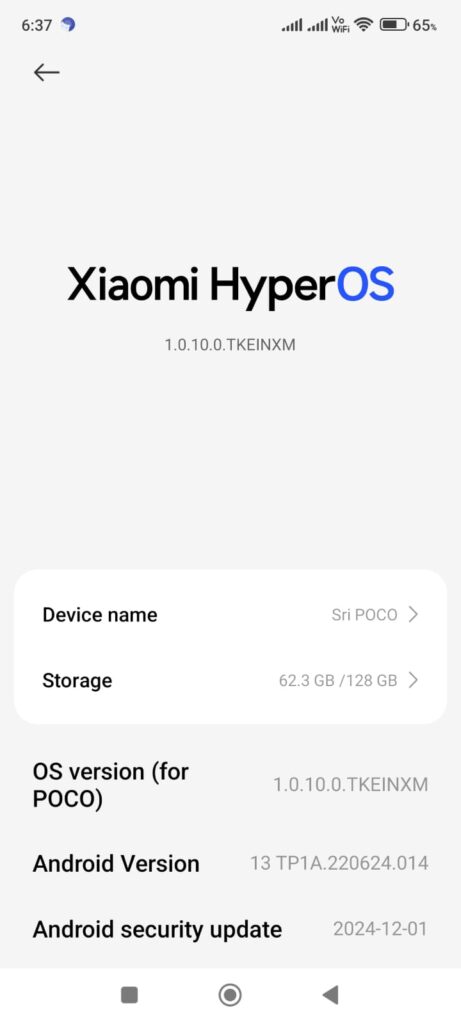
Think of this as unlocking a “secret menu” for experts. Go to Settings > About Phone and look for the “OS Version” (or HyperOS version) box. Tap this box seven times rapidly. A small message will appear at the bottom saying, “You are now a developer!” You can now access deep system settings, typically hidden from regular users, to prevent accidental changes.
2. Enable USB Debugging
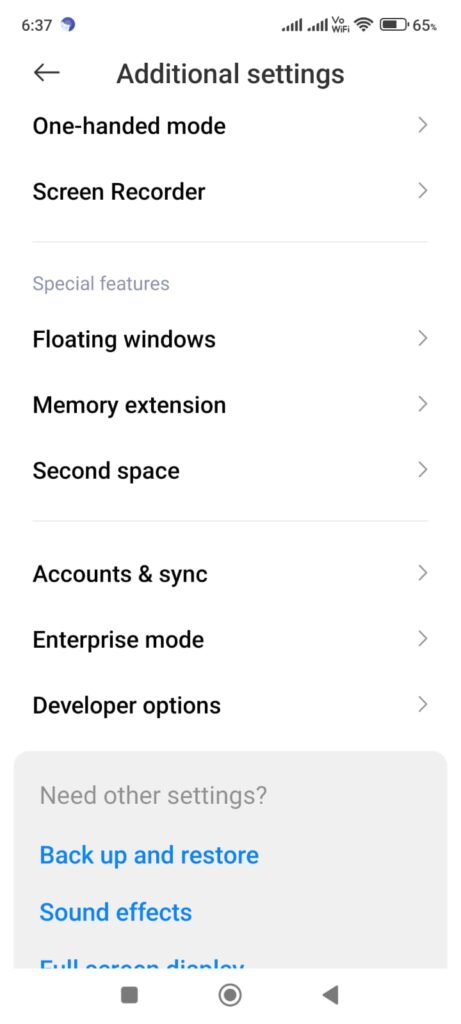
Now, go to Settings > Additional Settings > Developer Options. Scroll down and switch on “USB Debugging” and “USB Debugging (Security Settings). ” On Xiaomi devices in 2026, you must sign into your Mi Account to toggle the “Security Settings” option. This step is vital because it gives your computer permission to send commands to the phone to remove pre-installed apps safely.
3. Connect to PC & Open UAD
Use a high-quality USB data cable to connect your phone to a laptop or desktop. Download and open the Universal Android Debloater (UAD) on your computer. When you plug the phone in, a pop-up will appear on your mobile screen asking, “Allow USB Debugging?” Tap “Always Allow” so the software can communicate with your device and list all the hidden apps.
4. Select Your Packages
The UAD tool will display a long list of apps. For the best Redmi Note 4 performance improvement, look for the “Recommended” section in the tool. This section highlights safe-to-remove MIUI apps like Mi Video, Yellow Pages, and MSA (Ads). By choosing only recommended packages, you ensure that you don’t delete critical system files that the phone needs to start up properly.
5. Click Uninstall to Clean
Once you have checked the boxes for the unwanted bloatware, simply click the “Uninstall” button in the bottom right corner. The tool will instantly remove those apps from your phone’s current user profile. You will immediately notice more free RAM and better battery life. If you ever make a mistake, the tool allows you to “Restore” apps just as easily.
Top 3 Xiaomi Bloatware Removal Tools (No Root)
1. Universal Android Debloater (UAD) – Best for PC
It is the most beginner-friendly GUI tool available. It categorizes apps by “Recommended,” “Advanced,” and “Expert” removal levels.
2. Canta + Shizuku – Best for Mobile (No PC Required)
It has become a new favorite in 2026. It allows you to uninstall system apps directly on your phone using a wireless debugging bridge.
3. Xiaomi ADB/Fastboot Tools (Java)
Xiaomi ADB/Fastboot Tools (Java) is a traditional option for experienced users seeking a straightforward list of packages specific to MIUI.
Prerequisites
- A Wi-Fi Connection: Wireless debugging cannot be enabled without being connected to a network.
- Developer Options Enabled: Go to Settings > About Phone and tap “OS Version” (or MIUI version) 7 times.
- Apps Installed: Download Shizuku from the Google Play Store and Canta from GitHub or F-Droid.
Xiaomi Bloatware Removal Tool Guide (Feb 2026) – Just Using Mobile
Step 1: Configure Developer Settings
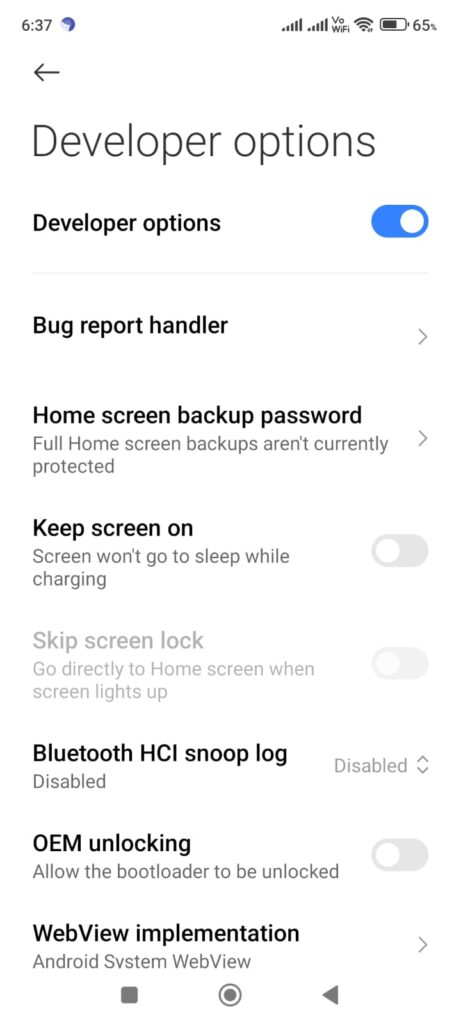
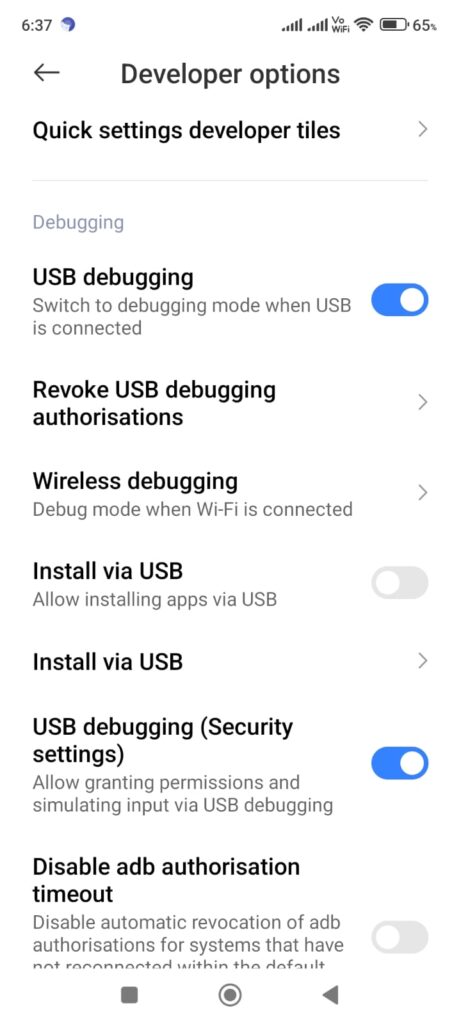
Go to Settings > Additional Settings > Developer Options and enable the following three toggles. This is critical for POCO/Xiaomi devices specifically:
- USB Debugging
- USB Debugging (Security Settings)—Note: This requires a Mi Account login and will show several 10-second safety warnings. You must accept them.
- Wireless Debugging
Step 2: Pair Shizuku
- Open the Shizuku app.
- Tap on Pairing under the “Start via Wireless Debugging” section.
- Tap Developer Options (it will take you back to the settings page).
- Tap the text “Wireless Debugging” (not just the toggle) to enter its submenu.
- Select Pair device with pairing code. A 6-digit code will appear.
- Enter this code into the Shizuku notification that appears at the top of your screen.
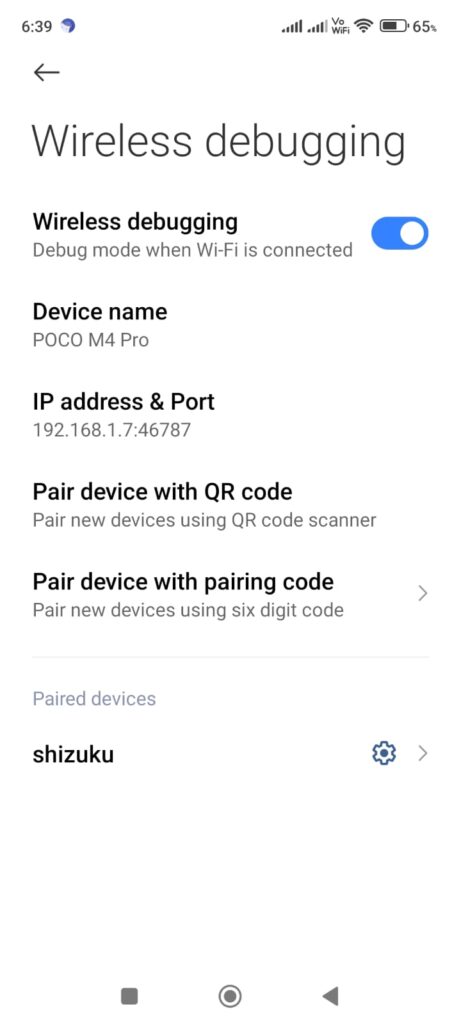
Step 3: Start the Service
- Go back to the Shizuku app.
- Tap Start. You will see a command-line interface pop up briefly.
- Once the main screen says “Shizuku is running,” you are ready.
Step 4: Debloat with Canta
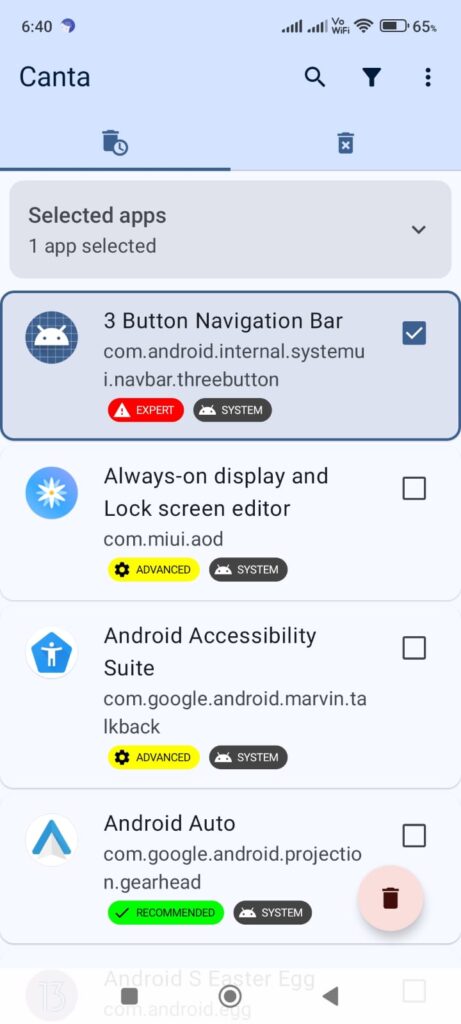
- Open the Canta app. It will ask for permission to access Shizuku; tap Allow all the time.
- Canta will list all installed apps. Use the search bar or filter for “System” apps.
- Select the bloatware you want to remove (e.g., Mi Video, MSA, Analytics).
- Tap the Trash icon. The apps will be uninstalled immediately from the current user profile.
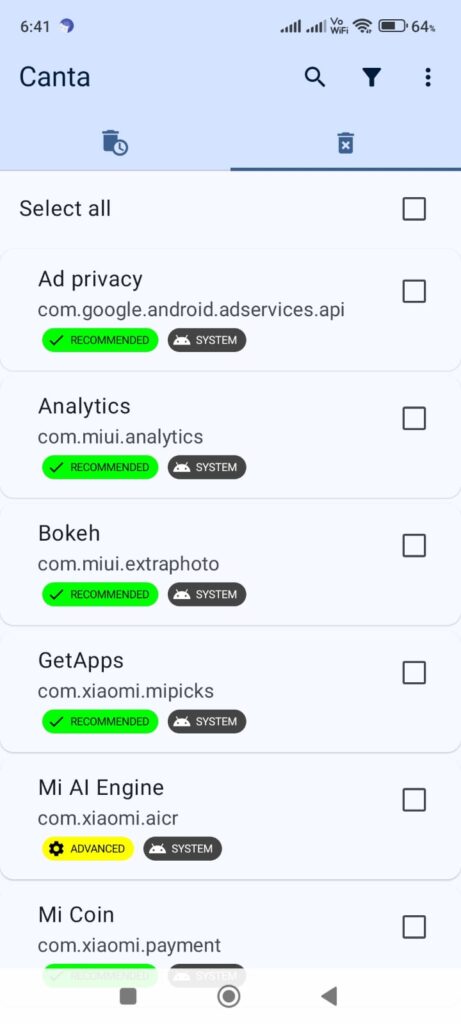
Safe-to-Remove Recommendations for POCO M4 Pro
- Safe:
com.miui.msa.global(Ads),com.miui.analytics(Data tracking),com.miui.hybrid(Quick Apps),com.miui.videoplayer(Mi Video). - Caution: Do not remove
com.miui.securitycenterany package with “launcher” in the name, as this can cause your POCO to get stuck in a boot loop.
Safe-to-Remove Xiaomi Bloatware List (2026)
Removing bloatware is the single most effective way to speed up a Xiaomi phone and stop background data tracking. In 2026, with the rollout of HyperOS 2.0 and 3.0, Xiaomi has introduced several new system components that are safe to remove but often missed by older guides.
Below is the definitive “Safe to Remove” list for both the latest HyperOS versions and the classic MIUI systems.
| Package Name | Service | Risk Level |
com.miui.msa.global | System Ads | Zero Risk |
com.miui.analytics | Data Tracking | Zero Risk |
com.miui.yellowpage | Yellow Pages | Zero Risk |
com.xiaomi.joyose | Performance Throttle | Low Risk |
Part 1: The 2026 HyperOS 2.0/3.0 Bloatware List
These packages are specific to the newer “interconnected” ecosystem. Removing them will not break your phone but will significantly free up RAM and reduce background power consumption.
com.miui.msa.global(MIUI System Ads) This is the “main engine” for advertisements across the entire operating system. Removing it kills the ads that appear in the app folder, security scan, and system notifications.com.miui.analytics(System Analytics) This service tracks how you use your phone and sends data back to Xiaomi for “product improvement.” Removing it is a major win for privacy and stops a constant background data upload.com.xiaomi.joyose(Performance Throttle & Tracking) Joyose is a background service that manages performance during gaming but also collects ad-related analytics. Deleting it can actually improve gaming stability by stopping the system from “throttling” your CPU.com.miui.android.fashiongallery(Wallpaper Carousel) This is the “Lock Screen Wallpaper” feature that shows random images and sponsored content. It is notorious for draining battery life and using mobile data to download high-resolution photos in the background.com.miui.hybrid(Quick Apps) This allows you to use “mini-apps” without installing them from the Play Store. It is essentially a separate, unvetted app ecosystem that often serves its notifications and ads.com.miui.yellowpage(Yellow Pages) This service identifies business callers in your dialer app. Xiaomi’s business directory is a useless background process that clutters your contact list, unless you live in a region where its use is widespread.com.miui.contentcatcher(Content Recognition) This service scans what is on your screen to provide “smart recommendations.” It is a privacy concern for most users, as it essentially “reads” your screen activity to serve relevant ads.
Part 2: The “Old School” MIUI Bloatware List
If you are on an older device (Redmi Note 12 or older) or just want to ensure the older legacy apps are gone, these are the classic targets.
com.miui.player(Mi Music) Xiaomi’s stock music player. It is heavily integrated with online streaming ads and is largely inferior to Spotify or local players like VLC or Musicolet.com.miui.videoplayerMi Video functions more like a social media feed for viral videos. It is extremely notification-heavy and consumes significant storage space for cached video previews.com.mi.globalbrowser(Mi Browser)—Mi’s proprietary browser. It often bypasses your default browser settings and is packed with news feeds and tracking cookies that slow down your web experience.com.xiaomi.mipicks(GetApps) Xiaomi’s own app store. It frequently sends “Update” notifications even for apps you downloaded from the Google Play Store, creating unnecessary confusion and system lag.com.miui.bugreport(Mi Feedback) The system facilitates the transmission of error logs to Xiaomi. Unless you are a developer or actively reporting bugs to the community, this service just sits in the background taking up system resources.com.miui.notes(Mi Notes) A basic note-taking app. Most users prefer Google Keep or Microsoft OneNote, making this a redundant app that cannot be uninstalled without an ADB tool.com.miui.compass&com.android.fmradioThese are simple utilities that most people rarely use. While small, they add to the “visual clutter” of your app drawer and can be safely deleted.
Pro Tip for 2026: The “Caution” List
While the lists above are 100% safe, DO NOT remove these two packages unless you know what you are doing:
com.miui.securitycenter: This handles all permissions. Removing it will “soft-brick” your phone (it won’t boot).com.xiaomi.xmsf(Xiaomi Service Framework): Removing this module will break “Find Device” and may prevent you from logging into your Mi Account.
How to remove them? Use the Universal Android Debloater (UAD) or Canta with Shizuku for the safest experience. These tools will automatically highlight these packages in “green” (safe) or “red” (dangerous).
Step-by-Step: How to Uninstall Xiaomi Bloatware via ADB
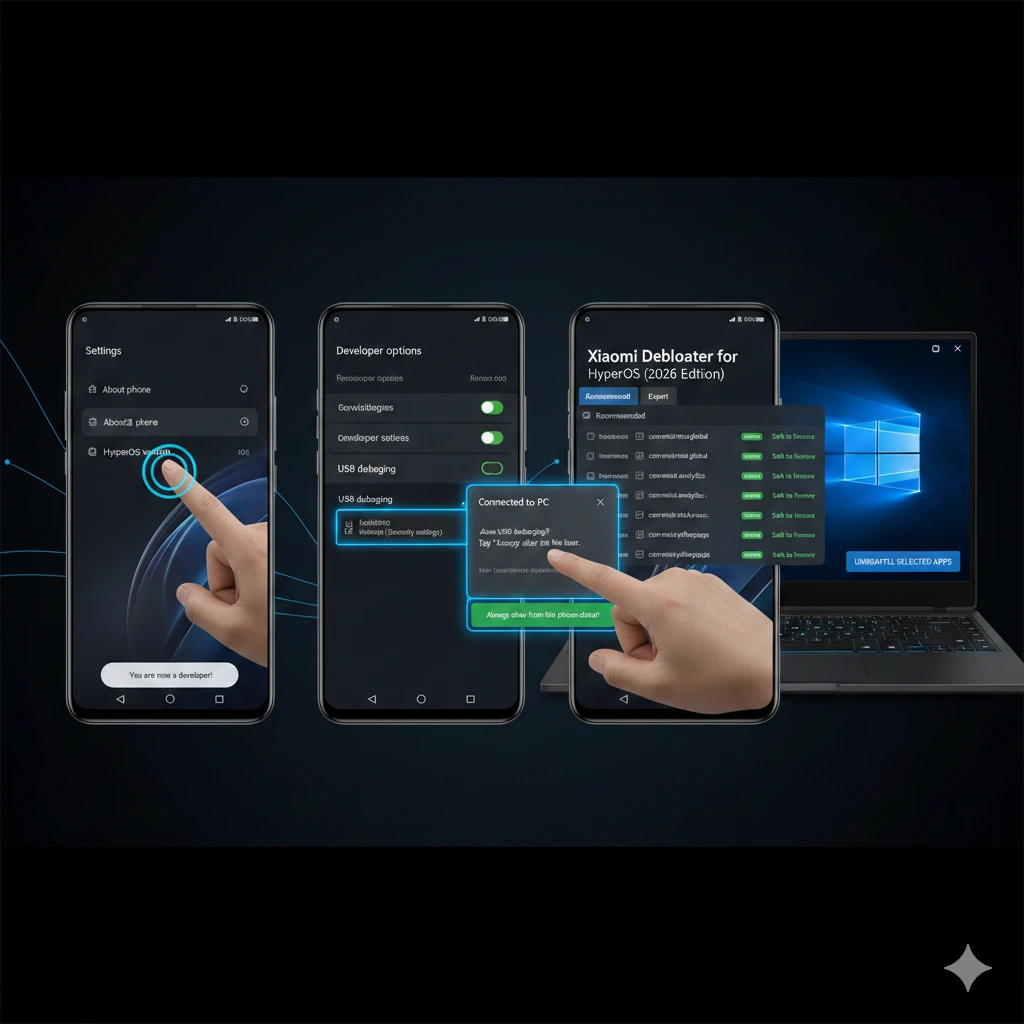
Step 1: Unlock Developer Options
Think of “Developer Mode” as a hidden VIP pass to your phone’s inner workings. To get it, go to Settings > About Phone and tap the “OS Version” box seven times quickly. A small bubble will pop up saying, “You are now a developer!”—this is the first step to taking full control of your Xiaomi device.
Step 2: Enable USB Debugging (The Bridge)
As a “Developer,” you must establish a communication channel to allow the removal tool to interact with your phone. Navigate to Additional Settings > Developer Options and toggle on USB Debugging.
Important for 2026: You must also enable “USB Debugging (Security Settings)” right below it, or Xiaomi will block any attempt to remove apps. You will see a few safety warnings; just wait for the timer and tap “Accept.”
Step 3: Connect to Your Tool (PC or Mobile)
If you are using a PC, plug your phone in and open the Universal Android Debloater (UAD). On your phone screen, a prompt will ask, “Allow USB Debugging?”—tap Always Allow so the computer has permission to make changes. If you are using the Canta mobile app, simply open Shizuku first and tap “Start via Wireless Debugging” to begin without a cable.
Step 4: Identify & Delete Safely
Your tool will now show a long list of every app on your phone, including ones usually hidden. Look for labels like “Recommended” or “Safe to Uninstall” to avoid deleting critical system files that could cause a reboot loop. Simply check the boxes for apps like Mi Video, Yellow Pages, or MSA (Ads) and hit Uninstall.
Is it safe to remove Xiaomi Yellow Pages?
Yes, it com.miui.yellowpage is safe to remove. It is a caller ID service that is largely irrelevant for users in the United States and Europe. Removing it with a Xiaomi tool for bloatware removal will not affect your phone’s basic calling functionality.
Will debloating my Xiaomi phone void the warranty?
No. Since these methods do not require “rooting” or unlocking the bootloader, they preserve your warranty. You are simply disabling or uninstalling apps at the user level.
Do uninstalled apps return after an OTA update?
Sometimes. Major HyperOS updates may reinstall core “ad” services. I recommend keeping your Xiaomi bloatware list handy to run a quick 2-minute cleanup after every major update.
Packages of type com.xiaomi.glgm are required to install Xiaomi games. Before that, MIUI mobiles came with bloatware and system apps. To remove them from older phones, you must install ADB drivers.
They include Mi Browser, Quick Apps, Get Apps, Xiaomi Cloud, Calendar, Security, Camera, Gallery, Music, Feedback, File Explorer, FM Radio, Recorder, Mi Pay, and others.
Useful system apps help in our day-to-day tasks. However, Xiaomi pushes some of these apps as bloatware for financial gain and advertising purposes. You can find the MIUI 11 bloatware list below.
The Xiaomi bloatware removal tool on GitHub helps in many versions of MIUI. The interface is simple. Select all the required pre-installed apps and then uninstall. You can also make use of command-line tools and PCs to remove them. For that, you need to install the ADB package.
To remove Xiaomi apps, you can always use the default feature of MIUI. But for system apps and bloatware, they don’t have that option. For that, you need to use the adb uninstall command for system apps. This procedure installs the server and app package.
To remove bloatware from MIUI 11, you can’t do it directly using system settings.
For example, Mi Pay is not much used by me in India. Mi Browser is another redundant app, which is slow compared to other good browsers like Opera, Chrome, and Firefox.
In this post, two Xiaomi bloatware removal tools are mentioned that can help your phone use fewer apps. Only App Store apps can be installed, and space is also saved.
Xiaomi Bloatware list and System Apps
The list of system apps and package names is mentioned below.
Xiaomi:
● GetApps—an app store like Google Play from Xiaomi. The most annoying one periodically shows advertisements.
com.xiaomi.mipicks
● MIUI Ad Services—also responsible for showing ads.
com.miui.msa.global
● Cloud
com.miui.cloudservice
● Cloud Backup
com.miui.cloudbackup
● Games
com.xiaomi.glgm
● Mi Credit
com.xiaomi.payment
● Mi DocViewer (Powered by WPS Office)
cn.wps.xiaomi.abroad.lite
● Mi ShareMe
com.xiaomi.midrop
● Mi YellowPages
com.miui.yellowpage
● MIUI Gallery—If you use another gallery app, WARNING: @nihalanand697 reports disabling it isn’t safe.
com.miui.gallery
● Wallpaper Carousel
com.miui.android.fashiongallery
● Default Browser—not necessary if you use Firefox or Chrome
com.android.browser
● Mi Bug Report—if you not using this features
com.miui.bugreport com.miui.miservice
Google:
● Google Movies
com.google.android.videos
● Google Music
com.google.android.music
● Google Photos
com.google.android.apps.photos
● YouTube—I prefer to use a browser
com.google.android.youtube
● Google Duo
com.google.android.apps.tachyon
● Google Lens
com.google.ar.lens
● Google search box—I prefer to use a browser or widget
com.google.android.googlequicksearchbox
● Digital well-being
com.google.android.apps.wellbeing
Facebook:
Some of the Facebook apps and services are bloatware and take lot of phone memory and resources. You can uninstall them if you are not using them. As they come pre-installed, they also come under bloatware.
● Facebook Services
com.facebook.services
● Facebook App Installer
com.facebook.system
● Facebook app manager
com.facebook.appmanager
Default Android Apps
● Wallpaper live picker
com.android.wallpaper.livepicker
● Photo table
com.android.dreams.phototable
Source: https://selivan.github.io/2020/02/25/removing-bloatware-from-xiaomi-miui-android.html
Redmi Note 4 Developer Options
In some of the cases, you need to be in developer mode to change some settings.
Enable the Developer Option
- Open Settings from your phone.
- Tap on About phone.
- Tap on MIUI version 7 times (more or less).


Your developer option is enabled.
Open “Additional Settings.”
- Go back to the Settings screen.
- Under System Settings > Additional Settings
Tap on Developer options (this will only be seen if you complete step 1).


Turn on “USB Debugging” and other options.
This will ask for permission—allow development settings. Tap on OK.

Scroll through to see other options under Debugging.
- USB debugging.
- Install via USB
- USB debugging (security settings)—When you enable this, some security warnings, like 3, are displayed; you can accept them.


Remove bloatware. Xiaomi ADB
- You need to install the ADB driver to make ADB commands work on your PC.
- Go to one of the following links.
- https://adb.clockworkmod.com/
- https://developer.android.com/studio/run/win-usb
For this tutorial to work, I felt the first link was straightforward. The second link installs a lot of software and is difficult to understand.
Install the Universal ADB Drivers or Google USB driver from the above links.
Set PATH to ADB Executable in your PC
If you install the universal ADB drivers, you should see the following path:
C:\Program Files (x86)\ClockworkMod\Universal Adb Driver, where C: is the system or OS drive.
- Copy this path to the “adb” executable.
- Open the Control Panel, then go to System and select Advanced system settings. A system properties window will open.
- Click on the Advanced tab. Click on Environment variables. A pop-up opens. Under user variables, click on “Edit.” Another pop-up window opens. Click on “New” and add the path to the “adb” executable. Note: This step is important to make ADB commands work on your PC.

Connect Mi Phone to PC via USB cable
- To complete the ADB commands on your PC, an active Mi account is sometimes required. You can always create it for free.
- Connect your Redmi Note 4 to a PC or laptop. It may ask to accept the RSA key fingerprint in this step. It will also show the key.
Start ADB Server and Open ADB Shell

- Open Windows PowerShell/Command Prompt from the Start Menu or by typing in the search. You also need to start the ADB server from the Start Menu.
- Type the following “adb” commands.
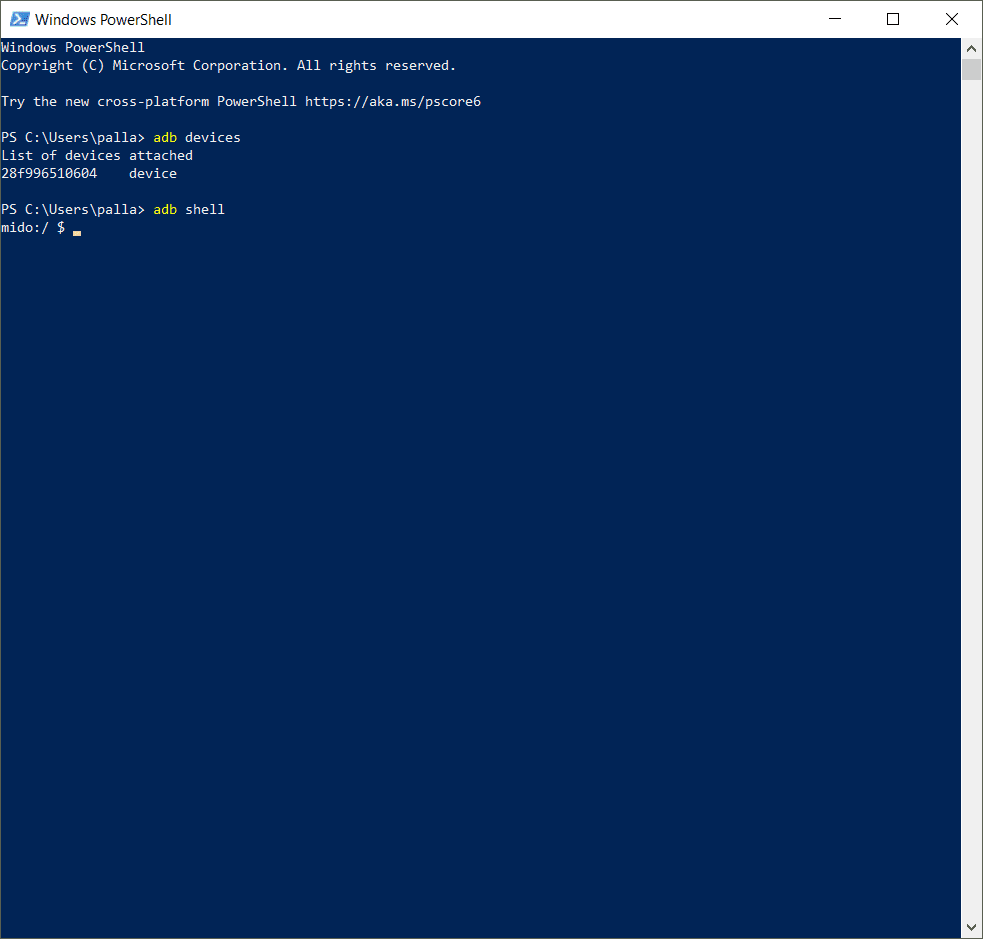
adb devices
adb shell
- If you have performed the above steps perfectly, you should be able to see letters and numbers to represent your device, PC, and shell.
Remove MIUI Bloatware List
- Type the following “adb shell” commands to uninstall system apps from Redmi Note. 4. The technique also works for other Mi phones.
For example, to uninstall GetApps, type the following on your screen.
pm uninstall -k --user 0 com.xiaomi.mipicks
The last part of the command is the package name (e.g., com.xiaomi.mipicks). In the below screenshot, you can see how I uninstalled “”Facebook”-related services.

If somehow the mobile phone hangs, you can restart the phone.
Xiaomi Bloatware Removal tool
Disclaimer: We have tested this software and sourced it from a reliable source. We sourced all the steps mentioned below from various blogs and articles. I was able to uninstall the required system app successfully. But to be careful, you need to back up your system data.
This software can be used on all Windows systems. The typical size of the Windows interface is around ~20MB.
Total Time: 3 minutes
Download the following software: Xiaomi Bloatware. Removal Tool Github
It works even with the old JRE 8 version.
The latest version is https://github.com/Szaki/XiaomiADBFastbootTools/releases/tag/7.0.1.
The typical size is ~22MB. This version requires a Java version of 11 or above. You may be required to install the JDK as part of it.
Download the Java JRE file from the Oracle site for Windows. You need to sign up if required. The typical size is ~76MB
Run the Xiaomi ADB Fastboot Tools software.
Enable the Developer Options and USB Debugging option, as mentioned above.
Connect your PC or laptop to your Mi phone using a USB cable.
Run the JAR file
Since this is a jar file, you need to run it like a typical JAVA file. This JAR file should run, as you have JRE installed already.
The typical interface will look something like this.
ADB drivers are not required.
If you have connected your Redmi Note 4 first and then open this software, it will instantly recognize this phone.
Otherwise, when you open the software and then connect the phone, it will take some time. Also, “USB debugging warning” may be required to be approved when connected the first time.
Note: The ADB drivers may not be required as mentioned in the above method.
The following tabs are visible:
The following four tabs are visible under the ADB interface.
Uninstaller
Reinstaller
Disabler
Enabler
Note: For some reason, the Reinstaller module was not working for me.
Uninstall the Xiaomi Bloated Apps
You can use the “Uninstaller” module to uninstall the system apps.
The “App name” and “Package name” are listed in this module.
Select the required system apps and click on “Uninstall.” You can make use of this module to uninstall other apps.
I uninstalled the “Yellow Pages” app with package name com.miui.yellowpage and was able to uninstall it successfully.
Conclusion
The difficult part I faced was installing the third-party software, like ADB drivers and Java JDK, to make the methods work. Once correctly installed, the remaining steps become straightforward.
I have tested both the above methods to uninstall system apps. I encountered no issues. Successfully removed the bloatware apps like Mi Browser, Mi Pay, Get Apps, etc., without much problem.
Disclaimer: This blog post or owner is not responsible if the mobile malfunctions after performing the steps below. I sourced these commands and software from various forums, articles, and links. I performed these steps and did not face any problems. I also took the screenshots from my PC and Xiaomi Redmi Note 4, Xiaomi Poco M4 Pro.