Category: Windows 10

  • How to Fix “The App You’re Trying to Install Isn’t a Microsoft-Verified App” Error in Windows 10

    How to Fix “The App You’re Trying to Install Isn’t a Microsoft-Verified App” Error in Windows 10

    If you’ve encountered the error message “The app you’re trying to install isn’t a Microsoft-verified app” while attempting to install an application on your Windows 10 device, don’t worry.

    This is a common issue that many users face, and it’s usually related to the Windows SmartScreen feature, which is designed to protect your system from potentially harmful software. In this guide, we’ll walk you through three simple steps to resolve this issue and successfully install your desired application.

    Step 1: Temporarily Disable Windows SmartScreen

    The first step in resolving the “The app you’re trying to install isn’t a Microsoft-verified app” error is to temporarily disable the Windows SmartScreen feature.

    SmartScreen is a built-in security feature that helps prevent the installation of unrecognized apps that might pose a risk to your system. However, sometimes it can block legitimate applications from being installed. Here’s how you can disable SmartScreen:

    1. Open the Windows Settings by pressing the Windows key + I or by clicking on the Start menu and selecting the gear icon.
    2. Navigate to the “Update & Security” section.
    3. In the left sidebar, click on “Windows Security.”
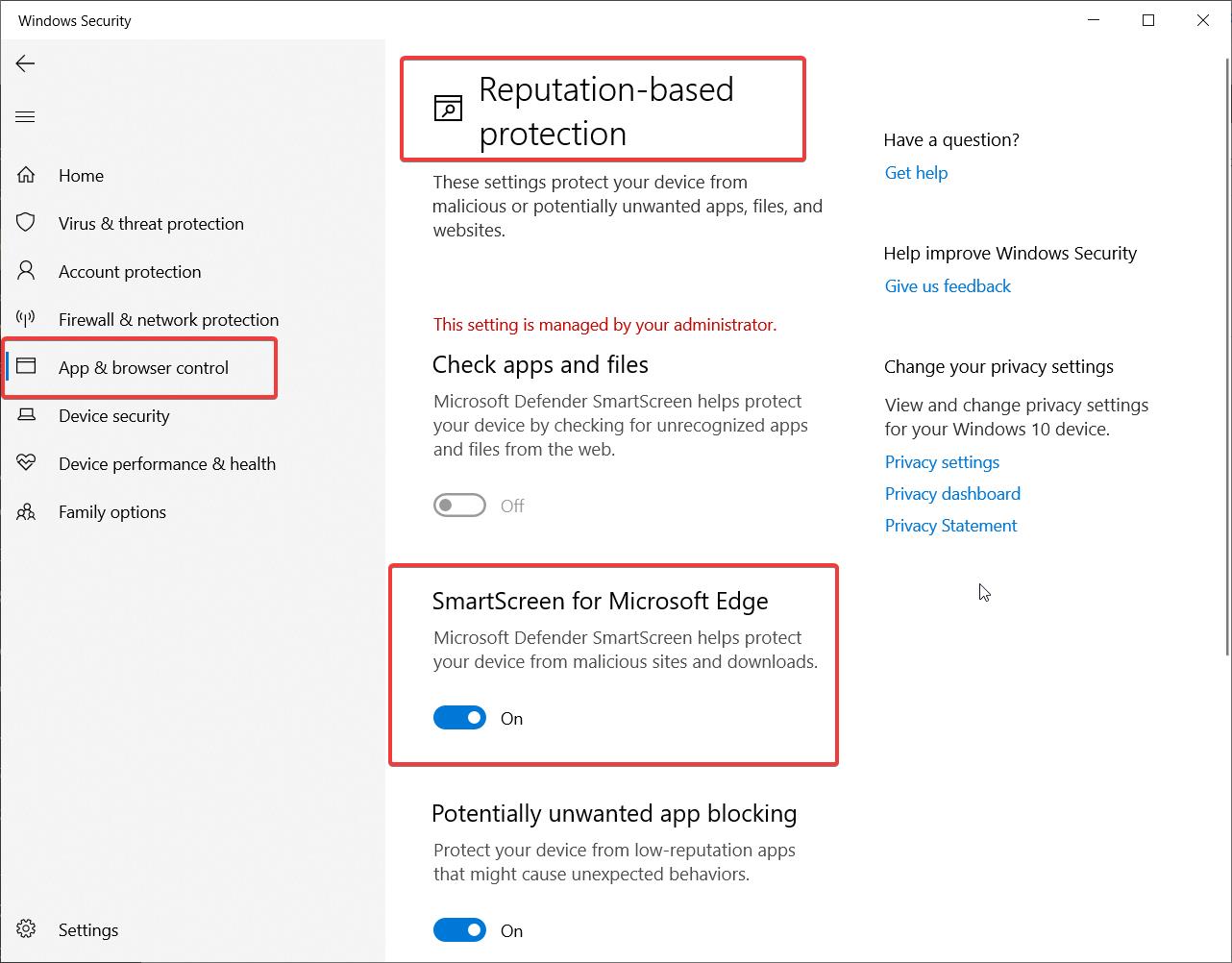
    4. Under the “Protection areas” section, click on “App & browser control.”
    5. Scroll down to the “Reputation-based protection” section and click on “Reputation-based protection settings.”
    6. Under “Check apps and files,” select “Off” to disable SmartScreen.
    7. Click “OK” to save the changes.

    By disabling SmartScreen, you’re allowing the installation of apps that aren’t Microsoft-verified. However, it’s essential to exercise caution when installing applications from untrusted sources, as they may contain malware or other security threats. Make sure you trust the source of the app you’re trying to install before proceeding.

    Step 2: Attempt to Install the Application Again

    Now that you’ve disabled Windows SmartScreen, you can try installing the application again. Follow these steps:

    1. Locate the installation file for the app you want to install. This could be an executable file (.exe) or a setup file.
    2. Double-click on the installation file to begin the installation process.
    3. If you’re prompted with a User Account Control (UAC) dialog box, click “Yes” to allow the installation to proceed.
    4. Follow the on-screen instructions provided by the app’s installer. This may include accepting the End-User License Agreement (EULA), selecting the installation location, and configuring any additional settings.
    5. Once the installation is complete, you should be able to launch and use the app without encountering the “The app you’re trying to install isn’t a Microsoft-verified app” error.

    If the installation is successful, congratulations! You’ve successfully resolved the issue and can now use your desired application.

    Step 3: Re-enable Windows SmartScreen (Recommended)

    After successfully installing the application, it’s strongly recommended to re-enable the Windows SmartScreen feature. SmartScreen plays a crucial role in protecting your system from potential security threats, and keeping it disabled for an extended period can leave your device vulnerable. Here’s how you can re-enable SmartScreen:
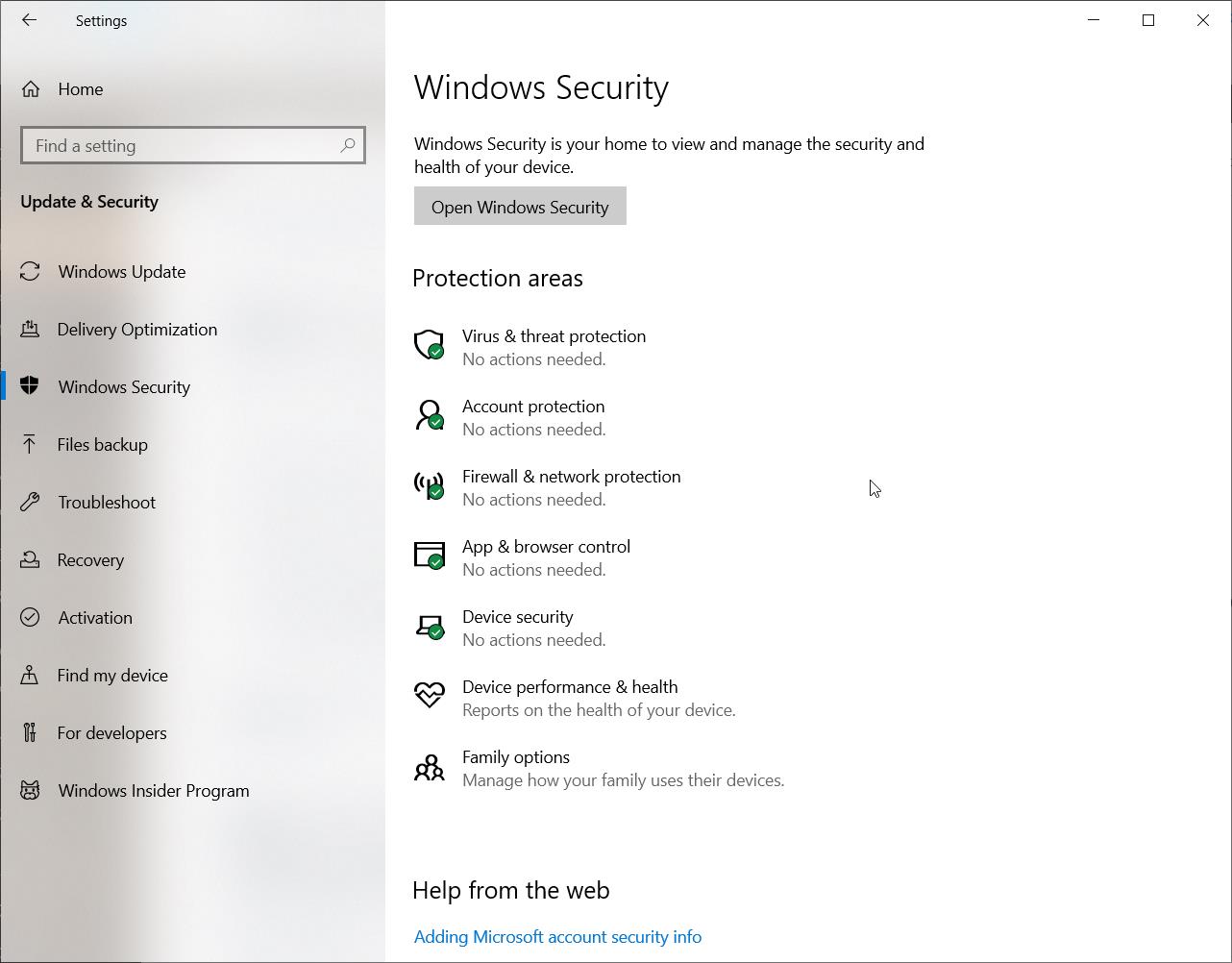
    1. Open the Windows Settings once again by pressing the Windows key + I or by clicking on the Start menu and selecting the gear icon.
    2. Go to the “Update & Security” section.
    3. Click on “Windows Security” in the left sidebar.
    4. Under the “Protection areas” section, click on “App & browser control.”
    5. Scroll down to the “Reputation-based protection” section and click on “Reputation-based protection settings.”
    6. Under “Check apps and files,” select “Warn” or “Block” to re-enable SmartScreen protection. “Warn” will display a warning message when an unrecognized app is being installed, allowing you to make an informed decision, while “Block” will automatically prevent the installation of such apps.
    7. Click “OK” to save the changes.

    By re-enabling SmartScreen, you’re restoring the default security settings and ensuring that your system is protected against potential threats moving forward. It’s important to keep SmartScreen enabled unless you have a specific reason to disable it temporarily, such as installing a trusted application that triggers the “The app you’re trying to install isn’t a Microsoft-verified app” error.

    Conclusion

    Encountering the “The app you’re trying to install isn’t a Microsoft-verified app” error can be frustrating, but by following these three simple steps, you can quickly resolve the issue and install your desired application.

    Remember to exercise caution when disabling Windows SmartScreen and installing apps from untrusted sources, as they may pose security risks to your system.

    Always re-enable SmartScreen after successfully installing the app to maintain the security and integrity of your Windows 10 device.

    If you continue to face issues or have concerns about the safety of an application, it’s advisable to seek further guidance from reliable sources or consult with a technical expert before proceeding with the installation.
  • How to Change App Recommendation Settings in Windows 10

    How to Change App Recommendation Settings in Windows 10

    Windows 10 is a feature-rich operating system that offers a wide range of customization options to enhance your user experience. One of these options is the ability to control app recommendations, which can help you discover new and relevant apps based on your usage patterns. In this blog post, we’ll walk you through the process of changing your app recommendation settings in Windows 10 in just six detailed steps.

    Step 1: Open the Settings App

    To begin, you’ll need to access the Settings app on your Windows 10 device. There are several ways to do this:

    1. Click on the Start menu and select the gear icon to open Settings.
    2. Press the Windows key + I on your keyboard to open Settings directly.
    3. Right-click on the Start menu and choose “Settings” from the context menu.

    Once you’ve launched the Settings app, you’re ready to move on to the next step.

    Step 2: Navigate to System Settings

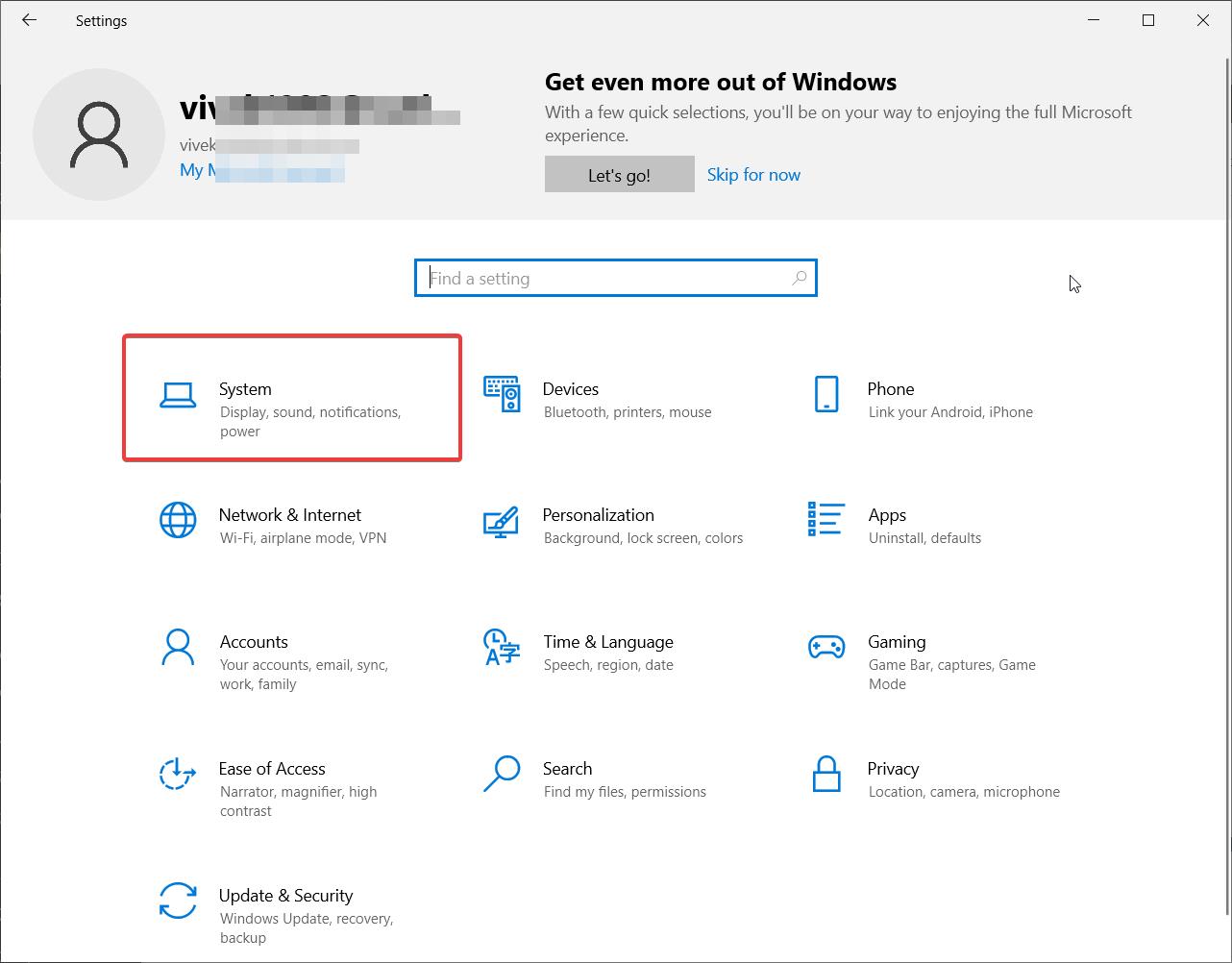
    In the Settings app, you’ll see a variety of categories to choose from. To access the app recommendation settings, you’ll need to navigate to the “System” category. Click on the “System” tile to proceed.

    Step 3: Select “Notifications & Actions”

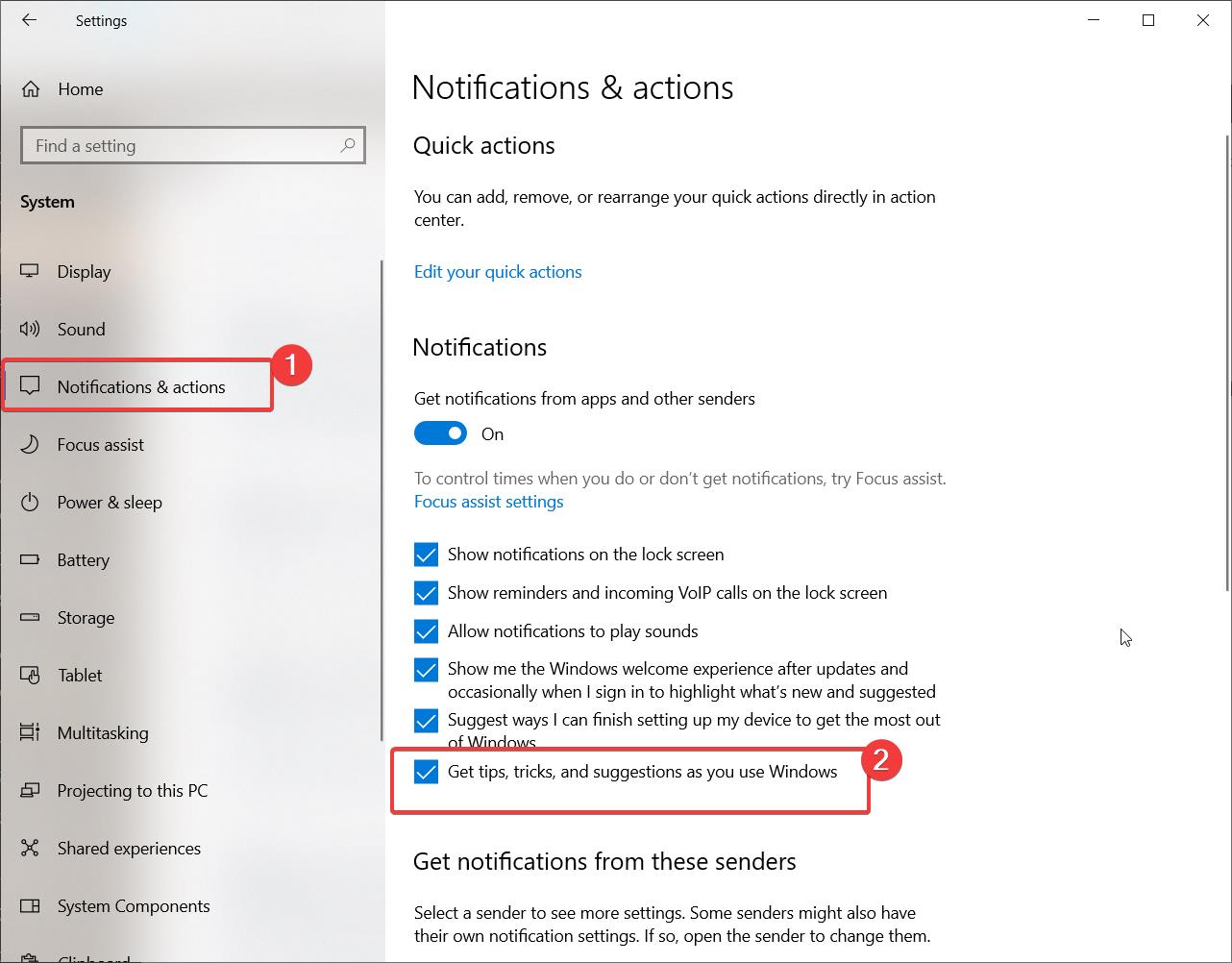
    Within the System settings, look for the “Notifications & actions” option on the left-hand side of the window. Click on it to access the notification settings for your device.

    Step 4: Scroll Down to the “Notifications” Section

    Once you’re in the “Notifications & actions” settings, scroll down until you find the “Notifications” section. This section contains various options related to how notifications are displayed and managed on your device.

    Step 5: Locate the “Get tips, tricks, and suggestions as you use Windows” Option

    Within the “Notifications” section, you’ll find an option labeled “Get tips, tricks, and suggestions as you use Windows.” This setting controls whether Windows 10 will provide you with app recommendations based on your usage patterns.

    To change your app recommendation settings, simply toggle the switch next to this option. If the switch is turned on (blue), app recommendations are enabled. If the switch is turned off (gray), app recommendations are disabled.

    Step 6: Customize Additional Notification Settings (Optional)

    While you’re in the “Notifications & actions” settings, you may want to take a moment to customize other notification-related options to suit your preferences. Some additional settings you can modify include:

    • “Show me the Windows welcome experience after updates and occasionally when I sign in to highlight what’s new and suggested”: This setting controls whether Windows 10 will show you a welcome screen after updates and provide suggestions for new features and apps.
    • “Suggest ways I can finish setting up my device to get the most out of Windows”: This option determines whether Windows 10 will offer suggestions to help you optimize your device setup.
    • “Get tips and suggestions when I use Windows”: This setting controls whether Windows 10 will provide general tips and suggestions while you’re using the operating system.

    Feel free to toggle these options on or off based on your preferences.

    Conclusion

    By following these six simple steps, you can easily change your app recommendation settings in Windows 10. Whether you want to discover new apps that align with your interests or prefer a more streamlined experience without suggestions, customizing these settings puts you in control of your Windows 10 experience.

    Remember, Windows 10 offers a wide range of customization options beyond app recommendations. Take some time to explore the various settings categories to tailor your device to your specific needs and preferences. By doing so, you’ll be able to make the most of your Windows 10 experience and boost your productivity and enjoyment while using your device.

  • 0x80070643 Windows 10 Update Error – Effective Remedy

    0x80070643 Windows 10 Update Error – Effective Remedy

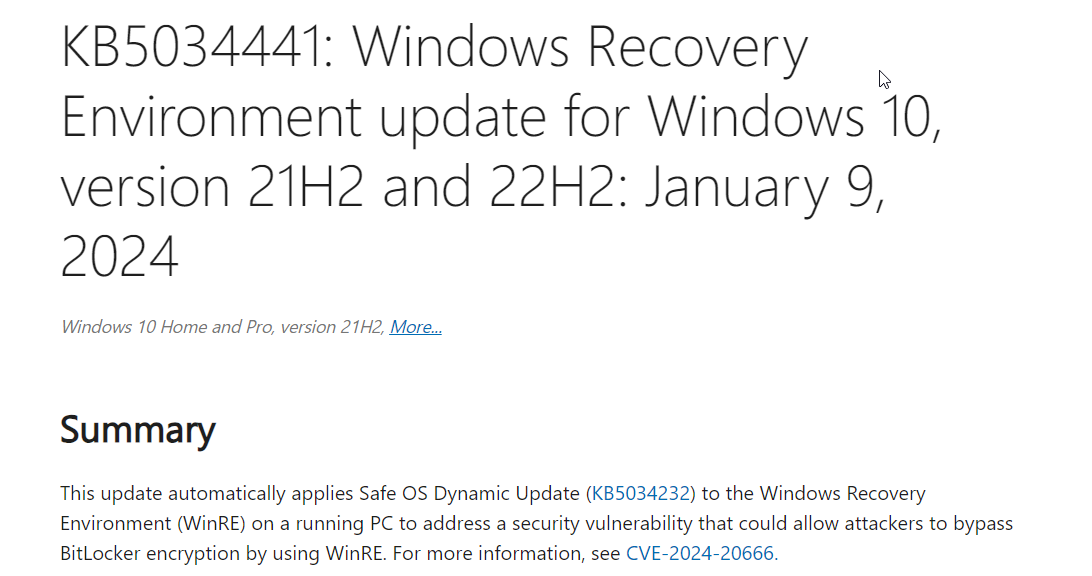
    The error code 0x80070643 is a common issue encountered by Windows 10 users when attempting to install updates through the Windows Update feature. In 2024, the root cause is the KB5034441 update. It requires the Windows Recovery environment (WRE) to have 250MB of free disk space. This is to install the security updates.

    If sufficient space does not exist, then this update will fail. Typically, you will receive an error like 0x80070643 – ERROR_INSTALL_FAILURE. You need to resize the partition and install the WinRE update. You can also use a sample bat file to increase the size of the partition. Then your Windows 10 updates will install.

    You can also try other methods for troubleshooting the 0x80070643 error. These may help in certain cases.

    This error typically occurs during the update process and prevents the successful installation of one or more updates. The 0x80070643 error can be caused by various factors, such as corrupted update files, conflicting third-party software, incorrect system settings, or issues with the Windows Update components.

    When this error appears, users may experience difficulties in keeping their Windows 10 system up to date with the latest security patches, bug fixes, and feature improvements. Resolving the 0x80070643 error is crucial to ensure the smooth operation and security of the Windows 11 operating system.

    How to Increase Windows Recovery Partition Size in 10?

    It is easy to do this if you have one OS and one drive. You need to execute certain commands in command prompt to change the size of recovery environment in Windows 10.

    By default, there will be OS partition, boot partition, recovery partition and if done, some data partition also.

    The error is caused when the Win RE partition size is of default value – 500 MB.

    To remove the error code, 0x80070643, you need to make the partition size of at least 750 MB.

    Guide to Manually Resize the Recovery Partition in Windows 10

    If you encounter the error message “Windows Recovery Environment servicing failed” when trying to update the Windows Recovery Environment (WinRE) through Windows Update or Windows Server Update Services (WSUS), it may be due to insufficient space in your recovery partition. This guide will walk you through the steps to manually resize your recovery partition to resolve this issue.

    Prerequisites:

    • Ensure that your device has the recovery partition located after the OS partition.
    • You will need administrator access to run the required commands.

    Step 1: Check the WinRE status

    1. Open a Command Prompt window (cmd) as an administrator.
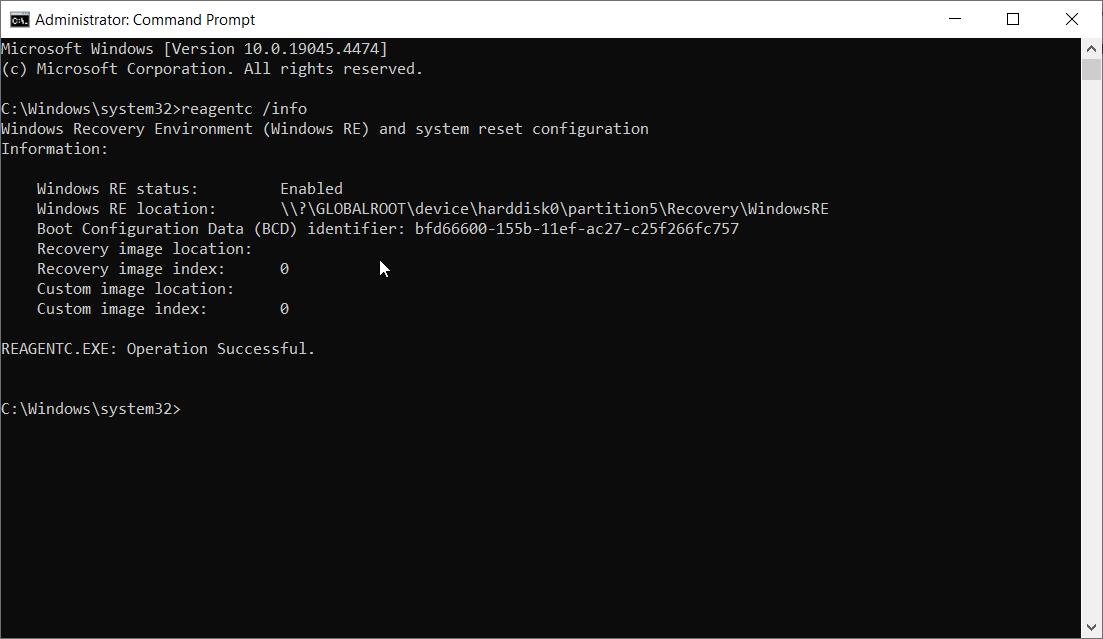
    2. Run the command reagentc /info to check the WinRE status.
    3. If WinRE is installed, you should see a “Windows RE location” with a path to the WinRE directory, such as \\?\GLOBALROOT\device\harddisk0\partition4\Recovery\WindowsRE.
    4. Note down the disk and partition index where WinRE is located (e.g., harddisk0 and partition4).

    Step 2: Disable WinRE

    1. In the Command Prompt window, run the command reagentc /disable to disable WinRE.

    Step 3: Shrink the OS partition and prepare the disk for a new recovery partition

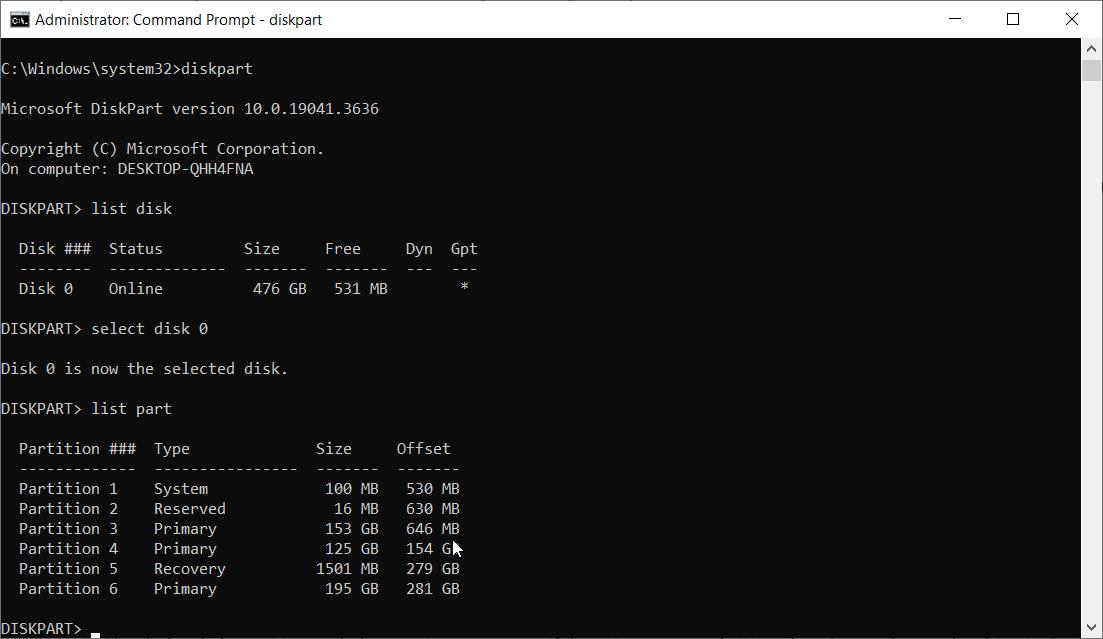
    1. Run the command diskpart to enter the diskpart utility.
    2. Run list disk to display the list of disks.
    3. Select the OS disk by running sel disk<OS disk index>, using the same disk index as WinRE.
    4. Run list part to check the partitions under the selected OS disk and find the OS partition.
    5. Select the OS partition by running sel part<OS partition index>.
    6. Run shrink desired=250 minimum=250 to shrink the OS partition by 250 MB.
    7. Select the WinRE partition by running sel part<WinRE partition index>.
    8. Run delete partition override to delete the existing WinRE partition.

    Step 4: Create a new recovery partition

    1. Check the disk partition style by running list disk. If there is an asterisk (*) in the “Gpt” column, the drive is GPT. Otherwise, it is MBR.
    2. For GPT disks, run create partition primary id=de94bba4-06d1-4d40-a16a-bfd50179d6ac followed by gpt attributes =0x8000000000000001.
    3. For MBR disks, run create partition primary id=27.
    4. Format the new partition by running format quick fs=ntfs label="Windows RE tools".
    5. For MBR disks, run set id=27.
    6. Run list vol to confirm that the WinRE partition has been created.
    7. Run exit to exit the diskpart utility.

    Step 5: Re-enable WinRE

    1. Run the command reagentc /enable to re-enable WinRE.
    2. Run reagentc /info to confirm where WinRE is now installed.

    Note: If the creation of the new recovery partition fails or you do not want to extend the WinRE partition, run reagentc /enable to re-enable WinRE with the existing configuration.

    By following these steps, you should be able to manually resize your recovery partition and resolve the “Windows Recovery Environment servicing failed” error. This will allow the WinRE update to be successfully installed through Windows Update or WSUS. Remember to exercise caution when modifying partitions and always backup your important data before proceeding with such changes.

    Run Windows Update Troubleshooter

    • Open the Settings app by pressing Windows key + I.
    • Navigate to System > Troubleshoot > Other troubleshooters.
    • Locate the “Windows Update” troubleshooter and click on the “Run” button next to it.
    • Follow the on-screen instructions to complete the troubleshooting process. The Windows Update Troubleshooter is a built-in tool that can automatically detect and fix issues related to Windows Update. It checks for common problems that may prevent updates from installing successfully, such as corrupted update files, incorrect settings, or service-related issues. By running this troubleshooter, you allow Windows to identify and resolve any underlying problems that may be causing the 0x80070643 error.

    Reset Windows Update Components

    • Press Windows key + R to open the Run dialog box.
    • Type “cmd” and press Ctrl + Shift + Enter to open Command Prompt with administrator privileges.
    • Run the following commands one by one, pressing Enter after each command:

    net stop wuauserv

    net stop cryptSvc

    net stop bits

    net stop msiserver

    ren C:\Windows\SoftwareDistribution SoftwareDistribution.old

    ren C:\Windows\System32\catroot2 catroot2.old

    net start wuauserv

    net start cryptSvc

    net start bits

    net start msiserver

    Source: AI Tools.

    Conclusion

    The “Reset PC” option allows you to reinstall Windows while keeping your personal files (if chosen) or removing everything and starting fresh. This process can help resolve more complex issues, including the 0x80070643 error, by restoring the operating system to its default state. However, keep in mind that resetting your PC will remove all installed programs and settings, so make sure to back up your important data before proceeding.

    Remember to always create a system restore point or backup your data before attempting any troubleshooting steps to ensure the safety of your files and system.

  • How to Display Taskbar on Multiple Displays Windows 10

    In the realm of digital workspaces, a dual monitor setup under Windows 10 can dramatically improve your productivity. This system offers enhanced capabilities for managing multiple applications and windows.

    A common feature users often seek is the ability to show the taskbar on all displays, which facilitates easier navigation and access across multiple monitors. This guide will walk you through the simple steps to enable this feature and make your workspace more efficient and user-friendly.

    How to Show Taskbar on All Displays in Windows 10

    Step 1: Access Taskbar Settings

    Right-click on an empty area of the taskbar on your primary monitor. From the context menu that appears, select “Settings” to open the taskbar settings menu.

    Step 2: Open Taskbar Settings

    Once you are in the settings menu, scroll down to find the “Taskbar” section which contains various customization options for your taskbar.

    Step 3: Locate the Multiple Displays Section

    Within the Taskbar settings, scroll further down to reach the “Multiple displays” section. This section is specifically dedicated to settings that affect how your taskbar behaves across multiple monitors.

    Step 4: Enable Taskbar on All Displays

    In the “Multiple displays” section, you’ll find an option labeled “Show taskbar on all displays.” Toggle this switch to “On” to enable the taskbar to appear on each of your connected displays.

    Step 5: Customize Taskbar Buttons

    Directly beneath the toggle switch, you will see an additional setting “Show taskbar buttons on.” Here, you can choose how the taskbar buttons are displayed: on all taskbars, main taskbar and taskbar where window is open, or taskbar where window is open. Choose the option that best fits your workflow.

    By following these steps, you will have successfully configured your Windows 10 system to show the taskbar on all displays. This setup ensures that you have easy access to all your applications and tools across your multiple monitors, enhancing your productivity and multitasking capabilities.

  • How to Create the Best Profile Picture for Windows 10

    How to Create the Best Profile Picture for Windows 10

    Your profile picture is one of the first things people notice when they view your user account on Windows 10. Choosing an attractive, professional profile photo can give you a great first impression.

    In this comprehensive guide, we’ll walk you through everything you need to know about setting, customizing and troubleshooting your Windows 10 profile picture.

    How to Change Your Profile Picture on Windows 10

    Changing your profile photo on Windows 10 is simple:

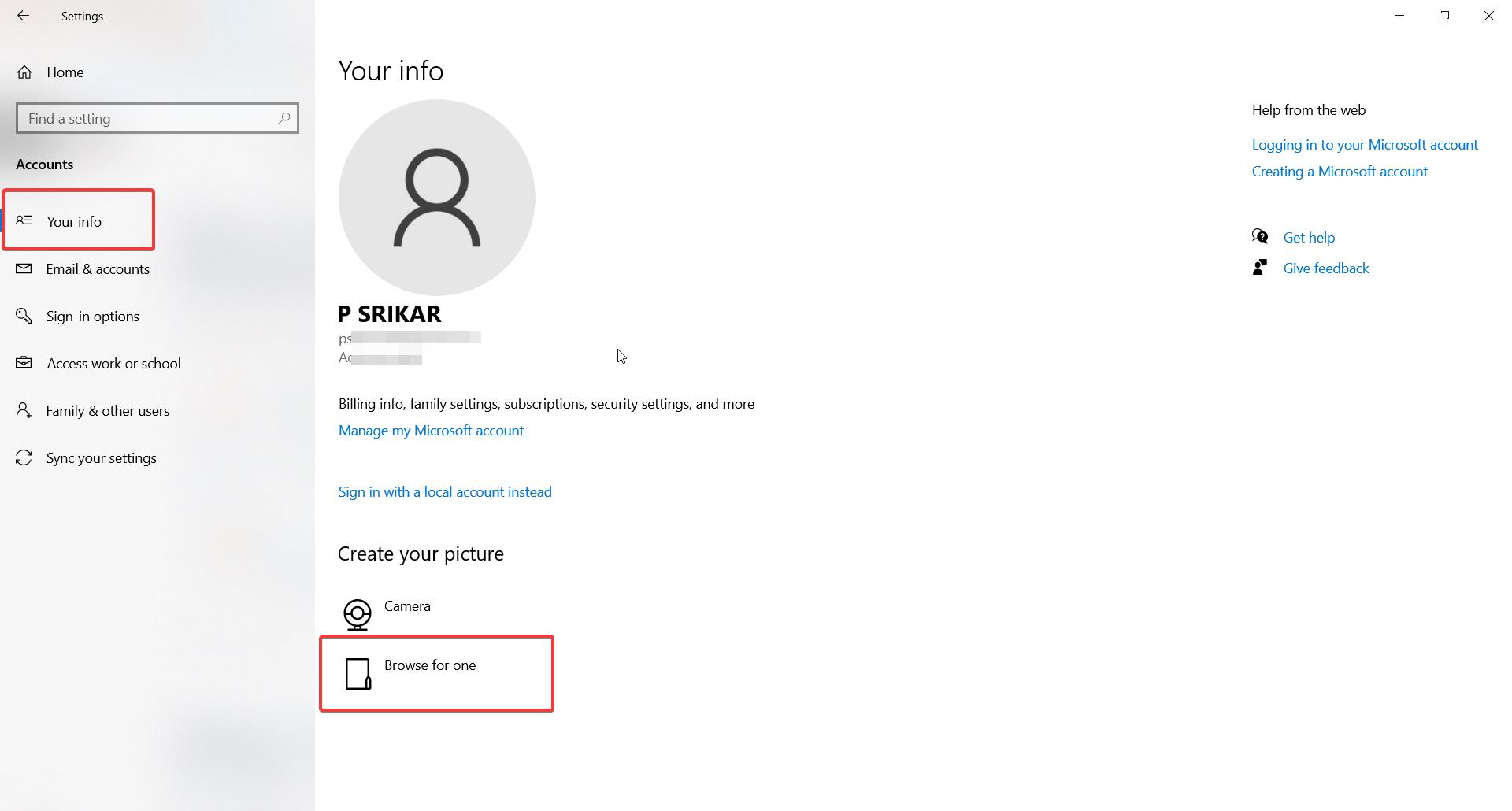
    1. Click on the Start menu and select Settings.
    2. Click on Accounts.
    3. On the Accounts page, click on Your info.
    4. Under Create your picture, click on Browse to select a new picture from your files.
    5. Select a picture you want to use as your new profile photo. The recommended dimensions are 200 x 200 pixels.
    6. Click on Choose Image.
    7. Finally, click on Done to set your new profile picture.

    It’s that easy! Windows will immediately update your profile photo across the operating system.

    What is the Ideal Size for a Windows 10 Profile Picture?

    Windows 10 will automatically crop and resize any image you choose into a circle that fits its layouts and interface elements.

    However, for the best looking profile pictures, you’ll want to start with an image that meets these ideal dimensions:

    • Width and height: 200 x 200 pixels
    • File type: JPG or PNG
    • Size: Less than 256 KB

    A 200 x 200 pixel profile picture ensures your image won’t get excessively distorted when it gets cropped into a circle.

    This size also keeps file sizes small, which helps your profile pictures load faster across Windows.

    Where is Your Profile Picture Stored on Windows?

    Once you set a new profile photo, Windows will save copies of it in two main folders on your hard drive:

    User Profile Folder

    Your original profile picture file is saved in your user account’s profile folder at:

    C:\Users\YourUserName\AppData\Roaming\Microsoft\Windows\AccountPictures

    This allows Windows to access and reuse your original photo as needed in the OS.

    Hidden System Folders

    Windows also generates resized and optimized versions of your profile photo in hidden system folders like:

    C:\ProgramData\Microsoft\User Account Pictures

    These allow Windows to quickly load appropriately sized versions of your profile pic in different contexts across the OS.

    The copies in these hidden folders should not be directly edited.

    Choosing the Best Profile Pictures for Windows 10

    Picking an attractive, appropriate profile photo for Windows 10 requires choosing:

    • A high-quality photo
    • Appropriate image content
    • Ideal dimensions of 200 x 200 pixels

    Some best practices for selecting a great Windows 10 profile picture include:

    • Use a sharp, well-lit photo – Avoid blurry, low-resolution images. A sharp photo shows care.
    • Face the camera – Facing the camera makes you look more approachable.
    • Smile naturally – A light smile looks friendly and sincere.
    • Wear professional or casual attire – Dress as you would for an office or social setting.
    • Avoid distracting backgrounds – A neutral or natural background keeps focus on you.
    • Be authentic – Choose a photo that reflects your true personality.

    Following these tips will ensure your profile picture makes a fantastic first impression!

    Troubleshooting

    Why Does My Windows 10 Profile Picture Keep Reverting?

    If you change your Windows 10 profile photo but notice it keeps reverting back to your previous picture, don’t panic! This issue is usually easy to fix.

    Here are some common reasons your profile picture reverts on Windows 10 and how to troubleshoot them:

    • Cached profile photo – Windows may be loading a cached older profile pic that hasn’t been updated. Log out and back in to clear the cache.
    • Corrupted image file – A corrupted profile photo file may cause Windows to revert to an older file. Try a new photo file instead.
    • Group policy settings – Network group policies may override your photo. Ask your system admin about policy settings.
    • Multiple user accounts – The wrong user account may be loading. Log into the account where you changed your picture.
    • OS customization apps – Some customization apps override profile pics. Uninstall problematic apps.

    Following these tips should get your new profile picture to properly load on Windows 10.

    How to Customize Your Profile Picture on Windows

    Beyond just changing the photo, Windows 10 also lets you customize how your profile picture looks and behaves in the OS.

    Under Accounts > Your Info in Settings, you can:

    • Add an account picture frame – Applies a customizable frame around your profile photo.
    • Make it a tile – Converts photo into a mosaic-style tile pattern.
    • Center it – Centers aligns your photo in frames.
    • Show my display name – Shows/hides your display name on your profile pic.

    These options let you tailor your profile picture to match your personal style on Windows 10.

    What to Do If Your Profile Photo is Too Large to Upload

    If you select a profile picture that’s too large, Windows will notify you that the “Picture is larger than expected” during upload.

    This happens if your image exceeds the 256 KB maximum file size.

    To fix this, open your photo in an editing program like Paint and go to Resize or Scale Image. Change the dimensions to 200 x 200 pixels to reduce the file size.

    Save your edited picture and try uploading it again. This should compress your photo to a small enough size to use as your profile picture.

    How to Change the Aspect Ratio of Profile Photos

    By default, Windows 10 crops profile pictures into a 1:1 perfect square aspect ratio.

    If you want your profile photo to maintain a different aspect ratio like 5:4 or 16:9, you can change an option in the registry:

    1. Open Registry Editor
    2. Browse to HKEY_LOCAL_MACHINE\SOFTWARE\Policies\Microsoft\Windows NT\Explorer
    3. Change the DWORD value LockScreenCustomImageAspectRatio to 0 (zero).
    4. Restart your computer.

    This will stop Windows from forcing a square crop on your profile photo.

    You can now set a professionally taken portrait photo with a classic aspect ratio as your uncropped profile picture.

    Conclusion

    Your profile photo is an important part of representing yourself on Windows 10. Following this guide’s tips on sizing, storage, troubleshooting and customizing your profile picture will ensure you always put your best face forward!

    Choosing an appropriately sized, high quality profile photo that reflects your personality and professionalism will give you an excellent first impression across your Windows 10 devices.

  • How to Fix Windows 10 Account Picture Error – Top 5 Solutions

    How to Fix Windows 10 Account Picture Error – Top 5 Solutions

    Having issues with your account picture not displaying properly in Windows 10? Profile pictures not loading, reverting to defaults, or not updating can be frustrating. In this comprehensive guide, we’ll cover the most common account photo errors in Windows 10 and how to troubleshoot them.

    Account Picture Not Loading in Windows 10

    If your account profile picture is not loading at all in Windows 10, there are a few things you can try:

    • Restart your PC – A simple restart can often resolve temporary glitches that prevent images from loading. Restart and check if your account picture now shows up.
    • Check picture file type and size – Windows 10 supports JPG, BMP, PNG and GIF profile photos. The image also needs to be less than 256 KB in size. If your picture is a different format or over 256 KB, it may fail to load. Resize or re-save it in a supported format.
    • Reset thumbnail cache – Sometimes a corrupted thumbnail cache can prevent account pictures from loading. To reset it, press Win + R and type control folders then delete all files in C:\Users\Username\AppData\Local\Microsoft\Windows\Explorer.
    • Check profile image path – Use Registry Editor to navigate to HKEY_LOCAL_MACHINE\SOFTWARE\Microsoft\Windows NT\CurrentVersion\ProfileList and find your account SID. Check if ImagePath value points to a valid image file. If not, update the path or delete it.
    • Create new user profile – A corrupted user profile can also block account photos. Create a new user account as a test. If your picture loads there, your original profile may need to be deleted to fix the issue.

    Windows 10 User Account Pictures Not Showing

    If account pictures are not visible in certain places like the login screen or File Explorer, check the following:

    • Open Settings > Accounts > Sign-in options and enable “Show my account picture on the sign-in screen“.
    • Go to File Explorer > View > Options > Change folder and search options. Under “Show profile picture and account name“, choose when to show photos.
    • Your Microsoft account may override local account photos in some places. Check online account settings at account.microsoft.com to confirm.
    • The image file path may be invalid. Verify it in the registry as shown above.
    • Group Policy settings can also block account images from showing in specific locations like the lock screen. Check with your system admin.

    Can’t Change Account Picture in Windows 10

    If your Windows 10 profile photo is stuck or you can’t update it to a new image, try these fixes:

    • Navigate to the image path in the registry and delete the existing photo file. Then try setting a new account picture.
    • Take ownership of the profile image folder located at C:\ProgramData\Microsoft\User Account Pictures, then give yourself Full Control permissions.
    • Temporarily disable any security or image blocking software that may be preventing updates.
    • Create a new user account and see if updating the photo works there. A damaged profile may require deletion and re-creation.
    • Open Command Prompt as admin and run DISM /Online /Cleanup-Image /ScanHealth followed by DISM /Online /Cleanup-Image /RestoreHealth to repair image corruption.

    Windows 10 Default Account Picture Keeps Reverting

    A common problem is Windows 10 reverting your new account photo back to the default image. To stop this:

    • Delete the default user profile images located in C:\ProgramData\Microsoft\User Account Pictures*.
    • Unlink your Microsoft account which may be overwriting your local account picture.
    • Use Registry Editor to navigate to HKEY_LOCAL_MACHINE\SOFTWARE\Policies\Microsoft\Windows and change EnableLinkedConnections to 0.
    • Set a complex password on your local account rather than a pictograph PIN which can cause conflicts.
    • Go to gpedit.msc > Administrative Templates > System > User Profiles and disable “Copy profile picture to user profile shared location upon sign in”.

    How to Fix Account Picture Not Updating in Windows 10

    If your new account photo isn’t sticking and Windows 10 reverts to the old image, try these troubleshooting steps:

    • Restart your PC and attempt to change the picture again after rebooting.
    • Open File Explorer and delete the old image file from the user profile folder if it still exists.
    • Navigate to the registry key holding your profile image path and update it to the new photo location.
    • Check the new image size – large or unsupported files may fail to update. Resize under 256 KB.
    • Take ownership of C:\ProgramData\Microsoft\User Account Pictures and grant yourself Full Control to overcome permission issues.
    • For Microsoft accounts, sign out everywhere online to refresh the profile cache then upload the photo again.

    Windows 10 User Profile Picture Not Updating

    Another variation of this problem involves the user profile picture not updating across Windows 10 apps and services:

    • Sign out of your Microsoft Account on the device and sign back in to reload profile data from the cloud.
    • Open the Accounts section of Settings app, go to Your Info and re-select your profile photo to push the change.
    • Delete the stale image file from File Explorer in AppData\Roaming\Microsoft\Windows\AccountPictures.
    • Check for duplicate entries under your account in Computer\HKEY_LOCAL_MACHINE\SOFTWARE\Microsoft\Windows NT\CurrentVersion\ProfileList and delete any extra ones.
    • Uninstall problematic Windows Updates that may have gotten corrupted using Control Panel > Programs > Installed Updates.
    • As a last resort, reset your account password or create a new user profile to discard corrupted data.

    Windows 10 User Account Picture Corrupted

    A corrupted user account picture can also lead to the image failing to display properly across Windows 10. To resolve corruption errors:

    • Try changing to a new user profile picture which will generate a fresh image file.
    • Open Command Prompt as admin and run sfc /scannow to scan for system file corruption. Restart when done.
    • Using DISM tool, run DISM /Online /Cleanup-Image /RestoreHealth to repair damaged OS image files.
    • Unregister and re-register .jpg, .png, .gif and .bmp codec DLLs by typing commands regsvr32 /u shimgvw.dll, regsvr32 /u shimgvw.dll, etc.
    • Delete the corrupted image file itself from the user profile folder if it still exists.
    • As a last resort, create a new user account to discard the corrupted profile.

    Windows 10 Update Broke User Account Pictures

    It’s not uncommon for a bad Windows Update to break account photos and cause issues like reverting to the default picture. Here is how to fix post-update account picture problems:

    • Rollback the problematic Windows Update in Settings > Update & Security > View Update History.
    • Boot into Safe Mode and set your account picture again to force an update.
    • Use System Restore to roll back the system to a restore point created before the update that caused issues.
    • Try SFC and DISM scans as shown above to repair corrupted system files due to the update.
    • Clean install the latest Windows Update and avoid the defective one that broke your account images.

    Windows 10 User Account Pictures Disappeared After Update

    If a Windows Update causes your account photos to go missing, try these steps to restore them:

    • Uninstall the latest Windows Update and hide it to prevent reinstallation. This should restore your original pictures.
    • Check if a new user folder was created under Users folder like .BAK or .000 after the update. Your photos may have been moved there.
    • Scan and repair drive errors using Disk Cleanup’s “Check for and repair bad sectors” option to fix corrupted data.
    • Roll back the system to a restore point before the photos disappeared using System Restore.
    • A reset or clean reinstall of Windows Update may be required if corruption is widespread and restore points fail.

    Windows 10 User Profile Picture Not Showing on Lock Screen

    Finally, if your account picture displays properly elsewhere but not on the lock screen:

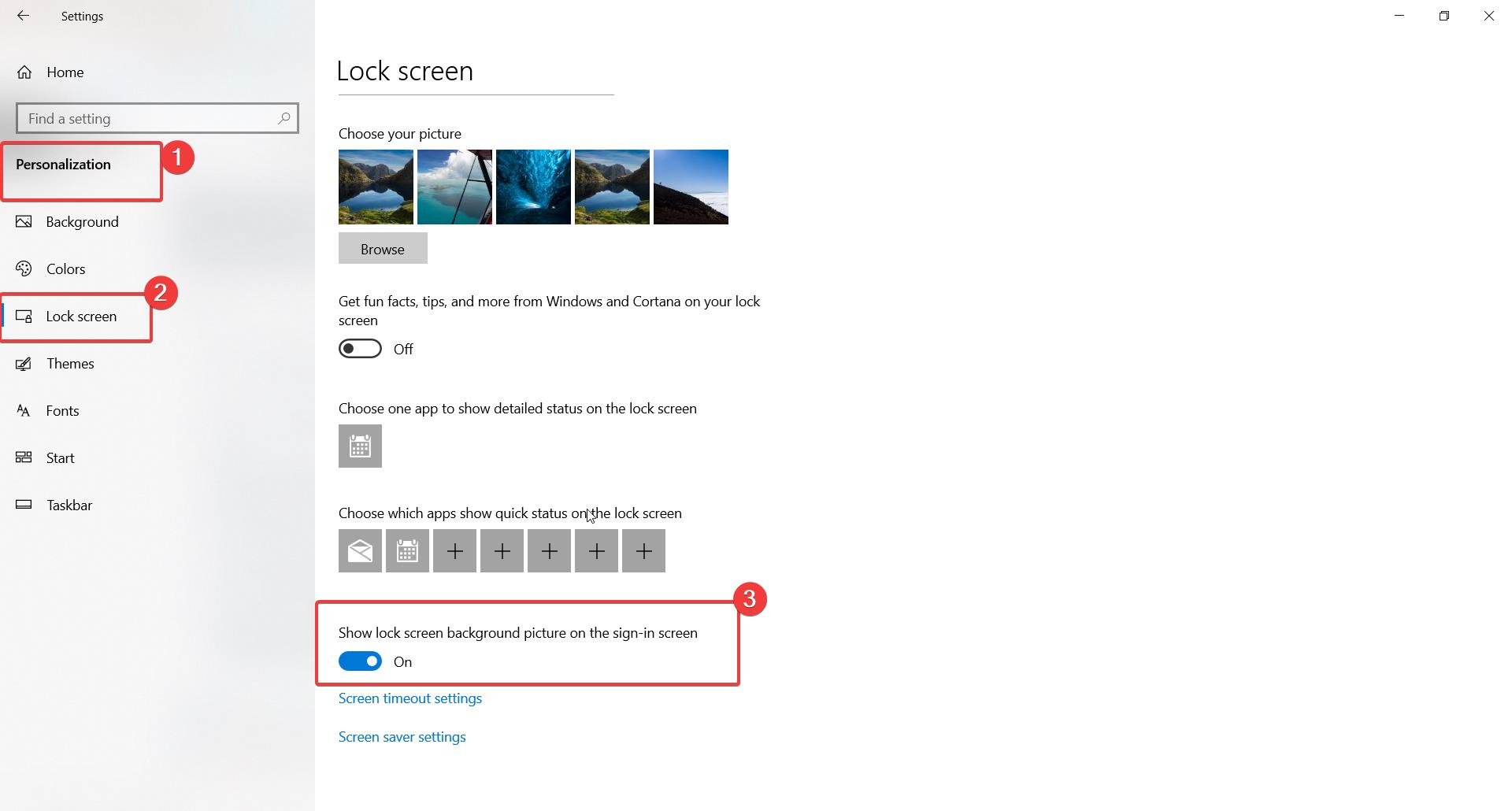
    • Go to Settings > Personalization > Lock Screen and ensure “Show lock screen background picture” is on.
    • Select “Windows Spotlight” instead of a custom background image which may override your profile photo.
    • Check Settings > Accounts > Sign-in options to enable “Show my account picture” under Restart apps.
    • Open Registry Editor and navigate to HKEY_LOCAL_MACHINE\SOFTWARE\Policies\Microsoft\Windows\System. Change ShowUserOnSignIn to 1.
    • Your organization’s security policies may block images on the lock screen. Contact your system admin for exclusions.
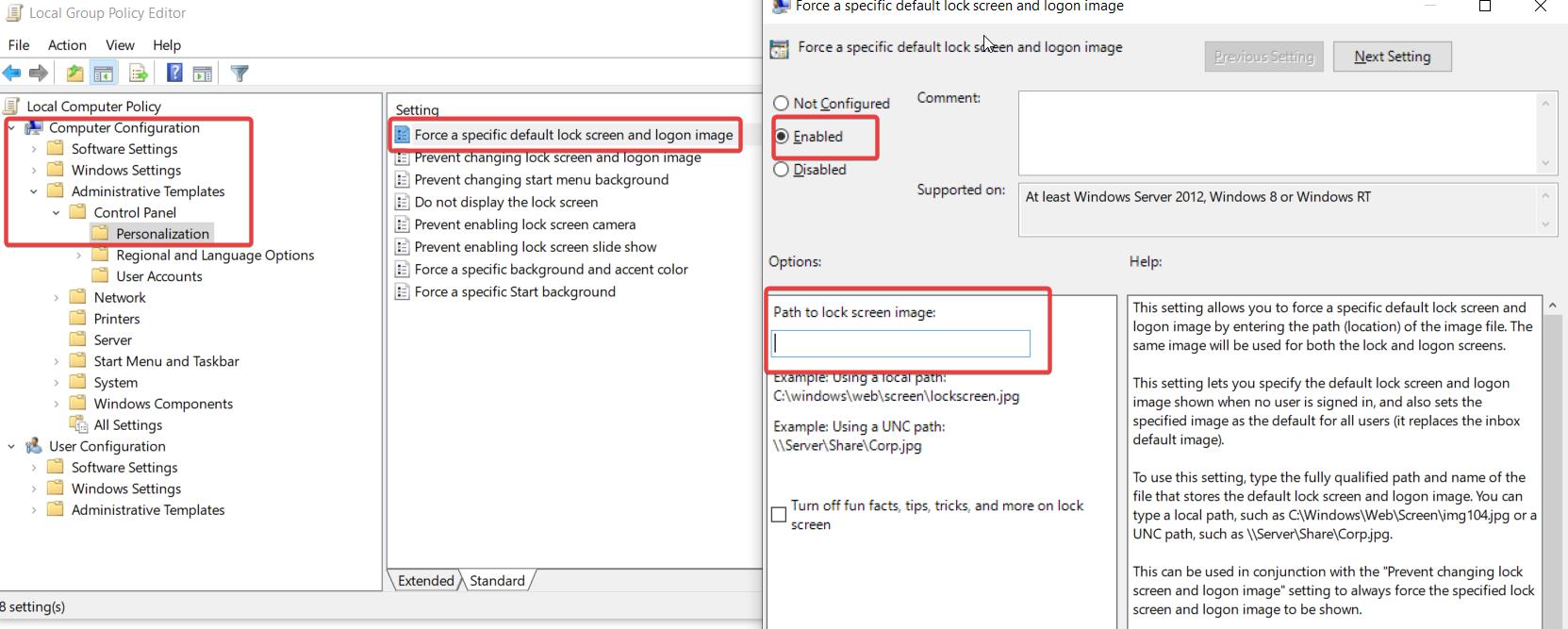
    • You can also push profile photos to the lock screen by modifying Group Policy at Computer Configuration > Administrative Templates > Control Panel > Personalization.

    I hope these tips help you troubleshoot and resolve any issues with account photos failing to load or update in Windows 10 after updates or for other reasons. Let me know if the solutions work for fixing your particular profile picture problems!