
Key Takeaways (0xc000007b vs 0xc00007b vs 0x000007b)
- 0xc000007b and 0xc00007b are the same error. The shorter version is simply a dropped zero — a typo people copy from screenshots. Both mean an application could not load a DLL correctly.
- 0x000007b (0x0000007B) is a completely different error. It is the INACCESSIBLE_BOOT_DEVICE blue screen, meaning Windows lost access to the system partition at startup. It has nothing to do with DLLs.
- Telling them apart takes two seconds. If a small error box appears while Windows is running, it is 0xc000007b. If your PC blue-screens before reaching the desktop, it is 0x0000007B. The fixes share almost nothing.
Quick answer: 0xc000007b and 0xc00007b are the same application error, caused by a corrupt or mismatched DLL—fix it with Visual C++ and DirectX. 0x0000007B is INACCESSIBLE_BOOT_DEVICE, a blue screen caused by storage driver or boot configuration problems—fix it in Windows Recovery.
Introduction
You typed the error code into a search box and got a wall of contradictory advice. One page says reinstall Visual C++. Another says change your BIOS to AHCI. A third talks about boot drivers. None of it matches your problem.
Here is why. The question of 0xc000007b vs 0xc00007b vs 0x000007b is not a spelling quibble. Two of those codes are the same error. The third is an entirely different failure, in a different part of Windows, with a different fix.
Follow the wrong guide and you can spend an evening reinstalling runtimes that were never broken — or worse, editing boot settings on a PC that boots perfectly well.
This guide decodes all three in plain language. You will learn which error you actually have, why the codes look so similar, and where to go next. Home users and office users can follow it in under two minutes.
The Short Answer
0xc000007b and 0xc00007b are the same Windows application error—the shorter form is a typo with one zero missing. Both mean a program failed to load a DLL, usually a 32-bit and 64-bit mismatch. 0x0000007B is unrelated: it is the INACCESSIBLE_BOOT_DEVICE stop code, a blue screen caused by boot or storage driver failure.
Two codes, two very different problems. The similarity is a coincidence of hexadecimal.
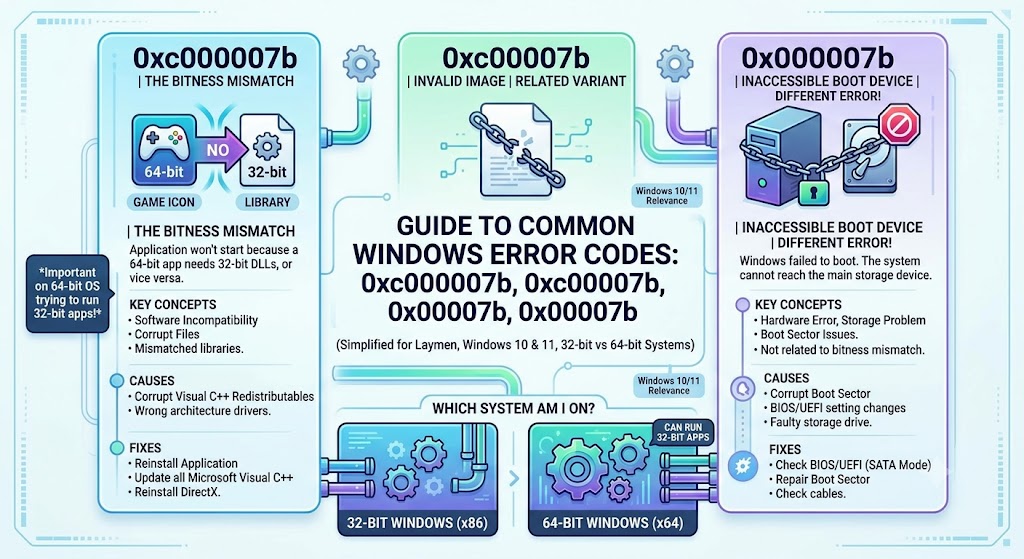
0xc000007b vs 0xc00007b: The Same Error, Miscounted
Start with the easy one. 0xc000007b and 0xc00007b are identical. The second is simply missing a zero.
It happens because the code is long and repetitive, and people copy it by eye from a screenshot or a phone photo of someone else’s screen. Count the zeros in the real code: 0xc000007b has four zeros after the “c” and then “07b.” Miss one, and you get 0xc00007b.
You will see other variants in search results too:
- 0xc00007b — one zero dropped, the most common typo
- 0xc0000007b — an extra zero added
- 0xc00007b—the letter “o” instead of a zero, from mistyping
- 0xc000007 — the trailing “b” lost entirely
All of them describe the same thing. If your code starts with 0xc and ends in 7b, you have the application error. The exact zero count does not change the diagnosis.
What it means: the technical name is STATUS_INVALID_IMAGE_FORMAT. A program tried to load a DLL that was corrupt, missing, or built for the wrong architecture—typically a 64-bit process trying to load a 32-bit DLL, or the reverse.
What you see: a small dialog box that says, “The application was unable to start correctly (0xc000007b).” Click OK to close the application. ” Windows keeps running normally. Only that app fails.
0x000007b Is a Different Error Entirely
This is where people get burned. 0x000007b—properly written as 0x0000007B—is not a typo of the above. It is a separate stop code.
Note the difference: there is no “c” after the 0x. That single missing letter changes everything.
What it means: the INACCESSIBLE_BOOT_DEVICE bug check has a value of 0x0000007B, and it indicates that Windows has lost access to the system partition during startup.
Microsoft documents it as occurring when the system cannot access the boot disk due to hardware changes, corrupted drivers, or Boot Configuration Database (BCD) problems.
What you see: a blue screen before Windows finishes loading. On Windows 10 and 11, it reads “Your PC ran into a problem and needs to restart,” with INACCESSIBLE_BOOT_DEVICE named underneath. Older systems showed “*** STOP: 0x0000007B” with four parameters in brackets.
You are not looking at a dialog box. You are looking at a PC that will not boot.
Side-by-Side: How to Tell Them Apart – 0xc000007b vs 0xc00007b vs 0x000007b
| 0xc000007b (and 0xc00007b) | 0x0000007B | |
|---|---|---|
| Name | STATUS_INVALID_IMAGE_FORMAT | INACCESSIBLE_BOOT_DEVICE |
| Type | Application error | Blue screen stop code |
| When it appears | While Windows is running, when you open an app | During startup, before the desktop loads |
| What you see | Small dialog box | Full blue screen, PC restarts |
| Does Windows still work? | Yes—only the app fails | No—the PC will not boot |
| Root cause | Corrupt or mismatched DLL | Lost access to the system partition |
| Usual culprit | Visual C++ or DirectX runtime | Storage driver, BIOS mode, or BCD |
| Where you fix it | Inside Windows | Windows Recovery Environment |
The two-second test: can you read this article on the affected PC? If yes, you have 0xc000007b. If you are reading this on your phone because the PC blue-screens, you likely have 0x0000007B.
Why the Codes Look So Similar
There is a logic to it, and understanding it helps you read other Windows errors too.
Windows error codes are hexadecimal. The 0x prefix marks an NTSTATUS error value—a failure code returned by the kernel to a running process. The trailing 7b is just the specific value within that range.
Bug check codes work differently. A blue screen code like 0x0000007B is a bug check value, and Microsoft also refers to it in shorthand as Stop error 7B or simply 0x7B. That shorthand is why you will see the same error written several ways in support documents.
So the shared “7B” is a coincidence. One is an NTSTATUS value; the other is a bug check number. They land on the same digits by accident of numbering, not because they are related.
What to Do Next: Two Paths—0xc000007b vs. 0xc00007b vs 0x000007b
If You Have 0xc000007b or 0xc00007b
Windows is running. The problem is a runtime library. Work through these:
- Restart and run the app as administrator.
- Reinstall Microsoft Visual C++ Redistributable—both x86 and x64 on a 64-bit system. Many apps still call 32-bit modules, so installing only one leaves the error in place.
- Install the DirectX End-User Runtime Web Installer from Microsoft, especially for games.
- Run
sfc /scannowin an admin Command Prompt, then seeDISM /Online /Cleanup-Image /RestoreHealthif SFC can repair everything. - Reinstall the app if only one program fails.
Never download loose DLL files to fix this. It is a leading malware route and frequently breaks apps that were working.
If You Have 0x0000007B (INACCESSIBLE_BOOT_DEVICE)
Windows will not boot. You need the Recovery Environment. Microsoft’s guidance covers these areas:
- Boot into Safe Mode to revert recent driver changes — it loads only essential drivers.
- Check hardware connections, especially the drive. If you recently changed hardware, revert it.
- Run disk and file checks from WinRE on your OS drive, then
sfc /scannow. - Check your BIOS/UEFI storage mode. Switching between AHCI, RAID, and IDE after installation is a classic trigger.
- Look at recent Windows updates — Microsoft documents cases of this stop error appearing after updates are installed.
A common real-world example: this error frequently strikes when a Windows installation is restored to different hardware or migrated to a Hyper-V, VMware, or VirtualBox virtual machine. The new machine uses a different disk controller — often SCSI or SAS — whose driver service is disabled by default, so Windows cannot load the controller and stops at boot.
Common Mistakes to Avoid – 0xc000007b vs 0xc00007b vs 0x000007b
- Assuming 0x000007b is a typo of 0xc000007b. Iforis a separate error. The missing “c” is thIfor is.
- Reinstalling Visual C++ to resolve a blue screen. It will not help. The boot error is not a runtime problem.
- Editing BIOS storage modes to fix an app error. Equally pointless, and riskier.
- Counting zeros anxiously. For the 0xc variants, it genuinely does not matter—same error.
- Downloading DLL packs for either code. Useless for the boot error, dangerous for the app error.
Best Practices – 0xc000007b vs 0xc00007b vs 0x000007b
- Please photograph the error exactly as it appears before searching. The prefix matters more than the zeros.
- Note whether Windows was running or booting. That alone identifies the code.
- Create a restore point before driver or BIOS changes — the usual triggers for 0x0000007B.
- Keep Visual C++ x86 and x64 installed as standard to prevent 0xc000007b.
Recommended Tools
- Windows Recovery Environment (WinRE) is used for boot errors.
- System File Checker (SFC) and DISM — built in, useful for both.
- CHKDSK — for disk integrity during boot failures.
- Microsoft Download Center — official Visual C++ and DirectX packages.
What is the difference between 0xc000007b and 0x0000007b?
They are unrelated errors that happen to share digits. 0xc000007b is an application error caused by a faulty DLL, appearing while Windows runs. 0x0000007B is the INACCESSIBLE_BOOT_DEVICE stop code, a blue screen where Windows loses access to the system partition during startup.
Why does my error code have a “c” in it?
The 0x prefix marks an NTSTATUS value—a failure code returned by the Windows kernel to a running application. Blue screen bug check codes like 0x0000007B have no “C.” So the presence of that single letter tells you which category of error you are facing.
Does the number of zeros in 0xc000007b matter?
No. Variants like 0xc00007b, 0xc0000007b, and oxc00007b are all typing or transcription errors for the same application error. If the code starts with 0xc and ends in 7b, the diagnosis and the fix are identical regardless of the zero count.
How do I know if I have the app error or the boot error?
Check when it appears. A small dialog box while Windows is running means 0xc000007b—only that app failed. A blue screen before the desktop loads, naming INACCESSIBLE_BOOT_DEVICE, means 0x0000007B, and your PC cannot boot at all.
Can the same solution work for both 0xc000007b and 0x0000007B?
Only partially. Both benefit, but everything else differs. The app error needs Visual C++ and DirectX repairs inside Windows. The boot error needs storage driver, BIOS mode, or BCD work from the recovery environment. Applying the wrong solution wastes time.
Conclusion
The confusion between 0xc000007b, 0xc00007b, and 0x000007b can cost people entire evenings. Two of those codes are the same application error, separated only by a dropped zero. The third is a blue screen that has nothing to do with DLLs.
The tell is the letter ‘c.’ With it, you have an NTSTATUS application error—reinstall Visual C++ x86 and x64, add DirectX, and run SFC. Without it, you have INACCESSIBLE_BOOT_DEVICE — head to the Recovery Environment and look at storage drivers, BIOS mode, and your boot configuration.
So before you fix anything, please take another look at your error. Is Windows running, or is it refusing to start? That answer decides everything else.
Check your code, take the right path, and tell us in the comments which one you had—it helps other readers land on the correct guide the first time.
ENJOYING OUR CONTENT?
Stay up to date with our latest guides, insights, and news. Tap below to follow us directly via your search feed.
