
Key Takeaways
- Every DLL behind 0xc000007b belongs to a Microsoft package you can reinstall. The file itself is never the fix—xinput1_3. DLL comes from DirectX, and msvcp140.dll comes from Visual C++ 2015–2022. Repackage instead of the package, not the file.
- The error name tells you the exact package to install. MSVCP120.dll means Visual C++ 2013. VCRUNTIME140.dll means 2015–2022. Reading the DLL name correctly saves hours of blind reinstalling.
- Downloading the DLL is how one broken app becomes three. Loose DLLs from third-party sites trigger cascading failures across apps that formerly worked — a pattern documented repeatedly on Microsoft’s own forums.
Quick answer: The DLLs that most often cause 0xc000007b are xinput1_3. dll and d3dx9_43.dll (DirectX), msvcp140.dll and vcruntime140.dll (Visual C++ 2015–2022), and msvcp100.dll and msvcr100.dll (Visual C++ 2010). Fix them by reinstalling the parent package from Microsoft — never by downloading the files.
Introduction
The error box says 0xc000007b. It does not say which file broke. So you start guessing—reinstall DirectX, reinstall Visual C++, reboot, and try again. Nothing changes.
Here is what almost nobody explains. A specific DLL causes 0xc000007b on your PC, and that file has a name, an owner, and a package it ships inside. Once you know the name, the fix stops being guesswork and becomes a two-minute job.
This guide gives you the map. You will learn which DLLs trigger this error, how to identify yours, and exactly which official Microsoft package restores each one. You will also learn why downloading that DLL—the advice half the internet gives—is the single fastest way to turn one broken app into several. Home users and office users can follow it all.
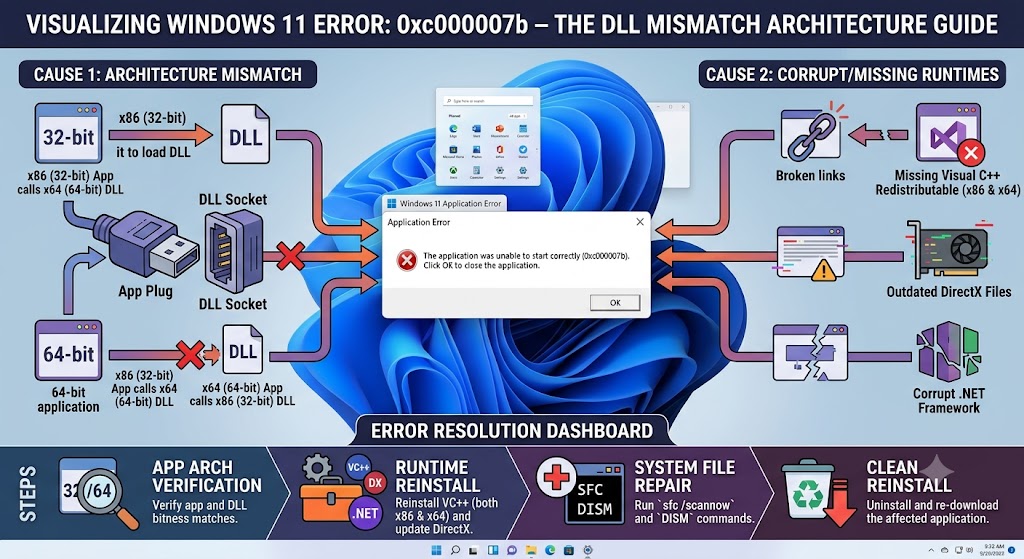
What does 0xc000007b actually mean?
0xc000007b (STATUS_INVALID_IMAGE_FORMAT) means a program tried to load a DLL that is either corrupt or not intended to run in that process. On 64-bit Windows, it usually means a 64-bit application tried to load a 32-bit DLL, or vice versa. The DLL almost always belongs to Microsoft Visual C++ or DirectX.
One community expert puts it plainly: the code tells you a binary you tried to use is either corrupt or not meant to run in your process—deliberately vague because it covers a wide range of situations.
Which DLL Causes 0xc000007b? The Full Map
This is the table competitors leave out. Find your DLL and install its parent package.
| DLL file | Belongs to | What to install |
|---|---|---|
| xinput1_3.dll, xinput1_4.dll, xinput9_1_0.dll | DirectX | DirectX End-User Runtime Web Installer |
| d3dx9_43.dll, d3dcompiler_43.dll (any d3dx9_??.dll) | DirectX | DirectX End-User Runtime Web Installer |
| msvcp140.dll, vcruntime140.dll, vcruntime140_1. dll | Visual C++ 2015–2022 | Visual C++ Redistributable (2015–2022) |
| msvcp120.dll, msvcr120.dll | Visual C++ 2013 | Visual C++ 2013 Redistributable |
| msvcp110.dll, msvcr110.dll | Visual C++ 2012 | Visual C++ 2012 Redistributable |
| msvcp100.dll, msvcr100.dll, mfc100.dll | Visual C++ 2010 | Visual C++ 2010 Redistributable |
| vcomp.dll, vcomp140.dll | Visual C++ (OpenMP) | Visual C++ Redistributable (matching year) |
| mfreadwrite.dll | Media Foundation | Windows Features / Media Feature Pack |
The naming convention is the trick. Pay attention to the number in the DLL name: MSVCP120.dll points to the Visual C++ 2013 redistributable, while vcruntime140.dll points to the 2015–2022 version. Once you see that pattern, the file names stop being cryptic.
The single most common culprit: xinput1_3.dll. It is part of DirectX, and a corrupted copy means games and apps cannot use it for its intended purpose—producing this exact error.
Installing the current Visual C++ Redistributable (2015–2022) covers almost all modern software requirements, which makes it the highest-value single install.
The 32-Bit and 64-Bit Trap
Most 0xc000007b cases are caused by architecture mismatches. The error typically appears when a 64-bit process tries to use a 32-bit DLL, or the reverse.
This distinction matters for where the files live. Windows stores them in two places, and the naming is counter-intuitive:
- C:\Windows\System32 — holds the 64-bit DLLs (despite the “32” in the name)
- C:\Windows\SysWOW64 — holds the 32-bit DLLs (despite the “64” in the name)
Yes, they are backwards. That single quirk causes an enormous amount of damage, because people copy a 64-bit DLL into SysWOW64 thinking they are helping.
The practical rule: a 32-bit program needs the x86 redistributable, and a 64-bit app needs the x64 one. Installing only one still leaves errors. On 64-bit Windows 11, install both.
How to Identify Your Specific DLL
Three methods, easiest first.
Method 1: Read the Error Message
Sometimes Windows names the file outright—”MSVCP140.dll is missing” or “VCRUNTIME140.dll was not found.” “That is your answer. Please match it to the table above and install the corresponding package.
Method 2: Check Event Viewer
When 0xc000007b appears without naming a file, Windows often logs it. Press Windows + X, then select Event Viewer, followed by Windows Logs, and finally Application. Look for an error entry at the time of the crash. The faulting module name is frequently listed there.
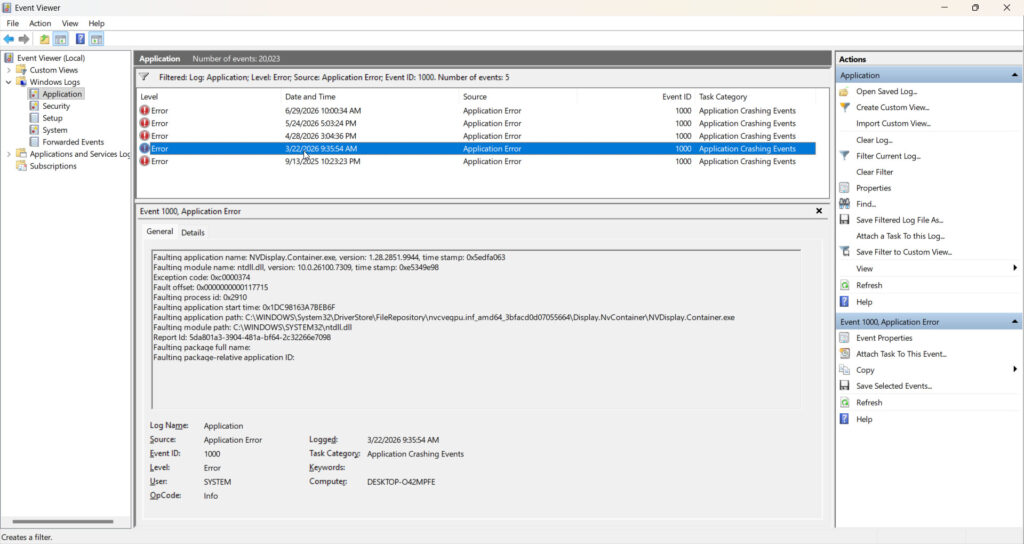
Method 3: Use Dependency Walker
The tool that actually pinpoints it. Dependency Walker examines an executable and reports which modules fail to load.
The technique: run your failing app through Dependency Walker’s profiling mode, dismiss the 0xc000007b error as usual, then read the generated log. Look for modules flagged as failed or mismatched.
Two cautions from experienced users. First, the logs are dense and generate many warnings and errors, most of which are harmless and can be ignored — do not chase every line. Second, the tool is old and reports false positives on modern Windows, so treat it as a lead, not a verdict.
A real example of what you are looking for: one user’s log ended with the launcher process exiting with code -1073741701—which is 0xC000007B in decimal. That final line is the confirmation.
Why You Should Never Download the DLL
This is the section that matters most, and it is backed by documented cases rather than opinion.
The cascade. A user on Microsoft Q&A described exactly how it unravels. Game A ran fine. Game B demanded vcomp.dll, so they downloaded it in both 32-bit and 64-bit and got 0xc000007b. Process Monitor reported the downloaded DLL as corrupt. They gave up and deleted Game B. Then Game A—which had worked perfectly and whose DLLs they had never touched—started demanding msvcp and msvcr files. They downloaded those too and got the same error again.
One download broke a working game. That is the pattern.
The malware angle. If xinput1_3.dll is compromised by malware, the application cannot use it properly — which means a “fix” DLL from an untrusted site can be the infection itself.
The expert view. As one Unreal Engine community guide puts it, the author would never use an untrusted site to download DLLs from—repeated for emphasis in the original. Their recommended approach instead: identify which product the DLL belongs to, then reinstall or repair that product from a trusted Microsoft source.
The evidence shows it does not even work. A Microsoft Q&A user deleted mfc100.dll, msvcp100.dll, msvcr100.dll, xinput1_3.dll, and every d3dx9_??.dll from both System32 and SysWOW64, reinstalled DirectX, removed every Visual C++ version, and reinstalled them all—and reported it did not solve the problem. Another user tried placing MSVCP140.dll and VCRUNTIME140_1. dll manually into the app’s root folder and still got 0xc000007b.
Manual DLL placement fails because the package registers the file properly. Copying it does not.
How to Fix It Properly: Step by Step
Step 1: Identify the DLL
Use the error text, Event Viewer, or Dependency Walker as above. Write the name down.
Step 2: Match It to Its Package
Use the table. The number in the name is your guide.
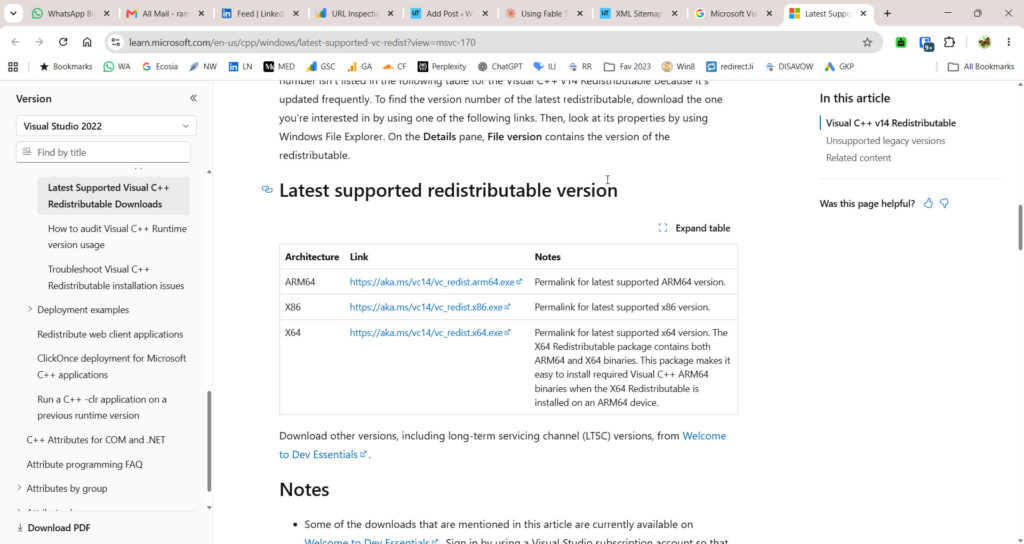
Step 3: Install Both Architectures
Download from the Microsoft Download Center and install x86 and x64 on a 64-bit system. Not one. Both.
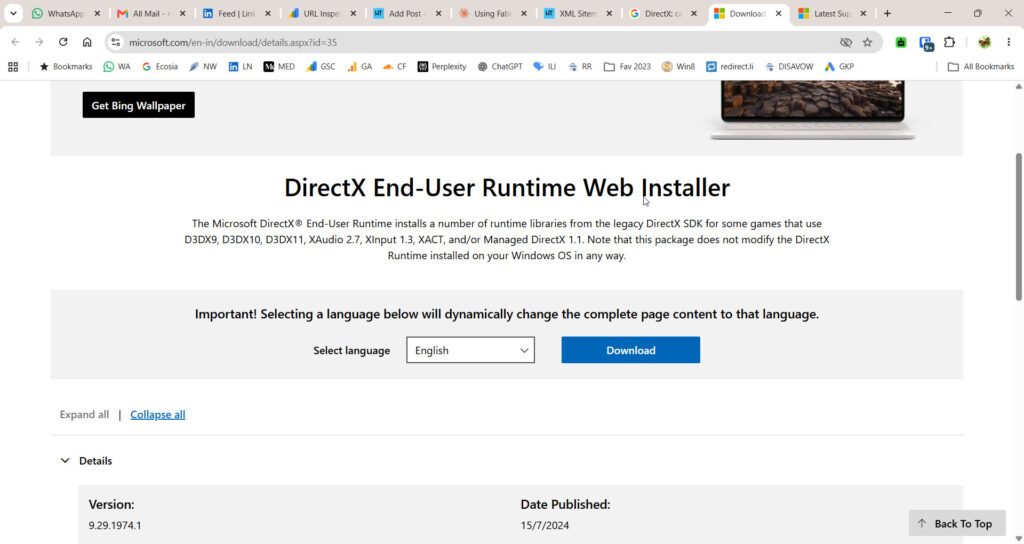
Step 4: Install the DirectX End-User Runtime
If your DLL was XInput or D3DX9, run the DirectX End-User Runtime Web Installer from Microsoft. It replaces only the missing or corrupted components. Windows 11 has DirectX 12 built in, but legacy d3dx9 files only arrive via this installer.
Step 5: Repair .NET Framework
Search for Turn Windows features on or off, uncheck .NET Framework, restart, and then re-enable it to force a clean download.
Step 6: Run SFC and DISM
sfc /scannowSFC scans protected system files — including system libraries tied to runtimes — and repairs them from backup copies. If it finds errors it cannot fix:
DISM /Online /Cleanup-Image /RestoreHealthDISM pulls fresh system images directly from Windows Update servers.
Step 7: Reinstall the Application
If one app still fails while others work, its files are corrupt. Reinstall it from the official source.
Best Practices
- Install the Visual C++ Redistributable (2015–2022) x86 and x64 as standard on any Windows 11 PC.
- Keep DirectX End-User Runtime installed for games, even on Windows 11.
- Create a restore point before touching runtimes.
- Note the DLL name the moment the error appears—it is your fastest diagnostic.
Common Mistakes to Avoid
- Downloading the DLL: Malware risk, cascading breakage, and it usually fails.
- Copying DLLs into System32 or SysWOW64. The folders are named backwards, and manual copies are not registered.
- Installing only x64. Many apps call 32-bit modules.
- Installing the wrong year. The 2015–2022 package does not fix MSVCP120.
- Trusting every Dependency Walker warning. Most are harmless noises.
- Deleting system DLLs to force a reinstall. Documented as ineffective and risky.
Recommended Tools
- Event Viewer is built in and names the faulting module.
- Dependency Walker — pinpoints failing dependencies; treat results as leads.
- System File Checker (SFC) and DISM — built in.
- Microsoft Download Center — official Visual C++ and DirectX packages.
Everything ships from Microsoft or is already on your PC.
How do I know which DLL is causing my 0xc000007b error?
Check the error text first — Windows sometimes names the file. If not, open Event Viewer, go to Windows Logs, then Application, and find the error entry at the crash time; the faulting module is usually listed. Dependency Walker provides the most detail for stubborn cases.
Can I just download the missing DLL to fix 0xc000007b?
No. Documented cases show downloaded DLLs registering as corrupt and breaking previously working apps, creating a cascade of new errors. Loose DLLs are also a leading malware route. Install the parent Microsoft package instead — it places and registers the same file correctly.
What is the difference between msvcp140.dll and msvcp120.dll?
The number identifies the Visual C++ version. MSVCP120.dll belongs to Visual C++ 2013, while msvcp140.dll and vcruntime140.dll belong to Visual C++ 2015–2022. To resolve the error, please ensure that the DLL name matches the corresponding package version.
Is xinput1_3.dll safe to replace manually?
No. It belongs to DirectX solutions; the correct fix is running the DirectX End-User Runtime Web Installer, which replaces only missing or corrupted components properly. Manual replacement skips registration and, if sourced from an untrusted site, risks malware (xinput1_3). DLL is a known malware target.
Conclusion
The question “which DLL causes 0xc000007b” has a real answer on your PC. It is a named file, and that file belongs to a package.
Read the name. Compare it to the table. Install the package—x86 and x64 both. That is the whole method, and it works because it fixes the cause rather than patching the symptom.
The temptation is always to download the file directly. Resist it. The evidence is clear: users who go that route end up with corrupt copies, cascading failures across apps that worked fine yesterday, and malware risk on top. One documented case turned a single broken game into two.
Get your DLLs from Microsoft, inside their package, every time. Please identify your DLLs today, install the appropriate redistributable, and share in the comments which file was the issue.
ENJOYING OUR CONTENT?
Stay up to date with our latest guides, insights, and news. Tap below to follow us directly via your search feed.
