
Last Updated:
Is your laptop not producing any sound? Don’t worry, you’re not alone. Many users face issues with no sound from laptop, leaving them frustrated and wondering, “Why is there no sound in my laptop?” .
Whether you’re trying to listen to music, watch a video, or attend a conference call, no audio from your laptop can be a major hindrance.
If you’ve ever sat down to watch a video or jump on a work call and suddenly realized there’s no sound on your laptop — total silence, no error, nothing — you know exactly the panic I’m talking about.
One minute everything’s fine; the next minute your speaker icon has a little red X on it, and you’re frantically clicking things.
This happens way more than people think, especially on Windows 11 after an update. In this section, I’m going to walk you through what actually worked for me and for a bunch of other people on Microsoft’s own forums—not the generic “check your volume” advice you’ve already tried ten times.
Few things are as frustrating as a laptop that won’t emit any sound. Whether speakers, headphones, or external speakers won’t work, muted audio can significantly affect usability.
In this article, we’ll explore common reasons why you might experience “my laptop don’t have sound” and provide step-by-step solutions to help you troubleshoot when you find the “sound in laptop not working.”
Fix #1 Update or Reinstall Sound Drivers
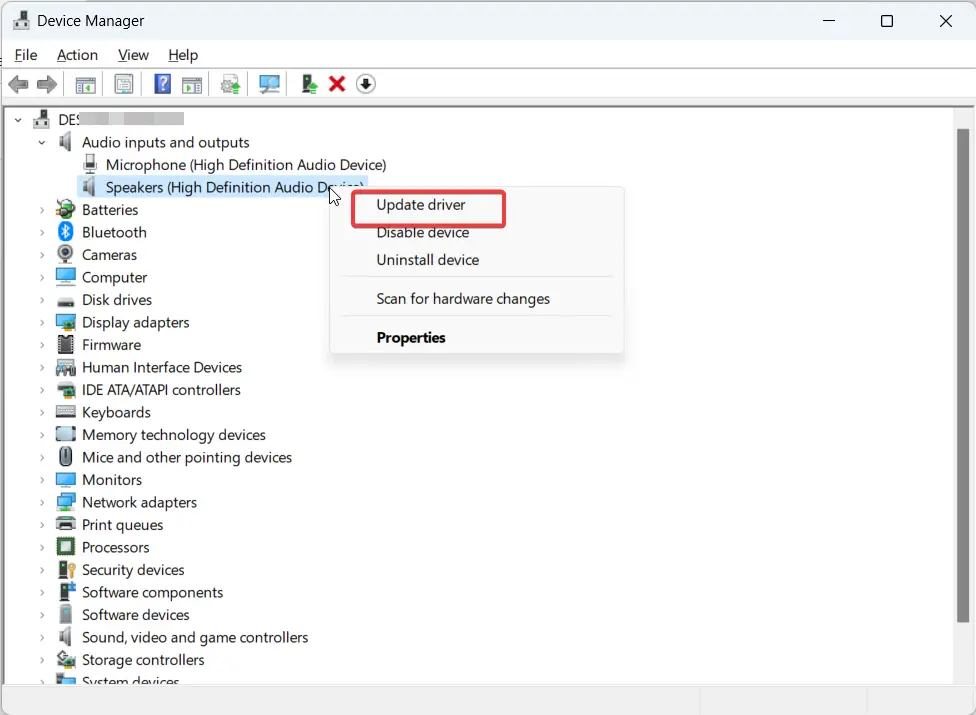
Outdated, corrupt, or missing sound drivers are one of the most common reasons for laptop sound problems. Open device manager, find your audio device, and update to the newest sound drivers from the hardware manufacturer. If updating doesn’t work, uninstall and reinstall the drivers fully.
Fix #2 Inspect Hardware and Connections
Examine any 3.5mm headphone jacks, internal speakers, volume buttons, or other hardware components related to sound. Make sure no debris or damage is contributing to laptop speaker issues. Also check that all cables are securely connected.
Fix #3 Run Audio Troubleshooter
Windows and MacOS come equipped with automated troubleshooting tools designed to detect and fix common audio problems. Search for “audio troubleshooter” and run it. This will analyze and attempt to correct any identifiable issues.

Fix #4 Adjust Sound Settings
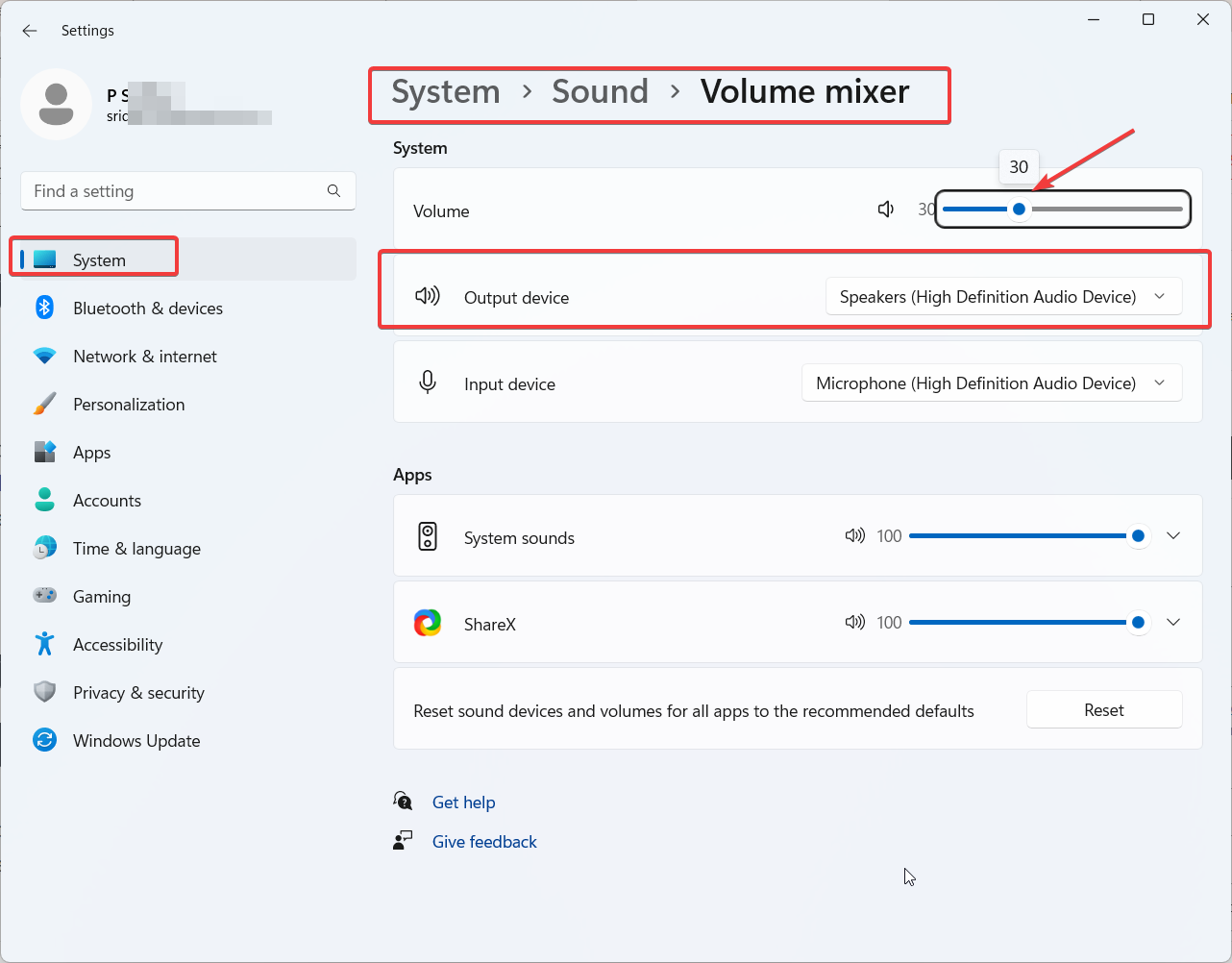
Open volume controls and audio properties to verify that nothing is incorrectly muted, volumes are turned up, and the right output source is selected. Choosing the wrong output device can make it seem like there is no audio.
fix #5 Perform System Restore
If the no sound problem started after a recent change or event like a software update, perform a system restore to revert back to an earlier time when sound worked properly. This can undo potentially problematic OS updates.
My Laptop Sound Just Stopped One Random Tuesday
I remember it clear as day. I was on a Teams call; everything was working fine the day before, and then—nothing. No notification sounds, no audio in Chrome, nothing. I checked the volume mixer like 5 times. Speakers said, “working normally.” That’s the most annoying message in the world because it tells you nothing.
So I started digging through Microsoft Q&A and the Microsoft Community Hub and honestly found some fixes that aren’t talked about enough.
Fix 1 — The Disable/Re-Enable Driver Trick
This one’s weirdly simple but works a ton.
Go to Device Manager → Sound, video and game controllers; right-click your audio driver (mine was Realtek); click Disable device; wait a few seconds; then enable it again.
One person on Microsoft Q&A said the trick fixed it instantly after their speakers randomly stopped working—and honestly, it’s become my go-to first step now.
Fix 2 — Turn Off Fast Startup
This one surprised me. Fast Startup is supposed to make your PC boot quicker, but it can mess with how audio hardware resets after sleep or shutdown. Go to Control Panel → Power Options → Choose what the power button does, then uncheck “Turn on fast startup.” A Microsoft moderator suggested this for a user whose audio kept failing after waking from sleep, and it’s a known fix for power-state bugs.
Fix 3 — Run the Playing Audio Troubleshooter
Old school, but Microsoft actually updated this tool, and it catches more stuff now. Settings → System → Troubleshoot → Other troubleshooters → run “Playing Audio.” Don’t skip this—it sounds basic, but it genuinely finds things.
Fix 4 — Check for a Second Hidden Audio Device
Sometimes Windows is sending sound to a device that isn’t even plugged in—like an old HDMI monitor or a Bluetooth headset that disconnected weird. Right-click the speaker icon, open Sound settings, and manually pick your laptop speakers as the output.
Fix 5 — Uninstall and Let Windows Reinstall the Driver
If nothing else works, uninstall the audio driver completely (not just disable) and restart. Windows almost always reinstalls a fresh copy automatically, and a fresh driver fixes corruption issues the “update driver” button misses.
FAQ – No Sound from Laptop
Why did my laptop speakers suddenly stop working?
Common causes include outdated drivers, incorrect settings, hardware issues, and recent system changes like an OS update. Run through troubleshooting solutions to isolate the cause.
How do I know if my laptop speaker hardware is bad?
If you’ve tried every software troubleshooting solution to no avail, it may indicate a hardware problem. Contact the device manufacturer for repair options if internal speakers fail.
Why is the sound only coming from headphones, not laptop speakers?
This typically means the audio output source is accidentally set to an external device. Go into sound settings and change the output back to your laptop speakers.
Can malware or viruses cause laptop audio problems?
Yes, malware infections can sometimes damage software and drivers associated with sound. Run antivirus scans to check for any infections impacting audio.
My old laptop speakers worked – why don’t the new ones?
Make sure replacement laptop speakers are fully compatible with your specific model. Look for manufacturer part numbers to double check compatibility.
Conclusion
Troubleshooting laptop no-sound issues takes patience, but following these solutions can help identify and resolve many underlying causes. Don’t ignore audio problems—address them promptly before assuming permanent hardware failure. With the right fixes, you can restore your laptop’s sound to working again.
Most guides stop at “update your drivers” and call it done, but as you can see, the real fixes usually involve power settings and driver resets that aren’t obvious. If your sound issue is specifically tied to HDMI output or a Bluetooth device, that’s a separate topic worth covering in a future post.
