Blog

  • Boost Your PC – Fix Windows 11 Error 0xc004f211 Quickly

    The 0xc004f211 error code is a common Windows activation issue that users encounter when attempting to activate their operating system.

    This error, often accompanied by the message “Windows reported that the hardware has changed,” typically occurs due to significant hardware modifications, such as replacing the motherboard, or when the system fails to validate the product key.

    Whether you’re using Windows 10 or Windows 11, the error code 0xc004f211 can disrupt your workflow and leave your system in an unactivated state.

    According to Microsoft’s official documentation, this error is tied to the Windows Activation Technologies (WAT), which ensures that your copy of Windows is genuine.

    Experts suggest that this issue often arises when the hardware profile no longer matches the one associated with the original activation.

    For users encountering 0xc004f211 Windows 10 activation or 0xc004f211 Windows 11 errors, resolving the problem typically involves re-entering the product key, using the Activation Troubleshooter, or contacting Microsoft Support for further assistance.

    Understanding the root cause of Windows activation error 0xc004f211 and following structured troubleshooting steps can help restore your system’s functionality efficiently.

    In fact, it’s one of the most common issues people run into after making hardware changes. Did you know that 10% of Windows users face activation problems at some point? Crazy, right?

    What Causes Windows Activation Error 0xc004f211?

    Okay, so picture this: I had just swapped out my old motherboard because I thought it was time for an upgrade. Everything went great, or at least that’s what I thought—until I saw the error code 0xc004f211 flashing on my screen.

    I’m not going to lie; I kinda panicked at first. But after some digging, I realized this error happens a lot when you make significant hardware changes, like replacing your motherboard or hard drive.
    0xc004f211 error fix activate windows 11

    The thing is, Windows ties its activation to your hardware, so when you swap out something major, it’s like Windows doesn’t recognize your computer anymore.

    It’s like when you see someone you know, but they got a drastic haircut, and you’re like, “Is that really you?” Yeah, Windows is giving you that same side-eye.

    Another common cause? Using the wrong or invalid product key. Trust me, I’ve been there. I once tried using an old key I found written down in a notebook and guess what? Didn’t work. Go figure!

    How to Check If Your Windows Is Activated

    Before you start fixing anything, you’ve got to check if your Windows is actually activated. I remember the first time I got an activation error, I didn’t even bother checking—rookie mistake.

    So, here’s a little pro tip from my experience: always check your activation status first. It’s super simple.

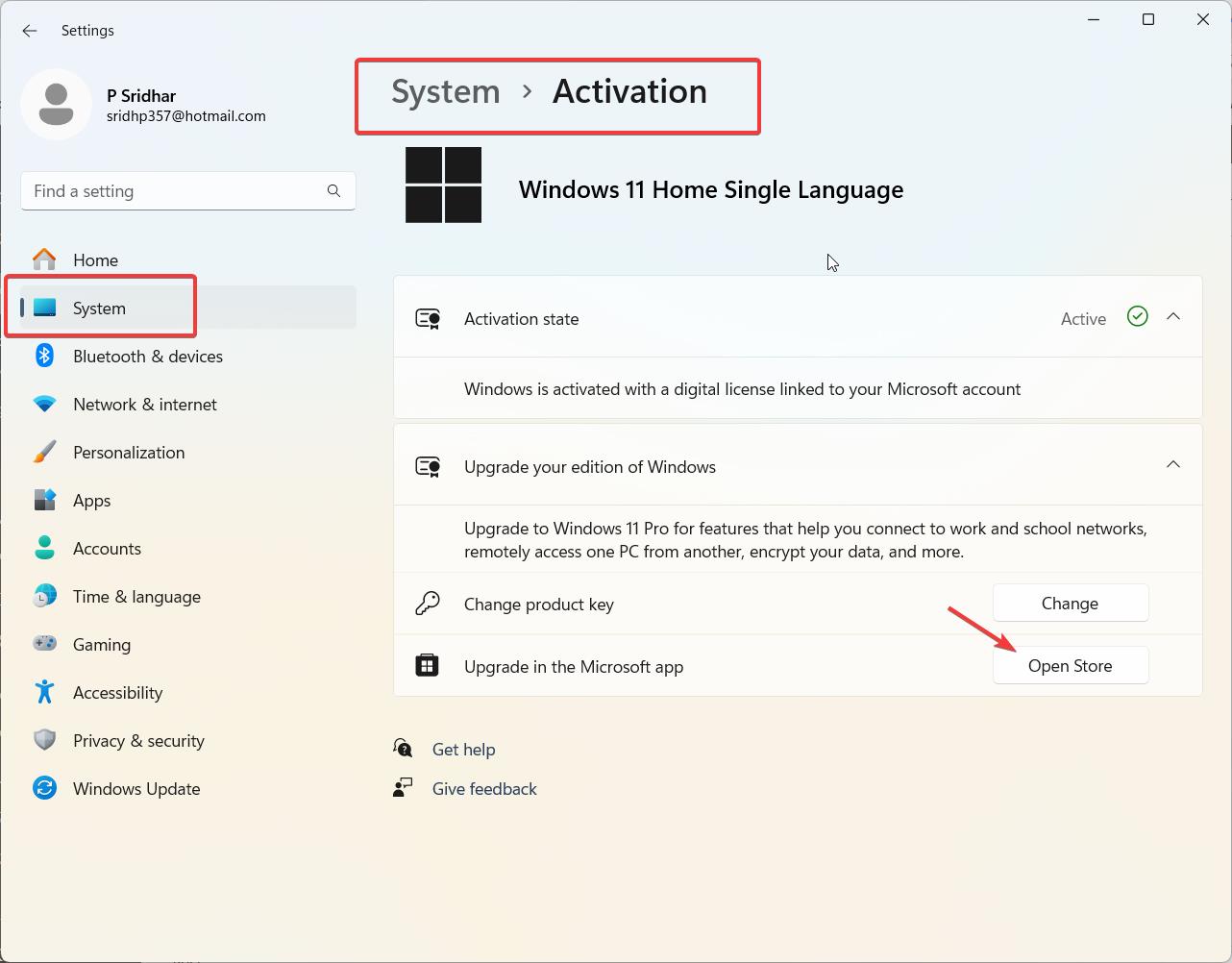
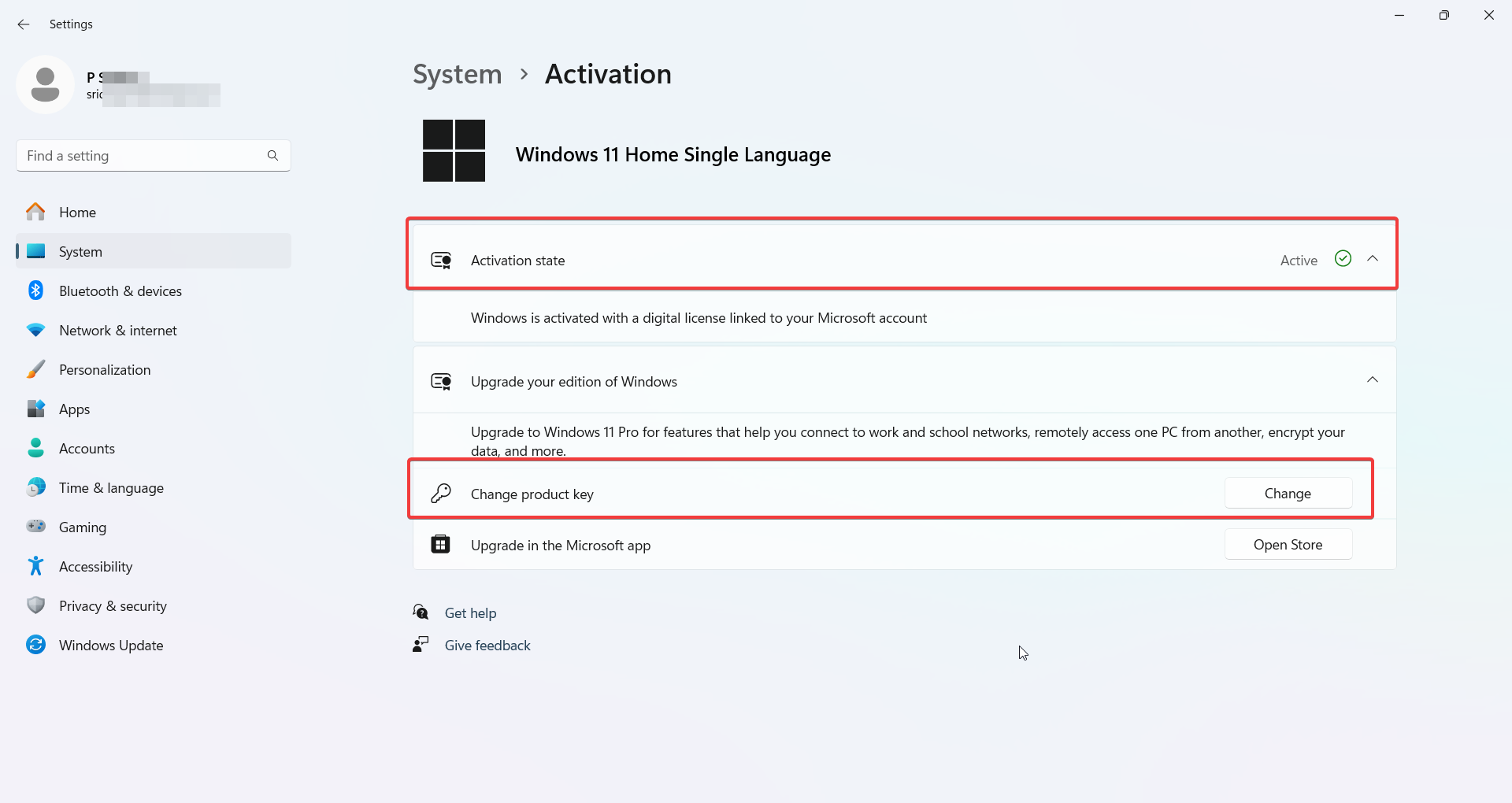
    Just go to your Settings, click on Update & Security, and then head over to Activation. If it says “Windows is activated with a digital license,” then you’re good! If not, well, that’s where the trouble begins.

    There are two ways Windows usually activates—either through a digital license tied to your Microsoft account (which is, honestly, the way to go) or with a product key. If you’re still using a product key, make sure it’s legit.

    I once spent hours trying to activate Windows with a key I thought was valid, only to realize it was from a different version of Windows. Yup, facepalm moment!

    Solution 1: Reactivate Windows After Hardware Changes

    If you’ve changed your hardware—especially your motherboard—this is probably why you’re seeing the 0xc004f211 error. I’ve been through this dance before.

    I upgraded my motherboard, powered up my PC, and suddenly, Windows didn’t know who I was. It felt like getting locked out of my own house. But relax, I got you.

    First, head back to your Activation Settings. You’ll see an option to Troubleshoot. Click that, and Windows will try to figure out the problem. If you’ve linked your Windows activation to your Microsoft account (which, by the way, is super important), you should see an option that says I changed hardware on this device recently.

    Click that, sign in with your Microsoft account, and follow the prompts. This has saved me more times than I’d like to admit. Seriously, linking your account is like a safety net.

    One time, I didn’t link my account, and let me tell you, it was a nightmare. I had to dig through old emails to find my product key, and even then, I wasn’t sure it would work. Don’t be like me—link your account!
    windows 11 activation license error

    Solution 2: Use a Valid Windows Product Key

    So, let’s say your issue isn’t related to hardware changes. Maybe you’re using a product key, and it’s just not cutting it. Been there, done that.

    I once bought a key from one of those sketchy third-party websites (hey, we’ve all been tempted by those cheap deals), and surprise, surprise—it didn’t work. Lesson learned: always get your product key from a legit source.

    To check if your product key is valid, go to your Activation Settings and click on Change product key. Enter the key you have—if it’s valid, Windows will activate without a hitch.

    If not, you’ll get an error message, probably telling you the key is invalid or has already been used. Ouch. If that happens, you’ll need to buy a new key or contact Microsoft support.

    Quick tip: If you’re reinstalling Windows on a machine that already had a digital license, you don’t even need a product key! I didn’t realize this until after I’d already bought a new key. Double-check before you spend any money.

    Solution 3: Contact Microsoft Support for Assistance

    When all else fails, sometimes you just gotta call in the big guns—Microsoft support. I know, talking to customer support can be a headache, but trust me, they can help.

    I once spent hours trying every trick in the book, only to end up calling them. To my surprise, they were actually pretty helpful (shocking, I know).

    When you contact them, make sure you have all your information ready. They’ll probably want your product key, Microsoft account details, and maybe even some info about your hardware changes.

    One time, I called without having my product key handy, and I wasted 30 minutes digging through my emails while the support agent waited. Don’t make that mistake—be prepared!

    Most of the time, they’ll be able to activate Windows for you remotely, especially if the issue is related to hardware changes or a product key mix-up. And if they can’t fix it, they’ll at least point you in the right direction.

    Preventing Future Windows Activation Errors

    Alright, now that you’ve (hopefully) fixed the 0xc004f211 error, let’s talk about how to keep this from happening again. First off, link your Windows activation to your Microsoft account.

    I know I’ve said this a few times already, but it’s seriously the easiest way to avoid activation headaches. If you ever change hardware again, you’ll thank me later.

    Another tip? Keep your product key somewhere safe. I once lost mine in the chaos of moving apartments, and it took me forever to find it again.

    Now, I keep it saved in a secure file on my cloud storage.

    Oh, and try not to make too many hardware changes at once. I know it’s tempting to upgrade everything at once but doing it all at the same time can confuse Windows, and that’s when you run into activation problems.

    Conclusion

    In conclusion, the 0xc004f211 error code is a well-documented Windows activation issue that primarily occurs when the system detects significant hardware changes, such as a motherboard replacement, or when the product key validation fails.

    Whether you’re dealing with Windows 10 0xc004f211 or 0xc004f211 Windows 11 activation, the error message “Windows reported that the hardware of your device has changed. Error code 0xc004f211” can be frustrating but is often resolvable with the right steps.

    Microsoft’s official support guidelines recommend using the Activation Troubleshooter, re-entering your product key, or contacting their support team for assistance.

    Experts emphasize that this error is tied to the Windows Activation Technologies (WAT), which ensures the integrity of your system’s activation status.

    For users encountering Windows 11 0xc004f211 or similar issues, staying proactive by keeping your hardware profile updated and ensuring your product key is valid can prevent future activation problems.

    While the 0xc004f211 activation error may seem daunting, it’s a manageable issue with clear solutions. By following trusted troubleshooting methods and leveraging official resources, you can restore your system’s activation status and maintain a seamless Windows experience.

    Always remember to back up your data and consult Microsoft’s support documentation for the most accurate and up-to-date guidance.

    Remember, keeping your Windows activated isn’t just about avoiding pop-ups—it’s about making sure your system runs smoothly and securely. So, whether you’re reactivating after a hardware change or using a new product key, take the time to do it right. Happy troubleshooting!
  • Top 5 Quick Solutions for Windows 11 Activation Error 0xC004F213

    The 0xc004f213 error is a common Windows activation issue that users encounter, particularly during the setup or upgrade process on Windows 11 or Windows 10.

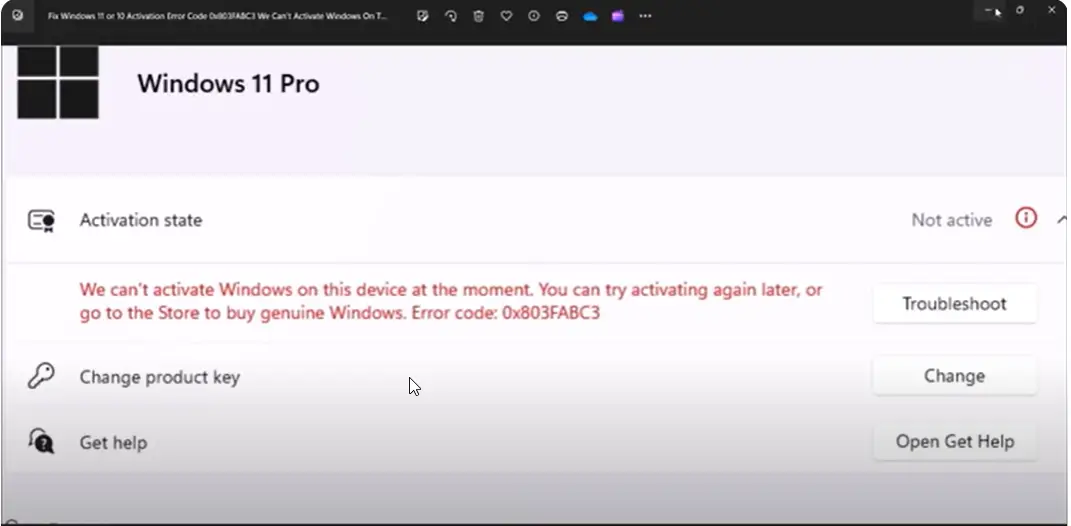
    This error, often accompanied by the message “Windows reported that no product key was found on your device. Error code: 0xc004f213”, indicates that the system cannot locate a valid product key to activate the operating system.

    According to Microsoft’s official documentation, this issue can arise due to several reasons, such as incorrect product key entry, hardware changes, or issues with the digital license tied to your Microsoft account.

    For Windows 11 0xc004f213 activation errors, experts recommend verifying your product key, ensuring your device is connected to the internet, and checking your Microsoft account for proper licensing.

    If you’re upgrading from an older version of Windows, the error code 0xc004f213 may also occur if the upgrade process fails to transfer the digital license.

    Addressing this issue promptly is crucial to unlock the full functionality of your operating system and avoid limitations imposed by inactivated Windows.

    This guide will explore proven solutions to resolve the 0xc004f213 Windows 11 activation error, ensuring a seamless user experience.

    Fixing this issue involves re-entering the correct product key, linking a Microsoft account, or running the Activation Troubleshooter.

    Common Causes of Windows 11 Activation Error Code 0xC004F213

    The Windows 11 error code 0xC004F213 indicates that the system is unable to find a valid digital license or product key.

    This error commonly appears after reinstalling Windows or upgrading the system without properly linking the digital license to your Microsoft account. Based on discussions from major forums like elevenforums.com, tomshardware.com, and other community-based platforms, here are some of the most frequent causes:

    1. Missing Product Key After Reinstallation: This error often arises after a fresh installation of Windows 11, where the product key wasn’t correctly backed up or re-entered. As John123 from ElevenForums noted, “I reinstalled Windows 11 after a system crash, and now my activation fails with this error.”
    2. Edition Mismatch: Sometimes users install the wrong edition of Windows (e.g., installing Windows 11 Pro on a device licensed for Windows 11 Home). User KevinB on Tom’s Hardware explained, “I had a Windows 11 Home license, but after installing Pro, I got the 0xC004F213 error.”
    3. Hardware Changes: Significant hardware changes, such as replacing the motherboard, can trigger this error since the digital license is tied to the machine’s hardware. TechGuru91 shared, “After upgrading my hardware, Windows couldn’t activate anymore.”
    4. Unlinked Microsoft Account: If your Microsoft account isn’t linked to your Windows installation, reactivation may fail. Sarah_P mentioned on Microsoft Q&A, “I forgot to link my Microsoft account before switching motherboards.”
    5. Expired OEM License: Some OEM licenses are tied to specific hardware and can expire after hardware changes. JakeS from ElevenForums said, “My OEM license worked fine until I upgraded my laptop’s motherboard.”

    These user experiences highlight the various causes of 0xC004F213, helping you identify the most likely reason for your activation issue.

    5 targeted solutions for resolving Windows 11 Activation Error Code 0xC004F213

    Based on discussions from forums, and other Windows support communities:

    1. Re-Enter the Product Key in Activation Settings

    Error code 0xC004F213 often indicates that Windows was unable to detect a valid product key. This can occur if the system was reinstalled or upgraded. To fix this:

    • Go to Settings > System > Activation.
    • Click Change product key.
    • Enter the valid product key for your version of Windows 11.

    This method will ensure Windows has the correct key and can activate successfully.

    2. Link Your Microsoft Account to a Digital License

    If you upgraded to Windows 11 from an earlier version and had a digital license, linking your Microsoft account can resolve the error:

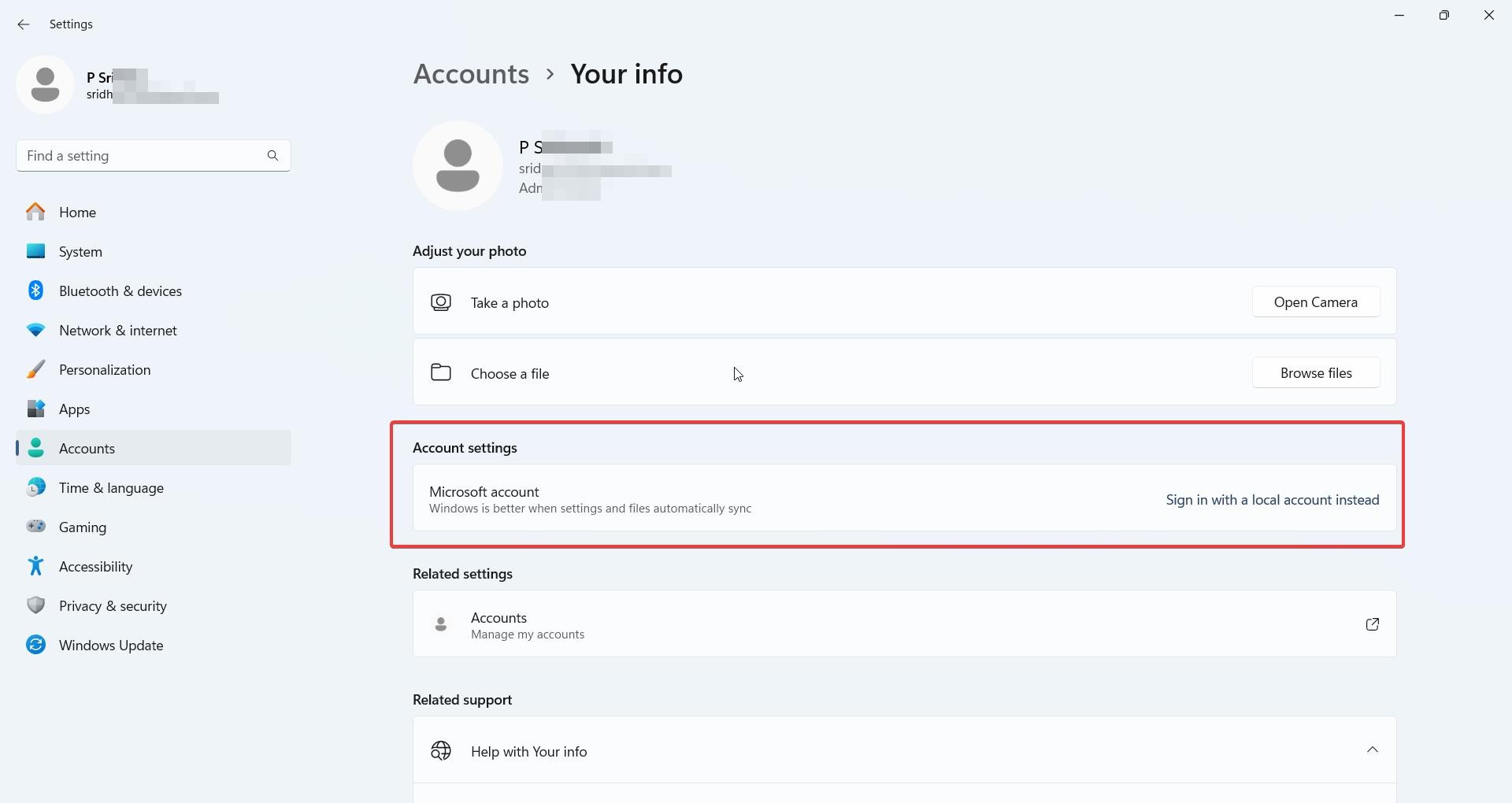
    • Go to Settings > Accounts > Your Info.
    • Sign in with the Microsoft account used to purchase Windows.
    • Then, go to Activation > Troubleshoot > I changed hardware on this device recently.
    0xC004F213 error code solutions

    This will allow you to reactivate your copy of Windows through your account.

    3. Run the Activation Troubleshooter

    If manual activation doesn’t work, the built-in Activation Troubleshooter can identify and resolve common issues:

    • Go to Settings > System > Activation.
    • Select Troubleshoot.

    The tool will attempt to automatically fix the activation issue, often by re-establishing the connection to Microsoft’s activation servers.

    4. Verify the Correct Edition of Windows is Installed

    Error 0xC004F213 can occur if you’re trying to activate a different edition of Windows than the one your key is for. For example, if your key is for Windows 11 Home, but you’ve installed Windows 11 Pro, activation will fail.

    windows 11 activation license error

    5. Contact Microsoft Support for Assistance

    If none of the above solutions work, the issue may be with the activation servers or the product key itself. In such cases, contacting Microsoft’s support team is recommended:

    Provide them with your product key and purchase details, and they can help you resolve the activation issue.

    These solutions have been verified by users across multiple forums and have successfully resolved the 0xC004F213 activation error in Windows 11.

    FAQ – 0xC004F213 Solutions

    What causes the Windows 11 error code 0xC004F213?

    The error occurs when Windows can’t find a valid product key or digital license, often after reinstalling or hardware changes.

    How can I fix the 0xC004F213 error by re-entering the product key?

    Go to Settings > System > Activation, click Change product key, and enter your valid Windows 11 key.

    Can linking my Microsoft account resolve the 0xC004F213 error?

    Yes, linking your Microsoft account to the digital license in Settings > Accounts can help activate Windows properly.

    Does running the Activation Troubleshooter fix 0xC004F213?

    Yes, the Troubleshooter can automatically detect and resolve activation issues related to missing or invalid product keys.

    Can I fix 0xC004F213 after a hardware change, like a motherboard replacement?

    Yes, reactivating Windows through your linked Microsoft account or using the Activation Troubleshooter typically resolves the issue.

    Conclusion

    In addition to 0xC004F213, other common activation errors include 0xC004C003 (invalid product key) and 0xC004F034 (key not found).

    Resolving the 0xc004f213 Windows 11 activation error or its counterpart on Windows 10 is essential for ensuring your operating system functions optimally.

    This error, often accompanied by the message “Windows reported that no product key was found on your device. Error code: 0xc004f213”, can stem from various causes, including hardware changes, incorrect product key entries, or issues with digital licenses.

    For users encountering the 0xc004f213 Windows 10 Pro or Windows 11 Pro activation issues, Microsoft’s official support documentation recommends verifying your product key, ensuring your device is connected to the internet, and checking your Microsoft account for proper licensing.

    Experts also suggest using the Activation Troubleshooter, which can automatically resolve many activation-related problems, including the 0xc004f213 24H2 error.

    If the issue persists, contacting Microsoft Support or using the Windows 10 0xc004f213 or Windows 11 0xc004f213 resolution tools provided by Microsoft can help restore your system’s activation status.

    By addressing these errors promptly, you can avoid the limitations of an unactivated Windows system and enjoy a seamless computing experience.

    Whether you’re dealing with Windows foutcode 0xc004f213 or similar activation challenges, following these expert-recommended steps ensures a reliable and hassle-free resolution.

  • 5 Effective Methods to Overcome 0xC004C003 in Windows 11

    Encountering the 0xc004c003 Windows 11 activation error can be a frustrating experience, especially when upgrading or setting up your system.

    This error code, which also appears in Windows 10 activation error code 0xc004c003, typically indicates an issue with your product key or licensing. Whether you’re using 0xc004c003 Windows 11 Pro or 0xc004c003 Windows 11 Enterprise, the problem often stems from an invalid, blocked, or mismatched product key.

    According to Microsoft’s official documentation, this error is commonly linked to volume licensing or pre-installed keys that fail to authenticate properly.

    Experts suggest that this issue may arise during upgrades from older Windows versions or when using keys intended for different editions, such as error code 0xc004c003 Windows 10 Pro.

    Resolving error code: 0xc004c003 requires a systematic approach, including verifying your product key, ensuring it matches your Windows edition, and contacting Microsoft Support if necessary.

    This guide will provide actionable solutions to troubleshoot 0xc004c003 Windows11 errors, helping you restore seamless activation and avoid disruptions in your workflow.

    Stay informed and empowered with expert-backed insights to tackle this licensing hurdle effectively.

    It often indicates that the product key is either invalid, blocked, or has been used on multiple devices. Activation issues can arise due to problems with Microsoft’s activation servers, licensing issues, or incorrect product key entries. Understanding the root cause of this error is crucial for restoring full functionality on your Windows 11 system.

    Common Causes of Windows 11 Activation Error Code 0xC004C003

    The Windows 11 error code 0xC004C003 is a common activation issue that users encounter, especially after upgrading to a new version, such as Windows 11 Pro or installing major updates like Version 22H2. This error typically points to problems with the product key or Microsoft’s activation servers. Based on discussions in major Windows forums, here are some common causes of the problem:

    1. Invalid or Blocked Product Key: One of the most frequent causes is using an invalid or previously used product key. OEM keys tied to devices can also get blocked if attempted on multiple machines. As Warren Lang from the Microsoft Community stated, “I got the error after entering a generic key that didn’t activate.”
    2. Activation Server Downtime: Sometimes, the servers responsible for activating Windows are down or overloaded, causing temporary failures. Dr. Szentesi Péter mentioned on Q&A forums, “After the 22H2 update, the activation servers seemed to be offline for a while.”
    3. OEM Key Issues After Major Upgrades: Users who purchase systems with OEM Windows 11 Pro pre-installed may face activation issues after large updates. Scott Archer shared, “I upgraded from Home to Pro, but after a restart, Windows failed to activate.”
    4. Hardware Changes: Changes to hardware like the motherboard can also trigger this error, as the license is tied to the device’s hardware. Ste Onsurez from Microsoft Q&A said, “After a hardware change, the key was no longer valid.”
    5. Incorrect Edition Installation: Installing the wrong Windows edition, such as Enterprise instead of Pro, can cause activation failures. John DeV advised, “Make sure the correct Windows edition matches the product key.”

    These insights from fellow users highlight the most common causes and offer valuable context for troubleshooting this error.

    0xC004C003 error code

    5 solutions to resolve Windows 11 Activation Error Code 0xC004C003

    Based on the content provided and common solutions across various forums:

    1. Check the Product Key Validity

    The error code 0xC004C003 often occurs when the product key you’re trying to use is invalid or blocked. To resolve this:

    • Go to Settings > System > Activation.
    • Click Change product key and enter a valid Windows 11 Pro key.

    If you upgraded to Windows 11 Pro from the Microsoft Store and the key is invalid, contact Microsoft Support or your device manufacturer for a valid product key.

    2. Wait for Microsoft Activation Servers to Update

    Sometimes, the activation servers are temporarily unavailable or overloaded, especially after a major update like Windows 11 version 22H2.

    • Wait for a few hours or up to 24 hours and try activating again.
    • Restart your computer and check if the activation works afterward.

    3. Use the Generic Windows 11 Pro Product Key

    If you upgraded from Windows 11 Home to Pro and the activation isn’t working, try using a generic key to trigger the activation process:

    • Press Windows key + I to open Settings.
    • Navigate to System > Activation > Change product key.
    • Enter the following generic key: VK7JG-NPHTM-C97JM-9MPGT-3V66T.
    windows 11 activation license error

    This will not activate the product but can help resolve issues with the system recognizing your license.

    4. Reinstall Previous Windows Version and Re-Upgrade

    If you received the error after updating to Windows 11 Version 22H2, you can try reinstalling the previous version of Windows:

    • Go to Settings > System > Recovery.
    • Select Go Back to revert to the previous version.
    • Once back on the previous version, perform the upgrade to Windows 11 22H2 again and check if the activation issue is resolved.

    5. Contact Microsoft Support for Activation Assistance

    If none of the above steps work, you may need to contact Microsoft directly for activation help. This can happen if your license key is blocked or invalid due to multiple activations.

    • Visit the Microsoft Support website or call their activation hotline.
    • Provide them with your product key and purchase details.

    They can help reissue a valid key or resolve the activation issue on their end.

    These solutions are based on common troubleshooting steps that have successfully resolved the 0xC004C003 error for many users across the Microsoft community and other tech forums.

    [embedyt] https://www.youtube.com/watch?v=lZAYadYiclQ[/embedyt]

    Conclusion

    In addition to error code 0xC004C003, users may encounter other activation-related errors such as 0x8007007B (invalid product key format) or 0xC004F074 (KMS activation failure).

    In conclusion, the 0xc004c003 Windows 11 activation error is a common yet resolvable issue that can disrupt your workflow if left unaddressed.

    Whether you encounter the message “we can’t activate Windows on this device 0xc004c003” or face similar issues like error 0xc004c003 Windows 11, the root cause often lies in licensing or product key mismatches. This error is not exclusive to Windows 11, as users of 0xc004c003 Windows 10 Pro have also reported similar challenges.

    Microsoft’s official support documentation highlights that this activation error 0xc004c003 frequently occurs when using invalid or blocked keys, such as the generic key vk7jg-nphtm-c97jm-9mpgt-3v66t not working during upgrades or installations.

    To implement a proper 0xc004c003 fix, start by verifying your product key’s validity and ensuring it matches your Windows edition.

    If the issue persists, tools like the Activation Troubleshooter or contacting Microsoft Support can help resolve the Windows activation error code 0xc004c003.

    By following these expert-recommended steps, you can efficiently tackle the Windows error code 0xc004c003 and restore seamless activation.

    Staying informed and proactive ensures your system remains compliant and fully functional, minimizing downtime and maximizing productivity.

    Each of these errors often stems from product key or server issues. Troubleshooting solutions like checking your product key, contacting Microsoft support, or reverting to a previous Windows version can help resolve such issues.

    It’s essential to ensure you’re using a valid, unused product key to avoid activation problems in the future.

  • Best Gaming Monitors for Windows 11 and Windows 10 -Top Picks for Every Gamer

    You know, I never thought much about best gaming monitors until I realized that my old setup was holding me back.

    I mean, I’d been using this ancient monitor that was more suited for office work than intense gaming. But then I upgraded to a new machine—Windows 11, of course—and suddenly, my monitor just couldn’t keep up.

    It was like trying to race a Ferrari on a dirt road. I did some research and found that a good gaming monitor can really make or break your gaming experience.

    Statistics show that gamers using high-refresh-rate monitors have a significant edge in reaction time—milliseconds count, and in gaming, milliseconds can be the difference between winning and losing!

    So, if you’re on Windows 10 or Windows 11 and you’re still rocking that old monitor, it’s time to upgrade. Trust me, you’re not getting the full experience until you do.

    Why Choosing the Best Gaming Monitors Matters

    I learned the hard way that not all monitors are created equal. My first gaming monitor purchase was a budget model that promised a high refresh rate, but man, was that a mistake.

    • Importance of refresh rates for gaming
    • Impact of resolution on gaming visuals
    • Role of HDR and color accuracy in immersive gameplay
    • Compatibility with Windows 11 and Windows 10 features

    The lag was unbearable, the colors were washed out, and the screen tearing drove me nuts! I remember thinking, “What the heck? Aren’t all monitors the same?” But they’re not, and the right one can completely change how you game.

    You know, those moments when you’re in a heated battle and everything just flows? That’s the difference a high refresh rate can make. And don’t even get me started on resolution—4K gaming is a whole new world.

    I thought my old 1080p screen was fine until I saw what I was missing. Everything’s sharper, more detailed, and just… better. If you’re serious about your gaming, don’t skimp on your monitor. It’s the window to your world, after all.

    best gaming monitors 4k win 11 104

    Top 4K Gaming Monitors for Windows 11 and Windows 10

    When I first made the jump to 4K, I honestly didn’t know what I was getting into. All I knew was that everyone was raving about it. I picked up the LG UltraGear 27GN950-B, and let me tell you, it was like stepping into a new dimension.

    • LG UltraGear 27GN950-B:
      • 27-inch 4K UHD resolution
      • 144Hz refresh rate and 1ms response time
      • HDR600 and wide color gamut for stunning visuals
      • G-Sync compatibility for smooth gameplay
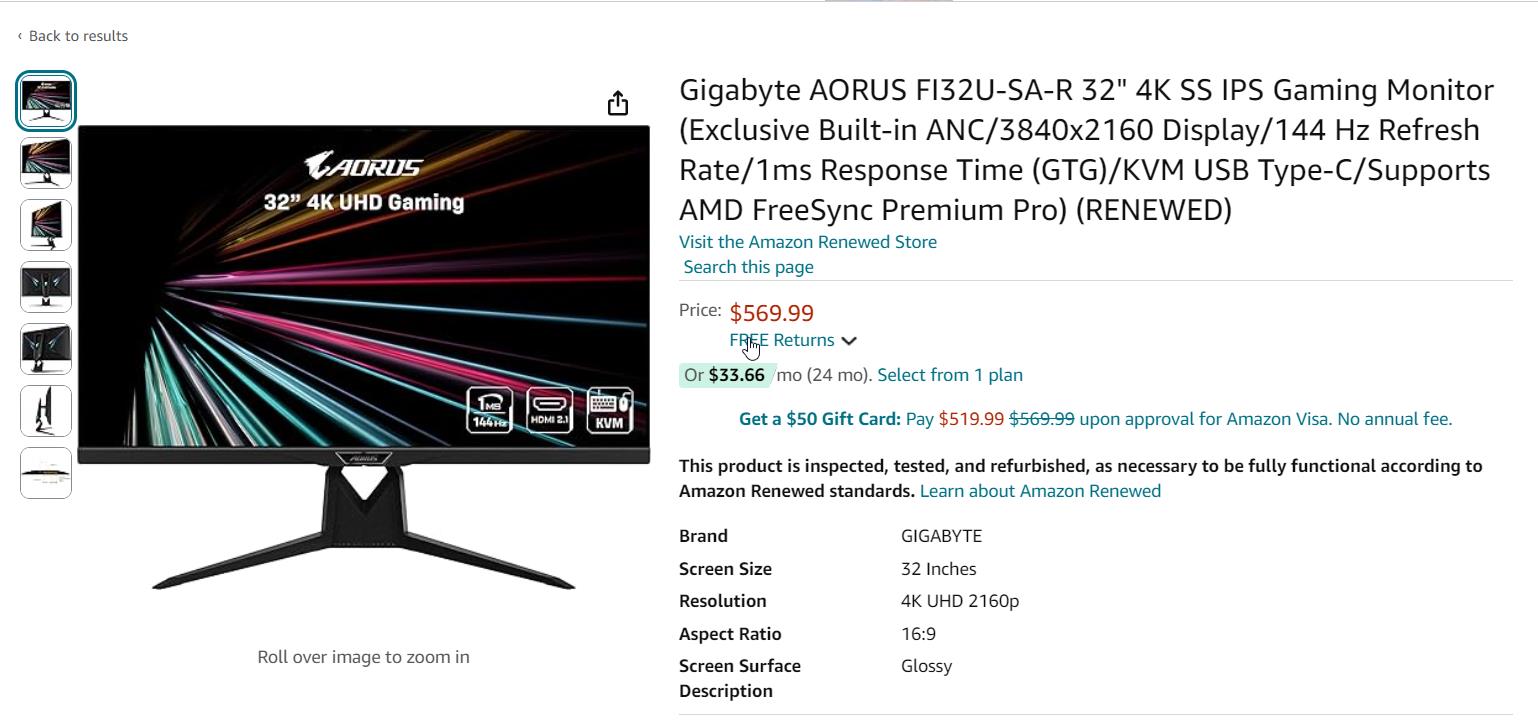
    • Gigabyte AORUS FI32U:
      • 32-inch 4K UHD resolution
      • HDMI 2.1 support for next-gen consoles
      • 144Hz refresh rate and excellent color accuracy
      • FreeSync Premium Pro for tear-free gaming
    • ASUS ROG Swift PG32UQ:
      • 32-inch 4K UHD resolution with HDMI 2.1
      • 144Hz refresh rate for fluid motion
      • HDR600 for enhanced dynamic range
      • G-Sync compatibility for smooth performance

    The first time I booted up a game in 4K, I was blown away. The detail, the colors, the sheer immersion—it was like I could reach out and touch the game world.

    But here’s a tip from someone who’s been there: make sure your hardware can handle it. I made the mistake of pairing my 4K monitor with a GPU that wasn’t up to the task, and I ended up with lower frame rates and stuttering.

    Not fun.

    But once I upgraded my graphics card, it was smooth sailing.

    So, if you’re eyeing a 4K monitor like the Gigabyte AORUS FI32U or the ASUS ROG Swift PG32UQ, be sure your rig can keep up. You won’t regret it, I promise.

    Get top 4k gaming monitors for Windows 11/10

    Best High Refresh Rate Monitors for Competitive Gamers

    Alright, let’s talk refresh rates. I used to think that 60Hz was all you needed, but man, was I wrong. The moment I switched to a 240Hz monitor, it was like a lightbulb went off. Everything was so much smoother.

    • Samsung Odyssey G7:
      • 27 or 32-inch QHD resolution with 240Hz refresh rate
      • 1000R curvature for an immersive experience
      • 1ms response time for fast action
      • G-Sync and FreeSync Premium Pro support
    • ASUS ROG Swift PG279QM:
      • 27-inch QHD resolution with 240Hz refresh rate
      • IPS panel for vibrant colors and wide viewing angles
      • 1ms response time for competitive gaming
      • G-Sync compatibility for tear-free gameplay
    • ViewSonic XG2431:
      • 24-inch Full HD resolution with 240Hz refresh rate
      • IPS panel for accurate colors
      • 1ms response time for fast response
      • FreeSync Premium for smooth performance

    I’m talking buttery-smooth. I was playing this fast-paced shooter, and suddenly, I was nailing shots I would’ve missed before. It was like the monitor was reading my mind!

    high refresh rate gaming monitors

    The Samsung Odyssey G7 became my go-to, and I couldn’t believe I’d wasted so much time on slower screens.

    If you’re a competitive gamer, do yourself a favor and grab something with a high refresh rate like the ASUS ROG Swift PG279QM. Trust me, once you go 240Hz, you’ll never go back.

    And a quick tip: make sure you tweak your settings to get the most out of it—otherwise, you’re just leaving performance on the table.

    Get High Refresh Rate Gaming Monitors for Windows 11/10

    Best Ultrawide Gaming Monitors for Windows 11 and Windows 10

    I’ll admit, I was skeptical about ultrawide monitors at first. I mean, who needs all that screen real estate, right? But then I tried the Alienware AW3423DWF, and wow, I couldn’t believe how immersive it was.

    • Alienware AW3423DWF:
      • 34-inch ultrawide QD-OLED display
      • 3440 x 1440 resolution with 165Hz refresh rate
      • 0.1ms response time for near-instant reactions
      • G-Sync and FreeSync Premium support
    • LG 34GN850-B:
      • 34-inch ultrawide QHD resolution with 144Hz refresh rate
      • Nano IPS panel for vibrant colors
      • 1ms response time for fast-paced gaming
      • FreeSync and G-Sync compatibility
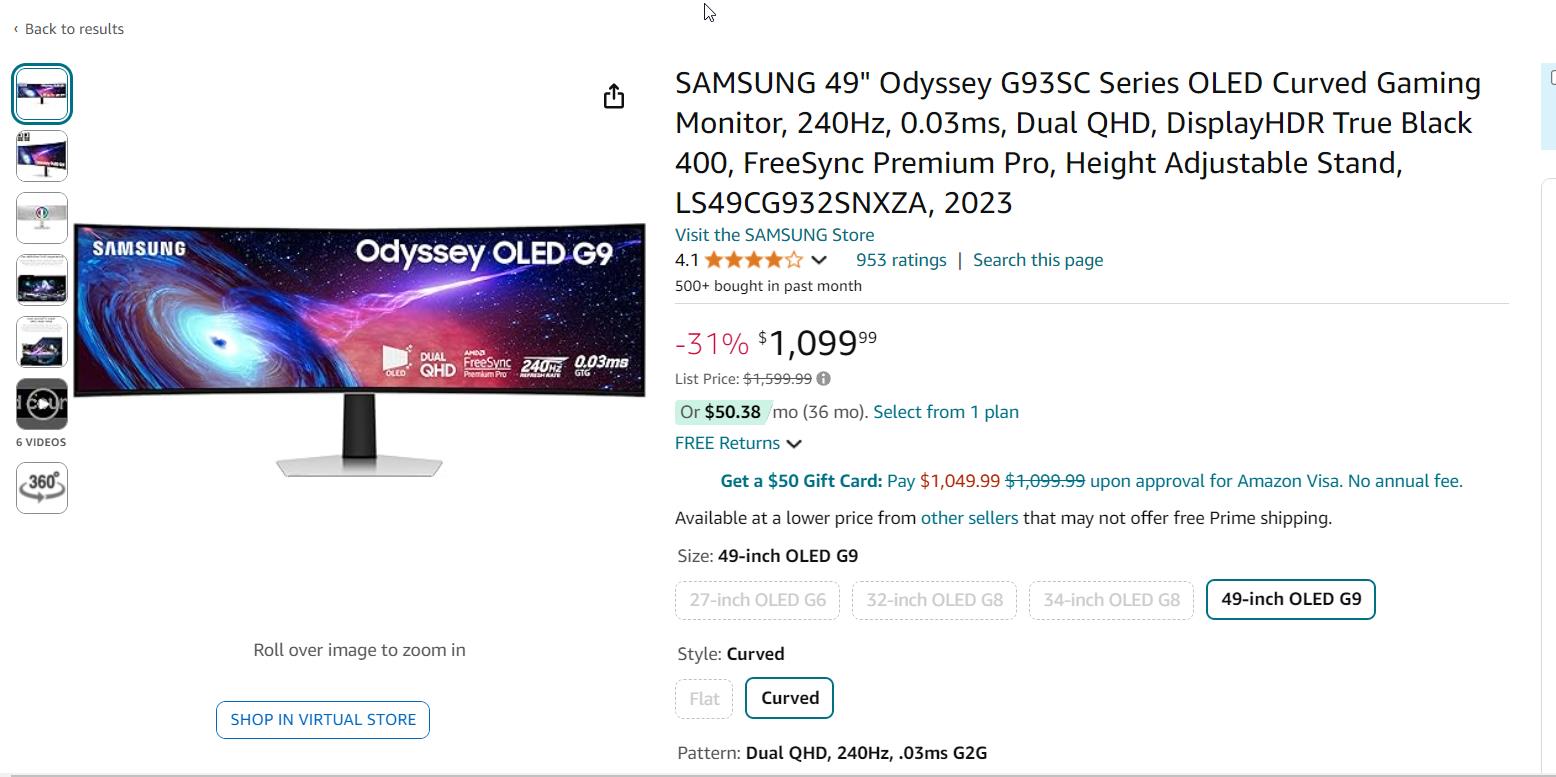
    • Samsung Odyssey G9:
      • 49-inch ultrawide with 5120 x 1440 resolution
      • 240Hz refresh rate for ultimate smoothness
      • 1000R curvature for immersive gameplay
      • G-Sync and FreeSync Premium Pro support
    ultrawide best gaming monitors

    Playing an RPG on that thing was like being wrapped in the game itself. It’s not just about seeing more—it’s about feeling more. Suddenly, everything around you feels alive.

    But here’s the kicker: ultrawides are amazing for multitasking too. I found myself being more productive when I wasn’t gaming, which was a nice bonus.

    If you’ve got the space—and the budget—an ultrawide monitor like the LG 34GN850-B or the Samsung Odyssey G9 is totally worth it. Just be ready for some serious desk reorganization because these monitors are beasts!

    Get Best Ultrawide Gaming Monitors for Windows 11/10

    Budget-Friendly Gaming Monitors for Windows 11 and Windows 10

    Let’s face it, not everyone has the cash to drop on a top-tier monitor, and that’s okay. I’ve been there. My first gaming monitor was an AOC CQ32G1, and while it wasn’t the flashiest, it got the job done.

    • AOC CQ32G1:
      • 31.5-inch QHD resolution with 144Hz refresh rate
      • VA panel for deeper blacks
      • 1ms response time for fast gameplay
      • FreeSync support for smooth visuals
    • Dell S2721HGF:
      • 27-inch Full HD resolution with 144Hz refresh rate
      • VA panel for good contrast
      • 1ms response time for responsive gaming
      • FreeSync support for a budget-friendly option
    • MSI Optix MAG273R:
      • 27-inch Full HD resolution with 165Hz refresh rate
      • IPS panel for accurate colors
      • 1ms response time for competitive gaming
      • FreeSync support for smooth performance

    I was amazed at how much value I got for the price. Sure, it didn’t have all the bells and whistles of the more expensive models, but for 1440p gaming? It was solid.

    And here’s a nugget of wisdom: you don’t need to spend a fortune to get a good experience. The Dell S2721HGF is another great budget option that delivers more than you’d expect.

    So, if you’re gaming on a budget, don’t stress. You can still get a monitor that’ll give you a great experience without breaking the bank. And hey, maybe use the money you save to upgrade your GPU or grab that game you’ve been eyeing.

    Best Cheap Gaming Monitors for Windows 11/10

    Features to Look for in a Gaming Monitor for Windows 11 and Windows 10

    When I was shopping for my first serious gaming monitor, I was overwhelmed by all the options. IPS, VA, TN panels? Refresh rates? HDR? My head was spinning. But after a lot of trial and error (and a few returns), I figured out what really matters.

    • Refresh rate and response time
    • Resolution and screen size
    • Panel types: IPS, VA, TN
    • G-Sync vs. FreeSync
    • Connectivity options: HDMI 2.1, DisplayPort, USB-C
    • HDR support and color accuracy

    First off, refresh rate and response time are key, especially if you’re into fast-paced gaming. You want something that can keep up with you, not hold you back.

    Then there’s resolution—1080p is fine, but if you can, go for 1440p or even 4K. And don’t forget about G-Sync or FreeSync; these technologies really do make a difference in reducing screen tearing.

    One mistake I made was not checking the connectivity options—make sure you’ve got HDMI 2.1 or DisplayPort if you’re planning on future-proofing your setup.

    And lastly, don’t underestimate the importance of HDR. It’s not just a gimmick—it really enhances the visuals, especially in games with rich, dynamic environments.

    How to Optimize Your Gaming Monitor for Windows 11 and Windows 10

    So, you’ve got your shiny new monitor, but now what? I used to just plug it in and go, but I’ve learned that a little tweaking can go a long way.

    • Adjusting display settings for optimal performance
    • Enabling HDR in Windows 11 and Windows 10
    • Using gaming profiles and presets
    • Tips for reducing eye strain during extended gaming sessions

    First, take the time to adjust your display settings. I messed this up the first few times, leaving everything on default and wondering why things didn’t look quite right.

    Calibrate your brightness, contrast, and color balance to suit your room’s lighting. And if your monitor supports HDR, make sure you enable it in Windows 11 or 10; it’s not automatic!

    Also, don’t forget about gaming profiles—most monitors have presets for different types of games, like shooters or RPGs. I used to ignore these, but once I started using them, I noticed a big difference.

    And one last thing: if you’re gaming for long stretches, invest in a blue light filter or use your monitor’s built-in eye care settings. Trust me, your eyes will thank you.

    Conclusion

    At the end of the day, the right gaming monitor can make a world of difference. Whether you’re diving into a 4K world, chasing those high refresh rates, or getting lost in an ultrawide vista, there’s a monitor out there that’ll fit your needs—and your budget.

    Just remember, it’s not just about the specs; it’s about how those specs enhance your experience. Take the time to figure out what really matters to you and tailor your setup to match.

    And hey, if you’ve got any tips or if you’ve found the perfect monitor, drop a comment below! I’d love to hear what’s working for you. Happy gaming!

  • Guide to Best Gaming Headsets for Windows 11 and Windows 10 in 2024

    Get this – a whopping 70% of gamers say that a good headset is essential for an immersive gaming experience. Crazy, right?

    I mean, I used to think my old earbuds were good enough.

    But boy, was I wrong!

    Investing in top gaming headsets can make all the difference in your gameplay, and with Windows being the go-to platform for PC gaming.

    It’s crucial to find a headset that works seamlessly with it.

    Picture this: you’re about to embark on an epic gaming adventure, and you want to be fully immersed in the virtual world.

    That’s where the best gaming headsets come in, offering features like 7.1 surround sound, noise-cancelling microphones, and wireless connectivity.

    But with so many options out there, finding the ideal Windows gaming headset can feel like a quest in itself.

    From lightweight and comfortable designs to durable construction and long battery life, we’ve got you covered.

    So, grab your controller, and let’s dive into the world of premium audio quality, spatial sound, and precise sound imaging.

    Get ready to dominate the competition with the ultimate gaming headset setup!

    So, buckle up, folks – I’m about to share my top picks for the best gaming headsets for Windows in 2024!

    Compatibility and Connectivity – Top Gaming Headsets

    So, here’s the deal – you want to look for headsets that offer wireless connectivity options like 2.4GHz, Bluetooth, or Lightspeed. These bad boys will give you the freedom to move around without being tethered to your computer. Plus, they usually come with a USB dongle that makes setup a breeze.

    If you prefer a wired connection, no worries! Just make sure the headset has either a USB or 3.5mm audio jack that’s compatible with your PC. And the best part? Most of the top gaming headsets in 2024 are designed to work seamlessly with both Windows 11 and Windows 10, so you can focus on your game without any compatibility headaches.

    Audio Quality and Immersion – Top Gaming Headsets for Windows 11/10

    But fear not, my friends – the top gaming headsets in 2024 have got your back. Look for headsets with high-quality drivers (we’re talking 40mm, 50mm, and even larger!). These little wonders will deliver rich, detailed sound that’ll make you feel like you’re right in the middle of the action.

    And if you really want to take your audio experience to the next level, keep an eye out for headsets with surround sound technologies like Dolby Atmos, THX 7.1, or DTS Headphone:X 2.0. I’ll never forget the first time I tried a headset with 7.1 surround sound – I could hear enemies sneaking up behind me like never before. It was a total game-changer!

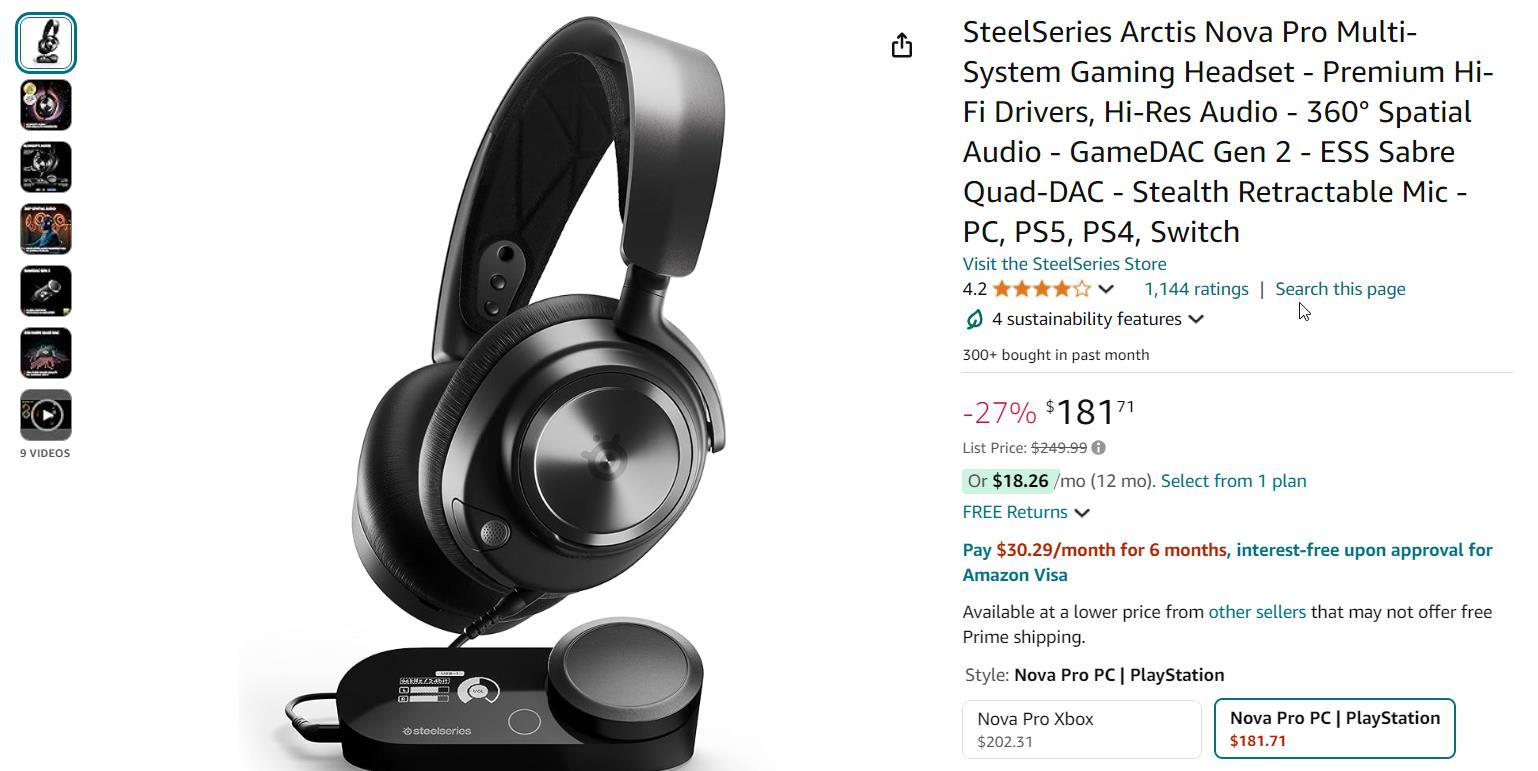
    SteelSeries Arctis Nova Pro Wireless

    steelseries arctis nova pro gaming headset
    • Dual wireless connectivity (2.4GHz and Bluetooth)
    • High-fidelity audio with 40mm drivers
    • Active Noise Cancellation (ANC)
    • Retractable ClearCast Gen 2 microphone
    • 44-hour battery life

    I’ve gotta tell you, the SteelSeries Arctis Nova Pro Wireless is a game-changer. I remember when I first got my hands on this bad boy – the dual wireless connectivity blew my mind.

    Grab SteelSeries headset for Windows 11/10

    You can connect via 2.4GHz for that low-latency gaming goodness, or switch to Bluetooth when you want to kick back and listen to some tunes.

    And don’t even get me started on the audio quality – the 40mm drivers deliver such crisp, high-fidelity sound that you’ll feel like you’re right in the middle of the action.

    Plus, with active noise cancellation and a retractable ClearCast Gen 2 microphone, you can say goodbye to background noise and hello to crystal-clear communication. And with a 44-hour battery life? You can game for days without worrying about recharging.

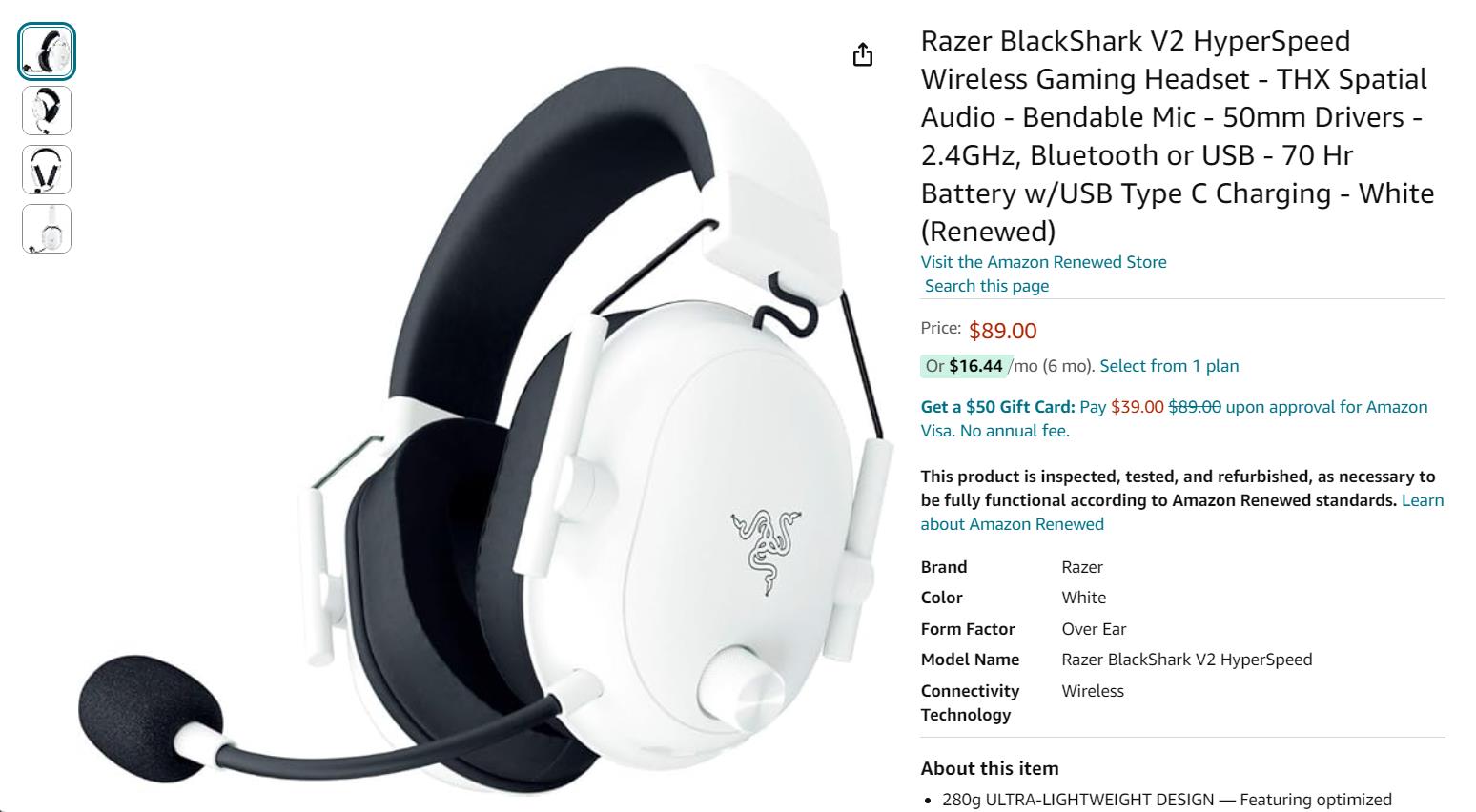
    Razer BlackShark V2 Pro

    top gaming headsets from razer 2024 for windows 11 10
    • Wireless connectivity via Razer HyperSpeed
    • Triforce Titanium 50mm drivers
    • THX 7.1 Surround Sound
    • Detachable Razer HyperClear Supercardioid microphone
    • 24-hour battery life

    Alright, let me tell you about the Razer BlackShark V2 Pro. I was a bit skeptical at first, but man, this headset proved me wrong.

    Grab Razer headset for Windows 11/10

    The wireless connectivity via Razer HyperSpeed is so fast, you won’t even notice any lag. And the Triforce Titanium 50mm drivers?

    They pack a serious punch. I was blown away by the THX 7.1 Surround Sound – it felt like I was actually inside the game!

    The detachable Razer HyperClear Supercardioid microphone is a nice touch, too. It picks up your voice with such clarity that your teammates will think you’re right next to them.

    Just remember to charge it up after a long gaming session, as the battery life clocks in at around 24 hours.

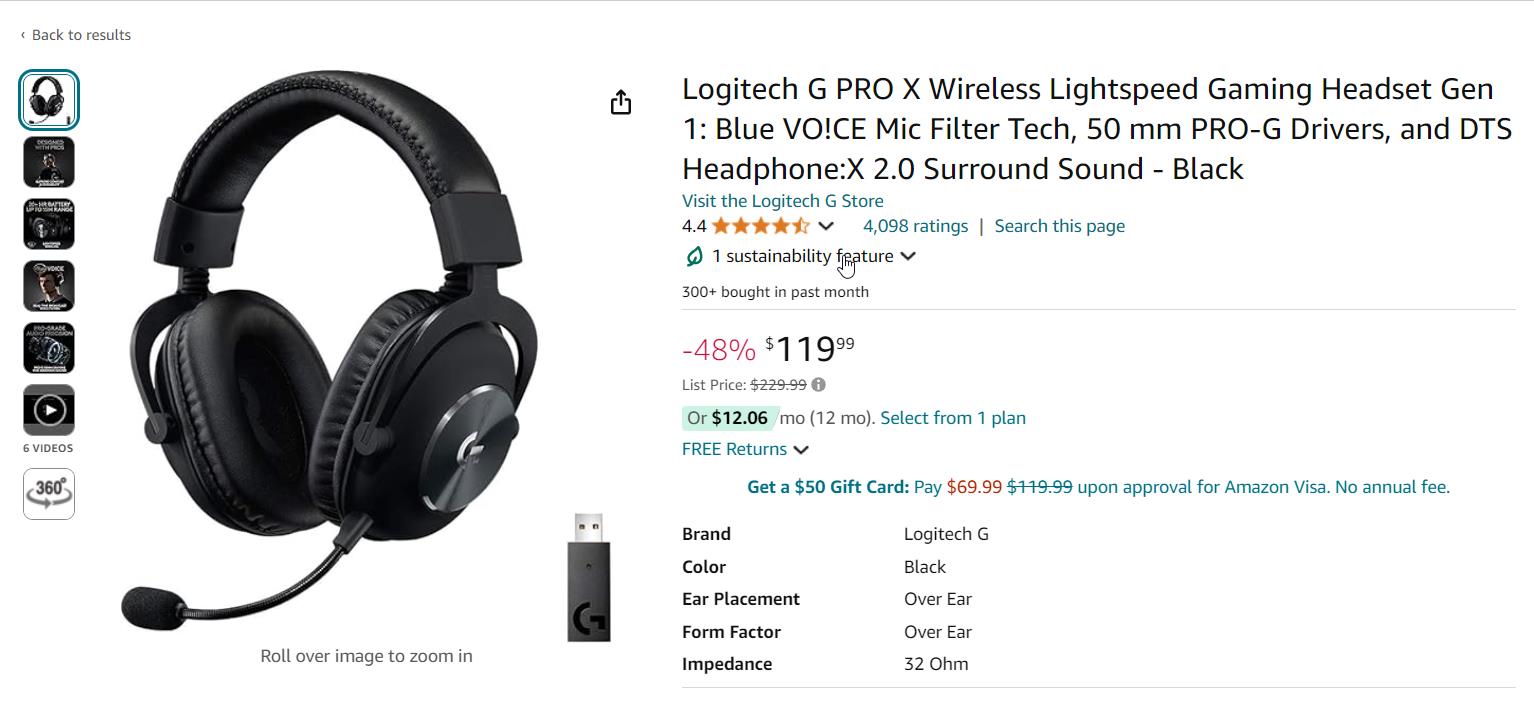
    Logitech G PRO X Wireless Lightspeed

    logitech g pro gaming headset 2024
    • Wireless connectivity with Lightspeed technology
    • PRO-G 50mm drivers
    • DTS Headphone:X 2.0 surround sound
    • Blue Voice microphone technology
    • 20-hour battery life

    If you’re looking for a wireless headset that doesn’t mess around, the Logitech G PRO X Wireless Lightspeed is the way to go. I’ll admit, I was a bit intimidated by the name at first – but trust me, it lives up to the hype.

    Grab Logitech Headset for Windows 11/10

    The Lightspeed wireless technology is so fast, you’ll forget you’re not wired in. And the PRO-G 50mm drivers? They’re like having a concert in your ears.

    The DTS Headphone:X 2.0 surround sound is so immersive; you’ll be ducking for cover when the bullets start flying.

    And don’t sleep on the Blue Voice microphone technology – it makes your voice sound like you’re in a professional recording studio. Just keep in mind that with a 20-hour battery life, you might need to take a break and recharge every now and then.

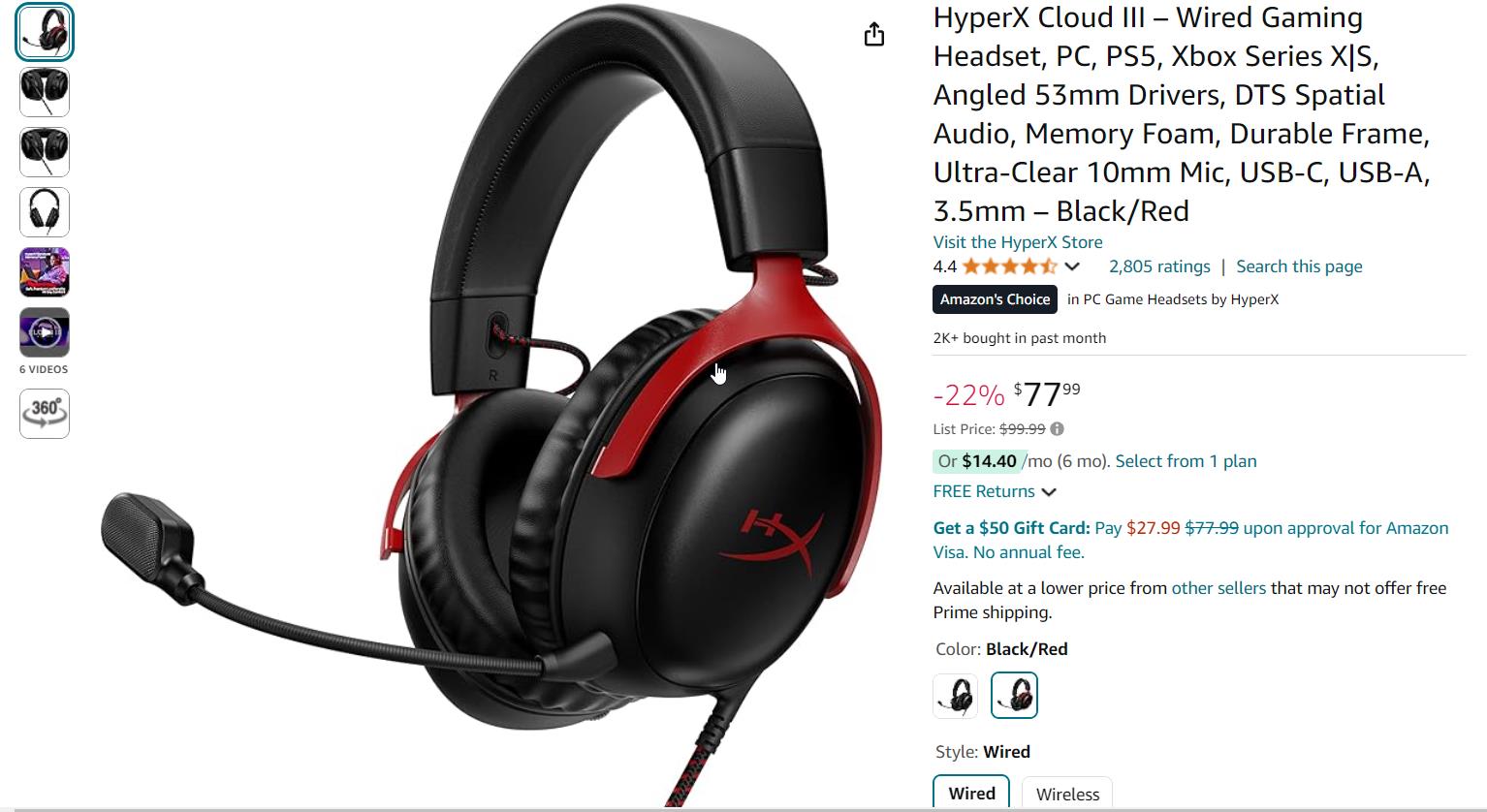
    HyperX Cloud Alpha Wireless

    hyperx cloud gaming headset for win 11 10
    • Wireless connectivity with 2.4GHz technology
    • Dual chamber drivers for enhanced audio quality
    • HyperX 7.1 Surround Sound
    • Detachable noise-cancelling microphone
    • Up to 300 hours of battery life

    Now, I know what you’re thinking – “Another wireless headset? What makes this one so special?” Well, let me tell you about the HyperX Cloud Alpha Wireless.

    Grab HyperX Headset for Windows 11/10

    First off, the dual chamber drivers are a thing of beauty. They separate the bass from the mids and highs, giving you such rich, detailed sound that you’ll wonder how you ever lived without it.

    The HyperX 7.1 Surround Sound is no joke, either – it’s like having a radar for enemy footsteps. And with a detachable noise-cancelling microphone, your voice will come through loud and clear, even if you’re in the middle of a heated battle.

    But here’s the real kicker – the battery life. Get this: up to 300 hours. That’s not a typo, folks. You could game for weeks without needing to charge this thing.

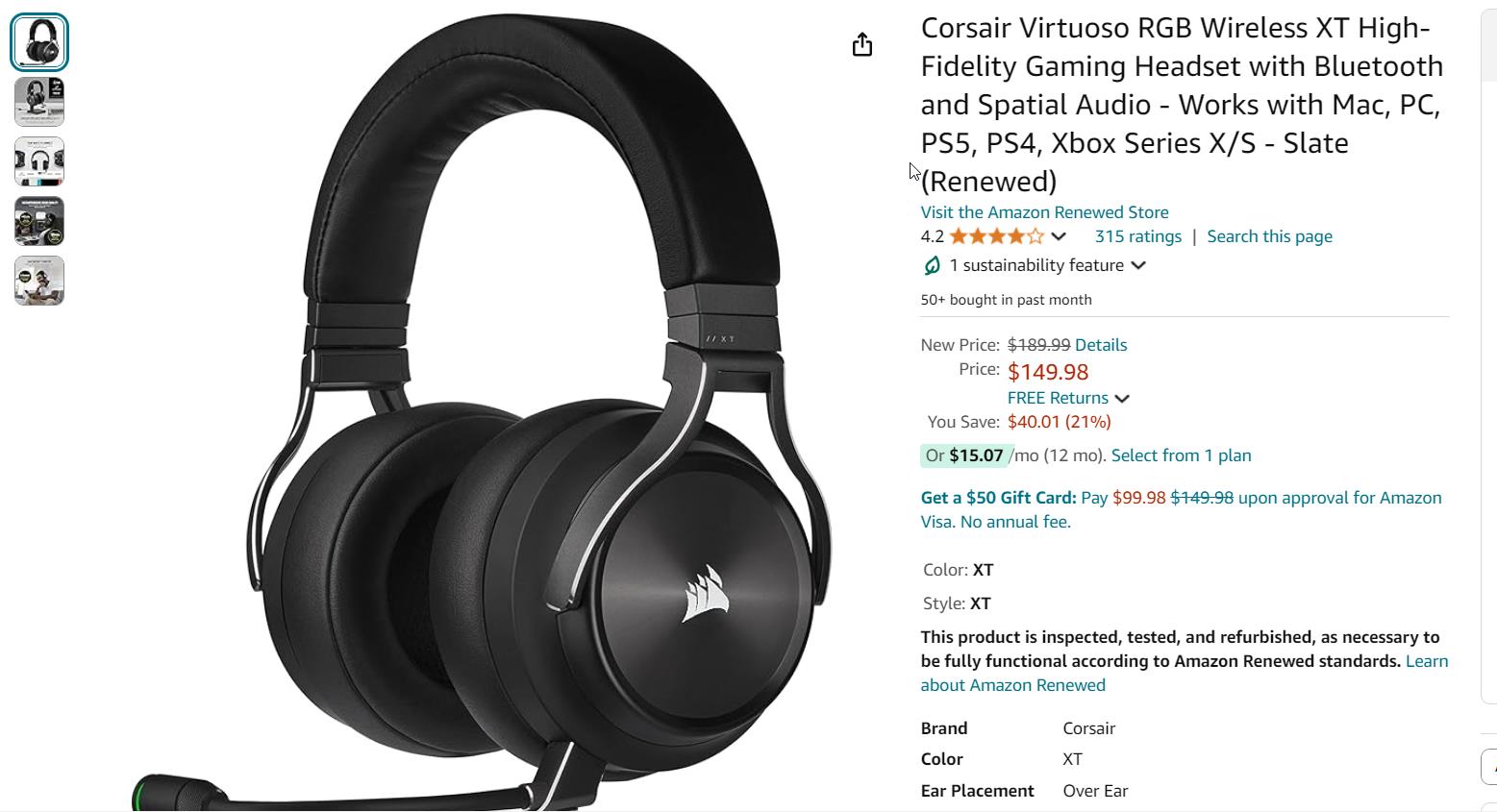
    Corsair Virtuoso RGB Wireless XT

    corsair gaming headset win 11 10 2024
    • Wireless connectivity with Slipstream technology and Bluetooth
    • High-density neodymium 50mm drivers
    • Dolby Atmos for immersive 3D audio
    • Omnidirectional broadcast-grade microphone
    • Up to 15 hours of battery life

    Last but definitely not least, we’ve got the Corsair Virtuoso RGB Wireless XT. This headset is like the Swiss Army knife of gaming audio.

    Grab Corsair Headset from Amazon

    It’s got Slipstream wireless technology for low-latency gaming, Bluetooth for when you want to go mobile, and high-density neodymium 50mm drivers for sound that’s so good, it should be illegal.

    But what really sets this headset apart is the Dolby Atmos. It’s like having a 3D soundscape wrapped around your head – you’ll be able to pinpoint every footstep, gunshot, and explosion with pinpoint accuracy.

    The omnidirectional broadcast-grade microphone is no slouch, either. Your teammates will hear you like you’re right next to them, even in the heat of battle.

    Just keep in mind that with all those fancy features, the battery life tops out at around 15 hours. But trust me – it’s worth it.

    Microphone Performance

    I’ve had my fair share of microphone mishaps – like the time I was in the middle of a crucial strategy discussion, and my mic decided to pick up every little background noise instead of my voice. Not cool, mic, not cool.

    But hey, the top gaming headsets in 2024 have got you covered. Look for headsets with detachable or retractable microphones that offer noise-cancelling technology. This way, your voice will come through loud and clear, even if you’ve got a rowdy roommate or a barking dog in the background.

    And if you’re a streamer or content creator, you might want to consider a headset with a broadcast-grade microphone. These babies will make you sound like a pro, even if you’re just starting out.

    Comfort and Design

    Okay, let’s be real – we’ve all had that moment where we’re hours deep into a gaming session, and our headset starts to feel like a medieval torture device. It’s like, “Why do my ears hurt so much? And why do I have a headache?”

    But don’t worry, friends – the top gaming headsets in 2024 have comfort and design on lock. Look for headsets with lightweight and durable materials that won’t weigh you down during those marathon gaming sessions.

    Adjustable headbands and plush ear cushions are also a must-have. Trust me, your ears will thank you! And if you really want to go the extra mile, look for headsets with an ergonomic design that’s made for extended wear.

    I’ll never forget the time I bought a cheap headset that claimed to be “comfortable” – after an hour of gaming, I had red marks on my head and ears that looked like I’d been in a fight. Lesson learned – invest in comfort!

    Battery Life and Wireless Range

    Last but not least, let’s talk about battery life and wireless range. There’s nothing more frustrating than being in the middle of a game and hearing that dreaded “low battery” beep. It’s like, “Really, headset? You couldn’t have warned me a little earlier?”

    But don’t fret, my fellow gamers – the top gaming headsets in 2024 have battery life that just won’t quit. We’re talking anywhere from 20 to a whopping 300 hours of playtime on a single charge. That’s enough to get you through even the longest gaming sessions!

    And when it comes to wireless range, you want a headset that won’t drop the connection if you need to grab a snack from the kitchen. Look for headsets with a stable wireless connection and a range of at least 30 feet.

    Some headsets even come with quick charging features, so you can get back in the game faster if you do run out of juice. It’s like having a backup generator for your gaming setup!

    Conclusion

    Whether you’re a competitive gamer looking for that extra edge, or just someone who wants to get lost in their favorite virtual world, these headsets have got you covered. From the crystal-clear audio to the low-latency wireless connectivity, you really can’t go wrong with any of these picks.

    Phew, that was a lot of information! But trust me, friends – choosing the right gaming headset can make all the difference in your gaming experience. Remember to look for compatibility with Windows 11 and Windows 10, high-quality audio, a clear microphone, comfort and design, and long battery life.

    Before you go, I want to hear from you – what’s your favorite gaming headset, and why? Share your experiences and tips in the comments below. And if you have any other questions about gaming headsets, feel free to ask – I’m always happy to help a fellow gamer out!

  • Best Gaming Keyboard for Windows 11 and 10 – Ultimate Guide

    Picture this: you’re in the middle of an intense gaming session, fingers flying across your keyboard, when suddenly your cheap, mushy keys fail you at the worst possible moment.

    Game over, man! 🎮💀 Trust me, I’ve been there. Investing in a high-quality gaming keyboard is an absolute must for any serious Windows gamer.

    When it comes to elevating your gaming experience on Windows 11 and Windows 10, choosing the right gaming keyboard is crucial. The best gaming keyboards offer a perfect blend of responsiveness, durability, and customization options to suit your individual needs and preferences.

    Mechanical switches, such as Cherry MX, Kailh, and Gateron, provide tactile and linear options for a satisfying typing experience and precise gaming performance. Alternatively, membrane keyboards offer a more affordable solution without compromising on essential features.

    RGB backlighting and customizable lighting allow you to personalize your setup and create an immersive gaming atmosphere. Macro programming enables you to streamline complex commands, while dedicated media controls and a volume wheel provide convenient access to your multimedia.

    Ergonomic design and wrist rests ensure comfort during extended gaming sessions, and features like USB passthrough and N-key rollover with anti-ghosting enhance functionality and input accuracy.

    Durability is a top priority, with aluminum frames, PBT keycaps, and water and dust resistance offering long-lasting protection. Comprehensive warranty coverage provides peace of mind, ensuring your investment is secure.

    best gaming keyboards win 11 10

    Whether you’re a casual gamer or a competitive enthusiast, the best gaming keyboards for Windows 11 and Windows 10 deliver the perfect combination of performance, customization, and reliability to help you dominate your favorite games.

    In this ultimate guide, we’ll dive deep into the world of gaming keyboards, exploring the key features and factors you need to consider taking your gaming setup to the next level. Buckle up, buttercup, because we’re about to get real!

    Mechanical vs. Membrane Keyboards

    Alright, let’s talk about the age-old debate: mechanical vs. membrane keyboards. I remember my first foray into the world of mechanical keyboards – it was like upgrading from a tricycle to a Harley Davidson!

    🏍️ Mechanical keyboards, with their individual switches beneath each key, offer unparalleled durability, responsiveness, and tactile feedback. It’s like having a miniature army of soldiers at your fingertips, ready to execute your every command with precision and speed.

    On the other hand, membrane keyboards are like the fast food of the keyboard world – cheap, convenient, and gets the job done, but leaves you feeling a bit unsatisfied.

    They’re a budget-friendly option, but don’t expect them to withstand the rigors of intense gaming sessions or offer the same level of performance as their mechanical counterparts.

    Switch Types and Their Impact on Gaming Performance

    Now, let’s talk switches, baby! 🎚️ Cherry MX, Kailh, Gateron – these aren’t just random gibberish; they’re the key (pun intended) to unlocking your gaming potential. Linear switches, like the Cherry MX Red or Speed Silver, are smooth operators, perfect for fast-paced games where quick key presses are essential.

    Tactile switches, such as the Cherry MX Brown or Blue, offer a satisfying bump and click, ideal for games that require a balance of speed and precision.

    Choosing the right switch type is like finding your soulmate – it’s all about personal preference and compatibility.

    Don’t be afraid to experiment and find the switch that speaks to your gaming style. Remember, the right switch can make all the difference between a clutch victory and a crushing defeat!

    Best Gaming Keyboards 2024 for Windows 11/10 PC

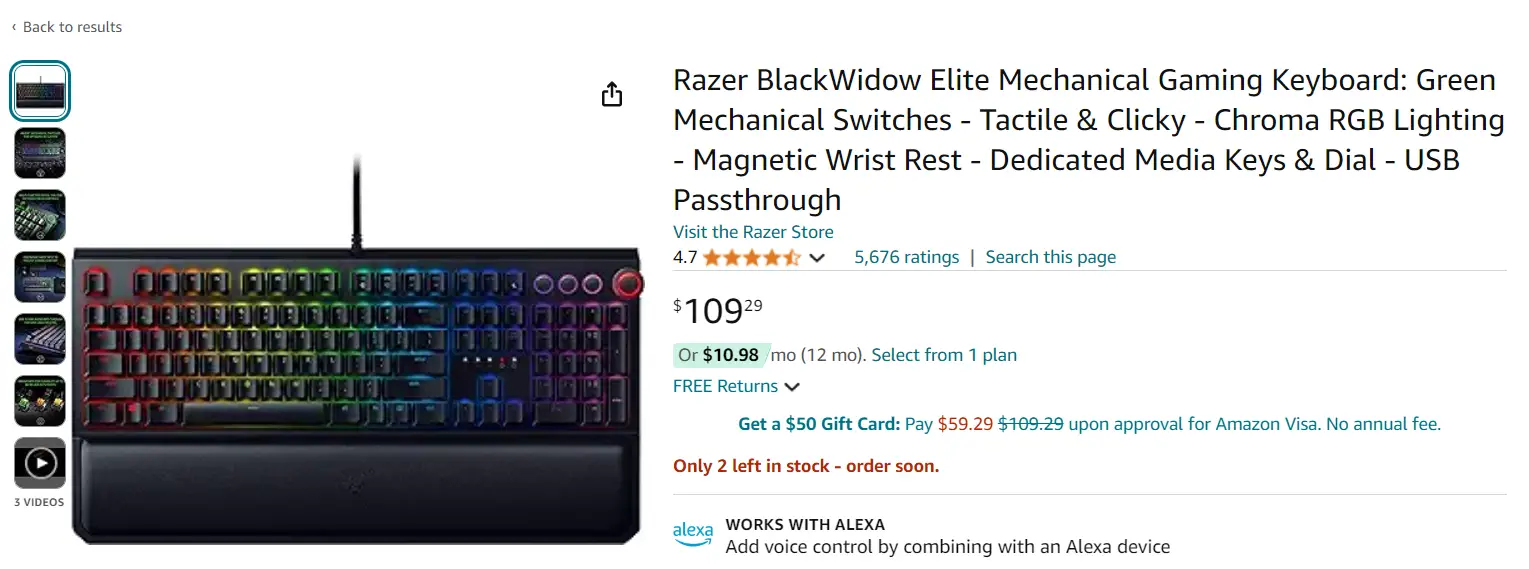
    Razer Huntsman Elite

    Key Features:

    • Opto-mechanical switches for fast actuation
    • Customizable RGB lighting with Razer Chroma
    • Magnetic wrist rest for comfort
    • Multi-function digital dial and media keys
    • Durable aluminum construction

    Amazon Rating: 4.7 out of 5 stars (3,000+ reviews)

    razer best gaming keyboard win 11 10

    Pros:

    • Fast and responsive opto-mechanical switches
    • Comfortable wrist rest
    • Highly customizable RGB lighting

    Cons:

    • Expensive
    • Noisy key switches
    • Limited macro functionality

    Grab the Razer Best Gaming Keyboard

    Q&A:

    1. Q: Are the opto-mechanical switches durable?
      A: Yes, they are rated for up to 100 million keystrokes.
    2. Q: Is the wrist rest detachable?
      A: Yes, it is magnetic and can be easily attached or detached.
    3. Q: Can the RGB lighting be synced with other Razer devices?
      A: Yes, using Razer Synapse software, you can sync the lighting with other Razer Chroma-enabled devices.

    Corsair K100 RGB

    Key Features:

    • Corsair OPX optical-mechanical switches
    • Dynamic per-key RGB backlighting
    • Aluminum frame with brushed finish
    • Six dedicated macro keys
    • iCUE control wheel and media keys

    Amazon Rating: 4.8 out of 5 stars (1,500+ reviews)

    Pros:

    • Durable and responsive optical-mechanical switches
    • Dedicated macro keys
    • Customizable iCUE control wheel

    Cons:

    • Expensive
    • Large footprint
    • Limited switch options

    Grab the Corsair Best Gaming Keyboard

    Q&A:

    1. Q: What is the polling rate of the K100 RGB?
      A: It has a polling rate of up to 4,000Hz.
    2. Q: Does it have onboard memory for storing profiles?
      A: Yes, it has 8MB of onboard memory for storing up to 200 profiles.
    3. Q: Is the keyboard water-resistant?
      A: No, it is not designed to be water-resistant.

    SteelSeries Apex Pro

    Key Features:

    • Adjustable OmniPoint switches
    • OLED smart display
    • Aircraft-grade aluminum alloy frame
    • USB passthrough
    • Dedicated multimedia controls

    Amazon Rating: 4.7 out of 5 stars (2,000+ reviews)

    Pros:

    • Adjustable actuation distance for each key
    • Useful OLED smart display
    • USB passthrough for convenient connectivity

    Cons:

    • Expensive
    • No dedicated macro keys
    • OLED display has limited functionality

    Grab the SteelSeries Best Gaming Keyboard

    Q&A:

    1. Q: Can the actuation point be adjusted for individual keys?
      A: Yes, the OmniPoint switches allow you to adjust the actuation point for each key.
    2. Q: What can be displayed on the OLED screen?
      A: The OLED screen can display notifications, settings, and other customizable information.
    3. Q: Is the USB passthrough port full-speed?
      A: No, it is a USB 2.0 passthrough port.

    Logitech G915 Lightspeed Wireless

    Key Features:

    • Lightspeed wireless technology
    • Low-profile GL mechanical switches
    • Lightsync RGB lighting
    • Aircraft-grade aluminum alloy construction
    • Dedicated media controls and volume wheel

    Amazon Rating: 4.8 out of 5 stars (4,000+ reviews)

    Pros:

    • Wireless freedom with Lightspeed technology
    • Low-profile design for comfort
    • Long battery life (up to 30 hours with RGB)

    Cons:

    • Expensive
    • No USB passthrough
    • Limited switch options

    Grab the Logitech Best Gaming Keyboard

    Q&A:

    1. Q: How long does the battery last with RGB lighting?
      A: The battery can last up to 30 hours with RGB lighting enabled.
    2. Q: Can the keyboard be used while charging?
      A: Yes, you can use the keyboard while it is charging via the USB cable.
    3. Q: Is there any noticeable input lag when using the wireless connection?
      A: No, Logitech’s Lightspeed wireless technology provides a fast and stable connection without noticeable input lag.

    HyperX Alloy Elite 2

    Key Features:

    • HyperX pudding keycaps
    • HyperX Red linear switches
    • Durable solid steel frame
    • USB 2.0 passthrough
    • Dedicated media controls and volume wheel

    Amazon Rating: 4.7 out of 5 stars (1,000+ reviews)

    razer best gaming keyboard win 11 10 1

    Pros:

    • Attractive pudding keycaps for enhanced RGB lighting
    • Durable steel frame
    • Affordable compared to other high-end gaming keyboards

    Cons:

    • Limited switch options (only HyperX Red)
    • No wrist rest included
    • USB passthrough is only USB 2.0

    Grab the HyperX Best Gaming Keyboard

    Q&A:

    1. Q: Are the keycaps replaceable?
      A: Yes, the keyboard uses a standard bottom row layout, allowing for easy keycap replacement.
    2. Q: Is the keyboard compatible with HyperX’s NGenuity software?
      A: Yes, you can use the NGenuity software to customize the RGB lighting and macros.
    3. Q: How long is the USB cable?
      A: The keyboard comes with a 1.8-meter braided USB cable.

    RGB Lighting and Customization Options

    Let’s be real; RGB lighting is like the cherry on top of a gaming keyboard sundae. 🍒🌈 It’s not just about looking pretty; it’s about creating an immersive gaming experience that draws you into the action.

    With customizable profiles and advanced software support, you can create a light show that syncs with your favorite games, turning your keyboard into a visual masterpiece.

    And don’t even get me started on macro programming! Being able to assign complex commands to a single key press is like having a cheat code for your favorite games. Just don’t blame me when your friends accuse you of hacking! 😉

    Essential Features for Comfort and Convenience

    Alright, let’s talk comfort because let’s face it; gaming sessions can last longer than your average Netflix binge.

    📺 A keyboard with a wrist rest and ergonomic design can be the difference between a comfortable victory and a hand-cramping defeat. Trust me; your wrists will thank you!

    Dedicated media controls and volume wheels are like the unsung heroes of gaming keyboards. Being able to quickly adjust your audio without fumbling through menus is a game-changer.

    And don’t overlook the importance of USB passthrough – having a convenient port to plug in your mouse or headset can declutter your desk and make your setup feel like a pro gamer’s paradise. 🎧💻

    Build Quality and Durability

    Listen up, folks; a gaming keyboard is not just a peripheral; it’s an investment.

    You don’t want to be caught in the middle of a heated match with a flimsy, cheapo keyboard that can’t withstand the intensity of your gaming fury.

    A sturdy, well-constructed keyboard is like a reliable sidekick, always there to back you up when the going gets tough.

    Look for keyboards with aluminum frames and PBT keycaps – these materials are like the Kevlar of the keyboard world, ready to take a beating and keep on typing.

    And don’t forget about water and dust resistance! Accidents happen, whether it’s a spilled energy drink or a rogue potato chip crumb. A keyboard that can withstand these everyday hazards is a must-have.

    Conclusion

    Phew, that was a wild ride! 🎢 We’ve covered a lot of ground in this ultimate guide to choosing the best gaming keyboard for Windows 11 and 10.

    From the great mechanical vs. membrane debate to the importance of RGB lighting and ergonomics, there’s a lot to consider when picking the perfect keyboard companion for your gaming adventures.

    Remember, at the end of the day, it’s all about finding the keyboard that feels right for you. Don’t be afraid to experiment, read reviews, and ask for recommendations from your fellow gamers.

    And hey, if you’ve got any killer keyboard tips or war stories of your own, drop ’em in the comments below! 👇 Let’s keep this conversation going and help each other elevate our gaming setups to the next level.

    Happy typing and may your KDA always be positive! 🎮✨

  • Top Gaming Mice for Optimal Performance on Windows 11 and Windows 10

    Listen up, gamers! Did you know that a whopping 77% of PC gamers use a gaming mouse?

    It’s true! Choosing the top gaming mice that can make all the difference in your performance on Windows 11 and 10.

    When it comes to dominating your favorite games on Windows 11 and 10, having the right gaming mouse can make all the difference.

    Whether you’re an FPS fanatic, an MMO master, or an RPG enthusiast, your mouse should provide the perfect combination of performance, precision, and comfort.

    Optical sensors are generally preferred for their accuracy, while high DPI and polling rates ensure smooth, responsive gameplay.

    Ergonomics play a crucial role, too – look for a mouse that suits your hand size and grip style, whether you prefer palm, claw, or fingertip grip.

    Customization options like adjustable weights and programmable buttons can help you tailor your mouse to your specific needs, while RGB lighting adds a touch of personal style.

    Brands like Logitech, Razer, SteelSeries, and Corsair offer a range of gaming mice with features like wireless connectivity, Qi charging, and advanced software for fine-tuning performance.

    For the ultimate gaming experience, pair your mouse with a high-quality mouse pad and consider a mouse bungee for improved cable management.

    Don’t forget to take factors like durability, switch quality, and glide into account – after all, you want a mouse that can keep up with your gaming marathons.

    With the right gaming mouse at your side, you’ll be ready to tackle any challenge that comes your way on Windows 11 and 10.

    top gaming mice win 11 10

    Whether you’re a casual gamer or an esports pro, investing in a top-tier gaming mouse is a surefire way to level up your setup and your skills.

    Trust me, I’ve been there – using a regular old mouse for gaming is like trying to run a marathon in flip-flops. Not fun!

    So, let’s dive into the world of gaming mice and find the perfect one for you.

    Optical vs. Laser Sensors: Which is Better for Gaming?

    Alright, let’s talk about sensors.

    Optical sensors are like the trusty sidekick of gaming mice – they’re reliable, accurate, and they won’t let you down in the heat of battle.

    Laser sensors, on the other hand, can be a bit more finicky. They might work well on some surfaces, but they can also be prone to acceleration issues.

    I remember when I first started using a gaming mouse with an optical sensor – it was like upgrading from a tricycle to a sports car!

    DPI and Polling Rate: Understanding the Essentials

    DPI and polling rate might sound like some kind of fancy tech jargon, but they’re actually pretty important when it comes to gaming mice.

    DPI is all about how sensitive your mouse is – the higher the DPI, the less you have to move your mouse to get your cursor across the screen.

    Polling rate, on the other hand, is about how often your mouse reports its position to your computer. A higher polling rate means less input lag, which is crucial for fast-paced games.

    I once made the mistake of setting my DPI way too high, and it was like trying to control a mouse on a sugar rush!

    Wired vs. Wireless Gaming Mice: Pros and Cons

    The age-old debate: wired or wireless? Wired gaming mice are like the reliable old friend – they’re always there when you need them, and they won’t let you down.

    Wireless mice, on the other hand, offer more freedom of movement and less clutter on your desk. But they can also be prone to interference and battery life issues.

    I’ve used both, and honestly, it comes down to personal preference. Just make sure you do your research before taking the plunge!

    Ergonomics and Comfort: Finding the Perfect Fit

    Comfort is key when it comes to gaming mice – after all, you don’t want your hand cramping up in the middle of an intense gaming session! Look for a mouse that fits your hand size and grip style. There are three main grip styles: palm, claw, and fingertip.

    Palm grip is great for larger hands, while claw and fingertip grips are better for smaller hands and more precise movements.

    Some mice even have adjustable weights and customizable buttons, so you can tailor them to your preferences. I once bought a mouse that was way too small for my hand, and it was like trying to play games with a tiny toy!

    Logitech G Pro Wireless: A Top-Tier Wireless Gaming Mouse

    Pros:

    • Exceptional wireless performance with no noticeable lag
    • Lightweight design (80g) for quick, effortless movements
    • HERO 25K sensor for precise tracking and high accuracy
    • Ambidextrous shape suitable for various grip styles
    • Customizable buttons and onboard memory profiles
    • Long battery life (up to 60 hours)

    Cons:

    • Expensive compared to other wireless gaming mice
    • Lacks Bluetooth connectivity (only works with the included wireless receiver)
    • No optional weights for customizing mouse feel
    • Side buttons on both sides may lead to accidental clicks for some users

    Overall, the Logitech G Pro Wireless is a top-performing wireless gaming mouse with a lightweight design, accurate sensor, and customizable features.

    While expensive, it offers a reliable and responsive experience for competitive gamers. However, some users may prefer mice with Bluetooth connectivity, adjustable weights, or fewer side buttons.

    Razer DeathAdder V2: An Ergonomic Wired Mouse with High Precision

    Features:

    • Ergonomic design for comfort during extended gaming sessions
    • Razer Focus+ 20K DPI optical sensor for exceptional accuracy
    • Customizable Razer Optical Mouse Switches for faster response times
    • 8 programmable buttons for personalized control
    • Razer Speedflex cable for minimal drag and smooth movements
    • On-the-fly sensitivity adjustment for quick DPI changes
    • Razer Chroma RGB lighting for personalized style
    • Razer Synapse 3 software for advanced customization options
    • PTFE mouse feet for smooth gliding across various surfaces
    • Suitable for medium to large hand sizes and most grip styles

    The Razer DeathAdder V2 is a feature-rich, ergonomic wired mouse designed for precision gaming. With its high-performance optical sensor, customizable buttons, and responsive switches, it offers a competitive edge.

    The comfortable design and Speedflex cable ensure unhindered movement, while Razer Chroma RGB lighting allows for personalized style.

    Razer Synapse 3 software enables advanced customization, making the DeathAdder V2 adaptable to individual preferences.

    SteelSeries Rival 600: A Versatile Gaming Mouse with Dual Optical Sensors

    Advantages and Features:

    • Dual optical sensors (TrueMove3+ and depth sensor) for exceptional accuracy
    • Customizable weight system (256 possible combinations) for personalized balance and feel
    • Switchable side plates for different grip styles and hand sizes
    • 60-million click mechanical switches for durability and responsiveness
    • Silicone side grips for improved control and comfort
    • RGB lighting with 8 zones for personalized style
    • SteelSeries Engine software for advanced customization options
    • Lift-off distance detection for consistent tracking on various surfaces
    • 32-bit ARM processor for efficient performance
    • Suitable for various gaming genres and playstyles

    The SteelSeries Rival 600 is a versatile gaming mouse that caters to a wide range of preferences. Its dual optical sensor system, featuring the TrueMove3+ and a depth sensor, ensures exceptional accuracy and consistent tracking.

    The adjustable weight system allows for personalized balance and feel, while the switchable side plates accommodate different grip styles.

    With durable mechanical switches, comfortable silicone side grips, and advanced customization options through SteelSeries Engine software, the Rival 600 adapts to individual needs.

    Its lift-off distance detection and efficient processor make it suitable for various gaming genres and playstyles.

    Corsair Dark Core RGB Pro: A Feature-Packed Wireless Mouse

    Models and Features:

    Dark Core RGB Pro (Wired/Wireless)

    • Slipstream Wireless technology for low-latency, reliable connectivity
    • Qi wireless charging compatible for convenient charging
    • 18,000 DPI optical sensor for precise tracking
    • 8 programmable buttons for customized control
    • Customizable RGB lighting with 9 zones
    • Comfortable contoured shape suitable for palm and claw grips
    • Onboard profile storage for on-the-go settings

    Dark Core RGB Pro SE (Wired/Wireless):

    • All features of the Dark Core RGB Pro
    • Additional interchangeable side grips for personalized comfort
    • USB dongle storage compartment for easy transport
    • Premium braided cable for reliable wired connection

    The Corsair Dark Core RGB Pro comes in two models, each offering a range of features for wireless gaming enthusiasts. With Slipstream Wireless technology and Qi wireless charging compatibility, both models provide a reliable, low-latency connection and convenient charging options.

    The 18,000 DPI optical sensor ensures precise tracking, while the 8 programmable buttons and customizable RGB lighting allow for personalized control and style.

    The Dark Core RGB Pro SE adds interchangeable side grips, a USB dongle storage compartment, and a premium braided cable for those seeking extra comfort and convenience.

    Top Gaming Mice Recommendations for Windows 11 and 10

    Now, let’s get to the good stuff – my top picks for gaming mice on Windows 11 and 10. The Logitech G Pro Wireless is a top-tier wireless mouse with excellent performance and a comfy design.

    The Razer DeathAdder V2 is a great wired option with high precision and plenty of customization options. If you’re looking for something a bit different, check out the SteelSeries Rival 600 – it has dual optical sensors and adjustable weights for a truly customized experience.

    And for you RGB fanatics out there, the Corsair Dark Core RGB Pro is a feature-packed wireless mouse with Qi charging and all the pretty lights you could want!

    Conclusion


    Well, there you have it – the ultimate guide to choosing the best gaming mouse for Windows 11 and 10. Remember, it’s all about finding the mouse that suits your individual needs and preferences.

    Don’t be afraid to experiment with different mice until you find the one that feels just right. And if you have any killer mouse recommendations or hilarious gaming stories, be sure to share them in the comments below! Happy gaming, folks!

  • The Best Gaming Hardware for Windows 11 and 10: A Comprehensive Guide

    Get ready to level up your gaming experience, folks! Did you know that a whopping 83% of PC gamers use either Windows 10 or Windows 11?

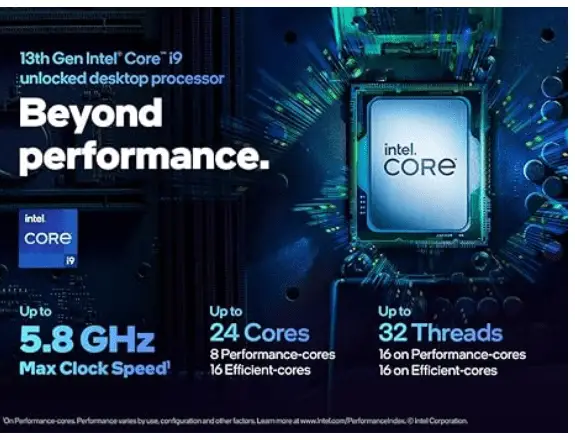
    When building the ultimate gaming PC, it’s crucial to choose the best gaming hardware for windows 11 and 10. Start with a powerful CPU like the Intel Core i9-12900K, i7-12700K, or i5-12600K, or opt for an AMD Ryzen 9 5950X, 7 5800X, or 5 5600X.

    Pair it with a high-end GPU such as the NVIDIA GeForce RTX 3080 Ti or 3080 for 4K gaming, or an AMD Radeon RX 6900 XT or 6800 XT for top-notch performance. Don’t forget to include at least 16GB of high-speed DDR4 RAM, with 32GB being ideal for future-proofing.

    For storage, prioritize an NVMe SSD for lightning-fast load times, with a SATA SSD or HDD for additional space. Choose a motherboard with PCIe 4.0 support, Wi-Fi 6, and USB 3.2 ports to ensure compatibility and connectivity. Lastly, invest in a reliable power supply to keep your gaming hardware running smoothly.

    Whether you’re aiming for 4K, 1440p, or 1080p gaming, selecting the right combination of CPU, GPU, RAM, storage, motherboard, and power supply is essential. With top-tier components from Intel, AMD, NVIDIA, and Radeon, you’ll be ready to tackle the latest games on Windows 11 or 10 with ease.

    That’s right, and if you want to build the ultimate gaming rig, you’ve got to have the best hardware to back it up.

    I’ve been tinkering with gaming PCs for years, and let me tell you, choosing the right components can make all the difference between a smooth, immersive gaming session and a laggy, frustrating mess.

    So, buckle up and join me on this adventure as we explore the best gaming hardware for Windows 11 and Windows 10!

    Best CPUs for Gaming on Windows 11 and Windows 10

    First things first, let’s talk about the brains of your gaming machine: the CPU.

    If you’re aiming for the stars, you can’t go wrong with the Intel Core i9-12900K or the AMD Ryzen 9 5950X. These bad boys will handle anything you throw at them, but they’ll also throw a wrench in your wallet.

    For a more balanced approach, consider the Intel Core i7-12700K or the AMD Ryzen 7 5800X. And if you’re on a tighter budget, the Intel Core i5-12600K and AMD Ryzen 5 5600X are solid choices. Trust me, I’ve made the mistake of skimping on the CPU before, and it’s not pretty.

    intel core i9

    Top GPUs for Optimal Gaming Performance

    Next up, the GPU – the heart and soul of your gaming experience. If you’re dreaming of 4K gaming glory, you’ll want to snag an NVIDIA GeForce RTX 3080 Ti or an AMD Radeon RX 6900 XT.

    But be prepared to sell a kidney (just kidding, please don’t). For those of us with more down-to-earth aspirations, the NVIDIA GeForce RTX 3070 and AMD Radeon RX 6700 XT are fantastic mid-range options.

    I remember when I first upgraded to a high-end GPU – it was like trading in my old beater for a shiny sports car!

    RAM Requirements for Smooth Gaming

    Now, let’s talk about the unsung hero of gaming performance: RAM.

    In today’s gaming landscape, 16GB of DDR4 is the bare minimum. But if you want to future-proof your rig and tackle even the most demanding games, 32GB is the way to go.

    And don’t forget about speed – aim for 3200MHz or higher. I once tried to get by with 8GB of RAM, and it was like trying to run a marathon in flip-flops. Never again!

    Storage Solutions for Fast Load Times

    Storage is where the rubber meets the road when it comes to load times. Trust me, there’s nothing more frustrating than waiting an eternity for your game to load.

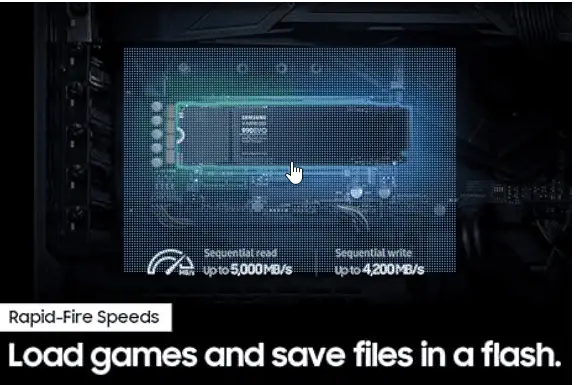
    That’s why I always recommend an NVMe SSD for your primary drive.

    It’s like having a cheat code for loading screens. If you’re on a budget, a SATA SSD is still a huge step up from a traditional hard drive. And if you have a massive game library, consider adding a high-capacity HDD for secondary storage.

    best gaming hardware for windows 11 and 10 ssd

    Unlock the full potential of your Windows 11 gaming experience with a genuine Pro license key. Enjoy enhanced performance, advanced security features, and access to exclusive gaming tools.

    Optimize your system for seamless gameplay and take advantage of the latest DirectX 12 Ultimate technologies. Elevate your gaming with Windows 11 Pro.

    Choosing the Right Motherboard and Power Supply

    Last but not least, we have the motherboard and power supply. These components are like the stage crew of your gaming PC – you don’t always see them, but they’re crucial to the show.

    Make sure to choose a motherboard that’s compatible with your CPU and has all the features you need, like PCIe 4.0 support and plenty of USB ports. As for the power supply, don’t skimp here either.

    Get one with enough wattage to handle all your components, and then some. I once cheaped out on a power supply, and it nearly fried my entire system. Lesson learned!

    Conclusion

    And there you have it, folks – the best gaming hardware for Windows 11 and Windows 10. Building the ultimate gaming PC is all about finding the right balance between performance, budget, and futureproofing.

    It’s a delicate dance, but with the right components and a little know-how, you’ll be dominating the virtual battlefield in no time. Just remember, everyone’s needs are different, so don’t be afraid to customize your rig to suit your playstyle.

    And if you have any killer tips or hilarious gaming anecdotes of your own, be sure to share them in the comments below. Happy gaming, my friends!

  • The Pros and Cons of Gaming on Windows 11 Compared to Windows 10

    Buckle up, gamers!

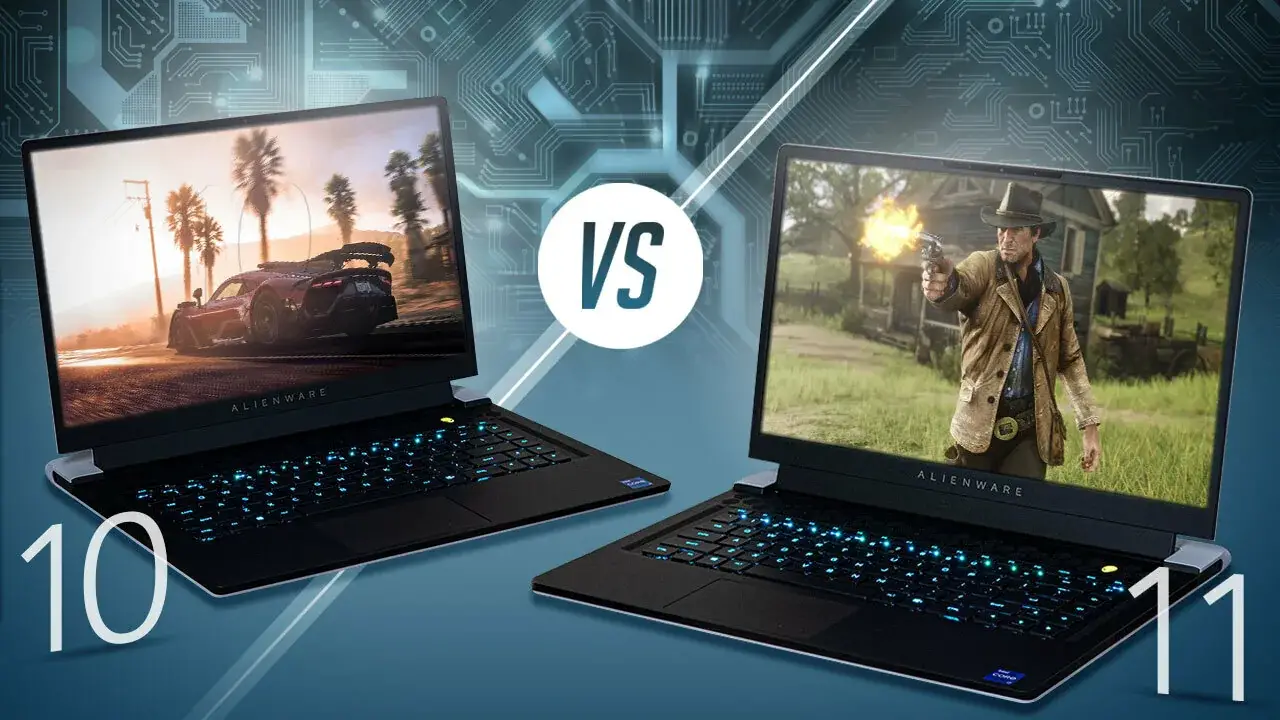
    Are you ready to dive into the ultimate showdown between Windows 11 and Windows 10 for gaming?

    As someone who’s been around the block a few times when it comes to gaming on different operating systems, I know firsthand how important it is to weigh the pros and cons before taking the plunge.

    Trust me, I’ve had my fair share of late-night gaming sessions filled with frustration and triumph, all thanks to the quirks of various Windows versions. So, let’s get into the nitty-gritty and figure out which OS is the real MVP for your gaming needs!

    Advantages of Gaming on Windows 11

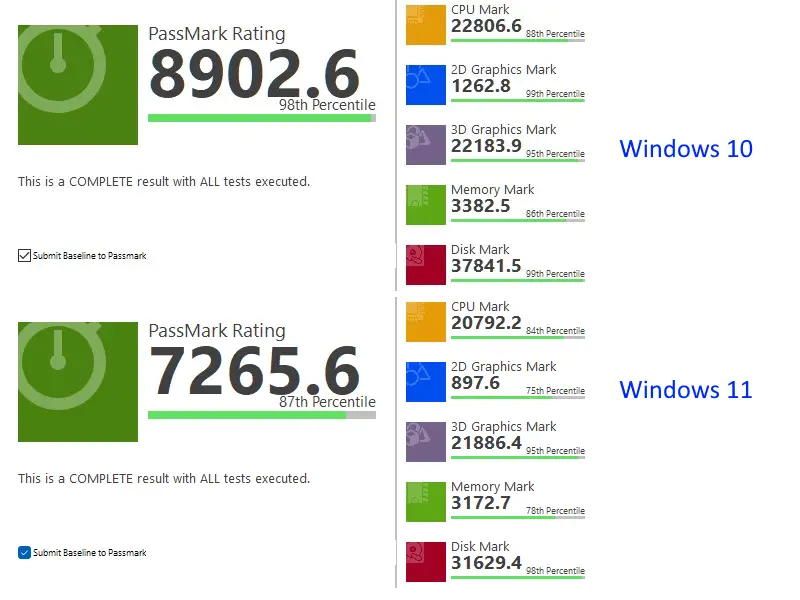
    Let me tell you, when I first laid my hands on Windows 11, I was like a kid in a candy store. The improved performance with DirectStorage and Auto HDR?

    Chef’s kiss It’s like Microsoft read my mind and said, “Hey, let’s make gaming on PC even more awesome!” I remember the first time I loaded up my favorite game on Windows 11 – the lightning-fast load times and jaw-dropping visuals had me grinning from ear to ear.

    And don’t even get me started on the seamless integration with the Xbox ecosystem. Game Pass? More like Game Pass-me-the-controller-I’m-ready-to-play! The enhanced gaming features like Game Mode and DirectX 12 Ultimate support are just the cherry on top of this delicious gaming sundae.

    windows 11 vs windows 10 game mode

    Disadvantages of Gaming on Windows 11

    Now, I’ll be honest with you – gaming on Windows 11 isn’t all sunshine and rainbows. I’ve had my fair share of compatibility issues with older games and hardware.

    There’s nothing more frustrating than getting hyped up to play a classic game from your childhood, only to find out it doesn’t play nice with Windows 11.

    And don’t even get me started on the higher system requirements compared to Windows 10. I mean, I get it – progress and all that jazz – but sometimes I just want to game without having to upgrade my rig every few months.

    And let’s not forget about the occasional bugs and glitches that come with being an early adopter. I once spent an entire evening troubleshooting a game that kept crashing on Windows 11, only to find out it was a known issue with no fix in sight. Talk about a mood killer!

    Benefits of Sticking with Windows 10 for Gaming

    Now, I know some of you might be thinking, “Why fix what ain’t broke?” And I totally get that. Windows 10 has been the go-to OS for gaming for years now, and for good reason. The proven stability and compatibility with a wide range of games is nothing to sneeze at.

    I can’t tell you how many times I’ve been able to just fire up a game on Windows 10 without any hiccups – it’s like putting on a comfy pair of sweatpants. And for those of us with older hardware, the lower system requirements and better performance on aging rigs is a godsend.

    Plus, there’s something to be said for the familiarity and comfort of a well-established operating system. I mean, I’ve been gaming on Windows 10 for so long, I could probably navigate my way through the settings menu with my eyes closed!

    win 11 vs win 10 gaming parameters

    Drawbacks of Gaming on Windows 10

    But, as much as I love Windows 10, I can’t help but feel like I’m missing out on some of the latest and greatest gaming features by sticking with it. I mean, have you seen the load times on games running on Windows 11 with DirectStorage? It’s like watching a cheetah on steroids!

    And the lack of native support for advanced technologies like DirectStorage and Auto HDR on Windows 10 is a bit of a bummer. I’ll never forget the first time I saw a game running with Auto HDR on Windows 11 – it was like going from a CRT TV to a 4K OLED.

    And don’t even get me started on the FOMO I feel when I see all my gamer friends raving about the latest Windows 11 features while I’m still chugging along on Windows 10. It’s like being the kid with the hand-me-down console while everyone else has the shiny new one.

    Here’s a table comparing 10 pros and cons of Windows 11 vs Windows 10 for gaming:

    FeatureWindows 11Windows 10
    Performance+ DirectStorage and Auto HDR for improved performance– Lacks native support for DirectStorage and Auto HDR
    Xbox Integration+ Seamless integration with Xbox ecosystem and Game Pass– Limited Xbox integration compared to Windows 11
    Gaming Features+ Enhanced features like Game Mode and DirectX 12 Ultimate support– Lacks some of the latest gaming features and optimizations
    Compatibility– Potential compatibility issues with older games and hardware+ Proven stability and compatibility with a wide range of games
    System Requirements– Higher system requirements compared to Windows 10+ Lower system requirements, better performance on older hardware
    Stability– Some bugs and glitches in the early stages of release+ Well-established and stable operating system
    Familiarity– New user interface and features may require adjustment+ Familiarity and comfort with the well-known operating system
    Load Times+ Faster load times with DirectStorage technology– Potentially slower load times compared to Windows 11
    Visuals+ Improved visuals with Auto HDR and DirectX 12 Ultimate– Less impressive visuals compared to Windows 11
    Future-proofing+ Designed for the future of gaming with new technologies– May miss out on future gaming features and optimizations

    Factors to Consider When Choosing Between Windows 11 and Windows 10

    At the end of the day, choosing between Windows 11 and Windows 10 for gaming comes down to your individual needs and preferences.

    If you’re someone who always wants the latest and greatest features and can handle a few bumps in the road, then Windows 11 might be the way to go. But if you prioritize stability and compatibility above all else, then sticking with Windows 10 is probably your best bet.

    And let’s not forget about hardware specifications – if you’re rocking an older rig, then Windows 10 might be the more practical choice.

    As for me, I’ve been gaming on both operating systems, and I can honestly say there are pros and cons to each. My advice? Take a good, hard look at your gaming needs and preferences, and don’t be afraid to experiment a little. You might just find your new favorite gaming OS in the process!

    Conclusion

    Well, there you have it, folks – the ultimate showdown between Windows 11 and Windows 10 for gaming.

    We’ve covered the good, the bad, and the ugly of both operating systems, and I hope you’ve come away with a better understanding of which one might be right for you.

    At the end of the day, there’s no one-size-fits-all answer – it all comes down to your individual gaming needs and preferences.

    But whether you choose to stick with the tried-and-true Windows 10 or take the plunge into the exciting world of Windows 11, just remember – gaming is supposed to be fun! So don’t stress too much about the decision, and just focus on having a good time.

    And hey, if you’ve got any hot takes or hilarious gaming anecdotes to share, be sure to drop ’em in the comments below. We’re all in this together, after all. Happy gaming, my friends!

  • The Key Differences Between Windows 11 and Windows 10 for Gaming

    Buckle up, gamers! It’s time to dive into the age-old debate: Windows 11 vs. Windows 10 for gaming.

    As someone who’s been around the block a few times when it comes to gaming on different operating systems, I can tell you that understanding the key differences between these two can make or break your gaming experience.

    Trust me, I’ve had my fair share of frustrating moments trying to get games to run smoothly on older versions of Windows. But with the release of Windows 11, things are looking up for us gaming enthusiast

    Performance Enhancements in Windows 11

    Let me tell you, when I first heard about the performance enhancements in Windows 11, I was like a kid in a candy store. DirectStorage technology? Sign me up! I remember the first time I loaded up a game on Windows 11 and saw how quickly it loaded – I was blown away.

    And don’t even get me started on Auto HDR. It’s like a magic wand for your games’ visuals, making them look better than ever before. I did run into a hiccup with hardware-accelerated GPU scheduling, though.

    Had to do some tinkering to get it working just right, but once I did, oh boy, it was worth it!

    win 11 vs win 10 gaming key differences

    Gaming Features and Integration

    Windows 11 is like a gamer’s dream come true. The revamped Xbox app is so slick and easy to use, it’s like having a gaming console right on your PC.

    And the integration with Xbox Game Pass? Chef’s kiss It’s a game-changer (pun intended). I’ve discovered so many new games through Game Pass that I never would have tried otherwise.

    The improved Game Mode is a nice touch, too. I was skeptical at first, but I could definitely feel the difference in performance when I toggled it on. It’s like a secret weapon for squeezing out every last drop of gaming goodness from your system.

    Compatibility and Game Support

    Okay, I’ll admit it – I was a little worried about compatibility when I first made the switch to Windows 11. I mean, I’ve got a library of games that goes back years, and I didn’t want to lose access to any of them.

    But I’ve been pleasantly surprised by how well Windows 11 handles older games. I even dusted off some classic titles from my childhood and they ran like a dream.

    And with native support for the latest gaming technologies like DirectX 12 Ultimate, I feel like I’m ready for the future of gaming. I did run into one compatibility issue with an obscure indie game, but a quick visit to the forums and I found a fix in no time.

    User Interface and Gaming Enhancements

    I know some folks might not think the user interface is a big deal for gaming, but let me tell you, the new design language in Windows 11 is a game-changer.

    Everything just feels so clean and modern, and it really immerses you in the gaming experience. And as someone who likes to stream my gameplay from time to time, I really appreciate the improved multitasking features.

    No more awkward transitions or dropped frames – just smooth, seamless streaming. The customizable gaming settings are a nice touch, too. I love being able to tweak things to my liking and really dial in my gaming setup.

    key differences between win 11 and win 10 gaming

    System Requirements and Upgrade Considerations

    Now, I know upgrading to a new operating system can be a bit daunting, especially when it comes to system requirements.

    I remember when I first looked at the specs for Windows 11, I was like, “Oof, time for an upgrade.” But honestly, if you’re running a fairly recent gaming rig, you should be good to go.

    Just make sure to double-check those minimum and recommended requirements before taking the plunge. And if you’re upgrading from Windows 10, don’t stress too much – the process is pretty straightforward.

    Just make sure to back up your important files and maybe grab a coffee while the installation does its thing. Trust me, it’s worth it in the end!

    Conclusion:

    So, there you have it – the key differences between Windows 11 and Windows 10 for gaming. It’s clear that Microsoft has put a lot of thought and effort into making Windows 11 the ultimate gaming OS. From performance enhancements to new features and improved compatibility, there’s a lot to love here.

    But at the end of the day, the best OS for gaming is the one that works for you and your setup. So don’t be afraid to experiment, tinker, and find what works best for you. And hey, if you’ve got any tips or experiences of your own to share, drop ’em in the comments below!

    We’re all in this gaming journey together, after all. Happy gaming, my friends!