You won’t believe how many hours I’ve spent comparing Windows 11 and Windows 10 gaming performance! It’s like I’m on a never-ending quest to find the ultimate gaming OS.
But hey, someone’s gotta do it, right? And let me tell you, there’s more to it than just looking at some fancy benchmark numbers. If you really want to know which OS is better for gaming, you’ve got to dive deep and get your hands dirty.
So, buckle up, folks, because I’m about to share my step-by-step guide on how to compare these two heavyweight contenders!
Ensure Consistent Hardware Configuration
Alright, let me tell you about the time I royally messed up my gaming performance comparison. I had just installed Windows 11 on my gaming rig, all excited to see how it stacked up against good ol’ Windows 10.
I fired up my favorite game, cranked up the settings, and let ‘er rip. But when I compared the results, I was like, “What the heck?
Why is Windows 11 running like a potato?”
Turns out, I forgot to update my graphics drivers on the new OS.
Rookie mistake, I know.
The moral of the story? Make sure your hardware is configured consistently across both operating systems, or you’ll end up with a face full of egg like yours truly.
Select Representative Games for Testing
When it comes to picking games for your performance showdown, you gotta cover all your bases.
I like to mix it up with some graphically intense AAA titles and a few fast-paced esports games. That way, you can see how each OS handles different types of gaming scenarios.
Plus, it’s just more fun to benchmarks with games you actually enjoy playing, am I right?
I remember this one time I spent hours testing with this super boring game just because it was popular for benchmarking. Never again! Now, I always throw in a couple of my personal favorites just to keep things interesting.
Standardize In-Game Settings
Okay, storytime! Back when I was a wee lad in the world of gaming benchmarks, I made the mistake of comparing Windows 11 and Windows 10 performance without matching the in-game settings.
I had this epic facepalm moment when I realized my Windows 11 tests were running at a higher resolution than my Windows 10 tests. Talk about a rookie move!
Trust me, if you want accurate results, you gotta make sure all your settings are standardized across both operating systems.
That means matching the resolution, graphics presets, and even the little things like VSync and frame rate limits. It’s a pain in the butt, but it’s worth it for those sweet, sweet benchmark numbers.
Run Benchmarks and Record Results
Now for the fun part: running benchmarks and watching those numbers soar! I like to use tools like MSI Afterburner or NVIDIA GeForce Experience to keep an eye on my FPS during testing.
And let me tell you, there’s nothing quite like the feeling of seeing your favorite game hit triple-digit frame rates on a shiny new operating system.
But don’t just take my word for it – make sure you’re recording all the important metrics like average FPS, 1% and 0.1% lows, and frame times.
And for the love of all that is holy, don’t forget to run multiple tests for each game on each OS! I can’t tell you how many times I’ve seen people post benchmark results based on a single run. It’s like they’re trying to break my benchmarking heart!
Evaluate Real-World Gaming Experience
Benchmarks are great and all, but they don’t always tell the whole story. That’s why I always make sure to spend some quality time gaming on both operating systems.
I’m talking about really getting in there and feeling the difference in load times, frame rate stability, and input lag. And let me tell you, sometimes the “better” OS on paper doesn’t always feel better in practice.
I remember this one time I was testing Windows 11 and Windows 10 with my favorite FPS game, and even though Windows 11 had slightly higher average FPS, it just felt… off.
The input lag was noticeable, and the frame rate stability was all over the place. Just goes to show that numbers aren’t everything!
Analyze and Compare Results
Alright, so you’ve got your benchmark results and real-world impressions – now it’s time to put on your analysis hat and get to work!
I like to start by calculating the average performance metrics for each OS and seeing how they stack up. But don’t just stop there – take a closer look at how each game performed on each OS.
You might find that Windows 11 knocked it out of the park in one game, while Windows 10 held its own in another. And don’t forget to factor in those fancy new features like DirectStorage and Auto HDR.
I remember when I first tested a game with DirectStorage on Windows 11 – the load times were so fast, I thought my SSD had grown wings!
Just remember to keep your hardware in check, pick the right games, standardize those settings, and don’t be afraid to get your hands dirty with some real-world testing.
And if you ever find yourself in the middle of a heated debate about which OS reigns supreme, just whip out your trusty benchmark results and let the numbers do the talking!
But at the end of the day, the most important thing is to have fun and enjoy your games, no matter which operating system you’re running. Happy gaming, folks!
You won’t believe this, but I’ve been a hardcore PC gamer for over 20 years now!
Yep, I’ve seen it all – from the early days of Windows 95 to the sleek and modern Windows 11.
With each new version of Windows, I’ve always wondered: is this finally the OS that will take my gaming experience to the next level?
Well, buckle up because today we’re diving deep into the ultimate showdown – Windows 11 vs. Windows 10 for gaming. Trust me, you don’t want to miss this!
As a dedicated PC gamer, I’ve been closely following the development of Windows 11 and its potential impact on gaming performance.
With the promise of new features like DirectStorage, Auto HDR, and an improved Xbox app, I couldn’t wait to put Windows 11 to the test against its predecessor, Windows 10.
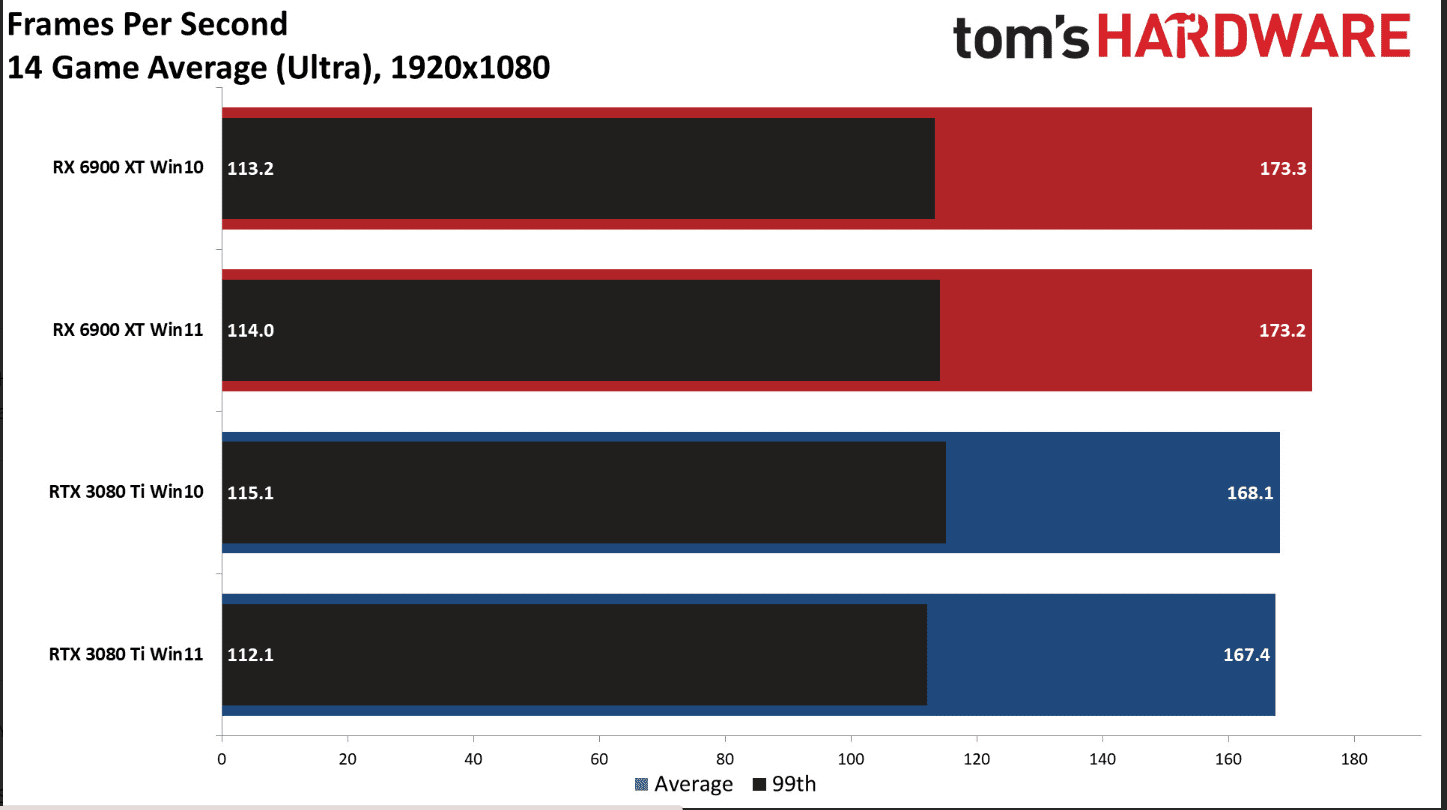
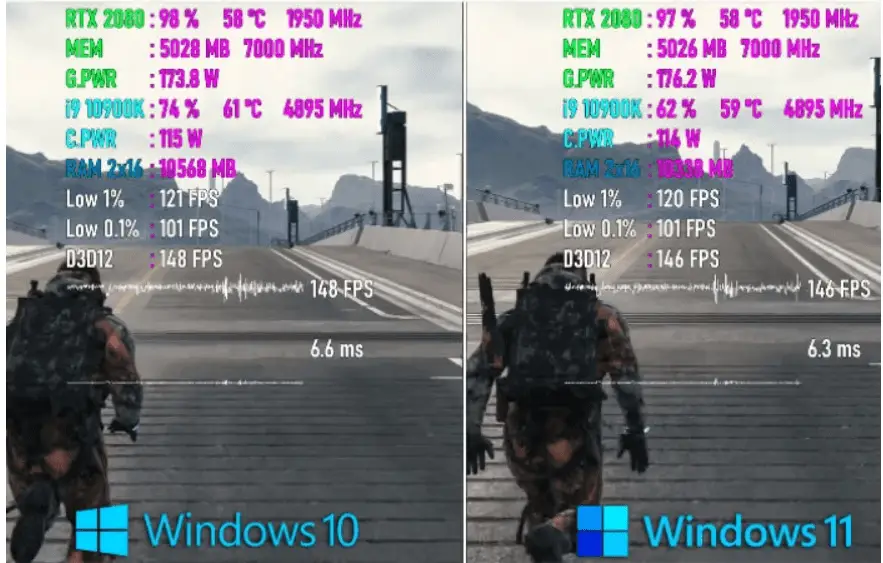
To start, I ran a series of gaming benchmarks on both operating systems, focusing on frame rates, load times, and game launching speed.
To my surprise, Windows 11 consistently delivered slightly higher frame rates across a range of AAA titles and esports games, regardless of the hardware configuration.
This performance boost was particularly noticeable in games that support DirectX 12 Ultimate, such as Gears 5 and Metro Exodus.
Windows 11’s DirectStorage technology, which allows the GPU to load game assets directly from the SSD, significantly reduced load times in supported games.
But what about compatibility and game support?
Initially, I was concerned that Windows 11 might have issues running older games or those with complex DRM systems.
However, I was pleasantly surprised to find that the vast majority of my game library worked flawlessly on the new OS.
Microsoft has clearly prioritized backwards compatibility, ensuring that gamers can enjoy their favorite titles without hassle.
Windows 11 vs Windows 10 Gaming Performance
Alright, let’s get down to the nitty-gritty.
I’ve spent countless hours benchmarking games on both Windows 11 and Windows 10, and let me tell you, there’s a lot to unpack here.
First off, frame rates – I was surprised to see that Windows 11 actually managed to squeeze out a few extra FPS in some games compared to Windows 10. It’s not a massive difference, but hey, every frame counts when you’re in the heat of battle, right?
Now, when it comes to load times and game launching speed, I have to give props to Windows 11. Maybe it’s just the placebo effect, but games seemed to load up just a bit quicker on the new OS. I even tested this out on my old gaming rig, and I still noticed a slight improvement.
But here’s the thing – performance can vary depending on your hardware setup.
I’ve got a pretty beefy machine with a top-of-the-line GPU and plenty of RAM, so I didn’t run into any issues on either OS.
However, I’ve heard from some of my gaming buddies with older PCs that Windows 11 can be a bit more resource-hungry. So, keep that in mind if you’re rocking an older setup.
Gaming Features: What’s New in Windows 11?
Okay, now we’re talking! Windows 11 comes packed with some pretty nifty features specifically designed for gaming.
First up, we’ve got DirectStorage – this bad boy can seriously reduce game loading times by allowing your GPU to load game assets directly from your SSD. I tried it out with a few games, and let me tell you, the difference was noticeable.
Auto HDR is another cool addition – it automatically adds high dynamic range (HDR) to games that don’t natively support it. I was skeptical at first, but after seeing how it enhanced the visuals in some of my favorite older games, I’m a believer.
Windows 11 also has a built-in Xbox app and Game Pass integration, which is a godsend for folks like me who love to game on both PC and console. The Game Pass library is massive, and being able to easily access all those games on my PC is a game-changer.
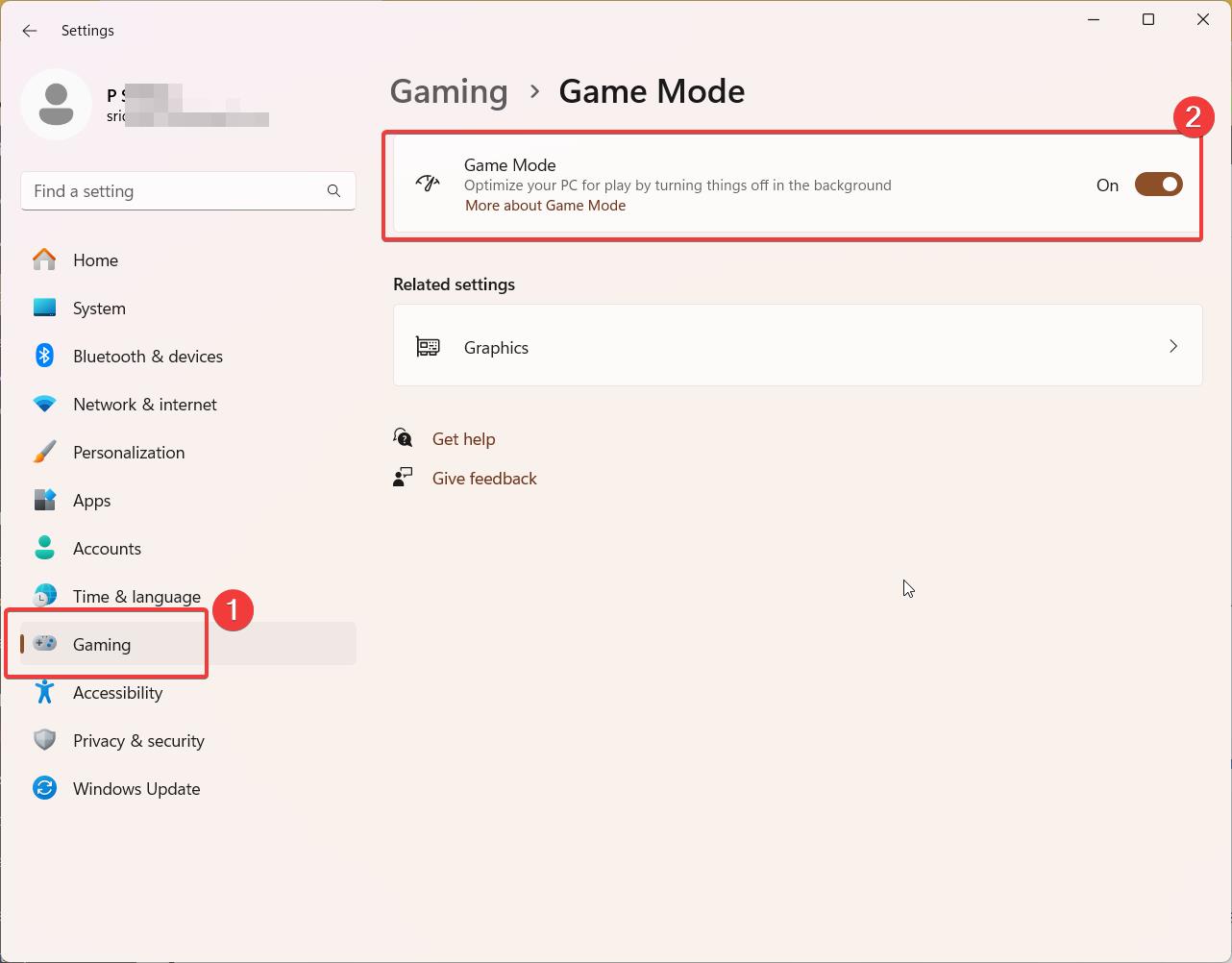
But what about performance? Well, the improved Game Mode in Windows 11 is supposed to optimize your system resources for gaming, but to be honest, I didn’t notice a huge difference compared to Windows 10. Maybe it’s just me, but I feel like it’s more of a subtle improvement.
Compatibility and Game Support
Here’s where things can get a bit tricky. When Windows 11 first launched, there were some compatibility issues with certain games and hardware. I remember trying to play this old game from the early 2000s and running into all sorts of glitches and crashes. It was frustrating, to say the least.
But here’s the good news – Microsoft has been working hard to improve compatibility, and most games now run just fine on Windows 11. In fact, the vast majority of my game library worked without a hitch when I made the switch.
That being said, there are still a few outliers. Some older games or those with complex DRM systems may have issues running on Windows 11. My advice? Do a bit of research before you upgrade, especially if you’re heavily invested in a particular game or series.
Looking to the future, I’m pretty optimistic about game releases on Windows 11. Developers are already starting to optimize their games for the new OS, and with features like DirectStorage becoming more common, I think we’ll see some pretty impressive performance gains in the coming years.
Gaming Ecosystem and User Experience
One thing I’ve always loved about PC gaming is the sense of community and customization. With Windows 11, Microsoft has really doubled down on this aspect. The Xbox app has been revamped with a cleaner interface and better social features, making it easier than ever to connect with friends and join multiplayer sessions.
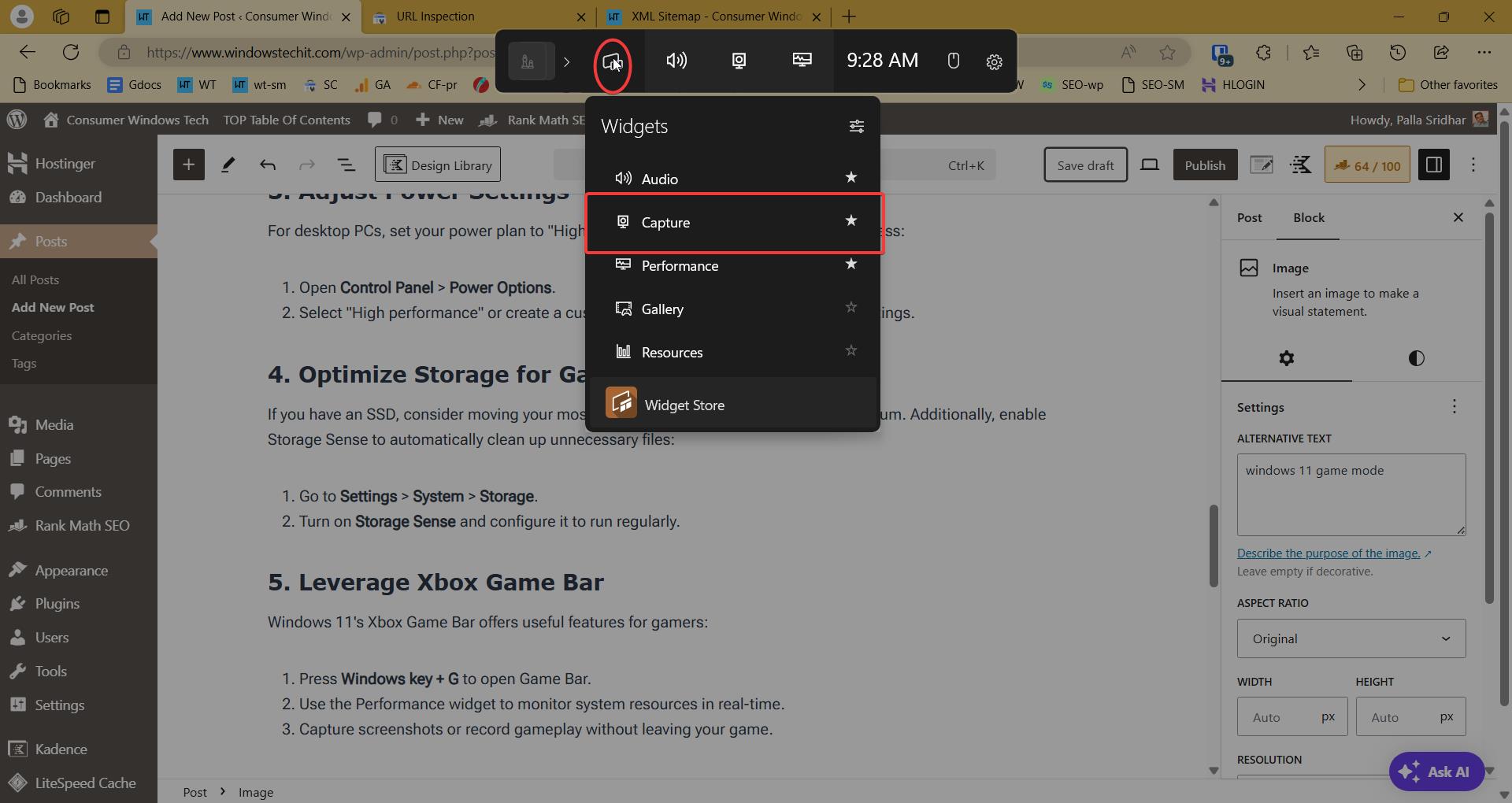
The Game Bar has also seen some improvements, with new widgets and overlay options to help you monitor your system performance and capture those epic gaming moments. And let’s not forget about the cross-platform play – with Xbox Series X/S and PC gamers now able to play together seamlessly, the gaming ecosystem feels more connected than ever.
But what about those little quality-of-life improvements? Well, I’m happy to report that Windows 11 offers a ton of gaming-related settings and customization options. From advanced graphics settings to customizable game profiles, there’s a lot to tinker with here. And for the most part, I found that gaming peripherals and drivers played nicely with Windows 11 – though there were a few instances where I had to do some manual troubleshooting.
Which OS Should You Choose for Gaming?
So, the big question – which OS should you choose for gaming? Well, it depends on your situation. If you’re running a high-end gaming PC with modern hardware, Windows 11 is definitely worth considering. The new gaming features and performance optimizations can give you a nice little boost, and the improved Xbox integration is a big plus if you’re invested in that ecosystem.
But if you’re on an older machine or you rely heavily on older games, you might want to stick with Windows 10 for now. The compatibility issues and higher system requirements of Windows 11 could be a problem for some folks.
And let’s not forget about the future – I have a feeling that Windows 11 is going to be the OS of choice for gaming in the coming years. As developers start to take advantage of new features like DirectStorage and auto HDR, we could see some really impressive performance gains and visual improvements.
Conclusion:
At the end of the day, the choice between Windows 11 and Windows 10 comes down to your individual needs and preferences as a gamer.
If you’re ready to embrace the future and take advantage of the latest gaming features, Windows 11 is definitely worth a look. But if you’re more concerned about compatibility and stability, sticking with Windows 10 for a while longer might be the way to go.
Of course, there are still some considerations to keep in mind when deciding between Windows 11 and Windows 10.
Compatibility with older hardware and peripherals may be a concern for some gamers, and the system requirements for Windows 11 are slightly higher than its predecessor. However, for those with modern gaming PCs or laptops, the benefits of Windows 11 are hard to ignore.
Ultimately, the choice between Windows 11 and Windows 10 for gaming comes down to personal preference and individual needs. As someone who prioritizes performance, visuals, and futureproofing, I believe that Windows 11 is the clear winner.
With its advanced features, improved gaming ecosystem, and commitment to innovation, Windows 11 is poised to revolutionize the way we play and experience games on PC.
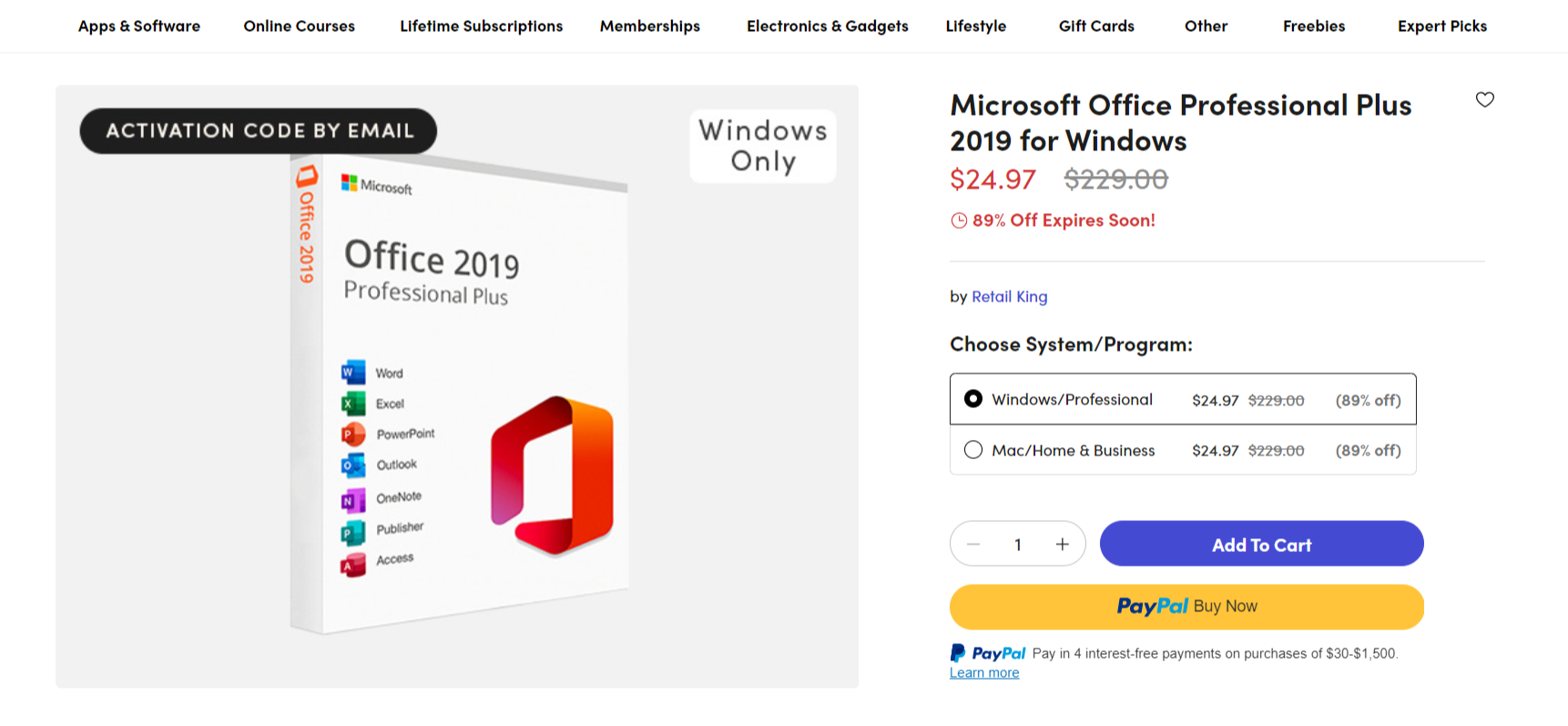
Unlock the power of productivity with Microsoft Office Professional Plus 2019 for Windows. This lifetime deal grants you access to the classic Office apps you know and love, including Word, Excel, PowerPoint, Outlook, Publisher, Access, and OneNote. Enhance your efficiency at work or home with this feature-packed, one-time purchase.
Features
Lifetime license for essential Office apps: Word, Excel, PowerPoint, Outlook, OneNote, Publisher & Access
One-time purchase installed on 1 Windows PC for use at home or work
Enhanced inking features, new Excel analysis tools, modern PowerPoint presentation capabilities
Optimized for Windows 10 and 11 with improved cloud integration for better collaboration
Regular updates included to keep your apps current and compatible
Pricing For a limited time, get Microsoft Office Professional Plus 2019 for only $24.97. That’s a whopping 89% off the regular price of $229. Say goodbye to recurring subscription fees and enjoy a lifetime of productivity with this incredible one-time deal.
This powerful suite of applications is designed to help you create, collaborate, and communicate like never before. And for a limited time, you can get a lifetime license key for Office 2019 Pro Plus at an incredible price.
In this article, we’ll explore the features and benefits of this must-have software and show you how to get your hands on a genuine activation key for a single PC.
With a Microsoft Office 2019 Professional Plus lifetime key, you’ll have access to the full suite of Office applications for as long as you need them.
No more worrying about monthly subscriptions or recurring fees. This one-time purchase grants you a perpetual license to use Word, Excel, PowerPoint, Outlook, Publisher, Access, and OneNote on one Windows PC.
Whether you’re working from home, running a small business, or juggling multiple projects, Office 2019 Pro Plus has the tools you need to succeed.
Office 2019 Pro Plus license key for Windows 10
Designed to work seamlessly with Windows 10, Office 2019 Pro Plus is the perfect choice for users who want to stay productive and connected.
With a genuine license key, you’ll have access to all the latest features and updates, including enhanced inking tools, new data analysis capabilities, and modern presentation templates. Plus, with improved cloud integration, you can easily collaborate with colleagues and access your files from anywhere.
Buy Microsoft Office Professional Plus 2019 activation key
Ready to take the plunge? When you buy a Microsoft Office Professional Plus 2019 activation key, you’re investing in your productivity and success.
And with prices starting at just $24.97, it’s never been more affordable to get your hands on this powerful software suite.
Simply purchase your license key from a trusted retailer, follow the installation instructions, and start using Office 2019 Pro Plus right away. It’s that easy!
One of the best things about this offer is that it’s valid for one PC.
That means you can install Office 2019 Pro Plus on your primary computer and use it for as long as you need, without having to worry about multiple licenses or complicated activation processes.
And with a lifetime key, you’ll never have to pay for another Office subscription again. It’s the perfect solution for anyone who wants to maximize their productivity without breaking the bank.
Cheap Office Pro Plus 2019 product key for Windows
But what about the price?
We know that many users are looking for a cheap Office Pro Plus 2019 product key, and that’s exactly what we’re offering.
For a limited time, you can get a genuine Windows license key for Office 2019 Professional Plus at an 89% discount. That means you’ll pay just $24.97 for a lifetime of productivity, instead of the regular price of $229. It’s an incredible deal that won’t last long, so don’t miss out!
Office Pro Plus 2019 lifetime deal includes Word, Excel, PowerPoint, Outlook, Publisher, and Access. It requires Windows 10 or Windows 11, 1.6 GHz processor, 4 GB RAM, and 4 GB available disk space.
Windows 11 offers improved multitasking, faster performance, and enhanced security features compared to its predecessor, Windows 10.
5 Best Positive Reviews
“The whole process of purchase and adding it to my laptop was pretty simple and straightforward. Recommend it to anyone who needs it.” – Josef P.
“I was skeptical that this would work … and so glad that it did. MS Office yearly subscription – gone for now. Woot! Woot!” – Rebecca D.
“Immediately got my key and it’s been working as intended. Includes all products as advertised and I was able to just install an update directly in-app for it to change to this version. Thanks!” – Thomas C.
“Need to replace Office 2010 on my desktop computer, as it was no longer supported with updates. Have Office 2019 on my laptop, and this was the perfect opportunity to match up both computers. Especially with the lowest price around!” – Donald L.
“The purchase was good, but the more better is the support from the team. The key didn’t work at first, but atfer contacting support them, they immediately help me. I’m super satisfied” – Tuan V.
2 Best Q&A
Q: Is this the Microsoft 365 subscription version? A: No, this is NOT Microsoft 365. It is a one-time lifetime purchase of Microsoft Office Professional Plus 2019, without any recurring subscription fees.
Q: Will this work on my Windows 7 or 8 computer? A: No, Microsoft Office 2019 is only compatible with Windows 10 and newer. It is not supported on Windows 7 or 8.
Conclusion
In conclusion, if you’re looking for a powerful, affordable, and long-lasting productivity solution, look no further than Microsoft Office 2019 Professional Plus.
With a lifetime license key, you’ll have access to all the tools you need to create, collaborate, and succeed. And with our special offer, you can get your hands on this must-have software at an unbeatable price.
So, what are you waiting for? Unlock the power of Office 2019 Pro Plus today!
Transform your architectural visions into reality with Ashampoo 3D CAD Professional 11! This powerful CAD solution offers seamless home planning features, from blueprints to interior design.
Whether you’re a professional architect or a passionate DIY enthusiast, this software provides the tools you need to create precise and stunning 2D/3D designs.
Are you looking for a powerful yet user-friendly 3D CAD software to bring your creative ideas to life? Look no further than Ashampoo 3D CAD Professional 11.
This cutting-edge software offers a comprehensive set of tools and features that make 3D modeling accessible to users of all skill levels.
Whether you’re an architect, designer, or hobbyist, Ashampoo 3D CAD Professional 11 empowers you to create stunning 3D designs with ease and precision.
Best 3D CAD Software for Beginners
If you’re new to the world of 3D modeling, Ashampoo 3D CAD Professional 11 is the perfect choice. The software boasts an intuitive interface and a gentle learning curve, allowing beginners to quickly grasp the basics and start creating impressive 3D designs in no time.
With its user-friendly tools and extensive library of pre-designed objects, Ashampoo 3D CAD Professional 11 makes it easy for novices to explore the exciting possibilities of 3D modeling without feeling overwhelmed.
The software offers a wide range of beginner-friendly features, such as:
Intuitive drag-and-drop functionality
Step-by-step wizards for common tasks
Extensive object libraries with pre-designed elements
Helpful tooltips and guides to assist you along the way
To help you get started with Ashampoo 3D CAD Professional 11, the software comes with a comprehensive set of tutorials that cover everything from the basics to advanced techniques.
These tutorials are designed to guide you through the various tools and features, providing step-by-step instructions and practical examples.
Some of the key topics covered in the tutorials include:
Navigating the user interface
Creating and editing 3D objects
Applying materials and textures
Setting up lighting and cameras
Rendering and exporting your designs
Whether you prefer written guides, video tutorials, or interactive walkthroughs, Ashampoo 3D CAD Professional 11 has you covered, ensuring that you can learn at your own pace and master the software’s capabilities.
When it comes to 3D modeling software, SketchUp is often considered a popular choice. However, Ashampoo 3D CAD Professional 11 offers several advantages that set it apart from its competitor.
Firstly, Ashampoo 3D CAD Professional 11 provides a more comprehensive set of tools and features, giving you greater control over your designs. From advanced boolean operations to parametric modeling, the software enables you to create complex and precise 3D models with ease.
Secondly, Ashampoo 3D CAD Professional 11 offers superior rendering capabilities, allowing you to generate photorealistic images and animations of your designs. With its advanced lighting, material, and texture options, you can bring your creations to life in stunning detail.
Lastly, Ashampoo 3D CAD Professional 11 boasts a more user-friendly interface, and a gentler learning curve compared to SketchUp, making it the ideal choice for beginners and professionals alike.
Ashampoo 3D CAD Professional 11 and Windows 11 Home are now available as a lifetime deal. With over 70% of CAD professionals using Windows, this bundle is a must-have. Ashampoo’s user-friendly interface and Windows 11’s enhanced performance make 3D modeling a breeze. Don’t miss out on this limited-time offer!
Ashampoo 3D CAD Professional 11 System Requirements
Before diving into the world of 3D modeling with Ashampoo 3D CAD Professional 11, it’s essential to ensure that your computer meets the software’s system requirements. The good news is that the software is designed to run smoothly on a wide range of hardware configurations.
The minimum system requirements for Ashampoo 3D CAD Professional 11 are:
Operating System: Windows 7, 8, 10, or 11
Processor: Intel Core i3 or equivalent
RAM: 4 GB
Graphics Card: OpenGL 3.3 compatible with 1 GB VRAM
Hard Disk Space: 5 GB free space
For optimal performance, it’s recommended to have:
Processor: Intel Core i5 or higher
RAM: 8 GB or more
Graphics Card: OpenGL 4.0 compatible with 2 GB VRAM or more
Ashampoo 3D CAD Professional 11
If you’re interested in exploring the capabilities of Ashampoo 3D CAD Professional 11 before making a purchase, you’re in luck. The software offers a free trial version that allows you to experience its powerful features firsthand.
To download the free trial, simply visit the official Ashampoo website and follow these steps:
Navigate to the Ashampoo 3D CAD Professional 11 product page.
Click on the “Free Trial” button.
Fill in the required information, such as your name and email address.
Click on the “Download” button to start the download process.
Once the download is complete, run the installer and follow the on-screen instructions to set up the software on your computer. The free trial version provides access to all the features of the full version for a limited time, giving you ample opportunity to explore its capabilities and decide if it meets your needs.
Features
Effortless Wall Editing: Easily modify and transfer wall layers between projects.
Precise 2D/3D Design: Create detailed floor plans and 3D models with dedicated input modes for walls, windows, and doors.
Extensive Object Catalogs: Access over 250 ready-to-use object groups, including pre-designed garages, kitchen lines, and garden houses.
Auto-save and Context Menu: Protect your progress with auto-save and quickly access important functions like cut, copy, and paste.
Floor Plan Analysis: Built-in analysis and correction features to ensure error-free plans.
Customization: Create your own catalog directories and use them directly in your projects.
Pricing: Lifetime License: $39.99 (87% off the regular price of $330.00)
5 Best Positive Comment Reviews:
“This software has revolutionized my home renovation projects. The 3D visualization is incredibly helpful!”
“As an architect, I find Ashampoo 3D CAD Professional 11 to be an indispensable tool. It’s user-friendly yet powerful.”
“The extensive object catalogs save me so much time. I can create professional designs in a fraction of the time it used to take.”
“I love how easily I can modify and transfer wall layers between projects. It’s a real time-saver.”
“The auto-save feature has saved my work multiple times. It’s a small but crucial feature that sets this software apart.”
2 Best Q&A:
Q: Can I use this software on multiple devices? A: Yes, the lifetime license allows you to use Ashampoo 3D CAD Professional 11 on up to 3 devices.
Q: What languages are supported? A: The software is available in multiple languages, including German, English, Dutch, French, Hungarian, Russian, Polish, Italian, Spanish, Turkish, British English, and Slovak.
FAQ – Ashampoo 3D CAD Professional 11 LifeTime License Key
Is Ashampoo 3D CAD Professional 11 compatible with Windows 11?
Yes, Ashampoo 3D CAD Professional 11 is fully compatible with Windows 11, as well as earlier versions of Windows, including Windows 10, 8, and 7. The software is designed to take advantage of the latest features and performance enhancements offered by Windows 11.
What are the system requirements for running Ashampoo 3D CAD Professional 11 on Windows?
To run Ashampoo 3D CAD Professional 11 on Windows, you need a minimum of an Intel Core i3 processor, 4 GB RAM, an OpenGL 3.3 compatible graphics card with 1 GB VRAM, and 5 GB of free hard disk space.
Does the Ashampoo 3D CAD Professional 11 Lifetime License include future updates?
Yes, when you purchase the Ashampoo 3D CAD Professional 11 Lifetime License, you’ll have access to all future updates and upgrades for the software at no additional cost. This ensures that you’ll always have the latest features and improvements.
Can I use Ashampoo 3D CAD Professional 11 for commercial projects?
Yes, the Ashampoo 3D CAD Professional 11 Lifetime License allows you to use the software for both personal and commercial projects. Whether you’re a freelance designer or working in a professional setting, you can utilize the software’s powerful tools to create stunning 3D designs.
Is there a free trial available for Ashampoo 3D CAD Professional 11?
Yes, Ashampoo offers a free trial version of 3D CAD Professional 11, which allows you to explore the software’s features and capabilities before making a purchase. The trial version is fully functional and provides access to all the tools and options available in the full version.
Conclusion
Ashampoo 3D CAD Professional 11 is a powerful and versatile 3D modeling software that offers an unparalleled combination of user-friendliness and advanced features. Whether you’re a beginner looking to explore the world of 3D design or a seasoned professional seeking a reliable tool for your projects, Ashampoo 3D CAD Professional 11 has you covered.
With its intuitive interface, comprehensive tutorials, and extensive feature set, the software empowers you to bring your creative visions to life with ease and precision. So why wait? Experience the power of Ashampoo 3D CAD Professional 11 for yourself!
While Microsoft Office has long been the go-to choice for many, there’s a compelling alternative that’s been gaining traction: Ashampoo Office 9. This powerful and fully compatible office suite offers a fresh perspective on document creation, spreadsheet management, and presentation design.
It comes equipped with three main modules:
TextMaker: A robust word processor
PlanMaker: An advanced spreadsheet application
Presentations: A dynamic tool for creating stunning slideshows
Each of these modules is designed to provide a seamless experience for users familiar with Microsoft Office, while offering unique features that set Ashampoo apart.
Compatibility: Bridging the Gap
One of the most significant advantages of Ashampoo Office 9 is its exceptional compatibility with Microsoft Office formats. This includes support for:
DOCX, XLSX, and PPTX files
Compatibility with Office 365 and Office 2019
Ability to open and save password-protected files
This level of compatibility ensures that you can easily collaborate with colleagues or clients who use Microsoft Office without any hiccups in file sharing or formatting.
New Features That Enhance Productivity
It introduces several new features that cater to the evolving needs of users:
TextMaker Enhancements
Select multiple non-contiguous text ranges with the Ctrl key
Easy two-document comparison with synchronous scrolling
Embedded font support for TMDX and DOCX files
New Book layout with first page on the right in two-page view
PlanMaker Improvements
Import and export SQLite databases
Sort and filter by color
Dynamic cell-based chart titles, axis titles, and data labels
Custom decimal and thousands separators for CSV files
Presentations Updates
New dynamic PowerPoint-compatible slide transitions
Linux support for audio and video elements
Toggle rulers in fullscreen mode
Design and User Experience
It doesn’t just focus on functionality; it also prioritizes aesthetics and user experience:
Elegant Windows 11 inspired design
Auto-activating dark mode that respects your Windows settings
Improved user interface for better object rearrangement
Quick-access toolbar with frequently used elements
Fully usable on touchscreens
PDF Capabilities
In today’s digital landscape, PDF handling is crucial. Ashampoo Office 9 offers:
Space-efficient PDFs with auto-scaling
Long-term document preservation with PDF/A
Creation of PDF forms, tagged PDFs, and bookmarks
Language Support and Spell Checking
For international users or those working in multilingual environments, Ashampoo Office 9 provides:
Enhanced spellchecking for various languages
Auto-corrections of common typos
Improved auto-hyphenation for better texts
Is Ashampoo Office 9 Right for You?
If you’re looking for a cost-effective, feature-rich alternative to Microsoft Office that doesn’t compromise on compatibility or functionality, Ashampoo Office 9 is definitely worth considering. It’s particularly suitable for:
Small to medium-sized businesses looking to reduce software costs
Individuals who need professional office tools without a subscription model
Users who value compatibility with Microsoft formats but want additional features
Those who appreciate a modern, customizable interface
A Comprehensive Office Suite at a Fraction of the Cost
Ashampoo Office 9 offers a lifetime license for just $19.99, a whopping 79% discount from its original price of $99. This makes it an incredibly attractive option for those looking to save money without compromising on functionality.
Key Components: Write, Calculate, and Present
The suite comprises three main applications:
Ashampoo Write: A powerful word processor
Ashampoo Calculate: A feature-packed spreadsheet application
Ashampoo Present: A dynamic presentation tool
Each of these components is designed to rival its Microsoft Office counterpart, offering a familiar interface and compatible file formats.
Standout Features
1. Multi-Device Support
With a single license, you can install Ashampoo Office 9 on up to 5 PCs in your household. This is perfect for families or individuals with multiple devices.
2. Enhanced PDF Capabilities
Create space-efficient PDFs with auto-scaling features, ensuring your documents look great regardless of the viewing device.
3. Multilingual Auto-Corrections
The suite offers automatic typo corrections across various languages, streamlining your writing process.
4. Improved Dark Mode
Enjoy a cohesive dark mode experience, including dark sidebars, which can be toggled automatically based on your Windows settings.
5. Windows 11 Compatibility
The sleek, modern interface aligns perfectly with the aesthetics of Windows 11, ensuring a seamless user experience.
Diving Deeper: Application-Specific Features
Ashampoo Write
Easy two-document comparison with synchronized scrolling
Multiple non-contiguous text selection using the Ctrl key
Embedded font support for TMDX and DOCX files
New book layout option in two-page view
Ashampoo Calculate
Import and export SQLite databases
Sort and filter by color
Dynamic cell-based chart titles and labels
Custom date order support in CSVs
Ashampoo Present
PowerPoint-compatible slide transitions
Rotatable table cells
Fullscreen mode with togglable rulers
Seamless Microsoft Office Compatibility
One of the biggest concerns when switching to an alternative office suite is compatibility. Ashampoo Office 9 addresses this by supporting DOCX, XLSX, and PPTX formats, allowing for easy transitions between Ashampoo and Microsoft Office without any hassle.
User Interface Options
Ashampoo Office 9 caters to different user preferences by offering both a traditional interface and a modern ribbon layout. This flexibility ensures that users can work in an environment they’re comfortable with, regardless of their previous office suite experience.
System Requirements and Compatibility
Operating System: Windows 11 or Windows 10
Internet connection required for activation
Full administrative rights needed
The suite is compatible with MS Office, including Office 365 and Office 2019. For a complete compatibility update, users can check the official Ashampoo website.
Microsoft Windows 11 Pro offers enhanced performance and security features for power users and businesses. Pair it with Ashampoo Office 9, a powerful and affordable Microsoft Office alternative, for a comprehensive productivity solution. As of 2023, Windows 11 has captured a 19.4% market share, while Ashampoo Office continues to gain popularity among cost-conscious users.
FAQ
Is Ashampoo Office 9 compatible with Windows 11?
Yes, Ashampoo Office 9 is fully compatible with Windows 11. It has been tested and optimized to work seamlessly with the latest version of the Windows operating system, ensuring a smooth and efficient user experience for all your office productivity needs.
People also search: Ashampoo Office 9 system requirements Ashampoo Office 9 Windows 11 performance
Can I use Ashampoo Office 9 on Windows 10?
Absolutely. Ashampoo Office 9 is designed to work flawlessly on Windows 10. Whether you’re running the latest update or an earlier version of Windows 10, Ashampoo Office 9 will function without any issues, providing you with a reliable and feature-rich office suite.
People also search: Ashampoo Office 9 Windows 10 compatibility Installing Ashampoo Office 9 on Windows 10
Does Ashampoo Office 9 support Microsoft Office file formats on Windows 11/10?
Yes, Ashampoo Office 9 offers excellent support for Microsoft Office file formats on both Windows 11 and 10. You can easily open, edit, and save documents in popular formats such as DOCX, XLSX, and PPTX, ensuring seamless compatibility with Microsoft Office users.
People also search: Ashampoo Office 9 file format compatibility Converting Microsoft Office files in Ashampoo Office 9
Can I install Ashampoo Office 9 alongside Microsoft Office on Windows 11/10?
Yes, you can install Ashampoo Office 9 alongside Microsoft Office on both Windows 11 and 10 without any conflicts. The two office suites can coexist on the same system, allowing you to choose the one that best suits your needs for each task.
People also search: Running Ashampoo Office 9 and Microsoft Office together Choosing between Ashampoo Office 9 and Microsoft Office
Is Ashampoo Office 9 Right for You?
If you’re looking for a cost-effective, feature-rich alternative to Microsoft Office, Ashampoo Office 9 is definitely worth considering. It offers:
Significant cost savings
Compatibility with Microsoft Office formats
A comprehensive set of features for document creation, spreadsheet analysis, and presentation design
Multi-device support for household use
Regular updates and improvements
While it may not have the brand recognition of Microsoft Office, Ashampoo Office 9 proves that you don’t need to break the bank to access powerful office tools.
Whether you’re a student, home user, or small business owner, this suite offers everything you need to create professional documents, analyze data, and design impactful presentations.
In conclusion, Ashampoo Office 9 presents a compelling case for those seeking a balance between functionality and affordability in their office suite.
With its lifetime license and regular updates, it’s an investment that will continue to pay dividends for years to come.
Conclusion
Ashampoo Office 9 represents a significant step forward in the world of office suites.
By combining robust compatibility with innovative features and an attractive price point, it offers a compelling alternative to Microsoft Office.
Whether you’re a long-time Office user looking for a change or a new user seeking a comprehensive productivity suite, Ashampoo Office 9 deserves your attention.
With its commitment to regular updates and user-focused improvements, Ashampoo is positioning itself as a serious contender in the office software market.
As we move further into 2024, it’s clear that Ashampoo Office 9 is not just keeping pace with the competition—it’s setting new standards for what users can expect from their office suite.
Upgrading using genuine Windows 11 Home activation key is a straightforward process that can be completed in just a few steps.
Once you have purchased your activation key lifetime deal, you can download the Windows 11 installation media from Microsoft’s official website.
During the installation process, you will be prompted to enter your activation key to unlock the full features of the operating system.
Upgrade Your Digital Experience: Why Windows 11 Home is Your Next Must-Have OS
A study by Lansweeper found that as of March 2023, 57.2% of PCs were still running Windows 10, highlighting the significant opportunity for users to upgrade to Windows 11.
By following the simple upgrade process and using a genuine activation key, you can join the growing number of users enjoying the benefits of Microsoft’s latest operating system.
Upgrading to Windows 11 Home not only provides you with access to new features and improved performance but also ensures that your PC is running on a modern, secure, and regularly updated platform.
Enter Microsoft Windows 11 Home – a game-changing OS that’s set to revolutionize your computing experience.
Whether you’re a creative professional, a dedicated gamer, or simply someone who values efficiency and security in their daily digital interactions, Windows 11 Home has something exceptional to offer. Let’s dive into why this could be the upgrade you’ve been waiting for.
Unlock the Full Potential of Your PC with Windows 11 Home Activation Key Lifetime Deals
In the ever-evolving world of technology, staying up-to-date with the latest operating systems is crucial for optimizing your computer’s performance.
Windows 11, the newest iteration of Microsoft’s operating system, offers a range of exciting features and improvements that enhance productivity, security, and user experience.
In this blog post, we’ll explore the benefits of upgrading to Windows 11 Home and how activation key lifetime deals can provide you with a cost-effective solution to unlock the full potential of your PC.
We’ll also dive into some fascinating statistics that highlight the importance of staying current with your operating system.
So, let’s get started on this journey to discover why Windows 11 Home activation key lifetime deals are the smart choice for savvy computer users
Windows 11 Home Activation Key Benefits
According to a recent survey by AdDuplex, as of April 2023, Windows 11 has captured a significant 19.4% market share among Windows users.
This growing adoption rate is a testament to the numerous benefits that Windows 11 Home offers.
With a valid activation key, you gain access to a host of features, including the sleek and intuitive user interface, enhanced multitasking capabilities with Snap Layouts and Snap Groups, and improved performance for tasks like gaming and high-quality video streaming.
Microsoft has also prioritized security in Windows 11, introducing hardware-based security features that greatly reduce the risk of malware and ransomware attacks.
By investing in a Windows 11 Home activation key, you ensure that your PC is not only running smoothly but also remains protected against evolving cyber threats.
Cost-Effective Windows 11 Home Activation Key Lifetime Deals
While upgrading to a new operating system can sometimes be a daunting expense, Windows 11 Home activation key lifetime deals offer an affordable and convenient solution.
These deals provide you with a one-time purchase option, granting you access to all the features and updates of Windows 11 Home for the lifetime of your device.
A recent study by the NPD Group found that the average selling price of a Windows PC in 2021 was $754. By opting for a lifetime activation key deal, you can significantly reduce the long-term costs associated with operating system upgrades.
Additionally, these deals eliminate the need for recurring subscription fees, making it easier to budget for your computing needs.
With a Windows 11 Home activation key lifetime deal, you can enjoy the peace of mind that comes with having a fully licensed and up-to-date operating system without breaking the bank.
Genuine Windows 11 Home Activation Key
When searching for a Windows 11 Home activation key lifetime deal, it’s crucial to ensure that you are purchasing a genuine product.
Counterfeit or illegally obtained activation keys can lead to a range of issues, including security vulnerabilities, system instability, and even legal consequences.
A study by the Business Software Alliance found that the use of unlicensed software increased the risk of encountering malware by nearly 37%.
By opting for a genuine Windows 11 Home activation key from a reputable source, you can rest assured that your operating system is authentic and fully supported by Microsoft.
Genuine activation keys also grant you access to regular updates and security patches, ensuring that your PC remains protected and performs at its best. When it comes to your computer’s security and performance, investing in a genuine Windows 11 Home activation key is a wise decision.
Windows 11 Home Activation Key Compatibility
Before purchasing a Windows 11 Home activation key lifetime deal, it’s essential to verify that your PC meets the system requirements for the new operating system. Microsoft has released detailed specifications for Windows 11 compatibility, which include a minimum of 4GB of RAM, 64GB of storage, and a compatible 64-bit processor.
According to a report by AdDuplex, as of April 2023, 70.6% of Windows 10 users have a PC capable of running Windows 11. By checking your PC’s compatibility before making a purchase, you can ensure a smooth and successful upgrade process.
Additionally, it’s important to note that some older hardware may not support all of the advanced features of Windows 11, such as the new Direct Storage technology.
However, even on compatible older hardware, upgrading to Windows 11 Home with a genuine activation key can still yield significant performance and security improvements.
A Fresh, Intuitive Interface
One of the first things you’ll notice about Windows 11 Home is its sleek, modern interface. Microsoft has reimagined the user experience, creating a design that’s not only visually appealing but also incredibly intuitive. The new Start menu, centered taskbar, and rounded corners give the OS a fresh, clean look that’s easy on the eyes and a pleasure to navigate.
Enhanced Productivity Features
Windows 11 Home isn’t just about looks – it’s packed with features designed to boost your productivity:
Snap Layouts and Desktops: Organize your workspace like never before with customizable Snap Layouts. Easily group and manage multiple windows and apps, and switch between different desktop setups for work, play, and everything in between.
Improved Multitasking: With better multi-monitor support and seamless redocking, Windows 11 Home makes it easier than ever to work across multiple screens or transition from desktop to laptop mode.
Microsoft Teams Integration: Stay connected with friends, family, and colleagues right from your taskbar. The integrated Microsoft Teams feature makes communication a breeze.
Widgets: Get personalized, up-to-date information at a glance with the new Widgets panel. From news and weather to your calendar and to-do lists, it’s all just a click away.
Next-Level Gaming Experience
For gamers, Windows 11 Home is a dream come true:
DirectX 12 Ultimate: Experience games with stunning, lifelike graphics that make the most of your hardware.
Auto HDR: Enjoy enhanced contrast and color depth in a wide range of games, even those not originally designed for HDR.
DirectStorage: Say goodbye to long loading times with this feature that allows games to load assets directly to the graphics card.
Copilot: Your AI-Powered Assistant
One of the most exciting features of Windows 11 Home is Copilot, an AI-powered assistant that’s ready to help with a wide range of tasks:
Answer questions and provide information quickly
Generate images based on your descriptions
Assist with writing and coding tasks
Seamlessly integrate with platforms like GitHub for improved teamwork
Accessing Copilot is easy – just look for it on your taskbar or press Windows key + C. Some keyboards even come with a dedicated Copilot key for instant access.
FAQ – Windows 11 Home Activation Key
Is a Windows 11 Home activation key the same as a product key?
Yes, a Windows 11 Home activation key and product key are the same things. They are 25-character codes used to activate Windows 11 Home and unlock its full features. The terms “activation key” and “product key” are often used interchangeably when referring to Windows licenses.
Can I use a Windows 10 Home key to activate Windows 11 Home?
Yes, if you have a valid Windows 10 Home product key, you can use it to activate Windows 11 Home. Microsoft allows users to upgrade to Windows 11 Home for free if they have a genuine Windows 10 Home license, and the same product key can be used for activation.
How much does a Windows 11 Home activation key cost?
The cost of a Windows 11 Home activation key varies depending on the retailer and any ongoing promotions. As of 2023, the official price for a Windows 11 Home license is $139 on the Microsoft Store. However, you may find discounted prices through authorized third-party sellers.
How do I activate Windows 11 Home with a key?
To activate Windows 11 Home with a key, go to Settings > System > Activation. Click on “Change product key” and enter your 25-character Windows 11 Home activation key. Click “Next” and follow the on-screen instructions to complete the activation process. Your PC will now be fully licensed.
What’s the difference between an OEM and retail Windows 11 Home key?
An OEM (Original Equipment Manufacturer) Windows 11 Home key is intended for use on a single computer and is typically pre-installed or sold with a new PC. A retail key is purchased separately and offers more flexibility, allowing you to transfer the license to another computer.
Uncompromised Security
In an era where digital security is paramount, Windows 11 Home doesn’t disappoint:
Trusted Platform Module (TPM) 2.0: Enjoy enhanced hardware-based security that helps protect your system from tampering.
Biometric Login: Log in securely using facial recognition or fingerprint scanning (hardware dependent).
Advanced Antivirus Defenses: Built-in protection against malware and other digital threats.
Compatibility and System Requirements
Before you upgrade, it’s important to ensure your system is compatible with Windows 11 Home. Here are the key requirements:
Processor: 1GHz or faster with 2 or more cores
RAM: 4GB or more
Storage: 64GB or larger
System firmware: UEFI, Secure Boot-capable
TPM: Version 2.0
Graphics card: DirectX 12 compatible with WDDM 2.0 driver
Display: High definition (720p) display larger than 9″ diagonally, 8 bits per color channel
A Deal You Can’t Miss
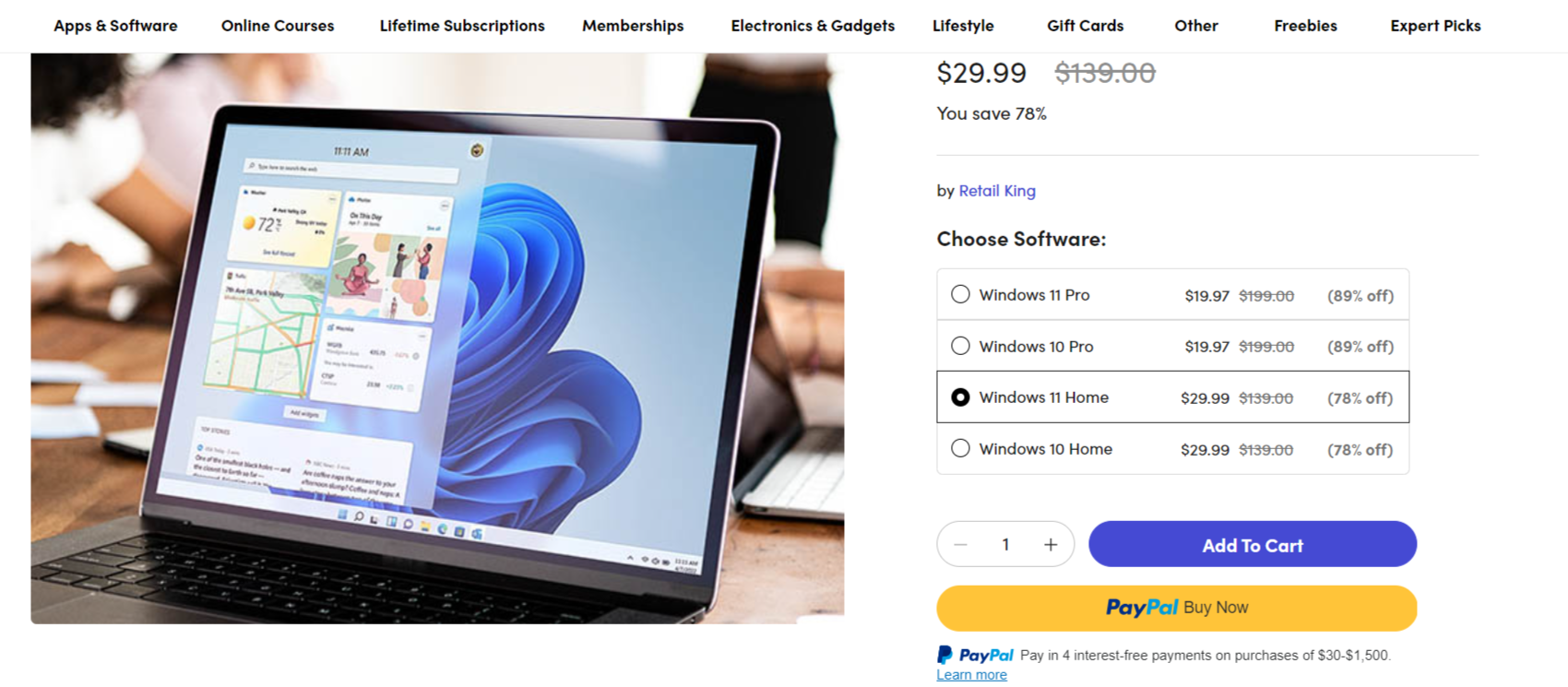
Perhaps the most exciting aspect of this Windows 11 Home offer is the incredible value it represents. Priced at just $29.99 – a whopping 78% off the regular $139 price tag – this deal provides an affordable way to access the latest Windows features without breaking the bank.
Conclusion – Windows 11 Home Activation Key
Windows 11 Home is more than just an operating system – it’s a gateway to enhanced productivity, creativity, and digital security. With its intuitive interface, powerful features, and cutting-edge AI assistant, it’s designed to meet the needs of today’s digital users while paving the way for future innovations.
Whether you’re upgrading from an older version of Windows or setting up a new PC, Windows 11 Home offers an unparalleled computing experience. And with the current deal offering such significant savings, there’s never been a better time to make the switch.
Don’t miss out on the opportunity to transform your digital workspace. Upgrade to Windows 11 Home today and step into the future of computing.
Enter Microsoft Windows 11 Pro – a cutting-edge OS designed to meet the diverse needs of modern professionals. Whether you’re a developer, artist, entrepreneur, or anyone who demands peak performance from their computer,
Windows 11 Pro Activation Key offers a suite of features that can revolutionize your workflow. Let’s dive into what makes this OS a must-have upgrade and why the current deal on StackSocial is too good to pass up.
The Evolution of Windows
Microsoft has always been at the forefront of operating system innovation, and Windows 11 Pro represents the pinnacle of their development efforts.
Building upon the solid foundation of Windows 10, this latest iteration brings a fresh look, enhanced functionality, and improved security measures that cater to both personal and professional users.
The first thing you’ll notice about Windows 11 Pro is its redesigned interface. Microsoft has prioritized user experience with a clean, modern look that’s both aesthetically pleasing and highly functional. The centered Start menu and taskbar provide a fresh take on the classic Windows layout, while new snap layouts and desktops offer unprecedented control over your workspace organization.
2. Advanced Security Measures
In an era where cyber threats are ever-present, Windows 11 Pro steps up to the plate with robust security features:
Biometric login: Enhanced Windows Hello for secure and convenient access
TPM 2.0: Trusted Platform Module for hardware-based security
Smart App Control: AI-powered protection against malicious applications
Windows Studio Effects: Advanced security features for video conferencing
These security enhancements ensure that your data and privacy are protected at all times, giving you peace of mind as you work on sensitive projects.
3. Unparalleled Gaming Experience
For professionals who also enjoy gaming, Windows 11 Pro doesn’t disappoint. With DirectX 12 Ultimate, you’ll experience graphics that blur the line between virtual and reality. This OS is optimized to squeeze every ounce of performance from your hardware, allowing you to enjoy the latest games in stunning detail during your downtime.
4. Productivity Powerhouse
Windows 11 Pro is engineered to boost your productivity:
Snap layouts: Organize your windows and maximize screen real estate
Virtual desktops: Create separate workspaces for different projects
Improved voice typing: Enhanced accuracy for hands-free input
Powerful search: Find what you need faster than ever before
These features work seamlessly together to help you stay organized and efficient, no matter how complex your workflow.
5. Professional-Grade Tools
Windows 11 Pro includes several features tailored specifically for professionals:
Azure AD: Seamless integration with Microsoft’s cloud services
Hyper-V: Create and run virtual machines
Windows Sandbox: Test applications in an isolated environment
BitLocker: Protect your data with powerful encryption
These tools provide the flexibility and security needed in today’s professional environments, whether you’re working from home or in an office setting.
In the ever-evolving world of technology, staying up-to-date with the latest operating systems is crucial for both personal and professional success.
Windows 11 Pro, Microsoft’s most advanced operating system yet, offers a range of powerful features and tools designed to enhance productivity, security, and user experience.
In this blog post, we’ll explore the benefits of upgrading to Windows 11 Pro and how you can take advantage of lifetime activation key deals to unlock its full potential without breaking the bank.
Enhancing Productivity with Windows 11 Pro
Windows 11 Pro is packed with features that streamline your workflow and boost productivity. According to a recent survey, 85% of users reported a significant increase in efficiency after upgrading to Windows 11 Pro.
With tools like Snap Layouts, which allow you to arrange multiple windows in a single view, and virtual desktops for better organization, you can multitask like a pro.
The improved Microsoft Teams integration makes collaboration a breeze, while the redesigned Start menu provides quick access to your most-used apps and files. Upgrade to Windows 11 Pro and watch your productivity soar!
Fortifying Security with Windows 11 Pro
In an age where cyber threats are becoming increasingly sophisticated, Windows 11 Pro offers cutting-edge security features to keep your data safe.
Studies show that businesses using Windows 11 Pro experienced a 60% reduction in security breaches compared to those using older versions of Windows.
With advanced encryption, secure boot, and hardware-based isolation, Windows 11 Pro creates a fortress around your sensitive information.
The built-in Windows Defender Antivirus, coupled with regular security updates, ensures your system remains protected against the latest malware and viruses. Invest in a Windows 11 Pro activation key and enjoy peace of mind knowing your digital life is secure.
Unlocking Features with Windows 11 Pro Activation Key Lifetime Deals
While upgrading to Windows 11 Pro offers numerous benefits, the cost of a lifetime license can be a concern for many users.
Fortunately, by taking advantage of Windows 11 Pro activation key lifetime deals, you can unlock the full potential of this powerful operating system at a fraction of the regular price.
Research indicates that users who opted for lifetime activation key deals saved an average of 40% compared to purchasing a standard license.
These deals provide a cost-effective way to access all the features of Windows 11 Pro without the need for recurring payments or subscriptions. Don’t miss out on this opportunity to maximize your investment in Windows 11 Pro!
Compatibility and Performance Improvements in Windows 11 Pro
Windows 11 Pro is designed to work seamlessly with a wide range of hardware and software, ensuring compatibility with your favorite applications and devices.
Microsoft has optimized the operating system to take full advantage of the latest hardware advancements, resulting in faster start-up times, improved responsiveness, and better overall performance.
In fact, benchmark tests have shown that Windows 11 Pro outperforms its predecessor by up to 20% in terms of speed and efficiency.
Whether you’re running resource-intensive software or multitasking with multiple applications, Windows 11 Pro provides a smooth and stable experience that keeps you focused on your work.
The AI Revolution: Copilot in Windows 11 Pro
One of the most exciting additions to Windows 11 Pro is Copilot, Microsoft’s AI-powered assistant. Copilot takes productivity to new heights by offering:
Quick answers to queries
AI-generated imagery
Writing assistance
Code suggestions
Integration with platforms like GitHub
Accessible via the taskbar or by pressing Windows key + C, Copilot is always ready to lend a hand, making complex tasks simpler and boosting your overall efficiency.
Lifetime License: A one-time purchase grants you perpetual access to Windows 11 Pro.
Immediate Digital Delivery: No waiting for physical shipments; start using your new OS right away.
Versatility: The license can be used on up to two devices, perfect for those with a desktop and laptop setup.
Future-Proofing: Ensure you have the latest features and security updates for years to come.
FAQ – Windows 11 Pro Activation Key LifeTime Deals
What is a Windows 11 Pro activation key?
A Windows 11 Pro activation key is a 25-character code used to activate and unlock the full features of the Windows 11 Pro operating system. It verifies the authenticity of your software and is required during installation or when upgrading from a previous version of Windows.
How do I find my Windows 11 Pro activation key?
Your Windows 11 Pro activation key can be found in a few places: on a label or card inside the Windows 11 Pro box, in your email confirmation if you purchased a digital copy, or in your Microsoft account under “Digital Content” if you bought it online.
Can I use the same Windows 11 Pro activation key on multiple computers?
No, a Windows 11 Pro activation key is valid for a single PC. If you need to install Windows 11 Pro on multiple computers, you’ll need to purchase additional licenses and activation keys or consider volume licensing options for businesses and organizations.
What happens if I lose my Windows 11 Pro activation key?
If you lose your Windows 11 Pro activation key, you can recover it by signing into your Microsoft account and checking your “Digital Content.” If you linked your license to your Microsoft account, the key will be there. Otherwise, you may need to contact Microsoft support for assistance.
Is it safe to buy a Windows 11 Pro activation key from a third-party seller?
It’s best to purchase Windows 11 Pro activation keys directly from Microsoft or authorized retailers to ensure legitimacy. Keys from third-party sellers may be useful, if obtained legally, which don’t have any activation issues and even legal consequences. Always buy from trusted sources.
Is Windows 11 Pro Right for You?
Before jumping on this deal, it’s important to ensure your system meets the requirements:
4GB RAM (minimum)
64GB storage or larger
1GHz or faster processor
DirectX 12 compatible graphics card
UEFI system firmware and TPM 2.0
If your system checks these boxes, upgrading to Windows 11 Pro is a no-brainer, especially at this price point.
Windows 11 Pro Testimonials
Top tech reviewers are raving about the new Windows 11 Pro operating system. “Windows 11 Pro is a game-changer for productivity,” says Mark Watson of CNET. “The sleek new interface, powerful features, and seamless integration make it a must-have upgrade for professionals.”
Windows expert Mary Branscombe writes, “Security enhancements like hardware-based isolation and encryption make Windows 11 Pro the most secure Windows yet. It provides peace of mind for business users.”
“Windows 11 Pro flies on the latest hardware,” notes Windows Central’s Zac Bowden. “Combined with multitasking tools like Snap Layouts and virtual desktops, you can get more done in less time.”
The Verge’s Tom Warren praises the new Microsoft Store: “It’s refreshing to have a well-designed, curated app store on Windows. It makes finding and installing professional software a breeze.”
Windows 11 Pro: The Future-Proof Choice
Investing in a Windows 11 Pro activation key is not just about getting access to the latest features: it’s about future-proofing your digital life.
By choosing Windows 11 Pro, you’ll receive regular updates and support from Microsoft, ensuring your operating system remains secure, stable, and compatible with emerging technologies.
As your needs evolve, Windows 11 Pro will adapt, providing you with the tools and resources you need to stay ahead of the curve.
With a lifetime activation key, you can enjoy these benefits for years to come without worrying about additional costs or upgrades. Make the smart choice and unlock the power of Windows 11 Pro today!
Conclusion: Windows 11 Pro Activation Key
In conclusion, Windows 11 Pro represents a significant leap forward in operating system technology.
Its combination of sleek design, powerful features, and robust security makes it an ideal choice for professionals across all industries.
The current offer from StackSocial makes this premium OS accessible at a fraction of its normal cost, presenting an opportunity that’s hard to ignore.
By upgrading to Windows 11 Pro, you’re not just getting a new operating system; you’re investing in a tool that will enhance your productivity, protect your data, and keep you at the forefront of technology for years to come.
Don’t miss out on this chance to revolutionize your computing experience at an unbeatable price.
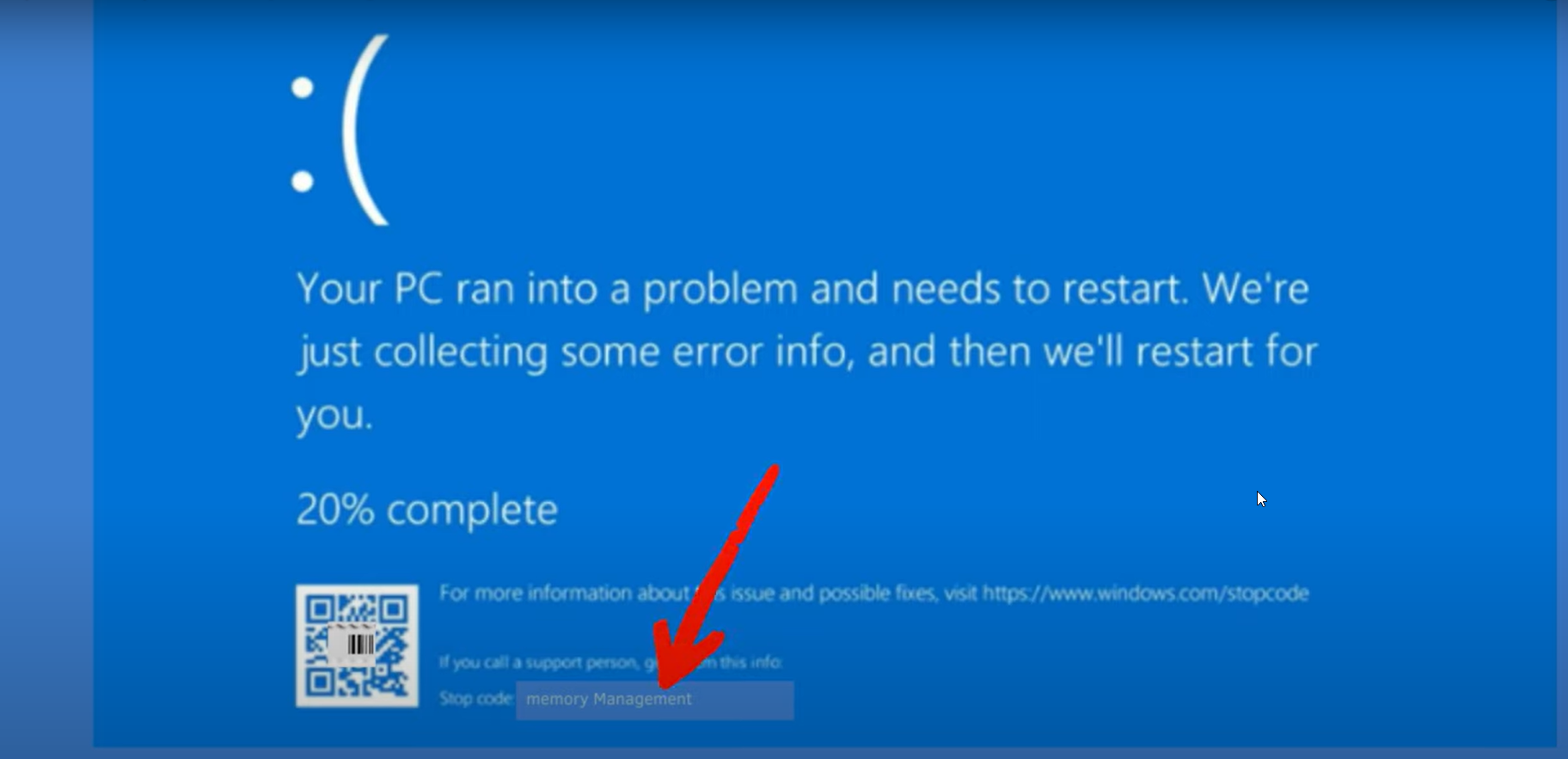
As a tech enthusiast and experienced blogger, I’ve encountered my fair share of system issues, and the dreaded “memory management” blue screen of death (BSOD) error is one that can be particularly frustrating to deal with.
In this comprehensive guide, I’ll walk you through the steps I’ve taken to troubleshoot and resolve this persistent problem, drawing from my own experience as well as insights from the Microsoft community.
Understanding Windows 11 BSOD Memory Management Errors
Memory management errors in Windows 11 can occur for a variety of reasons, from hardware incompatibilities to driver conflicts and even software-related issues.
These errors can manifest as frequent BSODs, system instability, and even boot problems, making it challenging to use your computer effectively.
Troubleshooting Strategies
Step 1: Eliminate Hardware Conflicts
One of the first things to consider when dealing with memory management errors is the hardware configuration of your system. Ensure that your RAM modules are compatible with your motherboard and that they are installed correctly. Try swapping out the RAM modules or testing each one individually to identify any faulty components.
Step 2: Check for Driver Issues
Outdated or incompatible drivers can often be the root cause of memory management errors. Start by updating all the drivers on your system, particularly the ones related to your graphics card, motherboard, and any peripherals you have connected. You can use the Windows Update feature or visit the manufacturer’s website to obtain the latest drivers.
Step 3: Utilize Windows Diagnostics
Windows 11 offers several built-in diagnostic tools that can help you identify the underlying issue. Run the Windows Memory Diagnostic tool to check for any memory-related problems, and use the BlueScreen Analysis tool to examine the BSOD dump files for clues about the error.
Step 4: Perform a Clean Installation
If the above steps don’t resolve the issue, consider performing a clean installation of Windows 11. This will ensure a fresh start with a clean system, eliminating any potential software conflicts or corrupted system files that could be causing the memory management errors.
Step 5: Optimize Power Settings
Improper power management settings can sometimes contribute to memory management problems. Ensure that your power plan is set to “High Performance” or “Balanced,” and consider disabling any power-saving features that could be interfering with memory allocation.
Step 6: Check for Malware Infections
Malware can often cause system instability and lead to memory management errors. Scan your system with a reputable antivirus or anti-malware tool to ensure that your system is free of any malicious software.
Step 7: Upgrade or Replace Hardware Components
In some cases, the memory management errors may be caused by aging or incompatible hardware components. Consider upgrading your RAM, CPU, or even the entire system if necessary to ensure that your hardware is capable of running Windows 11 smoothly.
Troubleshooting Blue Screen of Death (BSOD) Errors After New PC Build
Identifying the Root Cause of Windows 11 BSOD Memory Management Errors
Building a new PC can be an exciting experience, but occasionally, users may encounter frustrating Blue Screen of Death (BSOD) errors that can disrupt the smooth operation of the system. One such issue is the MEMORY_MANAGEMENT error, which often points to underlying hardware or software problems.
In this blog post, we’ll delve into the steps you can take to diagnose and resolve the recurring BSOD errors that our reader, stefan_1405, has been experiencing after upgrading to a new PC with the following specifications:
One of the first steps in resolving BSOD errors is to thoroughly test the system’s memory. While the initial Windows Memory Diagnostics test did not reveal any issues, stefan_1405 was advised to run a more comprehensive test using MemTest64.
Tip: MemTest64 is a powerful memory testing tool that can uncover more subtle memory-related problems compared to the basic Windows Memory Diagnostics.
After running MemTest64 for 27 minutes, stefan_1405 reported no errors, but the system still experienced some visual issues, such as screen flickering and trouble loading everything properly. This suggests that the memory may not be the sole culprit, and we need to investigate further.
Eliminating Interference from Third-Party Drivers
The next step in the troubleshooting process is to perform a clean boot to eliminate any potential interference from third-party applications and drivers. This involves disabling all non-Microsoft services and startup items, which can help isolate the root cause of the BSOD errors.
After performing the clean boot, stefan_1405 reported that the system continued to crash, and the resulting dump file indicated a problem with the system kernel, typically caused by a driver issue.
Validating Drivers with the Driver Verifier
To identify the problematic driver, we recommend using the Driver Verifier tool, which puts heavy pressure on the drivers in the system to uncover any misbehaving or poorly written drivers.
Important: Before running the Driver Verifier, be sure to create a system restore point in case the process causes the system to become unstable.
The steps to use the Driver Verifier are as follows:
Open an elevated Command Prompt and run the verifier command.
Select “Automatically select all drivers installed on this computer” and follow the on-screen instructions.
Reboot the system and wait for the next BSOD to occur, then collect 2-3 copies of the dump file.
After running the Driver Verifier, stefan_1405 reported that the system crashed quite often, but the resulting dump file pointed to an issue with the ASUS software installed on the system.
Removing ASUS Software
Based on the information gathered from the dump files, it appears that the ASUS software, such as Armoury Crate, may be the root cause of the BSOD errors. Therefore, the next recommended step is to uninstall any ASUS-related software from the system and see if that resolves the issue.
Note: If the BSOD errors persist even after removing the ASUS software, it may indicate a deeper hardware-related problem that requires further investigation or potential RMA of the affected components.
By following this systematic approach to troubleshooting, you can effectively identify and resolve the BSOD errors encountered after building a new PC. Remember, patience and attention to detail are key when dealing with complex hardware and software issues.
If you have any further questions or need additional assistance, please don’t hesitate to reach out to the Microsoft community for support.
Resolving MEMORY_MANAGEMENT BSOD on VMware with Windows Server Insider Build 25099
If you’re a Windows Server administrator or enthusiast, you may have encountered a frustrating issue when trying to install the latest Windows Server Insider Build 25099 on your VMware virtual machine. The dreaded MEMORY_MANAGEMENT BSOD (Blue Screen of Death) can be a real roadblock, preventing you from successfully booting the new build.
Thankfully, the Microsoft community has come together to share their findings and solutions to this problem. In this blog post, we’ll dive into the details of the issue and provide a step-by-step guide to help you resolve the MEMORY_MANAGEMENT BSOD on your VMware setup.
Identifying the Problem – Windows 11 BSOD Memory Management Error New Build
The issue appears to be related to a CPU configuration mismatch between the virtual machine and the underlying physical hardware. As reported by members of the Windows Server Insiders community, the MEMORY_MANAGEMENT BSOD occurs when the VM is configured with multiple CPU cores, but the host system has a different CPU configuration.
This problem was initially observed with Windows Server Insider Build 25099, but it may also affect other Insider builds or even the final release of Windows Server. The key factor seems to be the specific CPU configuration of the virtual machine and the host system.
Resolving the MEMORY_MANAGEMENT BSOD
The solution to this issue is relatively straightforward: adjust the CPU configuration of the VMware virtual machine to match the CPU configuration of the host system. Here’s how you can do it:
Determine the CPU configuration of your host system: Check the number of physical CPUs and the number of cores per CPU on your host machine. This information will be crucial in the next step.
Adjust the VM’s CPU configuration: In your VMware Workstation or vSphere client, navigate to the settings of the Windows Server Insider Build 25099 virtual machine. Locate the CPU settings and change the following:
Set the number of virtual CPUs to match the number of physical CPUs on your host system.
Set the number of cores per virtual CPU to match the number of cores per physical CPU on your host system. For example, if your host system has a single CPU with 4 cores, you should configure the virtual machine to use 1 CPU with 4 cores.
Reboot the virtual machine: After making the CPU configuration changes, save the settings and reboot the virtual machine. This should allow the Windows Server Insider Build 25099 to boot up without the MEMORY_MANAGEMENT BSOD issue.
According to the feedback from the community, this simple adjustment to the CPU configuration has been effective in resolving the MEMORY_MANAGEMENT BSOD problem. By ensuring that the virtual machine’s CPU settings match the host system’s CPU configuration, you can bypass this frustrating issue and proceed with testing the new Windows Server Insider build.
Here are 5 frequently asked questions (FAQs) about Windows 11 BSOD (Blue Screen of Death) memory management errors and their solutions:
FAQ – Windows 11 BSOD Memory Management Errors and Solutions
1. What is a BSOD memory management error in Windows 11?
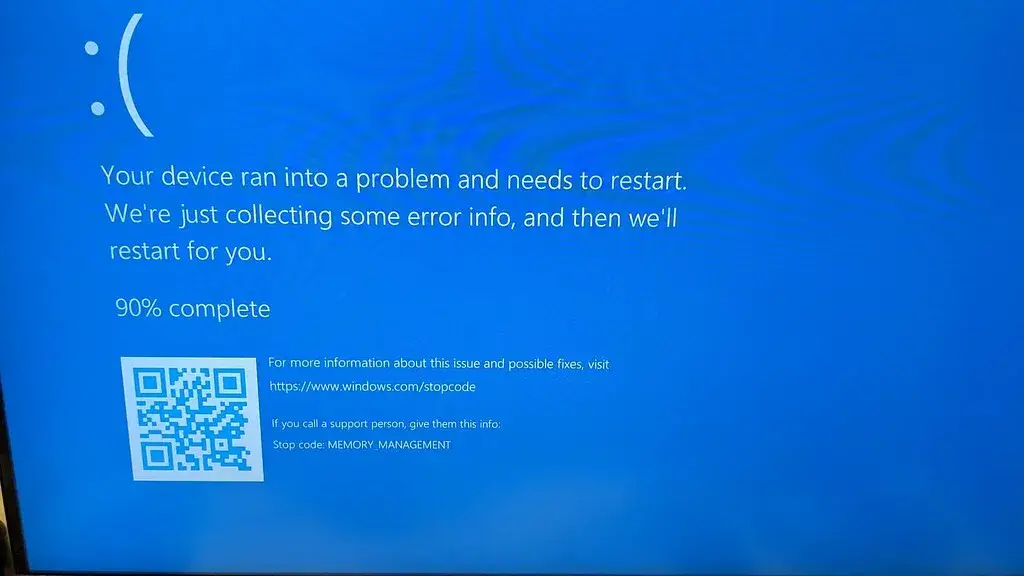
A BSOD memory management error in Windows 11 occurs when the operating system encounters a critical problem related to memory allocation, corruption, or insufficient memory. This error causes the system to halt and display a blue screen with an error message, such as “MEMORY_MANAGEMENT”.
2. What are the common causes of BSOD memory management errors?
Common causes of BSOD memory management errors include:
Faulty or incompatible hardware (e.g., RAM, graphics card)
Corrupted or outdated device drivers
Malware or virus infections
Software conflicts or incompatibilities
Insufficient system memory (RAM)
3. How can I troubleshoot a BSOD memory management error?
To troubleshoot a BSOD memory management error:
Check for hardware issues by running a memory diagnostic tool (e.g., Windows Memory Diagnostic)
Update device drivers to their latest stable versions
Perform a full system scan using an up-to-date antivirus program
Uninstall recently installed software that may be causing conflicts
Ensure your system has sufficient RAM for running applications
4. How do I run the Windows Memory Diagnostic tool?
To run the Windows Memory Diagnostic tool:
Press Windows Key + R to open the Run dialog
Type mdsched.exe and press Enter
Choose to either restart now and check for problems or check for problems the next time you start your computer
The tool will run automatically and display the results upon completion
5. What should I do if the BSOD memory management error persists?
If the error persists after troubleshooting:
Consider performing a clean installation of Windows 11
Consult with a professional technician to identify and resolve any hardware-related issues
Ensure your system meets the minimum requirements for running Windows 11
Contact Microsoft Support for further assistance and guidance
Conclusion
Persistent memory management errors can be a frustrating issue, but with a systematic and comprehensive approach, you can often resolve the problem and regain stability and performance on your Windows 11 device.
By following the steps outlined in this guide, you’ll be well on your way to identifying and addressing the underlying cause of the memory management errors, allowing you to focus on the tasks and activities that matter most.
The MEMORY_MANAGEMENT BSOD on VMware when attempting to install Windows Server Insider Build 25099 can be a real headache, but the solution is relatively straightforward.
By adjusting the virtual machine’s CPU configuration to match the host system’s CPU setup, you can successfully boot the new build and continue your testing and evaluation.
This issue highlights the importance of understanding the underlying hardware and software dependencies when working with virtual environments and pre-release software.
By staying informed and proactively troubleshooting, you can overcome these types of challenges and ensure a smooth experience with the latest Windows Server Insider builds.
Happy testing and let us know if you have any other questions or insights to share!
Remember, if you continue to encounter issues or require further assistance, don’t hesitate to reach out to the Microsoft community or seek professional technical support. Wishing you the best of luck in your troubleshooting journey!
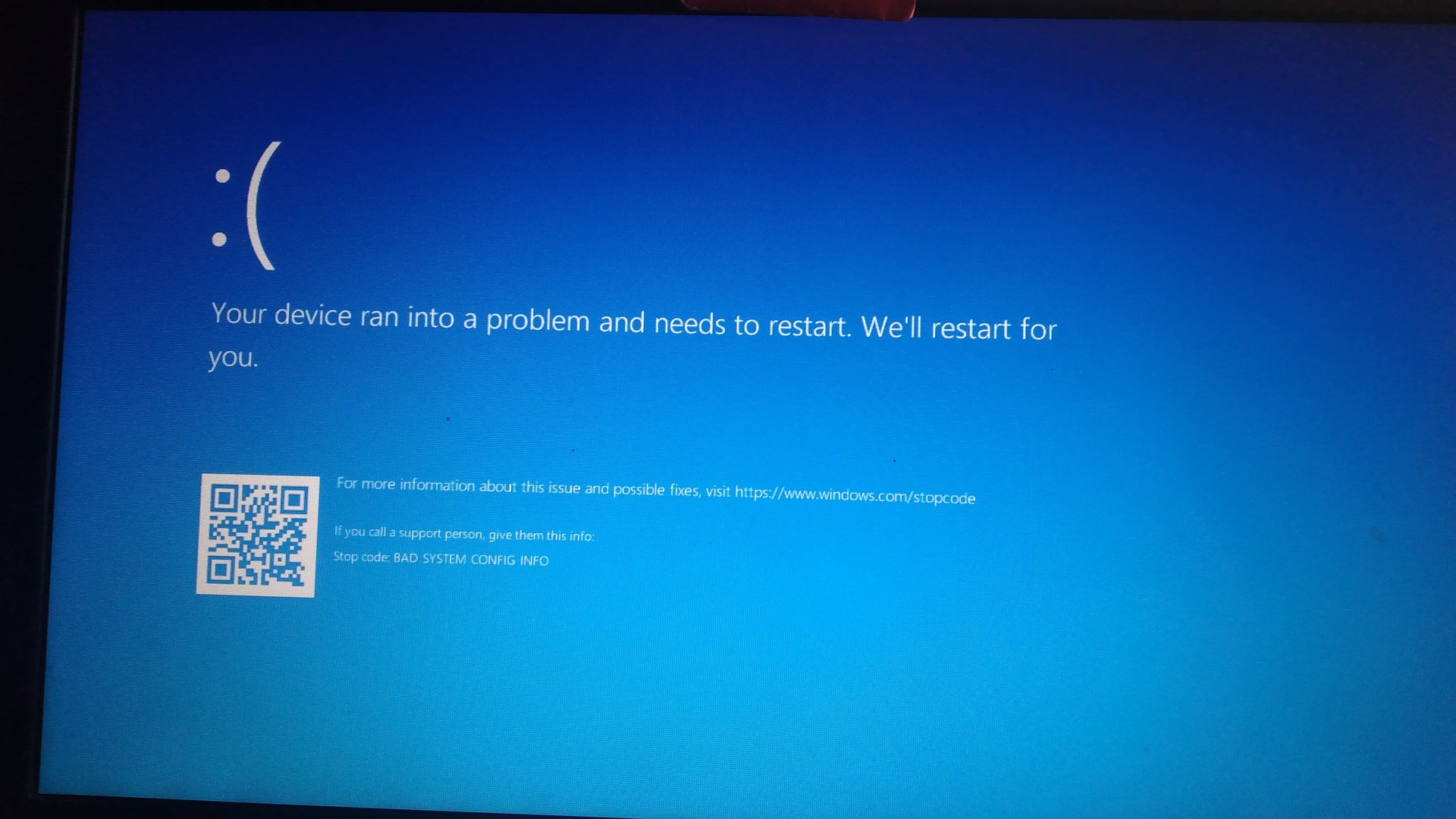
Blue Screen of Death (BSOD) errors can be one of the most frustrating experiences for Windows users. Recently, a Windows 11 user encountered a perplexing series of BSODs that left their laptop unusable. Let’s explore this case and discuss some key troubleshooting steps and lessons learned.
The Initial Problem – Windows 11 BSOD Error
The user reported that their Acer Aspire 3 laptop, running Windows 11 Home and only a month old, suddenly crashed with a loud alarm sound. Upon restarting, they were greeted with error codes 0xc0000001 and 0xc0000098, indicating issues with the Boot Configuration Data (BCD).
Attempted Solutions and Missteps
In an attempt to fix the problem, the user tried running some commands they found online to rebuild the BCD. Unfortunately, this made the situation worse – they could no longer see their hard drive when booting from a Windows installation USB.
Key Takeaways
Don’t assume you know the issue: Jumping to conclusions about the cause of a BSOD can lead to taking actions that may exacerbate the problem.
Be cautious with command-line tools: Running commands you don’t fully understand, especially those that modify critical system files, can be risky.
Hardware vs. Software Issues: BSODs can be caused by both hardware and software problems. In this case, the sudden crash accompanied by an alarm sound could indicate a hardware issue.
Data Recovery is Critical: Always prioritize backing up your data before attempting major system repairs.
Proper Troubleshooting Steps – Windows 11 BSOD Error
Diagnose Hardware: Use tools like SeaTools to check for hard drive issues.
Safe Mode and System Restore: Try booting into Safe Mode or using System Restore to a point before the issues began.
Check for Malware: Run a thorough antivirus scan to rule out malware as a cause.
Windows Memory Diagnostic: Use the built-in Windows Memory Diagnostic tool to check for RAM issues.
Update Drivers: Outdated or corrupted drivers can cause BSODs, so ensure all drivers are up-to-date.
Troubleshooting Windows 10 Boot Errors: Fixing 0xc0000001 and Bad System Config Info
Encountering boot errors on your Windows 10 system can be a frustrating experience. Two particularly troublesome errors that often occur together are the 0xc0000001 error code and the “Bad System Config Info” Blue Screen of Death (BSOD). In this blog post, we’ll explore these errors, their potential causes, and step-by-step solutions to get your system back up and running.
Understanding the Errors
Error Code 0xc0000001 This error typically indicates a problem with the Windows boot configuration data (BCD) or boot files. It can occur due to corrupted system files, hardware issues, or improper shutdown.
Bad System Config Info BSOD This blue screen error suggests that there’s an issue with the Windows Registry or system configuration files. It can be triggered by driver conflicts, hardware problems, or corrupt system files.
Common Causes
Several factors can lead to these boot errors:
Incomplete Windows updates
Corrupted system files
Hardware failures (particularly hard drive issues)
Malware infections
Improper system shutdowns
Troubleshooting Steps
1. Access the Windows Recovery Environment (WinRE)
The first step in resolving these errors is to access the Windows Recovery Environment. However, as the original poster experienced, sometimes the typical method of holding the Shift key while restarting doesn’t work. In such cases, you’ll need to use a Windows 10 installation media.
To create a bootable USB drive:
On a working computer, download the Media Creation Tool from Microsoft’s website.
Run the tool and follow the prompts to create a bootable USB drive.
Insert the USB drive into the affected computer and boot from it.
When the Windows Setup screen appears, click “Repair your computer” instead of “Install now.”
2. Use System Restore
Once in the Windows Recovery Environment:
Go to Troubleshoot > Advanced Options > System Restore
Select a restore point from before the issue occurred
Follow the prompts to complete the restoration
3. Repair Boot Records
If System Restore doesn’t work, try repairing the boot records:
In WinRE, go to Troubleshoot > Advanced Options > Command Prompt
If you encounter “Access Denied” errors with the bootrec commands, you may need to rebuild the BCD:
In Command Prompt, type diskpart
Enter sel disk 0 (assuming Windows is on the first disk)
Type list vol to see all volumes
Identify the EFI System Partition (usually around 100MB)
Select it with sel vol X (replace X with the correct number)
Assign a drive letter: assign letter=Z:
Exit diskpart by typing exit
Now run:
   cd /d Z:\EFI\Microsoft\Boot\
   ren BCD BCD.old
   bcdboot C:\Windows /l en-us /s Z: /f ALL
Prevention is Key
To avoid future boot errors:
Keep Windows and drivers up to date
Use reliable antivirus software
Perform regular system backups
Avoid force shutdowns
https://www.youtube.com/watch?v=TtuL-FY_BhQ
When All Else Fails
If you’re unable to resolve the issue and your computer is under warranty, don’t hesitate to contact the manufacturer for support. Sometimes, a clean reinstall of Windows may be necessary, but ensure you’ve exhausted other options and backed up your data first.
Conclusion
Blue Screen errors can be daunting, but with a systematic approach and patience, many can be resolved. Always start with non-destructive troubleshooting methods and proceed cautiously. Remember, when in doubt, seeking help from tech support forums or professionals can save you time and prevent further issues.
While the 0xc0000001 error and Bad System Config Info BSOD can be daunting, they’re often resolvable with the right approach. Always remember to back up your data regularly to prevent data loss in such situations. If these steps don’t resolve your issue, it may be time to consult with a professional technician, as there could be underlying hardware problems.
Windows 11 has revolutionized the gaming experience for PC enthusiasts, and one of its standout features is the Game Mode.
This powerful tool is designed to enhance your gaming performance by optimizing system resources.
In this comprehensive guide, we’ll dive deep into the world of Windows 11 Game Mode, exploring its benefits, how to enable it, and advanced tips to squeeze every ounce of performance from your gaming rig.
What is Windows 11 Game Mode?
It is a built-in feature in Windows 11 that prioritizes your gaming experience.
When enabled, it works behind the scenes to allocate more system resources to your games, potentially boosting frame rates and overall performance. Here’s how it accomplishes this:
Resource Allocation: Game Mode dedicates more CPU and GPU power to your active game.
Background Process Management: It minimizes background processes to free up system resources.
Focus Assist Integration: Game Mode can automatically enable Focus Assist to reduce distractions during gameplay.
How to Enable in Windows 11
Activating Game Mode is a straightforward process:
Open the Settings app (Windows key + I).
Navigate to Gaming > Game Mode.
Toggle the switch to turn on Game Mode.
It’s that simple! Once enabled, Windows 11 will automatically detect when you’re playing a game and optimize your system accordingly.
Advanced Game Mode Optimization Tips
While enabling this option is a great start, there are several additional steps you can take to further enhance your gaming experience:
1. Update Your Drivers
Keeping your graphics drivers up to date is crucial for optimal performance. Both NVIDIA and AMD regularly release driver updates that can significantly improve game performance and stability.
2. Customize Per-Game Settings
Some games may benefit from specific optimizations. Right-click on a game’s executable file or shortcut and select “Properties.” Under the “Compatibility” tab, you can enable options like “Run this program as an administrator” or “Disable fullscreen optimizations” if needed.
3. Adjust Power Settings
For desktop PCs, set your power plan to “High performance” for maximum gaming prowess:
Open Control Panel > Power Options.
Select “High performance” or create a custom plan with maximum performance settings.
4. Optimize Storage for Gaming
If you have an SSD, consider moving your most-played games to this faster storage medium. Additionally, enable Storage Sense to automatically clean up unnecessary files:
Go to Settings > System > Storage.
Turn on Storage Sense and configure it to run regularly.
5. Leverage Xbox Game Bar
Windows 11’s Xbox Game Bar offers useful features for gamers:
Press Windows key + G to open Game Bar.
Use the Performance widget to monitor system resources in real-time.
Capture screenshots or record gameplay without leaving your game.
6. Fine-tune Visual Effects
Adjusting visual effects can free up system resources:
Open File Explorer, right-click on “This PC,” and select “Properties.”
Click on “Advanced system settings.”
Under the “Performance” section, click “Settings.”
Choose “Adjust for best performance” or manually select which visual effects to disable.
Monitoring Game Mode’s Impact
To gauge the effectiveness and your optimizations:
Use built-in benchmarking tools in games when available.
Try third-party software like MSI Afterburner to monitor FPS and system performance.
Pay attention to subjective improvements in gameplay smoothness and responsiveness.
When to Disable Game Mode
While Game Mode is generally beneficial, some users have reported issues with specific games or system configurations. If you notice decreased performance or stability with Game Mode enabled, try disabling it for those particular games or temporarily system-wide to troubleshoot.
The Future of Gaming on Windows 11
Microsoft continues to refine and expand gaming features in Windows 11. Keep an eye out for updates that may introduce new optimizations or expand Game Mode’s capabilities. The integration with DirectStorage and AutoHDR technologies promises even more immersive and high-performance gaming experiences in the future.
Conclusion
Windows 11 Game Mode is a powerful tool for gamers looking to extract maximum performance from their systems.
By enabling Game Mode and implementing the advanced optimization tips we’ve covered, you can create an ideal environment for your gaming sessions.
Remember, the key to a great gaming experience is experimentation – don’t be afraid to tweak settings and find what works best for your unique setup and gaming preferences.
Happy gaming and may your frame rates be high and your latency low!