Having the latest drivers for all your hardware is key for maximum performance and stability on a Windows PC. But updating drivers one by one is tedious and time-consuming. In this post, we provide a foolproof guide to updating all device drivers at the same time using the best driver updater tools.
Why Update All Drivers Simultaneously?
Mass updating all drivers together versus individually has some key advantages:
Saves huge amounts of time and effort compared to manual updates.
Ensures device drivers get updated without missing any.
Avoids potential conflicts from incremental driver updates.
Often fixes many device problems/errors in one go.
Requires just a single system restart to complete the process.
As long as you use reputable driver update software, updating all drivers in bulk is safe, convenient and straightforward.
Best Driver Updater Tools
Specialized driver updater utilities automate the process of detecting and mass updating outdated or broken drivers. The top options include:
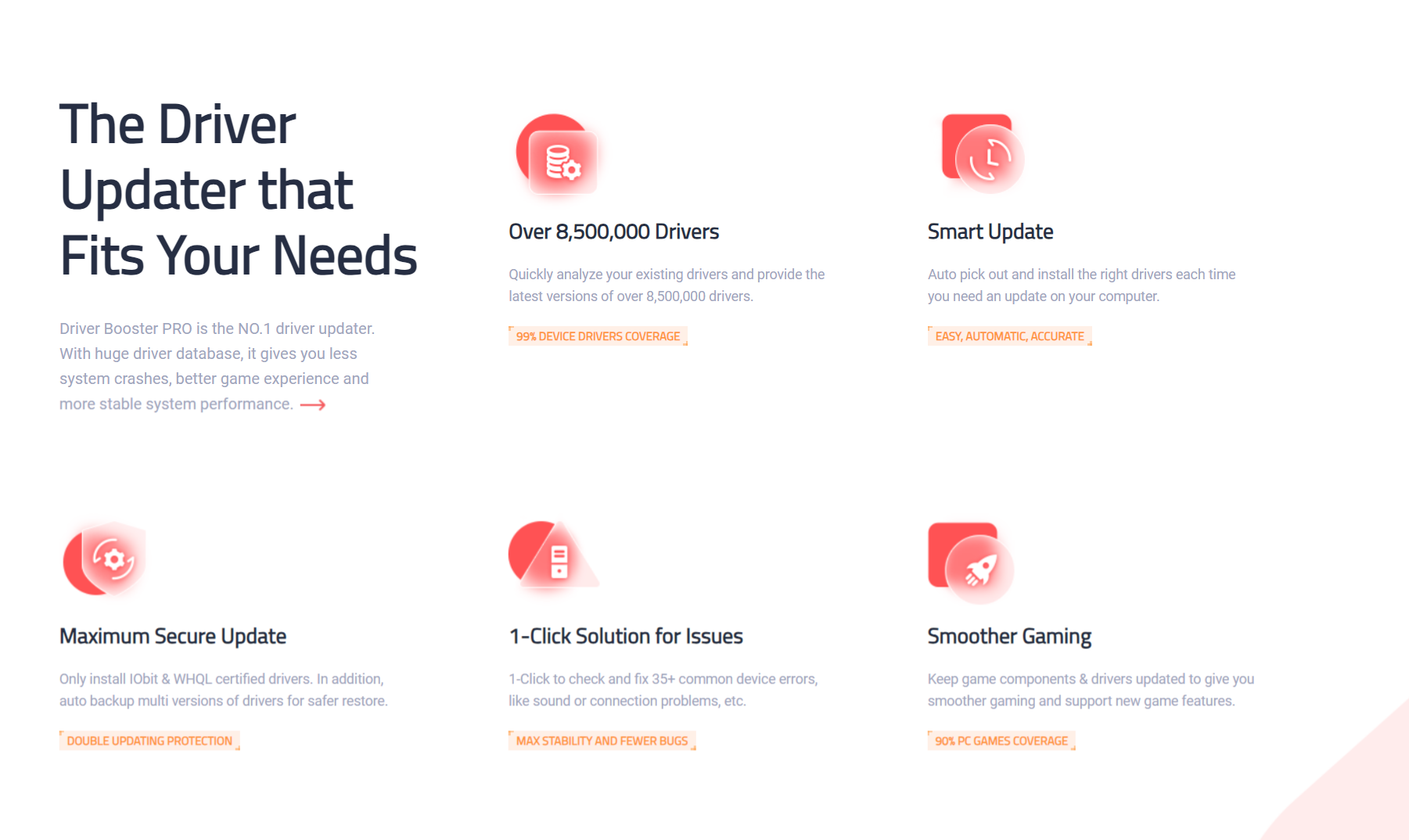
IObit Driver Booster – Most popular driver updater with 4,500,000+ driver database.
SlimWare Utilities – Lightweight program with broad driver support.
Tweakbit PCRepairKit – All-in-one system optimizer with driver updating.
Auslogics Driver Updater – User-friendly interface for beginners.
These tools make updating all drivers at once easy with a few clicks.
Step-By-Step Instructions
Follow these simple steps to bulk update drivers using driver updater software:
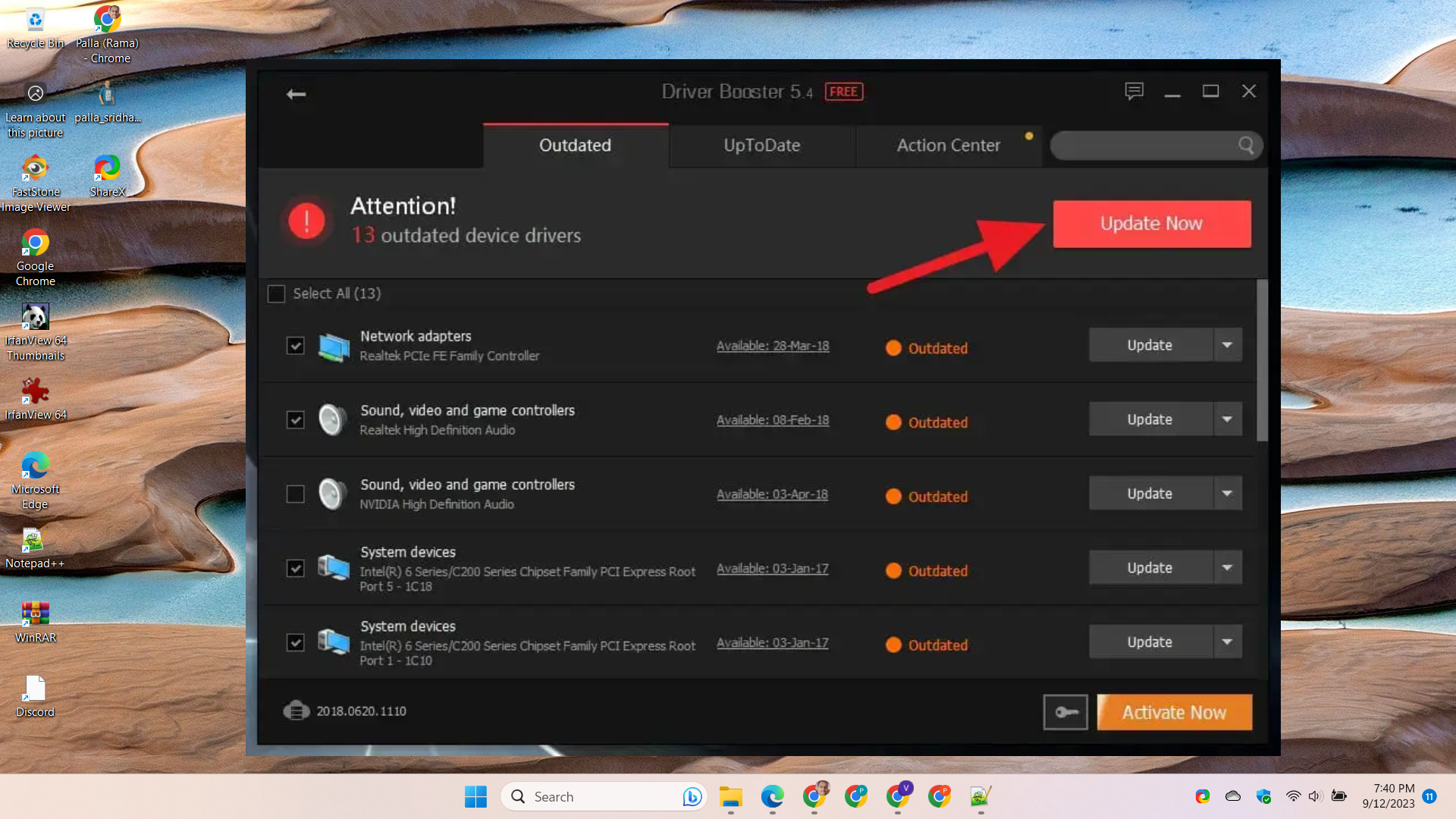
Download and install an updater tool like Driver Booster.
Open the program and click Scan to detect outdated drivers.
Check the list and click Update All to bulk upgrade drivers.
Restart your PC when prompted to complete installation.
Verify updated driver versions in Device Manager.
That’s all there is to it! Keeping drivers updated with specialized tools is easy and hassle-free.
How to Update Device Drivers at once in Windows 11
Here are the steps to update all device drivers at once in Windows 11:
Open Windows Update settings (Settings > Windows Update).
Click on “Check for updates“. Windows will look for any available driver and Windows updates.
On the Windows Update screen, click “Download and install now” to download all pending driver and software updates.
Once the downloads complete, click “Restart now” to install the updates. Restarting is required to finalize driver installations.
An alternative is to use Device Manager to update drivers:
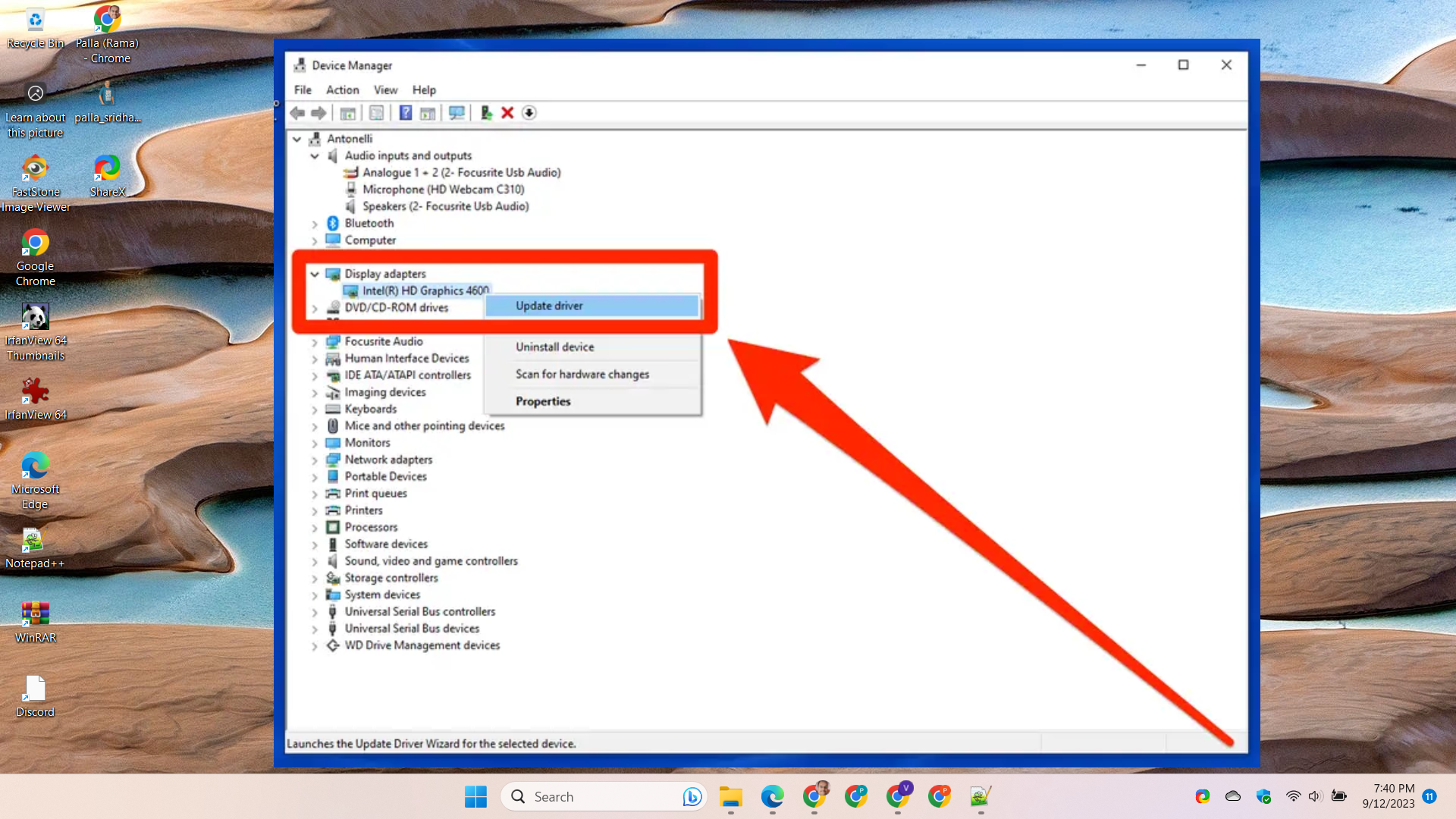
Open Device Manager > Select each device > Right click and select “Update driver“.
For each device, choose “Search automatically for updated driver software“.
Windows will install any available driver updates one by one.
Restart your PC when prompted to finish the installation process.
You can also use third party driver updater tools to mass detect and update all drivers at once.
Following these steps will ensure all your device drivers are up-to-date on Windows 11 using either Windows Update or Device Manager. Restarting is key to complete any driver installations.
How to Update all Drivers at once Windows 10
Updating all drivers at once on Windows 10 is fairly similar to Windows 11, but there are some key differences:
On Windows 10:
Open Windows Update settings and click “Check for updates” to detect driver updates.
On the update screen, click “Download and install” to update all drivers.
You can also update drivers individually through Device Manager.
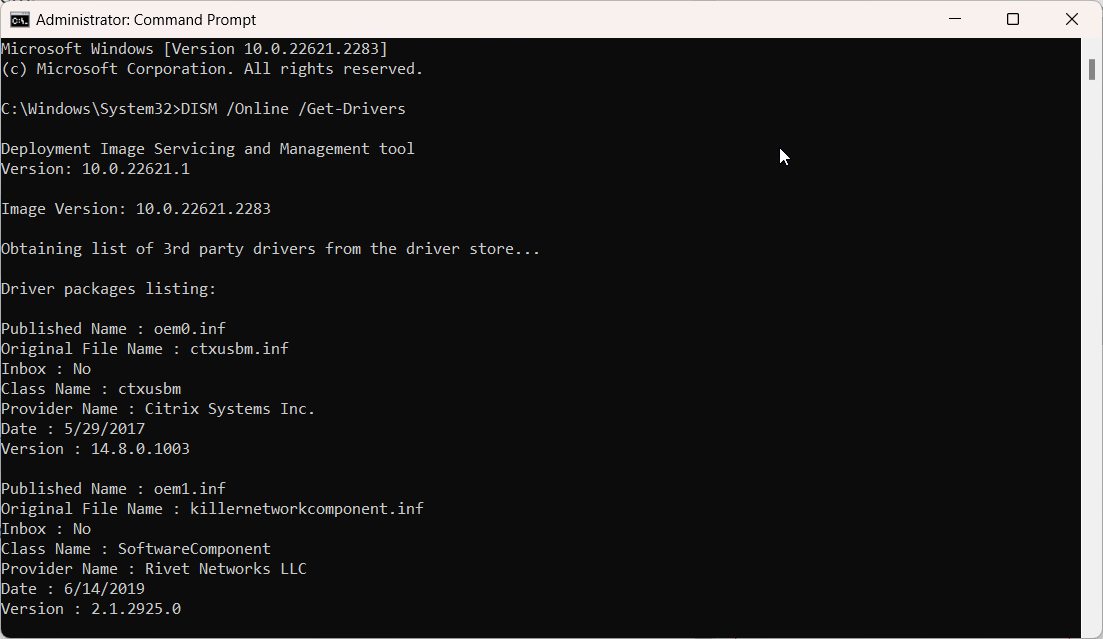
Use DISM and PowerShell commands to check for or install driver updates.
Third party tools like IObit Driver Booster also work on Windows 10.
Key Differences:
Windows Update streamlined bulk driver updates on Windows 10, more difficult on Windows 11.
Need third party tools for one-click updating of all drivers on Windows 11.
More steps involved to update all drivers individually through Device Manager on Windows 11.
How to Update all Drivers at once with Command
Here are a few methods to update all drivers at once using commands on Windows:
Using Windows Update Command
Open an elevated Command Prompt and run:
wuauclt /detectnow
This detects Windows updates including driver updates. Then run:
wuauclt /updatenow
To download and install available updates including drivers.
This automatically finds and attempts to update all drivers.
Be sure to restart your PC for driver updates to take effect after using these commands.
Conclusion
Updating all hardware drivers simultaneously using automated software ensures peak PC performance. Follow this guide and keep drivers always up to date with just a few clicks. Just remember to use reputable driver updater tools for safe and smooth bulk updating. Your devices will function reliably.
Outdated, broken, or missing drivers are a huge headache that can cause Windows performance problems, crashes, hardware malfunctions, and a range of other irritating issues.
But manually checking for driver updates for each component through Device Manager is an exercise in frustration. That’s why savvy Windows users turn to automated driver update utilities to simplify and streamline the process of keeping every driver up to date.
Whether you need the latest graphics card drivers for smooth gaming or obscure chipset drivers on older systems, Driver Booster lives up to the hype.
The majority of experts and Windows users rank it as the best driver updater available today. Given its enormous driver database, great features, and flawless performance, it’s easy to see why Driver Booster dominates the field as the top-rated driver update utility on the market.
Having up-to-date drivers is crucial for getting the best performance and stability from your Windows PC.
However, manually checking for driver updates can be tedious.
That’s where automated driver update utilities come in handy. In this post, we cover the 10 best driver updater software for Windows.
1. IObit Driver Booster
IObit Driver Booster is a popular freeware choice for updating drivers. It auto-checks over 4,500,000+ drivers against its online database. Convenient features include game component updates and driver backups.
IObit Driver Booster is one of the most popular driver update utilities for Windows. It automatically checks for outdated, missing, or faulty drivers and updates them with just one click.
Driver Booster stands out with its huge driver database of over 4 million drivers, far larger than competitors. It makes updating drivers easy for both novices and power users.
Convenient features include batch updating, backups, game component updates and a simple UI. With over 200 million downloads worldwide, Driver Booster is the top choice for automating driver updates on Windows.
TrustPilot Ratings
Based on over 18,000 reviews, IObit Driver Booster has an ‘Excellent’ rating of 4.7 out of 5 stars on Trustpilot.
74% have given it a 5-star ‘Excellent’ rating
20% have given it a 4-star ‘Great’ rating
4% have given it a 3-star ‘Average’ rating
1% have given it a 2-star ‘Poor’ rating
1% have given it a 1-star ‘Bad’ rating
The vast majority of reviews praise the ease of use, large driver database, and effectiveness at updating drivers. Many reviewers mention it being the best driver update utility they have used. Negative reviews are very few and mention issues with the user interface or minor software glitches.
In summary, with a 94% combined ‘Excellent’ and ‘Great’ rating from thousands of users, the overwhelming sentiment for IObit Driver Booster on Trustpilot is highly positive. The ratings reflect its capabilities as the top driver updater on the market.
Reviews consistently rank it as the best driver updater available today thanks to its massive driver database, great features, and flawless performance.
2. AVG Driver Updater
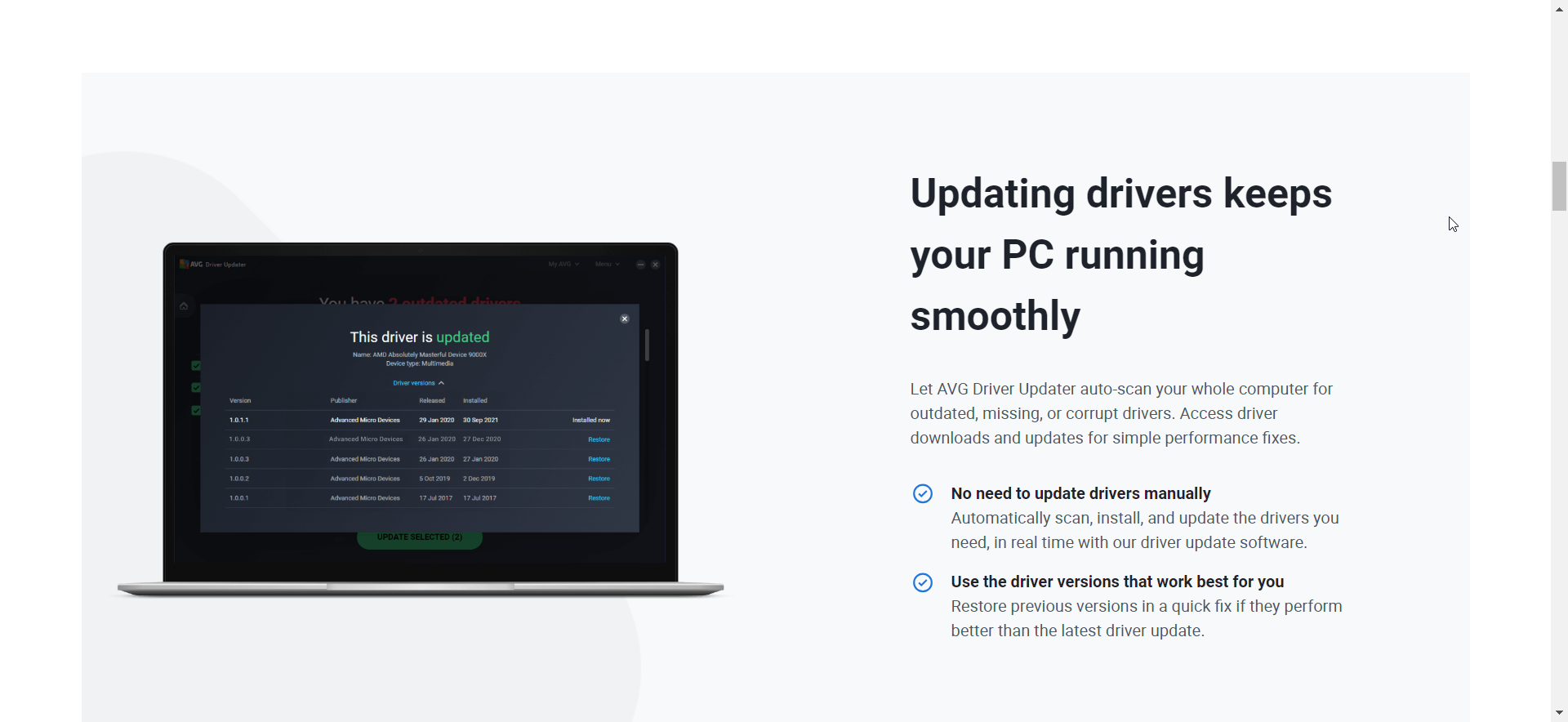
AVG Driver Updater scans your PC for outdated or missing drivers and updates them. It includes an easy-to-use interface and handy tool to backup and restore drivers. Works well for graphics card drivers.
AVG Driver Updater is a handy utility for keeping your hardware drivers up-to-date on Windows. It scans your PC to detect any outdated or missing drivers and updates them to the latest versions. One of its best features is the ability to backup and restore drivers, giving you a safety net if an update causes issues.
AVG maintains a large database of driver updates for graphics cards, network adapters, printers, webcam, speakers and more.
The intuitive interface makes updating drivers a breeze for novice users. AVG Driver Updater excels at keeping graphics card drivers updated for smoother gaming.
TrustPilot Ratings
I can provide a summary of the ratings and reviews for AVG Driver Updater on Trustpilot:
Based on over 1,400 reviews, AVG Driver Updater has a ‘Great’ rating of 4.4 out of 5 stars on Trustpilot.
68% of reviewers have given it a 5-star ‘Excellent’ rating.
20% have given it a 4-star ‘Great’ rating.
7% have given it a 3-star ‘Average’ rating.
3% have given it a 1-star ‘Bad’ rating.
2% have left it a 2-star ‘Poor’ rating.
The most common positive reviews praise the easy to use interface, smooth performance, and ability to backup drivers. Negative reviews mention occasional software glitches or lack of support for obscure hardware.
In summary, with 88% of reviewers giving AVG Driver Updater an ‘Excellent’ or ‘Great’ rating, it is very well received on Trustpilot for its ease of use and effectiveness at updating drivers on Windows machines. The ratings and sentiment reflect it as a good choice for an automated driver update utility.
Reviews praise its ease of use, lightweight system impact and useful backup tool. For a reliable driver management utility, AVG Driver Updater is a great choice.
3. Slimware Utilities DriverUpdate
Slimware Utilities offers an intuitive driver updater that automatically finds and updates drivers from a database of over 30 million device drivers. It also has a portable version.
Here is a 100 word overview of Slimware Utilities DriverUpdate:
Slimware Utilities DriverUpdate is a robust driver updater that makes keeping your Windows drivers up-to-date quick and easy. It draws from an expansive database of over 30 million device drivers to detect outdated or broken drivers on your system.
With just one click, DriverUpdate can update all drivers or target specific ones. The simple interface and intuitive workflow is perfect for beginners.
Experts will appreciate the inclusion of rarely updated drivers for obscure hardware. DriverUpdate runs smoothly without slowing down your PC. Portability and scheduling options provide added convenience.
TrustPilot Ratings
Based on over 600 reviews, Slimware Utilities DriverUpdate has a ‘Great’ rating of 4.7 out of 5 stars on Trustpilot.
80% of reviewers have given it a 5-star ‘Excellent’ rating.
15% have given it a 4-star ‘Great’ rating.
3% have given it a 3-star ‘Average’ rating.
1% have left a 1-star ‘Bad’ rating.
1% have left a 2-star ‘Poor’ rating.
The most common positive feedback mentions the large driver database, smooth performance, and easy to use interface. Negative reviews cite issues with specific hardware drivers not being supported.
In summary, with 95% of reviewers giving it an ‘Excellent’ or ‘Great’ rating, Slimware Utilities DriverUpdate enjoys very positive sentiment on Trustpilot. Users praise its effectiveness at updating both common and obscure hardware drivers on Windows machines.
For an easy way to keep thousands of hardware drivers updated automatically, Slimware Utilities DriverUpdate is a top choice.
4. Auslogics Driver Updater
Auslogics Driver Updater can update drivers from over 500 major hardware brands with just a few clicks. Scheduling scans and exclusions make it easy to customize.
Auslogics Driver Updater makes it effortless to keep your hardware drivers up-to-date on Windows. It can detect and update outdated or missing drivers from over 500 major brands with just a few clicks.
The intuitive interface allows you to scan, update, and schedule driver updates easily. Customization options like exclusions and update frequency cater to both novices and experts.
Auslogics boasts an expansive database of the latest driver versions across various brands. Reviews praise its light system footprint during scans and updates.
TrustPilot Ratings
Based on over 1,100 reviews, Auslogics Driver Updater has a ‘Great’ rating of 4.4 out of 5 stars on Trustpilot.
67% of reviewers have given it a 5-star ‘Excellent’ rating.
20% have given it a 4-star ‘Great’ rating.
8% have given it a 3-star ‘Average’ rating.
3% have left a 1-star ‘Bad’ rating.
2% have left a 2-star ‘Poor’ rating.
The most common positive feedback cites the easy to use interface, fast scan times, and broad hardware support. Negative reviews mention occasional software glitches.
In summary, with 87% of reviewers giving Auslogics Driver Updater an ‘Excellent’ or ‘Great’ rating, it is well received on Trustpilot for its usability and effectiveness. The ratings reflect it as a solid choice for updating drivers on Windows PCs.
For a robust driver update utility with scheduling, exclusions and in-depth reporting, Auslogics Driver Updater is a great option for both laptops and desktops.
5. Tweakbit PCRepairKit
Along with many PC optimization tools, Tweakbit PCRepairKit includes a practical driver updater with one-click updating and restoration of backup drivers.
Here is a 100 word overview of Tweakbit PCRepairKit:
Tweakbit PCRepairKit is an all-in-one system optimization suite for Windows that includes effective driver update capabilities.
With just one click, it can check for and update any outdated or missing drivers on your system. The simple process makes it easy for novices and experts alike. It draws drivers from an extensive online database.
Another useful feature is the ability to backup and restore drivers in case an update causes problems.
Beyond drivers, PCRepairKit provides many other optimization tools for cleaning registries, defragmenting disks, uninstalling software and more.
For an easy automated driver updater alongside a suite of other useful utilities, Tweakbit PCRepairKit is a great choice.
6. Ashampoo Driver Updater
Ashampoo offers a fast driver update utility with a clean interface. It downloads over 150,000 device drivers directly from manufacturers.
Ashampoo Driver Updater provides an easy and effective way to keep over 150,000 hardware drivers up-to-date on your Windows PC. With just one click, it can check your system and update any outdated or faulty drivers from a vast online database.
Key highlights include the ability to schedule automatic scans and customize exclusions. The intuitive interface makes it simple for novices and experts alike to use Driver Updater. It excels at finding obscure and rarely updated drivers for peripherals and components.
Reviews praise its light footprint and fast performance. For those seeking an easy-to-use driver update utility with robust options, Ashampoo Driver Updater is a top choice that gets the job done quickly.
Conclusion
Keeping drivers updated is crucial for performance and stopping crashes/BSODs. These top driver updater tools for Windows simplify the process greatly.
Based on online reviews and recommendations, IObit Driver Booster emerges as the clear #1 choice and top-rated driver updater for Windows in 2023. With over 205 million downloads worldwide, Driver Booster keeps gaining users for good reason. It automatically scans your PC for outdated, missing, or faulty drivers and updates them with one click.
Driver Booster boasts the largest driver database of over 4,500,000 drivers – far more than competitors. The intuitive interface makes it effortless for novices and experts alike to update drivers in bulk or individually. Convenient extras like game-ready updates, backup/restore, and negligible system impact have cemented Driver Booster’s place as the #1 driver updater worldwide.
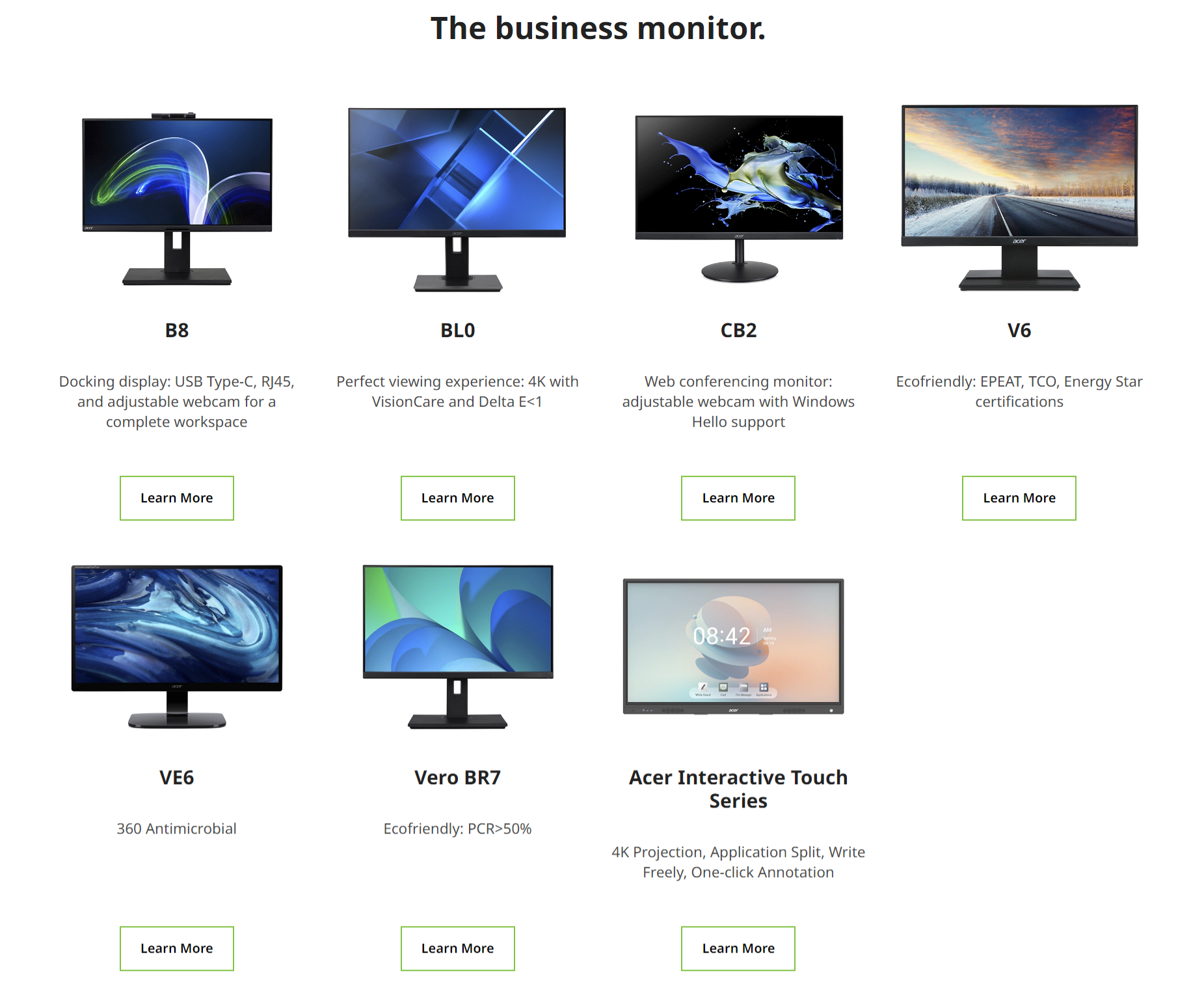
Having the most up-to-date monitor drivers from Acer can optimize performance and fix problems with display issues or touch screen functionality. In this guide, we’ll show you how to download and install Acer monitor drivers on Windows.
Installing the latest monitor driver from Acer is important for getting the full functionality and performance out of your Acer display in Windows 11.
Acer periodically releases updated monitor drivers with bug fixes, compatibility improvements and support for new features.
Find Your Acer Monitor Model
First, you need to identify the specific model of your Acer monitor. Check the label on the back or underside of the display for the model number.
Some examples are V206HQL, KA220HQ, KG251Q and Nitro VG270. Note down the model name and number.
Download the Latest Acer Monitor Driver
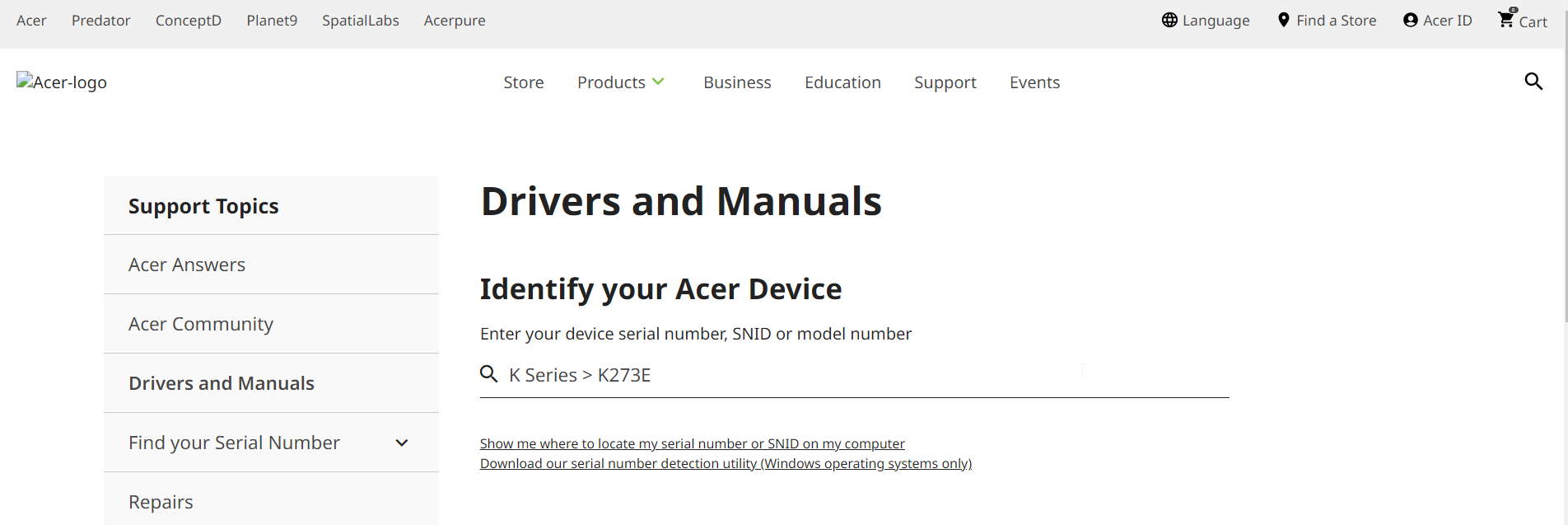
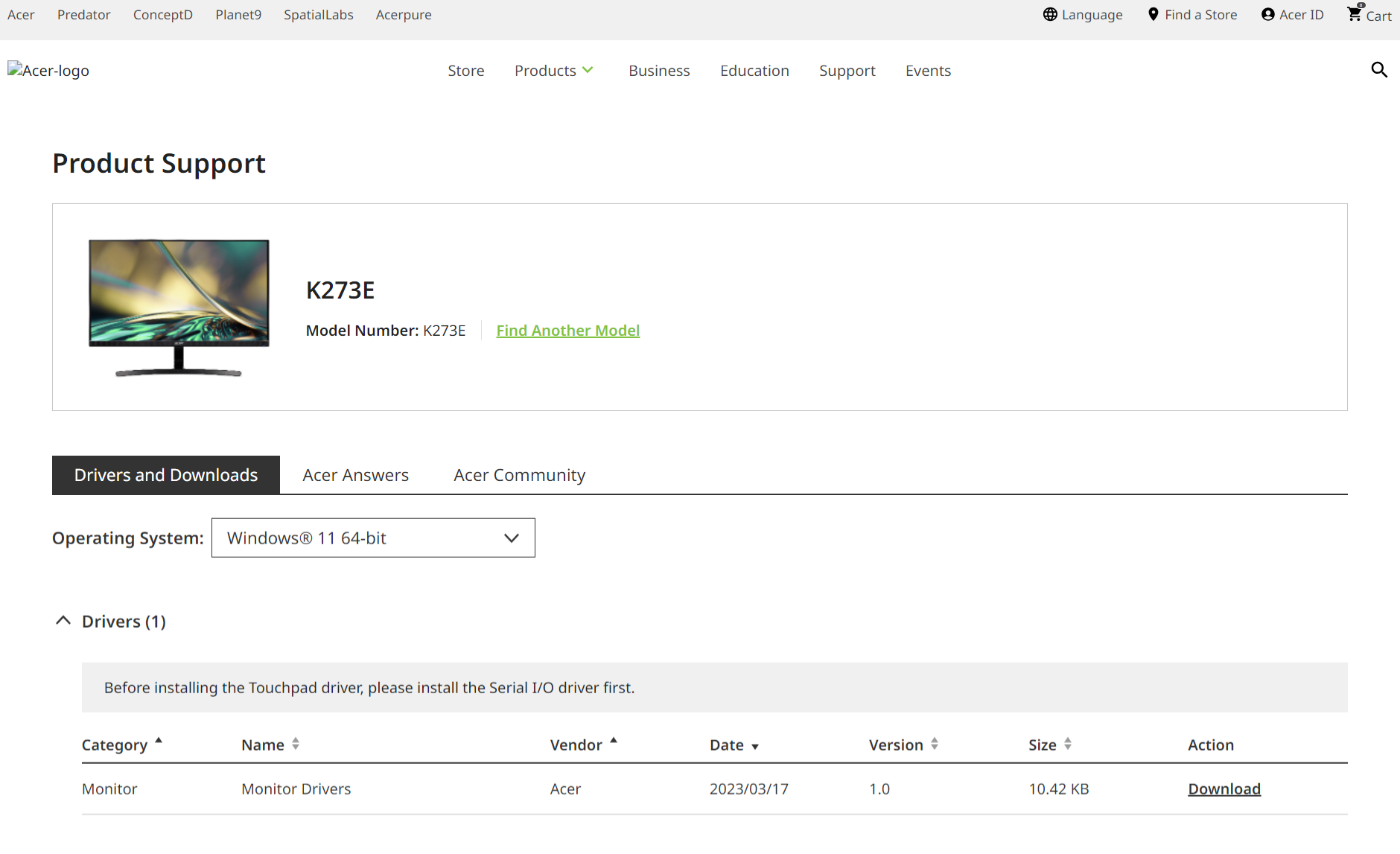
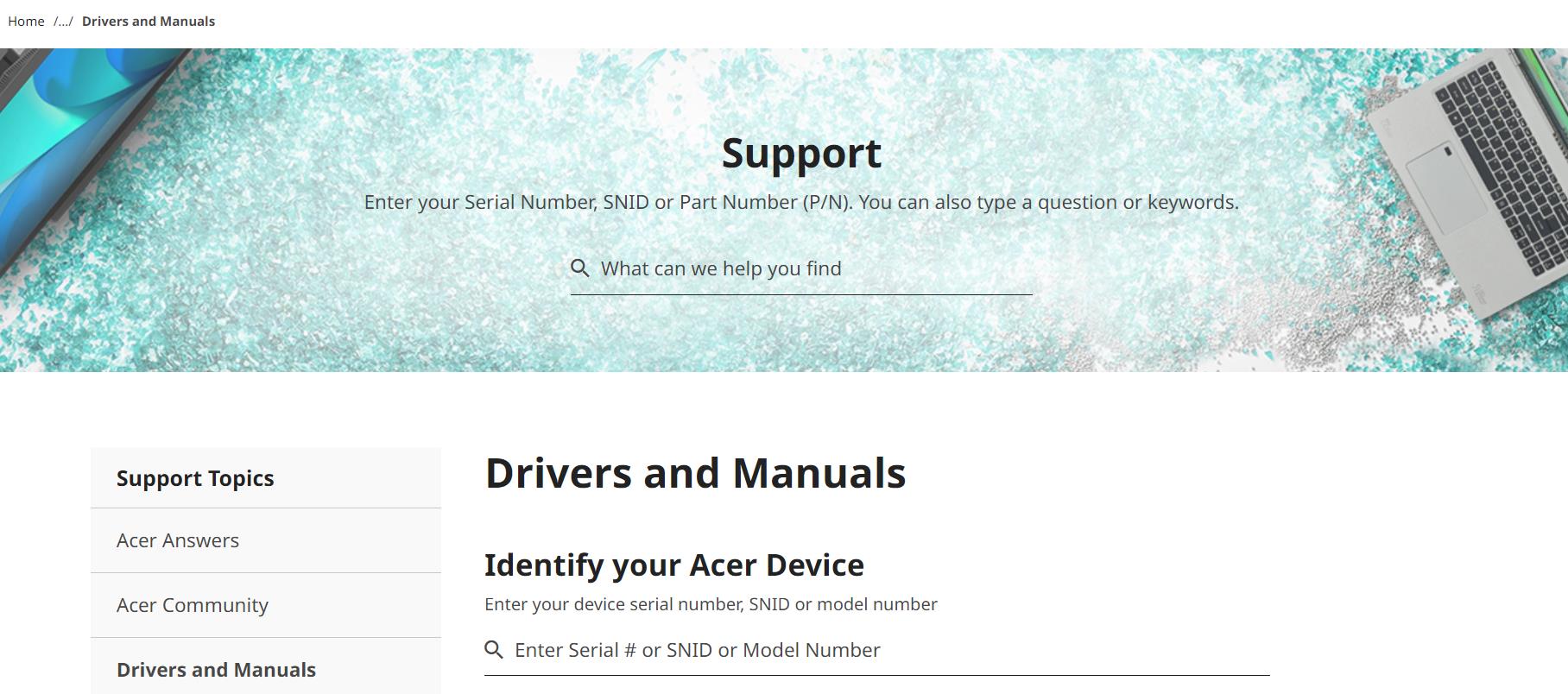
Go to Acer’s official driver download site and enter your monitor model into the search bar. This will bring up the latest driver for your display.
Make sure to select the correct OS version like Windows 10 64-bit. Download the driver installer file.
Downloading the driver directly from Acer, rather than using the generic Microsoft driver, can resolve issues like display resolution problems, touchscreen responsiveness, or flashing/flickering screens.
To update your Acer monitor driver on Windows 11, start by identifying your exact Acer monitor model number from the label on the back of the display.
Then go to Acer’s driver download site at https://www.acer.com/ac/en/US/content/support and enter your monitor model into the search bar.
Select the correct OS as Windows 11 64-bit and download the driver installer file.
Make sure to uninstall any old display drivers from Device Manager first before running the new Acer monitor driver installer.
Once installed, reboot your computer and verify the driver version on the Displays settings page matches what you just updated.
Keeping your Acer monitor driver up-to-date through the Acer website will ensure optimal performance, compatibility, and access to new features from display firmware updates.
Be sure to check for new driver releases every few months or whenever you notice display issues arising. With the right driver installed directly from Acer, your monitor will deliver the best experience possible on your Windows 11 computer.
Update or Uninstall Old Drivers
Before installing the new driver, you should update or uninstall any existing monitor drivers:
This will clear old drivers and prepare for a clean install.
Install the Downloaded Acer Driver
Once downloaded, run the Acer monitor driver installer. Follow the on-screen prompts to complete the installation.
Restart your computer when prompted to finish updating the driver software.
Verify the Driver Installed Correctly
To check that the new monitor driver is working properly:
Open Display settings > Advanced display > Display adapter properties
Confirm the Driver version matches the version you just installed
Your Acer monitor should now be running with the newest drivers from the manufacturer’s website. Update these drivers regularly or whenever you experience display problems.
Acer Bluetooth driver is necessary if you installing a new Windows 10 or 7 OS.
Acer has different Bluetooth devices attached for different models. There are wireless headphones, keyboards, mice, speakers etc. . Intel, Atheros, Realtek and Broadcom Bluetooth are the commonly used brands on Acer laptops.
Acer Aspire Bluetooth driver are required in Windows 10/11 for the compatible device to work properly. It is just a software program for the pc to interact with Bluetooth device and vice versa.
Laptops have a small hardware switch to toggle on for Bluetooth. Indicator will also show that it’s working.
Once you install acer Bluetooth driver windows 10 32 & 64bit, a blue icon can be seen in the notification area. It makes us easy to understand that Bluetooth hardware or adapter is working fine.
Though Windows 10/8.1 and 7 have different interfaces to enable Bluetooth, both should indicate the icon. Microsoft drivers sometimes work well for this technology.
In this article we will show how to download the Bluetooth driver for Windows 10 Acer.
Acer Aspire Bluetooth Driver
Acer Aspire 1810T is an 11.6inch laptop that comes in three colors. Black Diamond, Sapphire Blue, Ruby Red. Intel Centrino Processor has a 3MB L2 cache, Intel 64 architecture, and Mobile Intel GS45 Express chipset.
The laptop comes with Windows 7 pre-installed. Since it supports 4GB RAM, you can also install the 64bit OS or Windows 10 OS. But the most troublesome feature after a format is finding the proper drivers.
If you have the CD/DVD or backup of OS, then it’s not a problem. You have come to the right place if you have wiped the whole disk and are now looking for drivers.
The risk is when you want to connect to a Bluetooth headset, earphone, or speakers. It has in-built Bluetooth technology. Even if it fails, you can use a USB Bluetooth adapter. This way, you can connect to Bluetooth speakers.
How to Download and Install Acer Bluetooth Driver
To download the Acer Bluetooth Driver Windows 10 64 bit, you need to go to the official page and manually download them. Select the device model and OS.
2. The serial number, SNID or model number of the laptop or pc is required in the search box.
You can also click on “Show me where to locate my serial number or SNID on my computer” if you need help finding it.
Click on “Search“.
4. Select the operating system like Windows 10 or Windows 10 in the drop-down menu.
Scroll down and look for “Bluetooth” under “Driver“. Click on “Download” next to the driver you want.
Follow the on-screen instructions to install the driver.
Restart your computer if prompted.
Alternative download location for Acer Bluetooth Driver
Go To the following link – https://www.driverscape.com/manufacturers/acer/laptops-desktops/aspire-1810t/12591
Go To the Bluetooth Drivers section.
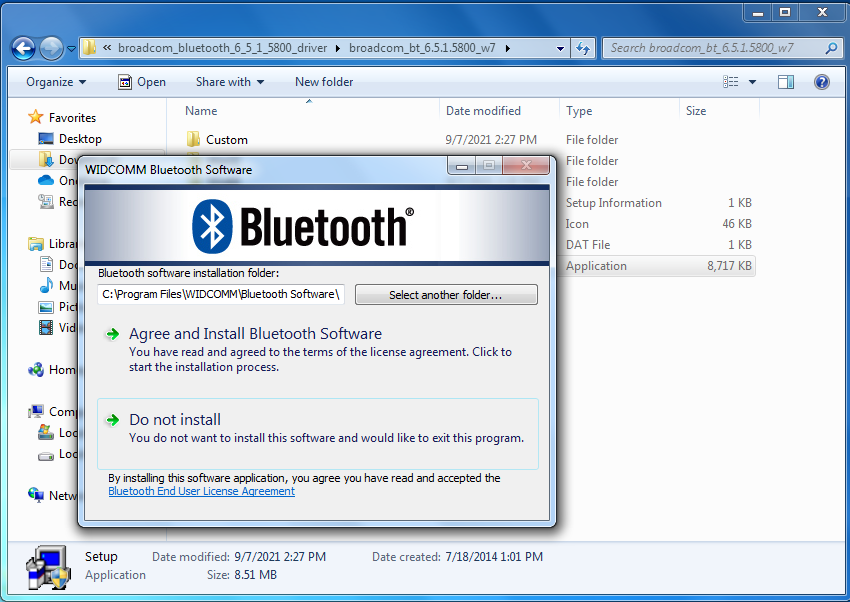
Download the Broadcom drivers. It worked for me.
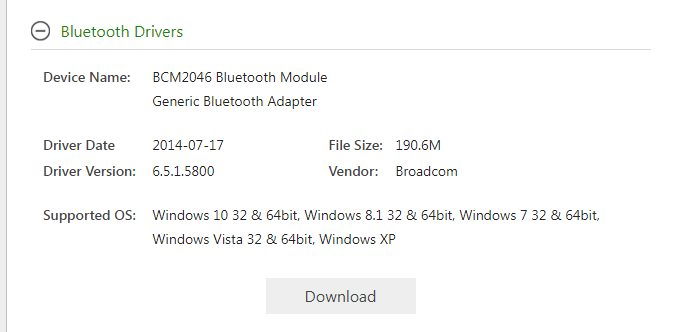
Device name will be – a. BCM2046 Bluetooth Module b. Generic Bluetooth Adapter
The driver version is 6.5.1.5800. The file size is 190.6MB.
Supports Windows 10 32 & 64bit, Windows 8.1 32 & 64bit, Windows 7 32 & 64bit, Windows Vista 32 & 64bit, Windows XP. Driver date is 2014-07-17.
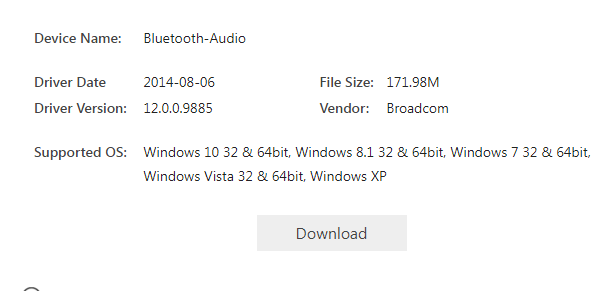
Bluetooth Audio device is also there for Broadcom.
For example, acer aspire Bluetooth driver windows 10 are downloaded from another website. The following are its details.
Driver date is 2014-08-06. The file size is 171.98MB. Driver Version is 12.0.0.9885.
Supports Windows 10, 8.1, 7 64 bit, and 32-bit versions.
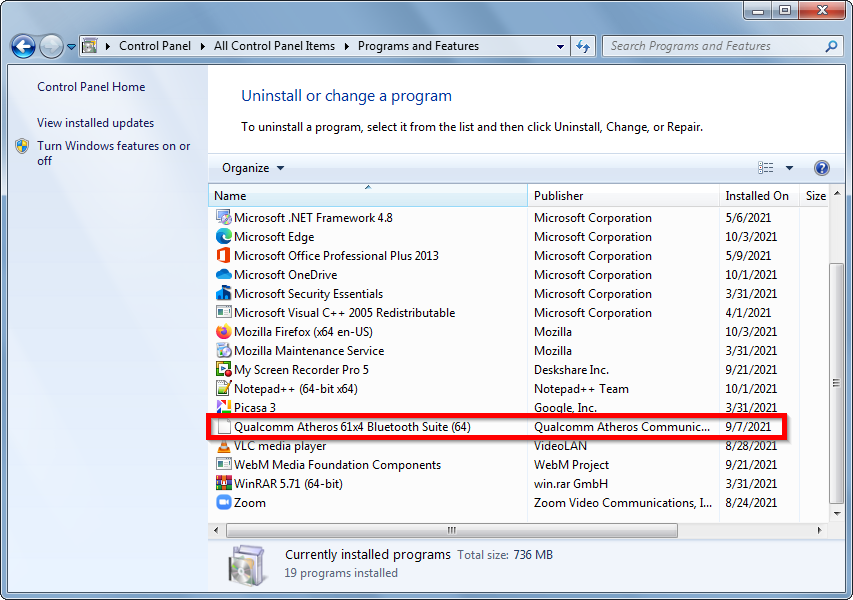
Try Atheros drivers if the Broadcom drivers don’t work.
Quick Install Acer Bluetooth drivers download
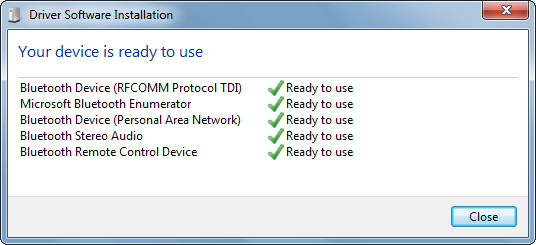
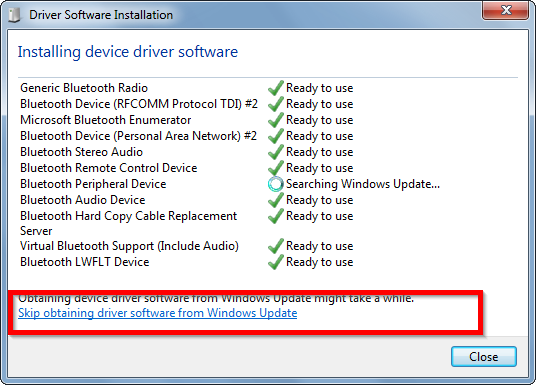
If you face an update issue installing these Bluetooth drivers, you can always stop searching for Windows updates. It will save time. As these are the latest version of drivers, you need to waste time.
Then you can add the required Bluetooth speaker and connect it. If you still face Bluetooth disconnected or pairing problems, you can look into this guide.
Brother Printer Drivers are the software that helps the printer communicate with your computer.
The drivers provide the printer with the information it needs to print correctly. Without the driver, your printer will not work correctly.
They are available for many models of Brother Printers and can be downloaded from the Brother website.
Image Source: FreeImages
Why You Need Drivers for Your Brother Printer
The drivers also provide the printer with the information it needs to print correctly.
This includes the printer settings, such as the paper size, paper type, and resolution. Without the correct drivers, your printer will not print correctly.
How to Download and Install Brother Printer Drivers on Windows 11
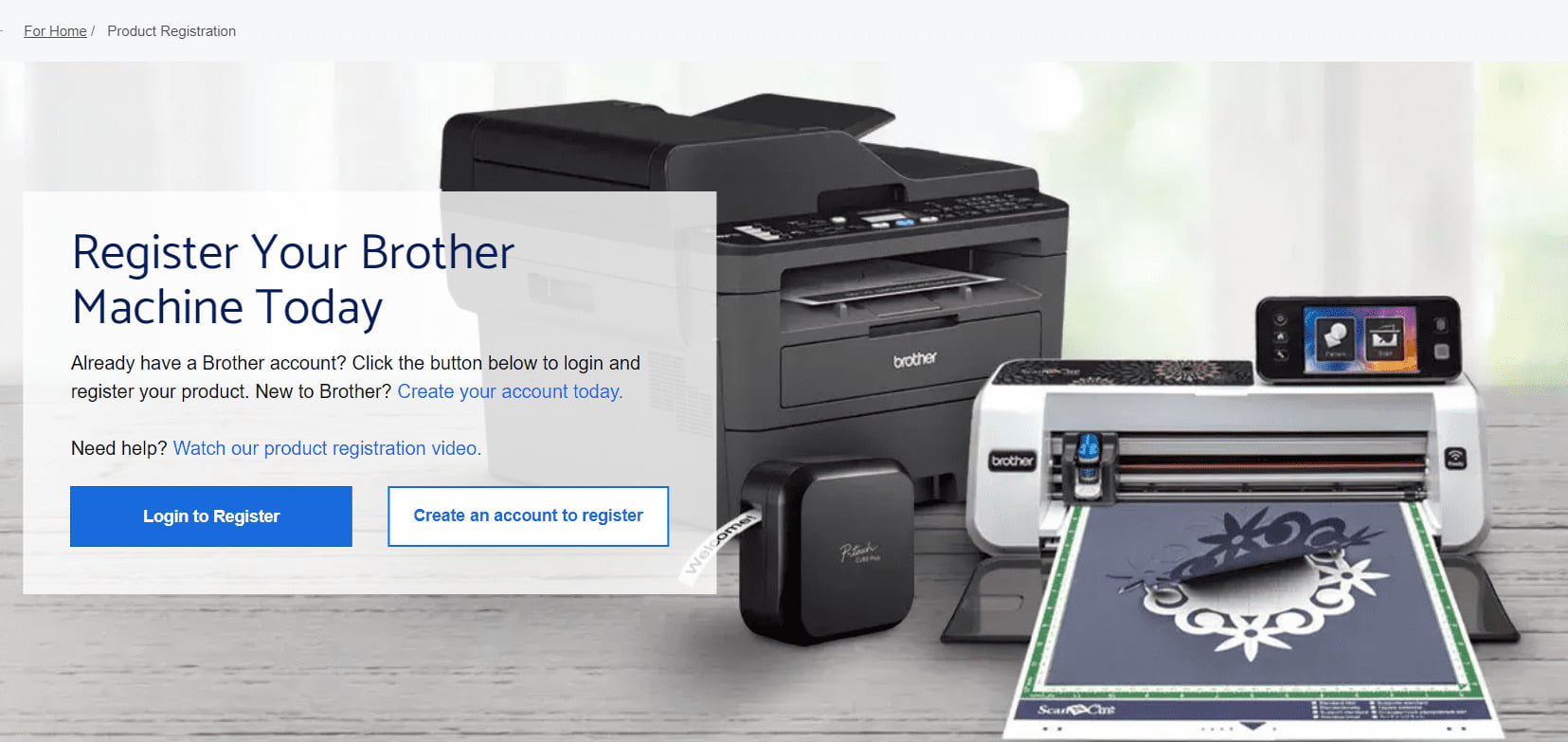
The first step to getting your Brother Printer Drivers on Windows 11 is to download them from the Brother website.
Once you have downloaded the drivers, you can then install them on your computer. To install the drivers, you will need to follow the instructions provided by Brother.
Once you have installed the drivers, you can then use the printer. To do this, you will need to connect the printer to your computer.
Once the printer is connected, you can then select the printer from the list of printers in the printer settings. This will allow you to use the printer with Windows 11.
Troubleshooting and Maintenance Tips for Brother Printer Drivers
If you are having trouble with your Brother Printer Drivers on Windows 11, there are a few things you can do to troubleshoot the problem.
The first thing you should do is check the printer settings. You should make sure that the printer is set to the correct paper size, paper type, and resolution.
If the printer settings are incorrect, it may not be able to print correctly.
If the printer settings are correct, you should then check the Brother Printer Drivers.
You should make sure that the drivers are up to date and that they are compatible with Windows 11.
If the drivers are not compatible with Windows 11 or are not up to date, they may not be able to communicate with the printer correctly.
Solutions
If you are having trouble with your Brother Printer Drivers on Windows 11, you can visit the Brother website for help.
The Brother website is full of helpful tutorials and support resources that can help you troubleshoot the problem.
This will ensure that the drivers are installed correctly and that they are compatible with Windows 11.
It is also important to make sure that you have the correct printer settings and that they are set to the correct paper size, paper type, and resolution.
Brother Printer Utilities
Once you have installed the Brother Printer Drivers on Windows 11, you can then use the printer utilities to get the most out of your printer.
The printer utilities can help you adjust the printer settings, such as the paper size, paper type, and resolution.
They can also help you troubleshoot any problems you may be having with the printer. The printer utilities are available for free from the Brother website.
How to Install Brother Printer Driver on Windows 10
If you are using Windows 10, you can install the Brother Printer Driver by following the instructions provided by Brother.
The installation process is similar to that of Windows 11. You should make sure that you have the correct printer settings. They are set to the correct paper size, paper type, and resolution.
Once the drivers are installed, you can then use the printer as normal.
Brother Installer for Drivers and Utilities
It is a software application that can help you get the most out of your Brother Printer Drivers on Windows 11.
The software can help you install the drivers, adjust the printer settings, and troubleshoot any problems you may be having with the printer.
Drivers for Brother Printer
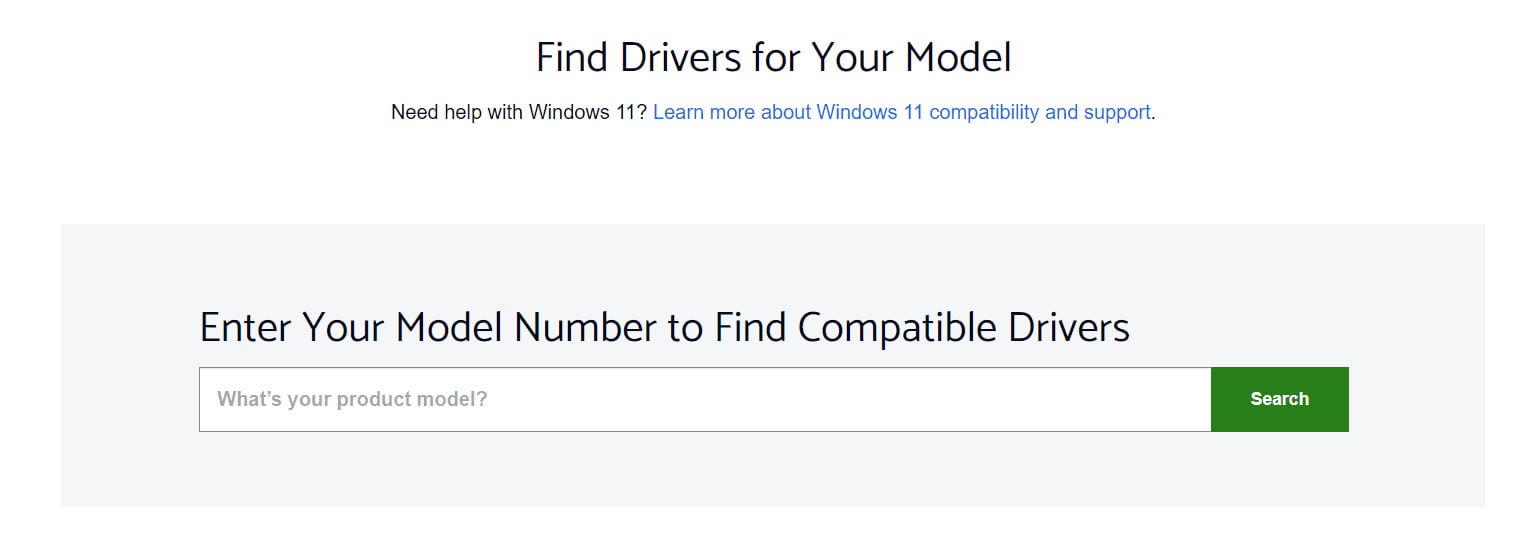
If you are looking for the latest drivers for your Brother Printer, you can visit the Brother website.
The website has a wide range of drivers and utilities that can help you get the most out of your Brother Printer Drivers on Windows 11.
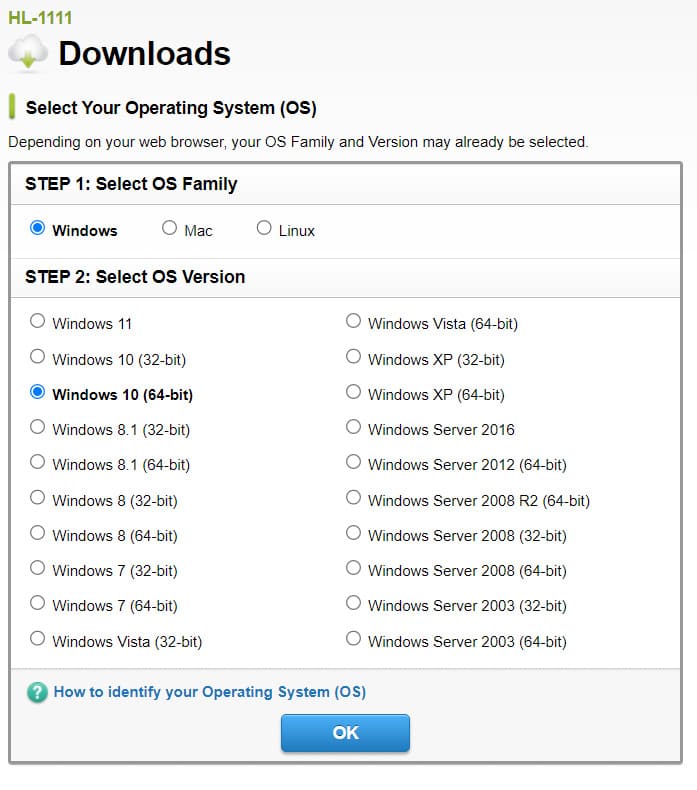
You should make sure that you download the correct drivers for your printer model.
Popular Brother Printer Models and Their Drivers
There are a number of popular models, and each model has its own set of drivers.
Some of the most popular models include the Brother MFC-J5910DW, Brother MFC-J625DW, and Brother MFC-J890DW.
Conclusion
Without the correct drivers, your printer will not print correctly.
You should also make sure that the printer settings are set to the correct paper size, paper type, and resolution.
Finally, you can use the Brother Printer Utilities and the Brother Installer for Drivers and Utilities.
How to download them, and how to troubleshoot any driver-related issues.
Image Source: FreeImages
Brother printers are renowned for their quality and reliability. But to get the most out of them, you may need to download and install the latest drivers.
If you’re running Windows 11, you may be wondering how to best manage your Brother printer drivers.
Fortunately, the process is quite straightforward. In this blog post, we’ll cover everything you need to know about downloading and installing Brother drivers for Windows 11.
Overview of Brother Printer Drivers
Brother drivers are software programs that allow your computer to “talk” to your Brother printer.
Without the correct drivers, your printer won’t be able to communicate with your computer, which means you won’t be able to print or scan.
It’s important to note that Brother printer drivers can vary depending on the operating system you’re running.
Here, you’ll find detailed instructions on how to download Brother drivers for Windows 11, as well as links to the relevant drivers.
Once you’ve found the correct drivers for your model of Brother printer, you can download them to your computer.
It’s important to note that you may need to install additional software before you can install the Brother drivers.
Steps to Install Brother Printer Drivers
Once you’ve downloaded the drivers, you can begin the installation process.
To do this, simply double-click on the driver file you downloaded and follow the on-screen instructions. If you’re prompted to install additional software, be sure to do so.
After installation, you’ll need to restart your computer.
Once your computer has restarted, check to make sure the drivers are installed correctly.
To do this, go to the Windows Control Panel and select “Printers and Faxes.” If your Brother printer is listed, the drivers have been installed correctly.
Troubleshooting Brother Printer Drivers
First, make sure you’ve downloaded the correct drivers. If you’ve downloaded the wrong drivers, they won’t install correctly, so double-check that you’ve got the right ones.
Next, make sure you’ve followed all the instructions provided by Brother. If you’ve skipped any steps, or installed the drivers incorrectly, they won’t work properly.
Finally, make sure you’ve restarted your computer after installation. If you haven’t, the drivers won’t be able to communicate with your computer, and your printer won’t work.
Best Practices for Installing Brother Drivers
Installing can be a bit tricky, so it’s important to follow best practices. Here are a few tips to help ensure a successful installation:
Make sure you download the correct drivers. Double-check that the drivers you’ve downloaded are compatible with your model of Brother printer and your operating system.
Follow all the instructions provided by Brother. If you skip any steps, or install the drivers incorrectly, they won’t work properly.
Restart your computer after installation. This will ensure that the drivers are installed correctly.
If you’re prompted to install additional software, do so. This will ensure that the drivers are installed correctly.
If you encounter any errors during installation, try troubleshooting the issue. You may need to uninstall the drivers and start over.
Common Issues with Brother Drivers
Despite your best efforts, there may be times when you run into issues with your Brother drivers. Here are a few of the most common issues:
Brother drivers won’t install correctly. This is usually due to incorrect installation. Double-check that you’ve followed all the instructions provided by Brother.
Brother printer won’t print. This could be due to an outdated driver. Make sure you’ve downloaded the latest drivers from the Brother website.
Brother printer won’t scan. This could be due to a faulty driver. If you’ve recently installed a new driver, try uninstalling it and downloading the latest version from the Brother website.
You can contact their customer service team by phone, email, or live chat. They can help you with any driver-related issues you may be having.
Brother Printer Utilities and Tools
In addition to providing support, Brother also offers a range of printer utilities and tools.
These include a printer driver updater, which will automatically download and install the latest drivers for your Brother printer.
They also offer a driver removal tool, which will help you uninstall any drivers you no longer need.
Conclusion
Downloading and installing can seem like a daunting task.
But with the right instructions, the process is actually quite straightforward.
We’ve also discussed Brother’s support team and the range of printer utilities and tools they offer. With this information, you should be able to easily download and install Brother drivers for Windows 11, so you can get the most out of your Brother printer.