Author: Palla Sridhar

  • Easy to Boot Into Safe Mode in Windows 11

    Booting into safe mode on Windows 11 can help you troubleshoot problems when your computer is having issues. Safe mode loads only the essential drivers and services, allowing you to diagnose conflicts that may be causing crashes or startup problems.

    In this comprehensive guide, we’ll cover everything you need to know about safe mode in Windows 11, along with step-by-step instructions for multiple ways to boot into it.

    What is Safe Mode and When Should You Use It?

    Safe mode is a diagnostic mode for Windows that loads only the bare minimum drivers and services required to start the operating system. When booted into safe mode, Windows 11 will have a basic interface and limited functionality.

    Booting into safe mode can help resolve issues like:

    • Troubleshooting software conflicts when a program is preventing Windows from starting normally
    • Uninstalling problematic apps or drivers that are causing system crashes
    • Figuring out if third-party software is responsible for startup or shutdown problems
    • Diagnosing issues caused by a recent driver or Windows update
    • Running antivirus scans when regular Windows won’t start
    • Recovering from malware, viruses, or rootkits that have infected Windows
    • Repairing corrupted Windows system files by using System File Checker

    So if your Windows 11 PC is having problems starting up, crashing frequently, or just isn’t working right, safe mode can be a useful troubleshooting tool.

    4 Ways to Boot into Safe Mode in Windows 11

    There are a few different methods you can use to enter safe mode on a Windows 11 computer. Here are the 4 main options:

    1. Use the Shift + Restart Option from Sign-in Screen

    The easiest way to boot into Windows 11’s safe mode is to use the Shift + Restart option from the sign-in screen:

    1. At the sign-in screen, hold down the Shift key and click the Power button.
    2. Keep holding Shift until you see the Advanced options menu.
    3. On the Choose an option screen, select Troubleshoot.
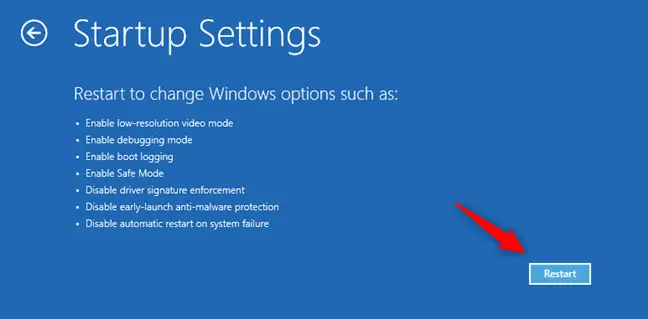
    4. Go to Advanced options > Startup Settings > Restart.
    5. After your PC restarts, you’ll see a list of startup settings. Press 4 or F4 to boot into Safe Mode.

    This method works even if Windows 11 isn’t loading properly. The key benefit is you don’t have to change any settings beforehand – just use Shift + Restart when booted to the login screen.

    2. Interrupt the Boot Process

    You can also get into safe mode by interrupting the normal boot process of Windows 11:

    windows 11 advanced options
    1. Restart your PC and start tapping the F8 key on your keyboard when you see the manufacturer’s logo screen.
    2. Keep tapping F8 until you reach the Advanced Boot Options menu.
    3. Select Safe Mode using the arrow keys and press Enter.
    windows 11 safe mode

    The timing can be tricky, so you may need a few tries to access the boot options menu. This method is useful when Windows won’t finish booting into regular mode.

    3. Use the System Configuration Tool

    The MSConfig (System Configuration) utility provides access to the Boot tab, where you can choose to boot into safe mode:

    1. Search for msconfig and launch the app.
    2. Go to the Boot tab and check the box for Safe boot.
    3. Click the radio button for either Minimal or Network under Safe boot options.
    4. Click OK, then Restart the computer.

    After restarting, Windows will now boot directly into safe mode based on your selection. This method gives you other startup settings as well.

    4. Use a Recovery Drive

    If Windows 11 fails to start and none of the previous methods work, you can boot from a recovery drive:

    1. On another PC, create a recovery drive for your Windows 11 computer.
    2. Boot the problem PC from this recovery drive.
    3. Choose Troubleshoot > Advanced Options > Startup Settings > Restart.
    4. After restarting, select safe mode as outlined above.

    This acts as a last resort when you can’t access Windows at all to use the other methods.

    What to Expect When Using Safe Mode

    Booting into Windows 11’s safe mode loads a limited version of the operating system with these changes:

    • Simple visual interface, the Start menu and desktop will have generic icons
    • Lower screen resolution
    • Only essential drivers and services will be started
    • Most software, including web browsers and apps, won’t work
    • Network access will be limited since networking drivers are disabled
    • Hardware that requires drivers like printers and scanners won’t be functional

    Safe mode is strictly designed for troubleshooting, not normal usage. But navigating the basic interface gives you a chance to fix issues before restoring regular functionality.

    Once you’ve completed your diagnostic or repair tasks, you can restart the computer normally to exit safe mode. Overall, safe mode is an invaluable tool for every Windows user when unforeseen problems arise.

    Troubleshooting Common Safe Mode Issues

    Sometimes safe mode can fail to start properly. Here are some troubleshooting tips:

    If safe mode isn’t working:

    • Try the different safe mode boot methods since they access it in different ways.
    • Check for corrupt system files using DISM or SFC /scannow commands.
    • Use a recovery drive to isolate the issue from the main Windows installation.

    If the screen is black:

    • Give it time to load since safe mode can take longer to start.
    • Boot into safe mode with networking to install video drivers if needed.

    If you can’t access the sign-in screen:

    • Force restart 3 times to trigger automatic repair and access safe mode.
    • Use a PS/2 keyboard if your main keyboard isn’t responding.

    If you forgot the BitLocker recovery key:

    • Use another BitLocker recovery option to unlock the drive before safe mode.

    With some targeted troubleshooting, you should be able to resolve most safe mode difficulties and use it to diagnose the bigger underlying problem.

    Conclusion

    Safe mode gives you the ability to boot into a minimal version of Windows 11 for in-depth troubleshooting when your computer has developed problems.

    Using the Shift + Restart option provides the easiest way to directly access safe mode from the login screen. But you also have alternatives like interrupting the startup sequence, the MSConfig tool, or a recovery drive for when Windows is unusable.

    While limited, safe mode isolates issues down to their core cause so you can ultimately get your PC running smoothly again.
  • Uninstall Windows 11 Updates that Works.

    With Windows 11 being relatively new, users may encounter issues with updates not installing properly or causing problems with their system. Thankfully, there are several methods to uninstall Windows 11 updates to resolve these problems.

    Recently I found that Local Security Authority (LSA) protection is disable because of a KB update. You are supposed to uninstall it to display it in Windows Security center again. But the direct option to uninstall is not visible unlike earlier Windows OS.

    Windows 11 made it difficult to uninstall the updates. Even control panel procedure is not fool proof. So a command-line prompt should do the trick in those cases.

    In this guide, I’ll walk through the various ways to remove Windows 11 updates, both manually and automatically, using Command Prompt, Settings, and other tools.

    Uninstall Windows 11 Update Using Settings

    The easiest way to uninstall a Windows 11 update is through the Settings app. Here are the steps:

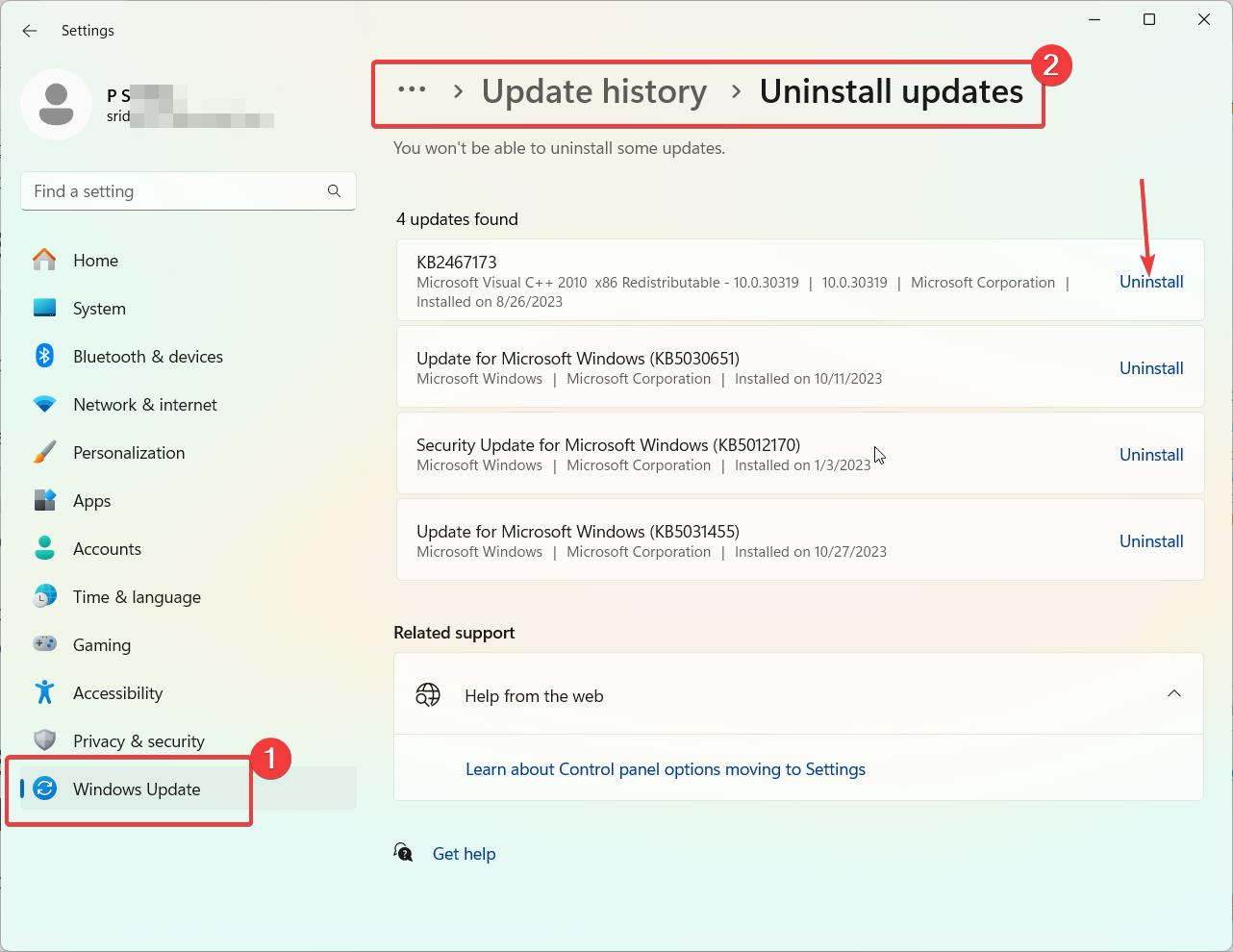
    1. Open Settings and go to Windows Update (Windows key + i > Windows Update).
    2. Click on View update history. Scroll down to Related Settings.
    3. Click on Uninstall updates.
    4. You can find the updates that can be installed.

    Note: All updates cannot be uninstalled. Only a few quality or big updates can be removed. To delete single KB updates, either use command line tools or PowerShell.

    This will immediately trigger the uninstall process for that specific update. You may need to restart your PC for the changes to take full effect.

    uninstall windows 11 updates

    Uninstall Windows 11 Update from Control Panel

    You can also use the classic Control Panel to uninstall updates in Windows 11. Here’s how:

    1. Open Control Panel from the start menu and go to Programs > Programs and Features.
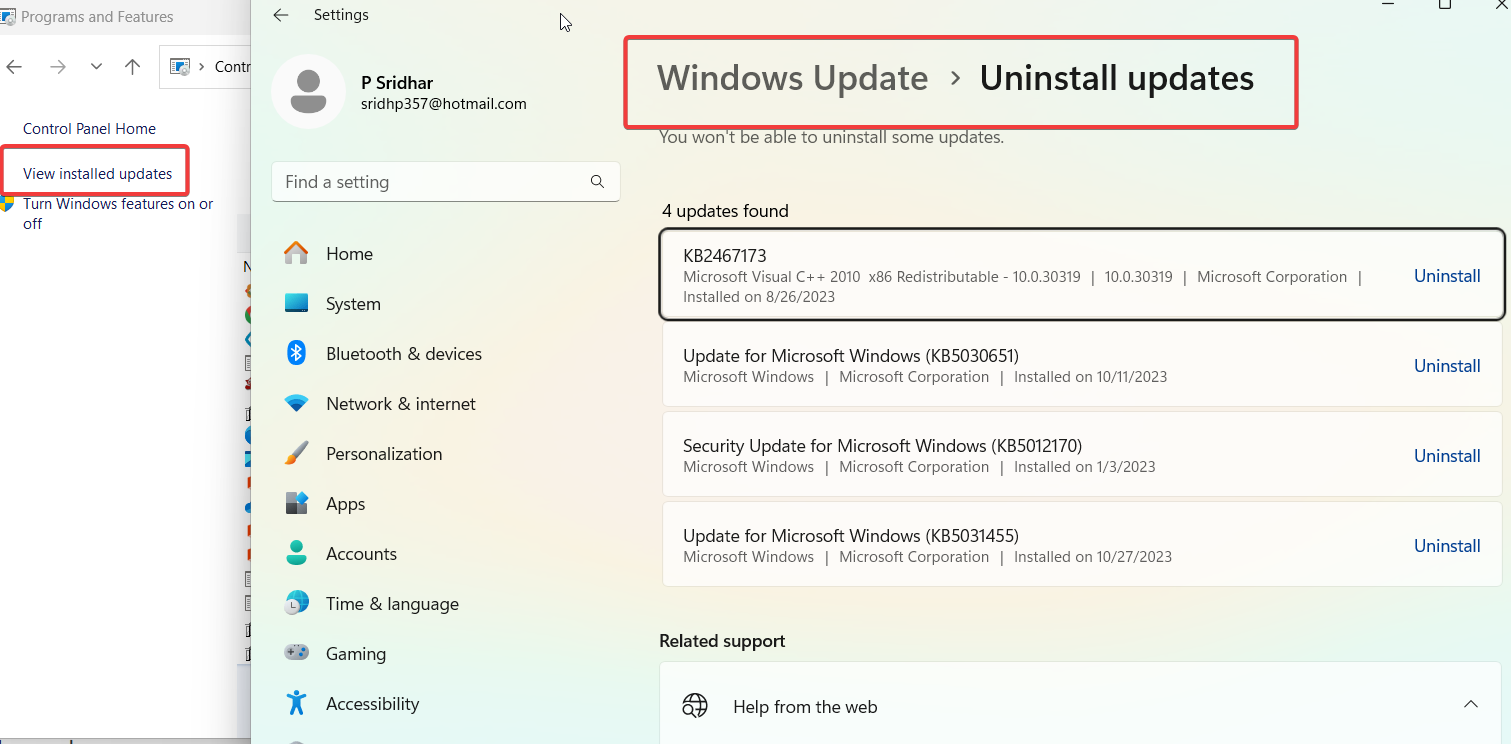
    2. Click on View installed updates on the left pane.
    3. Find the Windows 11 update you want to remove and double click on it.
    4. In the popup window, click Uninstall and then Yes to confirm.

    Note: As you can see below the traditional approach to delete installed updates takes you to the Windows 11 Settings app. Though all the updates are visible, but still you cannot uninstall individual update in this method also.

    view installed updates windows 11

    This will trigger the uninstall process. Make sure to restart your PC afterwards.

    Uninstall Windows 11 Update Using Command Prompt

    For advanced users, you can use Command Prompt to identify and remove Windows 11 updates via commands. Follow these steps:

    In most cases, this should work to remove individual Windows 11 update.

    1. Open Command Prompt as administrator.
    2. Type wmic qfe list brief and hit enter.
    3. Identify the Windows Update KB number you want to uninstall from the list.
    4. Type wusa /uninstall /kb:XXXXXXX with XXXXXXX replaced by the KB number.
    5. Restart your PC for the changes to apply.

    This will instantly uninstall the specified Windows Update from your system via Command Prompt.

    Delete Windows 11 Update Cache

    If a Windows Update got stuck while downloading, you can delete the temporary installation files cached on your PC to try installing again:

    1. Open File Explorer and navigate to C:\Windows\SoftwareDistribution\Download.
    2. Select all files and delete them. This removes all cached Windows Update files.
    3. Try checking for updates again in Settings. It will now freshly download updates.

    Remove Failed/Pending Windows 11 Updates

    For updates that got stuck in a failed or pending state, use the DISM tool via Command Prompt:

    1. Open an elevated Command Prompt window.
    2. Type DISM /Image:C:\ /Cleanup-Image /RevertPendingActions and hit enter.
    3. Restart your PC. This will clear any pending updates and revert changes.

    You can now try installing the failed updates again normally through Windows Update.

    Uninstall Driver Updates on Windows 11

    To target a specific Windows 11 driver update for uninstall, use these steps:

    1. Go to Device Manager > Expand drivers > Right click problematic driver > Uninstall.
    2. On the popup, select “Delete the driver software for this device” and click Uninstall.
    3. Restart your PC and Windows will reinstall the default driver.

    This lets you easily rollback a dodgy Windows 11 driver update through Device Manager.

    Troubleshooting Windows 11 Update Uninstall Issues

    If you are unable to uninstall a Windows 11 update normally, try these troubleshooting steps:

    • Use the Windows Update Troubleshooter to fix common issues.
    • Perform a Windows 11 Repair Install to refresh system files.
    • Reset Windows Update components via Command Prompt using net stop wuauserv, net stop bits, net stop cryptsvc, ren C:\Windows\SoftwareDistribution SoftwareDistribution.old, ren C:\Windows\System32\catroot2 catroot2.old, net start wuauserv, net start bits, net start cryptsvc.
    • Use System Restore to rollback system to earlier state before the problematic update.
    • Clean install Windows 11 as a last resort if the update rendered system unbootable.
    • Contact Microsoft Support for further assistance if needed.

    Conclusion

    Removing buggy or incompatible Windows 11 updates is straightforward once you know the right steps. Settings, Control Panel, Command Prompt offer simple uninstall options. For advanced cases, DISM, System Restore and Windows Update troubleshooters help resolve issues. Overall, don’t hesitate to uninstall problematic updates to improve system stability.

  • Fix Local Security Authority (LSA) Warning in Windows 11

    The “Local Security Authority Protection is off” warning on Windows 11 indicates that an important security feature has been disabled, potentially leaving your device vulnerable. This article will provide a comprehensive guide on understanding the Local Security Authority (LSA) protection in Windows and the various methods to resolve this security notification.

    What is Local Security Authority (LSA) Protection in Windows?

    The Local Security Authority subsystem service is a core Windows process that manages local security policies, user authentication, and auditing. The LSA protection specifically safeguards the integrity of the LSA process from malicious tampering or takeover.

    In recent updates of Windows 11, you may not see this option in Windows Security. As I noticed in the Oct 2023 update, this option is no longer seen in the Pro version. This problem was resolved in the May update of Windows 11.

    But LSA not visible is a different problem compared to disabled warning. Both are different errors. In some cases the LSA runs in the background, but is not visible in Windows Security or Defender. In such cases you can delete the latest update and check if it is visible.

    As long as your computer is secure, you don’t have to worry. The only thing is that Windows Security should have a green tick mark in the system tray. It indicates that all the security processes are running properly and not having any problem.

    When enabled, LSA protection prevents unauthorized changes to the security accounts manager (SAM) database, which stores user credentials like passwords. It does this by isolating the LSA process in memory to block attempts to inject code or modify data. This protects your credentials and critical system components from credential theft attacks.

    So if you get a warning that LSA protection is disabled, it means this important security capability has been turned off, leaving your Windows device open to credential theft and other security risks. The good news is that in most cases, you can re-enable LSA protection to restore security.

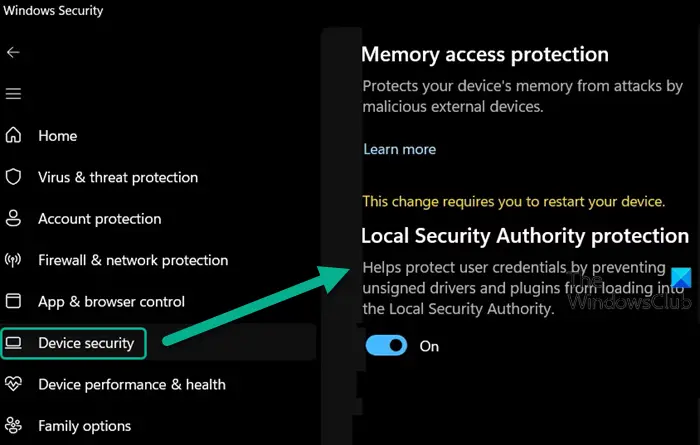
    Enabling Local Security Authority protection using Windows Security
    Image Source: thewindowsclub.com

    Confirm the LSA Protection is Actually Disabled

    Before going about the business of re-enabling LSA protection, first verify that the warning is real and not a false flag. Here’s how to check the status of LSA protection on Windows 11:

    1. Open Windows Security app by searching for it in the Start menu.
    2. Go to the Device security section.
    3. Click ‘Core isolation details‘ and scroll down to find the status of the LSA protection. If it is shown as off, then the error is genuine.

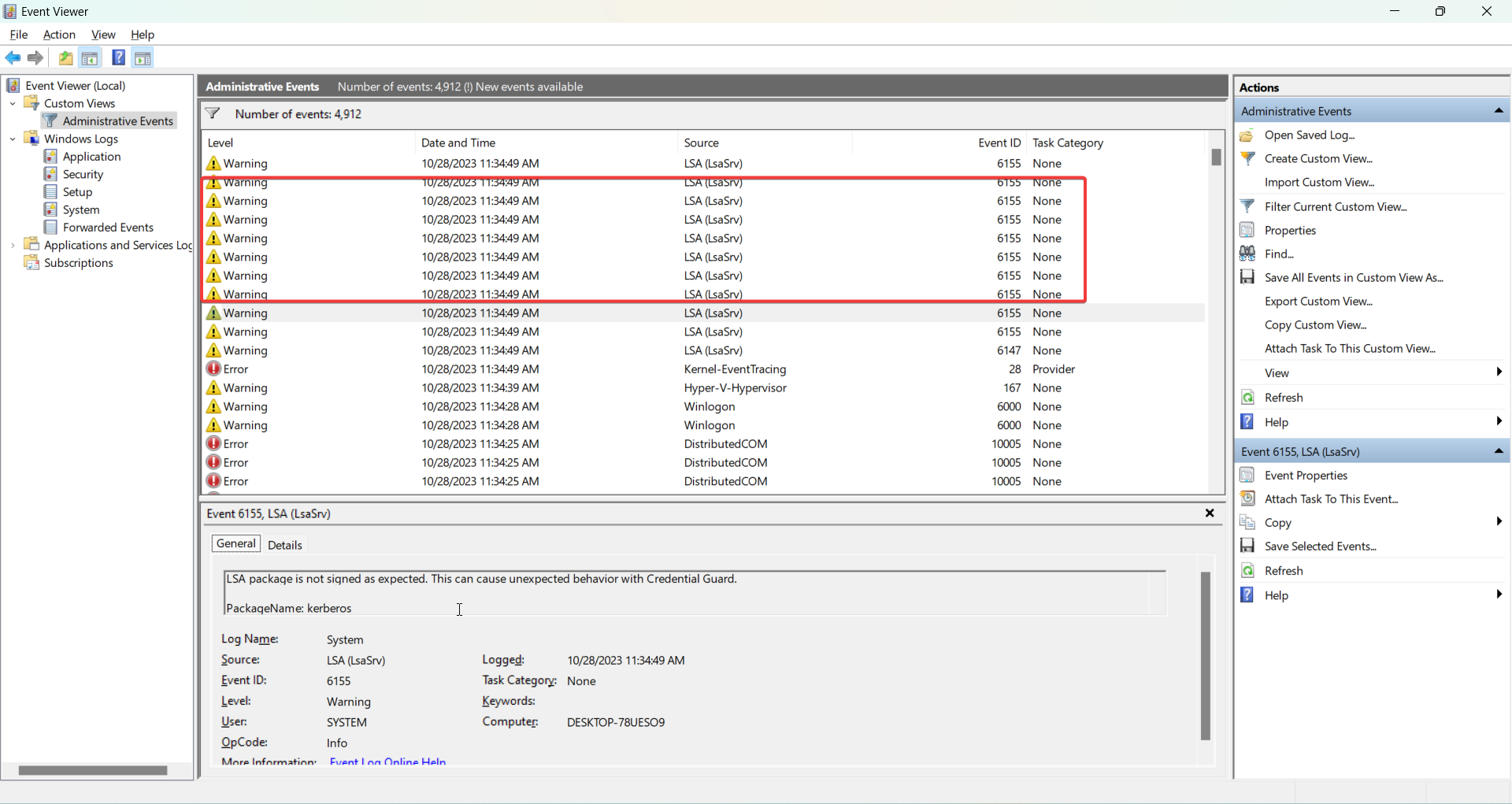
    You can also check the status via the Event Viewer.

    1. Open Event Viewer (eventvwr.msc)
    2. Expand Windows Logs > System.
    3. Look for event ID 56 or 6155 from the source LSA Shell. The description will state if LSA protection is on or off.

    If the LSA protection does show as disabled in the Windows Security app and Event Viewer, use one of the following solutions to turn it back on.

    lsa warning eventviewer windows 11

    Why Does the LSA Protection Get Disabled on Windows 11?

    There are a few reasons why you may suddenly get a notification that the LSA protection has been turned off on your Windows 11 device:

    • Windows updates – Certain Windows or driver updates have been known to inadvertently flip the LSA protection switch to the off position. This behavior has been noticed especially with updates for Windows Defender Antivirus.
    • Manual tweaks – Some users may have manually disabled LSA protection, perhaps while tweaking settings to resolve previous issues. Disabling core isolation can also turn off LSA protection.
    • Corruption – System file corruption has also been known to randomly disable the LSA protection. A corrupted registry entry or core system file could be the culprit.
    • False warnings – In some cases, the warning may be erroneous if Windows incorrectly reports the status of the LSA protection. So the first step is to verify the error is genuine.

    Regardless of what caused it, having LSA protection disabled means your device is at higher risk. The good news is that this can be easily remediated using one of several methods.

    Install Pending Windows Updates

    One quick first step is to check for any pending Windows updates and install them. Microsoft periodically releases patches that fix issues with LSA protection getting erroneously disabled.

    1. Go to Settings > Windows Update and click Check for updates.
    2. Install any available updates. Restart your PC.
    3. Now check if the LSA protection shows as enabled in the Windows Security app. If so, the problem is fixed.

    Recent Windows updates known to resolve this LSA protection issue include:

    • KB5007651 – Fixes problems with Windows Defender Antivirus disabling LSA protection.
    • KB5006670 – Addresses LSA protection getting disabled on Windows 11.

    So before trying anything else, installing the latest updates may automatically fix the disabled LSA protection problem for you.

    Reset the Local Security Authority Subsystem Service

    Resetting the Local Security Authority Subsystem Service restarts the service and can re-enable LSA protection if it was disabled due to corruption or conflicts.

    Here are the steps to reset the LSA service:

    1. Press Win key + R to open the Run dialog box.
    2. Type “services.msc” and click OK to open the Services manager.
    3. Find the service named Local Security Authority and double click to open its Properties.
    4. On the General tab, change the Startup type to Automatic if needed.
    5. Click the Stop button to stop the service. Next click Apply.
    6. Now click Start to restart the service, and click OK.

    This will reset the LSA service, which should now show LSA protection as enabled again in the Windows Security app.

    Use DISM and SFC to Repair System Files

    Corrupted system files could also be responsible for flipping the switch on LSA protection. Running DISM and SFC scans can detect and repair broken system files that may be causing this.

    DISM scan repairs the Windows image while SFC scan fixes system file errors. Here are the commands to run these scans:

    1. Open an admin PowerShell window and run:
       DISM /Online /Cleanup-Image /ScanHealth
    1. Follow up with:
       DISM /Online /Cleanup-Image /RestoreHealth
    1. Once DISM scan completes, run:
       SFC /scannow
    1. Restart your computer once the scans finish. The corrupted files leading to disabled LSA protection should now be restored.

    Modify Registry to Enable LSA Protection

    You can also manually re-enable LSA protection by turning on the relevant settings in the Windows registry. Here are the steps:

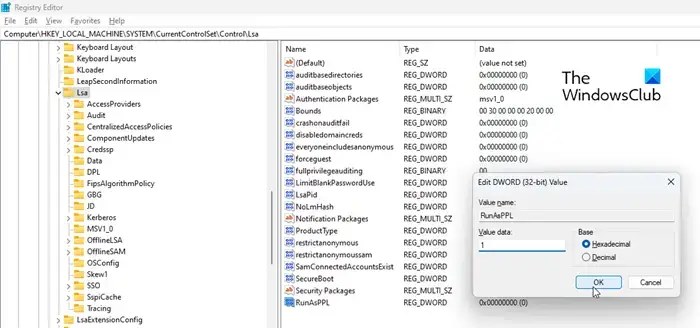
    1. Open Registry Editor (regedit.exe).
    2. Navigate to HKEY_LOCAL_MACHINE\SYSTEM\CurrentControlSet\Control\Lsa
    3. Right click on the Lsa folder and select New > Dword Value.
    4. Name it RunAsPPL.
    5. Double click on it and set the Value data to 1 and click OK.
    6. Repeat steps 3-5, creating a second Dword value named RunAsPPLBoot. Set its Value to 1.
    7. Restart your PC for changes to take effect.
    Enabling Local Security Authority protection using Registry Editor

    These registry modifications will enable LSA protection for both the boot and runtime environments. You can now verify protection is re-enabled in the Windows Security app.

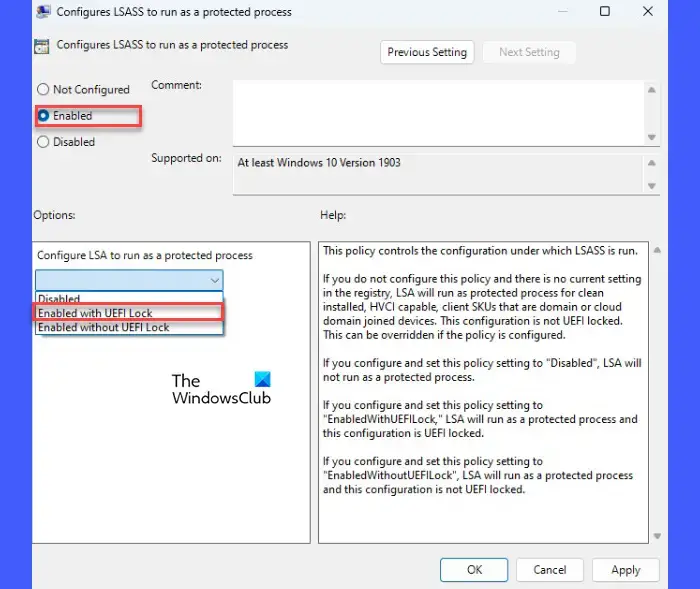
    Use Local Group Policy Editor to Turn On LSA Protection

    On Windows 11 Pro, Enterprise and Education editions, you can use the Local Group Policy Editor to enable LSA protection. Here are the steps:

    1. Type “gpedit.msc” in the Start menu to open the Local Group Policy Editor.
    2. Go to Computer Configuration > Administrative Templates > System > Device Guard.
    3. Double click on “Turn On Virtualization Based Security” and select Enabled. Click Apply.
    4. Next, go to Computer Configuration > Administrative Templates > MSS (Legacy)
    5. Double click on “Turn On Virtualization Based Security: Select Platform Security Level” and set it to Secure Boot AND DMA Protection.
    6. Restart your PC. LSA protection should now be enabled again.
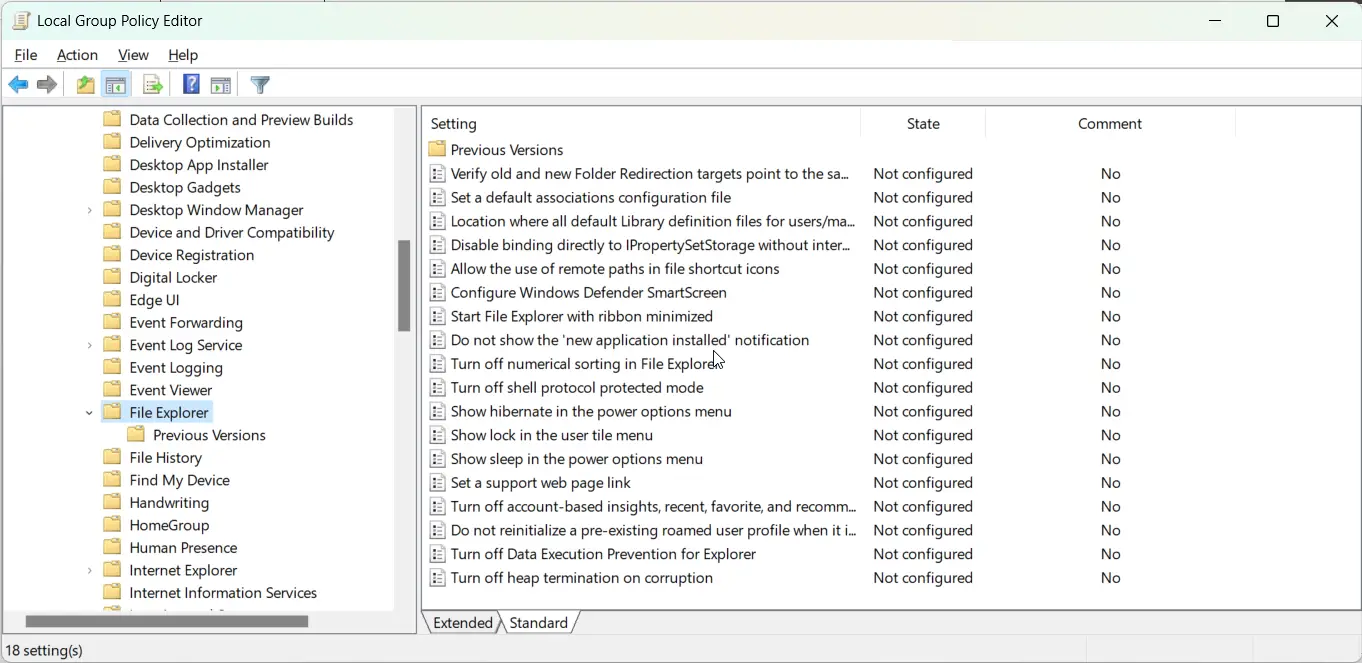
    Enabling Local Security Authority protection using Group Policy Editor

    This uses Group Policy to turn on virtualization security features including LSA protection.

    Conclusion

    The “Local Security Authority Protection is off” warning should not be ignored, as it exposes your Windows device to credential theft and system compromise.

    Thankfully, there are multiple straightforward methods to re-enable LSA protection. Updating Windows, resetting the LSA service, running DISM/SFC repairs, modifying the registry, and using Group Policy can all help turn LSA protection back on.

    Just be sure to first confirm the error is genuine and not a false flag. With LSA protection re-enabled, you can rest assured your Windows 11 device remains protected from identity and security threats.

  • Turn OFF pIN Login in Windows 11

    Looking to disable PIN login on your Windows 11 device? PIN login provides a quick way to sign in to your PC without typing a password. However, you may want to turn it off for security reasons or simple personal preference.

    In this detailed guide, I’ll show you multiple methods to turn off and disable PIN login in Windows 11. We’ll go over using Settings, Registry Editor, Command Prompt, and Local Group Policy Editor. Follow along step-by-step to learn how to remove PIN login entirely from your device.

    Overview of PIN Login in Windows 11

    Introduced in Windows 8, PIN login allows you to sign in to Windows with a 4-digit personal identification number. This is meant to provide a faster way to access your account, compared to typing a complex alphanumeric password.

    To set up PIN login, go to Settings > Accounts > Sign-in options and click the Add button under PIN. You’ll be prompted to create and confirm a 4-digit PIN.

    Now let’s look at how to disable PIN login if you no longer want to use it.

    Method 1: Turn Off PIN Login in Settings

    The easiest way to disable PIN login is through the Settings app. Here are the steps:

    Once set up, you’ll see PIN login as an option when signing in to Windows, alongside password and Windows Hello. Your PIN is specific to your account on that device.

    Total Time:

    Open Settings and go to Accounts.

    Select Sign-in options from the left pane.

    Under PIN, click the Remove button

    Confirm that you want to remove the PIN by selecting Yes when prompted

    After following these steps, PIN login will be turned off completely for your account. You’ll have to sign in using your password or Windows Hello going forward.

    This instantly removes PIN login and is the recommended method for most users. However, if you need to disable it via the command line or Group Policy, keep reading.

    Method 2: Turn Off PIN Login via Registry Editor

    The Windows Registry contains configuration settings for PIN login. By editing it, you can turn off and disable the PIN sign-in option.

    Here are the steps to turn off PIN login using Registry Editor:

    1. Type regedit in the Start menu to open the Registry Editor.
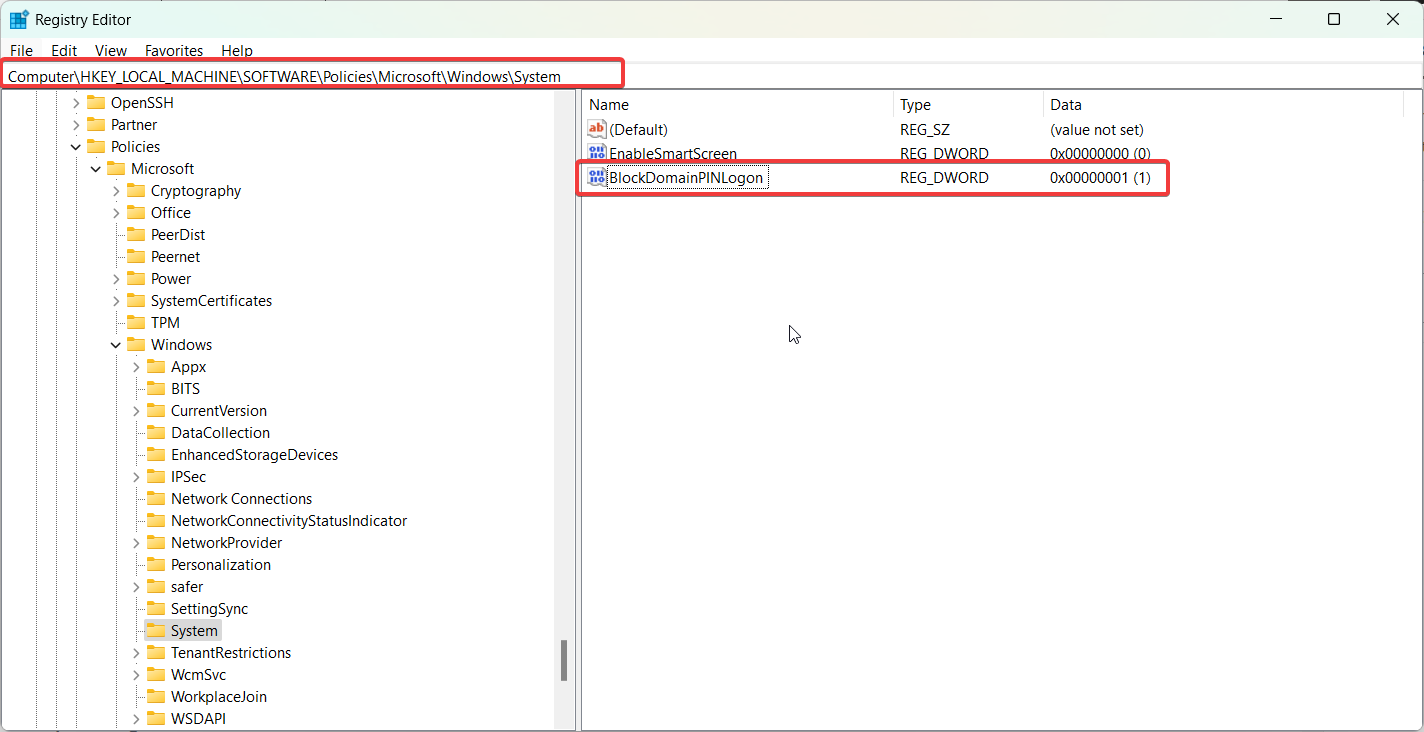
    2. Navigate to the key: HKEY_LOCAL_MACHINE\SOFTWARE\Policies\Microsoft\Windows\System
    3. Right-click and select New > DWORD (32-bit) Value.
    4. Name it BlockDomainPINLogon.
    5. Double-click it and set its value data to 1.
    6. Restart your computer for the change to take effect.
    registry disable pin windows 11

    This will disable PIN login for all accounts on your device. To make the change apply just to your user account, go to HKEY_CURRENT_USER\SOFTWARE\Policies\Microsoft\Windows\System instead in step 2.

    Method 3: Use Command Prompt to Turn Off PIN

    You can use the Command Prompt to turn off PIN login by running a few commands to modify the registry.

    Follow these steps:

    1. Open Command Prompt as administrator.
    2. Run this command:
       reg add "HKLM\SOFTWARE\Policies\Microsoft\Windows\System" /v BlockDomainPINLogon /t REG_DWORD /d 1 /f
    1. Restart your computer.

    This will add the registry key we discussed earlier via the command line to disable PIN login system-wide.

    You can also target just your account with this command instead:

    reg add "HKCU\SOFTWARE\Policies\Microsoft\Windows\System" /v BlockDomainPINLogon /t REG_DWORD /d 1 /f

    Method 4: Remove PIN Login with Group Policy

    If your Windows device is connected to a domain, you can use Group Policy Editor to turn off PIN login. Here’s how:

    1. Type gpedit.msc in the Start menu to open Local Group Policy Editor.
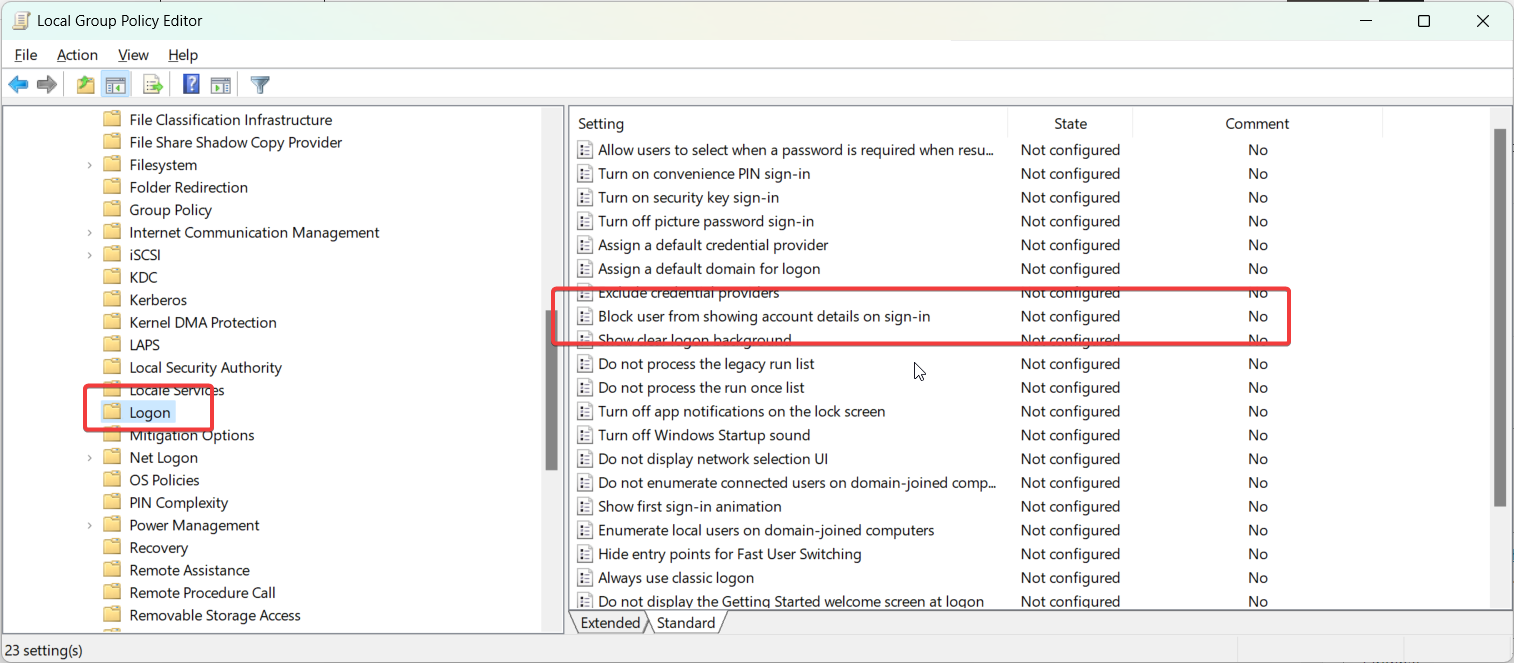
    2. Go to: Computer Configuration > Administrative Templates > System > Logon
    3. Set the policy Block user from showing account details on sign-in to Enabled.
    4. Restart your PC for changes to take effect.
    remove windows 11 pin gpo

    This will disable the PIN sign-in option for all users on the device via domain policy.

    And that covers the various ways to turn off and remove PIN login in Windows 11! The easiest option is through Settings, but you can also use the Registry, Command Prompt, or Group Policy for more control.

    Troubleshooting PIN Login Issues

    If you are still seeing PIN login after trying to disable it, here are some things to check:

    • Make sure you restarted your PC after making registry or group policy changes. This is required for them to apply.
    • Double check that the registry keys are set correctly to disable PIN. The value data should be set to 1.
    • Try toggling the settings off and on again. For example, enable PIN, restart, then go back and disable it fully.
    • On a domain, both local group policy and domain policy may override settings. Check both to troubleshoot conflicts.
    • As a last resort, resetting your Windows account or performing an OS refresh may resolve lingering PIN login issues.

    Frequently Asked Questions

    Here are some common questions about disabling PIN login on Windows 11:

    Q: Is disabling PIN login more secure?

    A: Potentially. Removing PIN login means one less entry point to your account. However, using a strong 4-digit PIN can still be reasonably secure in most cases.

    Q: Can I still use Windows Hello if I disable PIN login?

    A: Yes, absolutely. Disabling PIN login only removes the 4-digit PIN option specifically. Other sign-in methods like Windows Hello facial/fingerprint recognition, password, or security key will still work.

    Q: What happens if I forget my Windows password after removing PIN login?

    A: You can reset your forgotten Windows password by booting into the recovery environment. The steps to do this may vary between devices but typically involve using installation media.

    Q: Is PIN login less secure than a password?

    A: Generally yes, a complex password is more secure than a short 4-digit PIN. However, PINs are meant for convenience while still maintaining reasonable security for most home users. Use your best judgment based on your use case and security needs.

    And that sums up how to disable PIN login on Windows 11! Let me know if you have any other questions.

  • How to Login Automatically in Windows 11

    Tired of entering your password every time you turn on your Windows 11 PC? With automatic login, you can bypass the login screen and boot directly to your desktop.

    Windows 11 brings a fresh new look and many new features to Microsoft’s operating system. While the visual refresh is welcome, it can take some adjusting if you’re used to the old way of doing things. One of those changes is to the login process – Windows 11 has ramped up security, meaning you need to manually enter your password each time you start your PC.

    For some users, this extra security provides peace of mind. But others find it an inconvenience, especially if you’re the only one who uses your computer. The good news is you can still set up automatic login in Windows 11, you just need to follow a few extra steps.

    How to Enable Auto Login in Windows 11

    The easiest way to configure automatic login is directly through Windows 11’s sign-in settings:

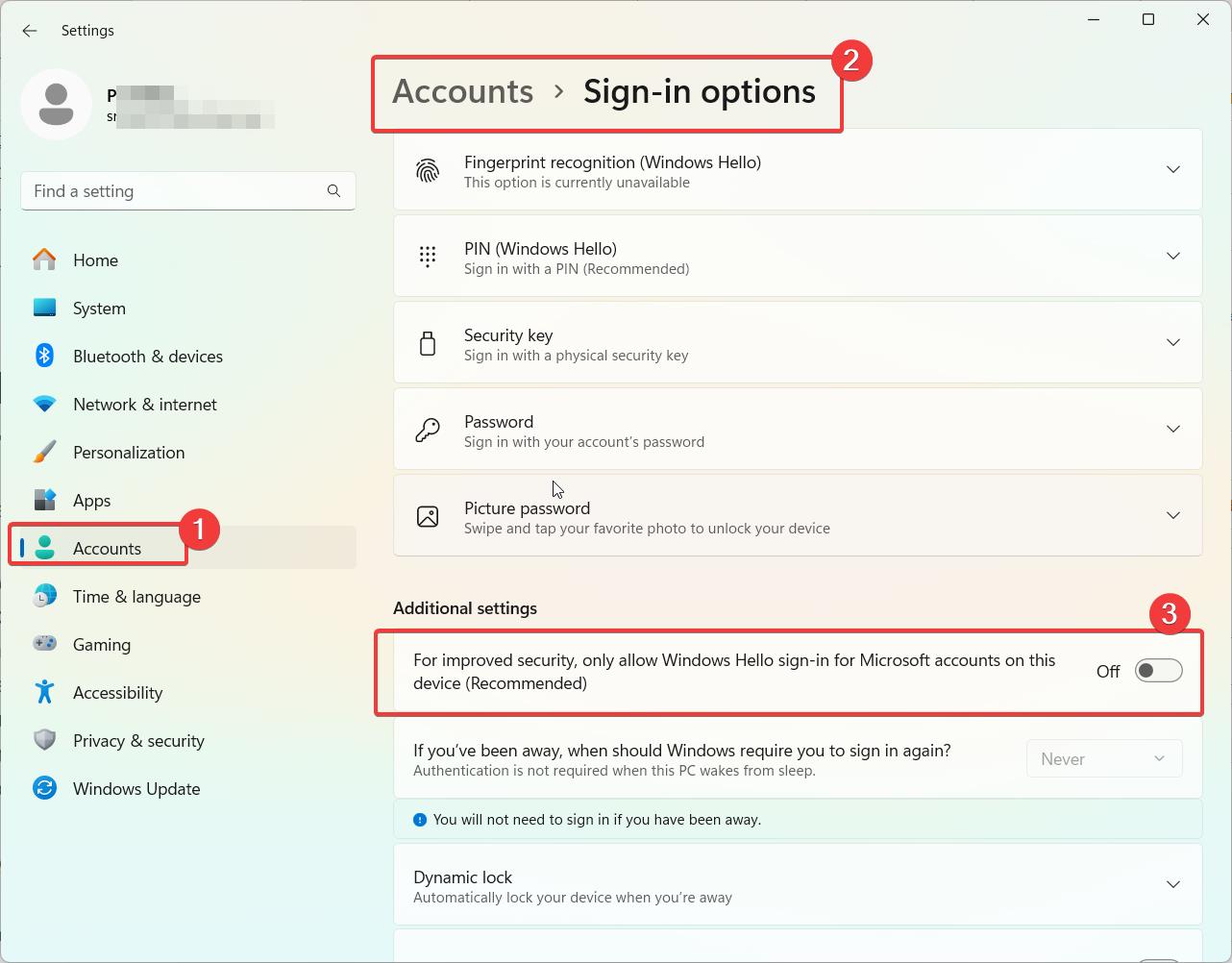
    1. Press Win + I keys and Open Settings app in Windows 11.
    2. Select Accounts > Sign-in options.
    3. Under Additional Settings there is a setting.
    4. For improved security, only allow Windows Hello sign-in for Microsoft accounts on this device (Recommended).
    5. Turn off this option.
    windows 11 automatic login
    1. Press Windows + R to open the Run dialog box. Type “netplwiz” and hit Enter.
    2. Alternatively, you can search for “netplwiz” in the Windows search bar and select the app.
    disable user account passwords win 11
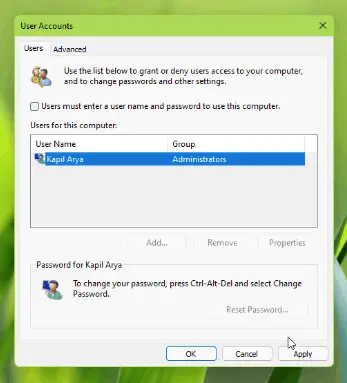
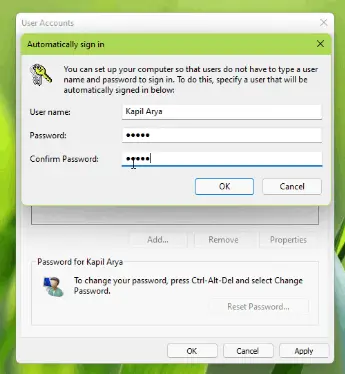
    1. In the User Accounts window that appears, go to the Users tab. Uncheck the box next to “Users must enter a username and password to use this computer.”
    username pwd win 11
    1. Click Apply, then enter your account password to confirm the changes.
    2. Restart your PC for changes to take effect.

    Now your designated account will login automatically whenever you start your Windows 11 PC!

    You can customize the experience by enabling added password requirements under Sign-in options like requiring a password on wake or after screen timeout.

    Using Windows Registry to Enable Auto Login

    More advanced users can also enable automatic login by modifying the Windows registry:

    1. Type regedit in the taskbar search to open the Registry Editor.
    2. Navigate to HKEY_LOCAL_MACHINE\SOFTWARE\Microsoft\Windows NT\CurrentVersion\Winlogon.
    3. Add a new String Value named AutoAdminLogon and set it to 1.
    4. Add another new String Value named DefaultUserName and set to your username.
    5. Add a final String Value named DefaultPassword and set to your password.
    6. Restart your PC for changes to apply.

    This will automatically sign in the designated user account when booting up. Be cautious when editing the registry and back up changes.

    Using Third-Party Tools to Enable Auto Login

    If you don’t want to mess with the registry, third-party tools like AutoLogon can enable automatic login:

    1. Download and install the AutoLogon utility.
    2. Launch the app and check the box for Enable AutoLogon.
    3. Enter your username and password.
    4. Click Set to save your credentials.
    5. Restart your PC to allow auto login.

    This simplifies the process without having to directly edit sensitive registry files. But use trusted third-party apps at your own risk.

    Overview of Automatic Login in Windows 11

    The automatic login feature allows a designated user account to login automatically without entering a password. This saves you time and gives you quick access to your files, programs, and desktop as soon as you power on your PC.

    Some key things to know about auto login in Windows 11:

    • Single user convenience – Best for personal devices used primarily by one person.
    • Accessibility benefit – Helps those with mobility issues by removing the need to type passwords.
    • Security risk – Allows open access to your PC if physical security is compromised.
    • Customization – You can require a password on wake from sleep or screen timeout for added security.

    Overall, automatic login offers great convenience for frequent single users. But enable at your own risk and customize settings to meet your security needs.

    Pros and Cons of Automatic Login

    Before jumping in, let’s weigh up the pros and cons of automatic login in Windows:

    Pros

    • Saves time – avoids typing password when you’re the only user
    • Convenience – ideal for home computers used by one person
    • Accessibility – eliminates typing for those with dexterity issues

    Cons

    • Less secure – anyone can access your PC if stolen
    • Not suitable for shared devices
    • Can prevent automatic Windows updates
    • Skips Microsoft account verification

    The main trade-off is convenience vs security. Automatic login makes your life easier if you live alone. But it also leaves your data more vulnerable if your PC is lost or accessed by others.

    Many businesses and family computers will opt to keep password login. But automatic login can make sense for private home machines.

    Is Automatic Login in Windows 11 Secure?

    While extremely convenient, enabling automatic login does come with security concerns:

    • No login password allows anyone access if your PC is left unattended
    • Multiple accounts remain accessible unless password protected
    • Files and programs open to access without authentication

    To keep your device and data secure with auto login enabled:

    • Use it only on personal single-user devices
    • Physically secure your PC at home or the office
    • Require a password on wake or screen timeout
    • Leverage disk encryption like BitLocker
    • Enable Windows Hello facial or fingerprint login

    These tips will help minimize risks while still benefitting from the time-saving auto login feature.

    Conclusion

    Automatic login allows fast access to your Windows 11 desktop while skipping the login screen. Configure it through Settings, the registry, or third-party software. Just be aware of the security trade-offs.

    Enable auto login cautiously on private, physically secure PCs. Require secondary authentication when possible and utilize encryption and Windows Hello. Avoid enabling it on shared devices.

    With a few simple steps, you can save time every time you turn on your PC thanks to automatic login in Windows 11.

  • How to do In-place Upgrade to Windows 11

    Upgrading your Windows 10 PC to the latest Windows 11 version is easy with an in-place upgrade. This process upgrades your existing Windows installation to Windows 11 while preserving all your apps, settings and data.

    In this guide, we’ll cover when an in-place upgrade makes sense compared to a clean install, walk through the step-by-step process, and troubleshoot common issues.

    Overview of In-Place Upgrades

    An in-place upgrade allows you to upgrade the existing Windows on your PC to a newer version like Windows 11. This upgrades core system files and settings while migrating your programs, personal files, and configuration intact.

    Benefits of in-place upgrade:

    • Keeps all your apps, drivers, and custom settings
    • Less disruptive process compared to clean install
    • Saves time reinstalling programs and configuring OS
    • Preserves data without needing to backup and restore

    Downsides to consider:

    • Could carry over old bugs, drivers issues from previous build
    • Less control than clean install with OS customization
    • Requires sufficient free disk space for temporary files
    • Small risk of data loss if upgrade fails

    In most cases, in-place upgrades go smoothly and are less hassle than wiping your PC and starting fresh. But a clean install offers more flexibility for advanced users.

    in place upgrade windows 11

    When Should You Consider an In-Place Upgrade?

    If your Windows 10 PC meets the minimum system requirements, an in-place upgrade to Windows 11 is a good option when:

    • You want to retain all installed programs and app data
    • You have your OS customized and don’t want to reconfigure
    • You want the least disruptive and simplest upgrade process

    Reasons to opt for a clean install instead:

    • You have an older PC and want to rule out legacy driver issues
    • Your Windows 10 installation has bugs or problems
    • You don’t mind reinstalling programs and reconfiguring OS
    • You want full control to selectively import data and apps

    Step-by-Step Guide to In-Place Upgrade to Windows 11

    Follow these steps to do an in-place upgrade of your Windows 10 PC to Windows 11:

    Check system compatibility

    1. Go to Settings > System > Health & security. Look under Windows specifications.
    2. Verify your PC meets the minimum Windows 11 system requirements. Specifically TPM 2.0 and Secure Boot support.
    3. Resolve any flagged compatibility issues. You may need UEFI firmware updates.

    Back up your data

    1. As a precaution, do a full system backup to an external hard drive.
    2. Alternatively, at minimum back up key data like documents, photos and desktop files.

    Download Windows 11 installation media

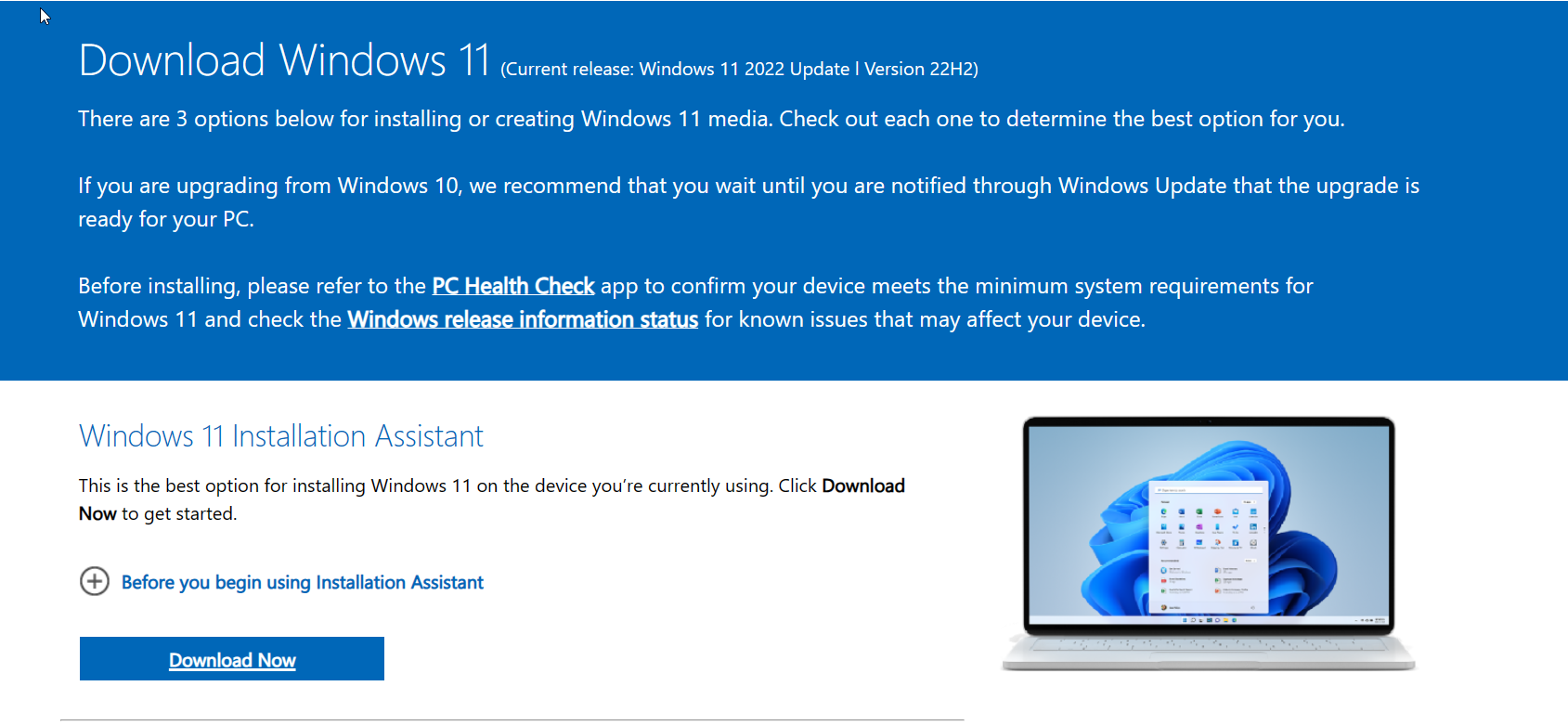
    1. Go to Microsoft’s website and download the Windows 11 installation assistant.
    2. Run the assistant and it will download Windows 11 as an ISO file.

    Alternatively, use the Media Creation Tool to download Windows 11 and create a bootable USB drive.

    download windows 11

    Perform the in-place upgrade

    1. Double click the Windows 11 ISO file and launch the installer.
    2. Agree to the license terms and click Upgrade this PC now to initiate the in-place upgrade process.
    3. The upgrade will take around 15-60 minutes to complete depending on your system. Be patient and do not interrupt it.
    4. Once finished, your PC will boot into Windows 11 with all your data and apps migrated!

    Troubleshooting Common In-Place Upgrade Issues

    In-place upgrades usually go smoothly but occasionally run into problems. Here are some common errors and fixes:

    • Error 0xc1900101 – Typically means incompatible drivers or services are blocking the upgrade. Try updating drivers and disabling non-Microsoft services.
    • TPM or Secure Boot errors – Enabling CSM/Legacy BIOS modes in UEFI settings may resolve this. Some systems won’t support TPM/Secure Boot though.
    • Roll back to Windows 10 – If the upgrade fails badly, you can roll back to your previous Windows 10 build within 10 days through Recovery options.
    • Clean install instead – If you hit stubborn issues, a fresh clean install of Windows 11 may be more stable than trying to in-place upgrade from an older buggy Windows 10 build.
    f4a07d23 3796 47ea a8e7 eb5f66126f47

    Summary and Next Steps After Upgrading to Windows 11

    Once you’ve completed the in-place upgrade, your PC will be running Windows 11 with all your data and configuration preserved!

    Next steps:

    • Update drivers, particularly graphics, using Windows Update.
    • Download latest app updates, like for Microsoft Office.
    • Customize OS settings like theme colors to your preferences.
    • Check for any post-upgrade issues and troubleshoot as needed.
    • Consider resetting default apps for things like email, web browser if desired.

    With an in-place upgrade, the process of moving to Windows 11 is straightforward while keeping everything intact on your PC. Just be sure to backup critical data beforehand as a precaution.

  • How to Restore Old Context Menu in Windows 11

    The new context menu in Windows 11 has been met with mixed reactions. Microsoft redesigned the classic right-click menu to align with Windows 11’s clean, streamlined aesthetics. However, many longtime Windows users prefer the detailed options of the old context menu.

    In this guide, we’ll cover multiple methods to restore the classic right-click menu in Windows 11.

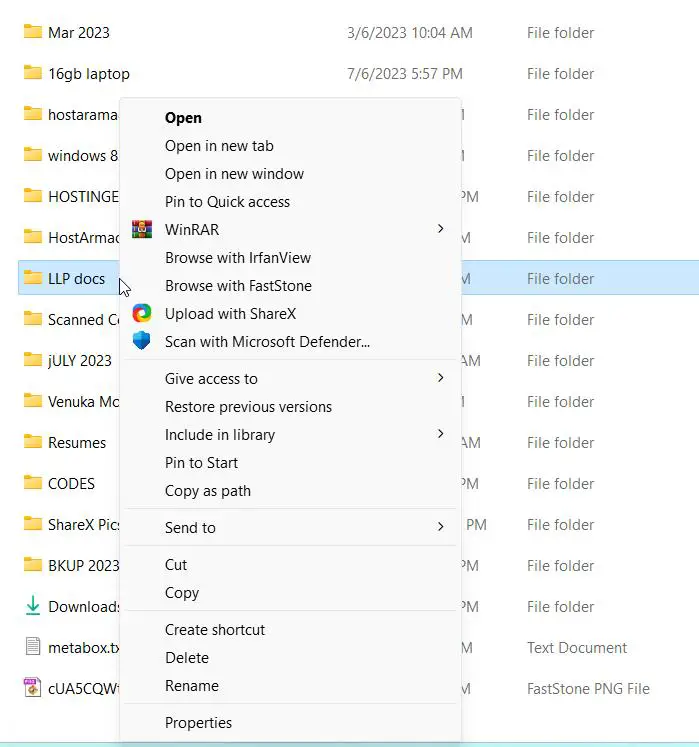
    context menu windows 11

    What Changed with the Windows 11 Context Menu?

    Since the first version of Windows, right-clicking on the desktop or a file would bring up a menu filled with handy options. This contextual menu provided quick access to useful actions like copy, paste, delete, open with, send to, and much more.

    However, with Windows 11, Microsoft debuted a simplified right-click context menu. Instead of the full set of choices, the new menu only shows up to 8 options:

    • Copy
    • Paste
    • Share
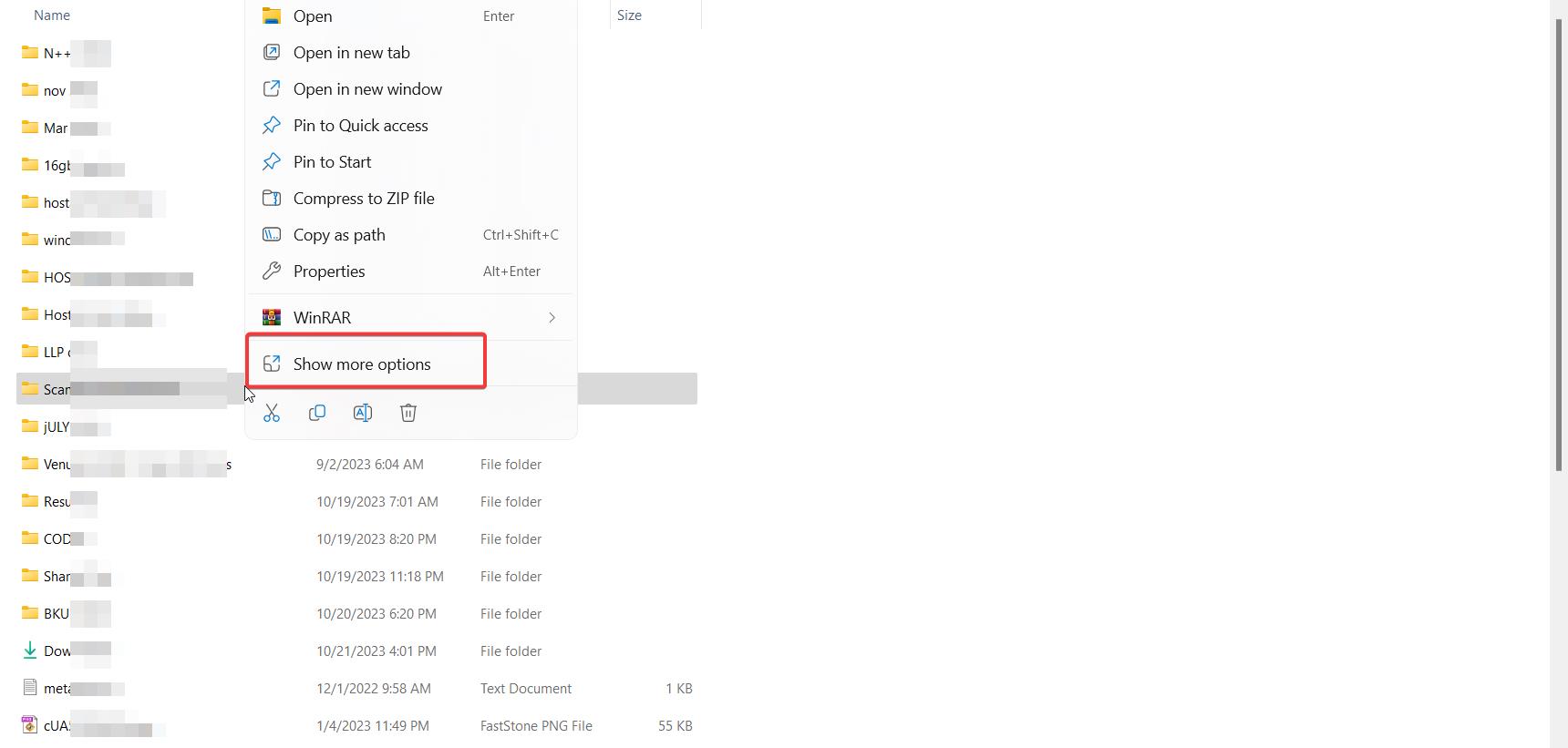
    • Show more options

    To access the full classic menu, you now need to click “Show more options” at the bottom.

    While this decluttered view matches Windows 11’s minimalist aesthetics, many users want the old menu back. Reasons to restore it include:

    • Avoid constantly clicking “Show more options”
    • Immediately access all shortcut actions like Delete, Cut, Create Shortcut etc.
    • Muscle memory from using the classic menu for years
    • Greater efficiency with more options visible upfront

    Let’s look at two methods to revert the right-click menu using the registry and command line.

    This streamlined view fits with the pared back, clean aesthetics of Windows 11. But many power users are frustrated not having immediate access to all the advanced context menu actions they’re accustomed to.

    Edit the Registry to Revert to the Classic Menu

    The simplest way to bring back the old context menu is by tweaking the Windows registry. Here are the steps:

    default context menu windows 11
    1. Open Registry Editor (regedit.exe)
    2. Navigate to

    HKEY_CURRENT_USER\Software\Classes\CLSID\{86ca1aa0-34aa-4e8b-a509-50c905bae2a2}\InprocServer32

    1. Set the default value of this key to blank (delete any existing value)
    2. Restart File Explorer or your PC

    Note: If the above keys do not exist, create them.

    After rebooting, the full classic context menu will be back when right-clicking on the desktop or any file.

    restore default context menu windows 11

    Why this works:

    This registry modification targets the Windows Explorer process that handles the context menus. By clearing that registry value, it reverts the right-click menu to the legacy detailed view instead of the new compact layout.

    The benefit of using the registry hack is it’s a quick, universal switch to enable the old context menus everywhere in Windows 11. The downside is it completely removes the new menu rather than allowing customization.

    Command Line Method to Modify the Registry

    You can automate editing the registry using the following command:

    Set-ItemProperty -Path HKCU:\Software\Classes\CLSID\{86ca1aa0-34aa-4e8b-a509-50c905bae2a2}\InprocServer32 -Name "(default)" -Value ""

    Run this in an elevated PowerShell prompt to instantly reset the registry value needed to enable the old context menu.

    How to Always Show More Options in the Windows 11 Right-Click Context Menu using GPO

    There is no direct setting in group policy editor of Windows 11 Pro to restore classic context menu. Some AI tools have given content that it is possible with a setting, but that may be in earlier versions of Windows 11.

    As of Oct 2023, version there is no direct gpo hack to change the default settings. You either have to use the registry method or third-party tool.

    context menu hack not working gpo

    Use Third-Party Software to Customize Context Menus

    For more control over the right-click menu, you can use third-party utilities like Classic Context Menu.

    These tools let you pick and choose which parts of the old context menu to bring back. For example, you can enable just the “Open command window here” option without reverting everything.

    Key Features of Context Menu Customization Software

    • Selectively enable classic context menu actions like copy path, run as admin, etc.
    • Add new custom options to the right-click menu
    • Options to modify context menus for specific file types or folders
    • Restore classic menus only in certain apps like File Explorer
    • Customize appearance with color, font, spacing choices
    • Export and import configurations

    The level of customization provided by these tools is much more advanced than the registry hack method. You can fine tune the right-click menu to have only the options you actually use.

    Fully Roll Back Context Menus with Open Source Projects

    For power users who want the complete Windows 10 experience, open source projects like StartAllBack provide another option.

    These tools don’t just modify the context menu. They restore the classic Start menu, taskbar, system tray and other interfaces to their Windows 10 versions.

    Benefits of fully rolling back the UI:

    • Familiar Windows 10 style Start menu and search
    • Classic taskbar with fuller context menu options
    • Consistent look and feel across all interface elements

    The downside is you lose the visual refresh of Windows 11. But if productivity with legacy menus is the priority, then reverting completely can be helpful.

    Choosing the Right Restoration Method

    With the different options covered, which method should you use to bring back the old context menu in Windows 11?

    • Use the registry hack for a quick, universal switch back to the classic right-click menu. No software required.
    • Third-party software enables finer control to pick and choose which parts of the old menu to restore.
    • Open source tools that fully rollback the UI are best if you want Windows 10’s look and functionality.

    Evaluate your needs and priorities to decide which option fits best:

    MethodProsCons
    Registry hackQuick to enable old menu everywhere. No software needed.All or nothing, can’t selectively restore some old options.
    Third-party softwareFine-grained control to customize menus. Restore just the options you want.Need to install separate software.
    Open source toolsRollback full Windows 10 UI including Start, taskbar, system tray. Familiar experience.Lose Windows 11 visual styling. Could cause conflicts.

    Conclusion

    The new simplified context menu in Windows 11 is a big change for users who relied on the detailed classic right-click options. Thankfully with a bit of tweaking, you can easily restore the classic context menu or customize it to your needs.

    Get the best of both worlds – the visual update of Windows 11 with the productive legacy right-click menus you want. Regain quick access to handy shortcuts without needing to click “Show more options” every time.

    Hopefully this guide gave you a few methods to consider bringing back the old context menu. Let us know in the comments if you have any questions on implementing these solutions!

  • Fix Outlook not Syncing Errors in Windows and Android

    Outlook’s invaluable email synchronization capabilities allow users to maintain up-to-date mailboxes across multiple devices like desktop, web, and mobile apps. However, Outlook syncing can sometimes stop functioning properly, leading to outdated inboxes and frustration.

    Outlook’s synchronization capabilities allow your mailbox to stay updated across multiple devices, with emails, calendar events, contacts and tasks kept in sync between your desktop, web, and mobile apps.

    However, Outlook syncing can sometimes malfunction, leading to inconsistencies between devices with some showing outdated information.

    Symptoms of broken Outlook sync include mobile apps showing old emails already read on desktop, calendar meeting updates not reflecting everywhere, tasks not matching between devices, and sync errors when trying to connect.

    A variety of issues can disrupt Outlook sync, from connectivity problems to data file corruption to authentication failures.

    Getting Outlook sync restored requires targeted troubleshooting to identify and resolve the specific cause. Tips include restarting the sync manually, creating a fresh Outlook profile, upgrading desktop versions, toggling airplane mode on mobile, and reinstalling the Outlook app.

    outlook not syncing 365 problems fixes scaled

    For persisting problems, advanced fixes like isolating problematic data, contacting Microsoft Support, and scheduling syncs through Microsoft Graph API may be needed.

    With the proper triage and troubleshooting, you can get Outlook synchronization working properly again across all linked devices.

    Consistent automated sync ensures your Outlook inbox, calendar, and other data stays up to date on desktop, web, and mobile for seamless productivity wherever you access Outlook.

    Follow these steps to resolve Outlook synchronization issues on desktop, mobile, and web.

    Common Outlook Sync Errors

    Here are some of the most common symptoms of broken Outlook syncing:

    • Outlook progress bar hangs when syncing folders
    • Mobile app shows outdated emails compared to desktop
    • Contacts added on web not appearing on other devices
    • Calendar not syncing meeting updates between devices
    • Task lists get out-of-sync and show discrepancies
    • Outlook unable to connect error when syncing
    • Duplicate emails appearing across devices
    • Intermittent dropped sync connections

    These types of inconsistencies indicate a failure in Outlook’s automated synchronization.

    What Causes Outlook Sync Problems?

    There are a variety of potential causes behind Outlook sync malfunctions, including:

    • Connectivity issues like network outages interrupting sync sessions
    • Authentication problems due to expired passwords or tokens
    • Duplicate items and conflicts creating confusion
    • Corrupted Outlook data files preventing proper sync
    • Sync limits exceeded for large mailboxes
    • Security settings blocking connections on certain networks
    • Outdated Outlook client versions with sync bugs
    • Server-side issues at Microsoft disrupting Exchange sync

    Understanding the source of the sync complication helps troubleshoot it effectively.

    Fixing Outlook Desktop Sync Issues

    For Outlook desktop sync troubleshooting, options include:

    1. Restart and Reconnect Sync Session

    Often a fresh send/receive reconnect will resolve stalled or failed syncs:

    • Close and restart Outlook to reset any stuck connections
    • On Send/Receive tab, click Sync All Folders to restart full re-sync

    2. Create New Outlook Profile

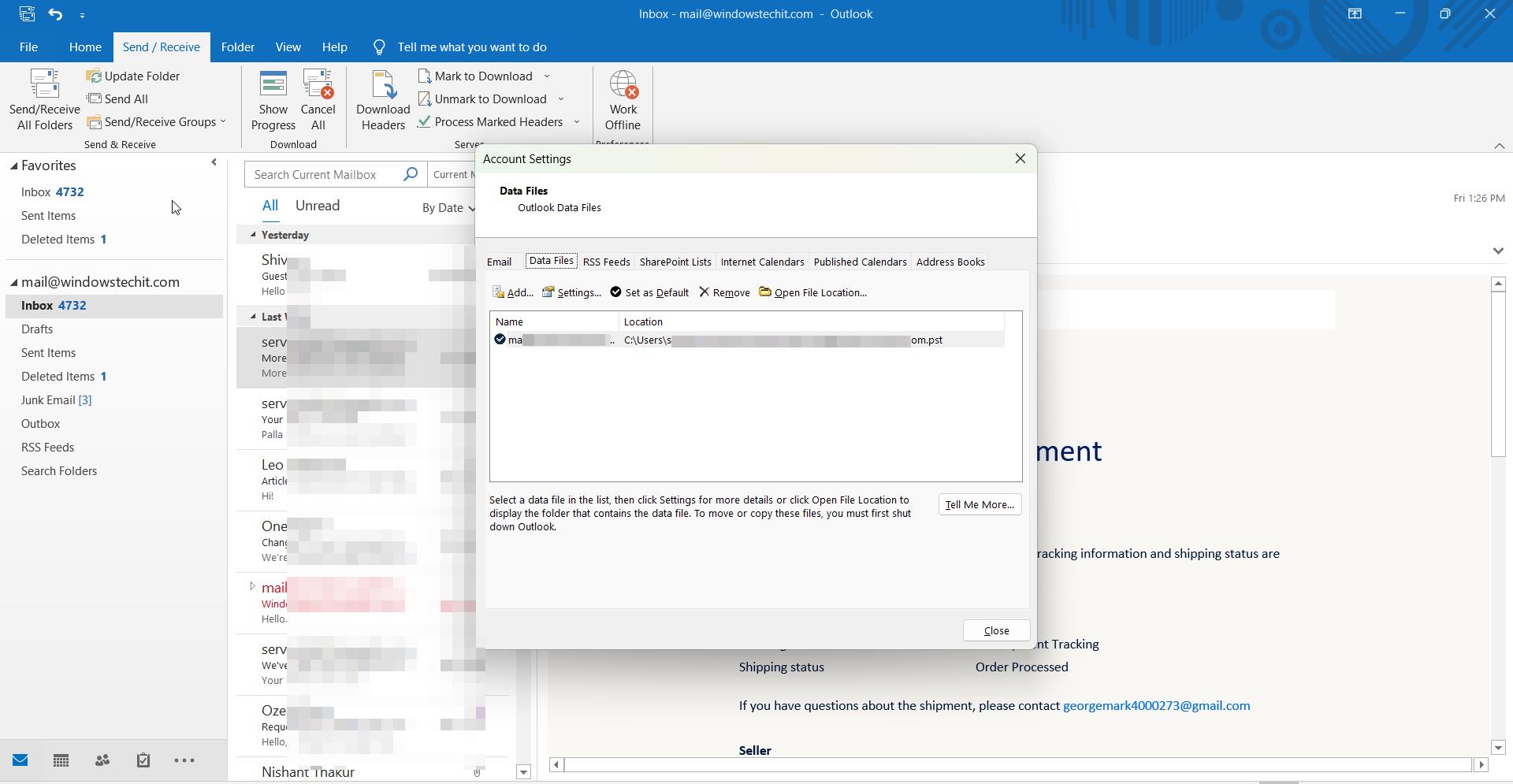
    If data files are corrupted, a new profile can help:

    • Back up PST files first
    • Delete the original Outlook profile
    • Add your accounts to a brand new profile
    create new outlook data file

    3. Repair Outlook Sync Logs

    Clear sync remnants from past failed syncs:

    • Exit Outlook and run ScanPST to diagnose problems
    • Delete existing .LOG files in the Sync Results folder
    • Restart Outlook and sync the problematic folders

    4. Upgrade Outlook Version

    Update to the latest version if on an outdated copy:

    • For Outlook 2016/2013 install the latest cumulative updates
    • Consider migrating to more reliable Office 365 edition

    Updating can resolve bugs and quirks causing Outlook sync failures.

    Troubleshooting Outlook Web App Sync

    If using OWA for webmail, try these sync fixes:

    1. Disable Browser Extensions Temporarily

    Extensions can interfere with OWA performance:

    • Disable add-ons like ad blockers during OWA sync
    • Ensure no conflicts with Microsoft 365 extension

    2. Use an Alternate Browser

    Different browsers handle OWA differently:

    • Switch from Chrome to Firefox or vice versa
    • Browser caches may impact OWA sync

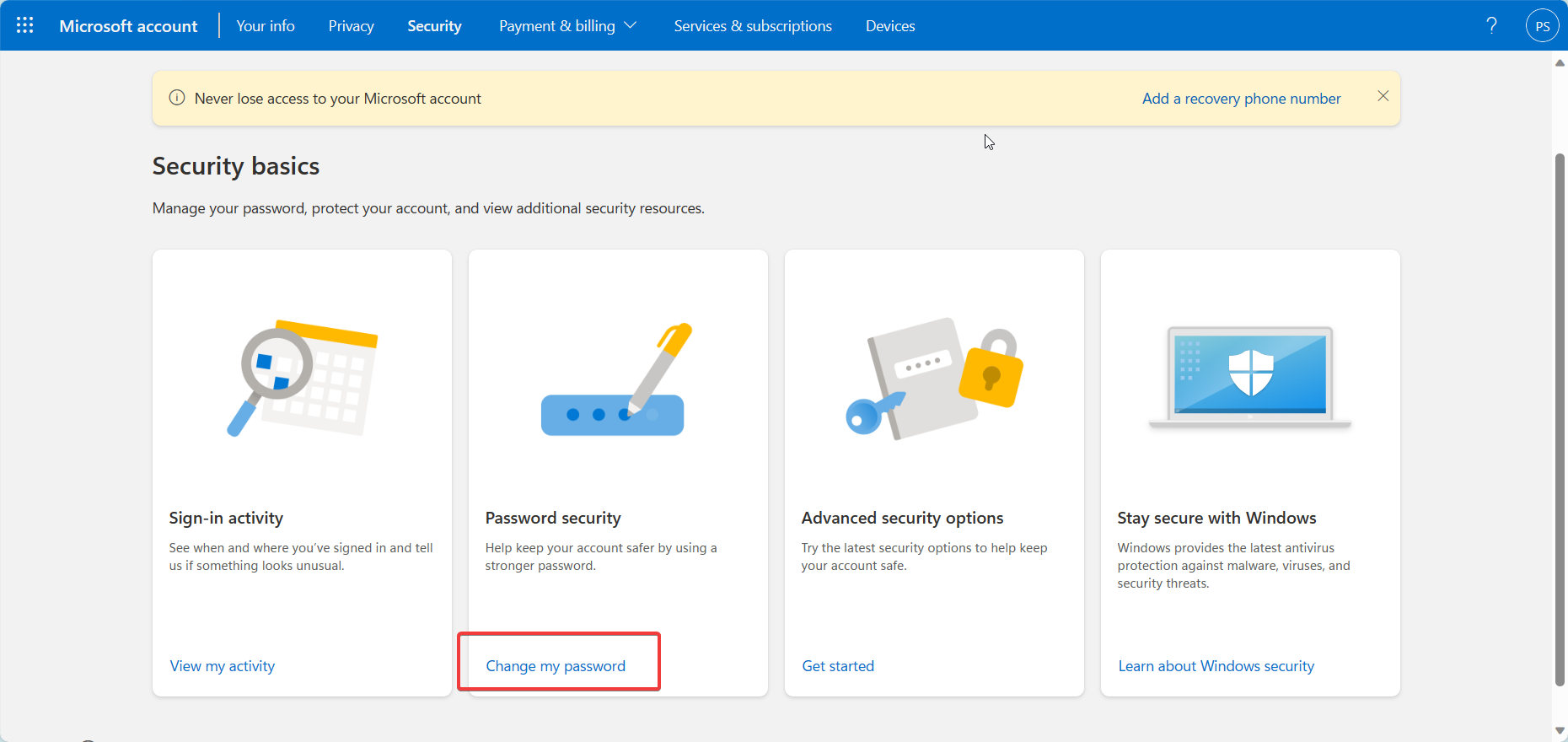
    3. Confirm Account Password

    An expired or changed password will prevent sync:

    • Re-enter account password if changed recently
    • Reset password if you received an expiration notice
    change microsoft account password

    4. Enable Browser Notifications

    Notifications facilitate real-time OWA sync:

    • Check settings to allow notifications from your Office 365 portal URL
    • Notifications keep OWA window active to receive immediate sync data

    Enabling notifications prevents sync delays.

    Fixing Outlook Mobile App Sync Problems

    If your Outlook mobile sync is failing, options include:

    1. Force Close and Reopen App

    Restarting the app can clear up temporary sync bugs:

    • Force close the Outlook mobile app completely
    • Reopen Outlook mobile and let it resync everything

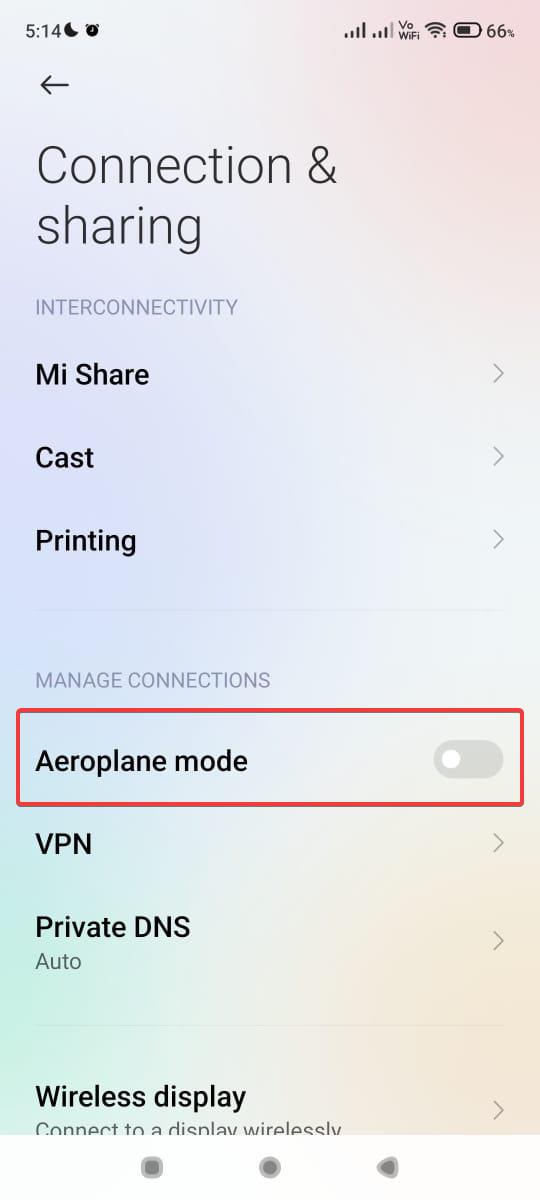
    2. Toggle Airplane Mode

    This resets the network connection:

    • Turn on Airplane mode briefly
    • Toggle Airplane mode off to reconnect the mobile network
    disable aeroplane mode

    3. Revoke and Re-add Account

    Removing and reauthorizing your email account forces a full resync:

    • Go into Account Settings and remove the Outlook account
    • Wait a few minutes then re-add the same account
    • Wait for full mailbox content sync to complete

    4. Update iOS or Android OS

    Updating your core OS can solve Outlook mobile issues:

    • Install latest iOS or Android system updates
    • Latest OS optimizations improve Outlook mobile reliability

    5. Uninstall and Reinstall App

    A fresh reinstall removes any corrupted app data:

    • Uninstall and delete the Outlook mobile app
    • Redownload the latest Outlook version from the app store
    • Add back account and complete sync

    This wipes any troublesome cache/data disrupting sync.

    Advanced Outlook Sync Troubleshooting

    For further resolution, try these in-depth troubleshooting steps:

    • Create a new Outlook Profile and move PSTs over incrementally to identify problem items
    • Use Outlook safe mode add-ins disable to isolate conflicts
    • Call Microsoft Support to investigate server-side Exchange issues
    • On mobile, remove secondary email accounts linked to Outlook temporarily
    • Schedule sync-specific tasks with Microsoft Graph API rather than mailbox pull

    Leveraging Microsoft’s technical support can provide unique insight into stubborn synchronization failures.

    Preventing Outlook Sync Problems

    Once resolved, best practices to avoid recurring Outlook sync errors include:

    • Don’t exceed mailbox size limits, avoid pushing sync capacity
    • Leave a PC on to facilitate regular send/receive sync sessions
    • Don’t open the same mailbox on multiple machines simultaneously
    • Use Outlook rules to reduce syncing of redundant external emails
    • Disable unused sync folders like RSS Feeds to streamline
    • Maintain stable internet connectivity across devices

    Optimized configuration settings tuned not to overburden Outlook sync will maximize reliability and performance.

    Conclusion

    While Outlook synchronization issues can certainly be disruptive to productivity, identifying the underlying cause and applying targeted troubleshooting techniques can get Outlook sync functioning properly again across desktop, web, and mobile.

    Use this comprehensive guide to diagnose your specific synchronization problem based on symptoms, and apply systematic fixes until normal automated sync capabilities are restored. With its powerful synchronization function operational, you can access up-to-date emails and calendars on all devices.

  • Steps to Share Excel file With Multiple Users

    In today’s collaborative work environment, sharing Excel files with multiple users has become a necessity for efficient team collaboration and data management.

    If you’re using Office 365, you have the ability to share Excel workbooks with multiple users seamlessly.

    In this article, we will guide you through the process of how to share Excel file for multiple users and provide tips on making your Excel file shareable for seamless collaboration.

    Excel allows multiple users to access and edit a workbook simultaneously, which can significantly improve productivity when working on group projects or team-based tasks.

    Share Excel Workbook Office 365

    However, ensuring that the shared Excel file remains synchronized and accessible for all users can be challenging without the right tools and settings.

    Whether you’re wondering how to share an Excel file with multiple users or how to share an Excel sheet with multiple users, we’ll cover all the essential steps you need to take.

    With Office 365, sharing an Excel file becomes incredibly straightforward. You can easily make the Excel doc shared by uploading the file to OneDrive or SharePoint, where it can be accessed and edited by designated users.

    Using the Excel shared file multiple users feature, you can track changes made by each individual and ensure real-time collaboration. This process is simple, as it allows multiple users in Excel to work on the same document without worrying about version control issues.

    In this guide, we will walk you through the steps to share an Excel workbook in Office 365, explaining how to make an Excel file shared and enable multiple users in Excel to access and edit the file at the same time.

    You’ll learn how to manage permissions, control who can edit the file, and allow team members to contribute seamlessly. Whether you need a shareable Excel spreadsheet with your colleagues or want to collaborate on complex datasets, this method ensures a smooth workflow and reduces the risk of errors.

    By the end of this article, you will have a clear understanding of how to share an Excel workbook with multiple users in Office 365, as well as the benefits and limitations of sharing Excel files in real-time.

    Whether you’re managing a team project, tracking inventory, or collecting feedback, sharing an Excel workbook is a vital skill that ensures smooth collaboration and up-to-date data for everyone involved.

    Collaborating with team members on Excel reports, data analysis, budgets, trackers, and other spreadsheets is made easy with Office 365’s flexible file sharing abilities. You can grant access to multiple users with customized permissions to enable productive teamwork.

    This step-by-step guide covers how to share an Excel workbook stored on SharePoint or OneDrive with multiple employees, external partners, clients, or stakeholders. We’ll outline setup in both desktop and web versions of Excel on Windows and Mac.

    Follow these tips to securely share Excel files for seamless collaboration across multiple users with Office 365.

    Step 1: Upload the Excel File to SharePoint/OneDrive

    To enable access for multiple users, you first need to store the Excel file in a shareable cloud location:

    • Open the Excel file and select File > Save As
    • Choose SharePoint or OneDrive and pick a document library to save it in
    • This uploads the spreadsheet to the cloud rather than local storage

    Storing on SharePoint or OneDrive is essential for external sharing and access.

    sharing excel file with multiple users scaled
    Image Source: Canva

    Step 2—Get Sharing Links for the Excel File

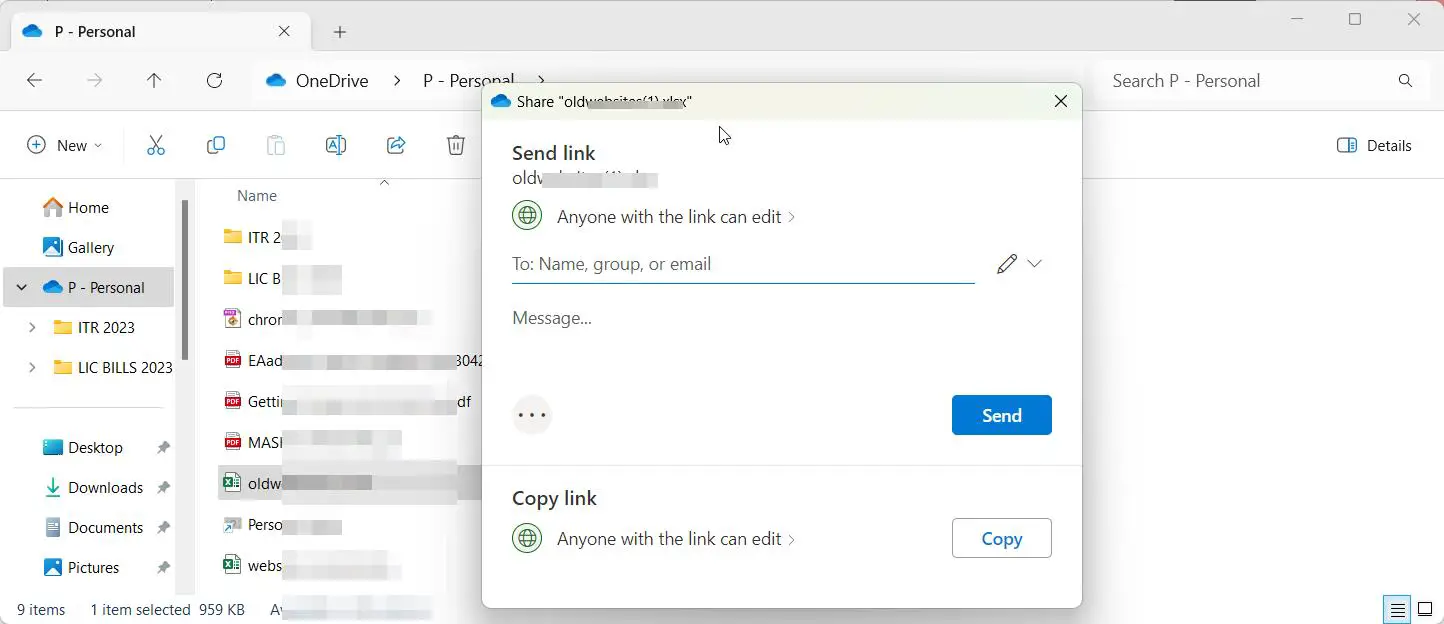
    The easiest way to share an Excel file is by generating a shareable link:

    • On SharePoint/OneDrive, navigate to the uploaded spreadsheet
    • Click the “Share” button and select “Get a link.”
    • Choose either “Anyone with the link” for public access or “Specific people” to enter individual emails
    • Copy the generated private or public share link

    This link allows instant access to the Excel file for recipients.

    multiple users share excel file

    Step 3—Adjust Link Settings and Permissions

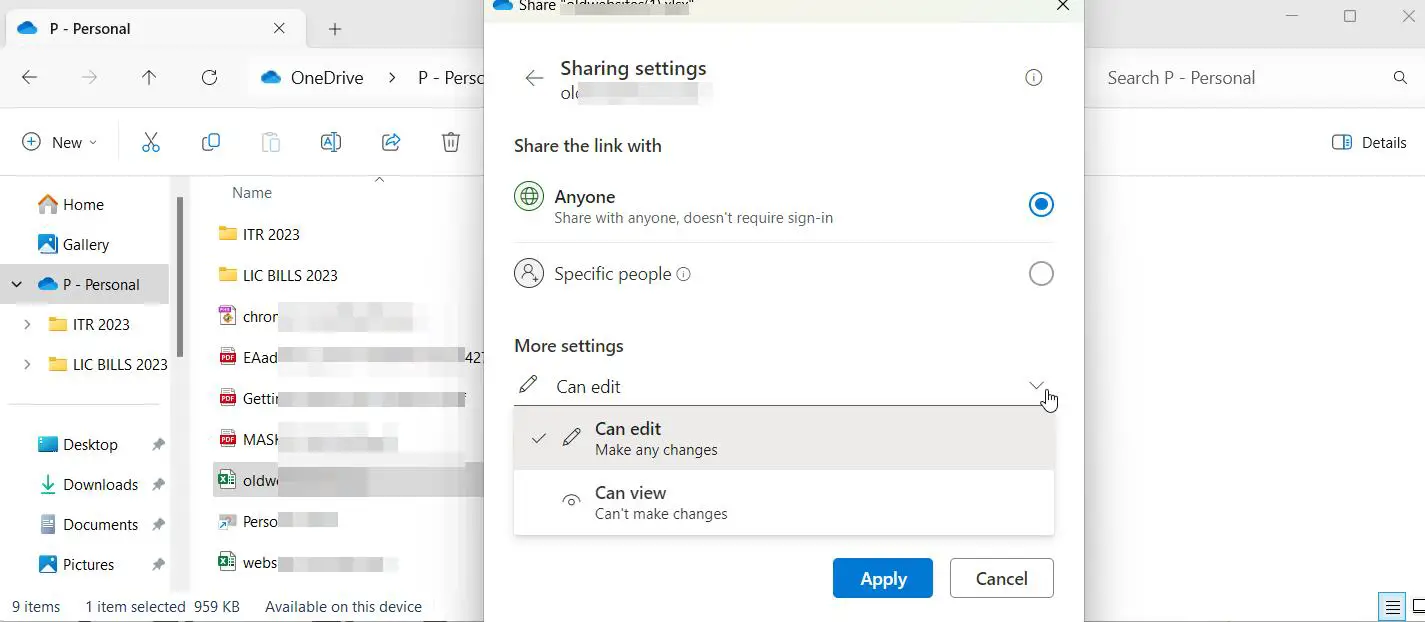
    Tailor the sharing link’s settings for desired permissions:

    • In SharePoint/OneDrive, click the 3-dots next to the file. Share
    • Click “Advanced settings” to adjust link options
    • Enable or disable options like edit/view, expirations, and password protection
    • For added security, disable “Allow editing” and require sign-in

    Configuring appropriate settings prevents unwanted actions like external edits.

    share excel file for multiple users settings

    Step 4—Share the Excel Link with Recipients

    Now send the link to internal and external recipients that need access:

    • Paste the link into email, IM or other channels to share with colleagues
    • For external users, ensure the link permissions are appropriately scoped
    • Make sure to notify users to enable external sharing access if blocked by default

    Sharing the link instantly grants view or edit access depending on permissions.

    Step 5—Directly Add Users with Office 365 Accounts

    To give access without needing the link, you can directly add users:

    • Again click Share > Invite people on the Excel file
    • Enter email addresses or names of people in your organization
    • Specify permission level for each user (Edit/View)
    • Users will see shared file appear automatically in their Office 365

    This approach associates file access directly with their account.

    Step 6—Disable External Sharing If Required

    If broader external collaboration isn’t needed, disable external sharing:

    • Access SharePoint/OneDrive admin center > Policies > Sharing
    • Under external sharing, select “Don’t allow sharing outside your organization.”
    • Remove any broadly shared links to disable public access
    • This limits guests and restricts external exposure of files

    Disabling external sharing ensures assets stay within your organization.

    Advanced Tips for Excel File Collaboration

    • Require users to sign-in for link access to maintain accountability
    • Limit guest access timeframes by enabling link expiration
    • For confidential data, disable downloads and printing via Information Rights Management
    • Preview pane allows quick in-browser Excel viewing without full edit rights
    • Sort documents into Teams channels or SharePoint document sets for related collaboration

    Troubleshooting Excel File Sharing

    If users are having trouble accessing shared Excel files:

    • Verify external sharing is enabled for users’ Office 365 accounts
    • Check that users have permissions for the specific SharePoint site
    • Make sure users click the direct share link rather than navigating directly
    • If already added with direct access, have user refresh the library

    Connecting with your IT help desk can also troubleshoot and resolve external sharing issues.

    How to Share Excel file for multiple users Office 365

    Sharing an Excel file for multiple users in Office 365 is a seamless process that allows for efficient collaboration and real-time updates. Follow these simple steps to share an Excel file with multiple users:

    Step 1: Upload the Excel File to OneDrive or SharePoint

    The first step in sharing an Excel file for multiple users is uploading it to OneDrive or SharePoint. These cloud storage services are integrated with Office 365, making them the ideal platforms for file sharing. To do this:

    • Open your OneDrive or SharePoint app.
    • Click on the Upload button or drag your file into the app.
    • Select the Excel file you want to share and upload it.

    Step 2: Open the Excel File Online

    Once your Excel file is uploaded, open it directly in Excel for the web. This ensures that all users can access the file in a shared environment where real-time edits are possible. To open the file:

    • Navigate to the OneDrive or SharePoint location where your Excel file is saved.
    • Click on the file to open it in the browser. This will automatically open the file in Excel Online.

    Step 3: Click the “Share” Button

    Next, to share the file with others, look for the Share button located in the top-right corner of the screen. This opens the sharing settings and allows you to manage who can access your file. The steps are:

    • In Excel Online, click on the Share button.
    • A pop-up window will appear asking you to set up sharing options.

    Step 4: Set Permissions for Multiple Users

    At this stage, you can choose how you want to share the file. You have several options for granting access:

    • Anyone with the link: This option allows anyone who receives the link to access the file, even if they don’t have an Office 365 account. You can choose whether they can view or edit the file.
    • Specific people: Choose this option if you want to limit access to specific users. Enter their email addresses, and they will receive an invitation to view or edit the file.
    • Only people in your organization: This option restricts access to users within your company or organization.

    Once you’ve selected the permissions, click Send or Copy Link to share the file with the selected individuals.

    Step 5: Collaborate in Real-Time

    Now that you’ve shared the file, multiple users can begin collaborating. Excel allows multiple users to access the file simultaneously, with changes automatically updated in real-time. Each user’s name is displayed at the top of the workbook, and color-coded cells indicate who is editing which part of the file. This makes it easy to track changes and avoid conflicts.

    Step 6: Monitor and Manage Permissions

    As you collaborate, it’s important to monitor who has access and what permissions they have. You can always adjust the permissions by clicking on the Share button again and selecting Manage Access. This allows you to modify who can edit or view the file, remove access, or add new collaborators.

    By following these simple steps, you can easily make your Excel file shareable, allowing multiple users in Excel to collaborate efficiently on the same document in Office 365. Whether it’s for team projects, financial planning, or data analysis, sharing Excel workbooks Office 365 ensures seamless collaboration and up-to-date information across all team members.

    Conclusion

    In conclusion, sharing an Excel file with multiple users has never been easier, especially with the powerful tools available in Office 365.

    Whether you’re wondering on how to share an Excel file with multiple users, the platform provides a range of options that allow you to collaborate effectively in real time.

    The ability to share Excel workbook Office 365 is an essential feature for teams and businesses that rely on seamless collaboration.

    By using Excel shared file multiple users, you can ensure that all members have access to the latest version of the file, and they can contribute or edit the content as needed. This functionality eliminates the need for multiple versions of a document and reduces the risk of errors or miscommunication.

    If you want to make an Excel doc shared, the process is simple: just upload your file to OneDrive or SharePoint and set the appropriate permissions.

    Once you’ve done this, you can easily manage access, control editing rights, and ensure that your team can work together on the same file without any disruptions. This makes it easy to share an Excel sheet with multiple users while keeping everything synchronized.

    By following the steps outlined in this article, you can confidently share an Excel file with multiple users in a secure and efficient manner.

    Whether it’s a shareable Excel spreadsheet for a collaborative project or an important report that requires input from multiple team members, Excel allows multiple users to work on the same document at the same time. This not only speeds up workflows but also ensures that data is consistent across the board.

    In summary, sharing an Excel workbook with multiple users on Office 365 offers a streamlined and effective way to manage team collaborations. You can make the Excel file shared with just a few clicks, making it accessible to everyone involved.

    As you continue to leverage Excel’s multiple-user functionality, your ability to manage complex projects will improve, reducing delays and enhancing overall productivity.

    Whether you are learning how to share an Excel sheet with multiple users for the first time or looking for more advanced tips, sharing an Excel workbook in Office 365 has become a key tool for modern teamwork.

  • Fix Sharing Error in Excel with Unknown Guests

    Seeing unfamiliar “guest” users accessing your shared Excel 365 spreadsheets can certainly be disconcerting. These unknown guests displayed with generic names like fruit, colors or random words indicate someone is accessing your sheets without a recognized account.

    This guide will demystify these “Excel unknown guests” errors, explain what causes them, and provide troubleshooting solutions to take back control of your file sharing and remove any unintended access. By properly managing guest access, you can collaborate securely.

    What Triggers “Unknown Guests” When Sharing Excel Sheets?

    Here are the most common causes of mysterious guest accounts showing up on your shared Excel access lists:

    • Users accessing files via shared anonymous links you’ve created without signing in.
    • Users opening links in private/incognito browsing sessions without logging into Office 365.
    • Guests previously invited whose licenses have expired or been revoked.
    • Users with corrupted or outdated Office client installations accessing files.
    • Access links getting forwarded beyond original intended recipients.
    • Unauthenticated access from public or multi-user devices.

    Essentially any unidentified or unauthenticated user opening your shared Excel links can show up as an “unknown guest”.

    sharing excel sheets with guests error fix scaled

    Risks from Allowing Anonymous Access to Excel Files

    While convenient, sharing Excel 365 files via open public links does pose security and privacy risks including:

    • No accountability or tracking since no login is required.
    • Potential leakage of sensitive data to unauthorized parties.
    • External guests granted editing access can make changes.
    • Increased risks of phishing attempts through files.
    • No protections against malicious content being introduced.

    Therefore, some diligence is required to avoid blind sharing and properly control access.

    Step 1: Audit Your Sharing Links and Permissions

    The first step is to review and inventory the sharing links you’ve created for your Excel files stored in SharePoint or OneDrive:

    • For each file, access the Share option and view the sharing links you’ve enabled.
    • Check the permission level selected – Editing vs. View-only.
    • Click the link to check where it leads and any access restrictions.
    • Consider setting expirations for links to limit visibility periods.

    This allows you to understand the sharing landscape and retract any unnecessary broad access.

    sharing excel sheet

    Step 2: Disable and Recreate Anonymous Sharing Links

    Links allowing access to “Anyone” and unauthenticated guests pose the most risks. Safely disable and recreate them:

    • Disable “Anyone” links to remove public access.
    • Create new view-only links requiring Microsoft account sign-in.
    • Share updated login-required links only to necessary recipients.

    This forces users to authenticate before accessing, providing accountability.

    Step 3: Limit Sharing Permissions to View-Only

    If guests still need access, limit their permissions:

    • Open sharing settings and change links to “View Only” permission.
    • For “People You Specify” sharing, grant guests read-only rights.
    • Turn off external editing capabilities if broadly shared.

    View-only access lets guests read but not alter content.

    Step 4: Remove Unknown Guest Accounts Already Accessing

    To purge mystery guests already accessing your files:

    • Open file Share settings and click “Manage Access”
    • Identify and select any unrecognized guest users.
    • Click “Remove” to revoke their access.
    • Save changes.

    This eliminates any lingering access by unknown guests.

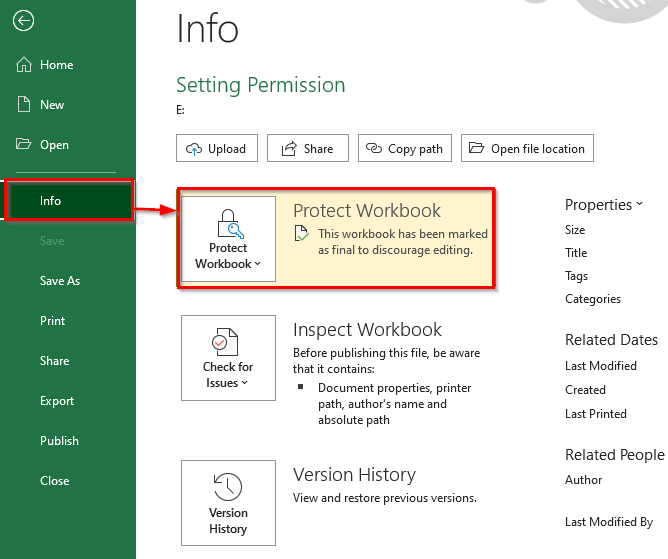
    protect excel sheet sharing permissions

    Step 5: Rollback Share Links If Issues Persist

    If guest issues continue, rollback your links entirely:

    • Disable all sharing links to the file.
    • Share only to specific individual accounts needing access.
    • Setup OneDrive external sharing as “Existing Guests Only” to limit broader exposure.

    Pinpointed sharing gives you explicit control over who can access.

    Additional Tips for Securing Excel File Sharing

    Beyond resolving your unknown guests, here are tips to keep Excel sharing secure:

    • Require sign-in for all sharing links to maintain accountability.
    • Limit guest access timeframes using expirations.
    • Disable external sharing if files contain highly sensitive data.
    • Use these same practices for Word, PowerPoint, and other Office files.
    • Avoid forwarding open “Anyone” links beyond original recipients.

    Maintaining diligence around your sharing links prevents recurring anonymous guest issues. Enforcing sign-in keeps access accountable but still flexible for broader collaboration.

    When to Contact Microsoft Support

    If unknown guests continue appearing despite the above steps, contact Office 365 support to investigate:

    • Initiate a chat, call or email support to troubleshoot technical issues enabling guest access that you cannot resolve.
    • Work with support engineers to trace unexplained access attempts back to source.
    • Audit various access points like OneDrive links, SharePoint sites, Teams channels, etc.

    With Microsoft’s internal tools, they can help identify and lock down any vulnerabilities permitting unauthenticated guest entry points into your files.

    In summary, auditing your sharing settings, limiting link permissions, and revoking access for unknown guests can eliminate disconcerting “Excel unknown users”. Combined with responsible sharing practices, you can confidently collaborate while keeping your spreadsheets secured.