

If you see error code 0x8007025d in the middle of the installation process, you will want to throw your PC out of the window.
You get a message that Windows cannot install required files in Windows 11 or 10 or 8.1 or 7. Many software installation errors are similar to the ones describedare like the above.
If you’ve encountered the error code 0x8007025d while trying to install updates on your Windows 11 system, you’re not alone.
This frustrating issue often appears with the message, “Windows cannot install required files,” followed by the specific error code 0x8007025d.
When this happens, your update process is interrupted, and you may see a message stating, “There were some problems installing updates, but we’ll try again later. If you keep seeing this and want to search the web or contact support for information, this may help: (0x8007025d).”
Resolving Windows Error Code 0x8007025d
The 7025d error is typically caused by corrupted system files, incompatible drivers, or conflicts with third-party software. To resolve this issue, you can try several fixes:
- Run the Windows Update Troubleshooter to automatically detect and fix problems with your update process.
- Temporarily disable your antivirus software and firewall, as they may interfere with the update installation.
- Use the DISM (Deployment Image Servicing and Management) tool and System File Checker (SFC) to repair corrupted system files.
- Perform a clean boot to isolate any potential conflicts with third-party applications.
- If all else fails, consider performing a fresh installation of Windows 11 to eliminate any underlying issues.
By following these steps and addressing the root cause of the “Windows cannot install required files” Windows 11 0x8007025d error, you should be able to successfully install updates and maintain a smooth-running Windows 11 system.
How to Fix Error Code 0x8007025D When Installing Windows 10/11?
Installation error code 0x8007025d can be difficult to understand for the naïve Windows 10/11 user.
Drivers, bad RAM, hard drives, and viruses can all be the cause. Using the wrong partition can sometimes make the error fix crazy.
In most cases you can find the root cause of the error and fix it using driver software. Installation media and repair options inside Windows 10/11 also can be useful.
What is Error Code 0x8007025D?
Microsoft says that the dreaded error 0x8007025d stands for ERROR_BAD_COMPRESSION_BUFFER. It means that the computer system could not read the installation disc files properly.
It prevented the completion of the installation successfully.
The error can crop up at different stages of installation. It includes copying files, expanding files, or installing updates.
What Causes Error Code 0x8007025D?
There are several possible causes for this error, such as:
– Corrupt or incompatible drivers
– Bad or insufficient RAM
– Damaged or faulty hard drive
– Corrupt or incomplete installation media
– Third-party antivirus software interference
They generally crop up after a period of time. It is also necessary that others identify you in your work network. To install Skype-kind of programs, it is mandatory that your OS installation runs smooth.
The easy fix to 0x8007025d is to find the right installation media for Windows 7 or 8.1 or 10. If you are still using Win 7, then get a genuine OS disk. As for Win 10, the latest release of the 22H2 update is already available at the Microsoft site.
Related
How to Fix Error Code 0x8007025D in Windows 10/11?
Based on the cause of error, you can try one of the solutions.
1. Check graphic and hardware drivers:
Make sure all the drivers are up to date and compatible with Windows 10/11. You can always use a reliable and truthful driver utility. Make sure that they don’t install malware or other viruses.
These driver programs scan your PC for outdated or missing drivers. They also update them automatically. You may need to pay a little subscription or one-time fee.
2. Test PC RAM:
Using a tool like Memtest86, you can check the RAM is working properly for free. Replace any faulty RAM with a new one and check if the error is fixed.
3. Check hard drive:
You can make use of in-house tools of Microsoft Windows 10/11 like CHKDSK to scan and fix errors on your hard disk.
Bad sectors can sometimes be repaired if it’s only once. If it happens multiple times, replace the disk. Reduce the size of the installation system partition to fix corrupted areas on the disk.
4. Format your partition:
If you are doing a clean install of Windows 10/11, make sure that you format the partition where you want to install it before proceeding. This will erase any existing data and ensure a fresh start.
5. Verify your installation media:
Make sure that you have downloaded the correct version of Windows 10/11 for your PC and that it is not corrupted or incomplete. You can use a tool like Rufus to create a bootable USB drive with a Windows 10/11 ISO file.
6. Disable antivirus software:
Temporarily disable any third-party antivirus software that might interfere with the installation process and cause errors. You can enable it again after completing the installation.
The Best Fix for Error Code 0x8007025d
Using Rufus utility to install Win 7 or 8.1 or 10 from a USB disk. It works nicely. Sometimes USB 3.0 is not supported by your motherboard, so you have to plug in to a USB 2.0 port. If that fails, burn the ISO file on to a DVD and start the boot process from it.
As you can see above, this Windows 10 error code 0x8007025d also occurs while doing a system restore. For this kind of problem, different from an installation issue, you can do an SFC scan of the partition on which your Win 7 or 8.1 or 10 resides. The below command can be executed on an elevated command prompt.
Sfc /scannow
It can look awkward if you are doing something important.
You might have formatted your hard disk or SSD completely and are trying to do a clean install. Still, you face this dreaded error code 0x8007025d.
Related – Windows 10 System Settings Explained with the Help of YouTube Videos – Summary Also!
I actually upgraded to the Windows 10 1709 version and signed up for the Insider Preview Builds—Fast Ring updates.
Then all my troubles started. As you know, since these are still in beta version, you have some bugs, and they can crash apps or hang your system. I also felt that the systems panel was becoming slow with each new build version.
So I thought of formatting that partition and doing a clean install.
Before I tell how I solved this confusing error code 0x8007025d, let’s see some of the causes.
Causes of Windows not being able to install required files Windows 10 0x8007025d
I searched through Microsoft forums, and I found that this error started in 2015 and still continues in 2017.
For example, a user with a Lenovo G500 was trying to do a clean install from a corrupted Windows 8.1 to Windows 10. He formatted the system and created new partitions and is still getting the error.
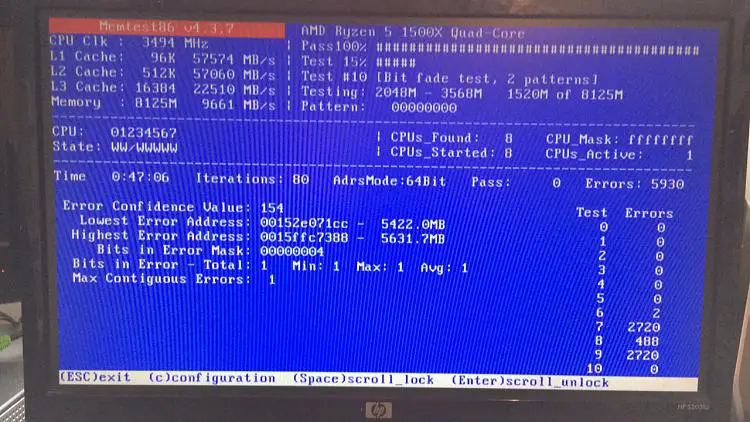
So I suggest he check his RAM by performing memory test errors to see if hardware is the problem. Otherwise, he can remove all the USB devices except the keyboard and mouse. Then finally the important one.
You should understand that Windows does not work on MBR systems any more. It tried to convert your partition to a GPT scheme, which is the new norm. It supports large hard drives. Also make sure that your system drive is not too large where you install your OS.
Make it between 125 GB and 150 GB, whether it is SSD or HDD. Also try to disconnect any old HDD drives, like the 40 or 80 GB ones.
Solution with Error Code 0x8007025d Windows 7
Coming to my story, my system had the following specs.
- Pentium Core2 Duo CPU E7500 @ 2.93 GHz Processor
- Gigabyte Motherboard
- 1 TB Internal Hard Disk
- 80 GB Secondary Hard disk
- 8 GB RAM
- NVIDIA GeForce 210 Graphics Card
- Acer P225HQ LCD Monitor (HDMI) – 21.5″
Since my BIOS was like 2011 old, I thought it would not support boot installation from a USB stick. But I found an option where I can change the hard drive to USB. So I was really happy.
I actually had a 64-bit Windows 10.iso image downloaded long ago. I was of the impression that it was a good installation media, from which I installed the Windows 10 OS previously.
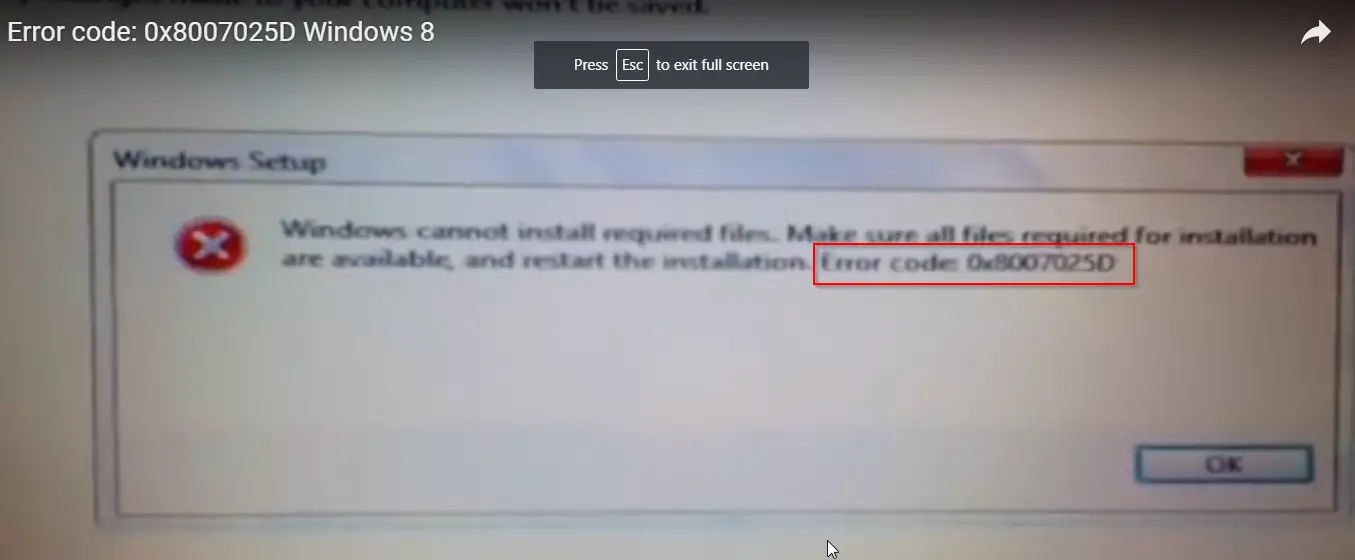
But the dreaded error code 0x8007025d came in the middle, and installation went back. Then I searched through one of the forums, and I found that using a DVD for install solves the problem.
So then I made a boot DVD using Magic ISO from the same .iso file. Then I changed the first priority boot device to CD and tried to install again. Earlier I completely formatted the partition where I installed Windows 10. I also thought it better to delete it and make it empty space and did it.
But now when I tried to install it, it was giving an error that Windows 10 cannot be installed on such types of partitions. This was making me go crazy. Then an idea struck me.
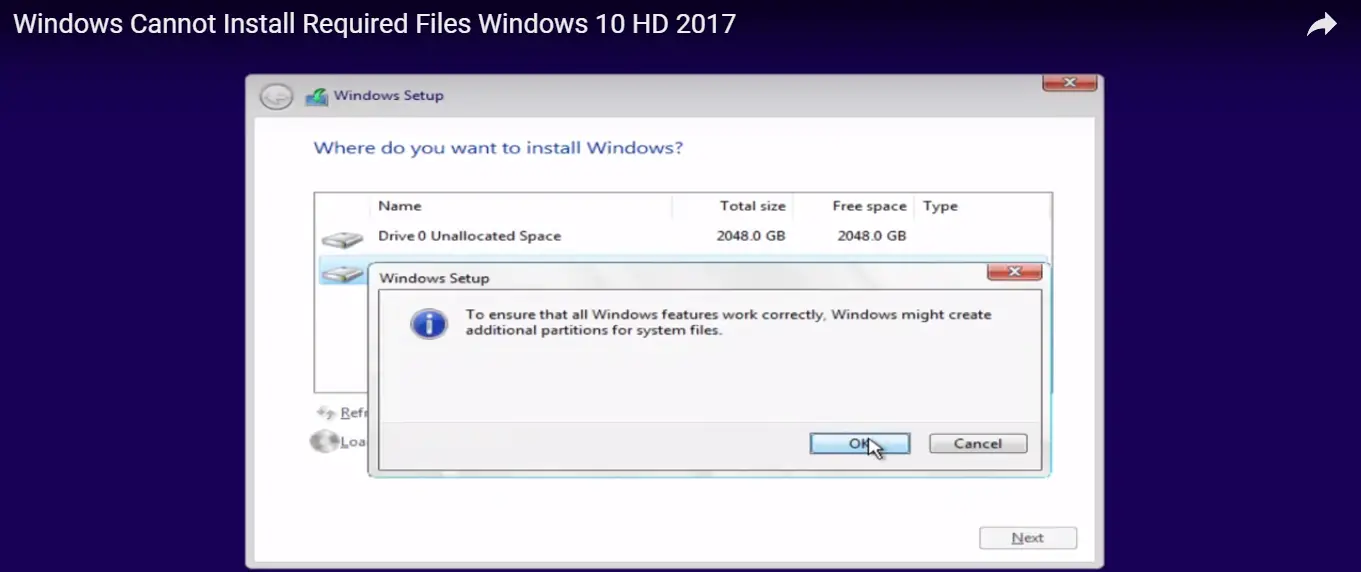
I luckily had a second OS on my desktop, and from it, I went to Computer Management and then created a partition in NTFS form. I repeated the install process. Still the same error.
Earlier I believed that the .iso image media I downloaded was a good one and not corrupted. So now I started to think my theory was wrong.
So now I went to the Download Windows 10 site (official one) and used the tool.
https://www.microsoft.com/en-in/software-download/windows10
It downloads a small setup file, which you can run safely, and it will then ask whether to install or create a. ISO image file using USB, CD, DVD, etc. I tried the second option.
Now I was of the opinion that it would download the initial 1507 (July 29th, 2015) version. Later I found that it gave me the 1709 (Fall Creators Update) version. So no need to download any updates. If I’m wrong, then during the installation process, Windows 10 might automatically have upgraded to the 1709 version.
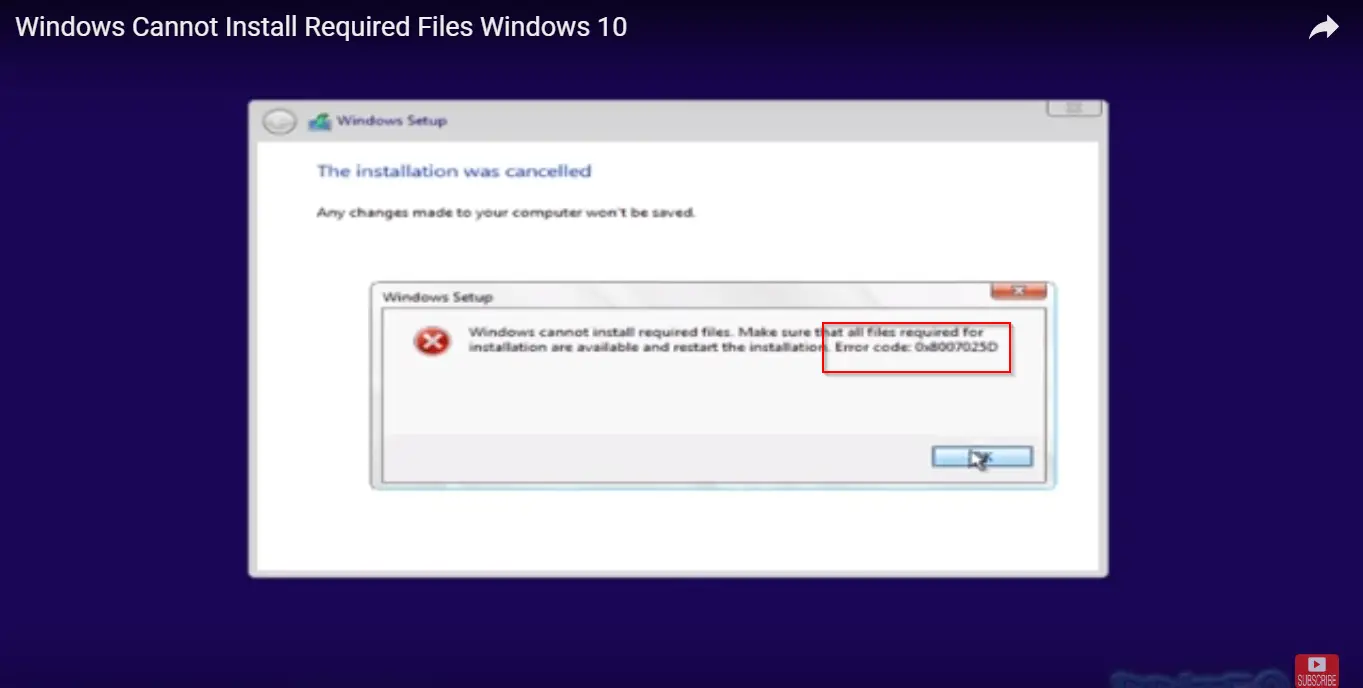
So finally, the fix for my Windows 10 installation error code 0x8007025d was a corrupted file. ISO file. So always make sure you download the latest one before you install it using USB or DVD.
Other Solutions
The TenForums had a recent thread where different users had different problems and took different approaches.
One had a Crucial 1TB M2 2280 SSD, and he partitioned it into 2 or 3 separate ones. Finally, Windows 10 installed using a USB flash drive. So, as I mentioned earlier, using a too-large disk space partition can also cause this error code.
Another user switched off the power to the PC and turned the power on. Then he put the USB installation media in a different slot, which was USB 3.0, and the installation process went smoothly.
Another new solution for error code 0x8007025d is to disconnect the network connections, like your Wi-Fi adapter or Ethernet, and try to install. It worked for some.
One had a different configuration.
- Corsair – Builder 500W 80+ Bronze Certified ATX Power Supply
- AS Rock AB350M-HDV – AM4 Micro ATX motherboard
- Cooler master Hyper 212 EVO
- 120GB Drevo SSD drive
- Gigabyte GEFORCE GTX 1060 6 GB
- AMD Ryzen 5 1500x
- Crucial – 8GB (1 x 8GB) DDR4-2133 Memory
- DVD rewriter
- But after installing 10% and coming to the “getting files ready for installation” stage, it would give the same error code. When he did a memory test, he got a lot of errors. So probably he has a bad RAM stick.
So if you are having multiple RAM sticks, it’s better you switch them and try the install again. Otherwise, remove one and see if it works out. That can be a fix sometimes.
You can also try to run the sfc /scannow from an elevated command prompt window to see if any files are corrupted on your hard disk. You may get an error like
“Windows Resource Protection found corrupt files and successfully repaired them. Details are included in the CBS.log…”
If it’s successful, you need not try the DISM tool. Otherwise, you can go with it and install Windows 10 again.
Information on Error Code 0x8007025d
According to the Microsoft team, 0x8007025d refers to ERROR_BAD_COMPRESSION_BUFFER. As you know, USB 3.0 and 2.0 use different modes of communication with the PC. For example, if you are using a 3.0 device, they use asynchronous handling of data transfer between USB and PC.
The high speed rates may send bad or corrupted data to the buffers. Sometimes due to an old PC, the buffers may not handle the data speed, or your PC can’t decode the information properly.
Generally a bad one. ISO image files downloaded from third-party sites can send corrupt data. So if the .ISO file is missing some internal files, this can give the error code 0x8007025d. Also, you can have a bad USB or DVD drive.
In that case also the data transfer will not take place properly. Also, having multiple USB devices may confuse the system about which one to boot from.
The following are some of the videos that will help resolve the problem.
The below video will show on how to resolve the error 0x8007025d Windows 7.
Summary of Error Code 0x8007025d solutions
1. Corrupted HDD or SSD
If you have a bad sector in your hard drive, it sends wrong data to the buffer, which can disrupt the installation process in the middle, like at 25% or 50%.
2. RAM is faulty
As mentioned earlier, if a RAM slot is corrupted or RAM itself is failing, this can also cause the error. The solution is to either change the RAM or, if you have multiple ones, try using only one.
3. Disconnect all external devices.
Sometimes bad hardware can cause a driver or some kind of issue. In that case you can either repair the corrupt files or try to reinstall again.
4. Decrease the size of HDD or SSD partition
As mentioned before, if the size of the partition is too large, even though the GPT file system supports it, the installation may not be able to handle that much disk size. So, it’s better to limit it.
5. Download official and recent Windows 10 ISO Image file
As mentioned earlier, in my case it was a corrupt ISO file that caused the error. So downloading a new one from the official site can solve your problems sometimes.
6. Wrong USB Stick.
If your USB or DVD you try to use to install Win 10 is corrupt, you can get this error. So try to build a boot device on a new DVD or FLASH DRIVE.
Conclusion
The reasons for error code 0x8007025d are many. What the correct cause is can only be told on a trial-and-error basis.
If you are lucky, you can solve your problem in the first attempt itself. Otherwise, you have to go through all the solutions.
Also, this error code seems to come only when you try to install a 64-bit OS system.
Error code 0x8007025D is a common issue that many users face when installing Windows 10/11 on their PCs.
It can be caused by various factors related to drivers, RAM, hard drive, installation media, or antivirus software.
However, by following some simple troubleshooting steps, you can fix this error and enjoy your new Windows operating system without any hassle.

Very helpful article, thank you for posting this
It’s really help for me , In my situation, i just change my RAM and problem is sortout.
Thank you for sharing your experiance.
@Sandeep: Glad, that your installation error is resolved.
Sir I will try these prossese but no reaction windose 0*8007025d fix those and how
I used my whole day trying to figurie out what was causing my problem. Finally i tried to take out one of my RAM stick (I have 2) and when i got blue screen almost directly trying to reinstall windows i switched it with the other one and it WORKED. THANK GOD im so grateful and thank you so much for the tip!!!!
@Johannes. Glad it helped you.