

“You’re offline.” “Check your connection” on YouTube is one of the most frustrating errors you can encounter—because it almost always appears when your internet is working perfectly fine. Other sites load, your Wi-Fi bar shows a full signal, but YouTube is stuck showing that error.
When trying to watch videos on YouTube.
The first thing you should do is verify your internet connection.
Make sure that you are connected to the internet.
And if not, try connecting to a different network.
Or restarting your router.
If that doesn’t help, then you could try updating your date and time settings.
A wrong date and time can cause errors on YouTube.
So it’s best to make sure they are correct.
You may also want to disable Internet Protocol Version 4 (IPv4) from the network settings of your computer.
I’ve helped fix this on Windows 11, Android, and iPhone across dozens of different setups, and the root cause is almost never an actual internet outage.
The most common culprits are a corrupted DNS cache, a browser extension or ad blocker quietly blocking YouTube, a VPN interfering with the connection, or — on Windows 11 laptops — a network adapter stuck in a half-connected state after waking from sleep.

What Causes “You’re Offline”? Check Your Connection” on YouTube?
Understanding the cause reduces troubleshooting time by half. Here is every confirmed trigger:
Corrupted DNS Cache (Most Common)
Your device stores DNS records locally to speed up browsing. When these records become stale or corrupted, YouTube may fail to resolve its server addresses even though other websites load just fine. Flushing the DNS cache (Correcting Fix 1) resolves the issue instantly.
Browser Extension or Ad Blocker Conflict
Ad blockers and privacy extensions can block the specific network requests. YouTube uses to verify your connection status. uBlock Origin, AdGuard, and similar extensions are frequent causes—especially after they receive automatic updates that tighten their filtering rules.
VPN or Proxy Interference
VPN connections can route your traffic through servers that YouTube’s systems flag, causing the error. Some VPN server locations consistently trigger the YouTube offline error, while others work fine. Disconnecting the VPN (Fix 2) immediately tests whether the issue is the cause.
Stale Browser Cache and Cookies
Browsers store YouTube site data locally. When this cached data becomes outdated or corrupted, it can interfere with YouTube’s ability to verify your connection — even if the connection itself is working perfectly.
Sleep/Hibernate Network Adapter Bug (Windows 11 — New 2026)
When a Windows 11 laptop wakes from sleep or hibernation, the network adapter sometimes enters a half-connected state. It reports as connected, and other websites load, but it fails to route traffic properly to YouTube’s servers. In 2025–2026, users increasingly reported this issue on Windows 11 laptops. Disabling and re-enabling the adapter (Solution 6) resolves it.
Corrupted Service Worker
Browsers cache service workers—background scripts that help websites load offline. A stale or corrupted YouTube service worker can cause the offline error even after you’ve cleared the browser cache, because service workers live in a separate storage location. This is a 2025–2026 fix that most older guides don’t cover.
Outdated YouTube App or Browser
An outdated YouTube app (Android/iPhone) or outdated browser version can be incompatible with YouTube’s current API, causing connection verification to fail.
Incorrect Date and Time Settings
YouTube’s servers use date/time to verify connection authenticity. If your device’s clock is significantly wrong, YouTube’s authentication check can fail, triggering the offline error.
Quick Fixes to Try First (Under 60 Seconds)
Before going through the full fix list, try these instant checks:
- Hard refresh the page: Press Ctrl + F5 (Windows) or Cmd + Shift + R (Mac)—this forces the browser to reload YouTube’s scripts instead of using cached files
- Close and fully reopen the browser: Close the entire browser window, not just the tab—this releases stale cached connections
- Check airplane mode: Make sure airplane mode is off (Settings > Network & Internet > Airplane mode)
- Try a different browser: Open YouTube in a different browser. If it works there, the issue is browser-specific—proceed to Fix 3 or Fix 4
- Restart your router: Unplug the router for 30 seconds, reconnect, wait for full restart
- Sign out of YouTube and sign back in: Sometimes a stale session token causes the error
If none of these instant fixes work, continue with the full fixes below.
Fix 1: Flush DNS Cache — Windows 11 (Most Effective)
Flushing the DNS cache clears stale or corrupted domain name records and is consistently the most effective single solution for the YouTube offline error on Windows 11.
Step 1: Press Windows + S and search for Command Prompt.
Step 2: Right-click Command Prompt and select Run as administrator.
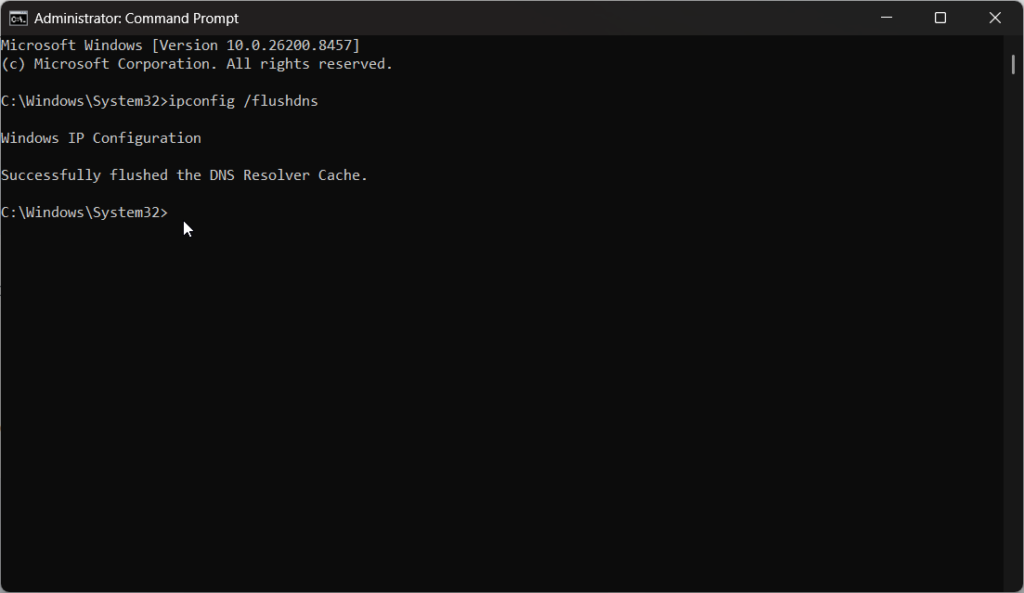
Step 3: Type this command and press Enter:
ipconfig /flushdnsStep 4: You should see “Successfully flushed the DNS resolver cache.”
Step 5: Reload YouTube.
For a more thorough DNS reset, run all four commands:
ipconfig /flushdns
ipconfig /registerdns
ipconfig /release
ipconfig /renew
Restart your PC after these four commands for best results.
Fix 2: Disable VPN and Check Proxy Settings
Step 1: If you use a VPN app (NordVPN, ExpressVPN, etc.), disconnect it completely—not just paused.
Step 2: If you use a VPN as a browser extension, click the extension icon and disconnect or disable it.
Step 3: Reload YouTube. If it works, the VPN was the cause.
If you want to keep using the VPN:
- Try switching to a different server location—some servers trigger YouTube’s offline detection while others don’t
- Check if your VPN has a “split tunneling” feature that lets you exclude YouTube from the VPN tunnel
Verify proxy settings:
Step 4: Open Settings > Network & Internet > Proxy.
Step 5: In the manual proxy setup section, ensure that the Use a proxy server option is toggled off.
Step 6: Reload YouTube.
Fix 3: Disable Browser Extensions and Ad Blockers
Browser extensions are one of the top causes of the YouTube offline error in 2025–2026.
How to Disable Extensions in Chrome
Step 1: In Chrome, go to chrome://extensions/ the address bar.
Step 2: Toggle off each extension one by one, reloading YouTube after each.
Step 3: When YouTube loads, the extension you just disabled was the cause.
Step 4: Either remove the extension permanently or whitelist YouTube in its settings.
Quick test: Open YouTube in an incognito window (Ctrl + Shift + N) — extensions are disabled by default. If YouTube works in Incognito, an extension is the cause.
How to Disable Extensions in Microsoft Edge
Step 1: Go to edge://extensions/ the address bar.
Step 2: Toggle off extensions one by one.
Step 3: Alternatively, test in InPrivate mode (Ctrl + Shift + N)—extensions are disabled by default.
How to Disable Extensions in Firefox
Step 1: Click the Extensions icon in the toolbar or go to it.
Step 2: Toggle off each extension individually.
Step 3: Test in a private window (Ctrl + Shift + P) for a quick extension-free test.
Fix 4: Clear Browser Cache and Cookies
Chrome / Edge
Step 1: Press Ctrl + Shift + Delete to open Clear Browsing Data.
Step 2: Set time range to all time.
Step 3: Check:
- Browsing history
- Cookies and other site data
- Cached images and files
Step 4: Click on Clear data.
Step 5: Restart the browser and reload YouTube.
Clear YouTube-specific data only (less disruptive):
- Click the padlock icon in the address bar on youtube.com
- Select Cookies and site data (Chrome) or Permissions for this site (Edge)
- Click Delete or Remove for stored YouTube data
- Reload YouTube
Firefox
Step 1: Press Ctrl + Shift + Delete.
Step 2: Set the time range to Everything.
Step 3: Check Cache, Cookies, and Site Data.
Step 4: Click OK.
Fix 5: Clear YouTube Service Worker (New 2026 Fix)
This fix resolves cases where cache clearing didn’t work—the service worker is in a separate storage location that a standard cache clear doesn’t touch.
Via Service Worker Internals
Chrome:
- Go to
chrome://serviceworker-internals/in the address bar - Find entries with “youtube.com.”
- Click “Unregister” next to each YouTube entry
- Reload YouTube
Edge:
- Go to
edge://serviceworker-internals/ - Find youtube.com entries
- Click Unregister
- Reload YouTube
Via Site Settings (Easier Method)
- Go to YouTube in your browser
- Click the padlock icon or “i” in the address bar
- Click Site settings (Chrome) or Permissions for this site (Edge)
- Scroll to Usage or Stored data
- Click “Delete data” or “Clear data.”
- Reload YouTube
This method clears both cookies and the service worker registration in one step.
Fix 6: Disable and Re-Enable Your Network Adapter (Sleep Bug Fix)
This fix specifically addresses the Windows 11 sleep and hibernate issue with the network adapter that’s been increasingly reported since 2025. When the laptop wakes from sleep, the adapter gets stuck—re-enabling it forces a fresh connection.
Method 1: Device Manager
Step 1: Right-click the Start button and select Device Manager.
Step 2: Expand Network Adapters.
Step 3: Right-click your active network adapter (Wi-Fi or Ethernet) and select Disable device.
Step 4: Wait 5–10 seconds.
Step 5: Right-click the same adapter and select “Enable device.”
Step 6: Wait for reconnection, then reload YouTube.
Method 2: Airplane Mode Toggle (Faster)
- Open Settings > Network & Internet
- Toggle Airplane mode to On
- Wait 5 seconds
- Toggle Airplane mode back to Off
- Wait for reconnection, reload YouTube
Fix 7: Change to Google DNS (8.8.8.8)
Changing to Google’s public DNS servers (8.8.8.8 / 8.8.4.4) resolves YouTube connection failures caused by slow, unreliable, or misconfigured ISP DNS servers.
Step 1: Press Windows + R, type, and press Enter.
Step 2: Right-click your active network connection (Wi-Fi or Ethernet) and select Properties.
Step 3: Select Internet Protocol Version 4 (TCP/IPv4) and click Properties.
Step 4: Select “Use the following DNS server addresses” and enter:
- Preferred DNS server:
8.8.8.8 - Alternate DNS server:
8.8.4.4
Step 5: Click OK and close the dialogs.
Step 6: Flush DNS (correctly) to apply the change immediately.
Step 7: Reload YouTube.
Fix 8: Create a Fresh Browser Profile
If all previous fixes have failed but YouTube works in a different browser, the issue is in your browser profile—corrupted cookies, cached permissions, or broken session data that standard cache clearing doesn’t remove.
Chrome:
- Click the profile icon at the top-right of the browser
- Select Add → Continue without an account
- Open YouTube in this new profile and sign in to your Google account
Edge:
- Click the profile icon at the top-right
- Select Add profile → Add → Continue without signing in
- Open YouTube in the new profile
If YouTube works in the new profile, your original profile has corrupted data. You can either:
- Reset YouTube’s site permissions and cookies in the original profile (Site settings > Delete stored data)
- Continue using the new profile and migrate your bookmarks/settings
Fix 9: Fix YouTube Offline Error on Android
The YouTube offline error on Android is almost always caused by cached app data, restricted background data, or an outdated app.
Clear YouTube App Cache
Step 1: Go to Settings > Apps (or Application Manager).
Step 2: Scroll to and tap YouTube.
Step 3: Tap Storage.
Step 4: Tap Clear Cache. (Don’t tap Clear Storage/Clear Data unless clearing the cache alone doesn’t work—that also logs you out.)
Step 5: Reopen YouTube.
Enable Background Data
Step 1: Go to Settings > Apps > YouTube.
Step 2: Tap on Mobile data & Wi-Fi.
Step 3: Toggle on “Allow background data usage” and “Unrestricted data usage” (if “Data Saver” is on).
Update the YouTube app.
Step 1: Open the Google Play Store.
Step 2: Search for YouTube.
Step 3: If an update is available, tap Update.
Step 4: Restart YouTube after updating.
Fix 10: Fix YouTube Offline Error on iPhone
Check Background App Refresh
Step 1: Go to Settings > General > Background App Refresh.
Step 2: Make sure Background App Refresh is turned on (globally) and YouTube specifically is enabled.
Enable Mobile Data for YouTube
Step 1: Go to Settings > YouTube.
Step 2: Under “Mobile Data,” toggle it on.
Step 3: Also ensure Wi-Fi & cellular data show as enabled.
Offload and Reinstall the App
Step 1: Go to Settings > General > iPhone Storage.
Step 2: Locate and tap YouTube.
Step 3: Tap Offload App (this option removes the app but keeps its data). Tap Reinstall App afterward.
Alternatively, delete the YouTube app entirely and reinstall it from the App Store for a completely fresh install.
Fix 11: Check Date and Time Settings
An incorrect date or time on your device can cause YouTube’s authentication process to fail, triggering the offline error.
Windows 11:
Step 1: Right-click the clock in the taskbar and select Adjust date and time.
Step 2: Toggle “Set time automatically” to On.
Step 3: Toggle “Set time zone automatically” to On.
Step 4: Click “Sync now” under “Additional settings.”
Step 5: Reload YouTube.
Android: Settings > General management > Date and time > Automatic date and time > On
iPhone: Settings > General > Date & Time > Set Automatically > On
Why Does YouTube Say “I’m Offline”? Check your connection. Connect to the Internet.
YouTube is a popular video streaming platform.
And it needs an internet connection to work properly.
If YouTube says, “I’m offline. Check your connection.”
It means that there is a problem with your internet connection or the service might be slow.
- This can happen when you are using a weak Wi-Fi signal.
- Or if the server is having issues.
- It can also be caused by network congestion and other technical difficulties.
- If you get the “YouTube you are offline check” message.
- The first thing to do is to check your internet connection.
- Make sure that you have good signal strength and that all cables are connected properly.
- And that no other devices are using your network’s resources.
- If everything looks good, but YouTube still won’t load, then try refreshing the page.
Then, it’s time to contact your ISP (Internet Service Provider) for assistance.
In some cases, getting the “you are offline” message on YouTube.
May not be related to your internet connection at all.
Computer connected to your network!?
- Rather, it could be due to an issue with the website itself.
- Or something else going on in the background of your browser or computer.
- In such cases, try restarting your device or closing any unnecessary programs before trying again.
- If this step doesn’t work, then clearing your browser cache may help too.
- Finally, ensure that you have all the latest updates installed.
This is for both YouTube and your browser, allowing you to continue watching videos without interruption.
Why does YouTube say I’m offline on PC, Mac, and other devices? Offline error
YouTube may say you’re offline on PC, Mac, and other devices. Check your internet connection for errors. YouTube app.
airplane mode. “YouTube, you are offline. Check receiving signals from your router.
Computers are receiving signals. Is your router working?
This is for a number of reasons. It could be that your computers are not receiving signals.
From your router.
Or that your router is not working properly.
Depending on the PC or Mac used by each computer.

Connected to YouTube?
The type of data or WiFi connection that people in the country use.
The device from which you are accessing YouTube may be causing the issue.
It is important to check whether your router is functioning correctly.
As well as all other connections that each computer connected to YouTube uses.
If everything appears to be working properly, then we can proceed. It may be a problem with YouTube itself.
And you should contact their support team for more help.

Move Closer To The WiFi Router Or Hotspot
If you’re having trouble connecting to your mobile hotspot or Wi-Fi network, please let us know.
Try these quick fixes first:
- Restart your mobile hotspot device.
- Restart your PC.
- Turn Bluetooth® off on your PC.
- Turn your PC’s Wi-Fi off and on.
- Make sure you are inside your cellular carrier’s network.
- If you’re using your phone as a hotspot, make sure it’s properly set up to provide a signal.
- If that doesn’t resolve the issue, please try forgetting your mobile hotspot network. And then reconnecting your device.
- Updating your operating system.
- updating your network adapter’s driver.
- Rolling back your network adapter driver.
- Troubleshooting your network adapter.
- Running the internet connections troubleshooter.
- Checking the storage space on your PC.
- Turning off antivirus protection software and Microsoft Defender Firewall.
- Resetting the network settings on your PC.
and moving closer to the Wi-Fi router or hotspot.
Why does YouTube say “you’re offline” when I’m connected to the internet?
YouTube uses its own connectivity detection that’s separate from your browser’s network check. The most common reasons are a corrupted DNS cache (flush it within Command Prompt), a browser extension or ad blocker blocking YouTube’s requests, a VPN interfering with the connection, or—on Windows 11 laptops—a network adapter stuck in a half-connected state after waking from sleep.
How do I fix “You’re offline”? Check your connection” on YouTube in Windows 11?
The fastest fix for Windows 11 is flushing the DNS cache: open Command Prompt as administrator and run ipconfig /flushdns. Then reload YouTube. If that doesn’t work, disable your browser extensions (especially ad blockers) and disconnect any VPN. If the error started after waking your laptop from sleep, disable and re-enable your network adapter in Device Manager, then reload YouTube.
Does disabling my VPN resolve the YouTube offline error?
Yes, in many cases. VPNs route your traffic through servers that YouTube’s systems can flag, triggering the offline error. Disconnect your VPN completely (not just pause it), reload YouTube, and check if the error is gone. If it is, either switch to a different VPN server location or add YouTube as an exception in your VPN’s split tunneling settings.
What is a service worker, and how do I clear it to fix YouTube?
A service worker is a background script that browsers cache to allow websites to work offline. A stale YouTube service worker can cause the offline error even after clearing your browser cache, because service workers are stored separately. In Chrome, go to find YouTube.com entries and click “Unregister.” Then reload YouTube. In Edge, use edge://serviceworker-internals/ the same way.
Why does YouTube show “you’re offline” only after waking my laptop from sleep?
This is the Windows 11 sleep and hibernate bug affecting the network adapter. When a laptop wakes from sleep, the Wi-Fi adapter sometimes gets stuck in a half-connected state — it shows as connected but can’t properly route traffic to YouTube’s servers. Fix it by disabling and re-enabling your network adapter in Device Manager or by toggling Airplane mode on and off in Settings > Network & Internet.
Getting Past “You’re Offline.” Check Your Connection”
You’re offline.” The “Check your connection” error on YouTube almost always has a local fix—and in most cases, flushing your DNS cache or disabling your browser extensions resolves it within 60 seconds.
If those quick steps don’t work, the sleep/hibernate network adapter fix or clearing the YouTube service worker will resolve the majority of remaining cases on Windows 11.
For Android and iPhone, clearing the app cache or toggling mobile data permissions is the equivalent first step.
Drop a comment below with your device and which fix worked; your experience helps other readers find the right solution faster.
