

Microsoft users who have used earlier versions of Windows are familiar with Control Panel. Though the Settings app has taken over as of late, it still doesn’t provide the easiness with which you can open Windows 10 settings.
Also, the number of clicks to reach a precise control panel item is many. Some of them are hidden deep. For all these reasons, if you still prefer the old technique of changing sound settings, hardware, fonts, and file explorer options, you can use the old method.

Where is control panel in Windows 10
1. One of the quickest ways to access the Windows 10 control panel is to click the Start button and type the first few words of “control panel.” It will be available as a “desktop app.” Click it and it will open.
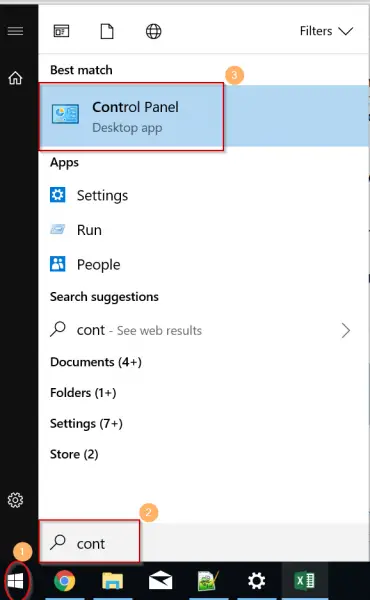
2. Cortana is a voice assistant in Windows 10. Click its icon and, using voice search, say, “Hey Cortana.” It will get activated. Then say “Launch Control Panel.”
3. One of the difficult ways of finding the Control Panel in Windows 10 needs little scrolling. Press Start > Start Menu > Windows System. Under this method, the control panel is available.
4. Similarly, you can use the Run window, CMD commands, or Task Manager to launch the Control Panel in Windows 10.
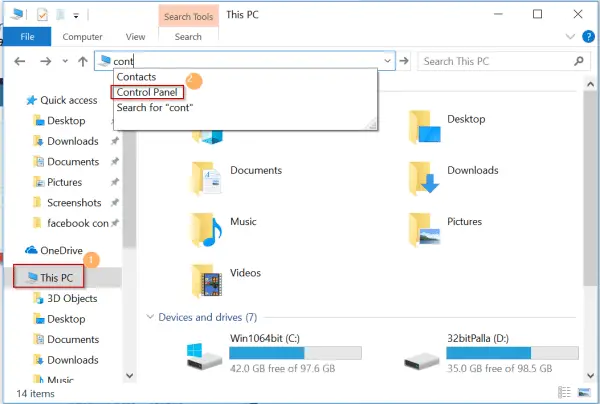
5. File Explorer also can be used to open the control panel. You just type the first few words in the “search box,” and it will open.
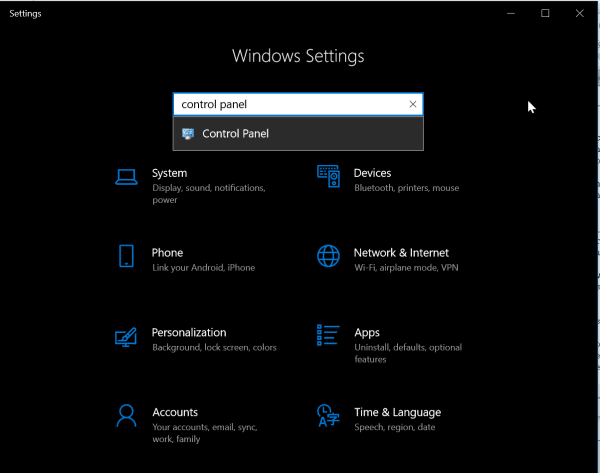
6. One of the new features is Windows Settings. You can “find a setting” using the search box. When you type “control panel,” it is listed as an app in the next screen. But this method is cumbersome.
For some reason if you can’t open the control panel in Windows 10, then you can follow this troubleshooting guide. If some system files are missing or malware is present, then also you can’t access the control panel in Windows 10. The best way is always to check another way to access the control panel.
