

Safety and online activity are of chief importance for kids using Windows 10, Android, and iOS devices. Microsoft Family Settings makes sure that you have the right parental controls and permissions for your child’s online account.
As an organizer, you can add a child or adult as a member in your Microsoft account.
Monitor the kid’s activity, which includes browsing; the amount of screen time; setting app and game limits; putting content restrictions; controlling Xbox online settings; and tracking a child’s location using parental controls.
Both child (member) and organizer (parent) have certain permissions and limits.
The organizer has control over family member activity. Parents can add the member.
The child can give access to control/view some of his activity on his account.
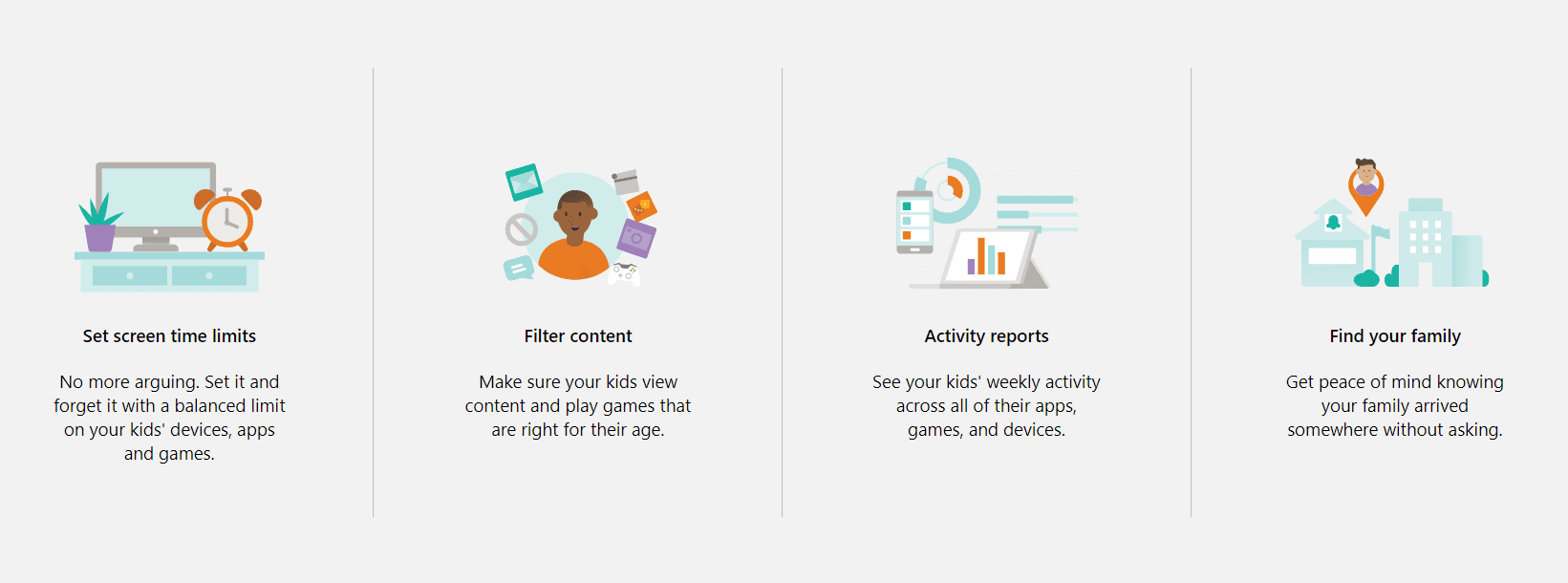
Microsoft Family Account – Add Members
Using this setting, one can control the child’s online activity.
- Log in to your Microsoft Account in your favorite browser
- Click on the Family tab.
- All the members in your group are visible.
- You can view the list of devices connected to each child account.
- You can add money to a child account to buy things on the Microsoft Store.
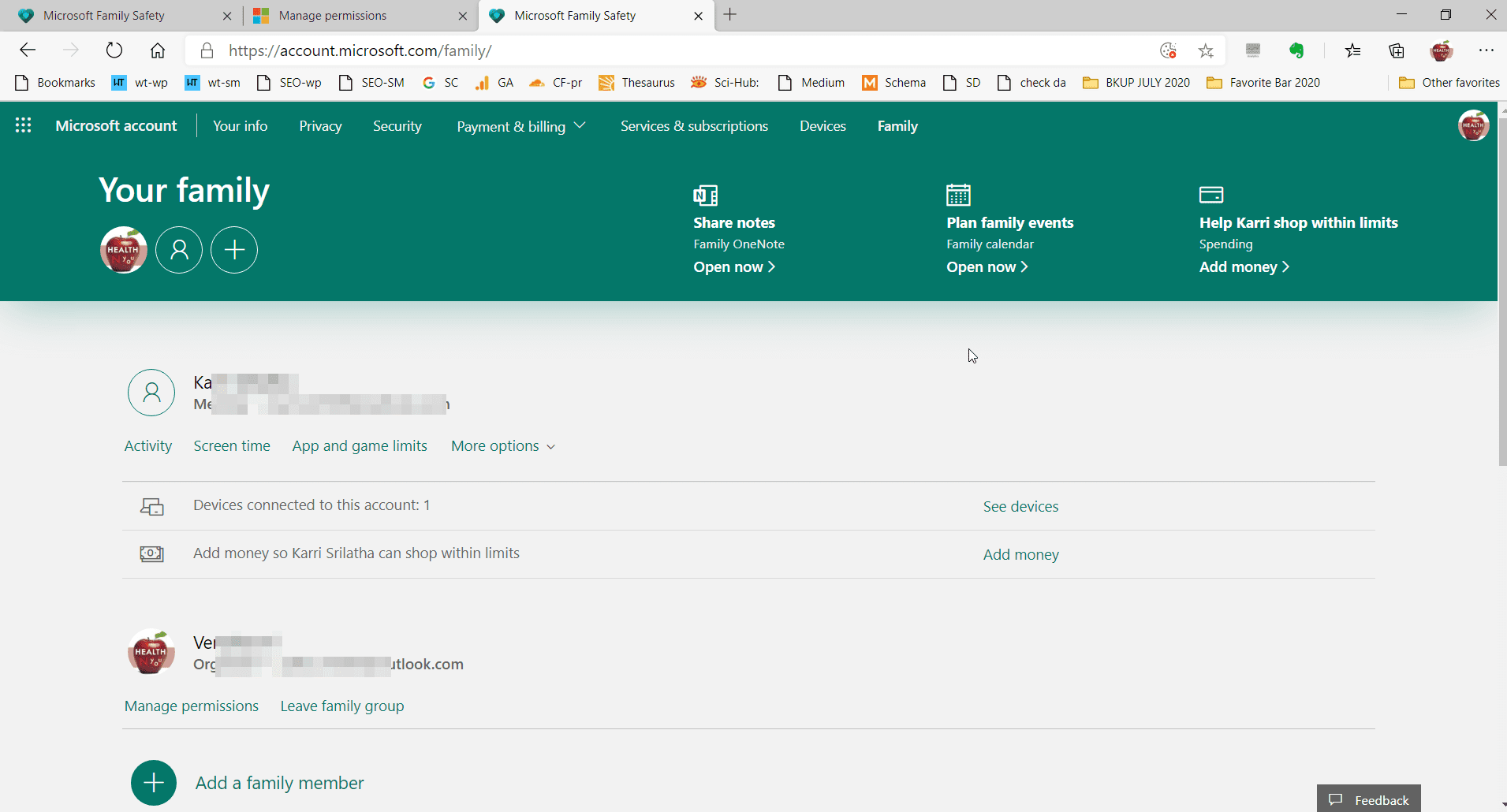
Microsoft Parental Controls
- Activity
- Screen time
- App and game limits
- Content restrictions
- Spending
- Find child on a map
- Xbox online settings
- Remove from family group
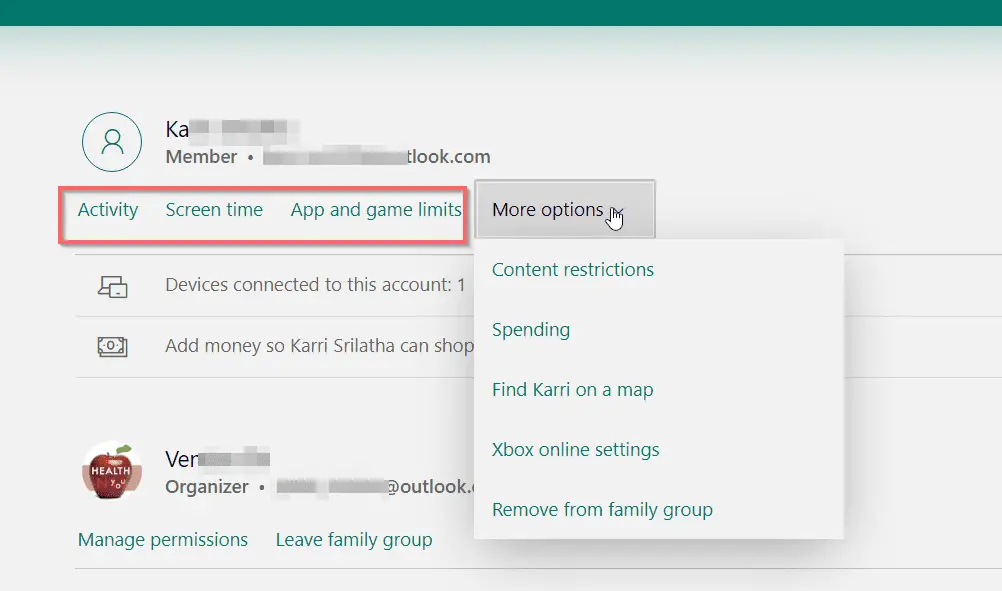
Restrictions on child accounts are placed using each setting. For some settings to be available, the child has to give permission from his account, which allows parents to manage and monitor their child’s online activities effectively.
Activity – Microsoft Family Login
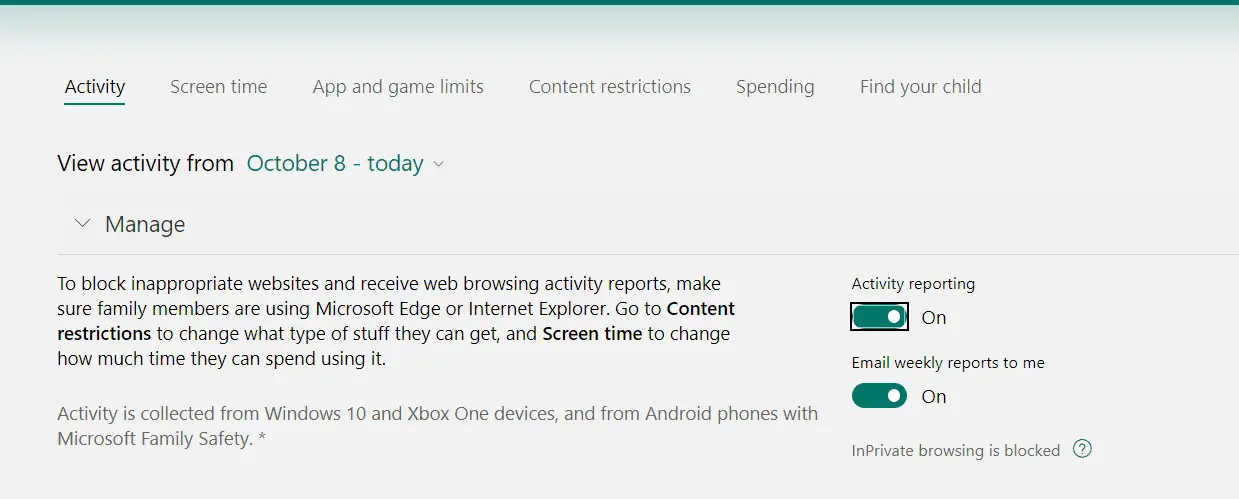
You can view the activity of your child from the Manage option.
You have to enable activity reporting and email weekly reports to me to get reports of kids’ activity. InPrivate browsing is disabled by default.
To block false sites and get activity reports, children have to use either Microsoft Edge or Internet Explorer.
Activity is collected from Windows 10 and Xbox One devices and from Android phones with Microsoft Family Safety.
Source: microsoft.com
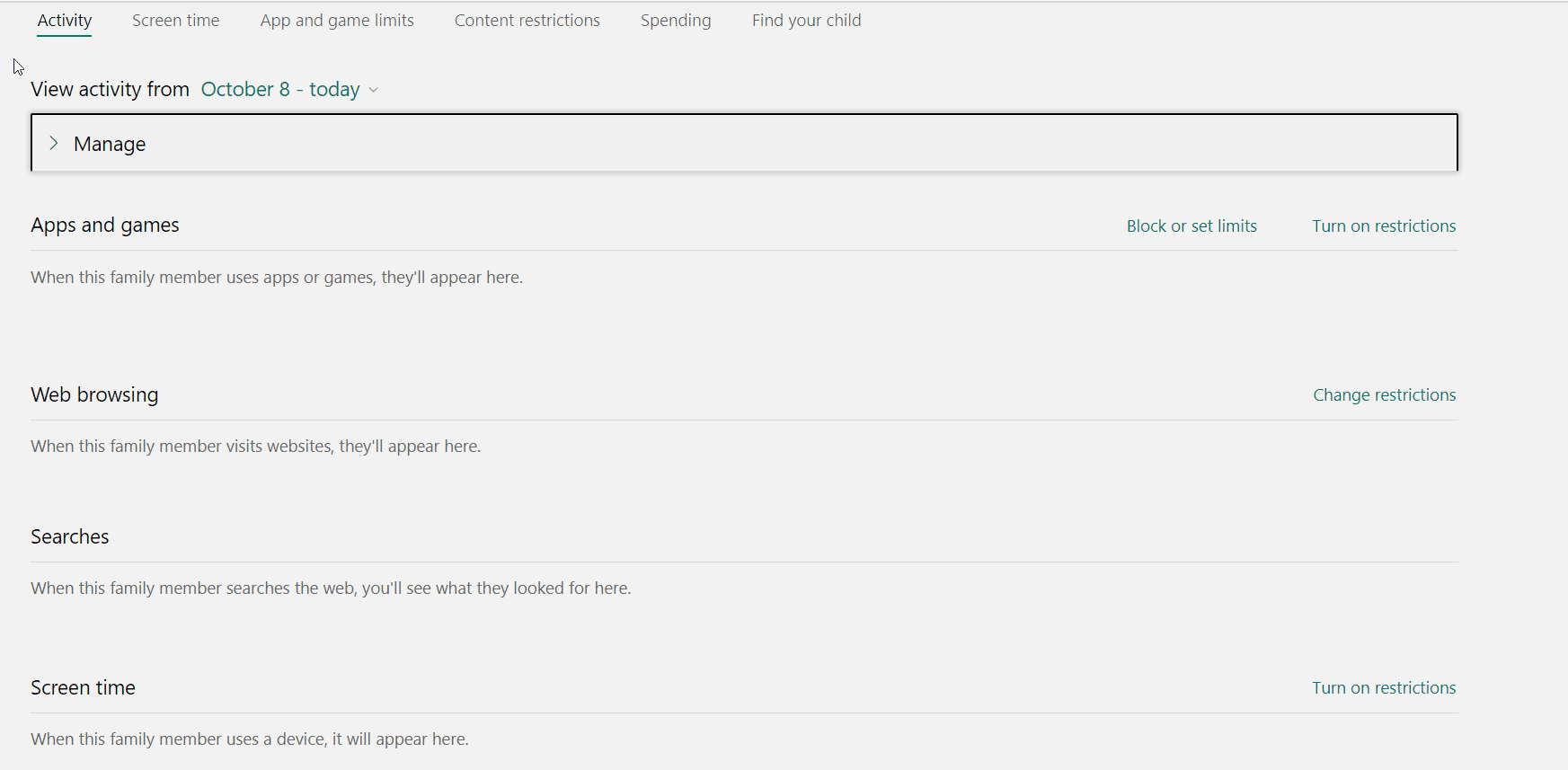
The following activities of the child will appear under this tab.
- Apps and Games—If the kid uses any apps or plays games on his device, it will appear under this list.
- Web browsing—If the kid visits any websites, then they appear here.
- Searches—The search activity of the child in Bing can be seen here.
- Screen time—the number of devices used and the amount of time spent on them—can be visualized here.
Screen time
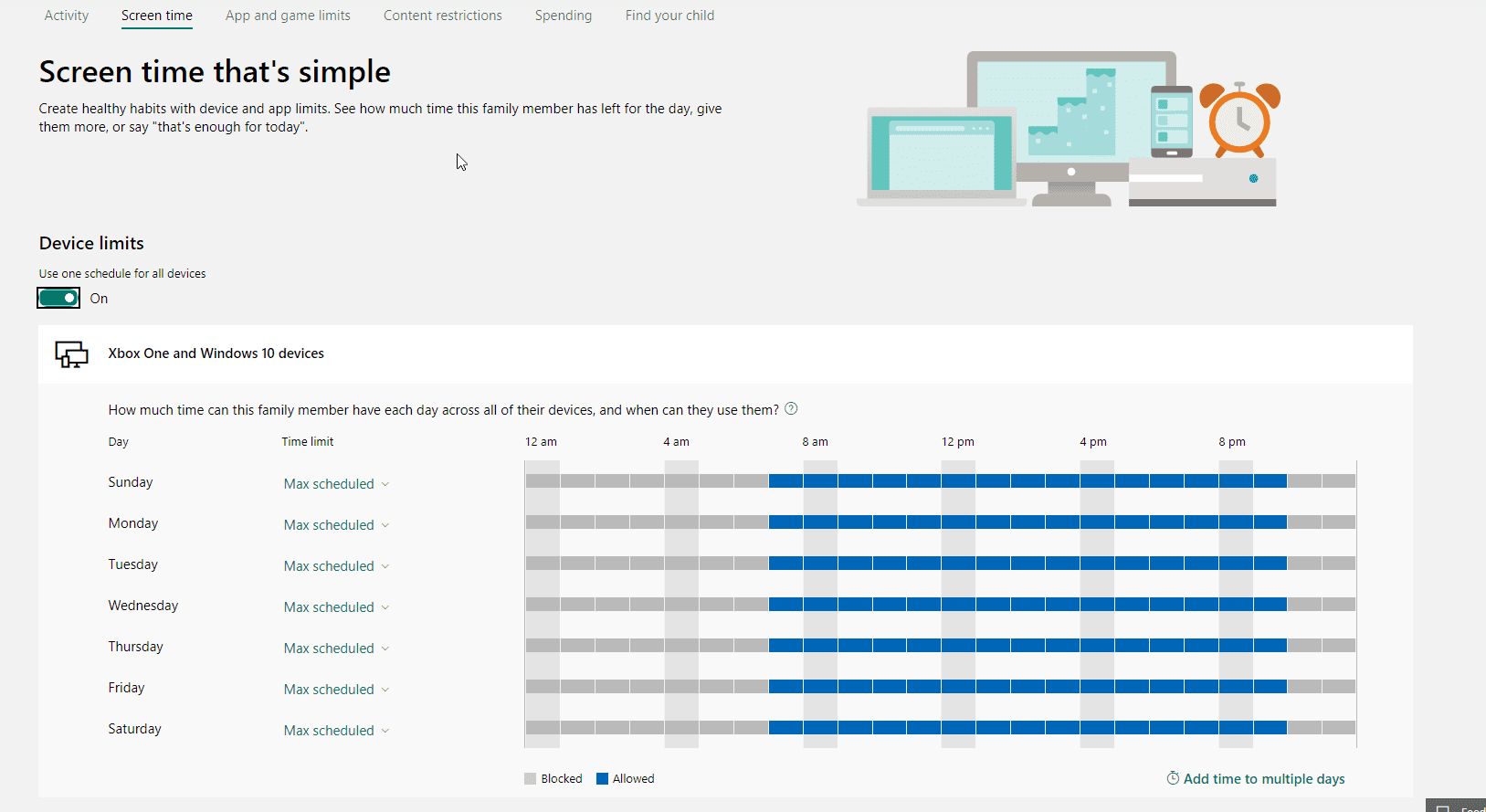
The organizer can set limits on the time usage of Windows 10 and Xbox.
You can increase this limit, if required.
To make it simple, the same schedule for all the days can be set here.
If you want fine control, each day’s setting can also be changed. Restriction of time applies to apps and devices.
App and game limits
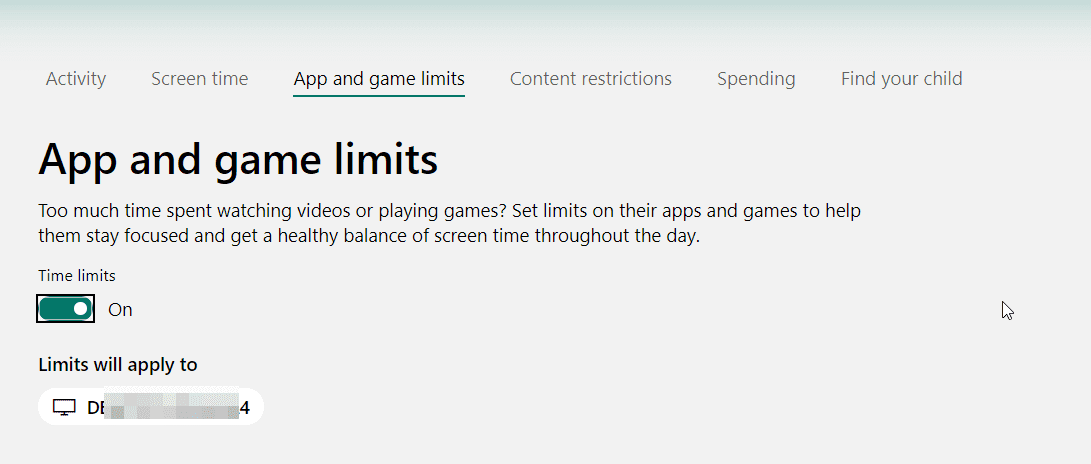
The parent can set the time limit for a Microsoft game or app used by the child. First you need to add devices to the child account.
These include Windows 10, Xbox One, and Android devices. If the child is already using a device, it will be listed here. Then, you can add additional devices.
Content Restrictions
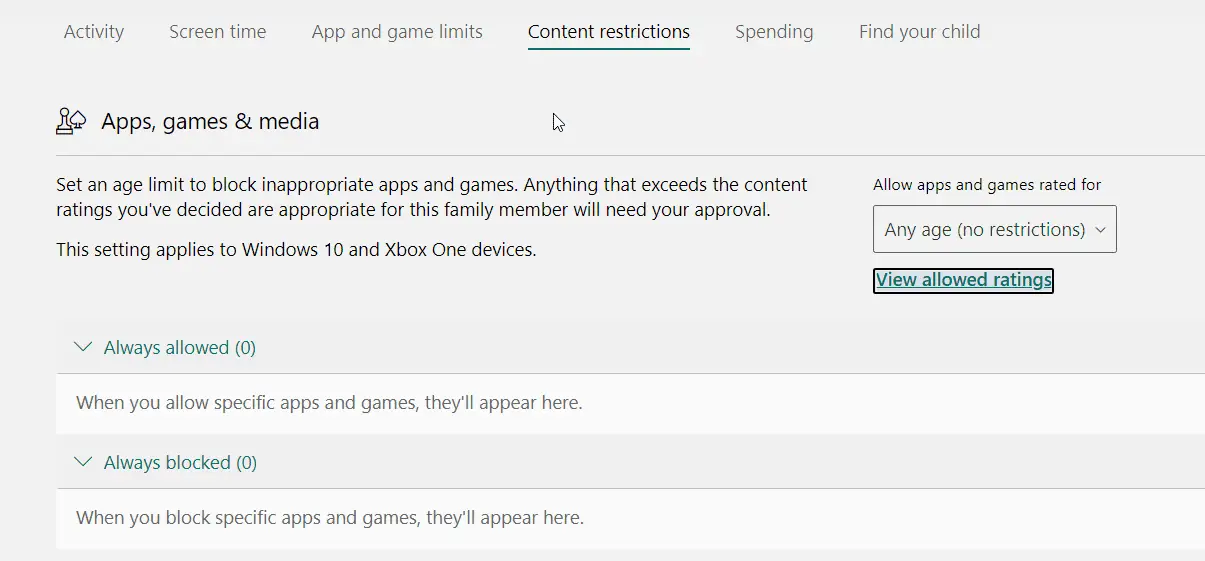
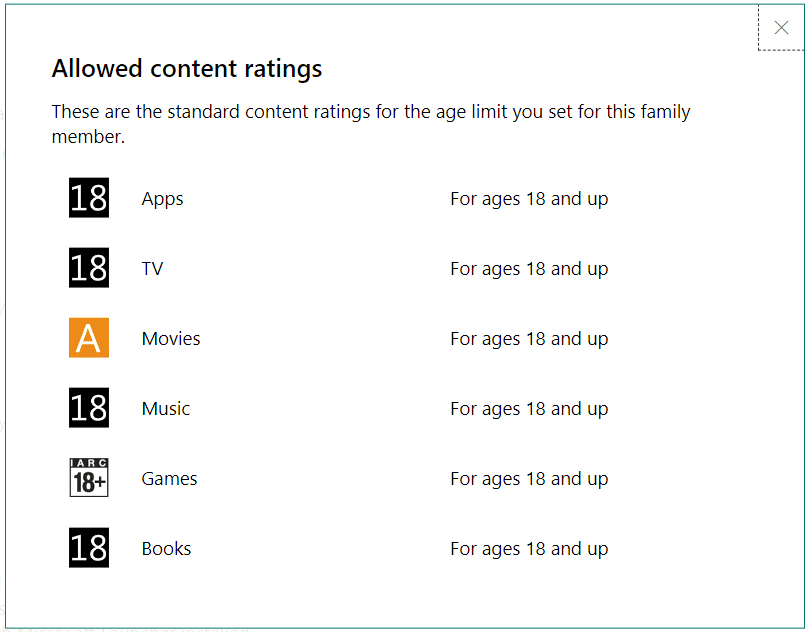
Parents can disable certain content based on age factor. The apps and games the child plays on his device can be restricted based on allowed ratings.
This setting applies to Windows 10 and Xbox devices. Above the age rating, it needs approval from the organizer. The organizer has the authority to block apps and games.
The child visits several websites on his browser.
The organizer can view and block this activity. This setting applies to Microsoft Edge in Windows 10, Xbox One, and Android devices.
Spending – Microsoft Family Safety
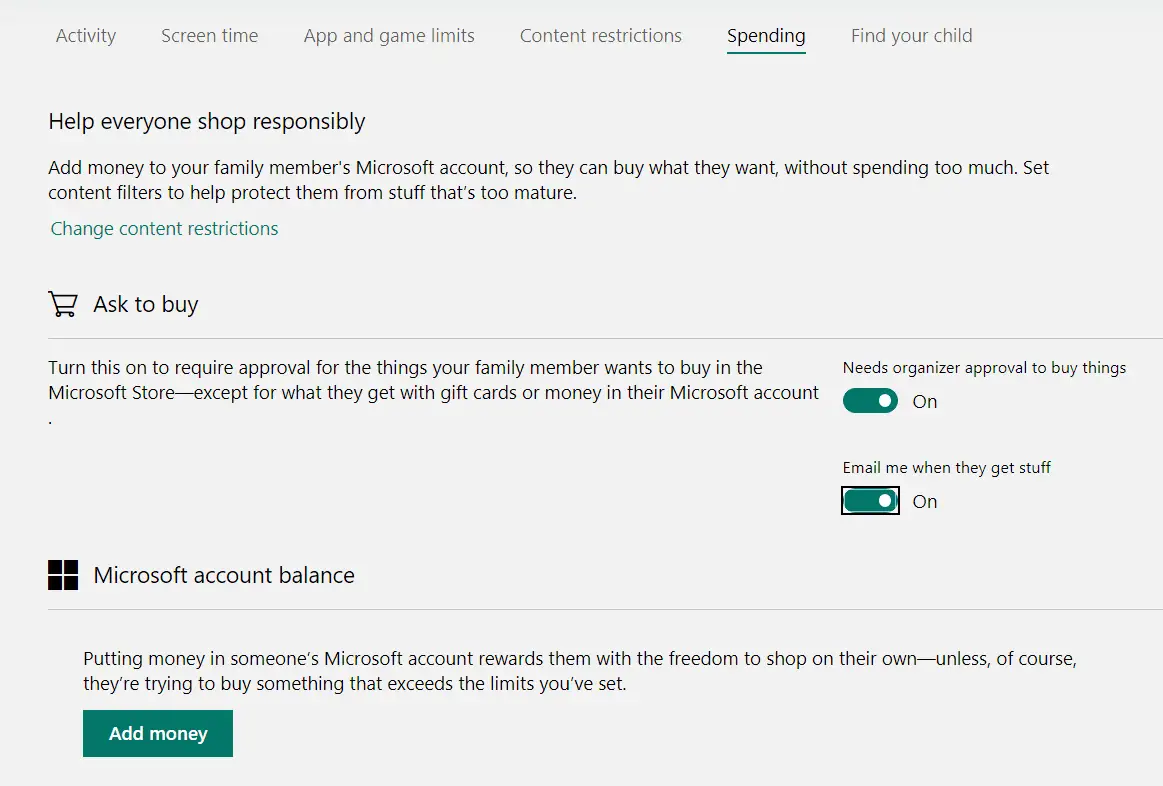
The organizer of Family Group has to give consent for in-app purchases and games. If the child wants to buy something from the Microsoft Store, consent settings can be changed here.
However, if the child has gift cards or money in his Microsoft account, he will not be able to make purchases unless you give your consent.
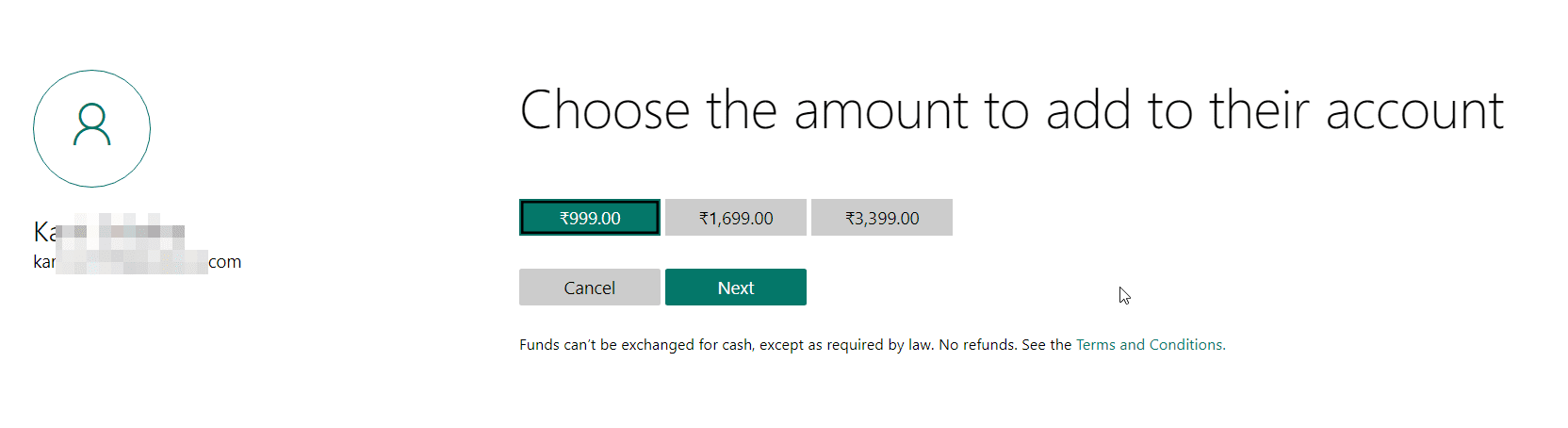
Add money to the minor’s account and view the purchase history from here.
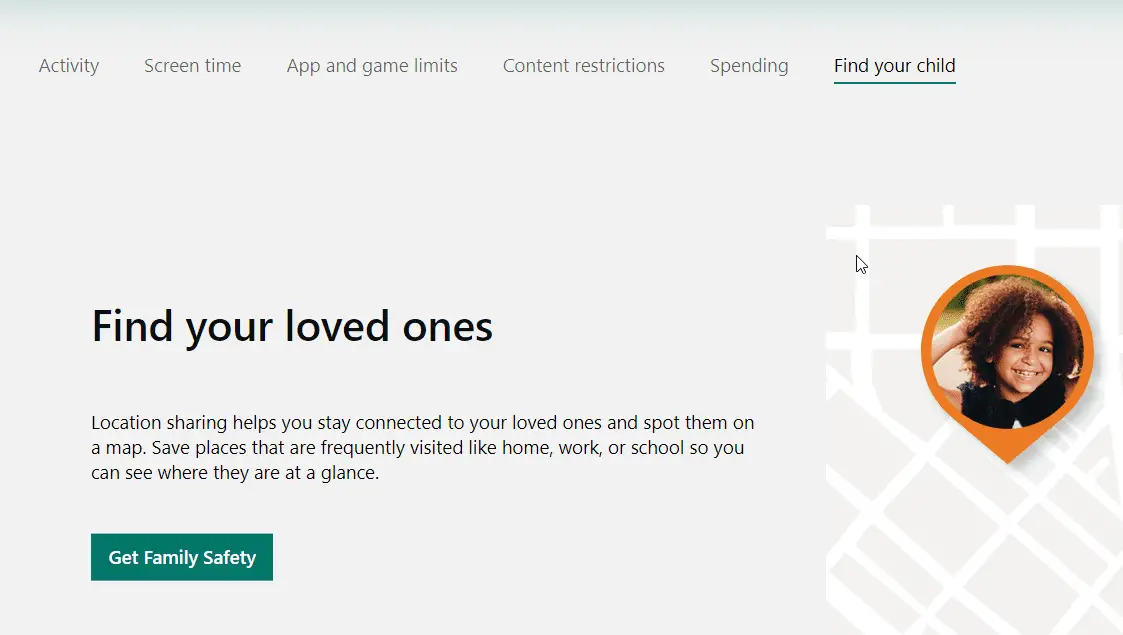
Find your child
Once you install the Microsoft Family Safety app on the child’s phone, you can track his identification.
This is useful when your kid is in danger or has jumped the line. On Bing Maps, you can see the frequently visited places of a child, like home, work, or school.
Other settings—Microsoft Family Safety
If the child has an Xbox One, then its online settings can also be managed by the organizer. He also has the power to remove the child account from the family group.
Microsoft Family Group – Child Access
Once the child accepts the invitation from the parent to join the family group, he has some control over what activity to share with him/her. On the account page, you can see the organizer and other members of the family group.
When you click on “Family,” you can do the following for your account.
- Activity
- Manage permissions
- Leave family group
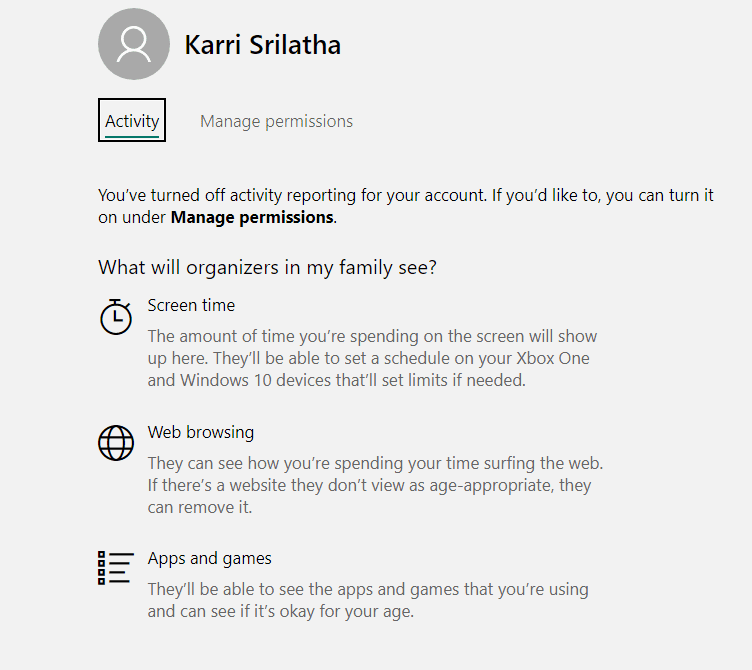
The organizers can see the screen time, web browsing, and apps and games history of the child once he has turned on activity reporting. Once granted access, the child can view his activities as well.
Manage Permissions—Microsoft Family Safety
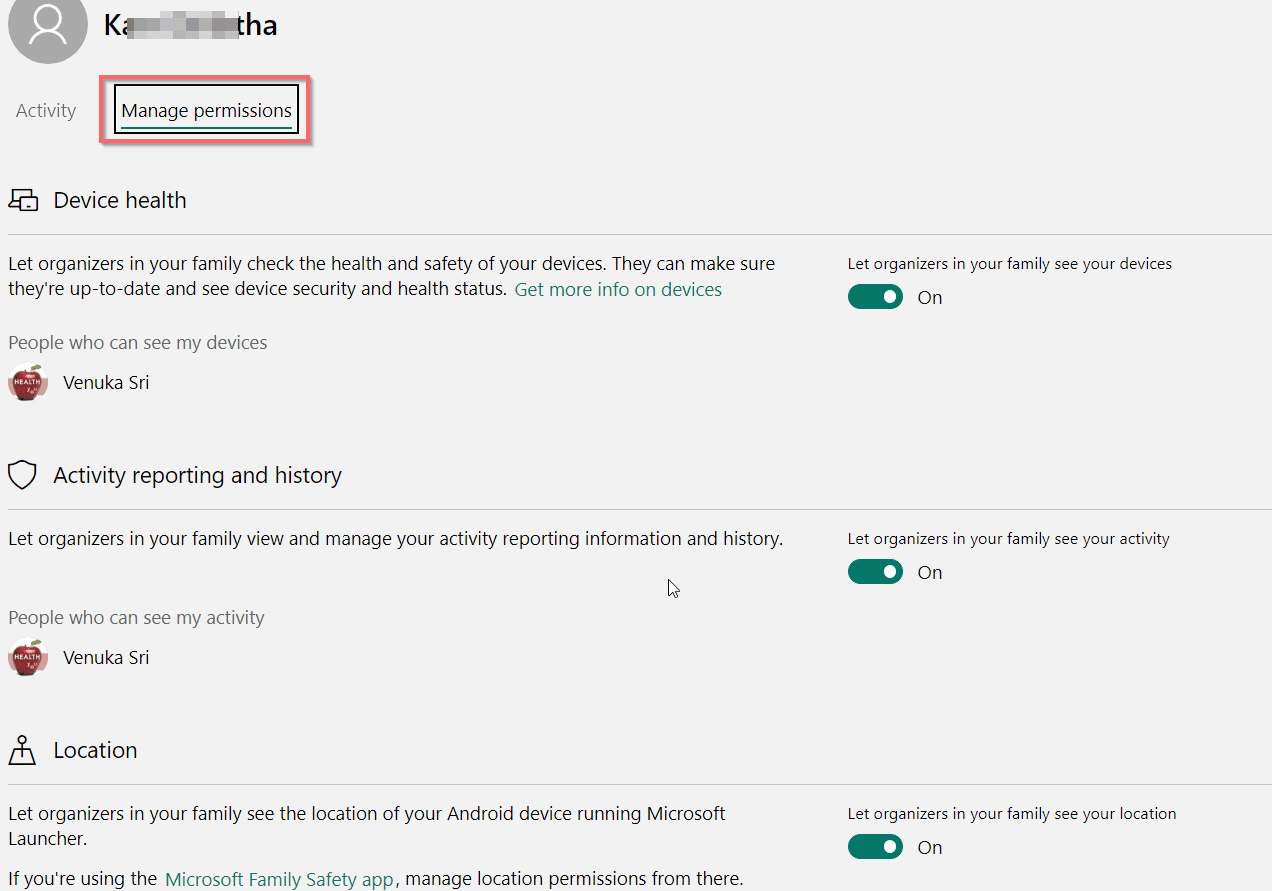
The child can control the organizer of the following things.
- Device health
- Activity reporting and history
- Location
Parents can check the health and safety of their child’s device. The child’s Windows 10 device updated from here. Any malware or trojans sitting on the kid’s computer, checked by the organizer.
Browsing and search-related activity is monitored by the parent.
Microsoft Launcher or Microsoft Family Safety app installed on an Android device. Tracking of location is possible. It is for better security. Turn on location sharing on the kid’s Android phone.
Conclusion
As we have seen above, an organizer who is a parent of the child can monitor different activities of the kid for a better internet experience.
This makes sure the kid doesn’t buy unnecessary apps or games from the Microsoft Store.
At the same time, you can keep a watch on what he is playing and doing round the clock. You can schedule your reports to arrive in your email once a week.
You can monitor Xbox One and other online activities. Easily controlled by the organizer using parental controls.
