

The reason for error code 0xc1900223 in Windows 10 is because of tangled-up update service settings. This generally occurs when you try to update to the May 2019 update. You can easily resolve this problem by trying the Windows Update Troubleshooter.
The main reason for 0xc1900223 error code, according to Microsoft support, is
The error code indicates that there was a problem downloading and installing the selected update. Windows Update will try again later, and there is nothing you need to do at this time.
As you can see, the solution is in the cause itself. You just have to let go sometimes and try the update process again. This issue happens when the Microsoft Update server is busy or has numerous requests.

If it still doesn’t solve the problem, then you can try the following solutions.
Download Windows 10 and Update
The Update Assistant will help you update to the latest version of Windows 10. Currently you can see it as the May 2019 update. You can also download it as an installation medium using the Download tool.


If you are using the old version of Windows 10, like 1803 or 1809, then it will update to the 1903 version.

How to Use SetupDiag, a Free Diagnostic tool by Microsoft
If you want to find the root cause of Error Code 0xc1900223, then you need to analyze the error logs. SetupDiag is an error debugging tool designed by Microsoft to find and parse Windows 10 setup log files. The tool will let you know why an upgrade or update failed to install.

This runs only on Windows 10 and depends on Microsoft .NET Framework. 4.6.
A results.log file is created in the same directory as the parsing of log files. Logs.zip is an archive of all the log files created in the same directory it processed.
Default Windows Update Troubleshooter
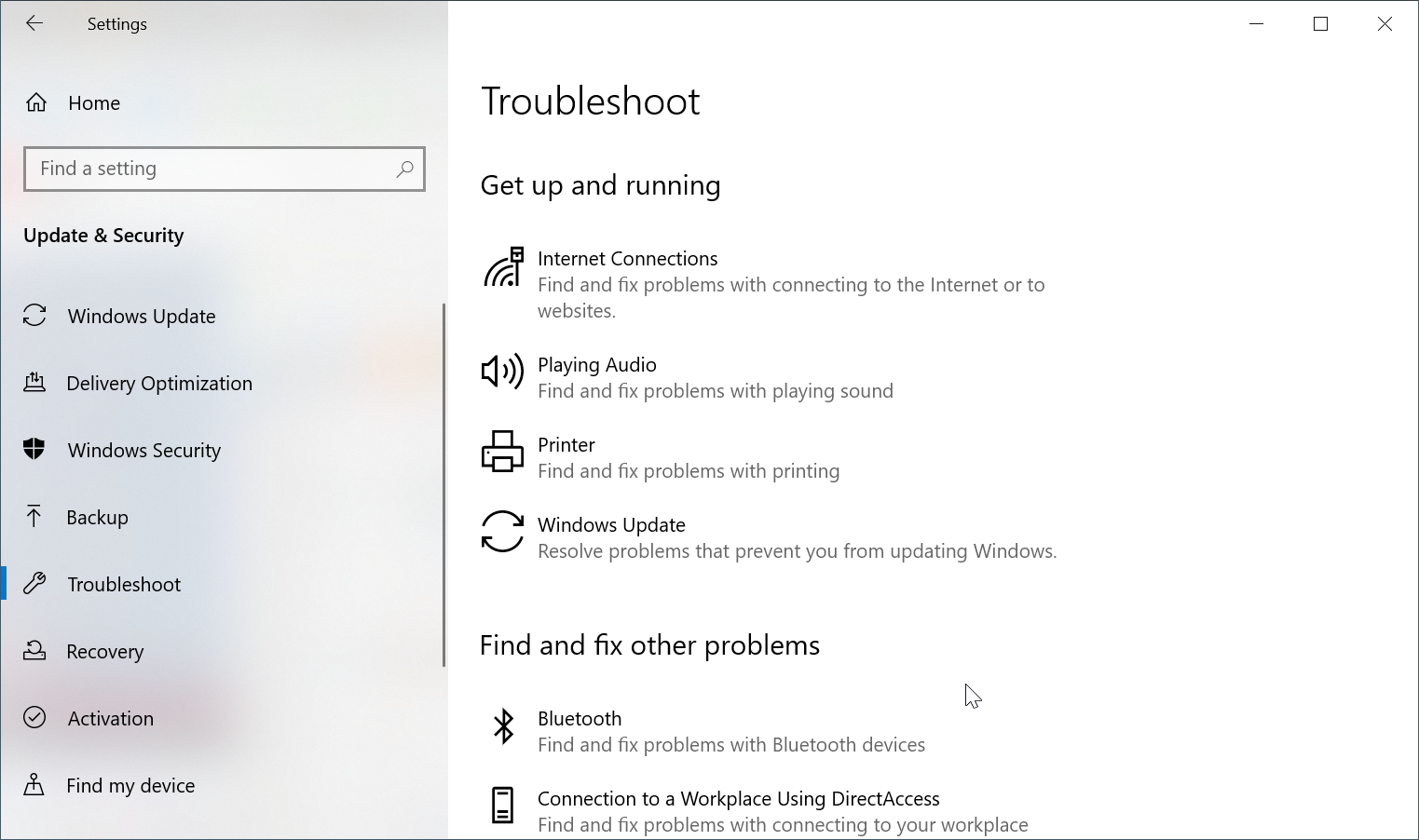
- Press the Win + I keys to open Settings.
- Click the Update & Security > Troubleshoot > Windows Update
- Then click “Run the troubleshooter.”
- This will run for some time, saying “Detecting Problems.”
- At the end, the “Troubleshooting has completed” window will open.
- You can view the identified problems here.
- If they are fixed, you can see a green tick mark against them.
- Otherwise, you see a red mark.


Then you can check for Windows Updates manually again.
Restart Windows Update Service
In the list of services of Windows 10, you can restart the Windows Update service.


- Press the Win key and type “services.”
- In the list, click the “Services” app.
The application will open up the Services Window.
There are two services related to Update
1. Windows Update
2. Windows Update Medic Service
The first service enables the detection, download, and installation of updates for Windows and other programs. If this service is disabled, users of this computer will not be able to use Windows Update or its automatic updating feature, and programs will not be able to use the Windows Update Agent (WUA) API.
The second service enables remediation and protection of Windows Update components. It is generally available after the 1809 or 1903 update.
You can stop, pause, resume, and restart these services.
Delete the following folders and files
Sometimes the error 0xc1900223 is caused by mixed-up files in the C:\Windows\SoftwareDistribution folder. This issue can occur when earlier updates have written entries to these files. Windows Update components and other apps write these system files.
So you can delete all the files and folders in this particular folder. This will clean up the trash created by the Windows Update system.
Before doing that, you can pause the Windows Update service. You can restart the service after clearing out the files and folders in this system folder.
Windows Installer is another service that needs to be started after completion of this operation.
Download Update Troubleshooter
You can use the following link to download Update Troubleshooter for Windows 10: https://support.microsoft.com/en-in/help/4027322/windows-update-troubleshooter.
The file name is wu10.diagcab.


Double-click the file to run it. This action will resolve the following problems.
1. Windows Update
2. Background Intelligent Transfer Service
3. Windows Network Diagnostics

Click Next or Advanced to apply repairs automatically. You need to provide administrator privileges to troubleshoot the error code 0xc1900223.

Alles okay en bedankt voor de hulp !