

You get the 0xc000000e error code on Windows 10 when there is a problem with the boot loader or wrong boot configuration data.
If you have multiple disks, only one of them is the boot disk.
So, the boot configuration data is stored on one disk of all the related settings to boot different Windows OSs.
Even though you use bootrec commands to fix the boot loading options, it is important you change the order of the boot disk. You can have the Metro bootloader or the Windows 7 type, but the cause of the problem is the same.
The typical error message for 0xc000000e will be like this—
Recovery
Your PC/device needs to be repaired…
File: \Windows\system32\winload.efi
Error Code: 0xc000000e
This error error can appear when your Windows 10 OS was deleted on one HDD, which is the boot drive. The boot order options could also have changed.

For example, having two disks, like the Samsung 850 Evo 1TB and the Samsung SM951 m.2 NVME 128GB, can complicate the issues.
You may get confused and think that the problem is with the hardware or some software. But many a time the real problem is with the boot loader configuration stored on your disk.
There are different causes that can cause this Windows 10 error code issue.
- A required device isn’t connected or cannot be accessed
- The required device is inaccessible
- The selected entry could not be loaded
- The selected entry could not be loaded because the application is missing or corrupt
- The boot selection failed because a required device is inaccessible.
Source: thewindowsclub.com
As you can see above, the real cause for this error code 0xc000000e is either the winload.exe file is not accessible or is corrupt, or the boot loader location of Windows 10 is not accessible.

How to Fix Error Code 0xc000000e in Windows 10
You can try the following solutions to resolve this issue.
- Change the boot order of the disk if you have multiple disks like HDD and SSD.
- Use the Windows 10 Startup Repair feature using the installation disk.
- Apply BCD command to rebuild it manually
- Make your disk online.
- Try third-party software
Most of the time, the above fixes will show you the way to solve error code 0xc000000e in Windows 10.
Change the Boot Order in BIOS
The first preliminary fix is to check whether the boot disk is the first disk loading during booting.
This can be done by changing the options in BIOS.
Most of the time, pressing the F2 or F12 or F10 or ESC or DEL keys during booting will take you to BIOS settings.
The procedure depends on your PC manufacturer model and the BIOS software you are using.

For example, on the Phoenix AwardBIOS CMOS setup utility, under “Advanced BIOS features,” you have the following options.
- Hard Disk Boot Priority
- First Boot Device
You can have multiple devices like USB, DVD, HDD, etc., connected to your PC.
- First, make sure your HDD is the first boot device.
- If you have multiple hard disks or solid-state drives on the same system, then you have to use Hard Disk Boot Priority.
- Go to the first option and press Enter. Then select the disk that is your boot disk and press F10.
It will save your changes and restart. If nothing is corrupt, you should be able to fix error code 0xc000000e and enter Windows 10.
Use Startup Repair in Windows 10 Installation Disk
Create a bootable Windows 10 installation disc. The medium could be either a DVD or USB. You can use a utility like Rufus to boot from USB. Otherwise, you can use software like MagicISO to boot from DVD.
Insert the appropriate hardware and change the BOOT options to load from it, as mentioned above. The BOOT options refer to the settings in the computer’s firmware that determine the order in which devices are used to start the operating system.
Source: https://www.laptopmag.com/articles/windows-10-advanced-startup-options-menu
The installation disc will boot up and select language and keyboard layout. Click Next. You will be taken to the next screen. On this screen, at the bottom, you see, “Repair your Computer.”
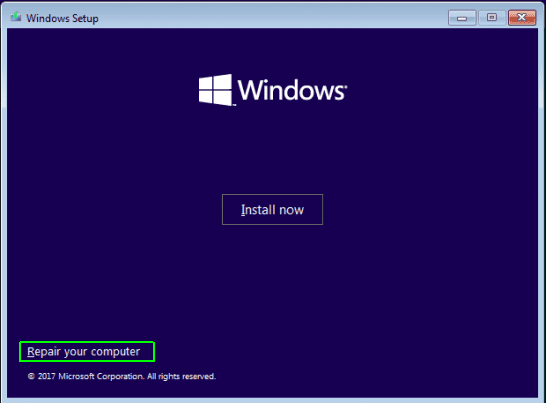
Then click “Troubleshoot” > “Advanced Options” > Startup Repair.

If it’s a small issue, this procedure will fix problems that keep Windows from loading. This will also automatically solve the 0xc000000e error, as a startup problem is the main cause for this issue.
Rebuild BCD manually
This solution is appropriate if the problem is due to a corrupt boot loader. If the boot configuration data has been erred by some hardware change, then the BCD commands will fix this. This is the most common solution for error code 0xc000000e and many times solves the problem.
- Boot using the Windows 10 installation disc.
- Then go to “Advanced options.”
- But this time select “Command Prompt.”
- Enter the following commands one by one.
bootrec /fixboot
bootrec /scanos
bootrec /fixmbr
bootrec /rebuildb--
Upon completion of each command, you will get a successful message. If you get any other error message, then you can try these troubleshooting steps.
Access is denied while applying the fixboot command.
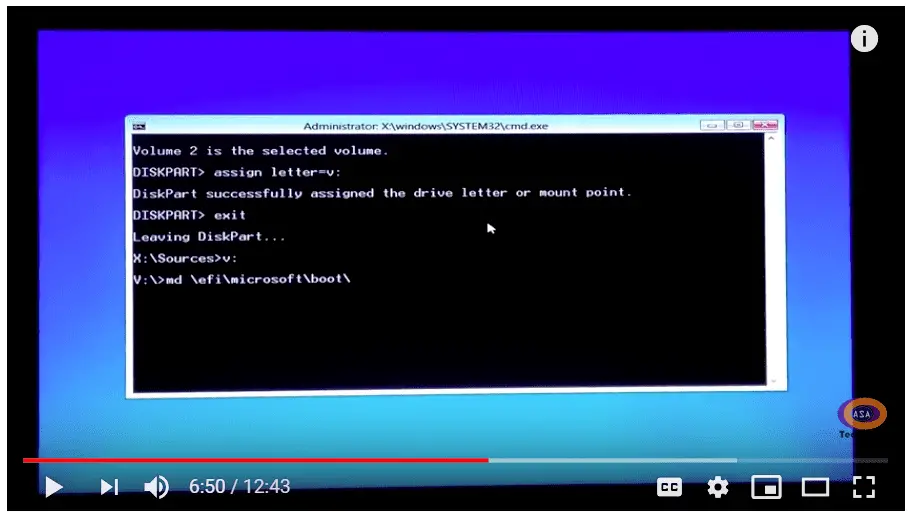
Then you have to type the following commands in the Command Prompt.
Step 1: Type diskpart and press Enter key.
Step 2. Type “list disk” and press Enter. Now check the disk number to identify the boot disk; this is usually Disk 0. If not, use the correct boot disk number.
Step 3. Type “select disk 0” (or your boot disk number) and press Enter.
Step 4. Type the list volume and press Enter. Now look for the volume number of the EFI partition.
Step 5. Type “select volume 1” and press Enter. (Change volume to your number.)
Step 6. Type assign letter=V: and press Enter. V: can be replaced by any drive letter that is not in use by any partition.
Step 7. Type exit and press Enter.
Step 8. Now type V: (or the drive letter you just assigned) and hit Enter.
Step 9. Type md \efi\microsoft\boot\ and hit Enter.
Step 10. Type — /d V:\efi\microsoft\boot\ and hit Enter.
Step 11. Now type the bootrec /fixboot command; the problem should be solved now.
Step 12. b–boot c:\windows /l en-us /s V: /f all
The YouTube video below shows how to fix the “Access is denied” error when using the Fix MBR command.
If you have multiple OSs on the same PC, you can add all of them to the new boot configuration. A prompt with different options is displayed during the /scanos command.
If the process still fails to boot your computer, then the correct order of the boot disc is the problem.
Using the BIOS settings, you must perform trial and error to identify the correct disc containing the boot loader.
This issue happens when you have multiple disks.
Make the Boot Disk Online and Scan Disks
Sometimes, the boot drive can go offline and is not added to the boot loader settings. Then you have to apply the following commands.
In the Command Prompt of your Repair Disc or Installation Disc, as mentioned before, enter the following commands.
- diskpart
- list disk
- list volume
- select disk # (or) select volume #
- online disk # (or) online volume #
Press Enter and restart the computer.
Use EasyBCD-kind of repair software
There is several third-party software that will recover your corrupted boot loader. They will also scan the disks and do other functions. They are a kind of repair software. You just have to boot them using a USB or DVD and make the disc bootable.
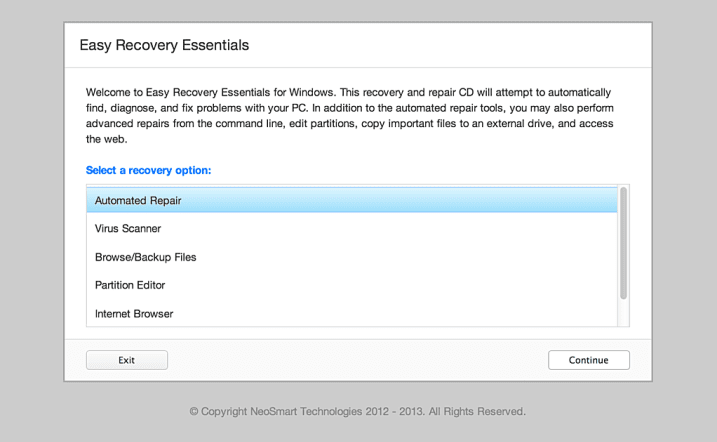
Once loaded, find the right options to regain your old boot order. The program can check your hard disk for bad sectors and also make the correct drive bootable. The following are some of the software.
- Easy Recovery Essentials
- AOMEI Partition Assistant
- EasyBCD
Some of the case studies of the above error code can be like this.
I just upgraded to Windows 10 on my laptop from Windows 7 on a solid drive. All seemed to work fine at first, then I had this boot failure problem.
“Recovery
Your PC need to be repaired
File: \Windows\system32\winload.exe
Error Code: 0xc000000e
You’ll need to use the recovery tools on your installation media, etc.
Press Enter to try again
Press F8 for Start-Up Settings.”
I updated my Windows 10 OS a few days back due to the forcible prompts to update.
My laptop went out of power completely yesterday, and after that I got the error code 0xc000000e during startup.
Tried many options like below:
– bootrec /fixmbr
– bootrec /fixboot –> Got Access is denied at this step
– bootrec /rebuildb– –> Total identified Windows installations: 0The 2 TB SATA drive is not being recognized. I have important data on the hard drive; any ideas how to recover the data by a repair?
My Final Thoughts
As you can see, the main cause of this error code 0xc000000e is installing the winload.exe on each OS and repairing the boot configuration data. Then load the correct boot hard drive, and you are back to normal.
Sometimes, you have to try 2 to 3 different solutions mentioned above to solve your problem, such as using the boot repair options or adjusting the BIOS settings, before finding the one that works for your specific situation. Otherwise, you can use any of the software mentioned above to repair your startup problems caused by the above error code.
Applying the commands in the Command Prompt properly is also important.
If you can rebuild the MBR (Master Boot Record) using the bootrec commands, then this error code will disappear. But sometimes, you may get an error like “access is denied,” which can be fixed as mentioned above.
If you have solved your error, mention your experience in the below comment section.

Your very basic C prompt bootrec /xxxxx commands fixed my primary computer while other fixes I researched were too fast to follow and rather convoluted. I thank you so much. If you will provide me your email address I’d be pleased to send you a monetary token of my appreciation for your help. Thanks.
rsa
—
@Anderson. Thanks that my solution helped. It exists from Windows 7 onwards. Only I have contributed to a good presentation. Please check your email.
Awesome. I have got both HDD and SSD on my laptop, and changing boot option was worked for me. Thank you very much for help
Great. It helped.