

The “Error in loading DLL” message in Excel is more specific than it looks—it is officially classified as Error 48 in the VBA language reference, and it means Excel cannot locate, load, or execute a required dynamic link library (DLL) file when running your macro or add-in.
This DLL loading error surfaces across Excel 365, Excel 2019, Excel 2016, and even Microsoft Access—and it’s become more frequent in 2025–2026 as Microsoft 365 click-to-run updates silently replace or move DLL components.
Encountering the vague “Error in loading DLL” message when trying to launch or use VBA macros in Excel 365 can be incredibly frustrating. This runtime error indicates that Excel is unable to load specific dynamic link library (DLL) files it requires to execute your Visual Basic code.
The error has several distinct causes, and the fix depends on which one you’re dealing with: a missing VBA reference, a 32-bit/64-bit bitness mismatch, a corrupt system file, or an MDAC data components issue.
Whether you’re a developer maintaining legacy Excel macros, a business user in the US, India, or Europe who opened a shared workbook on a different machine, or you’ve just hit this after a Microsoft 365 update—this guide covers your scenario.
The “Error in loading DLL” message in Excel is officially classified as Error 48 in the VBA language reference. It means Excel cannot locate, load, or execute a required dynamic link library (DLL) file when running a macro or add-in.
In this guide I’ll walk through 8 proven fixes — from checking VBA references to running SFC and repairing MDAC — so you can eliminate this DLL loading error for good.
What Is “Error in Loading DLL” (Error 48)?
According to Microsoft’s VBA language reference, Error 48 occurs when:
The DLL (Dynamic Link Library) cannot be loaded, or a function within the DLL cannot be found.
You’ll typically see it when:
- Opening an Excel workbook with VBA macros (
.xlsmor) - Running a macro that calls an external library or add-in
- Opening a workbook created on a different machine with a different Office version
- After a Microsoft 365 update changes or moves DLL components
The error is not always caused by a deleted file—sometimes the DLL exists but is unregistered, has the wrong bitness, or is referencing another missing DLL.
What Causes the Error in Loading a DLL in Excel?
Missing or Corrupt DLL Files
The most common cause: a referenced DLL file has been deleted, moved, or corrupted. This often happens after an Office update or Windows upgrade.
32-bit vs 64-bit DLL Bitness Mismatch
If you compiled or downloaded a 32-bit DLL but are running 64-bit Excel (which is the default for new Office installs on Windows 11), the DLL will fail to load with Error 48. The same applies in reverse — a 64-bit DLL on 32-bit Excel.
Per Microsoft’s official documentation: “The DLL is not the same bit version as the operating environment of VBA.” This is one of the most common causes in 2025–2026 as legacy add-ins built for Office 2010/2013 encounter 64-bit Excel environments.
MDAC / Windows Data Access Components Issue
The error in loading DLL error in Excel also appears when Microsoft Data Access Components (MDAC)—specifically—are missing or unregistered. This affects workbooks that connect to Access databases or use DAO/ADO.
Microsoft 365 Click-to-Run Update Conflict
Microsoft 365 uses a “click-to-run” delivery model that updates Office components in the background. In some cases, these updates move or replace DLL files mid-session, causing previously working macros to generate Error 48 after an update.
Fix 1 – Check and Remove Missing References in VBA Editor
This is the first step—it takes 30 seconds and resolves the majority of errors in loading DLL Excel cases.
Steps:
- Open the affected Excel workbook
- Press
Alt + F11to open the Visual Basic Editor - Go to Tools → References
- Look for any entries marked “MISSING:” in the list
- Uncheck any MISSING references (don’t delete them—just uncheck)
- Click OK
- Save and reopen the workbook
If unchecking MISSING references breaks the macro’s functionality, you’ll need to locate and reinstall the missing library (see Fix 4).
Note: If you cannot uncheck a MISSING reference (checkbox is greyed out), close all workbooks except this one, then try again.
Fix 2 – Register the DLL Using Regsvr32
If the DLL file is present on disk but not registered with Windows, Excel cannot load it. Registering it via the app regsvr32 solves this without reinstalling anything.
Steps:
- First, locate the DLL file. Common paths:
C:\Windows\System32\(64-bit DLLs)C:\Windows\SysWOW64\(32-bit DLLs on 64-bit Windows)
- Open Command Prompt as administrator
- Run:
regsvr32 "C:\full\path\to\file.dll"Example:regsvr32 "C:\Windows\System32\dao360.dll" - You should see “DllRegisterServer succeeded.”
- Restart Excel and test
If you see a registration error instead, the DLL may be the wrong bitness for your system—see Fix 3.
Fix 3 – Fix the 32-bit vs 64-bit Bitness Conflict
This is the most overlooked cause of DLL loading errors in 2025–2026 and affects legacy macros that run fine on older machines.
Diagnose the issue:
- In Excel, go to File → Account → About Excel
- Check whether it says 32-bit or 64-bit
- Check the DLL’s bitness: right-click the DLL file → Properties, or open it in Notepad and look for “PE” header —
PE\0\0d= 32-bit;PE\0\0d+= 64-bit - If they don’t match, you have a bitness conflict
Solutions:
- Option A — Recompile the DLL for the correct bitness (requires the DLL source code)
- Option B—Switch Excel to 32-bit: uninstall Microsoft 365 and reinstall, choosing 32-bit (download from Microsoft’s 365 portal → account settings → choose 32-bit installer)
- Option C—If using a custom VBA Declare statement, add the
PtrSafekeyword for 64-bit compatibility:
vba
  #If VBA7 Then
      Private Declare PtrSafe Function YourFunction ...
  #Else
      Private Declare Function YourFunction ...
  #End If
Fix 4 – Install or Reinstall the Missing DLL
If the DLL is genuinely missing, you need to obtain a clean copy.
For Microsoft-owned DLLs:
- Run the Office Repair (see Fix 6)—it will restore all missing Microsoft DLL files
For third-party DLLs:
- Download only from the official vendor’s website (never from random DLL download sites—these are frequently bundled with malware)
- Place the DLL in the correct directory (
System32for 64-bit,SysWOW64for 32-bit) - Register it using
regsvr32(see Fix 2)
For DAO/MDAC DLLs:
- See Fix 8 (MDAC repair)—this is the correct path for database-related DLL errors in Excel
Fix 5 – Change the Reference Priority
Sometimes two versions of the same DLL exist—Excel loads the wrong one first. Changing the reference priority in VBA forces it to load the correct version.
Steps:
- Open the VBA Editor (
Alt + F11) - Go to Tools → References
- Select the library causing the issue
- Use the Up/Down arrows on the right to move it above conflicting references
- Click OK and test
This is particularly useful when you have both 32-bit and 64-bit Office components installed or multiple Microsoft Office versions.
Fix 6 – Repair Your Microsoft Office Installation
When multiple DLL files are affected, or the Excel DLL error appears after a Microsoft 365 update, repairing Office restores all its components to their correct state.
Steps (Windows 11/10):
- Press
Win + I→ Apps → Installed apps - Find Microsoft 365 (or Microsoft Office)
- Click the three-dot menu → Modify
- Choose Quick Repair first (no internet required)
- If the error persists, run Online Repair (requires internet—more thorough)
- Restart your PC after repair completes
Online Repair downloads a fresh copy of all Office components and is the most reliable fix when the cause is a corrupted Office update.
Fix 7 – Run SFC and DISM to Repair Windows System Files
If Windows system DLLs (not Office-specific ones) are corrupt, neither Office Repair nor regsvr32 will fix the underlying issue. SFC and DISM repair the Windows component store directly.
Steps:
- Open Command Prompt as administrator
- Run the System File Checker:
sfc /scannow- After completion, run DISM:
DISM /Online /Cleanup-Image /RestoreHealth- Restart your PC and test Excel
These commands take 10–20 minutes. They’re particularly effective when the error loading DLL appears for system-level DLLs or OLE components.
Fix 8 – Repair MDAC / Windows Data Access Components
If the error in loading DLL occurs specifically when Excel accesses databases (via DAO or ADO), the issue is likely with Microsoft Data Access Components (MDAC)—specifically unregistered or corrupted Dao360.dll files.
Fix via Regsvr32:
- Open Command Prompt as administrator
- Run each command:
   regsvr32 "C:\Program Files\Common Files\microsoft shared\DAO\dao360.dll"
regsvr32 "C:\Program Files\Common Files\System\ado\msado15.dll"- If the path differs, search for the files using File Explorer’s search
Fix via Windows Update: In Windows 10 and 11, MDAC is no longer a standalone download — it is maintained via Windows Update. Run Windows Update (Settings → Windows Update → Check for updates) to ensure you have the latest data access components.
Fix 9 – Update Windows and Microsoft 365
Outdated Windows or Office versions often cause DLL incompatibilities:
Update Windows:
- Press
Win + I→ Windows Update → Check for updates - Install all pending updates including optional updates
Update Microsoft 365:
- Open any Office app → File → Account
- Click Update Options → Update Now
- Restart after updating
Error in Loading DLL in MS Access
The same “Error in loading DLL” error appears in Microsoft Access when using the Import Text Wizard, Spreadsheet Wizard, or any feature that relies on MDAC components.
Common causes in access:
- Missing or unregistered
Dao360.dllorMsado15.dll - Corrupt Access installation
- VBA references to missing libraries (same as Excel Fix 1)
Fix:
- Run
regsvr32for Dao360 and Msado15 (see Fix 8) - Repair Office via Settings → Apps (see Fix 6)
- If the error appears in Access VBA editor, follow Fix 1 to clear MISSING references
Preventing Future DLL Loading Errors
Once you’ve resolved the issue, these practices help prevent a recurrence:
- Reference only what you need—every checked library in VBA Tools > References is a potential future conflict
- Document DLL paths and versions in comments at the top of your VBA modules
- Use late binding where possible instead of early binding for external libraries—it’s more portable across Office versions
- Test macros on a separate machine before sharing workbooks across different Office versions
- Back up working workbooks before applying major Windows or Office updates
What Causes the “Error in Loading DLL” in Excel 365?
The root causes of Excel generating this error message can include:
- Missing referenced DLL files that contain required procedures
- Incompatible or corrupted versions of required DLLs
- Excel referencing a DLL of a different bitness (32 vs. 64-bit)
- Invalid paths or directories for DLL files
- DLLs containing dependencies on other missing DLLs
- Multiple versions of the same DLL creating conflicts
- Insufficient permissions to load DLL files properly
These situations prevent Excel from loading the expected DLLs when running your VBA code, resulting in a crash.
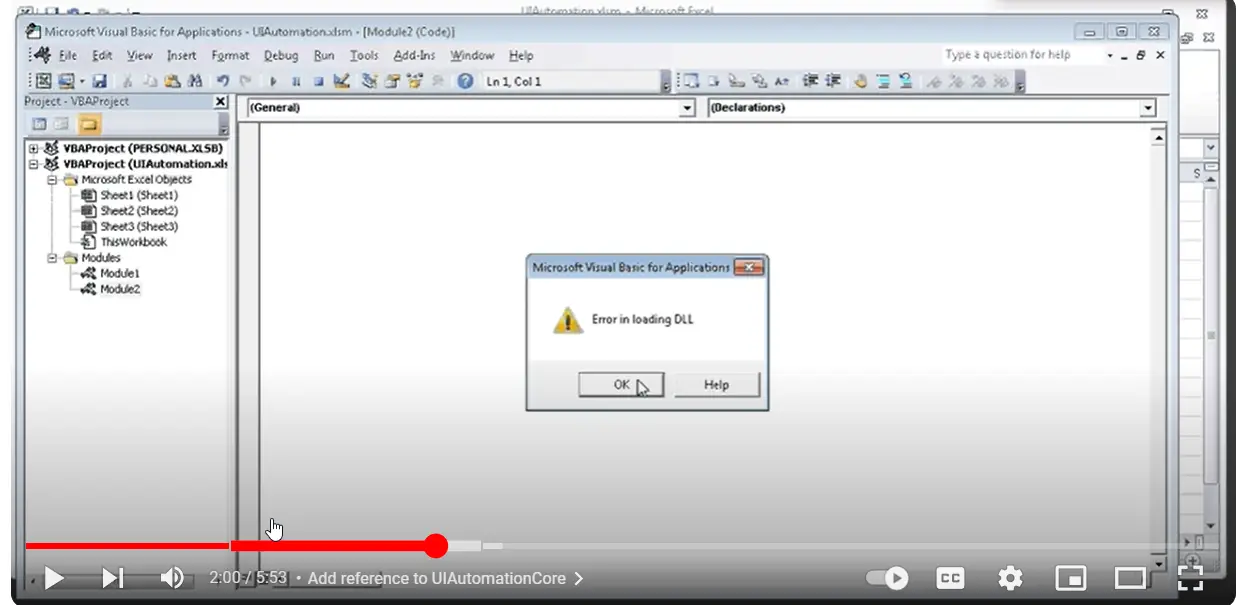
Step 1 – Identify the Problem DLL
The first troubleshooting step is to identify exactly which DLL is causing the loading error:
- In the Visual Basic editor, go to Tools > References to see your referenced libraries.
- Look for any marked as “Missing,” which indicates unavailable references.
- Check the file paths and versions to see if a correct DLL exists.
- Make note of any libraries dependent on the missing DLL.
This reveals what DLL needs resolution to allow proper loading.
Step 2 – Register the DLL
If the DLL file itself is present but Excel still can’t load it, try registering it:
- Open Command Prompt as Administrator
- Navigate to the DLL file directory
- Run
regsvr32 "filename.dll"to register it with Windows - Retry opening Excel to see if the registration resolved the load issue
Registering installs the required DLL information, allowing Excel to locate and use it.
Step 3 – Install the Missing DLL
If the DLL file itself is not present on your system, you need to install it:
- For Microsoft DLLs, install the corresponding application version or redistributable package containing the DLL.
- For third-party DLLs, obtain the necessary installer or files from the software vendor.
- Make sure to use the 32-bit or 64-bit DLL version matching your Office installation.
Installing the missing DLL provides the actual file for Excel to load.

Step 4—Change the Reference Priority
If multiple versions of the same DLL are causing conflicts, change the priority:
- In the VB editor, go to Tools > References
- Reorder the references so the desired DLL version is on top
- Move any “MISSING” references to the bottom of the list
Prioritizing the correct reference forces Excel to load it first and ignore missing ones.
Step 5 – Repair Office Installation
Corrupted Office system files could also be preventing successful DLL loading:
- Go to Control Panel > Programs > Uninstall a Program
- Select your Office version
- Click “Change” to open repair options
- Run a Repair operation to restore any missing or damaged files
Repairing Office can fix underlying problems like registry issues impacting Excel’s ability to load DLLs.

Step 6 – Update Windows and Office
Outdated Windows and Office systems can cause DLL errors:
- Install all the latest Windows updates via Windows Update
- Update Office 365 to the newest build
- Restart your PC after updating
Updating ensures you have the most recent DLL versions and dependencies required by Excel 365.
Step 7 – Remove Problematic References
If the previous steps don’t resolve the problem, try removing troublesome library references:
- In the VB editor Tools > References, uncheck any problematic or mismatching references
- Save and recompile your code to see if this allows successful loading without the DLL
Eliminating conflicting or unsupported references can isolate the issue and allow Excel to start normally.
Step 8 – Contact Microsoft Support
If you still receive the error after trying all of the above, contact Office 365 support:
- Start a chat session at support.microsoft.com for troubleshooting assistance
- Work with support engineers to trace the source of unresolved DLL issues
With hands-on investigation, Microsoft can often determine the last-mile problems preventing DLLs from loading.
Preventing Future “Error in Loading DLL” Problems
Once resolved, this best practice will help avoid repeat DLL errors:
- Reference only what VBA libraries are absolutely needed
- Document DLL requirements and versions for your Excel workbooks
- Use explicit file paths rather than implicit paths pointing to DLLs
- Handle missing references and DLL errors gracefully in your code
- Develop and test macros in same environment as end users
Careful dependency and reference management will minimize compatibility issues causing pesky DLL errors.
In summary, a measured troubleshooting approach, checking reference priorities, installations, repairs, and updates and working with Microsoft Support, can resolve even persistent “Error in loading DLL” issues. Follow the solutions in this guide so you can once again reliably run VBA macros and add-ins in Excel 365.
What is “Error in Loading DLL” in Excel?
“Error in Loading DLL” (also called VBA Error 48) means Excel cannot load a required dynamic link library file when running a macro or add-in. Causes include missing references in the VBA editor, a corrupted or unregistered DLL file, a 32-bit vs 64-bit bitness mismatch, or a broken Office installation. Opening Tools > References in the VBA editor and unchecking MISSING entries usually fixes it.
What is Error 48 in VBA?
Error 48 is the official VBA error code for “Error in loading DLL.” Microsoft’s VBA language reference defines it as occurring when a DLL cannot be loaded or a required function within the DLL cannot be found. It is most commonly triggered by missing or unregistered library references in Excel, Access, or other Office applications.
Can I download a missing DLL from a DLL download site?
I strongly recommend against it. Third-party DLL download sites frequently bundle malware with DLL files. Instead, obtain missing Microsoft DLLs by running Office Repair (for Office-owned DLLs) or Windows Update (for system DLLs). For third-party DLLs, download only from the original software vendor’s official website.
How do I fix a 32-bit vs. 64-bit DLL conflict in Excel?
If Excel is 64-bit (the default for new Microsoft 365 installs on Windows 11) but your DLL was compiled for 32-bit, it will fail with Error 48. Fix this by recompiling the DLL for 64-bit, switching to 32-bit Excel, or updating your VBA Declare statements to include the PtrSafe keyword for 64-bit compatibility.
What is the difference between “error in loading DLL” and “failed to load DLL”?
These errors refer to the same underlying problem — Windows or an application cannot load a DLL file. “Error in loading DLL” is the VBA/Office-specific message (Error 48), while “failed to load DLL” appears in broader Windows contexts. Both are fixed using the same methods: verifying the DLL exists, re-registering it with regsvr3verifying that theitness compatibility, and running SFC /scannow.
Conclusion
The “Error in loading DLL” (Error 48) is one of those errors that looks cryptic but almost always has a clear, fixable cause. In my experience, the issue resolves in the overwhelming majority of cases by checking Tools → References in the VBA editor for MISSING entries (Fix 1) and running Online Repair on Microsoft 365 (Fix 6).
The 32-bit vs. 64-bit bitness conflict (Fix 3) is the trickiest—and the most underdiagnosed—especially for users running modern 64-bit Windows 11 with legacy Excel add-ins.
Please work through the fixes in order, and ensure to include the SFC and MDAC steps if the basic ones don’t resolve the issue.
Did this guide fix your DLL loading error? Share which method worked in the comments below and include your Excel and Windows version so other readers with the same setup can find the right fix faster.
