In the ever-evolving world of video editing, Wondershare Filmora 2025 continues to stand out as one of the most user-friendly and powerful tools for creators of all levels. Whether you’re a beginner or a seasoned professional, knowing how to export videos correctly is key to preserving quality and compatibility and ensuring your content looks its best on any platform.
In this comprehensive guide, we’ll walk you through the step-by-step process of Filmora—how to export video in 2025, covering everything from basic settings to advanced features. By the end of this tutorial, you’ll be equipped with the knowledge to export videos like a pro, optimized for YouTube, social media, or professional use.
Step 1: Preparing Your Project for Export
Before pressing the export button, ensure your project is ready for the final output. Skipping this step can lead to errors, poor quality, or even failed exports.
Finalize your edit.
Start by reviewing your timeline thoroughly. Check for any unfinished sections, misplaced transitions, or missing audio. Filmora 2025’s intuitive interface makes it easy to spot and resolve these issues.
Tip: Use the “Playback” feature to preview your video in real time. This helps you catch any mistakes before exporting.
For ultra-high-quality content, consider 4K (3840×2160).
Don’t forget to adjust the aspect ratio if needed (e.g., 16:9 for YouTube, 9:16 for Instagram Reels).
Optimize file size.
Large video files can be challenging to share and upload. To reduce file size:
Trim unnecessary clips.
Use proxy files for high-resolution footage.
Compress audio tracks without compromising quality.
Step 2: Accessing the Export Menu
Once your project is polished, it’s time to export. Filmora 2025’s export menu is designed to be straightforward, even for beginners.
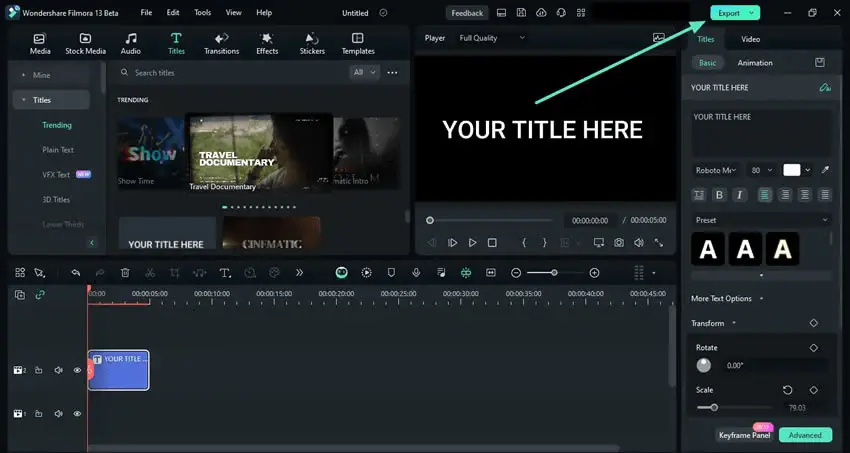
Locate the Export Button
In Filmora 2025, the “Export” button is prominently displayed in the top menu bar. Clicking it opens a dropdown menu with various export options.
Overview of Export Options
Filmora 2025 offers a range of export formats and platforms, including:
Local Formats: MP4, MOV, AVI, MKV, and more.
Platform-Specific Presets: YouTube, Vimeo, Instagram, TikTok, and Facebook.
Device Compatibility: Optimized settings for iPhone, iPad, Android, and gaming consoles.
Step 3: Choosing the Right Export Settings
Selecting the correct export settings is crucial for achieving the best results. Here’s how to do it:
Select the Output Format
MP4 is the most widely used format due to its balance of quality and compatibility. However, if you’re working on a professional project, consider using MOV for higher quality.
Tip: Use the H.264 codec for MP4 files, as it offers excellent compression without sacrificing quality.
Adjust Resolution and Bitrate
Resolution and bitrate directly impact your video’s clarity and file size.
For 1080p videos, a bitrate of 8-12 Mbps is recommended.
For 4K videos, aim for 35-45 Mbps.
Frame Rate Settings
Match the frame rate to your project settings:
24 fps for a cinematic look.
30 fps for standard videos.
60 fps for smooth motion, ideal for gaming or action footage.
Audio Settings
Don’t overlook audio quality. Set the audio bitrate to at least 320 kbps for clear, crisp sound.
Step 4: Exporting for Specific Platforms
Different platforms have unique requirements. Here’s how to optimize your exports for popular platforms:
Exporting for YouTube
Resolution: 1080p or 4K.
Format: MP4 with H.264 codec.
Bitrate: 8-12 Mbps for 1080p, 35-45 Mbps for 4K.
Aspect Ratio: 16:9.
Pro Tip: Add metadata like titles, tags, and descriptions directly in Filmora 2025 to streamline your YouTube upload process.
Instagram Reels/TikTok: Use a 9:16 aspect ratio (1080×1920).
Facebook: 1280×720 (720p) or 1920×1080 (1080p).
Bitrate: 4-6 Mbps for smaller file sizes.
Exporting for Professional Use
Format: MOV or ProRes for high-quality deliverables.
Resolution: 4K or higher.
Bitrate: 50 Mbps or more for lossless quality.
Step 5: Advanced Export Features in Filmora 2025
Filmora 2025 introduces several advanced features to enhance your export experience.
Batch Export
Export multiple projects or clips simultaneously to save time. This is especially useful for creators managing multiple videos.
Hardware Acceleration
Enable GPU acceleration in Filmora 2025 to speed up export times. This feature leverages your computer’s graphics card for faster processing.
Custom Export Presets
Save your preferred export settings as custom presets for future projects. This ensures consistency and saves time.
Step 6: Troubleshooting Common Export Issues
Even with the best preparation, issues can arise. Here’s how to tackle common problems:
Export Fails or Freezes
Solution: Ensure your computer meets Filmora 2025’s system requirements. Close unnecessary applications to free up resources.
Poor Video Quality
Solution: Increase the bitrate and resolution. Avoid over-compressing your video.
Audio Sync Issues
Solution: Check your project’s frame rate and audio settings. Use Filmora’s “Audio Sync” tool to align audio and video tracks.
Step 7: Saving and Sharing Your Exported Video
Once your video is exported, it’s time to save and share it with the world.
Choosing the Right File Location
Save your video to a dedicated folder for easy access. Consider using an external SSD for large files.
Uploading to Cloud Storage
Use platforms like Google Drive or Dropbox to share large files with clients or collaborators.
Sharing Directly to Social Media
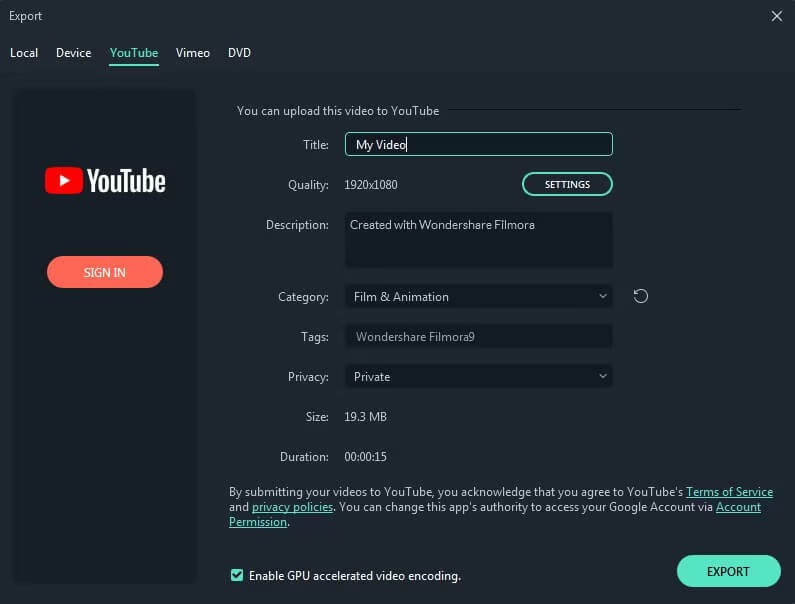
Filmora 2025 allows you to upload videos directly to YouTube, Vimeo, and other platforms. This feature saves time and streamlines your workflow.
Filmora: How to Export Video (2025)—A Step-by-Step Guide
Wondershare Filmora has become one of the most popular video editing tools for beginners and professionals alike. Whether you’re creating YouTube videos, marketing content, or personal projects, knowing how to export footage properly ensures high-quality output and compatibility with various platforms.
In this guide, we’ll walk you through the process of exporting videos in Filmora, covering different formats, resolutions, advanced settings, and troubleshooting tips to help you achieve the best results.
Preparing Your Project for Export
Finalizing Edits
Before exporting your project, ensure all editing is complete. Double-check:
Cuts and Transitions: Smooth out jump cuts and adjust transition durations.
Effects and Animations: Ensure effects and overlays are properly aligned.
Audio Levels: Adjust background music and voiceovers to avoid distortions.
Rendering the Timeline
Rendering your timeline allows you to preview the video without lags. To render:
Click on the Render Preview button.
Wait for the process to complete for smooth playback.
Accessing the Export Feature
Once your project is ready, follow these steps to start the export process:
Click the Export button in the top-right corner of the Filmora interface.
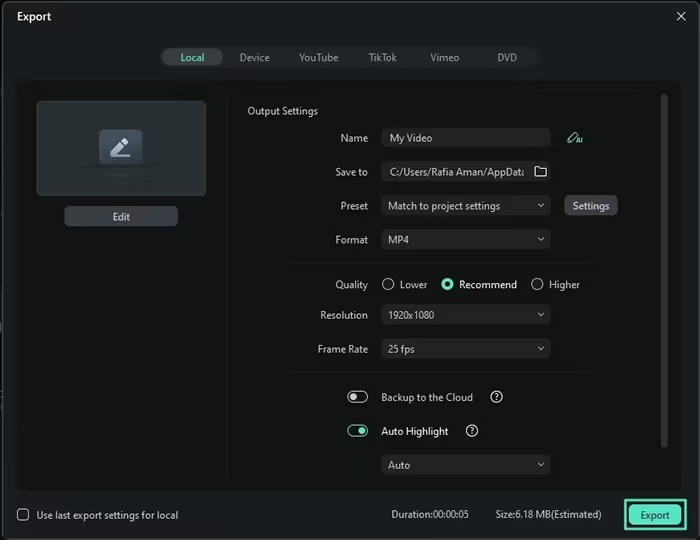
A new export window will open, presenting different saving options.
Choosing the Export Destination
Filmora provides multiple export options:
Save to Local Computer
To save the video directly to your computer:
Click on the Local tab.
Choose a preferred format (MP4, AVI, MOV, MKV, etc.).
Select an output folder for saving the file.
Upload Directly to Online Platforms
For social media creators, Filmora allows direct uploads to:
YouTube: Log in to your account and set the title, description, and privacy settings.
Vimeo & TikTok: Directly export and share videos without extra steps.
Selecting the Output Format
Choosing the right format impacts file size, quality, and compatibility. Here are the recommended formats:
MP4 (Best for general use).
MOV (High-quality Apple format)
AVI (For uncompressed professional use)
WMV (Windows Media Video)
MKV (For high-resolution exports)
Configuring Export Settings
To optimize quality, adjust the following settings:
File Name and Location
Assign a relevant name for easy identification.
Select a destination folder for storage.
Resolution and Frame Rate
Choose resolutions based on your project:
1080p (Full HD) – Best for YouTube and general content
4K (Ultra HD)—High-end production quality
720p (HD)—Smaller file size, suitable for quick uploads
Set the frame rate to match your project:
30 FPS: Standard frame rate for most videos.
60 FPS: Best for smooth motion in gaming and action footage.
Bit Rate and Quality
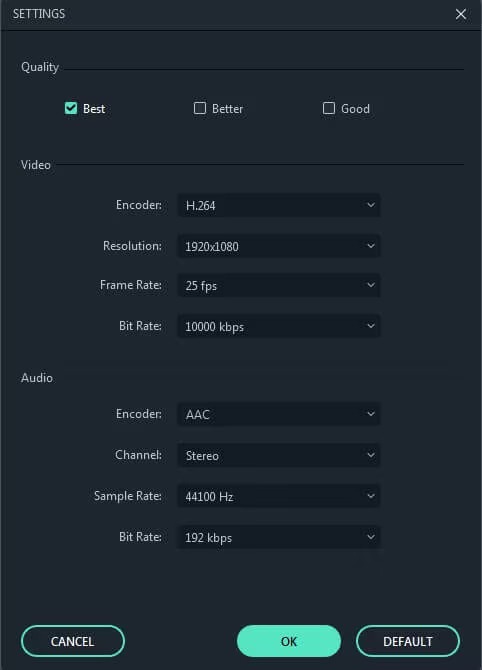
Best (Higher bit rate, larger file size)
Better (Balanced quality and size)
Good (Smaller file size, lower quality)
Advanced Export Settings
For detailed configuration, click Settings:
Encoder: Choose H.264 (MP4) for compatibility.
Sample Rate & Channels: Set audio to 48,000 Hz stereo for clear sound.
Hardware Acceleration: Enable GPU encoding for faster exports.
Exporting the Video
Once settings are configured, click Export to start the process. The duration depends on the video length and system performance.
Post-Export Actions
After exporting, check the file:
Locate the Video: Navigate to the selected folder.
Preview the Output: Play the video to ensure quality.
Share & Distribute: Upload to social media, websites, or cloud storage.
Filmora: How to Export Video: Step-by-Step Guide 2025
Learning how to export video in Filmora is simple once you know the right settings. Whether you want to upload to YouTube, Instagram, or save on your device, Filmora makes it effortless.
Setting Up Your Export
After finishing your edits, click the Export button at the top. Choose your desired format, such as MP4, MOV, or WMV. MP4 is ideal for most platforms and delivers high quality with a smaller file size.
Adjusting Video Settings
Filmora allows you to customize resolution, frame rate, and bitrate. For YouTube, use 1080p at 30 fps or 60 fps for crisp playback. Just choose the higher resolution before exporting if you want 4K quality.
Savings and Sharing Options
You can export directly to YouTube, Vimeo, or TikTok by linking your accounts. Filmora also lets you save projects to your PC or external drive for safer backups.
Final Tip
Before exporting, preview your video to ensure text, visuals, and audio align perfectly. Then hit Export, and Filmora will render your video smoothly.
Try Filmora today to create, edit, and export professional videos with ease. Perfect for beginners and experts alike!
Lower the bit rate or choose a compressed format like MP4.
Reduce the resolution if high quality is unnecessary.
Export Stuck or Crashes
Clear Filmora cache files.
Restart the software and close unnecessary background apps.
Update Filmora to the latest version.
Conclusion
Exporting videos in Filmora 2025 doesn’t have to be complicated. By following this step-by-step guide, you can ensure your videos are optimized for quality, compatibility, and performance on any platform. Whether you’re creating content for YouTube, social media, or professional use, Filmora 2025 provides the tools you need to export videos like a pro.
Don’t forget to experiment with different settings to find what works best for your projects. And if you have any questions or tips of your own, feel free to share them in the comments below!
Bonus Tips
Use keyboard shortcuts (e.g., Ctrl+E for Export) to speed up your workflow.
Regularly update Filmora 2025 to access the latest features and bug fixes.
Invest in external storage to keep your projects organized and accessible.
By mastering the art of exporting videos in Filmora 2025, you’ll be well on your way to creating stunning content that stands out in today’s competitive digital landscape. Happy editing!
While Wondershare Filmora is a popular choice for content creators, many users seek alternative video editing software due to pricing, advanced feature requirements, or compatibility concerns.
Whether you’re looking for a free video editor with no watermark, an AI-powered editing tool, or a professional video editing suite, we have compiled a comprehensive list of the top Filmora competitors to help you create stunning, high-quality videos with ease.
However, many users are now searching for Filmora alternatives due to its pricing, limited advanced features, or platform restrictions. If you’re one of them, you’re in the right place! In this blog post, we’ll explore the best Filmora alternatives for 2025, catering to different needs, budgets, and skill levels.
Choosing the right video editing software depends on your specific needs—whether it’s motion graphics, color grading, screen recording, or social media video creation.
Some editors focus on AI automation and drag-and-drop functionality, making video creation effortless, while others offer Hollywood-level editing tools for professional-grade projects.
Our curated list includes both free and paid video editors, ensuring that you find the perfect match for your content creation journey.
In this guide, we will explore the best Filmora alternatives that deliver seamless editing, advanced visual effects, and high-speed rendering. Whether you’re a YouTuber, digital marketer, or business owner, these alternatives can elevate your video production game to the next level. Let’s dive in and find the perfect video editing software for your needs!
Pricing concerns—Filmora requires a subscription or a paid license, which may not be affordable for everyone.
Watermark issues—The free version adds watermarks to exported videos, which can be inconvenient for professional use.
Advanced feature limitations—While Filmora is beginner-friendly, it lacks some high-end professional editing tools like motion tracking, multi-camera editing, and advanced effects.
Performance and rendering speed—Some users experience lag, slow rendering times, and occasional crashes, especially on lower-end systems.
Limited flexibility—Filmora offers a solid set of features, but it might not be as customizable as other advanced editors.
Lack of AI-driven automation – Many modern video editors integrate AI tools for automated editing, color grading, and sound enhancement, which Filmora lacks in comparison to some competitors.
If any of these reasons apply to you, check out the best Filmora alternatives below to find a video editor that suits your needs perfectly.
Key Factors to Consider When Choosing a Filmora Alternative 2025
When evaluating Filmora alternatives, keep these factors in mind to find the best fit for your needs:
Ease of Use: Is the software beginner-friendly or suited for advanced users?
Features: Does it offer essential tools like transitions, effects, and audio editing?
Pricing: Is it free, a one-time purchase, or subscription-based?
Platform Compatibility: Does it work on Windows, Mac, or mobile devices?
Export Options: Are there limitations on resolution or formats?
Customer Support: Is there reliable support for troubleshooting?
Now, let’s dive into the top Filmora alternatives available today.
Fewer advanced features compared to paid software.
Occasional bugs and crashes.
Best For: Beginners and casual users looking for a free and simple video editor.
2. Paid Alternatives
Adobe Premiere Pro (2025 Edition)
Overview: Adobe Premiere Pro remains the industry-standard video editing software in 2025, with new AI-powered tools for faster editing.
Pros:
Comprehensive editing tools and features.
Seamless integration with other Adobe apps like After Effects and Photoshop.
New AI tools for auto-reframing, color matching, and speech-to-text.
The software receives regular updates and enhancements.
Cons:
Expensive subscription model.
Requires a powerful computer for optimal performance.
Best For: Professional video editors and content creators who need advanced editing tools.
Overview: Final Cut Pro X has received a major update in 2025, making it even more powerful for Mac users.
Pros:
Optimized for Mac, offering smooth performance.
Intuitive interface with powerful features.
One-time purchase (no subscription).
New AI-driven editing tools for faster workflows.
Cons:
Only available for macOS users.
The upfront cost is quite high.
Best For: Mac users who want a professional-grade video editor.
Camtasia 2025
Overview: Camtasia has introduced new features in 2025, making it a top choice for screen recording and video editing.
Pros:
Easy-to-use interface with drag-and-drop functionality.
Built-in screen recording and annotation tools.
New AI-powered tools for auto-captioning and editing.
Great for creating how-to videos and presentations.
Cons:
Limited advanced editing features.
Expensive for casual users.
Best For: Educators, trainers, and content creators focused on tutorials and screen recordings.
3. Online Alternatives
WeVideo 2025
Overview: WeVideo has become a cloud-based video editing powerhouse in 2025, offering new AI tools for faster editing.
Pros:
Accessible from any device with an internet connection.
Collaborative features for team projects.
Free plan available with basic features.
New AI tools for auto-editing and transitions.
Cons:
Limited features in the free plan.
Export quality restrictions in the free version.
Best For: Collaborative teams and users who prefer cloud-based editing.
Overview: Clipchamp has introduced new features in 2025, making it a top browser-based video editor.
Pros:
No downloads required; it works directly in your browser.
User-friendly interface with basic editing tools.
Free plan available with no watermark.
New AI tools for auto-editing and effects.
Cons:
Export quality limitations in the free version.
Fewer advanced features compared to desktop software.
Best For: Casual users and beginners looking for a quick and easy online editor.
Niche Alternatives for Specific Needs
For Mobile Users
Kinemaster 2025: A powerful mobile video editor for Android and iOS with new AI tools.
InShot Pro: Great for social media content with easy-to-use tools and new effects.
LumaFusion 2025: A professional-grade editor for iOS users with enhanced features.
For Social Media Creators
CapCut 2025: A free and user-friendly editor with TikTok integration and new AI tools.
Canva Video Editor 2025: Perfect for creating short videos and animations with new templates.
For Advanced Users
Blender 4.0: A free, open-source tool for 3D animation and video editing with new AI-powered features.
Lightworks 2025: A professional editor used in Hollywood productions with enhanced tools.
How to Choose the Right Filmora Alternative for You in 2025
Choosing the best Filmora alternative depends on your specific needs:
Skill Level: Beginners should opt for user-friendly tools like OpenShot or Clipchamp, while professionals can explore DaVinci Resolve or Adobe Premiere Pro.
Use Case: If you’re creating social media content, tools like CapCut or InShot are ideal. For professional projects, consider Final Cut Pro or Premiere Pro.
Budget: Free tools like DaVinci Resolve and OpenShot are great for tight budgets, while paid options offer more advanced features.
Platform: Ensure the software is compatible with your operating system (Windows, Mac, or mobile).
Comparison Table: Filmora vs. Alternatives (2025)
Software
Price
Ease of Use
Features
Platform Compatibility
Best For
Filmora
Subscription
Beginner
Basic to Advanced
Windows, Mac
Casual and Pro Users
DaVinci Resolve
Free/Paid
Advanced
Professional
Windows, Mac, Linux
Advanced Users
Adobe Premiere Pro
Subscription
Advanced
Professional
Windows, Mac
Professionals
Final Cut Pro
One-time
Intermediate
Professional
Mac
Mac Users
Camtasia
One-time
Beginner
Screen Recording
Windows, Mac
Educators, Trainers
WeVideo
Free/Paid
Beginner
Basic to Advanced
Online
Collaborative Teams
Clipchamp
Free/Paid
Beginner
Basic
Online
Casual Users
Best Filmora Alternatives for Video Editing in 2025
Looking for the best Filmora alternatives? Many creators love Filmora for its easy interface, but some need more advanced tools or lower pricing. Here are top video editors that can match or surpass Filmora.
CapCut and DaVinci Resolve
CapCut is an excellent free alternative with AI tools, transitions, and mobile access. For professionals, DaVinci Resolve offers color grading, audio editing, and 4K exports—all in one platform.
Adobe Premiere Pro and Vegas Pro
Premiere Pro remains the industry standard for advanced storytelling and effects. Vegas Pro delivers a balance of power and simplicity, making it ideal for YouTubers and vloggers who want cinematic results without complex learning.
Movavi and VN Editor
Movavi impresses with templates, filters, and an intuitive layout. VN Editor is perfect for mobile creators who want quick edits, music sync, and social-media-ready exports.
Final Thoughts
When comparing Filmora alternatives, consider your budget, skill level, and editing goals. For free users, CapCut or VN Editor are great. For professionals, DaVinci Resolve and Premiere Pro shine.
Conclusion
With so many Filmora alternatives, finding the perfect video editor for your needs has never been easier. Whether you’re a beginner looking for user-friendly editing tools or a professional seeking advanced features, there is an ideal software option available for you.
If budget is a concern, free video editing software like DaVinci Resolve, Blender, or iMovie provides powerful tools without costing a dime. On the other hand, if you’re looking for premium editing suites, programs like Adobe Premiere Pro and Final Cut Pro X offer industry-standard features that can take your video production to the next level.
Additionally, many alternatives provide AI-driven automation, motion tracking, and cloud-based collaboration, making them more efficient and adaptable than Filmora in certain aspects. Whether you need quick edits for social media, detailed VFX work, or professional-grade color correction, the right software can streamline your workflow and enhance your creative output.
As we move into 2025, the demand for Filmora alternatives continues to grow. Whether you’re a beginner, professional, or mobile user, there’s a video editing tool out there that meets your needs. From free options like DaVinci Resolve to professional tools like Adobe Premiere Pro, the choices are endless.
We hope this guide helps you discover the best Filmora alternative for your video editing journey in 2025. Don’t forget to try out a few options before making your final decision. Happy editing!
When it comes to choosing the best video editing software in 2025, two names consistently stand out: Filmora vs DaVinci Resolve.
Comparing video editors in 2025? Filmora and DaVinci Resolve lead the pack—both now offering advanced AI features, but with key differences that impact workflow, pricing, and usability. Which suits your creative style, business needs, or YouTube goals?
Unlock powerful AI features and instant video enhancements with Filmora! Edit faster than ever with smart tools, stunning effects, and seamless social sharing. Perfect for creators.
Whether you’re a content creator looking for quick and easy editing solutions or a professional filmmaker seeking Hollywood-grade post-production tools, understanding the differences between these two powerful platforms is crucial for making the right choice.
Let’s dive into 10 essential facts.
Key AI Features in Filmora and DaVinci Resolve
Filmora, developed by Wondershare, is designed with simplicity and efficiency in mind.
What Does Filmora’s AI Offer Creators in 2025?
It offers drag-and-drop functionality, AI-powered tools, and an extensive library of pre-made templates, making it an excellent choice for content creators, vloggers, YouTubers, social media influencers, and small businesses.
The software allows users to create professional-looking videos with minimal effort, even without extensive editing experience or technical knowledge.
DaVinci Resolve Advanced AI Tools Explained
On the other hand, DaVinci Resolve, developed by Blackmagic Design, is widely regarded as an industry-standard video editing software used by filmmakers and professionals in Hollywood.
It provides an all-in-one solution with high-end features for color grading, visual effects (VFX), and audio post-production.
With its node-based editing system and professional-grade tools, DaVinci Resolve is perfect for those who require precision and flexibility in their video projects.
In this comprehensive comparison, we will analyze Filmora vs DaVinci Resolve based on various aspects such as ease of use, system requirements, pricing, features, editing workflow, color grading, and audio editing.
We will also explore their pros and cons, compare them side by side, and suggest alternative video editors if neither fits your needs. Additionally, we’ll address frequently asked questions to help you make an informed decision.
By the end of this guide, you will have a clear understanding of which software suits your requirements better—whether you prioritize simplicity and affordability with Filmora or need the professional capabilities of DaVinci Resolve.
Let’s dive into the ultimate comparison of Filmora vs DaVinci Resolve to determine which video editor is best for you.
Overview of Filmora vs DaVinci Resolve
What Is Filmora?
Filmora, developed by Wondershare, is a user-friendly video editing software designed for beginners and intermediate users.
It provides an intuitive interface with drag-and-drop functionality, making video editing accessible to content creators, vloggers, and marketers.
The software is particularly popular among YouTubers, social media influencers, and small business owners who need to produce high-quality video content without investing significant time in learning complex editing techniques.
One of Filmora’s greatest strengths is its streamlined workflow that allows users to import footage, apply effects, add transitions, and export finished videos in just a few clicks.
The software comes with a clean, modern interface that organizes tools logically, making it easy for newcomers to find what they need without feeling overwhelmed.
Filmora offers an array of AI-powered tools and pre-built effects, allowing users to create polished videos without extensive experience.
It also includes a vast library of royalty-free music, transitions, overlays, and text animations, making video production both quick and creative. Furthermore, Filmora supports 4K video editing, ensuring high-quality output for professional-looking results.
Key Features of Filmora:
Pre-made templates and effects for quick edits
AI-powered editing tools like motion tracking and audio ducking
4K video support with smooth rendering
Multi-platform compatibility (Windows & macOS)
Chroma key support for background removal
Fast social media export options for YouTube, Instagram, and TikTok
Basic to intermediate color correction tools for enhancing video quality
What Is DaVinci Resolve?
DaVinci Resolve, developed by Blackmagic Design, is a professional video editing software widely used in the film and television industry.
It offers advanced tools for video editing, color grading, audio post-production, and visual effects in a single application. What sets DaVinci Resolve apart from other video editors is its comprehensive approach to post-production, combining multiple professional tools into one unified platform.
The software has earned its reputation in Hollywood and is trusted by professional colorists, editors, and sound designers worldwide.
Major studios and independent filmmakers alike rely on DaVinci Resolve for its powerful color grading capabilities, which allow for precise control over every aspect of the image.
The software’s modular design includes dedicated pages for editing, color correction, visual effects, and audio post-production, enabling seamless workflow transitions between different stages of post-production.
DaVinci Resolve is known for its Hollywood-grade post-production capabilities, allowing editors to achieve cinematic-quality results. It includes the Fusion VFX suite for motion graphics, the Fairlight audio suite for professional sound design, and the Resolve Color Grading system, which is one of the most powerful tools available for professional filmmakers.
Key Features of DaVinci Resolve:
Hollywood-grade color correction tools
Fairlight audio editing suite for professional sound design
Fusion VFX tools for motion graphics and special effects
Multi-user collaboration features
High-end visual effects and compositing capabilities
Support for 8K video editing and RAW file processing
Advanced timeline and keyframe editing options
Filmora vs DaVinci Resolve: What Difference Do They Have?
Filmora vs DaVinci Resolve: Ease of Use
Filmora is designed for beginners with an easy learning curve, featuring an intuitive drag-and-drop interface and pre-made templates that simplify video editing. It allows users to create engaging content quickly without requiring advanced skills.
DaVinci Resolve, on the other hand, is tailored for professional video editors who require high-end post-production tools. With its node-based editing system, advanced keyframe control, and in-depth color grading capabilities, it has a steeper learning curve but offers greater flexibility and precision for cinematic production.
If you are new to video editing, Filmora is the better choice. However, if you want professional-grade editing with advanced control over your projects, DaVinci Resolve is the way to go.
Filmora vs DaVinci Resolve: System Requirements
DaVinci Resolve requires a high-performance computer with powerful GPUs, whereas Filmora can run smoothly on mid-range PCs. Here’s a quick comparison:
Feature
Filmora
DaVinci Resolve
RAM
8GB minimum
16GB minimum (32GB recommended)
GPU
Integrated or dedicated
High-end dedicated GPU
Storage
10GB free space
20GB free space + SSD recommended
Processor
Intel i3 or equivalent
Intel i7 or AMD Ryzen 7 (or better)
Operating System
Windows 7/10/11, macOS
Windows 10/11, macOS, Linux
Create stunning videos in record time with Filmora’s intuitive interface and creative assets! Join millions of creators worldwide who trust Filmora for exceptional results. Limited-time offer available!
Filmora vs DaVinci Resolve: Price
Filmora offers a one-time purchase option and a subscription-based plan, while DaVinci Resolve has a free version and a paid Studio version with additional features.
Software
Free Version
One-time Purchase
Subscription
Filmora
Limited features
$79.99 (lifetime)
$49.99/year
DaVinci Resolve
Fully functional
$295 (Studio version)
N/A
DaVinci Resolve’s free version is one of the most powerful free video editors available, while Filmora’s free version is more limited, requiring a paid upgrade for watermark removal and access to premium features.
Filmora vs DaVinci Resolve: Features
When comparing Filmora vs DaVinci Resolve, the feature sets reveal dramatic differences that align with their target audiences.
Filmora focuses on simplicity and speed with features like a user-friendly interface, pre-made effects and transitions, AI-powered editing tools including smart cutout and auto-beat sync, green screen (chroma key) support, basic color grading and correction, motion tracking capabilities, and seamless social media integration with export presets for YouTube, Instagram, TikTok, and other platforms.
DaVinci Resolve, conversely, delivers professional-grade capabilities including industry-standard color grading tools with advanced node-based workflows, Fusion VFX suite for sophisticated motion graphics and visual effects, HDR color grading support for high dynamic range content, 3D video editing and stereoscopic workflows, advanced audio post-production through the Fairlight audio suite, node-based effects system for complex compositing, multi-user collaboration features enabling teams to work simultaneously on large projects, and support for 8K video editing with RAW file processing. The depth and sophistication of DaVinci Resolve’s features make it the preferred choice for professional film and television production.
Filmora vs DaVinci Resolve: Pros and Cons
Filmora Pros
Beginner-friendly
Low system requirements
Affordable pricing
AI-powered tools for easy editing
Pre-built templates for quick projects
Social media optimization tools
Filmora Cons
Lacks advanced professional features
Limited color grading options
Fewer VFX capabilities compared to DaVinci Resolve
DaVinci Resolve Pros
Professional-grade video and audio editing
Industry-leading color grading
Free version available with full editing features
High-end VFX and compositing tools
Multi-user collaboration for large projects
DaVinci Resolve Cons
Steeper learning curve
High system requirements
Requires more storage space and powerful hardware
Great Alternatives to Filmora and DaVinci Resolve
If neither Filmora nor DaVinci Resolve meets your needs, consider these powerful alternatives that cater to different levels of video editing expertise:
MiniTool MovieMaker
A beginner-friendly video editor designed for those who need simple yet effective tools for quick edits. It offers pre-made templates, transitions, and an easy-to-use timeline, making it perfect for hobbyists and casual users.
Blender
An open-source software that includes 3D modeling, VFX, animation, and video editing. While it has a steep learning curve, it’s one of the most powerful free video editing tools available, making it ideal for users looking for advanced post-production capabilities.
Kdenlive
A free and open-source video editor that provides a strong feature set for advanced users. It supports multi-track editing, keyframe animation, and a customizable interface. It is a great alternative for those looking for a balance between professional features and accessibility.
HitFilm Express
A feature-rich video editor that combines editing, visual effects, and compositing into a single package. It’s excellent for YouTubers and independent filmmakers who need cinematic effects without a high price tag.
Adobe Premiere Pro
A professional-grade video editing software used by industry experts. While it’s a paid software with a subscription model, it provides seamless integration with Adobe’s suite of creative tools, making it a top choice for professionals working on commercial projects.
Compare Filmora vs DaVinci Resolve
Plans and Pricing
Both editors offer different pricing models. Filmora is cheaper, while DaVinci Resolve offers a powerful free version.
Features
Filmora: Best for casual editors and YouTubers. DaVinci Resolve: Ideal for professionals and filmmakers.
Screenshots
Filmora’s interface is simple and modern. DaVinci Resolve’s UI is complex and feature-packed.
Ratings & Awards
Filmora: 4.5/5 on major review sites DaVinci Resolve: 4.7/5, preferred by professionals
User Reviews
Filmora: Great for beginners, easy to use. DaVinci Resolve: Powerful but requires a learning curve.
Specifications & Company Details
Filmora by Wondershare (China-based software company) DaVinci Resolve by Blackmagic Design (Australia-based)
FAQs
Which mobile platforms do Filmora and DaVinci Resolve support?
Filmora: Windows, macOS, Android, iOS DaVinci Resolve: Windows, macOS, Linux (no mobile support)
Do Filmora and DaVinci Resolve offer a free trial?
Filmora: Yes, but exports with a watermark DaVinci Resolve: Free version available
Filmora and DaVinci Resolve cater to which types of businesses?
Filmora: Best for small businesses, vloggers, and content creators. DaVinci Resolve: Best for filmmakers, professional editors, and post-production studios.
Filmora vs DaVinci Resolve: Which Is Better?
Price Comparison
Filmora is cheaper but limited in professional features. DaVinci Resolve offers more value for professionals.
Downloading and Using Them Regularly
Filmora’s installation is lightweight and quick. DaVinci Resolve requires high-end hardware.
Transform your videos with Filmora’s AI-powered editing tools! Create professional content in minutes with drag-and-drop simplicity. Perfect for YouTubers and creators. Start editing today!
Conclusion
Choosing the right video editor depends on your skill level and needs.
Filmora is an excellent choice for beginners and content creators who need an easy-to-use, affordable, and efficient editing tool. It offers AI-powered features, pre-built templates, and quick social media export options, making it perfect for vloggers, small businesses, and casual editors.
On the other hand, DaVinci Resolve is ideal for professional video editors and filmmakers who require advanced tools for color grading, VFX, and audio post-production. It provides Hollywood-grade editing features, industry-leading color correction, and high-end customization options for serious professionals.
If you are just starting and need something straightforward, go for Filmora. However, if you are looking for an advanced, long-term solution with professional capabilities, DaVinci Resolve is the way to go.
Ready to elevate your content game? Filmora makes video editing effortless with premium effects, templates, and AI tools. Transform raw footage into viral content today!
Video editing has become an essential skill for content creators, marketers, and filmmakers. Selecting the appropriate video editing software can significantly impact your workflow. Two of the most popular video editing tools available today are Wondershare Filmora and Adobe Premiere Pro.
Filmora is known for its user-friendly interface, making it ideal for beginners and casual video editors. On the other hand, Adobe Premiere Pro is an industry-standard software used by professionals for high-end video editing projects.
In this comprehensive comparison, we will evaluate Filmora vs. Premiere Pro based on key factors such as ease of use, editing features, performance, pricing, and more to help you choose the best video editing software for your needs.
Overview of Filmora
What is Filmora?
Filmora is popular video editing software developed by Wondershare. It is designed to be an easy-to-use yet powerful editing tool for beginners and intermediate users. With an intuitive drag-and-drop interface, Filmora allows users to create high-quality videos quickly without requiring advanced editing skills.
Key Features of Filmora
User-friendly interface with a minimal learning curve, making it accessible for beginners and casual users.
Drag-and-drop functionality for seamless and quick editing without the need for extensive technical knowledge.
Built-in effects, transitions, and filters offer various creative options to enhance videos effortlessly.
Basic color correction tools, including brightness, contrast, saturation, and white balance adjustments, to refine the look of videos.
Supports 4K video editing with optimized rendering speed, ensuring high-quality output even for higher-resolution projects.
Chroma key (green screen) support for background removal and replacement, perfect for creative video projects and special effects.
Audio ducking automatically lowers background music volume when voiceovers or dialogues are present, ensuring clarity.
AI-powered video enhancement tools such as auto-enhance, noise reduction, and automatic scene detection to simplify editing tasks.
Motion tracking support enables users to track and attach text, effects, or objects to moving subjects for dynamic visuals.
Text and title animations featuring pre-designed templates and customization options for creating engaging intros and outros.
Speed control and keyframe animations allow users to adjust video speed dynamically or create smooth animated movements.
Split-screen editing for presenting multiple videos simultaneously in creative layouts, useful for comparisons and reaction videos.
Stock media library with a collection of royalty-free music, images, and video clips to enhance storytelling without external downloads.
The software allows for direct export to popular social media platforms such as YouTube, Facebook, and Vimeo, automatically adapting its settings to suit each platform.
Screen recording and webcam capture for tutorials, gaming content, and presentations, integrating seamlessly with editing features.
Pricing
Filmora provides several pricing plans for users to choose from:
Advanced: $34.99 per year.
Perpetual Plan: $49.99 (one-time purchase).
Basic Plan: $9.99 per month.
With affordable pricing, Filmora is a fantastic choice for budget-conscious creators.
YouTube content creators who want quick and polished videos without the need for complex editing software. The platform’s ease of use and built-in effects help streamline video production.
Small business owners looking to create promotional videos, advertisements, or explainer videos without requiring professional editing expertise.
Beginner editors who need a simple and effective tool to learn the basics of video editing before transitioning to more advanced software.
Educators and students use it for video assignments, presentations, and online course content creation, making learning more interactive and engaging.
Social media influencers who need fast and high-quality content creation for platforms like Instagram, TikTok, and Facebook, where engaging visuals are key.
Freelancers who create content for clients but don’t require advanced industry-level features, allowing for a quick workflow with Filmora’s prebuilt templates and effects.
Overview of Adobe Premiere Pro
What is Premiere Pro?
Adobe Premiere Pro is professional video editing software developed by Adobe Inc. It is widely used in the film, television, and content creation industry due to its advanced editing capabilities and seamless integration with Adobe Creative Cloud.
Key Features of Premiere Pro
Advanced timeline-based editing with precise control.
Professional-grade color correction with the Lumetri Color Panel.
The Lumetri Color Panel allows for the handling of multiple video sources through multi-camera editing.
Seamless integration with After Effects, Photoshop, and Audition.
Supports high-end video formats, including RAW, ProRes, and HDR.
The interface can be customized to accommodate various editing workflows.
Advanced audio editing tools, including noise reduction and mixing.
AI-powered auto-reframe for social media content adaptation.
VR editing support for immersive content creation.
Robust motion graphics and keyframe animations.
Pricing
Premiere Pro is available through a subscription model:
Standalone Plan: $20.99 per month.
Adobe Creative Cloud All Apps: $52.99 per month.
The subscription model makes it more expensive compared to Filmora, but it provides access to the latest updates and cloud-based collaboration tools.
Who Should Use Premiere Pro?
Premiere Pro is ideal for:
Professional video editors work on high-quality productions, such as television shows, music videos, and commercial advertisements that demand high precision and professional-grade tools.
Filmmakers creating feature films and documentaries who require industry-standard editing capabilities, full color grading controls, and professional format support.
Marketing teams are producing branded content for social media, commercials, and promotional videos that need polished visuals, animations, and seamless integration with other Adobe Creative Cloud tools.
Corporate professionals create training videos, business presentations, and webinars, ensuring high-quality video content for professional communication.
Content creators require high-end effects and detailed editing workflows to produce professional YouTube videos, cinematic travel vlogs, tutorials, or high-quality streaming content.
Broadcast editors work in television or news media, requiring real-time collaboration tools, advanced color grading, and precise audio synchronization.
Freelance video editors who manage multiple projects for clients and need robust tools to enhance workflow efficiency and project delivery speed.
User Interface and Ease of Use—Filmora vs Premiere Pro
Filmora
Filmora offers a clean and intuitive interface, making it ideal for beginners. The drag-and-drop functionality allows users to easily add clips, transitions, and effects without technical expertise.
Premiere Pro has a complex interface tailored for professionals. It provides customizable workspaces, but the learning curve is steeper. New users might find it overwhelming, but experienced editors will appreciate the flexibility and control it offers.
Performance and System Requirements
Filmora
Lightweight software that runs efficiently on mid-range computers, making it accessible to users with standard hardware.
Faster rendering times compared to Premiere Pro, allowing users to export projects quickly with minimal delays.
Less demanding on system resources, making it a good choice for laptops and older computers that might struggle with high-end software.
Optimized for casual and intermediate users, ensuring smooth performance even on computers with integrated graphics.
Supports GPU acceleration to enhance preview playback and rendering speeds, improving overall workflow efficiency.
Performs well with 1080p and 4K video editing, though handling larger, complex projects with multiple layers can slow down performance.
Premiere Pro
Resource-intensive software requiring a powerful processor (Intel i7 or higher) and dedicated GPU (NVIDIA GeForce RTX, AMD Radeon Pro, or equivalent) for smooth operation.
Supports proxy editing, allowing users to edit high-resolution footage (e.g., 6K and 8K) by creating lower-resolution copies for smoother playback.
The software is optimized for high-end machines and professional workflows, supporting multi-threading and GPU acceleration to enhance processing speeds.
It utilizes hardware encoding and decoding techniques like NVENC and Quick Sync Video to enhance export times and performance.
High RAM capacities (16GB minimum, 32GB recommended) are optimal for handling complex projects with multiple video and audio tracks.
It is capable of handling advanced effects, motion graphics, and real-time preview playback more effectively than Filmora, but it does require a high-performance system.
Requires SSD storage for smooth performance and quick file retrieval, whereas HDDs may result in slow load times.
Editing Features and Capabilities
Filmora
The editing tools range from basic to intermediate.
Pre-built templates for quick video creation.
Limited multi-camera editing support.
This feature is particularly useful for creating vlogs, social media content, and short films.
AI-powered features for quick edits.
Limited third-party plugin support.
Premiere Pro
Advanced editing tools for professionals.
Full control over transitions, keyframes, and animations.
Supports multi-camera editing and motion graphics.
It is ideal for use in feature films, commercials, and professional video projects.
Extensive third-party plugin support.
The software features advanced scripting for automation purposes.
Color Correction and Grading
Filmora
Basic color correction tools.
Limited color grading features.
Best for quick adjustments without in-depth control.
AI-powered auto color correction.
Premiere Pro
Advanced Lumetri Color Panel for professional-grade color grading.
Supports HDR workflows for high dynamic range content.
Perfect for filmmakers and professionals needing detailed color adjustments.
Custom LUT support for cinematic looks.
Format Support and Export Options
Filmora
Supports popular formats like MP4, AVI, MOV, and MKV.
Pre-built export presets for YouTube, Instagram, and Facebook.
The software offers limited codec support for professional workflows.
The rendering speed is fast, but the advanced codec settings are limited.
Premiere Pro
Supports professional video formats such as ProRes, DNxHD, and RAW.
Advanced export settings with customizable bitrates and resolutions.
Best for high-end video production requiring detailed format control.
The software seamlessly integrates with Adobe Media Encoder, enabling batch processing.
Customer Support and Learning Resources
Filmora
Provides video tutorials, FAQs, and community forums.
Email support is available.
Less extensive compared to Adobe’s support.
Premiere Pro
Access to Adobe’s extensive support network.
Official training courses, community forums, and Adobe Live webinars.
More resources for professional users.
Pros and Cons
Filmora
Pros:
Easy-to-use, beginner-friendly interface.
Affordable pricing with a lifetime purchase option.
Lightweight software with rapid rendering speeds.
AI-powered tools for automated editing.
Cons:
Lacks advanced features needed for professional editing.
Limited color grading and audio editing tools.
Fewer format and export options compared to Premiere Pro.
Premiere Pro
Pros:
Professional-grade features and customization options.
The software excels in advanced video editing and color grading.
Seamless integration with Adobe Creative Cloud.
Extensive format and export settings.
Cons:
Steep learning curve for beginners.
The pricing model is expensive and subscription-based.
Requires high-performance hardware.
Conclusion
Choosing between Filmora and Premiere Pro ultimately comes down to your specific needs, budget, and experience level.
If you are a beginner, content creator, or casual video editor, Filmora is an excellent option.
Its intuitive interface, built-in effects, and affordable pricing make it a great choice for those who want to edit quickly and efficiently without a steep learning curve.
It is particularly well-suited for YouTubers, social media influencers, educators, and small business owners looking for professional-looking videos with minimal effort.
However, if you are a professional video editor, filmmaker, or someone who requires advanced editing features, Premiere Pro is the superior choice.
It offers unparalleled precision, industry-standard tools, multi-camera editing, advanced color grading, and seamless integration with Adobe Creative Cloud.
Despite its higher cost and steeper learning curve, its power and flexibility make it indispensable for professionals working on high-end projects.
Additionally, consider your hardware capabilities before making a decision. Filmora is optimized for mid-range computers, whereas Premiere Pro demands a high-performance system for smooth operation.
If you work on complex projects involving 4K, 6K, or even 8K footage, Premiere Pro’s robust workflow support and optimization for professional formats make it the ideal choice.
Filmora vs. Premiere Pro: Which Editor Fits You Best in 2025?
Video creators often ask which is better—Filmora or Premiere Pro. Both deliver professional results, but their purpose and audiences differ greatly.
Ease of Use and Interface
Filmora is beginner-friendly with a simple drag-and-drop workflow. Premiere Pro, favored by professionals, offers advanced editing tools and more customization, but it has a steep learning curve.
Features and Performance
Filmora includes premium transitions, LUTs, and motion tracking, perfect for YouTubers and marketers. Premiere Pro supports multi-cam editing, advanced color grading, and team collaboration, making it ideal for studios and media agencies.
Pricing and Value
Filmora provides affordable lifetime and subscription plans with constant updates. Premiere Pro, part of Adobe Creative Cloud, offers more power but at a higher cost. For quick, creative edits, Filmora is unbeatable for its simplicity and value.
Verdict
If you want pro-level results with less effort, try Filmora. For cinematic storytelling and deep editing control, Premiere Pro stands tall.
Final Recommendation
Choose Filmora if you need an affordable, easy-to-use video editor with built-in effects and quick rendering speeds.
Choose Premiere Pro if you require professional-grade tools, high-end editing capabilities, and industry-standard features for serious filmmaking and content creation.
Both tools offer free trials, so if you’re undecided, testing each software will help determine which best suits your workflow.
CapCut, developed by ByteDance, is well-known for its intuitive interface and AI-powered features, making it a favorite among social media creators. With an emphasis on quick and seamless editing, CapCut provides features tailored for TikTok, Instagram Reels, and YouTube Shorts, allowing users to create engaging, trendy videos with minimal effort. Its cloud synchronization and mobile-friendly design make it an accessible tool for users on the go.
Conversely, Wondershare’s Filmora targets a wider range of users, including YouTubers, vloggers, and professionals who demand sophisticated video editing features. With robust features like keyframing, motion tracking, and professional-grade color correction, Filmora is a fantastic choice for those looking to create polished, cinematic-quality content. It provides an extensive library of effects, transitions, and templates that enhance creativity while maintaining ease of use.
When it comes to video editing, two names often come up: Filmora vs. CapCut. Both provide powerful tools for content makers of all skill levels, allowing them to efficiently produce high-quality videos. As the need for video content grows, selecting the appropriate software becomes critical for optimizing operations and getting the necessary results.
But which one is better for your needs? In this detailed comparison, we will explore their video editing features, AI tools, pricing, pros and cons, and platform compatibility to help you make an informed decision. Whether you’re an amateur looking for a simple and free tool or a professional seeking advanced functionality, this guide will highlight the strengths and limitations of both CapCut and Filmora.
Overview of Filmora vs. CapCut
Filmora
Filmora by Wondershare is user-friendly yet powerful video editing software designed for content creators, vloggers, and professionals. With an intuitive drag-and-drop interface, Filmora offers advanced editing tools like keyframing, motion tracking, and AI-powered effects. It supports Windows, macOS, and mobile devices, making it a versatile choice.
CapCut
CapCut by ByteDance is free video editing software mainly designed for social media creators, especially TikTok users. It provides basic to advanced video editing features and AI-driven tools like auto-captions, smart cutouts, and motion tracking. CapCut is available on Android, iOS, and desktop (Windows and Mac), making it an accessible tool for quick and creative edits.
Filmora vs. CapCut: Video Editing Features
Basic Video Editing Features
Both CapCut and Filmora offer essential tools like trimming, cutting, merging, and speed control. However, Filmora provides more professional-grade controls like frame-by-frame editing and color grading, whereas CapCut is more streamlined for quick edits.
Advanced Video Editing Features
Filmora: Keyframing, motion tracking, 3D LUTs, blending modes, cinematic effects
CapCut: Auto captions, AI-driven smart cutout, one-click filters, quick transitions
Verdict: Filmora wins for professional editing, while CapCut is better for quick social media content.
Freemium (free version with watermark, premium at $9.99/month)
Best For
YouTubers, vloggers, professionals, filmmakers
Social media creators, influencers, short-form videos
Export Quality
Up to 4K resolution, customizable export settings
Up to 4K resolution, optimized for quick sharing
Learning Curve
Moderate; requires some learning for advanced tools
Easy; minimal learning required for beginners
Filmora vs. CapCut: Audio Editing Features
Both platforms provide tools for adding background music, voiceovers, and sound effects. However, Filmora offers better audio controls with advanced noise reduction, audio ducking, and multi-track audio editing.
Filmora Audio Features:
High-Quality Audio Equalization: Offers precise control over sound levels, ensuring balanced and professional-quality audio.
Multi-Layer Audio Editing: Enables multiple audio tracks for background music, narration, and sound effects without overlap issues.
Built-in Royalty-Free Music: Provides a vast library of free-to-use music tracks to enhance videos without copyright concerns.
Noise Removal: Eliminates unwanted background sounds, improving clarity in voiceovers and dialogues.
Auto Audio Ducking: Lowers background music volume automatically when voiceovers are detected, ensuring clear narration.
Advanced Audio Mixing: Allows users to mix and adjust multiple sound elements for a professional-grade final edit.
CapCut Audio Features:
AI Song Generator: Automatically creates background music tailored to video content, saving time for creators.
AI Audio Denoise: Reduces background noise for clearer sound quality, making it ideal for vlogs and voiceovers.
Text to Speech: Converts text into natural-sounding voiceovers, supporting multiple languages.
Auto Synchronization: Aligns audio and video automatically, ensuring perfect lip-sync and beat synchronization.
Silence Detection: Identifies and removes silent portions in a video to streamline editing.
Auto Captions: Uses AI to generate accurate subtitles, making content more accessible to a wider audience.
Verdict: Filmora provides more precise control over audio editing.
Filmora vs. CapCut: AI Features
Both tools integrate AI-powered features to enhance video editing, but Filmora has more advanced AI tools for professional editing. AI has become a game-changer in video editing, enabling automation, improving efficiency, and allowing creators to produce high-quality content faster than ever. Both Filmora and CapCut leverage AI to offer time-saving and innovative editing features.
AI Copywriting: Automatically generates video scripts, captions, and subtitles based on input, helping content creators quickly create engaging text content.
AI Smart Cutout: Allows users to remove backgrounds from videos without a green screen, offering precise object separation using artificial intelligence.
AI Image Enhancement: Enhances video quality, adjusts brightness, sharpens blurry footage, and corrects colors automatically to improve visual aesthetics.
Avatar Presentation: Provides AI-generated avatars that can be used for animated presentations, perfect for explainer videos, e-learning, and virtual influencers.
Auto Reframe: Adjusts video aspect ratios automatically, ensuring the key subject remains centered when repurposing content for different platforms (e.g., YouTube, Instagram, TikTok).
Motion Tracking: Automatically tracks moving objects, making it easier to add text, effects, or elements that follow a subject’s motion in the video.
Generate Meme: AI-powered meme generator that automatically adds text overlays to video clips, ideal for creating viral social media content.
Language Translator: Translates video captions and subtitles into multiple languages, making content accessible to a broader audience worldwide.
AI Features in CapCut:
CapCut, being more focused on social media content, integrates AI-driven tools that simplify and accelerate the editing process. It is designed for short-form content creators who want quick and engaging edits. Here’s what CapCut offers:
AI Background Removal: Uses artificial intelligence to remove backgrounds from videos without requiring a green screen, making it easy to apply overlays or change backgrounds.
Auto Captions: Generates automatic subtitles for videos using speech recognition, improving accessibility and engagement for viewers.
AI Motion Tracking: Tracks moving subjects in a video and enables users to attach stickers, text, or effects that follow the movement dynamically.
Quick Split Mode: AI-powered editing that detects scene changes and automatically splits videos into segments, streamlining the editing process.
Voice Recorder: Uses AI-enhanced speech-to-text technology to provide clearer voice recordings and narration for videos.
AI Effects: Automatically applies trendy filters, transitions, and visual effects to make social media videos more engaging with minimal effort.
Which One Has the Best AI Features?
While both Filmora and CapCut offer AI-driven tools, their focus is different:
Filmora’s AI tools are more advanced and tailored for professional video editing, allowing for high-quality production and extensive creative control.
CapCut’s AI tools are optimized for social media creators, prioritizing fast and automated editing to produce trendy content quickly.
Verdict: If you need AI features for professional editing, Filmora is the better choice. If you want a fast and AI-assisted social media editing tool, CapCut is the winner. Both have their strengths depending on your editing needs.
Filmora vs Capcut: Video Customizations
Both software provide a wide variety of filters, transitions, text animations, and overlays.
Filmora: Professional effects, cinematic LUTs, keyframing animations
CapCut: Social media-focused effects, stickers, auto-filters
Verdict: Filmora is better for professional-grade customizations, while CapCut excels in trendy, short-form video effects.
CapCut vs. Filmora: Templates and Effects
Transitions
Filmora: Smooth, professional cinematic transitions
CapCut: Quick, social media-focused transitions
Filters
Filmora: Hollywood-style color grading
CapCut: Social media color enhancements
Titles
Filmora: Custom text animations with keyframing
CapCut: Pre-made text effects
Chroma Key (Green Screen)
Filmora: Advanced controls for professional green-screen editing
CapCut: AI-powered automatic background removal
Verdict: Filmora is more powerful for detailed customization, while CapCut is quick and AI-driven.
CapCut vs. Filmora: Platform Compatibility
Filmora: Available for Windows, macOS, iOS, and Android
CapCut: Available for Android, iOS, Windows, and macOS
Verdict: Both offer cross-platform compatibility, but Filmora has a stronger desktop presence.
CapCut vs. Filmora: Pricing
Trial Version
Filmora: Limited free version with watermark
CapCut: Completely free basic version
Pro Version
Filmora: $49.99/year or $79.99 lifetime
CapCut Pro: $9.99/month or $74.99/year
Cost-Effectiveness
Filmora offers a lifetime license, making it a one-time investment, while CapCut’s monthly fee might add up over time.
Verdict: Filmora’s lifetime plan is a better long-term investment.
Pros and Cons of CapCut and Filmora
CapCut Pros:
✔️ Free version with powerful tools ✔️ AI-powered editing ✔️ Easy-to-use interface ✔️ Perfect for social media
CapCut Cons:
❌ Lacks professional-grade effects ❌ Watermark on the free version ❌ Limited advanced controls
Filmora Pros:
✔️ Professional-grade video and audio editing ✔️ No watermark in the paid version ✔️ Advanced AI tools ✔️ Available for desktop and mobile
Filmora Cons:
❌ Paid software for full features ❌ Slightly steeper learning curve
Which One is Better?
For Beginners:
CapCut is an excellent option for beginners due to its intuitive user interface, simple navigation, and AI-powered automation. Unlike traditional video editing software that requires a learning curve, CapCut provides one-click filters, auto-cut tools, and easy-to-use effects, making video editing effortless. If you are new to video editing and want to create engaging content quickly without dealing with complex settings, CapCut is the best choice.
Filmora, on the other hand, also caters to beginners but offers more advanced editing features than CapCut. While it has a user-friendly interface, it provides additional functionalities such as keyframing, motion tracking, and in-depth timeline control, which might require some learning. Beginners looking to develop their editing skills over time may find Filmora a better long-term investment.
For Professionals:
For professional content creators, Filmora is the superior choice due to its comprehensive editing tools. Features such as cinematic LUTs, green screen (chroma key), advanced transitions, multi-layer editing, and robust color grading tools make it an excellent choice for YouTubers, vloggers, and filmmakers. Additionally, Filmora supports high-resolution exports (up to 4K and beyond), customizable export settings, and smooth rendering, ensuring that professionals can produce top-tier content.
CapCut, while offering impressive AI-based features, lacks deeper timeline control and high-end professional tools needed for detailed editing. It is primarily designed for fast-paced social media content rather than long-form or cinematic projects. However, professionals who need quick edits for short-form videos may still find CapCut useful as a secondary tool.
For Social Media Creators:
If your primary focus is social media content creation, CapCut is the best choice. As a product developed by ByteDance (the company behind TikTok), CapCut is optimized for creating short, engaging videos. It includes trendy effects, AI-powered tools, auto captions, background removal, and pre-made templates, making it perfect for TikTok, Instagram Reels, and YouTube Shorts. Additionally, CapCut’s mobile app ensures easy editing on the go, allowing creators to publish content quickly.
Filmora is still a strong contender for social media creators who want more customization and editing precision. If your social media content includes detailed edits, longer videos, or advanced effects, Filmora provides more creative freedom and professional-quality output.
For Long-Form Video Editors:
For YouTube videos, vlogs, documentaries, or corporate content, Filmora is the better choice. It supports multi-track editing, professional audio mixing, detailed transitions, and high-quality exports. Unlike CapCut, which is designed for quick, mobile-friendly editing, Filmora is built to handle long-form, high-resolution video projects. Its extensive library of effects, animations, and royalty-free assets further enhances the quality of professional videos.
While CapCut can be used for long-form video editing, it lacks the precision and advanced editing controls required for high-end productions. It is best suited for short-form content rather than in-depth, professional editing workflows.
Final Verdict:
Choose CapCut if you need a fast, AI-powered editor for short-form content and social media videos.
Choose Filmora if you require a professional-grade editing tool for long-form, high-quality videos.
Beginners can start with CapCut for its simplicity, but Filmora offers more growth potential for those wanting to enhance their editing skills.
Ultimately, the decision depends on your specific needs and the type of content you create.
Conclusion
Both CapCut and Filmora offer powerful editing features, but your choice depends on your needs:
Choose CapCut if you want a free, AI-powered, social-media-friendly editor.
Choose Filmora if you want a professional-grade editor with advanced customization.
If you’re a beginner or social media creator, CapCut is an excellent free option. If you’re serious about video editing, Filmora is worth the investment.
Filmora vs. CapCut: Which Video Editor Wins in 2025?
When it comes to video editing in 2025, Filmora and CapCut stand out. Both deliver sleek tools, stunning effects, and fast export speeds for creators, YouTubers, and marketers.
Ease of Use and Interface
Filmora offers a smooth drag-and-drop timeline ideal for beginners. CapCut, on the other hand, is mobile-friendly, letting you edit on the go with AI-powered templates.
Features and Performance
Filmora includes pro-level tools like motion tracking, chroma key, and audio ducking. CapCut impresses with auto captions, AI effects, and 4K exports. However, Filmora’s desktop stability and plugin support give it an edge for serious creators.
Pricing and Value
CapCut is free, but Filmora’s affordable plans unlock advanced assets, commercial rights, and premium effects libraries. If you need consistent quality and control, Filmora is worth the small investment.
Have you encountered the dreaded “BOOTMGR is Missing. Press Ctrl+Alt+Del to restart” error on your Windows PC? If so, you’re not alone. This frustrating issue can prevent your system from booting properly, leaving you stuck at a black screen with no access to your files or programs. But don’t worry—this guide will help you understand what BOOTMGR (Windows Boot Manager) is, why this error occurs, and the best solutions to fix it.
What is BOOTMGR?
BOOTMGR (Boot Manager) is an essential component of Windows that helps your operating system start correctly. It works in conjunction with the Boot Configuration Data (BCD) to locate and launch Windows during startup. If BOOTMGR is missing, damaged, or misconfigured, your PC will fail to boot, leading to the infamous BOOTMGR is missing error message.
Source: answers.microsoft.com and other forums and picture generated using AI tools.
Common Causes of Boot Manager Missing Error
1. Corrupt Boot Sector or Master Boot Record (MBR)
The Master Boot Record (MBR) is a crucial component of the boot process. If the MBR gets corrupted due to malware attacks, unexpected shutdowns, or faulty updates, the system might fail to locate BOOTMGR, resulting in a startup failure.
2. Incorrect Boot Order in BIOS/UEFI
BIOS/UEFI settings dictate the sequence in which the computer checks storage devices for bootable files. If an external device (USB, DVD) is set as the first boot option instead of the internal hard drive, Windows may fail to find BOOTMGR.
3. Damaged Hard Drive or SSD
A failing hard drive or SSD may contain bad sectors or corrupted data, leading to missing BOOTMGR errors. If your storage drive is physically damaged, the system will struggle to retrieve boot information, causing startup issues.
4. Corrupt Windows System Files
System files are essential for Windows to function correctly. Unexpected shutdowns, power failures, or malware infections can corrupt critical system files, including those related to the Windows Boot Manager.
5. Accidental Deletion of Boot Configuration Data (BCD)
The Boot Configuration Data (BCD) stores important information required to start Windows. If this data is accidentally deleted, misconfigured, or becomes corrupted, the BOOTMGR error will appear.
6. Disconnected or Failing Storage Drive
If the primary hard drive or SSD is not properly connected or is failing, Windows will not be able to access the BOOTMGR file. Loose SATA cables, faulty power connections, or drive failures can all contribute to this issue.
This guide covers the 5 best solutions to fix the BOOTMGR is missing error in Windows 7, Windows 8, Windows 10, and Windows 11.
Solution 1: Run Startup Repair from Windows Recovery Environment (WinRE)
Why Use Startup Repair?
Startup Repair is a built-in Windows tool that automatically fixes boot-related issues, including missing BOOTMGR errors.
Steps to Perform Startup Repair
Insert a Bootable Windows Installation Media (USB/DVD).
Restart your PC and boot from the installation media (Press F2, F12, or DEL to access BIOS and change boot priority if needed).
Select “Repair your computer” from the Windows setup screen.
Navigate to “Troubleshoot” > “Advanced Options” > “Startup Repair”.
Select your Windows installation and follow the on-screen instructions.
After completion, restart your computer and check if the issue is resolved.
If Startup Repair does not fix the problem, proceed to the next solution.
Solution 2: Rebuild the Boot Configuration Data (BCD)
Why Rebuild BCD?
A corrupted or missing Boot Configuration Data (BCD) can prevent Windows from booting, resulting in the BOOTMGR error.
Steps to Rebuild BCD Using Command Prompt
Boot into Windows Recovery Environment (WinRE) using a bootable USB/DVD.
Click on “Repair your computer” > “Troubleshoot” > “Advanced Options” > “Command Prompt”.
In the Command Prompt window, type the following commands:
Press Enter after each command and wait for completion.
Restart your system and check if the BOOTMGR error persists.
If this does not resolve the issue, try repairing the Master Boot Record (MBR).
Solution 3: Repair the Master Boot Record (MBR)
Why Repair MBR?
The Master Boot Record (MBR) is a crucial part of the boot process. If it becomes corrupted, it can trigger the BOOTMGR error.
Method 1: Repair MBR Using Command Prompt
Access Command Prompt from WinRE as explained earlier.
Type the following command and press Enter:
bootrec /fixmbr
Restart your PC and see if the issue is fixed.
Method 2: Rebuild MBR Using AOMEI Partition Assistant
Download AOMEI Partition Assistant on another working PC.
Create a bootable USB drive using AOMEI Partition Assistant.
Boot the problematic PC using the bootable USB.
Select Rebuild MBR from the options.
Apply changes and restart your system.
This should repair the boot loader and resolve the BOOTMGR missing issue.
Solution 4: Check and Modify Boot Order in BIOS
Why Check Boot Order?
If your boot order is incorrect, your system might try to boot from an external device instead of your main hard drive, leading to the BOOTMGR error.
Steps to Set Correct Boot Order
Restart your PC and enter BIOS/UEFI (Press F2, F12, ESC, or DEL key during startup).
Navigate to Boot Options.
Ensure that your main hard drive (where Windows is installed) is set as the first boot device.
Save changes and restart your PC.
If the issue persists, proceed to the final solution.
Solution 5: Perform a Clean Windows Installation
When to Perform a Clean Installation?
If all other methods fail, reinstalling Windows is the last resort. This erases all files and software, so backup important data first.
Steps to Perform a Clean Windows Installation
Create a Bootable Windows USB/DVD:
Download the Windows Media Creation Tool from Microsoft’s website.
Create a bootable USB using Rufus or Windows’ built-in tool.
Boot from the Installation Media:
Restart your PC and boot into the USB/DVD.
Select “Install Now”.
Delete Existing Partitions:
Choose Custom Installation and delete the old Windows partition.
Install Windows:
Follow the on-screen instructions to complete the installation.
Once Windows is installed, update all drivers and security patches to prevent future errors.
Conclusion
Fixing the BOOTMGR is missing error is crucial for restoring your system’s functionality. The five best solutions covered in this guide include:
Running Startup Repair from WinRE.
Rebuilding Boot Configuration Data (BCD).
Repairing the Master Boot Record (MBR).
Checking and modifying boot order in BIOS.
Performing a clean Windows installation.
By following these methods, you can effectively resolve the error and get your system running again. If none of these solutions work, consider seeking professional assistance to check for hardware failures or disk corruption.
The “Boot Manager is Missing” error can be alarming, but these proven solutions from Microsoft forum users show that it can be fixed in multiple ways. Try these methods one by one, starting with the simpler ones, and get your system running again!
How to Fix “Boot Manager is Missing” Error – 10 Solutions from Microsoft Forum Users
One of the most frustrating errors Windows users encounter is the dreaded “Boot Manager is Missing” message. This issue usually occurs when the Boot Configuration Data (BCD) is corrupted, the Master Boot Record (MBR) is damaged, or the system drive is not properly recognized. Fortunately, many Microsoft forum users have successfully resolved this issue. Here are 10 solutions shared by real users who fixed the error.
1. Use Windows Installation Media to Repair Boot Manager
Microsoft forum user @TechPro2022 resolved the issue by booting from a Windows installation USB/DVD and using the Startup Repair tool. He shared:
“I inserted my Windows 10 installation USB, selected ‘Repair your computer,’ and then ran Startup Repair. It fixed my boot files instantly.”
2. Rebuild the Boot Configuration Data (BCD)
User @FixItMike suggested rebuilding the BCD using Command Prompt. He explained:
“After booting into Windows recovery mode, I opened Command Prompt and typed the following commands:
User @SystemGeek shared that the boot sequence in BIOS was incorrect. He fixed it by:
“Entering the BIOS by pressing F2 at startup, setting my system drive as the first boot device, saving changes, and restarting. Problem solved!”
4. Use Bootrec.exe to Fix MBR and Boot Sector
A user named @JohnTheFixer recommended another way to repair the Master Boot Record:
“I booted into recovery, opened CMD, and ran bootrec /fixmbr and bootrec /fixboot. This restored my boot sector and fixed the issue.”
5. Disable Secure Boot in BIOS
User @JaneIT found that Secure Boot was interfering with booting:
“I disabled Secure Boot in my BIOS settings, and my system booted normally again. Seems like my Windows install wasn’t compatible with Secure Boot.”
6. Set Active Partition Using Diskpart
User @BootFixGuy shared that marking the correct partition as active helped:
“I booted into recovery, ran diskpart, selected my system drive, and set it as active using:
diskpart
select disk 0
select partition 1
active
Rebooted, and it worked!”
7. Perform System Restore
A forum user, @RecoveryKing, recommended using System Restore:
“I used System Restore to go back to a point before the issue started. This brought my system back to life without affecting my files.”
8. Remove External Drives
User @USBFix warned that external drives can sometimes cause boot issues:
“I had a USB drive plugged in, and for some reason, my PC was trying to boot from it. Unplugged it, restarted, and Windows loaded fine.”
9. Run CHKDSK to Repair Disk Errors
User @HDDHelper shared:
“I ran chkdsk c: /f /r to scan and fix bad sectors on my drive. After the repair completed, my system booted without issues.”
10. Reinstall Windows as a Last Resort
Finally, @ReinstallRandy stated:
“Nothing worked for me, so I backed up my data, formatted the drive, and did a clean Windows install. It was a hassle, but at least my PC runs smoothly now.”
Wondershare Filmora 14 is powerful, easy-to-use video editing software perfect for creators of all levels. Packed with AI tools, stunning effects, and advanced features like motion tracking and audio synchronization, it simplifies pro-level editing. Create, edit, and share your story seamlessly—Filmora 14 empowers your creativity like never before!
Video editing software plays a crucial role in transforming raw footage into captivating content. Whether you’re a beginner or a seasoned professional, finding the right video editor that balances powerful features with user-friendliness is essential.
One such software that stands out is Wondershare Filmora. Known for its intuitive interface and a rich array of tools, Filmora is designed to cater to both novice and advanced video editors.
Wondershare Filmora is video editing software that allows creators to produce professional-quality videos without the steep learning curve associated with more complex editing programs like Adobe Premiere Pro or Final Cut Pro.
It’s especially popular among YouTubers, vloggers, and social media influencers who need to create engaging content quickly.
Filmora 2026—Latest Features
One of the standout aspects of Filmora is its AI-assisted editing tools. With features like AI Copilot editing and AI text-based editing, the software makes it easier than ever to create polished, engaging videos in less time.
These AI tools automatically suggest cuts, transitions, and effects based on the content of your footage, helping both beginners and advanced editors streamline their workflow.
Moreover, the special effects and color grading tools in Filmora allow users to add a cinematic touch to their projects, further elevating their content.
Best Video and Webcam Effects
In addition to its creative tools, Wondershare Filmora offers seamless integration with multiple platforms like YouTube, Instagram, and Facebook, making it an ideal choice for social media content creators.
The software also supports a wide range of video formats, including 4K video, ensuring that you can work with high-resolution footage without any hassle.
In this detailed Wondershare Filmora review, we will explore everything this video editing tool has to offer, from its AI-assisted editing features to its vast library of transitions, special effects, and audio tools.
The standout feature is the AI Image to Video tool, powered by Google’s Veo 3 model. This lets users effortlessly turn static images into cinematic, high-quality videos with natural audio synchronization, making it perfect for engaging social media content creation.
Whether you’re making YouTube videos or TikTok reels, this AI-powered transformation saves tons of editing time and elevates video storytelling.
Another breakthrough is Filmora’s AI Video Object Remover, designed to remove unwanted objects from videos, such as people, logos, or watermarks—whether static or moving.
AI Video Object Remover
Unlike traditional editing, this AI tool intelligently tracks elements throughout the clip, fills gaps seamlessly, and preserves video quality without complex manual work.
This capability is a huge time-saver for creators wanting professional, clean footage.
Filmora also shines with its multicam editing, supporting up to 16 camera angles.
Multicam Editing
The software automatically syncs footage via audio waveforms, enabling real-time angle switching and smooth multi-angle editing—ideal for dynamic content like events, interviews, or tutorials.
This feature rivals professional editing suites but with an intuitive interface suitable for beginners and pros alike.
Lastly, Filmora offers a vast library of customizable video templates, ranging from business to lifestyle themes.
Video Templates
These templates are regularly updated and accelerate the editing process with polished transitions and effects, making video creation quick yet professional.
Try Filmora’s newest features now to boost your video creation efficiency and quality—perfect for 2025’s digital content trends.
Why Choose Wondershare Filmora?
Wondershare Filmora is more than just video editing software—it’s a creative powerhouse designed to simplify your workflow while delivering professional-quality results. Here’s why it stands out:
AI-Powered Tools: Automate tedious tasks like cutting, transitions, and effects with AI Copilot editing.
4K Video Support: Create high-resolution videos that stand out on platforms like YouTube and Instagram.
Social Media Optimization: Auto Reframe and Smart Short Clips make it easy to create content for TikTok, Instagram, and more.
User-Friendly Interface: Perfect for beginners, yet packed with advanced features for pros.
Top 5 Reasons Wondershare Filmora is Perfect for Video Editing Pros
AI-Powered Editing Tools
Filmora’s AI tools are a game-changer for video editors. Features like AI Smart Cutout, AI Video Enhancer, and AI Portrait Cutout automate complex tasks, saving you hours of work. For example:
AI Smart Cutout: Remove backgrounds without a green screen.
AI Video Enhancer: Improve the quality of low-resolution or blurry footage.
AI Portrait Cutout: Isolate human figures with precision, even capturing fine details like hair strands.
Advanced Editing Features
Filmora 14 introduces Planar Tracking, Keyframe Path Curve, and Multi-Camera Editing, giving you unparalleled creative control. These tools allow you to:
Add dynamic text or graphics that follow moving objects.
Create smooth, professional animations with keyframe controls.
Edit footage from multiple cameras seamlessly.
Stunning Creative Effects
With Filmora, you can add a cinematic touch to your videos, using:
Advanced Transitions: From simple fades to complex 3D effects.
Color Grading Tools: Use LUTs, HSL adjustments, and filters to perfect your video’s look.
Expanded Effects Library: Access hundreds of overlays, transitions, and filters.
Social Media Optimization
Filmora makes it easy to create content for social media platforms. Features like Auto Reframe and Smart Short Clips ensure your videos are optimized for vertical and square formats, perfect for TikTok, Instagram, and YouTube.
Affordable and Accessible
Unlike expensive software like Adobe Premiere Pro, Filmora offers a budget-friendly solution without compromising on features. With a free version available, you can try it before you buy.
What’s New in Wondershare Filmora 14?
Filmora 14 introduces groundbreaking updates that enhance creativity and efficiency:
Smart BGM Generation: Automatically generates background music tailored to your video’s mood.
AI Face Mosaic: Blurs faces with advanced motion tracking.
AI Translation-Lip Sync: Translates and syncs subtitles with lip movements for multilingual videos.
Advanced Compression: Reduces file sizes without sacrificing quality.
Wondershare Filmora 14: Key Features at a Glance
Feature
Description
AI Tools
Smart cutout, video enhancer, portrait cutout, face mosaic, and sound effects
Editing Tools
Planar Tracking, Keyframe Path Curve, Multi-Camera Editing, Magnetic Timeline
Creative Effects
Transitions, Overlays, LUTs, and filters
Audio Features
The audio features include AI Audio Denoise, Audio Ducking, Voice Changer, and Silence Detection.
Video Quality
Supports 4K resolution editing and export
Cloud Integration
Save and retrieve projects via Wondershare Cloud
Social Media Tools
Auto-reframe, smart short clips, and social media presets
How Much Does Filmora Cost?
Wondershare Filmora offers flexible pricing plans to suit your needs:
Free Version: Try Filmora with basic features (watermarked exports).
Annual Plan: $34.99/year (best value for frequent users).
Before diving into the functionality, let’s take a look at the key specifications that make Wondershare Filmora 14 a versatile video editing tool:
Can My PC Run Wondershare Filmora?
Filmora is optimized to run on a wide range of systems. Here are the minimum requirements:
Windows: Windows 7 or later, 4GB RAM, 1GB graphics card.
macOS: macOS 10.11 or later, 4GB RAM, 1GB GPU.
For 4K editing, we recommend:
Processor: Intel i5/i7 or AMD Ryzen 5/7.
RAM: 16GB.
Graphics Card: NVIDIA GeForce GTX 1050 or better.
System Requirements: Filmora runs on Windows 7 or later and macOS 10.11 or later. For 4K editing, we recommend at least 16 GB RAM and a dedicated graphics card like NVIDIA GeForce GTX 1050 or better.
Supported Input Formats
Supported Formats: Filmora supports a wide range of video, audio, and image formats, including MP4, MOV, MP3, and JPG. It also offers pre-configured export settings for devices like iPhones, Android phones, and smart TVs.
Why Filmora 14 Stands Out
Filmora 14 effectively balances simplicity and advanced features. Whether you’re a beginner or a pro, its AI-powered tools, creative effects, and social media optimization make it the ultimate video editing solution.
Key Features
Key Features: Filmora offers AI-powered tools, advanced editing features, creative effects, and social media optimization, making it perfect for creators of all levels.
Filmora supports a broad range of file formats and resolutions, making it suitable for professional video production as well as casual projects.
Stay tuned as we explore more about Wondershare Filmora’s features, performance, pricing, and why it’s a must-have tool for video creators in 2025 and beyond
With the latest version, Filmora 14, the software has introduced significant updates that enhance the overall user experience, including more robust AI-assisted features, advanced color grading tools, and faster performance. These updates have made Filmora even more efficient, helping creators save time while ensuring high-quality results.
What’s New in Wondershare Filmora 14?
Wondershare Filmora continues to improve and innovate with each update. Wondershare Filmora 14 is packed with innovative updates, catering to creators seeking efficiency, creativity, and quality in their video editing projects. Here’s a breakdown of the major updates in Filmora 14. These features combine advanced editing capabilities with an easy-to-navigate interface, making the software suitable for both beginners and professionals.
Key Updates of Wondershare Filmora 14
AI-Powered Features: Filmora’s AI tools, like Smart Cutout, Video Enhancer, and Face Mosaic, automate complex tasks, saving you time and effort.
Enhanced Editing Tools
Planar Tracking: Enables elements like text, images, or graphics to follow a flat surface within your footage dynamically.
Multi-Camera Editing: Allows seamless switching between different camera angles in a single timeline.
Keyframe Path Curve: Provides granular control over motion paths for animations, resulting in smoother and more dynamic movement.
Magnetic Timeline: Clips now snap together automatically, eliminating gaps and streamlining workflows.
Smart Scene Cut: Automatically identifies and clips notable moments in footage, ideal for highlight reels.
Creative Effects and Customization
Advanced Compression: Reduces video file sizes significantly without compromising quality.
Smart Short Clips: Transforms long videos into shorter, vertical, social media-friendly clips, complete with dynamic subtitles and background music.
Creative Templates: Includes new templates for intros, outros, and social media videos.
Expanded Effects Library: Adds new transitions, overlays, and filters for creative storytelling.
Audio Enhancements
AI Sound Effect Generator: Creates sound effects based on descriptive text prompts.
Advanced Audio Denoising: Enhances audio clarity by reducing noise while preserving natural sound.
Audio Ducking: Automatically lowers background music when voiceovers or dialogue are detected.
Workflow Improvements
Optimized Performance: Enhanced rendering speeds and overall application responsiveness, especially with 4K footage.
Cloud Integration: Easier access to creative assets and projects stored in the Wondershare Cloud.
Social Media Optimization
Auto Reframe: Reframes videos for different aspect ratios (e.g., 16:9 to 9:16), ensuring the subject stays in focus.
Social Media Presets: Preconfigured export settings optimized for platforms like YouTube, TikTok, and Instagram.
Pros: AI-powered tools, advanced editing features, and social media optimization make Filmora a top choice for creators. Cons: Requires higher-end hardware for 4K editing, and some features are subscription-based.
Summary of Differences:
AI Features: Filmora 14 integrates multiple AI-powered tools (e.g., Smart Cutout, Face Mosaic) for automation and ease, absent in Filmora 13.
Advanced Editing Tools: Features like planar tracking, Keyframe Path Curve, and Smart Scene Cut elevate Filmora 14’s capabilities.
Compression & Exporting: Enhanced compression in Filmora 14 ensures faster uploads while maintaining quality.
Creative Control: Filmora 14 offers unique features like Smart BGM Generation and AI Translation-Lip Sync for more creative outputs.
The Last 5 Change Logs in Filmora
As Wondershare Filmora continually evolves, the software has received several updates that improve functionality, performance, and user experience. Here are the last five change logs that highlight some of the most significant improvements in recent updates:
Wondershare Filmora has consistently evolved, introducing new features and enhancements to meet the diverse needs of video editors. Below is a summary of the latest updates from versions 13.5 to 14:
Latest Updates: Filmora 14 introduces new AI-powered tools, enhanced editing features, and improved performance. Refer to the full list of updates on Wondershare’s website.
Version 13.6 (Date Not Specified):
AI Object Remover: Introduced multi-point removal, intelligent tracking, and generative fill capabilities to seamlessly remove and replace objects in videos.
Smart Search: Added a function that allows users to efficiently find and drag specific faces, visual elements, or dialogue clips directly to the timeline.
Advanced Mosaic Effects: Added nine effects with shape adjustment, displacement keyframes, and more flexible visual editing capabilities.
Image Sequence Import: Introduced a feature allowing photographers and animators to compile numerous images into a video file with adjustable frame rates.
Optimized Performance: Enhanced Speech-to-Text (STT) and AI Translation features, added new voice changer effects, and streamlined text and subtitle editing.
Version 13.5 (Date Not Specified):
AI Voice Cloning: Introduced AI voice cloning in the video production process, enabling the replication of recorded voice for text-to-speech applications.
Curved Text: Included a new text design effect of curving text in different scenarios, helping editors create more creative video content.
With these updates, Wondershare Filmora ensures that users are equipped with cutting-edge tools while maintaining the ease of use that makes it accessible to video editing newcomers. Filmora remains a top choice for creators seeking an all-in-one solution that combines advanced video editing features with an intuitive interface.
How Much Does Filmora Cost?
Wondershare Filmora is offered in several pricing tiers to accommodate different users. Here’s a breakdown:
Basic: $9.99 per month
Advanced: $34.99 / year.
Perpetual Lifetime: $49.99 one-time payment
Users can also opt for a free version of Filmora, though it comes with watermarks and limited export options.
One of the standout features of Wondershare Filmora is its user-friendly interface. When you launch the software, a clean and intuitive workspace greets you, simplifying navigation. Whether you’re a beginner or a seasoned video editor, the layout allows you to focus on the creative process rather than getting lost in complex menus.
The software supports customizable workspaces, meaning you can tailor the layout to your preferences, streamlining your editing workflow.
AI-Assisted Editing in Wondershare Filmora
Wondershare Filmora has introduced several AI-powered tools that streamline video editing and give you more creative control. Let’s dive into the major AI tools Filmora offers.
AI Text-Based Editing
The AI text-based editor allows you to edit your videos quickly by simply adding text prompts. Whether you want to cut, split, or trim specific parts of the video, Filmora uses its AI to analyze and process the video based on the text you input.
This powerful tool is particularly useful for content creators who work with spoken dialogue or need fast edits for tutorials, vlogs, or educational content.
AI Copilot Editing
Filmora’s AI Copilot feature helps streamline your editing process by suggesting cuts, transitions, and effects based on the content of your video. The AI analyzes the video in real-time and recommends the best edits to improve the pacing, flow, and overall appeal of your video.
More AI Features in Wondershare Filmora
AI Image Generation Beta
This cutting-edge feature allows users to create images directly from text descriptions. Given the growing popularity of AI-generated content, this tool transforms the video editing industry by providing limitless creative opportunities.
AI Avatar Presentations
Filmora’s AI-powered avatars let you create realistic digital presenters. These AI avatars can read your scripts and seamlessly integrate into your video projects, offering a professional touch for corporate or educational content.
Transitions in Wondershare Filmora
Transitions are key to ensuring smooth scene changes, and Wondershare Filmora offers a comprehensive library of transitions that can be applied with a click of a button. From simple fades to complex 3D transitions, Filmora provides everything needed to create visually appealing video cuts.
Special Effects and Color Editing in Wondershare Filmora
Color grading and special effects are vital in giving your videos a polished, cinematic look. Filmora offers a powerful range of color editing tools, including
LUTs (Look-Up Tables) to adjust the overall tone.
HSL (Hue, Saturation, and Luminance) adjustments allow for specific modifications to individual colors.
Filters and overlays for creative effects.
Text and Titles in Wondershare Filmora
Filmora allows you to easily add text, titles, and captions to your videos. It includes customizable templates, animations, and effects that can be tailored to fit any video style. Whether you’re creating a tutorial, vlog, or marketing content, Filmora’s title tools help you add a professional touch to your videos.
Music and Audio in Wondershare Filmora
Audio is an integral part of video editing, and Filmora doesn’t disappoint in this regard. It offers an expansive library of royalty-free music and sound effects, perfect for enhancing your video content. Additionally, you can adjust the audio levels, add voiceovers, or use the AI-assisted sound removal tool to clean up noisy backgrounds.
Filmora Sharing and Output
Once your project is ready, Wondershare Filmora offers several export options. You can output your videos in multiple formats, including MP4, MOV, AVI, and more. Furthermore, Filmora integrates with social media platforms, allowing you to share your content directly to YouTube, Facebook, or Vimeo without the need to export and upload manually.
Filmora Performance
Wondershare Filmora’s performance has been optimized over the years. The software is known for its fast rendering speeds and low system resource usage. Even on lower-end systems, Filmora runs smoothly, especially with 1080p video editing. However, when working with 4K video or demanding effects, a more powerful PC is recommended.
Filmora Mobile Apps
Wondershare Filmora also offers mobile apps, allowing you to edit videos on the go. These apps come with many of the core features found in the desktop version, including trimming, effects, transitions, and text overlay tools. The mobile version is perfect for casual editing or for creators who need to make edits on the move.
Wondershare Filmora on the Mac
Filmora’s Mac version is highly optimized for macOS, offering an intuitive user interface and responsive performance. Whether you’re using a MacBook Pro or iMac, Filmora’s macOS version provides seamless video editing experiences with support for advanced features like 4K resolution and multi-camera editing.
Filmora or More?
If you’re looking for an easy-to-use, feature-packed video editor, Wondershare Filmora is an excellent choice. However, if you’re a professional editor who requires high-end functionality, you may want to consider alternatives like Adobe Premiere Pro or Final Cut Pro.
Should I Buy Wondershare Filmora?
Buy It If…
You’re a beginner or intermediate editor looking for an easy-to-learn tool.
You need powerful AI-assisted editing features to speed up your workflow.
You need an affordable solution for video editing.
Don’t Buy It If…
You’re a professional editor who requires advanced features and greater control.
You need extensive support for multi-layer video editing and VFX.
Alternatives to Wondershare Filmora
While Wondershare Filmora is an excellent tool for many users, there are other video editing software options worth considering:
Movavi Video Editor
Movavi is a user-friendly video editing tool with features like built-in templates and effects. It’s great for quick edits and social media content creation.
AVS Video Editor
AVS Video Editor is a budget-friendly alternative to Filmora, offering a range of essential editing features and support for HD and 4K content.
Adobe Premiere Pro
For professionals seeking powerful editing features, Adobe Premiere Pro is the industry standard. It’s perfect for complex editing tasks and integrates well with other Adobe Creative Cloud tools.
Filmora’s latest version is a game changer for video creators with powerful AI-driven features that simplify content creation and enhance video quality.
FAQs About Wondershare Filmora
Is Filmora Suitable for Beginners?
Yes! Filmora’s intuitive interface and drag-and-drop functionality make it perfect for beginners. Plus, there are plenty of tutorials to help you get started.
Can I Use Filmora on Mac?
Absolutely! Filmora is fully compatible with both Windows and macOS.
Does Filmora Support 4K Video Editing?
Yes, Filmora supports 4K video editing and export, making it ideal for high-resolution projects.
Is There a Free Version?
Yes, you can try Filmora for free, but the free version includes watermarks on exported videos.
This wide support allows you to work with videos from various sources without worrying about compatibility issues.
How Do I Contact Wondershare Filmora Support?
Wondershare Filmora offers multiple support channels, including an extensive help center with FAQs, video tutorials, and community forums. For personalized support, you can contact their customer service team via email or live chat.
Wondershare Filmora Review – Best Choice for Creators in 2025
Wondershare Filmora 14 is the latest version of the popular video editing software, packed with advanced features and AI-powered tools that cater to both beginner and professional creators. It provides an intuitive interface and robust editing tools, making it a versatile choice for content creation, from YouTube videos to professional productions.
Don’t miss out on the best video editing software of 2025. Whether you’re creating YouTube videos, social media content, or professional projects, Wondershare Filmora 14 has everything you need to bring your vision to life.
Wondershare Filmora 14 is more than just video editing software—it’s a creative partner that empowers you to tell your story with ease. With its AI-powered tools, advanced features, and affordable pricing, Filmora is the perfect choice for creators of all levels. Don’t wait—get Filmora today and take your video editing to the next level!
Whether you’re operating on a Windows 11 PC or an Android smartphone, optimizing your screen settings can significantly improve your experience.
By adjusting factors like screen resolution, brightness, text size, and color profiles, you can not only enhance your device’s performance but also reduce eye strain, improve productivity, and enjoy more vibrant visuals.
The beauty of modern technology is that it allows users to personalize their devices to fit their unique needs, and display settings offer some of the most impactful customization options.
From adjusting the screen resolution for sharper visuals to tweaking the brightness settings for better visibility in different lighting conditions, every small change can help improve your overall experience. Additionally, features like Night Light can help protect your eyes from blue light exposure, especially when using your device at night.
For those working with tasks that demand precision, such as graphic design, photography, or video editing, adjusting the color profiles and calibrating the display is crucial.
This ensures that the colors you see on your screen are accurate, making your work more reliable. Likewise, adjusting the display orientation to suit your preferences or the task at hand, such as rotating to portrait mode for reading or writing, can make a significant impact on your productivity and comfort.
This tutorial will guide you step-by-step through all the essential display settings available on Windows 11 and Android devices. Whether you’re looking to enhance screen resolution, adjust the size of text and apps, or learn how to use features like auto-brightness, HDR settings, and Night Light, we’ve got you covered.
Why Adjust Your Display Settings?
Adjusting your display settings allows you to:
Increase productivity: By modifying settings like text size and screen orientation, you can make your device easier to use and more comfortable to navigate.
Reduce eye strain: Proper screen brightness and color settings help alleviate fatigue and improve your device’s visual appeal, especially when using it for extended periods.
Enhance visual clarity: Fine-tuning the screen resolution and color profile ensures sharper images and more vibrant colors, perfect for creative work or media consumption.
Let’s explore how you can tweak these settings on Windows 11 and Android devices for the best user experience.
Change Your Screen Resolution and Layout in Windows 11
On Windows 11, display settings offer various ways to enhance your viewing experience. One of the most fundamental adjustments is changing the screen resolution. This setting defines the clarity and sharpness of the content displayed on your screen, which is especially important for activities like graphic design, gaming, and watching high-resolution videos.
Change the Size of Text, Apps, and Other Items
Many users prefer adjusting the size of text and apps for better readability. Whether you have difficulty reading small text or want to make interface elements more visible, Windows 11 display settings allow you to scale everything up or down according to your preference.
Steps to Adjust Text and App Size on Windows 11:
Right-click on the desktop and select Display settings.
Under Scale & Layout, you’ll see the Scale option. You can adjust this slider to make text, apps, and other items appear larger or smaller.
For users with visual impairments or those working with smaller screens, a larger scale can significantly improve readability.
Why Adjust This Setting:
Making text and items larger is useful for those who spend long hours reading or writing on their devices.
Scaling can help users who suffer from eye strain due to small text and crowded layouts.
Change the Display Resolution
The screen resolution defines the number of pixels displayed on your screen. Higher resolutions result in sharper and clearer images, making it a crucial setting for tasks requiring precision, such as video editing or gaming.
Steps to Change Screen Resolution in Windows 11:
Go to Settings > System > Display.
Under Display resolution, select the resolution you prefer from the drop-down list.
The higher the resolution, the sharper the visuals. For most users, 1920×1080 (Full HD) is a comfortable and widely supported resolution, but you can opt for 4K resolution if your monitor supports it.
Why Adjust This Setting:
Adjusting the display resolution can help you match the screen resolution to the capabilities of your monitor, ensuring you get the best visual output.
Change the Display Orientation
If you’re working with a touchscreen device or a flexible laptop, changing the screen orientation can improve your workflow. You can switch between landscape and portrait orientations, depending on what’s more suitable for your tasks.
Steps to Change Display Orientation in Windows 11:
Go to Settings > System > Display.
Under Display Orientation, choose between Landscape or Portrait.
For tablets or devices with a rotating screen, enabling Auto-rotate helps the device detect the best orientation.
Why Adjust This Setting:
For tasks such as reading, writing, or browsing websites, a portrait mode may feel more natural.
Switching to landscape orientation is ideal for video streaming and gaming.
Change the Size of What’s on the Screen
In addition to text size, you can adjust the overall scale of items on your screen. This setting allows for better usability, particularly for users with low vision.
Steps to Change Display Size in Windows 11:
Open Display settings.
Under Scale & Layout, adjust the Display scale to change the size of on-screen items.
A 125% or 150% scale is often helpful for improving visibility.
Why Adjust This Setting:
Larger display sizes make content more readable and easier to interact with, reducing the need for zooming in and out.
Change Display Brightness and Color in Windows 11
Adjusting brightness settings and color profiles can dramatically affect your screen’s visibility and overall appeal. By fine-tuning these settings, you can create an optimal viewing environment that reduces eye strain and provides vibrant, true-to-life colors.
Adjust Display Brightness
Brightness control is essential, especially when you are working in different lighting conditions. Windows 11 allows you to adjust the brightness either manually or automatically based on ambient light conditions.
Steps to Adjust Display Brightness in Windows 11:
Go to Settings > System > Display.
Under Brightness and color, adjust the Brightness slider.
Why Adjust This Setting:
Reducing brightness helps prevent eye fatigue in dark environments, while increasing brightness enhances screen visibility in well-lit areas.
Change Brightness Manually
If you prefer full control, you can manually adjust the brightness based on your environment or preferences.
Change Brightness Automatically Based on Lighting Conditions
Enable Adjust my screen brightness automatically in the Display settings.
This setting helps improve energy efficiency and ensures optimal screen visibility.
Change Brightness Automatically Based on Content
Windows can also adjust brightness according to the content you’re viewing, which is especially useful when watching videos or gaming.
Night Light
For those who use their device at night, Night Light is a crucial feature. It reduces the blue light emitted by the screen, which can improve sleep quality and decrease eye strain.
Steps to Enable Night Light on Windows 11:
Open Settings > System > Display.
Toggle Night Light on or off.
Use the slider to adjust the intensity of the blue light filter.
Why Enable This Feature:
Night Light is particularly beneficial for users who spend a lot of time on their devices in the evening, as it can reduce disruption to sleep patterns.
Color Profile Management
A color profile controls how colors appear on your screen. If you’re working in fields like graphic design or photography, it’s important to have accurate color representation.
Steps to Adjust Color Profiles in Windows 11:
Open Settings > System > Display.
Under Color settings, you can add or remove color profiles.
Accurate colors are crucial for tasks such as photo editing, video production, or other visual-based work.
Use HDR (High Dynamic Range)
If you have an HDR-compatible monitor, Windows 11 allows you to take advantage of HDR to enhance contrast and colors for a richer visual experience.
Steps to Enable HDR on Windows 11:
Go to Settings > System > Display.
Enable HDR under the Brightness and color section.
Ensure your monitor supports HDR for the best results.
Change Display Settings on Android Devices
Android display settings are also customizable, allowing users to adjust the screen resolution, brightness, and text size to their liking. Whether you’re using a Pixel phone or another Android device, you can make your screen more user-friendly and visually appealing.
Change the Size of Text and Apps
Text size adjustments are especially helpful for those who need larger or smaller text for easier reading.
Steps to Adjust Text Size on Android:
Open the Settings app.
Go to Display > Text size.
Use the slider to adjust the text size according to your preference.
Why Adjust This Setting:
Larger text makes reading more comfortable, especially for those with visual impairments.
Adjust Display Resolution
While not all Android devices support custom resolution changes, you can adjust the display size for a better experience.
Steps to Adjust Display Resolution on Android (Pixel):
Open Settings > Display > Display size.
Use the slider to make items on the screen larger or smaller.
Why Adjust This Setting:
A larger display size can make apps and text easier to interact with, particularly on smaller screens.
Change Display Orientation
Auto-rotation and manual orientation settings allow you to switch between portrait and landscape modes.
Steps to Adjust Display Orientation on Android:
Open Settings > Display.
Toggle Auto-rotate on or off to lock the screen orientation.
Adjust Display Brightness and Color
Brightness and color settings can be adjusted to match your environment.
Steps to Adjust Display Brightness on Android:
Open Settings > Display > Brightness.
Use the slider to adjust the brightness according to your surroundings.
Night Light Settings on Android
Night Light on Android reduces blue light, making it easier on your eyes during the evening.
Steps to Enable Night Light on Android:
Open Settings > Display > Night Light.
Toggle on Night Light and adjust its strength.
Conclusion
Customizing your display settings on both Windows 11 and Android devices can lead to a significantly improved user experience.
Whether you’re adjusting screen resolution, brightness, text size, or color profiles, these simple changes can boost productivity, reduce eye strain, and enhance overall comfort.
Take the time to explore your device’s display settings and tailor them to your preferences for the best possible experience.
By implementing the adjustments outlined in this guide, you’ll create an optimal viewing environment for both work and play.
HDMI (High-Definition Multimedia Interface) has become the go-to standard for connecting devices to displays, offering both high-quality video and audio signals through a single cable.
Whether you’re connecting your laptop to a TV, a PC to an external monitor, or a projector for a presentation, understanding HDMI output settings is crucial to get the most out of your display.
These settings help you adjust and optimize the video resolution, refresh rate, aspect ratio, and audio settings, ensuring a seamless multimedia experience.
When you connect your Windows 11 device to an HDMI-supported display, you may encounter issues related to resolution, screen flickering, or audio output. Fortunately, these problems are usually easy to fix by adjusting the HDMI output settings.
A simple configuration tweak can resolve issues like the screen not displaying correctly, the image appearing blurry, or the sound not coming through the connected speakers.
With a little knowledge of HDMI versions, supported resolutions, and display modes, you can ensure that your display works perfectly, whether you are using a 1080p Full HD display or a 4K UHD monitor.
Additionally, we will dive into key HDMI specifications like HDMI 1.4, 2.0, and 2.1, explaining their differences and helping you choose the right version for your needs.
Introduction to HDMI Output Settings: Optimizing Your Display Experience
Checking the Hardware Requirements
Before diving into the HDMI setup process, it’s important to ensure that both your computer and the display device are compatible with HDMI. Here’s a list of things you need to check:
HDMI Ports: Most modern PCs and laptops come equipped with HDMI ports. However, some compact laptops may only have USB-C or mini HDMI ports. If that’s the case, ensure you have the correct adapter to convert to standard HDMI.
HDMI Version: Your devices should support a common HDMI version (HDMI 1.4, 2.0, or 2.1) to ensure compatibility with high-definition resolutions (e.g., 4K, 8K). HDMI 2.0 or higher is recommended for 4K resolution at 60Hz.
Cable Quality: The quality of the HDMI cable affects signal quality. For high-definition displays, especially at resolutions above 1080p, ensure you are using a high-speed HDMI cable that supports 4K or 8K video output.
Operating System Compatibility: Windows 11 fully supports HDMI output, but it’s essential to ensure that your operating system is updated with the latest patches to avoid compatibility issues.
Connecting the HDMI Cable
Now that you’ve verified the hardware, follow these simple steps to connect the HDMI cable:
Plug the HDMI cable into your PC or laptop: Most laptops and PCs have an HDMI port located on the side or back. Insert one end of the HDMI cable into the HDMI output port of your device.
Connect the other end to the display device: Insert the other end of the HDMI cable into the HDMI input port of your monitor, TV, or projector.
Turn on the display device: Power on your TV, monitor, or projector, and select the HDMI input source that corresponds to the port you’ve used (e.g., HDMI 1, HDMI 2).
Ensure HDMI connection recognition: Windows 11 should automatically detect the connected display and configure the necessary settings. If not, manually trigger the detection process via the “Display Settings.”
Configuring Display Settings in Windows 11
Once the HDMI cable is connected, Windows 11 allows you to customize your display settings for the best performance. Here’s how to adjust your settings:
Open Display Settings: Right-click on the desktop and select Display Settings from the context menu.
Choose Display Arrangement: Under the “Multiple displays” section, select the connected HDMI display. You can arrange the displays by dragging them into the desired positions.
Select Display Mode: Windows 11 offers several display modes:
Duplicate Display: Displays the same content on both screens.
Extend Display: Expands the desktop across both screens.
Second Screen Only: Uses only the HDMI-connected display as the primary screen.
Adjust Resolution: Ensure that the resolution is set according to the capabilities of your HDMI display. For example, a 4K monitor should be set to 3840×2160 resolution. Adjust this in the Display Settings under the Display Resolution dropdown.
Set Refresh Rate: If your HDMI display supports a high refresh rate (e.g., 120Hz or 144Hz), make sure to adjust this setting to match the monitor’s capability for smooth motion display.
Switching to HDMI as the Primary Display
To make the HDMI display your primary monitor, follow these steps:
Open Display Settings: Navigate to Settings > System > Display.
Select the HDMI Display: Click on the monitor icon representing the HDMI-connected display.
Set Primary Display: Scroll down and check the box labeled Make this my main display. This ensures that Windows 11 will prioritize the HDMI monitor as the main screen for taskbars, icons, and other UI elements.
Adjusting Resolution and Display Settings
The resolution setting is a crucial aspect of HDMI output, as it determines the clarity of the image displayed. Follow these tips to adjust resolution and display settings:
Optimal Resolution: Always select the native resolution of your HDMI display (e.g., 1920×1080 for Full HD, 3840×2160 for 4K).
Color Calibration: Under Display Settings, click Advanced Display Settings to adjust color calibration for more accurate color representation, especially when working with creative tasks.
Sharpness and Contrast: Adjust sharpness and contrast on both the monitor and Windows 11 settings to enhance image clarity. Many monitors offer settings that can be accessed via the on-screen menu for further optimization.
Troubleshooting HDMI Issues on Windows 11
Common HDMI Problems on Windows 11
Although HDMI is designed to be plug-and-play, users may experience issues such as:
No Signal: The display remains blank even after proper connection.
Resolution Issues: The connected display shows an unsupported resolution.
Audio Problems: Sound doesn’t transmit through HDMI to the TV or external speakers.
Flickering Screen: The screen may flicker intermittently, often due to resolution or refresh rate mismatch.
Troubleshooting Methods for HDMI Not Working
Here are some proven methods to resolve HDMI output problems on Windows 11:
Check the HDMI Cable and Ports
Inspect the cable: Ensure the cable is securely plugged in and is not damaged. Try a different HDMI cable to rule out cable issues.
Test different ports: If the device has multiple HDMI ports, try switching to another one to rule out a faulty port.
Restart and Reconnect Devices
Power cycle your devices: Unplug both your computer and the display device, wait for a few seconds, and reconnect them.
Reboot Windows 11: Sometimes, simply restarting Windows 11 can fix HDMI-related issues.
Update Graphics Drivers
Outdated or incompatible drivers are a common cause of HDMI issues. To update drivers:
Open Device Manager and expand Display Adapters.
Right-click on your graphics card and select Update Driver.
Choose Search automatically for drivers to allow Windows 11 to install the latest updates.
Adjust Display Settings
Ensure the correct display resolution is selected in the Display Settings for both the HDMI-connected monitor and your PC.
Check Audio Settings
If sound isn’t playing through HDMI, open Sound Settings and ensure the HDMI output device is selected as the default audio device.
Use the Windows 11 Troubleshooter
Windows 11 has a built-in troubleshooter that can automatically detect and resolve HDMI issues. To run it:
Go to Settings > Update & Security > Troubleshoot.
Select Additional troubleshooters, then choose Playing Audio or Display Problems to follow the on-screen instructions.
Tips and Best Practices for HDMI Output on Windows 11
Tips for Optimizing HDMI Performance
To get the best performance from your HDMI setup, consider these tips:
Use high-quality HDMI cables: Choose cables that support the highest resolution and refresh rates for optimal performance.
Check the display’s native resolution: Always set the resolution to match the native capabilities of the HDMI-connected device.
Adjust refresh rate: If your display supports higher refresh rates, ensure the settings are configured correctly for smooth visuals.
Frequently Asked Questions (FAQs)
Why Isn’t My Laptop Recognizing the HDMI Device?
This can occur if the HDMI cable or port is faulty or if your display settings haven’t been correctly configured. Try restarting your PC or using a different HDMI cable or port.
How Do I Switch Between Multiple HDMI Displays?
To switch between displays, open Display Settings and use the display arrangement options to select the active display. You can extend, duplicate, or set one HDMI display as primary.
How Do I Fix Poor Display Quality Over HDMI?
Ensure that you are using the correct resolution, refresh rate, and color settings. Additionally, ensure that the HDMI cable is of high quality and supports the display’s resolution.
Can I Use HDMI to Connect to a Projector on Windows 11?
Yes, you can use HDMI to connect your Windows 11 PC or laptop to a projector. Just select the projector as your display device in the Display Settings.
Conclusion
HDMI output settings on Windows 11 are straightforward, but ensuring optimal settings requires attention to detail.
From setting up the HDMI connection to troubleshooting common issues, following the steps outlined in this guide will help you get the most out of your HDMI devices.
Whether you’re connecting to a TV, monitor, or projector, these tips will ensure that you have a seamless audio-visual experience. Always remember to check your hardware, update your drivers, and adjust your settings to suit your display’s capabilities for the best performance.
Video output settings play a crucial role in determining the quality and performance of videos, whether you are watching on a TV, gaming console, or computer.
These settings control key parameters such as resolution, frame rate, bitrate, and video codecs, ensuring that the video signal is transmitted effectively and with optimal quality.
Understanding how to configure video output settings is not just about getting the right picture quality. It’s also about ensuring that your device and the hardware you’re using are aligned for the best possible performance.
For example, a high-quality video signal may be wasted if the device isn’t capable of handling it or if the settings aren’t correctly matched to the display.
In this guide, we’ll explore how these settings work, why they matter, and how you can adjust them to get the best experience across different devices, whether it’s a TV, gaming console, laptop, or PC.
We’ll also highlight some of the most common video output hardware and provide you with tips to fine-tune these settings based on your specific use case, such as gaming, watching high-definition movies, or video editing.
Key Areas We’ll Explore:
Resolution: Understanding the number of pixels displayed on your screen and how it affects clarity and detail.
Frame Rate: The number of frames per second that a video displays, which influences motion smoothness and visual fidelity.
Bitrate: The amount of data transmitted per second of video, directly affecting both quality and bandwidth requirements.
Video Codecs: The technology behind compressing and decompressing video files, determining the video format for playback.
Each of these parameters works in conjunction to create a seamless video output experience. Misadjustments can result in visual artifacts, buffering, and suboptimal performance.
With proper settings, you can enhance video quality, minimize lag, and ensure a more enjoyable viewing or gaming experience.
Video Output Settings on a TV
When it comes to TV viewing, video output settings are essential for enhancing the picture quality, ensuring that the video plays correctly according to your TV’s capabilities. Several factors contribute to the overall video performance, including resolution, input connector type, and supported video modes.
Resolution
The resolution refers to the number of pixels that make up the video frame. Higher resolution results in a sharper image, but it requires more processing power and bandwidth. For instance, 4K resolution provides significantly more detail compared to Full HD (1080p), but streaming services or TV hardware must support the higher resolution to achieve the desired quality.
4K (Ultra HD): 3840 x 2160 pixels
Full HD (1080p): 1920 x 1080 pixels
HD (720p): 1280 x 720 pixels
If you have a 4K-capable TV but are only watching content in 1080p, the TV will upscale the resolution to fit its display, but the picture quality will not match native 4K content. Adjusting resolution settings allows you to get the most out of your TV and ensures the best picture possible for your video source.
Input Connector
Different devices use various cables to connect to the TV. These cables transfer the video signal from the source to the display. Common input connectors include:
HDMI (High-Definition Multimedia Interface): The most common and versatile input for modern TVs and gaming consoles. It supports high-definition video and audio.
VGA (Video Graphics Array): An older connection typically used in legacy computers and some projectors.
DisplayPort: Often used for computers and high-end gaming setups.
The choice of input connector affects the video signal quality. For example, HDMI supports both video and audio over a single cable, making it the preferred choice for most modern setups.
Supported Video Modes
Your TV may support various video modes, such as 720p, 1080p, or 4K, depending on the model. You need to ensure that the output settings on your device match the capabilities of your TV for the best viewing experience. Many modern TVs support HD, 4K, and even HDR (High Dynamic Range) modes, allowing for superior color depth and contrast.
Video Output Settings on a Gaming Console
Gaming consoles are another device where video output settings are paramount. These settings determine the quality of the video signal sent from the console to your TV, ensuring smooth gameplay and optimal visual quality. Adjusting settings such as frame rate and resolution can drastically impact your gaming experience.
Video Output Settings
Gaming consoles like PlayStation, Xbox, and Nintendo Switch offer configurable video output settings. These settings help you match the console’s output with your TV’s capabilities. Here are some key settings:
Resolution: Ensure the console is set to output at the resolution supported by your TV (e.g., 4K or 1080p).
HDR: High Dynamic Range offers better contrast and color accuracy. Ensure HDR is enabled on both your console and TV for a stunning visual experience.
Frame Rate: Most consoles allow you to choose between different frame rates, such as 30Hz, 60Hz, or higher. For a smoother gaming experience, higher frame rates (e.g., 60Hz or 120Hz) are preferable.
Supported Video Modes
Just as with TVs, gaming consoles support various video modes. For instance, the Xbox Series X and PlayStation 5 support 4K resolution at 120Hz, which requires an HDMI 2.1 cable to fully utilize. It’s essential to check the supported video modes and match the console’s output to your TV’s capabilities.
Technical Video Output Parameters
There are various technical settings that affect video output quality and performance. Adjusting these parameters can optimize video playback for both streaming and gaming.
Output Video Bitrate
Video bitrate refers to the amount of data processed per second of video playback. A higher bitrate results in better video quality but requires more bandwidth. It’s especially crucial when streaming high-definition content or gaming online. If your connection speed is limited, you may need to lower the bitrate to prevent buffering.
GOP Size
GOP (Group of Pictures) is a term used in video compression. The GOP size determines the frequency of keyframes in the video stream. A shorter GOP size can improve video quality, especially during fast-moving scenes, but it may increase file size. A longer GOP size is used to reduce file size without a noticeable impact on quality.
Force Key Frames
In video encoding, keyframes serve as reference points for subsequent frames. Forcing keyframes ensures that the video quality is maintained even if there’s significant movement in the video. For live streaming or fast-moving content, forcing keyframes can help reduce visual artifacts.
Frame Width & Frame Height
These settings control the dimensions of the video frame. Adjusting frame width and frame height impacts the overall video quality and aspect ratio. For example, you may want to adjust the frame width to match the native resolution of your TV (e.g., 1920 for Full HD or 3840 for 4K).
Slices
Slices are segments of video frames that can be independently decoded. In encoding, slices can help distribute processing power across multiple cores, improving performance and reducing latency during video playback. This setting is especially important for streaming videos or encoding large files.
Cores
The number of cores used for encoding video affects processing speed and efficiency. More cores typically lead to faster encoding times and better video output quality, especially when handling high-definition video or complex video streams.
Preset
A preset determines the encoding speed and quality balance. Faster presets prioritize encoding speed, while slower presets provide higher video quality at the expense of processing time. The choice of preset depends on your hardware capabilities and the level of quality required.
Tune
The tune setting allows you to optimize video encoding for specific types of content. For example, you can set it to “film” for movies or “animation” for animated content, allowing for better color accuracy and reduced artifacting.
CRF (Constant Rate Factor)
The CRF setting controls the balance between video quality and file size. A lower CRF value results in higher quality, while a higher CRF value compresses the video more, reducing quality. For streaming or archiving, a CRF value between 18-28 is typically recommended.
Pixel Format
The pixel format defines how color information is stored for each pixel. Common formats include YUV420 and RGB. The choice of pixel format affects both video quality and compatibility with different devices.
Frame Rate & Output FPS
Frame rate plays a vital role in the smoothness of the video. For general viewing, 30 fps is often sufficient, but for gaming or action scenes, a higher frame rate like 60 fps or 120 fps may be necessary for a more fluid and realistic experience.
TV Output Settings
For optimal performance, you must configure the correct settings for TV output.
Set the Television Aspect Ratio and Signal Format
When connecting a device to a TV, you must adjust the aspect ratio and signal format for compatibility.
Aspect Ratio: Most modern TVs use a 16:9 aspect ratio, but some older TVs may use 4:3. Adjust this setting accordingly in the TV’s menu.
Signal Format: Depending on your location, you may need to set the signal format to either NTSC or PAL, which are two video encoding standards used in different regions.
To adjust these settings on your TV:
From the HOME menu, go to Settings.
Select Video Settings.
Adjust TV output size (16:9 or 4:3).
Choose the appropriate signal format (NTSC or PAL).
Internet Connection and Recommended Encoding Settings
If you’re streaming content or video chatting, it’s crucial to ensure your internet connection and encoding settings are optimized for video output.
Recommended Encoding Settings
Choosing the right encoding settings ensures smooth playback, reduces lag, and prevents buffering during streaming.
Video Resolution: Always select the highest resolution supported by your internet speed and device capabilities.
Video Bitrate: Choose a bitrate that balances quality with bandwidth availability. For 4K streaming, a bitrate of 15-25 Mbps is recommended.
Audio Bitrate and Sample Rate: Higher audio bitrates result in better sound quality. A 128kbps audio bitrate is typically sufficient for general purposes, but 256kbps or higher is ideal for high-quality streaming.
Frame Rate and Video Codec
The frame rate should be set to 30 fps for general content and 60 fps for high-motion or gaming content. The most commonly used video codec is H.264, which provides excellent compression without sacrificing quality.
Keyframe Interval and Audio Codec
A keyframe interval of 2-4 seconds is recommended for most video streaming platforms. For audio codec, AAC is widely used, offering a good balance between file size and sound quality.
Streaming Protocols
Various streaming protocols, such as RTMP, HLS, and MP4, are used for live video transmission. Each has its advantages depending on the type of content being streamed and the network setup.
Conclusion
Video output settings are integral to ensuring optimal performance whether you’re watching TV, gaming, or streaming content. By adjusting resolution, frame rate, bitrate, and other key settings, you can significantly enhance your viewing or gaming experience. Understanding and configuring the right video output settings can help you get the most out of your hardware and provide superior video quality across devices. Always ensure your settings match your device’s capabilities for the best possible video output.