

Many Dell monitor users face issues with Dell monitor audio not working, which can be frustrating, especially when you’re relying on your monitor for entertainment or work.
The problem may stem from various sources, but understanding the common causes can help you troubleshoot effectively. In this article, we will explore potential reasons why your Dell monitor speakers are not working and provide you with solutions to restore sound.
One of the most common causes of a Dell monitor not working is an improper connection. If your Dell computer is connected to your monitor via HDMI, the cable or monitor settings may be at fault.
In many cases, users may find that the issue with the Dell monitor is no sound through HDMI, as HDMI carries both video and audio signals. If the signal’s audio portion fails to transmit correctly, it leads to a lack of audio.
Another common issue is that the audio out on the Dell monitor is not working. Many Dell monitors come equipped with an audio-out jack, but it may not be properly configured, which can lead to no sound output from the monitor even when it is connected to external speakers or headphones.
It’s important to ensure that the correct audio output device is selected in your system’s sound settings. If you’re using external speakers or headphones, the Dell monitor audio-out jack must be correctly connected to those devices.
In some cases, the issue of the Dell monitor speaker not working may be due to incorrect settings or failure to enable the built-in speakers.
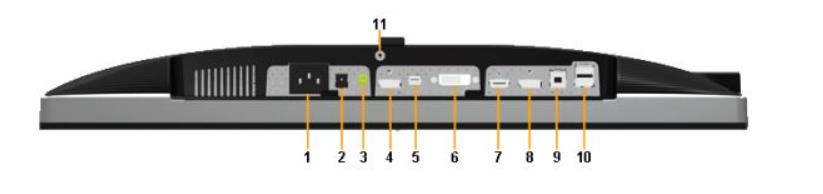
You should check whether the monitor’s sound output is set to the correct device in your operating system’s audio settings. If your Dell monitor has no audio jack, check that the sound is being sent through HDMI or another supported connection.
If you are using a Dell monitor HDMI cable with a device like an Xbox, and there’s no sound on the Dell monitor, it’s possible that the settings for the connected device need to be adjusted.
Why is no sound coming from my Dell monitor? It could be due to an incompatible audio format or an issue with the monitor’s firmware. Additionally, the Dell monitor’s lack of an HDMI cable may also be a factor in this issue.
In the following sections, we will dive into solutions for fixing sound-not-working Dell monitor issues, from basic troubleshooting steps to more advanced fixes.
Stay tuned as we guide you through resolving your Dell monitor sound output challenges.
Step 1: Check HDMI Cable and Connections
The first step is to ensure all of your physical connections are secure and that you’re using a working HDMI cable.
- Make sure the HDMI cable is inserted completely into the ports on both your monitor and computer. Remove and reinsert both connections.
- Try using a different HDMI cable, preferably a newer high-speed HDMI cable. Older HDMI cables may not support audio transmission.
- Try connecting your monitor’s HDMI port to another source like a game console, DVD player, or streaming device. If you get sound from another source, the issue is with your computer, not the monitor.
- Check for loose port connections if the audio on Dell monitors is not functioning through HDMI.
Getting audio over HDMI requires a solid physical connection between the source and display. Please ensure this is verified before proceeding with troubleshooting any software-related issues.
Step 2: Set Sound Output to HDMI
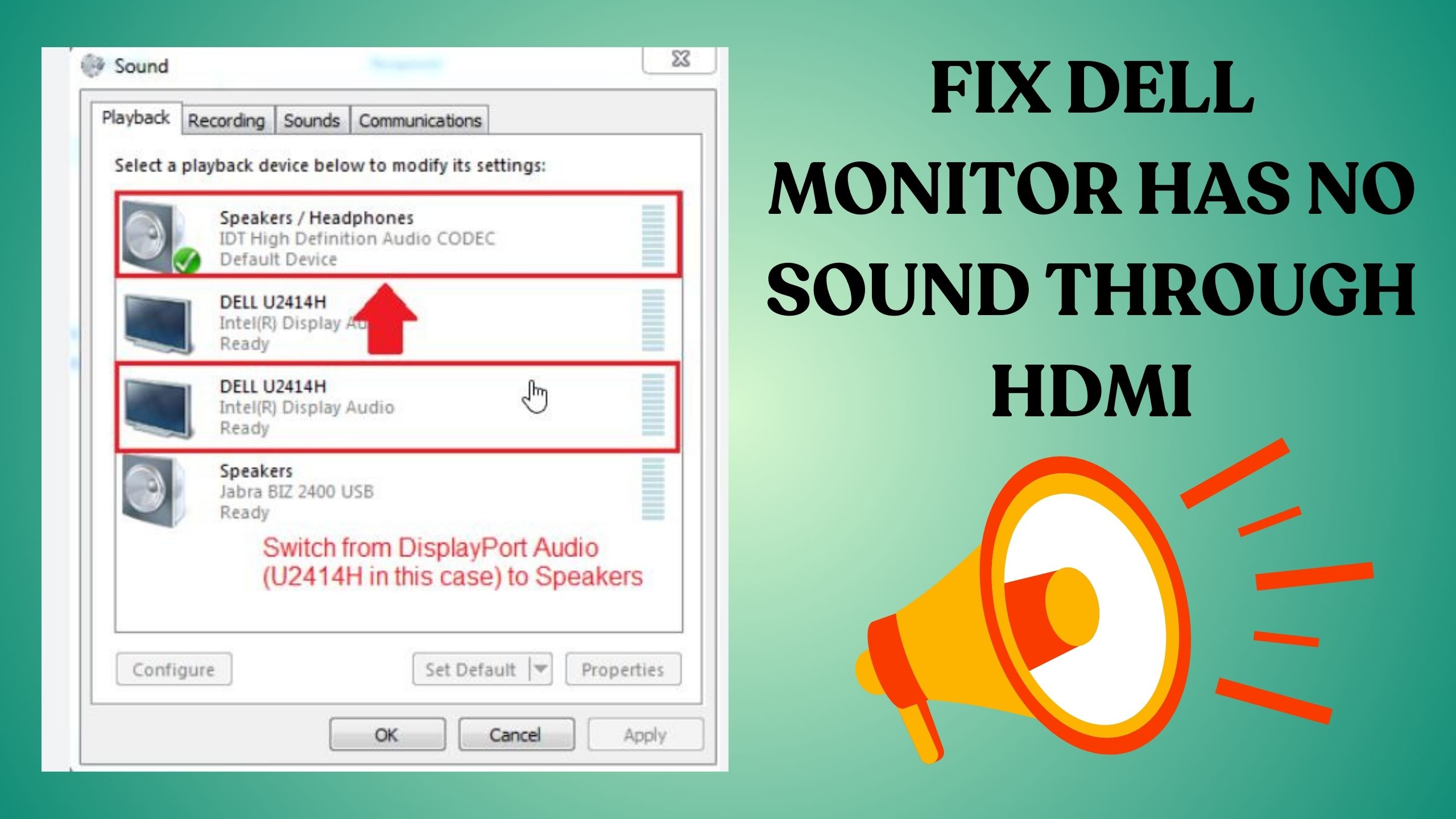
If you have a confirmed working HDMI connection but still no sound, the next thing to check is your audio output settings.
- On your Dell monitor, make sure Dell Display No Audio HDMI is selected as the audio source or output. There may be a source or audio input setting in the monitor’s on-screen menu.
- In Windows, go to Control Panel > Sound and set your HDMI device as the Default Playback Device. This will route all system audio through HDMI.
- For Dell monitors with no sound via HDMI, check the sound settings in both Windows and your monitor’s menu. Toggle through different options until you get sound.
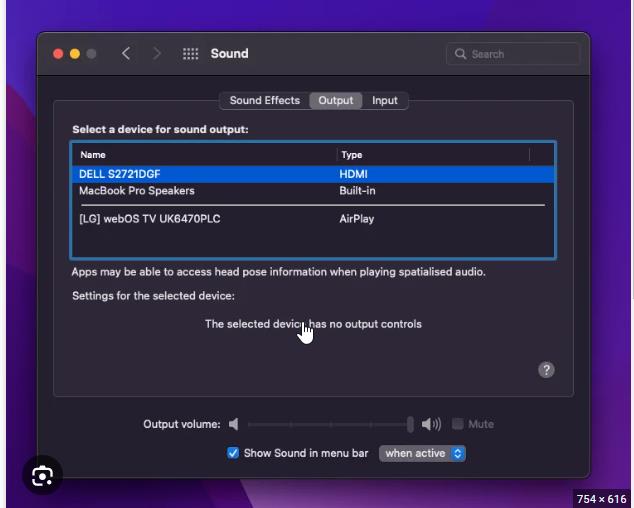
- On a Mac, check System Preferences > Sound and select your HDMI output. Set the volume to an audible level.
- With the Dell monitor HDMI connection, there is no sound; double-check your sound output selection in both the monitor settings and your computer.
Choosing the wrong sound output is a very common cause of the HDMI no sound problem. Please ensure it is configured correctly.
Step 3: Update Graphics Drivers and Monitor Firmware
Outdated graphics drivers and monitor firmware can also prevent HDMI audio from working properly, leading to issues such as no sound output or distorted audio quality.
- In Windows, go to Device Manager and update your graphics card drivers. Make use of GeForce Experience for NVIDIA cards. For AMD, use Radeon Software.
- Check the Dell website for any available firmware updates for your monitor model. Newer firmware may resolve Dell monitor HDMI audio output problems, such as audio dropouts or no sound being transmitted through the HDMI connection.
- After updating graphics drivers and monitor firmware, restart your computer and test HDMI audio again. Drivers play an integral role in HDMI functionality.
- On Dell’s site, you can enter your monitor’s service tag to automatically find the latest drivers and firmware. This helps fix Dell monitor no sound HDMI Windows 10 problems.
- Make sure your HDMI drivers are up to date in macOS as well using System Information. Old drivers cause problems with Dell monitors not producing audio via HDMI cable.
Updating critical software components like graphics drivers and firmware ensures maximum compatibility with the HDMI standard and your specific monitor model. Always keep these up-to-date.
Step 4: Change Audio Format in Windows
Another common cause of no sound on a Dell HDMI monitor is an incompatible audio format. Windows defaults to high-definition audio formats that may not be supported.
- In Windows Sound settings, select the HDMI device and click Device Properties. Go to the Advanced tab.
- Try changing the audio format to CD quality 16-bit 44.1 kHz or lower, like 22.05 kHz. Click Test to check for sound.
- If setting a lower audio format resolves your Dell monitor’s no audio over HDMI problem, leave it at that quality. Higher formats may not work.
- Alternately, go to Sound Control Panel > Playback tab. Select your HDMI device, click Configure, and try different formats.
- Setting a basic stereo audio format, such as 2-channel 16-bit 44100 Hz, may be necessary to fix no sound issues with Dell monitors using HDMI.
Windows sometimes defaults to surround sound or other higher-quality formats your monitor may not support. Setting a standard stereo format typically resolves any compatibility issues.
Step 5: HDMI EDID Reset
Finally, you can resolve stubborn audio issues by resetting the EDID (Extended Display Identification Data) on your HDMI port. EDID stores information about your display capabilities.
- Turn off your Dell monitor and disconnect power for 60 seconds. This procedure clears any stored EDID data.
- Reconnect and turn on your monitor. Windows will reread the EDID information, which may fix the Dell monitor’s no sound through HDMI.
- You can also access your monitor’s service menu and select either Reset EDID or Factory EDID to restore audio capabilities and resolve HDMI audio issues with Dell monitors.
- If you have a graphics card utility like Nvidia Control Panel, you can do a manual EDID reset there as well. This resolves the issue of no audio from the Dell display via HDMI.
Resetting EDID essentially clears the HDMI handshake and allows devices to re-establish optimal compatibility. When everything else fails, this straightforward reboot method frequently restores HDMI audio.
Conclusion: Resolving Dell Monitor No Sound Issues
If your Dell monitor has no sound, there are several troubleshooting steps you can take to resolve the issue and get your audio working again.
Many users face the problem where the Dell monitor is not detecting HDMI or the Dell HDMI port is not working. This issue can occur for a variety of reasons, such as faulty cables, incorrect settings, or even outdated drivers.
Whether you are trying to figure out how to get sound on a Dell monitor or resolving an issue with no sound on HDMI Windows 10, the key lies in systematically checking and addressing each potential cause.
First, it’s crucial to verify that Dell monitor audio is enabled. Some Dell monitors may not have built-in speakers, so in such cases, you’ll need external audio devices.
If your Dell monitor does have speakers, ensure that the audio settings on your computer are configured correctly. Additionally, verify your Dell monitor’s troubleshooting options, including selecting the correct HDMI port in the monitor’s menu.
If you’re experiencing the issue of no sound on your Dell computer, make sure that your sound output settings are correct in the Windows 10 sound settings.
Sometimes, the system might default to other audio outputs, like a connected headset, rather than the Dell monitor audio. If you’re facing an issue where the Dell HDMI port not working is preventing audio from passing through, testing a different HDMI cable or port might help.
In certain instances, HDMI no sound Windows 10 issues could be the source of the problem. You can try updating your drivers or adjusting your audio output settings in the system to resolve the issue.
Additionally, if the monitor is not detecting the HDMI signal, it could be a Dell monitor with no HDMI signal issue, which requires checking the HDMI cable or port for any damage or malfunction.
For Dell gaming monitors, there are no sound issues; gaming setups often require precise configuration, and you might need to use external speakers or a soundbar if the built-in monitor speakers are inadequate.
Similarly, if you’re experiencing issues like Xbox One having no sound through HDMI, ensure the audio settings on your gaming console or HDMI connections are properly set up.
Finally, knowing whether Dell monitors have speakers or not is crucial for determining whether you need external audio equipment. If the built-in speakers are not working, troubleshooting the Dell monitor’s no sound issue might involve using external devices to ensure you can enjoy the full audio experience.
In conclusion, resolving Dell monitor no sound problems involves a combination of checking cables, settings, drivers, and external audio solutions.
By following the troubleshooting steps outlined in this guide, you can easily resolve sound issues and enjoy seamless audio from your Dell monitor.
