

Are you experiencing explorer.exe stealing focus in Windows 11 issues?
If you are using Windows 11, you might have encountered a frustrating issue where Explorer.exe randomly takes focus from your active window and minimizes it to the taskbar.
This can happen when you are playing games, watching videos, or doing any other task that requires your full attention.
This guide covers the Windows 11 explorer.exe focus bug affecting Windows 11 22H2, 23H2, and early 24H2 builds.
This is a known Windows 11 bug that has been widely reported in Microsoft’s Feedback Hub and community forums, where users experience File Explorer keeping stealing focus while gaming and doing other intensive tasks.
As of February 2026, Microsoft has acknowledged the issue, but a permanent fix from official Windows updates remains pending.
In this comprehensive guide, we’ll explore proven solutions to stop this disruptive behavior and help you regain control of your Windows 11 multitasking and focus assist settings.
Quick Summary: Top Fixes for Explorer.exe Stealing Focus
Here are the most effective solutions ranked by effectiveness and ease of implementation:
🔧 Primary Fix (Try First)
- Launch folder windows in separate processes—Difficulty: Easy | Risk: Low | Success Rate: High
Enable this setting in File Explorer Options > View tab. Community-confirmed as the most effective solution.
⚙️ Configuration Fixes
- Disable File Explorer notifications—Difficulty: Easy | Risk: Low
Settings > System > Notifications > Turn off File Explorer - Clean boot to troubleshoot focus issues – Difficulty: Moderate | Risk: Low
Temporarily disable startup programs to identify conflicts - Adjust Windows 11 multitasking and focus assist settings – Difficulty: Easy | Risk: Low
Configure Snap Windows and taskbar behavior
🔍 Diagnostic & Advanced Fixes
- Run System File Checker (sfc /scannow). – Difficulty: Moderate | Risk: Low
Repairs corrupted system files - Check Event Viewer for focus-related errors – Difficulty: Advanced | Risk: Low
Identify specific application conflicts - Disable shell extensions—Difficulty: Advanced | Risk: Medium
Use ShellExView to disable problematic extensions
💾 System-Level Solutions
Reset PC – Difficulty: Easy | Risk: High
Last resort—backs up files required
Update Windows 11 and drivers. – Difficulty: Easy | Risk: Low
Install latest cumulative updates and graphics drivers
Create new user profile – Difficulty: Moderate | Risk: Low
Resolves profile-specific corruption
- Open the File Explorer window.
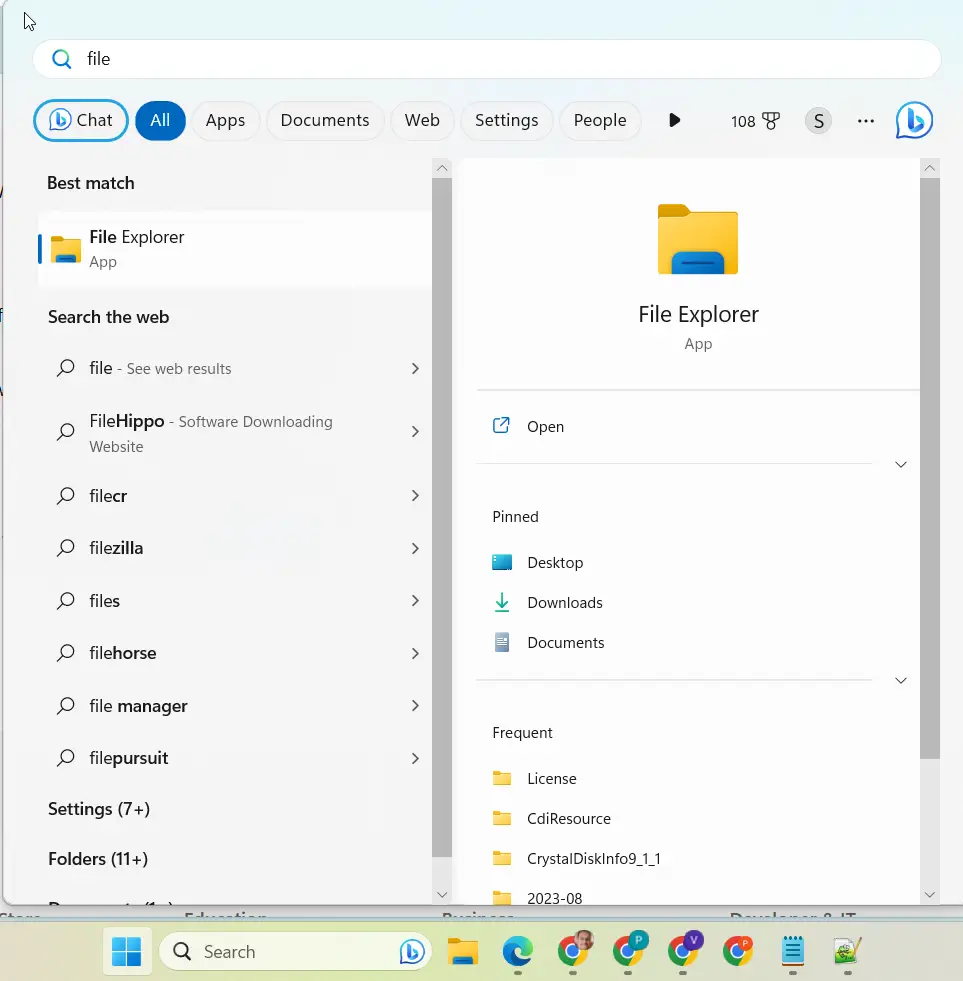
- At the top, click the 3 horizontal dots.
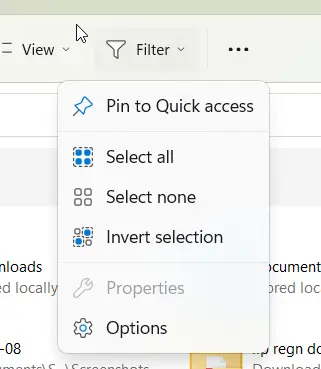
- Click on Options. A pop-up window opens.
- Click on the View tab.
- Scroll a little and you see the option “Launch folder windows in a separate process.” ”.
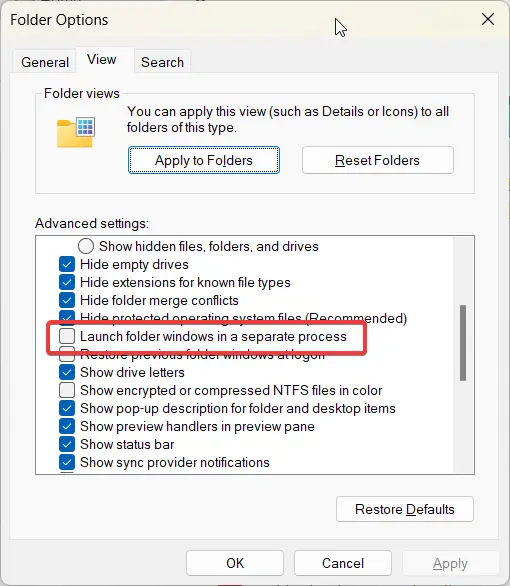
- Click Apply.
Community-reported workaround from Microsoft Answers thread (explorer.exe randomly taking focus):
This temporary tweak disables the File Explorer process from stealing focus. Confirmed by users as of late 2025; bug reports remain active in Windows 11 Feedback Hub through February 2026.
The official Microsoft support team acknowledges this as a known Windows 11 explorer.exe focus bug and recommends reporting it via Feedback Hub until a permanent fix is released.
How to Stop File Explorer from Taking Focus in Windows 11
- Disable Fast Startup.
- Disable Hardware Acceleration.
- Update your drivers.
- Run a System File Checker scan.
- Reset your PC.
Why is Explorer.exe Stealing Focus in Windows 11? Additional Solutions
Disable Notifications from File Explorer:
– Open the Settings app in Windows 11 (you can do this by pressing the Windows key + I).
– Click on “System” and then select “Notifications” from the left sidebar.
– Scroll down to the “Get notifications from these senders” section and locate “File Explorer.”
– Toggle off the switch next to File Explorer to disable notifications from it.
– Check if the issue persists and if explorer.exe stops taking focus randomly.
How to Clean Boot to Troubleshoot Focus Issues
– Press the Windows key + R to open the Run dialog box.
– Type “msconfig” and press Enter to open the System Configuration window.
– In the General tab, select “Selective startup” and uncheck the box next to “Load startup items.”
– Go to the Services tab, check the box next to “Hide all Microsoft services,” and then click on “Disable all.”
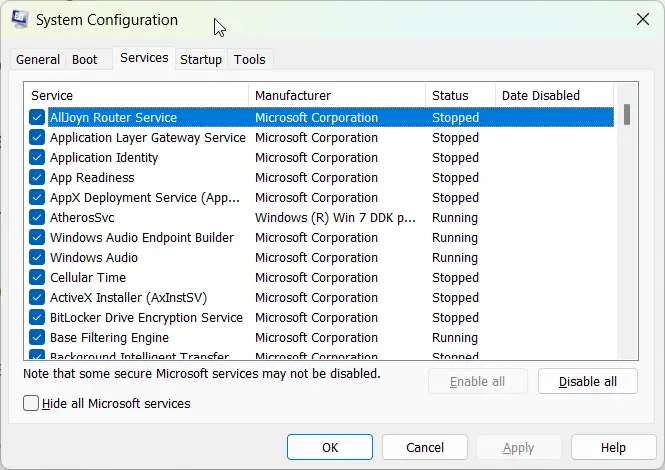
– Click on the Startup tab, and click on “Open Task Manager.“
– In the Task Manager, disable all the startup items by right-clicking on each item and selecting “Disable.”
– Close the Task Manager and go back to the System Configuration window. Click on “OK” and then “Restart” to perform a clean boot.
– After the restart, check if the issue with explorer.exe taking focus randomly is resolved.
Update Windows 11
One of the first things you should do is to make sure that your Windows 11 is up to date. Microsoft releases regular updates to fix bugs and improve performance.
To check for updates, go to Settings > Update & Security > Windows Update and click on Check for updates. If there are any available updates, install them and restart your computer.
Check for malware
Another possible cause of this issue is malware infection. Malware can interfere with your system processes and cause unexpected behavior.
To scan your computer for malware, you can use Windows Security or any other antivirus software that you trust. To use Windows Security, go to Settings > Update & Security > Windows Security and click on Virus & threat protection.
Then click on Scan options and select Full scan. Click on Scan now and wait for the scan to complete. If any threats are found, follow the instructions to remove them.
Close File Explorer when not in use
A simple workaround for this issue is to close File Explorer when you are not actively using it.
This way, it won’t be able to steal focus from your other windows. You can also use keyboard shortcuts to quickly switch between windows without using the mouse.
For example, you can press Alt + Tab to cycle through your open windows or press Windows + Tab to see all your windows in a grid view.
Report the bug using the Feedback Hub app
If none of the above solutions work for you, you might be dealing with a bug in Windows 11 that has not been fixed yet.
In that case, you can report the bug using the Feedback Hub app in Windows. This app allows you to send feedback to Microsoft about any issues or suggestions you have about Windows 11.
To access the Feedback Hub app, press Windows + F on your keyboard.
Then click on Add new feedback and fill out the form with as much detail as possible. You can also attach screenshots or videos to illustrate your problem. Click on Submit when you are done.
Revert back to Windows 10
If all else fails, and you are really annoyed by this issue, you can consider reverting back to Windows 10 until Microsoft fixes the bug in Windows 11. To do this, go to Settings > Update & Security > Recovery and click on Go back to the previous version of Windows 10.
You will need to have a backup of your files before doing this, as some of your data might be lost in the process. Follow the instructions on the screen to complete the rollback.
FAQ
Why does Explorer.exe randomly take focus in Windows 11?
There can be several reasons behind Explorer.exe randomly taking focus in Windows 11. It could be due to outdated Windows 11 or driver versions, conflicts with specific software or services, or even settings related to window focus. Identifying the exact cause can help in implementing the appropriate solution.
How can I update Windows 11 and drivers?
To update Windows 11, you can go to Settings > Windows Update and check for any available updates. For drivers, you can visit the manufacturer’s website for your specific hardware components and download the latest drivers. Alternatively, you can use third-party driver update software to simplify the process.
Will disabling startup programs and services affect my computer’s performance?
Disabling unnecessary startup programs and services is unlikely to have a significant impact on your computer’s performance. In fact, it can help improve startup times and overall system responsiveness. However, exercise caution and only disable programs and services that are not essential for your daily usage.
How to Adjust Windows 11 Multitasking and Focus Assist Settings
If you’re ready to take the fight against Explorer.exe focus issues to the next level, try adjusting the focus settings in Windows 11. Here’s how you can do it:
1. Go to Settings by pressing the Windows key + I.
2. Click on “System” and then select “Multitasking” from the left sidebar.
3. Under the “Snap Windows” section, toggle off the option that says, “When I snap a window, show what I can snap next to it.“
4. Additionally, you can disable the option “Automatically hide or show the taskbar” to prevent sudden focus shifts caused by the taskbar.
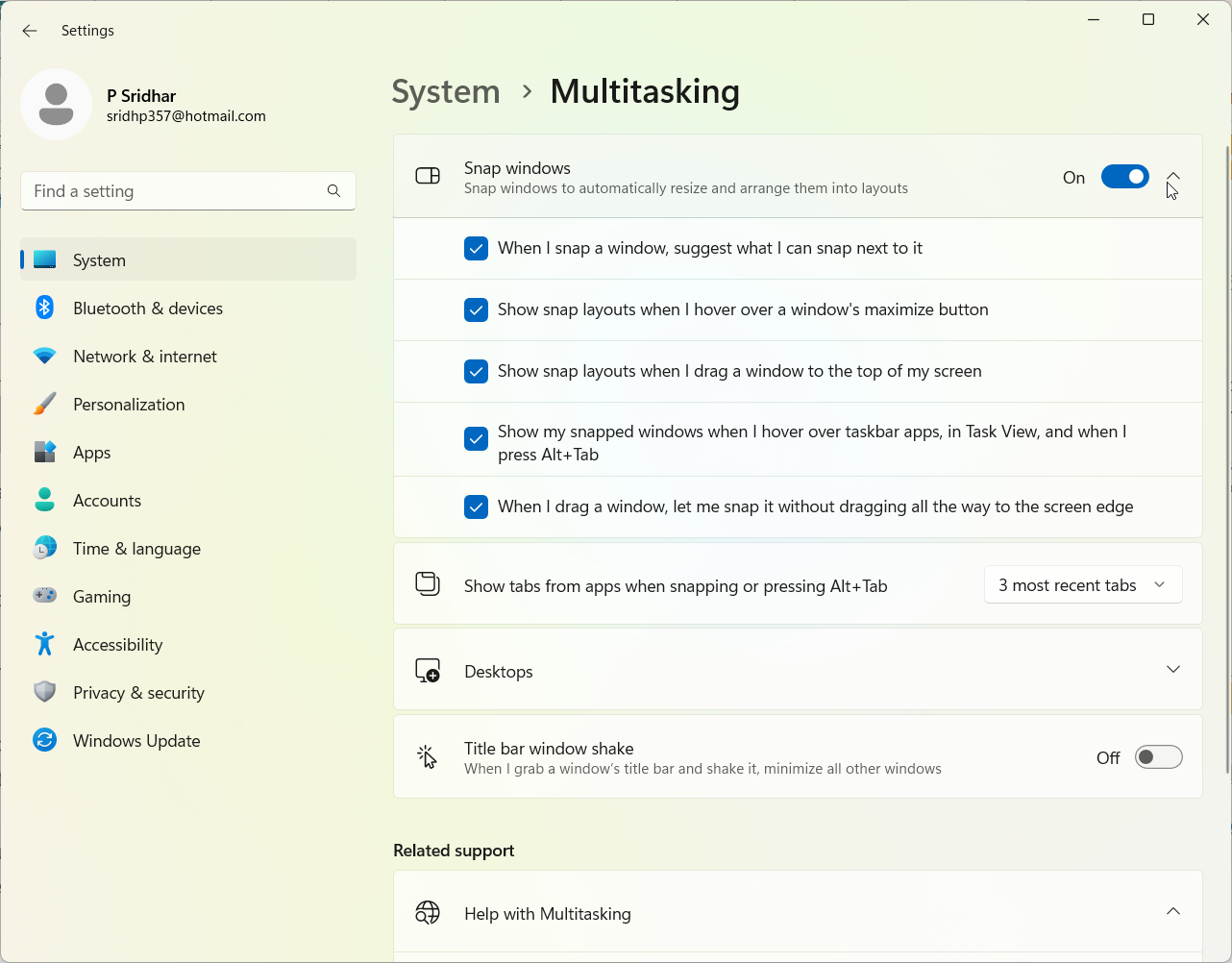
5. Feel free to explore other multitasking settings and make adjustments according to your preferences.
Advanced Admin Fixes for Explorer.exe Focus Bug
For power users and IT professionals, these advanced diagnostic and administrative solutions can help identify and resolve persistent focus issues:
Using Event Viewer to Check Focus-Related Errors
Event Viewer can reveal application conflicts causing the focus bug:
- Press Windows + X and select Event Viewer
- Navigate to Windows Logs > Application
- Look for error events around the time when focus issues occur
- Filter by Source: Explorer.exe or Windows Error Reporting
- Check for conflicting applications or services listed in error details
Disabling Shell Extensions with ShellExView
Third-party shell extensions can interfere with Explorer.exe:
- Download ShellExView from NirSoft (free utility)
- Run as Administrator
- Sort by Company column to identify non-Microsoft extensions
- Disable suspicious third-party extensions one by one
- Restart File Explorer after each change (Ctrl+Shift+Esc > File Explorer > Restart)
- Test if the focus issue is resolved
Running System File Checker and DISM Commands
Repair corrupted system files that may cause focus issues:
SFC Scan:
sfc /scannowOpen Command Prompt as Administrator and run this command. It will scan and repair corrupted system files.
DISM Commands:
DISM /Online /Cleanup-Image /CheckHealth
DISM /Online /Cleanup-Image /ScanHealth
DISM /Online /Cleanup-Image /RestoreHealth
Run these in sequence if SFC finds issues. DISM repairs the Windows image itself.
Combined Approach:
Test if the explorer.exe stealing focus issue is resolved. Using third-party software to manage window focus
Run DISM first to fix the Windows image
Then run SFC to repair system files
Restart your computer
If all else fails and you’re still struggling with Explorer.exe focus issues, you can turn to the helpful realm of third-party software. Numerous tools are available that specialize in window management and focus control.
One popular option is called “WindowFocus,” which allows you to define rules for specific windows and prevent them from stealing the spotlight. Give it a try and see if it helps you regain control over your system’s focus.
