

The May 2020 update of Windows 10 also causes a restart failure with a blue screen error crash. A common stop code error—SYSTEM SERVICE EXCEPTION—is one of them.
Though it may be because of incompatible drivers of different apps or applications, you should read the documentation of the source: https://support.microsoft.com/en-us/help/14238/windows-10-troubleshoot-blue-screen-errors
Most of the time, this BSOD error in Windows 10 mitigates itself by self-repairing in the 20H2 and May 2020 updates. But if it doesn’t and goes into a recycle loop, then you need to take necessary steps to fix this error.
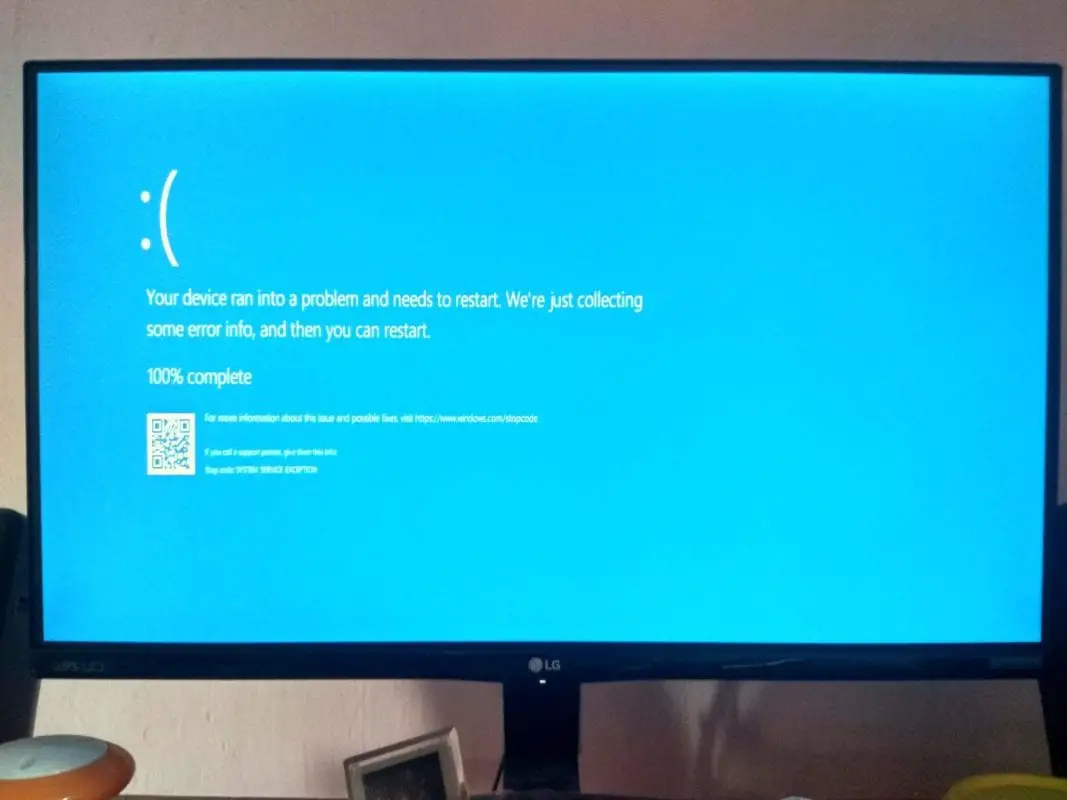
Case Study #1
In 2017, one of the Microsoft forum members faced a typical problem like this—
I had installed a new printer several months before, and it was working without an issue… I uninstalled everything related to that printer but still got the same problem.
I get the blue screen with the message:
Stop Code: System Service Exception.
Same message, each time.
Solution
Unfortunately the reason for this error was not the PRINTER issue. A Microsoft agent studied the MINIDUMP files of the system uploaded to OneDrive.
The cause was a conflict between the Avast and Malwarebytes drivers. The 2015 anti-malware software process (mbam.exe) seems to crash new Avast drivers.
Malwarebytes’ old version was uninstalled. The blue screen error STOP CODE disappeared. This was a case of driver compatibility between two applications.
Case Study #2
In Nov 2019, another forum user was getting the same error with a particular error code.
Hi, I’ve been getting the blue screen Stop Code: System Service Exception whenever I try to update Windows 10 to 1909. When I click Check for Updates, I receive the error code 0x80080005.
The issue occurred when updating his PC to the Windows 10 1909 version.
Solution
In this case also, the culprit was the Avast driver. It had corrupted the Windows Defender files also.
So, the only possible resolution for the user was to reinstall the OS first and update it. Keep the default antivirus on. This approach worked for him.
Source: https://answers.microsoft.com/en-us/windows/forum/all/stop-code-system-service-exception-updating/f38e5a1e-1a72-4cee-a76a-b508569a34c2
Case Study #3
In April 2019, a typical BSOD error was like this:
I’ve recently had a BSOD with the System_Service_Exception stop code.
… since running a Malwarebytes scan to check for viruses or malware (nothing found) and using the System File Checker tool in PowerShell as well (no discrepancies there either).
I’ve attached the minidump and system information files here as well. Here are the links:
Solution
To analyze the error, obtain the MINIDUMP from the error log. The Microsoft Agent analyzed the dump files and came to the conclusion that ntkrnlmp.exe is causing the error.
It was because of an outdated driver. The solution was to update the Intel drivers installed on the PC using the Intel Driver & Support Assistant tool.
Troubleshooting
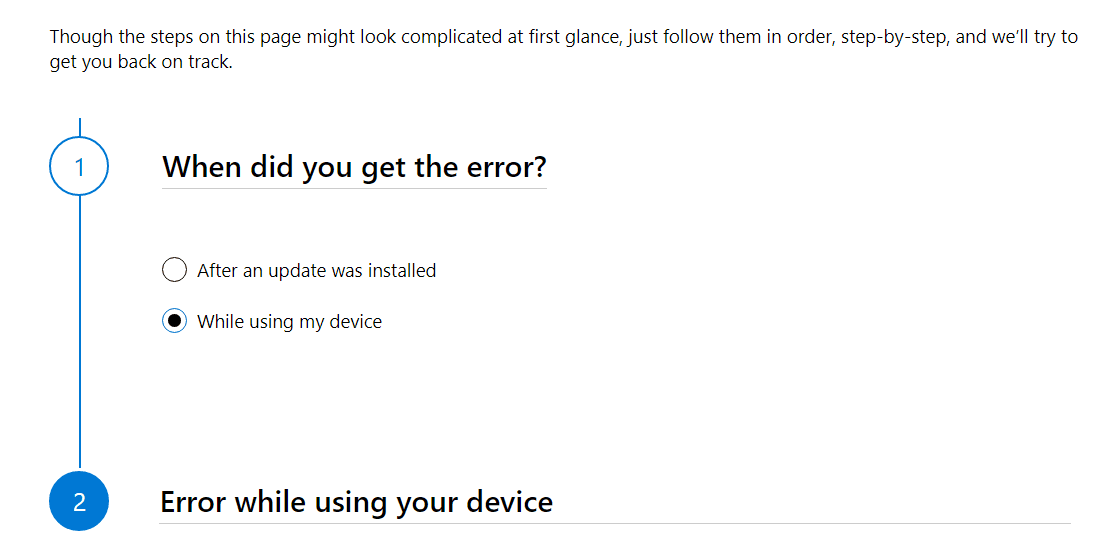
This guide can solve the common stop error codes. It will also give step-by-step questions. Based on your answers, it will give the proper resolution.
- When did you get the error?
a. After an update was installed b. While using my device
When I selected the (b) option, the following solutions were proposed.
The blue screen error can occur due to various reasons, as clearly stated. To find out the exact cause is a little difficult. The probable cause is the installation of new hardware failure or third-party software that is not compatible with your Windows 10 device.
Method #1: Uninstall third-party software
If you have recently installed any third-party Microsoft Store app or program, you can try uninstalling it. Since you cannot log in to your Windows 10 system at this time, you need to go into Safe Mode.
For this purpose, you can use the installation media. You can follow this path in the Windows Recovery Environment (WinRE).
Troubleshoot > Advanced options > Startup Settings > Restart
After your computer starts, press the 5th option or F5. This will take you into Safe Mode with Networking, which is a diagnostic mode that starts Windows with a minimal set of drivers and services, allowing you to troubleshoot issues while still having access to the internet.
Once you are into the system, you can open Windows Settings by pressing the Win + I shortcut keys.
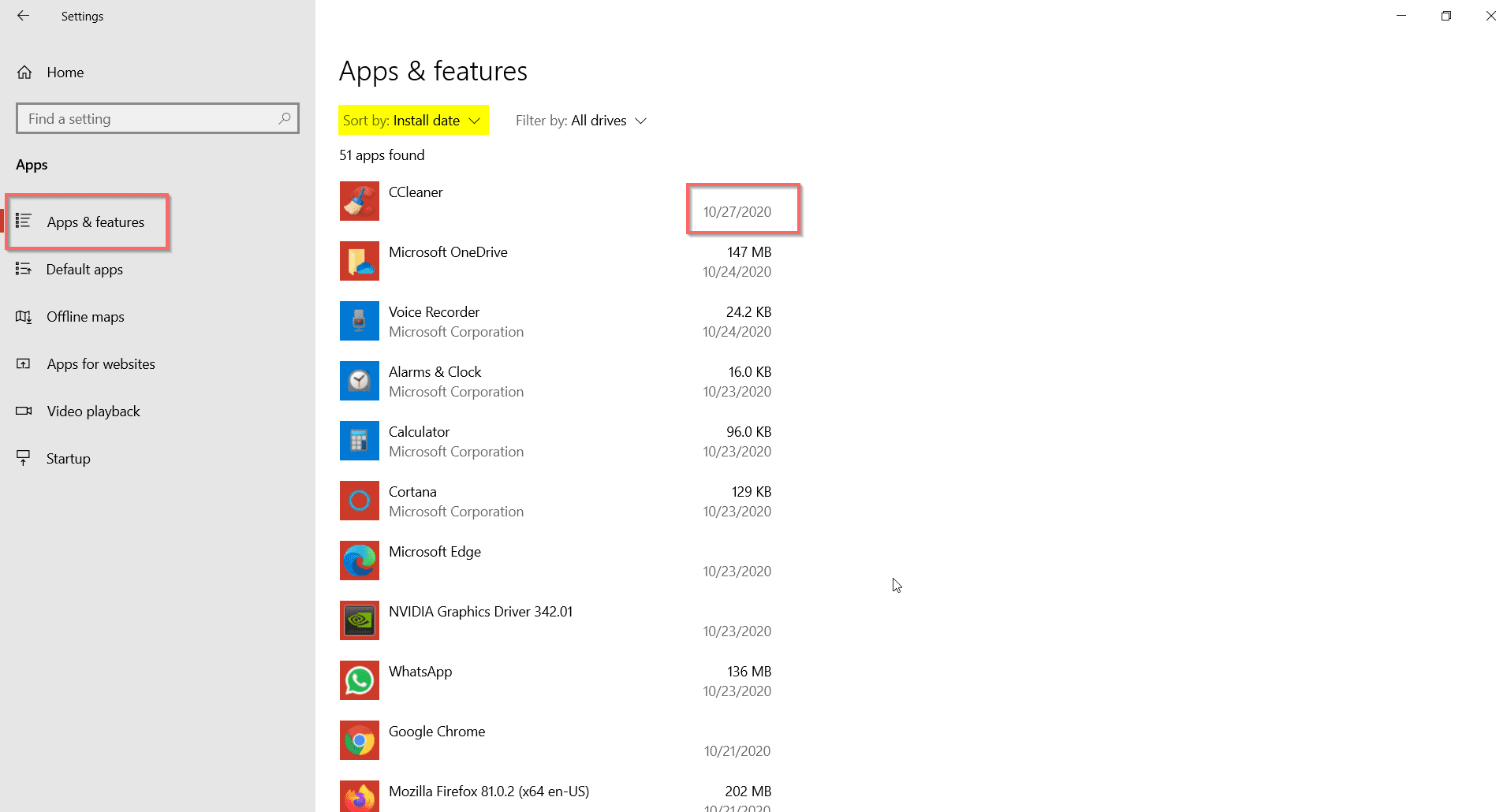
Then Apps > Apps & Features (as of the 20H2 update).
On the right-hand side, sort your apps by install date. Then remove the last installed applications or apps, which may have caused the SYSTEM SERVICE EXCEPTION blue screen error.
Then you can open “msconfig” by pressing the Win + R keys. Select the Boot tab and uncheck the option that says “Safe boot.” Now restart your computer. If your error goes away, you can use your system as before.
Otherwise, follow the next steps.
Method #2: Disable, Rollback, or Uninstall Incompatible Drivers
When you connect some USB-related hardware, Wi-Fi network adapters, sound cards, etc., to your Windows 10 system, then it automatically fetches the relevant Microsoft or vendor drivers.
If you see any yellow warning symbol on any driver, it indicates that the driver was not installed correctly. In that case, you can open “Device Manager” using the traditional “Control Panel.” Otherwise, type the few letters of it in the search box, and it should open.
Now right-click the corrupted or problematic driver and make the necessary changes.
You can upgrade to a different driver or roll back or disable or uninstall the driver completely. Then restart to see if the BSOD error is gone or not.
If this solution fails, you can go to the next solution.
Method #3: Remove the recent hardware attached
Generally, your computer is registered when you use a Microsoft account. Along with it, all the devices attached also are considered. But on rebooting, if you attach any new hardware, the system may not be able to identify the new device.
In that case, keep the existing devices as they are and remove the new hardware attached. Then restart to check if the problem is resolved.
Otherwise, you can unplug all the USB sticks and hard drives attached, including RAM and other hardware. Then replug them. If there is any power-source problem, then also the problem gets rectified.
When you unplug an SSD or HDD, the computer will check the disk for errors. This procedure can also rectify the above STOP CODE.
