
The first solution for mic volume too low problem in Windows 10 is try the default troubleshoot feature.
If you are on Skype or any other VoIP software speaking to your office mates or friends, quiet volume can irritate the user on the other side.
Sometimes even if the microphone volume is too low even though they are set to near 100, there is very little noise.
For me, the Creative Headset HS 330 had similar kind of mic volume not audible issue. No matter whatever you do, there is no increase in mic volume in Windows 10. It was working fine with other versions of Windows.
Microphone Volume in Windows 10 is too Quiet
- Install the latest drivers of your “branded” mic headset.
- Uninstall and Reset Skype kind of IM and voice calling software.
- Select the “correct” microphone as “default” mic device.
- Try the Microsoft “default” drivers first.
- Use a different “brand” mic headset, if it doesn’t work in Windows 10.
- Check for “loose” connections, if it’s a wired mic headphone.
- Uninstall the audio drivers and reinstall them.
When the other headset mic volume was too quiet, I made several configuration changes.
But the Creative headset refused to buckle. As a last resort I ordered a new “Quantum Stereo Headphone with Mic for PC Laptop Desktop – QHM 316” which was very cheap.
It had both mic and headphones. It worked perfectly for Windows 10.
So before you buy any kind of headset with mic, check its compatibility with Windows 10.
Microphone volume levels need to be adjusted based on headphone, speakers, bluetooth and smart devices. Boost microphone volume if you have changed device and not hearing sound.
Most of the times, you do not have problem with Windows 7 or 8.1, but inaudible sound can be heard while recording screencast videos or doing a Skype call.
How to Troubleshoot Windows 10 Mic Volume is Too low
Before in Windows 7, you could make use of Control Panel to troubleshoot any issue. But with Windows 10, the interface has changed and is much easier to do. Follow these steps –
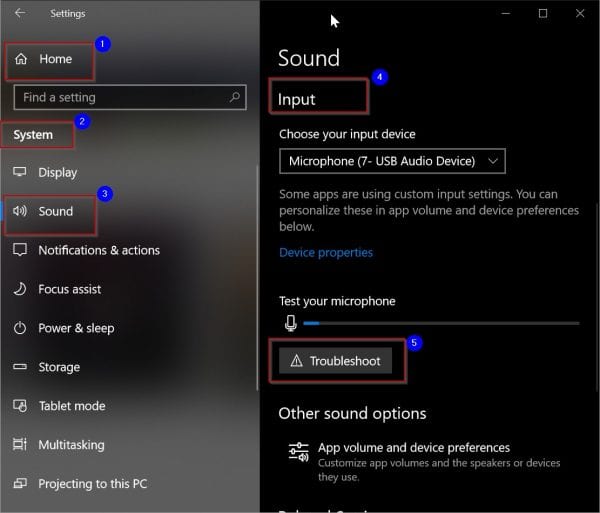
- Press Start button and the gear icon.
- Windows Settings will open.
- Double-click on System.
- Select “Sound” on the next pop-up window.
- On the right-hand side, scroll through to get “Input”.
- Choose the right input device – (here the mic you are using. If you have different microphones than they are listed. So make sure to select the mic through which you want record voice).
- Check if the mic volume to quiet is solved.
- Otherwise, there is a “Troubleshoot” button below.
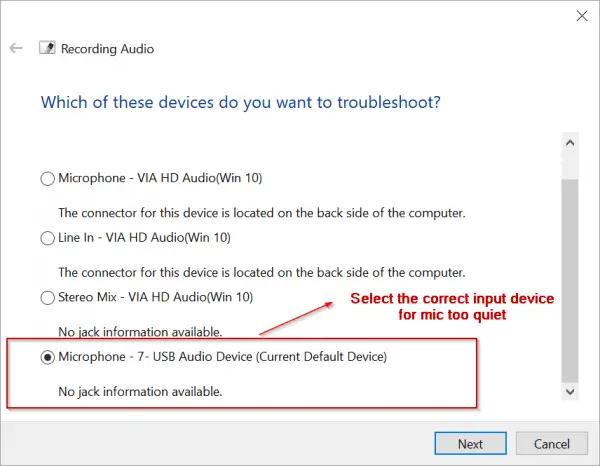
- Click it. This should open another window.
- Follow the next few screens, to troubleshoot your mic issue.
This should be the first step when everything is set up correct. But what-if your settings are wrong.
Then you need to make the correction in the microphone properties to produce bigger sound.
How to Increase Mic Volume Level in Windows 10?
This is a generic way of improving your mic volume level without giving preference to any brand. You can use the same Windows Settings to find the mic volume properties.
- Go to Windows Settings.
- System > Sound > Input.
- Select the Input device – Microphone (7-USB Audio Device) (for eg. In my case)
- Click on “Device Properties”.
- This will open “Microphone Properties” pop-up window.
- Click on the “Levels” tab.
- Increase Microphone volume level, which is between 0 and 100.
- It depends on the brand of the mic, on what value to be set.
- Some mics require value of less than 50, while some require near 100.
This is the standard solution to fix microphone too quiet and come out of low volume scenario.
You can also reach the pop-up window, by right-clicking the “speaker” icon in the system tray. Then select “Open Sound settings”. This will directly open the “Sound” setting in “Windows Settings”.
One can also make use of Control Panel to open the mic volume properties. Click “Start” and type “Control Panel”. View by “Small icons”. Click on “Sound” item. This will open “Sound” properties window. Select “Recording” tab. In the list select your working “Microphone”. Click on “Properties” below. “Microphone Properties” pop-up window will open.
The rest of the process is the same to make your mic volume loud.
Windows 10 How-to Find the Right Drivers
This is one of the technique to make your mic work normally again with optimal sound.
Whether it is Realtek, Plantronics or Razer Kraken mic, if the volume is too quiet, you must install their right audio drivers.
Generally with Windows 10, Microsoft will install it default drivers.
Increase microphone volume, if you have mistakenly lowered it.
But sometimes these can give problems and also rectify it. If your mic volume is too quiet then install the audio drivers from the manufacturer website.
- RealTek Audio Driver location – http://www.realtek.com.tw/downloads/downloadsCheck.aspx?Langid=1&PNid=24&PFid=24&Level=4&Conn=3&DownTypeID=3&GetDown=false
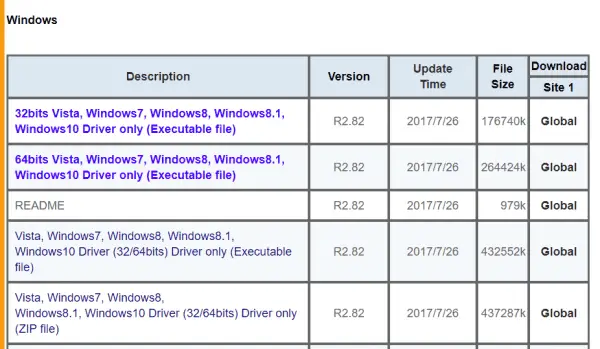
- Plantronics Audio Driver location– https://www.plantronics.com/in/en/support/downloads-apps/hub-desktop
- For Razer Kraken 7.1 Audio drivers, you can download Synapse 2.0 or 3.0 (beta) to adjust your mic volume – https://www.razer.com/synapse-3
Here is a list of HD audio drivers for some other brands –
Skype Problems for Windows 10 Microphone Too Quiet
In the PC, you can install the Skype app for Windows 10. Then you can use your headset to make calls to different countries. Sometimes, there is an issue with Skype settings or software, which can prove problematic to others listening your voice. In this case, you can try some of these solutions.
- Re-install Skype once again. You can delete the existing Skype app and install again in Windows 10. This can be done by going to “Programs and Features” in Control Panel. Otherwise, you can make use of the “Windows Settings” feature. You can select “Apps” > Apps &features. On the right-hand side find your Skype app, uninstall and re-install again.
- Check your app permissions for Skype app. It should allow access to your “Mic”. This can be done by clicking the “More” option under the Skype app in “Apps & Features” section.
- Upgrade to the latest version of Skype. The current version I am using is 12.1815.210.0.
- Rest the Skype app. If you do this, your Skype app will be reinstalled in Windows 10 and revert back to its default settings, which is important. But your stored messages or documents will not be affected.
Another important thing, you should take care of is to select the right “mic” device in your Skype settings. Open the Skype app and click the “three dots” at the top. Select “Settings”. Under Microphone, select your mic – Microphone (7-USB Audio Device) (for eg. ). Make it the default input device.
ENJOYING OUR CONTENT?
Stay up to date with our latest guides, insights, and news. Tap below to follow us directly via your search feed.

In Windows 10 go to:
Sound | recording tab; Microphone Properties | Enhancments tab then uncheck and recheck the Disable Microphone Effect.
This did it for me.
I am using a Nubwo gaming headset and the mic volume is too low, I stumbled on a dialog box in Windows 10 called “Microphone Properties”. It has four tabs: General, Listen, Levels, and Advanced. On the Levels tab, there are two sliders, “Microphone”, and “Microphone Boost”. The default for Boost is 0 db. You can add 10, 20, or 30 decibels of pre-amp boost to the microphone input signal, and setting mine to 30 db seems to have fixed the problem.
@Laura. Yes, it works the same way for many headsets. You just have to increase the “Microphone Boost”. It solves many problems.
*QUIET
if you have the Realtek sound installed on your Win 10 system then on the Levels tab you may find a “Microphone Boost” adjustment under the main Microphone input level adjustment. Increase the Boost to improve Mic sensitivity.
Another reason why your mic sound is softer than expected if you are using a laptop with Skype or Gaming headset (or iphone earbuds with inline mic) plugged into a 2-into-1 combined audio/microphone 3.5mm headset jack is that your jack may not be connecting your headset mic correctly and your voice might actually be coming through the inbuilt mic in your laptop. If you are using a laptop or PC with Realtek audio system and a 2-into-1 combined headphone/microphone/headset 3.5mm jack the system does not auto-detect what kind of device you have plugged in and you need to tell the system what kind of device you are using the jack for. In my case the very first time I plugged audio headphones into my laptop a pop-up box from Realtek HD Audio Manager asked me what kind of device I have plugged in and I checked “headphones” plus “Don’t ask me again” and forgot all about it. Two years later when I plugged in a headset with inline mic and tried to use it for video calls the mic would not work and I searched dozens of help threads and was amazed at the plethora of complicated BS answers given by “webxperts” including re-installs and registry fixes. Eventually I found the very simple answer is to go back to that pop-up box and instruct Realtek that I have now plugged in a headset instead of headphones. This headset setting then over-rides the laptop’s inbuilt mic whenever the headset is plugged in and prioritises the headset mic. So where can we find that pesky little pop-up box to change the setting again after having banished it by checking “Don’t ask me again”? Simply run the Realtek HD Audio Manager which you will find in Program Files/Realtek/Audio/HDA and double click on RAVCpl64.exe then look for a file folder icon (on my laptop it’s on the right side panel near “Analog” selector) and open the folder to find “Connector settings” and check the option for “Enable auto-popup dialog, when device has been plugged in” and click OK. Do this with your headset plugged OUT and then next time you plug it IN the dialog should pop up and you can select “Headset” instead of “Headphones” and maybe this time don’t select “Don’t ask me again” if you plan to keep using different devices in this jack.
If this doesn’t work for you the first time try re-starting your machine after changing the setting.
If you find that Windows boost isn’t enough or introduces too much noise, then you can use a better mic or new one from one of the online stores. You can get a cheap one for as low as $5. Thanks for this solution.