

Windows 11 Safe Mode is a diagnostic startup mode that loads only the essential drivers and services — no third-party software, no conflicting apps, no unnecessary startup programs.
If you need to boot into Safe Mode on Windows 11 to fix a crash, remove a stubborn driver, run an antivirus scan, or troubleshoot a black screen, you’re in the right place.
There are now at least 7 ways to start Windows 11 in Safe Mode, and the right method depends on whether your PC can currently boot into Windows or not.
I’ll cover every scenario—from the simplest Shift+Restart shortcut to the bcdedit command line method, booting from a USB drive, and accessing Safe Mode when Windows won’t start at all.
One important note for users in the US, India, Europe, and everywhere else: the F8 key no longer works in Windows 11 to access Safe Mode at boot. This guide explains why and gives you the correct methods for 2026, including updates for Windows 11 24H2 and 25H2 builds.
What Is Windows 11 Safe Mode?
Safe Mode starts Windows with only the minimum required drivers and services. No third-party startup apps, no conflicting drivers, no advanced display features. It provides you with a clean environment to:
- Uninstall a driver or app that’s causing crashes
- Run antivirus and malware scans when regular Windows won’t cooperate
- Repair corrupted system files with SFC or DISM
- Diagnose whether a problem is caused by Windows itself or third-party software
- Perform a System Restore to undo a bad update
The 3 Types of Safe Mode in Windows 11
| Safe Mode Type | Key to Press | What It Includes |
|---|---|---|
| Safe Mode | 4 or F4 | Minimal drivers only — no networking |
| Safe Mode with Networking | 5 or F5 | Minimal drivers + network access (for downloading fixes) |
| Safe Mode with Command Prompt | 6 or F6 | Command line only — no Windows Explorer shell |
Most users need Safe Mode with Networking — it lets you download drivers or updates while in the diagnostic environment. Choose plain safe mode if you suspect a network component is the issue.
Does F8 Still Work to Enter Safe Mode in Windows 11?
No — F8 does not work by default in Windows 11. This is one of the most common sources of confusion and frustration for Windows 11 users.
Here’s why: Windows 11 uses UEFI firmware and Fast Boot, which makes the boot process so fast that there’s no window for the F8 keypress to register. Microsoft disabled the Advanced Boot Options F8 menu to speed up startup times.
The correct methods are covered below. All Windows 11 safe mode methods work reliably, including the latest 24H2 and 25H2 builds.
Method 1 – Shift + Restart from Sign-in Screen or Start Menu (Easiest)
This method is the fastest way to enter Safe Mode in Windows 11 and works from both the Start menu (when logged in) and the sign-in screen (when locked out).
From the Start Menu:
- Click Start → Power
- Hold Shift and click Restart
- Keep holding Shift until the blue The choose an option screen appears
From the Sign-in Screen:
- Click the Power icon (bottom-right)
- Hold Shift and click Restart
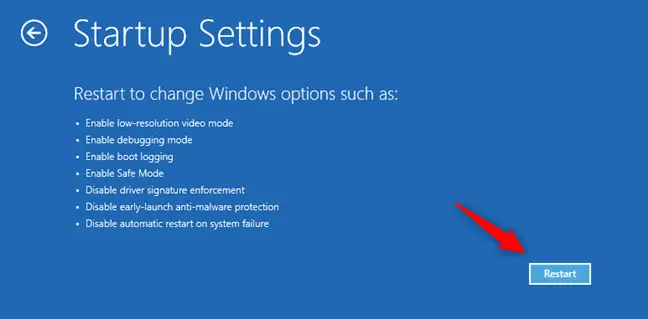
Then complete these steps (same for both): 4. Select Troubleshoot 5. Select advanced options. 6. Select Startup Settings 7. Click Restart. 8. After restarting, press 4 (Safe Mode), 5 (Safe Mode with Networking), or 6 (Safe Mode with Command Prompt)
Your PC will boot into Windows 11 Safe Mode. The screen will be lower resolution with “Safe Mode” displayed in each corner.
Method 2 – Boot into Safe Mode via Settings App
This method works when you’re logged into Windows 11 and want to schedule a Safe Mode reboot.
Steps:
- Press
Win + Ito open settings. - Go to System → Recovery
- Under “Advanced startup,” click “Restart now.”
- Click Restart now to confirm
- Your PC restarts to the blue Choose an option screen
- Follow the same path: Troubleshoot → Advanced options → Startup Settings → Restart
- Press 4, 5, or 6 to select your Safe Mode type
Method 3 – Use System Configuration (msconfig)
The msconfig method is useful when you want Windows to automatically boot into Windows 11 Safe Mode on the next startup — handy if the restart-to-Safe-Mode flow feels inconvenient.
Steps:
- Press
Win + R, typemsconfig, press Enter - Click the Boot tab
- Check the Safe boot checkbox
- Select the type:
- Minimal = Standard Safe Mode
- Network = Safe Mode with Networking
- Alternate shell = Safe Mode with Command Prompt
- Click Apply → OK
- Click Restart
Important: Windows will keep booting into Safe Mode on every restart until you uncheck “Safe boot” in msconfig and restart again. Don’t forget to do this step when troubleshooting is complete.
Method 4 – Use the Command Prompt or PowerShell (bcdedit)
The bcdedit method is the power-user approach—it schedules the next boot to enter Windows 11 Safe Mode without requiring a GUI.
Steps:
- Open Command Prompt or PowerShell as administrator
- Run this command to enable Safe Mode for the next boot:
bcdedit /set {current} safeboot minimalFor Windows 11 Safe Mode with Networking:
bcdedit /set {current} safeboot network- Restart your PC—it will boot into Safe Mode
- When done troubleshooting, exit Safe Mode by running the following:
bcdedit /deletevalue {current} safeboot- Restart again to return to normal Windows
This method is particularly useful for IT admins or scripting scenarios where you need to automate Windows 11 Safe Mode access.
Method 5 – Interrupt the Boot Process (When Windows Won’t Load)
If Windows 11 won’t load at all, you can force it into recovery mode by interrupting the startup three times.
Steps:
- Press the Power button to start your PC
- When you see the Windows logo or the manufacturer splash screen, hold the power button for 4 seconds to force a shutdown
- Repeat this two more times (power on, force off at the Windows logo)
- On the fourth boot, Windows will automatically launch Startup Repair / Automatic Repair
- Click Advanced options
- Go to Troubleshoot → Advanced options → Startup Settings → Restart
- Press 4, 5, or 6 to enter Safe Mode
Note: This method works because Windows 11 has a built-in failsafe that triggers recovery mode after three consecutive failed boots.
Method 6 – Boot into Windows 11 Safe Mode from BIOS/UEFI
Users searching for “Windows 11 safe mode from BIOS” are often surprised to find they can’t enter Safe Mode directly from BIOS. Here’s what actually works:
You cannot enter Windows 11 Safe Mode directly from the BIOS. Instead, use UEFI to access the Windows Recovery Environment (WinRE), then navigate to Safe Mode from there.
Steps:
- Restart your PC and press your manufacturer’s UEFI key during startup:
- Dell: F2 or F12
- HP: F10 or Esc
- Lenovo: F2 or F1
- ASUS: F2 or Delete
- Gigabyte/MSI: Delete or F2
- In UEFI settings, find Boot options and set the boot order to boot from Windows
- Save and exit UEFI—Windows will boot to the sign-in screen
- Use Method 1 (Shift+Restart) to access Safe Mode from the sign-in screen
Alternative—via Windows Settings:
- In Windows 11, go to Settings → System → Recovery
- Under “Advanced startup,” click “Restart now.”
- Select Troubleshoot → Advanced options → UEFI Firmware Settings → Restart
- Your PC enters UEFI. Exit UEFI and use the WinRE path (Method 1 from sign-in) on the next boot.
Method 7 – Boot into Windows 11 Safe Mode from USB Installation Media
If your PC won’t boot into Windows at all and you have a Windows 11 USB drive, you can access Safe Mode from there.
For Windows 11 24H2 and 25H2:
- Insert the Windows 11 USB installation drive and boot from it (press F12 or the boot menu key for your manufacturer during startup)
- When the Windows Setup screen appears, click Next
- Click Repair your computer (bottom-left)—do NOT click Install
- Select Troubleshoot → Advanced options → Startup Settings → Restart
- Press 4, 5, or 6 to enter Safe Mode
If you don’t have a USB drive, create one on another PC using the Microsoft Media Creation Tool.
How to Exit Safe Mode on Windows 11
When you’re done troubleshooting, you need to exit Safe Mode and return Windows to normal. Safe Mode doesn’t exit on its own — here are the two ways to do it.
Method A – msconfig (if you used Method 3 to enter):
- In Windows 11 Safe Mode, press
Win + R, typemsconfig, press Enter - Go to the Boot tab
- Uncheck Safe boot
- Click Apply → OK → Restart
Method B – For all other methods:
- Simply restart your PC normally—Windows will return to standard startup unless msconfig is set to Safe Boot
Verify you’ve exited: The normal Windows login screen appears in full resolution without “Safe Mode” text in the corners.
What to Do In Safe Mode: Common Troubleshooting Tasks
Once you’re in Windows 11 Safe Mode, here are the most effective things to do:
Uninstall a problematic driver:
- Press
Win + X→ Device Manager - Right-click the suspect driver → Uninstall device
- Exit Safe Mode and restart
Run System File Checker:
sfc /scannowPerform a System Restore:
- In Safe Mode, search Create a restore point
- Click System Restore and choose a restore point before the issue began
Run an antivirus scan: Open your antivirus software and run a full system scan—malware that hides in normal mode is often visible in Safe Mode.
Troubleshooting: Can’t Get Into Safe Mode?
| Problem | Solution |
|---|---|
| Shift+Restart doesn’t show recovery menu | Try the msconfig method, or interrupt boot 3 times |
| F8 key doesn’t work | Correct — F8 is disabled in Windows 11. Use any other method. |
| PC boots past the Windows logo before you can press anything | This is Fast Boot—use Method 1 (Shift+Restart) instead |
| Stuck in Safe Mode, can’t exit | Open msconfig → Boot tab → Uncheck Safe boot → Restart |
| Black screen in Safe Mode | Safe Mode uses basic display drivers—this is normal on high-res setups |
| bcdedit command access denied | Run Command Prompt as administrator |
4 Ways to Boot into Safe Mode in Windows 11
There are a few different methods you can use to enter safe mode on a Windows 11 computer. Here are the four main options:
1. Use the Shift + Restart Option from Sign-in Screen
The easiest way to boot into Windows 11’s safe mode is to use the Shift + Restart option from the sign-in screen:
- At the sign-in screen, hold down the Shift key and click the Power button.
- Keep holding Shift until you see the Advanced options menu.
- On the Choose an option screen, select Troubleshoot.
- Go to Advanced options > Startup Settings > Restart.
- After your PC restarts, you’ll see a list of startup settings. Press 4 or F4 to boot into Safe Mode.
This method works even if Windows 11 isn’t loading properly. The key benefit is you don’t have to change any settings beforehand—just use Shift + Restart when booted to the login screen.
2. Interrupt the Boot Process
You can also get into safe mode by interrupting the normal boot process of Windows 11:

- Restart your PC and start tapping the F8 key on your keyboard when you see the manufacturer’s logo screen.
- Keep tapping F8 until you reach the Advanced Boot Options menu.
- Select Safe Mode using the arrow keys and press Enter.
The timing can be tricky, so you may need a few tries to access the boot options menu. This method is useful when Windows won’t finish booting into regular mode.
3. Use the System Configuration Tool
The MSConfig (System Configuration) utility provides access to the Boot tab, where you can choose to boot into safe mode:
- Search for “msconfig” and launch the app.
- Go to the Boot tab and check the box for Safe Boot.
- Click the radio button for either Minimal or Network under Safe Boot options.
- Click OK, then Restart the computer.
After restarting, Windows will now boot directly into safe mode based on your selection. This method gives you other startup settings as well.
4. Use a Recovery Drive
If Windows 11 fails to start and none of the previous methods work, you can boot from a recovery drive:
- On another PC, create a recovery drive for your Windows 11 computer.
- Boot the problem PC from this recovery drive.
- Choose Troubleshoot > Advanced Options > Startup Settings, then Restart.
- After restarting, select safe mode as outlined above.
This acts as a last resort when you can’t access Windows at all to use the other methods.
What to Expect When Using Safe Mode
Booting into Windows 11’s safe mode loads a limited version of the operating system with these changes:
- Simple visual interface, the Start menu and desktop will have generic icons
- Lower screen resolution
- Only essential drivers and services will be started
- Most software, including web browsers and apps, won’t work
- Network access will be limited since networking drivers are disabled
- Hardware that requires drivers like printers and scanners, won’t be functional
Safe mode is strictly designed for troubleshooting, not normal usage. But navigating the basic interface gives you a chance to resolve issues before restoring regular functionality.
Once you’ve completed your diagnostic or repair tasks, you can restart the computer normally to exit safe mode. Overall, safe mode is an invaluable tool for every Windows user when unforeseen problems arise.
Troubleshooting Common Safe Mode Issues
Sometimes safe mode can fail to start properly. Here are some troubleshooting tips:
If safe mode isn’t working:
- Try the different safe mode boot methods, as they access it in different ways.
- Check for corrupt system files using the DISM or SFC /scannow commands.
- Use a recovery drive to isolate the issue from the main Windows installation.
If the screen is black:
- Allow it time to load since Windows 11 safe mode can take longer to start.
- Boot into safe mode with networking to install video drivers if needed.
If you can’t access the sign-in screen:
- Force restart three times to trigger automatic repair and access Safe Mode.
- Use a PS/2 keyboard if your main keyboard isn’t responding.
If you have forgotten the BitLocker recovery key, please follow these steps:
- Use another BitLocker recovery option to unlock the drive before Windows 11 safe mode.
With some targeted troubleshooting, you should be able to resolve most safe mode difficulties and use it to diagnose the bigger underlying problem.
Conclusion
Windows 11 Safe mode gives you the ability to boot into a minimal version of Windows 11 for in-depth troubleshooting when your computer has developed problems.
Using the Shift + Restart option is the easiest way to directly access safe mode from the login screen. But you also have alternatives like interrupting the startup sequence, the MSConfig tool, or a recovery drive for when Windows is unusable.
While limited, Windows 11 safe mode isolates issues down to their core cause so you can ultimately get your PC running smoothly again.
