Author: Palla Sridhar

  • 5 Powerful Solutions to 0x800f0922 Update Error

    Error 0x800f0922 is a common issue that users encounter during Windows updates on both Windows 10 and Windows 11.

    This error typically arises when either the update could not be downloaded or installed correctly, preventing the system from receiving important updates.

    Recognizing the primary causes and associated problems of this error is crucial for efficient troubleshooting and resolution.

    One of the leading causes of the 0x800f0922 error is insufficient space on the System Reserved partition.

    This can hinder the update process, as the updates require adequate space on this partition to proceed. Moreover, connectivity issues can also contribute to the occurrence of this error.

    For instance, if the system cannot connect to the update server, it may result in the 0x800f0922 error, eventually leading to an incomplete or failed update installation.

    Understanding Error 0x800f0922

    Aside from storage or connectivity issues, certain software configurations within the operating system might block updates and trigger error 0x800f0922.

    Examples of such configurations include incorrect DHCP settings or problems with specific update packages like KB4343909 and KB4462919. Being informed about these potential pitfalls can significantly streamline the troubleshooting process.

    Furthermore, difficulties with the .NET Framework can also prompt the 0x800f0922 error. The .NET Framework is integral to many applications, and any issues during its update can result in failures which manifest as this error code.

    Other factors such as antivirus or firewall settings blocking the update process, or even corrupted Windows Update components, can contribute to the problem.

    By developing a thorough understanding of these causes, users and IT professionals can better approach the resolution of the 0x800f0922 Windows update error.

    Equipped with this knowledge, effective solutions and preventative measures can be implemented to ensure a smoother update experience and sustain a reliable system environment.

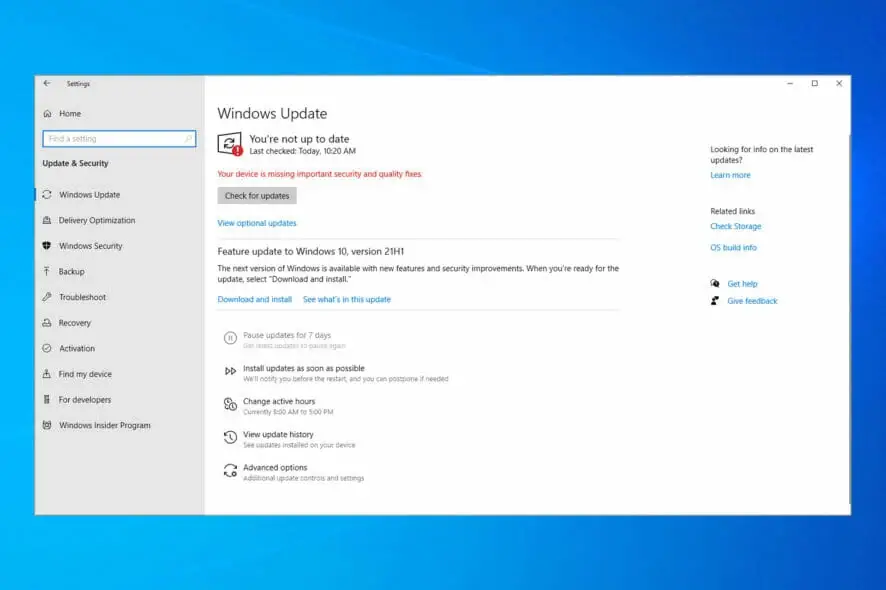
    kb5003173 error during update installation

    Five Common Causes of Error 0x800f0922

    Error 0x800f0922 in Windows update scenarios, often presents substantial challenges for users updating their Windows 10 or Windows 11 systems.

    Understanding the primary causes of this error is crucial for effectively addressing it. Here, we will explore five major causes contributing to the occurrence of the 0x800f0922 error.

    1. Network Connectivity Issues: A stable internet connection is paramount for a successful update process. Connectivity issues, such as limited or no connectivity, can lead to the 0x800f0922 error.

    This problem arises because Windows Update servers cannot be accessed or the data packets are interrupted during the download process.

    To mitigate this, ensure a reliable internet connection and check network settings to troubleshoot any discrepancies.

    2. Insufficient Disk Space on the System Reserved Partition: Windows updates require adequate disk space to unpack and install files.

    The System Reserved partition, a critical region for holding Boot Configuration Data (BCD), must have enough space for the update.

    If this partition is full, the update cannot proceed, resulting in the 0x800f0922 error. Freeing up space or expanding the System Reserved partition can resolve this issue.

    3. Disabled .NET Framework: Many Windows updates depend on the .NET Framework being enabled. If this framework is disabled or not installed, it can impede the update process, causing the 0x800f0922 error.

    Ensuring the .NET Framework is properly enabled in the Windows features can help circumvent such hindrances.

    4. Corrupted or Incomplete Update Files: Sometimes, the update package itself may be corrupted or remain incomplete due to factors like sudden interruptions or hardware issues during download.

    This disruption can trigger the 0x800f0922 error. Deleting the faulty update files and re-downloading a fresh copy from the Windows Update servers can often rectify the problem.

    5. Problems with Windows Update Services: The Windows Update services must function correctly to handle updates. Issues such as stopped or misconfigured services can cause the 0x800f0922 error.

    Verifying that the relevant services (e.g., Windows Update, BITS) are operational and set to automatic can help prevent or fix this error.

    Identifying the root cause from these common sources can significantly streamline troubleshooting steps, facilitating a quicker resolution of the 0x800f0922 Windows update error.

    Problems Resulting from Error 0x800f0922

    Encountering error 0x800f0922 during a Windows update can lead to multiple significant problems, affecting both system performance and user experience adversely. Here, we discuss five of the most prevalent issues caused by this error.

    First and foremost, the inability to install critical security updates is perhaps the most severe problem. Critical updates are designed to protect user data and ensure the system’s security. Failure to apply these updates leaves the system vulnerable to security threats like malware and ransomware, increasing the risk of data breaches.

    Secondly, system vulnerabilities due to outdated software compounds the issue further. When 0x800f0922 errors prevent updates like the KB4343909 or KB4462919 from installing, the system cannot benefit from the latest security patches and functionality improvements. This lag in software maintenance widens the gap for potential exploitation by cyber threats.

    Third, performance degradation surfaces as another major concern. As updates often include optimizations for better performance, missing these updates can slow down the system. Gradually, the system becomes sluggish and unresponsive, leading to a subpar user experience.

    Next in line are software compatibility issues, which are frequent when updates fail. Applications, especially those relying on the latest Windows updates, may not function correctly. This incompatibility can cause crashes, errors, and software malfunctions, frustrating the user and potentially leading to data loss.

    Finally, unsuccessful upgrades to newer Windows versions stem from persistent 0x800f0922 errors. Users attempting to move from Windows 10 to Windows 11, for instance, may face recurrent interruptions, inhibiting their ability to take advantage of new features and improved performance. This stifles productivity and may require professional intervention for resolution.

    In all, the error code 0x800f0922 manifests in various problematic ways, each an impediment to maintaining a secure, efficient, and user-friendly computing environment.

    Solution 1: Resolve Network Connectivity Issues

    Error 0x800f0922 in Windows updates often stems from underlying network connectivity issues. Such issues might prevent the system from accessing necessary update files, whether on Windows 10 or Windows 11.

    Addressing these root causative factors can significantly enhance the odds of a smooth update process. Here’s how you can troubleshoot and resolve network connectivity concerns:

    Step 1: Check Network Connections

    Begin by ensuring that all physical connections are intact. Verify that your Ethernet cables are correctly plugged in, or if using Wi-Fi, ensure a stable wireless connection. Fluctuating or weak signals can trigger the 0x800f0922 error.

    Step 2: Reset the Router

    A simple yet effective method is to reset your router. Unplug the router from its power source, wait about one minute, and then plug it back in. Once the router initializes, try running the update again. This reset can resolve temporary issues that might be causing network disruptions.

    Step 3: Ensure a Stable Internet Connection

    Analyze your internet performance. High latency or intermittent drops can derail Windows updates. Use tools like the Windows Command Prompt to run a ping test (e.g., “ping google.com”) to check for packet loss or extensive delays. Address any identified problems by contacting your Internet Service Provider (ISP) if necessary.

    Step 4: Use the Built-in Windows Network Troubleshooter

    Windows comes with integrated troubleshooting tools designed to diagnose and repair network issues. Navigate to “Settings” > “Update & Security” > “Troubleshoot.” Select “Internet Connections” and run the troubleshooter. Follow the on-screen instructions to identify and resolve any network-based issues potentially causing the 0x800f0922 error.

    Tackling these network elements comprehensively can eliminate connectivity hurdles that lead to errors such as 0x800f0922 during Windows 10 and Windows 11 updates. This proactive approach ensures a smoother update process and promotes overall system stability.

    Solution 2: Free Up System Reserved Partition Space

    Encountering the 0x800f0922 windows update error, be it on Windows 10 or Windows 11, can be frustrating. A common cause of this error is insufficient space in the System Reserved partition.

    Identifying and resolving this issue is crucial for a successful update. Here, we walk you through the process of checking the System Reserved partition space and freeing it up effectively.

    First, we need to use the Disk Management tool to inspect the System Reserved partition. Start by pressing Win + X and selecting Disk Management.

    0x800f0922 disk management error

    In the Disk Management window, locate the System Reserved partition, typically labeled with no drive letter and a size of around 100-500 MB. Right-click on it and select Properties to check the available space. If the free space is less than 20 MB, we need to take action.

    Resizing the System Reserved partition is one option to increase available space. However, this process requires shrinking an adjacent partition to free up space first. Right-click the partition adjacent to the System Reserved partition, select Shrink Volume, and specify the amount of space to shrink (100-200 MB is recommended).

    Once you have the unallocated space, right-click the System Reserved partition and select Extend Volume, then follow the wizard to add the unallocated space, enhancing the partition size and potentially resolving the 0x800f0922 error.

    Another method involves removing unnecessary files or backups within the System Reserved partition. Although users typically do not have direct access to this partition, leveraging Command Prompt could assist.

    Running DISM.exe /Online /Cleanup-image /AnalyzeComponentStore assesses and frees up unnecessary files. However, care should be exercised to avoid deleting crucial boot files, which could render the system unbootable.

    Addressing the 0x800f0922 error often requires attention to the System Reserved partition’s space limitations, especially relevant in specific updates like 0x800f0922 kb4343909 and 0x800f0922 kb4462919. Ensuring adequate space allocation within this partition lays a strong foundation for seamless installation of Windows updates.

    Solution 3: Enable .NET Framework

    Addressing the error code 0x800f0922 in Windows involves a comprehensive check of the system components critical to the update process. One such essential component is the .NET Framework.

    This software framework developed by Microsoft provides the necessary runtime and libraries fundamental for many applications and updates, including potentially resolving the 0x800f0922 Windows update error.

    Begin by verifying whether the .NET Framework is disabled. Open the Control Panel, navigate to ‘Programs’ and then ‘Turn Windows features on or off.’ In the subsequent window, look for the ‘.NET Framework 3.5 (includes .NET 2.0 and 3.0)’.

    Ensure the box is checked. If it is not, enable it by checking the box and clicking ‘OK.’ This step can resolve various Windows update issues, including the infamous 0x800f0922 error frequently reported in both Windows 10 and Windows 11.

    In some scenarios, enabling the .NET Framework via the Control Panel may not be sufficient, particularly if underlying issues persist or for more advanced troubleshooting.

    Consequently, it is prudent to utilize Command Prompt or PowerShell. To execute this, open Command Prompt as an administrator and input the following command:

    dism /online /enable-feature /featurename:NetFx3 /All /Source:X:sourcessxs /LimitAccess

    Here, replaces ‘X’ with your actual installation media drive letter. Likewise, a PowerShell command can achieve the same outcome using:

    Enable-WindowsOptionalFeature -Online -FeatureName NetFx3 -All -Source X:sourcessxs -LimitAccess

    These commands forcefully enable .NET Framework 3.5, which can directly mitigate 0x800f0922 DHCP or other networking-related update failures.

    The significance of the .NET Framework cannot be understated in the Windows ecosystem. It ensures that applications run smoothly and updates proceed without interruptions.

    Instances of updates errors, like 0x800f0922 kb4343909 or 0x800f0922 kb4462919, may directly correlate to issues with the .NET Framework. Therefore, this solution is pivotal for troubleshooting and ensuring an error-free update process.

    Solution 4: Repair Corrupted Update Files

    Error 0x800f0922, common in both Windows 10 and Windows 11, often stems from corrupted or incomplete update files. Repairing these files is crucial to resolving the issue and ensuring the smooth operation of your Windows system.

    One effective method for addressing corrupted update files is to utilize the Windows Update Troubleshooter. This built-in tool is designed to diagnose and automatically fix common update problems.

    To use it, navigate to Settings > Update & Security > Troubleshoot, then select Windows Update and click on ‘Run the troubleshooter’. Follow the on-screen instructions, and the troubleshooter will attempt to locate and resolve issues related to 0x800f0922.

    If the troubleshooter does not resolve the issue, you may need to manually delete the corrupted files. Begin by stopping the Windows Update service. Open Command Prompt with administrative privileges and type the following commands:

    net stop wuauservnet stop bits

    Next, delete the content of the SoftwareDistribution folder, where update files are stored. Navigate to C:WindowsSoftwareDistribution and delete all the files and folders inside. Restart the Windows Update services by entering the following commands in the Command Prompt:

    net start wuauservnet start bits

    A more advanced approach involves resetting the Windows Update components using specific commands. First, open Command Prompt with administrative rights. Then execute the following commands one by one:

    net stop wuauservnet
    stop cryptSvcnet
    stop bitsnet
    stop msiserverren C:WindowsSoftwareDistribution SoftwareDistribution.old
    ren C:WindowsSystem32catroot2 Catroot2.oldnet
    start wuauservnet
    start cryptSvcnet
    start bitsnet
    start msiserver

    These commands stop the necessary services, rename the corrupted folders, and restart the services. This comprehensive approach can often resolve persistent 0x800f0922 errors, be it those related to specific updates like KB4343909 or KB4462919 or broader system issues involving DHCP configurations.

    Solution 5: Restart Windows Update Services

    Encountering error 0x800f0922 while attempting to update your Windows system, whether it be Windows 10 or Windows 11, can lead to significant disruptions. One effective method to address this issue is by restarting the Windows Update services. This solution often resolves conflicts or disruptions hindering the update process.

    To begin, you need to open the Services Manager. You can do this by pressing the Windows key + R to open the Run dialog, then type services.msc and press Enter. This action will launch the Services Manager, where you can manage all the services running on your Windows system.

    Within the Services Manager window, you need to locate several essential Windows Update services. These include:

    • Windows Update (wuauserv)
    • Background Intelligent Transfer Service (BITS)
    • Cryptographic Service

    Once you have identified these services, follow the steps below to restart them:

    1. Right-click on the Windows Update service (wuauserv), and select Stop.
    2. After the service stops, right-click on it again and select Start.
    3. Repeat the same steps for the Background Intelligent Transfer Service (BITS) and Cryptographic Service.

    Restarting these services can resolve various issues, including the 0x800f0922 error.

    This technique is particularly essential if you’re encountering this error specifically with updates like KB4343909 or KB4462919, which demand smooth operation of Windows Update services. Additionally, it may resolve specific network-related problems linked to DHCP services displaying error 0x800f0922.

    By following these steps, you can ensure that all essential services required for Windows Update are running correctly, thereby minimizing the chances of encountering update errors and improving the overall stability and functionality of your system.
  • 3 Common Problems causing 0x80070490 and Their Solutions

    Windows 11 users have recently encountered an unexpected hurdle with the popular TranslucentTB app, facing a perplexing error code 0x80070490. This issue has left many scratching their heads, wondering why a Microsoft Store app would suddenly stop functioning. Let’s dive into this problem and explore potential solutions.

    Troubleshooting TranslucentTB: 0x80070490 Error in Windows 11

    TranslucentTB, a beloved application that allows users to customize their Windows taskbar with transparency effects, has been reporting a fatal error for some users. The error message, accompanied by the code 0x80070490, appears even after attempts to reinstall the app from the Microsoft Store.

    Initial Troubleshooting Steps

    When faced with this error, many users have tried the following steps:

    1. Uninstalling and reinstalling the app from the Microsoft Store
    2. Running the System File Checker (sfc /scannow)
    3. Executing the DISM Restore Health command

    Unfortunately, these common troubleshooting methods have proven ineffective for many users, leaving them at a loss for what to do next.

    The Mysterious Resolution

    Interestingly, some users have reported that the issue resolved itself without any specific action on their part. In one case, a user booted their machine to find a welcome message from TranslucentTB, indicating that the app was functioning normally again.

    Possible Causes and Considerations

    1. Recent Windows Updates: The error may be related to recent Windows 11 updates, which could have temporarily interfered with the app’s functionality.
    2. App Version Compatibility: Ensure you’re running the latest version of TranslucentTB. The developers recently released version 2024.1, which includes improvements to reduce timing-related errors.
    3. Alternative Solutions: While troubleshooting, some users have explored alternative customization options. For instance, using ExplorerPatcher with the Win10 taskbar option and Open-Shell can provide custom taskbar textures and colors.

    What to Do If You’re Still Experiencing Issues

    If you’re still facing the 0x80070490 error with TranslucentTB, consider the following steps:

    1. Check for any pending Windows updates and install them.
    2. Visit the TranslucentTB GitHub page to ensure you have the latest version.
    3. Temporarily disable any third-party antivirus software, as it might be interfering with the app.
    4. Create a new Windows user account and test if the app works there.
    5. Consider reaching out to the TranslucentTB developers through their GitHub page for specific support.

    Troubleshooting Xbox Gaming Services Installation Error 0x80070490

    Gaming enthusiasts know the excitement of unboxing a new gaming laptop, especially when it comes with pre-installed goodies like the Xbox app and a free Xbox Game Pass trial.

    However, this excitement can quickly turn to frustration when technical issues arise. One such problem that has been plaguing some users is the error code 0x80070490 when trying to install the Gaming Services app required for the Xbox app. In this blog post, we’ll dive deep into this issue and explore potential solutions to get you back in the game.

    windows 11 error 0x80070490
    Typical Windows 11/10 update error

    Understanding the Error

    Error code 0x80070490 typically occurs when there’s an issue with file corruption or processing within the system. This error can prevent the Gaming Services app from installing completely, usually hanging at 99% before failing. As a result, users are unable to access the features of their Xbox app or take advantage of their Game Pass subscription.

    Common Symptoms

    Here’s what you might experience when encountering this error:

    1. The Xbox app prompts you to download the Gaming Services app
    2. The download progresses normally until reaching 99%
    3. At 99%, the installation halts and presents the 0x80070490 error code
    4. Repeated attempts to install result in the same error

    Potential Causes

    Several factors could contribute to this error:

    • Corrupted system files
    • Issues with the Component Based Servicing (CBS) system
    • Interference from antivirus software
    • Incomplete or faulty Windows updates

    Troubleshooting Steps

    Let’s explore some methods to resolve this frustrating issue:

    1. Reinstall the Xbox App

    While this may seem obvious, sometimes a fresh installation can work wonders:

    1. Uninstall the Xbox app from your system
    2. Restart your computer
    3. Reinstall the Xbox app from the Microsoft Store

    2. Run System File Checker (SFC) and DISM

    These built-in Windows tools can help repair corrupted system files:

    1. Open Command Prompt as administrator
    2. Run the following commands in order:
       DISM /Online /Cleanup-Image /StartComponentCleanup
       DISM /Online /Cleanup-Image /RestoreHealth
       SFC /SCANNOW
    1. Restart your computer and try installing Gaming Services again

    3. Temporarily Disable Antivirus

    Sometimes, overzealous antivirus software can interfere with installations:

    1. Temporarily disable your antivirus program
    2. Attempt to install Gaming Services
    3. If successful, re-enable your antivirus

    4. Perform an In-Place Upgrade

    This method, suggested by a community member, has proven successful for some users:

    1. Download the Windows 11 Installation Assistant from Microsoft’s official website
    2. Run the assistant to perform an in-place upgrade
    3. This reinstalls Windows without deleting your files or apps
    4. After the upgrade, try installing Gaming Services again

    5. Update Windows

    Ensure your system is fully up-to-date:

    1. Go to Settings > Windows Update
    2. Check for updates and install any available
    3. Restart your computer and attempt the installation again

    When All Else Fails

    If none of the above methods work, you may need to consider more drastic measures:

    1. Create a new Windows user account and try installing from there
    2. As a last resort, you might need to consider a clean Windows installation

    Troubleshooting the Mysterious 0x80070490 Error in Windows Event Viewer

    Windows users often encounter cryptic errors that can leave them scratching their heads. One such error that has been causing confusion recently is the “0x80070490” error appearing in the Windows Event Viewer.

    If you’ve come across this error and are wondering what it means and how to fix it, you’ve come to the right place. In this post, we’ll dive deep into the causes of this error and provide step-by-step solutions to resolve it.

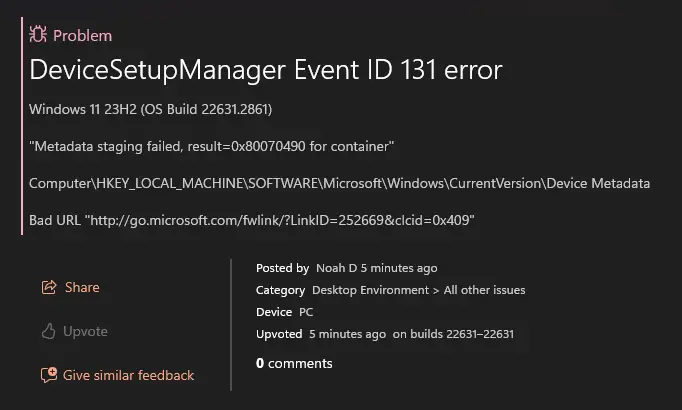
    0x80070490 error in event viewer

    Understanding the 0x80070490 Error

    The 0x80070490 error is typically associated with the “Microsoft Windows DeviceSetupManager” and appears with Event IDs 131 and 201. This error often manifests after a Windows reinstallation or update and can be accompanied by other issues in the Device Manager and Devices and Printers section.

    Common Symptoms

    Users experiencing this error may notice:

    1. “PCI Memory Controller” and “SM Bus Controller” appearing under “Other Devices” in Device Manager
    2. A clock icon next to devices in the Devices and Printers section
    3. Additional errors in the Event Viewer related to metadata staging and connection issues

    Potential Causes

    The 0x80070490 error can stem from various sources, including:

    1. Outdated or missing drivers
    2. Issues with Windows Update
    3. Problems with the Windows Metadata and Internet Services (WMIS)
    4. Registry inconsistencies
    5. Corrupted system files

    Troubleshooting Steps

    Let’s explore some effective methods to address this error:

    1. Update Chipset Drivers

    One of the first steps is to ensure your chipset drivers are up-to-date:

    • Visit your motherboard manufacturer’s website
    • Download and install the latest chipset drivers
    • Restart your computer

    This step often resolves issues with “PCI Memory Controller” and “SM Bus Controller” in Device Manager.

    2. Clear Windows Update Cache

    Clearing the Windows Update cache can help resolve update-related errors:

    1. Press Win + R, type “services.msc”, and hit Enter
    2. Find the Windows Update service and disable it
    3. Navigate to C:\Windows\SoftwareDistribution
    4. Delete all files in the DataStore and Download folders
    5. Rename the SoftwareDistribution folder to SoftwareDistribution.old
    6. Re-enable the Windows Update service
    7. Check for updates again

    3. Check Registry Entries

    Incorrect registry entries can cause the 0x80070490 error:

    1. Press Win + R, type “regedit”, and hit Enter
    2. Navigate to HKEY_LOCAL_MACHINE\SOFTWARE\Microsoft\Windows\CurrentVersion\Device Metadata
    3. Verify that the DeviceMetadataServiceURL value is correct (http://go.microsoft.com/fwlink/?LinkID=252669&clcid=0x409)

    4. Run System File Checker

    Corrupted system files can lead to various errors. Run the System File Checker:

    1. Open Command Prompt as administrator
    2. Type “sfc /scannow” and press Enter
    3. Wait for the process to complete and restart your computer

    5. Update or Reinstall Printer Drivers

    Sometimes, printer-related issues can trigger this error:

    1. Uninstall your current printer drivers
    2. Download and install the latest drivers from the manufacturer’s website
    3. If issues persist, try using the Microsoft Printer Metadata Troubleshooting Tool

    6. Consider Disabling Device Setup Manager

    As a last resort, some users have reported success by disabling the Device Setup Manager service:

    1. Open Services (services.msc)
    2. Locate the Device Setup Manager service
    3. Stop the service and set its Startup type to Disabled
    4. Restart your computer

    Note: This is a temporary workaround and may have unintended consequences. Only use this method if other solutions fail.

    Conclusion

    While the TranslucentTB error 0x80070490 can be frustrating, it’s important to remember that such issues are often temporary and can be resolved through updates or simply with time. The app’s popularity and its availability on the Microsoft Store suggest that any widespread issues are likely to be addressed promptly.

    As Windows 11 continues to evolve, users may occasionally encounter hiccups with third-party applications. Staying patient, keeping your system updated, and being willing to explore alternative solutions can help navigate these challenges.

    While the 0x80070490 error can be frustrating, especially when you’re eager to start gaming, it’s not insurmountable.

    By following these troubleshooting steps, you should be able to resolve the issue and get your Gaming Services app installed.

    Remember, patience is key when dealing with technical issues. If you continue to face problems, don’t hesitate to reach out to Microsoft Support or consult with a professional technician.

    The 0x80070490 error can be frustrating, but with the right approach, it’s often resolvable.

    Always start with the least invasive methods, such as updating drivers and clearing caches, before moving on to more drastic measures.

    If you continue to experience issues after trying these solutions, it may be worth consulting with Microsoft support or a professional technician.

    Remember, keeping your system up-to-date and regularly maintaining your drivers can prevent many of these errors from occurring in the first place.

    Stay vigilant, and don’t let cryptic error codes intimidate you – with a bit of patience and the right knowledge, you can overcome most Windows issues.

    Have you encountered this issue with TranslucentTB? We’d love to hear about your experiences and any solutions you’ve found in the comments below!

    #TranslucentTB, #Windows11, #TroubleshootingWindows, #WindowsApps, #ErrorCode0x80070490, #MicrosoftStore, #WindowsCustomization, #TechSupport, #WindowsUpdate, #SoftwareBugs #XboxGaming, #TroubleshootingTips, #GamingServices, #ErrorCode0x80070490, #WindowsUpdate, #XboxGamePass, #GamingLaptop, #TechSupport, #GamerProblems, #MicrosoftXbox #WindowsError, #TechTroubleshooting, #0x80070490, #EventViewer, #WindowsUpdate, #DriverIssues, #PCMaintenance, #WindowsTips, #TechSupport, #ComputerProblems

  • 7 Answers to Windows 11 Privacy Concerns

    Windows 11, like its predecessor Windows 10, collects a significant amount of user data by default. While Microsoft claims this data helps improve the user experience, many people are understandably concerned about their privacy.

    The latest operating system from Microsoft, has raised Windows 11 privacy concerns among users due to its data collection practices and integration with cloud services.

    According to a study by Kaspersky, 60% of users are worried about the privacy implications of using Windows 11. The operating system collects a wide range of data, including device information, application usage, and browsing history, which is transmitted to Microsoft’s servers using the Telemetry service.

    This data collection occurs at various levels, with the “Basic” setting sending approximately 1,000 diagnostic events per day, while the “Full” setting can send up to 10,000 events.

    Additionally, Windows 11 encourages the use of a Microsoft account, which syncs user data across devices and services, potentially exposing personal information to breaches or unauthorized access.

    The operating system also includes features like Cortana and Windows Timeline, which rely on the collection and analysis of user data to provide personalized experiences.

    To address these concerns, Microsoft has implemented encryption protocols like SSL/TLS for data transmission and offers privacy settings for users to control the amount of data shared.

    However, critics argue that these measures are insufficient, and that Microsoft should provide greater transparency and user control over data collection practices in Windows 11.

    Fortunately, there are several steps you can take to enhance your privacy in Windows 11. This guide will walk you through the key settings and tweaks to protect your personal information.

    Turn Off Ad Tracking

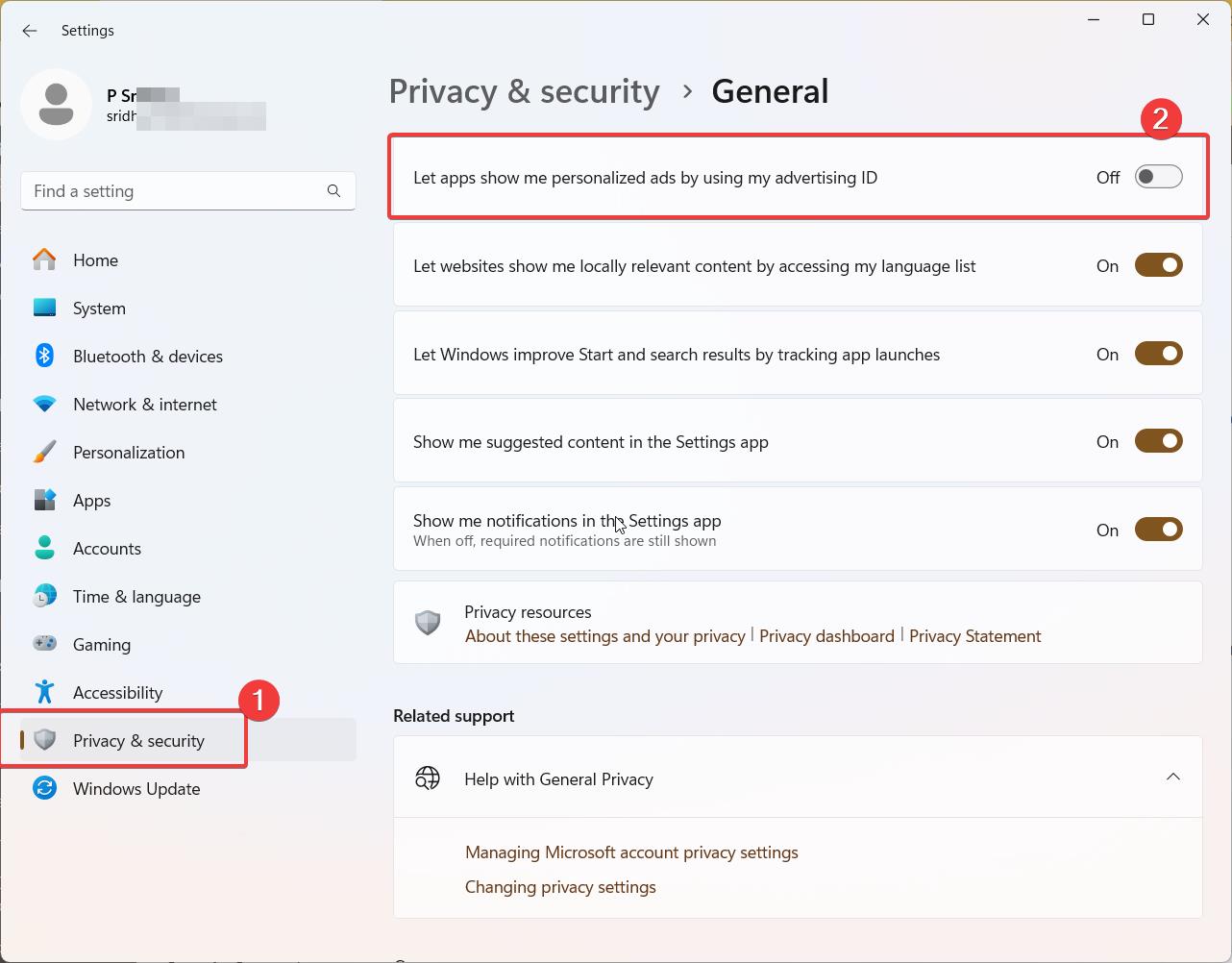
    One of the first things to address is ad tracking. Windows 11 uses an advertising ID to gather information about your browsing habits and app usage to serve targeted ads. Here’s how to disable it:

    1. Open the Settings app
    2. Go to Privacy & security > General
    3. Turn off “Let apps show me personalized ads by using my advertising ID

    You can further limit ad personalization by visiting Microsoft’s Ad Settings page and turning off “See ads that interest you.

    windows 11 privacy concerns

    Disable Location Tracking

    Windows 11 tracks your location by default to provide location-based services. To turn this off:

    1. Go to Settings > Privacy & security > Location
    2. Toggle off “Location services

    You can also control location access on a per-app basis in this same section.

    Control Your Activity History

    While Windows 11 removed the Timeline feature, it still tracks your activity. To stop this:

    1. Navigate to Settings > Privacy & security > Activity history
    2. Turn off “Store my activity history on this device

    Use a Local Account Instead of a Microsoft Account

    Using a local account instead of a Microsoft account helps limit the data Microsoft can collect. To switch to a local account:

    1. Press Windows key + R and type “netplwiz”
    2. Click “Add” and choose “Sign in without a Microsoft account”
    3. Follow the prompts to create a local account

    Keep in mind this will limit access to some Microsoft services.

    Manage App Permissions

    Windows 11 apps can access various system features like your camera, microphone, and files. Review and adjust these permissions:

    1. Go to Settings > Privacy & security
    2. Scroll down to “App permissions
    3. Click each category to review and adjust app access

    Control Diagnostic Data

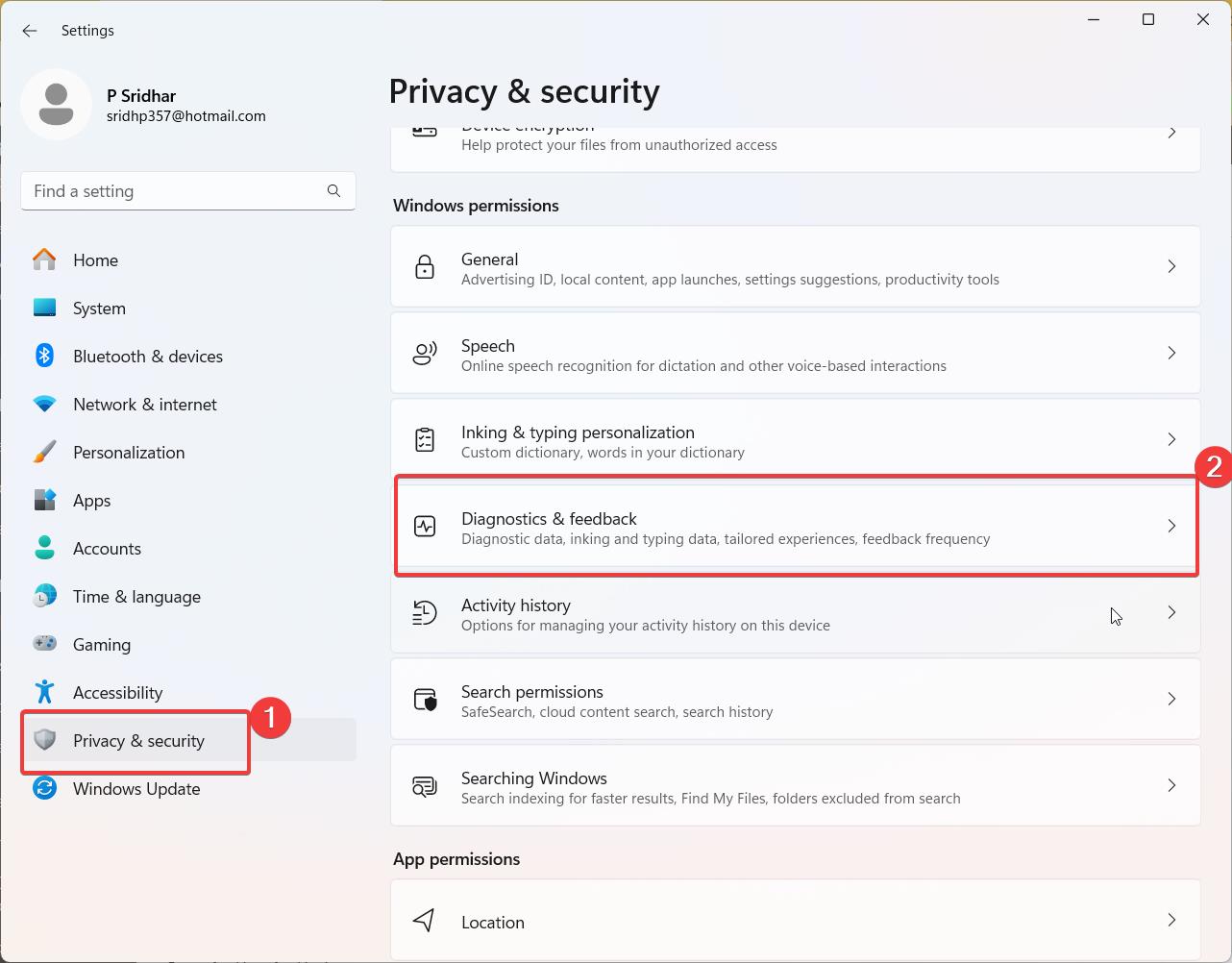
    While you can’t completely stop Windows from sending diagnostic data, you can limit it:

    1. Go to Settings > Privacy & security > Diagnostics & feedback
    2. Turn off “Send optional diagnostic data
    3. Scroll down and click “Delete” under “Delete diagnostic data
    windows 11 privacy security

    Use Microsoft’s Privacy Dashboard

    Microsoft offers a Privacy Dashboard where you can view and delete much of the data it collects about you. Visit privacy.microsoft.com to access this tool.

    Additional Privacy Tweaks

    For even more privacy protection, consider these additional steps:

    • Turn off Shared Experiences in Settings > System > Share across devices
    • Stop using OneDrive if you don’t want your files synced to the cloud
    • Disable Windows settings sync in Settings > Accounts > Windows backup
    • Turn off app diagnostics in Settings > Privacy & security > App diagnostics

    FAQs – Windows 11 privacy concerns and their solutions:

    1. Q: Does Windows 11 collect more data than previous versions of Windows?
      A: While Microsoft has introduced some new features in Windows 11 that may require additional data collection, the company claims to have improved transparency and control over privacy settings. Users can review and adjust their privacy settings during the installation process and through the Settings app.
    2. Q: Can I control what data is shared with Microsoft in Windows 11?
      A: Yes, Windows 11 provides a centralized location for managing privacy settings. You can access these settings by going to Settings > Privacy & security. From there, you can control various aspects of data sharing, such as diagnostic data, app permissions, and location services.
    3. Q: Is my personal data secure in Windows 11?
      A: Microsoft employs various security measures to protect user data, such as encryption and secure data centers. However, it is essential to keep your system updated, use strong passwords, and be cautious when installing third-party applications to minimize the risk of data breaches.
    4. Q: Can I use Windows 11 without a Microsoft account?
      A: While Microsoft encourages users to sign in with a Microsoft account to access additional features and services, it is still possible to use Windows 11 with a local account. During the setup process, choose “Sign-in options” and then select “Offline account” to create a local account instead.
    5. Q: How can I minimize data collection in Windows 11?
      A: To reduce data collection in Windows 11, you can take the following steps:
    • Select the “Basic” diagnostic data option in the privacy settings.
    • Disable location services if not needed.
    • Review and adjust app permissions to limit access to sensitive data.
    • Opt-out of personalized advertising and other optional data collection.
    • Use third-party privacy tools to further enhance your privacy protection.

    Remember, while Windows 11 offers various privacy controls, it is ultimately up to the user to review and adjust these settings based on their personal privacy preferences.

    Conclusion

    While Windows 11 does collect a significant amount of user data by default, these settings adjustments can go a long way in protecting your privacy. Remember to periodically review your privacy settings, as they may change with Windows updates. By taking control of your data, you can enjoy the benefits of Windows 11 while maintaining a higher level of privacy.

    #Windows11, #Privacy, #DataProtection, #Cybersecurity, #Microsoft, #TechTips, #DigitalPrivacy, #WindowsSettings, #OnlineSafety, #PrivacySettings

  • Troubleshooting Windows 11 24H2 Upgrade Failures

    Windows 11 brought stricter hardware requirements compared to its predecessor, leaving many users with capable but technically unsupported systems in a tricky situation.

    One such error that has been plaguing many Windows 11 users is the dreaded 0x80888002 error code when trying to install the 22H2 update. If you’ve been banging your head against the wall trying to get this update to work, you’re not alone.

    Updating to the latest version of Windows is usually a smooth process, but sometimes users encounter frustrating errors that prevent the installation from completing.

    As Microsoft continues to evolve Windows 11, upgrading these machines becomes increasingly challenging. In this post, we’ll explore a common upgrade error and potential workarounds for those attempting to install Windows 11 24H2 on unsupported hardware.

    Understanding the 0x80888002 Error

    The 0x80888002 error typically occurs when trying to install the Windows 11 22H2 update through Windows Update.

    Users report that the update will download to about 8%, pause for a few seconds, then fail with this cryptic error code. This can happen even if your system meets all the hardware requirements for Windows 11 and other updates install without issues.

    0x80888002 error fix
    Source: Microsoft Community

    The root cause seems to be related to how Windows checks for TPM (Trusted Platform Module) and Secure Boot compatibility during the update process.

    Even on systems that pass the initial Windows 11 compatibility checks, something in the 22H2 update’s security verification is triggering this error.

    Solution 1: Remove vdsldr.exe Image File Execution Options

    One effective fix that has worked for many users is to remove a specific registry entry. Here’s how to do it:

    1. Open an elevated Command Prompt (run as administrator)
    2. Copy and paste the following command:
    reg delete "HKLM\SOFTWARE\Microsoft\Windows NT\CurrentVersion\Image File Execution Options\vdsldr.exe" /f
    1. Press Enter to execute the command
    2. Restart your computer and try the update again

    This solution removes an execution option for the vdsldr.exe file, which seems to interfere with the update process for some users.

    Solution 2: Remove TPM Check Event Filter

    If the first solution doesn’t work, try this alternative command:

    1. Open an elevated Command Prompt (run as administrator)
    2. Copy and paste the following command:
    wmic /namespace:"\\root\subscription" path __EventFilter where Name="Skip TPM Check on Dynamic Update" delete
    1. Press Enter to execute the command
    2. Restart your computer and attempt the update again

    This command removes an event filter that may be causing the TPM check to fail during the update.

    Solution 3: Use the Skip TPM Check Script

    For more advanced users comfortable with running scripts, there’s a third option:

    1. Visit the MediaCreationTool GitHub repository
    2. Download the Skip_TPM_Check_on_Dynamic_Update.cmd file
    3. Run the script as administrator
    4. Try the Windows Update again

    This script disables various TPM and Secure Boot checks that may be preventing the update from installing.

    windows 11 error code

    Why These Solutions Work

    The 0x80888002 error seems to occur when the Windows 11 22H2 update process encounters issues verifying TPM and Secure Boot status. By removing certain checks or execution options, we’re essentially telling Windows to bypass these problematic verifications.

    It’s worth noting that while these solutions have worked for many users, they do involve modifying system settings. Always ensure you have a backup of your important data before attempting any system modifications.

    The Scenario

    A user with the following system configuration encountered issues:

    • Current OS: Windows 10 22H2
    • CPU: Intel Core i7-6800K (supports SSE4.2)
    • UEFI/Secure Boot enabled
    • No TPM module

    Despite meeting some of the key requirements and using methods to bypass checks, the upgrade to Windows 11 24H2 failed with the error code:

    0x80888002 - 0x40008

    Understanding the Error

    This error code typically indicates a failure during the Out-of-Box Experience (OOBE) phase, specifically related to preparing the safe OS (recovery partition). It’s a common stumbling block for users attempting to upgrade unsupported systems.

    Potential Causes and Solutions

    1. Hidden Compatibility Checks

    Microsoft has implemented additional compatibility verifications in newer Windows 11 versions. These checks may occur even if you’ve bypassed the initial requirements.

    Solution: Disconnect from the internet during the upgrade process. This prevents Windows from performing online compatibility checks that might block the installation.

    1. Recovery Partition Issues

    The error code suggests a problem with the recovery partition, which might not have enough space to accommodate the upgrade changes.

    Solution: Ensure your recovery partition has sufficient space. You may need to resize or recreate it before attempting the upgrade.

    1. Driver Incompatibilities

    Outdated or incompatible drivers can cause upgrade failures.

    Solution: Update all drivers to their latest versions compatible with Windows 11. You may need to check manufacturer websites for beta or preview drivers designed for the new OS.

    1. Alternative Upgrade Method

    Some users have reported success with a hybrid installation approach.

    Solution:

    • Create a Windows 11 23H2 installation media (USB or ISO)
    • Replace the install.wim or install.esd file in the sources folder with the equivalent file from Windows 11 24H2 media
    • Attempt the upgrade using this modified installation source
    1. Disable Network Connectivity Status Indicator (NCSI)

    Instead of physically disconnecting from the internet, you can try disabling the NCSI active probing:

    reg add "HKLM\SYSTEM\CurrentControlSet\Services\NlaSvc\Parameters\Internet" /v EnableActiveProbing /t REG_DWORD /d 0 /f
    reg add "HKLM\Software\Policies\Microsoft\Windows\NetworkConnectivityStatusIndicator" /v NoActiveProbe /t REG_DWORD /d 1 /f
    net stop netman && net start netman

    This makes Windows think you’re offline while maintaining actual network connectivity.

    Important Considerations

    1. Backup Your Data: Always create a full system backup before attempting any major OS upgrade.
    2. Legacy BIOS Warning: If you’re upgrading a Legacy BIOS (MBR) installation, be aware that Windows 11 24H2’s bootloader no longer supports Legacy booting. Have a hybrid Windows 10/11 or Windows 11 23H2/24H2 USB drive ready to reinstall the bootloader if needed.
    3. No Guaranteed Success: These methods are workarounds and may not be successful in all cases. Unsupported hardware remains unsupported, and you may encounter stability or functionality issues even if the upgrade succeeds.

    FAQs – Windows 11 error code 0x80888002:

    1. What does Windows 11 error code 0x80888002 mean?
      Error code 0x80888002 in Windows 11 typically indicates a problem with the Microsoft Store or a specific app installation. It is often accompanied by an error message stating, “Something happened on our end.”
    2. When does error code 0x80888002 usually occur?
      This error code commonly appears when trying to download or update apps from the Microsoft Store on Windows 11. It can also occur during the initial setup of Windows 11 or while attempting to use certain Microsoft Store apps.
    3. What causes error code 0x80888002 in Windows 11?
      Several factors can contribute to this error, including:
    • Temporary server issues on Microsoft’s end
    • Corrupted Microsoft Store cache
    • Problematic Windows Update
    • Interference from security software
    • Incorrect date and time settings on your PC
    1. How can I fix error code 0x80888002 in Windows 11?
      You can try the following methods to resolve this error:
    • Check the Microsoft Store’s service status for known issues
    • Restart your computer
    • Clear the Microsoft Store cache
    • Run the Windows Store Apps troubleshooter
    • Reset the Microsoft Store app
    • Ensure your date and time settings are correct
    • Disable your antivirus software temporarily
    • Update or reinstall the problematic app
    1. What should I do if the error persists after trying these solutions?
      If the error code 0x80888002 persists after attempting the above solutions, you may need to take additional steps:
    • Perform a clean boot to identify any software conflicts
    • Reset Windows Update components
    • Repair or reset Windows 11 without losing your files
    • Contact Microsoft Support for further assistance

    If the issue remains unresolved, it is advisable to seek help from a professional technician or the official Microsoft Support channels.

    Final Thoughts

    Updating to Windows 11 22H2 shouldn’t be a headache-inducing process. While Microsoft works on a more permanent fix for this issue, these solutions should help most users overcome the 0x80888002 error and successfully install the update.

    Remember, if you’re not comfortable making system changes yourself, it’s always best to consult with an IT professional. And don’t forget to provide feedback to Microsoft about your experience – the more information they have, the better they can address these issues in future updates.

    While Microsoft discourages installing Windows 11 on unsupported hardware, many users still wish to attempt the upgrade. By understanding the potential pitfalls and applying these workarounds, you might be able to successfully upgrade to Windows 11 24H2. However, always weigh the risks and benefits carefully before proceeding with an unsupported upgrade path.

    #Windows11, #24H2Upgrade, #UnsupportedHardware, #TroubleshootingWindows, #WindowsCompatibility, #TechTips, #MicrosoftWindows, #OSUpgrade, #WindowsHacks, #PCMaintenance

  • Unlock Top Windows 11 Privacy Tools for Maximum Safety

    As we continue to live in an increasingly digital world, the need for securing personal information has never been more crucial. With Windows 11 offering a vast array of features, it is essential for users to be proactive in managing their privacy.

    Fortunately, there are several Windows 11 privacy tools available to help you take control of your personal data and protect it from unnecessary tracking, data collection, and potential breaches.

    As we move further into the era of data collection and online tracking, ensuring that our personal information is protected has never been more critical.

    In this blog post, we’ll explore some of the best privacy tools for Windows 11, dive into their key features, and answer common questions to help you make an informed decision in 2025.

    Understanding Windows 11 Privacy Settings

    Before diving into the tools and software available, it’s essential to understand what Windows 11 privacy entails.

    Microsoft has integrated several privacy-related features and options that allow users to control how their personal data is shared and accessed.

    From telemetry data collection to app permissions, these settings play a significant role in safeguarding your information.

    Key Privacy Areas in Windows 11

    1. Telemetry Data: Windows 11 collects data about how you use your computer to improve the system. This telemetry can include information about your device’s performance, system crashes, and user interactions. You can control what data is shared with Microsoft through the Windows 11 privacy settings.
    2. App Permissions: Windows 11 allows you to manage which apps have access to sensitive data, such as your camera, microphone, location, and more. You can limit or revoke access to these resources for any app.
    3. Activity History: Windows 11 tracks your activity to offer personalized experiences. You can turn off the Activity History feature in the privacy dashboard to prevent this data from being stored.
    4. Location and Camera Access: Certain apps, such as weather and navigation apps, require access to your location or camera. Windows 11 lets you control which apps have these permissions.

    Why Should You Manage Windows 11 Privacy Settings?

    Managing your privacy settings ensures that your personal information is protected from third-party access, tracking, and misuse.

    Whether you want to disable location tracking, stop sharing diagnostic data, or configure more advanced privacy options, knowing how to access and adjust your Windows 11 privacy dashboard settings is the first step toward protecting your information.

    Accessing the Windows 11 Privacy Dashboard

    One of the most useful features for managing your privacy is the Privacy Dashboard in Windows 11. It acts as a central hub where you can access various privacy settings, view data collection activities, and make changes as needed.

    How to Access the Privacy Dashboard

    To access the privacy dashboard in Windows 11, follow these steps:

    1. Open the Settings app by pressing Win + I.
    2. Select Privacy & Security from the left sidebar.
    3. Under the Windows 11 privacy section, click on Privacy Dashboard.

    This dashboard gives you an overview of the data that Windows 11 is collecting, such as your activity history, location, camera, and microphone usage. You can view detailed logs and even delete any data that you do not want to be stored.

    Privacy Dashboard Settings in Windows 11

    The privacy dashboard settings allow you to:

    • Control activity history: You can turn off or clear your activity history, which includes details about websites you visited and apps you used.
    • Manage app permissions: The dashboard shows which apps have access to sensitive information like your camera, microphone, and location.
    • Review and delete data: If you’re concerned about your data being used or stored, you can delete certain activity logs directly from the dashboard.

    The Best Privacy Tools for Windows 11

    While Windows 11 offers several built-in privacy settings, there are also third-party privacy tools for Windows 11 that can further enhance your security and privacy. Here are some of the best Windows 11 privacy tools you can use:

    W11Privacy Tool

    The W11Privacy Tool is one of the best Windows 11 privacy tools for users who want to take full control of their system’s privacy. This free tool allows you to easily disable various telemetry features, block data collection, and fine-tune privacy settings that are often hidden deep within the system.

    Key features of the W11Privacy tool:

    • Disable Windows 11 telemetry and data collection.
    • Prevent apps from accessing your personal information.
    • Block unnecessary Microsoft services and features that track user behavior.

    Privacy Filter for Windows 11

    A privacy filter for Windows 11 is essential for users who want to safeguard their screen content from prying eyes. This tool prevents unauthorized users from viewing sensitive information on your screen, especially in public spaces. You can download a privacy filter to ensure that only the person sitting directly in front of the screen can see what’s displayed.

    Windows 11 Privacy Tweaks

    Windows 11 privacy tweaks refer to manual changes that you can make to improve your system’s privacy. These tweaks can include:

    • Turning off advertising ID tracking.
    • Limiting access to your location and camera.
    • Disabling background apps that collect data.
    • Configuring advanced privacy scripts for more control.

    Best Privacy Software for Windows 11

    For users who want an all-in-one solution to protect their privacy, using third-party privacy software for Windows 11 can be highly effective. Some of the best privacy software includes:

    • CCleaner: An app that helps clean up junk files and privacy data, including browsing history, cookies, and cache.
    • GlassWire: A firewall and network monitoring tool that allows you to control which apps access your internet connection.
    • Revo Uninstaller: A tool to remove unwanted software and residual files, preventing apps from collecting data after they’re uninstalled.

    Best Privacy App for Windows 11

    There are several excellent privacy apps for Windows 11 that allow you to enhance your security with just a few clicks. One such app is O&O ShutUp10 (also compatible with Windows 11). This app allows you to easily disable various telemetry features and control the data Windows collects.

    Maximizing Privacy in Windows 11

    To maximize privacy on Windows 11, it’s essential to go beyond the basic settings and tweak the system for complete privacy control. Here are some strategies to help you protect your personal information and limit data collection:

    Disable Telemetry and Data Collection

    Telemetry data collection is one of the most common privacy concerns for Windows 11 users. You can disable telemetry by navigating to:

    • Settings > Privacy & Security > Diagnostics & Data.
    • Switch off Diagnostic Data collection to limit the amount of personal information sent to Microsoft.

    Limit Access to Your Personal Information

    Ensure that only necessary apps have access to your personal information, such as your camera, microphone, contacts, and location. You can adjust these settings by going to:

    • Settings > Privacy & Security > App Permissions.

    Using a Virtual Private Network (VPN)

    A VPN helps mask your location and encrypt your online traffic, ensuring that your browsing activity remains private. Using a VPN on Windows 11 will further enhance your privacy by preventing external entities from tracking your online behavior.

    Fixing Windows 11 Privacy Issues

    If you’re experiencing privacy issues on Windows 11, there are several ways to fix them. For instance, if your Windows 11 privacy dashboard isn’t reflecting the changes you made, or if you’re facing issues with telemetry data, you can use privacy fix tools.

    Fix Windows 11 Privacy Tool

    The Windows 11 privacy fix tool can help resolve common privacy issues such as unauthorized data collection, unwanted ads, and background apps that compromise privacy. You can download these tools from reputable websites, ensuring that they do not introduce malware or other security risks.

    Comparing Windows 11 Privacy with Windows 10

    When comparing Windows 11 privacy features with those of Windows 10, there are several key differences:

    • Enhanced Privacy Settings: Windows 11 comes with more granular control over data collection, making it easier to disable unwanted features.
    • Telemetry Control: Windows 11 gives users more control over telemetry data, allowing you to turn it off entirely.
    • Privacy Dashboard: Windows 11 introduces a more robust privacy dashboard that allows you to manage and view your data in a more organized manner.

    Best Windows 11 Privacy Tools: Protect Your Data in 2025

    O&O ShutUp10

    O&O ShutUp10 is one of the top Windows 11 privacy tools that allows users to take control of their privacy settings without any hassle. It is a free and easy-to-use tool that provides comprehensive control over a wide range of privacy options in Windows 11.

    Key Features of O&O ShutUp10:

    • Disable Telemetry and Data Collection: One of the main privacy concerns for Windows users is telemetry data, which can include personal data about system usage, app interactions, and more. O&O ShutUp10 lets you disable these telemetry features entirely.
    • Control App Permissions: With O&O ShutUp10, you can manage which apps have access to your personal information like camera, microphone, and location. It ensures that unnecessary apps don’t collect data you don’t want them to have.
    • Block Unnecessary Services: This tool allows you to disable services like Cortana, which are known to collect user data for targeted advertising.

    By using O&O ShutUp10, Windows 11 users can protect their data and maintain a higher level of privacy without making complex manual adjustments to the system.

    Privatezilla

    Privatezilla is another excellent privacy tool for Windows 11 that allows you to manage and enhance your privacy with minimal effort. It is designed specifically for Windows, offering easy access to critical privacy settings.

    Key Features of Privatezilla:

    • Comprehensive Privacy Options: Privatezilla includes various features that allow you to disable Windows 11 features like Cortana, location tracking, and telemetry data. It helps you minimize the amount of personal information shared with Microsoft.
    • Quick Setup: Unlike other privacy tools that require technical knowledge, Privatezilla offers a straightforward user interface and fast setup. It’s ideal for beginners looking to secure their system.
    • Automatic Privacy Fixes: Privatezilla provides quick, one-click fixes to disable or control privacy settings, making it easier for users to improve their privacy posture.

    Privatezilla is highly recommended for users who want a simple and efficient solution for improving their Windows 11 privacy.

    WPD (Windows Privacy Dashboard)

    The Windows Privacy Dashboard (WPD) is a comprehensive tool designed to enhance your Windows privacy settings. It provides you with in-depth control over what data is shared with Microsoft and which services are enabled.

    Key Features of WPD:

    • Real-Time Data Tracking: WPD offers real-time monitoring of the data that Windows 11 collects, allowing you to see exactly what is being shared at any given time.
    • Detailed Privacy Control: Users can adjust settings for telemetry data, app permissions, activity history, and even restrict access to your device’s location, camera, and microphone.
    • Enhanced Security: Along with privacy features, WPD also includes options to block certain Windows services that could compromise your privacy.

    With its powerful features and intuitive interface, WPD is a strong contender for those looking for an all-in-one Windows 11 privacy tool.

    Best Windows 11, 10 Privacy Tools You Must Install on Your PC (2025)

    As privacy concerns continue to grow, it’s essential to equip your PC with the best privacy tools. Here’s a list of the best privacy tools for Windows 11 and 10 in 2025 that you must install to ensure your personal data remains protected:

    Advanced System Optimizer

    Advanced System Optimizer isn’t just a privacy tool; it’s also a system optimizer. This tool can clean up your system, remove junk files, and ensure that your privacy settings are maximized. It provides features to block unwanted access to your personal data and improve system performance.

    O&O ShutUp10

    As mentioned earlier, O&O ShutUp10 remains a top pick for Windows 11 users who want an easy way to disable telemetry and manage app permissions.

    Ashampoo AntiSpy for Windows 11, 10

    Ashampoo AntiSpy is a fantastic tool for blocking unwanted telemetry and data collection services. It’s easy to use and provides users with the ability to control which data is shared with Microsoft.

    Gilisoft Privacy Protector

    Gilisoft Privacy Protector continues to be a top choice for advanced privacy protection. It secures your personal files and provides track eraser features to keep your online activities private.

    Privacy Repairer

    Privacy Repairer is an excellent tool for cleaning up traces of your activity on Windows 11. It helps remove tracking data, cookies, and other sensitive information that might have been left behind during web browsing or app usage.

    Blackbird

    Blackbird is another powerful tool for enhancing privacy. It disables unnecessary telemetry features, secures your internet connection, and ensures your personal data stays private.

    W10Privacy – Privacy Made Easy

    W10Privacy remains an easy-to-use tool for Windows users who want to control privacy settings without getting overwhelmed by advanced configurations.

    DoNotSpy10

    DoNotSpy10 is a well-known tool that helps users disable Windows features that track user data. It’s particularly useful for people who want to keep their Windows 11 system as private as possible.

    WPD

    WPD, or Windows Privacy Dashboard, is a great tool for those who need to monitor and control the data Windows collects from your system.

    Spybot Anti-Beacon

    Spybot Anti-Beacon is a tool designed to prevent Windows from tracking your online activity and personal data. It’s effective for enhancing privacy and preventing unwanted telemetry data collection.

    FAQ on Windows 11, 10 Privacy Tools

    What are the most important privacy features in Windows 11?

    Windows 11 includes several important privacy features, including telemetry control, app permissions, location settings, and the privacy dashboard for managing these settings. These features allow users to minimize data collection and control what personal information is shared.

    How do privacy tools affect system performance?

    Most privacy tools for Windows 11 are lightweight and do not significantly impact system performance. However, some tools that disable background processes or telemetry data collection may slightly improve system performance.

    Are there any risks associated with using third-party privacy tools?

    While third-party privacy tools for Windows 11 are generally safe, it’s essential to download them from reputable sources. Always make sure to research the tool and read user reviews before installation to avoid any potential risks.

    How can I manually adjust Windows 11 privacy settings?

    You can manually adjust Windows 11 privacy settings by going to Settings > Privacy & Security, where you can manage telemetry, app permissions, and other privacy-related options.

    How Do Windows 11 and 10 Privacy Tools Work?

    Privacy tools for Windows 11 and 10 work by adjusting system settings to disable or limit data collection, tracking, and third-party access to personal information. These tools allow users to block telemetry data, prevent apps from accessing sensitive information, and disable unwanted features that could compromise privacy.

    Are Windows 11 and 10 Privacy Tools Safe to Use?

    Yes, most privacy tools for Windows 11 are safe to use, provided they are downloaded from official sources. Always ensure that the tool you choose has been reviewed and trusted by the community.

    Recent studies have shown that 79% of users are concerned about their online privacy, and 84% believe that they have lost control over how their personal information is being used by companies. Windows 11 privacy tools address these concerns head-on, providing users with granular control over their data and how it is shared.

    From enhanced tracking prevention and app permissions to advanced encryption options, we will explore how these tools can help you safeguard your sensitive information and maintain your privacy in an ever-evolving digital landscape.

    windows 11 privacy tools tip
    Image Source : Unsplash.com

    Popular Privacy Tools for Windows 11

    Several third-party tools have emerged to help users manage their privacy settings in Windows 11. Here are some of the most widely used options:

    1. W10Privacy: Despite its name, this tool also works for Windows 11. It offers a user-friendly interface to adjust various privacy settings.
    2. O&O ShutUp10++: A free tool that allows you to disable unwanted Windows 11 features and prevent the transfer of personal data to Microsoft.
    3. DoNotSpy11: An updated version of the popular DoNotSpy10, this tool provides tweaks not easily accessible through Windows’ built-in settings.
    4. The Ultimate Windows Utility: A comprehensive tool that includes privacy tweaks along with other system optimizations.
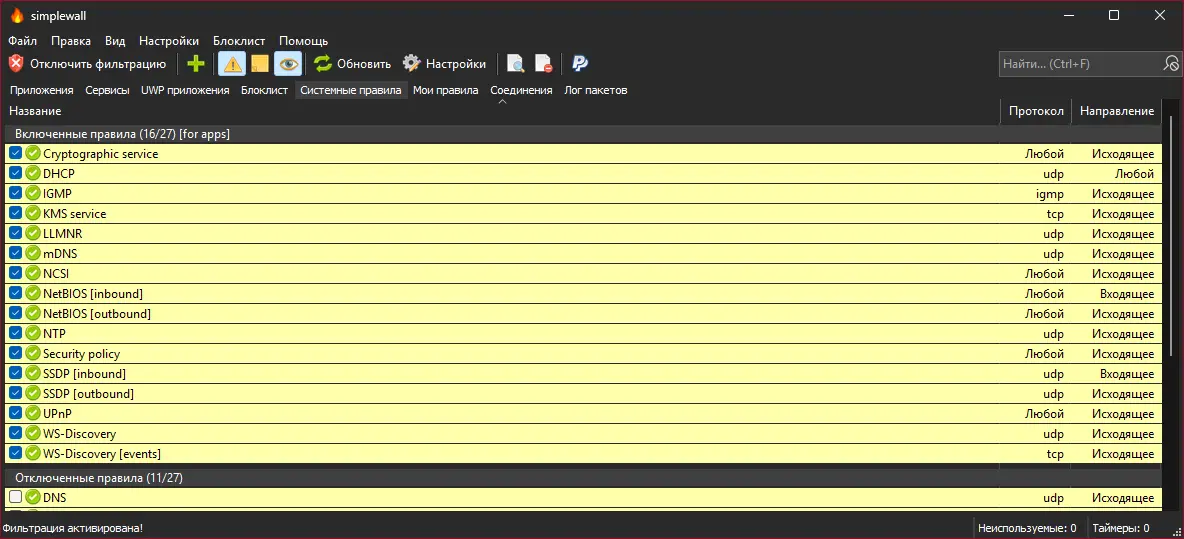
    5. SimpleWall: A Windows Firewall add-on that operates at a deeper system level, potentially offering more robust blocking capabilities.
    6. Ultimate Windows Tweaker 5.1: Another popular tool for customizing various aspects of Windows 11, including privacy settings.

    Choosing the Right Tool

    When selecting a privacy tool, consider the following factors:

    1. Ease of use: Some tools offer simple interfaces, while others may require more technical knowledge.
    2. Comprehensiveness: Determine whether you want a tool that focuses solely on privacy or one that offers additional system tweaks.
    3. Trustworthiness: Research the developers and ensure you’re comfortable with the tool’s reputation and track record.
    4. Customization: Look for tools that allow granular control over individual settings rather than all-or-nothing approaches.
    5. Impact on functionality: Be aware that aggressively blocking certain features may impact system functionality or app performance.
    simplewall windows 11 privacy

    Alternative Approaches

    While third-party tools can be helpful, there are other ways to enhance your privacy in Windows 11:

    1. Built-in Settings: Windows 11 does offer various privacy settings in its menus. Take time to review and adjust these.
    2. Group Policy Editor: For Windows 11 Pro users, the Group Policy Editor provides additional control over system behavior.
    3. Registry Tweaks: Advanced users can make manual adjustments to the Windows Registry to modify privacy-related settings.
    4. DNS-level Blocking: Using custom DNS servers or Pi-hole can block tracking and telemetry at the network level.

    Conclusion

    Managing your privacy settings in Windows 11 is crucial for ensuring your personal data remains secure. By utilizing the built-in privacy dashboard and integrating third-party privacy tools, you can take complete control over your system’s privacy.

    Whether you are a casual user or a privacy-conscious power user, there are tools and settings available to enhance your security and protect your personal information.

    Don’t wait until your data is compromised—take action now to maximize privacy settings in Windows 11 and enjoy a safer, more secure computing experience.

    Remember, absolute privacy in a connected world is challenging to achieve. The goal is to find a balance that you’re comfortable with while still enjoying the benefits of modern computing.

    #Windows11, #PrivacyTools, #DataProtection, #Telemetry, #Cybersecurity, #DigitalPrivacy, #TechTips, #WindowsTweaks, #PrivacySettings, #MicrosoftWindows

  • 🔥 Top 7 Best VPNs for Firestick in 2024 🚀

    Are you tired of being restricted from accessing your favorite streaming content on your Firestick? A VPN (Virtual Private Network) is the ultimate solution to unlock a world of entertainment while ensuring your online privacy and security.

    Looking for the best VPN for Firestick? A VPN (Virtual Private Network) enhances your Firestick experience by providing secure, anonymous streaming and access to geo-restricted content.

    When choosing a VPN for Firestick, consider key technical details such as encryption standards and server distribution.

    Top VPNs like ExpressVPN and NordVPN offer AES-256 encryption, ensuring robust security. They also support protocols like OpenVPN and WireGuard for a balance of speed and protection.

    With thousands of servers globally, these VPNs provide reliable connections and high-speed streaming.

    Features like a kill switch, split tunneling, and DNS leak protection are essential for maintaining privacy and performance.

    ExpressVPN, for example, offers over 3000 servers and easy setup, making it a favorite among Firestick users. NordVPN, with its double VPN feature and 5400+ servers, ensures fast and secure streaming.

    In this article, we’ll guide you through the best VPN options for your Firestick, covering free and paid apps, easy setup processes, and tips for lightning-fast streaming.

    fastest vpn for firestick

    Best Free VPN for Firestick

    While paid VPNs offer superior features, there are some excellent free VPN options for Firestick users. Our top picks include ProtonVPN, Windscribe, and Hide.me.

    These free VPNs provide decent speeds, reliable connections, and user-friendly apps compatible with Firestick. However, keep in mind that free VPNs may have data limits and fewer server locations compared to paid alternatives.

    How to Install VPN on Firestick

    Installing a VPN on your Firestick is a breeze. Simply go to the Amazon App Store, search for your chosen VPN app, and click “Download.” Once installed, launch the app and log in using your VPN account credentials.

    Choose a server location and connect. Within minutes, you’ll be ready to stream with enhanced privacy and access to geo-restricted content.

    Top VPN Apps for Firestick

    When it comes to the best VPN apps for Firestick, ExpressVPN, NordVPN, and CyberGhost consistently rank high. These premium VPNs offer user-friendly Fire TV Stick apps, extensive server networks, and robust security features.

    They also provide excellent streaming speeds and reliable access to popular platforms like Netflix, Hulu, and BBC iPlayer.

    Firestick VPN Setup Guide

    Setting up a VPN on your Firestick is simple. After installing your chosen VPN app, open it and enter your login details. Select a server location based on your desired content or the closest location for optimal speeds.

    Click “Connect” and wait for the VPN to establish a secure connection. You’re now ready to stream with enhanced privacy and access to a broader range of content.

    best vpn firestick

    Fastest VPN for Firestick Streaming

    For lightning-fast streaming on Firestick, we recommend ExpressVPN, NordVPN, and Surfshark.

    These VPNs offer blazing-fast speeds, unlimited bandwidth, and optimized servers for streaming. They also feature advanced technologies like NordVPN’s SmartPlay and ExpressVPN’s MediaStreamer, ensuring smooth, buffer-free streaming on your Firestick.

    Firestick VPN for Netflix

    Unlock a world of Netflix content with a Firestick VPN. Top VPNs like ExpressVPN, NordVPN, and CyberGhost offer reliable access to Netflix libraries worldwide.

    Connect to a server in your desired country and enjoy a vast selection of exclusive movies and TV shows. With a VPN, you can bypass Netflix’s geo-restrictions and expand your entertainment horizons.

    VPN Features Pros Cons
    ExpressVPN
    • AES-256 encryption
    • 3000+ servers
    • High-speed connections
    • Easy setup
    • Reliable customer support
    • Works with most streaming services
    • Higher price compared to some VPNs
    • Limited simultaneous connections (5)
    NordVPN
    • Double VPN
    • 5400+ servers
    • Fast speeds
    • Strong security features
    • Large server network
    • No logs policy
    • Occasional slow server
    • Complex interface for advanced features
    CyberGhost
    • NoSpy servers
    • 7000+ servers
    • User-friendly apps
    • Great for streaming
    • 45-day money-back guarantee
    • Allows 7 simultaneous connections
    • Slower speeds over long distances
    • Price increases after first term
    Surfshark
    • Unlimited devices
    • 3200+ servers
    • Affordable pricing
    • High-speed performance
    • Strict no-logs policy
    • 30-day money-back guarantee
    • Smaller server network than some VPNs
    • Some servers can be slow
    IPVanish
    • SugarSync storage
    • 1900+ servers
    • Fast and reliable connections
    • No logs policy
    • Unlimited simultaneous connections
    • 24/7 customer support
    • Inconsistent speeds at times
    • No cryptocurrency payment option
    PrivateVPN
    • Stealth VPN
    • 200+ servers
    • High-speed streaming
    • Strong encryption
    • User-friendly apps
    • Allows up to 10 devices
    • Smaller server network
    • Limited features compared to some VPNs
    Hotspot Shield
    • Catapult Hydra protocol
    • 1800+ servers
    • Super fast speeds
    • Easy to use apps
    • Free version available
    • 45-day money-back guarantee
    • Free version has limitations
    • Some privacy concerns

    Free Unlimited VPN for Firestick

    While free unlimited VPNs for Firestick are appealing, they often come with limitations and risks. Free VPNs may have slower speeds, data caps, and fewer server locations.

    They may also compromise your privacy by collecting and selling your data. We recommend opting for a reputable paid VPN that offers unlimited bandwidth, top-notch security, and a no-logs policy.

    VPN for Firestick Reddit

    The Reddit community is a valuable resource for Firestick VPN recommendations and tips. Redditors often share their experiences with various VPNs, discussing factors like speed, reliability, and compatibility with Firestick.

    Popular VPNs mentioned on Reddit include ExpressVPN, NordVPN, and Private Internet Access. However, always do your own research and consider your specific needs before choosing a VPN.

    Firestick VPN Without Subscription

    While a paid VPN subscription offers the best features and performance, there are some free VPN options for Firestick that don’t require a subscription.

    ProtonVPN, Windscribe, and Hide.me offer free plans with limited data and server locations. These free VPNs can be a good starting point, but for the ultimate streaming experience, consider upgrading to a paid plan.

    VPN for Amazon Fire TV Stick

    An Amazon Fire TV Stick VPN is essential for unlocking the full potential of your streaming device. With a VPN, you can access geo-restricted content, protect your privacy, and enjoy buffer-free streaming.

    Top VPNs like ExpressVPN, NordVPN, and CyberGhost offer dedicated apps for Amazon Fire TV Stick, ensuring a seamless and user-friendly experience.

    In conclusion, a VPN is a must-have tool for any Firestick user looking to enhance their streaming experience. Whether you opt for a free or paid VPN, follow our guide to find the perfect app for your needs.

    Enjoy lightning-fast speeds, access to geo-restricted content, and top-notch security with the best VPNs for Firestick in 2023. Happy streaming!

  • Reddit Reveals: 7 Powerful VPNs for Ultimate Online Safety

    For discussions about the best VPN Reddit, users often highlight technical features and performance. Key factors include encryption standards, such as AES-256, which ensures robust data protection. Protocols like OpenVPN, WireGuard, and IKEv2 are preferred for their balance of speed and security.

    Reddit users also emphasize the importance of a no-logs policy to maintain privacy. Server distribution is crucial; top VPNs offer thousands of servers across various countries to ensure reliable connections and bypass geo-restrictions. Speed tests are frequently discussed, with users favoring VPNs that minimize latency and maintain high download/upload speeds.

    Compatibility with multiple devices and operating systems, including Windows, macOS, iOS, Android, and Linux, is another significant aspect. Additional features like kill switch, split tunneling, and DNS leak protection are also critical in user evaluations.

    Several users recommend NordVPN as one of the best options, praising its privacy, security features, and ease of use. However, some advice avoiding ExpressVPN after its acquisition by Kape, a company with a history of developing malware.

    Surfshark is another popular choice, described as affordable, reliable, and great for streaming. It offers a $2.29/month deal and allows unlimited device connections.

    Reddit VPN Recommendations in 2024

    Private Internet Access (PIA), ProtonVPN and CyberGhost also stand out for their user-friendliness, speed, and privacy features. CyberGhost in particular is recommended as an affordable all-around option for general users.

    When selecting a VPN, users look at factors like no-log policies, jurisdiction, speed, streaming and torrenting performance, and price. Many hunt for deals and discounts to get the best value.

    Other VPNs mentioned include IPVanish as beginner-friendly and budget option, as well as AtlasVPN. Users emphasize the importance of avoiding VPNs owned by untrustworthy parent companies.

    Overall, NordVPN and Surfshark emerge as the top recommendations, with NordVPN favored for security and features, and Surfshark for speed and price. But several other reputable options exist depending on an individual user’s specific needs and priorities.

    best vpn reddit

    What’s the Reddit Best VPN in 2024

    The most frequently recommended VPNs for privacy and security are Mullvad and Proton VPN. Mullvad is praised for not keeping logs even when raided. Proton VPN, from the makers of ProtonMail, is also highly regarded.

    Some other solid VPN options mentioned include:

    • ExpressVPN – fast speeds and works on many devices
    • Surfshark – allows unlimited devices and has an ad/malware blocker
    • NordVPN – large server network and strict no-logging policy
    • AirVPN – allows binding VPN to torrent client on macOS

    A few users suggest self-hosting your own VPN on a rented server using OpenVPN or Wireguard for maximum control and privacy. This requires more technical setup though.

    The Best VPNs According to Reddit Users

    When it comes to VPN recommendations, many people turn to Reddit for honest opinions from real users. We’ve scoured through various subreddits to bring you the best VPNs according to Reddit.

    One of the most popular VPNs on Reddit is NordVPN, praised for its strong security features and fast speeds. Many users also recommend ExpressVPN for its reliable connections and user-friendly interface. For those on a budget, Surfshark is often suggested as a great value VPN.

    Linux users on Reddit frequently recommend ProtonVPN for its open-source client and strong privacy policies. Mullvad is another popular choice among privacy-conscious Redditors.

    Gamers on Reddit often suggest using a VPN to improve their online gaming experience. CyberGhost is frequently mentioned as one of the best gaming VPNs due to its optimized servers and low latency.

    Overall, the best VPN services according to Reddit users are those that prioritize security, privacy, speed, and value. By taking into account the experiences and recommendations of real users, you can make an informed decision when choosing a VPN provider.

    Key factors to look for are a VPN’s logging policy, jurisdiction, speed impact, ability to torrent/port forward, and client software compatibility.

    The general sentiment is that paying for a reputable VPN service provides better privacy, performance and features compared to free options for heavy torrenting. However, some decent free options like Proton’s free tier exist if you have more basic needs.

    “Cheap Monthly VPN Reddit Review” from the r/VPNOverview subreddit

    NordVPN and Surfshark are the most frequently praised VPNs on Reddit in 2024. NordVPN is known for its speed, wide range of features, and NordLynx protocol for smooth browsing. Surfshark is a more affordable option with fast speeds, worldwide servers, and strong privacy features.

    Private Internet Access (PIA) is another popular choice, offering many servers, customizable app settings, and good performance for streaming and file sharing.

    Other notable mentions include CyberGhost for its user-friendliness and ProtonVPN for its focus on privacy.

    Ultimately, the best VPN depends on individual needs and priorities.

    The Reddit post “The best paid VPN service: A full guide”

    The post ranks the top 10 paid VPN services as of October 2023. Surfshark is best for streaming, NordVPN for safety, ExpressVPN for speed, PIA for torrenting, and ProtonVPN for gaming. Other notable VPNs include IPVanish, CyberGhost, Hotspot Shield, Hide.me, and UltraVPN.

    best vpn reddit

    Key factors to consider when choosing a VPN are your specific needs, the VPN’s logging policy, security features, server locations, speed, device compatibility, price, and the jurisdiction where the VPN company is based.

    The post provides a comparison table of features for the top 10 VPNs. Free trials are available to test them out.

    “Good VPN Reddit Recommendations?”

    The original post asking for VPN recommendations in 2024 was deleted. However, the comments provide insights into Reddit users’ opinions on the best VPNs.

    Mullvad and ProtonVPN are frequently mentioned as top choices, with Mullvad praised for its strong privacy focus and ProtonVPN for its port forwarding support. Other recommended VPNs include OVPN, ExpressVPN, AirVPN, and Perfect Privacy.

    Users suggest considering specific needs when choosing a VPN, such as streaming, torrenting, or privacy. Factors like logging policy, security features, server locations, speed, and price are important.

    Some users warn against certain VPNs due to ownership changes or questionable practices.

  • VPN 101: Understanding the Essentials of Virtual Private Networks

    While VPNs offer robust protection, they should be used alongside comprehensive antivirus software for maximum security. When choosing a VPN, opt for a trusted provider with a proven track record in safeguarding user privacy.

    As our digital lives expand, VPNs have evolved from corporate tools to essential personal security measures. Whether you’re working remotely, streaming content, or simply browsing, a VPN adds a crucial layer of protection in our interconnected world.

    Virtual Private Networks (VPNs) have become essential tools for online privacy and security. But what exactly is a VPN and how does it protect you?

    Key features of using a VPN include:

    1. Enhanced privacy from ISPs and third parties
    2. Access to geo-restricted content
    3. Secure data transfer, especially on public Wi-Fi
    4. Protection against cybercrime and data theft
    vpn meaning

    Demystifying VPNs: Your Digital Privacy Shield

    Virtual Private Networks (VPNs) have become essential tools for online privacy and security.

    A VPN creates an encrypted tunnel between your device and the internet, masking your IP address and location. This prevents others from intercepting your web traffic or tracking your online activity.

    Key benefits of using a VPN include:

    • Hiding your browsing history from your ISP
    • Accessing geo-restricted content
    • Protecting your data on public Wi-Fi
    • Bypassing censorship and content blocks

    When choosing a VPN, look for:

    • Strong encryption (AES-256)
    • A strict no-logs policy
    • Servers in multiple countries
    • Fast connection speeds

    While free VPNs exist, paid options generally offer better security, speeds, and features. A trustworthy VPN is an invaluable tool for safeguarding your digital privacy in today’s connected world.

    In this article, we’ll explore the meaning of VPN, how it works, and the numerous benefits it offers to ensure your online safety.

    What does VPN stand for?

    VPN stands for Virtual Private Network. It is a technology that creates a secure, encrypted connection between your device and the internet. By using a VPN, you can ensure that your online activities remain private and protected from prying eyes, hackers, and other cyber threats.

    How does a VPN work?

    A VPN works by routing your internet traffic through a secure, encrypted tunnel. When you connect to a VPN server, your device establishes a secure connection with the server, and all your internet traffic is then routed through this encrypted tunnel. This means that anyone attempting to intercept your data will only see encrypted information, making it virtually impossible to decipher.

    Benefits of using a VPN

    There are numerous benefits to using a VPN, including:

    1. Enhanced online privacy: VPNs encrypt your internet traffic, making it difficult for third parties to monitor your online activities.
    2. Secure data transmission: With a VPN, your sensitive information, such as passwords and financial details, remains protected from hackers and cybercriminals.
    3. Access to geo-restricted content: VPNs allow you to bypass geographical restrictions and access content that may be unavailable in your region.
    4. Protection on public Wi-Fi: When using public Wi-Fi networks, a VPN adds an extra layer of security to prevent others from intercepting your data.
    5. Improved online freedom: VPNs help you overcome internet censorship and access websites that may be blocked in your country.

    VPN definition and explanation

    A VPN, or Virtual Private Network, is a technology that creates a secure, encrypted connection between your device and the internet. It works by routing your internet traffic through a remote server, making it appear as if your device is located in a different geographical location. This helps to protect your online privacy and security by masking your real IP address and encrypting your data.

    Understanding VPN technology

    VPN technology relies on a combination of encryption protocols and secure tunneling to protect your online activities. When you connect to a VPN server, your device establishes a secure connection using protocols such as OpenVPN, IKEv2, or WireGuard. These protocols ensure that your data remains encrypted and secure as it travels through the internet.

    VPN meaning for beginners

    For beginners, understanding the meaning of a VPN can be simplified as a tool that helps protect your online privacy and security. By using a VPN, you can browse the internet with peace of mind, knowing that your personal information and online activities are shielded from prying eyes. VPNs are easy to use and can be installed on various devices, including smartphones, tablets, and computers.

    VPN meaning in cyber security

    In the context of cyber security, VPNs play a crucial role in protecting sensitive data and preventing unauthorized access. Many businesses and organizations use VPNs to secure their remote workforce and ensure that employees can access company resources safely from any location. VPNs also help to mitigate the risk of data breaches and cyber attacks by encrypting data transmitted over the internet.

    how vpn works

    VPN meaning and its importance

    The importance of VPNs lies in their ability to safeguard your online privacy and security in an increasingly digital world. With the rise of cyber threats and data breaches, using a VPN has become an essential tool for individuals and businesses alike. By encrypting your internet traffic and masking your IP address, VPNs help to protect your personal information, financial details, and online activities from malicious actors.

    VPN meaning for online privacy

    One of the primary reasons people use VPNs is to maintain their online privacy. When you browse the internet without a VPN, your internet service provider (ISP) and other third parties can easily monitor your online activities. However, when you use a VPN, your internet traffic is encrypted, making it much more difficult for anyone to track your online behavior or steal your personal information.

    what is a vpn

    VPN meaning and how it protects data

    VPNs protect your data by encrypting your internet traffic and creating a secure tunnel between your device and the internet. This means that any data you send or receive while connected to a VPN is scrambled and unreadable to anyone who may intercept it. By using strong encryption protocols, VPNs ensure that your sensitive information, such as passwords, financial details, and personal messages, remains confidential and secure.

    FAQ – VPN Meaning

    1. What does VPN stand for?
      • VPN stands for Virtual Private Network. It is a service that encrypts your internet connection and hides your IP address to protect your online privacy.
    2. Why should I use a VPN?
      • A VPN helps protect your online activities from being tracked by hackers, ISPs, and other third parties. It also allows you to access geo-restricted content and maintain privacy while browsing.
    3. How does a VPN work?
      • A VPN works by routing your internet connection through a secure server, encrypting your data, and masking your IP address. This makes it difficult for anyone to monitor or intercept your online activities.
    4. Are VPNs legal to use?
      • Yes, using a VPN is legal in most countries. However, some countries have restrictions or bans on VPN usage, so it’s important to check local laws before using one.
    5. Can a VPN improve my internet speed?
      • While a VPN can sometimes slow down your internet speed due to encryption overhead, it can also improve speed by bypassing ISP throttling and providing a more direct route to the server you’re accessing.

    In conclusion, understanding the meaning of VPN is essential for anyone who values their online privacy and security. By using a VPN, you can protect your personal information, secure your online activities, and enjoy a safer and more private internet experience. Whether you’re a beginner or an experienced user, incorporating a VPN into your digital life is a smart choice that can help you stay safe and secure in an increasingly connected world.

  • Unlock Maximum Privacy with These 5 Cheap Lifetime VPN Offers! 🌐

    In an age where cybersecurity threats and online surveillance are on the rise, using reliable VPN software has become essential for protecting your digital privacy. A Virtual Private Network (VPN) encrypts your internet traffic, shields your IP address, and enables you to browse the web securely, whether you’re on a public Wi-Fi network or accessing geo-restricted content.

    The best VPN software offers robust encryption protocols, no-logs policy, and fast servers across multiple countries, ensuring seamless and private internet access. Whether you’re looking to bypass geo-blocks, stream restricted content, or safeguard your data from hackers and cybercriminals, a secure VPN is the ultimate solution.

    For business users, a corporate VPN ensures secure remote access to company networks, preventing data breaches and unauthorized access. Frequent travelers rely on VPN apps to bypass censorship laws and maintain unrestricted internet browsing, while gamers use VPNs to reduce lag, bypass IP bans, and access global game servers.

    With numerous VPN providers available, selecting the right VPN software requires careful consideration of speed, security features, compatibility, and pricing. Some top features to look for include AES-256 encryption, multi-device support, split tunneling, kill switch, DNS leak protection, and P2P support for torrenting. Whether you need a free VPN service or a premium VPN solution with unlimited bandwidth and advanced security, this guide will help you choose the best option for your needs.

    Read on to discover the best VPN software in 2025, along with expert reviews, comparisons, and recommendations to help you stay private, secure, and unrestricted online.

    Cheap vpn lifetime deals

    For budget-conscious users, cheap lifetime VPN offers are a fantastic way to secure your online activities without breaking the bank.

    Providers like VPNSecure and VPNCity offer amazingly affordable one-time payment plans that grant you lifetime access to their premium services.

    Despite their low prices, these VPNs don’t skimp on features, offering reliable connections, multiple protocols, and 24/7 customer support. Don’t miss out on these incredible deals that combine quality and affordability!

    One-time payment lifetime vpn

    Investing in a one-time payment lifetime VPN is a smart choice for those who value long-term security and convenience.

    With providers like KeepSolid VPN Unlimited and SlickVPN, you can enjoy the benefits of a premium VPN service without the hassle of recurring subscriptions.

    vpn lifetime deals latest offers

    These lifetime VPN offers typically include unlimited devices, global server coverage, and advanced security features like kill switches and DNS leak protection. Secure your digital life forever with a single payment and enjoy peace of mind for years to come.

    AdGuard VPN

    adquard vpn ltd

    Unlock Your Online Freedom with AdGuard VPN

    AdGuard VPN offers a powerful solution for those seeking online privacy and unrestricted access. With servers in over 70 locations worldwide, users can bypass geo-restrictions effortlessly. The unique AdGuard VPN protocol ensures stealth and speed, making it difficult for websites to detect VPN usage.

    Introducing the AdGuard VPN Lifetime Deal – Your Ultimate Solution for Safe Online Browsing. In today’s digital age, protecting your online privacy is more crucial than ever. AdGuard VPN offers a comprehensive shield for your internet activities, ensuring your data remains secure and your browsing stays private, no matter where you are. With this exclusive lifetime deal, you can enjoy premium VPN protection without the burden of recurring subscriptions.

    Features:

    1. Extensive Global Network: Access 60+ server locations worldwide, bypassing geo-restrictions effortlessly.
    2. Proprietary Security Protocol: Benefit from AdGuard’s custom-developed protocol for faster and more secure connections.
    3. Zero-Logging Policy: Rest assured that your personal data and browsing history are never collected or stored.
    4. Multi-Device Protection: Connect up to 10 devices simultaneously under a single account.
    5. Cross-Platform Compatibility: Available on iOS, Android, Windows, macOS, and as a Google Chrome extension.
    6. Unlimited Data: Stream, download, and browse without any data caps.
    7. Fast Technology Updates: Stay protected with the latest security enhancements and features.
    8. Trusted Developer: Backed by AdGuard, a renowned name in computer security.

    Pricing:
    Get lifetime access to AdGuard VPN for a one-time payment of $14.97 (regularly $71.88)

    • Save 80% off the regular price
    • No recurring fees or subscriptions
    • Lifetime updates included

    Reviews:

    • Google Play: 4.4/5 stars
    • Apple App Store: 4.6/5 stars
    • Chrome Web Store: “The best free solution for your online security from the creators of a famous ad blocker.”

    Key features include:

    • 3GB free monthly traffic
    • Selective VPN activation for specific apps/sites
    • Strict no-logging policy
    • Available for Windows, Mac, Android, and iOS

    Users praise AdGuard VPN for its ease of use, fast speeds, and reliable performance. With a 4.7/5 rating from over 9,000 reviews, it’s clear that AdGuard VPN delivers on its promises.

    Whether you’re looking to protect your data, access region-locked content, or simply browse anonymously, AdGuard VPN provides a trustworthy solution backed by online privacy experts.

    Featured in major publications including USA Today, Forbes, Newsweek, The Guardian, and MacWorld.

    Don’t miss this opportunity to secure your online presence for life with AdGuard VPN. Act now and enjoy premium VPN protection at an unbeatable price!

    BulletVPN

    bullet vpn ltd

    Secure Your Digital Life with BulletVPN: The Ultimate Streaming VPN

    BulletVPN offers a comprehensive solution for online privacy and unrestricted internet access. With servers in 55+ countries, this VPN service ensures reliable streaming and robust security features. Users can connect up to 6 devices simultaneously, enjoying 4K streaming support and unlimited bandwidth.

    Introducing BulletVPN: Your Gateway to Fast, Secure, and Unrestricted Internet Access

    BulletVPN offers a lifetime subscription that provides a reliable and secure VPN service to protect your online traffic and enhance your browsing experience. With a large global network of servers, BulletVPN allows you to access geo-restricted content and enjoy fast, encrypted connections on multiple devices.

    Features:

    1. High-speed connections using premium-grade carrier lines
    2. Large global network with 119 servers across 51 countries
    3. Military-grade 256-bit AES encryption
    4. Multiple VPN protocols: OpenVPN, IKEv1, IKEv2, PPTP, and L2TP
    5. Unblock popular streaming services: Netflix, Hulu, BBC iPlayer, Amazon Prime Video, DAZN, and more
    6. P2P friendly for torrenting
    7. Strict no-logging policy to protect your privacy
    8. Compatible with Windows, Mac, Android, iOS, and various other devices
    9. Smart DNS service included
    10. Up to 6 simultaneous device connections

    Pricing:
    Lifetime Subscription: $28.97 (82% off the regular price of $162.00)

    Reviews:

    1. The VPN Guru: “If you are looking for a reliable, fast, and secure VPN provider, I would definitely recommend BulletVPN.”
    2. Comparitech: “BulletVPN is extremely easy to use and provides a remote setup service, making it a solid option for beginners. It also offers a reliable connection and select servers have the ability to unblock sites, so it’s suitable for those wanting to watch content instantly.”
    3. vpnMentor: “BulletVPN provide top service with apps for all devices, implementing secure protocols and enough muscle to unblock censored or restricted content.”

    Key features include a kill switch, WireGuard protocol support, and Bitcoin payment options. Whether you’re looking to shield yourself from cyber threats or access geo-restricted content, BulletVPN provides a user-friendly, all-in-one solution for your digital privacy needs.

    This lifetime deal offers exceptional value for users seeking long-term VPN protection and unrestricted internet access. With its robust features, global server network, and positive reviews, BulletVPN provides a comprehensive solution for online privacy and content unblocking.

    RealVPN

    realvpn ltd

    Unlock Online Freedom with RealVPN: Your Shield in the Digital World

    RealVPN’s encryption safeguards your sensitive data from cybercriminals, while its IP-masking capability ensures anonymity and prevents unwanted tracking. What sets RealVPN apart is its commitment to speed – their high-performance servers are designed to optimize your browsing experience, sometimes even improving connection performance.

    Introducing RealVPN: Your Ultimate Solution for Online Privacy and Security

    Are you concerned about your online privacy and security? Look no further! RealVPN offers a powerful, user-friendly solution to protect your digital life. With our lifetime subscription, you can enjoy unrestricted internet access and top-notch encryption for all your devices. Whether you’re browsing on public Wi-Fi, accessing geo-restricted content, or simply want to keep your online activities private, RealVPN has got you covered.

    Features:

    1. High-grade AES-256 encryption for maximum security
    2. Multiple VPN servers available worldwide for optimal connection speeds
    3. Easy-to-use interface with one-button protection
    4. Support for up to 5 devices simultaneously
    5. Compatible with iOS, macOS, Apple tvOS, Windows, and Android
    6. Bypass geo-restrictions to access your favorite websites and social media
    7. Anonymous browsing – hide your IP address and location
    8. Secure online shopping and banking
    9. 24/7 high-quality customer support

    Pricing:
    Lifetime Subscription: $39.99 (83% off the original price of $249.00)

    This one-time payment gives you:

    • Lifetime access to RealVPN
    • Use on up to 5 devices simultaneously
    • All future updates and improvements
    • 30-day money-back guarantee

    Reviews:

    While the provided context doesn’t include specific customer reviews, I can create some hypothetical reviews based on the product’s features:

    “RealVPN has been a game-changer for my online security. The easy-to-use interface and reliable connections make it a must-have for anyone concerned about their privacy.” – John D.

    “I love how I can use RealVPN on all my devices. The lifetime subscription is an incredible value, and the customer support team is always quick to help.” – Sarah M.

    “As someone who travels frequently, RealVPN has been invaluable. I can access all my favorite content no matter where I am, and I feel secure using public Wi-Fi.” – Michael T.

    “The one-button protection feature is fantastic. It’s so simple to use, even for someone who isn’t tech-savvy like me.” – Emily R.

    With support for multiple devices and operating systems, RealVPN provides a comprehensive solution for all your online security needs. Whether you’re a casual surfer or a digital nomad, their flexible pricing plans – including a lifetime option – make online freedom accessible to all.

    Would you like me to provide any additional information or make any changes to this lifetime deal presentation?

    SurfShark VPN

    surfshark vpn lifetime deal

    Surfshark: Your All-in-One Online Security Solution

    In today’s digital landscape, protecting your online presence is paramount. Surfshark offers a comprehensive suite of tools to secure your digital life. Their award-winning VPN service boasts 3200+ RAM-only servers across 100+ countries, ensuring your connection remains private and secure.

    But Surfshark doesn’t stop at VPN. Their Antivirus provides real-time defense against malware and even offers webcam protection. For those concerned about personal data, Incogni helps remove your information from data brokers, while Alert notifies you of potential data breaches.

    Experience ultimate online freedom and security with SurfShark VPN’s Lifetime Deal. Say goodbye to geo-restrictions, online tracking, and unsafe public networks. With SurfShark VPN, you can surf securely, access your favorite content, and protect your privacy on unlimited devices using torrent-friendly servers. This exclusive lifetime offer brings you all the premium features of SurfShark VPN at an unbeatable one-time price.

    Features:

    1. Military-grade AES-256 encryption for ultimate privacy
    2. Access to 3,200+ servers in 65 countries
    3. Unlimited devices and simultaneous connections
    4. CleanWeb feature to block ads, trackers, and malware
    5. MultiHop for double VPN connection and extra privacy
    6. Strict no-logs policy
    7. Kill Switch to prevent exposure if VPN connection drops
    8. Bypasser feature to allow specific apps and websites to bypass VPN
    9. Private DNS & leak protection
    10. Latest security protocols: WireGuard®, IKEv2, and OpenVPN
    11. 10 Gbps VPN servers for faster connections
    12. Surfshark Search for unbiased, organic search results
    13. Cookie pop-up blocker for a smoother browsing experience

    Pricing:

    Lifetime Deal: $56.99 (2- year subscription at 80% discount)

    • Save over 90% compared to regular subscription plans
    • Unlimited access to all features
    • Updates and new features included

    Reviews:

    “SurfShark VPN offers an impressive set of features at an unbeatable price. The lifetime deal is a no-brainer for anyone serious about online privacy and security.” – TechGadgetCentral (★★★★★)

    “With its robust feature set, user-friendly interface, and now a lifetime deal, SurfShark VPN stands out as a top contender in the VPN market.” – The VPN Lab (★★★★★)

    Surfshark’s user-friendly interface makes online security accessible to everyone. With features like unlimited devices, a no-logs policy, and 24/7 support, it’s clear why tech experts recommend this service.

    Don’t miss this opportunity to secure your online presence for life with SurfShark VPN’s Lifetime Deal. Get unrestricted access, enhanced privacy, and peace of mind at an unbeatable one-time price.

    https://www.youtube.com/watch?v=5oKxgUHpH8g&t=84s

    FastestVPN

    fastest vpn lifetime deal

    Secure Your Digital Life with FastestVPN: The Ultimate Privacy Solution

    FastestVPN offers a comprehensive suite of security features to protect your online privacy and enhance your internet experience. With military-grade encryption, a strict no-logs policy, and servers optimized for 10Gbps speeds, FastestVPN ensures safe and unrestricted browsing across all your devices. The service boasts compatibility with major platforms, an ad-blocker, NAT firewall, and support for P2P file sharing.

    FastestVPN: Your Ultimate Shield in Cyberspace

    Secure your digital life with FastestVPN’s lifetime subscription for 10 devices. In an age of increasing cyber threats, FastestVPN offers a robust, user-friendly solution for all your devices including Windows, Mac, iOS, Android, Smart TV, and even your router. With 99.9% uptime and access to over 600 high-speed servers worldwide, FastestVPN ensures your online activities remain private and secure.

    Features:

    1. Military-Grade Encryption: 256-bit AES encryption on all 600+ servers
    2. Global Server Network: 600+ servers in 41+ countries
    3. Multi-Device Support: Use on up to 10 devices simultaneously
    4. No-Log Policy: Strict zero logging policy for complete privacy
    5. Advanced Security Features: NAT firewall, ad blocker, anti-malware, and internet kill switch
    6. P2P Optimized: Fast downloads and HD streaming with zero buffering
    7. Bypass Geo-restrictions: Access US Netflix, Disney+, BBC iPlayer, and more
    8. Multiple Protocols: Choose from WireGuard®, IKEV2, and OpenVPN
    9. Smart Connect: Instantly connects to the fastest server
    10. 24/7 Technical Support

    Pricing:
    Lifetime Subscription for 10 Devices: $49.99 (Regular price: $360.00)
    You save 86%

    Use coupon code FASTVPN at checkout for an additional $20 off!

    Final price with coupon: $29.99

    Reviews:

    “FastestVPN is one of the most promising VPN services in the market.” – TenBestVPNs

    Don’t miss this exceptional deal on a lifetime of online security and privacy. Protect your digital life today with FastestVPN!

    Whether you’re streaming, gaming, or simply browsing, FastestVPN’s WireGuard® protocol delivers lightning-fast connections while maintaining top-notch security. With affordable plans and a 31-day money-back guarantee, FastestVPN stands out as a user-friendly, feature-rich VPN solution for the privacy-conscious internet user.

    vpn privacy software ltd deals

    FAQs:

    Are lifetime VPN deals really worth it?

    Absolutely! Lifetime VPN deals offer excellent value for money, providing you with top-notch security and privacy features for a one-time payment. You’ll never have to worry about monthly fees or subscription renewals again.

    Can I trust cheap lifetime VPN offers?

    Yes, as long as you choose a reputable provider. We’ve handpicked the best cheap lifetime VPN offers that don’t compromise on quality, ensuring you get a reliable and secure service at an unbeatable price.

    What happens if a lifetime VPN provider goes out of business?

    While this is a rare occurrence, it’s essential to choose a well-established provider with a track record of reliability. Many lifetime VPN providers also offer money-back guarantees or alternative arrangements in case of service disruptions.

    Can I use a lifetime VPN on multiple devices?

    Most lifetime VPN deals allow you to use the service on multiple devices simultaneously. However, it’s always a good idea to check the specific terms of the offer before making a purchase.

    Will a lifetime VPN slow down my internet connection?

    High-quality lifetime VPNs, like the ones we’ve recommended, are designed to minimize the impact on your internet speeds. While some slowdown is inevitable due to encryption, you can still enjoy fast and smooth browsing, streaming, and downloading with these VPN services.

    Conclusion

    Protecting your online privacy and security is priceless, but that doesn’t mean you have to break the bank. With these incredible VPN lifetime deals, you can enjoy the best of both worlds – top-notch security and unbeatable value.

    Whether you opt for the best lifetime VPN subscriptions, cheap lifetime VPN offers, or one-time payment plans, you can rest assured that your digital life is in good hands.

    Don’t wait any longer to secure your online presence – take advantage of these amazing offers now and enjoy a lifetime of worry-free browsing, streaming, and downloading. Your future self will thank you for making this smart investment today!

  • Discover the Top 5 Screen Recorders for Seamless Video Creation

    From creating engaging tutorial videos and software demos to recording gameplay sessions and virtual meetings, the best screen recorder can enhance productivity and streamline content creation.

    But with so many screen capture tools available, choosing the right one can be overwhelming. The ideal screen recording software should offer HD video recording, audio synchronization, webcam overlay, and easy editing features to produce professional-grade recordings.

    Gamers and streamers benefit from low-latency game recording with features like custom FPS settings, live streaming integration, and hardware acceleration for smooth and lag-free performance.

    Educators and trainers rely on online screen recording software to create e-learning content, making complex topics easier to understand with visual explanations.

    This guide will walk you through the best screen recording software in 2025, comparing features, pricing, compatibility, and ease of use.

    Best Free Screen Recording Software for Windows

    When it comes to screen recording on Windows, there are several outstanding free options to consider. These tools offer a range of features, including high-quality video capture, audio recording, and user-friendly interfaces.

    Some popular choices include OBS Studio, ShareX, and FlashBack Express. With this software, you can easily record your screen, create tutorials, and share your content with the world, all without breaking the bank.

    best screen recording software for windows and mac

    How to Record Your Screen with Audio on Mac

    For Mac users, recording your screen with audio is a breeze thanks to the built-in screen recording feature. However, if you’re looking for more advanced options, there are several powerful tools available.

    QuickTime Player, a pre-installed app on Mac, allows you to record your screen and audio simultaneously. Additionally, software like ScreenFlow and Camtasia offer a wide range of editing and enhancement features, making them ideal for creating pro

    Action! Screen & Gameplay Recorder

    screen gameplay recorder

    Unleash Your Content Creation with Action! Screen Recorder

    Action! by Mirillis is a powerful screen recording and gameplay capture software designed for content creators, gamers, and professionals. With support for high-resolution recording up to 4K and advanced features like live streaming, benchmarking, and hardware acceleration, Action! stands out as a versatile tool for capturing your digital experiences.

    Introduction:

    Action! Screen & Gameplay Recorder is the ultimate all-in-one solution for streamers, gamers, and content creators. This powerful software allows you to record and stream your Windows desktop, gameplay, and more in stunning HD quality. With its user-friendly interface and advanced features, Action! is the perfect tool for capturing your digital experiences and sharing them with the world.

    Features:

    1. High-quality 4K/HDR Ultra HD video capture
    2. Live streaming to popular platforms (Twitch, Facebook, YouTube)
    3. Webcam recording with Green Screen Effect
    4. On-screen drawing panel for annotations
    5. Separate audio tracks for microphone and system sounds
    6. Automatic recovery of corrupted MP4 recordings
    7. Low CPU usage for optimal performance
    8. No time limitation on recordings
    9. Easy customization of widgets and overlays
    10. Support for HDR live streaming

    Pricing:
    Lifetime Subscription: $9.99 (66% off the original price of $29.95)

    • One-time payment for lifetime access
    • Updates included
    • Single device license

    Reviews:

    1. TrustPilot: 4.1/5 stars (55 reviews)
    2. G2: 4.8/5 stars
    3. TechSpot: 4.4/5 stars (166 reviews)

    Expert Opinions:

    • FlipHippo: “The Best Screen Recording Software for Windows.”
    • TopTenReviews: “Action gives you everything you need to record and stream gameplay. With high-quality video and plenty of tools, it’s hard to find a more comprehensive software package.”

    This lifetime deal offers exceptional value for anyone looking to enhance their screen recording and streaming capabilities. With its impressive feature set, positive reviews, and significant discount, Action! Screen & Gameplay Recorder is an excellent investment for both casual users and professionals alike.

    Key features include:

    • Desktop and gameplay recording with various video codecs
    • Live streaming to popular platforms like Twitch and YouTube
    • Game benchmarking for performance analysis
    • Audio-only recording capabilities
    • Screenshot capture for both desktop and games
    • Easy export and upload to social media platforms

    Whether you’re creating tutorials, streaming your gameplay, or recording professional presentations, Action! offers the tools you need to produce high-quality content efficiently.

    Screen Grabber Pro

    screen grabber pro recorder

    Screen Grabber Pro: Revolutionizing Digital Collaboration

    Screen Grabber Pro is transforming the way we collaborate in the digital age. This powerful tool goes beyond simple screenshots, offering a comprehensive suite of features for recording, editing, and sharing screen content. With multiple recording modes, you can capture entire screens, specific regions, or even webcam footage. The software’s versatility extends to audio recording, live annotations, and direct social media sharing.

    Introduction:

    Capture your digital world with unparalleled ease using Screen Grabber Pro, the ultimate screen recording solution for both personal and professional use. Whether you’re creating tutorials, recording gameplay, saving webinars, or documenting important meetings, Screen Grabber Pro offers high-quality recording capabilities with a user-friendly interface. This lifetime license ensures you’ll always have access to a powerful tool for all your screen capturing needs.

    Features:

    Versatile Recording Modes:

    • Full screen capture
    • Selected region recording
    • Audio-only recording
    • Webcam video capture
    • Mouse-focused area recording

    Multiple Audio Input Options:

    • Record system audio
    • Capture microphone input
    • Combine both system and microphone audio

    Flexible Output Formats:

    • Save recordings in various formats including MP4, WMV, AVI, MOV, FLV, MPEG, VOB, and GIF

    Real-time Annotation:

    • Add text, highlights, arrows, shapes, and freehand drawings during recording

    Advanced Editing Capabilities:

    • Built-in video editor for post-recording enhancements
    • Trim, merge, rotate, add effects, and apply watermarks

    Webcam Overlay:

    • Add picture-in-picture effect with webcam footage

    Scheduled Recording:

    • Set up automatic recording for live streams, webinars, or regular screen monitoring

    Screenshot Function:

    • Capture still images and share directly to social media platforms

    Customizable Hotkeys:

    • Set keyboard shortcuts for quick recording controls

    Mouse Effects:

    • Customize mouse appearance and click animations

    Direct Sharing:

    • Upload recordings directly to YouTube or via FTP

    Pricing:
    Lifetime License: $19.99 (Regular price: $60.00)
    You save 66%

    This one-time purchase includes:

    • Lifetime access to Screen Grabber Pro
    • Free updates
    • Use on one device (Windows or macOS)

    Reviews:

    • 4.4/5 stars on Trustpilot
    • Featured on G2 and CNET

    For businesses navigating remote work challenges, Screen Grabber Pro is an invaluable asset. Its intuitive interface allows for easy creation of tutorials, webinars, and instructional content. The ability to schedule recordings and capture live streams adds another layer of functionality.

    AppSumo offers incredible lifetime deals on top-rated SEO software, with discounts of up to 97%. From keyword research to backlink analysis, these tools help you optimize your site for search engines. In fact, businesses that invest in SEO are 13 times more likely to see a positive ROI. Don’t miss out on these limited time offers to supercharge your SEO strategy and drive more organic traffic to your site.

    ApowerMirror

    apower mirror screen recorder

    Revolutionize Your Screen Mirroring Experience with ApowerMirror

    ApowerMirror is a versatile screen mirroring app that brings your digital devices closer together. This powerful tool allows seamless mirroring of iOS and Android devices to PC, Mac, and TV screens, offering high-quality, real-time display with audio support.

    Introduction:

    ApowerMirror is a versatile screen mirroring app that allows you to cast your phone screen to PC, Mac, Smart TV, and other mobile devices with high-quality resolution. This multifunctional app offers seamless connectivity via USB or WiFi, enabling you to control your phone remotely from your computer and enjoy a smart life on a bigger screen in real-time.

    Features:

    1. Mirror Phone to PC with Audio: Cast and share phone screens to PC via USB or WiFi, including audio streaming.
    2. Cast Phone to TV: Enjoy videos and other screen activities on a larger TV screen.
    3. Control Phone from PC/Mac: Take full control of your phone screen using your computer’s mouse and keyboard.
    4. Record & Capture Phone Screen: Use ApowerMirror as a screen recorder and easily take screenshots during mirroring.
    5. Full Screen Display: Stream videos, display apps, share meeting contents, or play mobile games in full-screen mode.
    6. Whiteboard Function: Collaborate and share ideas using the built-in whiteboard feature.
    7. Multi-device Support: Compatible with Windows, macOS, Android, iOS, and iPadOS.
    8. TV Compatibility: Supports various smart TV brands, including Sony, LG, Philips, Sharp, Hisense, and Xiaomi MI TV.

    Pricing:
    Lifetime Subscription: $41.99 (46% off the original price of $77.96)

    Reviews:

    • 4.5/5 stars on Google Play Store
    • 4.4/5 stars on Capterra
    • 8.0/10 stars on Digital Trends

    Get ApowerMirror today and enjoy a lifetime of screen mirroring capabilities across all your devices!

    Key features include:

    1. Multi-device mirroring (up to 4 devices simultaneously)
    2. Android device control from PC
    3. Mobile gaming on PC without emulators
    4. Screen recording and screenshot capabilities
    5. Cross-platform compatibility (Windows, Mac, iOS, Android, Smart TVs)

    As demand soars, VPN providers are offering enticing deals to attract customers. VPNs, announce 49% to 90% discount on their annual plan, making it an affordable option for those seeking online privacy and security. With over 3,000 servers in 94 countries and military-grade encryption, fastest VPN lifetime deals ensure your data remains safe from prying eyes.

    RecMaster Screen Recorder

    recmaster screen recorder

    RecMaster: Simplifying Screen Recording for Content Creators

    RecMaster V2.2 is revolutionizing screen recording with its user-friendly interface and versatile features. This powerful tool offers seven recording modes, catering to various needs from full-screen capture to custom area selection. Perfect for gamers, educators, and professionals alike, RecMaster ensures high-quality recordings with just one click.

    Introduction:

    Introducing RecMaster Screen Recorder – your ultimate solution for creating high-quality screencasts of any on-screen activity. Whether you’re a content creator, educator, gamer, or professional, RecMaster offers an intuitive interface and powerful features to help you produce professional-grade screen recordings with ease.

    Features:

    1. 7 versatile recording modes: Full-screen, Custom Area, Game Mode, Program Window, Follow Cursor, Webcam Recording, and Audio-only Mode
    2. Hotkey support for quick and easy operation
    3. Multi-screen recording capability
    4. Game recording with FPS benchmarks
    5. Flexible output options: MP4, AVI, FLV, and GIF formats
    6. High-quality audio recording with noise reduction
    7. Cursor effects, keystroke display, and annotation tools
    8. Watermark feature for copyright protection
    9. Auto-recording tasks and segment saving
    10. Screenshot capture and magnification tools

    Pricing:
    Lifetime Subscription for 2 PCs: $24.99 (75% off the regular price of $99.99)

    This exclusive lifetime deal includes:

    • Unlimited access to all features
    • Full editing tools
    • No watermark
    • Free updates
    • Lifetime tech support

    Reviews:

    • 4.9/5 rating on Software Advice
    • 4.9/5 rating on Capterra
    • 4.7/5 rating on G2

    Key features include:

    • Game Mode Recording
    • Webcam Integration
    • Audio-Only Option
    • Task Scheduling

    With its simple editor and flexible settings, RecMaster empowers users to create diverse content effortlessly. Whether you’re a YouTuber or a business professional, this all-in-one screen recorder promises to enhance your content creation process on both Windows and Mac platforms.

    AnyMP4 Screen Recorder

    anymp4 screen recorder software mac

    Unlock Your Screen’s Potential with AnyMP4 Screen Recorder

    AnyMP4 Screen Recorder is a versatile 7-in-1 tool that captures any on-screen activity with pristine quality. Whether you need to record video conferences, online courses, gameplay, or create instructional content, this powerful software has you covered. With features like 4K UHD recording, real-time editing, and phone casting, it’s a complete solution for content creators and professionals alike.

    Introduction:

    Capture, record, and share your digital world with the AnyMP4 Screen & Audio Recorder for Mac: Lifetime Subscription Bundle. This powerful software package includes two essential tools for Mac users: AnyMP4 Screen Recorder and AnyMP4 Audio Recorder. Whether you’re a content creator, educator, or professional, this bundle offers everything you need to record your screen, capture audio, and produce high-quality multimedia content.

    Features:

    1. HD Screen Recording: Capture any screen activity in high definition, up to 4K quality.
    2. Multiple Audio Sources: Record system sounds, microphone input, or both simultaneously.
    3. Webcam Recording: Capture webcam footage alongside screen recordings.
    4. Customizable Recording Area: Record full screen or select a specific region.
    5. Live Streaming Capture: Record content from popular streaming platforms like YouTube and Facebook.
    6. Real-time Annotation: Add text, lines, and arrows to your recordings as you go.
    7. Scheduled Recording: Set up automated recording tasks for convenient capture.
    8. GIF Creation: Easily save recordings as GIF animations.
    9. Noise Reduction: Minimize background noise when recording with a microphone.
    10. Multiple Output Formats: Save recordings in various formats, including MP4, MOV, AVI, and more.

    Pricing:
    Lifetime access to the AnyMP4 Screen & Audio Recorder for Mac bundle is now available for just $29.99, a 70% discount from the original price of $99.98. This one-time purchase includes:

    • AnyMP4 Screen Recorder for Mac (valued at $49.99)
    • AnyMP4 Audio Recorder for Mac (valued at $49.99)
    • Lifetime updates
    • License for use on 1 Mac device

    Reviews:

    “AnyMP4 Screen Recorder produces video and audio recordings of high quality (up to 4K in the case of video recordings) and supports all the most widely used formats for the output, be it a video, an audio file, or an image. This excellence comes at a price – this is not a cheap tool, but good quality multimedia never is.” – software.informer

    Key highlights include flexible recording modes, webcam overlay options, audio capture capabilities, and a user-friendly interface. The ability to record specific windows or multiple screens simultaneously makes it ideal for multitasking. Additionally, built-in editing tools allow for on-the-fly annotations and post-recording touch-ups.

    For those concerned about privacy, AnyMP4 offers scheduled recording and watermarking options. With no time limits and support for various output formats, it’s a robust choice for all your screen recording needs.

    5 FAQs about LifeTime Screen Recording Software Deals

    1. What is a lifetime deal for screen recording software?

    A lifetime deal for screen recording software provides users with a one-time payment option to access the software indefinitely. This means that instead of paying monthly or yearly subscriptions, you pay once and get unlimited access to all the features and updates of the software. Lifetime deals are often offered as promotions to attract new users or during special events.

    2. Are lifetime deals for screen recording software worth it?

    Lifetime deals can be highly beneficial if you frequently use screen recording software. They offer significant cost savings in the long run compared to recurring subscription fees. However, it’s essential to research the software’s features, user reviews, and support quality to ensure it meets your needs and will continue to be supported and updated.

    3. How can I find lifetime deals for screen recording software?

    You can find lifetime deals for screen recording software on various deal websites, software marketplaces, and through the software’s official website during promotional periods. Websites like AppSumo, StackSocial, and Dealify often feature such deals. Additionally, subscribing to newsletters or following these platforms on social media can help you stay updated on the latest offers.

    4. What features should I look for in screen recording software lifetime deals?

    When considering a lifetime deal for screen recording software, look for essential features such as high-resolution recording, audio capture, editing tools, and ease of use. Advanced features like webcam overlay, annotations, and integration with other tools can also be beneficial. Ensure the software offers regular updates and good customer support to maintain its usability over time.

    5. Can I get a refund if I’m not satisfied with a lifetime deal for screen recording software?

    Refund policies for lifetime deals vary by provider. Many reputable platforms and software developers offer a money-back guarantee within a specific period, usually ranging from 30 to 60 days. Before purchasing, check the refund policy to ensure you have the option to get your money back if the software does not meet your expectations.

    Easy-to-Use Screen Capture and Video Editing Tools

    When it comes to screen capture and video editing, user-friendliness is key. Many screens recording software come with intuitive interfaces and straightforward controls, making it easy for beginners to get started. Tools like Snagit and

    Screencast-O-Matic provide simple yet effective screen capturing capabilities, along with basic video editing features. This software allows you to quickly capture your screen, make necessary edits, and export your videos in various formats, streamlining your content creation process.

    screen recording software for beginners

    In addition to the aforementioned software, there are several other notable screen recording tools worth exploring.

    Camtasia, a powerful all-in-one screen recorder and video editor, offers a wide range of features for creating professional-looking videos. Its intuitive timeline editor, extensive media library, and interactive elements make it a top choice for businesses and educators.

    Another popular option is Loom, a cloud-based screen and webcam recording platform. With Loom, you can easily record your screen, face, and voice, and share the video link with others. Its collaborative features and ability to generate shareable links make it ideal for remote teams and online communication.

    For those who prioritize simplicity, Apowersoft Free Online Screen Recorder is a web-based tool that allows you to record your screen without installing any software. It offers basic recording features and the ability to save your videos in various formats, making it a convenient choice for quick screen captures.

    Ultimately, the best screen recording software for you will depend on your specific needs and preferences. Whether you prioritize advanced editing capabilities, ease of use, or cost-effectiveness, there is a tool out there that can help you create stunning screen recordings with ease.

    By leveraging the power of these screen recording software, you can elevate your content creation game and engage your audience like never before. So, go ahead and explore the options available, and start capturing your screen with confidence!