

In 2026, the ecosystem of mobile technology has evolved significantly. Whether you are using a legacy Redmi Note 4 or the latest Xiaomi 16 running HyperOS 3.0, knowing how to transfer files from Xiaomi to PC is essential for backing up memories and managing storage.
In my experience as a mobile technician, users often struggle with Windows 11 drivers or slow transfer speeds. This guide solves those issues directly.
I will walk you through five proven methods—from traditional USB MTP to the cutting-edge HyperOS Interconnectivity. You will learn the exact steps to move photos, large 8K videos, and documents seamlessly. Whether you are in the United States, the UK, or Europe, these solutions are optimized for the latest security protocols and high-speed hardware available this year.
This guide covers the five most effective ways to transfer files from a Xiaomi phone to a PC in 2026. Whether you are using a legacy device like the Redmi Note 4 or the latest flagship with HyperOS 3.0, there is a solution here for you.
How to Transfer Photos from Xiaomi to PC (HyperOS & MIUI 2026)
Method 1: HyperOS Interconnectivity (The 2026 Standard)
As of 2026, HyperOS Interconnectivity is the pinnacle of the Xiaomi ecosystem, replacing the old MIUI+ system. It creates a “Unified Xiaomi Smart Hub” that allows your PC to treat your phone like a local drive. This method is the “AirDrop” of the Android world, optimized for Xiaomi 14, 15, and 16 series devices.
How it Works: It uses a combination of Wi-Fi 7 (or 6) and Bluetooth 5.4 to create a secure, high-speed tunnel between devices signed into the same Xiaomi account.
Clear Steps:
- On Phone: Go to Settings > Interconnectivity and toggle the switch ON.
- On PC: Open the Xiaomi Communications Suite (pre-installed on Xiaomi books or downloadable from mi.com).
- Pairing: Drag the phone icon into the PC circle in the Xiaomi Smart Hub interface.
- Transfer: Open the “File Interconnectivity” folder on your PC to drag and drop files directly.
- Pros: No cables needed; extremely fast transfer for 4K/8K videos; shared clipboard support.
- Cons: Requires modern hardware (HyperOS 2.0+); both devices must be on the same Wi-Fi.
- Xiaomi Models: All flagship Xiaomi series (13+), Redmi Note 13/14/15 Pro+, and POCO F5/F6/F7.
Method 2: Traditional USB MTP (Reliable & Fast)
The USB MTP (Media Transfer Protocol) continues to be the most reliable option for users with legacy devices such as the Redmi Note 4 or those transferring hundreds of gigabytes. It doesn’t rely on Wi-Fi stability and works even if your internet is down.
How It Works:
The PC recognizes the phone as a “Portable Media Player,” allowing direct access to the internal storage folders like DCIM (Photos) and Downloads.
Clear Steps:
- Connect: Plug your phone into the PC using a high-quality USB-C (or Micro-USB) data cable.
- Notification: Swipe down the notification shade and tap “Charging this device via USB.”
- Select Mode: Choose “File Transfer” or “MTP” from the pop-up menu.
- PC Access: Open “This PC” on your computer and double-click your Xiaomi device icon.
- Pros: No software installation required; works on all Windows versions; highest stability.
- Cons: It requires a physical cable and is prone to disconnecting if the port is loose.
- Xiaomi Models: Every single Xiaomi, Redmi, and POCO phone ever made, from the Mi 1 to the Xiaomi 16.
Method 3: Using Microsoft Phone Link
In 2026, the partnership between Xiaomi and Microsoft has made Phone Link a powerful tool. You no longer need to “transfer” files manually; your phone’s gallery simply appears as a folder in Windows File Explorer.
How It Works:
The link to the Windows app runs in the background, syncing your 2,000 most recent photos and providing a virtual screen for your PC.
Clear Steps:
- Phone Side: Open the link to the Windows app (pre-installed on most 2026 Xiaomi models).
- PC Side: Open the Phone Link app on Windows 11.
- Sync: Scan the QR code on your PC with your phone to pair.
- Transfer: Go to the “Photos” tab in the PC app, right-click any image, and select “Save As.”
- Pros: automatic syncing, replying to texts and calls from PC, and no manual connection needed after setup.
- Cons: Slower for large video files; requires a Microsoft account.
- Xiaomi Models: Optimized for all devices running Android 11 and above (MIUI 12.5 to HyperOS 3.0).
Method 4: Mi Share for PC (Wireless)
Mi Share (often called ShareMe in some regions) is Xiaomi’s proprietary wireless transfer protocol. It is incredibly fast because it uses Wi-Fi Direct, meaning it sends files directly between devices without going through your router.
How It Works:
It creates a temporary local hotspot to move files at speeds up to 50 MB/s without using any cellular data.
Clear Steps:
- Download: Install the Mi Share (ShareMe) Desktop app on your PC.
- On Phone: Open the ShareMe app and tap “Send.”
- On PC: Click “Receive” on the desktop app.
- Connect: Scan the QR code displayed on the PC screen with your phone.
- Pros: 200x faster than Bluetooth; works offline; supports folder transfers.
- Cons: Requires app installation on both devices; pairing can sometimes be finicky.
- Xiaomi Models: All Redmi, POCO, and Xiaomi phones running MIUI 11 or later.
Method 5: Cloud Sync (Xiaomi Cloud & Google Drive)
Cloud sync is the best method for “set it and forget it” backups. In 2026, while Xiaomi Cloud has discontinued Gallery Sync in some regions, its integration with Google Drive and OneDrive has become seamless.
How It Works:
Files are uploaded to a remote server and then downloaded to your PC via a web browser or desktop client.
Clear Steps:
- Upload: On your phone, select File > Share > Drive (Google Drive) or OneDrive.
- PC Access: Open
drive.google.comon your PC browser. - Download: Sign in with the same account and download the files to your computer.
- Pros: Access files from anywhere in the world; acts as a permanent backup.
- Cons: Consumes data/bandwidth; free storage is limited (usually 15 GB).
- Xiaomi Models: All Android-based Xiaomi phones.
Transfer files Xiaomi to PC : Methods Comparison Table (2026 Edition)
To help you decide which method is right for your device and needs in 2026, here is a comprehensive breakdown of the top 5 methods for transferring files on Xiaomi devices. This table compares everything from historical origins to modern OS support.
Which Xiaomi File Transfer Method Should You Use?
Compare speed, reliability, OS support, model coverage, and ideal use cases for all five transfer options in one place.
| Method | Best For | Pros | Cons | Supported Models | OS / Software | Approx. Start Year |
|---|---|---|---|---|---|---|
|
Method 1: HyperOS Interconnectivity
2026 Standard
Very high wireless speed
Uses Wi‑Fi 7 / Wi‑Fi 6 plus Bluetooth 5.4 tunnel |
– Daily transfers between Xiaomi phone & Xiaomi Book PC – 4K / 8K media and large project folders – Power users inside HyperOS ecosystem |
|
|
|
Same Xiaomi Account required | Around 2024–2025 rollout with HyperOS 2.0 devices. |
|
Method 2: Traditional USB MTP
Legacy + Bulk Reliable
Most stable for hundreds of GB transfer sessions |
– Huge photo/video archives (100+ GB) – Older Redmi / Mi / POCO devices – Situations with unstable or no Wi‑Fi |
|
|
|
Pure plug‑and‑play | Early 2010s with first Xiaomi Android phones using USB MTP. |
|
Method 3: Microsoft Phone Link
Live gallery & screen streaming |
– Users who want recent photos directly in File Explorer – Responding to SMS, WhatsApp and calls from PC – Light to medium‑size photo transfers |
|
Limited to around 2,000 most recent images for quick access |
|
Great for hybrid work setups | Around 2019–2020 for Android, improving through 2024–2026. |
|
Method 4: Mi Share / ShareMe for PC
Wi‑Fi Direct up to ~50 MB/s |
– Fast wireless transfer sessions without internet – Sharing folders and APKs between phone and PC – Environments where cables are inconvenient |
|
|
|
Offline Wi‑Fi Direct link | Mi Drop around 2017, rebranded and expanded as ShareMe from 2018 onward. |
|
Method 5: Cloud Sync (Xiaomi Cloud / Google Drive / OneDrive)
Ideal “set and forget” off‑device backup |
– Multi‑device access across office / home / travel – Long‑term photo, document and contact backup – Teams who need shared cloud folders |
|
|
|
Best as secondary backup layer | Early 2010s for Google Drive / OneDrive; Xiaomi Cloud expanded through MIUI era and into HyperOS. |
Deep Dive: Which Method Should You Use?
1. HyperOS Interconnectivity (The Modern Standard)
- Explanation: It turns your phone into a “virtual drive” on your laptop using Wi-Fi 7 and Bluetooth.
- Usage in 2026: This is the default method for the latest flagships. If you own a device like the Xiaomi 15 Ultra, you likely already have the “Xiaomi Smart Hub” pre-installed on your PC to enable this.
2. Traditional USB MTP (The Legacy Lifeline)
- Explanation: Connects the phone via cable, making it appear as a “Portable Device” in Windows Explorer.
- Usage in 2026: This is the only method that works perfectly for Redmi Note 4 users or those moving massive 8K video files. It is the most “future-proof” method, as it doesn’t rely on software updates.
3. Microsoft Phone Link (The Productivity King)
- Explanation: A wireless bridge that lets you copy-paste text and drag photos directly into Word or PowerPoint.
- Usage in 2026: Primarily used by professionals in the US, UK, and Europe who work on Windows 11. It is supported on almost any Xiaomi phone running a modern version of Android.
4. Mi Share for PC (The Quick Fix)
- Explanation: Uses Wi-Fi Direct to blast files between devices at 50 MB/s without a cable or router.
- Usage in 2026: Highly popular among students for “air-dropping” class notes or APK files. It started in 2017 as “Mi Drop” and has evolved into the “ShareMe” app found on every POCO and Redmi phone.
5. Cloud Sync (The Safety Net)
- Explanation: Files are uploaded to the cloud (Google Photos or Xiaomi Cloud) and can be downloaded on any PC browser.
- Usage in 2026: Since Xiaomi partnered with Google One in late 2022, most users now use Google Photos for their primary backup. It is compatible with every Xiaomi model, regardless of age.
In an earlier post we have seen how to install the Google USB driver for Redmi 4 in Windows 10 the right way. Today we are going to see how to connect the Redmi Note 4 to a PC in different ways.
To transfer files from Xiaomi to PC using USB, you need to install the right Android driver. Sometimes this is not required, as Windows will automatically detect the internal or external storage of the Redmi phone.
There are also different apps to connect your Redmi Note 4 phone to a laptop or desktop. ShareMe is an in-built app for MIUI 10 or higher phones. To install ShareMe for PC, you need to install BlueStacks.
But with the help of ShareMe and FTP, you can transfer files between Redmi Note 4 and PC using Wi-Fi.
Easy Methods to Transfer Files Between Xiaomi Phone and Computer
The common method to transfer files from Redmi Note 4 to PC is to use USB and Wi-Fi. You can also transfer photos, documents, videos, and folders using apps, USB, and Wi-Fi.
One of the best methods is to use the ShareMe app of Redmi Note 4 or 5 phones. The background process is the same for many of the methods.
The interface might have changed a little in MIUI 11 and other Xiaomi phones like Redmi 7.
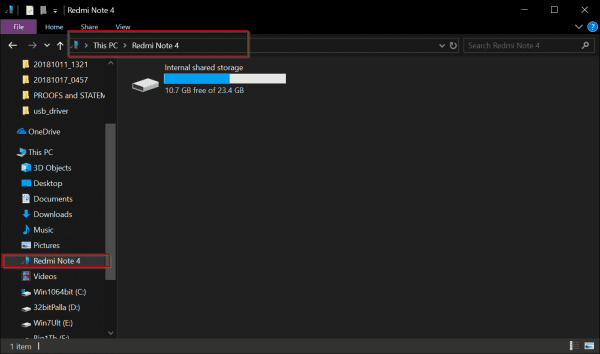
The above image shows the internal storage (ROM) of the Redmi Note 4 in a Windows 10 PC. Once you connect your Xiaomi phone, like Redmi 5 or 6 or 7, you can transfer files and photos like any other normal drive.
Warning: Please make sure to back up all your files on your phone before you try any of the methods below. In certain cases, where you have direct access to the folders, make sure the Android OS files are not deleted.
How to Enable Developer Option in Xiaomi Phones
First, you need to enable the Developer option in Redmi for the transfer of files to your PC. This step can be done by going to Settings > About phone > MIUI version. You have to click the last option several times (likely 8 times) to make the Developer option available.
How to Transfer Files from Xiaomi to PC via USB
You can use this method to transfer files and photos from Redmi Note 4 to PC. Once you are successful in connecting your PC to your phone, then the job is half-done.
You must make sure the right Google USB driver is installed. Then, you just have to connect your phone to the PC through a USB cable.
Here are the steps to transfer files from your Redmi Note 4 to your Windows 10 PC.
- Open the File Explorer.
- Connect the phone to the PC through the USB cable.
- Redmi Note 4 should be visible as a drive. (But your files and folders will not be visible.)
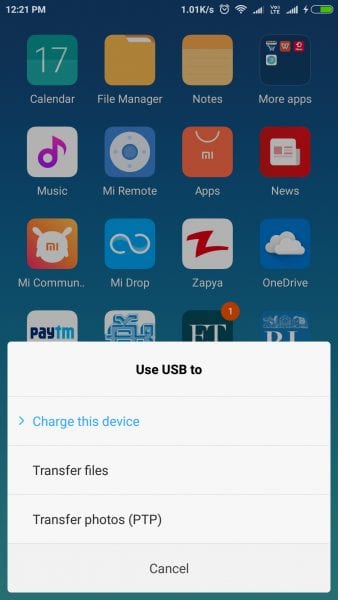
- On your phone, you should see an Android System notification.
- USB charging this device—tap for more options.
- You now have three options.
- Charge this device
- Transfer files
- Transfer photos (PTP)
- Based upon your requirement, you can select 2 or 3.
- Now you click the <phone name> as seen under This PC.
- You should see the internal shared storage and the amount of free space, just like any other drive.
- Double-click it.
- All the folders will be visible.
- You just have to do copy and paste, like you do for any other file transfer in Windows 10.
That’s it; your files, folders, photos, videos, and audios are transferred from Redmi Note 4 to your PC.
Note:
An important measure is that you have to use the right USB port for connection.
Sometimes, USB 3.0 ports are used, but they may not be compatible with the USB cable.
Most of the time, the OTG cable should suffice. Most of the time, a USB 2.0 port will work without a problem.
Which Folders to copy in Redmi Note 4, 5, or 7 Internal Storage
You cannot copy, cut, or delete files or folders with a dot (.) at the start. Those are system related. The following are the common folders to copy photos, images, and videos.
- DCIM—All your photos taken from the camera are stored here.
- WhatsApp—All the media related to WhatsApp, like videos, audios, and images, are stored here.
- Download—Anything you have download from the internet is stored here
- Documents—This is the default saving location for docx, txt, and other files.
- Pictures—The default location for any other images other than photos taken is stored here.
Common Errors
If your Redmi Note 4 is not connecting to PC, check the driver status in Device Manager. You should see something similar to “Redmi” if the connection is working.
Otherwise, uninstall that driver and install the correct Android driver as mentioned in the link of the first paragraph.
In the latest Windows 10 versions of 1809, 1903, and 1909, the right USB drivers are already installed to connect your Redmi phone to a PC.
But if you have a previously unknown driver not working, then you need to remove it and install the right one.
How to Transfer files from Redmi Note 4 or 5 to PC over Wi-Fi
You can make use of MiDrop, now called the “ShareMe” app, to transfer files between Xiaomi and PC over Wi-Fi.
Using FTP protocol and File Explorer, you can access files/folders on your Redmi Note 4 and 5. Then you can just copy and paste to your computer, like any other file/folder on your Windows 10 or 8.1 or 7 PC.
This is useful if you are using Redmi Note 4 or 5. The “ShareMe” app comes preinstalled with most of the Xiaomi phones.
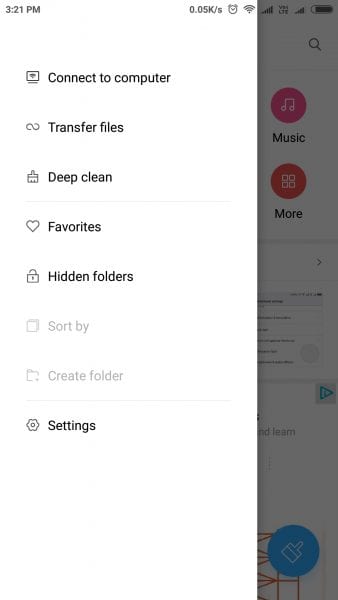
1. Open the ShareMe app (earlier known as MiDrop).
 2. Click the 3-dot lines on the top left-hand side.
 3. Connect to Computer.
 4. Tap the Start button.
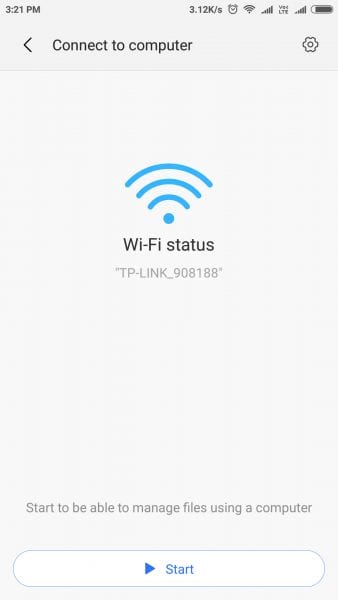 5. The FTP address will be displayed.
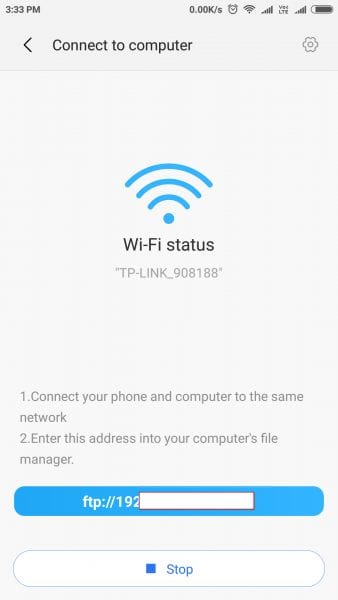 6. Enter the FTP address in File Explorer (Windows Explorer) of Windows 10, 8.1, or 7.
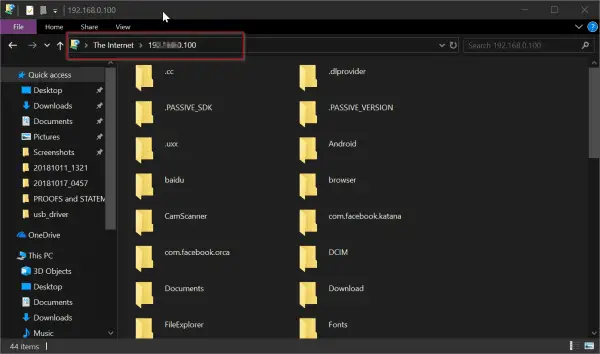
Note: You can sign in anonymously to your PC. But this is less secure. Otherwise, create login credentials (username and password). Your PC prompts you for these security details each time you enter the FTP address.
It is a better encryption for your files/folders on your computer and Android phone. You can save these encryption credentials on first use. From the next time on, you can access your files automatically without entering these details.
7. All files and folders in Redmi Note 4 or 5 are visible.
8. Copy the required photos, videos, and audio files and paste them on your hard drive.
7. Similarly, you can copy any files on your Windows 10 PC and paste them in the Redmi Note 4 or 5 internal or SD storage.
Note: Generally your screenshots, photos, videos, etc., taken using your camera are stored in the DCIM folder.

This works two ways.
Make sure (.) folders and files are not deleted. Also, other Android OS files and folders should not be tampered with.
Note:
If you are using Samsung, Lenovo, OnePlus, Vivo, LG, etc., then you need to install this app from the Google Play Store.
Make sure you are connected to the same Wi-Fi on your Xiaomi and computer.
How to Transfer Files or Photos between Phones using ShareMe app in Redmi Note 4 or 5
You can also make use of the “Transfer files” option. This makes use of the ShareMe app feature of the Redmi Note 4 phone. You have two buttons. 1. Send 2. Receive
Provide permissions on the other phone. Tap Send to send files to another phone. Ask the other person to tap “Receive” and wait until your devices are connected.
The ShareMe app feature is working as intended. To get files or photos from other Xiaomi phones, you have to tap “Receive.” If any authorization or permission is required, you have to grant access.
All your files and folders are visible. You can just cut, copy, and paste the necessary items, as you would do on a normal computer.
Then your files or apps are sent to the other phone.
Note:
If the other phone doesn’t have the ShareMe app, then you can share it from your phone.
You can also make use of the “Continue on PC” option of Windows 10 if you don’t have a phone. Then the link to the app will be opened in the Google Play Store on your Edge browser in Windows 10.
Redmi Note 4 or 5—Use Zapya app for data transfer over Wi-Fi between phone and PC
Just like ShareMe, Zapya is a third-party app that can be used to transfer files between Xiaomi and PC.
There is also a desktop app of Zapya, which can be installed on Windows 10. Similarly, you can install the Zapya app on your Redmi Note. 4.
Then both these devices can be connected over Wi-Fi by scanning QR code, joining hotspot group, etc.
You can then browse your files on your phone using File Manager and click on “Send.” You should see the status of receiving and sending files in the Zapya apps of the appropriate devices.


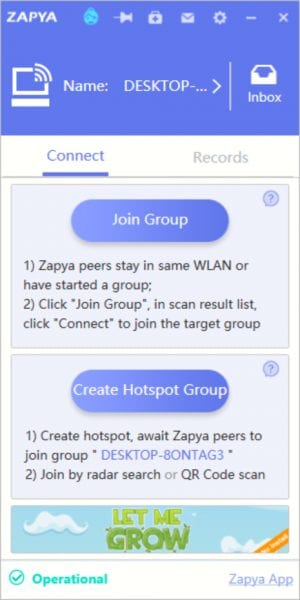
Your Phone feature to access photos and messages from Redmi Note 4 in Windows 10
Just install the “Your Phone Companion” app (developed by Microsoft Corporation) on your Android phone using the Google Play Store.
You need to have a Microsoft account to use this app. During the process of setup, it will ask you to sign in, using your credentials.
Here is the complete process on how to initiate the connection between the two Your Phone apps on PC and Redmi Note. 4.
https://www.windowscentral.com/how-set-your-phone-windows-10
But sometimes you may have a problem connecting. You can fix the issue using the Windows troubleshooter or following the guide below.
The most important thing is your phone should be given permission to allow background apps for it to be running.
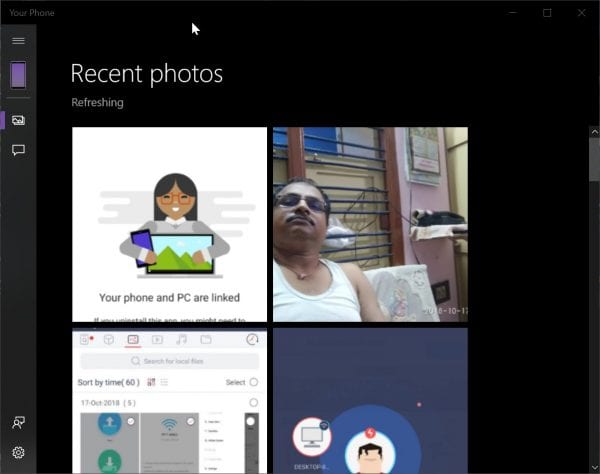
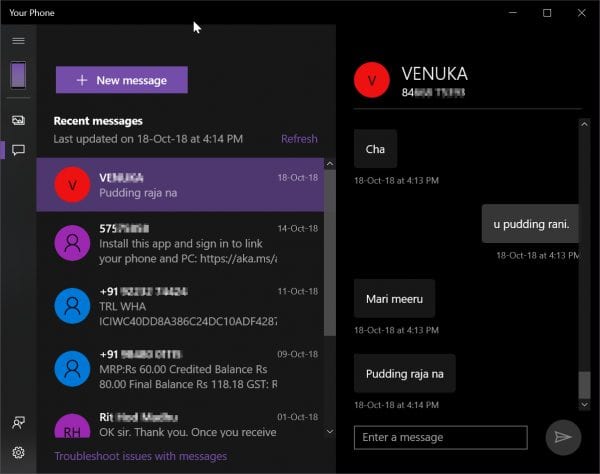
Then you have access to your Redmi Note 4 photos on your PC. You can copy or share them. But you cannot send photos back to your phone. Similarly, you can access all your SMS messages on your PC. You can also send new messages.
How to Transfer Photos from Redmi Phone to Laptop using Photos App of Windows 10
Another new feature of Windows 10 is the Photos app.
There are two ways of using this app to import photos into Windows 10.
You can use the USB cable or the experimental feature of Wi-Fi. Once you install the Google USB driver, this should work as expected.
The USB Connection
In this method, just connect your PC to mobile using a USB cable.
- In the Photos app, click the Import button at the top right-hand side.
- There will be a drop-down.
- From it, click on “From a USB Device.” Then your device should be discovered.
But in my case, this didn’t work. The error message showed that the phone should be unlocked for this feature to work. So I’m assuming you should give root access to your phone for this feature to work.
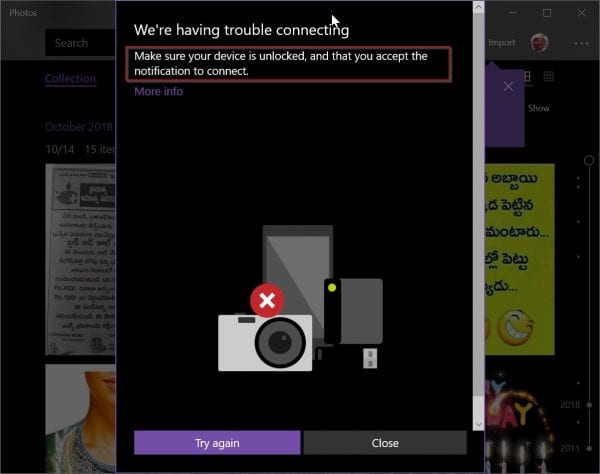
Over Wi-Fi
If the above method didn’t work, you need not worry.
The Windows 10 1809, 1903, or 1909 upgrade has brought a new feature to import photos over Wi-Fi. This uses your Wi-Fi connection to import photos.
- In the Photos app, click the 3 dots on the top-right-hand side.
- You should see “Settings.”
- Click on it. Scroll through the page until you see a setting called “Preview.”
- There is a feature called “Help Microsoft test the mobile import over Wi-Fi feature.” ”.
- Set it to “On.”
- Now go back to the main page and click on “Import.”
- Now you should see an option called “From mobile over Wi-Fi.” ”.
- Click it. A QR code appears.
- Install the Photos Companion app on your Redmi Note. 4.
- Using that app, scan the QR code.
- Now both your devices are connected.
- You should be able to import your photos.
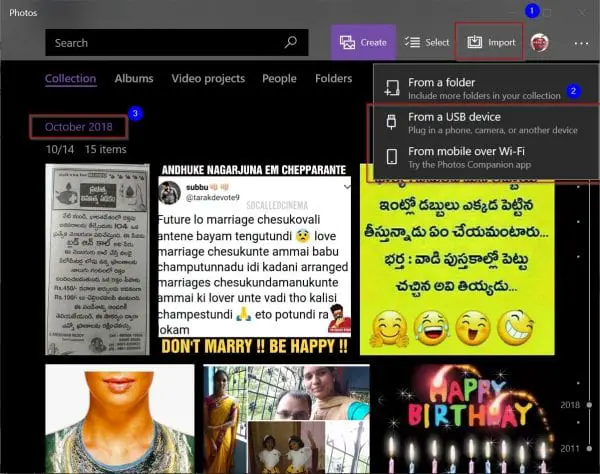


This feature is temporary and may be removed in further updates of Windows 10. So if this doesn’t work, or you don’t have this feature, try the alternate methods mentioned above.
Mi PowerSuite to transfer files between Redmi Note 4 and Windows 10
This is a software tool provided by Xiaomi for Windows 7, 8.1, and 10.
But this doesn’t work on Android 6 or Marshmallow and further upgrades.
So if you are using Android 4 or some other older version of Android, this suite works. You can see the list of features provided in the guide below.
https://xiaomi-mi.com/news-and-actions/how-to-download-install-use-mi-pc-suite-features-feedback-
Could you please help me understand why my Xiaomi phone is not appearing on my PC or File Explorer?
Most likely, your USB connection is set to “Charging Only” for security. Swipe down the notification shade after connecting, tap the USB options, and select “File Transfer / MTP” to make your folders visible. Additionally, ensure you are using a high-quality data cable and have the latest Xiaomi USB drivers installed on your Windows system.
Can I transfer files from my Xiaomi phone to my PC without using a USB cable?
Yes, you can use Mi Share (ShareMe) or HyperOS Interconnectivity to move files wirelessly at high speeds using Wi-Fi Direct. For everyday photo syncing, the Microsoft Phone Link app is the most convenient tool, as it integrates your gallery directly into Windows File Explorer.
How do I transfer large 4K or 8K video files from my Redmi or POCO phone to a PC?
For massive video files, a wired USB MTP connection is recommended to ensure maximum stability and prevent data corruption. If you prefer a wireless method, use the HyperOS Interconnectivity suite on a Wi-Fi 6 or 7 network to handle the high bandwidth required for 8K footage.
Is there a way to automatically sync my Xiaomi photos to my computer?
You can enable Google Photos or OneDrive backup within your Xiaomi Gallery settings to have your images automatically uploaded to the cloud and synced to your PC. Alternatively, the Microsoft Phone Link app provides a “set-and-forget” wireless sync that makes your 2,000 most recent photos available on your desktop instantly.
Could you please explain why the file transfer speed is slow when transferring data from my Redmi Note 4?
Legacy devices like the Redmi Note 4 use the older Micro-USB 2.0 standard, which is hardware-limited to much slower speeds than modern USB-C 3.2 ports. To get the best results, connect the phone directly to your PC’s rear USB ports and transfer files in smaller batches to avoid overloading the device’s older processor.
Conclusion
Also, all the above methods mentioned above do not require root access. They just will work with nominal options or, at the most, with developer options.
In the end, which method is beneficial depends on your PC hardware and Wi-Fi connection. If your PC doesn’t have a wireless adapter, then it is better to use a USB cable.
But if that is not working, you can use the Wi-Fi feature.
I always prefer to directly access the files and folders of the Redmi phone on the PC using the FTP and ShareMe app.
In this way, you can easily cut, copy, and paste files, photos, videos, and folders from and to the Redmi Note. 4.
But you have to be careful not to delete the Android OS files. Otherwise, your phone may stop working.
