

Last Updated:
Windows 11 Game Mode has been one of the most debated toggles in PC gaming since Windows 10 first introduced it. But in May 2026, the conversation has shifted dramatically—because Microsoft just launched Xbox Mode, a brand-new feature that makes traditional Game Mode look like a warm-up act.
In this updated guide, I’ll cover both: what classic game mode still does, when to use it, and how the new Xbox mode (rolled out via KB5089549 on May 12, 2026) changes the picture entirely for PC gamers in the US, Europe, and India.
Here’s what you’ll get from this post: a straight on/off recommendation backed by real May 2026 benchmark data, step-by-step instructions to enable both Game Mode and Xbox Mode, a side-by-side comparison of their FPS impact, and a fix guide for when either feature goes missing or greyed out.
Whether you’re on a budget gaming rig in India or a high-end setup in the US, one of these two features should be in your Windows 11 gaming toolkit right now. Let’s break it down.
What Is Windows 11 Game Mode? (Updated for 2026)
Windows 11 Game Mode is a built-in system feature that prioritizes your active game over background tasks. It’s been part of Windows since version 10, and it remains available in Windows 11 24H2 and 25H2 as of May 2026—though it now shares the Settings > Gaming page with Microsoft’s new Xbox Mode.
How Game Mode Works Under the Hood
When Game Mode activates, Windows makes three targeted changes:
- Pauses Windows Update—driver installations and restart prompts are suppressed during your gaming session
- Limits background process priority — non-essential apps receive reduced CPU and GPU scheduler time
- Prioritizes the foreground game process—your active game gets higher priority in both the CPU scheduler and GPU queue
The result is rarely a dramatic FPS jump. What it actually delivers is smoother, more consistent frame delivery—visible in your 1% low FPS readings rather than your average framerate.
What Game Mode Does NOT Do
A lot of misinformation circulates about Game Mode. To be clear:
- It does not overclock your CPU or GPU
- It does not disable Windows Security or antivirus
- It does not guarantee higher FPS on high-end, GPU-bound systems
- It does not change your graphics driver settings
- It does not replace or conflict with HAGS
Game Mode vs. Xbox Mode—What’s the Difference?
This is the key question in May 2026. Here’s the plain-English comparison:
| Feature | Game Mode | Xbox Mode (New — May 2026) |
|---|---|---|
| Available since | Windows 10 (2017) | April 30, 2026 (KB5083631) |
| What it changes | Background CPU/GPU priority | Full shell replacement—suspends desktop, frees ~1–2 GB RAM |
| UI change | None — Windows looks identical | Yes—launches Xbox console-style full-screen interface |
| Controller required | No | Yes (for navigation) |
| FPS improvement | 2–5% avg.; 20% better 1% lows | Up to +23% avg FPS, +2.5× 1% lows (NVIDIA, CS2) |
| Available in EEA | Yes | Not yet (rolling out) |
| Rollout status | All Windows 11 users | Gradual CFR—not everyone has it yet |
| Where to enable | Settings > Gaming > Game Mode | Settings > Gaming > Xbox Mode |
How to Enable Game Mode in Windows 11 (Step-by-Step)
Enabling Windows 11 Game Mode takes under 60 seconds:
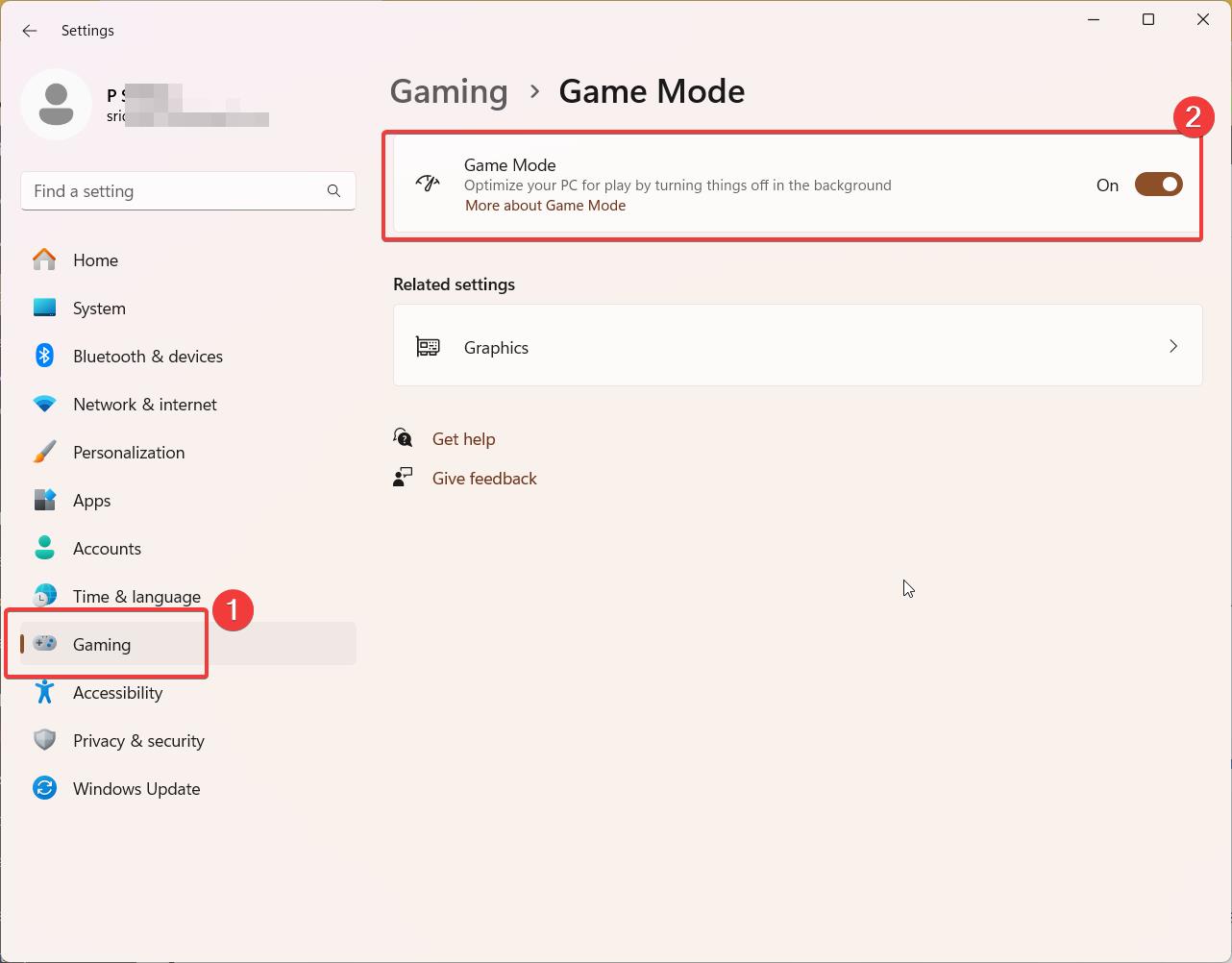
Step 1: Press Windows + I to open Settings. Step 2: Click Gaming in the left sidebar. Step 3: Select Game Mode. Step 4: Toggle Game Mode to On.
Game Mode is now active globally for all games on your system.
Verify Game Mode Is Active During a Session
- Press Win + G to open Xbox Game Bar while in-game
- Open the Performance widget
- When Game Mode is detecting your game correctly, it will show as active in the overlay
Note for 25H2 / 24H2 users (May 2026): If you see “Xbox Mode” at the top of Settings > Gaming (above Game Bar), that’s the new feature. Game Mode still exists below it and functions independently.
Xbox Mode: The New Way to Game on Windows 11 (May 2026)
Xbox Mode is Microsoft’s biggest gaming addition to Windows 11 since its launch. Microsoft announced Xbox Mode at GDC 2026 in March, and it rolled out on April 30, 2026, via optional update KB5083631, reaching mainstream Windows 11 users through the May 12, 2026, Patch Tuesday update (KB5089549).
What Is Xbox Mode?
Xbox Mode transforms your Windows 11 desktop into a console-style, controller-first gaming environment. When activated, Windows:
- Suspends non-essential background apps and services
- Frees approximately 1–2 GB of system RAM for games
- Replaces the desktop shell with the Xbox app full-screen interface
- Provides a controller-optimized launcher for your entire game library—Xbox Game Pass, Steam, Epic, and other storefronts all appear in one place
It was previously only available on gaming handhelds (like the ASUS ROG Ally). As of May 2026, it’s rolling out to all standard Windows 11 PCs, laptops, and tablets.
Windows 11 vs Windows 10 for gaming
How to Enable Xbox Mode in Windows 11
Requirements first:
- Windows 11 build 26200.8328 or higher (Settings > System > About)
- Latest Xbox app installed from Microsoft Store
- KB5083631 (April 2026) or KB5089549 (May 2026) installed
Steps:
Step 1: Press Windows + I to open Settings. Step 2: Click Gaming. Step 3: Look for Xbox Mode at the top of the list (above Game Bar). Step 4: Toggle Enable Xbox Mode to On. Step 5: Open the Xbox app and click the Xbox Mode toggle, or press Win + F11 to enter Xbox Mode.
Xbox Mode Missing? How to Force-Enable It
Microsoft is using Controlled Feature Rollout (CFR)—meaning Xbox Mode may not appear in your Settings yet even after installing the May 2026 update. If that’s you:
- Confirm your build: Settings > System > About—you need build 26200.8328 or higher
- Update your Xbox app from the Microsoft Store
- If the toggle still doesn’t appear: use ViVeTool (free, open-source on GitHub) to force-enable it with the relevant feature ID
- Re-check Settings > Gaming > Xbox Mode after restarting
Note for European users: Xbox Mode is not yet available in the European Economic Area (EEA) as of May 2026. Microsoft has confirmed it will expand availability—check Windows Update regularly.
Xbox Mode Limitations to Know
Xbox Mode is still in beta and is being gradually rolled out. Known issues as of May 2026:
- Requires a controller to navigate the interface—keyboard and mouse work for games but not the Xbox Mode shell
- Some controller detection issues and interface lag reported in early testing
- Conflicts with certain PC launchers
- Cyberpunk 2077 and some GPU-bound titles show negligible improvement
- AMD GPU users see smaller gains than NVIDIA users currently
- 2 GB install footprint on top of existing Xbox services — may bother users on tight storage
How to Enable in Windows 11
Activating Game Mode is a straightforward process:
- Open the Settings app (Windows key + I).
- Navigate to Gaming > Game Mode.
- Toggle the switch to turn on Game Mode.
It’s that simple! Once enabled, Windows 11 will automatically detect when you’re playing a game and optimize your system accordingly.
Advanced Game Mode Optimization Tips
While enabling this option is a fantastic start, there are several additional steps you can take to further enhance your gaming experience:
1. Update Your Drivers
Keeping your graphics drivers up to date is crucial for optimal performance. Both NVIDIA and AMD regularly release driver updates that can significantly improve game performance and stability.
2. Customize Per-Game Settings
Some games may benefit from specific optimizations. Right-click on a game’s executable file or shortcut and select “Properties.” Under the “Compatibility” tab, you can enable options like “Run this program as an administrator” or “Disable fullscreen optimizations” if needed.
3. Adjust Power Settings
For desktop PCs, set your power plan to “High performance” for maximum gaming prowess:
- Open the Control Panel > Power Options.
- Select “High performance” or create a custom plan with maximum performance settings.
4. Optimize Storage for Gaming
If you have an SSD, consider moving your most-played games to this faster storage medium. Additionally, enable Storage Sense to automatically clean up unnecessary files:
- Go to Settings > System > Storage.
- Turn on Storage Sense and configure it to run regularly.
5. Leverage Xbox Game Bar
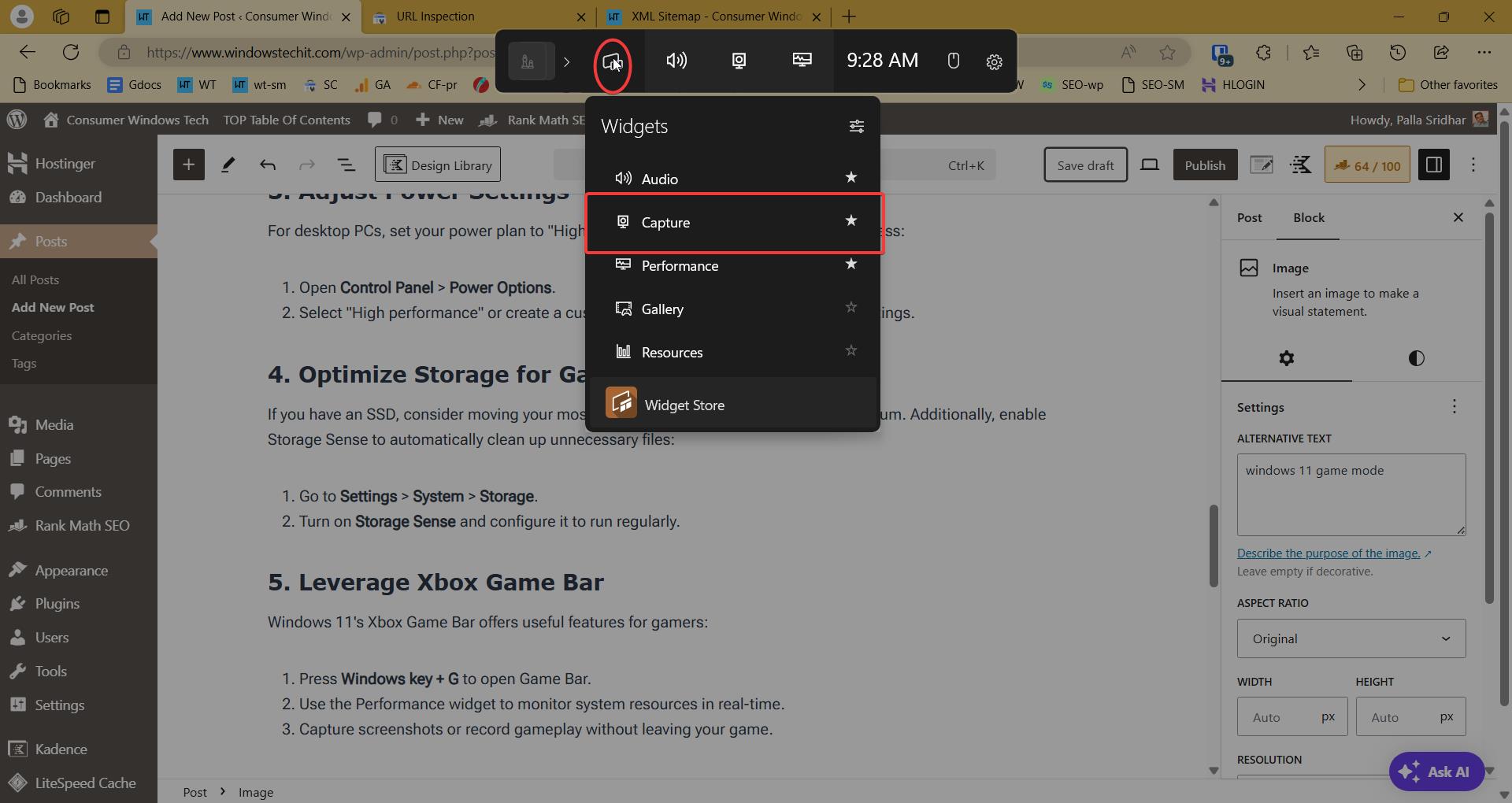
Windows 11’s Xbox Game Bar offers useful features for gamers:
- Press the Windows key + G to open the Game Bar.
- Use the Performance widget to monitor system resources in real-time.
- Capture screenshots or record gameplay without leaving your game.
6. Fine-tune Visual Effects
Adjusting visual effects can free up system resources:
- Open File Explorer, right-click on “This PC,” and select “Properties.”
- Click on “Advanced system settings.”
- Under the “Performance” section, click “Settings.”
- Choose “Adjust for best performance” or manually select which visual effects to disable.
Windows 11 Game Mode On or Off — What the 2026 Data Says
How to compare Windows 11 and 10 gaming performance
FPS Benchmark Results: Game Mode vs Xbox Mode (May 2026)
Based on real testing from tech4gamers.com and twistedvoxel.com (May 2026):
| Game / Scenario | Classic Game Mode | Xbox Mode | Best Choice |
|---|---|---|---|
| CS2 at 1080p (RTX 4070 Ti Super) | +2–5% avg FPS | +14% avg FPS, 2× better 1% lows | Xbox Mode |
| CS2 at 1440p (RTX 4070 Ti Super) | Marginal | +23% avg FPS, 2.5× better 1% lows | Xbox Mode |
| Resident Evil Requiem 1080p | +5–10% 1% lows | +22% 1% lows | Xbox Mode |
| Marvel Rivals | Helpful | +up to 30 FPS | Xbox Mode |
| Cyberpunk 2077 | Minimal | Negligible | Neither |
| The Finals / Monster Hunter Wilds | Minimal | Negligible | Game Mode (safer) |
| Budget system (8GB RAM) | Noticeable improvement | Not yet tested widely | Game Mode |
| AMD GPU gaming | Minimal | Smaller gains than NVIDIA | Game Mode + HAGS |
| Laptop/battery gaming | Neutral | Not recommended yet | Game Mode |
Sources: tech4gamers.com (May 2026), twistedvoxel.com (May 2026), maximumpcguides.com (Jan 2026)
Windows 11 gaming pros and cons
When Game Mode Helps the Most
Classic Game Mode (2026) is still the right choice when
- Your system has 8GB RAM or less and multiple background apps are running
- You’re playing CPU-bound titles—Civilization, Flight Simulator, Factorio, older strategy games
- You’re on an AMD GPU, where Xbox Mode gains are more modest
- You want a zero-friction solution—no controller needed, no UI changes, always-on
- Xbox Mode hasn’t rolled out to your region or PC yet
When to Turn Game Mode Off
Turn Game Mode off if:
- You’re using Xbox Mode (they serve similar purposes—no need to stack both)
- You play specific competitive titles where Game Mode causes micro-stutters (test per game)
- You use Discord or voice chat and notice audio quality drops—Game Mode can de-prioritize audio threads
- You’ve had a recent GPU driver update and are seeing new frame drops
Windows 11 Game Mode Settings Explained
What You Can Configure
Windows 11 Game Mode applies globally — there’s no built-in per-game toggle in standard Settings. However:
- Use Xbox Game Bar (Win + G) in-game to confirm Game Mode is active for your specific game
- Use Task Manager (Ctrl+Shift+Esc > Details > right-click the game .exe > Set Priority > High) for games. Game Mode doesn’t auto-detect
Combine Game Mode with HAGS for Best Results
If you’re not yet on Xbox Mode, the best 2026 Windows 11 gaming combo is Game Mode + Hardware-Accelerated GPU Scheduling (HAGS). HAGS moves GPU scheduling off the CPU, reducing render pipeline latency.
How to enable HAGS:
- Open Settings > System > Display
- Scroll to Related settings → click Graphics
- Click on “Change the default graphics settings.”
- Toggle Hardware-accelerated GPU scheduling to On
- Restart your PC
Real-world benefit: lower frame times in CPU-bound games, most visible on 144Hz+ monitors. Enable both Game Mode and HAGS as your standard baseline.
Game Mode or Xbox Mode Not Working? (Fix Guide)
Game Mode Greyed Out or Missing
- Run Windows Update—Game Mode can disappear if Gaming Services is corrupted; an update typically restores it
- Verify your Windows edition — Game Mode is on Home, Pro, and Education. It is NOT available on Windows 11 SE
- Reinstall Gaming Services via PowerShell (run as admin):
   Get-AppxPackage *GamingServices* | Remove-AppxPackage
   Start ms-windows-store://pdp/?productid=9MWPM2CQNLHN
Xbox Mode Not Showing in Settings
- Verify your build: Settings > System > About — needs build 26200.8328 / 26100.8328 or higher
- Update Xbox app from Microsoft Store
- Install KB5083631 (April 2026 optional) or KB5089549 (May 2026 Patch Tuesday) via Settings > Windows Update
- If still missing: use ViVeTool from GitHub to force-enable
- EEA users: Xbox Mode is not yet available in the European Economic Area—wait for Microsoft’s regional rollout
Game Mode On But No FPS Improvement
- Your game is GPU-bound—the bottleneck is the graphics card, not CPU scheduler
- Ensure your power plan is High Performance (Control Panel > Power Options)
- Run games in fullscreen mode, not borderless windowed—Game Mode detection is most reliable in fullscreen
- Update GPU drivers—outdated NVIDIA/AMD drivers are a common source of Game Mode conflicts
- Consider enabling Xbox Mode if it’s available on your system—the performance gains are more consistent
Other Windows 11 Gaming Features Worth Enabling (2026)
Hardware-Accelerated GPU Scheduling (HAGS)
Enable alongside Game Mode. Reduces GPU latency and improves frame times — most noticeable on 144Hz+ monitors and CPU-bound titles. Path: Settings > Display > Graphics > Change default graphics settings > HAGS > On
Auto HDR
If you have an HDR monitor, Auto HDR applies HDR color grading to games that don’t natively support it. No FPS impact. Path: Settings > System > Display > Windows HD Color > Auto HDR > On
DirectStorage (2026 Update)
Part of Microsoft’s GDC 2026 announcements. DirectStorage allows supported games to stream assets directly from NVMe SSDs to GPUs, dramatically cutting load times. Works independently of Game Mode. Supported games include Forspoken, Ratchet & Clank: Rift Apart, and newer 2025–2026 AAA titles.
Variable Refresh Rate (VRR)
Reduces screen tearing without requiring G-Sync or FreeSync hardware. Pairs well with Game Mode. Path: Settings > System > Display > Graphics > Change default graphics settings > VRR > On
Should I turn on Game Mode in Windows 11 in 2026?
Yes, for most users—keep it enabled as your always-on baseline. It reliably reduces stuttering, pauses Windows Update during sessions, and improves 1% low FPS by up to 20% in CPU-bound games. If Xbox Mode becomes available on your PC, consider switching for even stronger results on NVIDIA hardware.
Does Windows 11 Game Mode genuinely increase FPS?
Classic Game Mode delivers 2–5% avg FPS gain in CPU-limited scenarios and up to 20% improvement in 1% lows (frame smoothness). Xbox Mode, the new May 2026 feature, delivers up to +23% avg FPS in CS2 on NVIDIA GPUs, which is significantly more impactful for competitive shooters.
What is Xbox Mode in Windows 11, and how is it different from Game Mode?
Xbox Mode, launched April 30, 2026, via KB5083631, is a full shell replacement that suspends background apps and frees ~1–2 GB of RAM, replacing your desktop with a console-style Xbox interface. Game Mode simply adjusts background process priority without changing the UI. Xbox Mode is more aggressive and delivers stronger FPS gains—but requires a controller and isn’t available in all regions yet.
Does Windows 11 Game Mode work in 24H2 and 25H2?
Yes, Game Mode is fully functional on both Windows 11 24H2 and 25H2 as of May 2026. Xbox Mode also rolled out to both versions simultaneously via KB5083631 and KB5089549.
What games benefit most from Xbox Mode vs. Game Mode?
Xbox Mode shows the strongest gains in CPU-bound competitive titles—CS2 (+14–23% FPS on NVIDIA), Resident Evil Requiem (+22% 1% lows), and Marvel Rivals (+30 FPS). GPU-bound titles like Cyberpunk 2077 show negligible improvement with either feature. Classic Game Mode helps most in strategy and simulation games on mid-range hardware.
Final Verdict — Game Mode or Xbox Mode in May 2026?
For most users, my recommendation is this: keep classic Game Mode enabled as your always-on baseline, and try Xbox Mode if you want the biggest performance jump — especially if you’re on an NVIDIA GPU and play CPU-bound titles like CS2 or strategy games.
Xbox Mode’s early benchmarks are impressive (+14–23% FPS in CS2, +30 FPS in Marvel Rivals on NVIDIA hardware), but it’s still in a gradual rollout and comes with real limitations—it needs a controller to navigate and isn’t yet available in the European Economic Area.
Game Mode + HAGS remains the safe, reliable combo for everyone else.
If this guide helped, drop a comment below with your setup and game mode results—I read every one. And if you found it useful, share it with a fellow Windows gamer.
#Windows11, #GameMode, #GamingOptimization, #PCGaming, #PerformanceTuning, #GamingTips, #WindowsSettings, #TechGuide, #GamePerformance, #GamingPC
yeah thats a good idea. Thanks for that